

Xiaomi TV A Pro 55 e FAQ
Product Overview
Q1: What are the key selling points of the Xiaomi TV A Pro 55 e?
A: 1. The Xiaomi TV A Pro 55 e adopts 4K QLED panel technology and comes with a bezel-less design to bring you an immersive visual experience.
2. It supports HDR Enhance and HDR10+, while MEMC motion compensation effectively reduces motion blur for smoother playback.
3. The built-in Filmmaker mode restores the original look of films as directors intended, and Game Boost delivers 120 Hz high refresh gaming performance.
4. It is equipped with Dolby Audio, DTS:X and Xiaomi Sound tuning to create layered and immersive cinematic audio effects.
5. The Eye Care function helps cut down harmful blue light and eases eye strain during long viewing sessions.
6. Popular streaming platforms including Netflix, YouTube, Prime Video and Xiaomi TV+ are pre-installed for convenient access to abundant online content. (Xiaomi TV+ is supported only in certain countries and regions.)
Q2: What does the letter "e" at the end of "Xiaomi TV A Pro 55 e" stand for?
A: For the Xiaomi TV A Pro 55 e, the suffix "e" is used to distinguish between different product generations.
Q3: What is the product positioning of the Xiaomi TV A Pro 55 e?
A: The Xiaomi TV A Pro 55 e is positioned as a mid-range model with enhanced screen brightness. It adopts QLED colour technology to deliver a wider colour gamut.
Q4: What is the optimal viewing distance for the Xiaomi TV A Pro 55 e?
A: The recommended viewing distance for the Xiaomi TV A Pro 55 e is approximately 1.7 meters.
Note:
This is provided for general reference only and should not be considered a definitive standard.
Q5: What are the base screws for the Xiaomi TV A Pro 55 e?
A: The Xiaomi TV A Pro 55 e comes with 4 base screws featuring ST5 thread and 18 mm length.
Q6: What are the wall mount screws for the Xiaomi TV A Pro 55 e?
A: If you plan to wall-mount this Xiaomi TV A Pro 55 e, 4 wall-mount screws with M6 thread and 10 mm length are required.
Function Usage
Q1: Does the Xiaomi TV A Pro 55 e support the Game Boost mode?
A: The Xiaomi TV A Pro 55 e supports the Game Boost mode. To enable it, please first go to the HDMI source interface, press the Live TV / Free TV button (on Russia, Belarus, Kazakhstan models, press and hold the PatchWall button) to open the quick settings menu, select [High frame rate settings], and enable [Game Boost (DLG)].
Q2: Does the Xiaomi TV A Pro 55 e support the game picture mode?
A: The Xiaomi TV A Pro 55 e supports the game picture mode. To enable it, please first go to the settings interface, then select [Picture] >> [Picture mode] >> select the game option.
Q3: What languages are supported by the system on the Xiaomi TV A Pro 55 e?
A: The Xiaomi TV A Pro 55 e system supports the following languages: Azerbaijani, Arabic, Belarusian, Bulgarian, Bengali (India), Catalan, Czech, Danish, German, Greek, English (India), English (United Kingdom), English (United States), Spanish (Spain), Spanish (Latin America), Estonian, Finnish, French, Gujarati, Hindi, Croatian, Hungarian, Indonesian, Italian, Hebrew, Japanese, Kazakh, Kannada, Korean, Lithuanian, Latvian, Malayalam, Marathi, Bahasa Melayu, Norwegian, Dutch, Punjabi, Polish, Portuguese (Portugal), Romanian, Russian, Slovak, Serbian, Swedish, Tamil, Telugu, Thai, Turkish, Ukrainian, Urdu (India), Vietnamese, Chinese (Simplified), Chinese (Taiwan Traditional), Chinese (Hong Kong Traditional), Lao, Burmese, Nepali (India), Portuguese (Brazil), Portuguese (Portugal), Slovak, Uzbek, Filipino.
Q4: Does the Xiaomi TV A Pro 55 e support VRR?
A: The Xiaomi TV A Pro 55 e doesn't support VRR.
Q5: Does the Xiaomi TV A Pro 55 e support FreeSync?
A: The Xiaomi TV A Pro 55 e doesn't support FreeSync.
Q6: Does the Xiaomi TV A Pro 55 e support ALLM?
A: The Xiaomi TV A Pro 55 e supports ALLM. To enable it, please first go to the settings interface, then select [Channels & Inputs] >> [External inputs] >> [ALLM].
Q7: Does the Xiaomi TV A Pro 55 e support Filmmaker mode?
A: The Xiaomi TV A Pro 55 e supports Filmmaker mode.
To enable it, please refer to the following methods:
Method 1:
When the system detects that the content supports Filmmaker mode / HDR Filmmaker mode, or when the EDID identifies that the input source signal supports Filmmaker mode, the picture mode will automatically switch to Filmmaker mode / HDR Filmmaker mode.
Method 2:
Go to [Settings] >> select [Display and sound] >> [Picture] >> [Picture mode] >> [Filmmaker mode].
Q8: Does the Xiaomi TV A Pro 55 e support MEMC?
A: The Xiaomi TV A Pro 55 e supports MEMC. To enable it, please first go to the settings interface, then select [Display and sound] >> [Picture] >> [Advanced video] >> [Motion smooth] >> [MEMC].
Q9: Does the Xiaomi TV A Pro 55 e support the Eye comfort mode?
A: The Xiaomi TV A Pro 55 e supports the Eye comfort mode. To enable it, please first go to the settings interface, then select [Display and sound] >> [Picture] >> [Eye comfort mode].
Q10: Does the Xiaomi TV A Pro 55 e support HDR?
A: The Xiaomi TV A Pro 55 e supports HDR10+ / HDR10 / HLG. To enable it, please first go to the settings interface, then select [Channels & Inputs] >> [External inputs] >> [HDMI mode] >> set the corresponding HDMI source to [Enhanced mode].
Q11: Does the Xiaomi TV A Pro 55 e support automatic light detection?
A: The Xiaomi TV A Pro 55 e doesn't support automatic light detection.
Q12: Can the system ads on the Xiaomi TV A Pro 55 e be turned off?
A: System advertisements are delivered by Google TV and cannot be manually disabled.
Q13: Does the Xiaomi TV A Pro 55 e support disabling the Ambient mode?
A: The Xiaomi TV A Pro 55 e doesn't support disabling the Ambient mode.
Q14: Does the Xiaomi TV A Pro 55 e support playback while in standby mode?
A: The Xiaomi TV A Pro 55 e doesn't support playback while in standby mode.
Q15: Which languages are supported by the voice assistant on the Xiaomi TV A Pro 55 e?
A: To change the voice assistant language on the Xiaomi TV A Pro 55 e, please change the language preferences in your Google account.
The supported voice assistant languages on the Xiaomi TV A Pro 55 e are as follows:
Argentina (Spanish), Brazil (Portuguese), Canada (English, French), Chile (Spanish), Colombia (Spanish), Costa Rica (Spanish), Dominican Republic (Spanish), Ecuador (Spanish), El Salvador (Spanish), Guatemala (Spanish), Honduras (Spanish), Jamaica (Spanish), Latin America (Spanish), Mexico (Spanish), Panama (Spanish), Paraguay (Spanish), Peru (Spanish), Puerto Rico (Spanish), Uruguay (Spanish), United States (English, Spanish), Australia (English), Hong Kong (English, Chinese), India (Hindi, English), Japan (Japanese), South Korea (Korean), Indonesia (Indonesian), Malaysia (English), New Zealand (English), Philippines (English), Singapore (English), Taiwan (English, Chinese), Thailand (Thai), Vietnam (Vietnamese), Austria (German), Belgium (English, German, French, Dutch), Denmark (Danish), Finland (English), France (French), Germany (German), Ireland (English), Italy (Italian), Netherlands (Dutch), Norway (Norwegian), Poland (Polish), Portugal (Portuguese), Russia (Russian), Spain (Spanish), Sweden (Swedish), Switzerland (French, German, Italian), Turkey (Turkish), United Kingdom (English), Bahrain (English), Egypt (English), Israel (English), Kenya (English), Kuwait (English), Nigeria (English), Oman (English), Qatar (English), Saudi Arabia (English), South Africa (English), UAE (English).
Q16: Which mainstream built-in Apps does the Xiaomi TV A Pro 55 e support?
A: The Xiaomi TV A Pro 55 e supports mainstream applications, including Netflix, Prime Video, and Disney+.
Q17: Does the Xiaomi TV A Pro 55 e support DTMB and ATV?
A: The Xiaomi TV A Pro 55 e for Hong Kong (China) supports DTMB and ATV.
Q18: What is the Android version that comes pre-installed on the Xiaomi TV A Pro 55 e?
A: The Android version that comes pre-installed on the Xiaomi TV A Pro 55 e is Android 14 (Android U).
Q19: How to connect a computer (PC) to the Xiaomi TV A Pro 55 e?
A: Connect your computer to the Xiaomi TV A Pro 55 e using an HDMI cable to use the TV as a display.
Please refer to the steps below:
1. Use an HDMI cable to connect the computer's HDMI output port to the TV's HDMI input port.
2. After the physical connection is made, use the TV remote to select the corresponding HDMI input source.
3. The computer screen will then be displayed on the TV.
Q20: How to use an external streaming box's remote control to turn the Xiaomi TV A Pro 55 e on and off?
A: Please go to [Settings] on the Xiaomi TV A Pro 55 e >> [Channels & Inputs] >> [Channels] >> [HDMI mode]. By enabling or disabling the [TV auto power on] and [TV auto power off] features, you can use the streaming box remote to turn your TV on and off.
Q21: How to adjust the order of local channels on the Xiaomi TV A Pro 55 e?
A: To adjust the order of local channels on the Xiaomi TV A Pro 55 e, please refer to the following steps:
1. Enter Live TV and select any channel.
2. Press the EPG button on your remote control to display information about the current program.
3. Press the Teletext button to open the channel list panel.
4. Highlight the channel you wish to move, then press and hold the OK button to open the settings menu.
5. Select the [Reorganize] option and move the channel up or down until it is in your desired position.
Q22: How to adjust the subtitles and audio track language for local TV channels on the Xiaomi TV A Pro 55 e?
A: To adjust the subtitle language, please go to [Settings] >> [Channels & Inputs] >> [Channels] >> [Subtitles], and set [Primary subtitle language] and [Secondary subtitle language].
To adjust the audio track language, please go to [Settings] >> [Channels & Inputs] >> [Channels] >> [Audio], and set [Primary audio language] and [Secondary audio language].
Q23: Does the Xiaomi TV A Pro 55 e support EPG (Electronic Program Guide)?
A: The Xiaomi TV A Pro 55 e supports EPG. You can open the Electronic Program Guide by pressing the EPG button while on the Live TV interface.
Q24: What screen-casting methods does the Xiaomi TV A Pro 55 e support?
A: The Xiaomi TV A Pro 55 e supports Miracast and Chromecast.
AirPlay is supported in the EU, Indonesia, Thailand, Singapore, Türkiye, Ukraine, Saudi Arabia, Israel, United Arab Emirates, Morocco, Egypt, Pakistan, Vietnam, Malaysia, Mexico, the Philippines, Chile, Peru, and Hong Kong (China). AirPlay is not supported in Russia, Belarus, and Kazakhstan.
Q25: How to cast the computer screen to the Xiaomi TV A Pro 55 e?
A: To cast the computer screen to the Xiaomi TV A Pro 55 e, please refer to the following methods:
Method 1:
1. Use an HDMI cable to connect the computer's HDMI output port to the TV's HDMI input port.
2. After the physical connection is made, use the TV remote to select the corresponding HDMI input source.
3. The computer screen will then be displayed on the TV.
Method 2:
1. Ensure that both your computer and your TV are connected to the same Wi-Fi network (note that some Miracast connection methods do not require them to be on the same router).
2. Enable the wireless screen mirroring or Miracast receiver function on your TV.
3. Press the WIN + K button on your computer.
4. Select your TV under the cast list.
Q26: How to switch the audio output on the Xiaomi TV A Pro 55 e?
A: To switch the audio output on the Xiaomi TV A Pro 55 e, please go to [Settings] >> [Display and sound] >> [Audio output] >> [Output device] >> switch the audio output device.
Q27: How to adjust the time on the Xiaomi TV A Pro 55 e?
A: To adjust the time on the Xiaomi TV A Pro 55 e, please go to [Settings] >> [System] >> [Date & Time] and adjust the time and time zone.
Remote Control
Q1: What are the button functions of the remote control of the Xiaomi TV A Pro 55 e?
A: The remote control of the Xiaomi TV A Pro 55 e varies by country and region. Please refer to the following information:
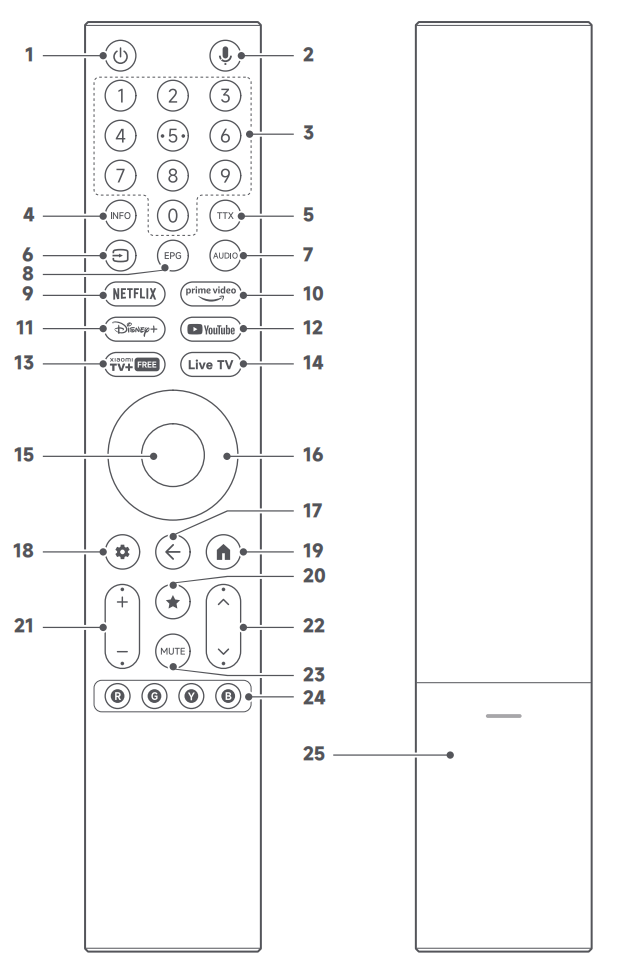
EU, Türkiye, Ukraine, Saudi Arabia, Israel, United Arab Emirates, Morocco, Egypt, Pakistan, Vietnam, Malaysia, Indonesia, Thailand, Singapore, Hong Kong (China) version:
1. Power: Turn the TV on and off.
2. Google Assistant: Press the button to activate Google Assistant. Hold the key to say a command to run.
3. Number Buttons: Give direct access to channels.
4. INFO: Press to launch info bar.
5. TTX: Select or exit Teletext mode.
6. Input: Press to select available video sources.
7. Audio Track: Select audio tracks from multiple audio tracks.
8. EPG: Press to show the electronic program guide.
9. Netflix: Press to access the Netflix application.
10. Prime Video: Press to access the Prime Video application.
11. Disney+: Directly launch the Disney+ App (The service availability is determined by Disney and may vary by country or region).
12. YouTube: Press to access the YouTube application.
13. Xiaomi TV+: Press to access the Xiaomi TV+ application. (The service is only available in specific countries.)
14. Live TV: Press to start watching live TV. If you're already watching, it will open the Live TV settings menu.
15. OK: Press to confirm current selection during navigation. You can pause/play the current video during playback, except Live Channels (Set-Top Box or RF).
16. Direction: Navigate up/down or left/right through content. During playback, use the left/right buttons to rewind/fast-forward.
17. Back: To go back to the last channel, or to close a menu or an application, or to go back to the previous menu.
18. Dashboard: Displays the quick settings on-screen menu.
19. Google TV Home: Press to quickly return to the Google TV Home screen.
20. Star: Create a shortcut to open a favorite TV app or perform an action.
21. Volume: To adjust the volume level. Press and hold the Volume “-" button to mute immediately.
22. Channel: In Live TV mode, move the button up or down to select the channel.
23. Mute: Press to mute/un-mute the volume.
24. Color Buttons: Select options directly.
Russia, Belarus, Kazakhstan version:
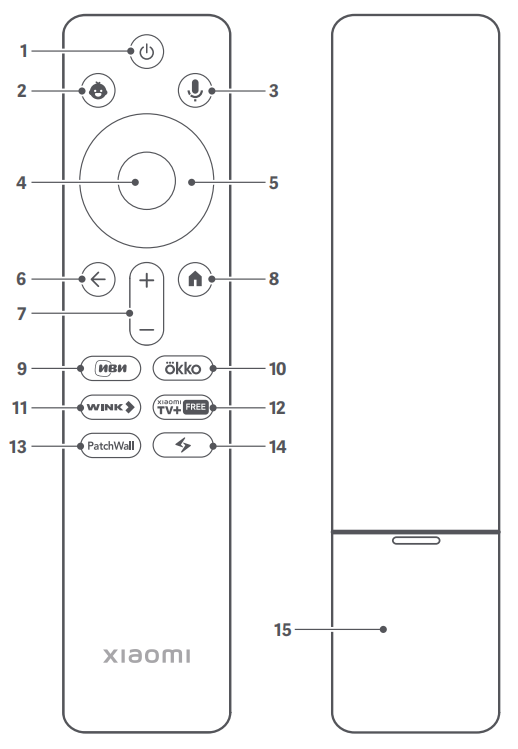
1. Power: Turn the TV on and off.
2. Kids: Gives direct access to kids' content.
3. Google Assistant: Press the Assistant button on your remote to use your Google Assistant.
4. OK: Press to confirm the current selection during navigation. You can pause/play the current video during playback, except Live Channels (Set-Top Box or RF).
5. Direction: Navigate up/down or left/right through content. During playback, use the left/right buttons to rewind/fast-forward.
6. Back: To go back to the last channel, or to close a menu or an application, or to go back to the previous menu.
7. Volume: To adjust the volume level. Press and hold the Volume "-" button to mute immediately.
8. Android TV Home: Press to quickly return to the Android TV Home screen. Press and hold to open the App drawer.
9. IVI: Gives direct access to the IVI application.
10. Okko: Gives direct access to the Okko application.
11. WINK: Gives direct access to the WINK application.
12. Xiaomi TV+: Gives direct access to the Xiaomi TV+ application.
13. PatchWall: Short press to quickly return to the PatchWall Home screen.
14. Shortcut: Press to quickly access PatchWall features without navigating through menus.
Note:
Some services and features may be limited in some areas.
Philippines, Chile, Peru version:
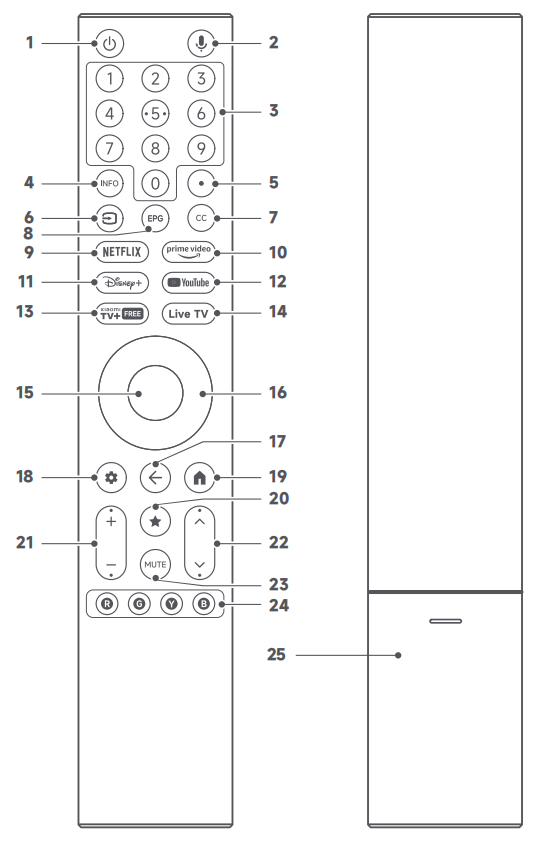
1. Power: Turn the TV on and off.
2. Google Assistant: Press the button to activate Google Assistant. Hold the key to say a command to run.
3. Number Buttons: Give direct access to channels.
4. INFO: Press to launch info bar.
5. ".": Press to input ".".
6. Input: Press to select available video sources.
7. CC: Press to set Closed Caption.
8. EPG: Press to show the electronic program guide.
9. Netflix: Press to access the Netflix application.
10. Prime Video: Press to access the Prime Video application.
11. Disney+: Directly launch the Disney+ App (The service availability is determined by Disney and may vary by country or region).
12. YouTube: Press to access the YouTube application.
13. Xiaomi TV+: Press to access the Xiaomi TV+ application. (The service is only available in specific countries.)
14. Live TV: Press to start watching live TV. If you're already watching, it will open the Live TV settings menu.
15. OK: Press to confirm current selection during navigation. You can pause/play the current video during playback, except Live Channels (Set-Top Box or RF).
16. Direction: Navigate up/down or left/right through content. During playback, use the left/right buttons to rewind/fast-forward.
17. Back: To go back to the last channel, or to close a menu or an application, or to go back to the previous menu.
18. Dashboard: Displays the quick settings on-screen menu.
19. Google TV Home: Press to quickly return to the Google TV Home screen.
20. Star: Create a shortcut to open a favorite TV app or perform an action.
21. Volume: To adjust the volume level. Press and hold the Volume “-" button to mute immediately.
22. Channel: In Live TV mode, move the button up or down to select the channel.
23. Mute: Press to mute/un-mute the volume.
24. Color Buttons: Select options directly.
Mexico version:
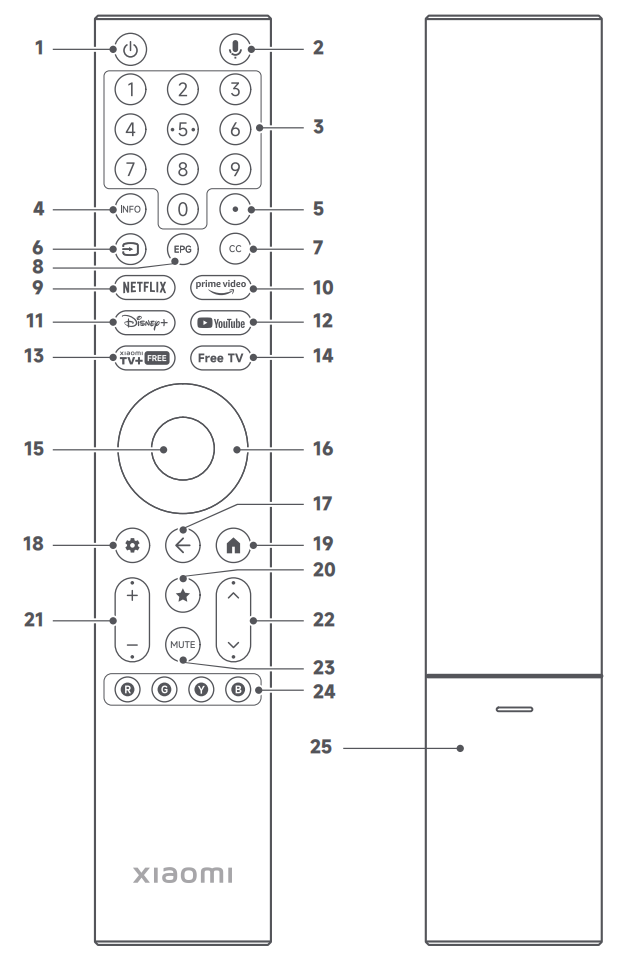
1. Power: Turn the TV on and off.
2. Google Assistant: Press the button to activate Google Assistant. Hold the key to say a command to run.
3. Number Buttons: Give direct access to channels.
4. INFO: Press to launch info bar.
5. ".": Press to input ".".
6. Input: Press to select available video sources.
7. CC: Press to set Closed Caption.
8. EPG: Press to show the electronic program guide.
9. Netflix: Press to access the Netflix application.
10. Prime Video: Press to access the Prime Video application.
11. Disney+: Directly launch the Disney+ App (The service availability is determined by Disney and may vary by country or region).
12. YouTube: Press to access the YouTube application.
13. Xiaomi TV+: Press to access the Xiaomi TV+ application. (The service is only available in specific countries.)
14. Free TV: Press to start watching live TV. If you're already watching, it will open the Live TV settings menu.
15. OK: Press to confirm current selection during navigation. You can pause/play the current video during playback, except Live Channels (Set-Top Box or RF).
16. Direction: Navigate up/down or left/right through content. During playback, use the left/right buttons to rewind/fast-forward.
17. Back: To go back to the last channel, to close a menu or an application, or to go back to the previous menu.
18. Dashboard: Displays the quick settings on-screen menu.
19. Google TV Home: Press to quickly return to the Google TV Home screen.
20. Star: Create a shortcut to open a favorite TV app or perform an action.
21. Volume: To adjust the volume level. Press and hold the Volume “-" button to mute immediately.
22. Channel: In Live TV mode, move the button up or down to select the channel.
23. Mute: Press to mute/un-mute the volume.
24. Color Buttons: Select options directly.
Q2: How to pair the remote control with the Xiaomi TV A Pro 55 e?
A: To pair the remote control with the Xiaomi TV A Pro 55 e, please hold the remote control close to the TV (within 20 cm) and simultaneously press and hold the two buttons located at the far left and far right below the directional pad until you hear a "beep" sound, indicating that pairing is successful.
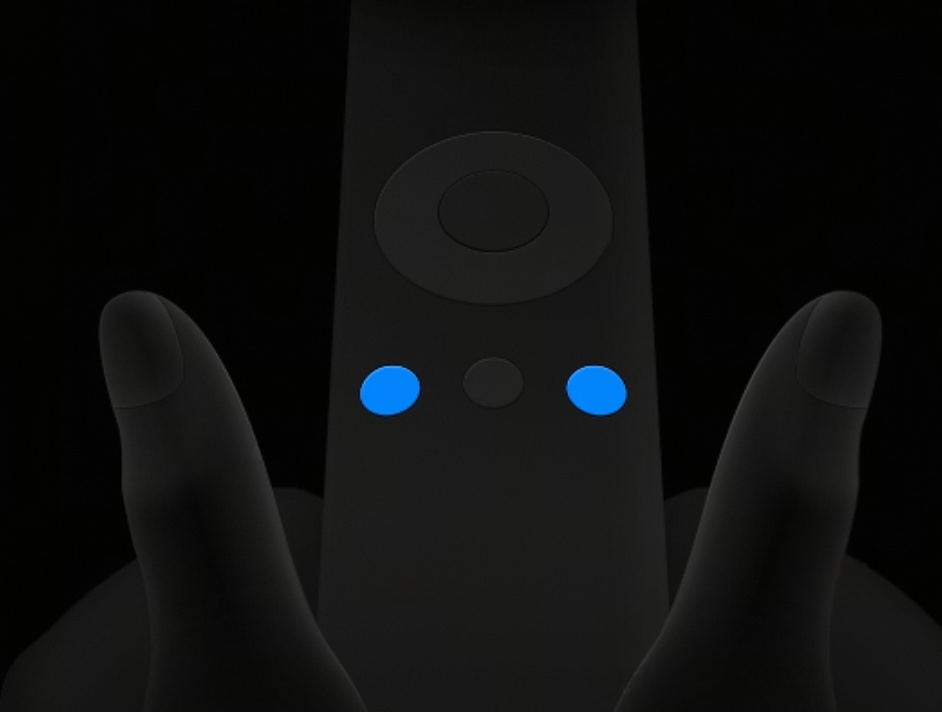
Q3: What are the four colored buttons on the Xiaomi TV A Pro 55 e remote control used for?
A: The four colored buttons on the TV remote are used to perform shortcut actions provided by specific applications or menus.
Hardware Related
Q1: What are the indicator statuses of the Xiaomi TV A Pro 55 e?
A: The indicator statuses of the Xiaomi TV A Pro 55 e are as follows:
1. Indicator flashes: The indicator flashes during the power-on and power-off process.
2. Indicator off: When the TV is powered on successfully or in standby mode, the indicator is off.
Q2: How to use the power button on the Xiaomi TV A Pro 55 e?
A: To use the power button of the Xiaomi TV A Pro 55 e, please refer to the following methods:
1. Press: powers on the device from standby mode; turns off the screen when the device is powered on.
2. Press and hold: opens the function menu.
3. Once the function menu is open, press to cycle through the functions; press and hold to confirm a selection.
Q3: How to install the base of the Xiaomi TV A Pro 55 e?
A: 1. Carefully remove the TV from the packaging box.
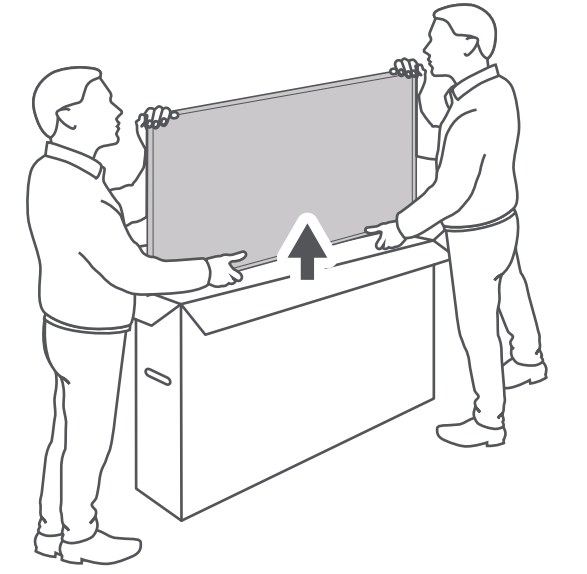
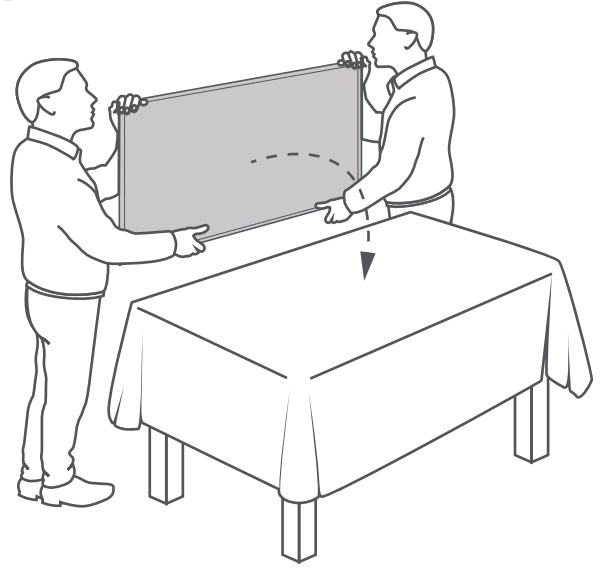
2. Lay it flat on a table with the screen facing down, making sure the surface is clean and soft to avoid scratching the display.
3. Align the two bases with the mounting holes on the bottom of the TV, then tighten the screws securely to complete the installation.
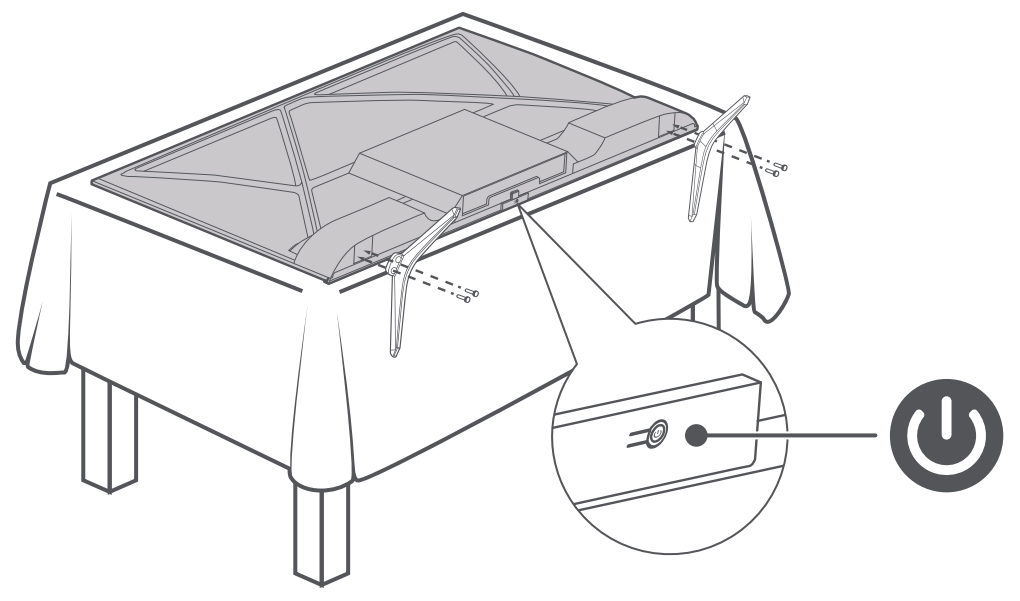
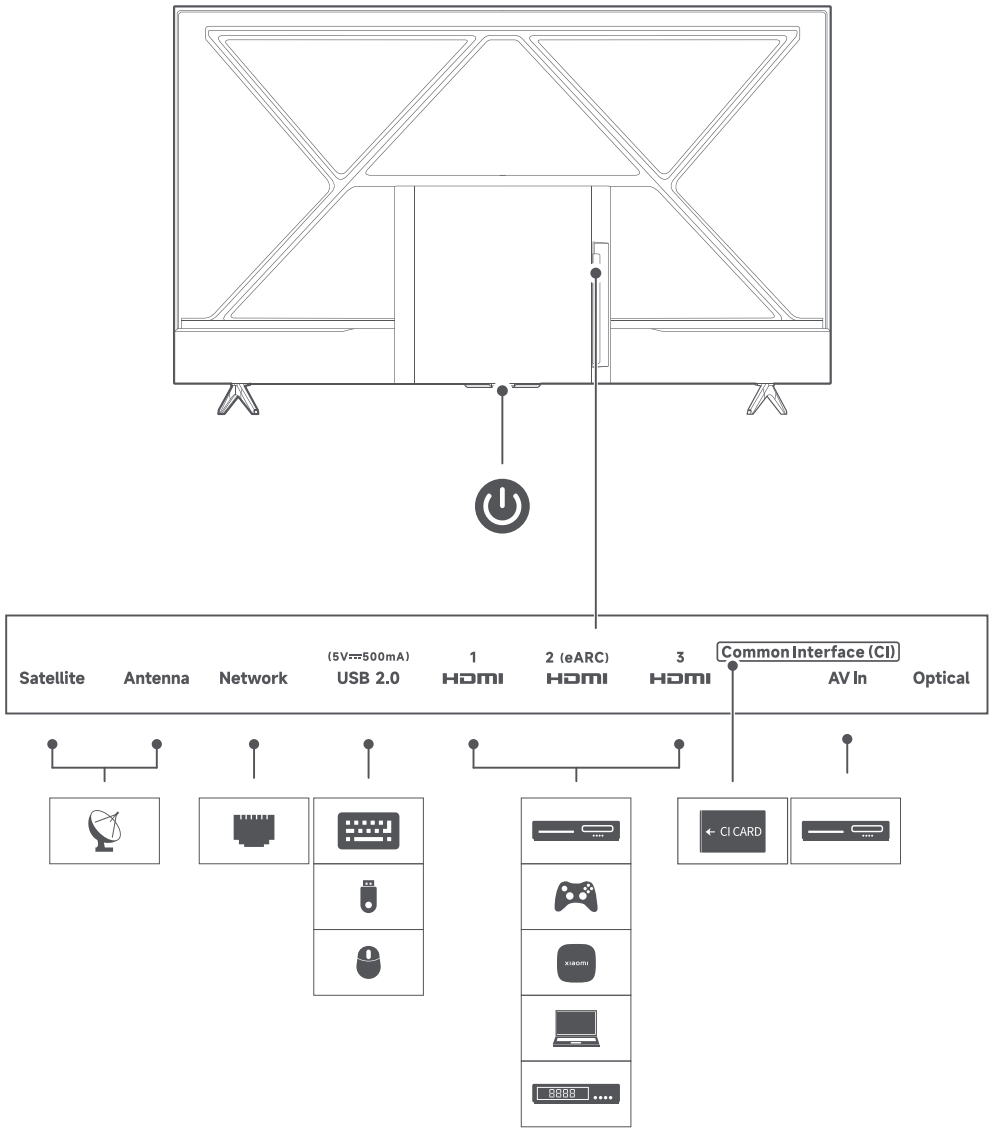
Q4: What ports does the Xiaomi TV A Pro 55 e have, and what devices can be connected to it?
A: The Xiaomi TV A Pro 55 e has the following ports:
Power port: 1 AC socket
RF antenna port: Varies by country or region.
EU, Russia, Belarus, Kazakhstan, Türkiye, Ukraine, Saudi Arabia, Israel, United Arab Emirates, Morocco, Egypt, Pakistan: 2 (1 × T2 IEC, 1 × S2 thread)
Indonesia, Vietnam, Malaysia, Thailand, Singapore: 1 × T2 IEC
Mexico: 1 × ATSC thread
Philippines, Chile, Peru: 1 × ISDB-T thread
Hong Kong (China): 1 × DTMB IEC
HDMI port: HDMI 2.0 × 2, HDMI 2.1 × 1 (Supports eARC, ALLM, and is backward compatible). Suitable for connecting: game console, set-top box, laptop, media player, soundbar.
USB port: USB 2.0 × 1 (5V ⎓ 500mA). Suitable for connecting: USB flash drive, wireless keyboard, wireless mouse.
CI+ slot: The TV has 1 CI+ slot only in the EU, Russia, Belarus, and Kazakhstan. Suitable for connecting: CI+ CAM module (pay TV access card).
Satellite input: The TV has 1 satellite input in the EU, Russia, Belarus, Kazakhstan, Türkiye, Ukraine, Saudi Arabia, Israel, United Arab Emirates, and Morocco.
AV port: AV port × 1. Suitable for connecting: old analog AV devices, analog set-top boxes.
Ethernet (LAN): 100 Mbps LAN port × 1. Suitable for connecting: wired home network router.
Optical digital audio out: Optical digital audio out × 1. Suitable for connecting: soundbar, AV receiver.
Note:
1. The Xiaomi TV A Pro 55 e doesn't support the VGA port, Coaxial digital audio out, and the 3.5mm headphone jack.
2. The TV doesn't have the CI+ slot in Indonesia, Thailand, Singapore, Türkiye, Ukraine, Saudi Arabia, Israel, United Arab Emirates, Morocco, Egypt, Pakistan, Vietnam, Malaysia, Mexico, the Philippines, Chile, Peru, Hong Kong (China).
3. The TV doesn't have a satellite input in Indonesia, Thailand, Singapore, Egypt, Pakistan, Vietnam, Malaysia, Mexico, the Philippines, Chile, Peru, and Hong Kong (China).
Q5: What file formats for USB flash drives are supported by the Xiaomi TV A Pro 55 e?
A: The Xiaomi TV A Pro 55 e supports the FAT32 and NTFS file formats for USB drives.
Q6: What to do if the Xiaomi TV A Pro 55 e cannot read a USB flash drive?
A: If the USB flash drive is not recognized by the Xiaomi TV A Pro 55 e, try formatting the USB drive to FAT32, or check whether the audio or video files are in the following formats:
Supported audio formats: Dolby Audio, DTS-X, MP3, FLAC, AAC, OGG, ADPCM.
Supported video formats: MPEG 1/2, H.263, H.264, H.265, VP8, VP9, AV1.
Does it help?
Yes
No