

Xiaomi Smart Display A Pro 43 e FAQ
Overview
Q1: What are the selling points of the Xiaomi Smart Display A Pro 43 e?
A: For your reference, here are the selling points of the Xiaomi Smart Display A Pro 43 e:
1. It features a 4K QLED display that delivers stunning clarity and vibrant, lifelike colors for an exceptional viewing experience.
2. It supports Dolby Audio and DTS-X for immersive, cinema-quality surround sound.
3. Xiaomi Sound technology enhances the audio output for clearer dialogue, richer bass, and a more balanced overall sound profile.
4. The bezel-less design maximizes the screen area and provides a sleek, modern aesthetic that fits seamlessly into any living room.
5. It comes with pre-installed Netflix, YouTube, and Prime Video apps, offering instant access to a vast library of movies, shows, and original content.
6. Eye Care mode reduces blue light emission to protect your eyes during extended viewing sessions.
7. Xiaomi TV+ provides additional free content and streaming options directly on the device for endless entertainment (supported only in selected countries or regions).
8. Filmmaker mode preserves the director's original vision by disabling motion smoothing and maintaining the correct aspect ratio, colors, and frame rates.
9. MEMC (Motion Estimation, Motion Compensation) reduces motion blur and judder, ensuring smooth and fluid visuals even during fast-paced action scenes.
10. HDR Enhance and HDR10+ support deliver brighter highlights, deeper blacks, and a wider contrast range for a more realistic picture.
Q2: What does the letter "e" at the end of the Xiaomi Smart Display A Pro 43 e stand for?
A: The letter "e" at the end of the Xiaomi Smart Display A Pro 43 e is used for sales purposes to distinguish between old and new product generations. The Xiaomi Smart Display A Pro 43 e is a smart display.
Q3: What is the product positioning for the Xiaomi Smart Display A Pro 43 e?
A: The Xiaomi Smart Display A Pro 43 e is positioned as a mid-range television. The display offers higher brightness and uses QLED color technology to deliver a wider color gamut.
Q4: What is the optimal viewing distance for the Xiaomi Smart Display A Pro 43 e?
A: There's no official recommended viewing distance. The comfortable viewing position varies by personal preference, room size and content type (movies, TV shows, gaming). Feel free to choose a distance you find pleasant. You may adjust the seating distance based on your personal comfort, room layout and viewing preference.
Q5: What are the specifications and the number of screws required for installing the Xiaomi Smart Display A Pro 43 e stand?
A: The Xiaomi Smart Display A Pro 43 e stand requires four ST5 × 18 mm screws for installation.
Q6: What are the specifications and quantity of screws used for wall mounting the Xiaomi Smart Display A Pro 43 e? And what is the VESA mounting pattern (hole spacing)?
A: The wall mount dimensions of the Xiaomi Smart Display A Pro 43 e are 100 × 200 mm, and it requires four M6 × 10 mm screws.
The dimensions from the wall-mounted holes on the back of the TV to each of its edges are as follows:
Distance from the center of the side wall-mounting hole to the same side edge: 428.5 mm.
Distance from the center of the upper wall-mounting hole to the top edge: 303.5 mm.
Distance from the center of the lower wall-mounting hole to the bottom edge: 55 mm.
Function Usage
Q1: Does the Xiaomi Smart Display A Pro 43 e support Game Boost mode? How to enable it?
A: The Xiaomi Smart Display A Pro 43 e does not support Game Boost mode.
Q2: Does the Xiaomi Smart Display A Pro 43 e support game picture mode? How to enable it?
A: Yes, the Xiaomi Smart Display A Pro 43 e supports game picture mode. Go to [Settings] >> [Picture] >> [Picture mode], select [Game].
Q3: What system languages are supported by the Xiaomi Smart Display A Pro 43 e?
A: The Xiaomi Smart Display A Pro 43 e supports the following system languages:
Azerbaijani, Arabic, Belarusian, Bulgarian, Bengali (India), Catalan, Czech, Danish, German, Greek, English (India), English (United Kingdom), English (United States), Spanish (Spain), Spanish (Latin America), Estonian, Finnish, French, Gujarati, Hindi, Croatian, Hungarian, Indonesian, Italian, Hebrew, Japanese, Kazakh, Kannada, Korean, Lithuanian, Latvian, Malayalam, Marathi, Bahasa Melayu, Norwegian, Dutch, Punjabi, Polish, Portuguese (Portugal), Romanian, Russian, Slovak, Serbian, Swedish, Tamil, Telugu, Thai, Turkish, Ukrainian, Urdu (India), Vietnamese, Chinese (Simplified), Chinese (Taiwan Traditional), Chinese (Hong Kong Traditional), Lao, Burmese, Nepali (India), Portuguese (Brazil), Portuguese (Portugal), Slovak, Uzbek, Filipino.
Q4: Does the Xiaomi Smart Display A Pro 43 e support VRR? How to enable it?
A: The Xiaomi Smart Display A Pro 43 e doesn't support VRR.
Q5: Does the Xiaomi Smart Display A Pro 43 e support FreeSync? How to enable it?
A: The Xiaomi Smart Display A Pro 43 e does not support FreeSync.
Q6: Does the Xiaomi Smart Display A Pro 43 e support ALLM? How to enable it?
A: The Xiaomi Smart Display A Pro 43 e supports ALLM. You can enable it by opening [Settings] >> [Channels & Inputs] >> [External inputs] >> enabling [ALLM].
Q7: Does the Xiaomi Smart Display A Pro 43 e support Filmmaker mode? How to enable it?
A: The Xiaomi Smart Display A Pro 43 e supports Filmmaker mode. To enable it, please refer to the following methods:
1. When the system detects that the content supports Filmmaker mode/HDR Filmmaker mode, or when the EDID identifies that the input source signal supports Filmmaker mode, the picture mode will automatically switch to Filmmaker mode/HDR Filmmaker mode.
2. Open [Settings], select [Display and sound] >> [Picture] >> [Picture mode], and you can manually select Filmmaker mode.
Q8: Does the Xiaomi Smart Display A Pro 43 e support MEMC? How to enable it?
A: The Xiaomi Smart Display A Pro 43 e supports MEMC. To enable it, please open [Settings] >> [Display and sound] >> [Picture] >> [Advanced video] >> [Motion smooth] >> enable MEMC.
Q9: Does the Xiaomi Smart Display A Pro 43 e support Eye care mode? How to enable it?
A: The Xiaomi Smart Display A Pro 43 e supports Eye care mode. To enable it, please open [Settings] >> [Display and sound] >> [Picture] >> [Eye comfort mode].
Q10: Does the Xiaomi Smart Display A Pro 43 e support HDR? How to enable it?
A: The Xiaomi Smart Display A Pro 43 e supports HDR. Please open [Settings] >> [Channels & Inputs] >> [External inputs] >> [HDMI mode] >> set the corresponding HDMI source to [Enhanced mode].
Q11: How to enable or disable automatic light detection on the Xiaomi Smart Display A Pro 43 e?
A: The Xiaomi Smart Display A Pro 43 e does not support automatic light detection.
Q12: How to turn off the system ads on the Xiaomi Smart Display A Pro 43 e?
A: The system ads displayed on the Xiaomi Smart Display A Pro 43 e are delivered via the Google system and cannot be turned off.
Q13: Does the Xiaomi Smart Display A Pro 43 e support disabling Ambient mode?
A: The Xiaomi Smart Display A Pro 43 e doesn't support disabling Ambient mode.
Q14: How to set the Xiaomi Smart Display A Pro 43 e to display the content being played while in standby mode?
A: The Xiaomi Smart Display A Pro 43 e does not support playback while in standby mode.
Q15: Which languages are supported by the voice assistant of the Xiaomi Smart Display A Pro 43 e, and how to switch the language? In which regions is it supported, and where is it unavailable?
A: The voice assistant of the Xiaomi Smart Display A Pro 43 e is supported in the following languages and regions:
Americas: Argentina (es-AR), Brazil (pt-BR), Canada (en-CA/fr-CA), Chile (es-CL), Colombia (es-CO), Costa Rica (es-CR), Dominican Republic (es-DO), Ecuador (es-EC), El Salvador (es-SV), Guatemala (es-GT), Honduras (es-HN), Jamaica (es-JM), Latin America (es-419), Mexico (es-MX), Panama (es-PA), Paraguay (es-PY), Peru (es-PE), Puerto Rico (es-PR), Uruguay (es-UY), United States (en-US/es-US).
Asia Pacific: Australia (en-AU), Hong Kong (China) (en-HK/zh-HK), India (hi-IN/en-IN), Japan(ja-JP), South Korea (ko-KR), Indonesia (id/in-ID), Malaysia (en-MY), New Zealand (en-NZ), Philippines (en-PH), Singapore (en-SG), Taiwan (China) (en-TW/zh-TW), Thailand (th-TH), Vietnam (vi-VN).
Europe: Austria (de-AT), Belgium (en/de/fr/nl-BE), Denmark (da-DK), Finland (en-FI), France (fr-FR), Germany (de-DE), Ireland (en-IE), Italy (it-IT), Netherlands (nl-NL), Norway (no-NO), Poland (pl-PL), Portugal (pt-PT), Russia (ru-RU), Spain (es-ES), Sweden (sv-SE), Switzerland (fr/de/it-CH), Türkiye (tr-TR), United Kingdom (en-GB).
Middle East/Africa: Bahrain (en-BH), Egypt (en-EG), Israel (en-IL), Kenya (en-KE), Kuwait (en-KW), Nigeria (en-NG), Oman (en-OM), Qatar (en-QA), Saudi Arabia (en-SA), South Africa (en-ZA), United Arab Emirates (en-AE).
To switch the language of the voice assistant, please change language preferences in your Google account.
Q16: Which mainstream Apps are built into the Xiaomi Smart Display A Pro 43 e?
A: The Xiaomi Smart Display A Pro 43 e supports Netflix, Prime Video, Disney+, and other mainstream applications.
Q17: Does the Xiaomi Smart Display A Pro 43 e support DTMB and ATV?
A: The Xiaomi Smart Display A Pro 43 e does not support DTMB and ATV.
Q18: What is the Android version that the Xiaomi Smart Display A Pro 43 e comes with?
A: The Android version that comes pre-installed on the Xiaomi Smart Display A Pro 43 e is Android 14 (U).
Q19: How to connect the Xiaomi Smart Display A Pro 43 e to a computer?
A: After connecting the Xiaomi Smart Display A Pro 43 e to the computer, the TV can be used as a large external monitor. Please refer to the steps below:
1. Use an HDMI cable to connect the computer's HDMI output port to the TV's HDMI input port.
2. After the physical connection is made, use the TV remote to select the corresponding HDMI input source.
3. The computer screen will then be displayed on the TV.
Q20: How to use the Xiaomi TV Box's remote control to turn the Xiaomi Smart Display A Pro 43 e on and off when connecting a TV Box to the TV?
A: To use the Xiaomi TV Box's remote control to turn the Xiaomi Smart Display A Pro 43 e on/off, please refer to the following steps:
Open [Settings] >> [Channels & Inputs] >> [Channels] >> [HDMI mode] >> by enabling [TV auto power on] and [TV auto power off], you can use the streaming box remote to turn your TV on and off.
Q21: How to adjust the order of local channels on the Xiaomi Smart Display A Pro 43 e?
A: The Xiaomi Smart Display A Pro 43 e does not support adjusting the order of local channels.
Q22: How to adjust the subtitle and audio track language of local TV programs on the Xiaomi Smart Display A Pro 43 e?
A: The Xiaomi Smart Display A Pro 43 e does not support adjusting the subtitle and audio track language of local TV programs.
Q23: Does the Xiaomi Smart Display A Pro 43 e support the Electronic Program Guide (EPG) feature, and how to use it?
A: The Xiaomi Smart Display A Pro 43 e does not support the Electronic Program Guide (EPG).
Q24: What screen-casting methods does the Xiaomi Smart Display A Pro 43 e support?
A: The Xiaomi Smart Display A Pro 43 e supports AirPlay, Miracast, and Chromecast.
Q25: How to cast the computer screen to the Xiaomi Smart Display A Pro 43 e?
A: To cast the computer screen to the Xiaomi Smart Display A Pro 43 e, please refer to the following methods:
Method 1:
1. Use an HDMI cable to connect the computer's HDMI output port to the TV's HDMI input port.
2. After the physical connection is made, use the TV remote to select the corresponding HDMI input source.
3. The computer screen will then be displayed on the TV.
Method 2:
1. Ensure that both your computer and TV are connected to the same Wi-Fi network (note that some Miracast connection methods do not require them to be on the same network).
2. Enable the wireless casting or Miracast receiver feature on your TV.
3. On your computer, press the Win + K keys.
4. Select your TV from the list of devices that appear under "Cast."
Q26: How to switch the audio output on the Xiaomi Smart Display A Pro 43 e?
A: To switch the audio output on the Xiaomi Smart Display A Pro 43 e, please open [Settings] >> [Display and sound] >> [Audio output] >> [Output device] >> switch the audio output device.
Q27: How to adjust the time on the Xiaomi Smart Display A Pro 43 e?
A: To adjust the time on the Xiaomi Smart Display A Pro 43 e, please go to [Settings] >> [System] >> [Date & Time] >> adjust the time and time zone.
Remote Control
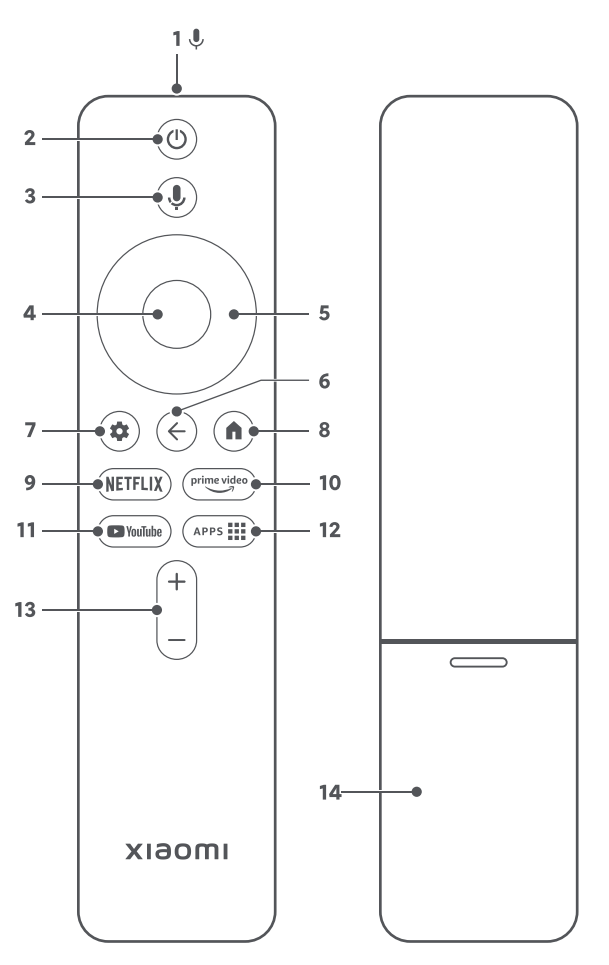
Q1: What does the remote control of the Xiaomi Smart Display A Pro 43 e look like, and how to use its buttons?
A: Please refer to the following information about the remote control of the Xiaomi Smart Display A Pro 43 e:
1. Microphone
2. Power: Turn the TV on and off.
3. Google Assistant: Press the Assistant button on your remote to use your Google Assistant.
4. OK: Press to confirm the current selection during navigation. You can pause/play the current video during playback, except Live Channels (Set-Top Box or RF).
5. Direction: Navigate up/down or left/right through content. During playback, use the left/right buttons to rewind/fast-forward.
6. Back: To go back to the last channel, or to close a menu or an application, or to go back to the previous menu.
7. Settings: Press to access the settings menu.
8. Google TV Home: Press to quickly return to the Google TV Home screen. Press and hold to open the App drawer.
9. Netflix: Gives direct access to the Netflix application.
10. Prime Video: Gives direct access to the Prime Video application.
11. YouTube: Press to access the YouTube application.
12. Applications: You can go directly to the applications page.
13. Volume: To adjust the volume level. Press and hold the Volume "-" button to mute immediately.
Note:
The buttons and functions of the remote control vary by country or region.
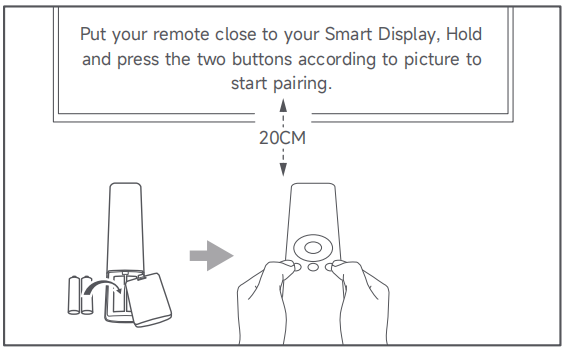
Q2: How to pair the remote control with the Xiaomi Smart Display A Pro 43 e?
A: To pair the remote control with the Xiaomi Smart Display A Pro 43 e, please bring the remote control close to the TV (within 20 cm) and simultaneously press and hold the two buttons below the directional pad on the remote control, the leftmost and rightmost buttons, until you hear a "beep" sound, indicating successful pairing.
Q3: What are the four colored buttons on the remote control of the Xiaomi Smart Display A Pro 43 e used for?
A: These buttons are used to perform shortcut actions provided by specific applications or menus.
Hardware Introduction
Q1: What are the statuses of the indicator on the Xiaomi Smart Display A Pro 43 e?
A: For your reference, here are the statuses of the indicator on the Xiaomi Smart Display A Pro 43 e:
1. During the power-on process, the indicator flashes.
2. When the TV is turned on and enters the TV interface, the indicator goes out.
3. During the power-off process, the indicator flashes.
4. When the TV is in standby mode, the indicator is off.
Q2: How to use the buttons located on the bottom of the Xiaomi Smart Display A Pro 43 e?
A: To use the buttons located on the bottom of the Xiaomi Smart Display A Pro 43 e, please refer to the follows:
1. Press to power on while in standby mode and press to turn off the screen when powering on.
2. Press and hold the button to enter the function menu.
3. After opening the function menu, press briefly to cycle through the functions. Press and hold to confirm a function.
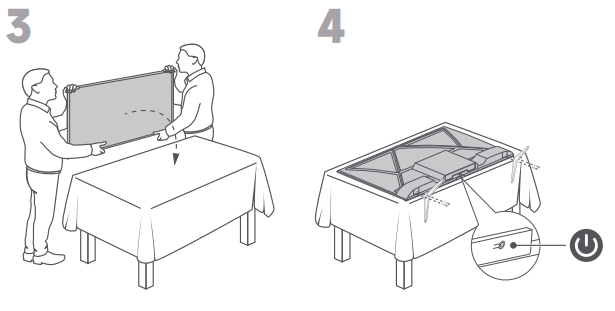
Q3: How to install the stand of the Xiaomi Smart Display A Pro 43 e?
A: Please refer to the following steps to install the stand of the Xiaomi Smart Display A Pro 43 e:
1. Open the package and take out all the accessories, which include two bases and four screws for installation.
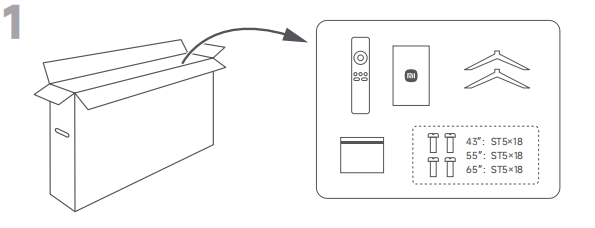
2. Carefully remove the TV from the packaging box.
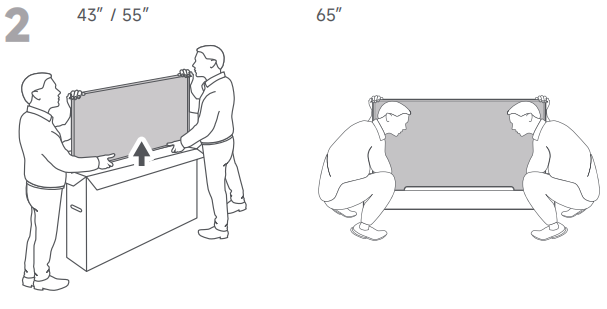
3. Lay it flat on a table with the screen facing down, making sure the surface is clean and soft to avoid scratching the display.
4. Align the two bases with the mounting holes on the bottom of the TV, then tighten the screws securely to complete the installation.
Q4: What ports does the Xiaomi Smart Display A Pro 43 e have? What devices can be connected to it?
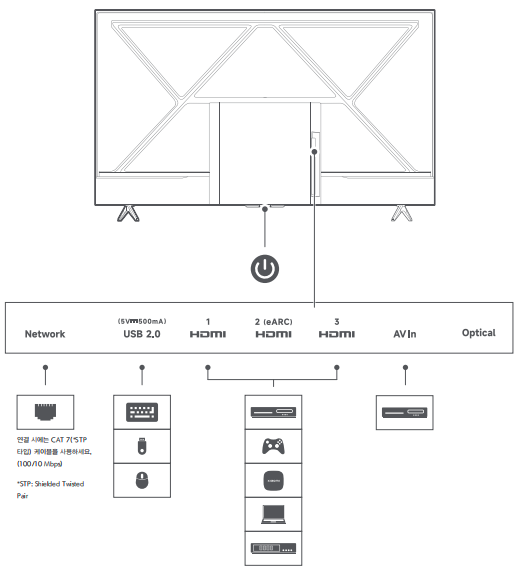
A: The Xiaomi Smart Display A Pro 43 e is equipped with a comprehensive set of ports to support a wide variety of external devices and connectivity needs:
1. A network port is available for a wired Ethernet connection to the internet.
2. It has a USB 2.0 port that can connect devices like a keyboard, USB flash drive, or a mouse.
3. The TV has three HDMI ports for connecting devices such as set-top boxes, game consoles, Xiaomi TV Boxes, laptops, and Blu-ray players: two HDMI 2.0 ports and one HDMI 2.1 port (which supports eARC and ALLM and is backward compatible).
4. An AV In port allows connection of older devices that use composite video and audio cables.
5. An optical audio port is included for connecting to external audio equipment like soundbars or home theater systems.
Q5: What file formats for USB drives are supported by the Xiaomi Smart Display A Pro 43 e?
A: The Xiaomi Smart Display A Pro 43 e supports the FAT32 and NTFS file formats for USB drives.
Q6: What to do if the Xiaomi Smart Display A Pro 43 e cannot read the USB flash drive?
A: If the Xiaomi Smart Display A Pro 43 e fails to recognize a USB flash drive, try formatting the drive to FAT32, or check whether the TV supports the file format of the USB drive. The Xiaomi Smart Display A Pro 43 e supports video formats including MPEG-1/2, H.263, H.264, H.265, VP8, VP9, and AV1, as well as audio formats including Dolby Audio, DTS-X, MP3, FLAC, AAC, OGG, and ADPCM.
Does it help?
Yes
No