

What to do if you fail to use Miracast on the Xiaomi TV A Pro 55?
If you fail to use Miracast on the Xiaomi TV A Pro 55, please refer to the following troubleshooting steps:
1. Ensure that both your TV and casting device (e.g., smartphone, tablet, or computer) are connected to the same stable and active network;
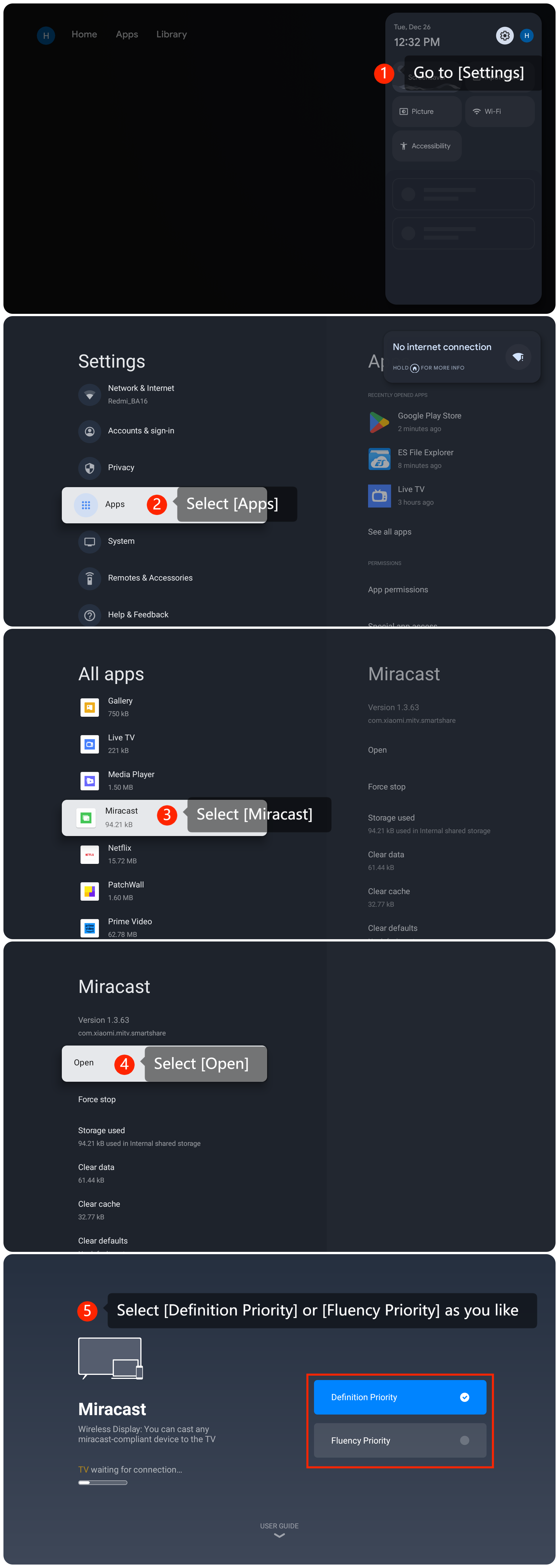
2. Check the Miracast settings by going to [Settings] >> [Apps] >> [Miracast] >> [Open] >> you can select [Definition Priority] or [Fluency Priority] as you like;
1. Ensure that both your TV and casting device (e.g., smartphone, tablet, or computer) are connected to the same stable and active network;
2. Check the Miracast settings by going to [Settings] >> [Apps] >> [Miracast] >> [Open] >> you can select [Definition Priority] or [Fluency Priority] as you like;
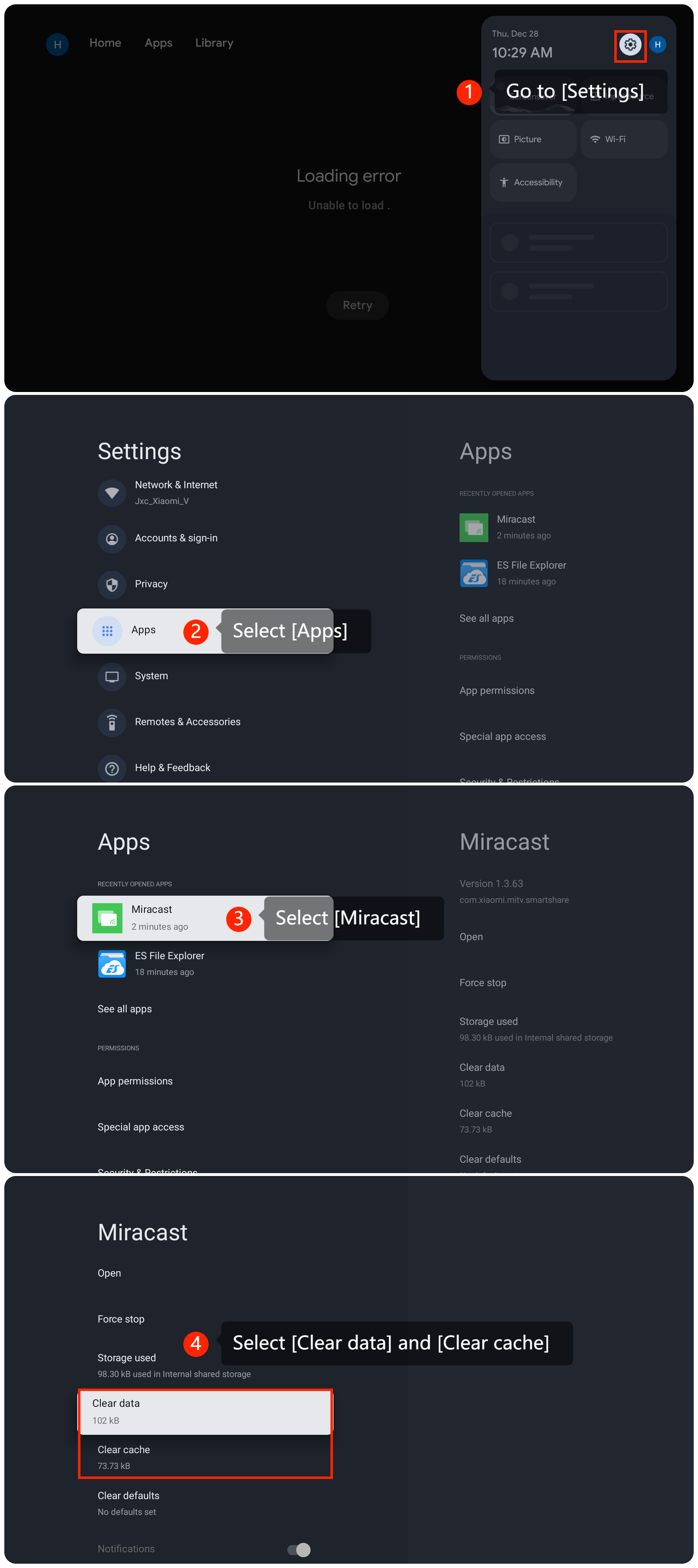
3. You can clear the cache and data of the Miracast by navigating to [Settings] >> [Apps] >> [Miracast] >> [Clear data] and [Clear cache];
4. Ensure that the device you are trying to cast from also supports Miracast by checking the casting device settings;
5. Restarting the TV can sometimes resolve temporary issues. Simply unplug the power source, wait for a few seconds, and then plug it back in;
6. You can check for system updates by going to [Settings] >> [System] >> [About] >> [System update]. If it is the latest version, a message will appear on the screen indicating that your system is up to date;
7. If other troubleshooting steps do not resolve the issue, you can consider performing a factory reset. Please go to [Settings] >> [System] >> [About] >> [Reset]. Please note that the operation will erase all data on the TV, so be sure to back up important information before proceeding.
We hope the above methods can resolve the issue. If the issue still persists, you could submit your feedback on your TV by going to [Settings] >> [Help & Feedback] >> [Send feedback], you can upload logs with your feedback.
5. Restarting the TV can sometimes resolve temporary issues. Simply unplug the power source, wait for a few seconds, and then plug it back in;
6. You can check for system updates by going to [Settings] >> [System] >> [About] >> [System update]. If it is the latest version, a message will appear on the screen indicating that your system is up to date;
7. If other troubleshooting steps do not resolve the issue, you can consider performing a factory reset. Please go to [Settings] >> [System] >> [About] >> [Reset]. Please note that the operation will erase all data on the TV, so be sure to back up important information before proceeding.
We hope the above methods can resolve the issue. If the issue still persists, you could submit your feedback on your TV by going to [Settings] >> [Help & Feedback] >> [Send feedback], you can upload logs with your feedback.
Does it help?
Yes
No