

What to do if the Mi TV 4S 65 cannot access the Internet video or audio content?
If the Mi TV 4S 65 is unable to play audio or video over the network, please refer to the following troubleshooting steps:
1. Ensure that your TV is properly connected to the network. If using Wi-Fi, ensure that the Wi-Fi network is working correctly. If using an Ethernet connection, check the cable and connection;
2. Check the internet speed on your Android TV using built-in apps or third-party speed test apps. If the speed is slow, it will affect the ability to stream content;
3. Sometimes, a simple restart can help resolve connectivity issues. Power off your TV, wait a few seconds, and then turn it back on;
4. Restart your router to refresh the internet connection. Unplug the power cable, wait for about 10-15 seconds, and then plug it back in. Allow the router to restart and check if the issue is resolved;
5. Ensure that the apps you are trying to use for streaming are updated to the latest version. Outdated apps may have compatibility issues;
6. Check the settings of app permissions. Ensure that the app you're using has the necessary permissions to access the internet;
7. Try using other streaming apps to see if the issue is specific to one app or if it affects multiple applications. This can help identify whether the problem is app-specific or a more general network issue;
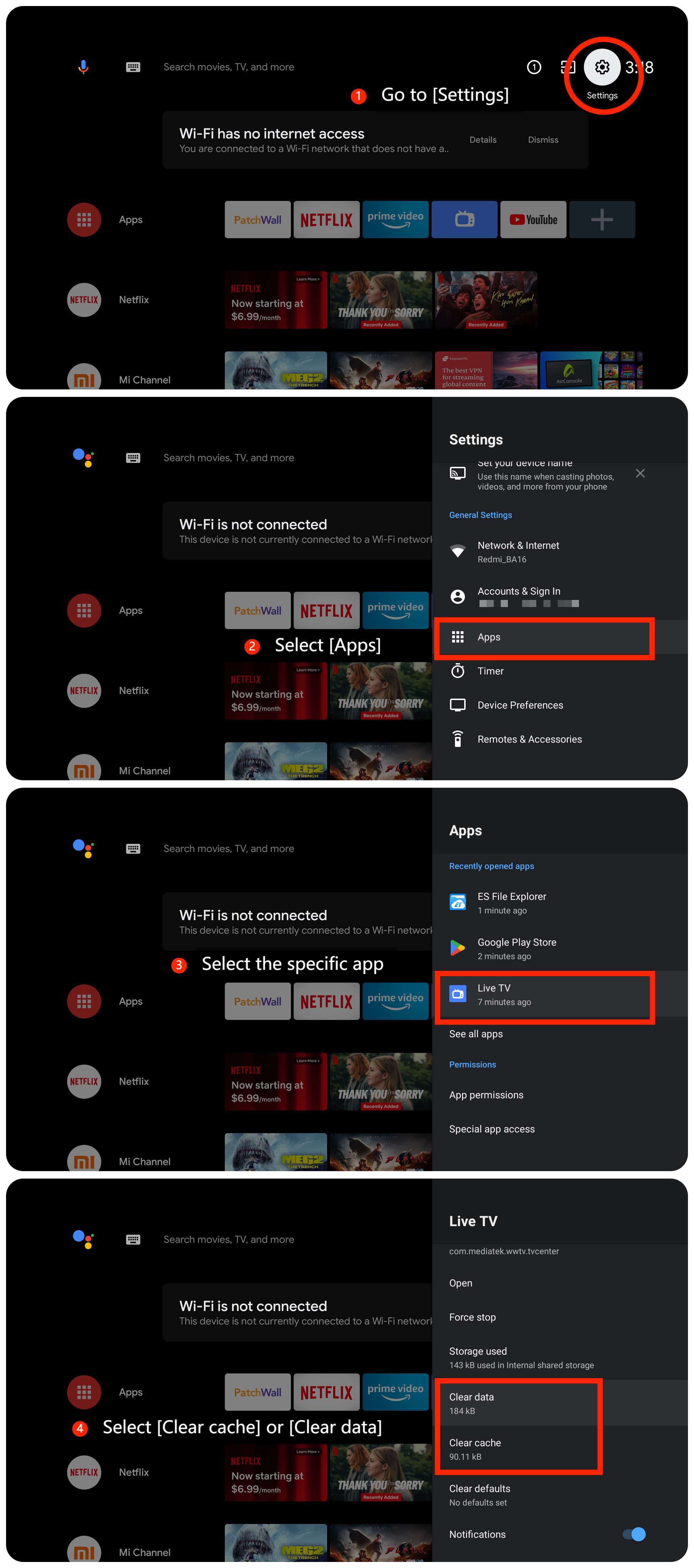
8. If the issue is specific to a particular app, you can clear its cache and data by going to [Settings] >> [Apps] >> select the specific app >> select [Clear cache] or [Clear data];
9. If clearing cache and data doesn't help, try uninstalling and reinstalling the app. This can resolve any issues with the app installation;
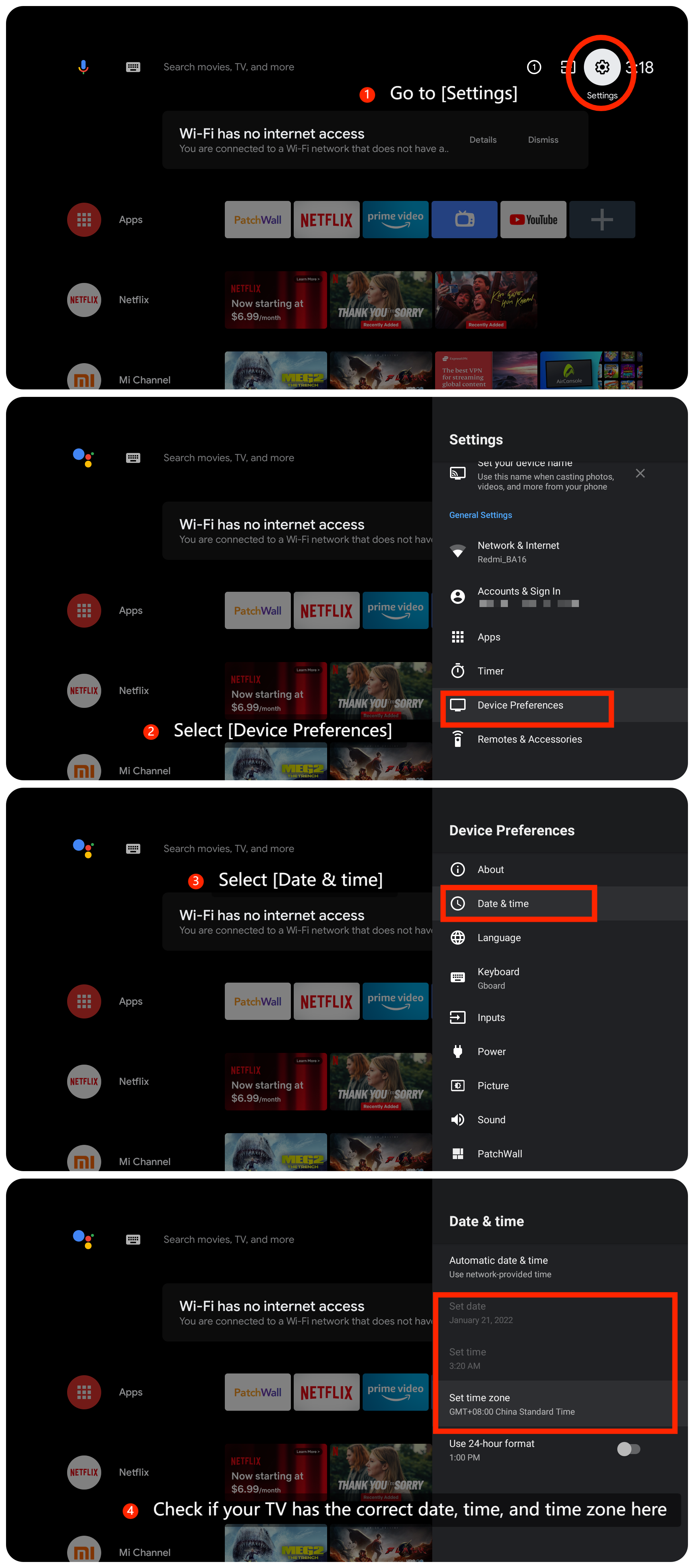
10. Incorrect date and time settings can sometimes affect the ability to stream content. Make sure your TV has the correct date, time, and time zone settings by going to [Settings] >> [Device Preferences] >> [Date & time] >> check if your TV has the correct date, time, and time zone;
11. Check for TV firmware updates by navigating to [Settings] >> [Device Preferences] >> [About] >> [System update];
12. If none of the above steps works, you can consider performing a factory reset on your TV by going to [Settings] >> [Device Preferences] >> [Reset].
Friendly Tips:
The recommended bit rates of the video stream are shown as below:
1. The 4K UHD video stream requires 10Mbps;
2. The 2K video stream requires 5Mbps;
3. The 720p video stream requires 2.5Mbps.
If the above troubleshooting methods can’t resolve the issue, please contact our local official service center or your seller for further assistance. They will help you in this regard.
1. Ensure that your TV is properly connected to the network. If using Wi-Fi, ensure that the Wi-Fi network is working correctly. If using an Ethernet connection, check the cable and connection;
2. Check the internet speed on your Android TV using built-in apps or third-party speed test apps. If the speed is slow, it will affect the ability to stream content;
3. Sometimes, a simple restart can help resolve connectivity issues. Power off your TV, wait a few seconds, and then turn it back on;
4. Restart your router to refresh the internet connection. Unplug the power cable, wait for about 10-15 seconds, and then plug it back in. Allow the router to restart and check if the issue is resolved;
5. Ensure that the apps you are trying to use for streaming are updated to the latest version. Outdated apps may have compatibility issues;
6. Check the settings of app permissions. Ensure that the app you're using has the necessary permissions to access the internet;
7. Try using other streaming apps to see if the issue is specific to one app or if it affects multiple applications. This can help identify whether the problem is app-specific or a more general network issue;
8. If the issue is specific to a particular app, you can clear its cache and data by going to [Settings] >> [Apps] >> select the specific app >> select [Clear cache] or [Clear data];
9. If clearing cache and data doesn't help, try uninstalling and reinstalling the app. This can resolve any issues with the app installation;
10. Incorrect date and time settings can sometimes affect the ability to stream content. Make sure your TV has the correct date, time, and time zone settings by going to [Settings] >> [Device Preferences] >> [Date & time] >> check if your TV has the correct date, time, and time zone;
11. Check for TV firmware updates by navigating to [Settings] >> [Device Preferences] >> [About] >> [System update];
12. If none of the above steps works, you can consider performing a factory reset on your TV by going to [Settings] >> [Device Preferences] >> [Reset].
Friendly Tips:
The recommended bit rates of the video stream are shown as below:
1. The 4K UHD video stream requires 10Mbps;
2. The 2K video stream requires 5Mbps;
3. The 720p video stream requires 2.5Mbps.
If the above troubleshooting methods can’t resolve the issue, please contact our local official service center or your seller for further assistance. They will help you in this regard.
Does it help?
Yes
No