

Sidebar Function Introduction
Overview
Q1: What is the Sidebar feature on the Xiaomi smartphone?
A: The Sidebar on the Xiaomi smartphone is a quick-access tool that allows you to swipe out a shortcut menu from the side of the screen to rapidly launch apps or use specific features, including the app sidebar, Game Turbo, Video toolbox, and Call toolbox.
Q2: How to enable Sidebar?
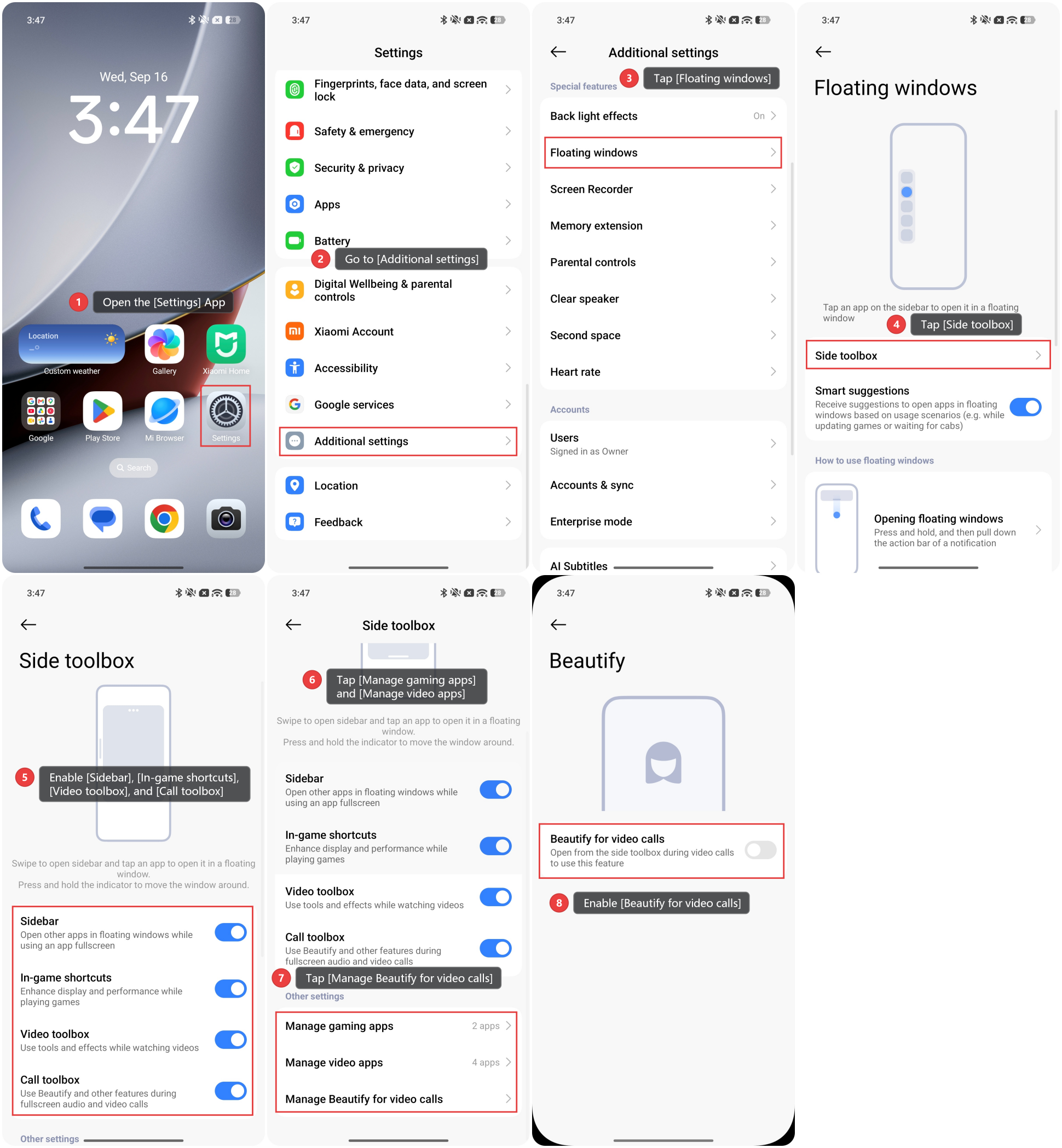
A: To enable Sidebar, please refer to the following steps:
1. Open the [Settings] App.
2. Go to [Additional settings].
3. Tap [Floating windows].
4. Tap [Side toolbox].
5. Enable [Sidebar], [In-game shortcuts], [Video toolbox], and [Call toolbox].
6. You can configure the scenarios in which Game Turbo and the Video toolbox are activated. Please tap [Manage gaming apps] and [Manage video apps] to select the app you want to apply these to.
7. Tap [Manage Beautify for video calls].
8. Enable [Beautify for video calls]. Then you can enable it from the side toolbox during video calls to use this feature.
Q3: How to adjust the position of the Sidebar?
A: Press and hold the small bar on the sidebar and drag it to adjust its position. The white bar will automatically snap to the side of the screen.
Q4: Why is the touch screen unresponsive in the white bar area of the phone's sidebar?
A: The sidebar is a standard system feature, not a hardware issue with the touchscreen. If it interferes with touch interaction in certain situations, you can press and hold the white bar on the sidebar to drag it to a different location, or disable the sidebar entirely.
App sidebar
Q1: How to use the app sidebar?
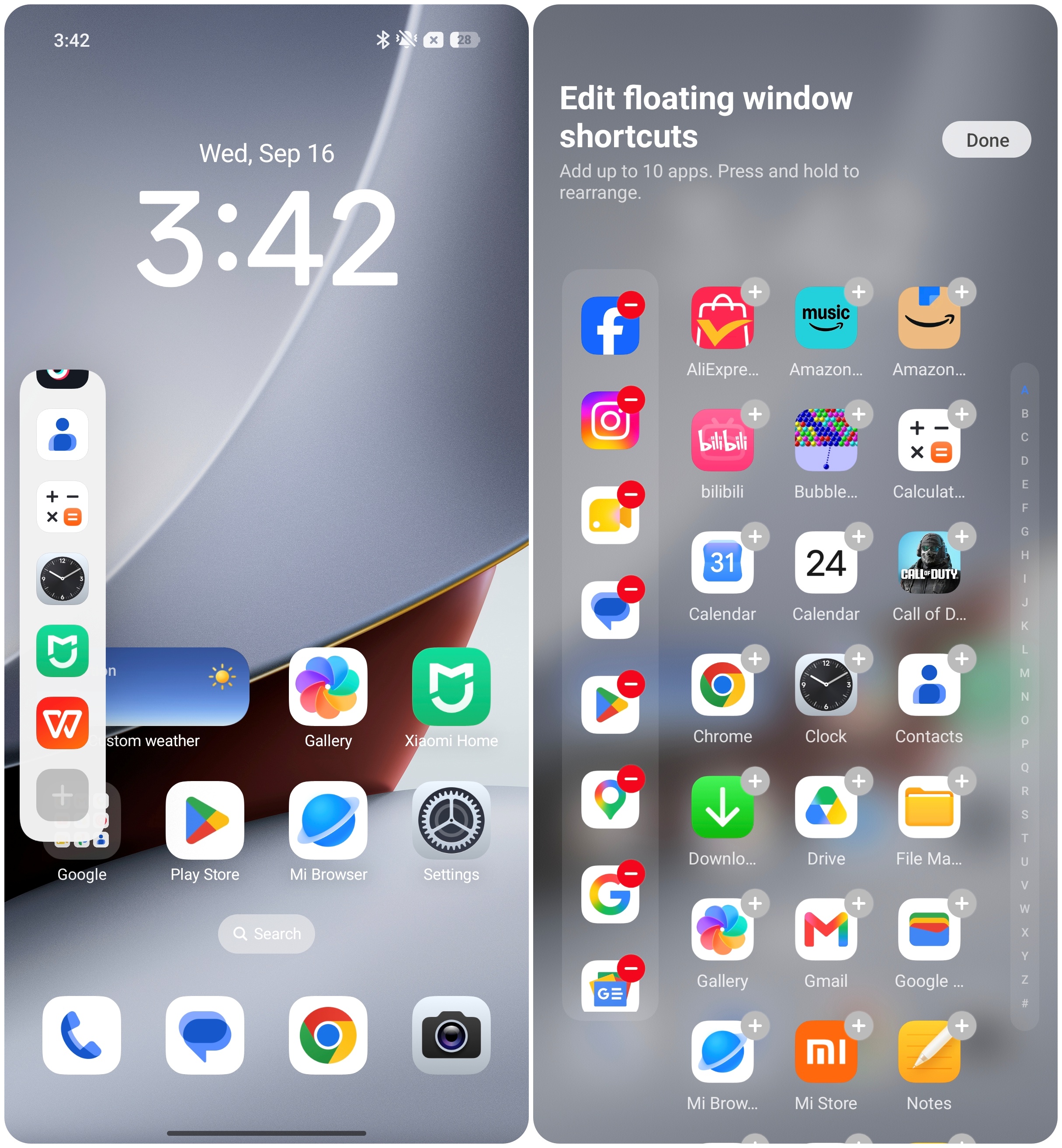
A: After enabling [Sidebar], you can swipe the white bar to open the sidebar and tap an app to open it in a floating window. This feature allows you to add frequently used apps to the sidebar for quick access and to use multiple apps simultaneously via floating windows.
Q2: How to add apps to the sidebar?
A: Swipe the white bar to open the sidebar, scroll to the bottom, and tap the [+] icon. You can add up to 10 frequently used apps and rearrange their order by long-pressing and dragging them.
Q3: Why does the sidebar automatically add apps?
A: This is a normal phenomenon. The sidebar will automatically recommend frequently used applications. If you have specific needs, you can customize it.
Video toolbox
Q1: How to use the video toolbox?
A: In relevant video application scenarios, you can launch the sidebar to open the video toolbox and then use various video enhancement tools.
The features in the video toolbox are as follows:
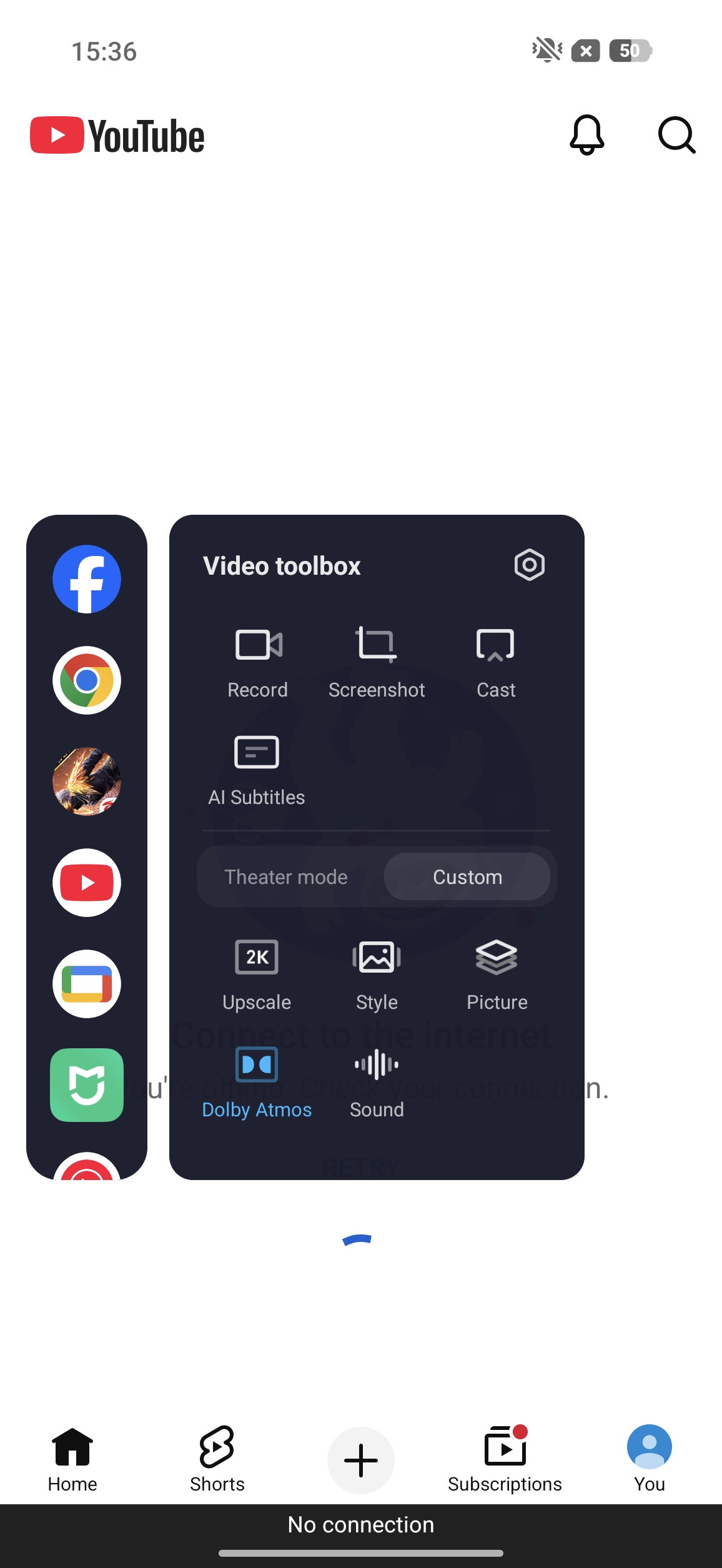
Record, Screenshot, Cast, AI Subtitles, Theatre mode, Upscale, Style, Enhanced animations, Enhanced contours, Dolby Atmos, Immersive sound, Dual-core visuals.
Note:
Due to differences in performance and screens across models, support for certain special features may vary.
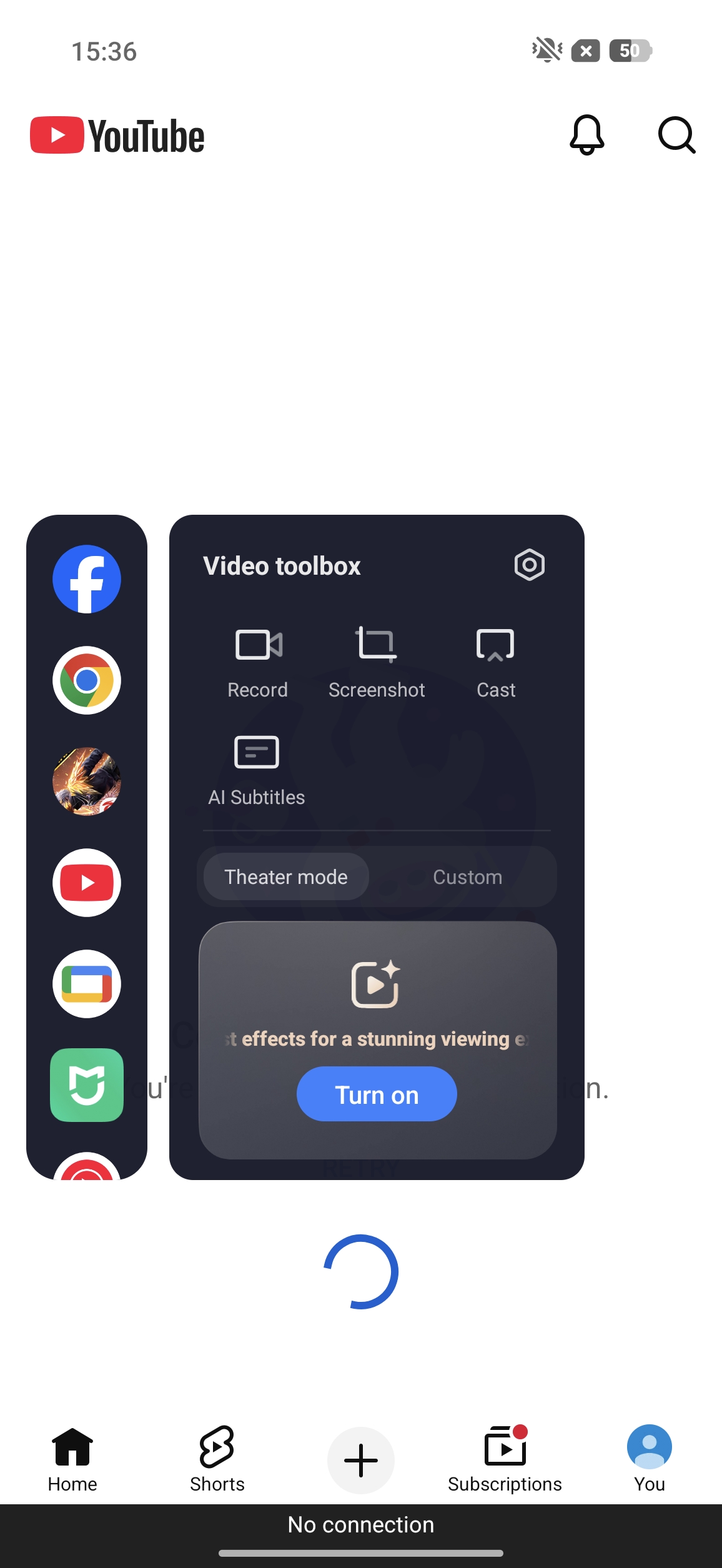
Q2: What is Theatre mode?
A: Theater mode is designed to optimize visual and audio performance during video playback, enhancing immersion in the viewing experience.
Note:
1. This feature will increase power consumption.
2. The availability of this feature varies depending on the model. Please refer to the actual usage.
Q3: Why does the non-video playback area change brightness after turning on Theatre mode?
A: Theatre mode is designed for full-screen viewing. When there is a significant difference in content between the video playback area and the surrounding area, inconsistencies in brightness or darkness levels may occasionally occur. Therefore, we recommend enabling Theatre mode while watching in full-screen.
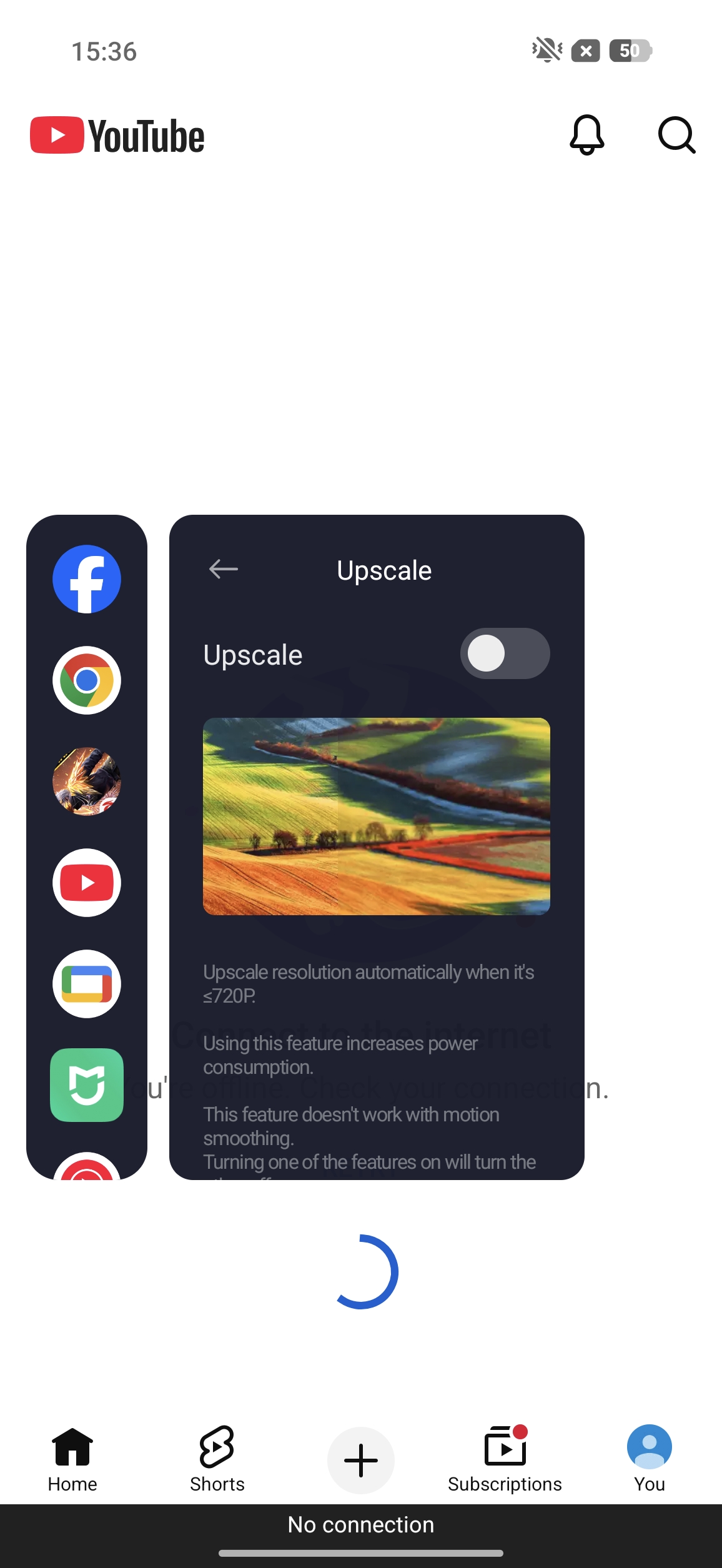
Q4: What is Upscale?
A: When Upscale is enabled and playing a video with a resolution of 720p or lower, the system automatically doubles the video resolution to make the image clearer.
Note:
1. This feature cannot be used simultaneously with Enhanced animations (MEMC).
2. The availability of this feature varies depending on the model. Please refer to the actual usage.
3. The availability of this feature varies depending on the application. It supports YouTube, Mi Video, Netflix, Prime Video, Google Photos, VLC, Hotstar, and so on.
Q5: What is Style?
A: Style in the video toolbox can adjust the video display style. You can select from [Original], [Vibrant], [HDR], [Nostalgic], [B&W], [Warm], [Cool], [Orange], [Metal], [Fade], [Blush], [Robot], and so on.
Note:
1. The specific style options available depend on the phone model and HyperOS version.
2. These effects are applied to the whole screen, but can't be applied to screenshots.
3. Selected effects won't be applied to HDR videos on selected devices.
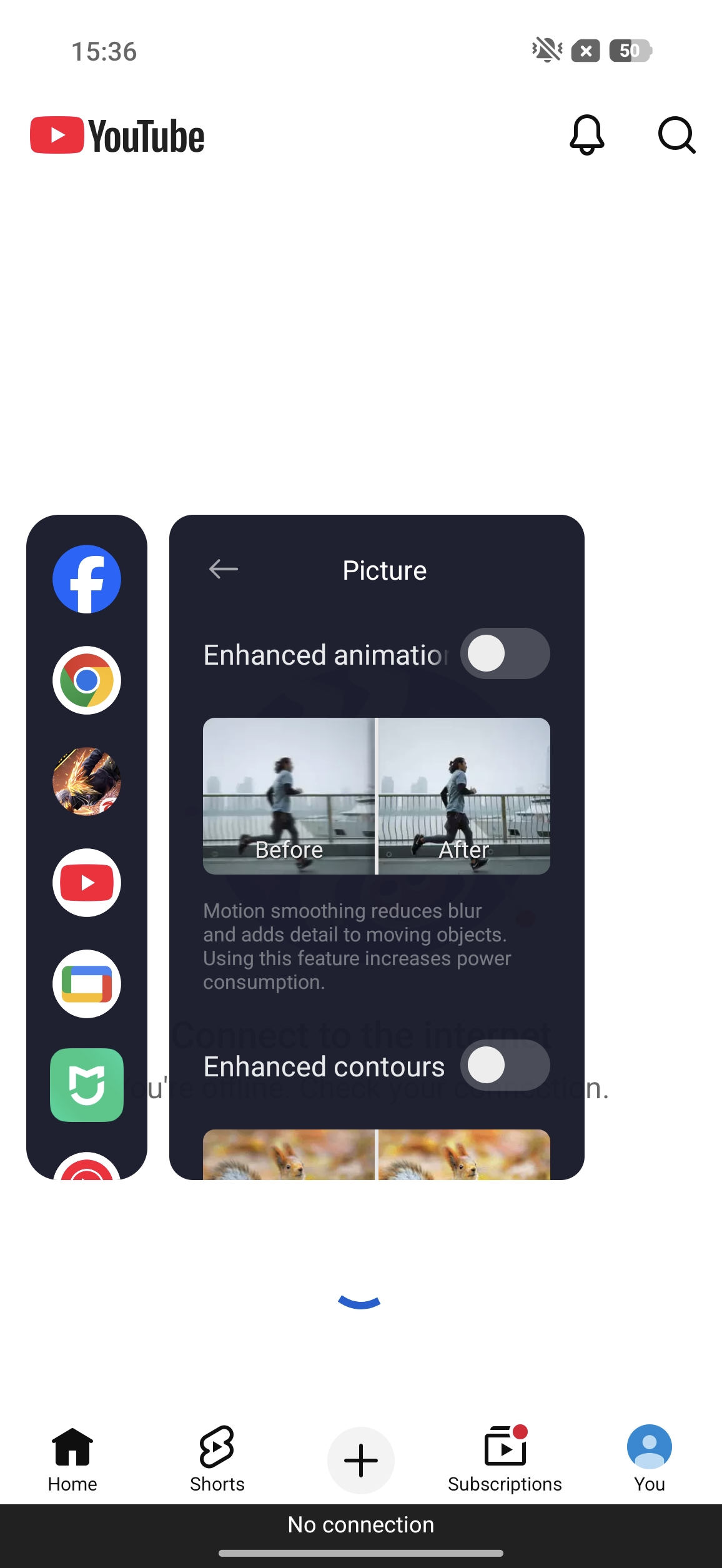
Q6: What is the Enhanced animations feature?
A: Enhanced animations, or MEMC, primarily optimizes the smoothness of dynamic scenes during video playback. Through system image processing, it makes moving images in videos appear smoother.
Note:
1. This feature cannot be used simultaneously with Upscale.
2. The availability of this feature varies depending on the model. Please refer to the actual usage.
3. The availability of this feature varies depending on the application. It supports YouTube, Mi Video, Netflix, Prime Video, Google Photos, VLC, Hotstar, and so on.
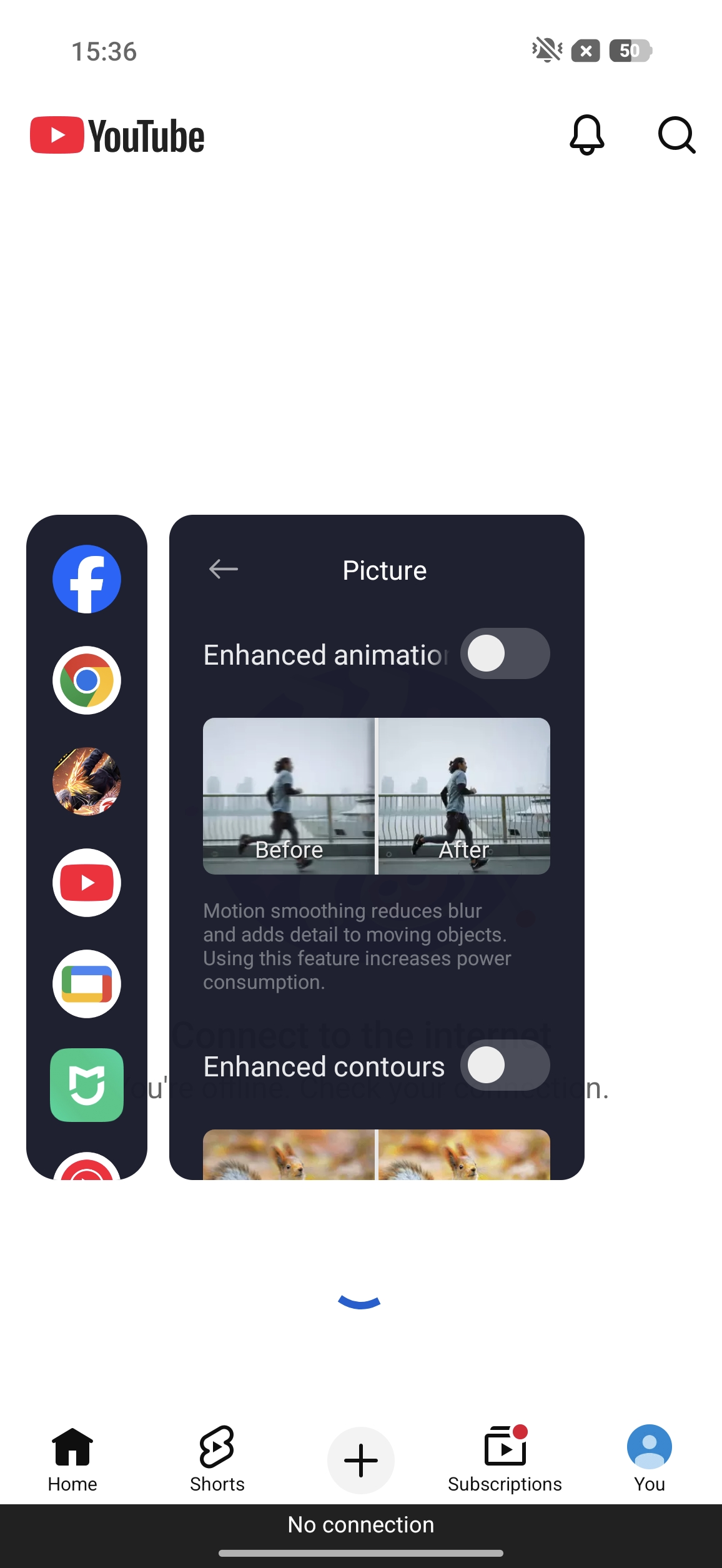
Q7: What is the Enhanced contours feature?
A: Enhanced contours can make the outlines of scenes and objects in a video clearer.
Note:
1. This feature will not work when the video resolution is higher than 4K.
2. The availability of this feature varies depending on the model. Please refer to the actual usage.
3. The availability of this feature varies depending on the application. It supports YouTube, Mi Video, Netflix, Prime Video, Google Photos, VLC, Hotstar, and so on.
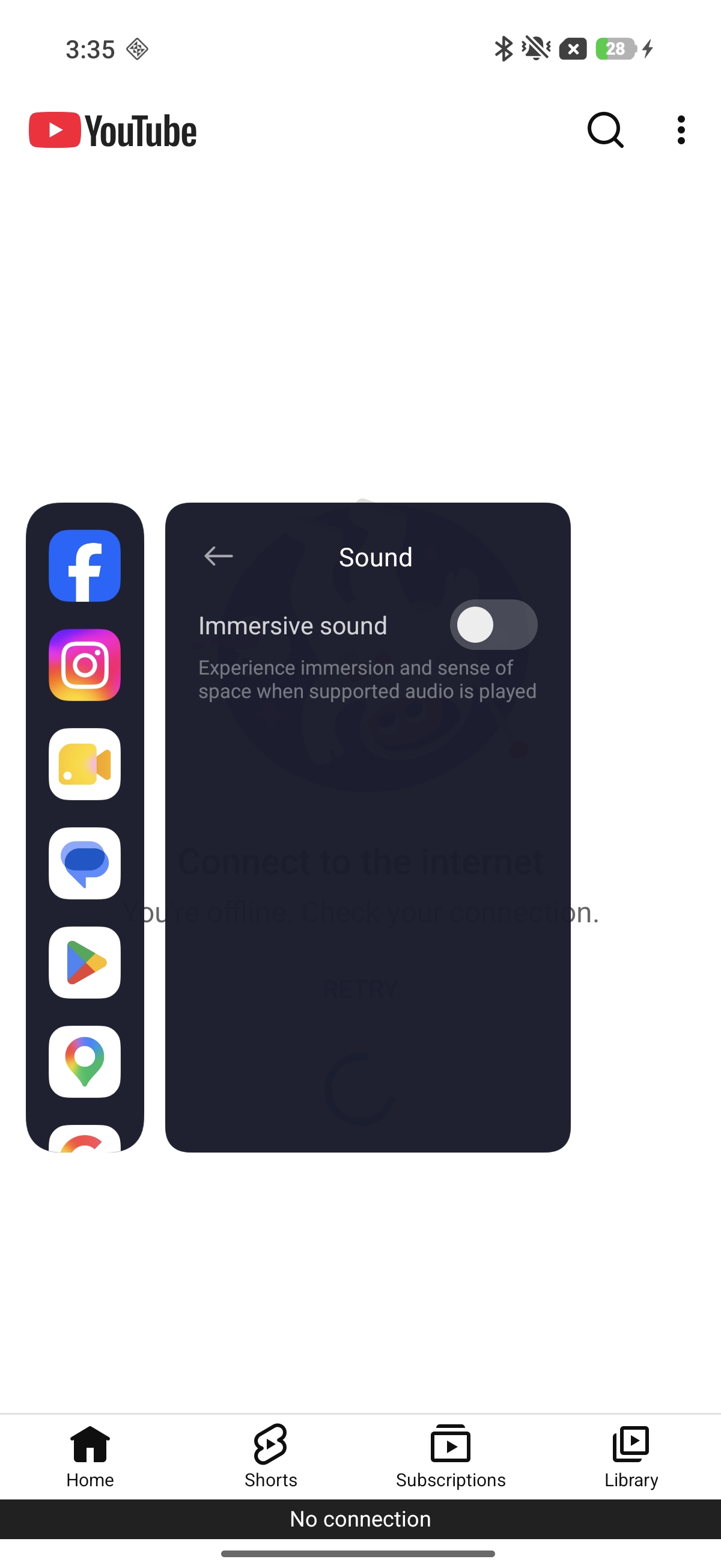
Q8: How to use Immersive sound?
A: After enabling Immersive sound, you can experience immersion and a sense of space when supported audio is played.
Q9: How to use Dolby Atmos?
A: When Dolby Atmos is enabled, the system processes the video audio to make the sound feel more spacious, layered, and directional.
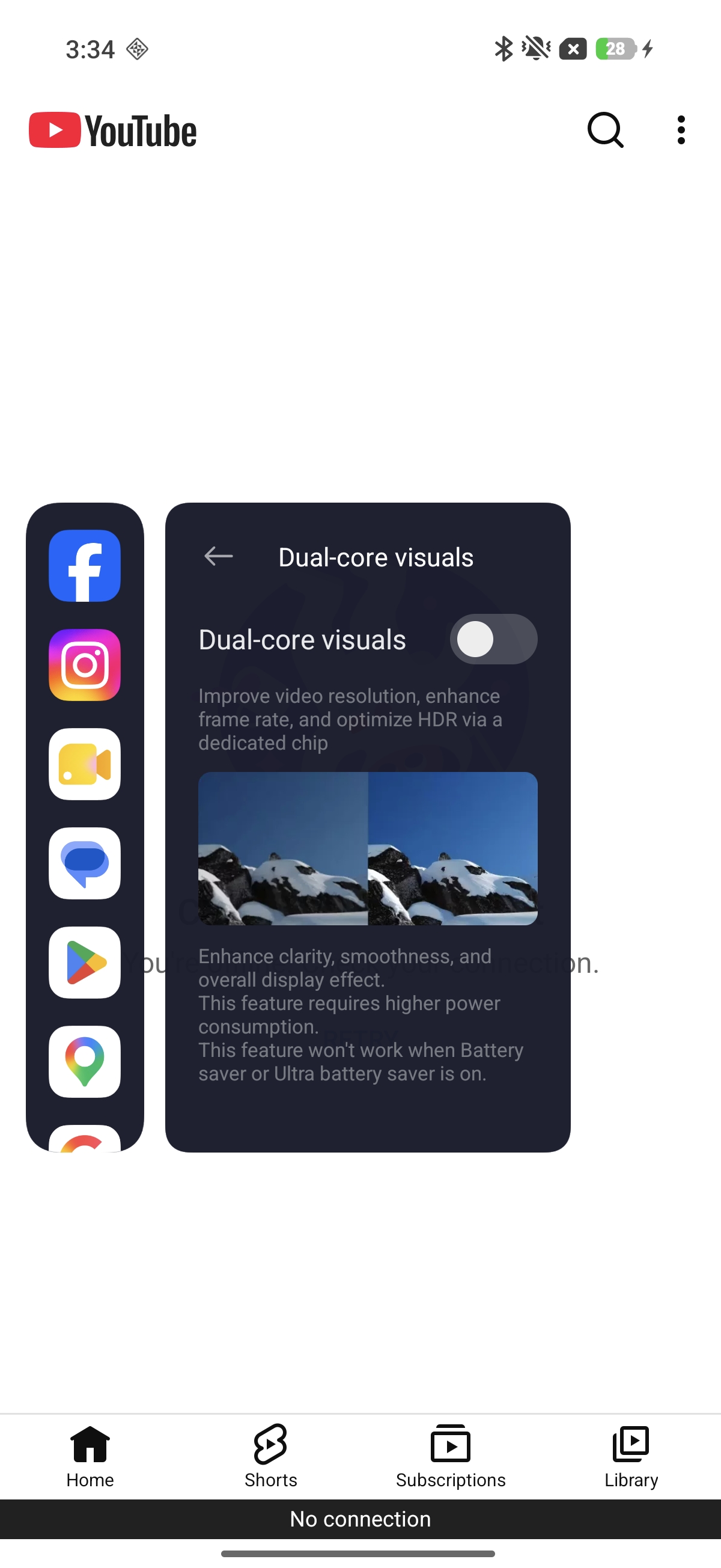
Q10: What is the Dual-core visuals feature?
A: Dual-core visuals improves video resolution, enhances frame rate, and optimizes HDR via a dedicated chip, enhancing clarity, smoothness, and overall display effect.
Note:
1. This feature requires higher power consumption.
2. This feature will not work when Battery saver or Ultra battery saver is on.
Call toolbox
Q1: How to use the call toolbox?
A: You can use Beautify and other features during fullscreen audio and video calls.
Q2: What are the features of the call toolbox?
A: The call toolbox can be used during mobile calls or third-party audio/video calls. Specific features vary depending on the application and phone model. Please refer to the actual usage experience.
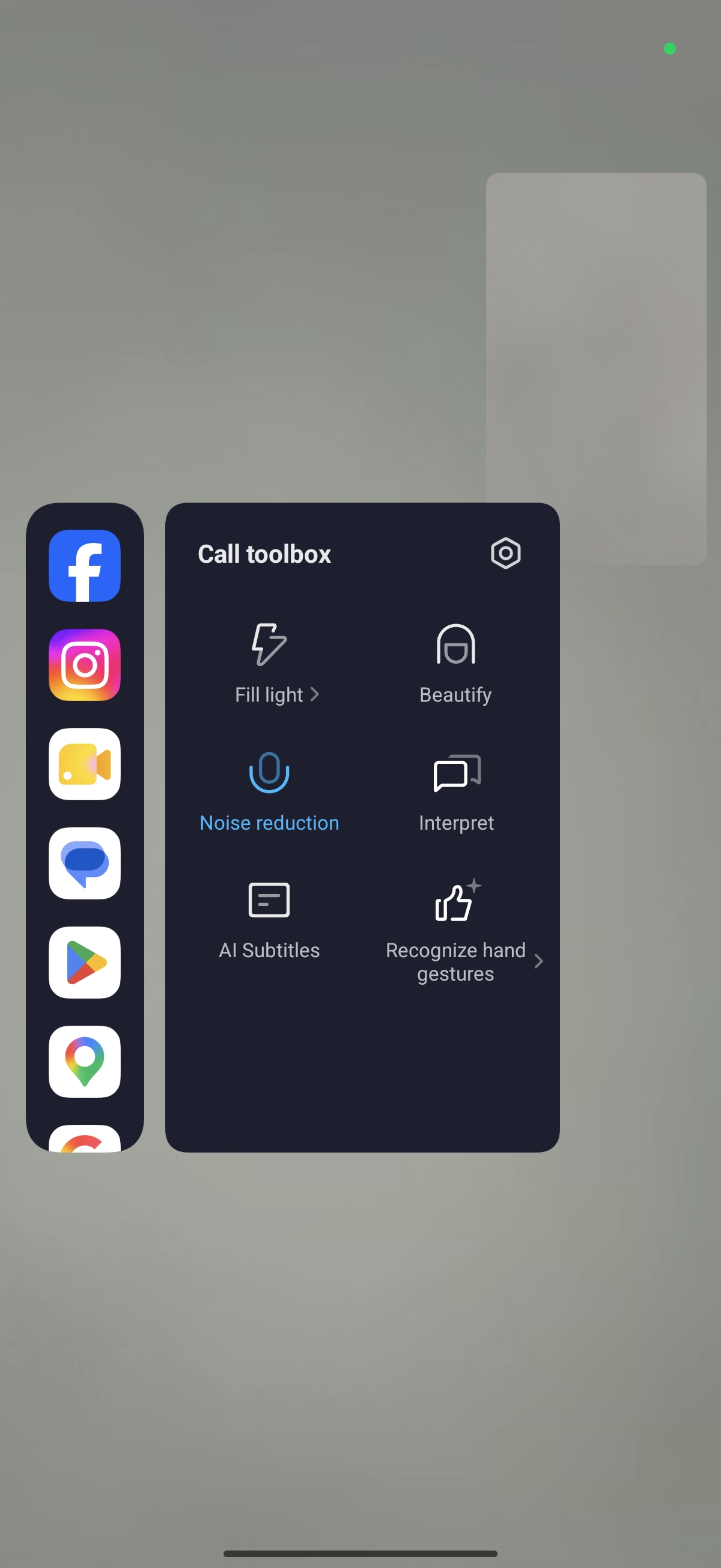
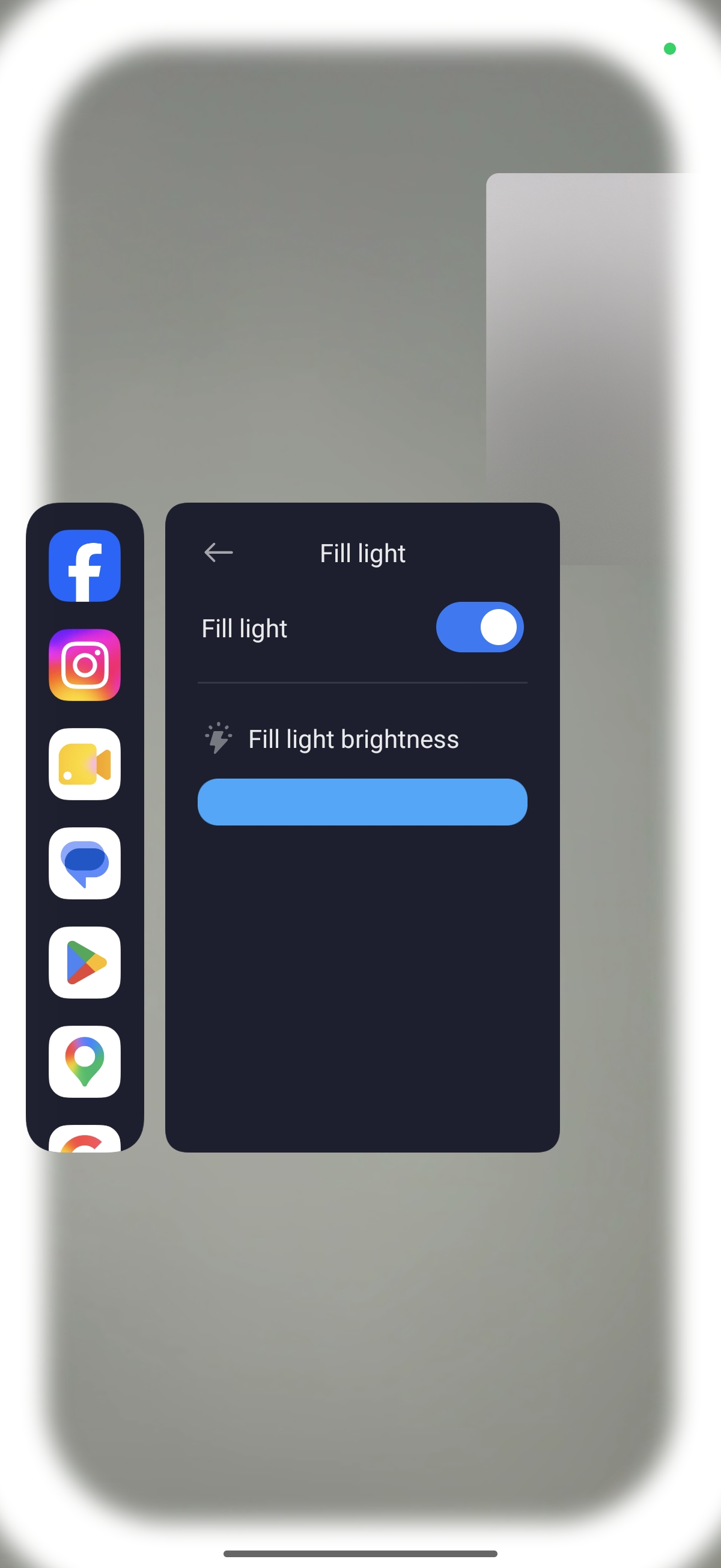
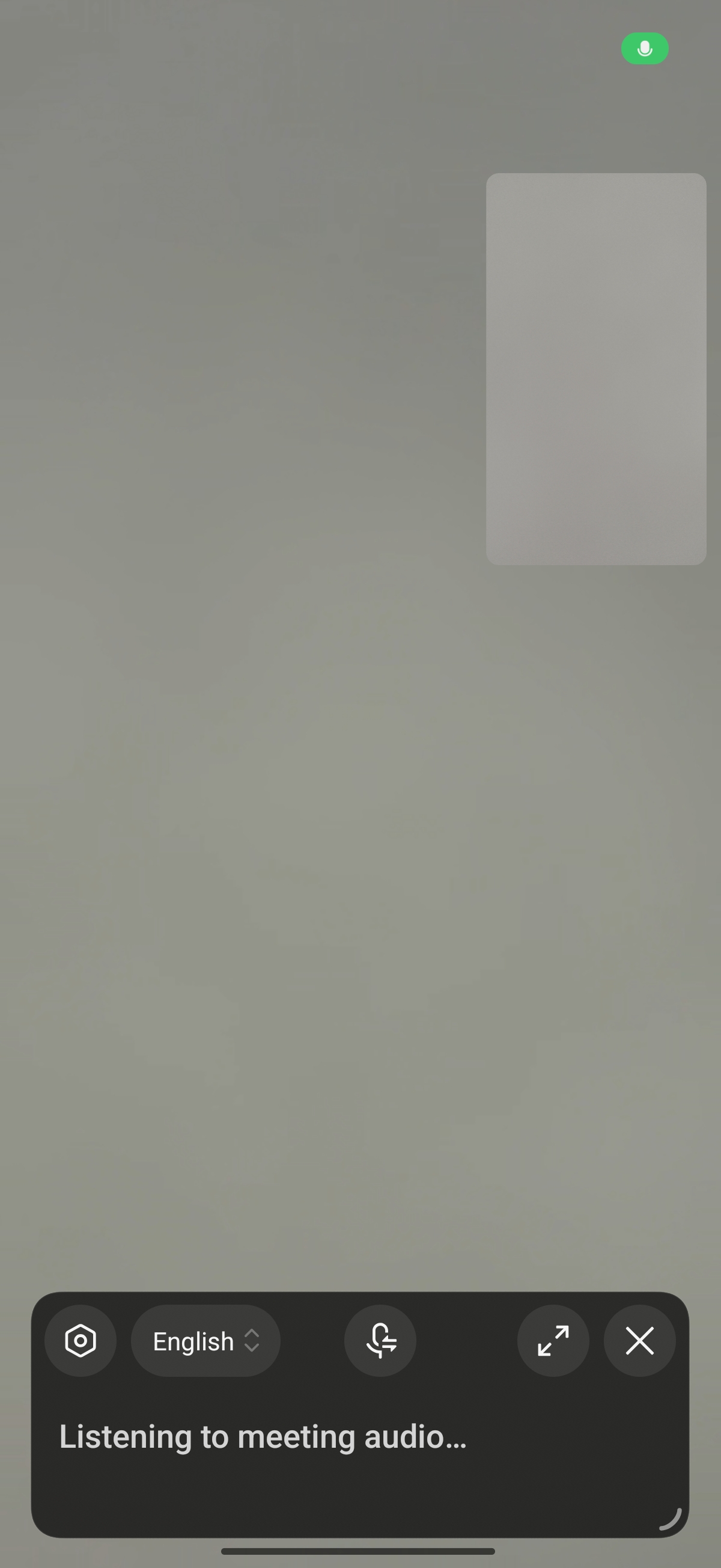
The features in the call toolbox include [Fill light], [Beautify], [Noise reduction], [Interpret], [AI Subtitles], and [Recognize hard gestures].
Fill light:
When the fill light is enabled, the phone uses the screen for illumination. You can adjust the fill light brightness. This feature is available only when the front-facing camera is in use.
Beautify:
Primarily used to optimize the portrait image during video calls. This feature is available only when the front-facing camera is in use.
Noise reduction:
Audio algorithms are used to reduce ambient background noise during calls, thereby improving call clarity.
Interpret:
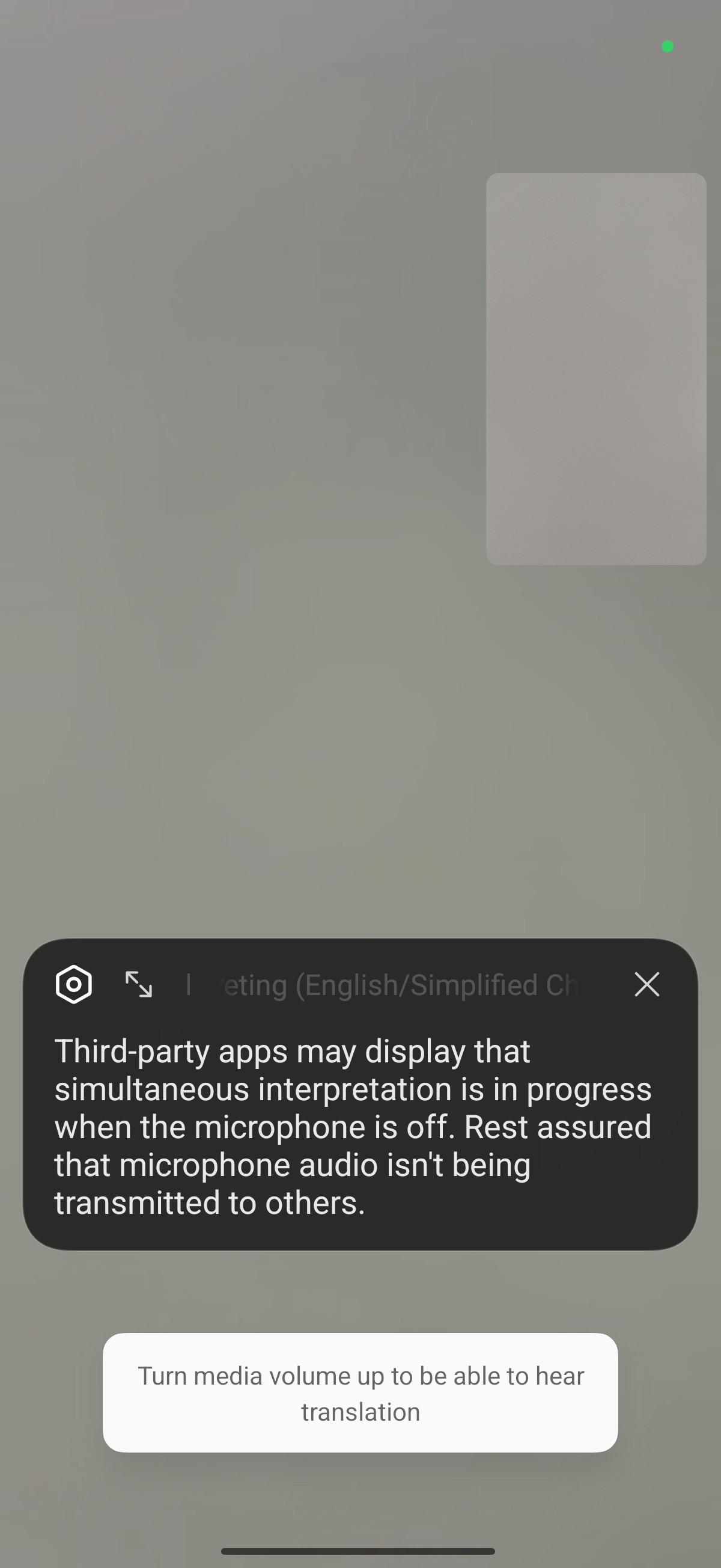
Whether for internet calls or standard calls, the conversation can be translated and played back to the other party in real time, facilitating cross-language communication.
Note:
It is recommended to use it in a relatively quiet area. Noisy environments may record ambient sounds, which may affect the recognition effect.
AI Subtitles:
Once enabled, it can generate real-time translated subtitles.
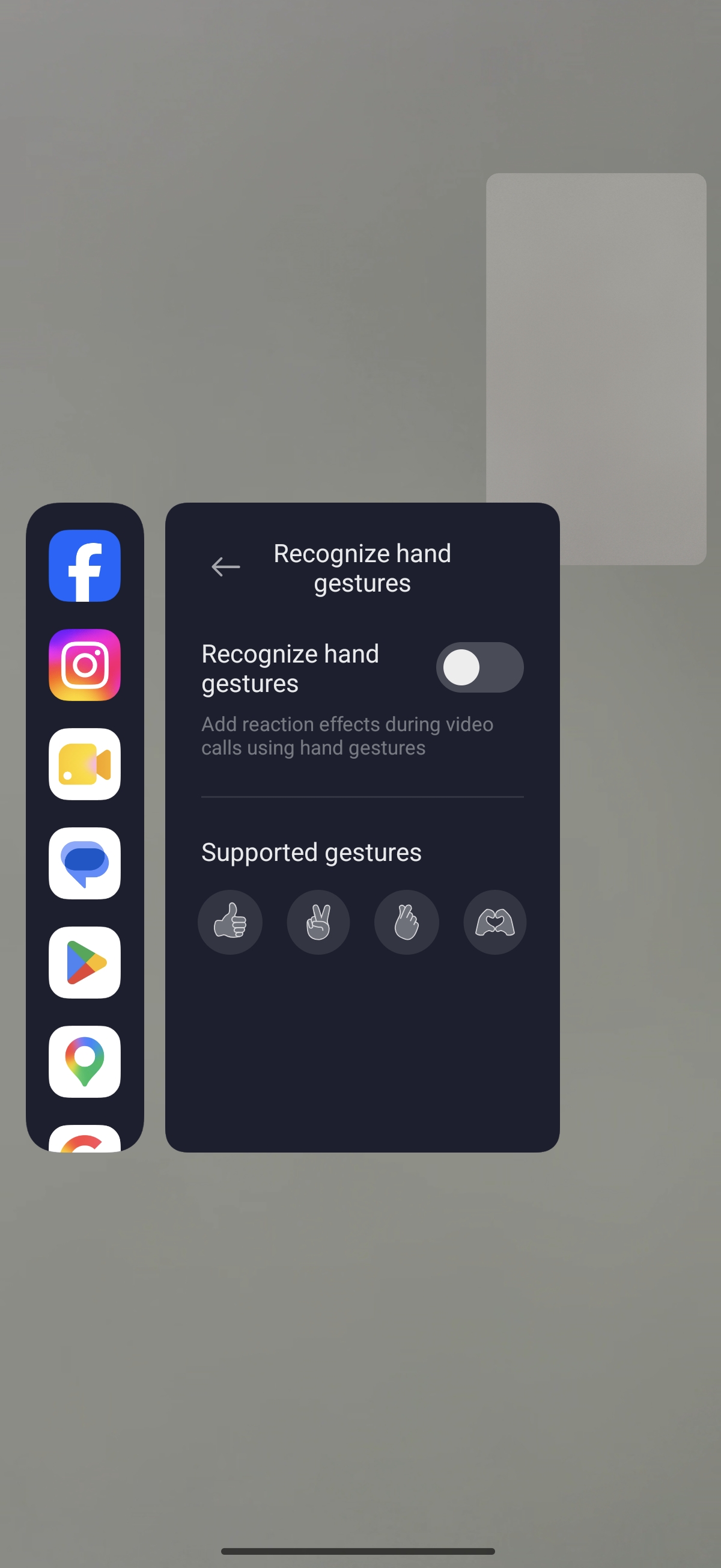
Recognize hard gestures:
Using gestures during video calls adds an element of fun to the experience and livens up the conversation. During video calls/conferences, gestures can be intelligently recognized to generate special effects, such as making a peace sign, giving a thumbs up, or making a heart shape with your hands. The recommended distance is within 1 m.
Q3: Why are the sounds of crying babies or young children suppressed when call reduction is enabled?
A: To ensure effective noise cancellation, the system suppresses sounds such as a baby's crying. If you need to hear sounds in this frequency range, you can disable noise reduction mode via the call toolbox on the screen.
In-game shortcuts
Q1: What is the In-game shortcuts feature?
A: In-game shortcuts are a set of quick-access features and performance optimization tools designed specifically for mobile games, allowing you to quickly use Game Turbo features.
Q2: What are the features of In-game shortcuts?
A: Includes the following features. Please note that the availability of the following features may vary depending on the mobile phone model, system version, and game application. Please refer to the actual usage.
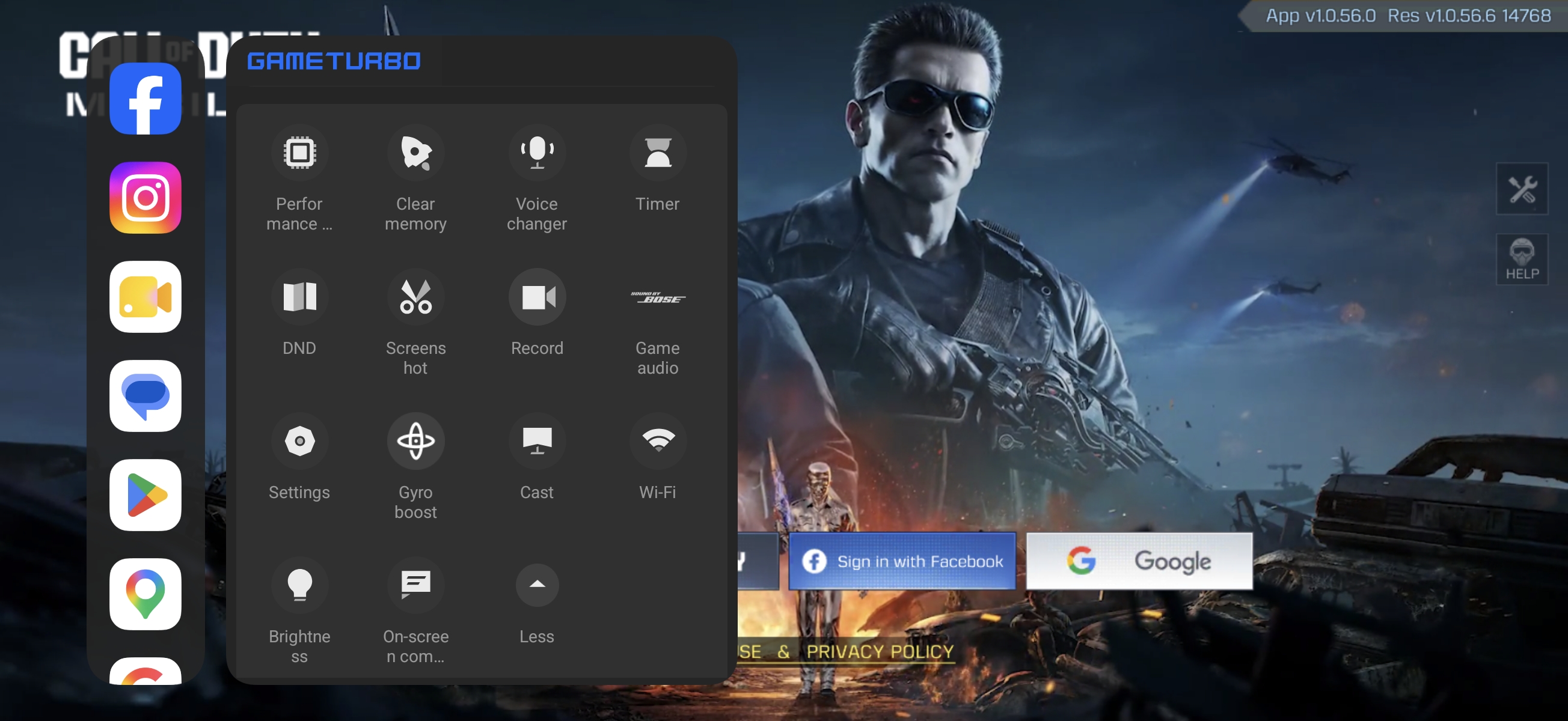
1. Game Turbo: You can enable or disable Game Turbo.
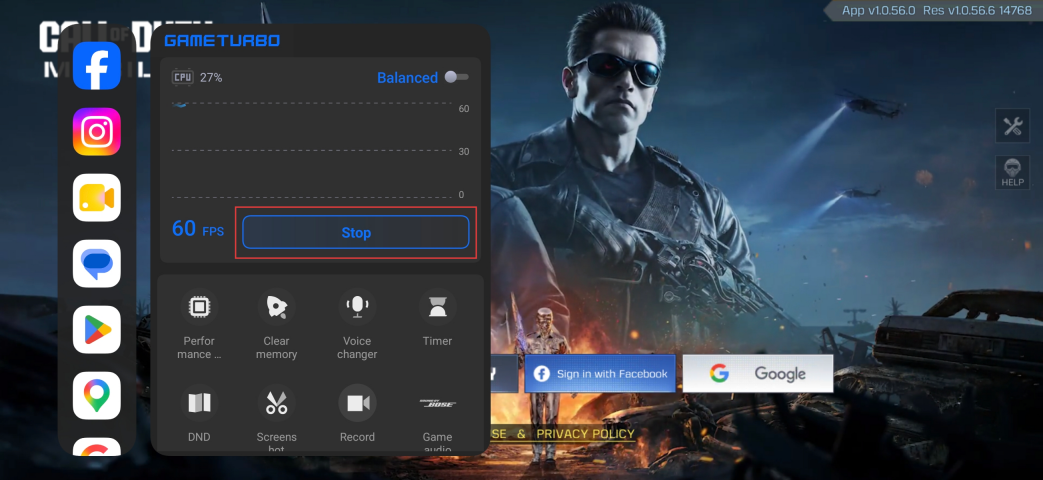
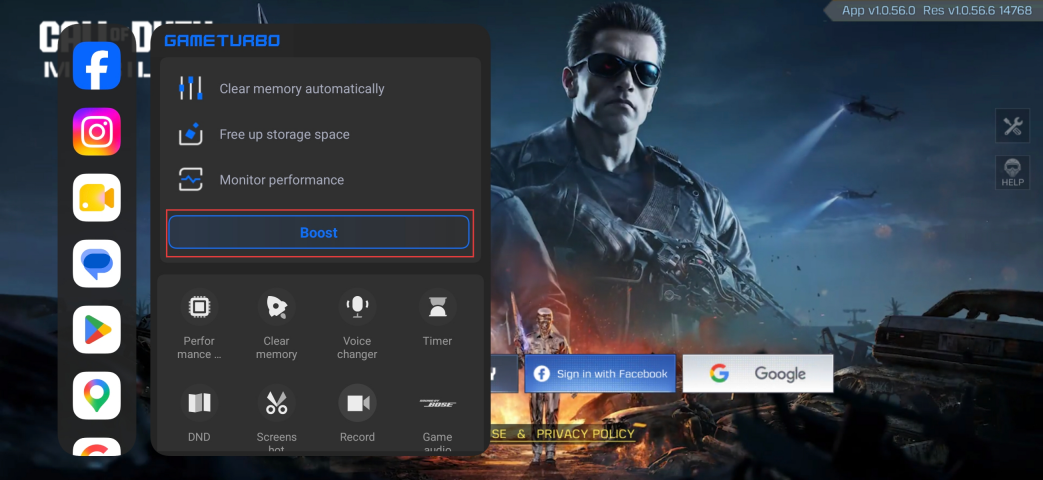
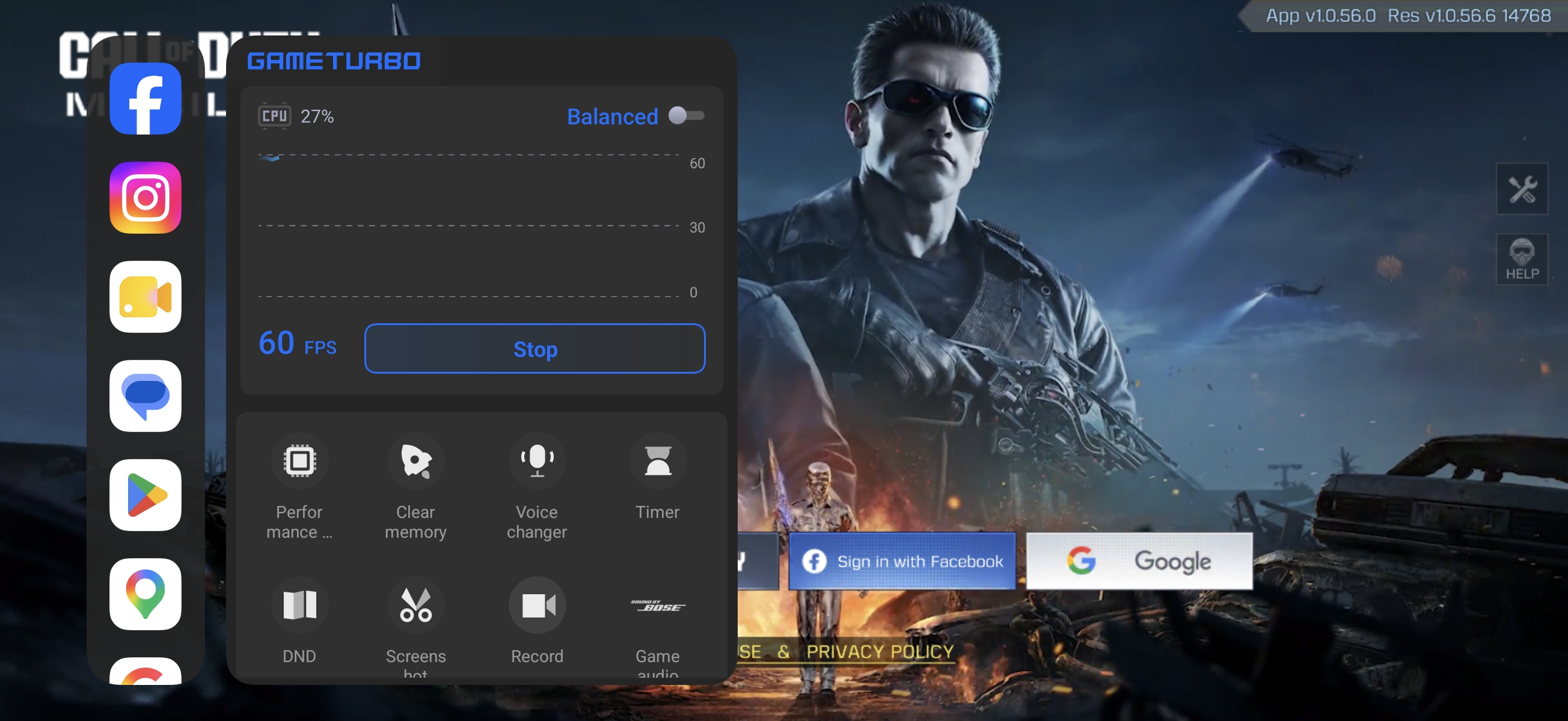
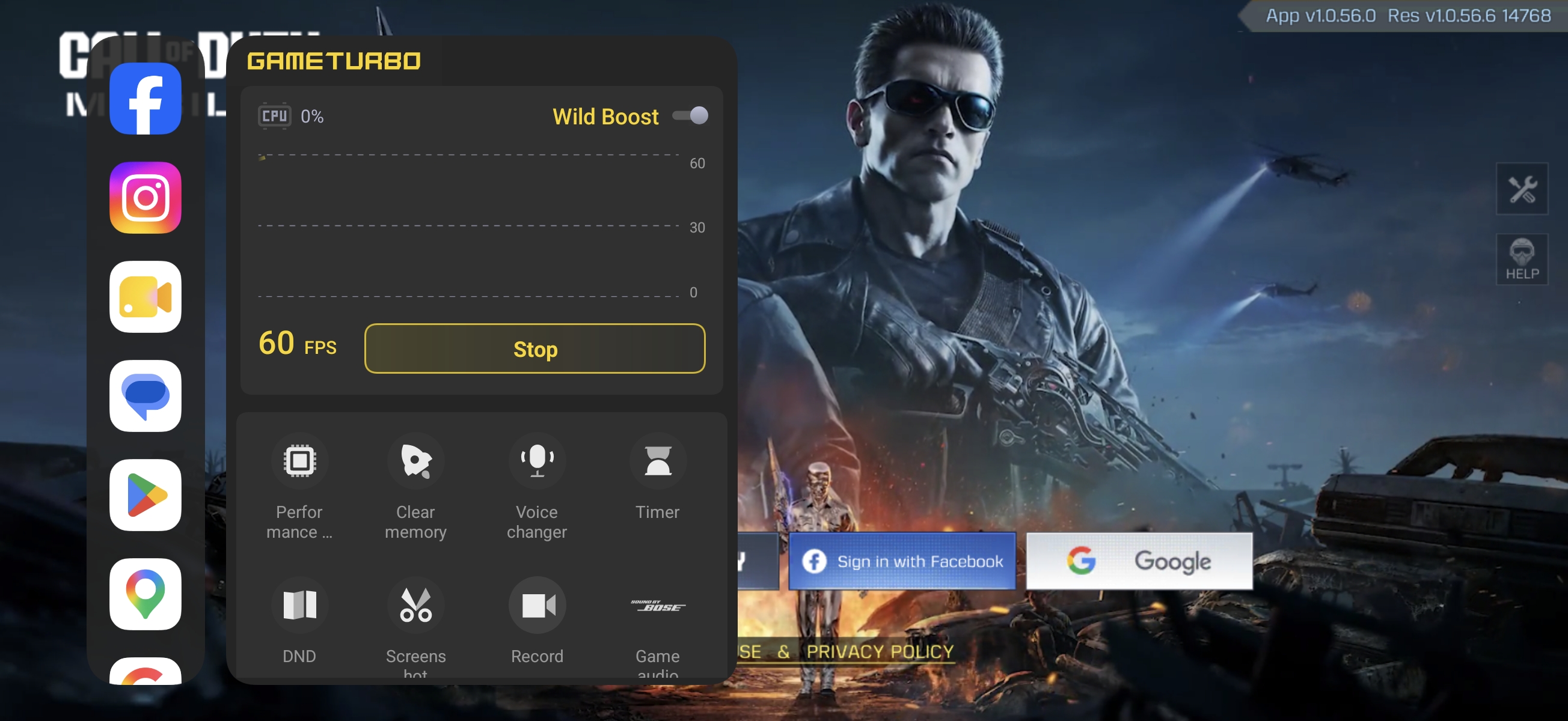
2. Mode switching: switch between Balanced and Performance, or switch between Balanced and Wild Boost.
Note:
The specific modes available vary depending on the device.
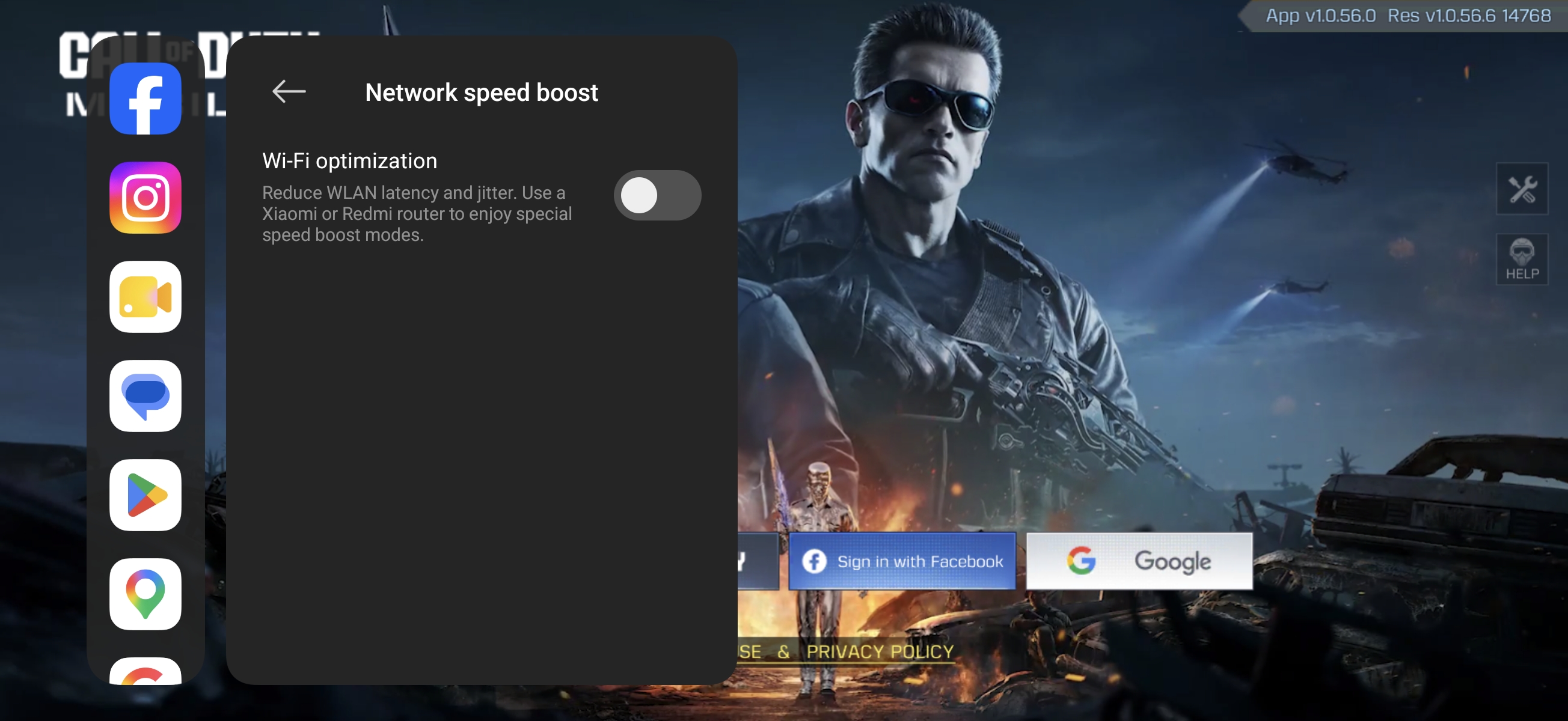
3. Performance settings: Performance strategy, Enhanced visuals, Enhanced touch controls, Network speed boost.
(1). Performance strategy: Picture priority, Custom, Frame rate priority.
Picture priority: "Enhance image quality" improves image quality via super resolution and manages frame rate via smart frame rate.
Frame rate priority: Improve frame rate intelligently.
Custom: You can customize super resolution and smart frame rate to manage frame rate and image quality.
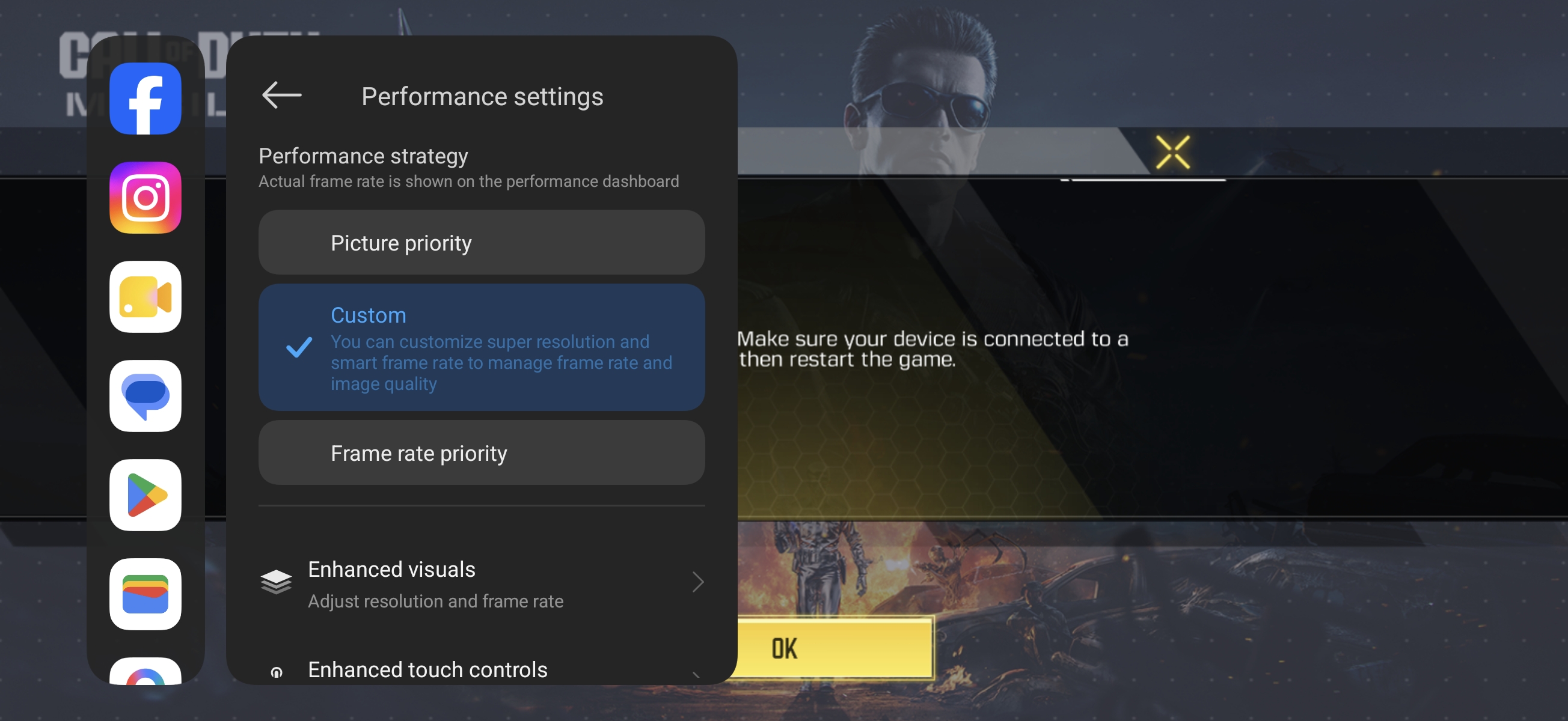
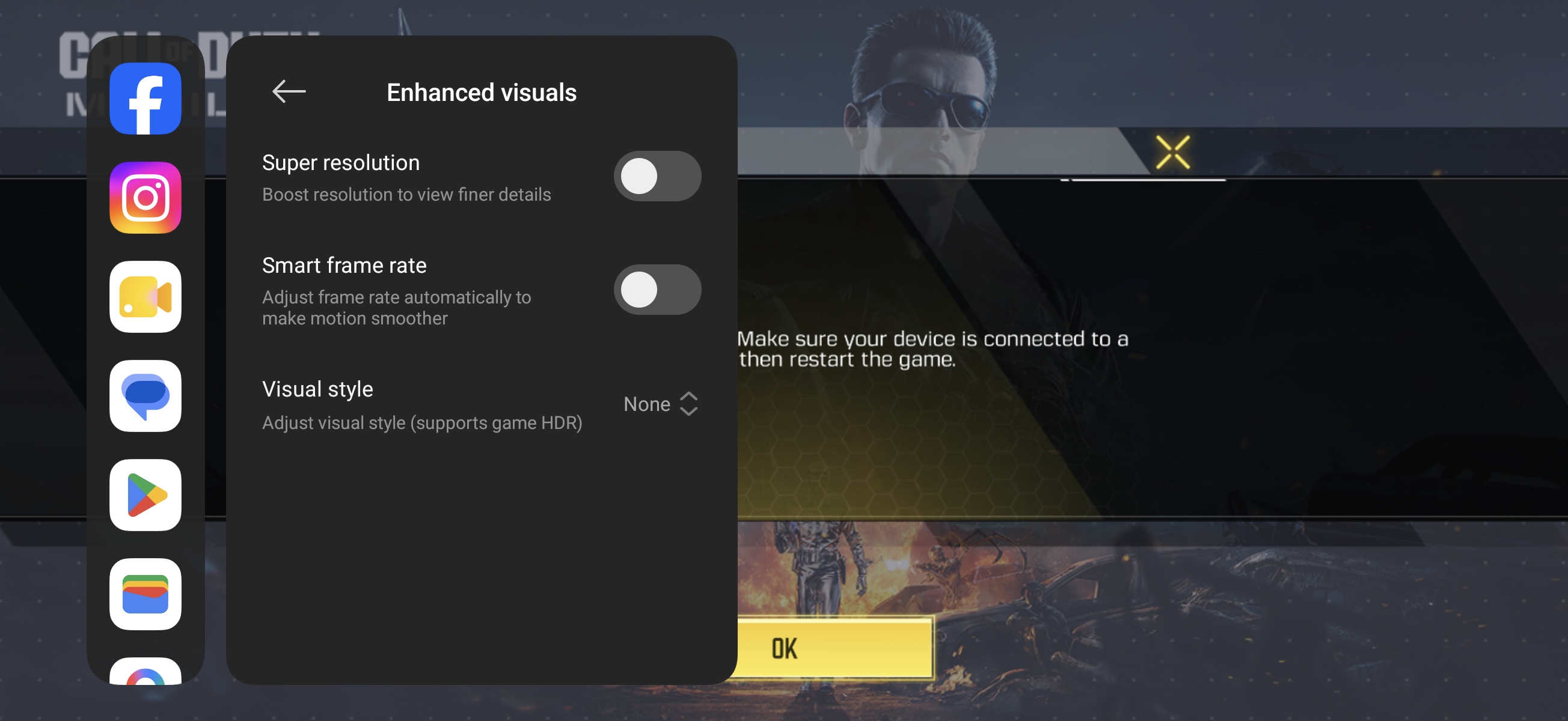
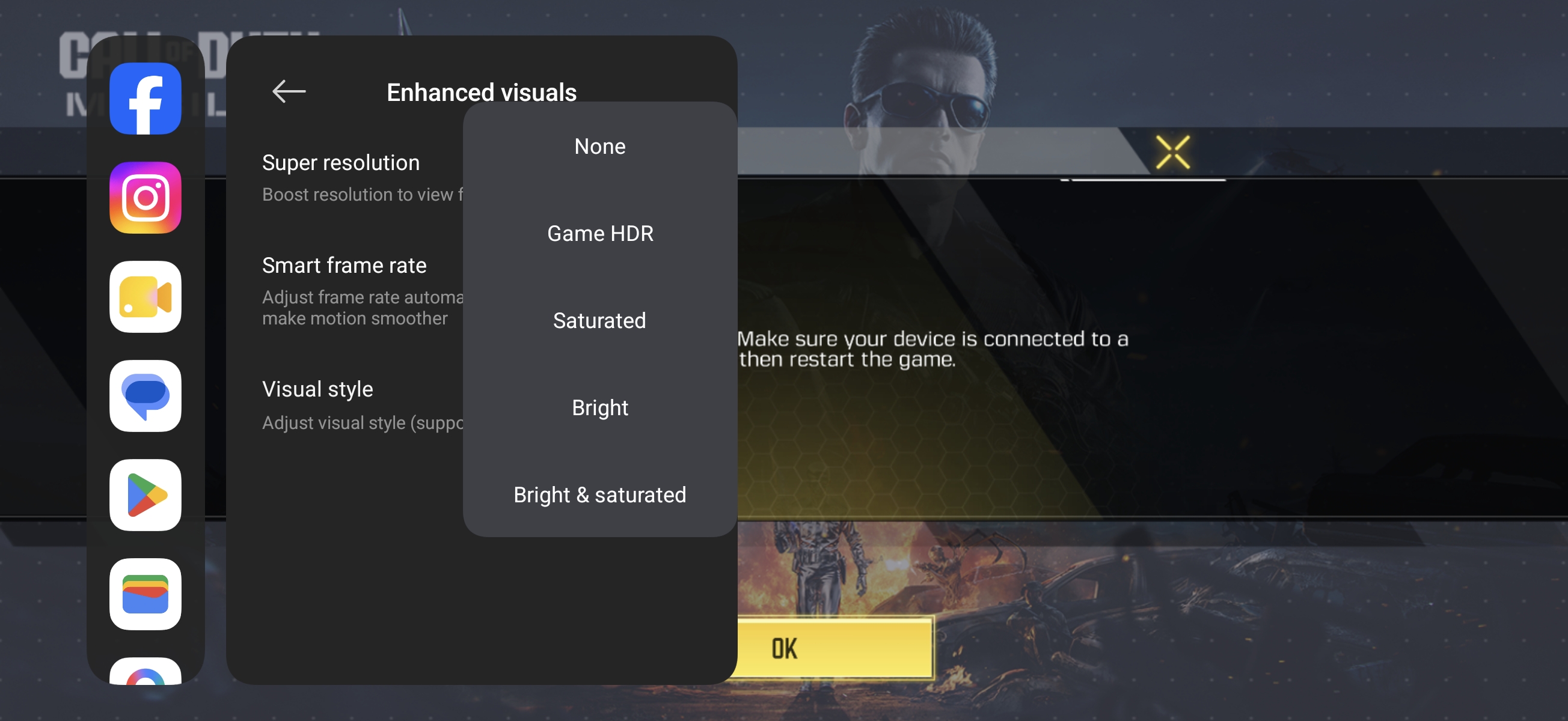
Tap [Enhanced visuals]. You can enable or disable [Super resolution] and [Smart frame rate], and you can adjust the visual style from [None], [Game HDR], [Saturated], [Bright], [Bright & saturated].
Note:
If you select [Picture priority] or [Frame rate priority], [Enhanced visuals] cannot be set.
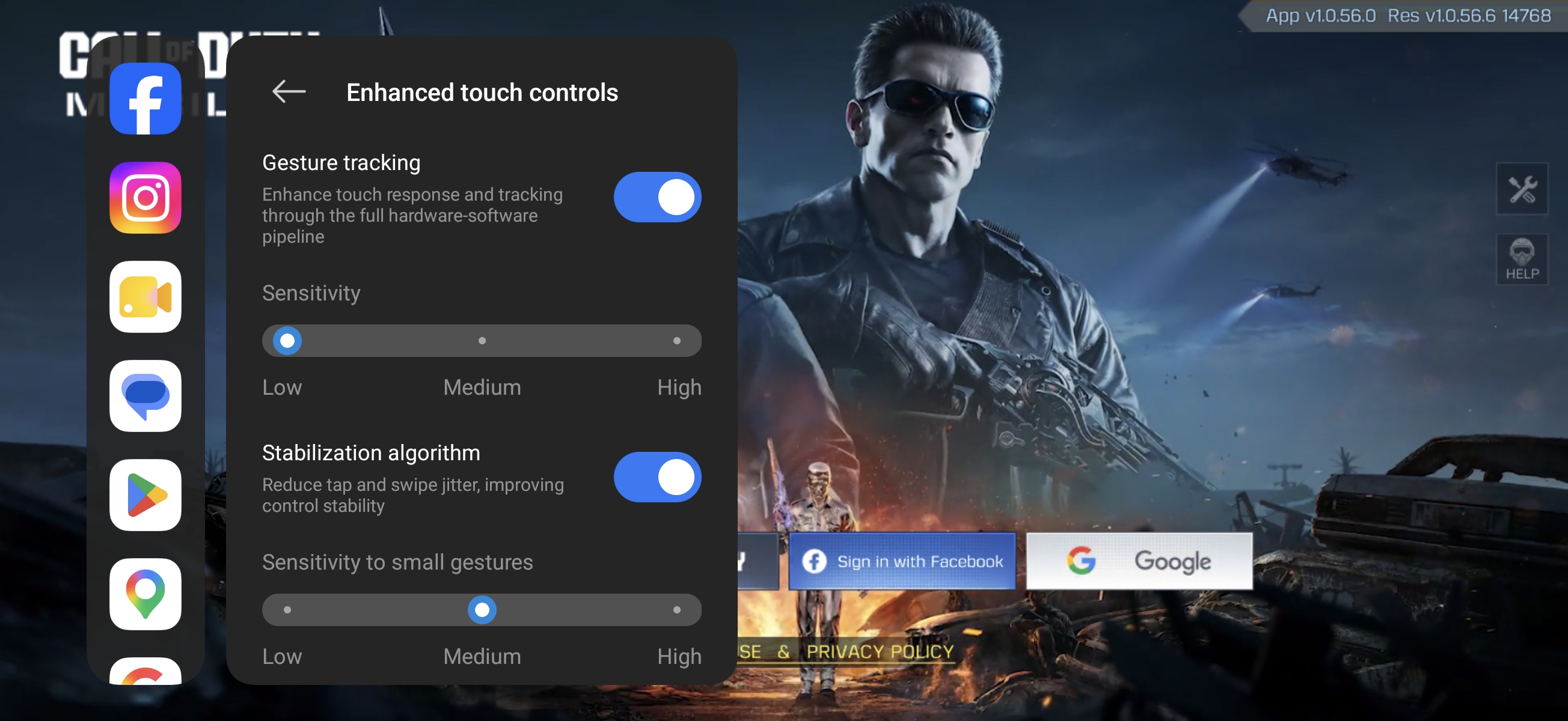
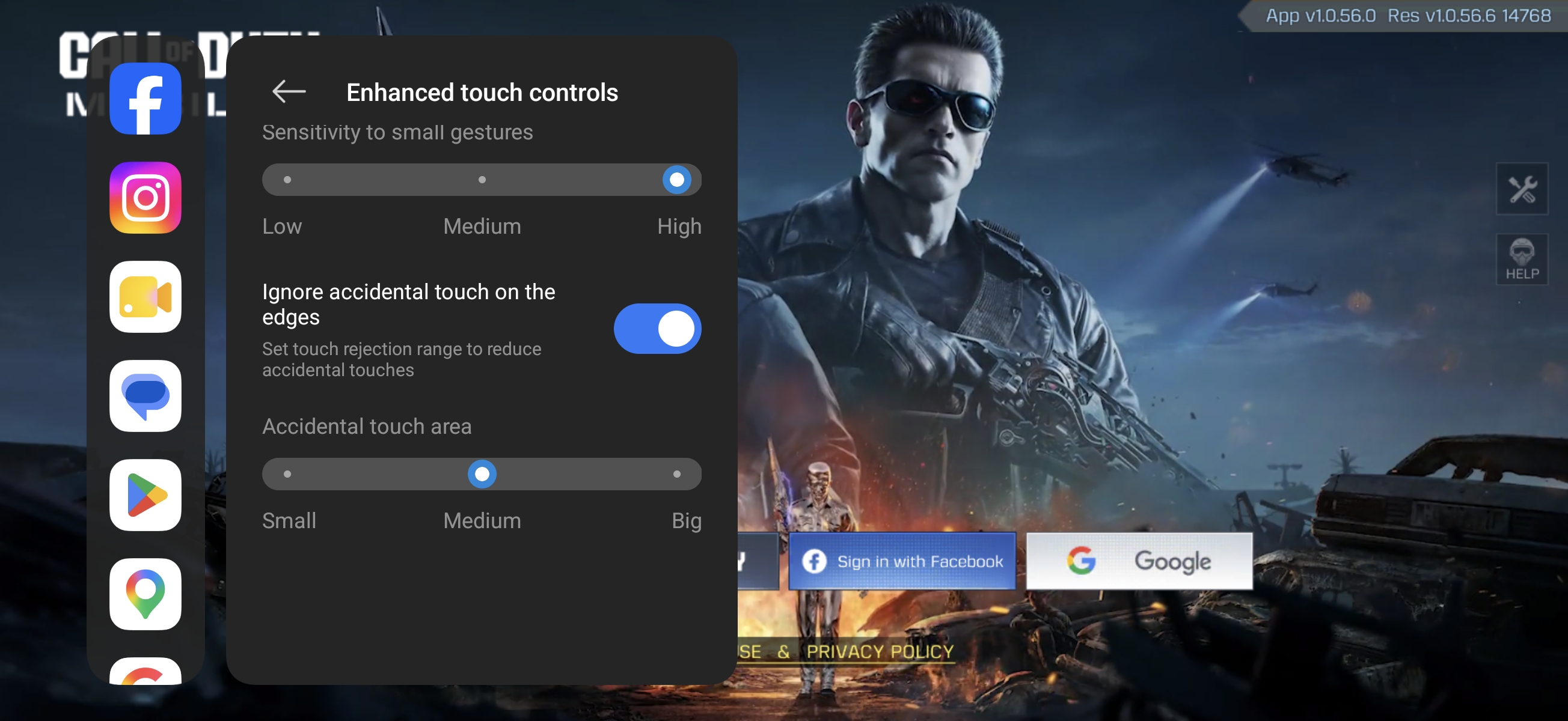
(2). Enhanced touch controls: Gesture tracking, Stabilization algorithm, Ignore accidental touch on the edges.
Gesture tracking: Enhance touch response and tracking through the full hardware-software pipeline. You can also adjust the sensitivity to [Low], [Medium], and [High].
Stabilization algorithm: Reduce tap and swipe jitter, improve control stability. You can also adjust the sensitivity to [Low], [Medium], and [High].
Ignore accidental touch on the edges: You can set the rejection range to reduce accidental touches. You can also adjust the accidental touch area to [Small], [Medium], and [Big].
(3). Network speed boost: You can enable [Wi-Fi optimization] to reduce WLAN latency and jitter. Use a Xiaomi or REDMI router to enjoy special speed boost modes.
3. Clear memory: Tapping this will clear the memory.
4. Voice changer: Tap to use the voice changer function.
5. Timer: Once activated, four hourglass-shaped icons will appear on the page. Tapping them starts the timer, allowing for up to four simultaneous timers.
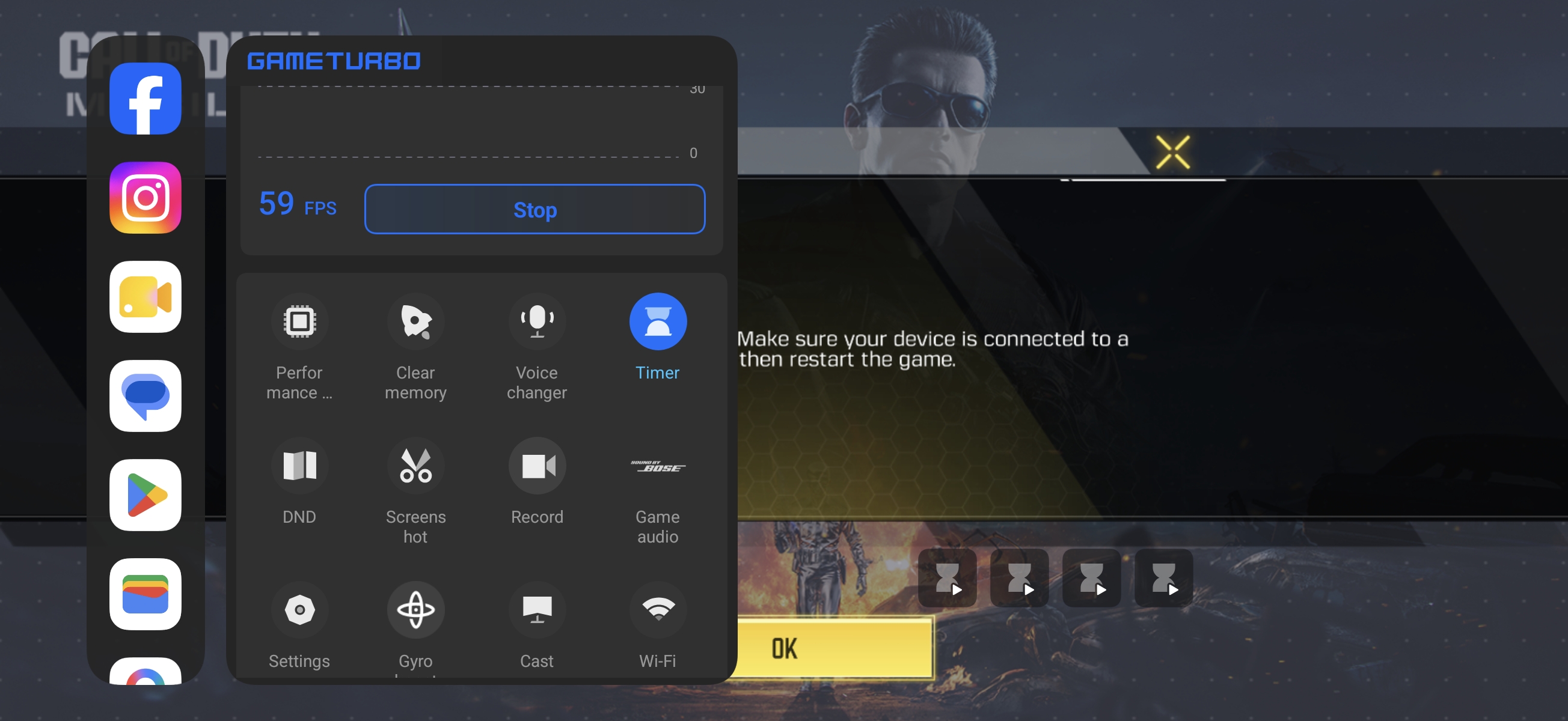
6. DND: After enabling, floating notifications will be restricted.
7. Screenshot: Tap to take a screenshot of the current screen.
8. Record: Tap to start recording the screen.
9. Game audio: Optimize game sound effects using audio algorithms to enhance the in-game audio experience.
10. Settings: Tap to enter the Settings of Game Turbo.
11. Gyroboost: By optimizing gyroscope data response, the sensitivity and responsiveness of gyroscope controls in the game are enhanced, enabling faster camera adjustments.
12. Cast: Tap to use the Cast feature.
13. Wi-Fi: Tap to enable or disbale Wi-Fi.
14. Brightness: Tap to adjust the brightness or enable Auto brightness.
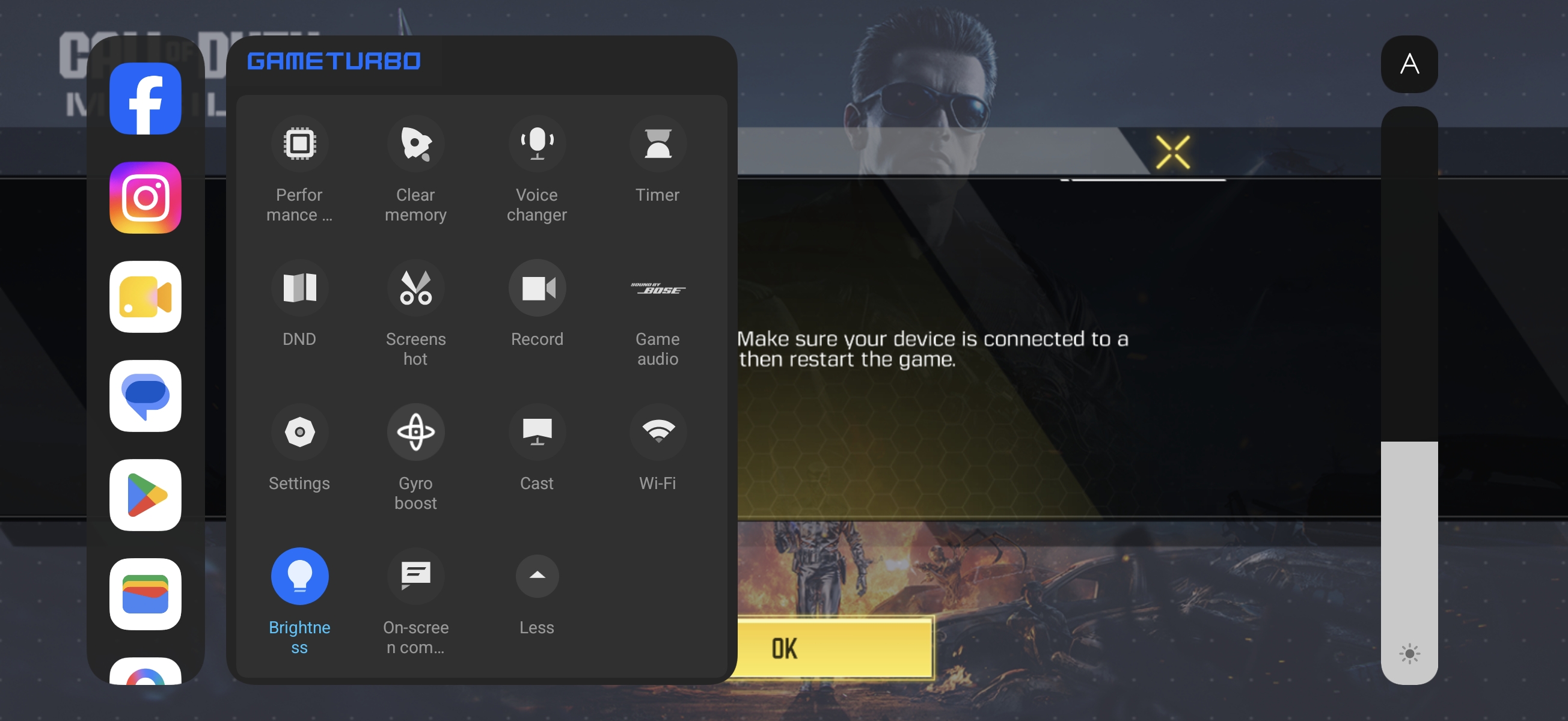
15. On-screen communication: Once enabled, notifications will not pop up; instead, they will float across the screen like bullet comments.
Q3: Why is the [In-game shortcuts] option grayed out?
A: If the [In-game shortcuts] option in the phone settings is grayed out, it is because the Game Turbo feature is not enabled. Please open the [Security] App >> [Game Turbo] >> [Settings] >> enable [Game Turbo] and [In-game shortcuts].
Q4: What is Smart frame rate?
A: When [Smart frame rate] is enabled, the system uses an algorithm to insert frames and increase the refresh rate of game scenes, delivering a smoother gaming experience.
Does it help?
Yes
No