

POCO C95 Pro FAQ
Product Overview
Q1. What are the selling points of the POCO C95 Pro?
A: For your reference, here are the selling points of the POCO C95 Pro:
1. It features a massive 7500 mAh battery that supports up to 91 hours of music playback for extended usage.
2. The device supports 45 W fast charging, providing a full day of power with just 35 minutes of charging.
3. It has an immersive 6.9-inch display with a high screen refresh rate for smooth and responsive visuals.
4. The screen is protected by Corning® Gorilla® Glass 7i, offering a new upgrade in durability and a stylish body design.
5. It is powered by the high-performance Helio G91-Ultra processor, with support for memory extension up to 16GB RAM.
6. The 50MP AI dual camera captures every vivid moment with stunning clarity.
Note:
1. Data is from POCO internal laboratories. Actual results may vary.
2. The 16GB RAM figure is calculated based on the 8GB RAM version. The additional RAM occupies a corresponding amount of ROM storage space. The memory expansion function is available only when there is sufficient storage space on the device. The actual RAM expansion capacity varies by model.
Q2. What is the positioning of the POCO C95 Pro and who is it for?
A: Here is the positioning and target audience information for the POCO C95 Pro:
1. The POCO C95 Pro is positioned as an entry-level, large-screen, long-battery-life smartphone.
2. The POCO C95 Pro is suitable for users who prioritize long battery life, large-screen media consumption, and practical durability.
3. The POCO C95 Pro is particularly well-suited for elderly users, commuters, and anyone requiring extended usage time between charges.
Q3. What does the exterior of the POCO C95 Pro look like?
A: Here are the exterior details of the POCO C95 Pro:
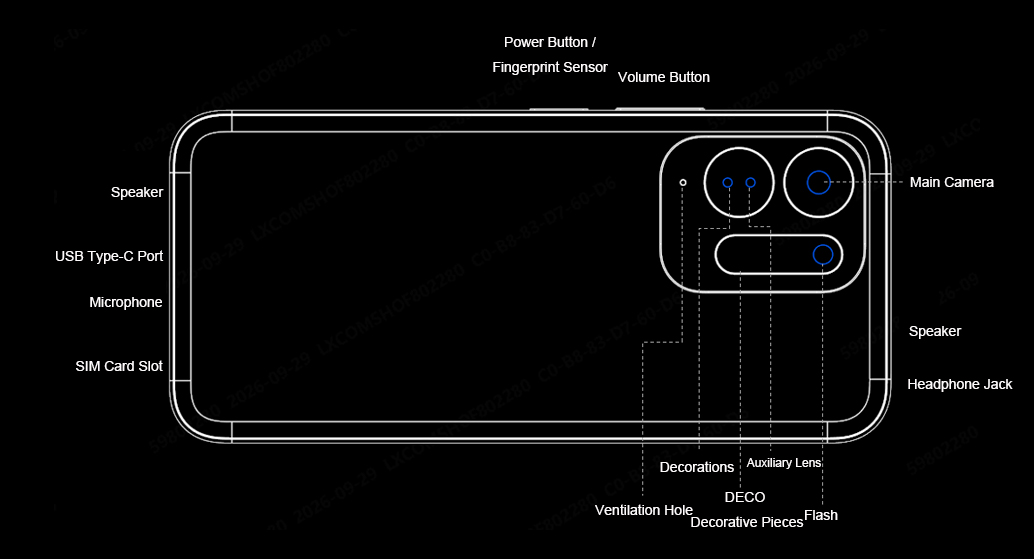
Q4. What color options are available for the POCO C95 Pro?
A: The POCO C95 Pro is available in the following four color options: Black, Blue, Green, and Orange.
Note:
Available colors may vary by country or region; please refer to local official sales channels.
Q5. Where can the SN and IMEI of the POCO C95 Pro be viewed?
A: The SN and IMEI of the POCO C95 Pro can be viewed in the following locations:
1. You can check the SN and the IMEI of the POCO C95 Pro on the packaging box and the label on the body.
2. On the phone, enter * #06#, and you can check the IMEI and SN.
3. Open the [Settings] App >> [About phone] >> [Detailed info and specs] >> [Status] >> tap [Model] to check the SN >> tap [IMEI] to check the IMEI.
Q6. What are the dimensions and weight of the POCO C95 Pro?
A: Here are the dimensions and weight specifications of the POCO C95 Pro:
1. The dimensions of the POCO C95 Pro are 170.12 mm in height, 78.42 mm in width, and 8.8 mm in thickness.
2. The product weight of the POCO C95 Pro is 232 g with a tolerance of ±5 g.
3. The package weight of the POCO C95 Pro varies by region: the global version without charger weighs 390 g ± 10 g, and the EU version with charger weighs 528 g ± 10 g.
4. The package dimensions of the POCO C95 Pro are 187 mm × 95 mm × 62 mm.
Note:
Data provided by internal laboratories. Industry measurement methods may differ.
Display
Q1. What are the screen size, ratio, and screen-to-body ratio of the POCO C95 Pro?
A: Here are the display specifications of the POCO C95 Pro:
1. The POCO C95 Pro features a 6.9-inch LCD flat display with a 1600 x 720 HD+ resolution.
2. The screen-to-body ratio of the POCO C95 Pro is 90.3%, and the display type is a flat hard screen with full lamination technology.
3. The POCO C95 Pro screen supports 16.7 million colors with 8-bit color depth and an NTSC 83% color gamut.
Q2. What is the screen resolution of the POCO C95 Pro?
A: The screen resolution of the POCO C95 Pro is 1600 x 720 pixels, which is HD+ resolution. The POCO C95 Pro has a pixel density of 254 PPI.
Q3. What is the refresh rate of the POCO C95 Pro and how is it adjusted?
A: Here is the refresh rate information for the POCO C95 Pro:
1. The POCO C95 Pro supports screen refresh rates of up to 120 Hz.
2. The refresh rate can be adjusted in the display settings of the POCO C95 Pro.
3. The POCO C95 Pro also features a touch sampling rate of up to 240 Hz for responsive touch interaction.
Q4. What is the brightness range of the POCO C95 Pro screen?
A: Here is the brightness range information for the POCO C95 Pro screen:
1. The POCO C95 Pro screen has a manual maximum brightness of 675 nits.
2. The high-brightness mode maximum of the POCO C95 Pro screen is 825 nits.
3. The minimum brightness of the POCO C95 Pro screen is 3.5 nits.
Q5. Why does the POCO C95 Pro screen show light leakage?
A: The POCO C95 Pro uses an LCD display with full lamination technology, and light leakage is not a defect of the device. The display characteristics of the LCD panel on the POCO C95 Pro are within the normal industry tolerance range. If light leakage is observed, it does not affect the normal functionality or lifespan of the POCO C95 Pro.
Q6. What to do if the POCO C95 Pro touchscreen is unresponsive?
A: If the POCO C95 Pro touchscreen is unresponsive, the following troubleshooting steps can be taken:
1. The device should be restarted first to clear any temporary software issues.
2. The screen surface of the POCO C95 Pro should be cleaned to remove any dirt or moisture that may affect touch sensitivity.
3. If a screen protector is applied to the POCO C95 Pro, it should be removed to check if the protector is interfering with touch detection.
4. If the issue persists, the POCO C95 Pro should be checked for system updates that may address touchscreen performance.
Q7. What to do if the POCO C95 Pro screen brightness changes automatically?
A: If the POCO C95 Pro screen brightness changes automatically, the following information may help:
1. The POCO C95 Pro supports an ambient light sensor that automatically adjusts screen brightness based on the surrounding lighting conditions.
2. The auto-brightness function of the POCO C95 Pro can be turned off in the display settings to prevent automatic changes.
3. If the auto-brightness behavior seems erratic, the ambient light sensor of the POCO C95 Pro should be checked for obstructions such as screen protectors or dirt.
Q8. What is the function of HDR display on the POCO C95 Pro?
A: The POCO C95 Pro does not support HDR display. Therefore, HDR display functionality is not available on the POCO C95 Pro.
Q9. What to do if the POCO C95 Pro screen is unclear in sunlight?
A: If the POCO C95 Pro screen is unclear in sunlight, the following guidance is provided:
1. The POCO C95 Pro supports a Sunlight mode that enhances screen visibility under bright outdoor conditions.
2. The maximum brightness of the POCO C95 Pro screen reaches 825 nits in high-brightness mode, which helps with outdoor visibility.
Q10. What dimming methods does the POCO C95 Pro support?
A: The POCO C95 Pro uses PWM dimming as the default dimming method.
Network
Q1. Does the POCO C95 Pro support Wi-Fi 6/7 and what router settings are needed?
A: The POCO C95 Pro supports Wi-Fi 5 technology rather than Wi-Fi 6 or Wi-Fi 7.
Q2. What to do if the POCO C95 Pro cannot connect to 5G Wi-Fi?
A: If the POCO C95 Pro cannot connect to 5G Wi-Fi, the following steps can be taken:
1. The router settings should be checked to ensure the 5 GHz band is enabled and broadcast.
2. The POCO C95 Pro supports IEEE 802.11a/n/ac on the 5 GHz band, and the device should be placed within range of the router.
3. The POCO C95 Pro should be restarted and the Wi-Fi connection should be re-established.
4. The router needs to be restarted to resolve any connectivity issues with the POCO C95 Pro.
Q3. How is the portable hotspot enabled on the POCO C95 Pro?
A: To enable the portable hotspot on the POCO C95 Pro, please open the [Settings] App >> [More connectivity options] >> [Portable hotspot] >> enable [Portable hotspot] and adjust the related settings.
Q4. Does the POCO C95 Pro support Ethernet via an adapter?
A: The POCO C95 Pro supports Ethernet connection via a Type-C to Ethernet adapter. The USB Type-C port of the POCO C95 Pro allows wired network connectivity through compatible adapters.
Bluetooth
Q1. What Bluetooth version does the POCO C95 Pro support?
A: The POCO C95 Pro supports Bluetooth version 5.4.
Q2. What Bluetooth codecs does the POCO C95 Pro support?
A: The POCO C95 Pro supports the SBC, AAC, and LDAC Bluetooth audio codecs. The POCO C95 Pro does not support aptX, aptX HD, aptX Adaptive, LC3, or LHDC codecs.
Q3. Does the POCO C95 Pro support LE Audio?
A: The POCO C95 Pro does not support LE Audio.
Q4. What to do if the POCO C95 Pro cannot find a Bluetooth device?
A: If the POCO C95 Pro cannot find a Bluetooth device, the following steps can be taken:
1. The Bluetooth function on the POCO C95 Pro should be toggled off and on again.
2. The target device should be placed in pairing mode and kept within close range of the POCO C95 Pro.
3. The POCO C95 Pro should be checked to ensure it is not already connected to the maximum number of supported devices.
4. Both the POCO C95 Pro and the target device should be restarted to clear any Bluetooth cache issues.
Audio & Video
Q1. What to do if there is no sound on the POCO C95 Pro?
A: If there is no sound on the POCO C95 Pro, the following troubleshooting steps can be taken:
1. The volume level of the POCO C95 Pro should be checked first using the hardware volume buttons.
2. Please restart the POCO C95 Pro to clear any temporary audio driver issues.
3. The audio output source of the POCO C95 Pro should be verified to ensure it is not routed to a connected Bluetooth device.
4. The Do Not Disturb or silent mode settings on the POCO C95 Pro should be checked to ensure audio is not muted.
Q2. What to do if the POCO C95 Pro speaker volume becomes low?
A: If the POCO C95 Pro speaker volume becomes low, the following guidance is provided:
1. The speaker grilles of the POCO C95 Pro should be checked for dust or debris that may block sound output.
2. The POCO C95 Pro features dual speakers with 300% loud volume capability, and the volume can be increased using the hardware volume buttons.
3. The audio settings of the POCO C95 Pro should be checked to ensure no audio balance adjustments have reduced the output.
4. A soft brush can be used to gently clean the speaker openings of the POCO C95 Pro.
Q3. What to do if video playback stutters on the POCO C95 Pro?
A: If video playback stutters on the POCO C95 Pro, the following guidance is provided:
1. The network connection should be checked for streaming content to ensure stable bandwidth.
2. The POCO C95 Pro supports video formats including MP4, MKV, WEBM, 3GP, VP8, VP9, MPEG-4, MPEG-2, H.263, H.264, HEVC, and AV1.
3. Background applications on the POCO C95 Pro should be closed to free up system resources.
4. The POCO C95 Pro should be checked for sufficient storage space, as low storage can affect playback performance.
Q4. Why are the audio channels unbalanced on the POCO C95 Pro?
A: The POCO C95 Pro does not support Dolby Audio or Dolby Atmos for audio enhancement. Audio channel balance can be adjusted in the accessibility settings of the POCO C95 Pro. If the issue persists, the POCO C95 Pro audio hardware should be checked for potential damage.
Camera Usage
Q1. Does the POCO C95 Pro camera support macro mode and how is it used?
A: The POCO C95 Pro does not support a super macro mode.
Q2. Which camera is used for macro mode on the POCO C95 Pro?
A: The POCO C95 Pro does not support a macro mode, so no camera is designated for macro photography on the device.
Q3. What shooting modes does the POCO C95 Pro camera support?
A: Here are the shooting modes supported by the POCO C95 Pro camera:
The rear camera of the POCO C95 Pro supports the following modes: 50MP Ultra HD, Night mode, Filters, Beautify, Tap to take a photo, Voice shutter, Timed burst, Timer, Document mode, Portrait mode, Pro mode, Time-lapse, Film watermark, HDR, and Dual video.
The front camera of the POCO C95 Pro supports the following modes: Palm shutter, Timed burst, Mirror front camera, Beautify, HDR, Timer, Fill light, Video filters, Time-lapse, and Film watermark.
Q4. What is the zoom magnification and technology of the POCO C95 Pro camera?
A: Here is the zoom information for the POCO C95 Pro camera:
1. The main camera of the POCO C95 Pro supports zoom ratios of 1x to 10x in Photo mode.
2. The main camera of the POCO C95 Pro supports zoom ratios of 1x to 6x in Video recording mode.
3. The zoom technology of the POCO C95 Pro is digital zoom, as the device does not support optical zoom.
4. The front camera of the POCO C95 Pro does not support zoom functionality.
Q5. Does the POCO C95 Pro support dynamic shots and how are they used?
A: The POCO C95 Pro does not support dynamic shots or live moments. This feature is not available on the POCO C95 Pro.
Q6. What is the max recording time of the POCO C95 Pro and why does it stop automatically?
A: The POCO C95 Pro supports video recording at 720P 30 fps and 1080P 30 fps in both Time-lapse mode and video recording mode. Recording on the POCO C95 Pro may stop automatically due to storage space limitations on the device. Recording on the POCO C95 Pro may also stop due to temperature protection when the device exceeds safe operating temperatures.
Q7. Does the POCO C95 Pro support ultra-wide-angle mode?
A: The POCO C95 Pro does not have a dedicated ultra-wide-angle camera.
App Usage
Q1. How to set default apps on the POCO C95 Pro?
A: Please open the [Settings] App >> [Apps] >> tap the three-dot icon >> [Other settings] >> [Default apps] >> you can set the default apps.
Q2. How to enable video call beauty on the POCO C95 Pro and which apps support it?
A: To enable video call beauty on the POCO C95 Pro, please refer to the following steps:
Open the [Settings] App >> [Additional settings] >> [Side toolbox] >> enable [Call toolbox] >> [Manage Beautify for video calls] >> enable [Beautify for video calls] >> you can open it from the side toolbox during video calls to use this feature.
Note:
Please refer to the actual usage for the specific third-party software supported.
Q3. Does the POCO C95 Pro support in-app call recording?
A: The POCO C95 Pro does not support in-app call recording.
Q4. Does the POCO C95 Pro support FM radio?
A: The POCO C95 Pro supports FM radio, except for the Italy version, which does not support this feature. The FM radio function on the POCO C95 Pro requires wired earphones to be connected as an antenna.
Q5. Is ARCore pre-installed on the POCO C95 Pro and what does it do?
A: ARCore is not pre-installed on the POCO C95 Pro, and the device does not support AR or VR features.
Q6. Is the POCO C95 Pro flashlight brightness adjustable and is it stepless?
A: The flashlight brightness on the POCO C95 Pro cannot be adjusted.
Q7. Are the default dialer, messaging, and contacts apps on the POCO C95 Pro from Google or Xiaomi?
A: The global version uses GMS and the Xiaomi Messaging app—meaning Google Dialer, Google Messages, and Xiaomi Messaging are all installed. The EEA version uses GMS. The Russian and Chinese Taiwan versions use Xiaomi Dialer and the Xiaomi Messaging App.
Note:
After resetting and rebooting, switching the region of the Global ROM devices to Hong Kong (Chinese) might switch the service to Xiaomi CSP (Xiaomi Dialer and the Xiaomi Messaging App).
System Usage
Q1. Does the POCO C95 Pro support split-screen?
A: The POCO C95 Pro does not support split-screen mode.
Q2. Does the POCO C95 Pro support floating windows?
A: The POCO C95 Pro does not support floating windows.
Q3. Why does the system occupy a large amount of storage on the POCO C95 Pro?
A: The system occupies a large amount of storage on the POCO C95 Pro because the operating system, including Xiaomi HyperOS 3 based on Android 16, along with pre-installed applications and essential system files, all require a portion of the internal storage for proper device operation. Additionally, the POCO C95 Pro retains system cache and temporary files that accumulate over time, and these files can be cleared through the storage settings to free up space without affecting system functionality.
Q4. What voice assistant does the POCO C95 Pro support and how is it activated?
A: The POCO C95 Pro supports Google Assistant and Gemini. You can wake them by voice command using "Hey Google" or by pressing the power button for 0.5 seconds.
Note:
1. The availability of Gemini varies by country or region.
2. Gemini must be set as the default voice assistant on the POCO C95 Pro to be used as the primary assistant.
Q5. Why do notifications stay on the POCO C95 Pro screen for a long time?
A: If the system notifications stay on the POCO C95 Pro screen for a long time, please set it as follows:
Open the [Settings] App >> [Accessibility] >> [Physical] >> [Time to take action (Accessibility timeout)] >> set it to [Default].
Q6. Does the POCO C95 Pro support step counting?
A: The POCO C95 Pro does not support heart rate monitoring or step counting through built-in sensors.
Q7. What card types can the POCO C95 Pro NFC read/write and how are cards added?
A: The POCO C95 Pro NFC supports card reader and card emulation functions, allowing supported payment and transit card emulation via compatible SIM cards and carrier applications. The device supports NFC card emulation through non-eSE and HCE Type B, enabling you to add payment or transit cards by inserting a compatible SIM card into slot 1 and using the corresponding carrier application. Additionally, the POCO C95 Pro supports NFC payment through Google Wallet, where you can add Visa cards and other supported payment cards for contactless transactions. The device also supports power-off card emulation, allowing cards to be used even when the device is powered off.
Note:
The availability of NFC features may differ by country/region.
Q8. Which control center style does the POCO C95 Pro support and can it be switched?
A: The POCO C95 Pro supports switching the Control Center style. Please open the [Settings] App >> [Notifications & status bar] >> [Control center style] >> select between [Old version] and [New version].
Q9. How to set the boot-up sound effect on the POCO C95 Pro?
A: To set the boot audio on the POCO C95 Pro, please open the [Theme] App >> [My account] >> [Ringtones] >> select a ringtone and tap [Apply] >> [Boot audio].
Q10. How to enable picture-in-picture permission for apps on the POCO C95 Pro?
A: To enable picture-in-picture permission, please open the [Settings] App >> [Privacy] >> [Special permissions] >> [Picture-in-picture].
Battery & Charging
Q1. What type of battery is used in the POCO C95 Pro?
A: The POCO C95 Pro uses a dual-cell lithium polymer battery. The rated capacity of the POCO C95 Pro battery is 7350 mAh, and the typical capacity is 7500 mAh.
Q2. Why does the POCO C95 Pro charging power not reach the advertised value?
A: The charging power of the POCO C95 Pro may not reach the advertised value due to the following factors:
1. Battery temperature affects the charging speed of the POCO C95 Pro, as the device manages charging to prevent overheating.
2. The current battery level of the POCO C95 Pro influences charging speed, with slower charging near full capacity.
3. Usage during charging on the POCO C95 Pro reduces the net charging power available for the battery.
4. The POCO C95 Pro charging power is managed by the internal charging control system to ensure battery safety and lifespan.
Q3. What charging protocols does the POCO C95 Pro support?
A: The POCO C95 Pro supports PD 2.0, PD 3.0, and PPS. But it does not support QC 2.0, QC 3.0, QC 3+, QC 4.0, QC 4+, UFCS, or MI FC 2.0.
Q4. Why is the POCO C95 Pro charging speed very slow?
A: The POCO C95 Pro charging speed may be slow due to the following reasons:
1. High ambient temperature can cause the POCO C95 Pro to reduce charging speed for battery protection.
2. Use of incompatible chargers or cables will limit the charging speed of the POCO C95 Pro.
3. Simultaneous heavy usage during charging on the POCO C95 Pro reduces the available charging power.
4. The POCO C95 Pro achieves a full charge in approximately 95 minutes under optimal conditions with the recommended charger.
Note:
Data provided by Xiaomi internal laboratories.
Q5. Does long-term plug-in charging damage the POCO C95 Pro battery?
A: Long-term plug-in charging does not significantly damage the POCO C95 Pro battery because the device incorporates battery management systems that prevent overcharging. The POCO C95 Pro is designed with a high-voltage battery supporting a 4.56 V charging limit voltage, and the charging control system automatically stops charging when the battery reaches full capacity. For safety reasons, it is recommended to unplug the charger after the device is fully charged.
Q6. Can the POCO C95 Pro be used while charging?
A: The POCO C95 Pro can be used while charging, but this practice is not recommended for optimal battery health and charging efficiency. Charging speed on the POCO C95 Pro may be significantly reduced when the device is used heavily during charging to manage heat generation. The POCO C95 Pro incorporates temperature management to protect the battery during simultaneous charging and usage, but prolonged usage while charging may generate additional heat and potentially affect long-term battery performance. For the best charging experience and battery longevity, it is recommended to allow the POCO C95 Pro to charge without active usage whenever possible.
Q7. Why does the POCO C95 Pro battery drain quickly after a system upgrade?
A: Battery drain on the POCO C95 Pro may appear faster after a system upgrade because the device performs background optimization processes, application recompilation, and data indexing immediately following the update, all of which temporarily increase power consumption. The POCO C95 Pro typically returns to normal power consumption levels within 24 to 48 hours after the update as these background tasks are completed.
Q8. Does the POCO C95 Pro power on automatically when plugged in and is there a minimum battery level required?
A: The POCO C95 Pro does not automatically power on when the charger is plugged in. The POCO C95 Pro requires a minimum battery level to power on, and the device should be charged to a sufficient level before attempting to turn it on. If the POCO C95 Pro battery is completely depleted, it takes several minutes of charging before the device can power on.
Hardware
Q1. What sensors does the POCO C95 Pro support?
A: The POCO C95 Pro supports an Ambient light sensor, Accelerometer, Electronic compass, and Virtual proximity sensor.
Q2. Does the POCO C95 Pro support infrared and can it be used as a remote control?
A: The POCO C95 Pro does not support infrared and cannot be used as a remote control.
Q3. What type of proximity sensor does the POCO C95 Pro have?
A: The POCO C95 Pro uses a virtual proximity sensor implemented through the touch panel solution.
Q4. What type of fingerprint sensor does the POCO C95 Pro use?
A: The POCO C95 Pro uses a side-mounted fingerprint sensor. The POCO C95 Pro can store up to 5 fingerprint profiles for user authentication.
Q5. Where is the NFC sensing area on the POCO C95 Pro?
A: The NFC sensing area on the POCO C95 Pro is located near the top of the device.
Q6. What is the USB Type-C specification on the POCO C95 Pro?
A: The Type-C port on the POCO C95 Pro is USB 2.0 specification. The POCO C95 Pro supports OTG functionality through this port for connecting external devices.
Q7. What are the back cover and frame materials of the POCO C95 Pro?
A: Here are the material specifications for the POCO C95 Pro:
1. The back cover of the POCO C95 Pro is made of PC + PMMA sheet material.
2. The PU version of the POCO C95 Pro uses flame-retardant PC + PU + Ink for the back cover.
3. The middle frame of the POCO C95 Pro is made of PC with 20% glass fiber and aluminum alloy HZH5.9.
4. The lens protection glass on the POCO C95 Pro is made of CG21 material.
5. The solid buttons of the POCO C95 Pro are made of PC + TPU.
Q8. What type of vibration motor does the POCO C95 Pro support?
A: The POCO C95 Pro does not support a linear motor and uses a standard flat vibration motor.
Gaming
Q1. Does the POCO C95 Pro support Game Turbo?
A: The POCO C95 Pro supports Game Turbo.
Q2. Does the POCO C95 Pro support Wild Boost and how is it enabled?
A: The POCO C95 Pro does not support Wild Boost.
Q3. Is the POCO C95 Pro suitable for high-performance games?
A: The POCO C95 Pro is suitable for casual gaming but may not be optimal for large games.
Q4. Does the POCO C95 Pro support game controllers?
A: The POCO C95 Pro supports game controllers via Bluetooth HID connectivity. The POCO C95 Pro also supports OTG for wired controller connections through the Type-C USB port.
Q5. Which games support 120Hz high refresh rate on the POCO C95 Pro?
A: The POCO C95 Pro does not support 120Hz high refresh rate gaming mode.
Q6. What is the max frame rate for common games on the POCO C95 Pro?
A: The POCO C95 Pro gaming performance varies by application and game optimization, and actual frame rates depend on game settings, background processes, and the specific title being played.
SIM Card & Mobile Network
Q1. Does the POCO C95 Pro support SIM cards and calling?
A: The POCO C95 Pro supports SIM cards and calling with dual SIM dual standby functionality. The POCO C95 Pro supports 4G, 3G, and 2G mobile network types. The card slot of the POCO C95 Pro is a 3-in-2 hybrid SIM + microSD slot, which supports either dual nano SIM cards or one nano SIM card plus one microSD card.
Q2. How to set different ringtones for two SIM cards on the POCO C95 Pro?
A: To set different ringtones for two SIM cards on the POCO C95 Pro, please open the [Theme] App >> [My account] >> [Ringtones] >> select a ringtone and tap [Apply] >> [Ringtone] >> select SIM 1 or SIM 2.
Q3. Does the POCO C95 Pro support eSIM, how many, and how is it enabled?
A: The POCO C95 Pro does not support eSIM cards.
Q4. Does the POCO C95 Pro support call recording and where are files saved?
A: The POCO C95 Pro does not support call recording.
Q5. Does the POCO C95 Pro support Xiaomi Offline Communication and what is the range?
A: The POCO C95 Pro does not support Xiaomi Offline Communication.
Q6. Does the POCO C95 Pro support satellite communication?
A: The POCO C95 Pro does not support satellite communication.
Q7. Does the POCO C95 Pro support call noise reduction and how is it enabled?
A: The POCO C95 Pro doesn't support call noise reduction.
Accessories
Q1. What type of charging cable and adapter are used with the POCO C95 Pro?
A: Here are the charging accessories used with the POCO C95 Pro:
1. The POCO C95 Pro uses a USB-A to Type-C charging cable with a length of 1 meter.
2. The standard data cable of the POCO C95 Pro has a current rating of 4 A.
3. The standard data cable of the POCO C95 Pro has USB 2.0 transmission specifications.
4. The POCO C95 Pro standard data cable port color is warm sunshine.
5. The POCO C95 Pro standard package includes a charger in some regions.
Q2. Does the POCO C95 Pro come with a screen protector pre-installed?
A: The POCO C95 Pro comes with a pre-installed screen protector film on the display.
Q3. Does the POCO C95 Pro support OTG?
A: The POCO C95 Pro supports OTG functionality through the Type-C USB 2.0 port. OTG on the POCO C95 Pro allows connection of external devices such as USB drives, keyboards, and other compatible peripherals. To enable OTG, please open the [Settings] App >> [More connectivity options] >> [OTG].
Q4. Can a game controller be connected to the POCO C95 Pro?
A: Game controllers can be connected to the POCO C95 Pro via Bluetooth HID or OTG wired connection. The POCO C95 Pro supports standard Bluetooth game controllers through the Bluetooth 5.4 connection.
Q5. Does the POCO C95 Pro support USB Hub?
A: The POCO C95 Pro supports USB Hub connections through the Type-C port. USB Hub functionality on the POCO C95 Pro allows multiple USB devices to be connected simultaneously via OTG, enabling expanded connectivity for the device.
Q6. Can a mouse or keyboard be connected to the POCO C95 Pro?
A: A mouse and keyboard can be connected to the POCO C95 Pro via Bluetooth or OTG USB connection. The POCO C95 Pro supports standard HID input devices through both wireless and wired connections, providing flexible input options for the device.
Q7. What SD card type, capacity, and file format does the POCO C95 Pro support?
A: The POCO C95 Pro supports microSD cards with a maximum capacity of 2 TB. The recommended file format for the POCO C95 Pro microSD card is exFAT or FAT32 for compatibility.
Does it help?
Yes
No