

REDMI Watch 6 Active FAQ
Basic Information
Q1: What are the selling points of the REDMI Watch 6 Active?
A: 1. 1.85-inch AMOLED large square display with a metal-sprayed middle frame and TPU strap.
2. Ultra-long 18-day battery life for extended wrist companionship, with magnetic charging support for efficient power management.
3. Slim and fashionable design with a refined appearance.
4. Fashionable quick-release strap for a new quick-release style.
5. Built-in speaker supporting Bluetooth calling. In scenarios such as driving, exercising, or working where answering phone calls is inconvenient, the watch allows you to conveniently complete calls directly from your wrist.
6. It supports heart rate, sleep, blood oxygen, and other health monitoring features for comprehensive health tracking and a healthier lifestyle.
7. Features 140+ workout modes.
8. Features 200+ watch faces available in the watch face market, matching different colored straps.
Q2: What upgrades does the REDMI Watch 6 Active have compared to the previous generation?
A: Compared to the REDMI Watch 5 Active, the main differences are as follows:
1. The REDMI Watch 6 Active uses a 1.85-inch AMOLED large square screen, while the REDMI Watch 5 Active uses a 2.0-inch LCD screen.
2. The REDMI Watch 6 Active supports a quick-release strap, while the REDMI Watch 5 Active does not.
3. Both watches support 100+ workout modes.
4. The REDMI Watch 6 Active has IP68 water resistance, while the REDMI Watch 5 Active has 5ATM water resistance.
The main comparison between the two watches is referenced in the table below:
Body
Q1: What are the appearance and standard specifications of the REDMI Watch 6 Active?
A: Watch body dimensions: 9.9 × 44.5 × 39.4 mm (excluding heart rate sensor and button).
Watch weight: Body approximately 26 g, with TPU strap approximately 39 g.
Q2: What are the components on the REDMI Watch 6 Active body and their corresponding functions?
A: The REDMI Watch 6 Active features a single side button with the following functions:
Press:
1. Enter the app list.
2. Return to the watch face.
Press and hold:
1. Press and hold for approximately 3 seconds: Power on, or enter the power off / reboot / connect new phone / factory reset options.
2. Press and hold for approximately 12 seconds: Force restart.
Q3: What materials are used in the REDMI Watch 6 Active body?
A: The middle frame, back shell, and buttons are all made of PC + 30% GF.
Q4: What type of motor does the REDMI Watch 6 Active use?
A: The REDMI Watch 6 Active uses a rotor motor.
Q5: What sensors does the REDMI Watch 6 Active use?
A: The REDMI Watch 6 Active uses the following sensors:
Acceleration sensor (A-Sensor): Primarily used to monitor changes in acceleration of the watch in all directions. In workout scenarios, it can accurately identify workout status and step count. For example, when walking or running, the acceleration sensor accurately calculates steps by sensing body vibration and swing frequency, and can analyze workout intensity and rhythm based on the magnitude and changes of acceleration, providing data such as workout distance and speed. In daily use, it also assists in implementing intelligent interaction features such as automatic screen rotation, adjusting the screen display direction based on changes in the watch's posture, and providing a more convenient operation experience.
Heart rate / blood oxygen optical sensor (PPG Sensor): This sensor supports all-day heart rate monitoring, all-day blood oxygen monitoring, and stress detection functions. By emitting light of specific wavelengths and detecting changes in reflected or transmitted light intensity, it measures blood volume changes generated by heartbeats, thereby accurately obtaining heart rate data and helping you understand cardiac health status in real time. For blood oxygen monitoring, it uses differences in light absorption characteristics of different hemoglobin types to measure blood oxygen content in the blood, which has an important reference value for assessing physical health status, workout intensity, and sleep quality. The stress detection function is based on physiological indicators such as heart rate variability.
Screen
Q1: What is the screen material of the REDMI Watch 6 Active?
A: The screen surface glass uses Panda MN228 with a surface hardness of ≥ 9H, which can meet most daily usage scenarios. However, avoid scratching with metal or gravel to prevent surface scratches.
Q2: What to do if the REDMI Watch 6 Active screen shows display artifacts?
A: 1. Press and hold to enter watch face editing, and change the watch face to rule out watch face anomalies.
2. Upgrade the firmware to the latest version.
3. If the screen still shows display artifacts, it may be a screen hardware anomaly. Please contact after-sales service for inspection.
Q3: What to do if the REDMI Watch 6 Active screen brightness is uneven?
A: This product uses an AMOLED screen, and hardware-related uneven brightness is essentially not expected. If visibly uneven brightness is observed, it is recommended to contact after-sales service for inspection.
Q4: Why does the REDMI Watch 6 Active screen have slight color deviation at low brightness?
A: At low brightness, the turn-on currents of R/G/B pixels differ slightly, with the R color being easier to activate. This results in a slight color deviation, which does not affect normal use.
Q5: Why does the REDMI Watch 6 Active screen have noise?
A: At low brightness, the turn-on currents of R/G/B pixels differ slightly, with the R color being easier to activate. This results in slight noise, which does not affect normal use.
Bezel and Strap
Q1: What straps are available for the REDMI Watch 6 Active? Which watch models are they compatible with?
A: Strap type: TPU material, available in Black / Gray / Pink Orange.
Compatible models:
Xiaomi Smart Band 10 Pro
Xiaomi Smart Band 10
Xiaomi Smart Band 9 Pro
Xiaomi Smart Band 9 Active
Xiaomi Smart Band 9
Xiaomi Smart Band 8 Pro
Xiaomi Smart Band 8 Active
Xiaomi Smart Band 8
REDMI Smart Band 2
REDMI Watch 6 NFC
REDMI Watch 6
REDMI Watch 6 Lite
REDMI Watch 6 Active
REDMI Watch 5
REDMI Watch 5 Active
REDMI Watch 5 Lite
REDMI Watch 4
REDMI Watch 3 Active
Q2: What materials are the different straps for the REDMI Watch 6 Active made of?
A: All straps for the REDMI Watch 6 Active are made of TPU material.
Q3: How to install and remove the strap on the REDMI Watch 6 Active?
A: Installation: Align one end of the strap clasp with the watch body hole, insert directly, then gently pull to confirm it is securely installed.
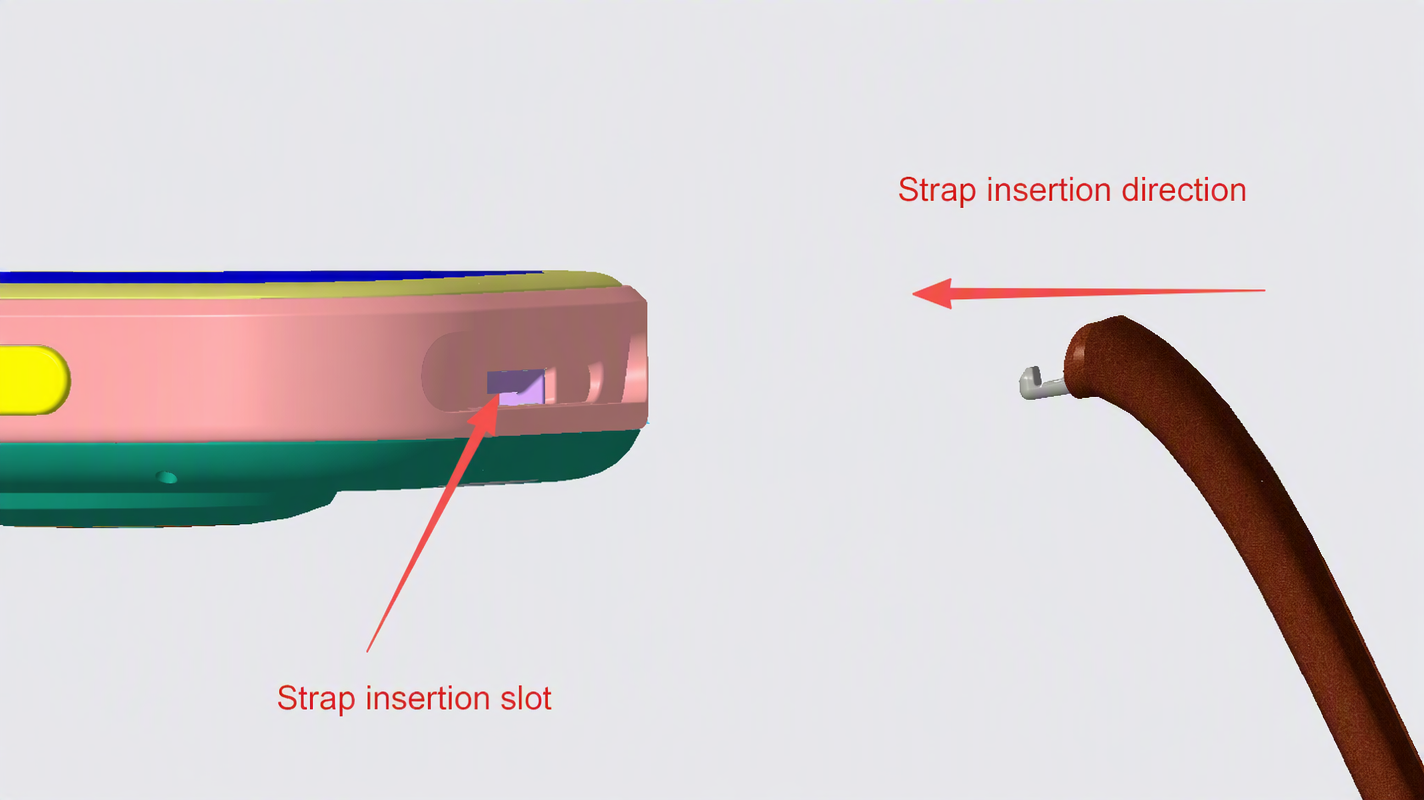
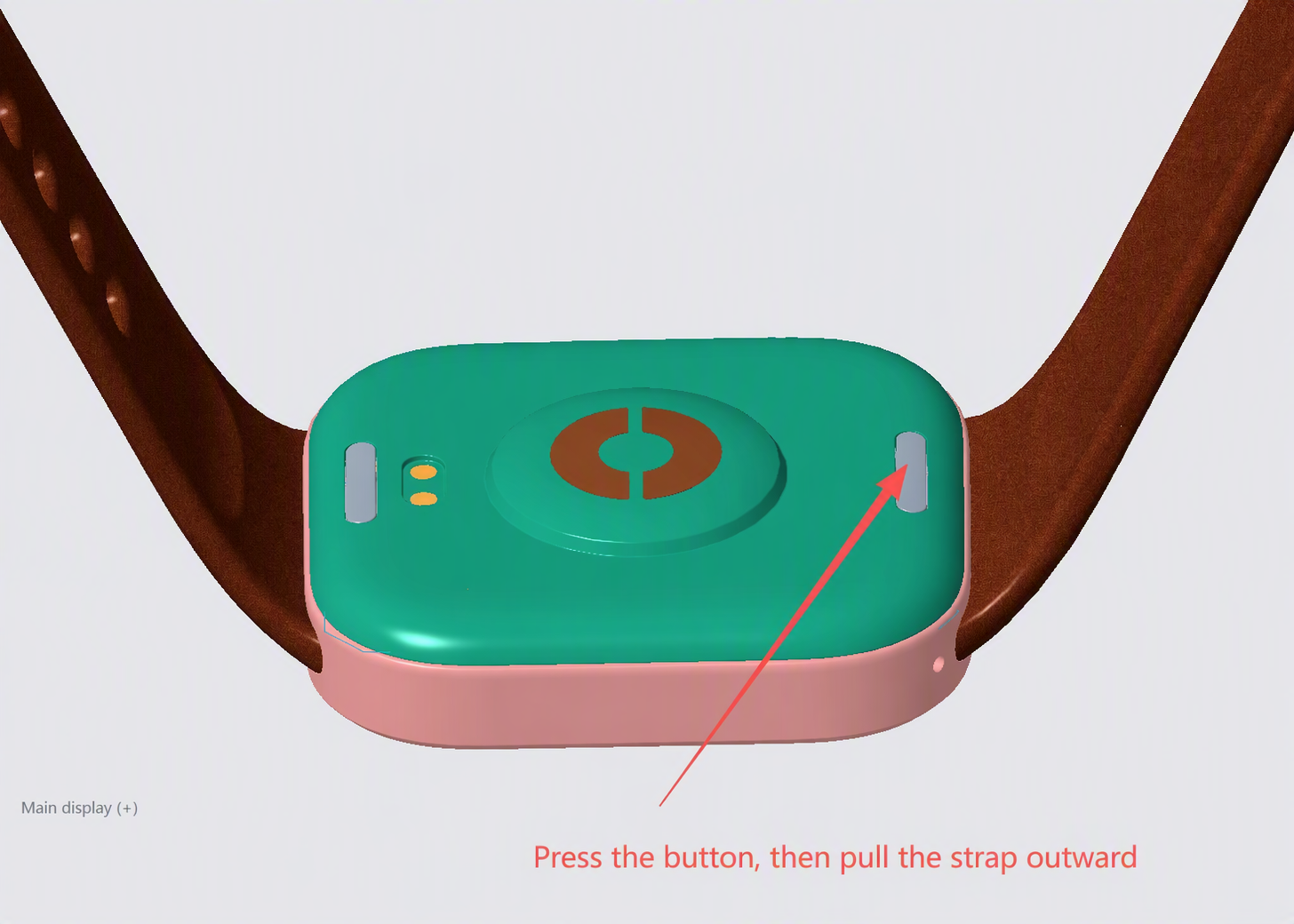
Removal: First press the button on the back cover of the watch body, then simultaneously pull the strap outward.
Q4: How to adjust the quick-release structure of the REDMI Watch 6 Active if its strap is too loose or too tight?
A: Adjust the position of the pin and the strap hole to achieve the desired fit.
Q5: Why can't the strap be reinstalled after removal on the REDMI Watch 6 Active?
A: Under normal circumstances without conventional damage, simply insert the strap clasp directly into the watch body to reinstall. Please refer to the illustrated instructions in the user manual. If there is indeed no visible damage to the watch or the strap, yet installation is still not possible, please contact your local after-sales service center for a physical inspection.
Q6: What to do if the middle frame on the REDMI Watch 6 Active gets scratched?
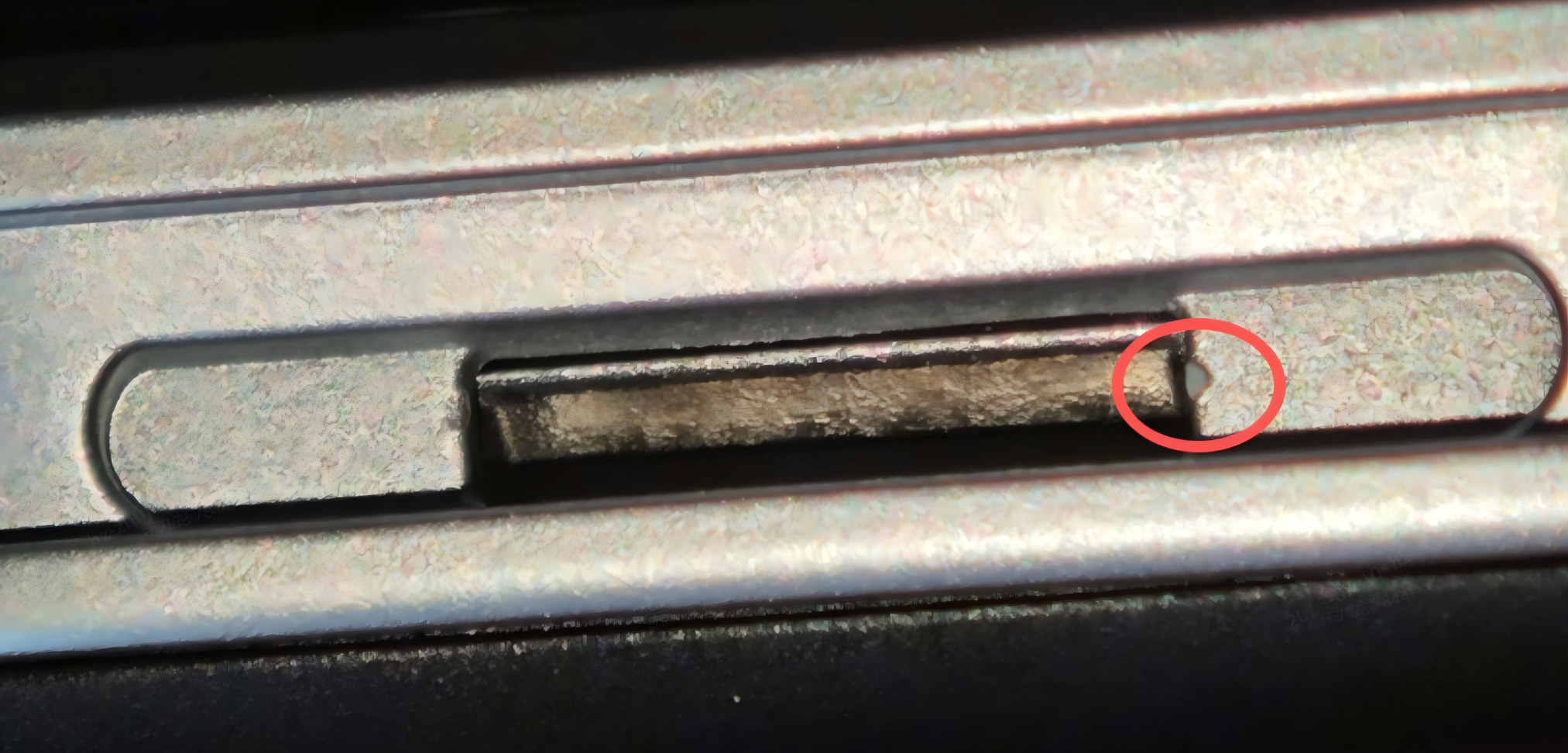
A: When installing the strap into the watch body, if the angle is not properly aligned, the metal pin on the strap may repeatedly rub against and bump into the middle frame slot, causing scratches. This does not affect functionality.
Q7: What to do if the paint on the middle frame on the REDMI Watch 6 Active peels off?
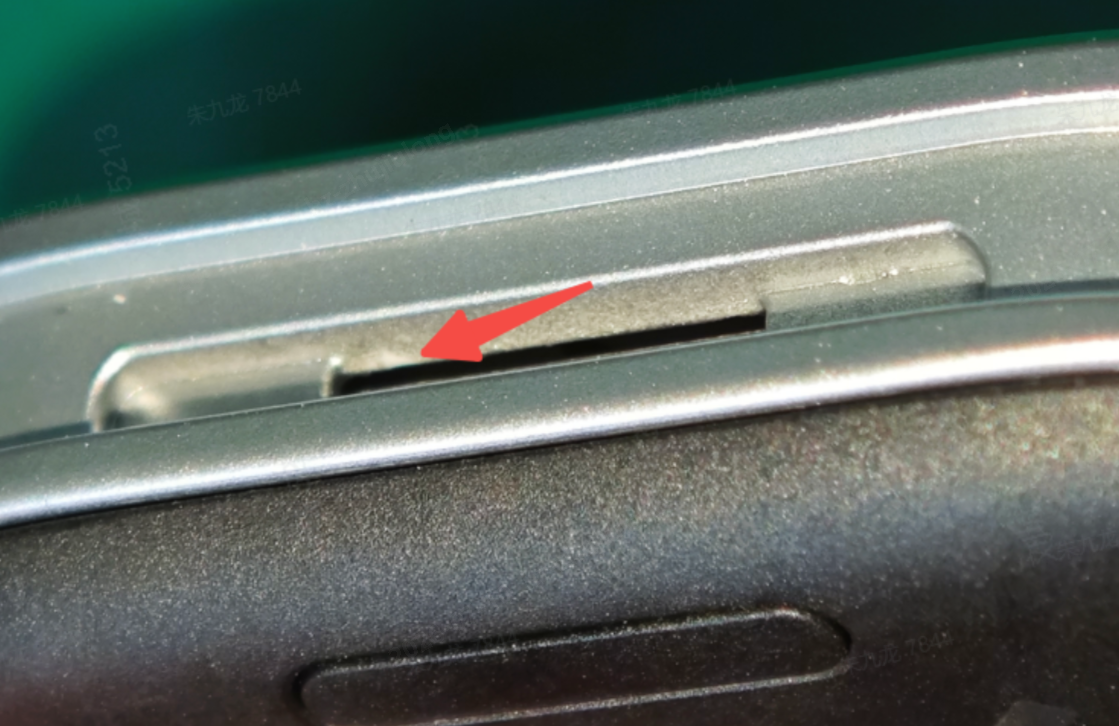
A: Repeated installation and removal of the strap may cause interference at the buckle joint with the middle frame. Friction and impacts can result in scratches, micro-scratches, and fine cracks in the UV coating at the buckle area, compromising the integrity of the paint film. Ethanol and organic solvents from perfume, hand sanitizer, or cleaning agents can seep through these micro-cracks, damaging the interlayer adhesion between the topcoat, primer, and base coat, which leads to paint peeling.
To minimize the risk of paint peeling, please observe the following precautions:
1. When installing or removing the strap, align the pins with the slot and avoid forcing them in at an angle.
2. Avoid contact with perfume, hand sanitizer, alcohol-based cleaners, and other chemical solvents.
3. If the watch comes into contact with water, sweat, or chemicals, wipe it dry promptly with a soft cloth.
4. Do not use abrasive materials or harsh cleaners to wipe the watch body.
Q8: What to do if the strap feels stuffy while wearing the REDMI Watch 6 Active?
A: During daily use, avoid wearing the watch too tightly. Keep the contact area dry and clean the strap regularly with fresh water. If redness or swelling occurs at the contact area, stop using the watch immediately and consult a doctor.
Charging and Battery Life
Q1: What are the battery and charging specifications of the REDMI Watch 6 Active?
A: Battery: Battery capacity 470 mAh lithium-ion polymer
Wired charging: 5V 1A charging specification, magnetic pin charging
Operating temperature: -10°C to 45°C
Charging temperature: 2°C to 45°C
Charging precautions:
1. Keep the charging port and charging cable dry and clean, free from sweat, dust, and water stains.
2. Do not charge in high temperatures, direct sunlight, under a blanket, or under a pillow.
3. Use a certified brand charger to avoid issues such as inability to charge caused by third-party charging cable problems.
Battery maintenance (to extend lifespan):
1. There is no need to deliberately wait until 0% to charge; charging as you go is better.
2. For long-term storage: maintain battery level at 40% ~ 60% and store in a cool place.
3. Avoid: high temperatures, low temperatures, drops, impacts, and water exposure, as all can affect battery lifespan.
Safety reminder:
If abnormal heating, swelling, or unusual odor occurs during charging, stop using it immediately and contact customer service or visit a store for inspection.
Q2: How to use wireless charging on the REDMI Watch 6 Active?
A: The REDMI Watch 6 Active does not support wireless charging. It uses magnetic pin charging only.
Q3: Can a third-party charger be used to charge the REDMI Watch 6 Active? Are there any precautions?
A: Yes, compliant chargers can be used.
Q4: What is the battery life performance of the REDMI Watch 6 Active? How long does it take to fully charge?
The REDMI Watch 6 Active takes approximately 120 minutes to fully charge.
Battery life scenarios:
Ultra-long battery life mode: 18 days
Conditions: After fully charging the watch, using factory default settings, disabling Advanced monitoring of sleep, All-day monitoring of stress, and All-day tracking of blood oxygen; enabling 10 mins continuous monitoring of heart rate; enabling message notifications with 100 message notifications, 2 incoming call reminders, and 3 alarms per day; raising the wrist to wake the screen 200 times per day; launching the App once per day to sync data; 15 minutes of Bluetooth calling per week; 90 minutes of workout recording per week (GPS mode); 6 minutes of screen swiping per day.
Standard monitoring mode (Bluetooth): 12 days
Conditions: After fully charging, using factory default settings, enabling Advanced monitoring of sleep, All-day monitoring of stress, and All-day tracking of blood oxygen; enabling Smart continuous monitoring of heart rate; enabling message notifications with 100 message notifications, 2 incoming call reminders, and 3 alarms per day; raising the wrist to wake the screen 360 times per day; launching the App once per day to sync data; 15 minutes of Bluetooth calling per week; 180 minutes of workout recording per week (GPS mode); 6 minutes of screen swiping per day.
Standard AOD mode (Bluetooth): 6 days
Conditions: After fully charging, using factory default settings, enabling AOD (always-on display), enabling Advanced monitoring of sleep, All-day monitoring of stress, and All-day tracking of blood oxygen; enabling Smart continuous monitoring of heart rate; enabling message notifications with 100 message notifications, 2 incoming call reminders, and 3 alarms per day; raising the wrist to wake the screen 360 times per day; launching the App once per day to sync data; 15 minutes of Bluetooth calling per week; 180 minutes of workout recording per week (GPS mode); 6 minutes of screen swiping per day.
Note:
Battery life test data is all from internal laboratories. In actual use, battery life is related to settings, operations, usage habits, and environmental factors, and may differ from laboratory data.
Q5: How to check battery health status on the REDMI Watch 6 Active (such as remaining capacity, cycle count)?
A: This feature is not currently supported on the REDMI Watch 6 Active.
Q6: How to enable battery saver mode on the REDMI Watch 6 Active?
A: The REDMI Watch 6 Active supports Ultra battery saver mode. This mode disables continuous monitoring features such as Advanced monitoring of sleep, All-day monitoring of stress, and All-day tracking of blood oxygen to extend battery life.
To enable Ultra battery saver mode, please refer to the following methods:
Method 1: Go to the watch [Settings] >> [Battery] >> toggle on [Ultra battery saver].
Method 2: Swipe up on the watch face to open the control panel and tap the [Ultra battery saver] icon.
Method 3: When the 5% low battery alert appears, tap "Enable Ultra battery saver" on the notification screen.
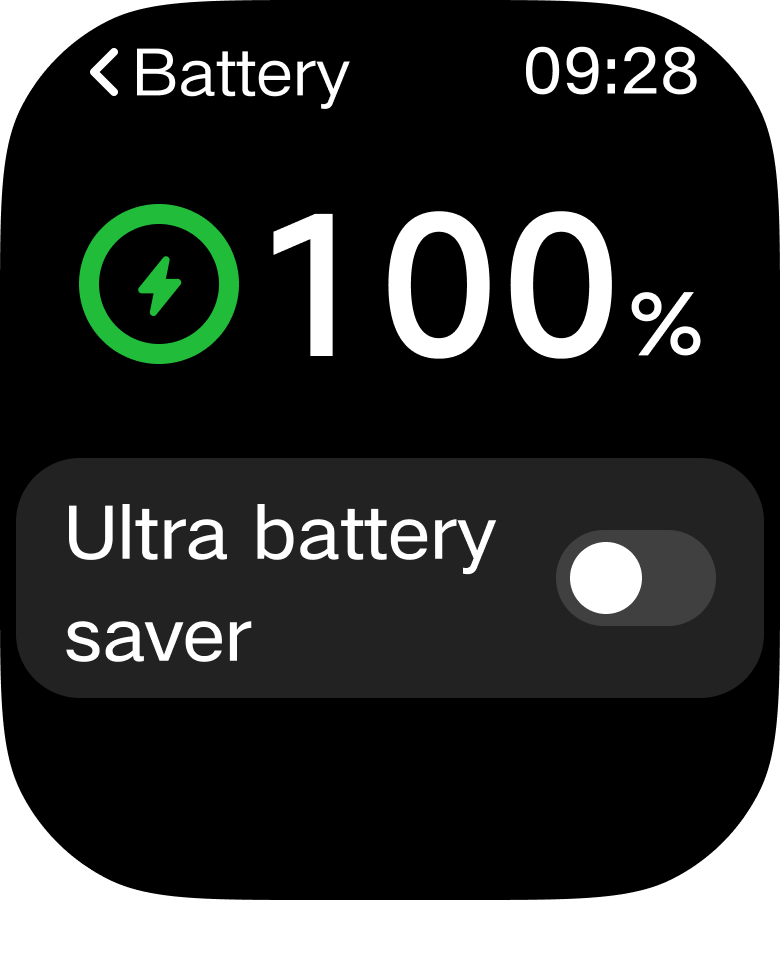
To exit Ultra battery saver mode, please refer to the following methods:
Method 1: Press and hold the Power button for 2 seconds to exit Ultra battery saver mode.
Method 2: Place the watch on the charging cable to charge; this will automatically exit Ultra battery saver mode.
System Settings
Q1: How to power on, power off, and restart the REDMI Watch 6 Active?
A: Power on:
Press and hold the power button for approximately 3 seconds until the screen lights up. If the battery level is low, it must be charged to a minimum level before the device can be powered on.
Power off:
1. Press and hold the power button for approximately 3 seconds, then select [Power off] from the options menu.
2. Go to the watch [Settings] >> [My device] >> [Power off].
Restart:
1. Press and hold the power button for approximately 3 seconds, then select [Reboot] from the options menu.
2. Alternatively, press and hold the power button for approximately 12 seconds to force restart.
Q2: What functions do the touch operations of the REDMI Watch 6 Active (swipe, tap, press and hold) correspond to?
A: Swipe operations:
1. Swipe down on the watch face: Open the notification center to view phone-synced messages and incoming call reminders.
2. Swipe up on the watch face: Bring up the control panel (quick settings center).
3. Swipe left or right on the watch face: Switch between widgets such as step count, heart rate, and weather.
4. Swipe right from the left edge of the screen on any page: Return to the previous screen.
5. Swipe up or down within settings or apps: Scroll through menu lists.
Tap (single tap):
1. Tap an icon or menu: Open the corresponding app or enter a sub-settings page.
2. Tap a notification item: Expand the full message content.
3. Tap an icon in the control panel: Toggle the corresponding quick function on or off with one tap.
4. Tap "confirm" or "cancel" in a pop-up window: Complete the operation confirmation.
Press and hold:
1. Press and hold the watch face for 1.5 seconds: Enter the watch face switching and editing interface.
2. Press and hold on the pop-up window options has no additional function; only a single tap is effective.
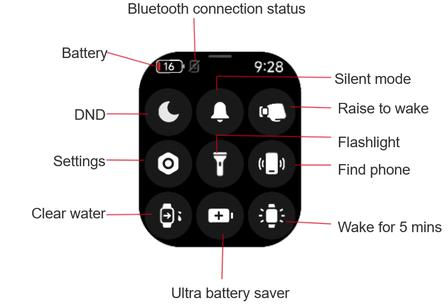
Q3: How to open the control panel on the REDMI Watch 6 Active? What functions do the icons correspond to?
A: On any watch face page, swipe up from the bottom of the screen to directly pull up the control panel.
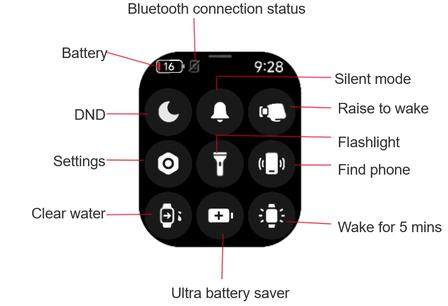
The control panel layout is as follows:
Upper left: Battery percentage display.
Next to battery: Bluetooth connection status (lit = connected, gray slash = disconnected).
Row 1 left: Do Not Disturb mode (moon icon).
Row 1 center: Silent mode (bell icon); when enabled, only vibration is active, with no ringtone.
Row 1 right: Raise-to-wake toggle.
Row 2 left: Settings entry (gear icon).
Row 2 center: Flashlight.
Row 2 right: Find phone (makes the phone ring continuously).
Row 3 left: Water ejection function (vibrates to expel water from the speaker).
Row 3 center: Ultra battery saver mode.
Row 3 right: 5-minute temporary screen on.
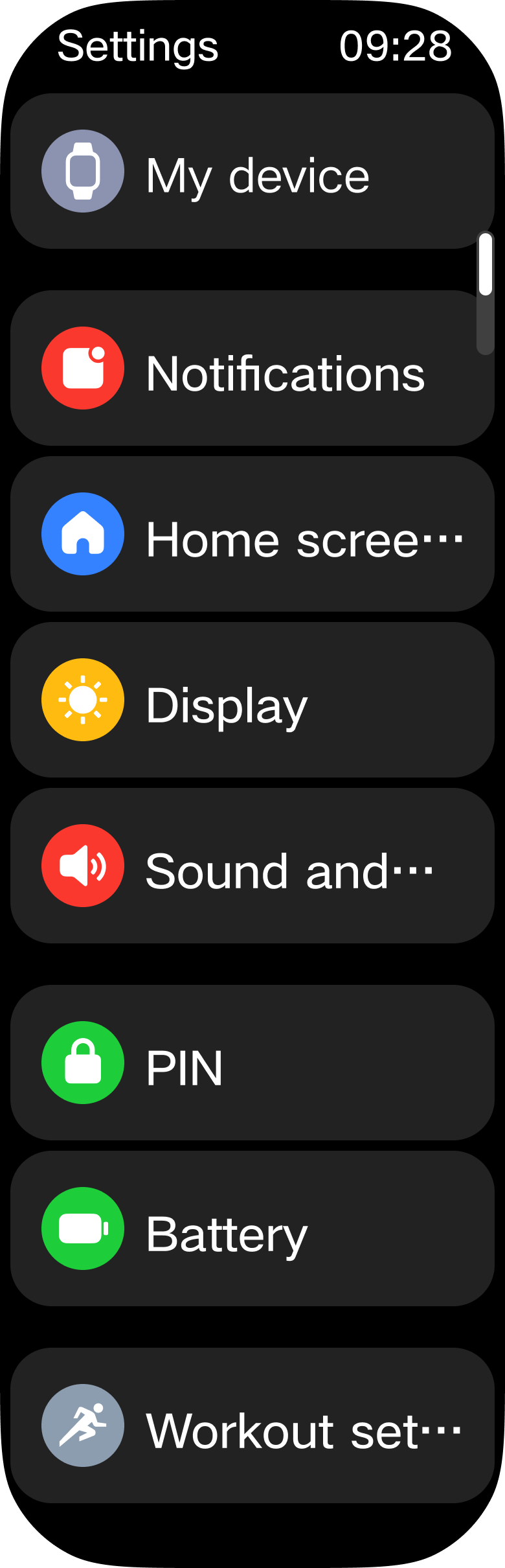
Q4: What are all the functions and paths in the REDMI Watch 6 Active settings menu?
A: The REDMI Watch 6 Active settings menu includes the following sections:
1. Sound and vibration: Volume adjustment, Silent mode, Do Not Disturb mode, vibration intensity settings.
2. Display: Brightness adjustment, Raise to wake, Always-on display, Screen off settings.
3. Workout settings: Auto workout detection settings.
4. Notifications: Notification alerts, Wake screen, Notify only when worn.
5. My device: Device information, Connect new phone, Factory reset, Power off, Reboot, Firmware update.
Q5: How to view device information on the REDMI Watch 6 Active, such as WLAN MAC address, Bluetooth address, and SN?
A: Go to [Settings] >> [My device] >> [About watch] to view device information including Bluetooth address and other details. The serial number (SN) can also be found on the packaging, on the back of the device, and in the Mi Fitness App.
Connection and Pairing
Q1: How to pair the REDMI Watch 6 Active with a phone (iOS/Android)? What pairing software needs to be installed?
A: The REDMI Watch 6 Active requires the Mi Fitness App for binding before use. The App name is the same for iOS and Android, and it can be searched for and downloaded from the App Store (iOS) or the Google Play Store (Android). After binding, keep the App locked in the background to prevent it from being closed by the system, which could cause disconnection from the phone and affect normal use of the watch.
Binding method:
1. Press and hold the power button for about 3 seconds to power on the watch. Use the phone to scan the QR code on the watch screen, or search for "Mi Fitness" in the phone's app market to download and install the Mi Fitness App.
2. Open the Mi Fitness App, log in to your account according to the page prompts, and enable the required permissions for the App.
3. The watch supports three methods of adding:
(1). Tap [Scanner] to scan the QR code on the watch screen.
(2). Tap [Add device]; the App will automatically search for available devices. In the device list, select the Bluetooth name of your watch (REDMI Watch 6 Active XXXX). If your watch is not found in the list, try searching again.
(3). Tap [Add device], tap [Add model] at the bottom of the page, and select "REDMI Watch 6 Active". The App will automatically search for available REDMI Watch 6 Active devices. In the device list, select the Bluetooth name of your watch (REDMI Watch 6 Active XXXX). If your watch is not found in the list, try searching again.
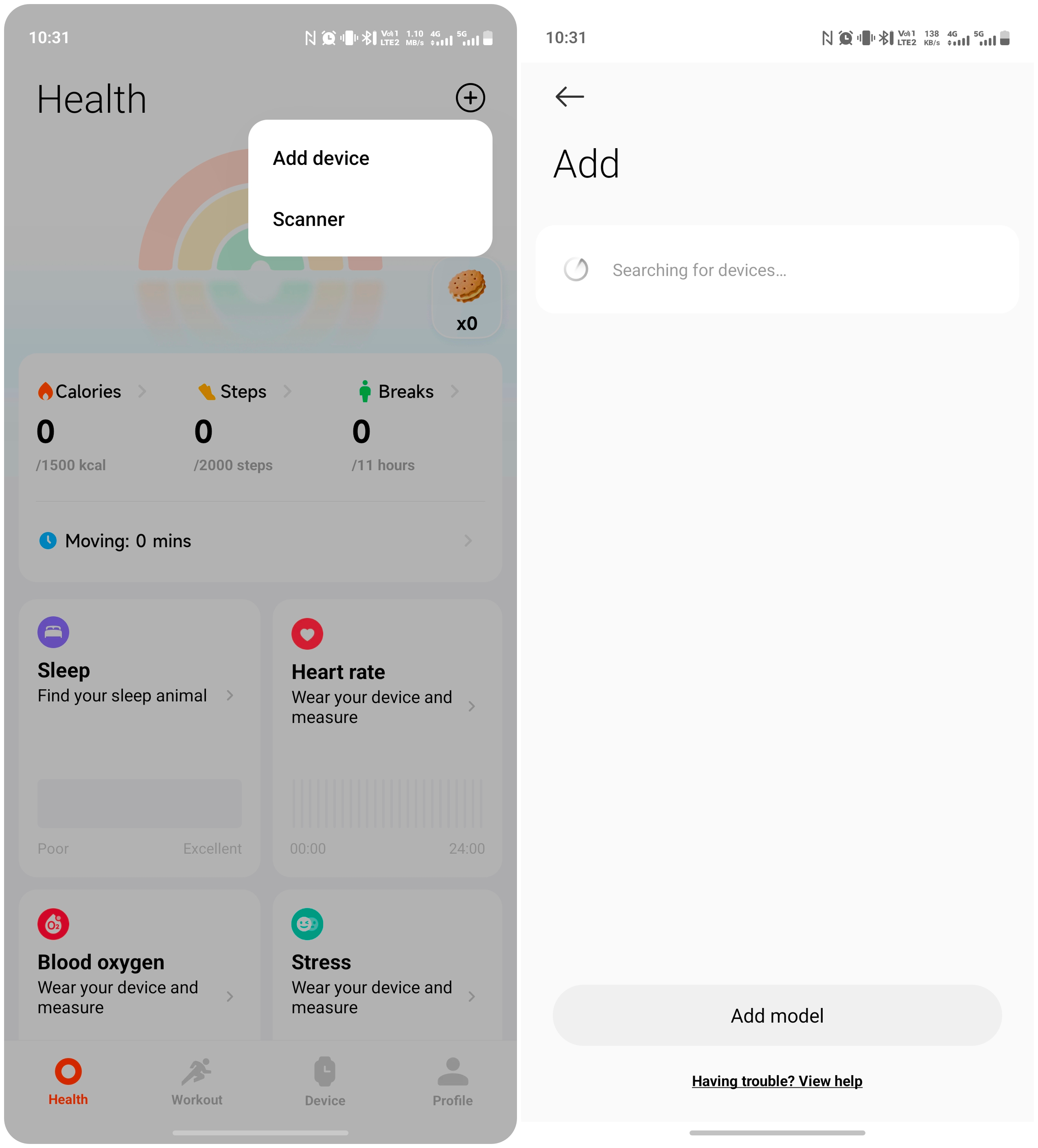
4. Android phones: On the pairing request pop-ups on both the phone and the watch, agree to the pairing request to complete the pairing connection.
5. iPhones: First, go to the phone's Bluetooth settings list, select the Bluetooth name of your watch, and agree to the pairing request on both the phone and the watch. Then return to the App, select the Bluetooth name of your watch, and perform the pairing operation again to complete the pairing connection.
Note:
1. During the pairing process, please confirm that the phone's Bluetooth is turned on to ensure a normal connection between the watch and the phone.
2. If the pairing request has appeared on the watch but the confirmation pop-up is not shown on the phone, check the phone's notification bar for the pairing request.
3. If the watch cannot be found during device addition, or if the watch cannot be connected during use, try pressing and holding the watch power button for 3 seconds, select [Factory reset] on the system operation screen, and then re-add the watch.
Q2: What permissions need to be enabled in the phone settings when connecting the REDMI Watch 6 Active to the App (iOS/Android)? What issues may occur if these permissions are not enabled?
A: When connecting to the Mi Fitness App, the following permissions need to be enabled: Phone, SMS, Nearby devices, Call logs, Contacts, Notifications, Location, and Camera.
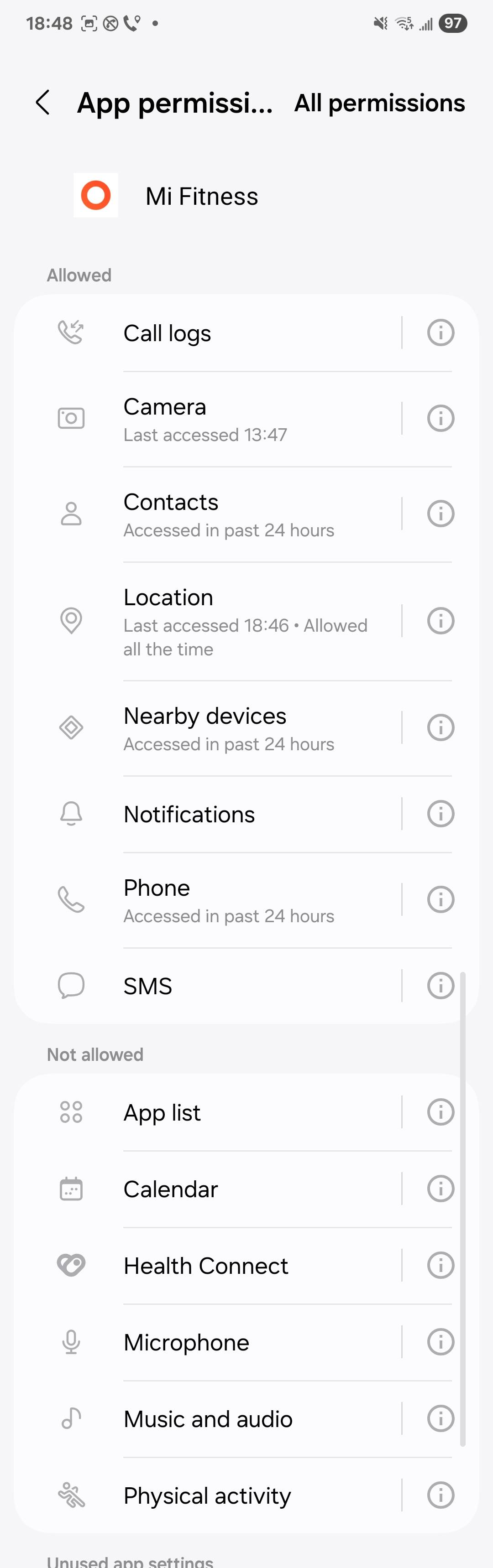
If these permissions are not enabled, the following issues may occur:
1. If the Phone permission is not enabled, incoming call alerts cannot be synced, and the watch cannot receive or reject calls.
2. If the SMS permission is not enabled, SMS notifications cannot be synced, and the watch cannot receive SMS alerts.
3. If the Nearby devices (Bluetooth) permission is not enabled, the watch cannot be paired or connected via Bluetooth.
4. If the Call logs permission is not enabled, call history cannot be synced to the watch.
5. If the Contacts permission is not enabled, contact names cannot be displayed for incoming calls, and only phone numbers are shown.
6. If the Notification permission is not enabled, the watch cannot receive notifications from Apps on the phone.
7. If the Location permission is not enabled, the phone's GPS positioning cannot be used, which may result in inaccurate workout route tracking and prevent navigation features from working properly.
8. If the Camera permission is not enabled, the QR code on the watch screen cannot be scanned for quick pairing, and the device must be added manually.
Additional recommended permissions for Android:
1. Storage: Unable to sync watch data to the phone; unable to save workout records and health data.
2. Background autostart: After the App is cleared from the system background, it cannot automatically reconnect to the watch, causing frequent disconnections.
3. Open new windows while running in the background: Unable to receive the watch's pairing requests and connection notifications in time.
Additional recommended permissions for iOS:
1. Health data: Unable to sync heart rate, blood oxygen, sleep, and other health data to the phone's Health app.
2. Bluetooth: Must be enabled; otherwise, pairing and connecting with the watch is not possible.
Operation recommendation: After installing the Mi Fitness App, allow all permission requests when opening it for the first time. If some permissions have been denied, go to the phone's system settings, find the Mi Fitness App, and manually enable the required permissions.
Q3: How to switch to or connect a new phone with the REDMI Watch 6 Active?
A: 1. To switch to a different Xiaomi account for binding: Perform a factory reset on the watch, then re-bind with the new phone.
2. To use the same Xiaomi account on a new phone for binding: While the watch is connected to the original phone, go to [Settings] on the watch, tap [My device], then tap [Connect new phone] to re-bind.
Q4: How to maintain the connection between the REDMI Watch 6 Active and the Mi Fitness App?
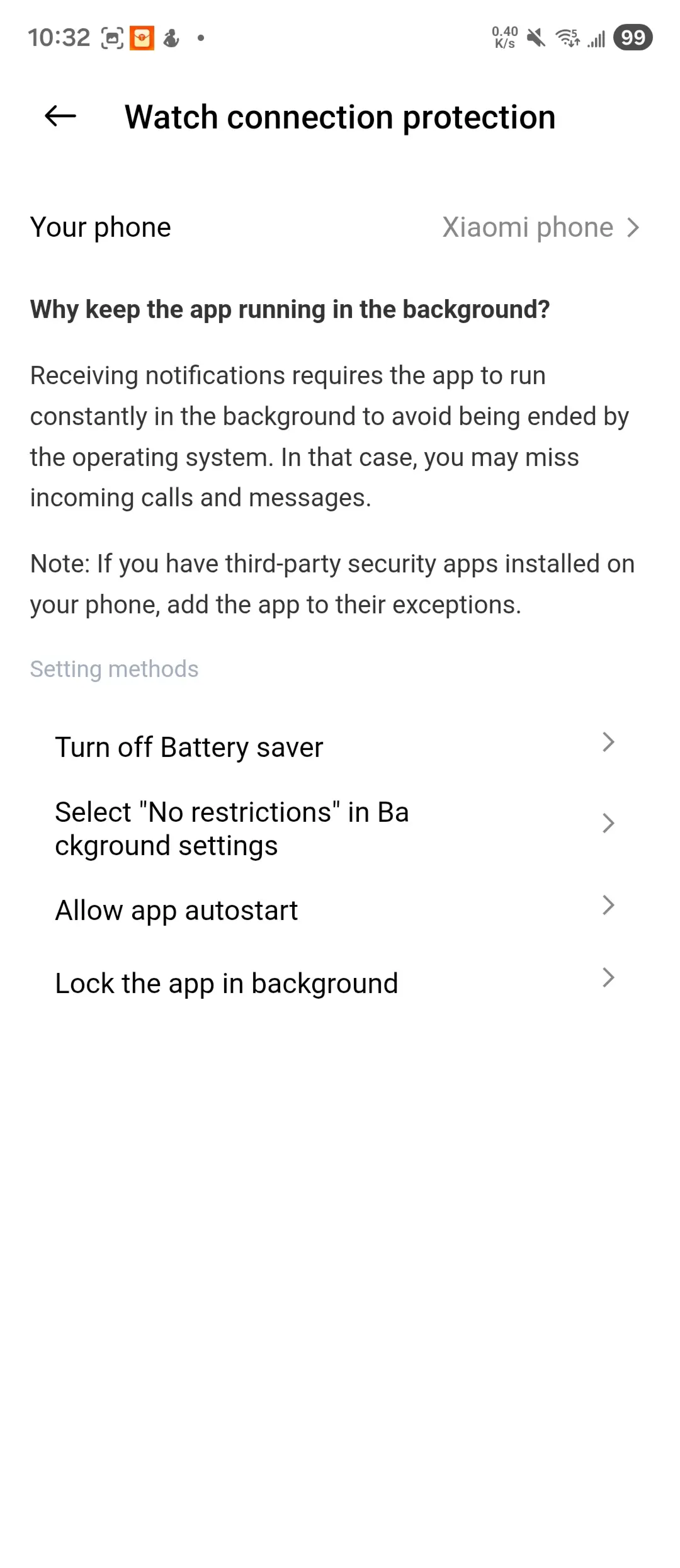
A: Set the Mi Fitness App to the app whitelist, lock the App in the background, keep the phone's Bluetooth on, and the watch will remain connected as long as it is within Bluetooth range of the phone.
Setup methods vary by phone model. Please go to the Mi Fitness App >> [Device] >> [System settings] >> [Watch connection protection], and follow the specific setup instructions.
Q5: What to do if the phone cannot find the REDMI Watch 6 Active Bluetooth during pairing?
A: It is recommended to toggle the phone's Bluetooth off and on, or restart the watch and try again. If the watch Bluetooth still cannot be found, please contact your local after-sales service center for assistance.
Q6: What is the logic for Bluetooth automatic disconnection between the REDMI Watch 6 Active and the phone?
A: The Bluetooth connection between the REDMI Watch 6 Active and the phone is affected by the surrounding environment:
1. In obstructed environments, the Bluetooth will automatically disconnect when the watch and phone are 50 meters apart.
2. In open areas or a long corridor, Bluetooth will automatically disconnect when the watch and phone are 200 meters apart.
3. If one person's body is between the devices (watch and phone facing each other), the Bluetooth will automatically disconnect when the watch and phone are 20 meters apart.
4. In strong electromagnetic interference scenarios (such as near microwaves, routers, wireless base stations, high-power appliances, elevators, signal-dense shopping malls/subway stations, etc.), Bluetooth signals are easily interfered with. Even at close range, there may be connection instability, stuttering, or automatic disconnection.
Display Settings
Q1: How to customize widgets on the REDMI Watch 6 Active?
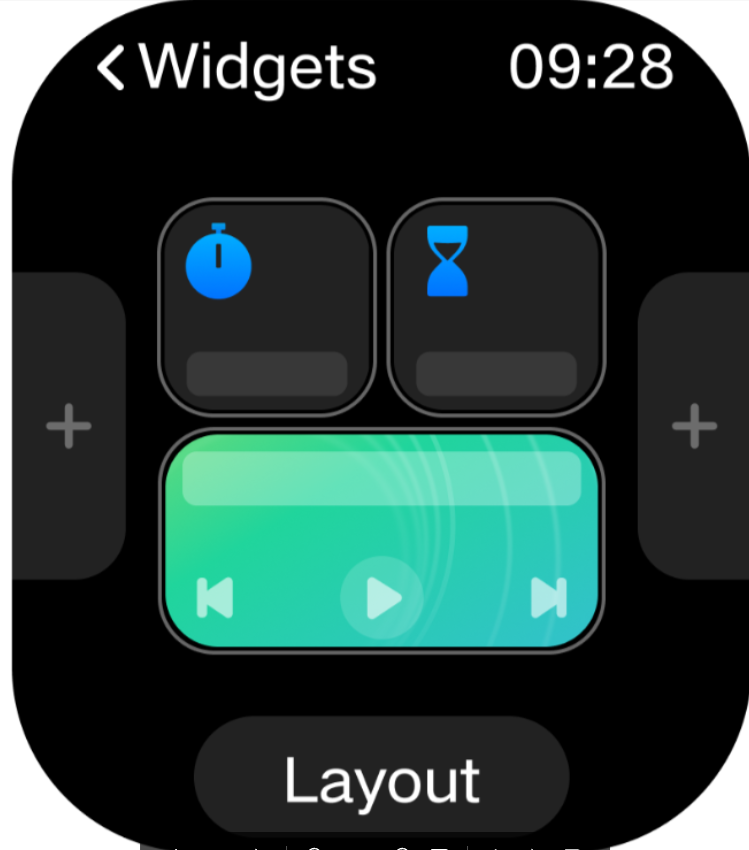
A: On the watch face, swipe left to enter the widget page. Press and hold a widget to enter edit mode, where you can add, remove, or rearrange widgets.
Tap [+] on the left or right to add widgets.
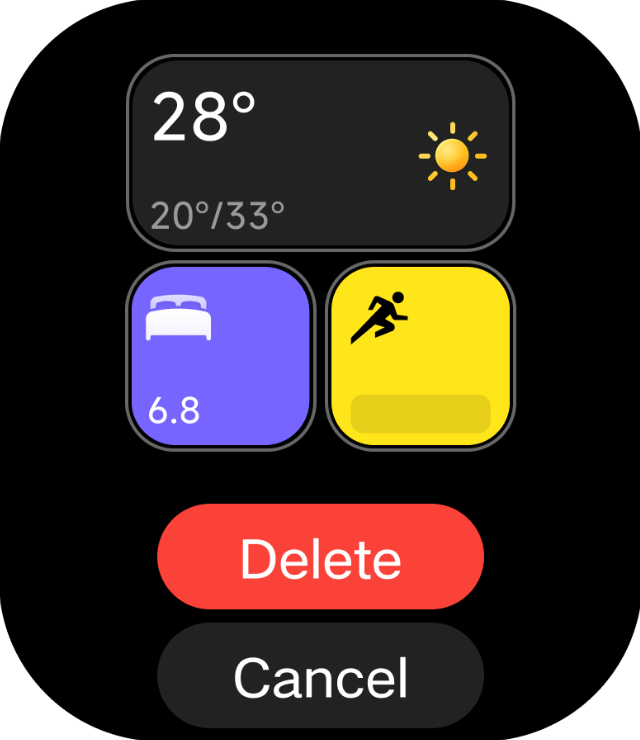
Swipe up to delete widgets.
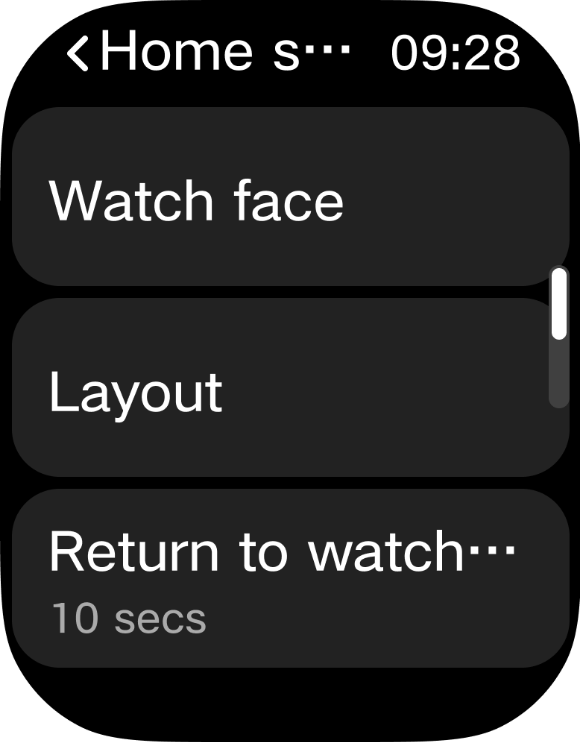
Q2: How to switch the app layout on the REDMI Watch 6 Active?
A: The App layout feature supports both icon and list views, allowing you to choose the layout that suits your preference.
You can configure the App layout style within the Mi Fitness App while pairing the watch.
Alternatively, you can switch to the list layout by navigating to the watch [Settings] >> [Home screen and watch face] >> [Layout].
Q3: How to set up always-on display (AOD) on the REDMI Watch 6 Active? What are the AOD methods?
A: The REDMI Watch 6 Active supports the Always-on display (AOD) feature. When enabled, the watch enters AOD mode after the screen turns off.
In AOD mode, you can wake the screen and exit this mode by raising your wrist or pressing a button.
To enable AOD mode: Go to the watch [Settings] >> [Display] >> [Always-on display]. You can choose [Scheduled] (default schedule: 08:00–22:00).
Note:
1. AOD turns off when the watch is removed from the wrist or when sleep is detected at night.
2. Enabling this feature will reduce the watch's battery life.
Screen-off methods:
1. By default, the screen turns off automatically after 5 seconds of inactivity. You can adjust this duration in the watch [Settings] >> [Display] >> [Screen off] >> select duration (range: 5–60 seconds).
2. Palm-cover screen-off: Covering the watch face with your palm (contacting the screen and covering more than half of its surface) immediately turns the screen off.
3. Wrist-turn screen-off: If Raise to wake is enabled, turning your wrist in the opposite direction will turn off the screen.
Q4: Why does the REDMI Watch 6 Active briefly flash before returning to normal when transitioning from screen-off to AOD?
A: This is due to the AMOLED screen's pixel refresh process during the transition between display states. The brief flash is a normal characteristic of the display technology and does not indicate a hardware issue.
Q5: How to keep the screen of the REDMI Watch 6 Active on continuously?
A: Swipe up on the watch face to access the control panel, then tap the icon on the far right of the third row; the watch screen will then stay on for 5 minutes.
Q6: How to set Tap to wake on the REDMI Watch 6 Active?
A: Go to [Settings] >> [Display] >> [Tap to Wake], and enable the toggle. Once enabled, tapping the screen will wake the display.
Q7: How to set Raise to wake on the REDMI Watch 6 Active?
A: Go to [Settings] >> [Display] >> [Raise to wake], and enable the toggle. You can also configure it to activate only during scheduled time periods. Alternatively, swipe up on the watch face to open the control panel and tap the Raise to wake icon to toggle it on or off.
Q8: How to adjust watch face brightness on the REDMI Watch 6 Active?
A: Go to [Settings] >> [Display] >> [Brightness], and swipe up or down to adjust the brightness level.
Sound and Vibration
Q1: How to adjust volume on the REDMI Watch 6 Active?
A: Go to [Settings] >> [Sound and vibration] to manually adjust the volume for alarms and ringtones.
Q2: How to enable silent mode on the REDMI Watch 6 Active? What sounds are muted in silent mode?
A: Go to [Settings] >> [Sound and vibration] >> [Silent mode]. Silent mode is enabled by default.
In silent mode:
1. Incoming calls, messages, and reminders do not ring; only vibration is active.
2. Alarms and timers still ring and vibrate for reminders.
Q3: How to enable Do Not Disturb mode and set custom DND time periods on the REDMI Watch 6 Active?
A: For non-Xiaomi phones:
1. DND sync is not supported.
2. To enable DND mode: Go to the watch [Settings] >> [Sound and vibration] >> [DND] >> enable DND mode. Once enabled, it takes effect for the entire day until manually turned off.
3. To set scheduled DND: Go to the watch [Settings] >> [Sound and vibration] >> [DND] >> enable [Scheduled DND]. You can set the repeat cycle, start time, and end time.
For Xiaomi phones:
DND sync is supported with the following requirements:
1. Phone system version: HyperOS 3.1 or above.
2. Mi Fitness App: Must be upgraded to version 3.51.0 or above.
3. Mi Connect App: Must be upgraded to version 5.1.140.10 or above.
After meeting the above conditions:
1. Enable on watch: [Settings] >> [Sound and vibration] >> [DND] >> enable [DND sync].
2. Enable in App: Mi Fitness >> [Device] >> [System] >> [DND sync] >> enable [Sync with phone].
3. Set scheduled DND time periods on the phone, and the DND status will sync to the watch.
Q4: How to enable airplane mode on the REDMI Watch 6 Active?
A: Airplane mode is not currently supported on the REDMI Watch 6 Active.
Q5: How to set custom ringtones on the REDMI Watch 6 Active?
A: Custom ringtones are not currently supported on the REDMI Watch 6 Active.
Q6: How to enable / disable vibration feedback and adjust vibration intensity on the REDMI Watch 6 Active?
A: Go to [Settings] >> [Sound and vibration] >> [Vibration intensity], and select either [Default] or [Strong].
Wireless Connection
Q1: What is the Bluetooth version and Bluetooth transmission distance of the REDMI Watch 6 Active?
A: The REDMI Watch 6 Active features dual-mode BLE / BT 5.3 and above. The Bluetooth transmission distance is approximately 200 meters in an open environment and approximately 50 meters in an obstructed environment.
Convenience Tools
Q1: How to use the water ejection function on the REDMI Watch 6 Active?
A: Swipe up on the watch face to open the control panel, then tap the water ejection icon. The watch will vibrate to expel water from the speaker. After the water ejection process, gently shake the watch to remove any remaining water droplets.
Q2: How to use the flashlight on the REDMI Watch 6 Active?
A:
Method 1:
1. Swipe up on the watch face to open the control panel, then tap the flashlight icon.
2. The screen will display a bright white light, and swipe up to switch to flashlight.
3. Tap the screen again or press the power button to turn off the flashlight.
Method 2:
1. Press the power button to open the watch App list.
2. Tap the Flashlight App.
3. The screen will display a bright white light, and swipe up to switch to flashlight.
4. Tap the screen again or press the power button to turn off the flashlight.
Q3: How to use the compass function on the REDMI Watch 6 Active? Why does it need calibration?
A: The REDMI Watch 6 Active does not support compass functionality.
Q4: How to view weather information on the REDMI Watch 6 Active?
A: When the watch is connected to your phone, you can view the weather as follows:
1. Press the power button, select the Weather App from the app list, and swipe up or down to view details such as local temperature, weather conditions, AQI (air quality), wind direction and speed, UV intensity, relative humidity, sunrise and sunset times, and the forecast for the coming week.
2. Swipe up or down on the watch face screen to view the weather widget, which displays temperature and weather conditions; tap the widget to open the Weather App for more detailed information.
Note:
To view real-time weather on the watch, ensure it remains connected to your phone and that the Weather updates function is enabled in the Mi Fitness App.
3. The weather information displayed on the watch is pushed by the Mi Fitness App after being retrieved from a service provider; as this differs from the weather service provider used by your phone's system, the displayed results may vary slightly.
Q5: Why is the weather data on the REDMI Watch 6 Active different from the phone?
A: The weather information displayed on the watch is obtained by the Mi Fitness App from a specific service provider and pushed to the watch. The weather service provider used by the phone's system may be different from the one used by the Mi Fitness App. Since different weather service providers have differences in data collection, analysis, and prediction models, even for the same area, the weather results displayed may differ slightly. This is why the weather data on the watch and phone may be inconsistent.
Q6: How to use Focus App on the REDMI Watch 6 Active?
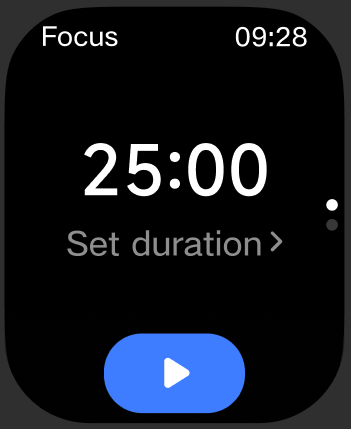
A: Enter the Focus App from the App list. Swipe down to enter the "Today" screen to view the cumulative focus duration and cumulative rest duration for the day. The default focus duration is 25 minutes. Tap [Set duration] to adjust the focus time. After starting, the phone's DND mode will be enabled. During the focus session, the Focus App can be paused or ended at any time, or you can continue until the watch vibrates as a reminder to enter the rest period.
Q7: How to use the Events feature on the REDMI Watch 6 Active?
A: After enabling phone Sync events in the Mi Fitness App ([Device] >> [Apps] >> [Sync events]), the device will sync the phone's system events for the next 7 days each time data is synced. Sync events only supports Xiaomi MIUI / HyperOS and iOS systems; other systems are not currently supported.
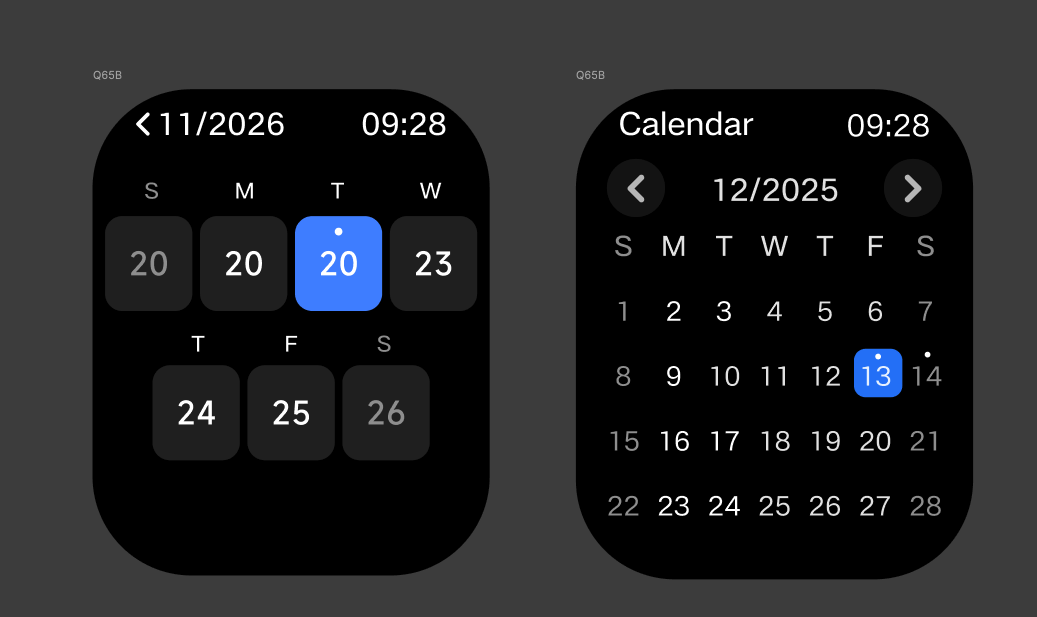
From the App list, tap the Calendar App to enter the monthly calendar view. Tap a date to enter the weekly view. Tap a date again to enter the daily events list. For non-today schedules, a "Today" button is shown below; tap it to jump to today's events list. Swipe up/down or tap "Next event" to view other events. Tap an event card to enter the event details page.
Quantity limits:
1. The maximum number of events is 20 (sorted by event list order); entries beyond this limit are not displayed.
2. Each event can have up to 200 bytes (English letters or punctuation is 1 byte, Chinese characters are 3 bytes).
3. Title displays up to 90 bytes (including punctuation).
4. Notes display up to 45 bytes (including punctuation).
5. Address displays up to 60 characters (including punctuation).
Q8: How to use the Calendar on the REDMI Watch 6 Active?
A: While the watch is connected to the phone, the Calendar App usage is as follows:
1. Select the Calendar App from the App list to view. The title displays the time, with left and right icons to switch months. Left and right swipes are also supported for switching months. Display range: 2000–2059. If Sync events is enabled, dates with events in the next 7 days will have a dot indicator. For dates not in the current month, a "Today" label appears at the upper right; tap it to return to the current month. In the monthly view, tap a date to enter the weekly view.
2. Weekly view: Swipe left or right to switch weeks. Displays dates and days of the week, with dates having events in the next 7 days marked with a dot.
Q9: How to set the time on the REDMI Watch 6 Active?
A: Manual time setting is not supported. The time syncs automatically from the connected phone via Bluetooth.
Q10: How to set dual time zones on the REDMI Watch 6 Active?
A: Dual time zone settings are not supported on the REDMI Watch 6 Active.
Q11: How to use and set the alarm function on the REDMI Watch 6 Active?
A: Alarm reminders use vibration plus ringtone (alarm volume) for alerts, and support setting multiple alarms and repeat alarms.
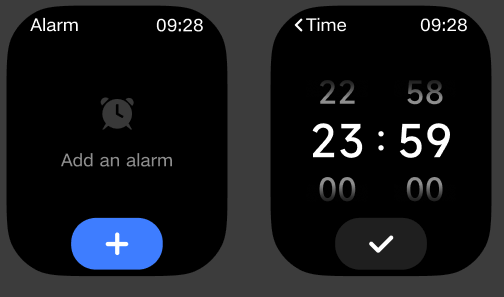
Setting an alarm:
1. On the watch face, press the power button to enter the App list and open Alarm.
2. Tap [+] to set the reminder time.
3. If no repeat date is selected, it will be a one-time alarm. If a repeat date is selected, the alarm will repeat according to the set repeat rules.
4. Tap the checkmark to complete the setup. A maximum of 10 alarms can be added.
Turning off an alarm:
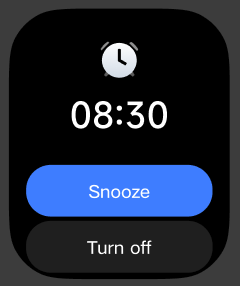
Alarm reminders use vibration plus ringtone. Press the power button or tap the [Snooze] icon on the screen to delay the reminder by 10 minutes. Tap [Turn off] on the screen to end the alarm reminder.
Deleting an alarm:
On the watch face, press the power button to enter the App list and open the Alarm App. Tap the alarm to be deleted, then tap the delete button to delete the alarm.
Q12: How to set sync alarms on the REDMI Watch 6 Active from a phone?
A: For Xiaomi phones, the REDMI Watch 6 Active supports syncing phone alarms to the watch for reminders. Non-Xiaomi phones are not currently supported.
In the Mi Fitness App, go to [Device] >> [Apps] >> [Alarm] >> turn on [Sync alarms from phone]. Synced alarms will remind you simultaneously on both the watch and the phone. Any action on either side, such as dismissing or snoozing the reminder, takes effect on both sides simultaneously.
To sync alarm reminders to the watch, ensure the phone and watch have a normal Bluetooth connection, and the Mi Fitness App is running normally.
Q13: How to use and set the Timer function on the REDMI Watch 6 Active?
A: Swipe up on the watch face to access the App list and select the Timer App.
Tap the relevant buttons to set the Timer duration (range: 00:00:01 to 23:59:59).
Tap the Start button to begin the Timer countdown.
During the countdown, you can tap Pause to pause, Resume to continue, or Stop to end the countdown.
The Timer App displays the four most recently used custom countdowns.
Q14: How to use and set the Stopwatch function on the REDMI Watch 6 Active?
A: 1. Open the Stopwatch App and tap the "Start" icon to begin timing; tap the "Mark" icon during the process to generate timestamp data. In the timestamp display area, swipe up or down to view all recorded timestamps (up to 50 records can be displayed).
2. After pausing, tap the "Stop" icon to reset the stopwatch to its initial state.
Q15: How to use the REDMI Watch 6 Active to remotely control the phone to take a photo?
A: This feature requires the watch to be connected to the phone. Tap the Camera App to enter. Press the shutter icon on the watch to remotely control the phone's camera. A 5-second or 3-second countdown timer can be set.
Note:
1. The watch Camera App does not support launching the phone's camera from the watch; the phone camera must be opened manually as prompted.
2. During remote shooting, keep the watch connected to the App and ensure the Mi Fitness App remains running in the background.
3. If the remote shutter function is not working, confirm that the number of Bluetooth devices connected to the phone is less than 7.
Health
Sleep
Q1: How to use and set the sleep monitoring feature on the REDMI Watch 6 Active?
A: Usage: Wear the watch while sleeping, and the watch will automatically record sleep information.
Settings: In the Sleep App, swipe up to Sleep [Settings]. Enable [Advanced monitoring] to track REM (Rapid Eye Movement) sleep distribution. Enable [Breathing rate monitoring] to automatically monitor breathing rate during nighttime sleep.
Sleep data viewing methods:
1. On the REDMI Watch 6 Active, swipe left on the watch face to the widget interface. In the Sleep widget, view last night's sleep duration. Tap to enter the app for more information.
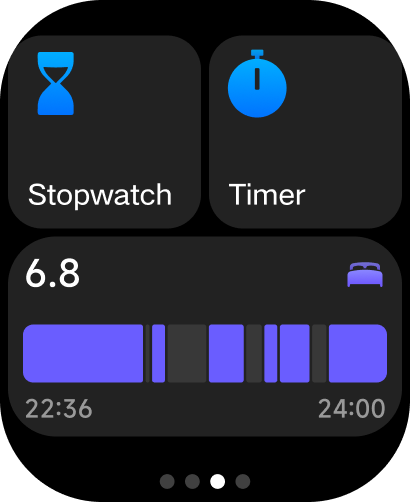
2. From the App list, tap the Sleep icon to open the Sleep App and view the day's sleep data.
3. After the watch syncs data with the phone, go to the Health data section in the Mi Fitness App, tap Sleep to view historical sleep data, including daily, weekly, and monthly views. You can also view daily sleep time periods, the proportion of deep sleep, light sleep, REM, and awake states, as well as detailed sleep status at each time point.
Q2: Why does the REDMI Watch 6 Active incorrectly detect sleep when watching movies, watching TV, or using the phone?
A: The REDMI Watch 6 Active uses the acceleration sensor (ACC) to monitor activity levels to determine sleep status. When watching movies, watching TV, or using the phone, the body is relatively still, which highly overlaps with sleep physiological characteristics. This can cause the algorithm to incorrectly determine that you have "fallen asleep," which is a normal phenomenon.
Heart Rate
Q3: How to use and set the heart rate measurement feature on the REDMI Watch 6 Active?
A: Enter the Heart rate App on the watch; while on the main screen, heart rate will continue to be measured and displayed.
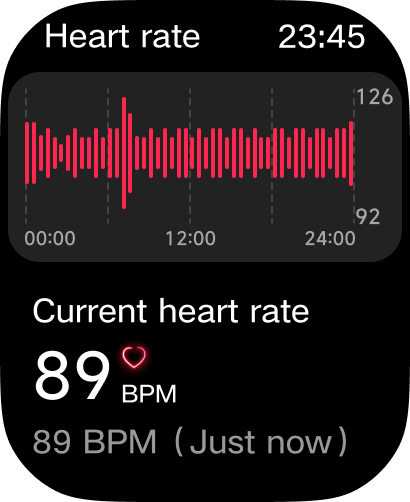
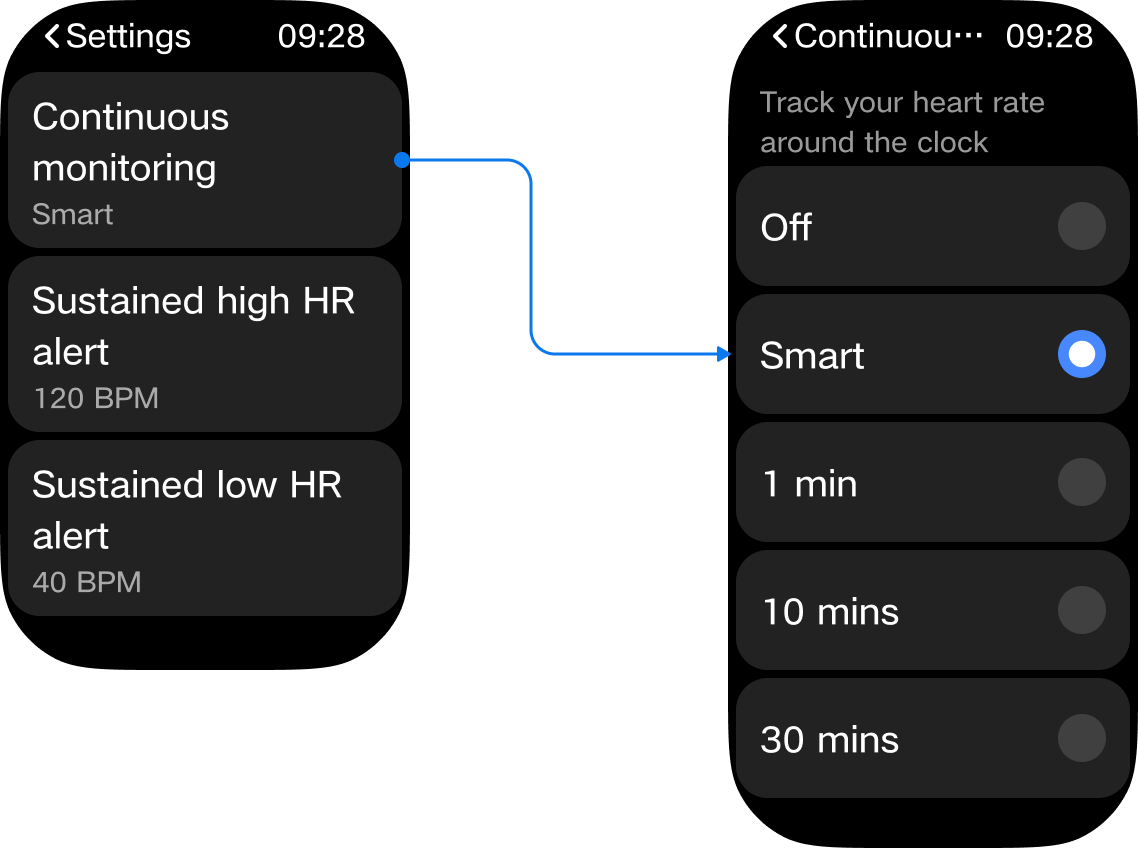
Enter the Heart rate App, swipe up to enter heart rate settings, and tap [Continuous monitoring] to enter the heart rate monitoring frequency settings page.
1. Default is "Smart monitoring": heart rate is measured every 10 minutes at rest, and every 1 minute during activity.
2. Select [1 min] for fixed measurement every 1 minute.
3. Select [10 mins] for fixed measurement every 10 minutes.
4. Select [30 mins] for fixed measurement every 30 minutes.
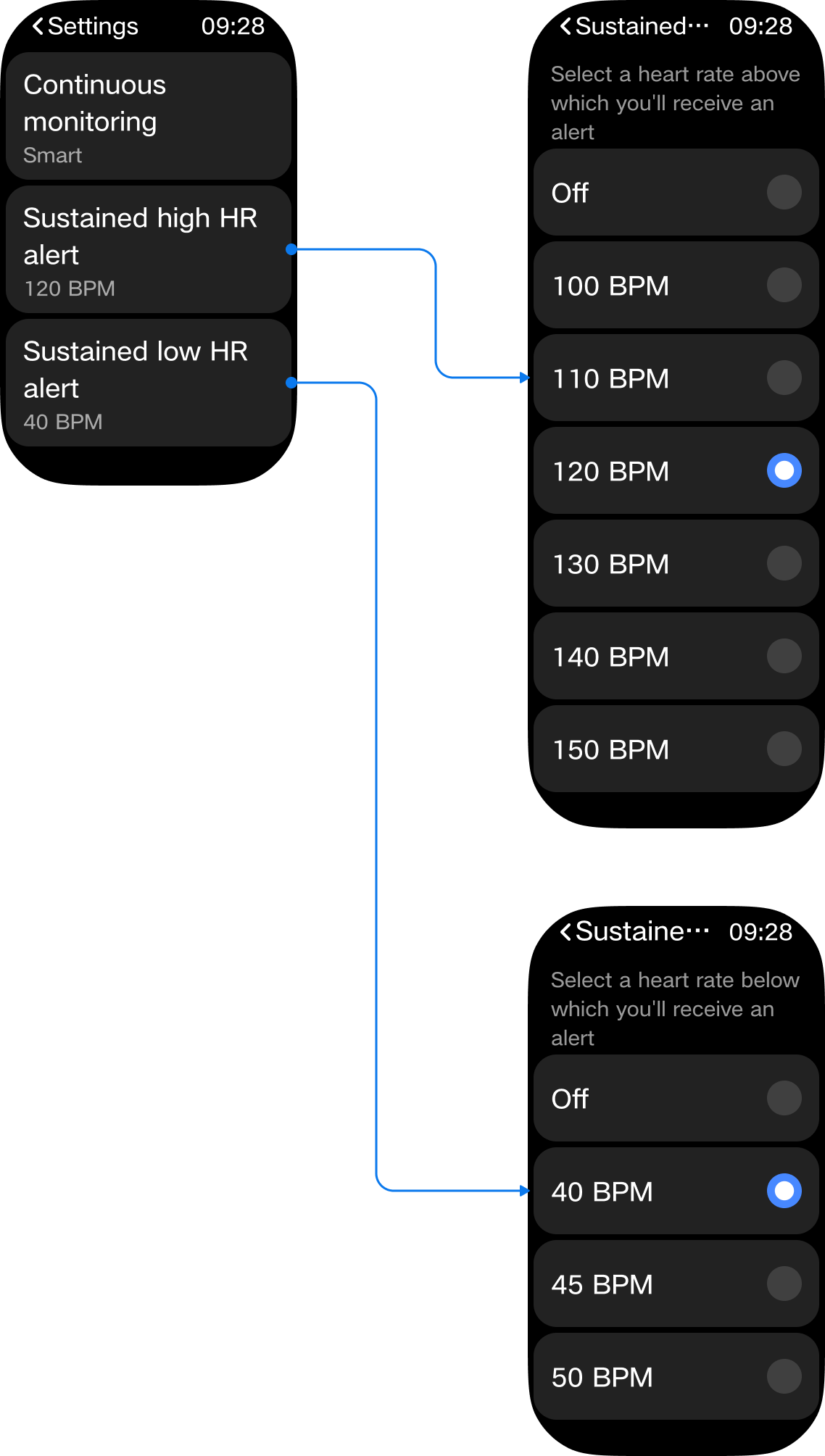
Q4: How to set high or low heart rate alerts on the REDMI Watch 6 Active?
A: While wearing the watch normally, enter the Heart rate App, swipe up to heart rate settings. Tap [Sustained high HR alert] to enter the high heart rate alert settings page. Tap [Sustained low HR alert] to enter the low heart rate alert settings page.
Q5: How to set up ECG atrial fibrillation detection on the REDMI Watch 6 Active?
A: The REDMI Watch 6 Active does not support ECG atrial fibrillation detection.
Blood Oxygen
Q6: How to measure blood oxygen saturation on the REDMI Watch 6 Active?
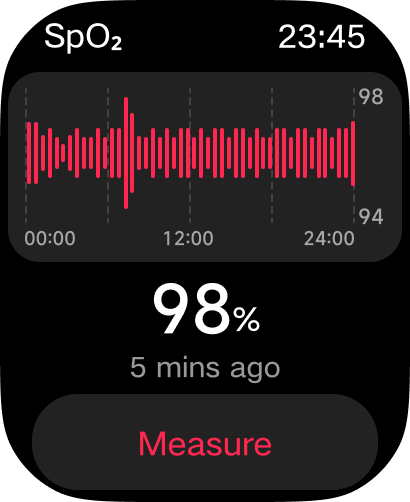
A: 1. While wearing the watch normally, enter the SpO₂ App and tap [Measure] to begin the blood oxygen measurement process.
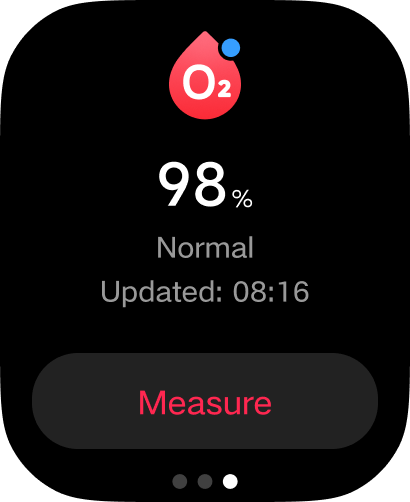
2. Swipe left on the watch face to enter widgets, add the SpO₂ widget, and tap [Measure] to begin the blood oxygen measurement process.
3. After enabling [All-day tracking] in the SpO₂ settings, the watch will measure blood oxygen every 10 minutes when at rest and being worn.
Q7: Can blood oxygen saturation be measured during workout on the REDMI Watch 6 Active?
A: No. When [All-day tracking] in the SpO₂ settings is enabled, blood oxygen can be measured during daily rest. Wrist movement during wearing will affect the success rate of blood oxygen readings, potentially causing measurement failures. It is recommended to measure blood oxygen while keeping the wrist still to ensure reading success rate and accuracy.
Q8: How to set up all-day blood oxygen monitoring on the REDMI Watch 6 Active?
A: Enter the SpO₂ App, swipe up to SpO₂ settings, and tap [All-day tracking] to set this option.
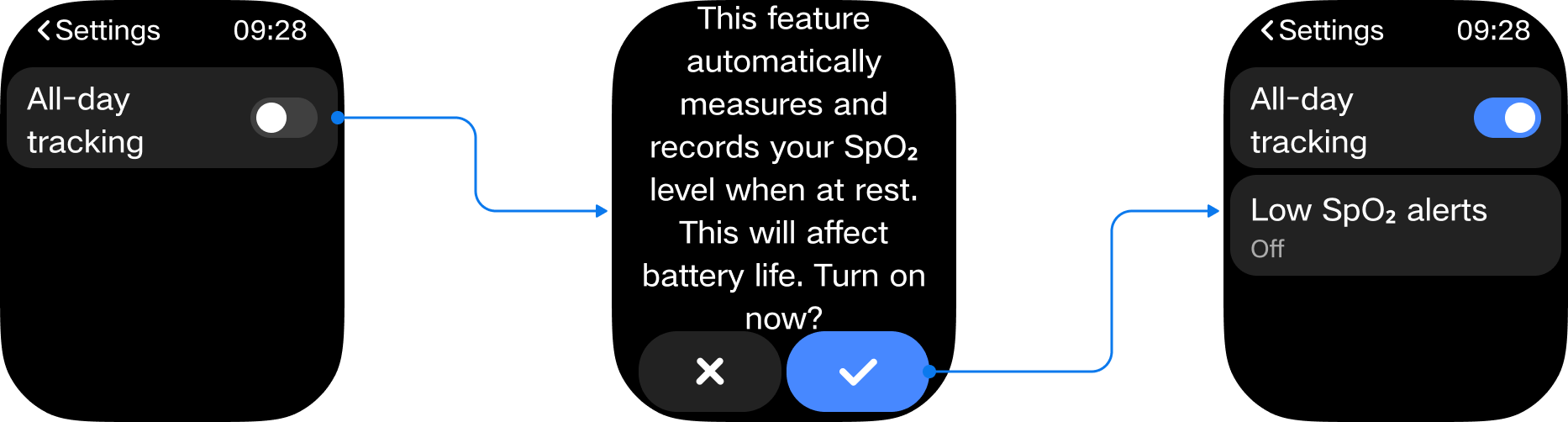
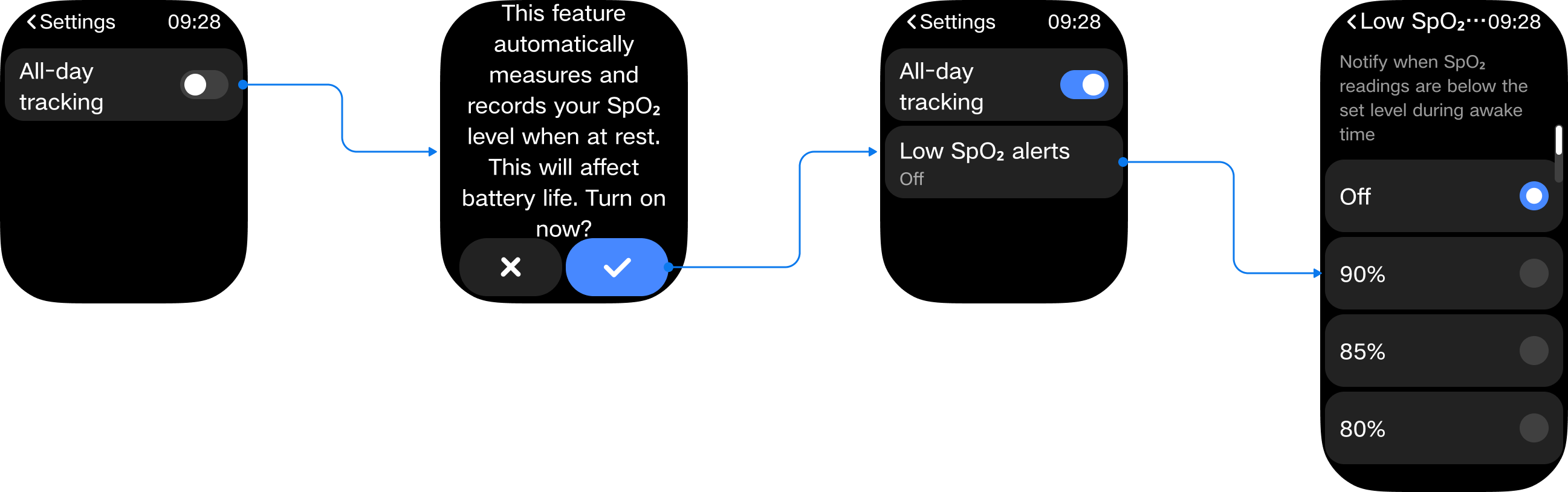
Q9: How to set low blood oxygen alerts on the REDMI Watch 6 Active?
A: While wearing the watch normally, enter the SpO₂ App and swipe up to SpO₂ settings. After enabling [All-day tracking], a [Low SpO₂ alerts] option will appear. Tap [Low SpO₂ alerts] to enter the settings details.
Stress
Q10: How to record emotions on the REDMI Watch 6 Active?
A: The REDMI Watch 6 Active does not support emotion recording.
Q11: How to measure stress on the REDMI Watch 6 Active?
A: 1. While wearing the watch normally, enter the Stress App and tap [Measure] to begin the stress measurement process.
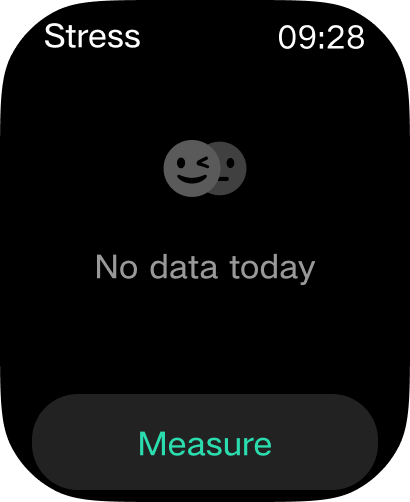
2. In the Stress widget, tap [Measure] to begin the stress measurement process.
3. After enabling [All-day monitoring] in the stress settings, the watch will measure stress every 10 minutes when at rest and being worn.
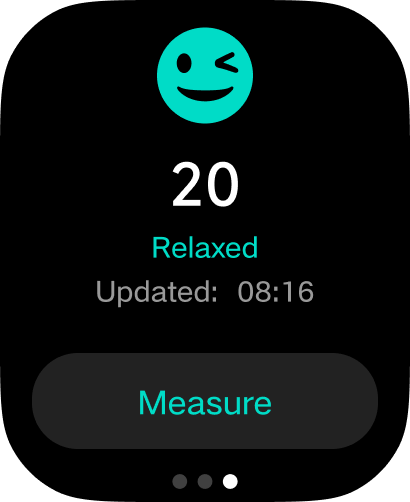
Q12: How to set up all-day stress monitoring on the REDMI Watch 6 Active?
A: While wearing the watch normally, enter the Stress App, swipe up to stress settings, and tap [All-day monitoring]. A confirmation prompt will appear. After confirming, the [All-day monitoring] switch will be enabled.
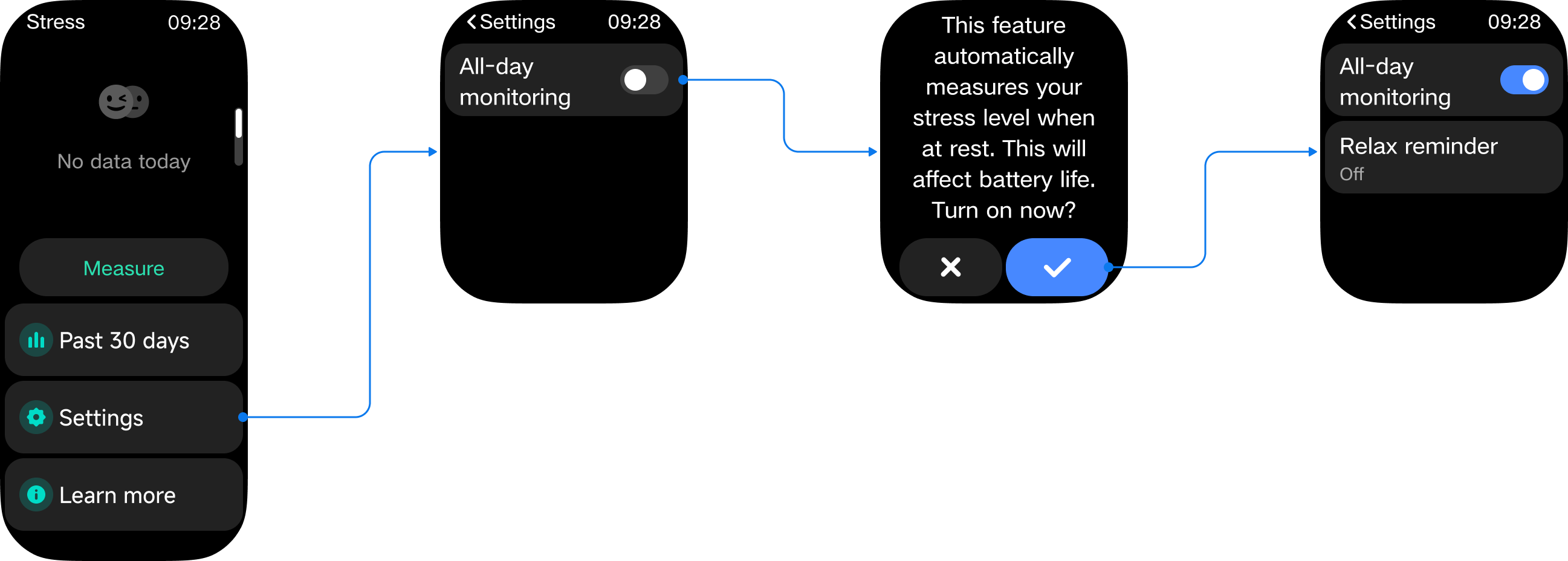
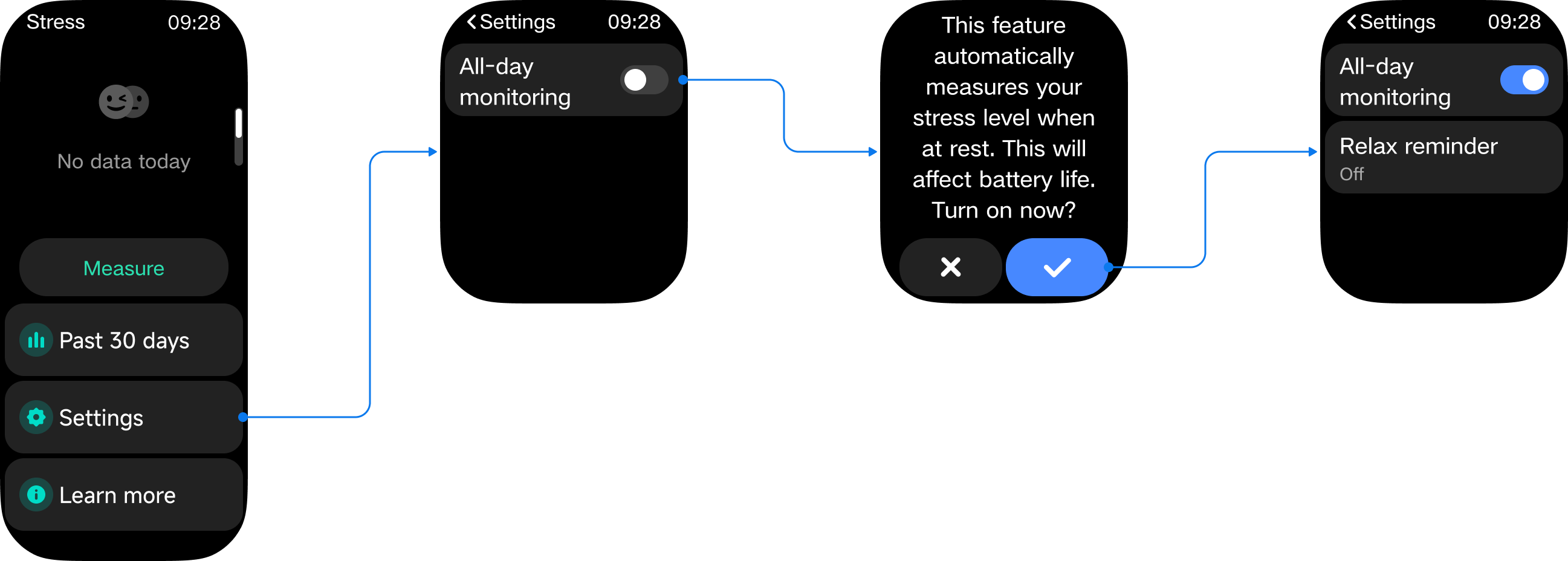
Q13: How to set relax reminders on the REDMI Watch 6 Active?
A: While wearing the watch normally, enter the Stress App and swipe up to stress settings. After enabling [All-day monitoring], a [Relax reminder] option will appear. Tap [Relax reminder] to enable it.
Women's Health
Q14: How to use and set the Cycles feature on the REDMI Watch 6 Active?
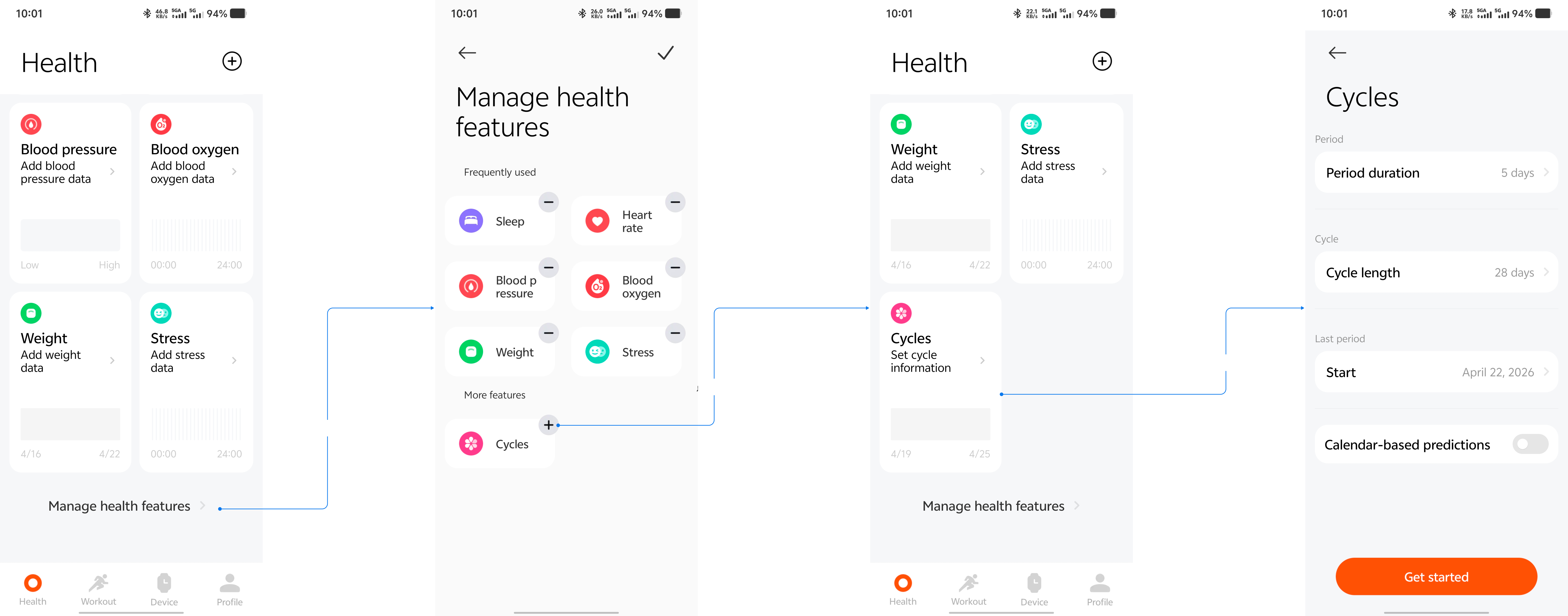
A: The Cycles feature on the watch requires basic menstrual cycle information to be set up in the Mi Fitness App. After pairing the watch with the App, open the App. If there is no Cycles card on the home page, scroll to the bottom, tap [Manage health features] to add the Cycles card. Return to the home page, tap the Cycles card to enter the Cycles module for initial setup.
After completing the initial setup, enter the Cycles details page, tap the three dots icon in the upper right corner, and select [Settings] to enter the menstrual settings interface. Enable [Calendar-based prediction], [Notification settings], and [Show on wearable device]. Return to the main cycle interface and record menstrual data. The App will then intelligently predict the ovulation period and ovulation day. Data recorded in the App will sync to the watch for viewing.
Q15: Why does the Mi Fitness App continuously show "No data available" when the Cycles smart prediction is enabled on the REDMI Watch 6 Active?
A: The REDMI Watch 6 Active doesn't support Cycles smart prediction.
Health Checkup
Q16: How to use the Checkup feature on the REDMI Watch 6 Active?
A: The REDMI Watch 6 Active does not support the health checkup feature.
Q17: How to use the energy monitoring feature on the REDMI Watch 6 Active?
A: The REDMI Watch 6 Active does not support the energy monitoring feature.
Q18: How to connect a heart rate monitor band to the REDMI Watch 6 Active?
A: The REDMI Watch 6 Active does not support connecting a heart rate monitor band.
Q19: How to measure blood pressure on the REDMI Watch 6 Active?
A: The REDMI Watch 6 Active does not support blood pressure measurement.
Q20: How to measure body composition on the REDMI Watch 6 Active?
A: The REDMI Watch 6 Active does not support body composition measurement.
Q21: Why are all continuous health monitoring switches turned off on the REDMI Watch 6 Active?
A: If all continuous health monitoring switches on the REDMI Watch 6 Active are turned off, check whether the watch is in a low battery state. In this case, to extend battery life, continuous monitoring of blood oxygen, heart rate, and stress will be disabled. After the watch is powered off, charged, and restarted, these monitoring features must be manually re-enabled.
Re-enable monitoring:
1. Continuous blood oxygen monitoring: SpO₂ App >> [Settings] >> [All-day tracking].
2. Continuous heart rate monitoring: Heart rate App >> [Settings] >> [Continuous monitoring].
3. Continuous stress monitoring: Stress App >> [Settings] >> [All-day monitoring].
Workouts
Workout Modes
Q1: What workout modes does the REDMI Watch 6 Active support? What data is displayed during and after each workout?
A: The REDMI Watch 6 Active supports 140+ workout modes. Workout data displayed during and after a workout varies by workout type and includes metrics such as duration, heart rate, calories, distance, pace, and more.
Workout modes:
Default display (7 modes): Outdoor running, Walking, Freestyle, Hiking, Outdoor cycling, Treadmill, and Jump rope. These 7 modes appear on the main workout list screen. If all 7 are displayed on the workout list, the "Add" section does not need to show them again. They are listed here to indicate which category each default mode belongs to, which may cause some overlap with the default display.
Outdoor activities (14 modes): Outdoor running, Walking, Hiking, Outdoor cycling, Trekking, Trail run, Rock climbing, Skateboarding, Roller skating, Parkour, ATV, Paragliding, BMX, and Race walk.
Trainings (43 modes): Freestyle, Treadmill, Jump rope, HIIT, Yoga, Indoor cycling, Elliptical, Rower, Stair climber, Stepper, Spinning, Core training, Flexibility, Pilates, Gymnastics, Stretching, Strength, Cross training, Stair climbing, Aerobics, Physical training, Wall ball, Dumbbell, Barbell, Weightlifting, Deadlift, Burpee, Sit-ups, Functional training, Upper body, Lower body, Abs, Back, Air walker, Horizontal bar, Parallel bars, Step aerobics, Mass gymnastics, Cardio combat, Battle rope, Aerobic combo, Indoor walking, and Indoor fitness.
Dance (14 modes): Square dancing, Belly dance, Ballet, Street dance, Zumba, Folk dance, Jazz dance, Latin dance, Hip hop, Pole dance, Breaking, Ballroom dance, Modern dance, and Dance (General).
Combat sports (12 modes): Boxing, Wrestling, Martial arts, Tai chi, Muay Thai, Judo, Taekwondo, Karate, Kickboxing, Kendo, Fencing, and Jujitsu.
Ball sports (26 modes): Tennis, Basketball, Golf, Soccer, Volleyball, Baseball, Softball, American football, Hockey, Table tennis, Badminton, Cricket, Handball, Bowling, Squash, Billiards, Shuttlecock, Beach soccer, Beach volleyball, Sepak takraw, Futsal, Hacky sack, Bocce, Jai alai, Gateball, and Dodgeball.
Winter sports (11 modes): Snowboarding, Skiing, Cross-country skiing, Ice skating, Indoor ice skating, Curling, Other winter sports, Snowmobile, Ice hockey, Bobsleigh, and Sledding.
Recreational sports (14 modes): Archery, Darts, Horse riding, Tug of war, Hula hoop, Kite flying, Fishing, Frisbee, Kicking shuttlecock, Swinging, Somatosensory game, Table football, Shuffleboard, and Esports.
Card and board games (5 modes): Chess, Checkers, Weiqi, Bridge, and Board game.
Other sports (3 modes): Equestrian, Athletics, and Auto racing.
Please refer to the following REDMI Watch 6 Active workout data for detailed information on each workout mode:
Outdoor running
During workout: Fixed display shows GPS signal strength and time. First screen shows Workout duration, Distance, Real-time pace, Heart rate, and heart rate zone. Second screen shows Calories, Cadence, Steps, and Average pace. The third screen shows AI pacer (needs to be enabled in the settings before starting the workout). Left-swipe controls: Pause/Resume, End workout, Lock/Unlock screen. Right-swipe supports music playback control.
Report: Home page shows workout name and start time, Workout duration, and Distance. Workout data card shows Active calories, Average heart rate, Steps, Average pace, Average cadence, and Average step length. Charts: Heart rate chart, Heart rate zone chart, Pace chart, and Cadence chart. The performance section shows the Vitality score.
Treadmill
During workout: Fixed display shows time. The first screen shows Workout duration, Distance, Real-time pace, Heart rate, and heart rate zone. The second screen shows Calories, Cadence, and Steps. Left-swipe controls: Pause/Resume, End workout, Lock/Unlock screen. Right-swipe supports music playback control.
Report: Home page shows workout name and start time, Workout duration, and Distance. Workout data card shows Active calories, Average heart rate, Steps, Average pace, Average cadence, and Average step length. Charts: Heart rate chart, Heart rate zone chart, Pace chart, and Cadence chart. The performance section shows Vitality score.
Walking
During workout: Fixed display shows GPS signal strength and time. The first screen shows Workout duration, Distance, Real-time pace, Heart rate, and heart rate zone. The second screen shows Calories, Cadence, Steps, and Average pace. Left-swipe controls: Pause/Resume, End workout, Lock/Unlock screen. Right-swipe supports music playback control.
Report: Home page shows workout name and start time, Workout duration, and Distance. Workout data card shows Active calories, Average heart rate, Steps, Average pace, Average cadence, and Average step length. Charts: Heart rate chart, Heart rate zone chart, Pace chart, and Cadence chart. The performance section shows the Vitality score.
Hiking / Trekking
During workout: Fixed display shows GPS signal strength and time. The first screen shows Workout duration, Distance, Real-time speed, and Heart rate and heart rate zone. The second screen shows Calories, Cadence, Steps, and Average speed. Left-swipe controls: Pause/Resume, End workout, Lock/Unlock screen. Right-swipe supports music playback control.
Report: Home page shows workout name and start time, Workout duration, and Distance. Workout data card shows Active calories, Average heart rate, Steps, Average speed, and Average pace. Charts: Heart rate chart, Heart rate zone chart, and Speed chart. The performance section shows Vitality score.
Trail run
During workout: Fixed display shows GPS signal strength and time. The first screen shows Workout duration, Distance, Real-time pace, and Heart rate and heart rate zone. The second screen shows Calories and Average speed. Left-swipe controls: Pause/Resume, End workout, Lock/Unlock screen. Right-swipe supports music playback control.
Report: Home page shows workout name and start time, Workout duration, and Distance. Workout data card shows Active calories, Average heart rate, Steps, Average speed. Charts: Heart rate chart, Heart rate zone chart, and Speed chart. The performance section shows Vitality score.
Outdoor cycling
During workout: Fixed display shows GPS signal strength and time. The first screen shows Workout duration, Distance, Real-time speed, Heart rate, and Heart rate zone. The second screen shows Calories and Average speed. Left-swipe controls: Pause/Resume, End workout, Lock/Unlock screen. Right-swipe supports music playback control.
Report: Home page shows workout name and start time, Workout duration, and Distance. Workout data card shows Active calories, Average heart rate, and Average speed. Charts: Heart rate chart, Heart rate zone chart, and Speed chart. The performance section shows Vitality score.
Elliptical
During workout: Fixed display shows time. The first screen shows Workout duration, Steps, Calories, Heart rate, and Heart rate zone. Left-swipe controls: Pause/Resume, End workout, Lock/Unlock screen. Right-swipe supports music playback control.
Report: Home page shows workout name and start time, Workout duration, and Active calories. Workout data card shows Average heart rate, Maximum heart rate, Steps, and Average cadence. Charts: Heart rate chart, Heart rate zone chart, and Cadence chart. The performance section shows the Vitality score.
Indoor cycling / Freestyle / Yoga / HIIT / other workout modes
During workout: Fixed display shows time. The first screen shows Workout duration, Calories, Heart rate, and Heart rate zone. Left-swipe controls: Pause/Resume, End workout, Lock/Unlock screen. Right-swipe supports music playback control.
Report: Home page shows workout name and start time, Workout duration, and Active calories. Charts: Heart rate chart, Heart rate zone chart. The performance section shows Vitality score.
Rower
During workout: Fixed display shows time. First screen shows Workout duration, Total count and total strokes, Calories, and Heart rate and heart rate zone. The second screen shows Stroke rate. Left-swipe controls: Pause/Resume, End workout, Lock/Unlock screen. Right-swipe supports music playback control.
Report: Home page shows workout name and start time, Total duration, and Active calories. Workout data card shows Average heart rate, Total strokes, and Average stroke rate. Charts: Heart rate chart, Heart rate zone chart, and Stroke rate scatter chart. The performance section shows Vitality score.
Jump rope
During workout: Fixed display shows time. First screen shows Workout duration, Total count, Calories, and Heart rate and heart rate zone. Second screen shows Frequency. Left-swipe controls: Pause/Resume, End workout, Lock/Unlock screen. Right-swipe supports music playback control.
Report: Home page shows workout name and start time, Total duration, and Active calories. Workout data card shows Average heart rate, Total count, and Average frequency. Charts: Heart rate chart, Heart rate zone chart, and Frequency scatter chart. The performance section shows Vitality score.
Note:
1. If you set your workout goal to "Calories," the "Pace/Speed" display on the first screen and the "Calories" display on the second screen will swap positions.
2. The performance section is displayed only if valid data is available; otherwise, it is hidden.
3. The last page prompts you to open the Mi Fitness App for more data.
4. The workout data card needs the Goal function to be enabled before starting the workout.
5. Data precision rules:
(1). Distance: If less than 1.0 km, display in meters (e.g., "850 m"). If 1 km or greater, display with two decimal places (e.g., "3.45 km"). If greater than 100 km, display with one decimal place. If greater than 1000 km, display as a whole number.
(2). Speed-related data (e.g., average speed, maximum speed): Display with one decimal place. If the decimal value is 0, display as a whole number (e.g., 15.022 displays as "15", 15.1325 displays as "15.1", 15.185 displays as "15.2").
(3). Goal completion percentage: Always rounded down (floored), never rounded up, both during the workout and in the report.
(4). All other data (excluding duration, distance, speed): Display as whole numbers. Decimals arising from calculations are rounded using standard rounding rules.
(5). Pace format: MM'SS". When pace exceeds 60 minutes, the format changes to HH: MM'SS" (e.g., 5'06", 10'12", 1:05'06").
Q2: What do the maximum altitude, average altitude, cumulative ascent and descent data mean in the REDMI Watch 6 Active workout data?
A: This device does not have a barometer and does not support altitude information. These data fields are not available on the REDMI Watch 6 Active.
Q3: How to start, pause, and end a workout mode on the REDMI Watch 6 Active? How to set auto-pause?
A: Starting a workout: In the App list, tap the Workout App to enter the workout list. Select the desired workout and tap GO to start.
Pausing a workout: During a workout, swipe left to the control page and tap Pause to pause the workout. Then choose to end or continue the workout.
Ending a workout: Press and hold the end button or press and hold the power button for 1.5 seconds to end the current workout.
Setting auto-pause: Supported. Outdoor running, indoor running, walking, and cycling support auto-pause by default. It can be toggled on/off in the settings on the workout preparation page.
Note:
Auto-pause is not supported in the Mi Fitness App.
Q4: Which workouts on the REDMI Watch 6 Active support map navigation?
A: This device does not support map navigation.
Q5: How to use offline maps during a workout on the REDMI Watch 6 Active?
A: This device does not support offline maps.
Q6: How to use route navigation during a workout on the REDMI Watch 6 Active?
A: This device does not support route navigation.
Q7: How is the map displayed during a workout on the REDMI Watch 6 Active?
A: This device does not support maps.
Q8: When starting pool swimming or open water swimming on the REDMI Watch 6 Active, does it support underwater heart rate measurement?
A: This device does not support swimming workouts.
Q9: How to set up AI pacer on the REDMI Watch 6 Active?
A: Workout preparation page >> tap the Settings icon >> [AI pacer]. Currently, only outdoor running supports this feature.
Q10: How to set distance reminders on the REDMI Watch 6 Active?
A: Workout preparation page >> tap the Settings icon >> [Reminders] >> [Distance].
Q11: How to view the running power index on the REDMI Watch 6 Active?
A: This device does not support the running power index.
Q12: How to set the metronome on the REDMI Watch 6 Active?
A: This device does not support a metronome.
Q13: How to perform lactate threshold measurement on the REDMI Watch 6 Active?
A: This device does not support lactate threshold measurement.
Q14: How to use warm-up and cool-down courses before and after a workout on the REDMI Watch 6 Active?
A: This device does not support warm-up and cool-down courses.
Q15: How to use running courses on the REDMI Watch 6 Active?
A: This device does not support running courses.
Q16: How to use interactive sensory courses on the REDMI Watch 6 Active?
A: This device does not support interactive sensory courses.
Q17: How to enable AI routes for workouts on the REDMI Watch 6 Active?
A: This device does not support AI routes.
Q18: How to enable custom routes on the REDMI Watch 6 Active?
A: This device does not support custom routes.
Q19: How to set workout performance on the REDMI Watch 6 Active?
A: This device does not support workout performance settings.
Q20: How to enable Training experience on the REDMI Watch 6 Active?
A: Training Experience is enabled by default; the watch does not currently support manual selection of this feature.
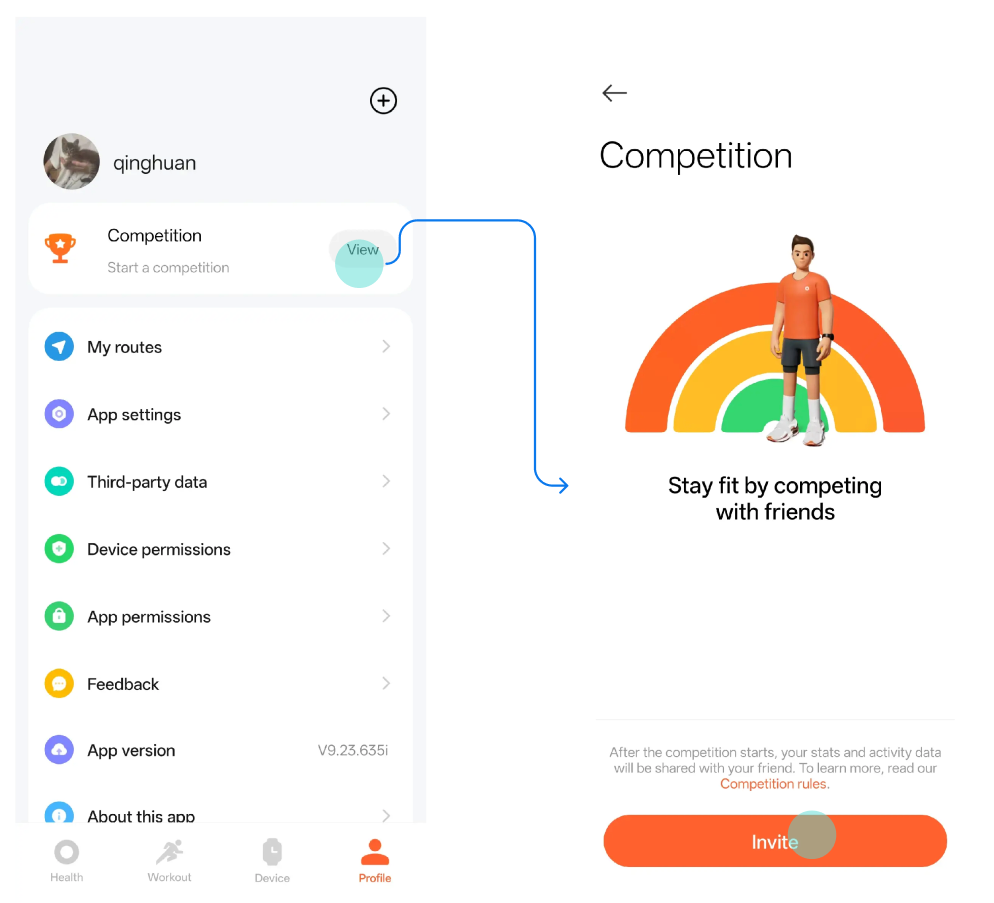
Q21: How to initiate a Vitality competition on the REDMI Watch 6 Active?
A: In the Mi Fitness App, go to [Profile] >> [Competition] >> invite friends.
Q22: How to use heart rate broadcast on the REDMI Watch 6 Active?
A: This device does not support heart rate broadcast.
Workout Reminders
Q23: How to set workout reminders on the REDMI Watch 6 Active?
A: Workout preparation page >> tap the Settings icon >> [Reminders] >> [Distance].
Q24: How to set workout achievement reminders on the REDMI Watch 6 Active?
A: Workout preparation page >> tap the Settings icon >> [Reminders] >> [Distance].
Q25: How to set workout goals on the REDMI Watch 6 Active?
A: Workout preparation page >> tap the Settings icon >> [Goal].
Q26: How to set voice broadcast during a workout on the REDMI Watch 6 Active?
A: This device does not support voice broadcast.
Q27: How to trigger fall detection and automatic emergency call during a workout on the REDMI Watch 6 Active, such as skiing fall detection?
A: This device does not support skiing fall detection or automatic emergency calls.
Breaks Reminders
Q28: How to set breaks reminders on the REDMI Watch 6 Active? What is the reminder logic?
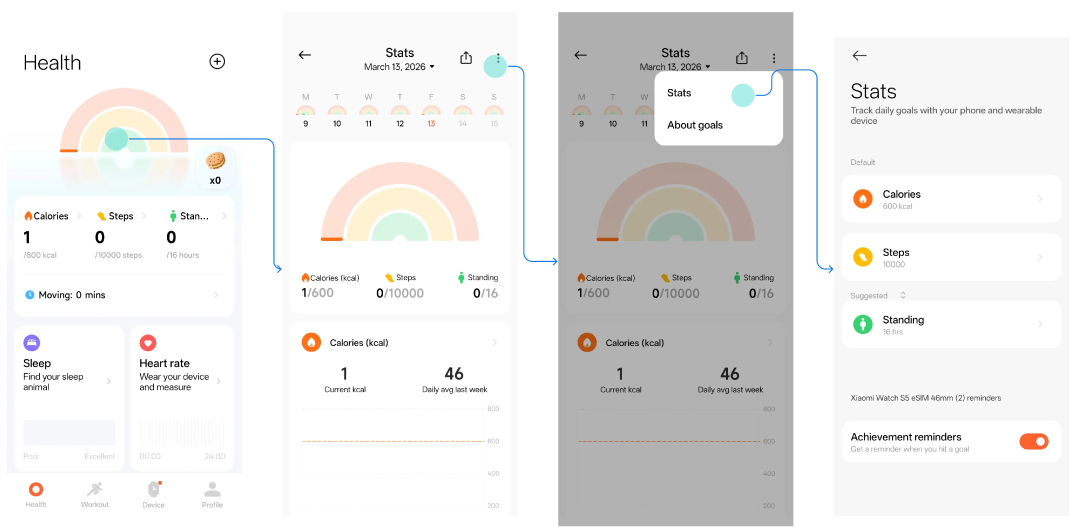
A: In the Mi Fitness App, tap [Breaks] (you can set this by tapping [Stats], which shows like a rainbow icon, and tap the three dots icon in the upper right corner, select [Stats], then choose the suggested activities as [Breaks]) >> tap the three dots icon in the upper right corner >> [Breaks reminders].
Reminder logic:
At the 50th minute (49'59") of each natural hour, the following conditions are checked:
1. The current hour's "Stand per Hour" goal has not been completed.
2. The watch was in a worn state during 49'00"–49'59", and is also being worn at the reminder time.
3. This minute is in an "Inactive" state (active steps < 3).
4. During the first 50 minutes of the hour, "Unworn" time was less than 5 minutes, and "Sleep" time was less than 5 minutes.
5. The current time is within the set reminder time range (the lunch break DND feature must be enabled; default 12:00–14:00).
6. Activity reminders are not issued while conducting a workout or during workout mode.
Q29: How to set breaks reminders DND on the REDMI Watch 6 Active?
A: In the Mi Fitness App, tap [Breaks] (you can set this by tapping [Stats], which shows like a rainbow icon, and tap the three dots icon in the upper right corner, select [Stats], then choose the suggested activities as [Breaks]) >> tap the three dots icon in the upper right corner >> [Breaks reminders] >> [DND].
Q30: How to view today's step count, active calories, and breaks/moving data on the REDMI Watch 6 Active?
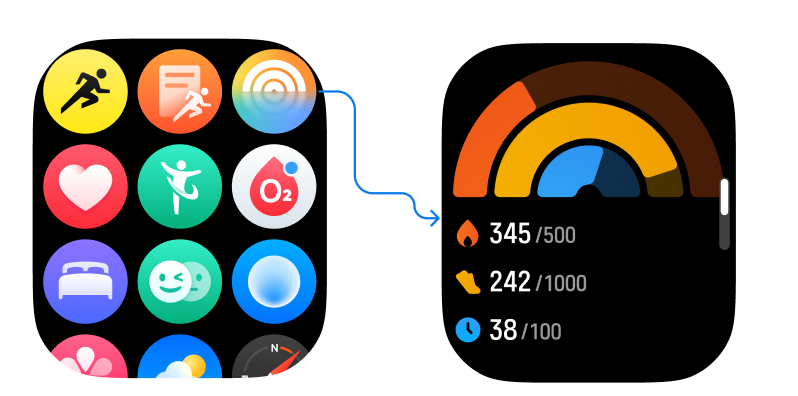
A: In the App list on the REDMI Watch 6 Active, tap [Stats] to view today's step count, active calories, and breaks/moving data.
Q31: How to set daily goal achievement reminders on the REDMI Watch 6 Active?
A: In the Mi Fitness App, tap [Stats], which shows like a rainbow icon at the top >> tap the three dots icon in the upper right corner >> [Stats] >> enable [Achievement reminders].
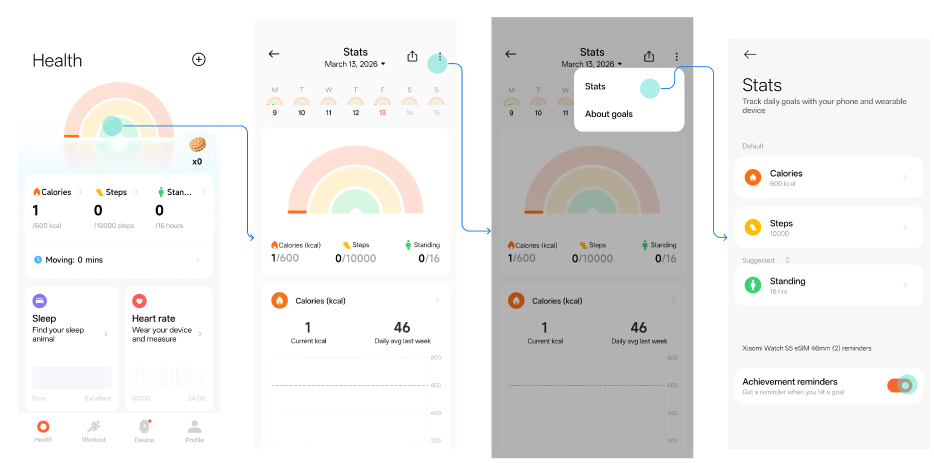
Q32: Why does the stats of the REDMI Watch 6 Active display double arrows when daily goals reach exactly 100%?
A: This was a known display issue on the REDMI Watch 6 Active, and has been resolved in a recent firmware update. Please update the watch to the latest firmware version.
Workout List
Q33: How to add workout items to the workout list on the REDMI Watch 6 Active? What is the maximum number of workout items?
A: At the bottom of the workout list, tap [Add] to add a new workout. The list can hold a maximum of 15 workouts at a time.
Q34: How to hide workout items in the workout list on the REDMI Watch 6 Active?
A: Press and hold the workout item to be hidden to enter edit mode. Tap the delete icon in the upper right corner of the workout item, then tap the checkmark to hide the workout.
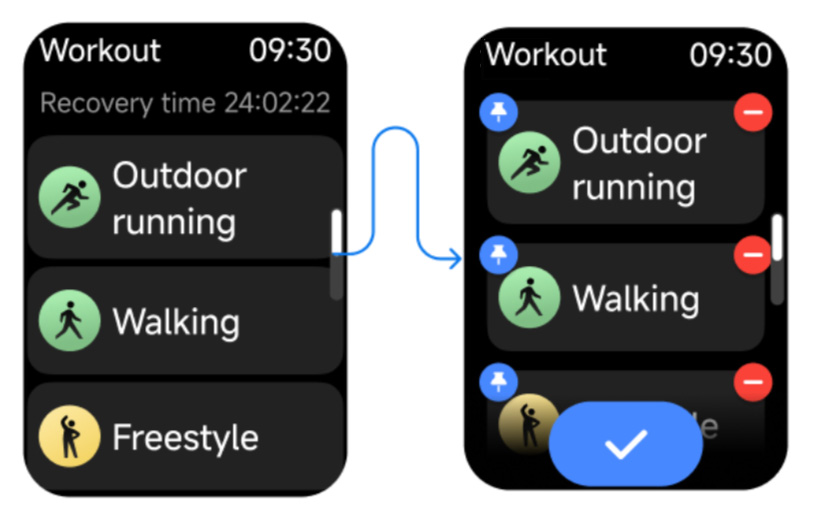
Q35: How to adjust the order of the workout list on the REDMI Watch 6 Active?
A: Press and hold the workout item to be adjusted to enter edit mode. Tap the pin icon in the upper left corner of the workout item to pin it to the top. Tap again to unpin.
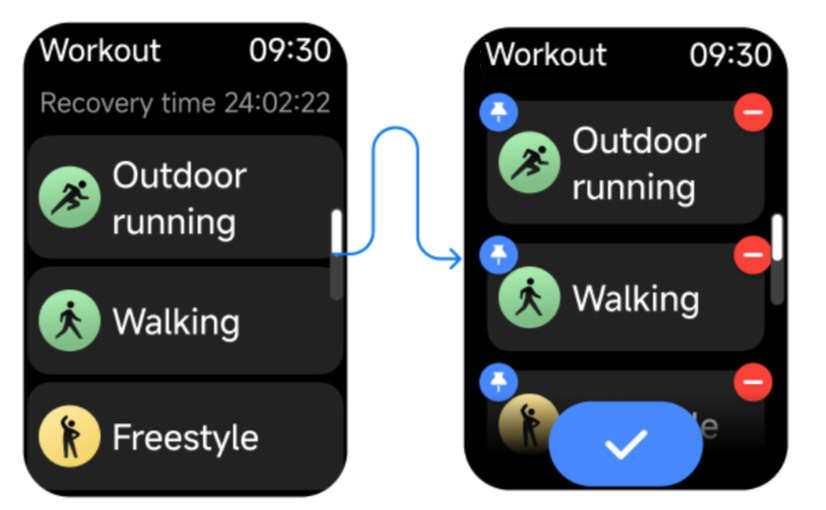
Q36: Why is the workout category not hidden when all workouts within it are displayed in the main workout list on the REDMI Watch 6 Active?
A: The workout category does not disappear just because all workouts within it have been added to the workout list; this is a normal function.
Workout Data
Q37: How to set up and view Stats on the REDMI Watch 6 Active?
A: In the Mi Fitness App, tap [Stats], which looks like a rainbow icon at the top >> tap the three dots icon in the upper right corner >> [Stats].
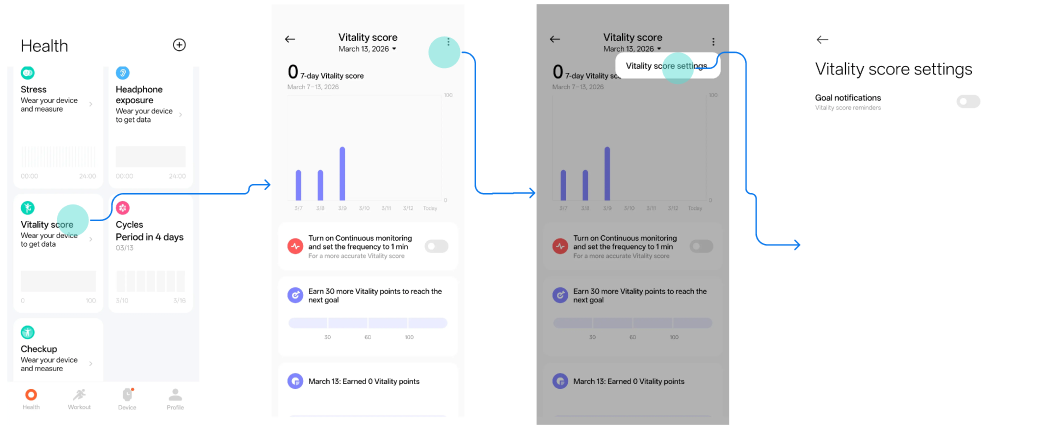
Q38: How to set up Vitality score related reminders on the REDMI Watch 6 Active?
A: In the Mi Fitness App, tap [Vitality score] >> tap the three dots icon in the upper right corner >> [Vitality score settings] >> [Goal notifications].
Q39: What to do if the REDMI Watch 6 Active shows a "storage full" prompt during a long workout and data cannot be synced?
A: Please first clear watch face files and then try to sync data again.
Q40: Can the REDMI Watch 6 Active record workout data only when worn?
A: Without starting a workout, simple data such as step count can be recorded.
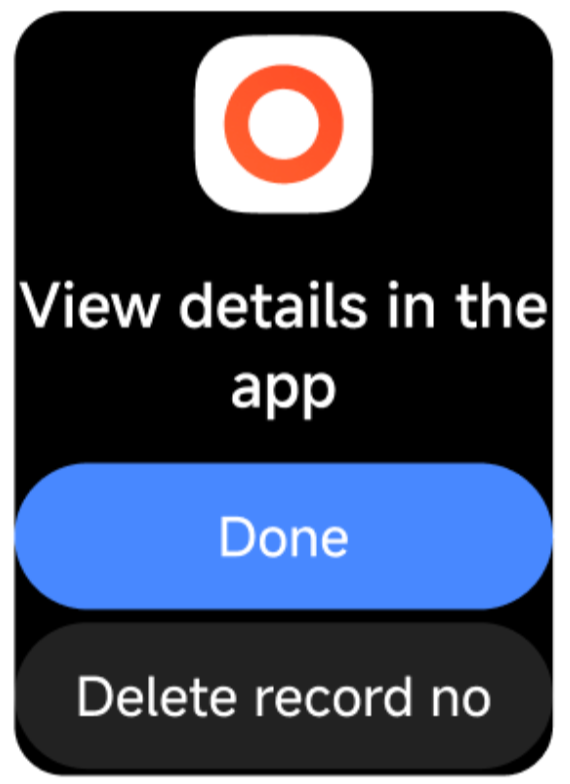
Q41: How to delete workout data on the REDMI Watch 6 Active?
A: At the bottom of the workout report, tap [Delete record] to delete that workout data.
Q42: Why can't the REDMI Watch 6 Active view a workout record initiated from the Mi Fitness App after the workout ends?
A: The watch has limited memory, so it does not sync workouts initiated from the App.
Q43: Why is the maximum oxygen uptake (VO₂ max) displayed on the REDMI Watch 6 Active inaccurate compared to other products?
A: This device does not support maximum oxygen uptake (VO₂ max).
Q44: Why are there no fatigue values or training load records for indoor workouts such as strength training and stair climbers on the REDMI Watch 6 Active?
A: This device does not support training load.
Q45: Why is the workout track sometimes not visible after syncing workout data with an older version of the Mi Fitness App on the REDMI Watch 6 Active?
A: Older versions may not be able to sync data. The Mi Fitness App needs to be upgraded to version 3.57.0 (Android) and 3.50.0 (iOS) or above for syncing, and you should start the workout after upgrading.
Workout Detection
Q46: How to enable workout auto detect on the REDMI Watch 6 Active?
A: 1. Open the App list or control panel on the watch >> [Settings] >> [Workout settings] >> [Auto detect].
2. Open a Workout on the watch >> [Workout settings] >> [Auto detect].
Q47: After enabling workout auto detect on the REDMI Watch 6 Active, how is detection triggered?
A: The following workouts currently support auto detect: running, cycling, and walking.
Walking requires continuous walking for more than 7 minutes. Other workouts trigger detection after approximately 3 minutes of continuous activity. Stopping midway resets the accumulated time.
Q48: What to do if the REDMI Watch 6 Active has false detections or fails to detect after enabling workout auto-detection?
A: If a false detection occurs, tap "Ignore" on the pop-up. If detection fails, increase workout intensity, check that the watch is worn correctly, or extend the workout duration.
Q49: Why does the REDMI Watch 6 Active repeatedly prompt to move to an open area with a poor signal and slow positioning after starting auto-detected outdoor workout recording?
A: Avoid obstructed areas: stay away from tall buildings, large trees, elevated roads, tunnel entrances, and waterside locations.
Sync the watch with the Mi Fitness App daily and maintain a Bluetooth connection for 5–10 minutes to automatically update the satellite data, or update the satellite data manually.
Message Notifications
Q1: How to receive phone message notifications on the REDMI Watch 6 Active? What are the related settings?
A: The REDMI Watch 6 Active supports receiving phone messages. After enabling the message notification switch in the Mi Fitness App, and with the watch and phone connected, message notifications from the phone will be synced to the watch. The watch only supports viewing messages and does not support replying.
Setup method:
Open [Mi Fitness App] >> [Device] >> [Notifications and calls] >> [App notifications] >> enable the [App notifications] switch >> Choose [Mirror phone notifications] (all phone app messages will be synced to the watch) or select specific apps to enable notifications (such as Line, YouTube, Google, Gmail, etc.).
Note:
Apps enabled for notifications in the Mi Fitness App must also have notification permissions enabled on the phone.
Q2: How to view or delete message notifications on the REDMI Watch 6 Active?
A: Viewing message notifications:
1. With the watch and Mi Fitness App connected, messages received on the phone notification bar will be synced to the watch.
2. By default, the watch vibrates but does not light up the screen when receiving message notifications. You can raise your wrist or manually wake the screen to view message details. To enable screen wake on message receipt, go to [Mi Fitness App] >> [Device] >> [Notifications and calls] >> [App notifications] >> enable [Wake screen].
3. Swipe down from the watch face to open the message panel and view received message notifications.
Deleting message notifications:
1. With the watch and Mi Fitness App connected, messages already read on the phone will be deleted from the watch in sync.
2. On the watch message detail page, tap [Dismiss] to delete the message from the watch. If the watch and App are connected at that time, the message will also be deleted from the phone in sync.
3. On the watch face, swipe down to open the message panel. Swipe left on a single message to delete it, or tap [Clear all] at the top of the message list to clear all messages.
Note:
1. Shutting down or restarting the watch will clear all messages.
2. The watch can store up to 10 message notifications. If exceeded, new messages will overwrite the earliest ones.
Q3: What are the character and message count limits for message notifications on the REDMI Watch 6 Active?
A: The details are as follows:
1. The specific character count depends on what the phone delivers.
2. The watch can store up to 10 message notifications. If exceeded, new messages will overwrite the earliest ones.
Q4: How to block notifications from certain Apps on the REDMI Watch 6 Active? (Customize Apps to receive notifications)
A: Open [Mi Fitness App] >> [Device] >> [Notifications and calls] >> [App notifications]. In the [Custom notifications] section, disable the notifications for the Apps you want to block.
Q5: Why are message notifications automatically deleted on the REDMI Watch 6 Active?
A: The watch message notifications are synced with the phone. If the corresponding message is deleted on the phone, the notification on the watch will also be automatically deleted.
Q6: Why do some messages have the dismiss option while others do not on the REDMI Watch 6 Active?
A: This is due to differences in message notification types. Not all notifications require a dismiss option. Each page design provides corresponding confirmation buttons based on content. This is not a malfunction.
Q7: Why is there no message notification when connected to an iPhone on the REDMI Watch 6 Active?
A: 1. Basic connection and mode check (quick troubleshooting)
(1). Confirm the watch and iPhone Bluetooth connection is normal, and the Mi Fitness App shows [Connected] status.
(2). Disable the watch [DND] mode (Watch Settings >> Sound and vibration >> DND).
(3). Disable iPhone [Low power mode] ([Settings] >> [Battery] / [Power Mode] >> [Low Power Mode]) to avoid system restrictions on background sync.
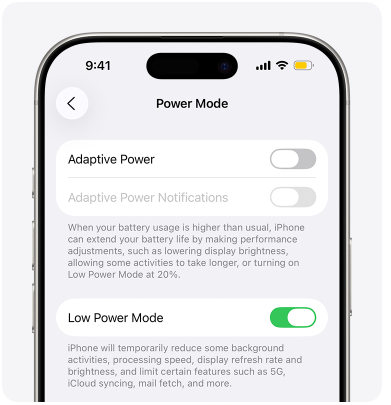
(4). Restart the watch and iPhone, re-establish the Bluetooth connection to fix temporary communication failures.
2. iPhone system permission configuration (core steps)
(1). Bluetooth share system notifications (must enable): Settings >> Bluetooth >> Find REDMI Watch 6 Active >> Tap the [i] icon on the right >> Enable [Share System Notifications].
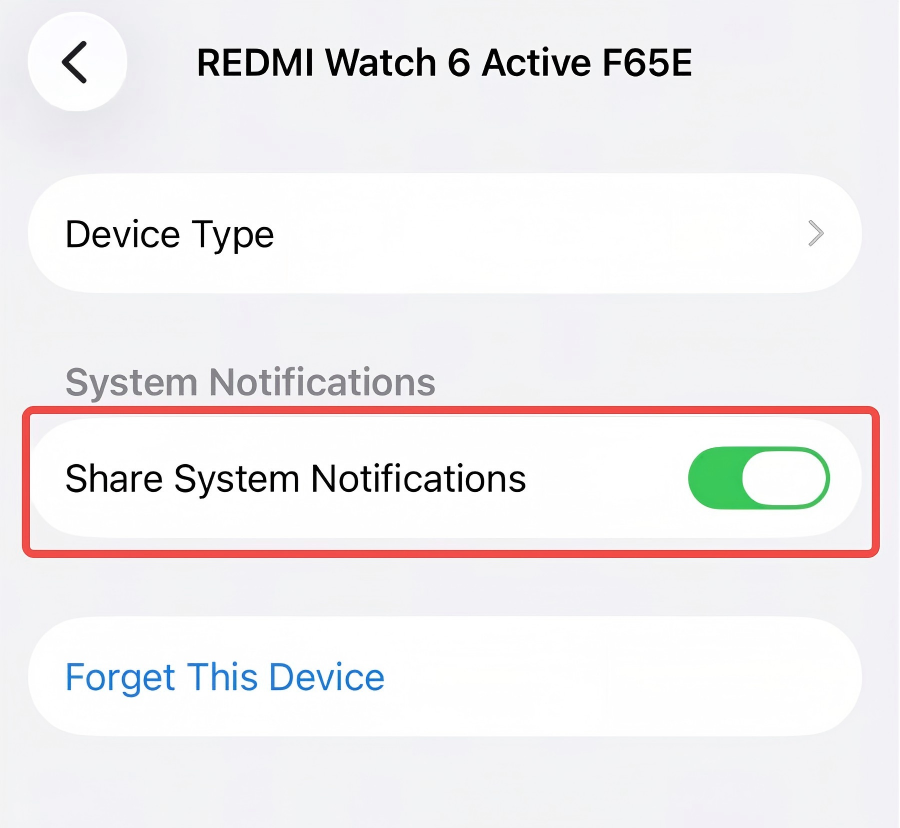
(2). Mi Fitness App permissions:
Settings >> Notifications >> Mi Fitness >> enable [Allow Notifications] and set [Show Previews] to [Always].
Settings >> General >> [Background App Refresh] >> enable Mi Fitness background refresh permission.
Settings >> Privacy & Security >> Bluetooth >> enable Mi Fitness permission.
(3). Target App notification permissions (for specific Apps not receiving messages):
Settings >> Notifications >> Corresponding App >> enable [Allow Notifications], and enable [Lock Screen] and choose [Stack] / [List].
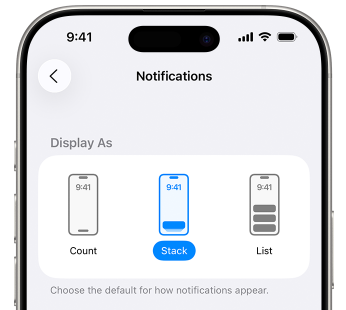
Set App [Show Previews] to [Always] to avoid iOS restricting notification content display on the lock screen.
3. Mi Fitness App settings (key sync switches)
(1). Open Mi Fitness >> Device >> REDMI Watch 6 Active >> [Notifications and calls] >> enable [App notifications] master switch.
(2). Check each App to sync (Gmail, Google Play Store, YouTube, etc.).
(3). Enable [Wake screen] and [Notify only when worn] (choose as needed) to ensure normal reminders when wearing.
(4). Check notification filtering settings to avoid the system automatically blocking unimportant notifications.
4. Advanced optimization and version compatibility
(1). Update to the latest version:
Mi Fitness App (check for updates in App Store).
Watch firmware (Mi Fitness App >> Device >> System update).
iOS system (Settings >> General >> Software Update).
(2). Remove background restrictions:
Settings >> Battery >> Charging >> Disable [Optimized Battery Charging].
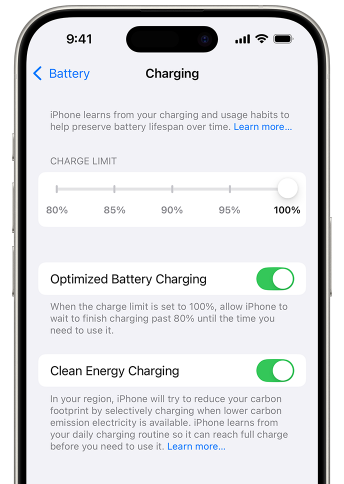
(3). Special scenario adaptation:
If [Notify only when worn] is enabled, ensure the watch detects normal wearing status.
Check the watch [Notifications] settings to confirm [Notifications alerts] is enabled, and volume is adjusted to an appropriate level.
Q8: Why can't the iPhone set the REDMI Watch 6 Active to notify only when the phone is locked?
A: Due to iOS system notification permission limitations.
iOS notification permission design: Apple uses a unified control model for third-party App notification permissions, only providing three preview options: [Always], [When Unlocked], and [Never]. There is no independent switch for [Notify only when locked].
System-level limitation: iOS does not allow third-party Apps (such as Mi Fitness) to obtain real-time lock/unlock status permissions, making it impossible to implement the conditional trigger logic of “push notifications to watch only when locked”.
Q9: Why can I still receive messages after turning off the Mi Fitness App message notification switch on the REDMI Watch 6 Active?
A: After turning off the Mi Fitness App message notification switch, the watch will not receive messages synced from the phone. However, notifications generated by local Apps on the watch can still alert normally.
Q10: Does the REDMI Watch 6 Active support real-time notifications from third-party Apps such as WhatsApp and Line?
A: Yes, the REDMI Watch 6 Active supports real-time notifications from third-party Apps such as WhatsApp and Line.
Incoming Call Reminders
Q1: How to set up incoming call reminders on the REDMI Watch 6 Active?
A: When the watch is connected to the phone and the phone receives an incoming call, the watch will vibrate and ring to alert, displaying the caller's number or name (requires enabling phone contacts permission first). You can tap the red phone icon on the watch screen to reject the call, or tap the green icon to answer the call.
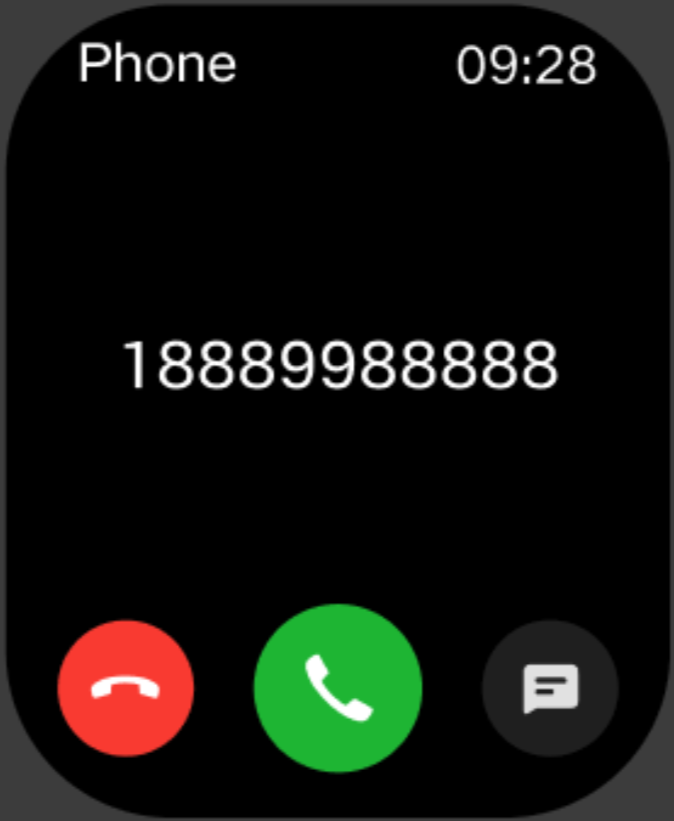
Note:
1. The caller name displayed is consistent with the phone (requires enabling phone contacts permission first). Unknown callers display the phone number.
2. If DND mode is enabled and within the DND period, incoming call reminders will not be received.
Q2: What to do if the REDMI Watch 6 Active does not receive incoming call notifications?
A: 1. Basic connection and mode check (quick troubleshooting)
(1). Confirm the watch and phone Bluetooth connection is normal, and the Mi Fitness App shows [Connected] status.
(2). Disable the watch DND mode (watch Settings >> Sound and vibration >> DND) and phone Focus mode / Low power mode.
(3). Restart the watch and phone, re-establish the Bluetooth connection to fix temporary communication failures.
2. Mi Fitness App core settings (must check)
Check the [Notify only when worn] setting to ensure it matches usage habits (reminds only when wearing, does not remind when not wearing).
3. Phone system permission configuration (separate for iOS/Android)
(1). iOS system (iPhone) specific settings:
Bluetooth share system notifications + Audio (must enable): Settings >> Bluetooth >> Find REDMI Watch 6 Active >> Tap the [i] icon on the right >> Enable [Share System Notifications] and [Bluetooth Audio].
Mi Fitness App permissions: [Settings] >> [Notifications] >> Mi Fitness >> Enable [Allow Notifications] and set [Show Previews] to [Always]. [Settings] >> [General] >> [Background App Refresh] >> Enable Mi Fitness background refresh permission.
(2). Android system-specific settings:
Background permission protection: Enable [Background autostart], [Open new windows while running in the background], [Lock the app in background] permissions to avoid system process restrictions.
Go to the phone [Settings] >> [Apps] >> Find Mi Fitness >> [Power] >> set to [No restrictions] to ensure continuous background operation.
Q3: How to directly make, answer, and hang up calls on the REDMI Watch 6 Active?
A: Ensure the call function is configured properly:
1. Bluetooth calling: The watch and phone are paired through the Mi Fitness App, with normal Bluetooth connection. The phone enables Bluetooth audio and Share system notifications (iOS: Settings >> Bluetooth >> Watch >> Enable; Android: Settings >> Bluetooth >> Watch >> [Phone calls]).
Watch operation guide (detailed by scenario):
1. Answering calls (when receiving a call): Tap the green icon on the watch screen to answer, or tap the red icon to reject.
2. Hanging up calls (during a call / incoming call):
(1). Tap the red icon on the watch screen to hang up.
(2). Double-press the power button to reject an incoming call directly.
(3). The call went unanswered for an extended period and was automatically disconnected due to a timeout, in accordance with local carrier rules.
3. Making calls:
(1). Frequent contacts dialing (most common): Mi Fitness App >> [Device] >> [Apps] >> [Favorite contacts] >> add frequent contacts (up to 10). Watch Favorite contacts App >> select a contact to call with one tap.
(2). Dial pad manual input: Watch Phone App >> tap the dial pad >> input a number through the on-screen keyboard. Tap the green call icon to initiate the call.
(3). Emergency call (special scenario): Mi Fitness App >> [Device] >> [Security] >> [Emergency SOS] >> enable [Emergency SOS] >> add emergency contact. In emergency situations, press the watch power button 3 times consecutively to call the emergency contact.
Q4: What to do if incoming calls cannot be connected on the REDMI Watch 6 Active?
A: 1. Confirm the phone has granted the Mi Fitness App phone permission, which is a prerequisite for Bluetooth calling.
2. Maintain a stable Bluetooth connection between the watch and phone; disable Airplane mode / DND mode.
3. Restart the watch and phone, upgrade the firmware and the App, then retry.
4. If still ineffective, please contact after-sales service for hardware inspection.
Q5: How to add favorite contacts on the REDMI Watch 6 Active?
A: Mi Fitness App >>[Device] >> [Apps] >> [Favorite contacts] >> Add frequent contacts (maximum 10).
Q6: How to view call history on the REDMI Watch 6 Active?
A: Open the watch App list >> Phone App to view call history generated on the watch.
1. Call records on the watch include the following 4 types: Missed calls, calls rejected by the watch, calls answered by the watch, and calls made by the watch.
2. Tap [Clear all] to clear all call records on the watch.
3. Tap a call record to initiate a phone call (synced with phone operation).
Note:
The watch only retains the most recent 30 call records. When exceeded, new records overwrite old ones.
Q7: How to set up an incoming call quick SMS reply on the REDMI Watch 6 Active?
A: Mi Fitness App >> [Device] >> [Notifications and calls] >> [Incoming calls] >> Enable [Reply with message] >> [Quick responses] to add, delete, or edit quick reply content.
Note:
Quick SMS reply only supports Android, not iOS.
Q8: Does the REDMI Watch 6 Active support incoming call delay reminders?
A: Not supported.
Q9: Does the REDMI Watch 6 Active support answering calls from third-party Apps such as WhatsApp and Line?
A: Not supported.
Q10: Why can't third-party App calls display contacts on the REDMI Watch 6 Active, such as WhatsApp and Line?
A: Third-party calls are not supported.
Data Sync
Watch Data
Q1: How long can data be independently saved on the REDMI Watch 6 Active? Will data be automatically deleted if not used for a long time?
A: Workout data on the watch is saved permanently; heart rate and stress data are retained for 30 days; sleep data only retains the current day. Please connect to the phone in time to sync data to the Mi Fitness App. If the watch is reset, previous workout data on the watch will be cleared, but data already synced to the Mi Fitness App will not be cleared.
Q2: How to delete all personal data on the REDMI Watch 6 Active (other than factory reset)?
A: Watch: Settings >> My device >> Reset system settings.
After tapping [Reset system settings], device password verification will be performed:
1. If a device password exists, you need to enter the password first. After the password is correct, the [Reset system settings] popup will appear.
2. If no device password exists, the [Reset system settings] popup will appear directly.
Reset system settings popup includes: System settings (My device, Notifications, Home screen and watch face, Display, Sound and vibration, Battery, Workout settings, DND).
Q3: Why is the health data on the REDMI Watch 6 Active different from other brand devices or medical devices?
A: The watch is a daily health monitoring smart wearable device, not a professional medical diagnostic device. Data differences with other brand wearable devices and medical devices are normal.
The main reasons are as follows:
1. Different measurement principles and device positioning: The watch uses non-invasive, convenient daily monitoring solutions such as optical sensing (PPG), mainly for lifestyle health reference. Professional medical devices use medical-grade sensors and detection solutions, following medical-grade precision standards, mostly for clinical diagnosis.
2. Differences in sensors and algorithms: Different brand wearable devices have different sensor models, sampling frequencies, health algorithm models, and calibration parameters, which will cause monitoring data deviations in the same time period and same state.
3. Impact of measurement environment and wearing conditions: Medical devices mostly measure at fixed points in a static, standard environment. The watch is for daily wear monitoring, easily affected by wearing tightness, skin condition, sweat, body movements, body temperature, and external light.
4. Different data collection methods: The watch mostly uses continuous/periodic automatic monitoring, and human physiological data such as heart rate, blood oxygen, and blood pressure naturally fluctuate in real time. Medical devices mostly use single static measurements, and subtle differences in measurement timing can also lead to different values.
Friendly tips:
The watch health data is for daily health management reference only and cannot replace the diagnostic results of professional medical equipment. If you have medical-related needs, please refer to the data from qualified medical institutions.
App Data
Q4: Can the REDMI Watch 6 Active still be used normally after uninstalling the Mi Fitness App from the phone? Will data be retained?
A: Usage experience and data retention after uninstalling the Mi Fitness App:
Usage impact:
Core independent functions: Normal use (basic health monitoring such as step counting, heart rate, sleep, alarm, stopwatch, etc.).
Phone-linked functions: Cannot sync phone notifications, Bluetooth calling, message reply, etc. (need to reinstall the App and reconnect).
Settings management functions: Cannot change watch faces, upgrade firmware through the phone (need to operate on the watch or reinstall the App).
Conclusion: After uninstalling the App, the watch can independently run basic functions.
Data retention:
Watch local data: Retained. Uninstalling the App does not affect health data (heart rate, sleep, workout records), settings, installed apps, and offline content stored locally on the watch.
Cloud sync data: Depends on sync status. Historical data synced to Xiaomi Cloud before uninstalling is retained. Reinstalling the App and logging into the same account can recover it. New data not synced before uninstalling is temporarily stored on the watch and can be uploaded after reconnecting the App.
Phone data: Lost (local). Data stored locally on the phone App (such as unsynchronized temporary records) will be deleted with the uninstallation. Cloud data is not affected.
Recommended operations:
Before uninstalling: Open the Mi Fitness App >> [Profile] >> [App settings] >> [Sync with the cloud] >> enable [Sync with the cloud] to avoid data loss.
After uninstalling: To manage the watch, operate basic functions in the watch [Settings]. For complete management, reinstall the App and pair to restore all functions.
Friendly tips:
The REDMI Watch 6 Active health data is stored in both watch local and Xiaomi Cloud. Uninstalling the App will not cause loss of core watch data, only affecting phone management and sync capabilities.
Q5: How to view and manage synced data in the Mi Fitness App on the REDMI Watch 6 Active?
A: 1. Open the Mi Fitness App >> enter the Health page to view steps, heart rate, sleep, and other data.
2. Tap the corresponding card to view daily/weekly/monthly details.
3. Tap [Manage health features] at the bottom of the page to delete/add operations.
Q6: Can I independently close data sync for a specific section (such as sleep data, heart rate information) on the REDMI Watch 6 Active?
A: Yes. You can go to the Mi Fitness App >> [Device] >> [Fitness and health]. For example: close the corresponding item (heart rate, sleep, blood oxygen, etc.) to stop syncing that item.
Q7: Why can't I sync Apple Health data after binding the Mi Fitness App on an iPhone with the REDMI Watch 6 Active?
A: 1. Open the Health App on your iPhone.
2. Tap your profile picture in the upper cornerupper-right corner.
3. Under Privacy, tap Apps to find the Mi Fitness App.
4. Tap the Mi Fitness App and turn on the health categories that you want that app to track.
5. Ensure the Bluetooth connection is normal and resync.
Q8: What to do if the REDMI Watch 6 Active frequently disconnects from the Mi Fitness App and data cannot be synced?
A: 1. Keep the watch and phone close together, restart Bluetooth, the watch, and the phone.
2. Lock the App in the background to prevent it from being killed by the system.
3. Unpair and rebind, upgrade the App and watch firmware.
Q9: What to do if data synced to the Mi Fitness App is lost on the REDMI Watch 6 Active?
A: 1. Pull down the App health page to resync.
2. Check if the correct account is logged in and confirm cloud sync is enabled.
3. Please reconnect and sync again. If the issue persists, please submit feedback via the Mi Fitness App and select the option to upload logs.
Q10: What to do if the REDMI Watch 6 Active data is not synced with the Mi Fitness App?
A: 1. Ensure Bluetooth is normally connected; pull down the home page to manually sync.
2. Restart the watch and App, and upgrade to the latest version.
3. Rebind the device and then sync again.
Data Migration
Q11: Will the health data and workout data of the REDMI Watch 6 Active be automatically backed up? Where is it backed up to?
A: Yes, it will be automatically backed up to the Xiaomi Cloud server (requires logging into the same Xiaomi account and enabling cloud sync).
Q12: How to manually back up data on the REDMI Watch 6 Active? Can backup files be exported to a computer?
A: Manual export: Open the Mi Fitness App >> [Workout] >> [History] >> select a workout history >> tap the three dots icon in the upper right corner >> tap [Export] to export as a TCX file to the phone.
Q13: Will changing the bound phone affect data on the REDMI Watch 6 Active?
A: Switching with the same account has no impact. Log into the original account on the new phone to sync cloud historical data. If switching accounts, the watch needs to be reset, and unsynchronized data will be cleared.
Q14: How to migrate data from an old watch to the new REDMI Watch 6 Active?
A: Old watch: Please first enable [Sync with the cloud] by going to the Mi Fitness App >> [Profile] >> [App settings] >> [Sync with the cloud] >> enable [Sync with the cloud] and tap [Sync] to avoid data loss. Then go to the Mi Fitness App >> [Device] >> [More] >> [Unpair].
New watch: Log into the same account, go to the Mi Fitness App >> [+] >> [Add device], pair, and automatically sync health/workout/settings.
Q15: How to sync workout data to other third-party fitness Apps (such as Strava) on the REDMI Watch 6 Active?
A: Go to the Mi Fitness App >> [Profile] >> [Third-party data] >> select third-party fitness Apps such as Strava, SUUNTO, Health Connect >> authorize account connection; workout records will automatically sync.
Q16: Does the REDMI Watch 6 Active support syncing data from other health detection devices (such as electronic blood pressure monitors)?
A: The REDMI Watch 6 Active currently doesn't support syncing data from other health detection devices (such as electronic blood pressure monitors).
Audio
Q1: How to control phone music playback on the REDMI Watch 6 Active?
A: Ensure the watch and phone have a normal Bluetooth connection.
Open the watch Music App, then open the Phone's music App for control.
You can perform Play/Pause, Previous/Next track, and Volume adjustment operations.
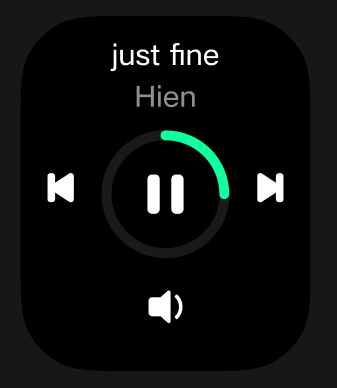
Watch Face
Q1: How many watch faces can be saved on the REDMI Watch 6 Active and the Mi Fitness App?
A: The Mi Fitness App market has 200 watch faces. The watch can store a total of 6, with 3 preset and 3 from the market.
Q2: How to change and delete watch faces on the REDMI Watch 6 Active?
A: 1. Delete: Press and hold the watch face for 1 second to enter the management interface, swipe up on the watch face, and tap [Delete] to remove it. You can also delete watch faces in system settings: [Settings] >> [Home screen and watch face] >> [Watch face], swipe up and tap [Delete].
2. Change watch face: Press and hold the watch face for 1 second to enter the management interface, swipe left or right to switch, and tap the currently centered watch face to confirm. Or, after connecting the watch to the Mi Fitness App, download a new watch face in [Device] >> [Manage watch faces].
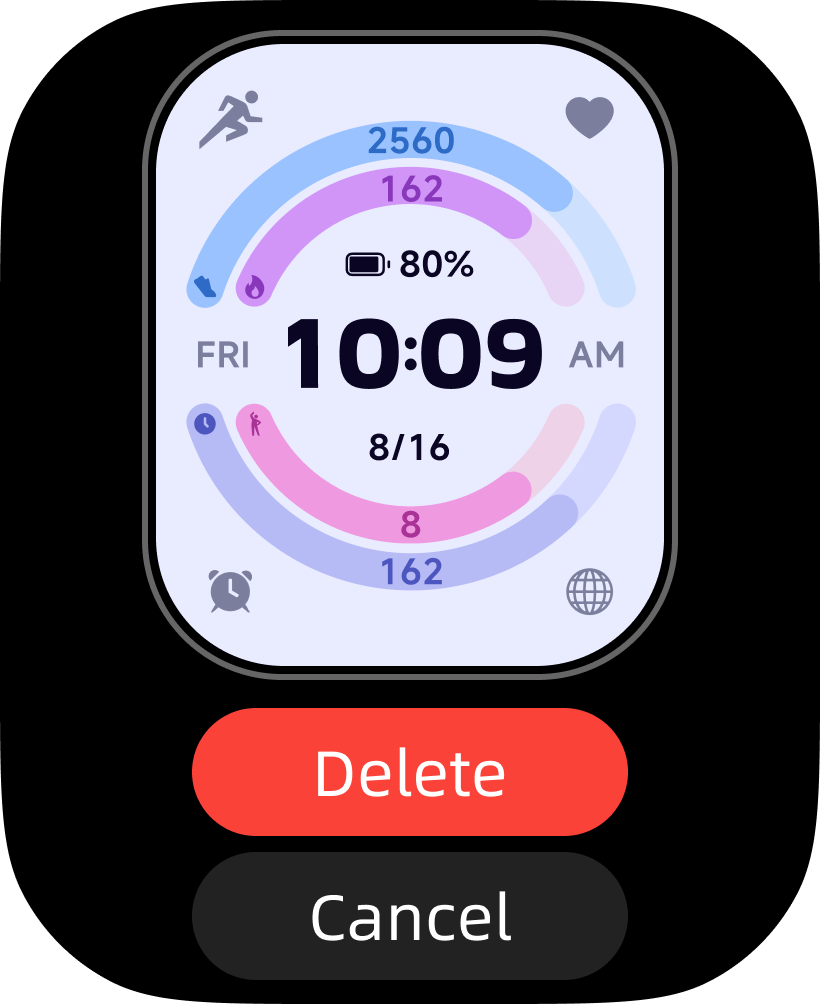
Q3: How to check the power consumption level of a watch face on the REDMI Watch 6 Active?
A: Power consumption levels are not currently supported.
Q4: How to customize watch face colors and interface settings on the REDMI Watch 6 Active? (Edit watch face)
A: Press and hold the watch face for 1 second to enter the watch face management state, tap [Edit] to enter customization. Swipe left or right to switch between editable modules, such as [Style] or [Color]. Specific supported customization content depends on the actual watch face design.
Switch [Style]: Swipe up and down to switch and preview effects.
Switch [Data] (only supported by some watch faces): Tap to edit the component area, select the highlighted area to enter [Data list], tap a data item to complete selection and return.
Switch [Color] (only supported by some watch faces): Swipe up and down to switch and preview effects.
Q5: How to set a photo watch face on the REDMI Watch 6 Active?
A: The REDMI Watch 6 Active supports custom watch face backgrounds, which can be achieved through the Mi Fitness App.
Path: Mi Fitness App >> [Device] >> [Manage watch faces] >> [All] >> [Custom], apply a photo watch face.
1. Add photo: Tap [Custom photo] >> enter image selection page >> select image from album >> confirm selection.
2. Photo cropping: Enter the cropping interface, adjust the image >> tap [OK] to confirm.
3. Parameter adjustment: You can switch photos and adjust text color, depending on the actual design.
4. Save watch face: Tap [Apply] to start syncing the watch face. After syncing is complete, the watch face is applied to the device.
Q6: Why does the Mi Fitness App show failure when downloading or deleting watch faces, but the actual download or deletion on the watch is successful on the REDMI Watch 6 Active?
A: This is a status sync issue between the App and the watch. The watch has completed the operation, but the result was not timely transmitted back to the App, causing the page to incorrectly show [Failure]. This does not affect actual use. You can handle it as follows:
1. Refer to the watch status: If the watch has successfully downloaded or deleted the watch face, the operation has taken effect, and the App prompt can be ignored.
2. Refresh App status: Ensure the watch and phone connection is stable, and avoid sync delays caused by connection issues. Exit and re-enter the Mi Fitness App, wait for the App and watch to complete data sync, and the page status usually returns to normal.
3. Restart App: If the status has not been updated for a long time, clear the cache or restart the App and check again.
Q7: How to set the corresponding AOD (Always-on display) for a watch face on the REDMI Watch 6 Active? Which watch faces have corresponding AOD?
A: 1. The watch face prioritizes displaying its matching AOD effect. If the watch face does not have a designed AOD, the system default AOD will be displayed. Each watch face design is different. Please refer to the actual design.
2. In watch [Settings] >> [Display] >> [Always-on display], you can enable the always-on display. It is disabled by default and can be manually enabled and modified.
Q8: How to automatically display the music background icon on the watch face of the REDMI Watch 6 Active?
A: When the watch is connected to the phone and enters a music-related interface, the system detects the phone's playback status. Watch faces that support this feature will automatically display the music playback icon without manual setup.
Please confirm the watch is connected to the phone and the phone is currently playing music.
Q9: Why does the music icon always display on the watch face and cannot be closed on the REDMI Watch 6 Active?
A: When the phone has a running music App, the music icon will continue to display. Suggestion: Completely close the music App on the phone rather than just switching to the background. If it still cannot be removed, try restarting the watch.
Q10: Why are the widgets on the watch face not tappable on the REDMI Watch 6 Active?
A: 1. Some watch face widgets are for display purposes only and do not support click interaction, which is normal design (such as charging, unread message dots, etc.).
2. If a widget should theoretically be tappable but does not respond, check if the watch face file is the latest version and try restarting the watch before operating again.
3. Confirm the Mi Fitness App and watch firmware are both updated to the latest versions.
4. If the issue persists, try reinstalling the current watch face in the App.
Q11: Why can't the watch face be changed on the REDMI Watch 6 Active?
A: Please troubleshoot step by step as follows:
1. Network: Confirm the phone network connection is normal. Switch to a Wi-Fi environment and retry.
2. Bluetooth connection: Ensure the watch and phone Bluetooth connection is stable; keep the watch close to the phone during transfer.
3. Storage space: Check if the watch has sufficient storage space. If not, delete unused watch faces or apps.
4. App and firmware version: Confirm the Mi Fitness App and watch firmware are both updated to the latest versions.
5. Retry: Exit the App and re-enter the watch face store, clear the App cache, and try downloading again.
6. If the above steps are all ineffective, try restarting the watch and phone and retry.
Q12: Why is the watch face display content inconsistent with the Mi Fitness App on the REDMI Watch 6 Active?
A: The App displays a watch face preview effect, and some data (such as steps, heart rate, weather, etc.) are example values. The actual watch face will display real-time data obtained by the watch. Please refer to the data displayed on the watch.
Q13: Why is the watch face display content inconsistent with the thumbnail on the REDMI Watch 6 Active?
A: The thumbnail is a watch face preview effect, and some data (such as steps, heart rate, weather, etc.) are example values. The actual watch face will display real-time data obtained by the watch. Please refer to the data displayed on the watch.
Q14: Why is the watch face thumbnail blurry on the REDMI Watch 6 Active?
A: The watch screen resolution and App preview rendering resolution are different. The watch face thumbnail is a low-resolution compressed preview image. Actual display is based on the watch screen.
Q15: Why is the always-on display (AOD) setting inconsistent with the actual display on the REDMI Watch 6 Active?
A: The watch face prioritizes displaying its matching AOD effect. If the watch face does not have a designed AOD, the system default AOD will be displayed. Each watch face design is different; please refer to the actual design.
Q16: Why is the watch face time display format incorrect on the REDMI Watch 6 Active?
A: The watch face time display format usually follows the watch system [12-hour/24-hour] setting.
Please note that some watch faces only support 12-hour format due to design reasons and cannot switch to 24-hour format with the system. It is recommended to change to another watch face that supports the corresponding time format.
Q17: Why is the watch face data not syncing (steps, heart rate, weather, etc.) on the REDMI Watch 6 Active?
A: Please troubleshoot as follows:
1. Confirm the watch and phone Bluetooth connection is normal.
2. Open the Mi Fitness App, check if the watch is connected and paired with the phone, and tap the sync icon on the App side to refresh data.
3. When weather data is abnormal, confirm the watch has granted the App location permission and maintain network connectivity.
4. Try restarting the watch and observe if data returns to normal.
Q18: Why does the custom watch face background fail on the REDMI Watch 6 Active?
A: Please troubleshoot as follows:
1. Confirm the selected image format is supported.
2. Ensure the phone has granted the Mi Fitness App album/storage access permission.
3. Ensure the watch and phone Bluetooth connection is stable; do not disconnect during transfer.
4. If still failing, try restarting the App and watch and retry.
5. On some Android phones, custom watch face background failure usually occurs because the system defaults the image selection to a specific App (such as File Manager), causing the album not to be called normally. You can handle it as follows:
(1). Enter the phone [Settings] >> [Apps].
(2). Find the App that was previously used to select the image (such as [File Manager]).
(3). Tap [Clear defaults].
(4). Return to the Mi Fitness App, re-add the photo, and select the correct image source App.
Note:
Please be sure to clear the default open settings; otherwise, you may still not be able to select images normally. Different phone setting path names may vary slightly.
Q19: The watch face printed on the packaging box is not found in the watch?
A: All watch faces shown on the packaging box can be found in the watch face market. If you do not see the corresponding watch face after powering on, please find it in the Mi Fitness App >> [Device] >> [Manage watch faces].
Q20: Why does the album watch face display water ripples, jagged edges, or noise on the REDMI Watch 6 Active?
A: This display issue is usually related to the custom image you selected. Different image resolutions, formats, and color modes may affect the display effect on the watch face. Simply replacing it with another image will likely resolve the display issue.
Security
Q1: How to enable the SOS emergency call feature on the REDMI Watch 6 Active?
A: App side: Mi Fitness >> [Device] >> [Security] >> [Emergency SOS] >> enable the switch.
Trigger method: Press the power button 3 times consecutively to call the emergency contact.
Q2: How to set up emergency contacts on the REDMI Watch 6 Active?
A: 1. App side: Mi Fitness >> [Device] >> [Security] >> [Emergency SOS].
2. Manually add the emergency phone and name. Maximum 1 contact.
3. After saving, it automatically syncs to the watch.
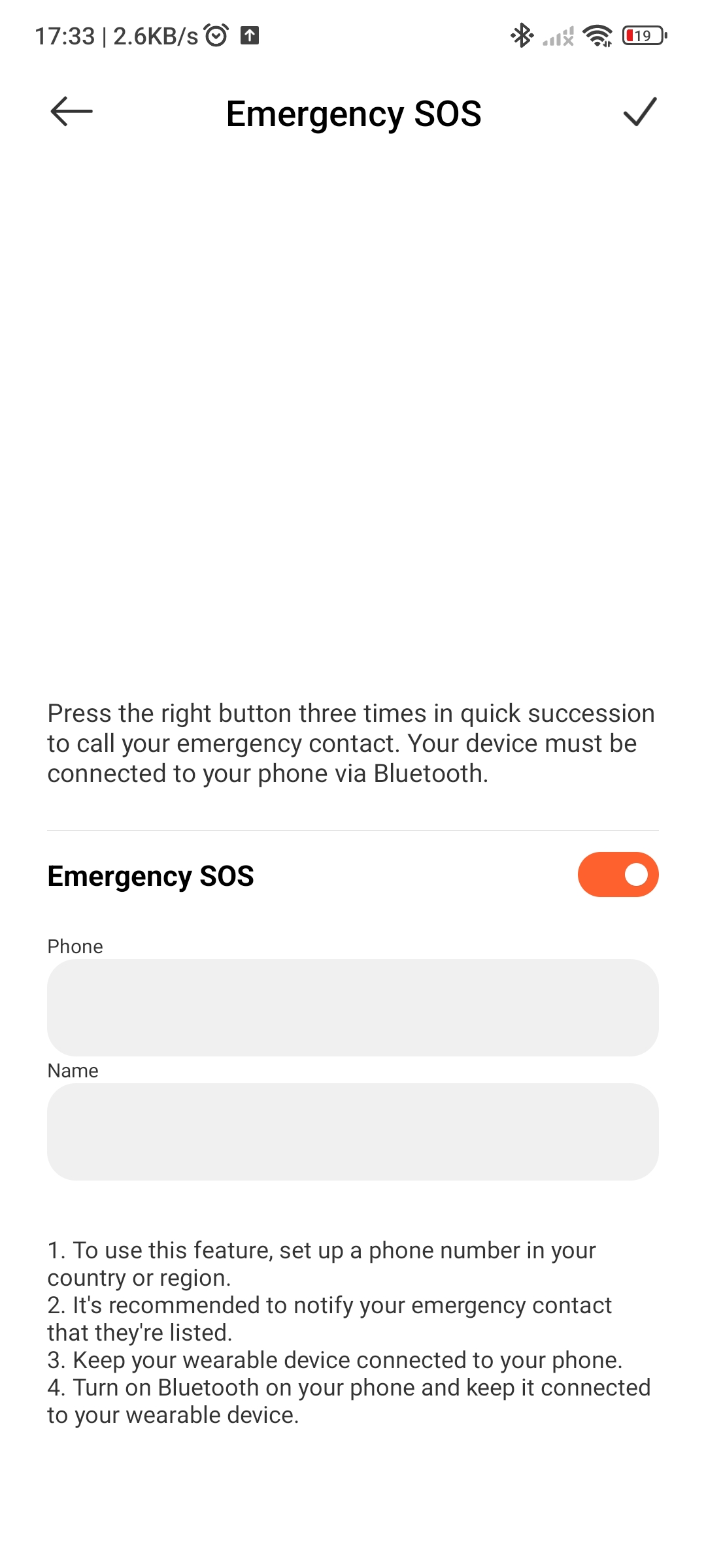
Q3: How to set a device password (wrist-off password/PIN) on the REDMI Watch 6 Active?
A: 1. Watch side: Settings >> [PIN] >> set PIN >> Enter a 6-digit number and confirm.
2. App side: Mi Fitness >> [Device] >> [Security] >> [Set password] >> enable and set password.
3. After wrist-off, the screen automatically locks, requiring a password to unlock.
Q4: What to do if I forget the device password on the REDMI Watch 6 Active?
A: 1. Connect the original paired phone: Mi Fitness >> [Device] >> [Security] >> [Set password] >> [Turn off PIN] or [Change PIN].
2. When connected to Mi Fitness: Mi Fitness >> [Device] >> [More] >> [Unpair].
3. After reset, rebind the phone and set a new password.
4. When not connected to Mi Fitness: Please visit an after-sales service center for processing.
Q5: What to do if the REDMI Watch 6 Active still locks when normally worn after setting a password?
A: This issue has been fixed. Please upgrade the firmware to the latest version.
Q6: How to use Bluetooth to unlock the phone with the REDMI Watch 6 Active?
A: 1. Mi Fitness >> [Device] >> [Security] >> [Unlock phone].
2. Set a lock screen password on the phone, and confirm authorization on the watch side.
3. Select unlock distance (Near/Medium/Far). When Bluetooth is connected, the phone automatically unlocks when close to the watch.
4. Only supports MIUI 12+ and Hyper OS Xiaomi phones.
Q7: How to achieve privacy data security protection on the REDMI Watch 6 Active?
A: App side path: Mi Fitness >> [Profile] >> [About this app] >> Disable [Enroll in User Experience Program].
Q8: How to find the bound phone with the REDMI Watch 6 Active?
A: 1. On the watch face, swipe up to bring up the Control center, tap the [Find phone] icon.
2. Or press the power button to enter the App list, open the Find phone App.
3. Tap [Search]. The bound phone will ring and vibrate. Tap [Stop] on the watch to stop. Condition: The watch and phone have a normal Bluetooth connection.
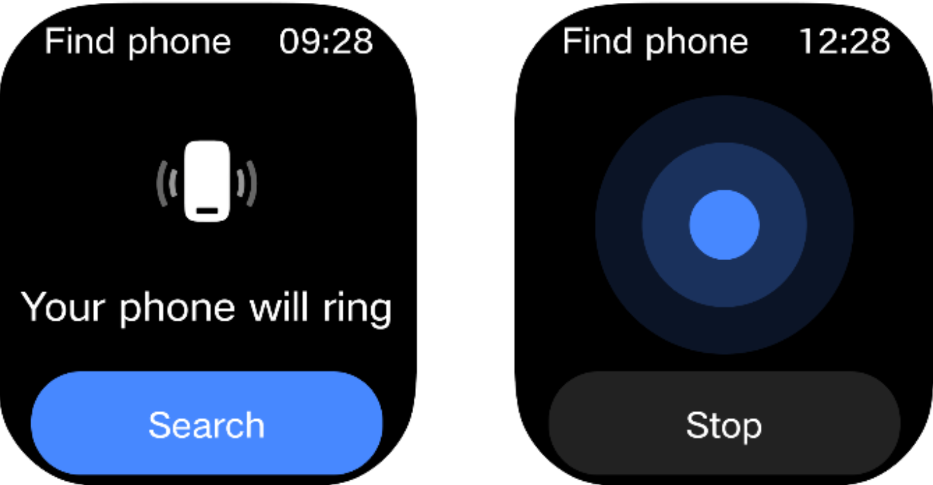
Q9: How to use the bound phone to find the REDMI Watch 6 Active?
A: App side path: Mi Fitness >> [Device] >> [Security] >> [Find device] >> tap [Find device], the watch will continuously ring. Tap [Stop] to end.
Software Update and Compatibility
Q1: What are the processor, operating system, and factory system version of the REDMI Watch 6 Active?
A: Processor: Actions ATS3085S4
Operating system: HyperOS
Factory system version: 3.230.192
Q2: How to upgrade the system firmware on the REDMI Watch 6 Active? What should I pay attention to during the upgrade?
A: App side path: Mi Fitness >> [Device] >> [More] >> [Device version] >> tap to check for updates >> if a new version is available, tap [Update].
Upgrade precautions:
1. Ensure the watch battery is at least 20%. It is recommended to charge to above 50%.
2. Maintain stable Bluetooth connection between watch and phone, and the phone network is smooth.
3. Do not disconnect or restart devices during the upgrade process.
4. After the upgrade is complete, the watch will automatically restart.
Q3: What to do if a feature disappears or is removed after an update on the REDMI Watch 6 Active?
A: 1. Check the update log: Confirm if the feature was officially planned for removal/adjustment.
2. Restart the watch: Some feature issues can be resolved by restarting.
3. Check settings: Some features may have been moved to other menus; re-enable them.
4. Rollback version: If caused by a bug, wait for a subsequent update to fix it.
5. Report issue: Submit feedback in the Mi Fitness App and wait for official fix.
Q4: Can I downgrade the system of the REDMI Watch 6 Active? Will data be lost after downgrading?
A: Official downgrade is not supported. There is no official downgrade channel.
Q5: How to perform a factory reset on the REDMI Watch 6 Active? What data will be deleted?
A: App side path: Mi Fitness >> [Device] >> [More] >> [Unpair].
Watch side path: Settings >> [My device] >> [Factory reset].
The following data will be deleted:
All personal data: Health records, workout data, watch faces, apps, settings.
All pairing information: Requires rebinding the phone.
Q6: How to recover previous pairing information and health data after a factory reset on the REDMI Watch 6 Active?
A: If cloud sync was not enabled: Local health data cannot be recovered.
Re-pair: Open the Mi Fitness App >> Device >> Add device >> Select REDMI Watch 6 Active >> Follow prompts to complete Bluetooth pairing.
Recover health data: Mi Fitness App >> [Profile] >> [App settings] >> [Sync with the cloud] >> enable [Sync with the cloud] and wait for automatic recovery.
Q7: What are the RAM and ROM of the REDMI Watch 6 Active? Does it support expandable storage?
A: RAM: 4MB
ROM: 24MB
Expandable storage: Not supported (MicroSD card expansion).
Q8: How to clear cache data and free up storage space on the REDMI Watch 6 Active?
A: Delete unused watch faces: Press and hold the watch face to enter edit mode, swipe up on the watch face, and tap [Delete].
Q9: What system languages does the REDMI Watch 6 Active support?
A: The watch supports the following languages:
English, German, Italian, French, Spanish, Dutch, Portuguese, Polish, Ukrainian, Romanian, Czech, Slovak, Greek, Swedish, Finnish, Norwegian, Danish, Lithuanian, Bulgarian, Hungarian, Russian, Thai, Vietnamese, Brazilian Portuguese, Indonesian, Japanese, Korean, Traditional Chinese (Taiwan), Turkish, Arabic, Hebrew, Hindi, Serbian.
Q10: How to switch the system language on the REDMI Watch 6 Active?
A: Switch the system language on the phone, and the watch will follow the phone language and sync automatically.
Q11: What to do if the system language is inconsistent with the phone on the REDMI Watch 6 Active?
A: 1. Restart sync: Restart the watch and App, and wait for automatic language settings sync.
2. Manual sync: Mi Fitness >> [Device] >> tap [Sync].
Q12: Why did the system language change by itself after a firmware update on the REDMI Watch 6 Active?
A: Update reset: The phone switched system language, and the watch synced the phone language after the firmware update.
Sync exception: After the update, Bluetooth sync temporarily failed, causing the language to not sync. Please check the connection status with the Mi Fitness App.
Q13: Why is the weather language display abnormal after the phone language is switched on the REDMI Watch 6 Active?
A: Cache issue: The Weather App cached old language data and did not refresh in time.
Sync delay: Language sync between the phone and watch has a delay. Exit the weather app and reopen it.
Sync mechanism: Some weather data is obtained from local meteorological bureau server data and displayed on the watch after transmission.
Q14: What to do if the OTA transfer is interrupted, and the REDMI Watch 6 Active is stuck at 0% or forced to restart?
A: On the watch upgrade page, quickly tap the screen 5 times consecutively to enter the pairing page. Open the Mi Fitness App and re-initiate the OTA.
Positioning System
Q1: What positioning methods does the REDMI Watch 6 Active support?
A: The watch itself does not support GPS.
Q2: How to enable/disable GPS positioning on the REDMI Watch 6 Active? Does positioning consume battery quickly?
A: The watch itself does not support GPS.
Q3: Does the positioning function of the REDMI Watch 6 Active depend on the phone or its own GPS? What is offline positioning accuracy?
A: It depends on the phone's GPS, which can meet outdoor running and cycling recording needs.
Common Issues
Buttons
Q1: What to do if the button on the REDMI Watch 6 Active is stuck, hard to press, or unresponsive?
A: If you encounter issues with the buttons, please contact your local after-sales service center for further assistance.
Please refer to the following possible causes:
1. The button spring was missed during assembly.
2. The button snap was not installed properly or was missed.
Q2: Why is the button loose on the REDMI Watch 6 Active?
A: If you encounter issues with the buttons, please contact your local after-sales service center for further assistance.
Please refer to the following possible causes:
1. The button spring was missed during assembly.
2. The button snap was not installed properly or was missed.
Screen
Q3: What to do if the REDMI Watch 6 Active has a black screen or the screen cannot wake up?
A: 1. The watch may be in a depleted battery state. Charge for 10 minutes to see if it can power on.
2. The watch may be in a software freeze state. Press and hold the power button for 20 seconds or more to see if it can force the firmware to restart.
3. If the screen is still black/cannot wake up after the above operations, please visit an after-sales center for inspection.
Q4: What to do if the touchscreen is unresponsive on the REDMI Watch 6 Active?
A: 1. Press and hold the power button for 12 seconds to force restart the watch.
2. Check if the screen has water, oil, or protective film covering it.
3. Upgrade the watch firmware to the latest version.
4. If still unresponsive, contact after-sales service for touchscreen hardware inspection.
Q5: What to do if the touchscreen response is slow on the REDMI Watch 6 Active?
A: 1. Clean the screen of water stains and oil.
2. Restart the watch.
3. Upgrade the watch firmware to the latest version.
4. Try again after a factory reset.
Q6: What to do if the Raise to wake feature does not work on the REDMI Watch 6 Active?
A: 1. Check if the Raise to wake feature is enabled. In the control panel, the Raise to wake icon lights blue when enabled.
2. When raising or rotating the wrist, let the watch screen rest facing your face.
3. Check the Raise to wake activation mode. Go to watch Settings >> [Display] >> [Raise to wake], and check whether it is set to [Off] or [Scheduled]. If [Scheduled] is selected with a time period, the Raise to wake feature is only active during that period.
Q7: What to do if the scheduled Raise to wake does not work on the REDMI Watch 6 Active?
A: 1. Confirm the set time period is correct and the switch is enabled.
2. Disable and re-enable the scheduled switch.
3. Sync the watch time to ensure it matches the phone.
4. Restart the watch or upgrade the firmware to the latest version.
5. If the scheduled Raise to wake still does not work, contact an after-sales center for inspection.
Q8: What to do if the Raise to wake is not sensitive on the REDMI Watch 6 Active?
A: 1. Adjust the wrist raise posture, ensuring a natural wrist raise.
2. Ensure the sensor on the back of the watch is not blocked and is clean.
3. Restart the watch to recalibrate.
Q9: What to do if the screen is laggy or delayed during use on the REDMI Watch 6 Active?
A: 1. Restart the watch.
2. Upgrade the watch firmware to the latest version.
Q10: What to do if the screen has display artifacts on the REDMI Watch 6 Active?
A: 1. Press and hold the power button for 12 seconds to force the watch to restart.
2. Press and hold to enter watch face editing, change the watch face to rule out watch face issues.
3. Upgrade the firmware to the latest version.
4. If still showing artifacts, it may be a screen hardware issue. Contact after-sales service for inspection.
Q11: Why is there a slight color shift at low brightness on the REDMI Watch 6 Active?
A: Based on the inherent characteristics of OLED materials, the RGB colors have different activation voltages. At low brightness, there may be a slight color shift. The phenomenon disappears when brightness increases. This is normal. Please use it with confidence.
Q12: Why are there visible stripes at certain angles and graininess in low brightness on the REDMI Watch 6 Active?
A: The watch uses an OLED screen. The polarizer laminate has a very thin film layer. During stretching, the thin film contracts in the direction perpendicular to the stretching direction, leaving rib-like marks after bonding with the substrate. This is an inherent phenomenon. Please use it with confidence.
Different pixels on the display have different luminance brightness, causing macroscopic brightness differences at different positions. The human eye is more sensitive to these differences at low brightness. This is an inherent phenomenon. Please use with confidence.
Q13: The screen surface of the REDMI Watch 6 Active easily retains fingerprints.
A: The fingerprint film (oleophobic coating) is sensitive to alkaline environments. Avoid prolonged contact with soap liquid, shower gel, etc. to prevent the oleophobic coating from degrading.
Wristband
Q15: Why does the wristband of the REDMI Watch 6 Active easily get creases?
A: The standard strap included with the REDMI Watch 6 Active is made of TPU; due to the inherent properties of TPU, it generally does not suffer from creasing issues.
Q16: Why does the leather strap of the REDMI Watch 6 Active have pores?
A: The REDMI Watch 6 Active comes with a TPU strap; a genuine leather strap must be purchased separately. Visible pores are a normal characteristic of the material, as they are the natural pores of the animal hide.
Q17: Why does the leather strap edge of the REDMI Watch 6 Active show white/burr exceeding the base leather?
A: For the genuine leather strap for the REDMI Watch 6 Active (sold separately), an edge-painting process is applied after the edges are cut; as the edge-painting material is in liquid form, slight unevenness may occur during the application process.
Q18: Why do the charging cable and black strap of the REDMI Watch 6 Active easily attract dust?
A: The standard strap for the REDMI Watch 6 Active is made of TPU (thermoplastic polyurethane), a material whose inherent properties make it prone to attracting dust.
Please refer to the following information:
1. As a polymeric insulating material, TPU generates static electricity through friction (such as wrist movement or contact with clothing); this static charge actively attracts fine dust particles and fibers from the air.
2. Sweat and sebum from the wrist adhere to the TPU surface, creating an oily film that, once dry, easily traps dust and other debris.
It is generally normal for a watch charger to accumulate dust; as long as the charging contacts are free of significant stains, oxidation, or foreign objects, normal charging is usually unaffected. You can simply clean the contacts periodically with a dry, soft cloth or a cotton swab to keep them clean and dry.
Please consider the following possible reasons:
1. Static electricity generated during use and friction can make the charger more prone to attracting airborne dust and lint.
2. Unlike devices such as mobile phones that are frequently put away, watch chargers left on a desk remain constantly exposed to the air, making them more likely to gather dust.
3. The metal contacts of magnetic chargers tend to attract and accumulate dust, and debris such as dead skin cells from the wrist or clothing fibers may also adhere to the surrounding area.
Charging And Battery
Charging
Q1: How to properly charge the REDMI Watch 6 Active?
A: Use the charging cable that comes with the product and a 5V 1A charging adapter.
Q2: What to do if the REDMI Watch 6 Active does not respond to charging (no charging icon, not charging)?
A: 1. The watch may be in a depleted battery state. Charge for 10 minutes to see if it can power on.
2. The watch may be in a software freeze state. Press and hold for 20 seconds or more, then charge.
3. Check if using the original charging cable. Keep the charging port and cradle dry and clean, free of sweat, dust, and water stains.
4. Try a new charging adapter. If still no response during charging, contact an after-sales center for inspection.
Q3: What to do if the magnetic charging cable has poor contact on the REDMI Watch 6 Active?
A: 1. Check if the charging cable surface has salt oxidation, dust/lint raising the contacts, collapsed spring clips, alignment offset, or strap lifting issues.
2. Watch side: Wipe the circular metal charging contacts, removing darkening, tarnish, sweat stains, and oil until the original metallic luster is visible.
3. Charging cable magnetic end: Clean the lint, dust, and white sweat deposits in the charging head grooves, as well as the gaps of each raised pin.
4. Check if using the original charger. Try a new charger.
Note:
You can use alcohol with a lint-free cloth to wipe the charging pins.
Q4: What to do when the REDMI Watch 6 Active shows a charging fault or battery abnormality?
A: 1. Clean the charging contacts: Wipe the metal contacts on the back of the watch and the metal head of the charging cable with a dry cloth/eraser/cotton swab.
2. Use the original charging cable or replace it with a new original charging cable. A 5V 1A or above charging adapter is required.
3. Check the ambient temperature. Charging requires 2 ~ 45 ℃. The operating environment should be between -10 ℃ and 45 ℃.
4. If abnormal heating, swelling, or odor occurs during charging, stop using it immediately and go to after-sales for inspection.
Q5: What to do if the REDMI Watch 6 Active overheats (during charging / non-charging / during workout)?
A: 1. During charging: Since the maximum current is above 400 mA, slight heating is normal.
2. Non-charging: If abnormal heating, swelling, or odor occurs, stop using immediately and go to after-sales for inspection.
3. During workout: GPS continuous satellite search may cause slight heating, which is normal. During outdoor workout, try to avoid prolonged direct sunlight on the watch.
Battery Life
Q6: What to do if the REDMI Watch 6 Active has short battery life, fast battery drain, or short standby time? How to optimize battery life?
A: 1. Upgrade the watch firmware to the latest version to fix abnormal battery drain issues.
2. Disable unnecessary features: Always-on display, Raise to wake, continuous heart rate monitoring, continuous blood oxygen monitoring, continuous stress monitoring.
3. Avoid prolonged use in areas with poor signal. Frequent Bluetooth reconnection increases power consumption.
4. Restart the watch. If still abnormal, back up data and perform a factory reset.
Basic Settings and Operations
Basic Operations
Q1: What to do if the REDMI Watch 6 Active cannot power on?
A: 1. Connect the device to the charging cable and charge for more than 10 minutes.
2. If the device still cannot power on after charging, try a force restart: Press and hold the power button for 12 seconds or more.
3. If the device still cannot power on, contact an after-sales center for inspection.
Q2: What to do if the REDMI Watch 6 Active keeps automatically restarting?
A: 1. Check if the battery is too low. Charge for 10 minutes or more before powering on.
2. Press and hold the power button for 12 seconds to force restart and resume normal use.
3. Uninstall recently installed watch faces to rule out abnormal software conflicts.
4. Upgrade the watch firmware to the latest version.
5. If it still frequently restarts, try a factory reset. If the issue persists, contact after-sales for inspection.
Q3: Why is there a slight lag on the screen after restarting or during sync on the REDMI Watch 6 Active?
A: This is normal. During restart or sync, the watch needs to load system services, reconnect to the phone, and sync health/watch face/settings data. CPU and memory load are high, causing brief slight lag. Wait for the sync to complete and rest for 1 ~ 2 minutes to restore smoothness.
Connection and Pairing
Q4: What to do if the REDMI Watch 6 Active frequently disconnects (unstable Bluetooth connection)?
A: 1. Ensure the watch and phone distance is within 1 meter, with no obstructions or strong interference.
2. Close and reopen the phone Bluetooth, or restart the phone and watch.
3. Unpair in the phone system settings and rebind.
4. Clear the Mi Fitness App background and lock the background to prevent the system from killing it.
5. Upgrade the watch firmware and Mi Fitness App to the latest versions.
Q5: What to do if the REDMI Watch 6 Active shows as disconnected in the Mi Fitness App?
A: 1. Confirm the watch is powered on and has sufficient battery.
2. Phone Bluetooth is on and close to the watch.
3. Pull down the App home page to refresh the status.
4. Restart the phone's Bluetooth and the watch, then reconnect them.
5. Check if the phone has enabled power-saving mode, restricting App background operation.
Q6: What to do if pairing fails with the phone on the REDMI Watch 6 Active?
A: 1. Perform a factory reset on the watch. You can also unpair the watch via the Mi Fitness App, and the watch will also be reset to its factory settings.
2. Clear the Mi Fitness App cache and restart the App.
3. Enable the phone's Bluetooth, location, and notification permissions.
4. During pairing, tap [Allow/Pair] on both the phone and watch.
5. Restart the phone's Bluetooth.
6. Update the Mi Fitness App and phone system to the latest.
Q7: What to do if the Mi Fitness App crashes or lags when connecting to the REDMI Watch 6 Active?
A: 1. Completely exit the App and clear the background, then reopen.
2. Upgrade the Mi Fitness App to the latest version in the App Store.
3. Restart the phone and watch, then reconnect.
4. Clear phone storage space to ensure sufficient remaining space.
5. Clear the App cache. If still abnormal, uninstall and reinstall the App.
Display Settings
Q9: Why does the screen go black when the always-on display is enabled on the REDMI Watch 6 Active?
A: When wrist-off is detected, or sleep state is entered, the always-on display automatically turns off. This is normal. Please use it with confidence.
Convenience Tools
Q10: What to do if weather data is not updating on the REDMI Watch 6 Active?
A: 1. Ensure the phone network is normal and the Mi Fitness App has location permission enabled.
2. Pull down the watch weather page or the App device page to manually refresh.
3. Maintain a Bluetooth connection, and restart the watch and phone.
4. Upgrade the watch firmware and the Mi Fitness App to the latest versions.
Q11: What to do if the time is inaccurate or cannot auto-sync on the REDMI Watch 6 Active?
A: 1. Maintain a Bluetooth connection between the watch and phone. The time will automatically sync.
2. Enable [Automatic date and time] in the phone's settings and resync.
3. Restart the watch and re-pair the connection.
4. After upgrading the firmware, sync the phone time again.
Q12: Why is the weather data on the watch inconsistent with the phone on the REDMI Watch 6 Active?
A: The weather information displayed on the watch is obtained by the Mi Fitness App from a specific service provider and pushed to the watch. The weather service provider used by the phone system may be different from the Mi Fitness App. Due to differences in data collection, analysis, and prediction models between different weather providers, the weather results for the same area may vary slightly, resulting in inconsistent weather data between the watch and phone.
Health Related
Sleep
Q1: Why is there no sleep monitoring record after enabling sleep breathing quality monitoring in the Mi Fitness App on the REDMI Watch 6 Active?
A: The REDMI Watch 6 Active does not support sleep breathing quality monitoring. However, it supports sleep breathing rate monitoring.
Q2: Why is there no monitoring record after enabling sleep breathing rate in the Mi Fitness App on the REDMI Watch 6 Active?
A: Please check if the Mi Fitness App is connected to the watch. If the App and watch are disconnected, after enabling the sleep breathing rate switch on the App, it does not sync to the watch, and the watch sleep breathing rate switch remains off.
After enabling sleep breathing rate, after waking up, the data has not been synced with the Mi Fitness App in time.
After waking up, it is recommended to open the Mi Fitness App, tap [Sync] or pull down to refresh to sync data.
Q3: What to do if there is heart rate data but no sleep record on the REDMI Watch 6 Active?
A: If the watch has no sleep record but has heart rate data, it may be caused by the following:
1. If there is large body movement during sleep, the wearable device may not detect sleep.
2. In a moving vehicle, bumps may prevent sleep detection.
3. If sleep duration is less than 30 minutes, it may not be monitored.
Q4: Why is the measured sleep data inaccurate on the REDMI Watch 6 Active?
A: The smartwatch sleep monitoring data is based on indirect indicators collected by sensors (such as wrist activity), combined with algorithm models to infer sleep states (awake, light sleep, deep sleep, REM rapid eye movement). It differs fundamentally from hospital polysomnography (PSG), so you may occasionally feel the data does not match your perception.
Common reasons include:
1. Wearing habit issues: Wearing the watch too loosely causes unstable sensor-skin contact, increasing heart rate signal noise and affecting sleep stage judgment.
2. Resting state while in bed but not sleeping.
3. Individual physiological differences: Everyone has different innate sleep rhythms and physical signs, such as sleep cycle length, deep/light sleep switching frequency, and REM sleep duration, that may deviate from the standard model.
4. Environmental interference: Frequent changes in nighttime ambient light can interfere with optical sensor signal collection. Environmental vibrations and continuous noise can cause body tremors or frequent light awakenings. Sudden changes in ambient temperature and humidity can cause sweating and skin condition changes, affecting sensor contact and signal accuracy.
Q5: Why does sleep data measurement fail on the REDMI Watch 6 Active?
A: If the Ultra battery saver mode is enabled, the REDMI Watch 6 Active disables continuous monitoring of blood oxygen, heart rate, etc., making it impossible to monitor health data during sleep.
Wearing issues cause poor signal quality: The optical sensor monitoring relies on stable light path reflection and skin contact. Improper wearing is the most common direct cause of data collection failure, including:
1. Wearing it too loosely or slipping: There is a visible gap between the watch and the skin of the wrist. When turning over at night, the position of the watch slips. As a result, the green/red light emitted by the optical sensor cannot stably penetrate the skin and be captured by the receiving end, causing the signal to be intermittent or even completely lost.
2. Wearing it too tightly or compressing blood vessels: If the strap is tightened too tightly, it will compress the subcutaneous capillaries of the wrist, change the local blood perfusion state, and cause the photoplethysmography (PPG) waveform amplitude to abnormally decrease, resulting in an insufficient signal-to-noise ratio of the heart rate and blood oxygen signals, and the algorithm cannot extract effective feature values.
3. The wearing position deviates from the optimal area: the watch is not worn on a flat area about one finger width above the bulge of the wrist bone, but slides down to the bend of the wrist joint or the base of the palm. The complex bone structure and frequent tendon activities here will introduce a large number of motion artifacts and seriously interfere with the original signal quality.
4. Dense hair blocking: If you have thick hair on your arms and wrists, and if you do not brush or trim the hair in the sensor area on the back of the watch, the tips of the hair will block the light path and generate diffuse reflection noise, causing the intensity of the light signal received by the sensor to be lower than the recognition threshold, and then it will be judged as abnormal wearing or no signal.
Device status and interference factors:
1. Sensor obstruction: If the watch back sensor accumulates dirt, sweat, or is tightly held by clothing sleeves, it will block light emission and reception.
2. Body interference during sleep: Frequent tossing and turning at night can cause brief signal loss or poor data quality.
Q6: Why does the REDMI Watch 6 Active record sleep while charging?
A: Under normal circumstances, the watch will not recognize that you are sleeping when placed on the charger.
The following two situations may occur when the watch is placed on the charger:
1. If the watch is charging, it will automatically be recognized as wrist-off and will not record sleep.
2. If only placed on the charger but not charging, the algorithm may probabilistically recognize it as on-wrist. Long periods of static placement may be recorded as sleep.
Note:
We have optimized the wearing recognition algorithm for charger scenarios, reducing the probability of such false recordings through technical means. Since the watch wearing detection relies on infrared reflection, the charger produces some infrared reflection, so this situation cannot be completely avoided at present. We will continue to optimize the algorithm to improve recognition accuracy.
Heart Rate
Q7: Why is the heart rate data measurement inaccurate on the REDMI Watch 6 Active?
A: Inaccurate heart rate measurement may be caused by the wearing method, skin color, hair, reduced blood perfusion, cold temperature causing vasoconstriction, or dirt/water between the watch and wrist.
Please refer to the following suggestions when you need to measure your heart rate:
1. To ensure measurement accuracy, wear snugly. Wearing it too loosely causes data deviation during workouts. Ensure the device does not slide down during arm swing, and wear it on the wrist about one finger width above the wrist bone.
2. In cold weather, due to low temperature, peripheral capillaries constrict and blood returns to the trunk and organs, making it harder to obtain wrist optical heart rate signals. Therefore, warm up fully before a workout to increase blood flow speed.
3. Ensure the watch back is clean and dry, the body temperature is not too low or too high, and the wrist is free of sweat and foreign objects.
Note:
Heart rate data comes from the internal laboratory. Heart rate accuracy refers to the percentage where the device value and gold standard AE are less than 10 bpm. In actual use, accuracy may vary due to individual differences, usage habits, and environmental factors.
Q8: What to do when the current heart rate is measured too high on the REDMI Watch 6 Active?
A: When the current heart rate is measured too high, do not panic first. An elevated heart rate may be the body's normal response to a workout, emotion, or stress. If accompanied by discomfort, seek medical attention promptly.
If there is no obvious discomfort and only the value is high, find a quiet place to sit and rest for 5-10 minutes. Resting heart rate usually gradually decreases.
At the same time, please pay close attention to the following aspects regarding device placement and signal quality to rule out measurement errors:
1. Adjust wearing: Tighten the strap moderately, ensure the watch fits the inner wrist, avoid shaking, shifting, or wearing too loosely.
2. Keep clean: Wipe sweat and oil from the wrist, clean sensor surface stains to prevent signal collection obstruction.
3. Improve environment: Avoid measuring during intense workouts or frequent arm movements to reduce external interference.
4. Manual re-measurement: After stabilizing, enter the Heart rate App on the watch to re-measure manually.
Q9: Why are there gaps in heart rate data after enabling all-day heart rate monitoring on the REDMI Watch 6 Active?
A: After enabling all-day heart rate monitoring, data gaps occur because PPG optical monitoring is highly sensitive to wearing, workout, environment, and device status. Signal interruption or algorithm determination of invalidity will skip recording.
Common reasons:
1. Not wearing / temporarily removed: The watch leaves the wrist, directly stopping recording.
2. Wearing too loosely / sliding: Gap between sensor and skin, light leakage, unable to capture stable blood flow signals.
3. Wrong position: Worn on the wrist bone, joint, or too close to the palm, where blood vessels are shallow, and signals are weak.
4. Skin obstruction: Tattoos, dark skin, dense hair, sweat/water stains, oil, or a screen protector all weaken reflected light.
5. Intense shaking: Running, cycling, or arm swinging causes strong interference from sensor vibration, and the algorithm discards invalid data.
Q10: Why is there heart rate data when not wearing the REDMI Watch 6 Active?
A: When not wearing the watch, entering the watch Heart rate App will not show real-time heart rate. After enabling continuous monitoring of heart rate, you can view historical heart rate and resting heart rate.
Note:
1. Watch faces that support heart rate display will show "--" when not wearing.
2. In some cases, due to the heart rate detection mechanism, placing the watch on certain dark surfaces may display a heart rate. This is normal and does not affect use.
Q11: Why does the REDMI Watch 6 Active show a high heart rate alert when not moving?
A: The smartwatch uses an optical heart rate sensor to monitor heart rate. Even when stationary, high heart rate alerts may appear.
Common reasons:
1. Wearing too loosely/tightly: Too loose causes light leakage and signal fluctuation; too tight compresses blood vessels, affecting blood flow detection.
2. Improper wearing position: Recommended to wear 2-3 cm above the wrist bone, avoiding bones, bumps, tattoos, and scar areas.
3. Skin and environmental impact: Arm sweating, water contact, low temperature, skin wrinkles, and dense hair can all cause signal noise.
4. Brief physiological fluctuations: Even when the body is stationary, emotional tension, staying up late, fatigue, drinking coffee/concentrated tea, or just eating can cause brief real heart rate elevation.
Please consider the following usage recommendations:
1. First, assess how you feel when the alert occurs: If you experience discomfort such as chest tightness or dizziness, prioritize your physical well-being and seek medical attention if necessary.
2. If there is no discomfort, monitor the frequency of the alerts. Occasional alerts are often caused by how the device is worn or by momentary interference; try cleaning the sensor and tightening the strap by one notch, then observing the situation.
Q12: Why does heart rate measurement fail with no data on the REDMI Watch 6 Active?
A: Tap the watch Heart rate App to measure heart rate. When the watch is measuring, check if the bottom heart rate LED lights up. If it does not light up, try unbinding and rebinding or restarting the watch. If still ineffective, apply for after-sales inspection.
Q13: Why does the REDMI Watch 6 Active show "Not worn, please wear as shown and retry"?
A: Please wear the watch first and perform heart rate detection. If it still shows "Please wear correctly and retry" after wearing, submit help and feedback in the Mi Fitness App.
Blood Oxygen
Q14: Why does blood oxygen saturation measurement fail on the REDMI Watch 6 Active?
A: First, check the wearing method and re-wear the watch to continue measuring blood oxygen. Close All-day tracking of blood oxygen; tap the watch SpO₂ App to manually measure single blood oxygen. When the watch is measuring, check if the bottom blood oxygen LED lights up. If it does not light up, try unbinding and rebinding or restarting the watch. If still ineffective, apply for after-sales inspection.
Q15: Why does blood oxygen saturation measurement take a long time on the REDMI Watch 6 Active?
A: A single measurement takes up to 30 seconds to produce a value. If measured earlier, the result will be displayed earlier.
Q16: Why is the blood oxygen saturation measurement value low on the REDMI Watch 6 Active?
A: 1. The wearing position is too close to the wrist bone, causing poor signal quality. Try to ensure close contact with the wrist while wearing it.
2. Snoring during sleep may normally produce blood oxygen values below 90%.
Q17: Why is the blood oxygen saturation measurement inaccurate on the REDMI Watch 6 Active?
A: May be caused by the wearing method, skin color, hair, reduced blood perfusion, cold temperature causing vasoconstriction, or dirt/water between the watch and wrist.
Restart measurement according to the blood oxygen instruction. Wearing state, skin characteristics, and environment may all affect test accuracy or even cause measurement failure.
Measurement instructions:
1. Wear the device at a distance of one finger-width from the wrist bone.
2. Wear it snugly and remain still during the measurement.
Note:
This product is not a medical device. The health data, results, and suggestions provided are for reference only and not for diagnostic or treatment purposes.
Q18: Why does the bottom sensor indicator light up when not measuring blood oxygen on the REDMI Watch 6 Active?
A: The bottom sensor indicator light may still be on when not actively measuring blood oxygen, as it may be performing background health monitoring such as heart rate, blood oxygen, or stress.
Q19: Why does the REDMI Watch 6 Active experience App crash or screen lock during blood oxygen measurement?
A: Crash or screen lock during blood oxygen measurement is mostly caused by poor signal quality, unstable wearing, or insufficient system resources.
Please refer to the following steps to troubleshoot the issue:
1. Improve wearing and signal: Tighten the strap moderately, ensure close contact with the inner wrist, avoid bones, hair, and scars. Wipe sweat and oil, clean the sensor, and keep the arm still during measurement.
2. Avoid system lag crash: Ensure sufficient watch battery, restart the device and measure again.
3. Resolve auto screen lock: Wearing too loosely is easily misjudged as wrist-off lock screen. Tighten the strap moderately.
4. If the issue persists frequently, please update the watch's system or contact after-sales support for inspection.
Body Temperature
Q20: Why is the body temperature measurement data inaccurate on the REDMI Watch 6 Active?
A: The REDMI Watch 6 Active does not support body temperature measurement.
Q21: Why does body temperature measurement fail on the REDMI Watch 6 Active?
A: The REDMI Watch 6 Active does not support body temperature measurement.
Women's Health
Q22: Why is the Cycles App not displayed in the App list on the REDMI Watch 6 Active?
A: Basic setup not completed: The Mi Fitness App has not set the gender to female:
1. If there is no historical women's health data, it is hidden by default and not displayed in the App list.
2. If historical women's health data is available, or if you have updated your women's health information in the Mi Fitness App, the watch will display the Cycles App as expected.
Health Monitoring
Q23: Do I need to remove the REDMI Watch 6 Active during MRI or health examinations?
A: MRI: Must be removed. Do not bring the watch into the MRI room.
Other imaging examinations (X-ray, CT, etc.): Recommended to remove. Follow the examination facility's regulations.
Clinical electrophysiology examinations (ECG, etc.): Recommended to remove. Follow medical staff guidance.
Q24: Is the monitoring effect the same for left and right hand wearing on the REDMI Watch 6 Active?
A: Yes, the monitoring effect is the same for left and right hand wearing on the REDMI Watch 6 Active.
Workout Related
Workout Modes
Q1: Why does the REDMI Watch 6 Active still display pace information after the workout mode stops?
A: During a pause, the pace information before pausing is displayed.
Q2: Why does the workout automatically end during the process on the REDMI Watch 6 Active?
A: 1. The watch's workout memory is full. You can clear the memory by connecting to the Mi Fitness App and syncing your workout data.
2. Pausing a workout for an extended period will also cause it to end automatically. This is normal.
Breaks Reminders
Q3: Why does the REDMI Watch 6 Active suddenly receive a break reminder when just starting activity?
A: The device's break reminder is counted on an hourly basis and only recognizes valid activity. When you just start moving, the previous hour's sedentary timer has already reached the trigger point.
Workout Data
Q4: Why is there no workout data after wearing and exercising on the REDMI Watch 6 Active?
A: 1. Wearing too loosely or incorrect wearing position may cause no workout data. Please wear the watch normally.
2. Poor surrounding GPS signals may cause no workout data. Please workout in areas with strong GPS signals.
3. Starting workout before positioning is successful may cause no workout data. Please wait for successful positioning before starting workout.
Q5: Why is there no workout track or track loss on the REDMI Watch 6 Active?
A: Start a workout before positioning is complete. Tall buildings, tree shade, tunnels, underground passages, and overpasses directly interrupt the GPS signal, causing track loss.
Q6: Why is the workout track map different between the watch and phone on the REDMI Watch 6 Active?
A: The workout track map displays differently on the device and phone because the device screen is smaller and has limited memory. To ensure a smooth display, track points are appropriately simplified.
Q7: Why is there no latest workout record in the Mi Fitness App after exercising on the REDMI Watch 6 Active?
A: You need to connect the device and sync data.
Q8: What to do if step counting is inaccurate or not counting steps on the REDMI Watch 6 Active?
A: 1. The device is worn too loosely. Please adjust it to ensure a snug and comfortable fit.
2. The device is not running the latest software version. Please update it to the latest version.
Q9: What to do if the workout distance recording is inaccurate on the REDMI Watch 6 Active?
A: 1. Wait until GPS positioning is complete before starting the workout.
2. Wear the device correctly and ensure a secure fit.
3. Update the satellite data regularly to improve positioning accuracy.
Q10: Why is the indoor running/fitness workout data deviation large on the REDMI Watch 6 Active?
A: 1. The treadmill belt is moving, your body is relatively stationary, and the watch thinks you are not moving much, causing distance to be shorter.
2. Holding the handlebar tightly, barely swinging arms, and wrist has no movement, causing the step count to be low.
3. Stride length varies, fast walking and slow running mixed, and the algorithm cannot keep up with changes.
4. Personal profile is inaccurate or height is incorrect, causing stride length calculation error.
Q11: Why does the Mi Fitness App have past time period data that was not generated by the watch on the REDMI Watch 6 Active?
A: The phone itself also records workout data, not only the watch.
Q12: Why is the step count, calories, and other data displayed in the Mi Fitness App inconsistent with the watch after auto or manual sync on the REDMI Watch 6 Active?
A: 1. Avoid switching between different wearable devices for step counting within a short period to minimize data overlap.
2. Upgrade the Mi Fitness App to the latest version and update the watch firmware.
Q13: Why is the calorie data during a workout different from other brands on the REDMI Watch 6 Active?
A: Different brands have different workout calorie calculation algorithms. There is currently no unified standard value in the industry. Each brand's calorie value is an estimate based on its own algorithm.
Q14: Why must I always allow location permission when starting a workout in the iPhone Mi Fitness App on the REDMI Watch 6 Active?
A: 1. While using the App: The App can use location when in the foreground or recently used. Once switched to the background, locked screen, or screen off, the system immediately cuts off location; GPS will disconnect, and track will be lost.
2. Always allow: The App can continuously obtain location in the background, locked screen, and screen off, ensuring GPS is not interrupted throughout the workout.
Message Sync
Message Notifications
Q1: Why doesn't the REDMI Watch 6 Active display message notifications?
A: 1. The Mi Fitness App has not enabled message notification permission.
2. The phone system has not granted notification permission to the App.
3. The watch has enabled DND mode.
4. Only by locking the App in the phone background can notifications be received normally.
5. Restart Bluetooth and the App, and resync.
Q2: Why can't the REDMI Watch 6 Active receive phone messages?
A: 1. Ensure the watch and phone have a normal Bluetooth connection.
2. Please enable the corresponding App notifications switch in the Mi Fitness App.
3. In phone settings, allow the App notification, background operation, and auto-start.
4. Disable phone power saving and deep cleaning.
5. Restart the phone and watch, and rebind.
Q3: Why is there no notification sound when a message arrives on the REDMI Watch 6 Active?
A: 1. The watch has enabled Silent/DND mode, which mutes notification sounds.
2. The watch speaker is blocked or faulty.
3. Restart the watch and retry.
Q4: Why doesn't the REDMI Watch 6 Active vibrate when a message arrives?
A: 1. The watch has enabled Silent/DND mode, which disables vibration.
2. Message notifications have not enabled vibration.
3. Adjust the vibration intensity in the watch settings.
4. Restart the watch and re-enable vibration.
Q5: Why does the REDMI Watch 6 Active only vibrate but not light up the screen when a message arrives?
A: 1. The Wake screen function in the notification settings is not enabled.
2. DND mode is enabled, which prevents the screen from waking.
3. Restart the watch and retry.
Incoming Call Reminders
Q6: What to do if the other party cannot hear the voice during a call on the REDMI Watch 6 Active?
A: 1. Check if the watch microphone hole is blocked, obstructed, has water ingress, or has oil.
2. Turn off other audio devices, such as Bluetooth earphones, to avoid them taking over the microphone.
3. Restart the watch and phone Bluetooth, and reconnect.
4. Upgrade the watch firmware and Mi Fitness App.
5. If still abnormal, contact after-sales for microphone inspection.
Q7: What to do if there is an echo during a call on the REDMI Watch 6 Active?
A: 1. Reduce the watch call volume to avoid speaker echo being picked up by the microphone.
2. Stay away from reflective environments such as walls and desktops.
3. Ensure the watch and phone Bluetooth connection is stable.
4. Restart the watch and retry.
Q8: What to do if the call stutters when far from the phone on the REDMI Watch 6 Active?
A: 1. Bluetooth calling depends on Bluetooth distance. Stay close to the phone.
2. Stay away from reflective environments such as walls and obstructions.
3. Turn off other Bluetooth devices on the phone.
4. Restart the Bluetooth connection.
Q9: What to do if the call stutters when in different rooms on the REDMI Watch 6 Active?
A: 1. Different rooms have wall obstructions, causing Bluetooth signal attenuation. This is normal.
2. Shorten the distance and reduce wall penetration.
3. Keep no large appliances or metal interference between the watch and the phone.
4. Restart the watch and phone Bluetooth.
Audio
Speaker
Q1: Why is the speaker sound quality poor with distortion or noise on the REDMI Watch 6 Active?
A: 1. Check if the watch speaker hole has had water ingress. If so, use the water ejection feature and shake dry to recover.
2. The most common cause is the dust mesh being blocked by dust, oil, or water stains. Clean the speaker hole with clean water and use water ejection and shaking to drain water to recover.
Q2: What to do if the speaker volume becomes lower after using for a while on the REDMI Watch 6 Active?
A: 1. Check volume and silent mode. Confirm that alarm volume and ringtone volume are all maxed out. Disable Silent/DND mode.
2. The most common cause is the dust mesh being blocked by dust, oil, or water stains. Clean the speaker hole with clean water and use water ejection and shaking to drain water to recover.
Q3: What to do if the speaker volume is very low and system volume adjustment is ineffective on the REDMI Watch 6 Active?
A: 1. Try a factory reset to see if it recovers.
2. Check if the speaker hole has foreign objects or water stains. The most common cause is the dust mesh being blocked. Clean with clean water and drain to recover.
Q4: What to do if the speaker volume fluctuates or has intermittent cutouts on the REDMI Watch 6 Active?
A: 1. Unstable Bluetooth connection, too far, obstructions, or interference. Solution: Get closer to the device, disconnect and reconnect, and close other Bluetooth devices.
2. The speaker hole is blocked by an arm or other objects. Move away to resolve.
Q5: What to do if the speaker has noticeable lag during playback on the REDMI Watch 6 Active?
A: 1. Unstable Bluetooth connection. Solution: Get closer, disconnect and reconnect, close other Bluetooth devices.
2. The speaker hole is blocked by the arm or other objects. Move away.
3. System lag. Try a factory reset or restart.
Q6: What to do if the speaker has no sound in only some functions on the REDMI Watch 6 Active (e.g., no sound during music playback but notifications have sound)?
A: 1. Check volume and silent mode. Confirm media volume, alarm volume, and ringtone volume are all maxed out. Disable Silent/DND mode.
2. Try factory reset or restart.
Microphone
Q7: What to do if the recording or voice assistant cannot recognize sound on the REDMI Watch 6 Active?
A: 1. Check if the microphone hole is blocked. Move away.
2. The microphone hole is blocked by dust. Clean to recover.
3. Get closer to the microphone.
4. Try a factory reset or restart.
Q8: What to do if the recorded sound is very small or very blurry on the REDMI Watch 6 Active?
A: 1. Check if the microphone hole is blocked. Move away.
2. The microphone hole is blocked by dust. Clean to recover.
3. Get closer to the microphone.
4. Try a factory reset or restart.
Q9: What to do if background noise is too loud, causing poor recording or call quality on the REDMI Watch 6 Active?
A: 1. Find a relatively quiet environment to use.
2. Bring the watch closer and speak louder.
3. The watch has some noise reduction capability, but the algorithm is limited. When noise overwhelms the voice, it cannot be processed.
Q10: What to do if there is obvious sound delay or intermittent disappearance on the REDMI Watch 6 Active?
A: Unstable Bluetooth connection, too far, obstructions, or interference. Solution: Get closer to the device, disconnect and reconnect, and close other Bluetooth devices.
Q11: What to do if the microphone only works in some functions on the REDMI Watch 6 Active?
A: 1. Get closer to the microphone.
2. Try a factory reset or restart.
3. There is no voice assistant function.
System Update
Q1: What to do if battery drain increases after updating the system on the REDMI Watch 6 Active?
A: 1. Disable high-power-consumption features like Raise to wake and Always-on display.
2. Restart the watch.
3. If still abnormal, perform a factory reset.
Q2: What to do if the REDMI Watch 6 Active firmware update process encounters issues (stuck, stuck on the update screen, black screen, restart)?
A: 1. Wait patiently for 5-10 minutes. The final OTA stage may be slow; do not force operations.
2. Press and hold the power button for 12 seconds to force restart, then re-upgrade.
3. Ensure the watch battery is at least 50 percent. Retry while charging.
4. Restart the phone and Bluetooth, and re-initiate the upgrade.
5. If still failing, perform a factory reset and re-upgrade.
6. If still not recoverable, contact after-sales for inspection.
Q3: What to do if the REDMI Watch 6 Active has issues after a firmware update (system lag, icon errors, operation errors)?
A: 1. Restart the watch first. Most issues can be fixed.
2. Upgrade the Mi Fitness App to the latest version.
3. Change the watch face to rule out watch face compatibility issues.
4. If still abnormal, perform a factory reset.
5. If still not recoverable, contact after-sales for inspection.
Q4: What to do if the system upgrade fails on the REDMI Watch 6 Active?
A: 1. Check that the watch battery is at least 50 percent. Recommend charging while upgrading.
2. Ensure the phone network and Bluetooth connection are stable.
3. Restart the watch, phone, and Bluetooth, then retry.
4. Perform a factory reset and re-upgrade.
Q5: What to do if the system OTA upgrade push is stuck at 100 percent on the REDMI Watch 6 Active?
A: 1. This is normal. After 100 percent, the system is still verifying, optimizing, and writing. Wait 5 minutes.
2. Do not manually restart or disconnect.
3. Wait for the watch to automatically restart to complete the upgrade.
4. If stuck for a long time, Press and hold the power button for 12 seconds to force restart, then re-upgrade.
Q6: Why does workout positioning take longer than usual after upgrading the REDMI Watch 6 Active?
A: After upgrading, slower positioning is related to both the watch firmware cold start and the phone positioning permissions, background settings, and Bluetooth connection. Check if the phone positioning function is normal.
Sensor Hardware
Vibration Motor
Q1: What to do if the vibration motor does not work or vibrates weakly on the REDMI Watch 6 Active?
A: 1. Confirm if DND mode is enabled. The watch disables vibration in DND mode. Disable it first and retry.
2. If vibration feels weak, set vibration intensity in the watch settings.
Q2: Why is the vibration motor too strong on the REDMI Watch 6 Active?
A: If vibration feels strong, adjust vibration intensity in the watch settings.
Q3: Why doesn't the REDMI Watch 6 Active vibrate?
A: 1. Check if DND mode is enabled. The watch disables vibration in DND mode. Disable it and retry.
2. Open settings to check if vibration alerts are enabled.
3. Restart or perform a factory reset to see if it recovers.
4. If still not recoverable, contact after-sales for inspection.
Q4: Why is there abnormal noise during vibration on the REDMI Watch 6 Active?
A: The watch assembly should not contact other objects, as it may cause resonance. During daily wear, try not to wear the watch with bracelets or bangles together.
Heart Rate Sensor
Q5: In which scenarios does the heart rate LED light up on the REDMI Watch 6 Active?
A: The light will be on during heart rate, blood oxygen, wearing detection, and other related health monitoring.
Q6: Is the light emitted by the heart rate sensor harmful to the human body on the REDMI Watch 6 Active?
A: The LEDs used for health monitoring have all passed photobiological safety certification and are harmless to the human body under normal conditions.
Q7: Why does the heart rate sensor green light on the REDMI Watch 6 Active keep flashing or does not light up?
A: 1. The green light will be on when the watch is performing body recognition and health detection. It will not be on when related tests are closed.
2. If the green light keeps flashing, remove the watch and place it face down. Observe if the green light goes off within a certain time. If it does, this is normal.
3. If the green light does not light up, tap heart rate test to confirm if the green light lights up and heart rate produces a normal value. If it works normally, this is normal.
Q8: Why does the heart rate sensor area heat up on the REDMI Watch 6 Active?
A: 1. Normally, it should not heat up. Confirm if wearing it too tightly causes excessive friction between the watch back and skin.
2. Remove the watch and check if the light is constantly on.
Q9: Why doesn't the heart rate sensor light up on the REDMI Watch 6 Active?
A: 1. Necessary conditions for the heart rate sensor to light up: The watch is correctly worn on the wrist with skin contact; Continuous heart rate monitoring is enabled, or manual heart rate measurement is tapped.
2. Scenarios where the heart rate sensor light does not light up: The green optical heart rate light on the back of the watch is off by default. When not measuring, static, removed, or background detection is closed, the light not being on is normal.
3. Heart rate sensor light malfunction scenario: Correctly worn with heart rate measurement enabled, the light completely does not light up/flash/has no green light, and heart rate data is 0 or shows "Always detecting". This is a heart rate sensor light malfunction.
4. Routine troubleshooting: Check wearing method is correct. Check if there is sweat, oil, dust, or white residue on the heart rate lens. Check if system settings permissions are enabled.
GPS
Q10: What to do if the phone's GPS positioning is inaccurate or drifts on the REDMI Watch 6 Active?
A: 1. Workout in open outdoor areas as much as possible. Avoid tall building gaps, tunnels, under bridges, dense forests, and underground parking.
2. Do not place the phone in bags or closed pockets. Use outer pockets to reduce obstruction. Metal phone cases and magnetic accessories interfere with the GPS signal.
3. Enable phone system positioning permission: Allow the Mi Fitness App to always obtain location information.
4. Maintain a stable Bluetooth connection between phone and watch. Do not disconnect Bluetooth during a workout.
Q11: Why is the phone GPS positioning slow on the REDMI Watch 6 Active?
A: Environmental factors: Indoor or obstructed locations cause the GPS signal to be blocked or reflected by buildings and trees, resulting in a weak signal or loss and slower positioning.
Network and Bluetooth: Bluetooth not enabled means the watch cannot use phone-assisted positioning, missing A-GPS key data. A poor or disabled phone network means the watch cannot obtain the latest ephemeris data.
System and software: Old system versions may have performance or compatibility issues. The third-party App can conflict with the GPS function. First use or a long period of non-use requires re-obtaining ephemeris information.
Hardware: GPS hardware aging or damage reduces signal reception capability.
Q12: Why is the workout track recording inaccurate on the REDMI Watch 6 Active?
A: Environmental factors: Indoor, tall buildings, or forests obstruct the GPS signal, causing signal instability and positioning deviation. Severe weather like heavy rain or sandstorms interferes with signal propagation.
GPS signal factors: First use or a long period of non-use causes a long satellite search time and inaccurate initial positioning.
Device and software issues: Unstable Bluetooth connection affects assisted positioning data transfer. Old system or app versions have compatibility or algorithm defects.
Hardware factors: GPS module damage or performance degradation. Low battery reduces GPS module performance and positioning accuracy.
Barometer
Q13: Why is the displayed barometric pressure value inaccurate on the REDMI Watch 6 Active?
A: The REDMI Watch 6 Active doesn't equipped with a barometer.
Q14: Why is the displayed altitude inaccurate on the REDMI Watch 6 Active?
A: The REDMI Watch 6 Active doesn't equipped with a barometer.
Q15: Is the inaccurate weather display on the REDMI Watch 6 Active related to the barometric sensor?
A: The REDMI Watch 6 Active doesn't equipped with a barometer.
Maintenance
Q16: How to properly store the REDMI Watch 6 Active for a long time to extend battery life?
A: Control battery level at 40-60 percent, maintain a constant temperature and dry environment, and perform periodic charging maintenance.
Q17: What to do if the REDMI Watch 6 Active gets water or moisture inside? Why does the inside fog up?
A: The presence of moisture is a normal phenomenon. Temperature fluctuations cause the air inside the case to expand and contract, creating a pressure difference that draws humid external air into the casing, where it condenses and causes fogging. This does not affect functionality or normal use; the moisture will dissipate after the watch is left to sit for a period of time.
Q18: How to handle the old REDMI Watch 6 Active to ensure personal health data is not leaked?
A: 1. Open the Mi Fitness App >> [Device] >> [More] >> [Unpair].
2. On the watch: Settings >> [My device] >> [Factory reset] to clear all local data.
3. In the Mi Fitness App, log out and clear the App cache and account information.
4. After completing the above steps, all health data, workout records, personal information, passwords, and binding relationships on the watch will be cleared. It can then be safely gifted, sold, or recycled.
Q19: What are the effects of extremely high or low temperatures on the REDMI Watch 6 Active?
A: Extreme temperatures directly affect the watch display, battery life, performance, lifespan, and safety. It is recommended to use the watch in temperatures between minus 10 degrees Celsius and 45 degrees Celsius.
Does it help?
Yes
No