

REDMI Watch 6 Lite FAQ
Basic Information
Q1: What are the selling points of the REDMI Watch 6 Lite?
A: The key selling points of the REDMI Watch 6 Lite are summarized as follows:
1. It features a vibrant 1.96-inch AMOLED display with a metal-finished middle frame and a TPU strap.
2. It delivers up to 18 days of battery life on a single charge, providing extended wear time. It supports magnetic charging for convenient and uninterrupted daily use.
3. It showcases a stylish and slim design with a refined appearance.
4. It comes with quick-release straps, making it easy to swap straps and create a fresh look.
5. It has a built-in speaker that supports Bluetooth calling. This allows for convenient hands-free calls during activities such as driving, exercising, or working.
6. It supports health monitoring features including heart rate, sleep tracking, and blood oxygen saturation, providing comprehensive health management for daily wellness.
7. It offers independent GNSS positioning to accurately record outdoor routes, ensuring every workout is precisely tracked.
8. It is rated 5 ATM for water resistance, handling splashes and everyday water exposure with ease.
9. It supports over 150 workout modes.
10. It provides over 200 watch faces available for download, with options to complement different strap color combinations.
Q2: What improvements does the REDMI Watch 6 Lite offer compared to the previous generation?
A: Compared with the REDMI Watch 5 Lite, the REDMI Watch 6 Lite features the following key differences:
1. Both generations feature a 1.96-inch AMOLED display; however, the REDMI Watch 6 Lite has ultra-narrow, symmetrical bezels on all four sides.
2. The REDMI Watch 6 Lite supports quick-release straps, while the REDMI Watch 5 Lite does not.
3. The REDMI Watch 6 Lite includes a built-in ambient light sensor, whereas the REDMI Watch 5 Lite does not.
4. The REDMI Watch 6 Lite supports a magnetometer (e-compass), while the REDMI Watch 5 Lite does not.
5. Both watches support over 150 workout modes and carry a 5 ATM water-resistance rating.
Body and Hardware
Q1: What are the components and their functions on the REDMI Watch 6 Lite?
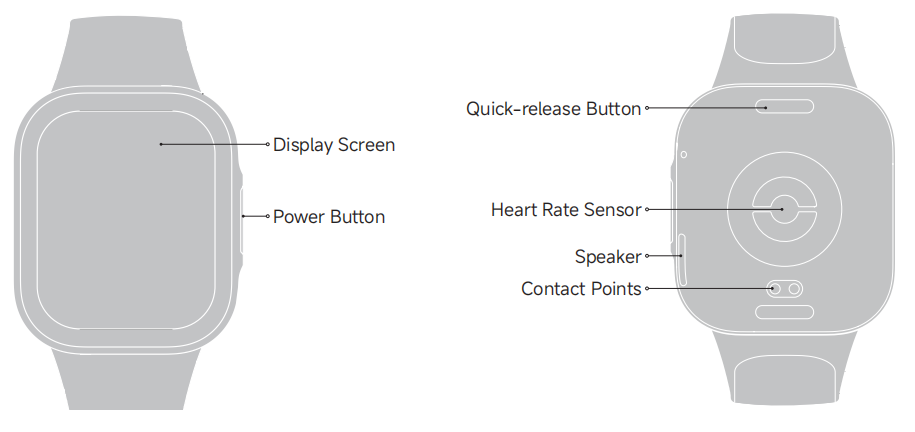
A: On the back side of the REDMI Watch 6 Lite, a quick-release button is positioned to allow you to detach the main unit from its strap or mount efficiently. A heart rate sensor is embedded on the back surface to monitor the pulse continuously during workouts or daily routines. A speaker is also integrated into the back side of the device, delivering audible alerts, voice prompts, and notification sounds. In addition, the contact points are arranged on the back surface for charging.
On the front side of the product, a display screen is centrally located. On the right edge of the front housing, there is a power button.
The power button supports the following functions:
1. Press the power button to open the app list or return to the home screen.
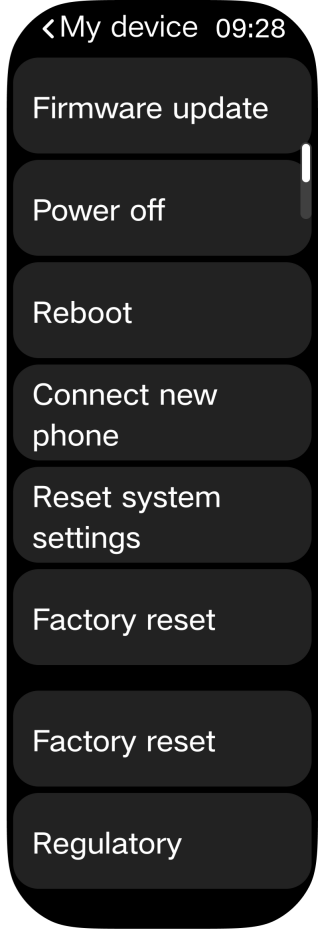
2. Press and hold the power button for approximately 3 seconds to access options including [Power off], [Reboot], [Connect new phone], or [Factory reset]. To turn on the watch, press and hold the power button while it is off.
3. Press and hold the power button for approximately 12 seconds to force a restart of the watch.
Q2: What materials are used in the REDMI Watch 6 Lite body?
A: The materials of the REDMI Watch 6 Lite are as follows:
The middle frame of the product is constructed from PC + 30% GF and features a spray coating finish. The back shell is made of PA + 55% GF. The quick-release strap button is constructed from PA + 55% GF. The screen is protected by a 2.5D tempered glass cover.
Q3: What type of motor does the REDMI Watch 6 Lite use?
A: The REDMI Watch 6 Lite uses a rotor motor.
Q4: What sensors does the REDMI Watch 6 Lite include?
A: The REDMI Watch 6 Lite is equipped with the acceleration sensor, gyroscope sensor, PPG sensor, ambient light sensor, and electronic compass.
The acceleration sensor is primarily used to monitor changes in acceleration across different directions. During workouts, it accurately detects movement patterns and step counts. For example, while walking or running, the sensor measures body vibrations and swing frequency to calculate steps precisely. It also analyzes workout intensity and rhythm based on acceleration data, providing metrics such as distance covered and pace. In daily use, it enables smart interaction features such as automatic screen rotation based on wrist orientation.
The PPG sensor supports all-day heart rate monitoring, all-day blood oxygen tracking, and stress detection. It emits light at specific wavelengths and measures changes in reflected or transmitted light intensity to detect blood volume changes caused by heartbeats, enabling accurate heart rate readings. For blood oxygen monitoring, it leverages the difference in light absorption between oxygenated and deoxygenated hemoglobin to measure blood oxygen levels. The stress detection function analyzes heart rate variability and other physiological indicators to help assess current stress levels.
Q5: Is the REDMI Watch 6 Lite equipped with a barometer?
A: No, the REDMI Watch 6 Lite does not include a barometer.
Display
Q1: What type of screen does the REDMI Watch 6 Lite use?
A: The REDMI Watch 6 Lite features a 2.5D high-aluminosilicate glass screen with a pencil hardness rating of 9H. Everyday objects such as metal items, sand, and other sharp objects may still scratch the surface, so it is advisable to avoid contact with such materials.
Q2: Does the REDMI Watch 6 Lite support wet-hand touch?
A: The REDMI Watch 6 Lite supports wet-hand touch during everyday rinsing scenarios to prevent accidental touches. However, it does not support touch operation underwater.
Straps and Bands
Q1: What straps are available for the REDMI Watch 6 Lite, and which watch models are compatible?
A: The available strap types include: TPU strap (included in the standard package), silicone strap (sold separately), genuine leather strap (sold separately), feather-textured silk strap (sold separately), macaron blue genuine leather strap (sold separately), Milanese metal strap (sold separately), and glacier white Kona leather magnetic strap (sold separately).
The straps are compatible with the following watch models: Xiaomi Smart Band 8 Pro, Xiaomi Smart Band 9 Pro, Xiaomi Smart Band 10 Pro, REDMI Watch 5, REDMI Watch 6, REDMI Watch 6 NFC, REDMI Watch 4, and REDMI Watch 6 Active.
Q2: What materials are used for the different REDMI Watch 6 Lite straps?
A: The strap materials are as follows:
TPU strap: TPU material.
Feather-textured silk strap: Silk material (sold separately).
Glacier white Kona leather magnetic strap: Silicone leather (sold separately).
Milanese metal strap: Metal (sold separately).
Q3: How to install and remove the REDMI Watch 6 Lite strap?
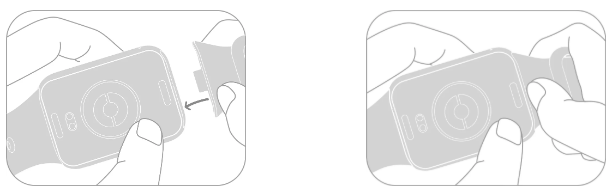
A: To install the strap, align the strap with the body of the watch and fasten it together. Pull on the strap before wearing it to ensure it is fastened securely.
To remove the strap, press the quick-release buttons on both sides of the watch and pull away the strap to separate it from the body of the watch.
Q4: What to do if the quick-release strap of the REDMI Watch 6 Lite is too loose or too tight?
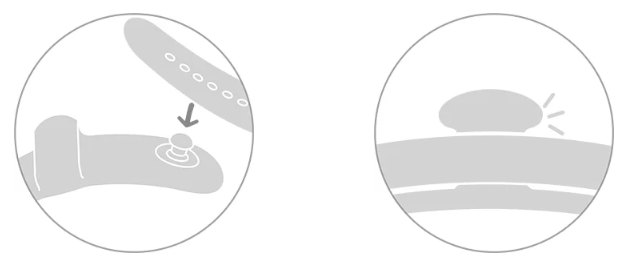
A: Adjust the fit by repositioning the pin into a different strap hole to achieve a more comfortable and secure fit.
Q5: What to do if the REDMI Watch 6 Lite strap cannot be reinstalled after removal?
A: If the strap was not damaged during removal, simply align the strap clasp with the watch body and insert it directly until it clicks into place.
Q6: Why are there creases on the strap of the REDMI Watch 6 Lite?
A: The REDMI Watch 6 Lite comes with a TPU strap. TPU material does not have crease issues, so creases on the strap should not occur under normal use.
Q7: Why does the genuine leather strap of the REDMI Watch 6 Lite have pores?
A: The REDMI Watch 6 Lite is equipped with a TPU strap as standard. The genuine leather strap is sold separately and requires an additional purchase. Pores on the genuine leather strap are normal, as they are natural pores from the animal hide.
Q8: Why is there edge whitening on the genuine leather strap of the REDMI Watch 6 Lite?
A: After the genuine leather strap is cut, an edge painting process is applied. The edge painting material is liquid, and uneven application may occur during the process. This is a normal characteristic of the manufacturing process.
Q9: Why does the black strap of the REDMI Watch 6 Lite easily attract dust?
A: The REDMI Watch 6 Lite uses a TPU strap. TPU is a thermoplastic polyurethane, and its material properties make it prone to attracting dust. There are two main reasons for this. First, TPU is a high-molecular insulating material, and friction from wrist movement and clothing can generate static electricity, which actively attracts dust and fibers from the air. Second, sweat and sebum from the wrist can adhere to the TPU surface, forming an oil film that becomes sticky when dry and easily attracts dust and dirt.
Charging and Battery Life
Q1: What are the battery and charging specifications of the REDMI Watch 6 Lite?
A: The battery and charging specifications are as follows:
Battery capacity: 470 mAh.
Charging: Wired charging with a 5V 1A charging cable.
Operating temperature: −10 °C to 45 °C.
Charging temperature: 2 °C to 45 °C.
Charging precautions:
1. Keep the charging port and charging dock dry and free from sweat, dust, and moisture.
2. Do not charge the watch in high-temperature environments, under direct sunlight, inside bedding, or under pillows.
3. Use a certified brand charger to avoid charging issues that may result from third-party charging cables.
Battery care (to extend battery lifespan):
1. There is no need to drain the battery to 0% before recharging. Charging as needed is recommended for optimal battery health.
2. For long-term storage, charge the battery to approximately 40%–60% and store the watch in a cool, dry place.
3. Avoid exposure to extreme heat, extreme cold, drops, impacts, and water intrusion, as these can all affect battery lifespan.
Safety reminders:
If the watch becomes abnormally hot, swollen, or emits an unusual odor during charging, stop using it immediately and contact customer service or visit an authorized service center for inspection.
Q2: Does the REDMI Watch 6 Lite support wireless charging?
A: The REDMI Watch 6 Lite does not support wireless charging.
Q3: Can a third-party charger be used to charge the REDMI Watch 6 Lite?
A: Yes, a compliant charger with specifications of 5V voltage and 1A or higher current can be used to charge the REDMI Watch 6 Lite.
Q4: How to check the battery health status on the REDMI Watch 6 Lite?
A: The REDMI Watch 6 Lite does not support viewing battery health information such as remaining capacity or charge cycle count.
Q5: How to enable battery saver mode on the REDMI Watch 6 Lite?
A: To enable battery saver mode, please refer to the following methods:
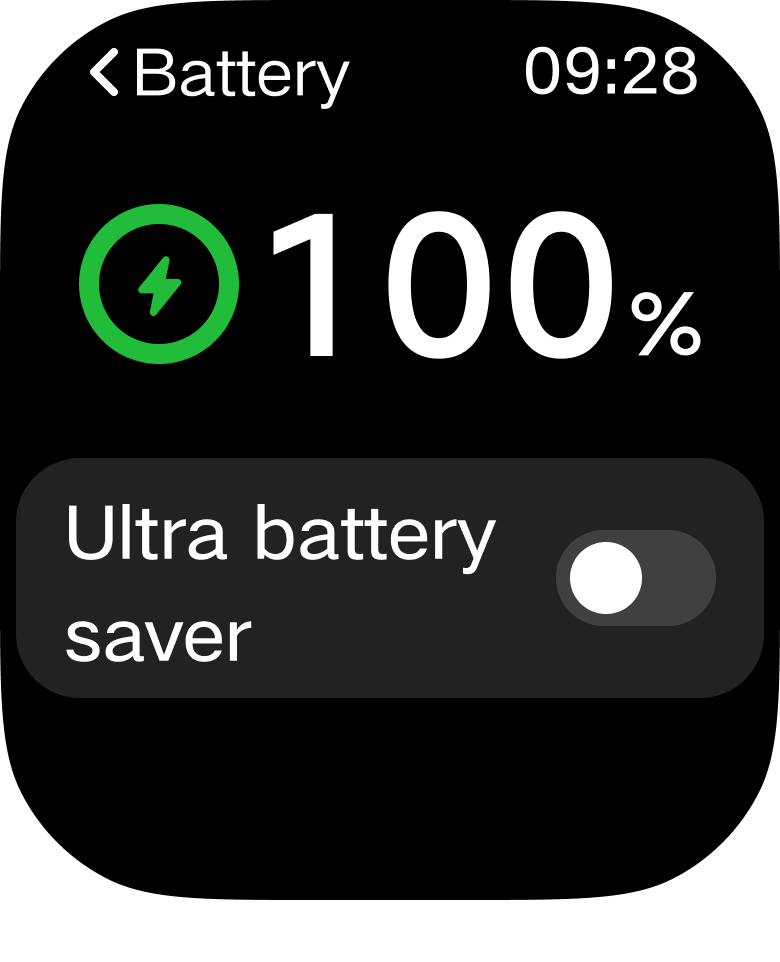
1. Open the [Settings] on the watch >> [Battery] >> enable [Ultra battery saver].
2. Swipe up on the watch face to open the control panel, then tap the [Ultra battery saver] icon to activate it.
3. When the watch displays a 5% low battery alert, enable [Ultra battery saver] within the notification.
To disable battery saver mode, please refer to the following methods:
1. Press and hold the power button for 2 seconds to exit the [Ultra battery saver] mode.
2. Placing the watch on the charging dock for charging allows it to automatically exit the [Ultra battery saver] mode.
Note:
This feature cannot be enabled while the watch is charging.
Q6: How long does the REDMI Watch 6 Lite battery last, and when should the battery be replaced?
A: The REDMI Watch 6 Lite uses a non-removable lithium-ion polymer battery.
Basic Operation
Q1: How to power on, power off, and restart the REDMI Watch 6 Lite?
A: To power on: Press and hold the power button for approximately 3 seconds until the screen lights up. If the battery level is low, it must be charged to a minimum level before the device can be powered on.
To power off:
1. Press and hold the power button for approximately 3 seconds to access the system options menu, then select [Power off].
2. Open [Settings] on the watch >> [My device] >> [Power off].
To restart:
1. Press and hold the power button for approximately 3 seconds to access the system options menu, then select [Reboot].
2. Open [Settings] on the watch >> [My device] >> [Reboot].
Q2: What functions do the touch gestures on the REDMI Watch 6 Lite support?
A: The touch gesture functions are as follows:
Swipe gestures:
1. Swipe down on the watch face: Opens the notification center to view messages synced from the phone and incoming call alerts.
2. Swipe up on the watch face: Opens the control panel (quick settings center).
3. Swipe left or right on the watch face: Cycles through home screen widgets such as step count, heart rate, and weather.
4. Swipe right from the left edge of any screen: Returns to the previous screen.
5. Swipe up or down within Settings or an app: Scrolls through the menu list.
Tap gestures:
1. Tap an icon or menu item: Opens the corresponding app or navigates to a sub-settings page.
2. Tap a notification item: Expands the full message content.
3. Tap an icon in the control panel: Toggles the corresponding quick function on or off.
4. Tap [Confirm] or [Cancel] in a pop-up dialog: Completes the action confirmation.
Long-press gesture:
1. Press and hold the watch face for approximately 1.5 seconds: Enters the watch face selection and editing screen.
2. Pressing and holding on the pop-up dialog options does not trigger any additional function; only a single tap is recognized.
Q3: How to open the control panel on the REDMI Watch 6 Lite, and what do the icons represent?
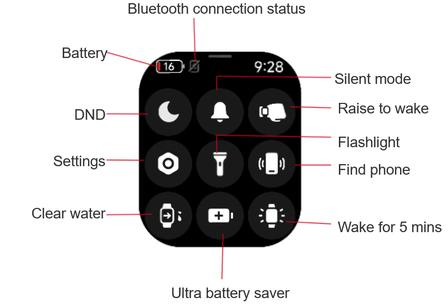
A: On the watch face, swipe up from the bottom of the screen to open the control panel. The icons and their functions are as follows:
Top: Battery percentage and Bluetooth connection status (lit = connected; gray with a slash = disconnected).
First row, left: Do Not Disturb mode (moon icon).
First row, center: Silent mode (bell icon). When enabled, the watch vibrates only without playing sounds.
First row, right: Raise-to-wake toggle.
Second row, left: Settings shortcut (gear icon).
Second row, center: Flashlight.
Second row, right: Find phone (makes the phone ring continuously).
Third row, left: Clear water (uses vibrations to expel water from the speaker).
Third row, center: Ultra battery saver mode.
Third row, right: Wake for 5 mins.
Q4: What functions are available in the REDMI Watch 6 Lite's settings menu?
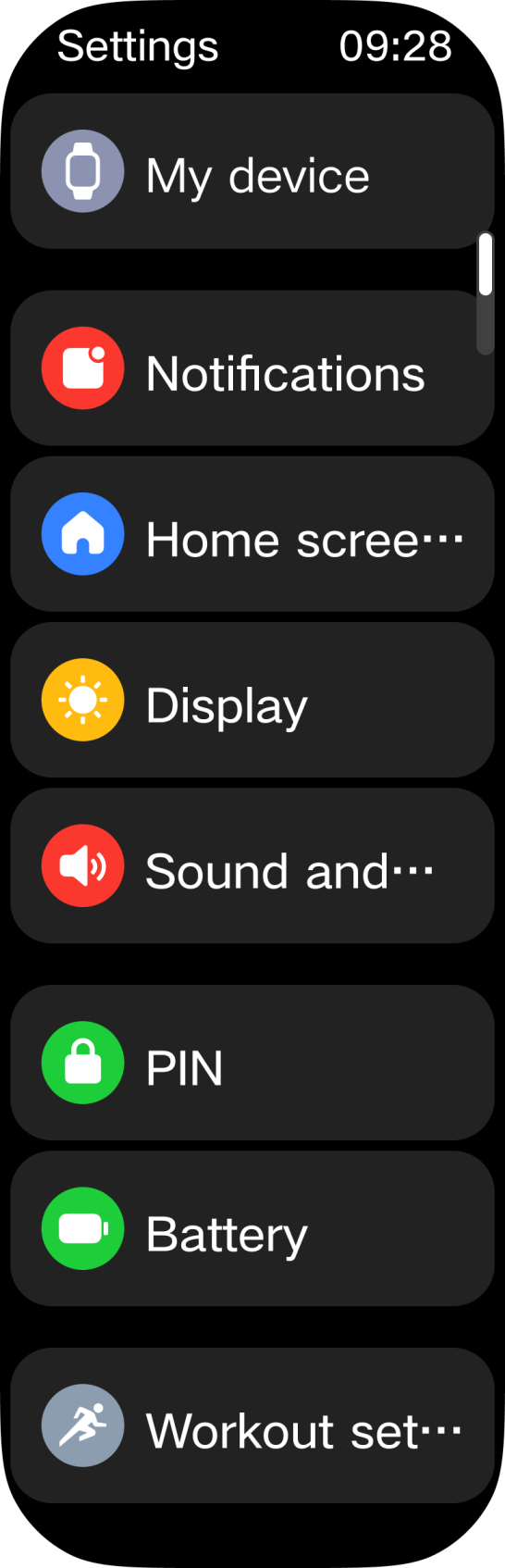
A: For your reference, in the Settings, there are [My device], [Notifications], [Home screen and watch face], [Display], [Sound and vibration], [PIN], [Battery], and [Workout settings] menus.
Q5: How to view device information such as the WLAN MAC address, Bluetooth address, and SN of the REDMI Watch 6 Lite?
A: The WLAN address cannot be viewed. The Bluetooth MAC address and SN can be found on the watch under [Settings] >> [My device] >> [About watch].
Connection and Pairing
Q1: How to pair the REDMI Watch 6 Lite with a phone?
A: Before using the REDMI Watch 6 Lite, it must first be paired with the Mi Fitness App. The App name is the same on both iOS and Android. Search for "Mi Fitness" in the App Store (iOS) or the Play Store (Android) to download and install it. After pairing, keep the App running in the background to prevent the system from terminating it, which could cause the watch to disconnect from the phone.
The pairing steps are as follows:
1. Open the Mi Fitness App, sign in to the account as prompted on the screen, and grant the permissions requested by the App.
2. The watch supports three methods for adding the device:
(1). Tap [Scanner] and scan the QR code displayed on the watch screen.
(2). Tap [Add device]. The App will automatically search for available devices. From the list of detected devices, select the Bluetooth name of the watch (REDMI Watch 6 Lite XXXX). If the watch does not appear in the list, try searching again.
(3). Tap [Add device], then tap [Add model] at the bottom of the screen and select "REDMI Watch 6 Lite." The App will automatically search for available REDMI Watch 6 Lite devices. From the list of detected devices, select the Bluetooth name of the watch (REDMI Watch 6 Lite XXXX). If the watch does not appear in the list, try searching again.
For Android phones: Accept the pairing request on both the phone and the watch in the pop-up pairing dialog to complete the connection.
For iOS phones: First navigate to the phone's system Bluetooth settings, select the Bluetooth name of the watch, and accept the pairing request on both the phone and the watch. Then return to the App, select the Bluetooth name of the watch again, and perform the pairing operation once more to complete the connection.
Note:
1. During pairing, ensure that Bluetooth is enabled on the phone and that the connection between the watch and the phone is stable.
2. If the pairing request appears on the watch but does not appear on the phone, check the phone's notification bar for the pairing request.
3. If the watch cannot be found, or if the watch cannot connect during use, try pressing and holding the power button for 3 seconds, select [Factory reset] from the system options menu, and then add the watch again.
Q2: What permissions does the Mi Fitness App require when connecting the REDMI Watch 6 Lite?
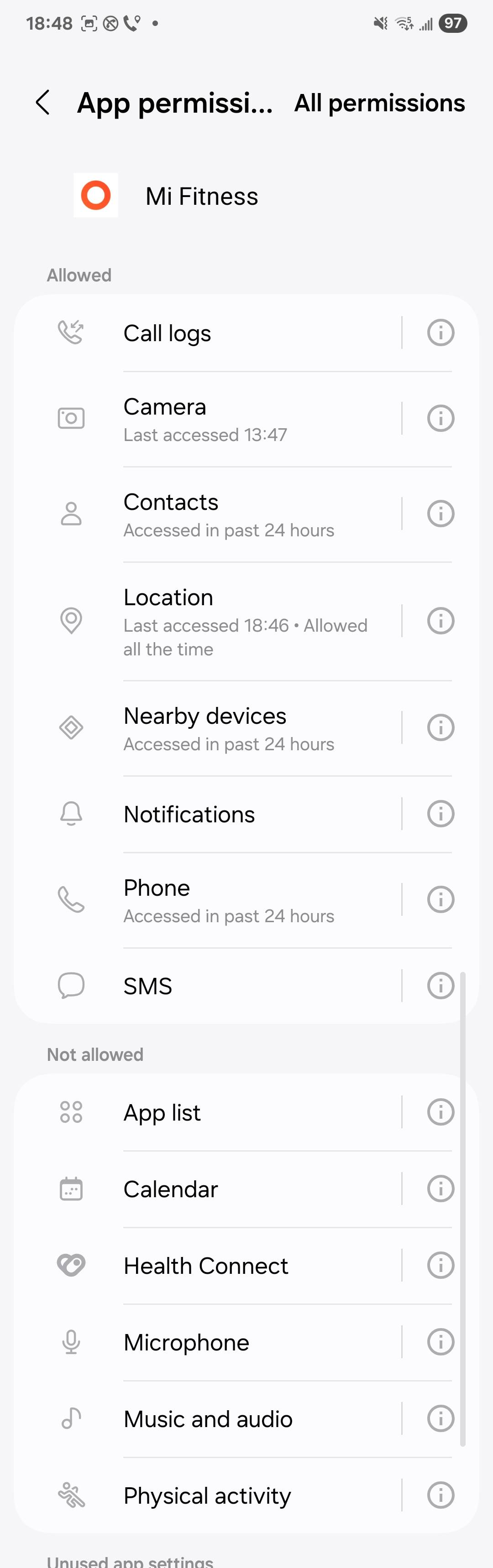
A: When connecting to the Mi Fitness App, the following permissions need to be enabled: Phone, SMS, Nearby devices, Call logs, Contacts, Notifications, Location, and Camera. If these permissions are not granted, the following issues may occur:
Additional recommended permissions for Android:
1. Storage: Inability to sync watch data to the phone and save workout and health records if this permission has not been granted.
2. Auto-start: The App may be terminated by the system in the background, resulting in frequent disconnections from the watch if this permission has not been granted.
3. Background pop-up: Inability to receive pairing requests and connection notifications from the watch in a timely manner if this permission has not been granted.
Additional recommended permissions for iOS:
1. Health data: Inability to sync heart rate, blood oxygen, sleep, and other health data to the phone's Health App if this permission has not been granted.
2. Bluetooth: This permission must be enabled; otherwise, pairing with the watch is not possible.
Friendly tips:
After installing the Mi Fitness App, allow all permission requests when opening it for the first time. If certain permissions have already been denied, navigate to the phone's system settings, locate the Mi Fitness App, and manually enable the required permissions.
Q3: How to connect the REDMI Watch 6 Lite to a new phone?
A: There are two scenarios for switching to a new phone:
1. Binding with a different Xiaomi account: Restore the watch to factory settings, then bind the watch with the new phone using the new account.
2. Binding with the same Xiaomi account on the new phone: While the watch is connected to the original phone, go to [Settings] on the watch, tap [My device], then tap [Connect new phone] to rebind.
Q4: How to maintain a stable connection between the REDMI Watch 6 Lite and the Mi Fitness App?
A: To maintain a stable connection, add the Mi Fitness App to the whitelist and lock it in the background to prevent the system from closing it. Keep Bluetooth enabled on the phone, and stay within the Bluetooth connection range of the watch.
The specific settings vary by phone model. Navigate to [Mi Fitness App] >> [Device] >> [System] >> [Watch connection protection], and follow the on-screen instructions for the specific phone model.
Q5: What to do if the phone cannot find the REDMI Watch 6 Lite during Bluetooth pairing?
A: Try toggling the phone's Bluetooth off and on, or restart the watch and try again. If the phone still cannot detect the watch's Bluetooth, visit an authorized service center for assistance.
Q6: What causes the REDMI Watch 6 Lite to automatically disconnect from the phone via Bluetooth?
A: The Bluetooth connection between the REDMI Watch 6 Lite and the phone can be affected by the surrounding environment:
1. In obstructed environments, the Bluetooth connection drops at approximately 50 meters.
2. In open areas or long corridors, the Bluetooth connection drops at approximately 200 meters.
3. When one person stands between the watch and the phone (with the watch and phone facing each other), the Bluetooth connection drops at approximately 20 meters.
4. In environments with strong electromagnetic interference—such as proximity to microwave ovens, routers, wireless base stations, high-power appliances, elevators, or signal-dense locations like shopping malls and subway stations—Bluetooth signals are susceptible to interference. Even at close range, the connection may become unstable, experience lag, or disconnect automatically.
Display Settings
Q1: How to customize widgets (tiles) on the REDMI Watch 6 Lite?
A: To customize widgets, swipe left on the watch face to enter the widget page. Press and hold the widget area to enter edit mode. From here, widgets can be added, removed, or rearranged according to preference.
Q2: How to switch the app layout on the REDMI Watch 6 Lite?
A: The App layout feature supports both icon and list views; you can configure this according to your preference.
1. You can set the app layout style within the Mi Fitness App while pairing the watch.
2. After connecting, open the Mi Fitness App on the phone >> [Device] >> [System] >> [App layout] >> select from [Icons] and [List].
3. You can also switch the layout to list view by going to [Settings] on the watch >> [Home screen and watch face] >> [Layout] >> select from [Icons] and [List].
Q3: How to set up Always-on display (AOD) on the REDMI Watch 6 Lite?
A: The REDMI Watch 6 Lite supports the Always-on display (AOD) function. When enabled, the watch will enter the AOD state after the screen times out. While in the AOD state, you can wake the screen by raising the wrist or pressing the power button to exit the AOD mode.
To enable Always-on display, go to [Settings] on the watch >> [Display] >> [Always-on display], and toggle it on. You can also set it to turn on at a scheduled time. The scheduled enable mode has a default time period from 8:00 AM to 10:00 PM.
Note:
When the AOD function is enabled, it will be automatically disabled when the watch is removed from the wrist, or when sleep is detected during the night. Additionally, enabling this feature will reduce the battery life of the watch.
The watch provides three ways to turn off the screen.
1. The screen will automatically turn off after 5 seconds of inactivity by default, and you can adjust this timeout period in [Settings] >> [Display] >> [Screen off], with a selectable range from 5 seconds to 60 seconds.
2. The watch supports cover-to-off, meaning that when you cover more than half of the screen area with your palm and touch it, the screen will immediately turn off.
3. The watch supports Raise to wake. When this feature is enabled, after the screen is turned on by raising the wrist, turning the wrist in the opposite direction will turn the screen off.
Q4: Why does the REDMI Watch 6 Lite screen briefly flash when transitioning from the off state to Always-on display?
A: When the watch transitions from the screen-off state to Always-on display, the screen briefly lights up before settling into the dim AOD mode. This is normal behavior caused by the display refreshing to render the AOD content, and it does not indicate a malfunction.
Q5: How to set the screen of the REDMI Watch 6 Lite to stay always on?
A: The REDMI Watch 6 Lite doesn't support keeping the screen always on. You can adjust the duration the screen stays lit by going to [Settings] >> [Display] >> [Screen off] and selecting the desired duration from 5 seconds to 60 seconds. For extended screen-on time, the Always-on display feature can be enabled.
Q6: How to enable tap-to-wake on the REDMI Watch 6 Lite?
A: To enable [Tap to wake] on the REDMI Watch 6 Lite, please go to [Settings] on the watch >> [Display] >> enable [Tap to wake].
Q7: How to enable raise-to-wake on the REDMI Watch 6 Lite?
A: To enable raise-to-wake, go to [Settings] on the watch >> [Display] >> [Raise to wake] >> select [All day] or [Scheduled]. Alternatively, swipe up on the watch face to open the control panel and tap the raise-to-wake icon to toggle it directly.
All day: After enabling, the "raise to wake" feature remains active 24 hours a day.
Scheduled: Allows you to select a specific time range and configure the activation schedule according to your needs.
Q8: How to adjust the screen brightness on the REDMI Watch 6 Lite?
A: To adjust screen brightness, go to [Settings] on the watch >> [Display] >> [Brightness] >> select [Auto] or [Custom]. After selecting [Custom], you can swipe up or down to increase or decrease the brightness level. The watch also supports automatic brightness adjustment through its built-in ambient light sensor.
Sound and Vibration
Q1: How to adjust the volume on the REDMI Watch 6 Lite?
A: To adjust the volume, go to [Settings] on the watch >> [Sound and vibration] and manually adjust the volume level or the ring or alarm.
Q2: How to enable silent mode on the REDMI Watch 6 Lite, and which sounds are muted?
A: To enable silent mode, go to [Settings] on the watch >> [Sound and vibration] >> [Silent mode]. Silent mode is enabled by default.
When silent mode is active, incoming calls, messages, and reminders will not ring; the watch will only vibrate. Alarms and timers will still ring and vibrate as usual.
Q3: How to enable Do Not Disturb mode and set a custom DND schedule on the REDMI Watch 6 Lite?
A: The setup process depends on whether the watch is paired with a Xiaomi phone or a non-Xiaomi phone.
For non-Xiaomi phones:
Do Not Disturb synchronization is not supported. To enable DND mode, go to [Settings] on the watch >> [Sound and vibration] >> [DND] > enable [DND] on the watch. Once enabled, DND mode remains active until manually turned off. To set a scheduled DND period, go to [Settings] >> [Sound and vibration] >> [DND] > enable [Scheduled], and configure the repeat cycle, start time, and end time.
For Xiaomi phones:
Do Not Disturb synchronization is supported when the following requirements are met: the phone system version is HyperOS 3.1 or above, the Mi Fitness App is version 3.51.0 or above, and the Mi Connect App is version 5.1.140.10 or above.
Once the requirements are met:
1. On the watch: Go to [Settings] >> [Sound and vibration] >> [DND] >> enable [DND sync].
2. In the Mi Fitness App: Open the Mi Fitness App >> [Device] >> [System] >> [DND sync] >> enable [Sync with phone].
3. Setting a scheduled DND period on the phone will automatically sync the DND status to the watch.
Q4: How to enable Airplane mode on the REDMI Watch 6 Lite?
A: The REDMI Watch 6 Lite does not support Airplane mode.
Q5: How to set a custom ringtone on the REDMI Watch 6 Lite?
A: The REDMI Watch 6 Lite does not support custom ringtones.
Q6: How to enable or disable vibration feedback and adjust the vibration intensity on the REDMI Watch 6 Lite?
A: To adjust vibration settings, go to [Settings] on the watch >> [Sound and vibration] >> enable [Vibration reminders] and set [Vibration intensity]. The available options are [Default] and [Strong].
Wireless Connection
Q1: What are the Bluetooth version and Bluetooth transmission range of the REDMI Watch 6 Lite?
A: The REDMI Watch 6 Lite supports dual-mode Bluetooth BLE/BT 5.3 or above, with a transmission distance of up to 200 meters in an open environment and 50 meters in an obstructed environment.
Convenience Tools
Q1: How to use the clear water function on the REDMI Watch 6 Lite?
A: The clear water function uses rapid vibrations to expel water that has entered the speaker. To use it, swipe up on the watch face to open the control panel, then tap the clear water icon. The watch will vibrate vigorously for a few seconds to push water out of the speaker grille.
Q2: How to use the flashlight on the REDMI Watch 6 Lite?
A: To use the flashlight on the REDMI Watch 6 Lite, please refer to the following methods:
1. Swipe up on the watch face to open the control panel, then tap the flashlight icon. The watch screen will display a bright white light to serve as a flashlight. Tap the screen or press the power button to turn it off.
2. Press the power button on the watch to go to App list >> [Flashlight] >> scroll up to switch to flash mode >> tap the screen or press the power button to turn it off.
Q3: How to use the compass on the REDMI Watch 6 Lite, and why is calibration needed?
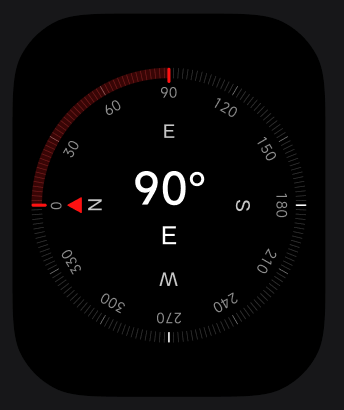
A: To use the compass, open the Compass app from the app list, then rotate the watch to complete calibration. On the compass dial, N indicates North, S indicates South, E indicates East, and W indicates West.
Compass calibration is not required every time the Compass app is opened. When the app is launched, it evaluates whether surrounding magnetic field changes may affect data accuracy. Calibration is prompted only when the accuracy is significantly impacted.
Note:
Strong magnetic fields in the surrounding area will interfere with the normal operation of the compass.
Q4: How to check weather information on the REDMI Watch 6 Lite?
A: To check the weather information on the REDMI Watch 6 Lite, please refer to the following methods:
1. Swipe left on the watch face to access the weather widget, which displays the temperature and weather conditions. By tapping on this widget, you can enter the Weather app to view more detailed information.
2. From the watch face interface, you can press the power button once to open the App list, then select the Weather app to view detailed information. By swiping up and down within the app, you can access the local temperature, weather conditions, AQI (Air Quality Index), wind direction and wind force, UV intensity, relative humidity, sunrise and sunset times, as well as a 7-day weather forecast.
Note:
1. To view real-time weather on the watch, the phone must remain connected to the watch, and the weather updates feature in the Mi Fitness App must be enabled.
2. The weather information displayed on the watch is retrieved from a service provider by the Mi Fitness App and then pushed to the device. Since this service provider may differ from the one used by the phone's system weather application, the weather data shown on the watch may slightly vary from what is displayed on the phone.
Q5: What to do if the weather data on the REDMI Watch 6 Lite differs from the phone?
A: The weather information displayed on the REDMI Watch 6 Lite is obtained by the Mi Fitness App from a specific weather service provider and then pushed to the watch. The phone's built-in weather service may use a different provider. Because different weather service providers use varying data collection methods, analysis techniques, and forecasting models, the weather results displayed for the same location may differ slightly. This explains why the weather data on the watch and the phone may not always match.
Q6: How to use the Focus App on the REDMI Watch 6 Lite?
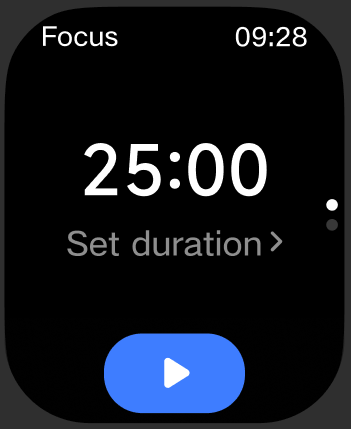
A: To use the Focus App, open it from the app list on the watch. Set the desired focus and break durations, then tap [Start] to begin a focus session. The watch will vibrate when it is time for a break.
Q7: How to use the Calendar and Events on the REDMI Watch 6 Lite?
A: In the Mi Fitness App >> [Device] >> [Apps] >> enable [Sync events] >> the watch will synchronize the mobile system calendar for the next 7 days. Event synchronization is currently supported only on MIUI, HyperOS, and iOS; other systems are not supported at this time.
Quantity limit: A maximum of 20 events (sorted by the schedule list) are displayed; any events exceeding this limit are not shown.
A maximum of 200 bytes per event (English letters and punctuation marks count as 1 byte; Chinese characters count as 3 bytes).
Title: Maximum display of 90 bytes (including punctuation).
Notes: Maximum display of 45 bytes (including punctuation).
Address: Maximum display of 60 characters (including punctuation).
Calendar functionality on the REDMI Watch 6 Lite works as follows:
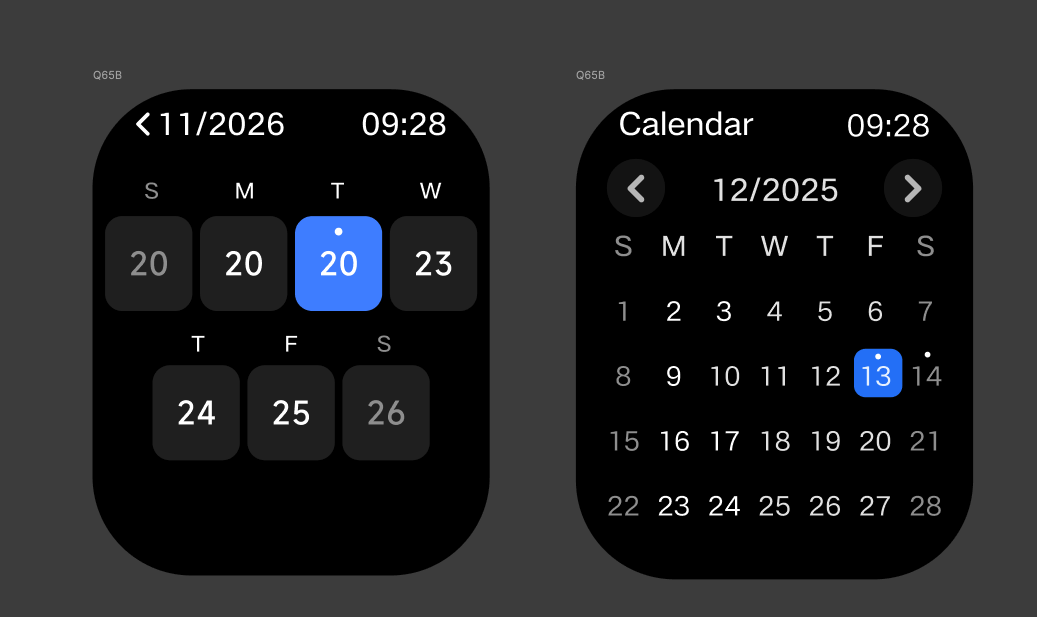
1. Open the Calendar app from the app list to view the month view. The title displays the current month. Tap the left and right buttons or swipe left and right to switch months. This product supports a display range of the years 2000 to 2059. If event synchronization is enabled, dates with scheduled events over the next seven days will be marked with a dot. A "Today" label appears in the upper-right corner when viewing a month other than the current one; tapping it returns to the current day. Tap a date in the month view to enter the week view.
2. In the weekly view, swipe left or right to switch between weeks; it displays dates and days of the week. Dates with scheduled events over the next seven days are marked with a dot. Tap a date to view its schedule.
Q8: How to set the time on the REDMI Watch 6 Lite?
A: The time on the REDMI Watch 6 Lite is automatically synced from the connected phone and cannot be set manually on the watch.
Q9: How to set dual time zones on the REDMI Watch 6 Lite?
A: The REDMI Watch 6 Lite does not support dual time zone settings.
Q10: How to use and set the alarm on the REDMI Watch 6 Lite?
A: The alarm on the REDMI Watch 6 Lite alerts through vibration and ringing (at the alarm volume level). Multiple alarms and recurring alarms are supported.
To set an alarm:
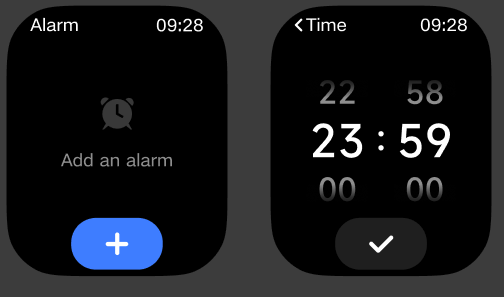
1. Press the power button on the watch face to enter the app list, then open the Alarm app.
2. Tap to create a new alarm and set the alert time. If no repeat days are selected, it will be a one-time alarm. If repeat days are selected, the alarm will repeat according to the configured schedule.
3. Tap the checkmark to confirm the setting. A maximum of 10 alarms can be added.
To dismiss an alarm:
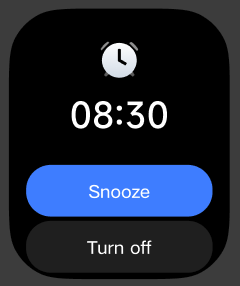
When the alarm goes off, press the power button or tap the [Snooze] button on the screen to delay the alarm by 10 minutes. Tap the [Turn off] button on the screen to end the alarm.
To delete an alarm:
Press the power button on the watch face to enter the app list, open the Alarm app, tap the alarm to be deleted, and tap the [Delete] button.
Q11: How to sync phone alarms to the REDMI Watch 6 Lite?
A: For Xiaomi phones, the REDMI Watch 6 Lite supports syncing phone alarms to the watch for alerts. Non-Xiaomi phones do not currently support this feature.
Synced alarms will ring simultaneously on both the watch and the phone. Actions taken on either device, such as dismissing or snoozing the alarm, will take effect on both devices.
To sync alarms to the watch, ensure the phone and watch are connected via Bluetooth and the Mi Fitness App is running normally.
Note:
Alarm sync can be disabled in the Mi Fitness App by navigating to [Device] >> [Apps] > [Alarm] and toggling off [Sync alarms from phone].
Q12: What to do if a custom recurring alarm on the REDMI Watch 6 Lite does not function properly?
A: If a custom recurring alarm on the REDMI Watch 6 Lite is dismissed or snoozed within 5 seconds of triggering, only that specific alarm functions correctly. The snooze feature for the custom alarm may not work, and subsequent alarms in the custom sequence may not trigger.
Open the Mi Fitness App on the phone and tap [Sync] to restore the alarms. Alternatively, updating the firmware to version 3.240.194 or above will resolve this issue.
Q13: How to use and set the countdown timer on the REDMI Watch 6 Lite?
A: To use the countdown timer, open the Timer App from the app list. Set the desired countdown duration and tap [Start] to begin. The setting range is 00:00:01 to 23:59:59. The watch will vibrate when the timer reaches zero. The timer can be paused and resumed at any time. It supports displaying the four most recently customized countdowns.
Q14: How to use and set the stopwatch on the REDMI Watch 6 Lite?
A: To use the stopwatch, open the Stopwatch app from the app list. Tap the Start button to begin timing. Tap the Lap button to record lap times. You can scroll up or down to view all records, with a maximum of 50 entries displayed. Tap the Stop button to pause, and tap the Reset button to clear all recorded times.
Q15: How to use remote camera control on the REDMI Watch 6 Lite?
A: This feature requires the watch to be connected to the phone. Open the Camera App on the watch to enter the remote camera mode. Press the shutter button on the watch to capture a photo using the phone's camera. A countdown timer of 3 or 5 seconds can be set for the shutter.
The following conditions apply:
1. The remote camera function does not launch the phone's camera app automatically. Open the phone's camera app manually before using this feature.
2. Keep the watch connected to the Mi Fitness App during use, and ensure the App remains running in the background.
3. If the remote camera function is not working, verify that fewer than 7 Bluetooth devices are paired with the phone in the phone's Bluetooth settings.
Health Features
Sleep
Q1: How to use and set up sleep monitoring on the REDMI Watch 6 Lite?
A: Usage: Wear the watch while sleeping, and it will automatically record sleep data.
Settings: In the Sleep app, swipe up to [Settings]. Enable [Advanced monitoring] to track the distribution of rapid eye movement (REM) sleep stages. Enable [Breathing rate monitoring] to automatically measure breathing rate when nighttime sleep is detected.
How to view sleep data:
1. On the REDMI Watch 6 Lite, swipe left on the watch face to the widget page. View last night's sleep duration in the Sleep widget, and tap it to enter the app for more details.
2. Tap the Sleep icon in the app list to open the Sleep app and view the current day's sleep data.
3. After the watch syncs data with the phone, open the [Health] section in the Mi Fitness App and tap [Sleep] to view historical sleep data in daily, weekly, and monthly views. The data includes sleep time periods, proportions of deep sleep, light sleep, REM sleep, and wakefulness, as well as detailed sleep status at each time point.
Q2: Why does the Sleep app show sleep data but the widget does not display it on the REDMI Watch 6 Lite?
A: This issue is unlikely to occur on the REDMI Watch 6 Lite. All widgets currently display total sleep duration data.
Q3: Why does the REDMI Watch 6 Lite mistakenly detect sleep when watching a movie, watching TV, or using a phone?
A: The REDMI Watch 6 Lite uses the accelerometer (ACC sensor) to monitor activity levels and determine sleep status. When watching a movie, watching TV, or using a phone, the body remains relatively still, which closely resembles sleep-related physiological characteristics. This may cause the algorithm to incorrectly interpret the state as "asleep." This is normal behavior and not a malfunction.
Heart rate
Q1: How to use and set up heart rate measurement on the REDMI Watch 6 Lite?
A: In the [Heart rate] App, heart rate will be continuously measured and displayed.
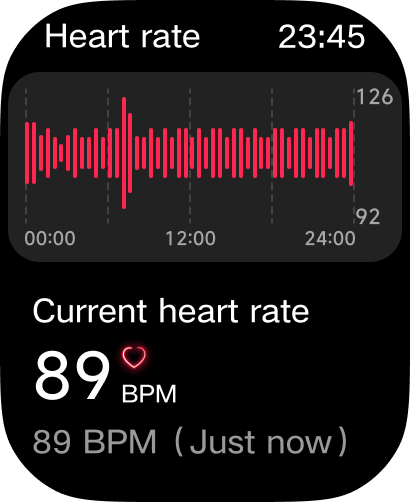
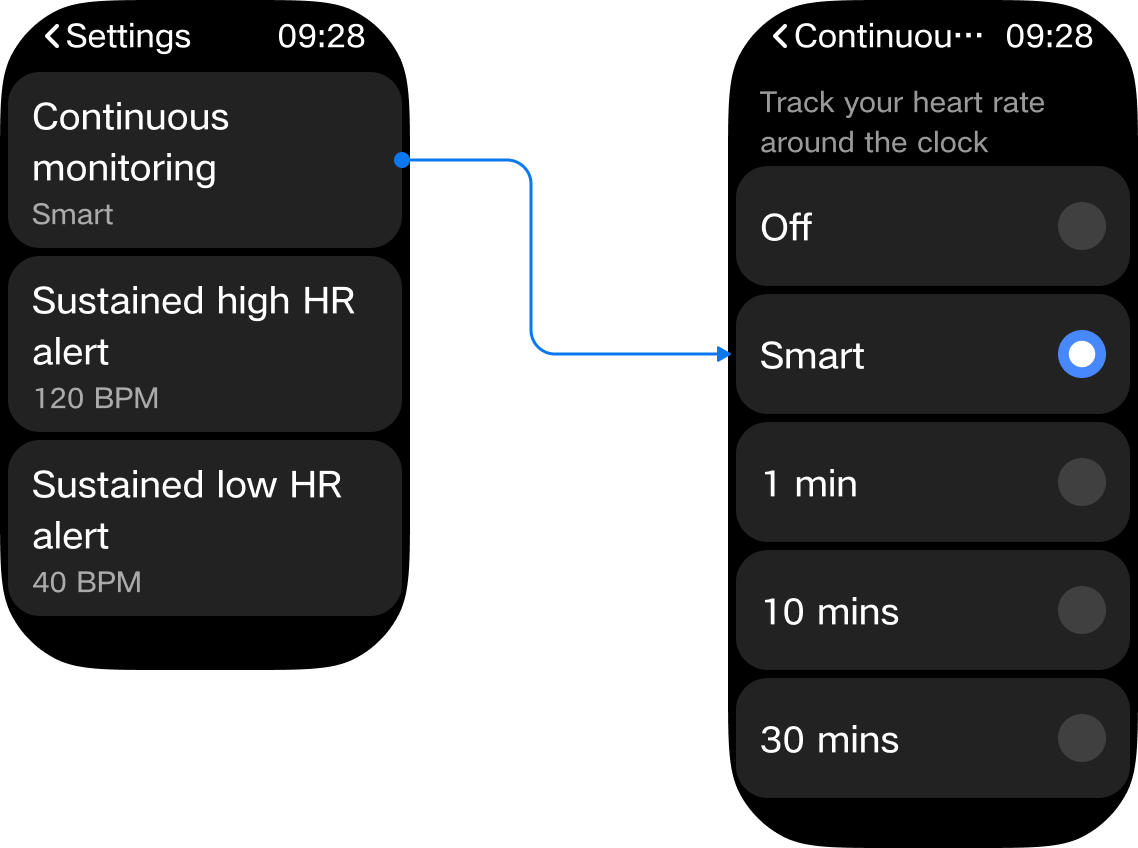
To configure heart rate monitoring frequency, enter the [Heart rate] App, swipe up to [Settings], and tap [Continuous monitoring] to access the monitoring frequency settings.
The available options are:
1. Smart (default): Measures heart rate every 10 minutes when at rest and every 1 minute during activity.
2. 1 min: Measures heart rate every 1 minute continuously.
3. 10 mins: Measures heart rate every 10 minutes continuously.
4. 30 mins: Measures heart rate every 30 minutes continuously.
Q2: How to set up high or low heart rate alerts on the REDMI Watch 6 Lite?
A: While wearing the watch normally, enter the [Heart rate] App, swipe up to [Settings]. Tap [Sustained high HR alert] to access the high heart rate alert settings, or tap [Sustained low HR alert] to access the low heart rate alert settings.
Q3: How to set up atrial fibrillation (AFib) detection on the REDMI Watch 6 Lite?
A: The REDMI Watch 6 Lite does not support atrial fibrillation detection.
SpO₂
Q1: How to measure blood oxygen saturation (SpO₂) on the REDMI Watch 6 Lite?
A: There are multiple ways to measure blood oxygen saturation:
1. While wearing the watch normally, enter the [SpO₂] App on the watch and tap [Measure] to begin the measurement process.
2. Swipe left on the watch face to access widgets, add the [SpO₂] widget, and tap [Measure] to begin.
3. After enabling [All-day tracking] in the Blood Oxygen settings, the watch will automatically measure blood oxygen every 10 minutes when at rest and worn on the wrist.
Q2: Can blood oxygen saturation be measured during a workout on the REDMI Watch 6 Lite?
A: No, blood oxygen measurement is not supported during workouts. When [All-day tracking] is enabled, blood oxygen is measured during daily rest periods. Wrist movement can affect the success rate of blood oxygen readings and may result in failed measurements. For accurate readings, keep the wrist still during measurement to ensure reliable results and accuracy.
Q3: How to enable all-day blood oxygen monitoring on the REDMI Watch 6 Lite?
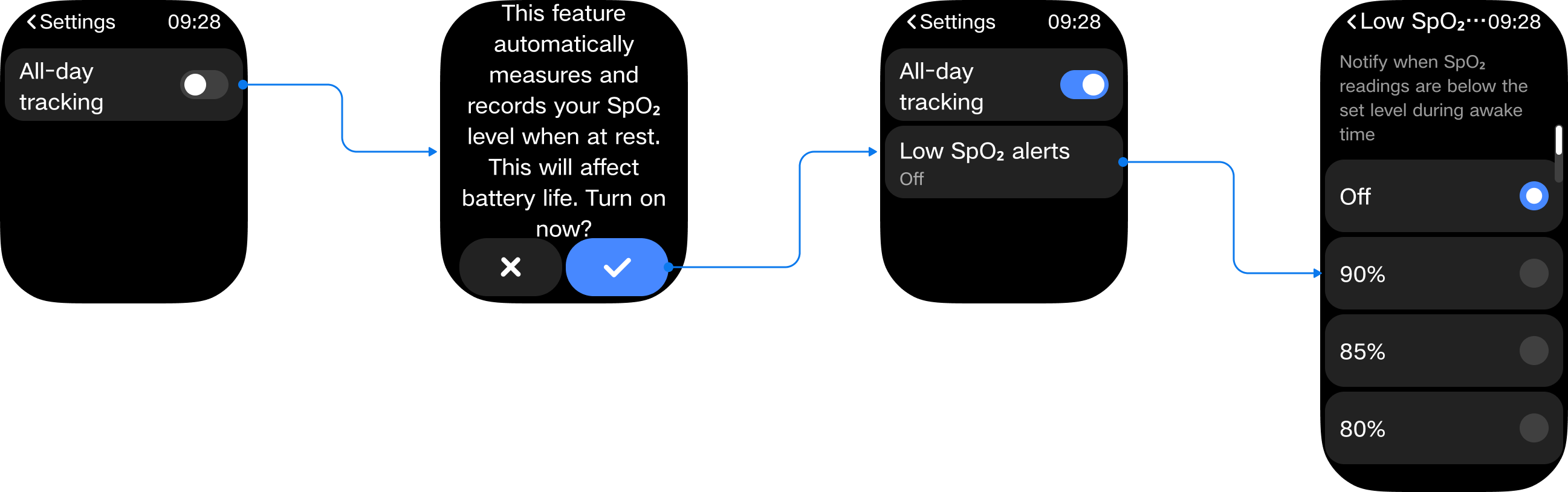
A: To enable all-day blood oxygen monitoring, enter the [SpO₂] App, swipe up to [Settings], and enable [All-day tracking].
Q4: How to set up low blood oxygen alerts on the REDMI Watch 6 Lite?
A: While wearing the watch normally, enter the [SpO₂] App, swipe up to [Settings], and enable [All-day tracking]. Once enabled, the [Low SpO₂ alerts] option will appear. Tap [Low SpO₂ alerts] to access the alert settings.
Stress
Q1: How to record mood on the REDMI Watch 6 Lite?
A: The REDMI Watch 6 Lite does not support mood recording.
Q2: How to measure stress on the REDMI Watch 6 Lite?
A: There are multiple ways to measure stress:
1. While wearing the watch normally, enter the [Stress] App and tap [Measure] to begin the stress measurement process.
2. In the Stress widget, tap [Measure] to begin the stress measurement process.
3. After enabling [All-day monitoring] in the Stress settings, the watch will automatically measure stress levels every 10 minutes when at rest and worn on the wrist.
Q3: How to enable all-day stress monitoring on the REDMI Watch 6 Lite?
A: While wearing the watch normally, enter the [Stress] App, swipe up to [Settings], and enable [All-day monitoring]. A confirmation prompt will appear. Select [Confirm] to enable the all-day stress monitoring feature.
Q4: How to set up relaxation reminders on the REDMI Watch 6 Lite?
A: While wearing the watch normally, enter the [Stress] App, swipe up to [Settings], and enable [All-day monitoring]. Once enabled, the [Relax reminder] option will appear. Tap [Relax reminder] to enable it.
Cycle
Q1: How to use and set up the Menstrual Cycle tracking on the REDMI Watch 6 Lite?
A: The Cycle feature on the watch requires initial setup through the Mi Fitness App. After pairing the watch with the App, open the Mi Fitness App. If the Cycle card is not visible on the home screen, scroll to the bottom, tap [Manage health features], and add the Cycle card. Return to the home screen, tap the Cycle card to enter the module, and complete the initial setup.
After the initial setup is complete, enter the Cycle details page and tap the three-dot icon to access the period settings. Enable [Calendar-based predictions] as well as [Show on wearable device]. Return to the main cycle screen and record period data. The App will then intelligently predict the ovulation period and ovulation day. Data recorded in the App will be synced to the watch for viewing on the wrist.
Health Monitoring
Q1: How to use the Health Scan feature on the REDMI Watch 6 Lite?
A: The REDMI Watch 6 Lite does not support the Health Scan feature.
Q2: How to use the Energy Monitoring feature on the REDMI Watch 6 Lite?
A: The REDMI Watch 6 Lite does not support the Energy Monitoring feature.
Q3: How to connect a heart rate monitor band to the REDMI Watch 6 Lite?
A: The REDMI Watch 6 Lite does not support connecting an external heart rate monitor band.
Q4: How to measure blood pressure on the REDMI Watch 6 Lite?
A: The REDMI Watch 6 Lite does not support blood pressure measurement.
Q5: How to measure body composition on the REDMI Watch 6 Lite?
A: The REDMI Watch 6 Lite does not support body composition measurement.
Q6: What to do if all continuous health monitoring switches on the REDMI Watch 6 Lite are turned off?
A: If all continuous health monitoring switches on the REDMI Watch 6 Lite have been turned off, check whether the watch is in a low-battery state. When the battery is critically low, continuous monitoring for blood oxygen, heart rate, and stress is automatically disabled to conserve power and extend battery life. After the watch has been powered off, charged, and restarted, these monitoring features must be manually re-enabled.
Workout Features
Q1: What workout modes does the REDMI Watch 6 Lite support, and what data is displayed during and after a workout?
A: The REDMI Watch 6 Lite supports over 150 workout modes. For detailed information on the data metrics displayed during and after each workout, please refer to the following:
Default display (8 items): Outdoor running, Walking, Freestyle, Hiking, Outdoor cycling, Treadmill, Jump rope, and Pool swimming.
Water sports (18 items): Pool swimming, Open water swimming, Sailing, Paddleboarding, Water polo, Other water sports, Water skiing, Kayaking, Rowing, Rafting, Powerboating, Finswimming, Diving, Artistic swimming, Snorkeling, Kitesurfing, Flowriding, and Dragon boat.
Outdoor activities (14 items): Outdoor running, Walking, Hiking, Outdoor cycling, Trekking, Trail run, Rock climbing, Skateboarding, Roller skating, Parkour, ATV, Paragliding, BMX, Race walking.
Trainings (43 items): Freestyle, Treadmill, Jump rope, HIIT, Yoga, Indoor cycling, Elliptical, Rower, Stair climber, Stepper, Spinning, Core training, Flexibility, Pilates, Gymnastics, Stretching, Strength, Cross training, Stair climbing, Aerobics, Physical training, Wall ball, Dumbbell, Barbell, Weightlifting, Deadlifts, Burpee, Sit-ups, Functional training, Upper body, Lower body, Abs, Back, Air walker, Horizontal bar, Parallel bars, Step aerobics, Mass gymnastics, Cardio combat, Battle rope, Aerobic combo, Indoor walking, Indoor fitness.
Dance (14 items): Square dance, Belly dance, Ballet, Street dance, Zumba, Folk dance, Jazz dance, Latin dance, Hip hop, Pole dance, Breaking, Ballroom dance, Modern dance, Dance.
Combat sports (12 items): Boxing, Wrestling, Martial arts, Tai chi, Muay Thai, Judo, Taekwondo, Karate, Kickboxing, Kendo, Fencing, Jujitsu.
Ball sports (26 items): Tennis, Basketball, Golf, Soccer, Volleyball, Baseball, Softball, American football, Hockey, Table tennis, Badminton, Cricket, Handball, Bowling, Squash, Billiards, Shuttlecock, Beach soccer, Beach volleyball, Sepak takraw, Futsal, Hacky sack, Bocce, Jai alai, Gateball, Dodgeball.
Other winter sports (11 items): Snowboarding, Skiing, Cross-country skiing, Ice skating, Indoor ice skating, Curling, Other winter sports, Snowmobile, Ice hockey, Bobsleigh, Sledding.
Recreational sports (14 items): Archery, Darts, Horse riding, Tug of war, Hula hoop, Kite flying, Fishing, Frisbee, Kicking shuttlecock, Swinging, Somatosensory game, Table foosball, Shuffleboard, Esports.
Card and board games (5 items): Chess, Checkers, Weiqi, Bridge, Board game.
Other (3 items): Equestrian, Athletics, and Auto racing.
Q2: What do the maximum altitude, average altitude, cumulative ascent, and descent data in the REDMI Watch 6 Lite workout records represent?
A: The REDMI Watch 6 Lite does not include a barometer and therefore does not support altitude-related data.
Q3: How to start, pause, and end a workout on the REDMI Watch 6 Lite?
A: To start a workout: Open the app list and tap the Workout app to enter the workout list. Select the desired workout and tap [GO] to begin.
To pause a workout: During a workout, swipe left to the control page and tap [Pause] to pause the workout. From there, choose to end or continue the workout.
To end a workout: Press and hold the [End] button or press and hold the power button for 1.5 seconds to end the current workout.
Q4: How to enable auto-pause for workouts on the REDMI Watch 6 Lite?
A: Auto pause is supported for Outdoor running, Treadmill, Walking, Outdoor cycling, and Hiking by default. To enable or disable this feature, enter the workout preparation page and navigate to the settings.
Q5: Does the REDMI Watch 6 Lite support offline maps?
A: The REDMI Watch 6 Lite doesn't support offline maps.
Q6: When starting a pool swim on the REDMI Watch 6 Lite, is underwater heart rate monitoring supported?
A: Yes, the REDMI Watch 6 Lite supports underwater heart rate monitoring.
Q7: How to use the AI pacer on the REDMI Watch 6 Lite?
A: The AI pacer feature is supported on the REDMI Watch 6 Lite. During a running workout, the AI pacer provides real-time pace guidance to help maintain the target pace throughout the run. Please select [Outdoor running] >> [Settings] >> [AI Pacer] >> enable [AI Pacer] and set [Pace].
Q8: How to set up a distance reminder on the REDMI Watch 6 Lite?
A: To set a reminder for every full kilometer on the REDMI Watch 6 Lite, please select a workout and enter [Settings] >> [Reminders] to set the distance, pace, and target HR zone.
Q9: How to set the metronome on the REDMI Watch 6 Lite?
A: The REDMI Watch 6 Lite doesn't support a metronome.
Q10: How to measure the lactate threshold using the REDMI Watch 6 Lite?
A: The REDMI Watch 6 Lite does not support measuring the lactate threshold.
Q11: How to use the running course feature on the REDMI Watch 6 Lite?
A: The running course feature is supported on the REDMI Watch 6 Lite. Enter the App list and tap [Running courses] to select.
Q12: How to use interactive sensory courses on the REDMI Watch 6 Lite?
A: This device does not support this feature.
Q13: How to use heart rate broadcasting on the REDMI Watch 6 Lite?
A: The REDMI Watch 6 Lite doesn't support heart rate broadcasting.
Workout Reminder
Q1: How to set a workout reminder on the REDMI Watch 6 Lite?
A: To set a workout reminder on the REDMI Watch 6 Lite, select a workout >> enter [Settings] >> [Reminders] >> set the [Distance], [Pace], and [Target HR zone].
Q2: How to set a workout goal on the REDMI Watch 6 Lite?
A: To set a workout goal on the REDMI Watch 6 Lite, select a workout >> enter [Settings] >> [Goal].
Q3: How to set the voice broadcast during a workout on the REDMI Watch 6 Lite?
A: The REDMI Watch 6 Lite doesn't support voice broadcast during a workout.
Q4: Does the REDMI Watch 6 Lite support ski fall detection?
A: The device does not support ski fall detection.
Standing Reminder
Q1: How to set up standing reminders on the REDMI Watch 6 Lite?
A: Standing reminders can be set up on the REDMI Watch 6 Lite by opening the Mi Fitness App, tapping the [Breaks] section, tapping the settings icon in the upper right corner, selecting [Breaks reminders], and turning on [Breaks reminders].
Q2: How to set up the DND period for lunch breaks on the REDMI Watch 6 Lite?
A: The DND period for lunch breaks can be set on the REDMI Watch 6 Lite by opening the Mi Fitness App, tapping the [Breaks] section, tapping the settings icon in the upper right corner, selecting [Breaks reminders], and turning on [Breaks reminders] and [DND].
Q3: How to view the daily step count, active calories, and activity targets or moderate-to-vigorous activity on the REDMI Watch 6 Lite?
A: The daily step count, active calories, and activity or moderate-to-vigorous activity can be viewed on the REDMI Watch 6 Lite by tapping the [Stats] App in the app list.
Q4: How to set up the daily goal achievement reminder on the REDMI Watch 6 Lite?
A: The daily goal achievement reminder can be set on the REDMI Watch 6 Lite by opening the Mi Fitness App, tapping [Stats] >> tapping the three-ring icon at the top >> [Stats] >> turning on [Achievement reminders].
Workout List
Q1: How to add a workout to the workout list on the REDMI Watch 6 Lite?
A: You can tap [Add] at the bottom of the workout list to add workouts. The list can hold a maximum of 15 workouts at any one time.
Q2: How to hide a workout from the workout list on the REDMI Watch 6 Lite?
A: Workouts can be hidden from the workout list on the REDMI Watch 6 Lite by pressing and holding the workout to enter edit mode, tapping the delete button in the upper right corner of the activity, and then tapping the check mark to confirm the removal.
Q3: How to adjust the order of workouts on the REDMI Watch 6 Lite?
A: The order of workouts on the REDMI Watch 6 Lite can be adjusted by pressing and holding the workout to enter edit mode, tapping the pin button in the upper left corner of the workout to move it to the top, and tapping it again to remove it from the top position.
Workout Data
Q1: How to set up and view vitality metrics on the REDMI Watch 6 Lite?
A: Vitality metrics on the REDMI Watch 6 Lite can be set up by opening the Mi Fitness App, tapping the three-ring icon at the top, tapping the settings button in the upper right corner, and selecting [Stats].
Q2: How to set up vitality score-related reminders on the REDMI Watch 6 Lite?
A: Vitality score-related reminders on the REDMI Watch 6 Lite can be set by opening the Mi Fitness App, tapping the [Vitality score] section, tapping the settings icon in the upper right corner, selecting [Vitality score settings], and turning on [Goal notifications].
Q3: What to do if the REDMI Watch 6 Lite shows a storage full prompt and cannot sync data after an extended period of workout mode usage?
A: If the REDMI Watch 6 Lite shows a storage full prompt and cannot sync data, the watch face files should be cleared before attempting to sync again.
Q4: Can the REDMI Watch 6 Lite record workout data when worn without starting a workout?
A: The REDMI Watch 6 Lite can record simple data such as step count when worn without starting a workout.
Q5: How to delete workout data on the REDMI Watch 6 Lite?
A: Workout data on the REDMI Watch 6 Lite can be deleted by tapping [Delete] at the bottom of the workout report in the [History] App.
Q6: Why can a workout record initiated from the Mi Fitness App not be viewed on the REDMI Watch 6 Lite after the workout ends?
A: The REDMI Watch 6 Lite has limited storage space, so workouts initiated from the Mi Fitness App are not synced to the watch.
Q7: Why does the maximum oxygen uptake value displayed on the REDMI Watch 6 Lite appear inaccurate compared to other devices?
A: The REDMI Watch 6 Lite does not support maximum oxygen uptake measurement.
Q8: Why does the REDMI Watch 6 Lite not display fatigue values for indoor workouts such as strength training or stair climber workouts, and why is training load not recorded?
A: The REDMI Watch 6 Lite does not support training load measurement.
Q9: Why are workout tracks sometimes not visible after syncing workout data with an older version of the Mi Fitness App on the REDMI Watch 6 Lite?
A: Data from older versions may not sync properly. The Mi Fitness App needs to be updated to Android version 3.240.190 or iOS version 3.240.190 or later for successful synchronization.
Workout Detection
Q1: How to enable workout detection on the REDMI Watch 6 Lite?
A: Workout detection can be enabled on the REDMI Watch 6 Lite through either of the following methods.
1. Go to the app list or control center, select [Settings] >> [Workout settings] >> enable [Auto detect].
2. Go to the Workout app >> enter [Settings] >> enable [Auto detect].
Q2: How is workout detection triggered after it is enabled on the REDMI Watch 6 Lite?
A: The REDMI Watch 6 Lite supports automatic detection for running, cycling, and walking. Walking requires continuous activity for more than 7 minutes to trigger detection, while running and cycling require continuous activity for about 3 minutes. Stopping the activity resets the accumulated time counter.
Q3: What to do if the REDMI Watch 6 Lite shows false detection or fails to detect a workout after enabling workout detection?
A: If the REDMI Watch 6 Lite shows false detection, tap [Ignore] on the pop-up window. If the device fails to detect a workout, try increasing exercise intensity, check whether the watch is properly worn, or extend the workout duration.
Q4: Why does the REDMI Watch 6 Lite repeatedly prompt to move to an open area with poor signal and slow positioning when starting a workout that requires GPS after automatic detection is triggered?
A: The REDMI Watch 6 Lite may prompt to move to an open area when the GPS signal is weak. To improve positioning, avoid obstructed areas such as tall buildings, trees, overpasses, tunnel entrances, and waterfronts. Sync the watch with the Mi Fitness App daily and keep the Bluetooth connection active for 5 to 10 minutes to automatically update the ephemeris data. Ephemeris data can also be updated manually.
Notifications
Q1: How to sync phone notifications to the REDMI Watch 6 Lite?
A: The REDMI Watch 6 Lite supports receiving message notifications from the phone. After turning on [App notification] in the Mi Fitness App, the watch can display notifications from the phone when the watch and phone remain connected. The watch only supports viewing messages and does not support replying to them.
To set up message notifications, open the Mi Fitness App, go to [Device], select [Notification and calls] >> [App notifications] >> enable [App notifications] and [Mirror phone notifications] to sync all message notifications from the phone to the watch, or select specific apps to enable notifications for those applications individually.
Note:
For apps that need to send synchronized notifications to the watch, notification permissions must also be enabled for those apps on the phone.
Q2: How to check and delete notifications on the REDMI Watch 6 Lite?
A: Viewing notifications:
1. When the watch is connected to the Mi Fitness App, notifications received in your phone's notification bar are synced to the watch.
2. By default, the watch vibrates but does not automatically light up the screen when a notification arrives; you can view message details by raising your wrist or manually turning on the screen. If you want the screen to light up upon receiving a notification, go to the Mi Fitness App >> [Device] >> [Notification and calls] >> [App notifications] >> enable [Wake screen].
3. Swipe down on the watch face to open the notification panel and view received notifications.
Deleting notifications:
1. When the watch is connected to the Mi Fitness App, messages marked as read on your phone are also deleted from the watch.
2. On the notification panel of the watch, tap the [Got it] button to delete the message from the watch; if the watch is connected to the app, the message will also be deleted from your phone.
3. Swipe down on the watch face to open the notification panel; swipe left on a specific message in the list to delete it, or tap the [Clear all] button at the top of the list to delete all messages.
Note:
1. Turning off or restarting the watch will clear all messages.
2. The watch can store up to 10 notifications; if this limit is exceeded, new messages will overwrite older ones.
Q3: What are the maximum limits for the number of characters and messages for notifications on the REDMI Watch 6 Lite?
A: The actual character count depends on the content sent from the mobile phone. The watch can store up to 10 notifications; if this limit is exceeded, new messages will overwrite older ones.
Q4: How to customize which apps send notifications to the REDMI Watch 6 Lite?
A: To set up message notifications, open the Mi Fitness App, go to [Device], select [Notification and calls] >> [App notifications] >> select specific apps to enable notifications for those applications.
Q5: Why are message notifications automatically deleted on the REDMI Watch 6 Lite?
A: The watch's message notifications are synchronized with the phone. If a message is deleted on the phone, the corresponding notification on the watch will also be automatically deleted.
Q6: Why do some messages on the REDMI Watch 6 Lite have a "Got it" option while others don't?
A: Due to differences in notification types, not all notifications require this "Got it" option; page designs provide appropriate confirmation buttons based on the specific content, so this is not a malfunction.
Q7: Why are there no message notifications on the REDMI Watch 6 Lite when connected to an iPhone?
A: If the REDMI Watch 6 Lite does not receive message notifications when connected to an iPhone, the following steps should be taken:
1. Check the basic connection and mode settings. Confirm that the Bluetooth connection between the watch and the iPhone is active and the Mi Fitness App shows a [Connected] status. Turn off [Do Not Disturb] mode on the watch and turn off [Ultra battery saver] on the iPhone. Restart both the watch and the iPhone to re-establish the Bluetooth connection and resolve temporary communication issues.
2. Configure iPhone system permissions. Ensure that all permissions for the Mi Fitness App are enabled.
3. Open the Mi Fitness App, go to [Device], select [Notification and calls] >> [App notifications] >> check if app notifications are enabled.
4. Please update the Mi Fitness App, the firmware version of the watch and the iOS system to the latest version.
5. Check if [Notify only when worn] is enabled.
Q8: Why can't I configure [Receive only when phone is locked] for notifications from the Mi Fitness App after connecting the iPhone to the REDMI Watch 6 Lite?
A: This is normal behavior resulting from underlying limitations regarding iOS system notification permissions.
Q9: Why does the REDMI Watch 6 Lite receive notifications after turning off the notification toggle in the Mi Fitness App?
A: After disabling App notifications in the Mi Fitness App, the watch will no longer receive messages synced from the phone; however, notifications generated by the watch's local apps will still provide alerts as usual.
Q10: Does the REDMI Watch 6 Lite support displaying notifications from third-party apps?
A: The REDMI Watch 6 Lite supports displaying notifications from third-party apps.
Call Reminders
Q1. How to set up call reminders on the REDMI Watch 6 Lite?
A: When the REDMI Watch 6 Lite is connected to the phone, an incoming call will trigger a vibration and ringtone alert on the watch, displaying the caller's number or name, provided the phone's contacts permission has been granted. The call can be rejected by tapping the [red phone icon] on the watch screen or answered by tapping the [green phone icon].
Note:
The caller name displayed on the watch matches the name shown on the phone. Unknown callers show the incoming number. Call reminders are not received when DND mode is enabled during the scheduled DND period.
Q2. What to do if call reminders are not received on the REDMI Watch 6 Lite?
A: If call reminders are not received on the REDMI Watch 6 Lite, the following steps should be taken:
1. Check the basic connection and mode settings. Confirm that the Bluetooth connection between the watch and the phone is active and the Mi Fitness App shows a [Connected] status.
2. Turn off DND mode on the watch.
3. Restart both the watch and the phone to re-establish the Bluetooth connection and resolve temporary communication issues.
4. Check the core settings in the Mi Fitness App. Verify the [Notify only when worn] setting to ensure it aligns with wearing habits.
5. Ensure the Mi Fitness App has been granted sufficient permissions.
Q3. How to make, answer, and end calls directly on the REDMI Watch 6 Lite?
A: To use calling features on the REDMI Watch 6 Lite, ensure the basic configuration is complete. The watch must be paired with the phone through the Mi Fitness App with an active Bluetooth connection. On the phone, enable Bluetooth audio and share system notifications. The watch-side operations are as follows.
1. To answer an incoming call, tap the [green phone icon] on the watch screen.
2. To end a call, tap the [red phone icon] during an incoming call or during an active call.
3. To make a call, there are three methods:
(1). Add favorite contacts in the Mi Fitness App >> [Device] >> [Apps] >> [Favorite contacts], with a maximum of 10 contacts. Then open the [Phone] App on the watch, select [Contacts], and tap a contact to dial. During the call, volume can be adjusted and the microphone can be muted through the watch screen. (2). Open the [Phone] App on the watch, tap the [Dial pad], enter the number using the on-screen keyboard, and tap the [green phone icon].
(3). Enable [Emergency SOS] in the Mi Fitness App under [Security], add an emergency contact, and press the physical button on the watch three times in succession to call the emergency contact.
Q4: What to do if I cannot answer incoming calls on the REDMI Watch 6 Lite?
A: 1. Ensure that the phone has granted call permissions to the Mi Fitness App; this is a prerequisite for Bluetooth calling.
2. Maintain a stable Bluetooth connection between the watch and the phone, and disable Airplane mode or Do Not Disturb mode on the phone.
3. Restart both the watch and the phone, and try again after updating the firmware and the app.
4. If the issue persists, please contact after-sales support to have the hardware checked.
Q5: How to add favorite contacts to the REDMI Watch 6 Lite?
A: Please open the Mi Fitness App >> [Device] >> [Apps] >> [Favorite contacts] >> [Add contact].
Note:
You can add up to 10 favorite contacts.
Q6: How to check the call logs on the REDMI Watch 6 Lite?
A: Open the [Phone] App on the watch from the App list, and you can view call logs generated on the watch.
1. The call logs on the watch include four types: missed calls, calls rejected on the watch, calls answered on the watch, and calls made from the watch.
2. Tap the [Clear all] button to delete all call logs on the watch.
3. Tap a call log entry to initiate a call (synchronized with the mobile phone).
Note:
The watch stores only the 30 most recent call logs; new records overwrite the oldest ones once this limit is exceeded.
Q7: How to set up quick responses for incoming call notifications on the REDMI Watch 6 Lite?
A: Open the Mi Fitness App >> [Device] >> [Notifications and calls] >> [Incoming calls] >> enable [Reply with message] >> [Quick responses] >> you can add, delete, and edit quick reply content.
Note:
Quick responses are supported only on Android, not iOS.
Q8: How to set a delay for incoming call notifications on the REDMI Watch 6 Lite?
A: The REDMI Watch 6 Lite doesn't support setting a delay for incoming call notifications.
Q9: Does the REDMI Watch 6 Lite support answering calls from third-party apps (e.g., WhatsApp, Line)?
A: It does not support calls from third-party apps.
Q10: Why are contact names not displayed on the REDMI Watch 6 Lite for calls from third-party apps (e.g., WhatsApp, Line)?
A: It does not support calls from third-party apps.
Data Synchronization
Q1: How long can data be independently stored on the REDMI Watch 6 Lite, and will data be automatically deleted if the watch is not used for an extended period?
A: On the REDMI Watch 6 Lite, workout data is stored permanently on the watch. Heart rate and stress data are retained for 30 days, while sleep data is only kept for the current day. To avoid data loss, sync the watch with the Mi Fitness App promptly. If the watch is reset, all previous workout data stored on the watch will be cleared, but data that has already been synced to the Mi Fitness App will not be affected.
Q2: How to delete all personal data from the REDMI Watch 6 Lite other than by performing a factory reset?
A: To delete personal data from the REDMI Watch 6 Lite without performing a factory reset, go to [Settings] on the watch, select [My device], and tap [Restore system settings]. After tapping [Restore system settings], the watch will check for a device password. If a device password is set, the password must be entered first. After the correct password is entered, a confirmation pop-up for [Restore system settings] will appear. If no device password is set, the [Restore system settings] pop-up will appear directly.
Restoring system settings will reset system-related configurations, including [Display] and [Sound and vibration].
Q3: Why is there a difference between health data measured by the REDMI Watch 6 Lite and data from other branded devices or medical equipment?
A: The REDMI Watch 6 Lite is a smart wearable device designed for daily health monitoring and is not a professional medical diagnostic device. It is normal for data to differ from other wearable devices and medical equipment. The main reasons are as follows.
1. Measurement principles and device positioning are different. The REDMI Watch 6 Lite uses non-invasive, convenient daily monitoring methods such as optical sensors for everyday health reference, while professional medical devices use medical-grade sensors and testing methods that follow medical-grade precision standards for clinical diagnosis.
2. Sensors and algorithms vary between devices. Different watches use different sensor models, sampling frequencies, health algorithm models, and calibration parameters, which can lead to data deviations even when measured under the same conditions and at the same time.
3. Measurement environment and wearing conditions affect accuracy. Medical devices are typically used in static, controlled environments for spot measurements, while the REDMI Watch 6 Lite is worn continuously throughout the day and is easily affected by factors such as how tightly it is worn, skin condition, sweat, body movement, body temperature, and external light.
4. Data collection methods are different. The REDMI Watch 6 Lite performs continuous or periodic automatic monitoring, and physiological data such as heart rate, blood oxygen, and blood pressure naturally fluctuate in real time. Medical devices typically take single static measurements, and even minor differences in measurement conditions can produce different values.
Note:
Health data from the REDMI Watch 6 Lite is intended for daily health management reference only and should not be used as a substitute for professional medical diagnostic equipment. For any medical concerns, please consult a qualified medical institution for accurate diagnosis.
Q4: Can the REDMI Watch 6 Lite still function normally after the Mi Fitness App is uninstalled from the phone, and will the data be retained?
A: After the Mi Fitness App is uninstalled from the phone, the usage experience and data retention for the REDMI Watch 6 Lite are as follows:
1. Impact on functionality
(1). Core independent functions: The REDMI Watch 6 Lite can continue to function normally for basic health monitoring, including step counting, heart rate monitoring, and sleep tracking, as well as alarms and stopwatch functions.
(2). Phone-dependent functions: Features such as phone notification sync, Bluetooth calling, and message replies will not work until the app is reinstalled and reconnected.
(3). Settings management functions: Watch face changes, firmware updates, and other settings cannot be managed through the phone but can still be accessed and adjusted directly on the watch.
After uninstalling the app, the REDMI Watch 6 Lite can still run independently with its core functions.
2. Data retention
(1). Watch-local data is retained. Uninstalling the app does not affect health data stored locally on the watch, including heart rate, sleep, and workout records, as well as settings and offline content.
(2). Cloud-synced data depends on the sync status. Historical data that was synced to the cloud before uninstallation will be retained and can be restored after reinstalling the app and logging into the same account. New data that had not been synced before uninstallation will be temporarily stored on the watch and can be synced after reconnecting the app.
(3). Phone-side data is lost. Local data stored on the phone, such as unsynced temporary records, will be deleted upon uninstallation, but cloud data remains unaffected.
3. Recommended actions
(1). Before uninstalling the app, enable data sync by opening the Mi Fitness App, going to [Profile], selecting [App settings], selecting [Sync with the cloud], and turning on cloud data sync to prevent data loss.
(3). After uninstallation, basic functions can still be managed directly through the [Settings] on the watch. For full management, reinstall the app and pair the watch again to restore all functionality.
Note:
Health data from the REDMI Watch 6 Lite is stored both locally on the watch and in the cloud. Uninstalling the app does not cause core data loss on the watch; it only affects phone-side management and sync capabilities.
Q5: How to view and manage synced data in the Mi Fitness App for the REDMI Watch 6 Lite?
A: Synced data from the REDMI Watch 6 Lite can be viewed and managed in the Mi Fitness App by following these steps:
1. Open the Mi Fitness App and go to the [Health] page to view data such as step count, heart rate, and sleep.
2. Tap the corresponding data card to view detailed information by day, week, or month.
3. Tap [Manage health features] at the bottom of the page to delete or add data items.
Q6: Can synchronization of specific data categories be individually turned off on the REDMI Watch 6 Lite?
A: Synchronization of specific data categories cannot be individually turned off on the REDMI Watch 6 Lite.
Q7: What to do if the REDMI Watch 6 Lite frequently disconnects from the Mi Fitness App and data cannot be synced?
A: If the REDMI Watch 6 Lite frequently disconnects from the Mi Fitness App and data cannot be synced, the following steps should be taken:
1. Keep the watch and phone close together, and restart Bluetooth, the watch, and the phone.
2. Lock the app in the background to prevent it from being closed by the system.
3. Unpair and re-pair the devices, and update both the app and the watch firmware.
Q8: What to do if data synced to the Mi Fitness App from the REDMI Watch 6 Lite is lost?
A: If data synced from the REDMI Watch 6 Lite to the Mi Fitness App is lost, the following steps should be taken:
1. Pull down on the health page in the app to re-sync.
2. Check whether the correct account is logged in and confirm that cloud sync is enabled.
3. Restart the connection and sync again. If data is still missing, contact customer support for assistance.
Q9: What to do if data is not syncing between the REDMI Watch 6 Lite and the Mi Fitness App?
A: If data is not syncing between the REDMI Watch 6 Lite and the Mi Fitness App, the following steps should be taken:
1. Ensure the Bluetooth connection is active and manually sync by pulling down on the home page.
2. Restart both the watch and the app, and update both to the latest versions.
3. Unpair and re-pair the device before syncing again.
Q10: Are health and workout data from the REDMI Watch 6 Lite automatically backed up, and where is the backup stored?
A: Yes, health and workout data from the REDMI Watch 6 Lite is automatically backed up to the Xiaomi cloud server, provided the device is logged into the same Xiaomi account and cloud sync is enabled.
Q11: How to manually back up data from the REDMI Watch 6 Lite, and can the backup file be exported to a computer?
A: Data from the REDMI Watch 6 Lite can be manually exported by opening the Mi Fitness App, going to [Workout], selecting [Workout history], tapping [Export] in the upper right corner, and exporting the data as a TCX file to the phone.
Q12: Does changing the paired phone affect the data on the REDMI Watch 6 Lite?
A: Switching to a new phone with the same account does not affect the data on the REDMI Watch 6 Lite. Logging into the original account on the new phone will sync historical data from the cloud. If switching to a different account, the watch must be reset, and any unsynced data will be cleared.
Q13: How to sync workout data from the REDMI Watch 6 Lite to third-party fitness apps such as Strava?
A: Workout data from the REDMI Watch 6 Lite can be synced to third-party fitness apps such as Strava by opening the Mi Fitness App, going to [Profile], selecting [Third-party data], selecting [Strava], and authorizing the account connection. Workout records will then sync automatically.
Q14: Does the REDMI Watch 6 Lite support syncing workout or health data from other branded watches?
A: The REDMI Watch 6 Lite doesn't support syncing data from other branded watches.
Music
Q1: How to control music playback on the phone through the REDMI Watch 6 Lite?
A: Music playback on the phone can be controlled through the REDMI Watch 6 Lite by following these steps:
1. Ensure the watch and phone have an active Bluetooth connection.
2. Open the Mi Fitness App >> [Device] >> [Apps] >> [Music] >> enable [Control phone playback from device].
3. Play music on the phone and open the [Music] app on the watch.
4. The watch can then control playback with play, pause, previous track, next track, and volume adjustment functions.
Watch Face
Q1: How many watch faces can be stored on the watch and in the app for the REDMI Watch 6 Lite?
A: The REDMI Watch 6 Lite has 200 watch faces available in the app store. The watch itself can store a total of 10 watch faces, including 3 pre-installed watch faces and 7 watch faces downloaded from the store.
Q2: How to change and delete watch faces on the REDMI Watch 6 Lite?
A: Watch faces can be changed and deleted on the REDMI Watch 6 Lite using the following methods:
To delete a watch face:
1. Press and hold the watch face for 1 second to enter management mode, swipe up on the watch face, and tap [Delete] to remove it.
2. Alternatively, go to [Settings] on the watch, select [Home screen and watch face], select [Watch face], swipe up on the watch face, and tap [Delete] to remove it.
To change the watch face:
1. Press and hold the watch face for 1 second to enter management mode, swipe left or right to browse available watch faces, and tap the centered watch face to confirm the selection.
2. Alternatively, connect the watch to the Mi Fitness App, go to [Device], select [Manage watch faces], and load a new watch face from there.
Q3: How to view the power consumption level of a watch face on the REDMI Watch 6 Lite?
A: The REDMI Watch 6 Lite does not support viewing power consumption levels for watch faces.
Q4: How to customize watch face colors and interface settings on the REDMI Watch 6 Lite?
A: Watch face colors and interface settings on the REDMI Watch 6 Lite can be customized by pressing and holding the watch face for 1 second to enter management mode and tapping [Edit] to enter customization. Swipe left or right to switch between editable modules, and the specific customization options available depend on the design of the watch face.
1. To change the style, swipe up or down to preview different styles.
2. To change data fields, only supported on some watch faces, tap the editable component area to highlight it, select a data item from the list, and confirm the selection.
3. To change colors, only supported on some watch faces, swipe up or down to preview different color options.
Q5: How to set up a photo watch face on the REDMI Watch 6 Lite?
A: The REDMI Watch 6 Lite supports custom watch face backgrounds through the Mi Fitness App. To set up a photo watch face, open the Mi Fitness App, go to [Device], select [Manage watch faces], select [All], select [Custom], and download a photo watch face. Then follow these steps:
1. Tap [Custom photo], select an image from the gallery, and confirm the selection.
2. Crop the image as needed and tap [OK] to confirm.
3. Adjust parameters such as background, style, and colors as available.
4. Tap [Apply] to sync the watch face. Once synchronization is complete, the watch face will be applied to the device.
Q6: Why does the Mi Fitness App show a failure message when downloading or deleting a watch face on the REDMI Watch 6 Lite, even though the watch face was successfully downloaded or deleted on the watch?
A: This issue on the REDMI Watch 6 Lite is caused by a status synchronization delay between the Mi Fitness App and the watch. The watch has already completed the operation, but the result has not been sent back to the app in time, leading to an incorrect failure message. This does not affect actual use. The following steps can be taken:
1. Trust the watch status. If the watch face has been successfully downloaded or deleted on the watch, the operation has taken effect and the app message can be ignored.
2. Refresh the app status by ensuring a stable connection between the watch and phone. Exit and re-enter the Mi Fitness App and allow time for the app to complete data synchronization with the watch.
3. Restart the app if the status does not update after a long period by clearing the app cache or restarting the app.
Q7: How to set AOD for the corresponding watch face on the REDMI Watch 6 Lite?
A: On the REDMI Watch 6 Lite, a watch face will display its dedicated AOD effect if available. If the watch face does not have a dedicated AOD design, the system default AOD will be displayed instead. The AOD effect varies by watch face design. The Always-on display can be enabled in [Settings] >> [Display] >> [Always-on display], which is disabled by default and can be manually turned on and adjusted.
Q8: How does the music background icon automatically appear on the watch face of the REDMI Watch 6 Lite?
A: The REDMI Watch 6 Lite will automatically display the music playback icon on the watch face when the watch is connected to the phone and music is playing. This feature is automatically enabled for supported watch faces and does not require manual configuration. Ensure the watch is connected to the phone and the phone is actively playing music.
Q9: Why does the music icon always appear on the watch face of the REDMI Watch 6 Lite and cannot be turned off?
A: The music icon on the REDMI Watch 6 Lite persists when there is a music app actively running on the phone. To remove the icon, completely close the music app on the phone rather than just switching it to the background. If the icon still appears, try restarting the watch.
Q10: Why are some controls on the watch face of the REDMI Watch 6 Lite not tapable?
A: Some watch face controls on the REDMI Watch 6 Lite are designed for display purposes only and do not support tapping. This is normal behavior. If a control that should be tapable does not respond, check whether the watch face file is up to date and try restarting the watch. Confirm that both the Mi Fitness App and the watch firmware are updated to the latest versions. If the issue persists, try reinstalling the watch face through the app.
Q11: Why can the watch face not be changed, or why does the change or download fail on the REDMI Watch 6 Lite?
A: If the watch face cannot be changed or the download fails on the REDMI Watch 6 Lite, the following steps can be taken to troubleshoot:
1. Check the network connection. Ensure the phone has a stable network connection and try switching to Wi-Fi.
2. Check the Bluetooth connection. Ensure the watch and phone have a stable Bluetooth connection and keep the watch close to the phone during the transfer.
3. Check storage space. Ensure the watch has sufficient storage space and delete unused watch faces or apps if necessary.
4. Check app and firmware versions. Ensure both the Mi Fitness App and the watch firmware are updated to the latest versions.
5. Retry the operation. Exit the app, re-enter the watch face store, clear the app cache, and try downloading again.
6. If the above steps do not resolve the issue, restart both the watch and the phone and try again.
Q12: Why does the content displayed on the watch face of the REDMI Watch 6 Lite differ from what is shown in the Mi Fitness App?
A: The Mi Fitness App displays a preview of the watch face, with some data such as step count, heart rate, and weather shown as sample values. The actual watch face displays real-time data obtained directly from the watch. The data shown on the watch should be considered the accurate reference.
Q13: Why does the content displayed on the watch face of the REDMI Watch 6 Lite differ from the thumbnail preview?
A: The thumbnail preview shows a preview of the watch face with sample values for some data such as step count, heart rate, and weather. The actual watch face displays real-time data obtained directly from the watch. The data shown on the watch should be considered the accurate reference.
Q14: Why is the thumbnail preview of the watch face on the REDMI Watch 6 Lite blurry?
A: The thumbnail preview of the watch face on the REDMI Watch 6 Lite appears blurry because the screen resolution of the watch differs from the rendering resolution of the app preview image. The thumbnail is a low-resolution compressed preview image, and the actual display quality is determined by the watch screen.
Q15: Why does the actual AOD on the REDMI Watch 6 Lite not match the AOD effect shown for the selected watch face?
A: On the REDMI Watch 6 Lite, a watch face will display its dedicated AOD effect if available. If the watch face does not have a dedicated AOD design, the system default AOD will be displayed instead. The AOD effect varies by watch face design.
Q16: Why is the time format displayed incorrectly on the watch face of the REDMI Watch 6 Lite?
A: The time format on the REDMI Watch 6 Lite watch face generally follows the system time format setting of 12-hour or 24-hour mode. Check whether the time format setting on the watch is correct. Some watch faces are designed to support only the 12-hour format and cannot switch to 24-hour format even when the system setting is changed. In such cases, consider switching to a watch face that supports the desired time format.
Q17: Why are the data on the watch face of the REDMI Watch 6 Lite not updating correctly?
A: If the data on the watch face of the REDMI Watch 6 Lite, such as step count, heart rate, or weather, is not updating correctly, the following steps can be taken:
1. Confirm that the Bluetooth connection between the watch and the phone is active.
2. Open the Mi Fitness App and check whether the watch is successfully paired. Tap the sync button in the app to refresh the data.
3. For weather data issues, ensure the App has been granted location permissions and that the network connection is stable.
4. Try restarting the watch and check whether the data returns to normal.
Q18: Why does custom watch face background setup fail on the REDMI Watch 6 Lite?
A: If custom watch face background setup fails on the REDMI Watch 6 Lite, the following steps can be taken:
1. Confirm that the selected image format is supported.
2. Ensure the phone has granted the Mi Fitness App access to the gallery or storage.
3. Ensure the Bluetooth connection between the watch and phone is stable and does not disconnect during the transfer.
4. If the issue persists, restart both the app and the watch and try again.
5. On some Android phones, custom watch face background setup may fail because the system defaults to a specific app such as File Manager for image selection. To resolve this, go to [Settings], select [Apps], find the app that was used for image selection, clear default settings, return to the Mi Fitness App, and select the correct image source app when adding a photo. Different phones may have slightly different setting path names, so please refer to the actual device settings.
Q19: Why is the watch face printed on the packaging box not found on the REDMI Watch 6 Lite?
A: All watch faces shown on the packaging box are available in the watch face store. If a specific watch face is not found on the watch after startup, it can be found in the Mi Fitness App >> [Device] >> [Manage watch faces].
Q20: Why do photo watch faces on the REDMI Watch 6 Lite display issues such as moiré patterns, jagged edges, or pixelation?
A: Display issues such as moiré patterns, jagged edges, or pixelation on photo watch faces on the REDMI Watch 6 Lite are typically related to the custom image selected. Differences in resolution, format, and color mode can affect the display quality on the watch face. Replacing the image with a different one usually resolves the display issue.
Safety Related
Q1: How to enable the SOS emergency call function on the REDMI Watch 6 Lite?
A: Open the Mi Fitness App >> [Device] >> [Security] >> [Emergency SOS] >> enable [Emergency SOS] and add a phone number.
The emergency call can be triggered by pressing the power button on the watch three times in succession.
Q2: How to turn on the fall detection function on the REDMI Watch 6 Lite?
A: The REDMI Watch 6 Lite does not support the fall detection function.
Q3: How to set up emergency contacts on the REDMI Watch 6 Lite?
A: Emergency contacts on the REDMI Watch 6 Lite can be set up through the Mi Fitness App by going to [Device] >> [Security] >> [Emergency SOS] >> enabling [Emergency SOS] and adding a phone number. A maximum of one contact can be added, and the setting will automatically sync to the watch after saving.
Q4: How to set up the device password on the REDMI Watch 6 Lite?
A: Once the PIN is enabled, the screen automatically locks when the watch is removed from your wrist, requiring the PIN to unlock it. To set up the device password on the REDMI Watch 6 Lite, please refer to the following methods:
On the watch:
Go to [Settings] >> [PIN] >> [Set PIN] >> enter a 6-digit number and confirm.
In the Mi Fitness App:
Open the Mi Fitness App >> [Device] >> [Security] >> [Set password] >> [PIN] >> enter a 6-digit number and confirm.
Q5: What to do if the PIN is forgotten on the REDMI Watch 6 Lite?
A: If the PIN is forgotten on the REDMI Watch 6 Lite, the following steps can be taken:
1. Connect the watch to the original paired phone, open the Mi Fitness App, go to [Device], select [Security], and turn off or change the password.
2. If the watch is connected to the Mi Fitness App, go to [Device], select [More], and unpair the watch. After resetting, re-pair the watch with the phone and set a new password.
3. If the watch is not connected to the Mi Fitness App, please visit an after-sales service center for assistance.
Q6: What to do if the REDMI Watch 6 Lite still locks during normal wear after the password is set?
A: This issue has been fixed. Update the firmware to version 3.240.194 or later to resolve it.
Q7: How to use Bluetooth to unlock the phone with the REDMI Watch 6 Lite?
A: To use Bluetooth to unlock the phone with the REDMI Watch 6 Lite, follow these steps:
1. Open the Mi Fitness App, go to [Device], select [Security], and select [Unlock phone].
2. Set a lock screen password on the phone and confirm the authorization on the watch.
3. Select the unlock distance, with options for near, medium, or far. The phone will automatically unlock when it is brought close to the watch while Bluetooth is connected.
4. This feature is only supported on Xiaomi phones running MIUI 12 or later and HyperOS.
Q8: How to use the REDMI Watch 6 Lite to find a phone?
A: You can swipe up from the watch face to enter the control panel and tap the [Find phone] icon or open the [Find phone] App from the App list. Tap [Search] to find the phone connected with the watch. The phone will ring and vibrate. You can tap [Stop] on the watch. Please ensure that the phone and the watch have been connected via Bluetooth.
Q9: How to use the phone to find the REDMI Watch 6 Lite?
A: Please open the Mi Fitness App >> [Device] >> [Security] >> [Find device] >> tap [Find device] and the watch will ring and vibrate >> you can tap [Stop]. Please ensure that the phone and the watch have been connected via Bluetooth.
Software Update
Q1: What are the processor, operating system, and factory system version of the REDMI Watch 6 Lite?
A: The REDMI Watch 6 Lite has the following specifications:
Processor: Actions ATS3085S4
Operating system: HyperOS
Factory system version: 3.240.190
Q2: How to upgrade the system firmware on the REDMI Watch 6 Lite, and what precautions should be taken during the upgrade?
A: To upgrade the system firmware on the REDMI Watch 6 Lite, open the Mi Fitness App, go to [Device], select [More], select [Device version], and if a new version is available, tap [Download and install].
The following precautions should be taken during the upgrade:
1. Ensure the watch battery level is at least 20%, and it is recommended to charge it to above 50%.
2. Maintain a stable Bluetooth connection between the watch and the phone, and ensure the phone has a stable network connection.
3. Do not disconnect the Bluetooth connection or restart the device during the upgrade process.
4. The watch will automatically restart after the upgrade is complete.
Q3: What to do if a feature disappears or is removed after an update on the REDMI Watch 6 Lite?
A: If a feature disappears or is removed after an update on the REDMI Watch 6 Lite, the following steps can be taken:
1. Check the update log to confirm whether the feature was officially removed or adjusted.
2. Restart the watch, as some feature issues can be resolved by restarting.
3. Check the settings, as some features may have been moved to other menus and can be re-enabled.
4. If the issue is caused by a bug, wait for a future update to fix it.
5. Submit feedback within the Mi Fitness App and wait for an official fix.
Q4: Can the system be downgraded on the REDMI Watch 6 Lite, and will data be lost after downgrading?
A: Official downgrading is not supported on the REDMI Watch 6 Lite. There is no official downgrade channel available.
Q5: How to retrieve previous pairing information and health data after a factory reset on the REDMI Watch 6 Lite?
A: After a factory reset on the REDMI Watch 6 Lite, follow these steps to retrieve pairing information and health data:
1. Re-pair the watch and complete the Bluetooth pairing process as prompted.
2. To restore health data, go to the Mi Fitness App, select [Profile] >> [App settings] >> [Sync with the cloud] >> turn on [Sync with the cloud], and wait for the data to restore automatically.
3. If cloud sync was not enabled before the reset, the local health data on the watch cannot be recovered.
Q6: What are the RAM and ROM capacities of the REDMI Watch 6 Lite, and does it support expandable storage?
A: The REDMI Watch 6 Lite has 4 MB of RAM and 32 MB of ROM. It does not support expandable storage.
Q7: How to clear cache data and free up storage space on the REDMI Watch 6 Lite?
A: To clear cache data and free up storage space on the REDMI Watch 6 Lite, delete unused watch faces. Press and hold the watch face to enter edit mode, swipe up on the watch face, and tap [Delete] to remove it.
Q8: What system languages are supported on the REDMI Watch 6 Lite?
A: The REDMI Watch 6 Lite supports the following languages: English, German, Italian, French, Spanish, Dutch, Portuguese, Polish, Ukrainian, Romanian, Czech, Slovak, Greek, Swedish, Finnish, Norwegian, Danish, Lithuanian, Bulgarian, Hungarian, Russian, Thai, Vietnamese, Brazilian Portuguese, Indonesian, Japanese, Korean, Traditional Chinese (Taiwan), Turkish, Arabic, Hebrew, Hindi, and Serbian.
Q9: How to switch the system language on the REDMI Watch 6 Lite?
A: To switch the system language on the REDMI Watch 6 Lite, change the system language on the phone. The watch will automatically synchronize to match the phone's language.
Q10: How to synchronize the system language on the REDMI Watch 6 Lite when it does not match the phone?
A: If the system language on the REDMI Watch 6 Lite does not match the phone, the following steps can be taken:
1. Restart both the watch and the app, and wait for the language settings to sync automatically.
2. Manually sync by opening the Mi Fitness App, going to [Device], and tapping the sync button.
Q11: Why does the system language change to a different language on the REDMI Watch 6 Lite after a firmware update?
A: The system language may change on the REDMI Watch 6 Lite after a firmware update for the following reasons:
1. The phone's system language was changed, and the watch synced to the phone's language after the firmware update.
2. A temporary Bluetooth sync issue occurred after the update, preventing the language from syncing properly. Please check the connection status with the Mi Fitness App.
Q12: Why does the weather app display language incorrectly on the REDMI Watch 6 Lite after switching the phone language?
A: The weather app may display language incorrectly on the REDMI Watch 6 Lite after switching the phone language for the following reasons:
1. The weather app has cached old language data and has not refreshed in time.
2. There is a language sync delay between the phone and the watch. Exit the weather app and reopen it.
3. Some weather data is obtained from local meteorological server data, which is displayed on the watch after being transmitted.
Q13: What to do if an OTA transfer is interrupted on the REDMI Watch 6 Lite and the progress gets stuck at 0% after tapping "OK" or force restarting?
A: If an OTA transfer is interrupted on the REDMI Watch 6 Lite and the progress gets stuck at 0%, tap the upgrade page on the watch five times in quick succession to enter the pairing page, then open the Mi Fitness App and restart the OTA update process.
Positioning System
Q1: What positioning methods does the REDMI Watch 6 Lite support?
A: The REDMI Watch 6 Lite supports GPS, GLONASS, QZSS, Galileo, and BeiDou positioning systems on the single-frequency L1 band.
Q2: How to turn GPS positioning on or off on the REDMI Watch 6 Lite, and does positioning consume a lot of battery?
A: To turn GPS positioning on or off on the REDMI Watch 6 Lite, tap the [Workout] app in the app list and select an outdoor activity such as Outdoor running, Walking, Hiking, Outdoor cycling, or Trekking. GPS will automatically turn on when the workout starts and will automatically turn off when the workout ends. GPS positioning does consume battery power during use.
Q3: Does the positioning function of the REDMI Watch 6 Lite rely on the phone or its own GPS, and what is the offline positioning accuracy?
A: The REDMI Watch 6 Lite has a built-in independent GPS chip and can provide positioning even without being connected to a phone. Whether connected to a phone or not, the watch uses its own GPS for positioning, which can meet the needs for outdoor running and cycling tracking.
Screen Issues
Q1: What to do if the screen of the REDMI Watch 6 Lite goes black or cannot be woken up?
A: If the screen of the REDMI Watch 6 Lite goes black or cannot be woken up, the following steps can be taken:
1. The watch battery may be completely drained. Charge it for 10 minutes and check whether the screen turns on.
2. The watch software may have frozen. Press and hold the power button for more than 20 seconds to force a restart and check whether the screen turns on.
3. If the screen remains black or cannot be woken up after following the above steps, please visit an after-sales service center for inspection.
Q2: What to do if the touchscreen of the REDMI Watch 6 Lite becomes unresponsive?
A: If the touchscreen of the REDMI Watch 6 Lite becomes unresponsive, the following steps can be taken:
1. Press and hold the power button for 12 seconds to force restart the watch.
2. Check whether the screen has water, oil stains, or a screen protector blocking touch response.
3. Update the watch firmware to the latest version.
4. If the issue persists, contact after-sales service for touchscreen hardware inspection.
Q3: What to do if the touchscreen response on the REDMI Watch 6 Lite is slow?
A: If the touchscreen response on the REDMI Watch 6 Lite is slow, the following steps can be taken:
1. Clean any water stains or oil stains from the screen.
2. Restart the watch.
3. Update the watch firmware to the latest version.
4. Perform a factory reset and try again.
Q4: What to do if the raise-to-wake function does not work on the REDMI Watch 6 Lite?
A: If the raise-to-wake function does not work on the REDMI Watch 6 Lite, the following steps can be taken:
1. Check whether the raise-to-wake function is enabled. In the quick control panel, the raise-to-wake icon will appear blue when enabled.
2. When turning or raising the wrist, ensure the watch screen faces toward the face.
3. Check the activation mode for raise-to-wake. Go to [Settings], select [Display], select [Raise to wake], and check whether the option is set to [Off] or [Scheduled]. If [Scheduled] is selected and a time period has been set, the raise-to-wake function will only be active during that scheduled period.
Q5: What to do if the scheduled raise-to-wake setting does not take effect on the REDMI Watch 6 Lite?
A: If the scheduled raise-to-wake setting does not take effect on the REDMI Watch 6 Lite, the following steps can be taken:
1. Confirm that the set time period is correct and that the switch is turned on.
2. Turn off the scheduled switch and turn it back on again.
3. Sync the watch time to ensure it matches the phone time.
4. Restart the watch or update the firmware to the latest version.
5. If the scheduled raise-to-wake setting still does not take effect, contact an after-sales service center for inspection.
Q6: What to do if the raise-to-wake function is not sensitive on the REDMI Watch 6 Lite?
A: If the raise-to-wake function is not sensitive on the REDMI Watch 6 Lite, the following steps can be taken:
1. Adjust the wrist-raising posture to ensure the wrist is raised naturally.
2. Ensure the sensor on the back of the watch is not obstructed and is clean.
3. Restart the watch to recalibrate the sensor.
Q7: What to do if the screen is lagging or delayed during use on the REDMI Watch 6 Lite?
A: If the screen is lagging or delayed during use on the REDMI Watch 6 Lite, the following steps can be taken:
1. Restart the watch.
2. Update the watch firmware to the latest version.
A: If the screen shows a garbled display on the REDMI Watch 6 Lite, the following steps can be taken:
1. Press and hold the power button for 12 seconds to force the watch to restart.
2. Press and hold the screen to enter watch face edit mode and change the watch face to rule out watch face-related issues.
3. Update the firmware to the latest version.
4. If the garbled display persists, it may be a screen hardware issue. Please contact after-sales service for inspection.
Q9: What to do if the screen brightness is uneven on the REDMI Watch 6 Lite?
A: Uneven screen brightness on the REDMI Watch 6 Lite is an inherent characteristic of OLED materials and is a normal phenomenon. Please use the device with confidence.
Q10: Why does the screen of the REDMI Watch 6 Lite show slight color deviation when displaying at low brightness?
A: Due to the inherent characteristics of OLED materials, the turn-on voltages for RGB colors differ. When the screen displays at low brightness, slight color deviation may occur. This phenomenon disappears when the brightness is increased. This is a normal phenomenon. Please use the device with confidence.
Q11: Why can evenly spaced stripes be seen on the screen of the REDMI Watch 6 Lite at certain angles, and why can screen graininess be perceived in low-brightness usage scenarios?
A: The REDMI Watch 6 Lite uses an OLED screen. The polarizer stack contains a very thin film layer. Thinner film materials shrink in the direction perpendicular to the stretching direction during extension, leaving ridge-like marks after bonding with the substrate. This phenomenon is inevitable. Please use the device with confidence.
Additionally, different pixels on the display have different luminance levels, causing variations in brightness across different positions. In low-light conditions, the human eye can more easily detect these differences. This phenomenon is inevitable. Please use the device with confidence.
Q12:. Why does the screen surface of the REDMI Watch 6 Lite easily retain fingerprints?
A: The oleophobic coating on the REDMI Watch 6 Lite screen is sensitive to alkaline environments. Avoid prolonged contact with soap solutions, body wash, or other alkaline substances, as they will reduce the effectiveness of the oleophobic coating. Fingerprints and sweat stains should be cleaned promptly to maintain the screen's appearance.
Charging and Battery
Q1: How to charge the REDMI Watch 6 Lite correctly?
A: To charge the REDMI Watch 6 Lite correctly, use the charging cable that comes with the product and a 5V/1A power adapter.
Q2: What to do if the REDMI Watch 6 Lite does not respond when charging?
A: If the REDMI Watch 6 Lite does not respond when charging, the following steps can be taken:
1. The watch battery may be completely drained. Charge it for 10 minutes and check whether the screen turns on.
2. The watch software may have frozen. Press and hold the power button for more than 20 seconds before charging again.
3. Check whether the original charging cable is being used. Keep the charging port and charging base dry and clean, free from sweat, dust, or water stains.
4. Try using a different charger. If there is still no response when charging, contact an after-sales service center for inspection.
Q3: What to do if the magnetic charging cable has poor contact on the REDMI Watch 6 Lite?
A: If the magnetic charging cable has poor contact on the REDMI Watch 6 Lite, the following steps can be taken:
1. Check the charging pins on the charging cable for any abnormalities such as sweat or salt oxidation, dust or lint lifting the contacts, collapsed spring contacts, misalignment, or the strap pushing the contacts.
2. On the watch side, wipe the circular metal charging contacts to remove any dark spots, sweat stains, or grease until the original metallic luster is restored.
3. Check whether the official charger is being used, and try using a new charger.
Note:
Isopropyl alcohol can be used with a lint-free cloth to clean the charging pins.
Q4: What to do if the REDMI Watch 6 Lite shows a "Charging error" or "Battery abnormal" message?
A: If the REDMI Watch 6 Lite shows a "Charging error" or "Battery abnormal" message, the following steps can be taken:
1. Clean the charging contacts. Wipe the metal contacts on the back of the watch and the metal contacts on the charging cable with a dry cloth, eraser, or cotton swab. Sweat, oxidation, and dust.
2. Use the original charging cable or replace it with a new original charging cable. A charger with at least 5V/1A output is required.
3. Check the ambient temperature. Charging should be performed at temperatures between 2 °C and 45 °C. The watch should be used in ambient temperatures between -10 °C and 45 °C.
4. If the watch becomes abnormally hot, swells, or emits an unusual odor during charging, stop using it immediately and visit an after-sales service center for inspection.
Q5: What to do if the REDMI Watch 6 Lite gets hot?
A: If the REDMI Watch 6 Lite gets hot, the following guidance should be followed:
1. During charging, the maximum current may exceed 400 mA, which can cause slight heating. This is normal.
2. When not charging, if the watch becomes abnormally hot, swells, or emits an unusual odor, stop using it immediately and visit an after-sales service center for inspection.
3. During workouts, continuous GPS signal acquisition may cause slight heating, which is normal. When exercising outdoors, avoid prolonged direct sunlight on the watch.
Q6: What to do if the battery life of the REDMI Watch 6 Lite is short, the battery drains quickly, or the standby time is short?
A: If the battery life of the REDMI Watch 6 Lite is short, the battery drains quickly, or the standby time is short, the following steps can be taken to optimize battery life:
1. Update the watch firmware to the latest version to fix any battery drain issues.
2. Turn off unnecessary features such as Always-on display, Raise to wake, continuous heart rate monitoring, continuous blood oxygen monitoring, and continuous stress monitoring.
3. Avoid using the watch for extended periods in areas with poor signal, as frequent Bluetooth reconnections increase power consumption.
4. Restart the watch. If the issue persists, back up data and perform a factory reset.
Basic Usage
Q1: What to do if the REDMI Watch 6 Lite frequently disconnects or has an unstable Bluetooth connection?
A: If the REDMI Watch 6 Lite frequently disconnects or has an unstable Bluetooth connection, the following steps can be taken:
1. Ensure the distance between the watch and the phone is within 1 meter, with no obstructions or strong signal interference.
2. Turn off Bluetooth on the phone and turn it back on, or restart both the phone and the watch.
3. Unpair the watch in the phone's system settings and re-pair it.
4. Clear the background cache of the Mi Fitness App and lock it in the background to prevent the system from closing it.
5. Update both the watch firmware and the Mi Fitness App to the latest versions.
Q2: What to do if the REDMI Watch 6 Lite shows "Offline" in the Mi Fitness App?
A: If the REDMI Watch 6 Lite shows "Offline" in the Mi Fitness App, the following steps can be taken:
1. Confirm that the watch is powered on and has sufficient battery.
2. Ensure Bluetooth is enabled on the phone and bring the phone close to the watch.
3. Pull down on the app home page to refresh the connection status.
4. Restart Bluetooth on the phone and the watch, and reconnect.
5. Check whether the phone has power-saving mode enabled, which may restrict background app activity.
Q3: What to do if the REDMI Watch 6 Lite fails to pair with the phone?
A: If the REDMI Watch 6 Lite fails to pair with the phone, the following steps can be taken:
1. Reset the watch by going to [Settings], selecting [My device], and selecting [Factory reset].
2. On the phone, open the Mi Fitness App, go to [Device], select [More], and unpair the watch.
3. Clear the cache of the Mi Fitness App and restart the app.
4. Enable Bluetooth, location services, and notification permissions on the phone.
5. During pairing, tap [Allow] or [Pair] on both the phone and the watch.
6. Restart Bluetooth on the phone.
7. Update both the Mi Fitness App and the phone system to the latest versions.
Q4: Why is there stuttering in the blue spinning animation when pairing the REDMI Watch 6 Lite with the phone?
A: The REDMI Watch 6 Lite does not have a blue spinning animation during pairing.
Q5: What to do if the Mi Fitness App crashes or lags when connecting to the REDMI Watch 6 Lite?
A: If the Mi Fitness App crashes or lags when connecting to the REDMI Watch 6 Lite, the following steps can be taken:
1. Fully exit the app, clear it from the background, and reopen it.
2. Update the Mi Fitness App to the latest version from the app store.
3. Restart both the phone and the watch, and reconnect.
4. Free up storage space on the phone to ensure sufficient free space is available.
5. Clear the app cache. If the issue persists, uninstall and reinstall the app.
Q6: Why does the REDMI Watch 6 Lite screen go black even when the Always-on display function is enabled?
A: When the REDMI Watch 6 Lite detects that the watch has been removed from the wrist and has entered a sleep state, the Always-on display will automatically turn off. This is normal behavior designed to conserve battery power. Please use the device with confidence.
Q7: What to do if the weather data on the REDMI Watch 6 Lite is not updated?
A: If the weather data on the REDMI Watch 6 Lite does not update, the following steps can be taken:
1. Ensure the phone has a stable network connection and that the Mi Fitness App has been granted location permissions.
2. Pull down on the weather page on the watch or on the device page in the app to manually refresh the data.
3. Maintain the Bluetooth connection and restart both the watch and the phone.
4. Update both the watch firmware and the Mi Fitness App to the latest versions.
Q8: What to do if the time on the REDMI Watch 6 Lite is incorrect or cannot automatically sync?
A: If the time on the REDMI Watch 6 Lite is incorrect or cannot automatically sync, the following steps can be taken:
1. Keep the Bluetooth connection between the watch and the phone active, and the time will sync automatically.
2. Enable automatic date and time on the phone and sync again.
3. Restart the watch and re-pair the connection.
4. After updating the firmware, sync the phone time again.
Health Issues
Q1: Why is there no monitoring record after enabling sleep breathing quality monitoring in the Mi Fitness App for the REDMI Watch 6 Lite?
A: The REDMI Watch 6 Lite does not have a sleep breathing quality monitoring feature. The available feature is sleep breathing rate monitoring.
Q2: Why is there no monitoring record after enabling sleep breathing rate monitoring in the Mi Fitness App for the REDMI Watch 6 Lite?
A: If there is no monitoring record after enabling sleep breathing rate monitoring in the Mi Fitness App for the REDMI Watch 6 Lite, please refer to the following:
1. Check whether the Mi Fitness App is connected to the watch. If the app is disconnected from the watch, enabling [Breathing score] in the app will not sync to the watch, and the switch on the watch will remain off.
2. The sleep breathing rate was enabled, but after waking up, the data was not synced with the Mi Fitness App, resulting in untimely data synchronization.
3. After waking up, open the Mi Fitness App and tap [Sync] or pull down to refresh to sync the data.
Q3: What to do if the REDMI Watch 6 Lite has heart rate data but no sleep record?
A: If the REDMI Watch 6 Lite has heart rate data but no sleep record, please refer to the following:
1. If there is a large amount of movement during sleep, the watch may not detect sleep.
2. On moving vehicles, bumps and vibrations will prevent sleep detection.
3. If sleep duration is less than 30 minutes, it will not be detected.
Q4: Why are the sleep data measured by the REDMI Watch 6 Lite inaccurate?
A: Sleep monitoring data from the REDMI Watch 6 Lite is derived from indirect indicators collected by sensors, combined with algorithmic models to estimate sleep states. This differs fundamentally from medical polysomnography in principle, so occasional discrepancies between the data and personal perception are normal. Common reasons include the following:
1. Wearing habits: If the watch is worn too loosely, the sensor will not maintain stable contact with the skin, leading to increased noise in heart rate signals and affecting sleep stage classification.
2. Resting in bed without actually sleeping.
3. Individual physiological differences: Each person has unique sleep rhythms and physical characteristics. Special physiological states such as staying up late, menstruation, pregnancy, or excessive fatigue can also alter normal sleep patterns, causing discrepancies between monitored data and actual conditions.
4. Environmental interference: Changes in ambient light, environmental vibrations, continuous noise, and sudden changes in temperature or humidity can all interfere with sensor signal collection and affect data accuracy.
Q5: Why does sleep data measurement fail on the REDMI Watch 6 Lite?
A: Sleep data measurement may fail on the REDMI Watch 6 Lite for the following reasons.
1. Ultra battery saver mode is enabled, which disables continuous monitoring of blood oxygen and heart rate, preventing health data from being recorded during sleep.
2. Poor signal quality due to improper wearing. PPG sensor monitoring relies on stable light reflection and skin contact conditions. Improper wearing is the most common direct cause of data collection failure.
(1). Worn too loosely or slipping: Gaps between the watch and the skin allow light to leak, preventing stable signal capture.
(2). Worn too tightly or compressing blood vessels: Excessive tightness compresses capillaries, reducing PPG waveform amplitude and causing insufficient signal-to-noise ratio for heart rate and blood oxygen signals.
(3). Worn in the wrong position: Wearing the watch on the wrist joint or near the palm introduces motion artifacts that interfere with signal quality.
(4). Dense hair coverage: Hair blocking the sensor area can obstruct light paths and create diffuse reflection noise.
3. Dirt, sweat stains, or clothing covering the sensor can block light transmission, and frequent movement during sleep can cause intermittent signal loss.
Q6: Why does the REDMI Watch 6 Lite record sleep data while charging?
A: Under normal conditions, the REDMI Watch 6 Lite does not enter sleep state when placed on the charger. If the watch is actively charging, it automatically detects that it is not being worn and will not record sleep. If it is placed on the charger but not charging, the algorithm may occasionally detect it as being worn, and prolonged stationary placement may be recorded as sleep. This is a known scenario, and we will continue to optimize the algorithms to improve recognition accuracy.
Q7: Why are the heart rate data measured by the REDMI Watch 6 Lite inaccurate?
A: Inaccurate heart rate measurements on the REDMI Watch 6 Lite may be caused by the wearing method, skin color, hair, reduced blood perfusion, blood vessel constriction due to low temperature, or dirt and moisture between the watch and the wrist.
1. To ensure measurement accuracy, wear the watch slightly tighter. Wearing it too loosely can cause data deviation during exercise. The watch should not slide down when the arm is shaking, and it should be worn at a distance of one finger width above the wrist bone.
2. In cold weather conditions, capillaries in the extremities constrict due to low temperature, and blood flows back to the torso and internal organs, making it more difficult to obtain optical heart rate signals from the wrist and more likely to lose real heart rate signals during exercise. Therefore, it is recommended to warm up adequately before exercise to increase blood flow speed, which helps the sensor obtain more accurate heart rate data.
3. Ensure the back of the watch is clean and dry, the watch body temperature is not too low or too high, and there is no sweat or foreign matter on the wrist. Maintain a comfortable and snug wearing state.
Note:
Heart rate data comes from Xiaomi testing laboratories. Actual accuracy may vary due to individual differences, usage habits, and environmental factors.
Q8: What to do if the REDMI Watch 6 Lite measures an abnormally high heart rate?
A: If the REDMI Watch 6 Lite measures an abnormally high heart rate, do not panic. An elevated heart rate may be a normal response to exercise, emotions, or stress. If accompanied by discomfort, seek medical attention promptly.
If there is no obvious discomfort and only the reading is high, find a quiet place to sit and rest for 5 to 10 minutes. The heart rate will usually return to normal gradually at rest. At the same time, check the wearing condition and signal quality to rule out measurement errors.
1. Adjust the wearing position. Tighten the strap moderately to ensure the watch fits snugly against the wrist, avoiding shaking, displacement, or loose wearing.
2. Wipe away sweat and oil from the wrist and clean the sensor surface to prevent obstruction that may affect signal collection.
3. Avoid measuring during intense exercise or frequent arm shaking to reduce external interference.
4. After stabilizing, open the heart rate app and measure it again.
Abnormally high readings are mostly caused by poor signal quality due to loose wearing, skin obstruction, or limb movement. Follow the steps above to optimize and confirm by measuring again.
Q9: Why are there gaps in heart rate data after enabling all-day heart rate monitoring on the REDMI Watch 6 Lite?
A: Gaps in heart rate data after enabling all-day heart rate monitoring on the REDMI Watch 6 Lite are primarily caused by the high sensitivity of PPG optical monitoring to wearing conditions, movement, environment, and device status. Signal interruptions or algorithm determinations of invalid data will skip recordings.
Common reasons include the following:
1. Not worn or temporarily removed: The watch stops recording when it leaves the wrist.
2. Worn too loosely or slipping: Gaps between the sensor and skin allow light to leak, preventing stable blood flow signal capture.
3. Incorrect wearing position: Wearing on the wrist bone, joint, or too close to the palm where blood vessels are shallow and the signal is weak.
4. Skin obstruction: Tattoos, dark skin, thick hair, sweat, water stains, oil, or screen protectors can all weaken reflected light.
5. Intense movement: Running, cycling, or arm swinging causes sensor vibration and strong interference, leading the algorithm to discard invalid data.
Q10: Why does the REDMI Watch 6 Lite show heart rate data when it is not being worn?
A: When the REDMI Watch 6 Lite is not worn, the real-time heart rate will not be displayed when entering the heart rate app. After enabling all-day heart rate monitoring, historical heart rate data and resting heart rate can be viewed.
Note:
For watch faces that support displaying heart rate data, the heart rate will show "--" when not worn. In some cases, due to the heart rate detection mechanism, the watch may display heart rate readings when placed on certain dark-colored surfaces. This is a normal phenomenon and does not affect usage.
Q11: Why does the REDMI Watch 6 Lite show a high heart rate alert even when I'm not moving?
A: The watch uses optical heart rate sensors to monitor heart rate, and high heart rate alerts may occur even when stationary. Common reasons include the following:
1. Wearing too loosely or too tightly: A loose strap can cause light leakage and signal fluctuation, while a tight strap can compress blood vessels and affect blood flow detection. Both may cause false high readings.
2. Incorrect wearing position: It is recommended to wear the watch 2 to 3 cm above the wrist bone, avoiding bones, protrusions, tattoos, and scar areas that can interfere with optical signals.
3. Skin and environmental effects: Sweating, water exposure, low temperature, skin folds, or thick hair can all cause signal noise and lead to high readings.
4. Temporary physiological fluctuations: Even when the body is still, emotional stress, staying up late, fatigue, caffeine intake, or recent meals can temporarily increase heart rate.
If a high heart rate alert is received, first check how you feel at the moment. If accompanied by chest tightness, dizziness, or other discomfort, pay attention to your body's signals and seek medical attention if necessary. If there is no discomfort, observe whether the alert occurs frequently. Occasional alerts are mostly caused by wearing issues or temporary interference. Try cleaning the sensor and wearing the watch slightly tighter.
Q12: Why does heart rate measurement fail and show no data on the REDMI Watch 6 Lite?
A: To check if heart rate measurement fails on the REDMI Watch 6 Lite, tap the heart rate app to take a single measurement. While the watch is measuring, check whether the heart rate sensor light on the back of the watch turns on. If it does not light up, unpair and re-pair the watch, or restart the watch. If the issue persists, contact after-sales service for inspection.
Q13: Why does the REDMI Watch 6 Lite show the message "Not wearing" when measuring heart rate?
A: If the REDMI Watch 6 Lite shows the message "Not wearing", first wear the watch properly and try the heart rate function again. If the message persists after wearing the watch, submit feedback in the Mi Fitness App for assistance.
Q14: Why does blood oxygen saturation measurement fail on the REDMI Watch 6 Lite?
A: If blood oxygen saturation measurement fails on the REDMI Watch 6 Lite, first check the wearing method and re-wear the watch before trying again. Turn off all-day blood oxygen monitoring, tap the SpO₂ app on the watch, and take a single measurement. While the watch is measuring, check whether the blood oxygen sensor light on the back of the watch turns on. If it does not light up, unpair and re-pair the watch, or restart the watch. If the issue persists, contact after-sales service for inspection.
Q15: Why does blood oxygen saturation measurement take a long time on the REDMI Watch 6 Lite?
A: A single blood oxygen saturation measurement on the REDMI Watch 6 Lite takes up to 30 seconds to produce a reading. If a reading is obtained earlier, the result will be displayed ahead of time.
Q16: Why is the blood oxygen saturation value measured by the REDMI Watch 6 Lite relatively low?
A: The blood oxygen saturation value measured by the REDMI Watch 6 Lite may be relatively low for the following reasons:
1. The wearing position is too close to the wrist bone, resulting in poor signal quality. Ensure the watch fits snugly against the wrist during measurement.
2. Snoring during sleep may produce blood oxygen values below 90%, which can be normal in such cases.
Q17: Why are the blood oxygen saturation values measured by the REDMI Watch 6 Lite inaccurate?
A: Inaccurate blood oxygen saturation values on the REDMI Watch 6 Lite may be caused by the wearing method, skin color, hair, reduced blood perfusion, blood vessel constriction due to low temperature, or dirt and moisture between the watch and the wrist.
Factors such as wearing condition, skin characteristics, and environment can affect measurement accuracy or even cause measurement failure. This product is not a medical device, and the results are for reference only and should not be used as a basis for diagnosis or treatment.
Measurement guidelines:
1. Wear the device at a distance of one finger width above the wrist bone.
2. Wear it slightly tight and remain still during measurement.
Note:
This product is not a medical device. The health data, results, and suggestions provided are for reference only and should not be used for diagnosis or treatment.
Q18: Why does the sensor indicator on the bottom of the REDMI Watch 6 Lite turn on even when blood oxygen is not being actively measured?
A: The sensor indicator on the bottom of the REDMI Watch 6 Lite may turn on even when blood oxygen is not being actively measured because the watch is performing background health monitoring such as heart rate, blood oxygen, or stress tracking.
Q19: Why does the REDMI Watch 6 Lite experience crashes or screen lock during blood oxygen saturation measurement?
A: Crashes or screen lock during blood oxygen saturation measurement on the REDMI Watch 6 Lite are usually caused by poor signal quality, unstable wearing, or insufficient system resources. The following steps can be taken:
1. Tighten the strap moderately to ensure the watch fits snugly against the wrist, avoiding bones, hair, and scars. Wipe away sweat and oil, clean the sensor, and keep the arm still during measurement.
2. Close unnecessary background apps, ensure the watch has sufficient battery, and restart the device before measuring again.
3. Wearing the watch too loosely will cause it to be mistakenly detected as removed from the wrist, triggering screen lock. Tighten the strap appropriately.
4. If the issue persists, update the watch system or contact after-sales service for inspection.
Q20: Why are the temperature data measured by the REDMI Watch 6 Lite inaccurate?
A: The REDMI Watch 6 Lite does not support body temperature measurement.
Q21: Why does body temperature measurement fail on the REDMI Watch 6 Lite?
A: The REDMI Watch 6 Lite does not support body temperature measurement.
Q22: Why does the Cycles app not appear in the app list on the REDMI Watch 6 Lite?
A: The Cycles app does not appear in the app list on the REDMI Watch 6 Lite because the basic settings in the Mi Fitness App have not been completed. The gender setting in the app may not be set to female, or the wearer's gender has been set to male.
1. If there is no historical women's health data, the app is hidden by default and will not be displayed in the app list.
2. If there is historical women's health data, or if you have marked women's health information in the app at a later time, the watch will display the Cycles app.
Q23: Does the REDMI Watch 6 Lite need to be removed for MRI scans or health checkups?
A: For the REDMI Watch 6 Lite, the following guidelines apply for medical procedures:
1. MRI scans: The watch must be removed and is prohibited from being brought into the MRI room.
2. Other imaging examinations such as X-rays or CT scans: It is recommended to remove the watch and comply with the regulations of the examination facility.
3. Clinical electrophysiological examinations such as ECG: It is recommended to remove the watch and follow the guidance of medical staff.
Q24: Does the REDMI Watch 6 Lite provide the same monitoring results when worn on the left wrist versus the right wrist?
A: Yes, the monitoring results from the REDMI Watch 6 Lite are the same whether worn on the left wrist or the right wrist.
Workout Issues
Q1: Why does the REDMI Watch 6 Lite still display pace information after a workout mode is paused?
A: During a pause, the REDMI Watch 6 Lite displays the pace information from before the pause.
Q2: Why does the REDMI Watch 6 Lite automatically end during a workout?
A: The REDMI Watch 6 Lite will automatically end a workout when the workout memory is full. This can be resolved by connecting the watch to the Mi Fitness App and syncing the workout data to clear the memory.
Q3: Why does the REDMI Watch 6 Lite send a standing reminder shortly after starting to move?
A: The standing reminder on the REDMI Watch 6 Lite is triggered on an hourly basis and only recognizes "valid activity." When you start moving, the sedentary timer from the previous hour may have already reached the trigger point.
Q4: Why does the REDMI Watch 6 Lite not record workout data even when worn during exercise?
A: If the REDMI Watch 6 Lite does not record workout data during exercise, please refer to the following:
1. The watch is worn too loosely or in the wrong position. Please wear it properly.
2. Poor GPS signals in the surrounding area will prevent data recording. Move to an area with a strong GPS signal, such as an open space.
3. Starting a workout before GPS positioning is complete may result in no data. Wait for positioning to complete before starting the workout.
Q5: Why does the REDMI Watch 6 Lite fail to record a workout track or lose the track during exercise?
A: The REDMI Watch 6 Lite will fail to record a workout track or lose the track if you start running before GPS positioning is complete. GPS signal can also be lost in areas such as tall buildings, tree cover, tunnels, underpasses, or under overpasses, resulting in track loss.
Q6: Why does the workout track displayed on the REDMI Watch 6 Lite differ from what is shown on the phone?
A: The workout track displayed on the REDMI Watch 6 Lite differs from the phone because the watch has a smaller screen and limited memory. To ensure smooth display, track points are simplified and reduced, making the track appear more concise compared to the phone version.
Q7: Why is the latest workout record not showing in the Mi Fitness App after exercising with the REDMI Watch 6 Lite?
A: The latest workout record will not show in the Mi Fitness App until the device is connected and data is synced.
Q8: What to do if the step count on the REDMI Watch 6 Lite is inaccurate or not counting steps?
A: If the step count on the REDMI Watch 6 Lite is inaccurate or not counting steps, check whether the watch is worn too loosely. Also ensure the watch firmware is updated to the latest version.
Q9: What to do if the distance recorded during a workout on the REDMI Watch 6 Lite is inaccurate?
A: If the distance recorded during a workout on the REDMI Watch 6 Lite is inaccurate, ensure GPS positioning is complete before starting to run. Wear the watch correctly and update the ephemeris data promptly.
Q10: What to do if the swimming distance or lap count is inaccurate on the REDMI Watch 6 Lite?
A: If the swimming distance or lap count is inaccurate on the REDMI Watch 6 Lite, check whether the pool length setting is correct and set it to the correct distance. When turning, push off the wall with a little force to give the watch a clear direction change. Wear the watch correctly and avoid wearing it too loosely.
Q11: Why is there a large deviation in indoor running or fitness workout data on the REDMI Watch 6 Lite?
A: Large deviations in indoor running or fitness workout data on the REDMI Watch 6 Lite may occur for the following reasons:
1. The treadmill belt is moving while the body is relatively stationary, so the watch may think minimal movement has occurred, resulting in shorter distance and slower pace.
2. Gripping the handrails too tightly or minimal arm swing means wrist movement is reduced, leading to fewer steps counted and significantly shorter distance.
3. Inconsistent stride length or mixed walking and running can cause the algorithm to lag behind changes, resulting in fluctuating distance readings.
4. Incorrect personal data such as height can lead to incorrect stride length calculation, causing distance to be off.
Q12: Why does the Mi Fitness App contain data from past time periods that was not generated by the REDMI Watch 6 Lite?
A: The phone itself also records activity data, so not all data in the Mi Fitness App is generated by the watch.
Q13: Why is there a discrepancy between the step count and calorie data displayed in the Mi Fitness App and on the REDMI Watch 6 Lite after sync?
A: If there is a discrepancy between the step count and calorie data displayed in the Mi Fitness App and on the REDMI Watch 6 Lite after sync, try the following:
1. Avoid using multiple devices for step counting simultaneously to reduce data overlap.
2. Update both the Mi Fitness App and the watch firmware to the latest versions.
Q14: Why is there a difference in calorie tracking between the REDMI Watch 6 Lite and other devices during workouts?
A: Different brands use different algorithms for calculating workout calories. There is currently no unified industry standard, and calorie values from each brand are estimates based on their own algorithms. Therefore, differences in calorie tracking between devices from different brands are normal.
Q15: Why is it necessary to always allow location permissions when starting a workout from the Mi Fitness App on an iPhone with the REDMI Watch 6 Lite?
A: When starting a workout from the Mi Fitness App on an iPhone with the REDMI Watch 6 Lite, location permissions must be set to "Always allow" for the following reasons:
1. When set to "While using the app," the app can only access location when it is in the foreground or recently used. Once the app is sent to the background, the screen is locked, or the screen turns off, the system immediately cuts off location access, causing GPS to disconnect, tracks to be lost, and distance to become inaccurate.
2. When set to "Always allow," the app can continue to access location even when in the background, the screen is locked, or the screen is off, ensuring GPS remains uninterrupted throughout the entire workout.
Message Synchronization
Q1: Why are message notifications not displayed on the REDMI Watch 6 Lite?
A: If message notifications are not displayed on the REDMI Watch 6 Lite, please refer to the following steps:
1. The message notification permission is not enabled in the Mi Fitness App.
2. The phone system has not granted notification permissions to the Mi Fitness App.
3. Do Not Disturb mode is enabled on the watch.
4. The app is not locked in the background on the phone, which will prevent normal notification delivery.
5. Restart Bluetooth and the app, and sync again.
Q2: Why can the REDMI Watch 6 Lite not receive phone messages?
A: If the REDMI Watch 6 Lite cannot receive phone messages, the following steps can be taken:
1. Ensure the Bluetooth connection between the watch and the phone is active.
2. Open the Mi Fitness App, go to [Device], select [Notifications and calls], select [App notifications], and turn on the switch for the corresponding app.
3. In the phone settings, allow the app to have notification permissions, background running, and auto-start permissions.
4. Turn off power-saving mode and deep cleaning features on the phone.
5. Restart both the phone and the watch, and re-pair them.
Q3: Why is there no alert sound when a message arrives on the REDMI Watch 6 Lite?
A: If there is no alert sound when a message arrives on the REDMI Watch 6 Lite, the following reasons may apply:
1. The watch has Silent mode or DND mode enabled, which will mute alert sounds.
2. The watch speaker is blocked or has a hardware issue.
3. Restart the watch and try again.
Q4: Why does the REDMI Watch 6 Lite not vibrate when a message arrives?
A: If the REDMI Watch 6 Lite does not vibrate when a message arrives, the following reasons may apply:
1. Silent mode or DND mode is enabled on the watch, which disables vibration.
2. Vibration is not enabled in the watch settings. Go to [Settings] on the watch, select [Sound and vibration], and enable [Vibration reminders].
3. Go to [Settings] on the watch, select [Sound and vibration], and set vibration intensity to [Strong].
4. Restart the watch and re-enable vibration.
Q5: Why does the REDMI Watch 6 Lite only vibrate without waking the screen when a message arrives?
A: If the REDMI Watch 6 Lite only vibrates without waking the screen when a message arrives, the following reasons may apply:
1. Notification screen wake is not enabled. Go to [Settings], select [Notifications], and turn on [Wake screen].
2. Do Not Disturb mode is enabled, which prevents the screen from waking.
3. Restart the watch and try again.
Q6: What to do if the other party cannot hear the voice during a call on the REDMI Watch 6 Lite?
A: If the other party cannot hear the voice during a call on the REDMI Watch 6 Lite, the following steps can be taken:
1. Check whether the microphone hole on the watch is blocked, clogged, has water ingress, or is contaminated with oil.
2. Turn off other audio devices such as Bluetooth headphones on the phone to prevent them from taking over the microphone.
3. Restart both the watch and the phone's Bluetooth and reconnect.
4. Update both the watch firmware and the Mi Fitness App.
5. If the issue persists, contact after-sales service for microphone inspection.
Q7: What to do if there is echo during a call on the REDMI Watch 6 Lite?
A: If there is echo during a call on the REDMI Watch 6 Lite, the following steps can be taken:
1. Lower the call volume on the watch appropriately to prevent speaker echo from being picked up by the microphone.
2. Move away from reflective surfaces such as walls and tables.
3. Ensure the Bluetooth connection between the watch and the phone is stable.
4. Restart the watch and try again.
Q8: What to do if calls are choppy when the REDMI Watch 6 Lite is far from the phone?
A: If calls are choppy when the REDMI Watch 6 Lite is far from the phone, the following steps can be taken:
1. Bluetooth calling relies on Bluetooth range. The farther the distance, the weaker the signal. Use the watch closer to the phone.
2. Reduce obstructions such as walls, physical barriers, and electrical interference.
3. Turn off other Bluetooth devices on the phone to avoid interference.
4. Restart the Bluetooth connection.
Q9: What to do if calls are choppy when the REDMI Watch 6 Lite is in a different room from the phone?
A: If calls are choppy when the REDMI Watch 6 Lite is in a different room from the phone, the following steps can be taken:
1. Different rooms have wall obstructions that cause Bluetooth signal attenuation. This is a normal phenomenon.
2. Minimize the distance between the watch and the phone and reduce the number of walls between them.
3. Keep large electrical appliances and metal objects away from the path between the watch and the phone.
4. Restart both the watch and the phone's Bluetooth.
Speakers and Microphone
Q1: Why does the speaker on the REDMI Watch 6 Lite produce poor sound quality with distortion or noise?
A: If the speaker on the REDMI Watch 6 Lite produces poor sound quality with distortion or noise, the following steps can be taken:
1. Check whether the speaker hole on the watch has been exposed to water. If water has entered, use the clear water function and shake the watch dry to restore sound quality.
2. The most common cause is the dust mesh being clogged with dust, oil, or water stains. Clean the speaker hole with clean water, shake the watch to expel water, and allow it to dry.
Q2: What to do if the speaker volume on the REDMI Watch 6 Lite decreases after extended use?
A: If the speaker volume on the REDMI Watch 6 Lite decreases after extended use, the following steps can be taken:
1. Check the volume and mute settings. Ensure both alarm volume and ringtone volume are set to maximum, and turn off Silent mode or Do Not Disturb mode.
2. The most common cause is the dust mesh being clogged with dust, oil, or water stains. Clean the speaker hole with clean water, shake the watch to expel water, and allow it to dry.
Q3: What to do if the speaker volume on the REDMI Watch 6 Lite is very low and system volume adjustment is ineffective?
A: If the speaker volume on the REDMI Watch 6 Lite is very low and system volume adjustment is ineffective, the following steps can be taken:
1. Perform a factory reset to see if the issue is resolved.
2. Check whether foreign objects or water stains have entered the speaker hole. The most common cause is the dust mesh being clogged with dust, oil, or water stains. Clean the speaker hole with clean water, shake the watch to expel water, and allow it to dry.
Q4: What to do if the speaker volume on the REDMI Watch 6 Lite fluctuates or cuts in and out intermittently?
A: If the speaker volume on the REDMI Watch 6 Lite fluctuates or cuts in and out intermittently, the following steps can be taken:
1. The Bluetooth connection may be unstable due to distance, obstructions, or interference. Bring the watch closer to the phone, disconnect and reconnect, or turn off other Bluetooth devices.
2. The speaker hole may be blocked by the arm or other objects. Remove any obstructions.
Q5: What to do if there is noticeable stuttering during speaker playback on the REDMI Watch 6 Lite?
A: If there is noticeable stuttering during speaker playback on the REDMI Watch 6 Lite, the following steps can be taken:
1. The Bluetooth connection may be unstable due to distance, obstructions, or interference. Bring the watch closer to the phone, disconnect and reconnect, or turn off other Bluetooth devices.
2. The speaker hole may be blocked by the arm or other objects. Remove any obstructions.
3. The system may be lagging. Try restarting the watch or performing a factory reset.
Q6: What to do if the speaker on the REDMI Watch 6 Lite is silent in only some functions?
A: If the speaker on the REDMI Watch 6 Lite is silent in only some functions, the following steps can be taken:
1. Check the volume and mute settings. Ensure both alarm volume and ringtone volume are set to maximum, and turn off Silent mode or Do Not Disturb mode.
2. Perform a factory reset or restart the watch.
Q7: What to do if background noise is too loud and affects call quality on the REDMI Watch 6 Lite?
A: If background noise is too loud and affects call quality on the REDMI Watch 6 Lite, the following steps can be taken:
1. Use the watch in a relatively quiet environment.
2. Bring the watch closer and speak louder.
3. The watch has some noise reduction capability, but the algorithm has limitations. If background noise overwhelms the voice, it cannot be effectively processed.
Update Issue
Q1: What to do if the REDMI Watch 6 Lite consumes more battery after a system update?
A: If the REDMI Watch 6 Lite consumes more battery after a system update, the following steps can be taken:
1. Turn off power-intensive features such as Raise to wake and Always-on display.
2. Restart the watch.
3. If the issue persists, perform a factory reset.
Q2: What to do if an exception occurs during the system firmware update on the REDMI Watch 6 Lite?
A: If an exception occurs during the system firmware update on the REDMI Watch 6 Lite, such as freezing, getting stuck on the update screen, black screen, or restarting, the following steps can be taken:
1. Wait patiently for 5 to 10 minutes. The final stage of the OTA update can be slow, so do not force any operations.
2. Press and hold the power button for 12 seconds to force restart, then try the update again.
3. Ensure the watch battery level is at least 50% and try again while charging.
4. Restart the phone and Bluetooth, then restart the update process.
5. If the update still fails, perform a factory reset and try updating again.
6. If the issue cannot be resolved, contact after-sales service for inspection.
Q3: What to do if the REDMI Watch 6 Lite exhibits abnormalities after a system firmware update?
A: If the REDMI Watch 6 Lite exhibits abnormalities after a system firmware update, such as system lag, icon issues, or runtime errors, the following steps can be taken:
1. Restart the watch first, as most issues can be resolved by restarting.
2. Update the Mi Fitness App to the latest version.
3. Change the watch face to rule out compatibility issues.
4. If the issue persists, perform a factory reset.
5. If the issue still cannot be resolved, contact after-sales service for inspection.
Q4: What to do if the system update fails on the REDMI Watch 6 Lite?
A: If the system update fails on the REDMI Watch 6 Lite, the following steps can be taken:
1. Check that the watch battery level is at least 50%. It is recommended to charge the watch before updating.
2. Ensure the phone has a stable network connection and a stable Bluetooth connection.
3. Restart the watch, phone, and Bluetooth, then try again.
4. Perform a factory reset and try updating again.
Q5: What to do if the OTA update gets stuck at 100% on the REDMI Watch 6 Lite?
A: If the OTA update gets stuck at 100% on the REDMI Watch 6 Lite, the following steps can be taken:
1. This is a normal phenomenon. After reaching 100%, the system is still verifying, optimizing, and writing data. Observe for 5 minutes.
2. Do not manually restart or disconnect the connection.
3. Wait for the watch to restart automatically, which indicates the update is complete.
4. If it remains stuck for an extended period, press and hold the power button for 12 seconds to force restart, then try updating again.
Q6: Why does it take longer than usual to start workout positioning on the REDMI Watch 6 Lite after an update?
A: Slower positioning after an update on the REDMI Watch 6 Lite will be caused by the watch firmware cold start, as well as phone location permissions, background settings, and Bluetooth connection status. Check whether the phone's location function is working properly.
Hardware Issue
Q1: What to do if the vibration motor on the REDMI Watch 6 Lite does not work or vibrates weakly?
A: If the vibration motor on the REDMI Watch 6 Lite does not work or vibrates weakly, the following steps can be taken:
1. Check whether Do Not Disturb mode is enabled. The watch disables vibration when Do Not Disturb is on. Turn it off and try again.
2. If the vibration feels weak, set the vibration intensity to [Strong] mode by going to [Settings], selecting [Sound and vibration], and selecting [Vibration intensity].
Q2: Why is the vibration on the REDMI Watch 6 Lite too strong?
A: If the vibration on the REDMI Watch 6 Lite feels too strong, set the vibration intensity to [Default] mode by going to [Settings], selecting [Sound and vibration], and selecting [Vibration intensity].
Q3: Why does the REDMI Watch 6 Lite not vibrate at all?
A: If the REDMI Watch 6 Lite does not vibrate at all, the following steps can be taken:
1. Check whether Do Not Disturb mode is enabled. The watch disables vibration when Do Not Disturb is on. Turn it off and try again.
2. Open the settings and check whether [Vibration reminders] is enabled.
3. Restart the watch or perform a factory reset to see if the issue is resolved.
4. If the issue persists, contact after-sales service for inspection.
Q4: Why does the REDMI Watch 6 Lite make abnormal sounds when vibrating?
A: Abnormal sounds during vibration on the REDMI Watch 6 Lite may be caused by resonance when the watch comes into contact with other objects. Avoid wearing the watch together with bracelets or bangles during daily use to prevent resonance issues.
Q5: What to do if GPS positioning is inaccurate or drifts when using the phone's GPS with the REDMI Watch 6 Lite?
A: If GPS positioning is inaccurate or drifts when using the phone's GPS with the REDMI Watch 6 Lite, the following steps can be taken:
1. Exercise in open outdoor areas as much as possible, avoiding areas between tall buildings, tunnels, under bridges, dense forests, and underground garages. Buildings and obstacles can block satellite signals and cause positioning drift.
2. When wearing the watch, keep the watch face facing upward and ensure the back of the watch is in close contact with your wrist; avoid having thick sleeves or sweat obstruct the antenna located on the back of the watch. Metal straps and metal accessories can block GPS satellite signals, so it is recommended to switch to a non-metallic strap during exercise.
Q6: Why is track recording inaccurate on the REDMI Watch 6 Lite?
A: Track recording may be inaccurate on the REDMI Watch 6 Lite for the following reasons:
1. Environmental factors such as indoor locations, gaps between tall buildings, tunnels, dense forests, and underground garages can block satellite signals and cause positioning deviation and track errors.
2. Severe weather conditions like heavy rain and thick sandstorm clouds can weaken satellite signals and reduce positioning accuracy.
3. First-time use or long periods without outdoor workouts require the watch to spend time reacquiring satellites, and positioning errors may be larger when starting.
4. Moving quickly without allowing the watch to search for satellites beforehand can result in incomplete satellite capture, causing track disconnections and drift.
5. Sleeves or bulky accessories covering the antenna on the back of the watch, as well as metal straps or metal bracelets, can shield satellite signals.
6. Wearing the watch with the screen facing down or with the watch loose can prevent the antenna from receiving signals properly.
7. In rare cases, hardware abnormalities such as damage to the GPS module on the watch will cause continuous large-scale positioning drift, in which case contacting after-sales service for inspection is recommended.
Note:
Phone performance is generally better than the watch's built-in GPS. For more accurate track recording, it is recommended to carry the phone during workouts and keep the Bluetooth connection active so that the watch can utilize the phone's GPS for positioning.
Q7: How to properly store the REDMI Watch 6 Lite for extended periods to extend battery life?
A: To properly store the REDMI Watch 6 Lite for extended periods and extend battery life, keep the battery level between 40% and 60%, maintain a constant temperature and dry environment, and recharge the device regularly to prevent battery degradation.
Q8: How to dispose of an old REDMI Watch 6 Lite to ensure personal health data is not leaked?
A: To ensure personal health data is not leaked when disposing of an old REDMI Watch 6 Lite, follow these steps:
1. Open the Mi Fitness App, go to [Device], select [More], and unpair the watch.
2. On the watch, go to [Settings], select [My device], and perform a [Factory reset] to clear all local data.
3. Log out of the Mi Fitness App and clear the app cache and account information.
4. After completing the above steps, all health data, workout records, personal information, passwords, and binding relationships on the watch will be cleared.
Q9: What effects do extremely high or low temperatures have on the REDMI Watch 6 Lite?
A: Extreme temperatures directly affect the display, battery life, performance, lifespan, and safety of the REDMI Watch 6 Lite. It is recommended to use the watch in ambient temperatures between -10 °C and 45 °C.
Does it help?
Yes
No