

Xiaomi Smart Band 11 Active FAQ
Product Overview
Q1: What are the features of the Xiaomi Smart Band 11 Active?
A: The features of the Xiaomi Smart Band 11 Active are as follows:
1. It is powered by the ATS3085E main control platform for smooth and reliable performance.
2. It features a 1.47-inch TFT display for clear and convenient viewing.
3. It supports 50 sports modes to meet diverse workout needs.
4. It offers 5ATM water resistance for reliable protection during everyday activities.
5. It supports continuous heart rate monitoring, all-day blood oxygen tracking, and all-day stress monitoring.
6. It supports sleep monitoring and cycles.
7. It supports App notifications for convenient information access.
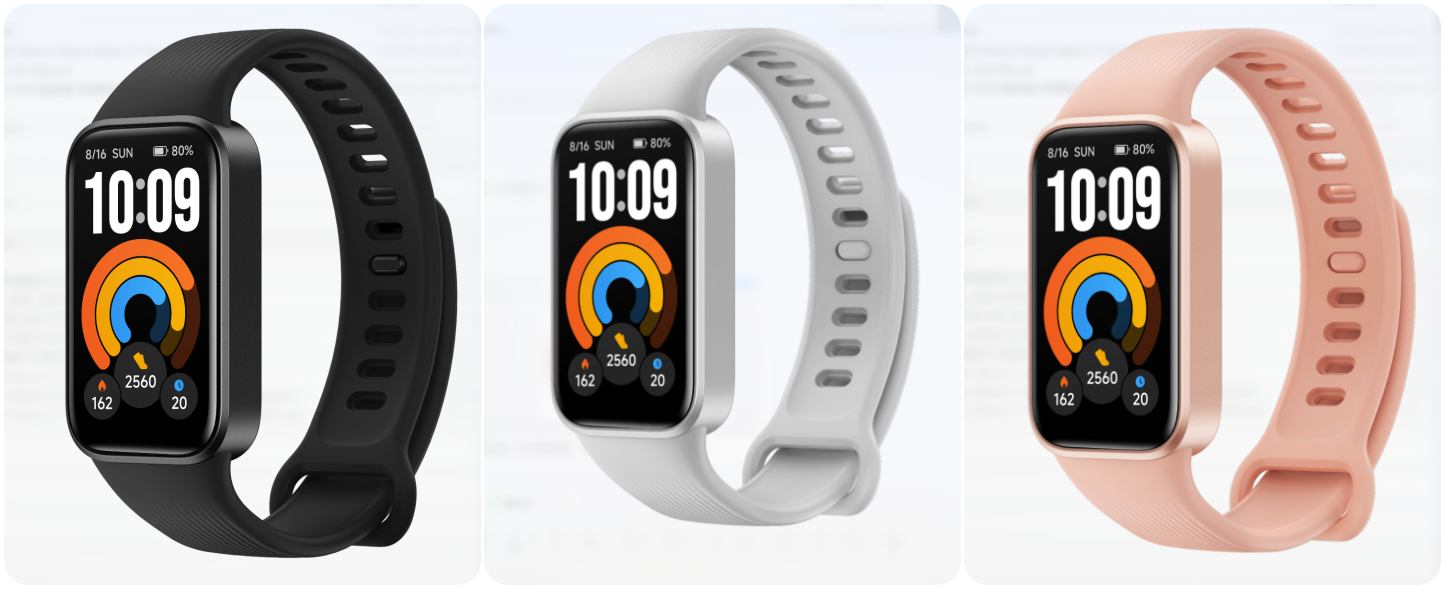
8. It is available in Black, Gray, and Pomelo Pink to suit different style preferences.
9. It offers up to 21 days of battery life in a long battery life mode.
Q2: What is the product positioning of the Xiaomi Smart Band 11 Active?
A: The Xiaomi Smart Band 11 Active is positioned as a long battery-life entry-level fitness and health band.
Q3: What upgrades does the Xiaomi Smart Band 11 Active have compared to the previous generation?
A: Compared to the previous generation, the upgrades for the Xiaomi Smart Band 11 Active are as follows:
1. It features a metallic-textured frame for a more refined and premium appearance.
2. It adopts a more compact and refined design with narrower plastic bezels.
3. It offers up to 21 days of battery life for extended use.
4. It supports continuous heart rate monitoring, all-day blood oxygen tracking, and all-day stress monitoring.
Q4: What is the appearance/size/material of the Xiaomi Smart Band 11 Active?
A: The appearance/size/material of the Xiaomi Smart Band 11 Active are as follows:
1. The product measures 43.5 mm × 25.8 mm × 10.2 mm (excluding strap and heart rate sensor bump).
2. It weighs approximately 29 g including the strap.
3. It features a 2.5D glass cover, a PC + GF middle frame, a PA + GF rear cover, and a TPU strap.
4. It is available in Black, Gray, and Pomelo Pink.
Q5: What are the App functions of the Xiaomi Smart Band 11 Active?
A: The summary of the App functions of the Xiaomi Smart Band 11 Active is as follows:
There are Workout, History, Stats, Heart rate, Blood oxygen, Sleep, Stress, Cycles, Weather, Events, Music, Alarm, Stopwatch, Timer, Find phone, Settings, Flashlight, and more. Swipe up and down on the band’s screen to find the App and tap to enter.
The details are as follows:
Q6: What is the standard configuration/color of the Xiaomi Smart Band 11 Active?
A: The Xiaomi Smart Band 11 Active comes with a band body (including a strap), a charging cable, and a user manual. There are 3 colors, including Black, Gray, and Pomelo Pink.
Q7: Is the strap of the Xiaomi Smart Band 11 Active detachable?
A: The strap of the Xiaomi Smart Band 11 Active is detachable.
Strap removal:
A tool is required for removal. Insert the tool into the notches on both sides of the strap and gently pry it. After removing the strap fixing pin, the band body can be separated from the strap.
Strap installation:
Insert the strap into the band body until it fits securely, then insert the strap fixing pin. Press the fixing pin near the band body until a “click” is heard, indicating that the strap is properly installed. Before use, pull the strap to ensure it is securely attached.
Q8: What is the compatibility of the Xiaomi Smart Band 11 Active charger?
A: The Xiaomi Smart Band 11 Active charger is compatible with chargers that have a USB interface.
Note:
Some power banks, chargers, and car chargers feature energy-saving designs that can automatically stop the 5 V output or periodically turn off the 5 V output under light-load or extremely light-load conditions. When the band is charged with this type of charging device, charging can stop or repeatedly start and stop. This is not a functional issue with the band and does not affect its normal use.
Q9: Is the Xiaomi Smart Band 11 Active waterproof? Can it be worn when swimming, bathing, or soaking in hot springs?
A: The Xiaomi Smart Band 11 Active features 5ATM water resistance, allowing it to be worn while swimming in shallow water, such as in a swimming pool. However, it is not suitable for use during hot showers, diving, hot springs, saunas, or high-speed water activities.
Bluetooth Connection-Related
Q1: Which mobile phones are compatible with the Xiaomi Smart Band 11 Active? What App needs to be downloaded?
A: For the first use, you need to connect the charging cable to activate the Xiaomi Smart Band 11 Active.
It can only be used with the Mi Fitness App. The Xiaomi Smart Band 11 Active can be used with devices running Android 8.0 or iOS 12.0 and above and supporting Bluetooth 5.3.
Q2: How to bind/unbind the Xiaomi Smart Band 11 Active?
A: Download and open the Mi Fitness App, log in to your Xiaomi Account, and enable App-related permissions according to the pop-up prompts.
Android phone binding method:
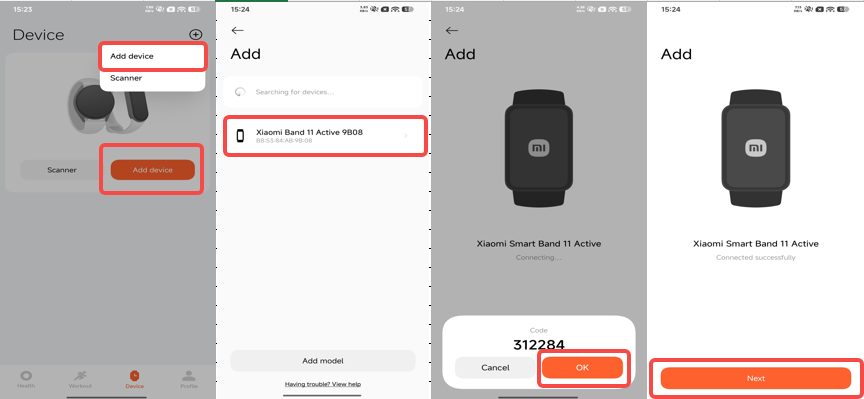
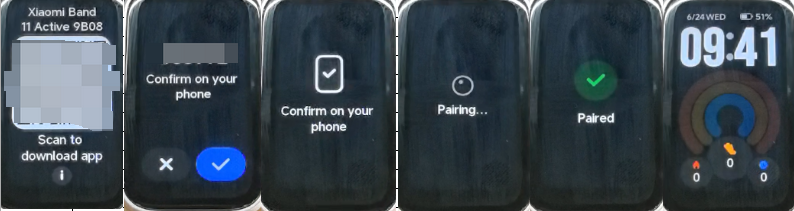
1. Add by automatic search. Go to the Mi Fitness App interface >> [Device] >> tap the [+] icon in the upper right corner >> [Add device] >> place the phone and Xiaomi Smart Band 11 Active next to each other to search and bind. Select the device on the phone that matches the last four digits of the Bluetooth address of the band. After connecting to the band, a pairing code will appear on the band. Tap the check mark icon on the band, then tap [OK] on your phone to confirm the pairing.
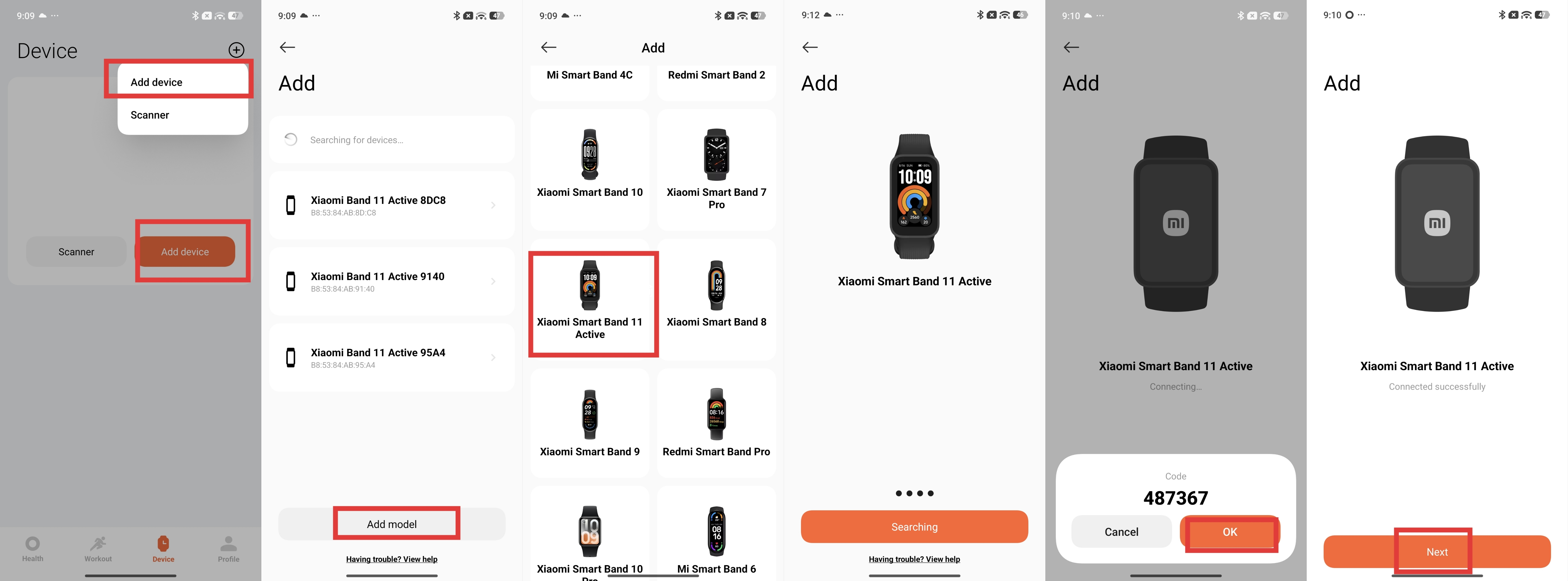
2. Add by model. Go to the Mi Fitness App interface >> [Device] >> tap the [+] icon in the upper right corner >> [Add device] >> [Add model] >> select the Xiaomi Smart Band 11 Active. It will automatically search for the nearest device and request to connect to the band. After connecting to the band, a pairing code will appear on the band. Tap the check mark icon on the band, then tap [OK] on your phone to confirm the pairing.
3. Scan to add. Go to the Mi Fitness App interface >> [Device] >> tap the [+] icon in the upper right corner >> [Scanner] >> you can directly scan the QR code on the band to connect and bind.
Android phone unbinding method:
1. Unbind from the device management list. When the band is connected to the mobile phone, open the Mi Fitness App >> [Device] >> tap the triangle icon beside the device to view all devices >> press and hold the current device >> tap [Unpair] >> tap [OK] to unbind. After unbinding, the band will be restored to factory settings.
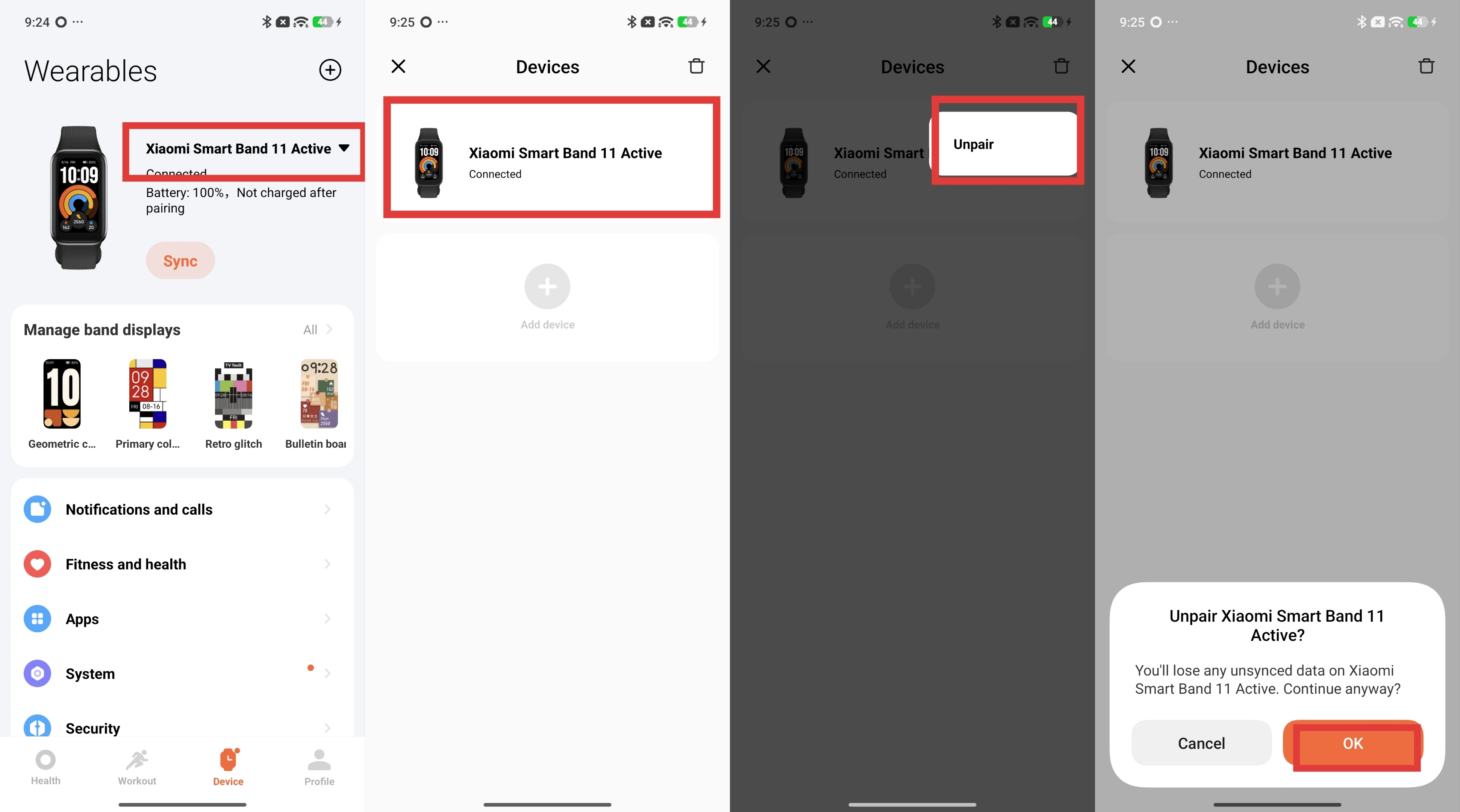
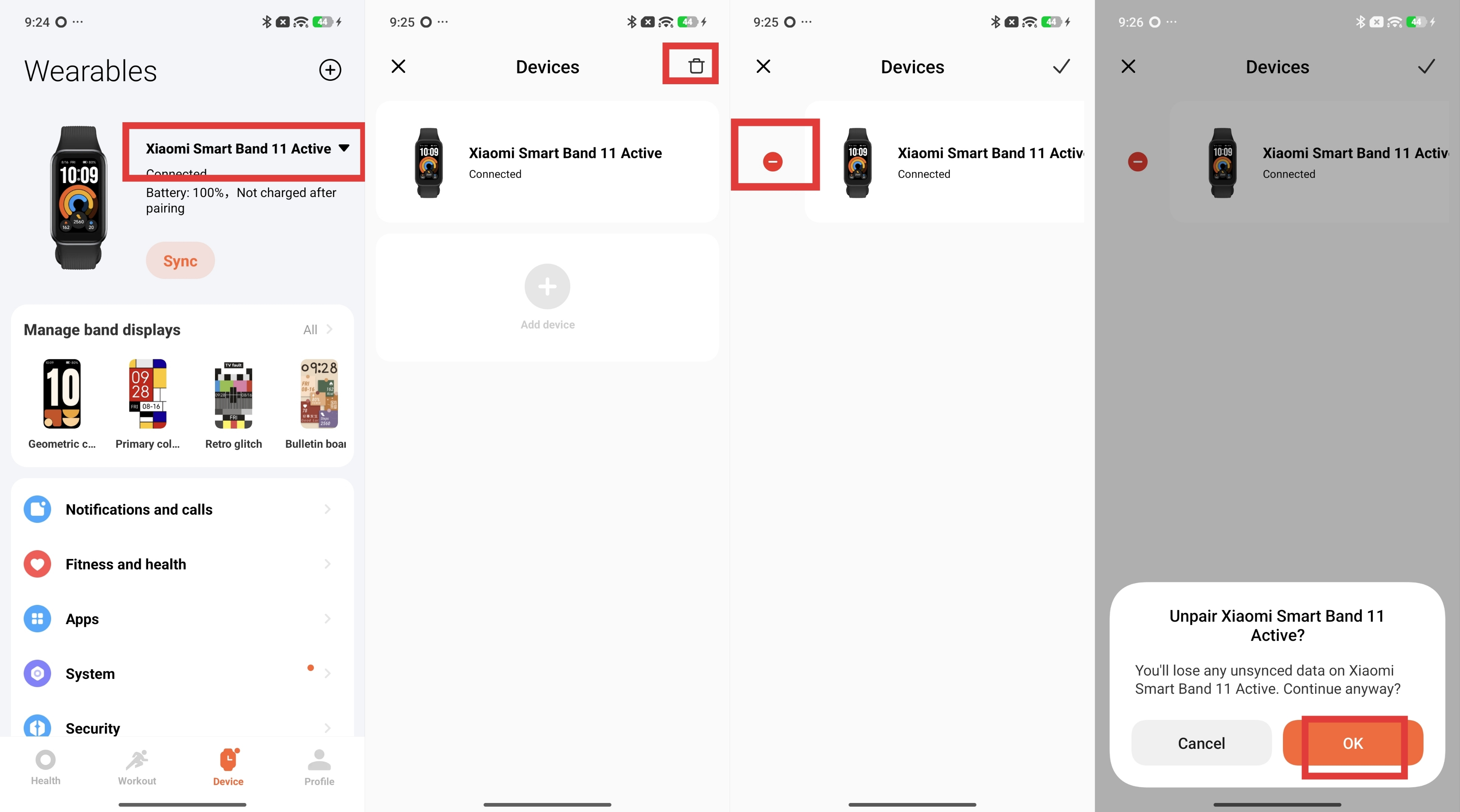
2. Unbind from the device management list. When the band is connected to the mobile phone, open the Mi Fitness App >> [Device] >> tap the triangle icon beside the device to view all devices >> tap the delete icon in the top-right corner >> tap the delete icon to the left of the device you wish to unbind >> tap [OK] to unbind. After unbinding, the band will be restored to factory settings.
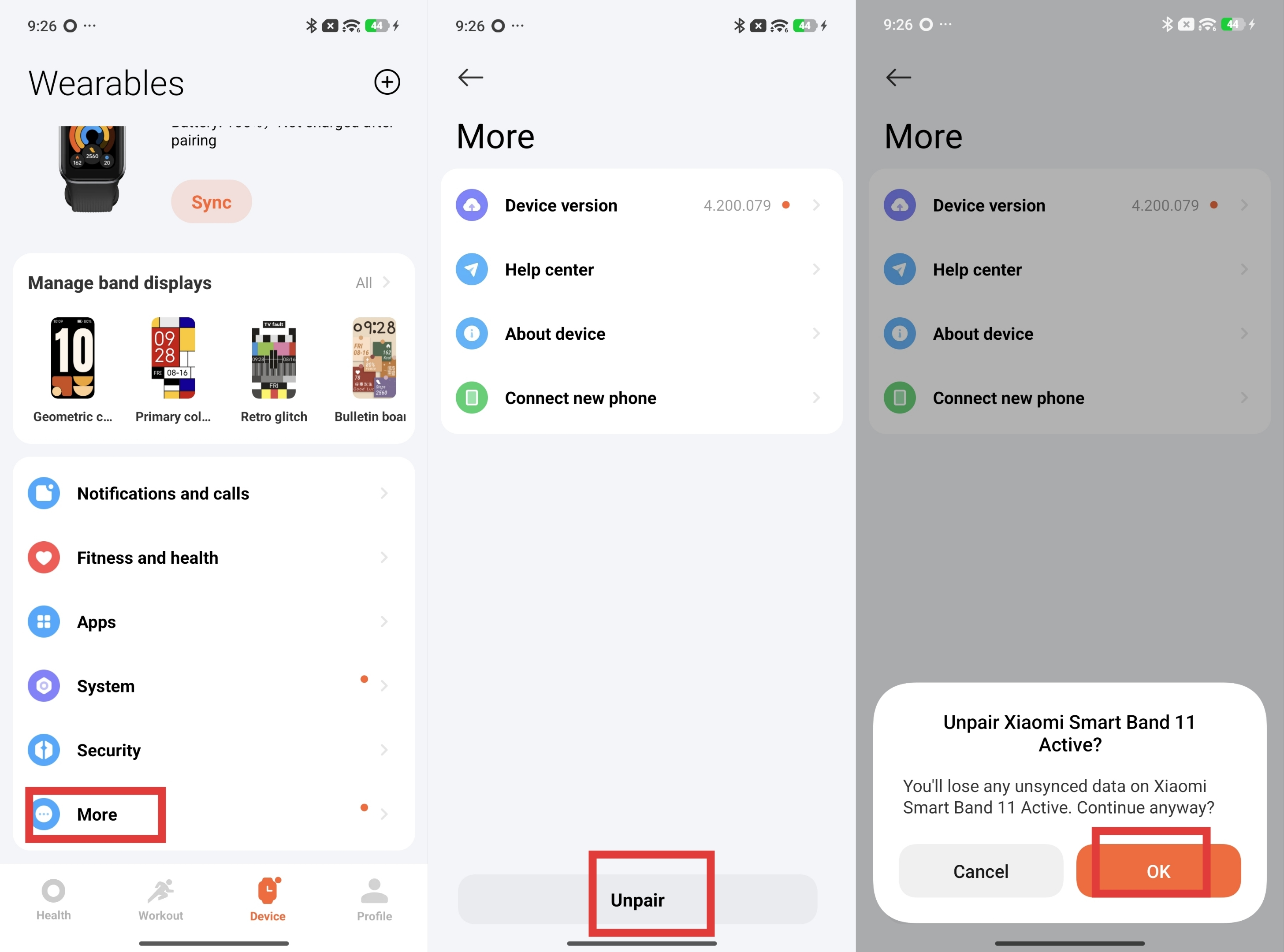
3. Unbind the current device. When the band and mobile phone are connected, open the Mi Fitness App >> [Device] >> scroll to the bottom >> [More] >> tap [Unpair] to unbind. After unbinding, the band will be restored to factory settings.
Note:
1. If you cannot find the band during the device adding process, or cannot connect to the band during use, please try to tap the [!] icon on the band waiting to be bound interface, select [Factory reset] on the system operation interface, and then add the bound device again.
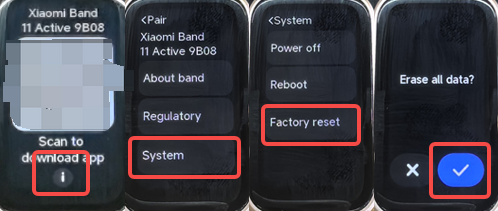
2. When the band is not bound, the screen will display "Scan to download app". You need to use the Mi Fitness App to bind before you can use the band functions.
iOS binding method:
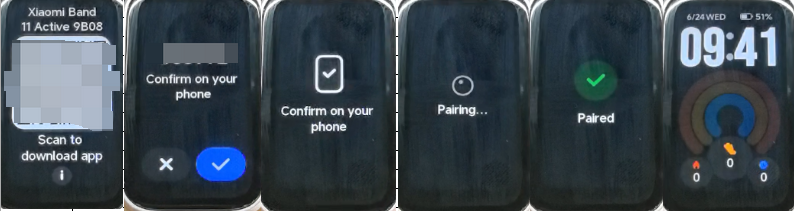
1. Add by automatic search. Go to the Mi Fitness App interface >> [Device] >> tap the [+] icon in the upper right corner >> [Add device] >> place the phone and Xiaomi Smart Band 11 Active next to each other to search and bind. Select the device on the phone that matches the last four digits of the Bluetooth address of the band. After connecting to the band, a check mark icon will be displayed on the band. Tap the check mark icon, tap [Pair] on the phone to confirm the pairing, and tap [Cancel] to cancel the pairing. Tap [OK] on your phone to confirm the binding.
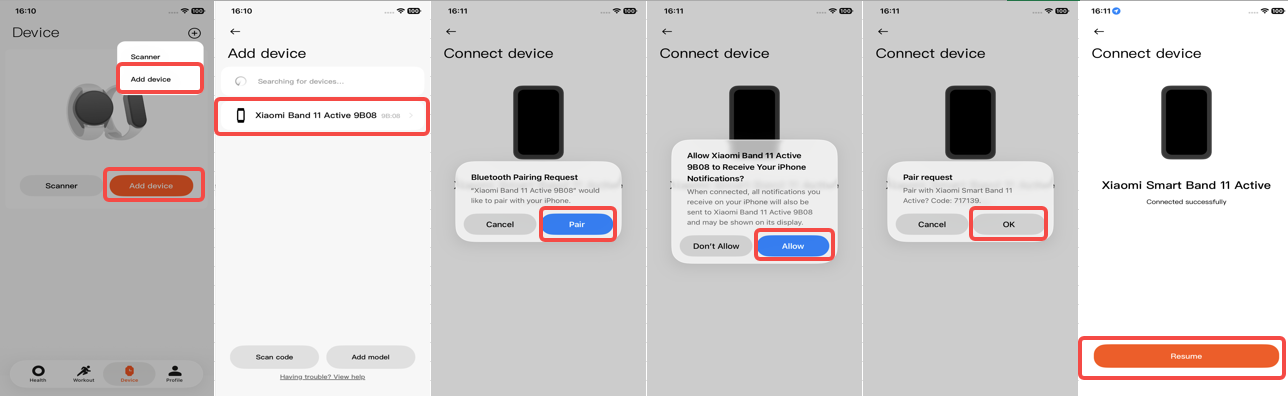
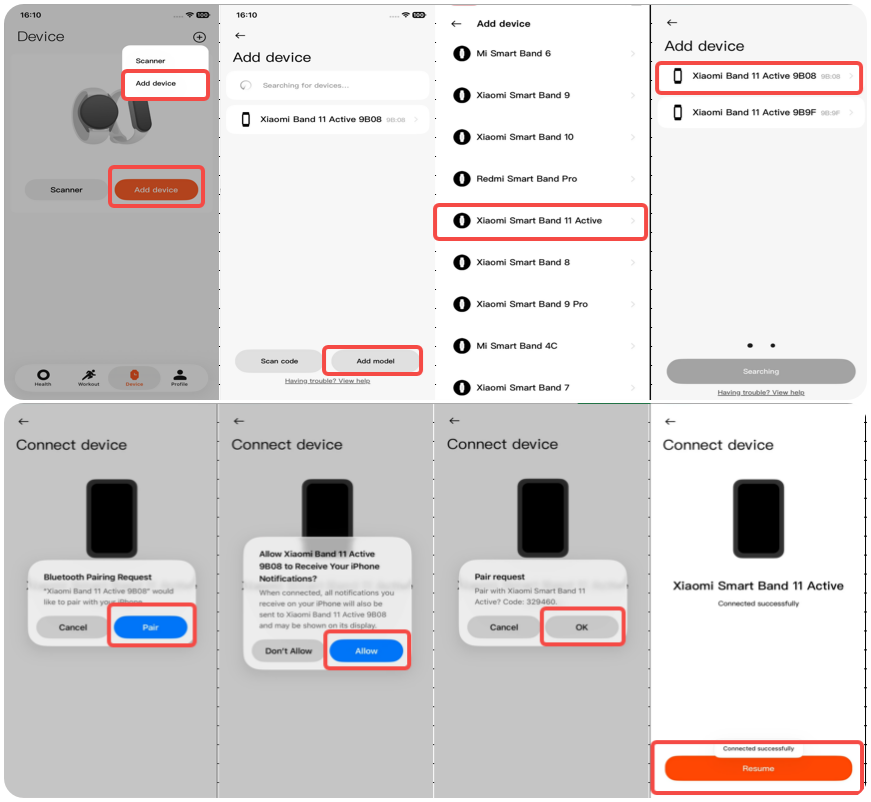
2. Add by model. Go to the Mi Fitness App interface >> [Device] >> tap the [+] icon in the upper right corner >> [Add device] >> [Add model] >> select the Xiaomi Smart Band 11 Active. It will automatically search for the nearest device and request to connect to the band. After connecting to the band, a check mark icon will be displayed on the band. Tap the check mark icon, tap [Pair] on the phone to confirm the pairing, and tap [Cancel] to cancel the pairing. Tap [OK] on your phone to confirm the binding.
3. Scan to add. Go to the Mi Fitness App interface >> [Device] >> tap the [+] icon in the upper right corner >> [Scanner] >> you can directly scan the QR code on the band to connect and bind. After connecting to the band, a check mark icon will be displayed on the band. Tap the check mark icon, tap [Pair] on the phone to confirm the pairing, and tap [Cancel] to cancel the pairing. Tap [OK] on your phone to confirm the binding.
iOS unbinding method:
1. Unbind from the device management list. When the band is connected to the mobile phone, open the Mi Fitness App >> [Device] >> tap the triangle icon beside the device to view all devices >> swipe left to select [Unpair] >> tap [Unpair] to unbind. After unbinding, the band will be restored to factory settings.
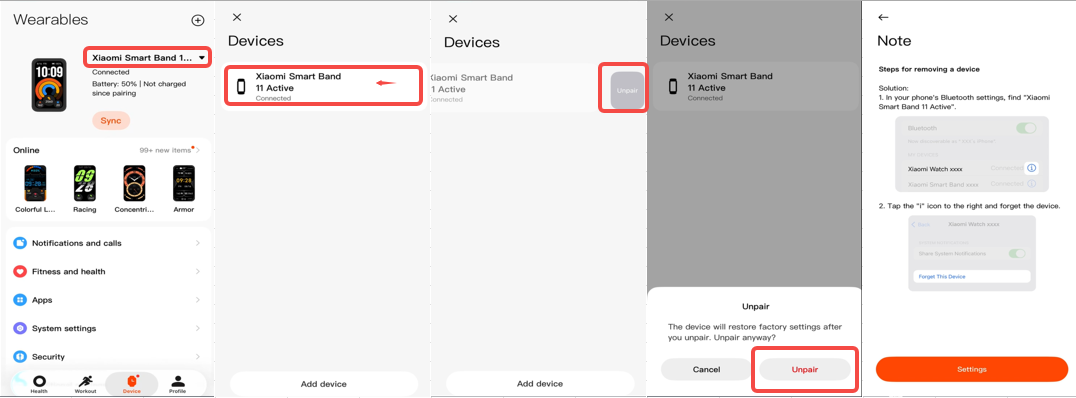
2. Unbind the current device. When the band and mobile phone are connected, open the Mi Fitness App >> [Device] >> scroll to the bottom >> [Additional settings] >> [Unpair] >> tap [Unpair] to unbind. After unbinding, the band will be restored to factory settings.
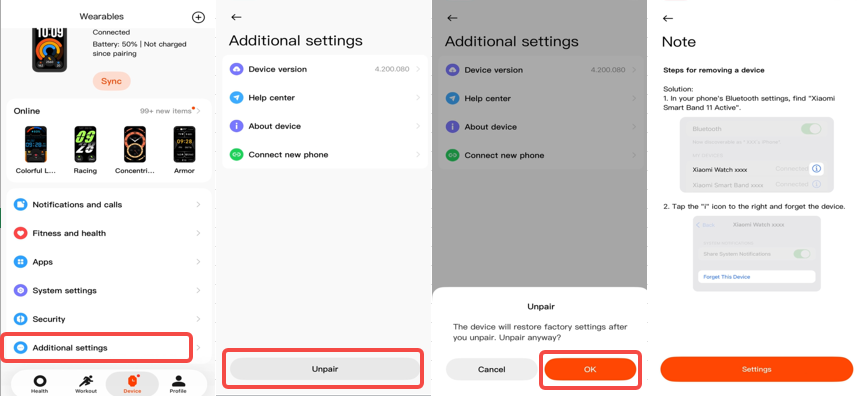
Note:
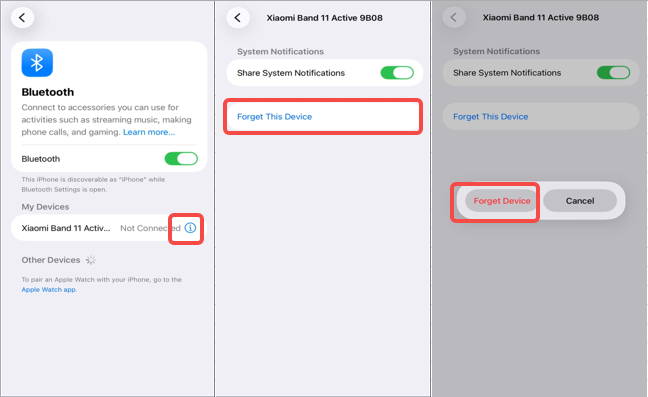
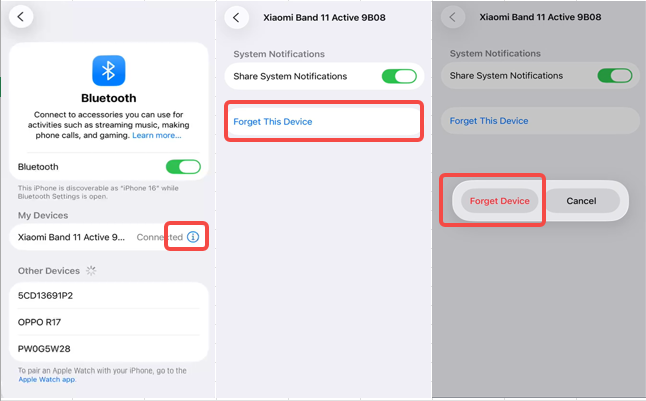
Before rebinding the same device next time in the Mi Fitness App on iPhones, you need to select the device in the Bluetooth settings and tap [Forget This Device] first, as shown in the figure below; otherwise, the current device cannot be bound.
Q3: What to do if the Xiaomi Smart Band 11 Active cannot be searched using an iPhone?
A: If the Xiaomi Smart Band 11 Active cannot be searched using an iPhone, please refer to the following aspects:
1. Confirm that the Mi Fitness App has been updated to the latest version.
2. Check whether an iPhone was previously used to connect to the band but the band was not unbound, or whether the band was not removed from the Bluetooth device list. (For details, refer to the iOS unbinding method.)
3. In an open area (with no other devices nearby, only the phone and the band, and away from other devices), manually restore the band to factory settings, and then use the device to search for and add the band again.
4. Clear the Mi Fitness App from the background and try again. Toggle the phone’s Bluetooth off and on, or restart the phone, then try again.
Q4: What to do if the Xiaomi Smart Band 11 Active cannot be searched using a Xiaomi/REDMI phone?
A: If the Xiaomi Smart Band 11 Active cannot be searched using a Xiaomi/REDMI phone, please refer to the following aspects:
1. Confirm that the Mi Fitness App has been updated to the latest version.
2. Check whether a Xiaomi/REDMI device was previously used to connect to the band but the band was not unbound, or whether the band was not removed from the Bluetooth device list. (For details, refer to the Android phone unbinding method.)
3. In an open area (with no other devices nearby, only the phone and the band, and away from other devices), manually restore the band to factory settings, and then use the device to search for and add the band again.
4. Clear the Mi Fitness App from the background and try again. Toggle the phone’s Bluetooth off and on, or restart the phone, then try again.
Q5: What to do if the Xiaomi Smart Band 11 Active cannot be searched using other Android phones?
A: If the Xiaomi Smart Band 11 Active cannot be searched using other Android phones, please refer to the following aspects:
1. Confirm that the Mi Fitness App has been updated to the latest version.
2. Check whether other Android phones were previously used to connect to the band but the band was not unbound, or whether the band was not removed from the Bluetooth device list. (For details, refer to the Android phone unbinding method.)
3. In an open area (with no other devices nearby, only the phone and the band, and away from other devices), manually restore the band to factory settings, and then use the device to search for and add the band again.
4. Clear the Mi Fitness App from the background and try again. Toggle the phone’s Bluetooth off and on, or restart the phone, then try again.
A: If the Xiaomi Smart Band 11 Active cannot be connected after searching using an iPhone, please refer to the following aspects:
1. Confirm that the Mi Fitness App has been updated to the latest version.
2. Check whether an iPhone was previously used to connect to the band but the band was not unbound, or whether the band was not removed from the Bluetooth device list. (For details, refer to the iOS unbinding method.)
3. In an open area (with no other devices nearby, only the phone and the band, and away from other devices), manually restore the band to factory settings, and then use the device to search for and add the band again.
4. Clear the Mi Fitness App from the background and try again. Toggle the phone’s Bluetooth off and on, or restart the phone, then try again.
Q7: What to do if the Xiaomi Smart Band 11 Active cannot be connected after searching using a Xiaomi/REDMI phone?
A: If the Xiaomi Smart Band 11 Active cannot be connected after searching using a Xiaomi/REDMI phone, please refer to the following aspects:
1. Confirm that the Mi Fitness App has been updated to the latest version.
2. Check whether a Xiaomi/REDMI device was previously used to connect to the band but the band was not unbound, or whether the band was not removed from the Bluetooth device list. (For details, refer to the Android phone unbinding method.)
3. In an open area (with no other devices nearby, only the phone and the band, and away from other devices), manually restore the band to factory settings, and then use the device to search for and add the band again.
4. Clear the Mi Fitness App from the background and try again. Toggle the phone’s Bluetooth off and on, or restart the phone, then try again.
Q8: What to do if the Xiaomi Smart Band 11 Active cannot be connected after searching using other Android phones?
A: If the Xiaomi Smart Band 11 Active cannot be connected after searching using other Android phones, please refer to the following aspects:
1. Confirm that the Mi Fitness App has been updated to the latest version.
2. Check whether other Android phones were previously used to connect to the band but the band was not unbound, or whether the band was not removed from the Bluetooth device list. (For details, refer to the Android phone unbinding method.)
3. In an open area (with no other devices nearby, only the phone and the band, and away from other devices), manually restore the band to factory settings, and then use the device to search for and add the band again.
4. Clear the Mi Fitness App from the background and try again. Toggle the phone’s Bluetooth off and on, or restart the phone, then try again.
Q9: What to do if the Xiaomi Smart Band 11 Active’s Bluetooth disconnects with an iPhone?
A: If the Xiaomi Smart Band 11 Active’s Bluetooth disconnects with an iPhone, please refer to the following aspects:
1. Check whether the Mi Fitness App has been cleared from the phone’s background. If it has been cleared, reopen the Mi Fitness App.
2. Check whether the phone’s Bluetooth has been turned off. If so, turn Bluetooth back on.
3. Check whether the band is too far away from the phone, which can cause the connection to be lost. Make sure Bluetooth is enabled on the phone, open the Mi Fitness App, and tap to connect manually.
Q10: What to do if the Xiaomi Smart Band 11 Active’s Bluetooth disconnects with a Xiaomi/REDMI phone?
A: If the Xiaomi Smart Band 11 Active’s Bluetooth disconnects with a Xiaomi/REDMI phone, please refer to the following aspects:
1. Check whether the Mi Fitness App has been cleared from the phone’s background. If it has been cleared, reopen the Mi Fitness App.
2. Check whether the phone’s Bluetooth has been turned off. If so, turn Bluetooth back on.
3. Check whether the band is too far away from the phone, which can cause the connection to be lost. Make sure Bluetooth is enabled on the phone, open the Mi Fitness App, and tap to connect manually.
Q11: What to do if the Xiaomi Smart Band 11 Active’s Bluetooth disconnects with other Android phones?
A: If the Xiaomi Smart Band 11 Active’s Bluetooth disconnects with other Android phones, please refer to the following aspects:
1. Check whether the Mi Fitness App has been cleared from the phone’s background. If it has been cleared, reopen the Mi Fitness App.
2. Check whether the phone’s Bluetooth has been turned off. If so, turn Bluetooth back on.
3. Check whether the band is too far away from the phone, which can cause the connection to be lost. Make sure Bluetooth is enabled on the phone, open the Mi Fitness App, and tap to connect manually.
Q12: What to do if the Xiaomi Smart Band 11 Active cannot reconnect to the Mi Fitness App?
A: If the Xiaomi Smart Band 11 Active cannot reconnect to the Mi Fitness App, please refer to the following aspects:
1. Check whether the Mi Fitness App is already updated to the latest version. If not, update the app to the latest version.
2. Check whether all permissions for the Mi Fitness App have been granted, especially the Bluetooth connection permission.
3. Check whether the phone’s Bluetooth has been turned off. If so, turn Bluetooth back on.
4. Check whether the band is too far away from the phone, which can cause the connection to be lost. Make sure the phone’s Bluetooth is enabled, open the Mi Fitness App, and tap to connect manually.
5. Try clearing the Mi Fitness App from the background and try again, turning the phone’s Bluetooth off and on again, restarting the phone, restarting the band, and then reopening the Mi Fitness App and tapping to connect manually.
6. If none of the above steps can restore the connection, unbind the band from the Mi Fitness App, restore the band to factory settings, and then pair and bind the band with the Mi Fitness App again.
Q13: What to do if the phone prompts that the Xiaomi Smart Band 11 Active has been bound to another account or the Mi Fitness App during binding?
A: If the phone prompts that the Xiaomi Smart Band 11 Active has been bound to another account or the Mi Fitness App during binding, please refer to the following aspects:
1. The device detected during the search may be another band rather than the intended band. Please check whether multiple Xiaomi Smart Band 11 Active are present nearby.
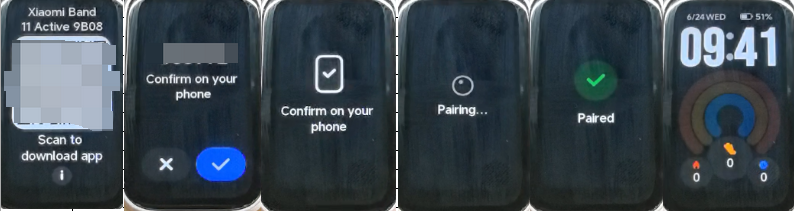
2. Another possibility is that the band has already been bound to another account. Check the Xiaomi account displayed as the bound account in the Mi Fitness App to determine whether it is a personal or friends account. Normally, when the Mi Fitness App detects an uninitialized band during the binding process, the band vibrates and displays the prompt “Confirm on your phone”.
3. If the bound account is not familiar, restore the band to factory settings and initiate the binding process again. After the band vibrates and displays the prompt, tap Confirm to complete the binding. Once the binding is successful, the Mi Fitness App will display that the device has been added successfully, and the band will display the band display home screen.
Q14: Does the phone’s Bluetooth need to be kept on when using the Xiaomi Smart Band 11 Active?
A: When using the Xiaomi Smart Band 11 Active:
1. Steps counting, sleep & heart rate monitoring, stress/blood oxygen detection, and cycles can record data independently without a mobile phone. You need to connect to the mobile phone regularly to synchronize sports and health data. It is recommended to connect the mobile phone to record the track during exercise.
2. Functions such as stopwatch, alarm, etc. do not require Bluetooth to be turned on all the time.
Note:
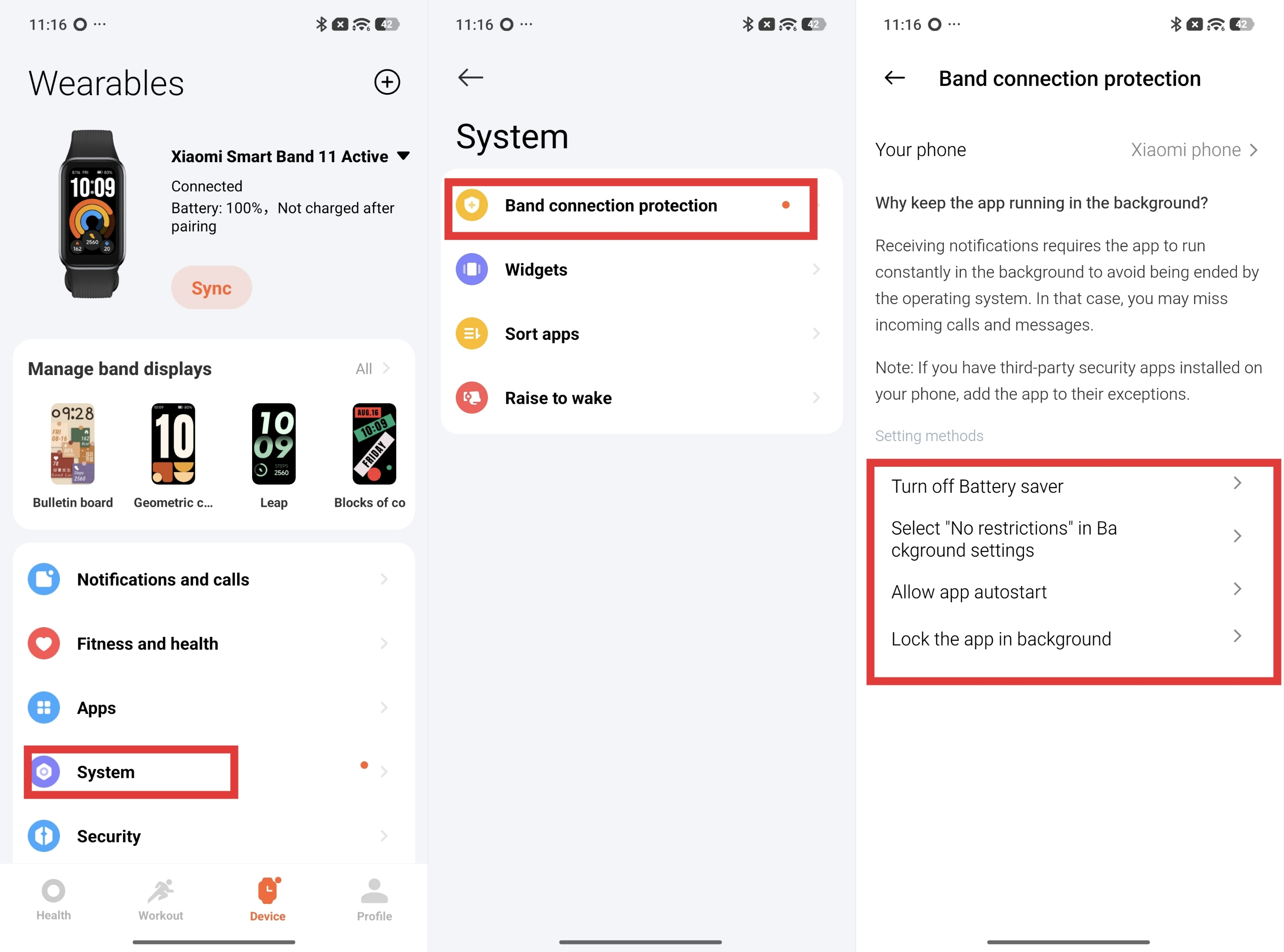
1. To better use the band, it is recommended to keep the Mi Fitness App running in the background. To avoid memory cleaning in the Android system and some security software cleaning processes or interception, please set it according to the requirements in the Mi Fitness App >> [Device] >> [System] >> [Band connection protection] >> [Lock the app in background].
2. iPhones cannot add background protection to applications. If the Mi Fitness App enters the background and is cleared, the system Bluetooth connection will not be disconnected. Message notifications can be used normally. Other data synchronization Apps on the band (weather, fitness and health data synchronization, schedule, etc.) need to reopen the Mi Fitness App on the phone to use.
3. When iPhones turn on power-saving mode, the system Bluetooth connection stability will deteriorate, and disconnection can occur.
Q15: Why does the Xiaomi Smart Band 11 Active not synchronize data when it is disconnected from the iPhone for a long time?
A: If the Mi Fitness App is running too much in the background, it will be cleared, and the Xiaomi Smart Band 11 Active will be disconnected from the Mi Fitness App, resulting in data synchronization failure. You need to enter the Mi Fitness App to automatically reconnect and synchronize data. When the Mi Fitness App is cleared in the background, reopening the Mi Fitness App will automatically reconnect to the device, and you can use it normally.
Reasons for clearing the background:
The reason why background applications are cleared is that the running memory (RAM) has been used up by the App. In order to free up enough running conditions for other newly opened applications, the system must clear some background running applications to free up RAM. Due to differences in models and iOS system software versions, the frequency of background clearing will vary. Taking the iPhone 12 as an example, the memory is 4 GB. When 4 applications are opened in iOS 16.3.1, the background clearing phenomenon will occur. After upgrading the version to iOS 16.4, there is no background clearing phenomenon when 5-6 applications are opened (it is related to the specific App, such as the Camera occupying a relatively large amount of memory).
During normal use, pay attention to the following two points to reduce the frequency of background clearing:
1. Ensure that the phone has sufficient power, avoid overheating, and turn off battery saver mode. Otherwise, the CPU will be actively downgraded, and the frequency of background clearing will increase significantly.
2. Open the iPhone's [Settings] >> [General] >> [Background App Refresh] in sequence and enable this function.
Determine whether the application is cleared by the system:
1. If the Mi Fitness App is cleared in the background, re-entering the Mi Fitness App will display the following two operation interfaces in order: first display the Mi Fitness App startup interface, then display the Mi Fitness App home interface.
2. If the Mi Fitness App is not cleared in the background, the interface where you operated before exiting the Mi Fitness App will be retained when you enter it.
If the band is physically separated from the phone for a long time and the phone is put back together, it prompts that the Bluetooth is disconnected. Please refer to the following troubleshooting steps:
1. Check whether the Mi Fitness App has been cleared from the phone’s background. If it has been cleared, reopen the Mi Fitness App.
2. Check whether the phone’s Bluetooth has been turned off. If so, turn Bluetooth back on.
3. Check whether the band is too far away from the phone, which can cause the connection to be lost. Make sure Bluetooth is enabled on the phone, open the Mi Fitness App, and tap to connect manually.
Q16: Why can't the Xiaomi Smart Band 11 Active reconnect to the current phone after the same Xiaomi account is logged in on multiple phones, and why does the Mi Fitness App not show the device?
A: Please refer to the following reasons:
1. The current phone cannot reconnect. The old phone has unbound the Xiaomi Smart Band 11 Active, and the new phone has not synchronized the account, so it cannot reconnect to this device.
2. Confirm which interface the band screen is displaying. If it is on the QR code interface or language selection interface, unbind the device in the Mi Fitness App on your phone, then scan and pair again.
3. Check whether the Bluetooth icon on the band is always on. If so, use [Find phone] to confirm whether it is connected to the current phone. If not, unbind the device on the Mi Fitness App and rebind the band with the current phone (for the unbinding method, refer to the above Android & iOS unbinding methods).
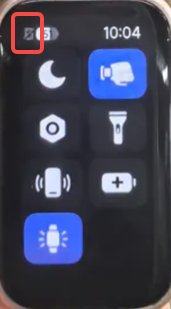
4. If there is no band on the device management interface of the old phone's Mi Fitness App, it means that the old phone has unbound the device. After logging in to the same account and synchronizing with the new phone, the band will not be displayed. If the band is on the QR code interface or language selection interface, re-scan and pair.
5. Connect the band to two phones with the same Xiaomi Account on the Mi Fitness App. After the band is restored to factory settings, use the new phone to re-pair it and turn off the Bluetooth of the old phone. If the new phone cannot connect again, it could be because the new phone has not automatically pulled the new login and pairing information.
Suggestions:
1. Please try to avoid logging into multiple mobile phones with one account.
2. If you are unable to reconnect, please turn off the Bluetooth function of other devices that have logged in to this account and try again.
3. Please keep the network in good condition, close the Mi Fitness App, and reopen it to trigger the cloud to resend login and pairing information to ensure that the band can reconnect.
Q17: Why does the Xiaomi Smart Band 11 Active show disconnection when connected to the Android device?
A: The Mi Fitness App is cleared in the background, so please confirm whether all background running permissions of the Mi Fitness App are enabled.
The setting path is as follows:
After the Xiaomi Smart Band 11 Active and the Mi Fitness App are connected, go to the Mi Fitness App interface >> [Device] >> [System] >> [Band connection protection] >> enable the settings by following the guide. In the [Setting methods], check whether [Turn off Battery saver], [Select "No restrictions" in Background settings], [Allow app autostart], and [Lock the app in background] are all enabled.
Recovery methods:
1. Check whether the Mi Fitness App is already updated to the latest version. If not, update the app to the latest version.
2. Check whether all permissions for the Mi Fitness App have been granted, especially the Bluetooth connection permission.
3. Check whether the phone’s Bluetooth has been turned off. If so, turn Bluetooth back on.
4. Check whether the band is too far away from the phone, which can cause the connection to be lost. Make sure the phone’s Bluetooth is enabled, open the Mi Fitness App, and tap to connect manually.
Q18: Why can’t the Xiaomi Smart Band 11 Active be searched when paired with a new phone after it has been unilaterally restored to factory settings?
A: Please refer to the following troubleshooting steps:
1. When an iPhone is connected to the Xiaomi Smart Band 11 Active and the band is unilaterally restored to factory settings, the iPhone's system Bluetooth will try to reconnect to the band, and the new phone cannot search the band. (The iPhone and the device will always be connected. During the connection period, the new phone cannot be searched. During the disconnection period, the new phone is in scanning mode and can search the band.) You need to enter the iPhone's system Bluetooth settings, find the corresponding connected device, and tap [Forget This Device]. At this time, use the new phone to search and pair the band.
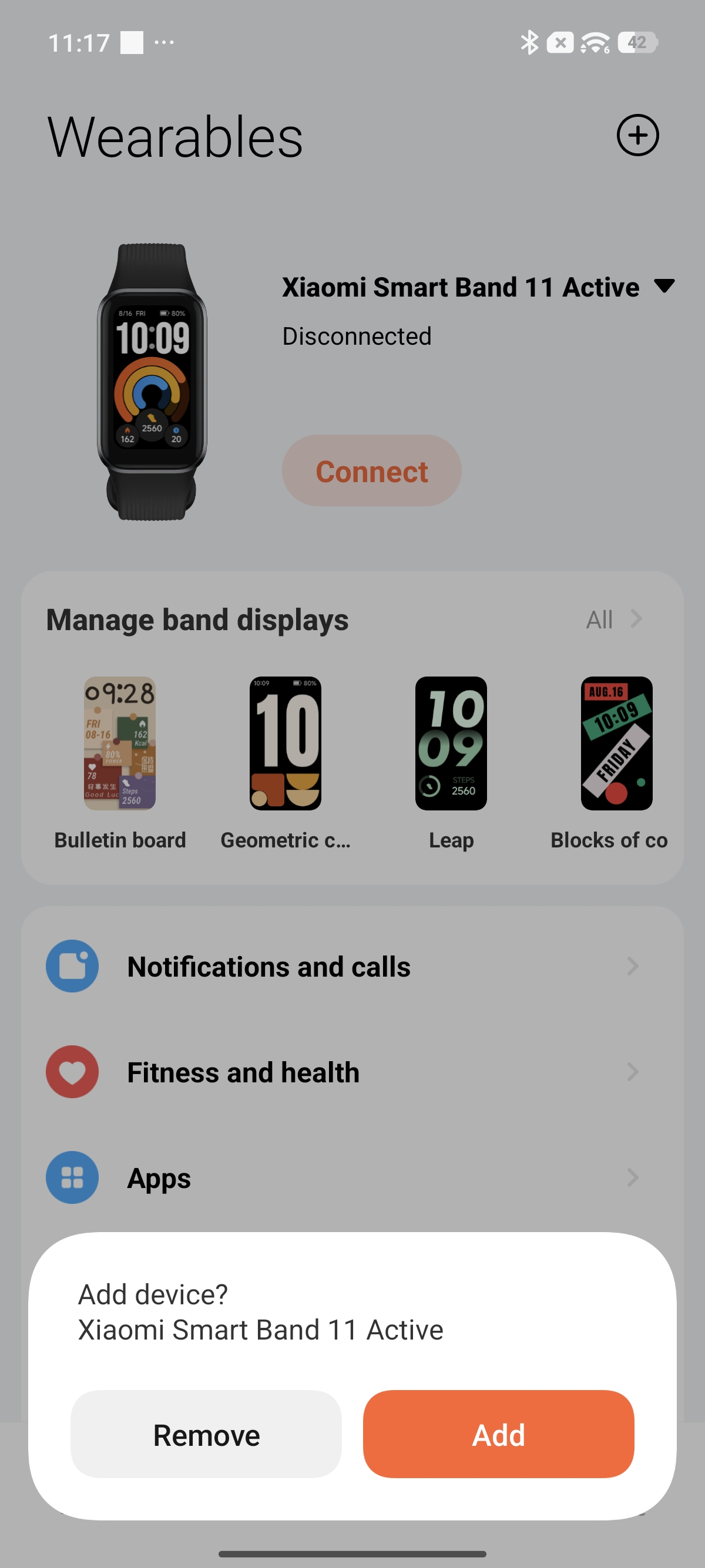
2. When the Android phone is connected to the band and the band is unilaterally restored to factory settings, the Mi Fitness App will reconnect to the device and prompt you to [Remove] or [Add]. At this time, the new phone cannot search for the band. Tap [Remove] and then search and connect with the new phone.
Q19: What to do if the Xiaomi Smart Band 11 Active cannot be searched when rebinding after unbinding?
A: Manually toggle the phone's Bluetooth setting off and on, and restart both the Xiaomi Smart Band 11 Active and the mobile phone.
Q20: What to do if the Mi Fitness App indicates a pairing failure while trying to pair the Xiaomi Smart Band 11 Active with an iPhone?
A: If the following phenomenon occurs, please open the Bluetooth settings of the mobile phone system to check whether the Xiaomi Smart Band 11 Active is connected.
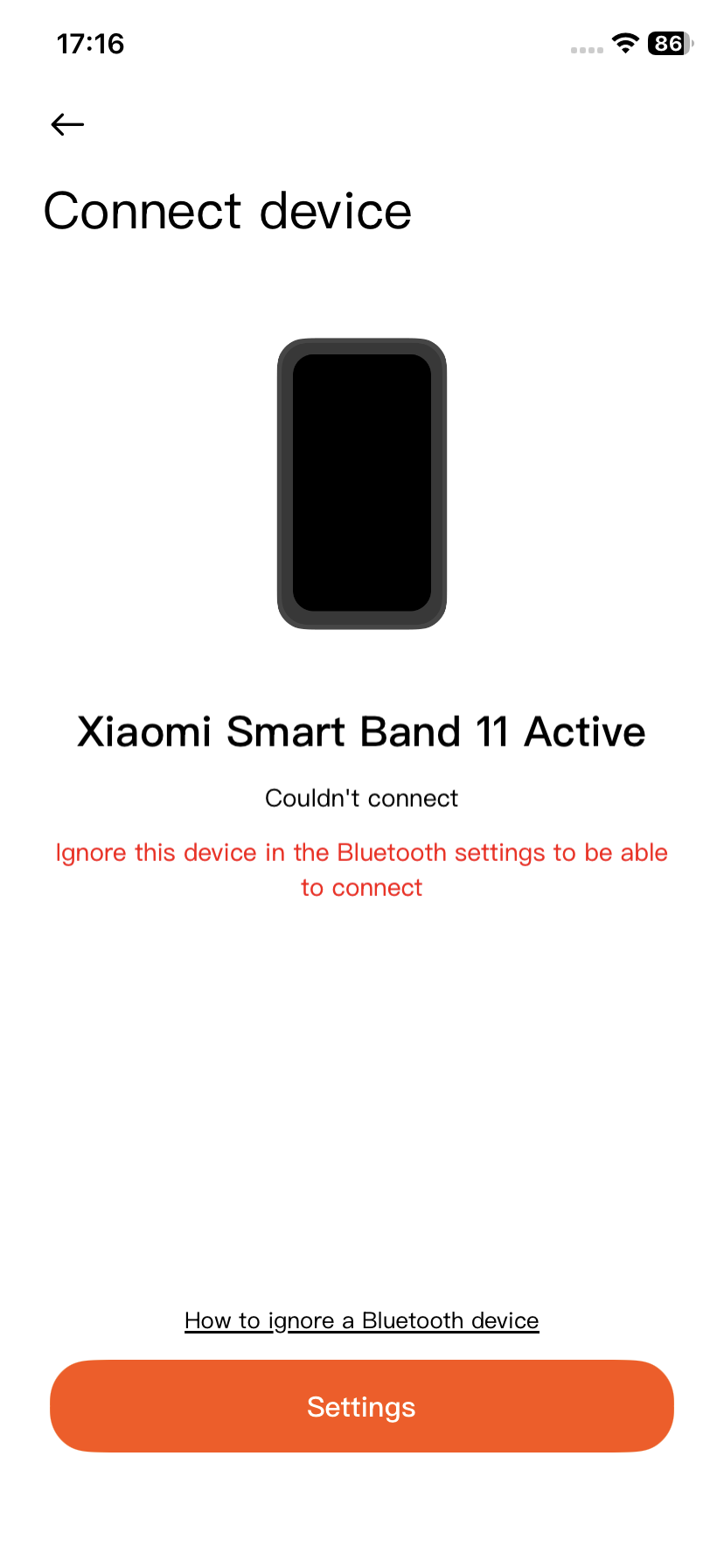
If the current device is already connected, tap the small circle behind [Connected], and then tap [Forget This Device].
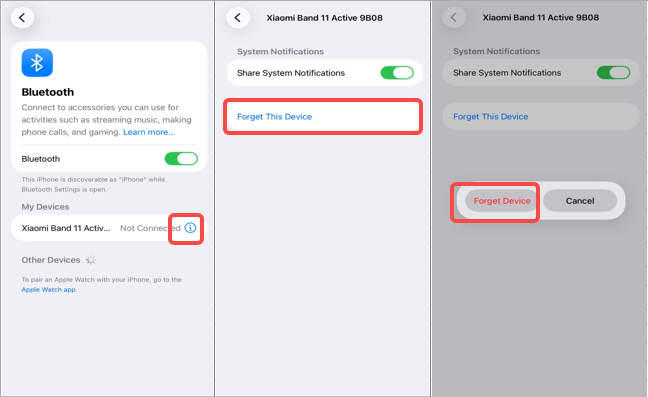
Note:
If the problem is still not fixed after following these steps, it is recommended to restart the band, restart the phone's Bluetooth, restart the phone, and try again.
Q21: How to connect the Xiaomi Smart Band 11 Active to a new phone?
A: If you need to bind the Xiaomi Smart Band 11 Active to a new phone, you can refer to the following scenarios:
1. The account logged in to the Mi Fitness App on the new and old phones is the same, and the old phone is an Android phone:
After tapping [Connect new phone] on the band, turn off Bluetooth on the old Android phone and clear the Mi Fitness App, then use the new phone to scan the code or add the device to search and add, and then connect. It should be noted that if the old phone does not need to connect to the band anymore, it is recommended to uninstall the Mi Fitness App; otherwise, the old phone can reconnect to the band again.
2. The account logged in to the Mi Fitness App on the new and old phones is the same, and the old phone is an iPhone:
After tapping [Connect new phone] on the band, the old iPhone needs to tap [Forget This Device] or turn off Bluetooth directly in the Bluetooth list, and then clear the Mi Fitness App and use the new phone to scan the code or add the device to search and add, and then connect. It should be noted that if the old phone does not need to connect to the band anymore, it is recommended to uninstall the Mi Fitness App; otherwise, the old phone can reconnect to the band again.
3. The account logged in to the Mi Fitness App on the new and old phones is different, and the old phone is an Android phone:
After tapping [Connect new phone] on the band, turn off Bluetooth on the old Android phone and clear the Mi Fitness App. Then, when scanning the code or adding the device to search and add with the new phone, the band will need to confirm to restore the factory settings first. After the restoration is complete, scan the code again or tap [Add device] to proceed with the binding process. It should be noted that if the old phone does not need to connect to the band anymore, it is recommended to uninstall the Mi Fitness App; otherwise, the old phone can reconnect to the band again.
4. The account logged in to the Mi Fitness App on the new and old phones is different, and the old phone is an iPhone:
After tapping [Connect new phone] on the band, the old iPhone needs to tap [Forget This Device] or turn off Bluetooth directly in the Bluetooth list, and then clear the Mi Fitness App. When you scan the code or add a device with the new phone to search and add, the band will need to confirm to restore the factory settings first. After the restoration is complete, scan the code again or tap [Add device] to proceed with the binding process. It should be noted that if the old phone does not need to connect to the band, it is recommended to uninstall the Mi Fitness App; otherwise, the old phone can reconnect to the band again.
Notifications and Incoming Call Reminder
Q1: Does the Xiaomi Smart Band 11 Active support the Wake screen function when receiving notifications?
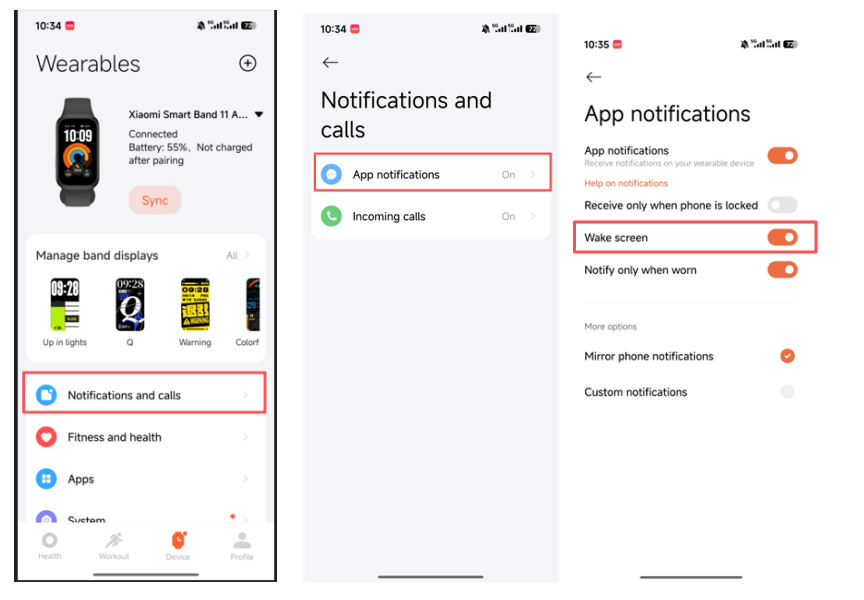
A: The Xiaomi Smart Band 11 Active supports the Wake screen function when receiving notifications. When the Wake screen function is turned on, the screen will automatically light up when the band receives a message notification from the mobile phone application. If you choose to turn it off, the band will not light up the screen but only vibrate when a message comes in, which can improve the battery life to a certain extent.
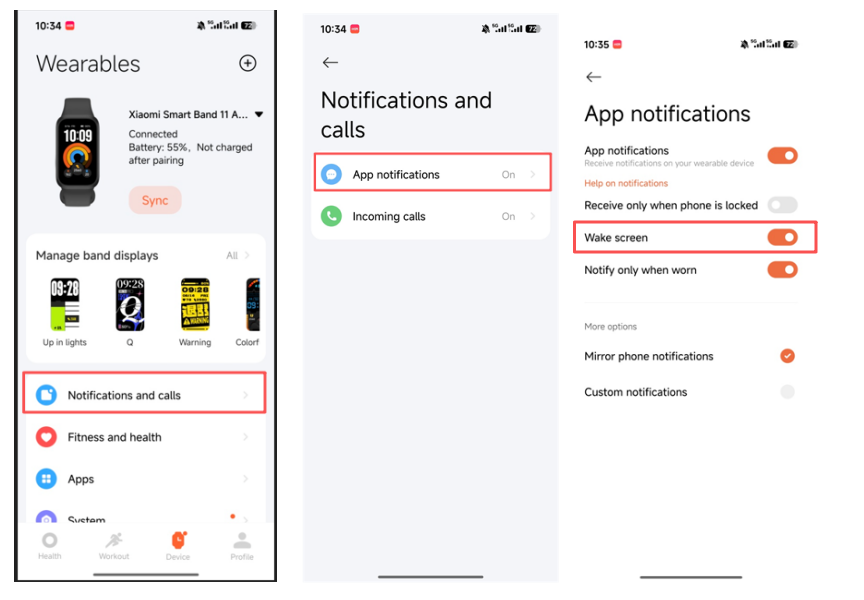
You can go to the Mi Fitness App >> [Device] >> [Notifications and calls] >> [App notifications] >> turn on/off [Wake screen].
Q2: How to check notification messages on the Xiaomi Smart Band 11 Active?
A: When the Xiaomi Smart Band 11 Active receives a notification reminder, it will vibrate and automatically display the notification content. If you do not check the notification immediately after receiving it, you can enter the notification center by sliding down on the band display. When you enter the notification center, you will first see the latest notification. You can slide down the notification center to view the historical notifications. If the content of each notification detail exceeds one screen, you can continue to slide to view it.
To delete or clear a notification:
1. The Xiaomi Smart Band 11 Active can save up to 20 recent notification messages. After this limit is exceeded, each new notification received will automatically delete the oldest notification.
2. Tap the list in the notification center to enter the notification details. Tap [Dismiss] on the details interface to delete the notification.
3. On the notification center list interface, swipe left to delete the corresponding notification.
4. On the notification interface, swipe down to the top and tap [Clear all] to delete all notifications.
5. Aggregated messages will be displayed as "X messages" in the list. Aggregated messages can only be deleted by entering the aggregated message group.
Q3: Does the Xiaomi Smart Band 11 Active support incoming call reminders?
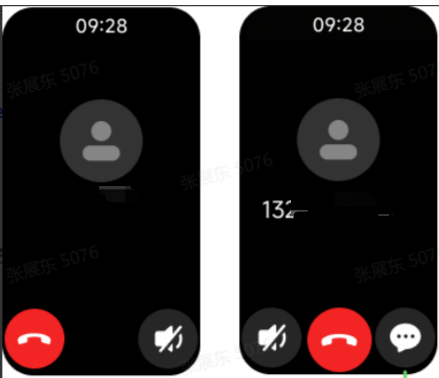
A: The Xiaomi Smart Band 11 Active supports incoming call reminders. When connected to a mobile phone, the band will vibrate to remind you when there is an incoming call, and display the caller's number or name. You can tap the red phone icon on the band screen to reject the call, tap the mute icon to silence it, and it does not support answering calls.
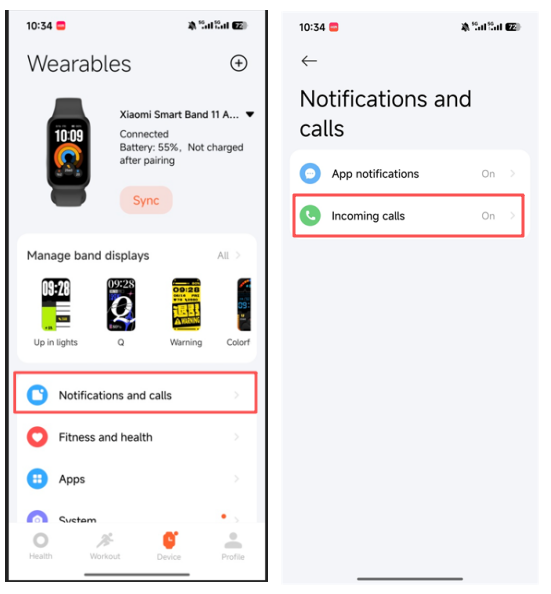
If you are using an Android phone, you can go to the Mi Fitness App >> [Device] >> [Notifications and calls] >> [Incoming calls] >> select to turn on call reminder and make other settings.
If you are using an iPhone, you can go to the Mi Fitness App >> [Device] >> [Notifications and calls] >> [App notifications] >> check the [Phone] option >> return to [Notifications and calls] >> [Incoming calls] >> enable [Show contact info].
Q4: Does the Xiaomi Smart Band 11 Active support quick SMS reply for incoming calls?
A: The Xiaomi Smart Band 11 Active supports a quick reply function for incoming calls and text messages (Only supported by the Android system).
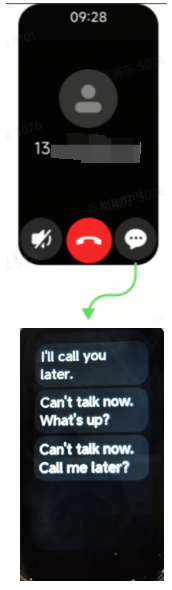
After binding the Xiaomi Smart Band 11 Active to the Mi Fitness App, go to the [Device] interface >> [Notifications and calls] >> [Incoming calls] >> turn on [Reply with message]. When the band is connected, you can quickly reply to incoming calls on the band interface. The content of the SMS quick reply can be edited and added in the Mi Fitness App >> [Device] >> [Notifications and calls] >> [Incoming calls] >> [Quick responses].
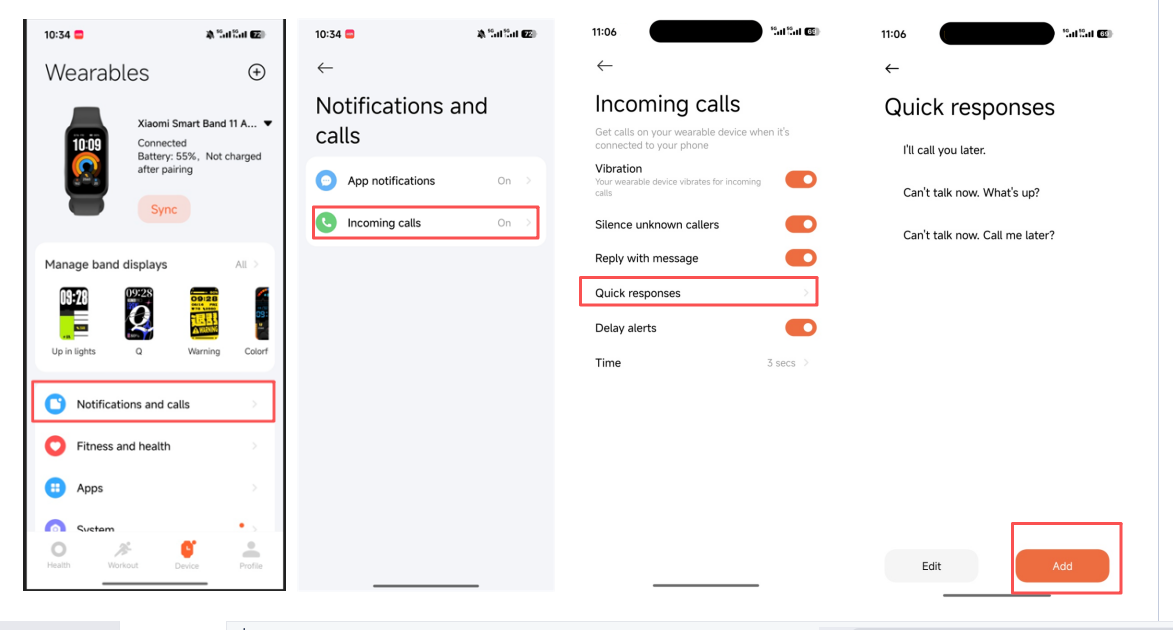
Note:
iPhones do not support SMS reply because the iOS system does not have permission to reply to SMS messages.
Q5: Does the Xiaomi Smart Band 11 Active support quick replies for messages from third-party messaging Apps?
A: The Xiaomi Smart Band 11 Active does not support quick replies for messages from third-party messaging Apps. It only supports quick replies for incoming calls and text messages.
Q6: Does the Xiaomi Smart Band 11 Active support emoji display?
A: The Xiaomi Smart Band 11 Active does not support emoji display.
Q7: Why can’t the Xiaomi Smart Band 11 Active receive incoming call reminders?
A: Please confirm whether the call reminder in the Mi Fitness App is turned on.
Please confirm whether the Mi Fitness App has sufficient permissions, including the permission to receive incoming calls and the permission to run in the background, to ensure that the Mi Fitness App can push incoming calls to the Xiaomi Smart Band 11 Active in the background.
Please check if the Xiaomi Smart Band 11 Active is in Do Not Disturb mode. When Do Not Disturb mode is enabled, the band will not provide notification alerts for incoming messages.
Q8: Why does the Xiaomi Smart Band 11 Active fail to reply to text messages?
A: If the Xiaomi Smart Band 11 Active fails to reply to text messages, please refer to the following aspects:
1. Check whether the phone number is out of service.
2. When using dual SIM cards, check whether a default SIM card has been set for sending text messages or whether a primary SIM card has been selected.
3. Check whether the [Reply with message] option is enabled in the [Incoming calls] settings of the Mi Fitness App. You can go to the [Device] interface >> [Notifications and calls] >> [Incoming calls] >> turn on [Reply with message].
Q9: What to do if notifications from certain Apps are not received after the Xiaomi Smart Band 11 Active is connected to an iPhone?
A: Please check if the notification on your mobile phone appears as shown in the image below, displaying "Notification".
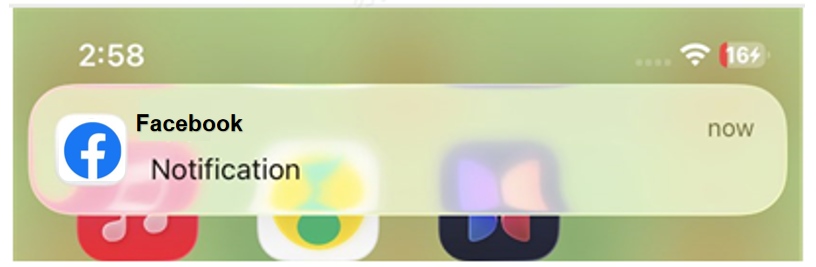
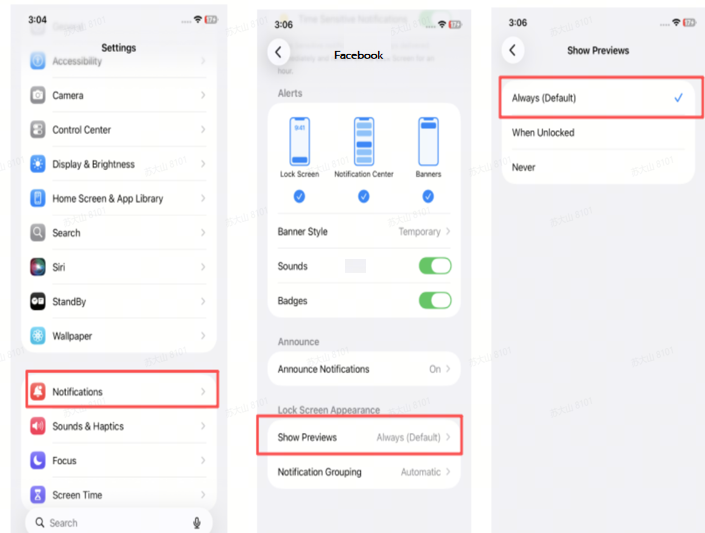
In this case, the iPhone will not push the message to the Xiaomi Smart Band 11 Active. Please go to the phone's [Settings] >> [Notifications] >> [Show Previews] >> select [Always (Default)]. Alternatively, locate the specific App and check its notification preview settings. (Path: [Settings] >> [Apps] >> select the specific App >> [Notifications] >> [Show Previews] >> select [Always (Default)].)
Q10: What to do if notifications from certain Apps are not received after the Xiaomi Smart Band 11 Active is connected to an Android phone?
A: Check the notification settings by opening the [Mi Fitness App] >> [Device] >> [Notifications and calls] >> [App notifications] >> verify the selected options. The [Wake screen] and [Mirror phone notifications] switches need to be enabled. Also check whether [Notify only when worn] is enabled. If this option is enabled, notifications will not be received when the Xiaomi Smart Band 11 Active is not being worn.
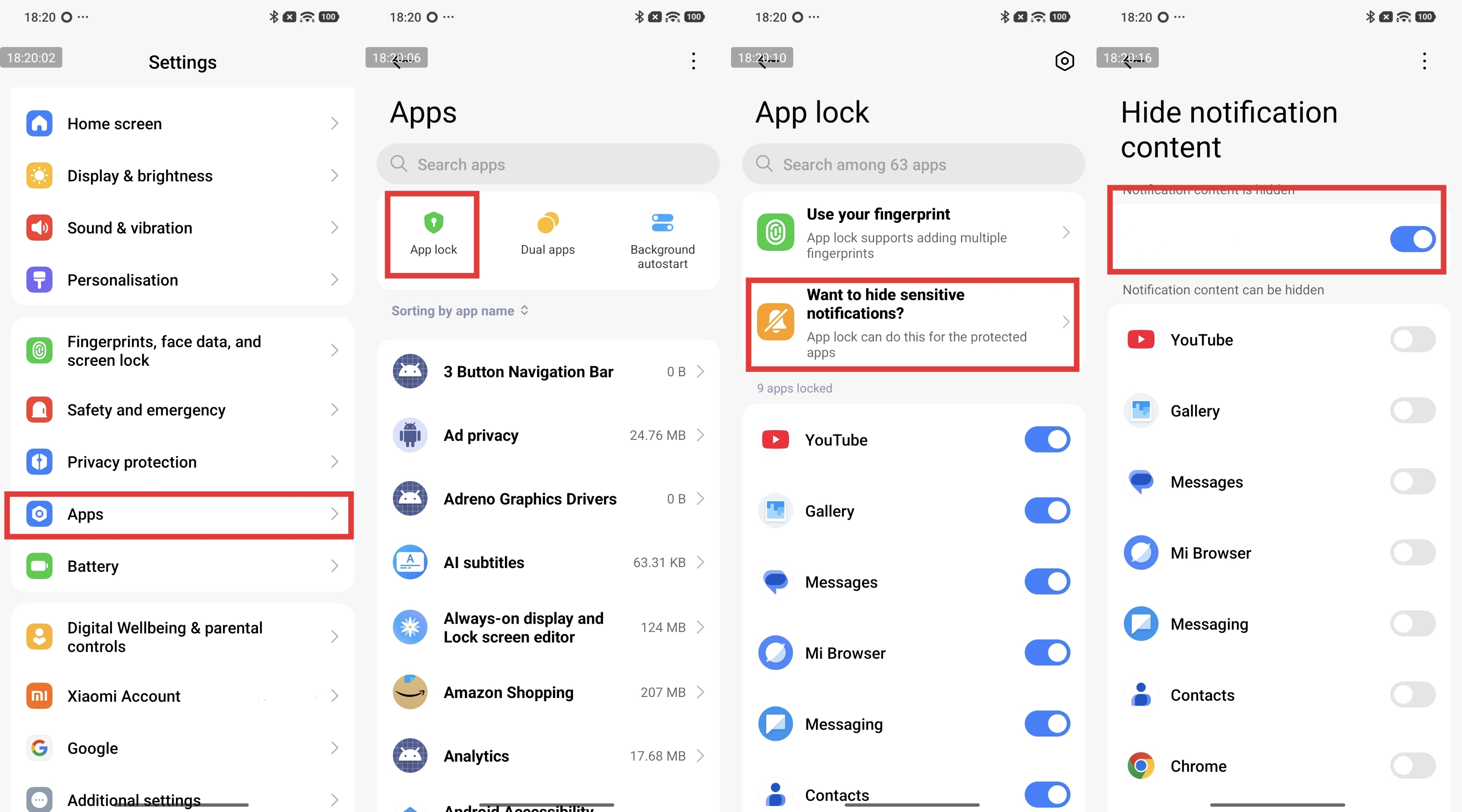
Check whether the phone has enabled the [App lock] function. The system setting for hiding notification content needs to be disabled. For example, on HyperOS, go to the phone [Settings] >> [Apps] >> [App lock] >> [Want to hide sensitive notifications?] >> select the App and then turn off the option.
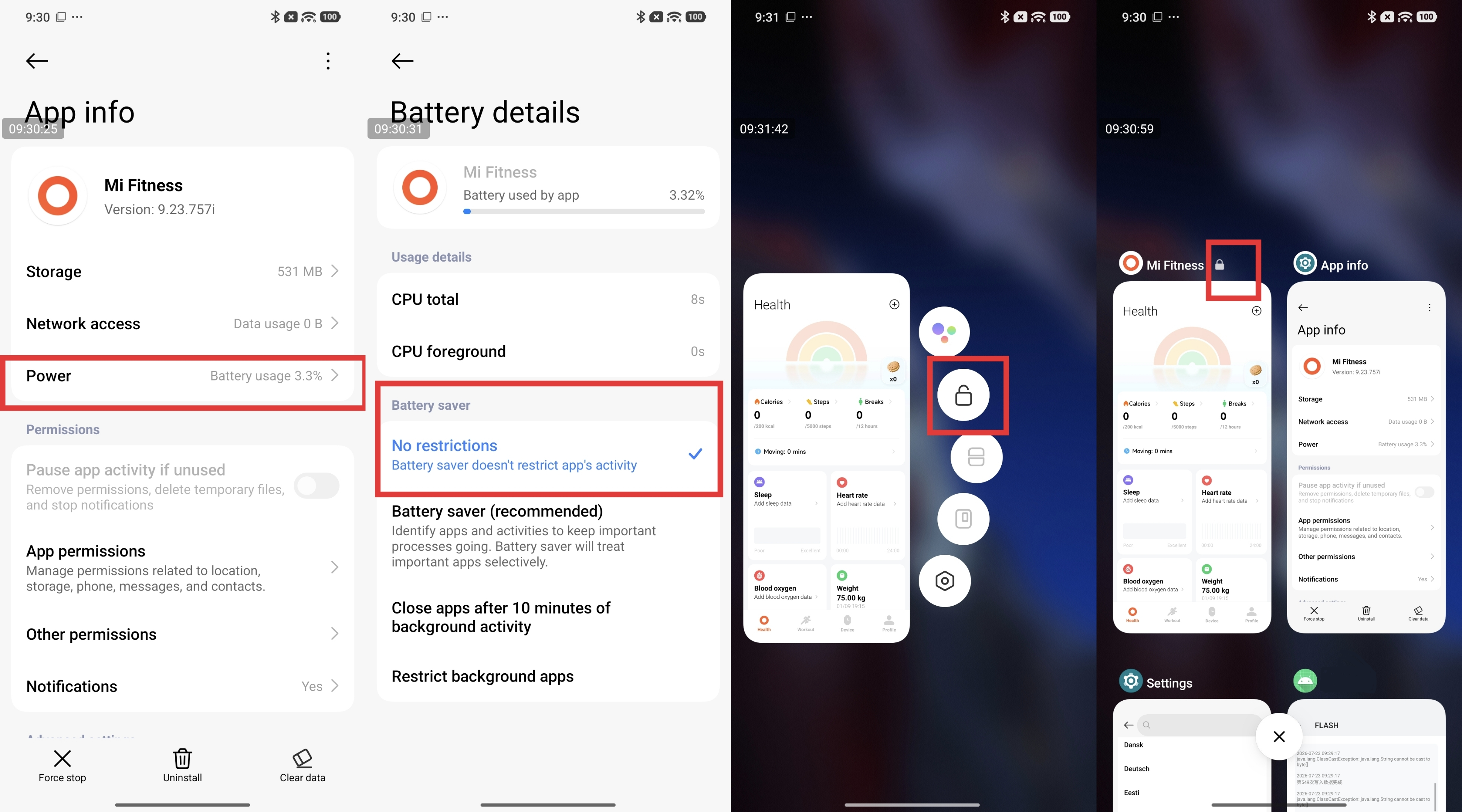
Using the Mi Fitness App as an example, check whether background App locking and auto-start are enabled.
To lock the App, open the Mi Fitness App info settings interface and go to [Power] >> select [No restrictions]. Then open the phone’s recent Apps screen, press and hold the Mi Fitness App in the background, and tap the lock icon to lock the Mi Fitness App process in the background.
Q11: Why does the Xiaomi Smart Band 11 Active still pop up a missed call reminder after ending the call from the phone, ending the call from the band, replying by SMS, or ignoring the incoming call?
A: The missed call message is sent by the mobile phone and cannot be controlled by the Xiaomi Smart Band 11 Active or the Mi Fitness App.
Q12: How many types of message notification icons does the Xiaomi Smart Band 11 Active support when connected to an iPhone?
A: When the Xiaomi Smart Band 11 Active connects to an iPhone, the App pushes the application icon ID to the band to match it with the corresponding image. If the match fails, all message notifications use the default icon.
Q13: Why does the Xiaomi Smart Band 11 Active display a default icon when receiving a message?
A: The Xiaomi Smart Band 11 Active notification icon supports dynamic caching of 100 icons. If the 101st message is received when 100 icons are cached, the band will delete the application icon that has not received the message for the longest time and cache the new icon when it needs to request the icon. At this time, if you receive a message with the deleted icon again, you need to request the icon again. Therefore, if there are many Apps on the phone and messages are pushed regularly, you will observe that when the band message is displayed, the default icon is displayed on the reminder interface, and then the corresponding application icon is displayed in the notification center. You can choose to turn off uncommon messages.
Q14: How many characters and items can the Xiaomi Smart Band 11 Active support for message reminders?
A: Please refer to the following information:
1. The message list of the Xiaomi Smart Band 11 Active will retain up to the latest 20 messages. Tap [Clear all] to clear all messages in the current list.
2. Messages can be viewed by scrolling through multiple interfaces. The number of characters displayed is generally consistent with the phone’s notification panel and also varies depending on the specific App. When a message is too long to be fully displayed, it will show “…”.
3. The Xiaomi Smart Band 11 Active does not support picture message display or emoji expression display.
Function Usage
Q1: What functions are available in the settings of the Xiaomi Smart Band 11 Active?
A: The Xiaomi Smart Band 11 Active’s Settings interface provides My device, Home screen and band display, Display, Sound and vibration, PIN, and Battery.
Q2: How to set the App list of the Xiaomi Smart Band 11 Active?
A: The band application list setting refers to the ability to set the order of the primary menu functions on the Xiaomi Smart Band 11 Active. You can customize the applications in the list according to your personal preferences. The primary menu refers to the applications that can be switched by sliding up and down on the home interface of the band.
You can go to the Mi Fitness App >> [Device] >> [System] >> [Sort apps] >> drag to adjust the application order.
Q3: What reminders does the Xiaomi Smart Band 11 Active support? Does it support custom vibration modes?
A: The Xiaomi Smart Band 11 Active reminders include incoming call reminders, event reminders, alarm reminders, App notification reminders, breaks reminders, SMS reminders, target reminders, schedule reminders, and other band application reminders. The band supports custom vibration modes, and you can edit the vibration mode according to your preferences. You can enter the band's [Settings] >> [Sound and vibration] >> [Vibration], and you can choose between [Turn off] and [Standard] modes.
Q4: How to set up and use the Do Not Disturb mode on the Xiaomi Smart Band 11 Active?
A: When Do Not Disturb mode is enabled on the Xiaomi Smart Band 11 Active, messages can still be received, but the band will no longer vibrate or light up the screen for notifications. Incoming call reminders, text message reminders, and App notifications will not trigger vibration. Do Not Disturb mode is disabled by default.
Do Not Disturb mode does not block abnormal heart rate alerts, abnormal blood oxygen alerts, low-battery alerts, find device, alarms, or timers.
On the band's [Settings] >> [Sound and vibration] >> [DND], turn off [DND] to disable the Do Not Disturb mode; turn on [DND] to keep Do Not Disturb mode on; select [Custom], and the Do Not Disturb mode will take effect at the scheduled time.
Swipe right on the main band display to access the quick controls, where you can quickly access Do Not Disturb, which supports the following functions:
1. Select [All day] to keep Do Not Disturb mode on.
2. Select [1 hour] to make Do Not Disturb mode effective for 1 hour after turning it on.
3. Select [4 hours] to make Do Not Disturb mode effective for 4 hours after turning it on.
4. Select [Scheduled], and the Do Not Disturb mode will take effect at the scheduled time.
5. When Do Not Disturb is on, tap the Do Not Disturb icon to turn off the Do Not Disturb mode directly.
Q5: How to calibrate the time on the Xiaomi Smart Band 11 Active? Does it support the 24-hour format?
A: The Xiaomi Smart Band 11 Active will automatically synchronize the time on your phone when connected to the Mi Fitness App. It supports the 24-hour format.
Q6: How to operate the screen of the Xiaomi Smart Band 11 Active?
A: After the Xiaomi Smart Band 11 Active is successfully bound, it starts recording and analyzing workouts, sleep at night, etc. You can light up the screen by touching the touchscreen.
To operate the screen of the Xiaomi Smart Band 11 Active, please refer to the following information:
1. Slide up and down to display the various entrances of the band's first-level menu, and tap the screen to view different application functions.
2. Swipe down from the top of the screen at a constant speed to open message notifications.
3. Swipe up from the bottom of the screen at a constant speed to open the App list.
4. Swipe left at a constant speed on the home screen to switch widget items.
5. Swipe right at a constant speed on the home screen to open the control center.
6. Swipe right from the left at a constant speed on other interfaces to return to the previous level.
7. Press and hold the band display to enter the band display preview, and slide up and down to change the band display you like.
Q7: What is the Screen on for function of the Xiaomi Smart Band 11 Active and how to turn it on?
A: After the Screen on for function is turned on, the Xiaomi Smart Band 11 Active screen will remain on for a certain period of time.
Swipe right on the band display to enter the control center interface, then swipe up on the control center and tap the Screen on for icon at the bottom. After turning it on, the screen will remain on for 5 minutes; however, the power consumption will increase dramatically.
Q8: How to set up the screen wake-up function on the Xiaomi Smart Band 11 Active?
A: There is no relevant settings menu. By default, tapping the screen wakes up the Xiaomi Smart Band 11 Active's display.
Q9: Does the Xiaomi Smart Band 11 Active support Cover to sleep? Does it support customizing the screen-off time?
A: The Xiaomi Smart Band 11 Active has the Cover to sleep feature enabled by default, and this feature cannot be disabled.
When the band screen is covered, the screen will turn off. The default screen timeout is set to Auto. The screen timeout can be customized on the band by going to the Band's [Settings] >> [Display] >> [Auto lock], with the available options being Auto, 5 secs, 10 secs, 20 secs, 30 secs, and 60 secs.
Q10: How to power on, shut down, restart, or factory reset the Xiaomi Smart Band 11 Active?
A: Please refer to the following information:
1. Shutdown/power on: The Xiaomi Smart Band 11 Active will automatically shut down when the battery is too low. You can also manually shut down the band by going to the band's [Settings] >> [My device] >> [Power off]. When the band is in a shutdown state, charge it again, and the band will automatically power on.
2. Restart/factory reset: Select [Reboot] or [Factory reset] in the band's [Settings] >> [My device] to restart or restore. When the Xiaomi Smart Band 11 Active is in a paired connection state, unbinding it within the Mi Fitness App will also restore the band to its factory settings.
3. On the band’s QR code pairing interface, you can also tap the exclamation mark to perform system operations such as Power off, Restart, and Factory reset.
Q11: What data will be cleared when restoring the Xiaomi Smart Band 11 Active to factory settings?
A: The following data will be cleared when restoring the Xiaomi Smart Band 11 Active to factory settings:
1. Daily data on the band, such as heart rate, sleep, stress, blood oxygen, and daily activities (calories, steps, breaks, moving), including historical data not pulled by the Mi Fitness App.
2. Workout records in the band.
3. Weather data cached on the band.
4. The non-preset band displays that have been pushed to the band.
5. Messages in the message list on the band.
6. The alarm that has been added.
7. All settings are restored to factory defaults.
Q12: How to update the firmware of the Xiaomi Smart Band 11 Active?
A: To update the firmware of the Xiaomi Smart Band 11 Active, you can go to the Mi Fitness App >> [Device] >> [More] >> [Device version]. If a new version is found to be available for update, tap to download the update package.
After the update package is downloaded, it will be automatically pushed to the band. After the update package is received, the band will automatically update and restart.
Note:
The battery level of the band needs to be kept at 20% or above during the update. During the update process, the band needs to remain connected to the phone. Try to keep the band close to the phone, and try to keep the Mi Fitness App running in the foreground. The Mi Fitness App can be cleared in the background, causing the update to fail.
Q13: What to do if the Xiaomi Smart Band 11 Active updates slowly or takes a very long time to update?
A: If the Xiaomi Smart Band 11 Active update is particularly slow and the device still takes a long time to restart after the Mi Fitness App shows that the transfer is complete, please perform the following checks or operations:
1. Under normal circumstances, the update time depends on the version download and the phone model. Generally, when updating a full package, the update takes approximately 4-5 minutes on Android phones and 6-8 minutes on iPhones. Please wait patiently. When updating a firmware package, the update generally takes 1-2 minutes on both Android and iPhones.
2. Check whether the band has sufficient battery power. The remaining battery level can affect the update speed. Please ensure that the band has more than 20% battery during the update. The band can also be connected to a power source before starting the update.
3. Check whether the network connection is stable. The update time is closely related to network conditions. Please ensure that the network environment, including 4G/5G or WLAN, is stable and has a good connection.
4. Check the phone’s system version. For Android phones, it is recommended to update the system to Android 6.0 or later before updating the band.
5. Do not frequently operate the band or the Mi Fitness App during the update. Frequent operations on the band or the Mi Fitness App during the update can cause the system to require more time to complete the update.
Q14: What to do if the Xiaomi Smart Band 11 Active displays “Update failed, the previous version has been restored”?
A: If a disconnection (loss of Bluetooth connection) occurs during the Xiaomi Smart Band 11 Active update process, the installation package transfer will fail. The band will then restart and revert to the previous version.
Please refer to the following aspects:
1. If the Mi Fitness App has not performed any other operation and remains on the update transfer screen, wait for the device to reconnect and complete synchronization, then move to an area with fewer Bluetooth and Wi-Fi devices and tap [Retry] to reduce signal interference. If the Mi Fitness App has already returned to the function screen, move to an area with fewer Bluetooth and Wi-Fi devices, tap [Check for updates], and initiate the update again.
2. After restarting the update, the band will resume the transfer from the point where the previous update failed. For a full-package update, the transfer will restart from 0%.
3. If the update fails again while the Bluetooth connection is active, select [Factory reset] on the device. This operation can also unbind the band. Restart the phone used for pairing, and after both the phone and band have restarted, bind the band with the Mi Fitness App again and initiate the update.
4. Keep the band and phone close to each other. At the same time, follow the update instructions and keep the Mi Fitness App’s update screen open in the foreground. Please wait patiently until the update is completed.
Q15: Why does the Xiaomi Smart Band 11 Active stay on the "Preparing for update verification" interface for a long time after the transfer is 100% completed?
A: When the Xiaomi Smart Band 11 Active transfer interface displays 100%, it means that the new version update package has been completely transferred. The Preparing for update verification screen indicates that the system is checking the update package for integrity, validity, and encryption. This is a normal update process. Please wait patiently.
Q16: Does the Xiaomi Smart Band 11 Active support setting a device password?
A: The Xiaomi Smart Band 11 Active supports setting a device password. The device password is turned off by default. When it is turned on, if you are not wearing the band, the band will be locked. After wearing it again, the password must be entered to unlock it.
You can go to the Mi Fitness App >> [Device] >> [Security] >> [Set password] >> [PIN] >> enter a 6-digit numeric password.
You can also go to the band's [Settings] >> [PIN] >> [Set PIN] to set the device password.
Q17: What to do if the password of the Xiaomi Smart Band 11 Active is forgotten?
A: If you forget the password of the Xiaomi Smart Band 11 Active, please refer to the following steps:
You can connect the band to the Mi Fitness App first. After the connection is successful, you can turn off or change the device password in the Mi Fitness App >> [Device] >> [Security] >> [Set password].
Note:
If you forget the device password of your band and cannot connect back to the Mi Fitness App, please contact/apply to the after-sales service center for processing.
Q18: Does the Xiaomi Smart Band 11 Active support unlocking phones?
A: The Xiaomi Smart Band 11 Active supports unlocking phones. The Unlock phone feature establishes a one-to-one connection between the band and the phone. When the band is within a secure distance, it can serve as an identity ID, replacing the need to enter a screen lock password or pattern while providing greater convenience without compromising security. The Unlock phone feature must be enabled in the Mi Fitness App and requires the phone and band to be connected via Bluetooth.
Setting path:
You can go to the Mi Fitness App >> [Device] >> [Security] >> [Unlock phone] >> set the phone’s screen lock password. After the lock screen password is set, confirm the unlock on the band to successfully bind. You can choose the unlock distance (Very close, Close, or Less close).
Unbind:
You need to turn off the Bluetooth device unlocking feature in the phone system's [Settings] >> [Fingerprints, face data, and screen lock] >> [Unlock with Bluetooth device] >> turn off [Unlock device].
Note:
The Unlock phone feature requires a Xiaomi phone running MIUI 12 or HyperOS or later.
Q19: How to use the alarm function of the Xiaomi Smart Band 11 Active?
A: The alarm function of the Xiaomi Smart Band 11 Active can be set in the Mi Fitness App or directly in the Alarm App on the band, where alarms can be set, edited, added, or deleted. The alarm frequency can be set to Once, Daily, or Custom for one or multiple days from Monday to Sunday. Up to 10 alarms can be set.
The Xiaomi Smart Band 11 Active can automatically synchronize alarms from MIUI or HyperOS system phones. When the phone and band are connected, if an alarm rings on one device and the alarm is turned off on that device, the alarm will also be turned off on the other device.
The Xiaomi Smart Band 11 Active supports smart wake-up 10 minutes in advance. Within the 10 minutes before the scheduled alarm time, the band automatically identifies the optimal time during light sleep to trigger the alarm. If no suitable light-sleep period is detected, the alarm will ring at the originally scheduled time.
When the band alarm goes off, tap the [Off] icon to close the alarm. Tap the [Later] icon to remind yourself again in 10 minutes.
Q20: Does the Xiaomi Smart Band 11 Active support phone alarm reminders? How to turn off and delete the alarms synchronized with MIUI or HyperOS phones?
A: The Xiaomi Smart Band 11 Active supports phone alarm reminders, which is available only on Xiaomi phones. The phone and band must remain connected for this feature to work. When the phone alarm rings, the band will vibrate simultaneously.
Please refer to the following points:
1. When the phone and the band are connected, after an alarm is set on the Xiaomi phone, it will trigger simultaneously on both the phone and the band at the scheduled time. You can use the band to turn off and postpone the alarm reminder. The band cannot change the phone alarm information. If you need to change it, you need to modify it in the phone system alarm.
2. When the phone and the band are not connected. MIUI or HyperOS system phone alarms cannot be synchronized to the band when they ring, so the alarm must be handled directly on the phone.
3. The MIUI or HyperOS phone system alarm will not be synchronized to the band, and it only serves as a synchronization reminder.
4. Alarms added on the band and those added in the Mi Fitness App >> [Device] >> [Apps] >> [Alarm] can be synchronized to the Mi Fitness App and band in both directions. Alarms added here can be deleted and synchronized.
Q21: Why can’t the Xiaomi Smart Band 11 Active’s schedule be synchronized normally?
A: The Xiaomi Smart Band 11 Active’s schedule synchronization only supports the built-in calendars of MIUI or HyperOS phones and iPhones. It does not support third-party calendars.
Q22: How to check the weather on the Xiaomi Smart Band 11 Active?
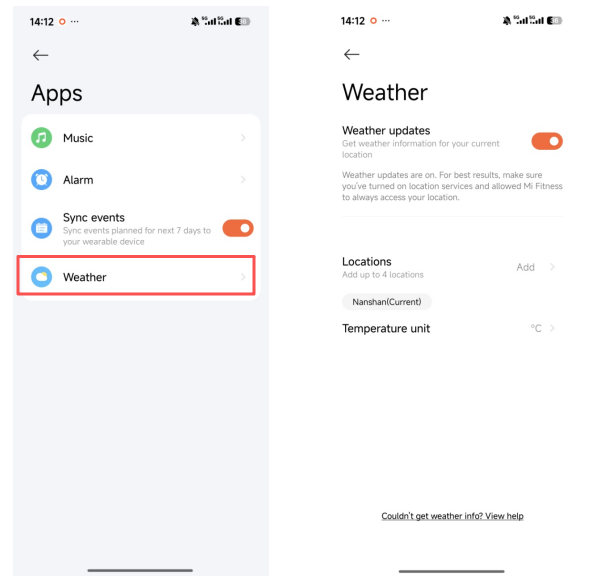
A: First, you must enable weather synchronization in the Mi Fitness App >> [Device] >> [Apps] >> [Weather] >> enable [Weather updates]. Tap the Weather App on the Xiaomi Smart Band 11 Active interface to view the current weather, which displays: update time, weather icon, current temperature, all-day temperature, air quality, location, sunrise and sunset, wind speed, humidity, and ultraviolet light. You can view the weather for up to 5 days in the future.
Tap the city switch icon at the top of the band interface to switch to other regions (supports manually adding up to 4 cities in the Mi Fitness App).
In the Mi Fitness App >> [Device] >> [Apps] >> [Weather] >> turn on [Weather updates], select the locations (automatically locate or manually select a city), and the temperature unit (Celsius/Fahrenheit).
Note:
To view the real-time weather on the band, the phone and band must be connected. If the band and phone are not connected, the weather displayed is the information synchronized when it was last connected to the phone.
Q23: Does the Weather App of the Xiaomi Smart Band 11 Active support switching cities?
A: The Weather App of the Xiaomi Smart Band 11 Active supports switching cities.
After adding other cities on the Mi Fitness App, the icon for switching cities will be displayed on the band’s Weather App interface. If no other cities are added, only the current city will be located, and the switch icon will not be displayed.
You can go to the Mi Fitness App >> [Device] >> [Apps] >> [Weather] >> [Locations] >> search and select the city you want to add.
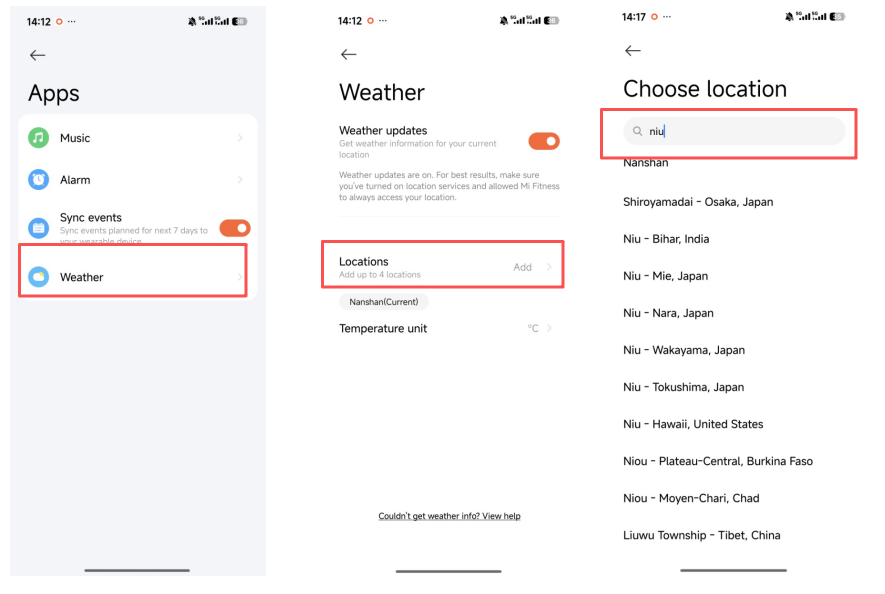
Q24: Why is the weather area on the Xiaomi Smart Band 11 Active not automatically updated after switching cities?
A: If the region on the Xiaomi Smart Band 11 Active is not automatically updated after switching cities, it is recommended that you re-synchronize in the Mi Fitness App.
You can go to the Mi Fitness App >> [Device] interface and tap [Sync] to refresh.
Q25: Does the Mi Fitness App support third-party data access on the Xiaomi Smart Band 11 Active?
A: The Mi Fitness App supports third-party data access on the Xiaomi Smart Band 11 Active. The Mi Fitness App supports integration with Health Connect and Strava, allowing relevant data to be synchronized with Health Connect and Strava. You need to enable Mi Fitness data cloud synchronization.
You can go to the Mi Fitness App >> [Profile] >> [App settings] >> [Sync with the cloud] >> turn on [Sync with the cloud];
You can also go to the Mi Fitness App >> [Profile] >> [Third-party data] >> enable [Health Connect] and [Strava].
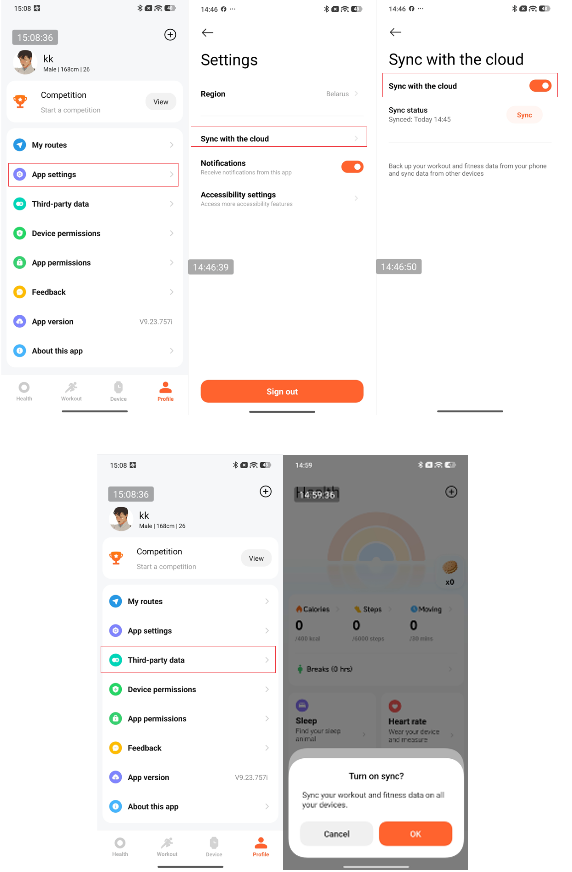
The binding method is as follows:
Health Connect: Open the Mi Fitness App >> [Profile] >> [Third-party data] >> select [Health Connect], tap Connect, sign in to the relevant account, and complete the binding. Relevant fitness data can then be synchronized to Health Connect.
Strava: Open the Mi Fitness App >> [Profile] >> [Third-party data] >> select Strava, tap [Connect], sign in to the relevant account, and complete the binding. Relevant fitness data can then be synchronized to Strava.
The unbinding method is as follows:
Open the Mi Fitness App >> [Profile] >> [Third-party data] >> tap [Health Connect] or [Strava] >> select [Disconnect].
Q26: Why can’t the Mi Fitness App on iPhones sync data of the Xiaomi Smart Band 11 Active with the iPhone’s Health App?
A: Please follow the steps below to troubleshoot:
1. Please open the iPhone’s Health App authorization in the Mi Fitness App >> [Profile] >> [Third-party data] >> [Health] and check the data items that need to be synchronized.
2. In the iPhone’s Health App, tap [Browse] >> the small circle in the upper right corner >> [Privacy] >> [Apps] >> [Mi Fitness], and check the data items you want to synchronize.
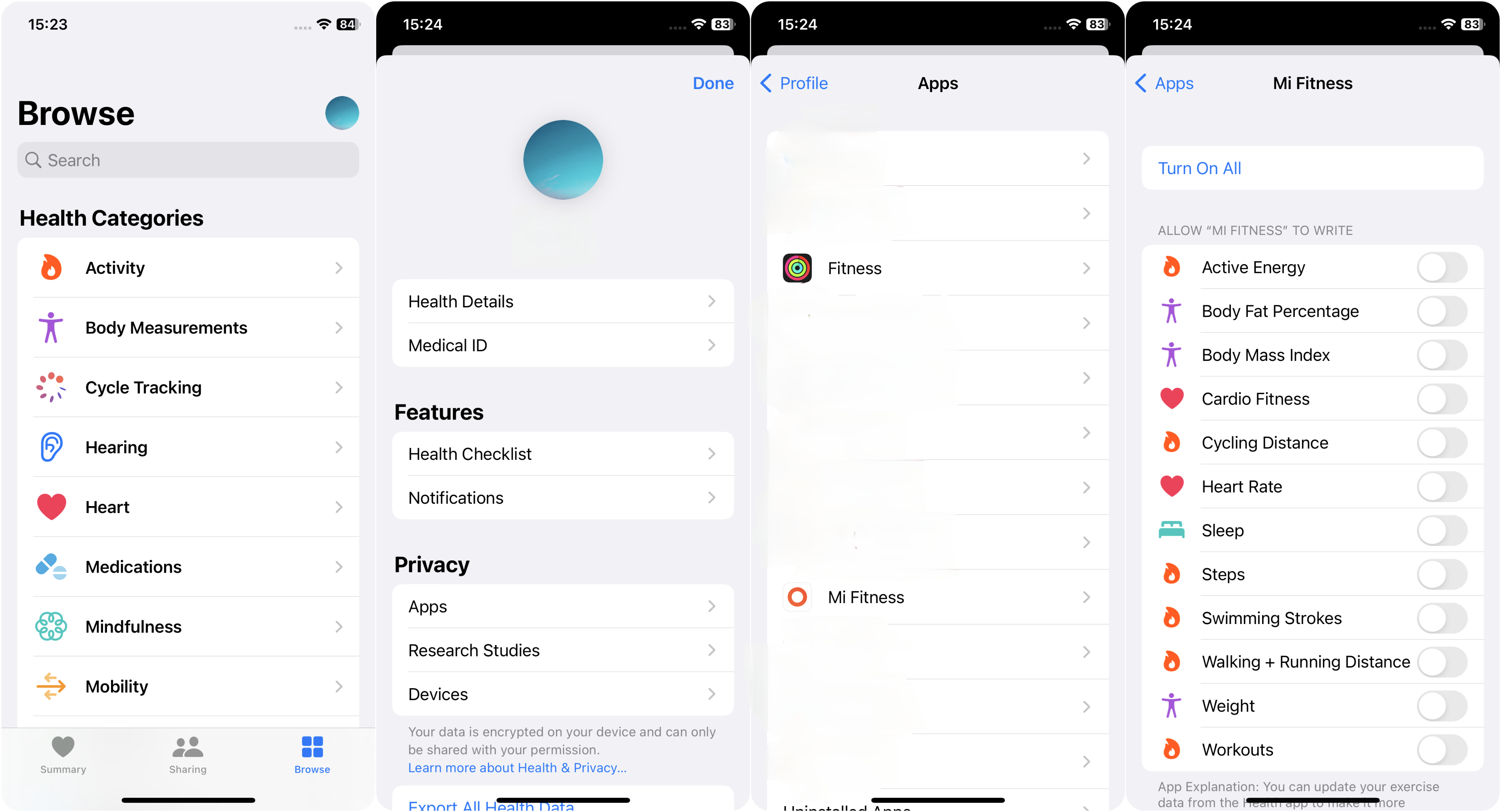
3. After syncing the data, wait for a while for it to be displayed in the iPhone’s Health App.
4. If it still can’t be displayed, please submit the log in the Mi Fitness App so that the written data can be analyzed.
Q27: How to use the Xiaomi Smart Hub feature of the Xiaomi Smart Band 11 Active?
A: The Xiaomi Smart Band 11 Active does not support the Xiaomi Smart Hub feature.
Q28: What to do if the phone screen lights up when sliding left or right on the widget interface of the Xiaomi Smart Band 11 Active?
A: The Xiaomi Smart Band 11 Active will preload the App in the left and right interfaces. For example, when you slide left/right to the previous interface of the music widget, the music interface will be loaded in advance. At this time, the phone will be requested to search for the device, and the phone screen will be temporarily lit. Please don't worry too much.
If you do not use the music feature frequently, you can set other widgets that you often use to replace the music widget in the Mi Fitness App >> [Device] >> [System] >> [Widgets], and this problem will not occur.
Q29: Can the music playback on the phone be controlled on the Xiaomi Smart Band 11 Active?
A: The Xiaomi Smart Band 11 Active can control the music playback on your phone. When the band and the phone are connected, open the music player on the phone first. After the music starts playing, the band enters the music interface. Tap the pause icon on the band to pause the playback. Tap the song switch icon to switch to the previous or next song at any time. Tap the volume [+] and [-] to adjust the volume. Currently, the band supports most mainstream music players, including the system music player, YouTube Music, Spotify, and more. However, differences in music player openness and App versions can affect the music control experience to some extent.
Note:
1. When the band is connected to a Xiaomi phone, you need to enable notification access for the Mi Fitness App to use the music control feature.
2. To better use the band to control music playback on the phone, this feature needs to be used after the phone starts playing music, and the Mi Fitness App needs to be kept running in the background. To avoid memory cleaning in the Android system and some security software cleaning processes or interception, please set it according to the requirements in the Mi Fitness App >> [Device] >> [System] >> [Band connection protection] >> [Lock the app in background].
Q30: What music control functions does the Xiaomi Smart Band 11 Active support?
A: The Xiaomi Smart Band 11 Active supports the following music control functions:
Q31: What to do if the Xiaomi Smart Band 11 Active cannot access music?
A: If the Xiaomi Smart Band 11 Active cannot access music, please follow the steps below to troubleshoot:
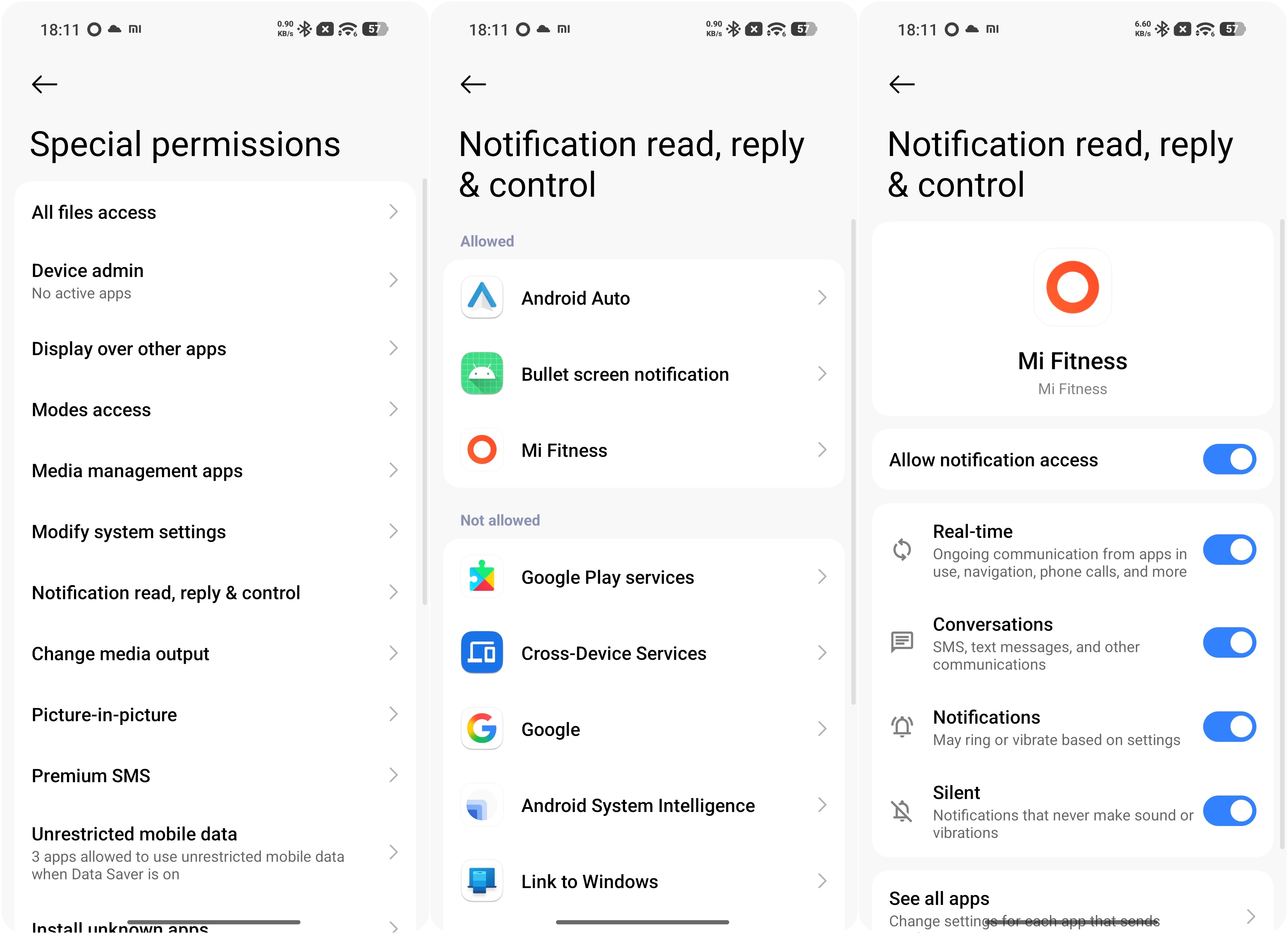
1. Check whether the Mi Fitness App has obtained access to use notifications and whether the App's notification permissions are enabled. Check whether the App has correctly enabled permission to read notifications. If it is the latest Xiaomi phone system, you need to enable permissions by going to the phone's [Settings] >> [Apps] >> [Mi Fitness App] >> enable [Allow restricted settings].
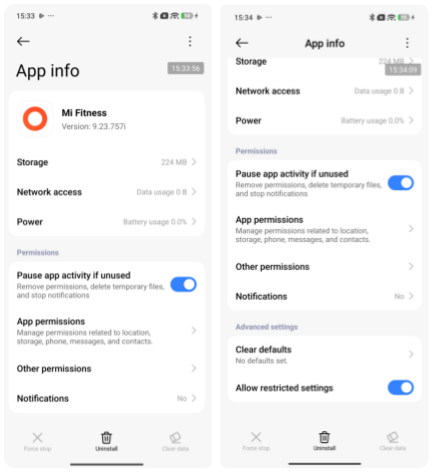
2. Then return to [Settings] >> [Security & privacy] >> scroll down and select [More security & privacy] >> [Special permissions] >> [Notification read, reply & control] >> [Mi Fitness] >> enable [Allow notification access] as well as the options below. After starting music playback on the phone, check whether the music control interface is displayed on the band.
3. Check whether the music player is open on the phone and whether the band is connected to the Mi Fitness App.
4. If the band cannot control a specific music player while other music players on the phone can be controlled normally, uninstall and reinstall the affected music player, then try again. The band currently supports most mainstream music players, including the system music player, YouTube Music, and Spotify. However, differences in music player openness and App versions can affect the music control experience to some extent.
Q32: Does the Xiaomi Smart Band 11 Active support the voice assistant?
A: The Xiaomi Smart Band 11 Active does not support the voice assistant.
Troubleshooting
Q1: Why does the screen of the Xiaomi Smart Band 11 Active not light up and have no response when tapping it?
A: If the Xiaomi Smart Band 11 Active is not paired, it will automatically shut down after 15 minutes to protect your band. Please recharge it before turning it on.
Q2: Why does the Xiaomi Smart Band 11 Active shut down due to high temperatures?
A: For safety, the Xiaomi Smart Band 11 Active features a high-temperature shutdown protection mechanism. When the temperature is high, you will be prompted that the device is about to shut down. After the high-temperature shutdown protection is triggered, the device can be restarted by charging after the temperature drops.
Q3: Why does the black strap of the Xiaomi Smart Band 11 Active easily get dusty?
A: The Xiaomi Smart Band 11 Active will inevitably come into contact with dust when worn. In fact, whether it is easy to absorb dust has nothing to do with color. It’s just that the contrast of the black strap is stronger, and it is easier to see visually after absorbing foreign matter.
Q4: Why is the Xiaomi Smart Band 11 Active strap pin difficult to fasten?
A: To ensure that the Xiaomi Smart Band 11 Active strap pin remains securely fastened and is not easily detached, the strap pin and strap hole are designed with an interference fit.
To install the strap, please place the band body on the wrist in the desired wearing position, then pass the long strap through the loop at the end of the short strap. Adjust the strap to the appropriate tightness. When fastening the strap pin, align the mushroom-shaped head of the pin with the strap hole. Place the index finger underneath the long strap, then press the strap pin firmly into place using the thumb and index finger. The strap pin is properly fastened once it is securely engaged.
Q5: Why does the Xiaomi Smart Band 11 Active strap pin easily come undone?
A: When wearing the Xiaomi Smart Band 11 Active, avoid scraping the end of the short strap (the strap-pin side) against hard objects, as accidental contact may cause the strap pin to come undone. The strap is designed with a curved structure that follows the shape of the wrist. If the strap pin accidentally loosens, it will not automatically fall off without external force, so simply fasten the strap pin again promptly.
If long-term use causes the corresponding strap hole to become worn or deformed, making the strap pin more likely to come undone, replace the strap in a timely manner.
Q6: What to do if the heart rate sensor of the Xiaomi Smart Band 11 Active is white or slightly cracked?
A: The Xiaomi Smart Band 11 Active will whiten or have micro-cracks at a low probability when exposed to strong external force or large-area contact with oleic acid/cosmetics/alcohol. This phenomenon will not affect the normal function of the product. If you need, you can contact the Xiaomi official after-sales service center for inspection.
In daily use, it is recommended to avoid applying/spraying chemicals such as oleic acid, cosmetics, alcohol, perfume, etc. directly on the surface of the heart rate sensor.
Q7: Can the Xiaomi Smart Band 11 Active be worn with metal or mineral jewelry? Will the surface be damaged?
A: The base material of the Xiaomi Smart Band 11 Active shell is plastic, and the outer surface is plated with high-gloss metal paint, so the band is essentially a plastic product. When worn together with harder metal accessories (such as metal bands or other irregular metal accessories) or mineral accessories (such as jade bands, crystal bands), the band surface will be scratched, dented, abraded, and the paint will fall off. Therefore, it is not recommended to wear the band and metal or mineral accessories together. You can wear them separately on both wrists.
Q8: Is the Pomelo Pink strap of the Xiaomi Smart Band 11 Active resistant to stains? What are the cleaning methods?
A: Compared with the black strap, the Pomelo Pink (light-colored) strap of the Xiaomi Smart Band 11 Active is more likely to show various types of dirt and stains from everyday use. During daily use, avoid contact with red ink, watercolor markers, and various industrial dyes as much as possible. If the strap is accidentally stained, please use common household cleaning agents such as laundry detergent or soapy water to wipe and clean the strap.
Note:
If the strap becomes dirty or develops stains due to improper use, it is recommended to clean the strap or purchase a replacement strap.
Q9: Does the Xiaomi Smart Band 11 Active need to be removed during an MRI or health examination? What happens if it is not removed?
A: The Xiaomi Smart Band 11 Active must be removed before undergoing an MRI or other medical examination involving strong magnetic fields.
The band is charged by using a magnet to attach it to the charger. An MRI generates a strong magnetic field, and this magnetic field can seriously affect the magnet on the back of the band. In severe cases, it can change the magnetic field of the magnet inside the band and cause the magnetic poles to reverse. Since magnetic poles repel each other, this can cause the charging cable to no longer attach to the band for charging. It can also damage the components inside the screen, causing the band screen to go black and resulting in a series of other problems.
Therefore, when undergoing an MRI or other health examinations, be sure to follow the instructions of the medical professional, remove the band in advance, and place it in a safe location. Similarly, before entering an environment with a strong magnetic field in daily life, remove the band in advance and store it in a safe location.
Q10: What to do if the Xiaomi Smart Band 11 Active cannot be turned on while charging?
A: Please follow the steps below to troubleshoot:
1. The Xiaomi Smart Band 11 Active generally fails to power on because the battery is depleted. If the band cannot be charged, the charging contacts may be oxidized. Try cleaning the charging contacts and checking whether the band can charge normally.
2. At the pogo pin position of the charging cable, try attaching the magnetic connector continuously five times to perform a forced recovery.
3. Make sure that the USB port (on a PC or other power supply device) is supplying power normally, then try replacing the band charging cable. Alternatively, try using a different USB port on the power supply device.
Charging and Battery Life
Q1: How is the battery life of the Xiaomi Smart Band 11 Active?
A: The battery life performance of the Xiaomi Smart Band 11 Active is as follows:
Note:
In actual use, battery life depends on various factors such as settings, operations, and usage environment, which can differ from the laboratory data (Ultra-long battery life mode: 21 days; Standard battery life: 8 days).
Q2: How is the battery life of the Xiaomi Smart Band 11 Active in actual use?
A: With health monitoring fully turned on, the normal usage days of the Xiaomi Smart Band 11 Active are about 8 days (continuous heart rate monitoring, all-day blood oxygen tracking, REM sleep, and other functions are used normally). If other functions are used frequently, the usage days will be further compressed to less than 4 days.
Q3: Why does the Xiaomi Smart Band 11 Active consume power quickly and have a short battery life?
A: If the Xiaomi Smart Band 11 Active consumes power quickly and has a short battery life, please follow the steps below to troubleshoot:
1. The Mi Fitness App is connected to the band, with default settings, and an ultra-long battery life mode of 21 days.
2. It takes about 1 hour and 50 minutes to charge the band. Please make sure it is fully charged first.
3. After charging, update the band firmware to the latest version.
4. Check whether the sleep breathing score (Beta) function is turned on, the continuous heart rate monitoring is turned on, the sleep advanced monitoring is turned on, frequent message reminders and screen lighting are turned on, or all-day blood oxygen tracking is turned on or frequently used. The use of the above functions will shorten the battery life of the band. You can turn them off, restart, and then use the band to observe.
5. If the function that consumes power quickly is not turned on, you can restore the band to factory settings, reconnect, and continue to use and observe.
6. If the battery consumption problem still occurs even though the function of fast power consumption is not enabled, please submit feedback in the Mi Fitness App.
Note:
The Xiaomi Smart Band 11 Active supports the battery saver mode, which can extend the battery life after a full charge (laboratory verification data).
Q4: Does the Xiaomi Smart Band 11 Active support battery saver mode?
A: The Xiaomi Smart Band 11 Active supports battery saver mode. You can directly set the band to battery saver mode in the band settings. After turning on the battery saver mode, the band will only record basic time and steps. The band's Bluetooth and other functions (raise to wake, heart rate and blood oxygen monitoring, etc.) will be turned off, and the band cannot connect to the Mi Fitness App to synchronize data.
In the battery saver mode, a dark battery saver interface will be displayed. This battery saver mode can be exited by pressing and holding the screen for 3 seconds or upon charging. The battery saver mode does not support left, right, up, and down sliding.
To turn on the battery saver mode, you can go to the band’s [Settings] >> [Battery] >> [Ultra battery saver].
To exit the battery saver mode, please press and hold the band screen for about 3 seconds or plug in the charger, and the band will exit battery saver mode.
Note:
When the band is in battery saver mode, Bluetooth will be automatically disconnected, and the Raise to wake function will be disabled.
Q5: How to charge the Xiaomi Smart Band 11 Active?
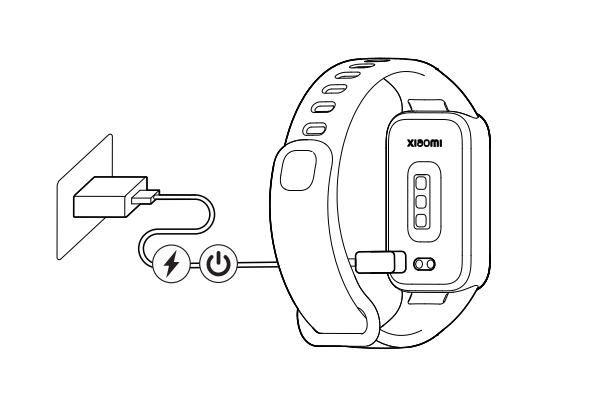
A: The battery capacity of the Xiaomi Smart Band 11 Active is 300 mAh, which can be fully charged in about 1 hour and 50 minutes. The band comes standard with a dedicated magnetic charging cable.
You do not need to remove the strap to charge. You need to connect the two ends with metal contacts to the dedicated charging cable (as shown below). Then connect the charging cable to a standard USB charging adapter with a voltage of 5 V and a current output of at least 250 mA.
Note:
1. When charging, make sure the charging contacts are clean and dry, and check whether the charging contacts and charging cable are in good contact.
2. If you haven't used the band for a long time, you need to wait a while before the charging interface is displayed on the screen.
3. While the band is charging, you can check the current time, receive call reminders, and receive App notifications.
4. It is recommended to use a certified charging adapter for charging.
5. Only the standard charging cable of the band is allowed to be used for charging. Other non-standard charging cables are not allowed. If other non-standard charging cables are used, it can cause abnormalities such as burning of the whole device.
Q6: How to check the charging status of the Xiaomi Smart Band 11 Active?
A: After the Xiaomi Smart Band 11 Active is inserted into the charging cable, the charging icon, current time, and specific percentage will be displayed. When it is fully charged, the band screen will light up for 10 seconds to notify you, and the power level will be displayed as 100%.
Q7: What to do if the Xiaomi Smart Band 11 Active cannot be charged or cannot be fully charged?
A: If the Xiaomi Smart Band 11 Active cannot be charged or cannot be fully charged, please follow the steps below to troubleshoot:
1. Some power banks on the market have built-in power-saving sleep mechanisms. When the band is almost fully charged, the required charging current becomes very low, and the power bank will determine that no device is currently drawing power and automatically disconnect the 5 V power output to enter sleep mode. Therefore, after the power is disconnected during charging, the band cannot continue charging to reach 100%. This phenomenon is not a fault with the band itself. It is recommended to use a standard USB charger with a 5 V output voltage and an output current of more than 250 mA, together with the supplied dedicated charging cable, for charging.
2. Check whether there is any dirt on the metal contacts of the band body and the metal contacts of the charging cable. Try wiping them with an alcohol pad, tissue, or similar material to ensure that there is no poor contact between the band body and the charging cable.
3. Check whether the charging adapter is functioning normally. Try using another standard adapter with the band charging cable to charge the band.
4. Check whether the charging cable is functioning normally. If a spare charging cable for the same model of band is available, try replacing the charging cable.
5. Try charging the band in an environment with a temperature of 10 °C or above.
6. The Xiaomi Smart Band 11 Active takes approximately 1 hour and 50 minutes to charge. If the band cannot be fully charged, check the charging duration to determine whether the charging time was too short to complete the charging process.
7. When the charging level reaches 100%, do not disconnect the charging cable immediately. It is recommended to continue charging the band on the charging dock for another 6-7 minutes.
8. If there is still no response after charging for an extended period, contact the after-sales service for inspection.
Note:
Please check whether the ambient temperature around the band is too low or too high while charging. The system will prevent the band from charging when the ambient temperature is too high or too low. Charging will automatically resume once the temperature returns to a normal range.
Q8: Can the Xiaomi Smart Band 11 Active be charged by a power bank?
A: When charging the Xiaomi Smart Band 11 Active with a power bank, the band may not be able to charge fully. It is not recommended to use a power bank to charge the band.
Most power banks on the market have an automatic charging shutoff feature when the battery is fully charged, and the power bank will automatically disconnect when the discharge current drops below a certain level. The charging current of the band is very low, so the power bank will mistakenly determine that the band is fully charged and disconnect the charging current to the band. As a result, the band will not be fully charged or will be unable to charge.
Therefore, when using a power bank to charge the band, charging may fail to start or cannot reach full capacity.
Q9: What to do if the charging cable falls during charging the Xiaomi Smart Band 11 Active?
A: The Xiaomi Smart Band 11 Active charging cable has a flat surface. When the band is magnetically attached to the charging cable, the band and the charging cable will wobble or become loose when pressed or pulled. It is recommended to place the band on a stable, flat surface for charging and avoid pulling or tugging on the charging cable during charging.
NFC
Q1: Does the Xiaomi Smart Band 11 Active support NFC?
A: The Xiaomi Smart Band 11 Active does not support NFC.
Health-Related
Q1: Does the Xiaomi Smart Band 11 Active support sleep monitoring? What is the monitoring range?
A: The Xiaomi Smart Band 11 Active supports sleep monitoring and can record both long sleep and sporadic naps, with monitoring available throughout the entire 24-hour period. After the band is worn normally during sleep, the band can automatically identify the sleep state through its built-in sensors.
Please refer to the details below:
1. A sleep duration of 3 hours or more is recorded as long sleep, while a duration of less than 3 hours is recorded as a sporadic nap. Sleep lasting less than 20 minutes may not be recorded.
2. The band supports sleep advanced monitoring throughout the day. After this feature is enabled, it can track the distribution of rapid eye movement (REM) sleep. However, this will significantly reduce the device's battery life. In addition, after sleep advanced monitoring is enabled, the large amount of data generated by the monitoring feature means that it is recommended to connect to the Mi Fitness App every day to synchronize the data and view complete sleep records.
Sleep record viewing method:
The main sleep record for the current day can be viewed on the band. After the band is connected to the phone and the data is synchronized, tap [Sleep] in the Mi Fitness App to view historical sleep data, including daily, weekly, monthly, and yearly data. Sleep distribution includes total sleep duration, awake duration, light sleep duration, and deep sleep duration. The sleep state at each point during the daily sleep period can also be viewed. Rapid eye movement (REM) sleep can only be recorded after the advanced monitoring feature is enabled.
Note:
When the band is in a relatively quiet state, and the movement amplitude is similar to that during sleep, the sensor may identify the state as sleep, which can result in an inaccurate sleep onset time. For example, sleep can be incorrectly recorded while watching TV, lying in bed and using a phone, or reading a book. This can be because the movement amplitude and frequency are relatively small and similar to those during sleep.
Q2: Does the Xiaomi Smart Band 11 Active support Breathing score (Beta)?
A: The Xiaomi Smart Band 11 Active supports Breathing score (Beta).
The principle of Breathing score (Beta) is as follows:
Snoring or other conditions during sleep (such as obstructive sleep apnea) can cause a significant decrease in blood oxygen saturation. The device determines whether breathing difficulties occur during sleep by monitoring changes in blood oxygen saturation and sleep quality during sleep. Based on the number of times breathing difficulties occur, a corresponding sleep breathing quality score will be provided in the Mi Fitness App. Poor sleep breathing quality may cause fatigue and drowsiness during the day.
After Breathing score (Beta) is enabled, the large amount of data generated by the monitoring feature means that it is recommended to connect to the Mi Fitness App every day to synchronize the data and view complete sleep records. Enabling Breathing score (Beta) will significantly reduce the band’s battery life. Please choose whether to enable this feature according to your needs.
You can go to the Mi Fitness App home interface >> [Sleep] >> tap the three dots icon in the upper right corner >> [Settings] >> turn on/off [Breathing score (Beta)].
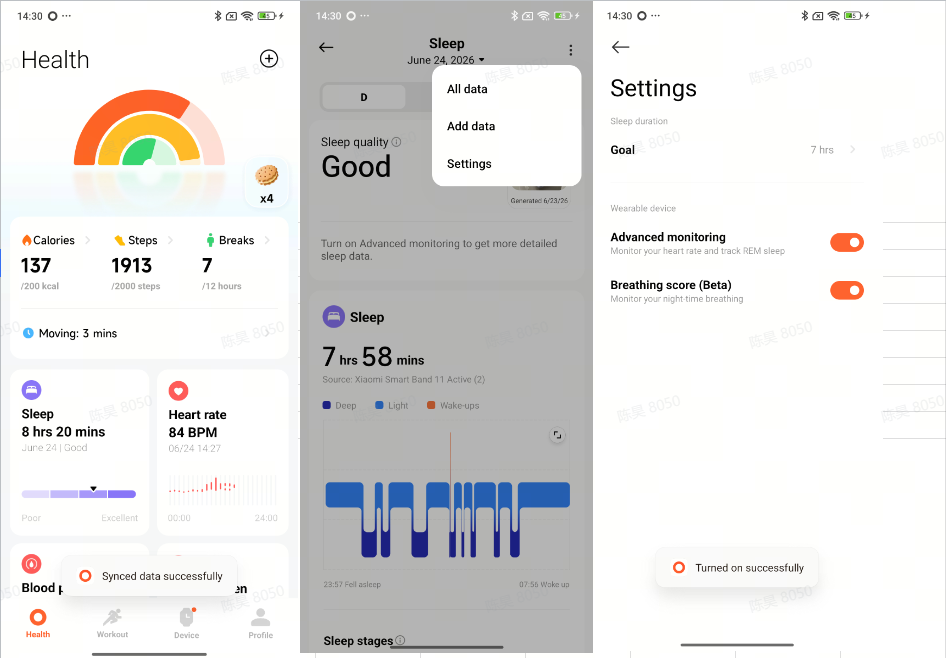
You can also go to the band's [Sleep] App >> [Settings] >> turn on/off [Breathing score].
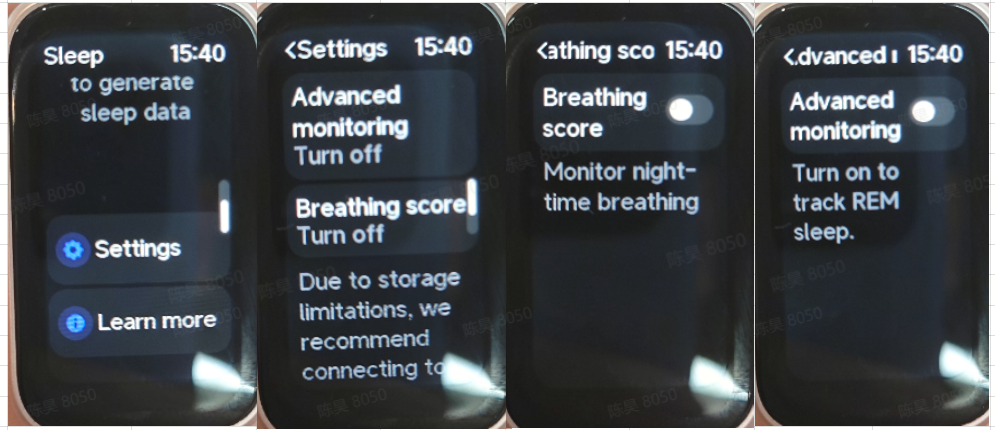
Q3: Why is there no sleep data when swiping to the sleep widget of the Xiaomi Smart Band 11 Active after waking up?
A: When you use the Sleep App during sleep, the Xiaomi Smart Band 11 Active will determine that you have already woken up and are viewing the sleep data on the band, and it will also record your sleep end time.
Swiping left or right on the widget may be caused by accidental touches after falling asleep. To prevent an accidental touch from directly ending the sleep record, when the algorithm has not yet fully identified that you have woken up, swiping to the sleep widget will not record the end of sleep or refresh the sleep data.
Therefore, the data displayed on the sleep widget will not match expectations immediately after waking up.
Q4: Why is there no monitoring record or score in the Mi Fitness App after turning on the sleep breathing score of the Xiaomi Smart Band 11 Active?
A: Please check the following aspects:
1. Check whether sleep breathing score is enabled in the Mi Fitness App. Go to the Mi Fitness App >> [Device] >> [Fitness and health] >> [Sleep] >> turn on [Breathing score (Beta)].
2. If the sleep duration is too short, the effective monitoring duration can be insufficient, and the sleep breathing score or monitoring data will not be displayed. Generally, the nighttime sleep duration should be more than 3 hours.
3. An improper wearing position can prevent the sleep breathing score from being monitored properly. It is recommended to wear the band snugly without being too loose, with the device positioned approximately one finger-width away from the wrist bone.
4. If none of the above applies, check whether the Mi Fitness App and the band firmware versions are up to date. It is recommended to restart the band or unbind and rebind the band with the Mi Fitness App, then try again.
Q5: How long does it take for the Xiaomi Smart Band 11 Active to complete a single blood oxygen saturation measurement?
A: It takes approximately 25 seconds for the Xiaomi Smart Band 11 Active to complete a single blood oxygen saturation measurement.
Wearing conditions, skin characteristics, environmental conditions, and other factors can cause the measurement to time out.
It is recommended to adjust the band to ensure that the back of the band is in close contact with the wrist.
Q6: What changes will occur in the sensor indicator at the bottom of the Xiaomi Smart Band 11 Active when measuring blood oxygen saturation?
A: The red light and infrared light (invisible to the naked eye) of the Xiaomi Smart Band 11 Active will turn on. If the green light is flashing, it indicates that the heart rate is being measured.
Q7: Why is there a red indicator on the Xiaomi Smart Band 11 Active flashing when it is not worn at night?
A: Please check the following aspects:
1. When the Xiaomi Smart Band 11 Active has all-day blood oxygen tracking enabled, it will automatically measure blood oxygen after falling asleep, and the red light on the band will flash. If the band is not being worn and the red light is found to be flashing, the wearing detection function may have performed an incorrect measurement.
2. The Xiaomi Smart Band 11 Active uses a high-precision PPG heart rate sensor with infrared, green light, and red light. Compared with traditional wearing detection, the monitoring accuracy has been greatly improved. However, when the environment in which the band is placed is relatively similar to a wrist, incorrect measurements will still occur.
3. When the band is not being worn and is placed somewhere, make sure that no objects are blocking the area behind the heart rate light. Common situations that can cause incorrect measurements include placing the band inside a bag or on a bed or table.
4. If the band is not worn during sleep, it is recommended to turn off the sleep advanced monitoring function, which can significantly save battery power. In addition, after sleep advanced monitoring is enabled, the large amount of data generated by the monitoring feature means that it is recommended to connect to the Mi Fitness App every day to synchronize the data and view complete sleep records.
Q8: Will there be an abnormal blood oxygen alert on the Xiaomi Smart Band 11 Active when there is a risk?
A: The Xiaomi Smart Band 11 Active can set low blood oxygen alerts at 80%, 85%, or 90%. The measurement results are for reference only and are not intended for medical reference or diagnosis. If you experience any discomfort, please consult a medical institution.
Q9: What to do if the blood oxygen measurement value on the Xiaomi Smart Band 11 Active is very low?
A: If the blood oxygen measurement value on the Xiaomi Smart Band 11 Active is very low, please check the following aspects:
1. The wearing position is incorrect. Since there are fewer blood vessels around the wrist, blood oxygen levels are more difficult to measure. Please wear the band one finger-width away from the wrist bone (the protruding part of the ulna).
2. The band is worn too loosely. Please wear the band slightly tighter, with a slight sense of snugness. Ideally, the band should not move when the wrist is shaken.
3. Stretch the forearm and straighten the elbow joint to avoid blood vessel compression, which can restrict blood flow and make the measurement results unreliable.
4. Place the arm on a stable surface such as a table for measurement, with the band screen facing upward. Avoid movement to prevent unstable signals.
5. It is recommended to adjust the wearing position of the band, ensure that the back of the band is in close contact with the wrist, keep the band still, and then perform the measurement again.
6. Please update the band and the Mi Fitness App to the latest version for an improved experience.
Q10: Does the Xiaomi Smart Band 11 Active support breaks reminders?
A: The Xiaomi Smart Band 11 Active supports breaks reminders. After turning on the breaks reminders switch, when it detects that there is no activity for 50 minutes in each natural hour, the band will vibrate at the 50th minute and remind you to move. If standing and walking are detected within 10 minutes after the reminder, a finished standing reminder will pop up.
Prolonged sitting and insufficient physical activity may lead to various health problems. During daily use of the band, it is recommended to get up and move around once every hour. Maintaining a standing state regularly is a convenient way to reduce prolonged sitting and increase energy expenditure. The breaks reminders can only be enabled in the Mi Fitness App, where the start and end times can be set and Do Not Disturb during lunch breaks can be configured.
You can go to the Mi Fitness App >> [Device] >> [Fitness and health] >> [Breaks reminders] >> turn on/off [Breaks reminders] and set the time period.
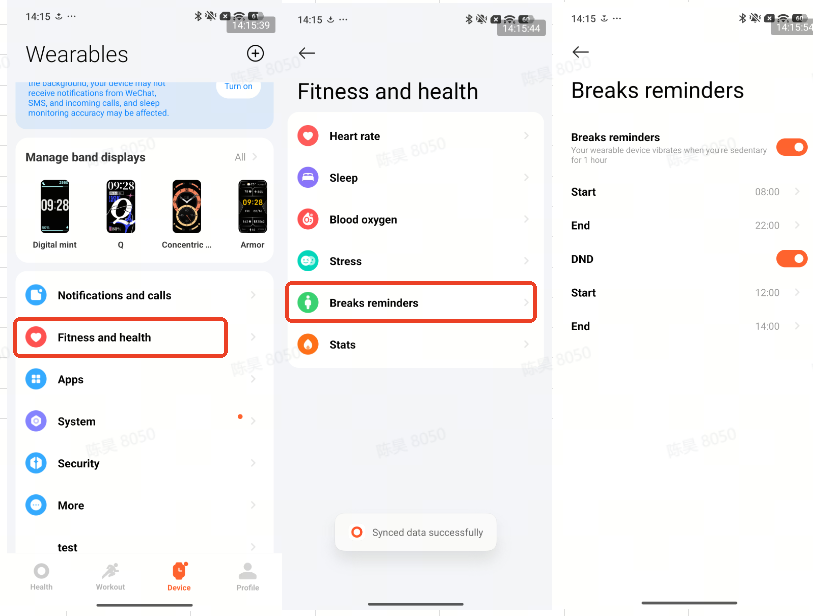
Q11: Why does the Xiaomi Smart Band 11 Active pop up breaks reminders even when standing all the time?
A: The purpose of the breaks reminders of the Xiaomi Smart Band 11 Active is to get you moving. The band determines whether the standing activity requirement has been met by detecting data such as wrist movement and step count. Therefore, if you remain standing without moving or only make small movements, the algorithm can not recognize that you have been active, and you will still receive the breaks reminders. It is recommended to walk around or increase your wrist movement. At the same time, we are continuously optimizing the algorithms related to standing detection to gradually improve the usage experience.
Q12: Why does the Xiaomi Smart Band 11 Active suddenly receive the breaks reminders to stand up when just starting to move?
A: The breaks reminders of the Xiaomi Smart Band 11 Active require certain conditions to be met. If you have just started moving and suddenly receive breaks reminders from the band, it is because you are currently active but have not yet reached the threshold for standing activity detection. You can continue moving and ignore the breaks reminders from the band.
If this occurs frequently, you can submit relevant feedback in the Mi Fitness App, and we are continuously optimizing the algorithms related to standing activity detection to gradually improve the usage experience.
Q13: Does the Xiaomi Smart Band 11 Active support connecting to a body fat scale?
A: The Xiaomi Smart Band 11 Active does not support connecting to a body fat scale.
Q14: When will the heart rate sensor on the Xiaomi Smart Band 11 Active be enabled?
A: The Xiaomi Smart Band 11 Active uses its PPG sensor and 25 Hz green light to detect heart rate. Periodic heart rate monitoring checks the heart rate at regular intervals. The detection time is short, and the measurement is accurate.
Q15: Why is there no heart rate monitoring record on the Xiaomi Smart Band 11 Active?
A: If there is no heart rate monitoring record on the Xiaomi Smart Band 11 Active, please check the following aspects:
1. Check whether the green light is flashing when the back of the band is in contact with the skin. A flashing green light indicates that the band’s heart rate monitoring function is working normally. If the green light is not flashing, check whether heart rate monitoring is enabled.
2. Wear the band correctly. The strap should not be too loose. Adjust the wearing position and then enter the heart rate function on the band again to check.
3. Excessively dry skin and scars on the skin can affect heart rate measurement. Extremely low temperatures in winter can also affect heart rate measurement.
4. If none of the above issues apply, restart the band, wear it on the other arm, and try measuring again.
Q16: Does the Xiaomi Smart Band 11 Active support abnormal heartbeat reminders?
A: The Xiaomi Smart Band 11 Active does not support abnormal heartbeat reminders.
Q17: Why are the stats on the Xiaomi Smart Band 11 Active and the Mi Fitness App inconsistent?
A: When the stats data in the Mi Fitness App is higher than the data on the Xiaomi Smart Band 11 Active, the Mi Fitness App will write the data back to the band. Since writing back the data for the current 30-minute period to the band will cause the band’s own data to be unavailable for display on the band, the strategy has been updated so that the data for the current 30-minute period is not written back to the band. Only the stats data from the rest of the current day, excluding the current 30-minute period, will be written back. Therefore, there will be a half-hour discrepancy when the stats data is integrated and delivered from the Mi Fitness App to the band.
Q18: How to check the vitality score of the Xiaomi Smart Band 11 Active?
A: The Xiaomi Smart Band 11 Active does not support the vitality score feature.
Q19: How to enable the all-day stress monitoring feature of the Xiaomi Smart Band 11 Active?
A: To enable the all-day stress monitoring feature of the Xiaomi Smart Band 11 Active, you can go to the App list on the band, enter the [Stress] App, select [Settings], and enable [All-day stress monitoring].
Workout-Related
Q1: What workout modes does the Xiaomi Smart Band 11 Active have? How to enable them?
A: The Xiaomi Smart Band 11 Active supports 50 workout modes, as follows:
The workout list of the band displays 8 common sports and the [More] sports entrance by default. The eight common sports are Outdoor running, Walking, Freestyle, Hiking, Outdoor cycling, Treadmill, Jump rope, and Trekking.
Take Outdoor running as an example: turn on the band.
1. On the band, tap [Outdoor running]. The band will display a location search message. If positioning fails, the exercise track cannot be recorded.
2. Tap [GO] to start the countdown. The band will count down from 3, 2, 1, after which it will start recording exercise data.
3. Swipe right on the exercise screen to access [Pause] and [End]. Tap the [Pause] icon at the top to pause the exercise. Press and hold the end icon to end the exercise. Swipe left to control music playback on the phone during the exercise.
4. After the exercise ends, the band can immediately display an overview of the results. Historical exercise records can also be viewed in [History] on the band.
5. After the exercise ends, connect the band to the Mi Fitness App to synchronize the exercise data. All historical exercise data can then be viewed in [History] on the Mi Fitness App home interface. Tap an exercise record to view detailed exercise data, such as the heart rate chart during the exercise.
Q2: How to use the running course on the Xiaomi Smart Band 11 Active?
A: The Xiaomi Smart Band 11 Active does not support the running course.
Q3: How to use Competition on the Xiaomi Smart Band 11 Active?
A: The Xiaomi Smart Band 11 Active supports Stats display, including calories, steps, breaks, and moving, with three of the four metrics displayed at a time. It scientifically records daily activity and provides an at-a-glance view of activity goals and the vitality rainbow for a healthier lifestyle. The band must be bound to the Mi Fitness App to use this feature.
The band also supports a one-week competition with friends. Send an invitation through a link in the Mi Fitness App to invite friends to participate in a 7-day competition, compare vitality rainbow scores, and encourage each other to stay active. At the end of the week, the participant with the higher total score will receive an exclusive challenge medal, motivating the next competition.
Competition rules:
Start a one-week Stats competition with your friends. You will get 1 point for every 1% of your Stats completed during the competition, and you can get up to 600 points per day in this way. If all three Stats goals reach 100% on the same day, you will get an additional 100 points! The person with the most total points at the end of the week will receive an exclusive trophy.
Start a competition:
Invite your friends in the Mi Fitness App to participate in a 7-day competition. You can go to the Mi Fitness App >> [Profile] >> [Competition] >> tap [Invite] to invite your friends.
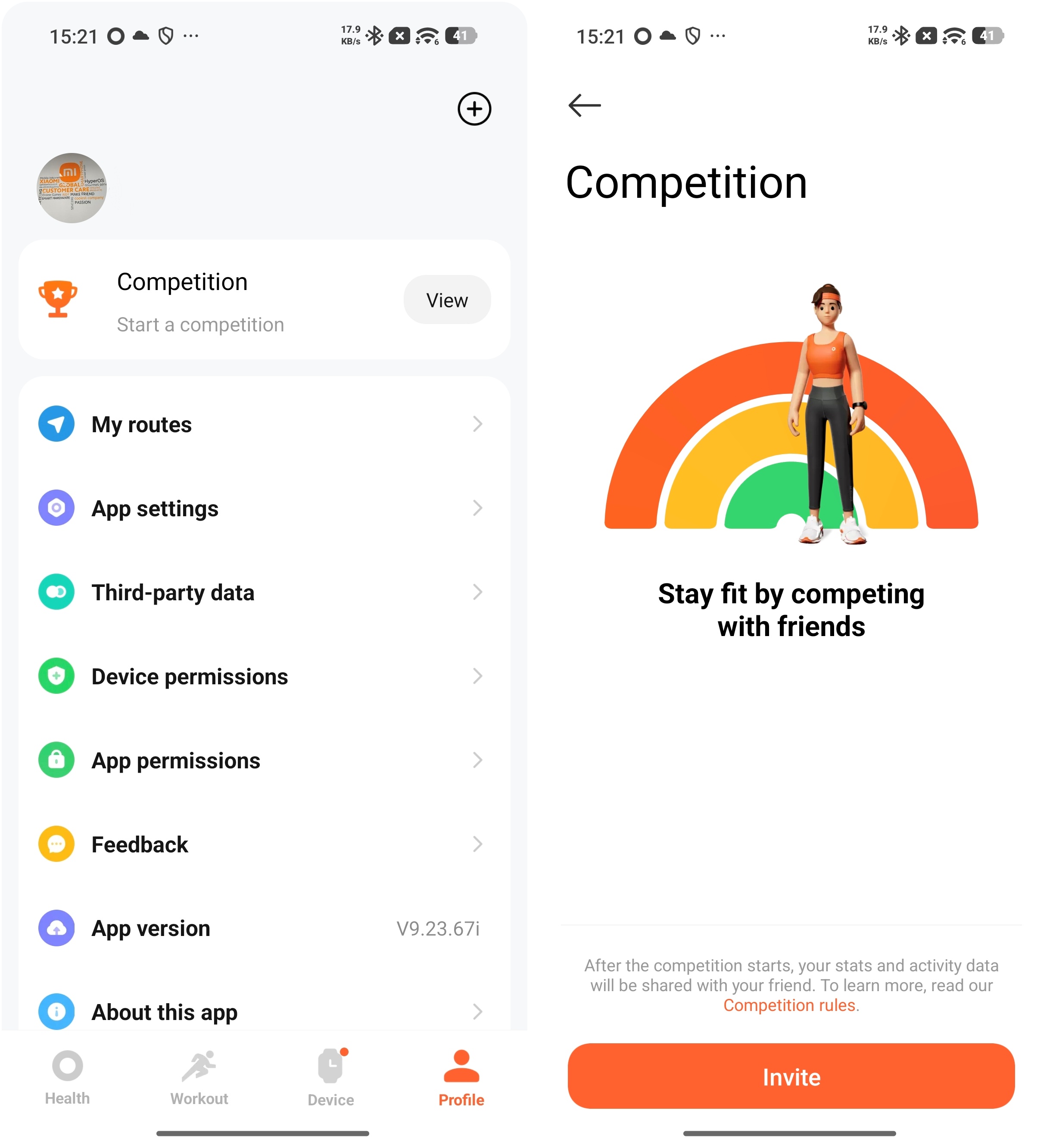
The competition content is based on the Stats metrics set by default. If you need to modify the metrics, go to the Mi Fitness App >> [Health] >> [Stats] >> tap the three-dot icon in the top-right corner >> [Stats], then switch the target and adjust the duration of [Moving] or [Breaks]. The target can also be modified during the competition.
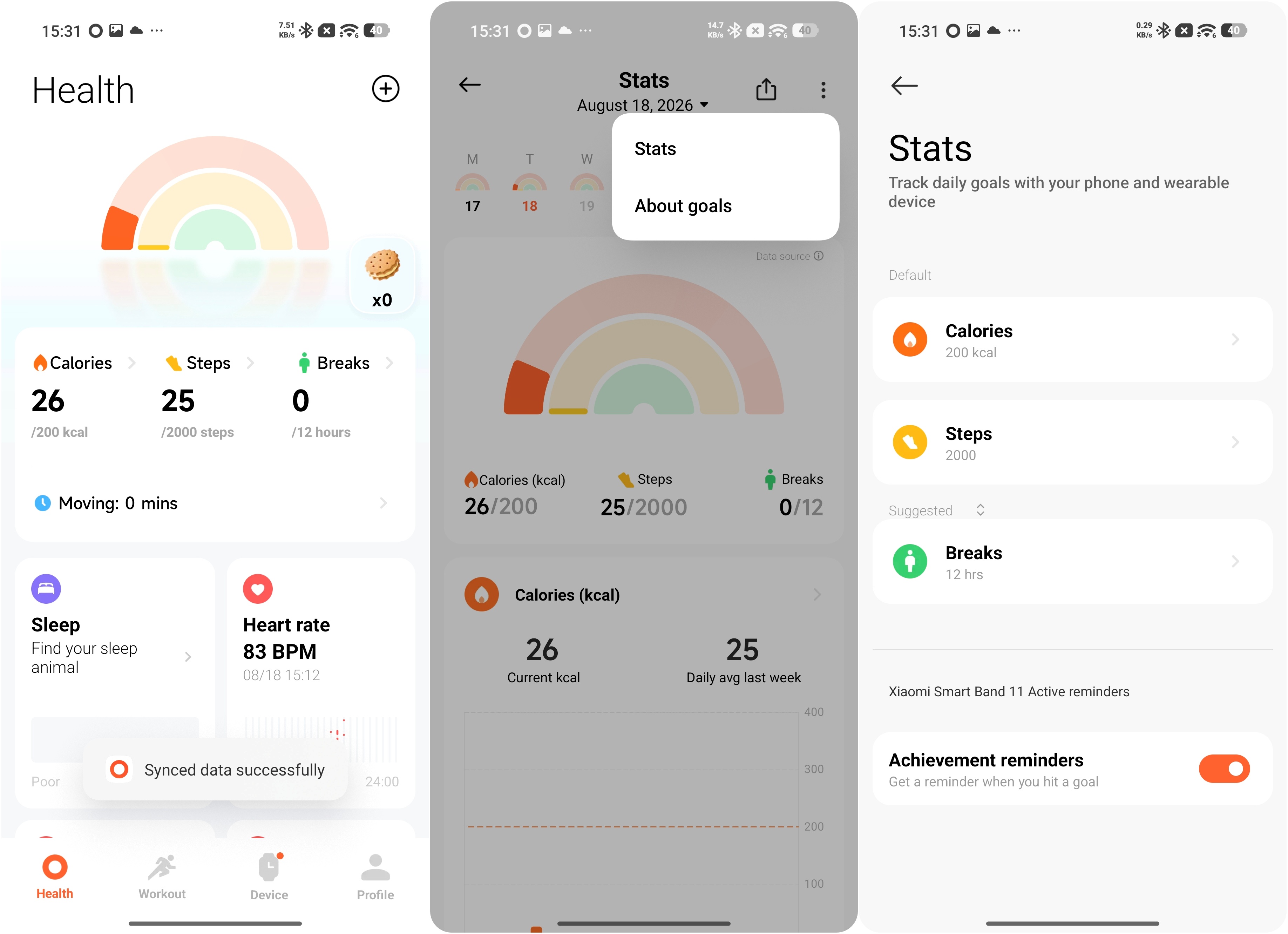
Accept the invitation:
When you receive a competition invitation from a friend in the Mi Fitness App, tap to accept the invitation.
After receiving the competition invitation link from your friend, open the Mi Fitness App through the link and accept the competition invitation from your friend.
During the competition:
1. After joining the competition, you can check your friends' racing progress.
2. After your friends complete an exercise, they will receive a notification reminder.
3. The current competition situation will be notified at 20:00 every night during the competition.
Note:
1. During the competition, please ensure that your phone and device remain connected to avoid data synchronization issues that can affect the competition results.
2. The Competition requires the Mi Fitness App to be updated to the latest version.
Q4: How to use sports screen projection on the Xiaomi Smart Band 11 Active?
A: The Xiaomi Smart Band 11 Active does not support sports screen projection.
Q5: Does the Xiaomi Smart Band 11 Active support reminders during workouts?
A: The Xiaomi Smart Band 11 Active supports reminders during workouts. On the band, open the [Workout] App, select a workout mode, and tap the [Settings] icon at the bottom. Workout goals can be set according to your needs, and [High HR] and [Reminder] can also be configured. After the reminders are enabled, the band will vibrate when the corresponding preset target is reached.
Q6: Does the Xiaomi Smart Band 11 Active support the workout recognition function?
A: The Xiaomi Smart Band 11 Active does not support the workout recognition function.
Q7: How to adjust the order of workout modes/workout items on the Xiaomi Smart Band 11 Active?
A: The Xiaomi Smart Band 11 Active supports 50 workout modes and automatically adjusts their order based on usage frequency, with the most frequently used workout modes appearing first.
Q8: How to keep the Xiaomi Smart Band 11 Active screen always on during a workout?
A: The Xiaomi Smart Band 11 Active does not support keeping the screen always on during a workout.
Q9: What data can be viewed during a workout on the Xiaomi Smart Band 11 Active?
A: The main types of workouts support viewing different data on the Xiaomi Smart Band 11 Active. The supported data for typical workouts is as follows:
1. Outdoor running: duration, distance, heart rate & heart rate range, pace, calories, cadence, average pace, number of steps.
2. Walking: duration, distance, heart rate & heart rate range, pace, calories, cadence, average pace, number of steps.
3. Freestyle: duration, calories, heart rate & heart rate range.
4. Hiking: duration, distance, heart rate & heart rate range, pace, calories, cadence, average pace, number of steps.
5. Outdoor cycling: duration, distance, heart rate & heart rate range, pace, calories, average pace.
6. Treadmill: duration, distance, heart rate & heart rate range, pace, calories, cadence, number of steps.
7. Jump rope: duration, calories, heart rate & heart rate range, frequency, total count.
8. More workouts: duration, calories, heart rate & heart rate range.
Q10: What to do if the distance error of outdoor workouts is large or there is no track after the workout with the Xiaomi Smart Band 11 Active?
A: Since the Xiaomi Smart Band 11 Active does not have an independent positioning function, all positioning information and track data come from the phone. Therefore, these outdoor workout modes require phone location services to be enabled and the band to remain connected to the phone.
The method to turn on the mobile phone positioning information is as follows:
1. For Android phones, before using the band for outdoor workouts, set the location permission for the Mi Fitness App to [Allow all the time] or [Allow only while using the app], and enable [No restrictions] on the App device interface. Otherwise, the workout track may be unavailable after the workout, and the recorded distance may be inaccurate. If the location permission is set to [Allow only while using the app], or the Mi Fitness App is running in the background, the outdoor workout distance may have a larger deviation, or the workout track may be unavailable after the workout.
2. For iPhones, before using the band for outdoor workouts, set the location permission for the Mi Fitness App to [Always (Default)], and go to the phone's [Settings] >> [App] >> [Mi Fitness] >> [Background App Refresh] and enable [Background App Refresh]. Otherwise, the workout track may be unavailable after the workout, and the recorded distance may be inaccurate.
If the phone's location service is enabled normally and the workout track is displayed in the [History] of the Mi Fitness App, but the recorded distance is still inaccurate, zoom in on the workout track to check whether there are long straight lines in the track. This may occur when surrounding obstructions interfere with the phone's positioning signal, resulting in inaccurate positioning information and consequently inaccurate distance calculation by the band. As shown in the figure, similar scenarios can cause the recorded workout distance to be inaccurate.
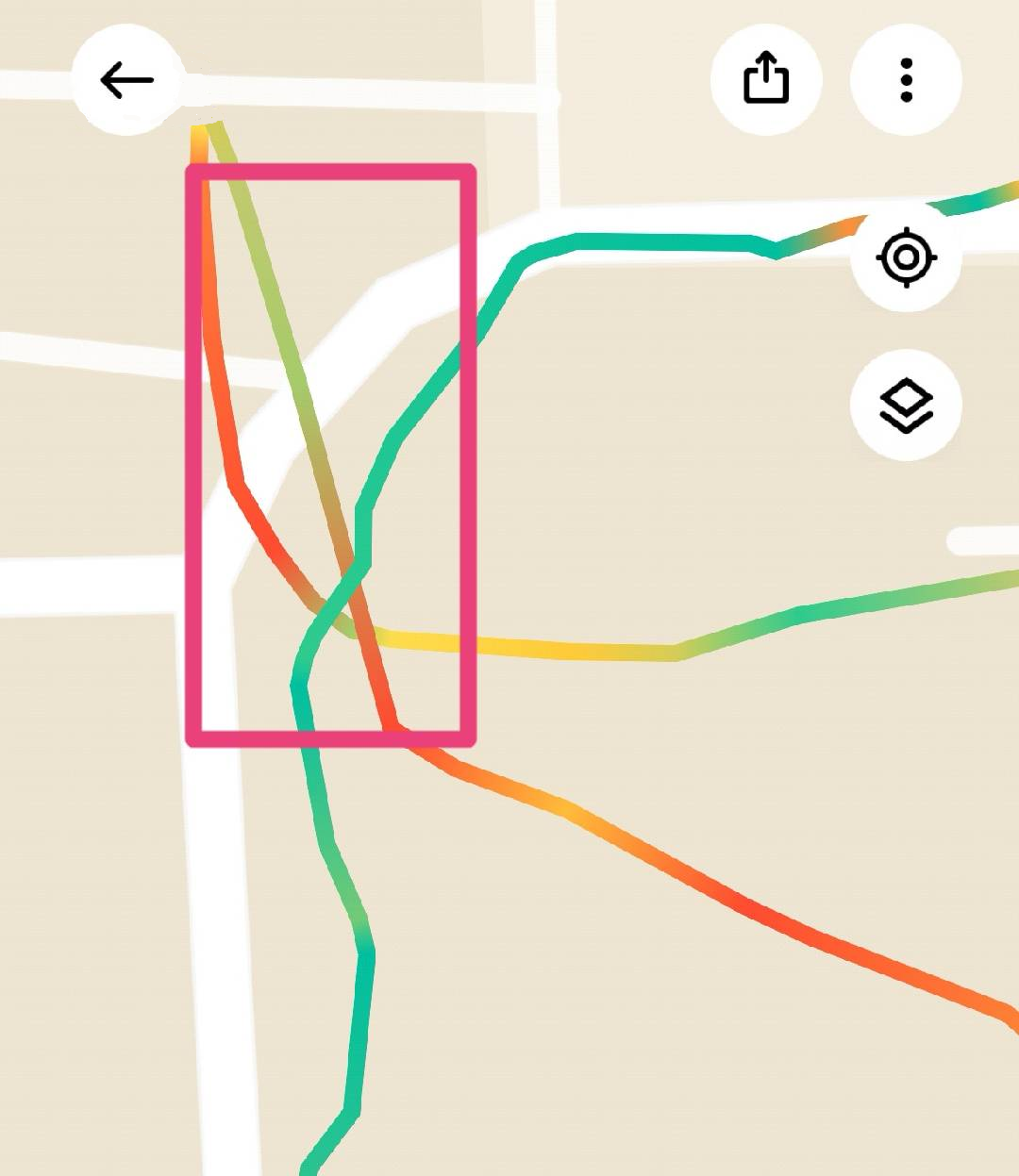
Q11: Why does the Xiaomi Smart Band 11 Active not generate workout data after a workout?
A: The Xiaomi Smart Band 11 Active can not save workout records for the following reasons:
1. Make sure the band has sufficient battery power during exercise. If the band powers off or restarts during exercise, no exercise data will be generated.
2. If an outdoor workout mode is started from the Mi Fitness App, make sure the Mi Fitness App is running in the background and remains connected to the band. If the Mi Fitness App becomes disconnected from the band or is cleared by the system, the workout may be forcibly ended on the band, resulting in no workout data being generated.
3. Outdoor workout relies on the phone's GPS to record the workout track and distance. Therefore, make sure the phone is powered on with GPS and location permission for the Mi Fitness App enabled.
(1). iPhones: Go to [Settings] >> [Privacy & Security] >> [Location Services] >> [Mi Fitness App] >> [Always]. If the location permission is set to [While Using the App], the workout track or location data can be lost.
(2). Android phones: (Different phone models have different UI interactions). Using the Xiaomi/REDMI phone as an example, go to [Settings] >> [Apps] >> [Mi Fitness App] >> [App permissions] >> [Location] >> [Allow all the time].
Q12: Why can’t the workout record be viewed on the Xiaomi Smart Band 11 Active after starting a workout using the Mi Fitness App?
A: Workouts initiated from the Mi Fitness App will not sync the workout report to the Xiaomi Smart Band 11 Active. Only workouts starting from the band can be viewed in the workout records on the band. Therefore, if you need to view workout records on the band, please start the workout from the band.
Q13: Why are the three-ring data on the Mi Fitness App and the Xiaomi Smart Band 11 Active inconsistent?
A: If the difference is relatively small, it is because the data on the Xiaomi Smart Band 11 Active is synchronized once per minute, while the automatic synchronization interval with the phone is 30 minutes. Please manually tap [Sync] and check the data again.
If the difference is significant, it may be because the data in the Mi Fitness App comes from other devices, while the data on the band only comes from the data recorded by the band itself.
Q14: Does the Xiaomi Smart Band 11 Active support swimming style recognition? What swimming styles can it recognize?
A: The Xiaomi Smart Band 11 Active does not support the swimming style recognition feature.
Q15: Why is “Always Allow” location permission required when starting a workout on an iPhone while using the Xiaomi Smart Band 11 Active?
A: The following are the reasons why “Always Allow” location permission is required when starting a workout on an iPhone while using the Xiaomi Smart Band 11 Active:
On iPhones, location permissions are mainly divided into [Don’t Allow], [Allow While Using the App], and [Always Allow]. To ensure the completeness and reliability of exercise tracks and other exercise data, the Mi Fitness App requires [Always Allow] location permission before an exercise can be started normally.
Please note that even when [Always Allow] location permission is granted, the Mi Fitness App does not continuously access location information. Location information is only used in scenarios that require positioning, such as during exercise. If an exercise is started with only [Allow While Using the App] permission, there is a certain probability that location or exercise track data may be lost when the Mi Fitness App runs in the background, which can significantly affect the exercise experience.
In addition, because the Xiaomi Smart Band 11 Active does not support independent positioning, location information is obtained through the phone. If the phone does not have sufficient location permissions, the Xiaomi Smart Band 11 Active may also be unable to obtain location information properly. Therefore, to ensure that exercise data is recorded completely and accurately, [Always Allow] location permission is required on iPhones before starting an exercise. At the same time, new solutions are constantly explored, and the way to obtain permissions is continuously optimized.
Q16: Why is the calorie deviation of the Xiaomi Smart Band 11 Active so large?
A: The Xiaomi Smart Band 11 Active calculates calories based on your heart rate or wrist movement. The calorie calculation algorithm will be updated with each product iteration to consider more influencing factors. There are some differences between the calorie calculation logic of previous models and the latest calorie calculation method.
In wearable devices, the calories generated in a day are mainly composed of two parts:
1. Passively recorded calories, also called daily calories, refer to the calories that can be generated when no manual exercise is initiated. Calories will not increase when not wearing or sleeping. In other normal conditions, calories can be generated as long as there is a certain amount of activity. For example, in daily office work, although there are no steps, calories can be generated due to a certain amount of activity. Calories are related to the size and duration of activity.
Note:
The Xiaomi Smart Band 7 and earlier devices only generate calories when there are steps or heart rate data.
2. Actively recorded calories, also called exercise calories, refer to the calorie value generated when you manually initiate exercise. It is mainly related to heart rate and personal information. The higher the heart rate and the longer the exercise time, the more calories are generated.
If you think the calorie data is abnormal, you can submit feedback in the Mi Fitness App, and the relevant data will be analyzed.
Q17: How long can the Xiaomi Smart Band 11 Active store data independently?
A: The Xiaomi Smart Band 11 Active can store data independently. Some daily activity functions can be used without a phone. The phone only needs to be connected to the band via Bluetooth when synchronizing data. The band can display 20 workout records and store approximately 7 days of Stats, heart rate, and blood oxygen health data. The band can only display data from the current day.
For the sleep monitoring function, the band supports the [Advanced monitoring] and [Breathing score] features. Since these monitoring features generate a large amount of data, it is recommended to connect the band to the Mi Fitness App every day to synchronize the data and view complete sleep records.
If these two switches are turned off, sleep data can be stored for approximately 6–7 days. If either switch is turned on, sleep data can be stored for approximately 2–3 days.
It is recommended to connect the band to the Mi Fitness App every day to synchronize sleep data and avoid sleep data being overwritten in a cycle due to the device's storage limitations. After the data is synchronized with the Mi Fitness App on time, complete daily sleep data can be viewed in the Mi Fitness App.
Band Display-Related
Q1: How to change the band display of the Xiaomi Smart Band 11 Active?
A: The Xiaomi Smart Band 11 Active comes with 2 pre-installed band displays and supports 100+ band displays available in the market. Additional band displays can be downloaded and used through the Mi Fitness App, and the band display can be changed directly on the band.
To change the band display on the Xiaomi Smart Band 11 Active:
1. You can go to the band's [Settings] >> [Home screen and band display] >> [Band displays] >> swipe up and down to select your favorite band display, and tap the screen to confirm to complete the band display change.
2. On the band display screen, press and hold the screen to enter preview mode, slide up and down to select the favorite display preview, and tap the preview to change the current band display. If you go to the band's [Settings] >> [Home screen and band display] >> turn off [Press and hold screen], pressing and holding the band display will no longer allow the band display to be changed.
To change the band display on the Mi Fitness App:
Go to the Mi Fitness App >> [Device] >> [Manage band displays], enter the band display management, download, and synchronize to complete the band display change.
Q2: How many band displays can be installed on the Xiaomi Smart Band 11 Active?
A: The Xiaomi Smart Band 11 Active band display supports 2+2 mode, that is, 2 pre-installed band displays and 2 online band displays. The 2 pre-installed band displays cannot be deleted.
Q3: How many band displays does the Xiaomi Smart Band 11 Active support?
A: The Xiaomi Smart Band 11 Active supports 100+ band displays on the market, with multiple categories, colors, and styles. Different styles make it easier to match your outfits and band straps.
Q4: Can the band display’s background of the Xiaomi Smart Band 11 Active be customized?
A: The band display’s background of the Xiaomi Smart Band 11 Active can be customized. This function needs to be implemented through photo displays and set on the Mi Fitness App.
You can go to the Mi Fitness App >> [Device] >> [Manage band displays] >> [All] >> [Custom] >> select photo display style >> [Custom photo] >> select an image to replace the background image >> tap [Apply].
Q5: Does the Xiaomi Smart Band 11 Active support the always-on display feature?
A: The Xiaomi Smart Band 11 Active does not support the always-on display feature.
Q6: Does the band display of the Xiaomi Smart Band 11 Active support custom features?
A: The band display of the Xiaomi Smart Band 11 Active does not support custom features.
Q7: Does the Xiaomi Smart Band 11 Active support game band displays?
A: The Xiaomi Smart Band 11 Active does not support game band displays.
Q8: How to switch photo displays on the Xiaomi Smart Band 11 Active?
A: The Xiaomi Smart Band 11 Active does not support switching photo displays. You can only select photos to download and install when setting the photo display on the Mi Fitness App.
Q9: Will there be a prompt on the Xiaomi Smart Band 11 Active when installing a band display?
A: The Xiaomi Smart Band 11 Active supports relevant prompts when downloading band displays. After tapping [Apply] on the Mi Fitness App, the progress can be viewed on the Mi Fitness App. During installation, there will be a syncing prompt on the band.
Q10: How to switch to the corresponding App (such as Weather) by tapping small icons on the band display of the Xiaomi Smart Band 11 Active?
A: The Xiaomi Smart Band 11 Active does not support switching to the corresponding App (such as Weather) by tapping small icons on its screen.
Product Appearance-Related
Q1: Why does the light-colored Xiaomi Smart Band 11 Active strap change color after long-term use?
A: Light-colored straps of the Xiaomi Smart Band 11 Active can become dirty or slightly change color after long-term use. This is a natural phenomenon.
Q2: What to do if the cover of the Xiaomi Smart Band 11 Active strap comes off?
A: The strap cover of the Xiaomi Smart Band 11 Active is designed to be assembled and secured in place. It is recommended not to remove it. If the cover comes off, it can be reassembled.
Q3: How to remove the Xiaomi Smart Band 11 Active strap?
A: To remove the Xiaomi Smart Band 11 Active strap, please refer to the following steps:
1. It is recommended to use a 1.5 mm-wide flat-head screwdriver. Insert it into the notch on the left or right side of the pin and gently pry it upward.
2. Once the pin is lifted, remove it by hand, and the strap can then be detached.
Q4: How to assemble the Xiaomi Smart Band 11 Active strap?
A: To assemble the Xiaomi Smart Band 11 Active strap, please refer to the following steps:
1. Pre-install the pin onto the lugs of the band body, then insert the strap.
2. Use both hands to press the strap and band body firmly together while pressing the pin. A “click” sound indicates that the strap has been assembled correctly.
3. After assembly, pull the strap to check whether it is securely attached. If the strap comes off when pulled, repeat the above steps until it remains securely attached.
Q5: Why does the Xiaomi Smart Band 11 Active have scratches or impact marks on the surface?
A: Please avoid direct friction between the Xiaomi Smart Band 11 Active and hard objects, and avoid contact with sharp objects to prevent irreversible scratches or damage.
Q6: Why is there a large gap around the pin on the Xiaomi Smart Band 11 Active strap?
A: The gap is designed to meet assembly and installation requirements. During production and assembly, the pin needs to be inserted into the strap through this gap for proper alignment. This gap does not affect the normal use or functionality of the Xiaomi Smart Band 11 Active.
Q7: Why does the lug angle of the Xiaomi Smart Band 11 Active look so large?
A: The lug angle of the Xiaomi Smart Band 11 Active is designed to accommodate most wrist shapes. The relatively large angle can accommodate larger wrists, while smaller wrists can improve the fit by adjusting the strap. This does not affect the normal daily usage experience.
Q8: Is it normal to see regular grid patterns on the Xiaomi Smart Band 11 Active screen when the screen is off under strong light?
A: It is normal to see a grid pattern on the Xiaomi Smart Band 11 Active screen from certain angles under strong light. This is a normal physical phenomenon. What you are seeing is the transparent ITO conductive circuitry inside the screen that is responsible for touch functionality. Under strong light, light refraction can make these originally transparent circuits faintly visible. This does not affect the display, touch sensitivity, or any other functions of the band, so you can continue using it with confidence.
Other
Q1: Why was the remote camera control feature removed from the Xiaomi Smart Band 11 Active?
A: The Xiaomi Smart Band 11 Active experience has been comprehensively upgraded, with the addition of the practical all-day stress tracking feature to meet daily health monitoring needs. To further optimize system smoothness and simplify the operating experience, we have streamlined features with relatively low usage rates and focused more resources on commonly used core experiences, continuously providing a better overall experience.
Q2: Why was the feature that automatically enabled Do Not Disturb mode after sleep removed from the Xiaomi Smart Band 11 Active?
A: This automatic linkage of the Xiaomi Smart Band 11 Active has been removed to prevent missing urgent calls or messages after Do Not Disturb mode is automatically enabled. It also helps optimize battery life and gives you full control over notification permissions. You can use scheduled Do Not Disturb to set a fixed nighttime period for automatic activation, or manually enable Do Not Disturb before going to sleep. Both methods provide the same effect.
Q3: Why is “Battery” still displayed in Chinese in band notifications when the Xiaomi Smart Band 11 Active and phone language are not set to Chinese?
A: Please update the Xiaomi Smart Band 11 Active to the latest version through the Mi Fitness App.
Q4: Why is the Xiaomi Smart Band 11 Active locked with a passcode even though it is being worn?
A: The Xiaomi Smart Band 11 Active can not be positioned correctly. Since there are relatively few blood vessels around the wrist, this can affect the band's wear detection. Please wear the band about one finger's width away from the wrist bone (ulnar styloid process).
The Xiaomi Smart Band 11 Active may be worn too loosely. Please wear it slightly tighter, with a snug fit so that it does not move when you shake your wrist.
Does it help?
Yes
No