

Xiaomi Robot Vacuum 6 Max FAQ
Product Specifications and Standard Configuration
Q1: What are the selling points of the Xiaomi Robot Vacuum 6 Max?
A: The selling points of the Xiaomi Robot Vacuum 6 Max are as follows:
1. It is the most comprehensive robot vacuum in the Xiaomi lineup, featuring real-time clean water mopping, triple mechanical arms for edge-to-edge vacuuming and mopping, the ability to climb obstacles up to 6 cm high, and access areas as low as 9.3 cm.
2. It features an AI triple-camera system with panoramic obstacle recognition, capable of identifying 280 types of objects and 47 types of dirt stains.
3. It supports intelligent interaction through the Xiaomi Home App and Video manager functions.
4. It comes with a self-cleaning omni station that supports high-temperature mop pad washing and drying, dirty water tank antibacterial deodorization, and automatic dust collection.
Q2: What type of power cable does the Xiaomi Robot Vacuum 6 Max use?
A: The power cable of the Xiaomi Robot Vacuum 6 Max is 1.5 m.
EU/UK/KR standards use a regional-standard power plug on the power supply side, and a straight plug on the device side.
US/JP standards use a US-standard power plug on the power supply side, and a straight plug on the device side.
Q3: How to place the omni station of the Xiaomi Robot Vacuum 6 Max?
A: To place the omni station of the Xiaomi Robot Vacuum 6 Max, please refer to the following steps:
1. Place the omni station against a wall on a hard, level surface (such as wood flooring or tile), near a power outlet and in an area with a good Wi-Fi signal.
2. Ensure the installation space meets the minimum requirements:
Height: greater than 0.85 m.
Width: greater than 0.44 m.
Length: greater than 1.47 m.
Q4: What are the cabinet size requirements for installing the Xiaomi Robot Vacuum 6 Max?
A: The cabinet size requirements for installing the Xiaomi Robot Vacuum 6 Max are as follows:
1. The minimum cabinet space requirements are a height of 0.85 m to allow access to the water tanks without moving the omni station, a width of 0.37 m, and a depth of 0.28 m, as the extension pad could extend beyond the cabinet. If the upper part of the omni station is covered, a clearance of 0.30 m from the floor should be reserved to allow easy dust bag replacement and proper robot docking.
2. If the space is smaller than recommended, it may cause difficulties in installing the omni station and removing or refilling the water tanks.
Q5: What is the disposable bag capacity of the Xiaomi Robot Vacuum 6 Max?
A: The disposable bag capacity of the Xiaomi Robot Vacuum 6 Max is ≥ 2.5 L. The Xiaomi Home App will notify you when the disposable bag needs to be replaced.
Q6: Does the Xiaomi Robot Vacuum 6 Max support mechanical arm extension?
A: Yes, the Xiaomi Robot Vacuum 6 Max supports mechanical arm extension. The side brush on the right, roller mop pad, and edge-cleaning mop pad can all extend outward.
You can enable and adjust the extension function and frequency by referring to the steps:
Go to the Xiaomi Home App >> select the device >> three dots icon >> [Corners & edges focus] >> Adjust the outward extension switch and frequency.
Q7: What is the working principle of the roller mop washing system in the Xiaomi Robot Vacuum 6 Max?
A: The Xiaomi Robot Vacuum 6 Max uses real-time fresh water washing with a “spray, mop, scrape, and recover” process to improve cleaning performance.
1. Clean water spraying: The robot vacuum has a built-in clean water tank. Water is evenly distributed through multiple outlets onto the roller mop before it contacts the floor, keeping the mop continuously wet.
2. Roller mopping: The roller rotates at high speed to scrub and clean floor stains.
3. Waste water scraping: After each rotation, a scraper blade removes dirty water from the surface of the roller in real time.
4. Wastewater recovery: The scraped dirty water is collected into the robot vacuum’s dirty water tank. When the tank is full, the robot vacuum returns to the omni station to transfer the wastewater into the station reservoir.
Q8: What is the difference between roller mopping of the Xiaomi Robot Vacuum 6 Max and dual-disc mopping?
A: The difference between roller mopping of the Xiaomi Robot Vacuum 6 Max and dual-disc mopping is as follows:
1. Dual rotating mop discs: Use two rotating mop pads that apply downward pressure to scrub the floor. The structure is simple, but the mop pads get dirty easily and need to be frequently returned to the omni station for cleaning.
2. Roller mop washing system: Uses a long roller combined with active water spray, real-time scraping of dirt, and dirty water recovery. It offers stronger cleaning performance and avoids secondary contamination, but the structure is more complex.
Q9: Does the Xiaomi Robot Vacuum 6 Max support hot water mop washing?
A: The Xiaomi Robot Vacuum 6 Max supports hot water mop pad washing. You can go to the Xiaomi Home App >> select the device >> three dots icon >> Mop cleaning settings >> enter [Water temp for mop washing] and adjust the mop washing water temperature according to your needs.
Note:
The robot vacuum's station heats the water for this function. Please do not fill it with hot water.
The robot vacuum's station heats the water for this function. Please do not fill it with hot water.
Q10: What functions does the Xiaomi Robot Vacuum 6 Max's omni station support?
A: The omni station of the Xiaomi Robot Vacuum 6 Max supports high-temperature mop pad washing, hot-air mop pad drying, automatic dust collection, and antibacterial/odor-eliminating treatment for the dirty water tank.
Software Logic
Q1: What are the precautions for first-time use of the Xiaomi Robot Vacuum 6 Max?
A: For your reference, here are the precautions for first-time use of the Xiaomi Robot Vacuum 6 Max:
1. Preparation before use: Remove all protective materials from the robot vacuum and the omni station, and peel off any protective films. Install accessories such as the side brush according to the quick start guide.
2. Powering on the robot vacuum: Press and hold the power/clean button on the robot vacuum for 3 seconds to turn it on, or align the charging contacts of the robot vacuum with the charging terminals on the omni station. Once a voice prompt confirms that charging has started, the robot vacuum has successfully connected to the omni station.
3. Starting from the omni station: Ensure the area around the omni station is clear of obstacles. It is recommended to fully charge the robot vacuum before starting a cleaning task from the omni station.
4. Preparation for cleaning or mapping: Open all doors in the area to be cleaned, and tidy up the environment by removing fragile items and floor clutter in advance.
Note:
1. It is recommended to fully charge the robot vacuum before first use.
2. If the battery is completely drained and the robot cannot be powered on, manually place it on the omni station to charge for a while.
3. When the robot vacuum is charging, it will automatically power on and cannot be turned off.
Q2: What to do if there is heavy dust on the floor during first-time use of the Xiaomi Robot Vacuum 6 Max?
A: If there is heavy dust on the floor during the first-time use of the Xiaomi Robot Vacuum 6 Max, please refer to the following information:
1. This product is not recommended for “deep cleaning,” especially in newly renovated environments. If there are hard particles or metal wires on the floor, they could get trapped inside the device and scratch the floor. It is recommended to manually clean large debris and stubborn dirt first.
2. If there is still a large amount of fine dust remaining after initial cleaning, it is recommended to clean the area twice before starting vacuuming or mopping.
3. If the robot vacuum has already been used in an environment with heavy dust, hair, or debris, and the cleaning result is not satisfactory, it is recommended to clean the device and then use it again following the steps above. Once the home is thoroughly cleaned, customized cleaning modes and scheduled cleaning settings can significantly improve the user experience.
Q3: What to do if the map for the Xiaomi Robot Vacuum 6 Max is incorrect, missing, or overlapping?
A: If the map is incorrect, missing, or overlapping for the Xiaomi Robot Vacuum 6 Max, please refer to the following troubleshooting steps:
1. You can go to the Xiaomi Home App >> select the robot vacuum >> tap the map icon in the top-right corner/three dots icon >> Map list, then restore the map or delete it and create a new one.
2. It is not recommended to lift or move the robot vacuum during operation, as this can cause positioning errors and lead to charging failure or map loss.
3. If there are reflective surfaces in the home (such as floor-to-ceiling glass or mirrored furniture/appliances), they may interfere with mapping. In this case, it is recommended to cover the lower 15 cm of reflective surfaces to reduce interference.
4. Regularly check the laser radar for dust or obstruction, and clean it gently with a soft dry cloth.
Q4: What to do if the map for the Xiaomi Robot Vacuum 6 Max is incomplete or some areas are missing?
A: If the map for the Xiaomi Robot Vacuum 6 Max is incomplete or some areas are missing, please refer to the following information:
1. During mapping, the movement of people or pets near the robot vacuum could block the laser sensor, resulting in incomplete maps or missed areas.
2. If doors are closed or there are obstacles, the robot vacuum could determine that the area is inaccessible and skip it during mapping.
3. If the map is incomplete, you can delete the map in the Map list and rebuild it. Alternatively, you can run a full cleaning cycle on the existing map, and the map will automatically update to include missing areas and adjust partitions.
Q5: Why does the Xiaomi Robot Vacuum 6 Max return to wash the mop pad during cleaning?
A: If the [Auto cleaning the mop] function is enabled, during vacuuming & mopping or vacuuming before mopping cleaning, the Xiaomi Robot Vacuum 6 Max will automatically return to the omni station to wash the mop pad according to the preset washing frequency. After cleaning the mop pad, it will resume the cleaning task.
Note:
You can check the status of the mop washing function and adjust settings in the following steps: Go to the Xiaomi Home App >> select the robot vacuum >> three dots icon >> Mop cleaning settings.
Q6: How does the Xiaomi Robot Vacuum 6 Max automatically collect dust and wash/dry the mop pad?
A: After the Xiaomi Robot Vacuum 6 Max completes its cleaning task and returns to charge, the omni station will automatically perform dust collection first and then wash and dry the mop pad.
Please navigate to the Xiaomi Home App >> select the robot vacuum >> three dots icon >> [Dust collection], [Mop cleaning settings], and [Drying settings] to check the status and settings for the mop washing, dust collection, and drying functions.
Q7: How does the Xiaomi Robot Vacuum 6 Max return to the omni station for charging?
A: After cleaning, the Xiaomi Robot Vacuum 6 Max will automatically return to the omni station for charging. In paused mode, you can press the recharging button on the robot vacuum to start charging or manually place the robot vacuum on the omni station by aligning the charging contacts.
When charging starts, the robot vacuum will announce “start charging,” and the light ring will breathe in white, indicating successful connection to the omni station.
Note:
If the robot vacuum cannot find the omni station, it will return to the starting point of the cleaning task. This is not a product fault and can be caused by environmental factors. In this case, please manually place the robot vacuum back on the omni station.
Q8: What is the dust collection function of the Xiaomi Robot Vacuum 6 Max?
A: After the Xiaomi Robot Vacuum 6 Max completes vacuuming & mopping, vacuuming before mopping, or vacuuming tasks and automatically returning to charge, the omni station will decide whether to perform dust collection based on the preset frequency.
Note:
1. If the robot vacuum returns to wash the mop pad during a cleaning task, the omni station will not automatically collect dust.
2. You can adjust the dust collection switch and frequency in the following steps: Navigate to the Xiaomi Home App >> select the robot vacuum >> three dots icon >> [Dust collection]. Adjust the dust collection switch and frequency. If the automatic dust collection function is turned off, the station will not automatically collect dust.
Q9: How does the Xiaomi Robot Vacuum 6 Max automatically wash the mop pad?
A: Initial washing: Before each vacuuming & mopping or mopping task, the Xiaomi Robot Vacuum 6 Max will wash and wet the mop pad to ensure optimal cleaning performance.
Mid-cycle washing: During the cleaning process, the robot vacuum will automatically return to the omni station to wash the mop pad, keeping it relatively clean for better mopping results. After washing, it will return to the previous position and continue the unfinished task. The washing frequency can be adjusted in the Xiaomi Home App.
End-of-task cleaning: After completing the cleaning task and returning to charge, the omni station will perform a deep mop cleaning cycle.
Q10: When does the Xiaomi Robot Vacuum 6 Max dry the mop pad?
A: After the Xiaomi Robot Vacuum 6 Max completes the mopping task, the omni station will automatically start the drying process.
You can also manually start or stop the drying process via the Xiaomi Home App.
Q11: When does the Xiaomi Robot Vacuum 6 Max perform dust collection?
A: Please refer to the following information regarding dust emptying for the Xiaomi Robot Vacuum 6 Max:
1. After completing a cleaning task, when the robot vacuum returns to the omni station, the omni station will automatically start dust collection. The dust collection process takes about 10 seconds and could extend to around 20 seconds during scheduled deep cleaning cycles to maintain airflow efficiency. You can disable automatic dust collection or adjust its frequency in the Xiaomi Home App.
2. You can also manually start or stop the dust collection process via the Xiaomi Home App.
3. When the dust collection count reaches 60 times, the App will notify you to replace the disposable bag. You can close the notification by tapping the “X” in the top-right corner. If dark mode is enabled and the “X” is not visible, switch to light mode or tap the top-right area to close it.
Q12: What is the working logic of the edge-cleaning mop pad swing in the Xiaomi Robot Vacuum 6 Max?
A: When the Xiaomi Robot Vacuum 6 Max detects edge cleaning (along walls) and the edge-cleaning mop pad swing is enabled in the Xiaomi Home App, the right mop pad will extend outward to reduce missed areas along edges and walls, improving cleaning coverage.
Q13: What is the working logic of the side brush swing in the Xiaomi Robot Vacuum 6 Max?
A: When an inner right-angle corner is detected by the Xiaomi Robot Vacuum 6 Max and side brush swing is enabled in the Xiaomi Home App, the right side brush will extend outward to clean corners more effectively and reduce missed areas in inner corners.
Omni Station
Q1: How to clean the dirty water tank of the Xiaomi Robot Vacuum 6 Max?
A: After washing and drying the mop, please promptly clean the dirty water tank in the Xiaomi Robot Vacuum 6 Max to prevent unpleasant odors.
Q2: How to refill the clean water tank of the Xiaomi Robot Vacuum 6 Max station?
A: To refill the clean water tank of the Xiaomi Robot Vacuum 6 Max station, please refer to the following information:
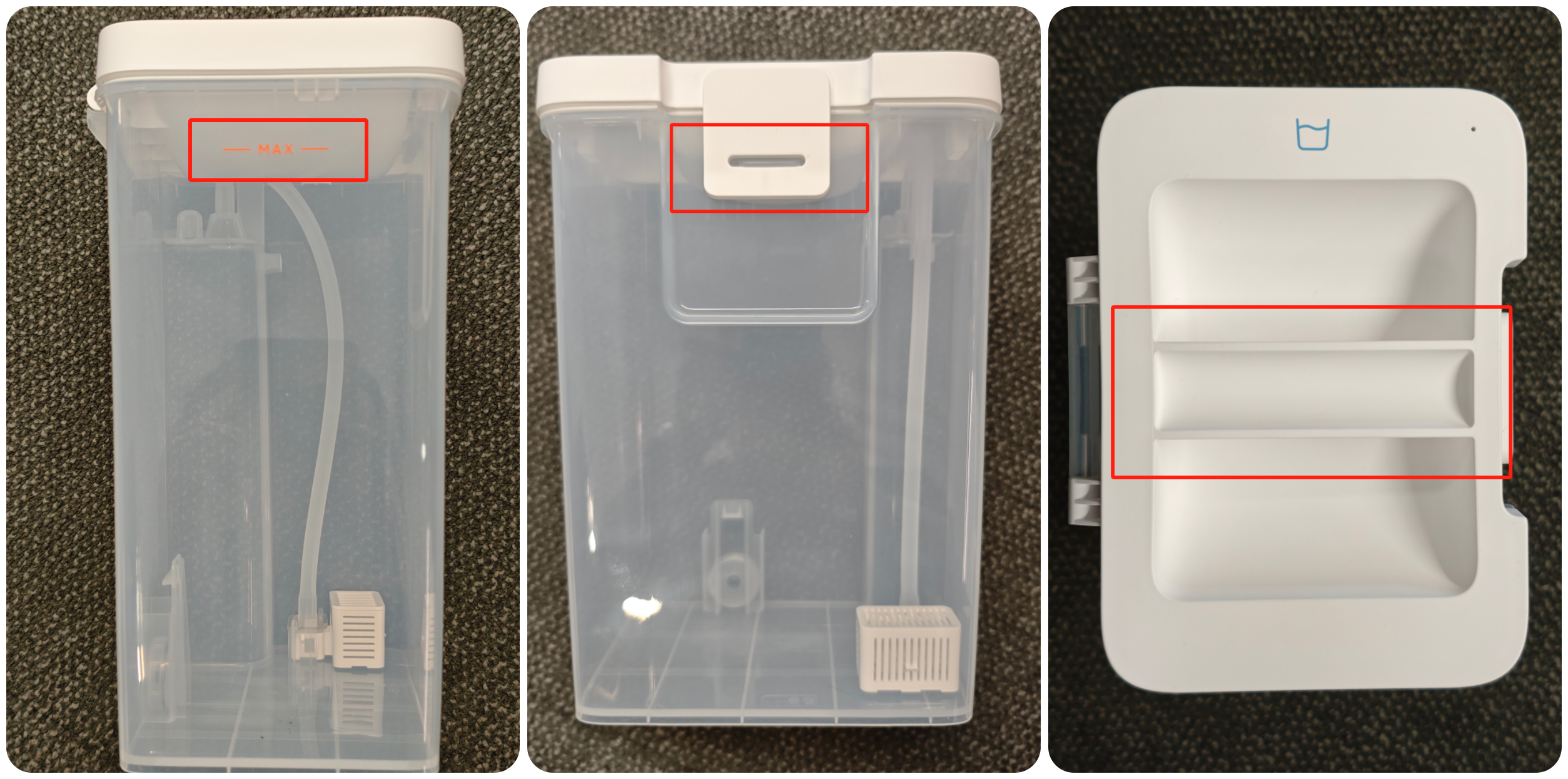
1. Open the top cover of the omni station and use the handle to remove the clean water tank. Pull the latch outward to open the lid. Fill the tank with clean water up to the MAX line (approx. 4 L at the orange line).
2. Tap the lid firmly to snap it shut and place the tank back into the station using the handle.
Q3: What is the function of the clean water tank filter in the Xiaomi Robot Vacuum 6 Max?
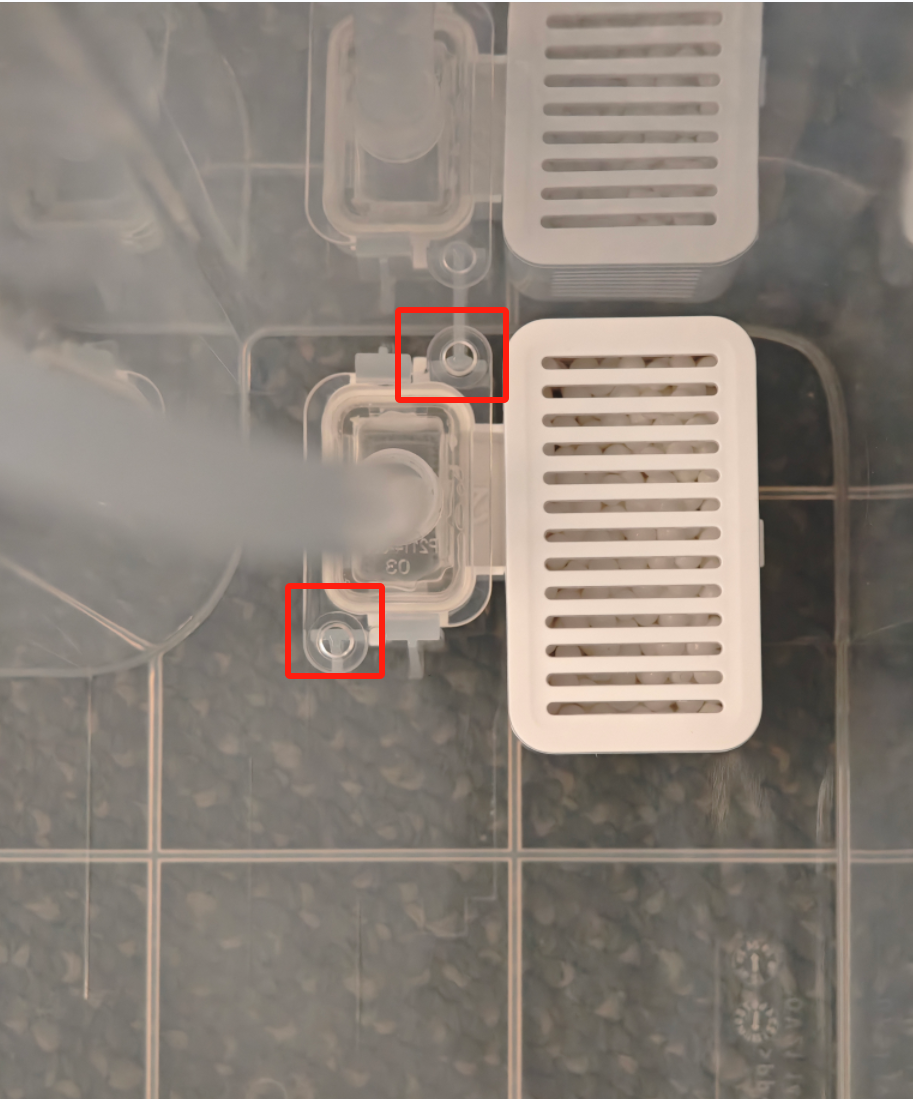
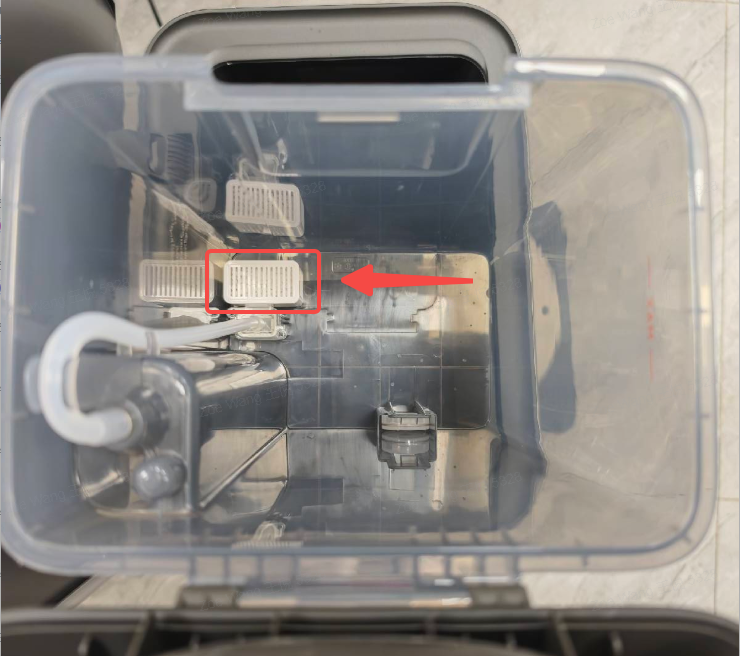
A: The filter of the Xiaomi Robot Vacuum 6 Max removes impurities from the water. The white granules are scale inhibitors.
You can pull the filter straight up to remove it, align it with the positioning columns, and then press down vertically to install.
Note:
1. Do not overfill past the MAX line.
2. Do not use hot water to avoid deforming the tank.
Q4: What is the function of the floater in the Xiaomi Robot Vacuum 6 Max clean water tank?
A: The floater in the Xiaomi Robot Vacuum 6 Max clean water tank contains a magnet and moves with the water level to detect low water or a missing tank.
To remove the floater, reach inside the tank, pull the latch outward with your thumb, and lift the floater with your middle finger. Reverse to reinstall.
If the floater moves out of the defined position, it will cause a warning that the clean water tank is not installed. If the floater seal fails and water enters, it will cause a warning that the clean water tank is short of water.
Q5: How to empty the dirty water tank of the Xiaomi Robot Vacuum 6 Max?
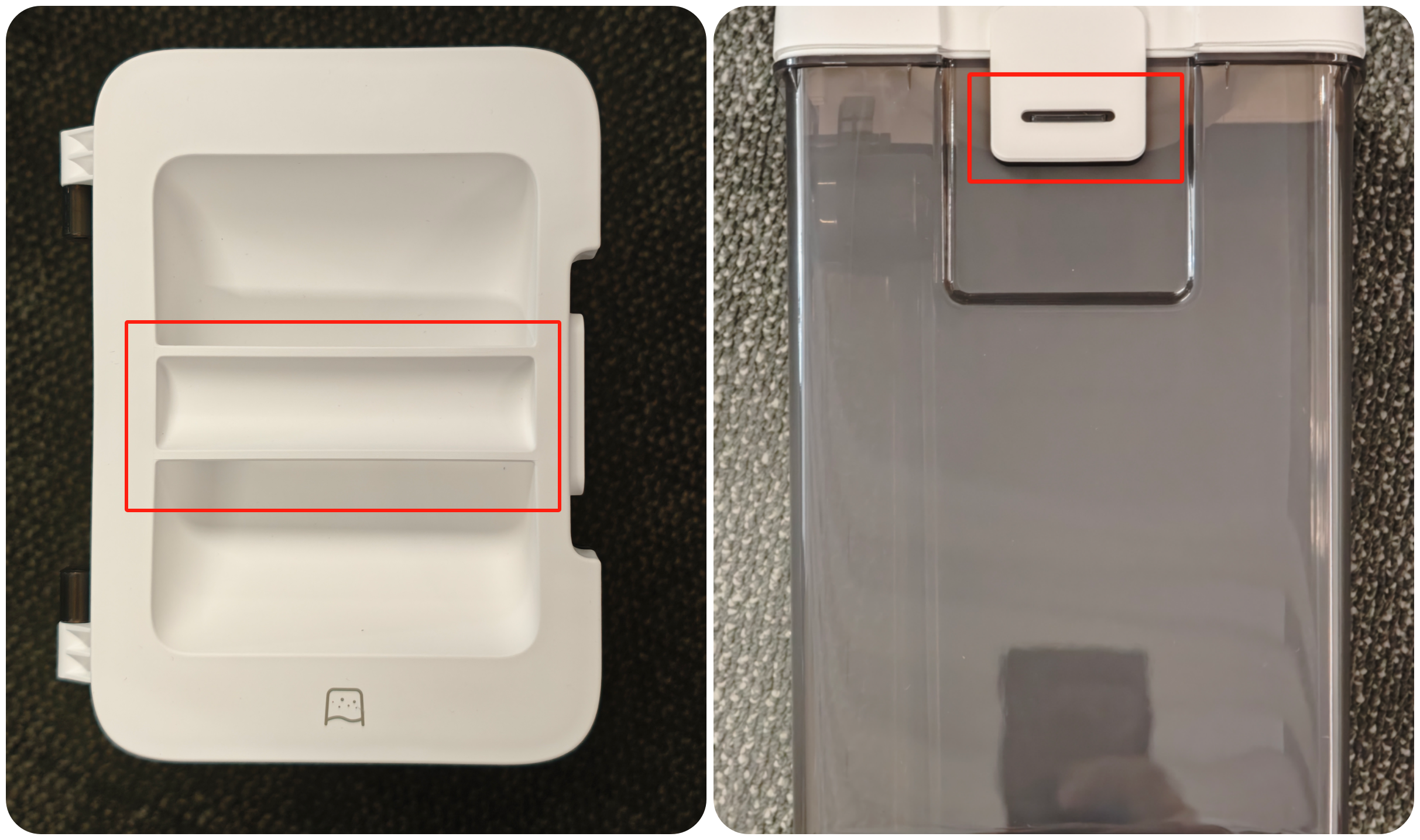
A: Open the Xiaomi Robot Vacuum 6 Max station’s top cover, remove the dirty water tank via the handle, pull the latch outward to open the lid, and pour wastewater into a suitable drain. Tap the dirty water tank cover to snap it shut (check whether the latch is in place), lift the armrest, and install it back into the station.
Q6: What is the function of the floater in the Xiaomi Robot Vacuum 6 Max dirty water tank?
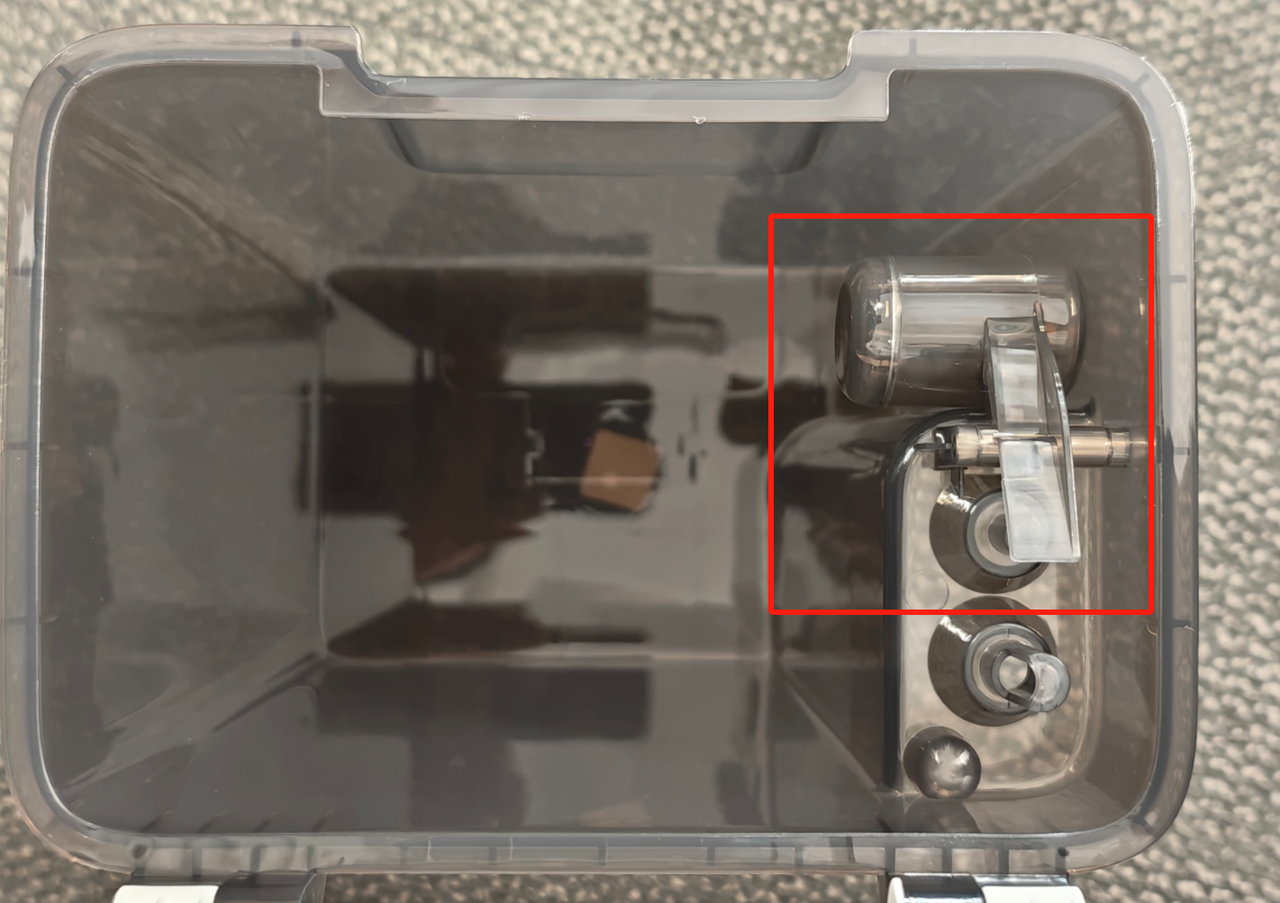
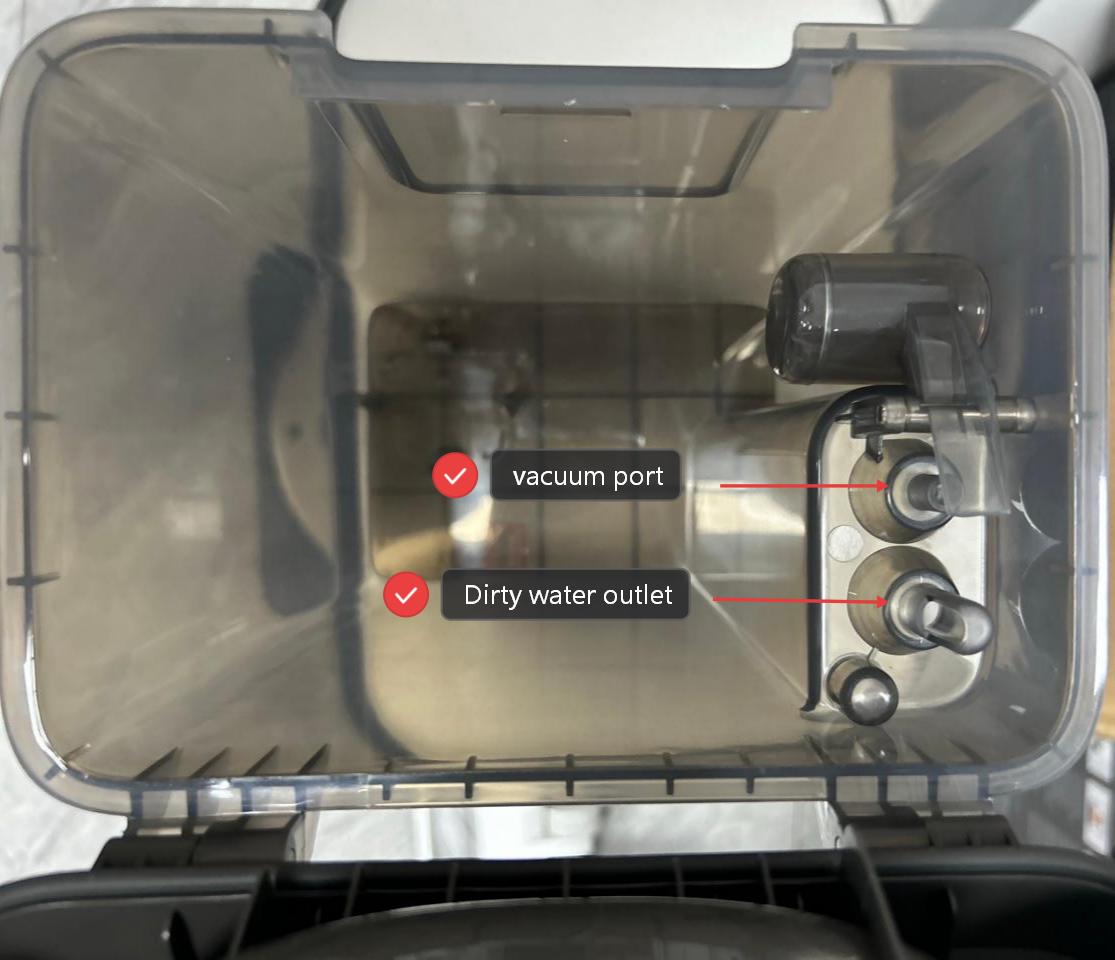
A: The sealed floater in the Xiaomi Robot Vacuum 6 Max dirty water tank is completely sealed and contains a magnet that moves with the rising water level to detect a full tank or tank removal.
Wastewater extraction principle:
When the water level is low, the dirty water tank is evacuated by an air pump, and the dirty water flows back from the cleaning disc through the sewage hole into the sewage tank. When the dirty water reaches a certain level, the floater rises and blocks the vacuum port, triggering a full dirty water tank alert.
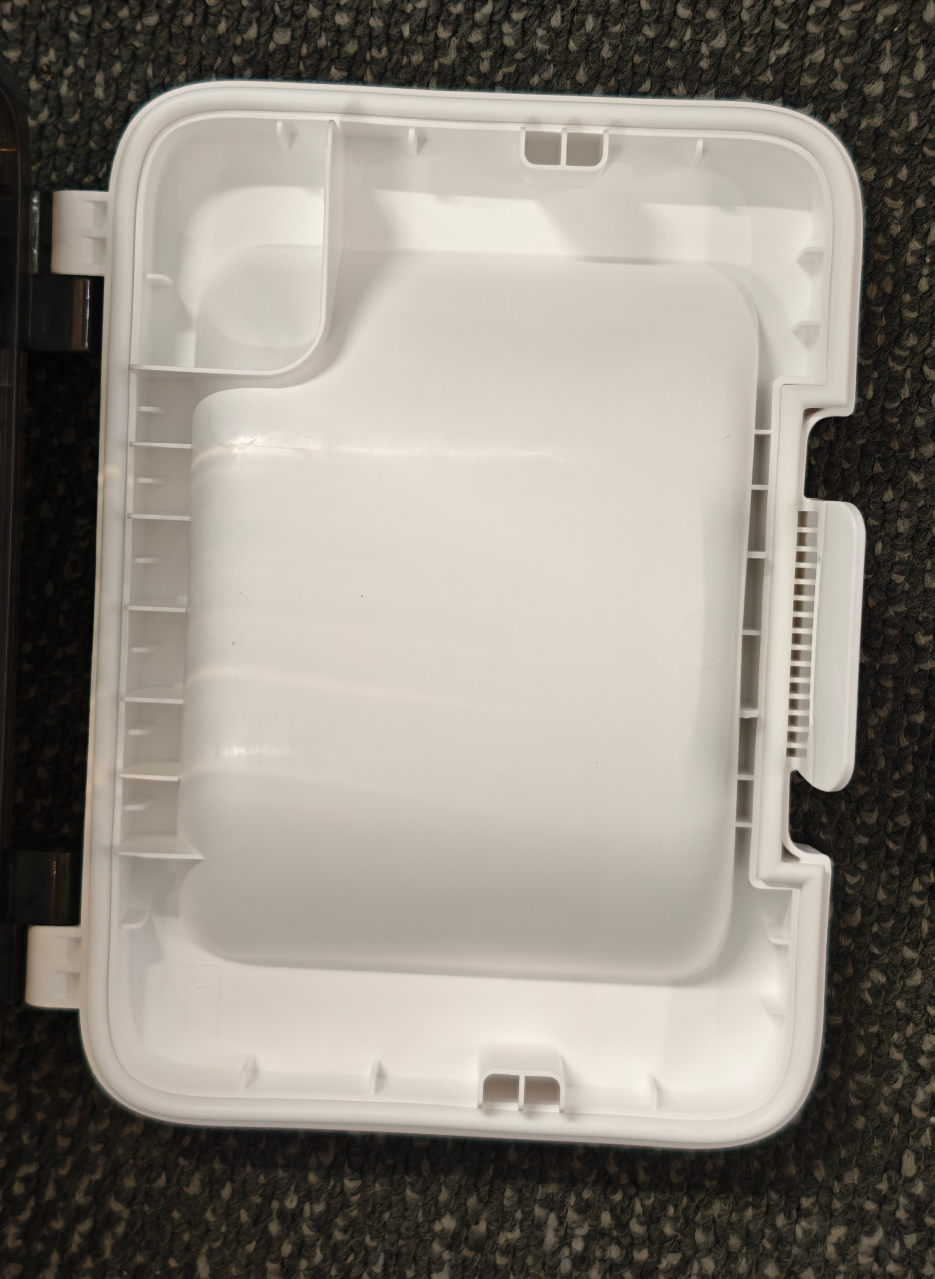
Note:
If the seal ring on the dirty water tank lid is lost, damaged, or deformed, wastewater cannot be extracted properly. Please do not remove it unless necessary.
Q7: How to replace the disposable bag of the Xiaomi Robot Vacuum 6 Max?
A: To replace the disposable bag of the Xiaomi Robot Vacuum 6 Max, please refer to the following information:
1. When the disposable bag is full, pull the cover out from the dust cabinet opening. Remove the disposable bag using the handle and discard it.
Note:
Pulling the handle of the disposable bag will seal it to prevent dust and debris from accidentally falling out.
2. Then use a dry cloth to wipe away any dirt from the filter.
3. Install a new disposable bag, slide the dust bag handle into the slot, and ensure it is properly installed.
4. Then put the dust cabinet cover back, and it is properly installed when you hear a "click".
Q8: How many times can the Xiaomi Robot Vacuum 6 Max's clean water tank wash the mop?
A: The Xiaomi Robot Vacuum 6 Max's clean water tank can wash the mop approximately 30 times (for reference only). The station dispenses 180 ml of water during the initial wash and 120 ml during mid-cycle rinses. The actual water usage will vary depending on the cleaning frequency.
Q9: How to install the washboard base extender of the Xiaomi Robot Vacuum 6 Max?
A: Install the washboard base extender of the Xiaomi Robot Vacuum 6 Max to the station in the guide. After installation, the washboard base extender should be flush with the station bottom without protrusions. If it's stuck, press it into place firmly.
Q10: How to clean the clean and the dirty water tanks of the Xiaomi Robot Vacuum 6 Max?
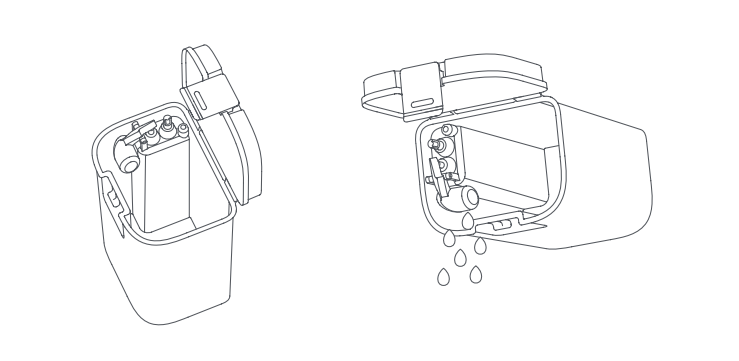
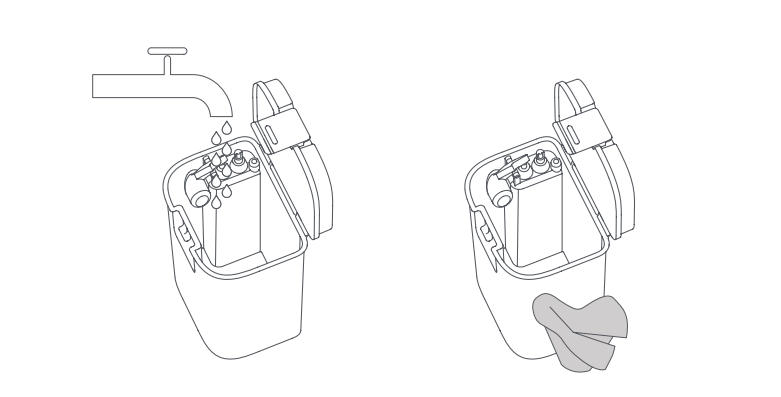
A: To clean the clean water tank and the dirty water tank of the Xiaomi Robot Vacuum 6 Max, please refer to the following steps:
1. Remove the clean water tank and the dirty water tank, open their lids, and empty out the water.
2. Use clean water to completely wash the tanks, then wipe the outside of the tanks dry before reinserting them into the station.
Note:
Both the floater in the clean water tank and the float ball in the dirty water tank are movable parts. Do not apply too much force when cleaning them to avoid damaging them.
Q11: How to clean the washboard of the Xiaomi Robot Vacuum 6 Max?
A: To clean the washboard of the Xiaomi Robot Vacuum 6 Max, please refer to the following information:
1. Remove the washboard and its filter from the bottom of the omni station, and clean them thoroughly with a brush under running water.
2. Wipe the washboard and its filter dry with a clean, dry cloth.
3. Reinstall the washboard until you hear a "click," ensuring it is properly seated.
4. Ensure the omni station's wastewater hose is positioned within the washboard's groove. If the hose sticks up, it can interfere with the operation.
Hardware Structure
Q1: What is the structure of the Xiaomi Robot Vacuum 6 Max?
A: The Xiaomi Robot Vacuum 6 Max consists of the following key components:
1. LiDAR sensor: Located on the top of the robot vacuum, it is used for scanning, mapping, navigation, obstacle avoidance, and planning cleaning routes.
2. Low-clearance space detection sensor: Located on the top of the robot vacuum, it detects the height of the space above the robot vacuum to determine whether it can enter low-clearance areas.
3. Collision buffer bumper: Located at the front of the robot vacuum, it provides collision buffering and impact protection.
4. AI triple-camera intelligent obstacle avoidance module: Located at the front of the robot vacuum, it enables AI recognition (obstacles, dirt, etc.) and video calls.
5. Edge sensor: Located on the right side of the robot vacuum, it detects the distance to walls and furniture edges, enabling the robot vacuum to clean along edges efficiently and reduce collisions.
6. Dust compartment and dust compartment filter: Open the top cover of the robot vacuum, and the dust compartment is in the center. It collects dust and hair and filters exhaust air.
7. Built-in clean water tank and dirty water compartment: Located at the rear of the robot vacuum, the clean water tank stores clean water, and the dirty water compartment collects dirty water.
8. Side brushes: Located on the left and right sides of the front bottom of the robot vacuum, they sweep dust from corners and edges to the suction opening area.
9. Main brush: Located at the suction opening in the center of the bottom of the robot vacuum, it removes stains, hair, and particles from the floor, working in conjunction with suction power.
10. Drive wheels and caster wheel: The drive wheels are on the left and right sides of the bottom (driving wheels), and the caster wheel is at the top of the bottom. They enable driving, turning, and obstacle crossing.
11. Cliff sensors: Located on the bottom edges of the robot vacuum, they prevent the robot vacuum from falling off stairs or elevated surfaces.
12. Roller mop pad and corner cleaning mop pad: Located at the rear bottom of the robot vacuum, they enable the mopping function.
Q2: What is the retractable LiDAR sensor of the Xiaomi Robot Vacuum 6 Max?
A: The retractable LiDAR sensor is located on the top of the Xiaomi Robot Vacuum 6 Max. It is a LiDAR component with a mechanical lifting structure that dynamically adjusts its height to balance passability and high-precision perception.
When high-precision environmental modeling is needed, the LiDAR rises and performs a 360° scan of the surrounding space. When entering low-clearance areas such as under beds or sofas, the LiDAR lowers to reduce the robot vacuum's height and avoid collisions. This design improves access to low-clearance spaces, reduces the risk of getting stuck, and enhances cleaning coverage.
Note:
The retractable LiDAR sensor will lower when the robot vacuum is idle and not performing any task, when it is charging on the omni station, and when it is cleaning low-clearance areas. When the LiDAR is lowered for cleaning low-clearance areas, please do not move the robot vacuum, as it may affect positioning.
Q3: What is the working logic of the retractable LiDAR sensor in the Xiaomi Robot Vacuum 6 Max?
A: When the Xiaomi Robot Vacuum 6 Max cleans low-clearance areas, it first completes mapping. During cleaning, the robot vacuum prioritizes cleaning non-low-clearance areas before moving on to low-clearance areas. Due to differences in home environments, when the low-clearance space height is between 9.3 cm and 11.5 cm, the LiDAR lifting function will be triggered.
Note:
Due to variations in furniture height and bottom structure, the actual low-clearance spaces that the robot vacuum can enter may vary. If the robot vacuum's behavior affects your experience, you can set restricted areas or virtual walls in the Xiaomi Home App.
If the robot vacuum does not enter a passable area, you can submit a log through the Help & Feedback section in the Xiaomi Home App. Please upload the log after cleaning is complete, along with photos of the low-clearance area height and the scene.
Q4: What to do if the LiDAR sensor of the Xiaomi Robot Vacuum 6 Max cannot rise or descend?
A: If the LiDAR sensor of the Xiaomi Robot Vacuum 6 Max cannot rise or descend, please refer to the following troubleshooting steps:
1. The LiDAR sensor may be obstructed by foreign objects. Turn off the robot vacuum, check the top and surrounding area of the LiDAR sensor, and remove any hair, dust, or debris.
2. Restart the device to allow it to automatically reset the LiDAR sensor, and observe whether it can rise or descend normally.
Q5: What to do if the laser sensor of the Xiaomi Robot Vacuum 6 Max is abnormal?
A: If the laser sensor of the Xiaomi Robot Vacuum 6 Max is abnormal, please refer to the following troubleshooting steps:
1. Restart or force restart the robot vacuum.
2. Check for and install the latest firmware version.
3. Check and clean any foreign objects such as hair or debris that may have entered the top LiDAR sensor. Wipe the black lenses on the front and sides of the robot vacuum, and check for any signs of wear.
4. If the issue persists, please contact the after-sales support. If the issue is resolved but occasionally recurs, it is recommended to submit the anomaly through the Help & Feedback section in the Xiaomi Home App.
Q6: What is the low-clearance space detection sensor of the Xiaomi Robot Vacuum 6 Max?
A: The low-clearance space detection sensor is a dedicated sensor on the Xiaomi Robot Vacuum 6 Max used to detect the height of the space above the robot vacuum, primarily to determine whether it can enter low-clearance areas such as under furniture or beds.
Location: It is located near the front of the top of the robot vacuum.
Working principle: It detects the distance to obstacles above in real time and determines whether the space height meets the robot vacuum's passage requirements.
Core function: It prevents the robot vacuum from entering areas with insufficient height, which could cause it to get stuck or be unable to exit. It works in conjunction with the LiDAR lifting mechanism, automatically lowering the LiDAR when the height is sufficient to improve the passability of low-clearance areas.
Common trigger scenarios: Before entering low-clearance spaces such as under beds, cabinets, sofas, or coffee tables, the sensor detects and decides whether to enter in advance.
Q7: What to do if the low-clearance space detection sensor of the Xiaomi Robot Vacuum 6 Max is dirty?
A: The low-clearance space detection sensor is located near the front of the top of the robot vacuum. Open the top cover of the robot vacuum and gently wipe the sensor with a soft, dry cloth, then start cleaning to check the result.
Q8: Why does the LiDAR sensor of the Xiaomi Robot Vacuum 6 Max not descend when cleaning under furniture?
A: If the LiDAR sensor of the Xiaomi Robot Vacuum 6 Max does not descend when cleaning under furniture, please refer to the following information:
1. The bottom height of the furniture has not reached the trigger condition. The LiDAR will automatically descend only when the furniture bottom height is between 9.3 cm and 11.5 cm. If the height is less than 9.3 cm, the robot vacuum will not enter. If the height is greater than 11.5 cm, the LiDAR will not descend, and the robot vacuum will clean normally.
2. The low-clearance space detection sensor may be dirty. Open the top cover of the robot vacuum and gently wipe the sensor with a soft, dry cloth.
3. The LiDAR sensor may be obstructed by foreign objects. Turn off the robot vacuum, check the top and surrounding area of the LiDAR sensor, and remove any hair, dust, or debris.
4. Restart the device to allow it to automatically reset the LiDAR sensor, and observe whether it can descend normally. If it cannot descend, gently press the top of the LiDAR sensor to assist with resetting.
Note:
Due to variations in furniture height and bottom structure, the actual low-clearance spaces that the robot vacuum can enter may vary. If the robot vacuum's behavior affects your experience, you can set restricted areas or virtual walls in the Xiaomi Home App.
Q9: Why does the Xiaomi Robot Vacuum 6 Max not enter low-clearance areas for cleaning even though the furniture bottom height exceeds 9.3 cm?
A: If the Xiaomi Robot Vacuum 6 Max does not enter low-clearance areas for cleaning even though the furniture bottom height exceeds 9.3 cm, please refer to the following information:
1. The robot vacuum cleans low-clearance areas last. During cleaning, the robot vacuum will first clean regular areas before cleaning low-clearance areas.
2. Low-clearance area requirements: The furniture bottom height should be between 9.3 cm and 11.5 cm, with a width of approximately 80 cm (including pillars on both sides) and a depth of approximately 30 cm. These conditions have a higher success rate for triggering the LiDAR lifting function.
3. The low-clearance space detection sensor may be dirty. Open the top cover of the robot vacuum and gently wipe the sensor with a soft, dry cloth.
4. Clear any obstructing items. Check under the furniture and remove scattered cables, debris, slippers, and other obstructions to ensure the entry and exit path is clear.
5. Adjust device settings. Open the Xiaomi Home App and check whether virtual walls or restricted areas are set around the furniture, or whether carpet avoidance mode is set for carpets near the furniture.
Note:
Due to variations in furniture height and bottom structure, the actual low-clearance spaces that the robot vacuum can enter may vary.
Q10: What to do if the Xiaomi Robot Vacuum 6 Max gets stuck in a low-clearance space?
A: If the Xiaomi Robot Vacuum 6 Max gets stuck in a low-clearance space, please refer to the following troubleshooting steps:
1. Remove the robot vacuum. Gently move the furniture to safely retrieve the robot vacuum. Alternatively, go to the Xiaomi Home App >> tap the three dots icon in the upper right corner to enter [Settings] >> [More functions] >> [Remote control], lower the LiDAR sensor, and safely remote-control the robot vacuum out.
2. Add a virtual wall or restricted areas. If the furniture bottom space is limited (the furniture bottom height is less than the robot vacuum's body height) or there are cables or foreign objects under the furniture, it is recommended to add a virtual wall or restricted areas in this area to prevent the robot vacuum from entering again.
3. Clean foreign objects from the robot vacuum. After retrieving the robot vacuum, check the main brush, side brushes, and drive wheels, and remove any tangled hair, cables, or other foreign objects.
Note:
Due to variations in furniture height and bottom structure, the actual low-clearance spaces that the robot vacuum can enter may vary.
Q11: Under what conditions does the Xiaomi Robot Vacuum 6 Max trigger low-clearance cleaning?
A: The Xiaomi Robot Vacuum 6 Max triggers low-clearance cleaning under the following conditions:
1. Low-clearance area requirements: The furniture bottom height should be between 9.3 cm and 11.5 cm, with a width of approximately 80 cm (including pillars on both sides) and a depth of approximately 30 cm. These conditions have a higher success rate for triggering the LiDAR lifting function.
2. The robot vacuum cleans low-clearance areas last. During cleaning, the robot vacuum will first clean regular areas before cleaning low-clearance areas.
3. The robot vacuum will not enter low-clearance areas during the mapping process.
Note:
Due to variations in furniture height and bottom structure, the actual low-clearance spaces that the robot vacuum can enter may vary.
Q12: What is the collision buffer bumper of the Xiaomi Robot Vacuum 6 Max?
A: The collision buffer bumper is a C-shaped movable panel located at the front of the Xiaomi Robot Vacuum 6 Max. It senses obstacles through collision and protects the robot vacuum and furniture through buffering. The collision buffer bumper has a built-in collision switch that triggers obstacle avoidance upon contact. It works in conjunction with other obstacle avoidance sensors to form a complete obstacle avoidance system.
Q13: What to do if the collision buffer bumper of the Xiaomi Robot Vacuum 6 Max is abnormal?
A: If the collision buffer bumper of the Xiaomi Robot Vacuum 6 Max is abnormal, please refer to the following troubleshooting steps:
1. The collision buffer bumper may be obstructed by foreign objects. Check whether there are any hair, threads, or other foreign objects tangled or caught around the bumper, and gently clean them. Tap the collision buffer bumper to ensure it can rebound freely.
2. Restart the robot vacuum and start cleaning to observe its operation.
Q14: What is the AI triple-camera intelligent obstacle avoidance module of the Xiaomi Robot Vacuum 6 Max?
A: The AI triple-camera intelligent obstacle avoidance module is located at the front of the Xiaomi Robot Vacuum 6 Max and consists of an AI high-definition camera, an AI infrared camera, and an AI structured light projector.
1. AI high-definition camera captures high-definition color images of the environment in front of the robot vacuum. It enables AI recognition (obstacles, dirt, room types), real-time image capture, and video manager functions.
2. AI infrared camera uses infrared imaging technology to capture the outline of obstacles, ensuring that the obstacle avoidance function works properly under any lighting conditions.
3. AI structured light projector projects a specific array of infrared light dots forward. The AI infrared camera captures the deformed light dot patterns to precisely measure the distance and relative position between the robot vacuum and obstacles.
The AI triple-camera intelligent obstacle avoidance module provides the robot vacuum with color vision, night vision, and precise 3D depth perception. Its core function is to enable the robot vacuum to navigate and clean more safely and intelligently in complex home environments by accurately identifying and avoiding obstacles, significantly reducing collisions and entrapment, improving cleaning efficiency and coverage, and protecting furniture and device safety.
Q15: What is the edge sensor of the Xiaomi Robot Vacuum 6 Max?
A: The edge sensor is located on the right side of the Xiaomi Robot Vacuum 6 Max, covered by a dark-colored lens. It generally detects the distance to obstacles by sending and receiving signals. Its primary function is to detect vertical obstacles such as walls and furniture edges, enabling the robot vacuum to clean along edges efficiently, reduce collisions, and achieve close-edge cleaning.
Q16: What to do if the edge sensor of the Xiaomi Robot Vacuum 6 Max is abnormal?
A: If the edge sensor of the Xiaomi Robot Vacuum 6 Max is abnormal, please refer to the following troubleshooting steps:
1. Clean the sensor. Press and hold the power button to turn off the robot vacuum, then gently wipe the edge sensor on the right side of the robot vacuum with a soft, dry cloth.
2. Restart and test. Press and hold the power button to turn on the robot vacuum, press the power button to start cleaning, and observe whether the robot vacuum cleans closely along walls.
Q17: What to do if the mop pad or side brush of the Xiaomi Robot Vacuum 6 Max does not swing out during edge cleaning?
A: If the mop pad or side brush of the Xiaomi Robot Vacuum 6 Max does not swing out during edge cleaning, please refer to the following troubleshooting steps:
1. Confirm the [Corners & edges focus] settings. Go to the Xiaomi Home App >> select the robot vacuum >> tap the three dots icon to enter [Settings] >> [Corners & edges focus], and confirm that the side brush and mop pad swing-out switches are enabled and the frequency is set to execute for every cleaning task.
2. Clean the mop pad and side brush. Flip the robot vacuum over, remove the roller mop pad, corner cleaning mop pad, and side brush, and clean them.
3. Wipe the edge sensor. Gently wipe the edge sensor with a soft, dry cloth. The edge sensor is located on the right side of the robot vacuum.
4. Restart and test. Press the power/clean button on the robot vacuum to start cleaning, and observe whether the mop pad or side brush swings out when cleaning along walls, corners, furniture bottoms, or table and chair legs.
Note:
1. The side brush only swings out during corner cleaning at 60°-120° angles, concave corners deeper than 2 cm, and low-clearance areas (such as under sofas).
2. The roller mop pad only swings out during cleaning along walls and obstacles and concave corners deeper than 2 cm.
3. The corner cleaning mop pad only swings out during low-clearance area edge cleaning (such as under sofas), table and chair leg cleaning, and concave corners deeper than 2 cm.
Q18: What is the ultrasonic sensor of the Xiaomi Robot Vacuum 6 Max?
A: The ultrasonic sensor is located on the bottom of the Xiaomi Robot Vacuum 6 Max, near the caster wheel. It determines the floor material by sending and receiving ultrasonic signals. Its primary function is to detect and distinguish different floor materials such as tiles and carpets. After identifying a carpet, it enables functions such as carpet avoidance, carpet crossing, carpet ignoring, mop pad lifting on carpets, and enhanced suction cleaning on carpets.
Q19: What is the cliff sensor of the Xiaomi Robot Vacuum 6 Max?
A: There are four cliff sensors on the bottom of the Xiaomi Robot Vacuum 6 Max. They detect the height of the drop below by sending and receiving infrared signals, preventing the robot vacuum from falling from elevated surfaces and causing damage.
Q20: What to do if the Xiaomi Robot Vacuum 6 Max reports a cliff sensor error?
A: If the Xiaomi Robot Vacuum 6 Max reports a cliff sensor error, please refer to the following troubleshooting steps:
1. Check the environment. Carpet edges, transparent glass, and dark reflective surfaces can easily trigger false cliff sensor errors.
2. Clean the sensors. Press and hold the power/clean button to turn off the robot vacuum, flip it over, and gently wipe the cliff sensors around the bottom with a soft, dry cloth.
3. Restart and test. Press and hold the power/clean button to turn on the robot vacuum, place it on a flat, solid-colored, non-reflective surface, press the power button to start cleaning, and observe whether the robot vacuum reports an error.
Q21: What are the charging contacts of the Xiaomi Robot Vacuum 6 Max?
A: The charging contacts are located at the rear of the Xiaomi Robot Vacuum 6 Max. They work as a pair with the charging springs on the omni station, enabling charging through contact between the two.
Q22: How to maintain the battery of the Xiaomi Robot Vacuum 6 Max?
A: The Xiaomi Robot Vacuum 6 Max is equipped with a high-performance lithium-ion battery pack. To maintain battery performance, please keep the robot vacuum on the charger during daily use.
Note:
If the robot vacuum will not be used for an extended period, please fully charge it and then turn it off for storage. Charge it at least once every three months to prevent battery damage from over-discharge.
Q23: Can the Xiaomi Robot Vacuum 6 Max remain charging at all times?
A: The Xiaomi Robot Vacuum 6 Max can remain on the omni station for standby charging. If you are leaving home for a short or extended period, it is recommended to turn off the power and press and hold the power/clean button on the robot vacuum to turn it off. The robot vacuum supports overcharge protection, and after the battery is fully charged, it will automatically switch to a low-current charging mode.
Q24: Does the Xiaomi Robot Vacuum 6 Max consume power when it remains on the omni station?
A: When the Xiaomi Robot Vacuum 6 Max remains on the omni station, the omni station supplies power to the robot vacuum. After being fully charged for 10 minutes, the robot vacuum will enter sleep mode. In sleep mode, power consumption is extremely low, and the battery enters hibernation to maintain optimal performance.
Q25: How to determine whether the Xiaomi Robot Vacuum 6 Max is charging?
A: When the Xiaomi Robot Vacuum 6 Max is charging, it will announce "start charging", and the light ring will light up in white, indicating that the robot vacuum is successfully connected to the omni station. You can also open the Xiaomi Home App to check whether the robot vacuum is charging or fully charged.
Q26: What to do if the Xiaomi Robot Vacuum 6 Max cannot charge?
A: If the Xiaomi Robot Vacuum 6 Max cannot charge, please refer to the following troubleshooting steps:
1. Clean the charging contacts. Gently wipe the charging contacts on the rear of the robot vacuum and the charging springs and black lens on the omni station with a soft, dry cloth to remove dust or stains.
2. Check the power connection. Ensure the omni station's power cable is securely plugged in, the outlet is powered, and the omni station's indicator is on.
3. Adjust the charging environment. Place the omni station against a wall on a flat surface, with no obstacles within 5 cm on both sides and no highly reflective objects within 1.5 meters in front.
4. Manually charge. Place the robot vacuum on the omni station, aligning the charging contacts with the charging springs, and ensure good contact.
5. Check whether the caster wheel and drive wheels are stuck, whether the return-to-charge path is clear, and whether the omni station position on the map is accurate.
Q27: What to do if the Xiaomi Robot Vacuum 6 Max does not fully charge when on the omni station?
A: If the Xiaomi Robot Vacuum 6 Max does not fully charge when on the omni station, please refer to the following troubleshooting steps:
1. Clean the charging contacts. Gently wipe the charging contacts on the rear of the robot vacuum and the charging springs and black lens on the omni station with a soft, dry cloth to remove dust or stains.
2. Check the power connection. Ensure the omni station's power cable is securely plugged in, the outlet is powered, and the omni station's indicator is on.
3. Check the omni station placement. Ensure the omni station is placed flat and stable, with no foreign objects or carpets on the bottom to avoid poor contact.
4. Reinstall the washboard. Remove the washboard from the bottom of the omni station and reinstall it until you hear a "click" to ensure it is properly seated. Ensure the omni station's wastewater hose is positioned within the washboard's groove to avoid the hose sticking up and affecting use.
5. Place the robot vacuum on the omni station, aligning the charging contacts with the charging springs, and ensure good contact.
6. Check the ambient temperature. Charging may not work if the temperature is too low or too high. Ensure charging is performed in an environment between 0°C and 40°C. If the above steps do not resolve the issue, it is generally due to battery aging or a charging board fault. Please contact the after-sales support for inspection and replacement.
Q28: Does the Xiaomi Robot Vacuum 6 Max have motor overload protection?
A: All motors on the Xiaomi Robot Vacuum 6 Max have overload protection, including the main brush motor, side brush motor, drive wheel motor, and mop pad motor. When foreign objects enter or severe blockage causes overload, the protection function will automatically activate to prevent motor damage.
The robot vacuum will also announce or display a prompt in the Xiaomi Home App indicating that the corresponding motor is tangled. Please promptly clean the tangled hair and foreign objects according to the user manual instructions.
Q29: What is the auto water refill port of the Xiaomi Robot Vacuum 6 Max?
A: The auto water refill port is located at the rear of the Xiaomi Robot Vacuum 6 Max. It works in tandem with the water injection hole on the omni station. During the first mop pad wash, the omni station fills the robot vacuum's built-in clean water tank with water. During mopping, the clean water tank supplies water to the mop pad to keep it moist, achieving consistent moisture mopping. After the task is completed, all water in the clean water tank is drained.
Q30: What is the scale inhibitor in the Xiaomi Robot Vacuum 6 Max clean water tank?
A: The scale inhibitor is used to prevent dissolved calcium, magnesium, and other metal ions in water from forming limescale, which could accumulate inside the heating module and affect the hot water function. The white granules in the water tank are solid scale inhibitors. Please do not remove or discard them, as they ensure the long-term stable operation of the device and prevent limescale blockage that could affect water output and service life.
Note:
The robot vacuum's station heats the water for this function. Please do not fill it with hot water.
The robot vacuum's station heats the water for this function. Please do not fill it with hot water.
Q31: What is the function of the built-in water tank in the Xiaomi Robot Vacuum 6 Max?
A: The built-in water tank in the Xiaomi Robot Vacuum 6 Max continuously supplies water to the mop pad during mopping, keeping the mop pad moist and enhancing stain removal capability.
Q32: Can the Xiaomi Robot Vacuum 6 Max execute scheduled cleaning tasks when disconnected from the network?
A: Scheduled cleaning and customized cleaning tasks are saved locally on the Xiaomi Robot Vacuum 6 Max. Even when the network is disconnected, these tasks will still be executed normally. However, it is recommended to maintain a network connection for the best experience.
Q33: Does the Xiaomi Robot Vacuum 6 Max have a built-in microphone?
A: The Xiaomi Robot Vacuum 6 Max is equipped with a built-in microphone, which enables two-way voice communication through the video manager function.
Hardware Usage
Q1: How to remove the protective materials from the Xiaomi Robot Vacuum 6 Max?
A: Before using the Xiaomi Robot Vacuum 6 Max, please remove all protective materials from the robot vacuum and the omni station. Failure to do so may prevent the device from functioning properly.
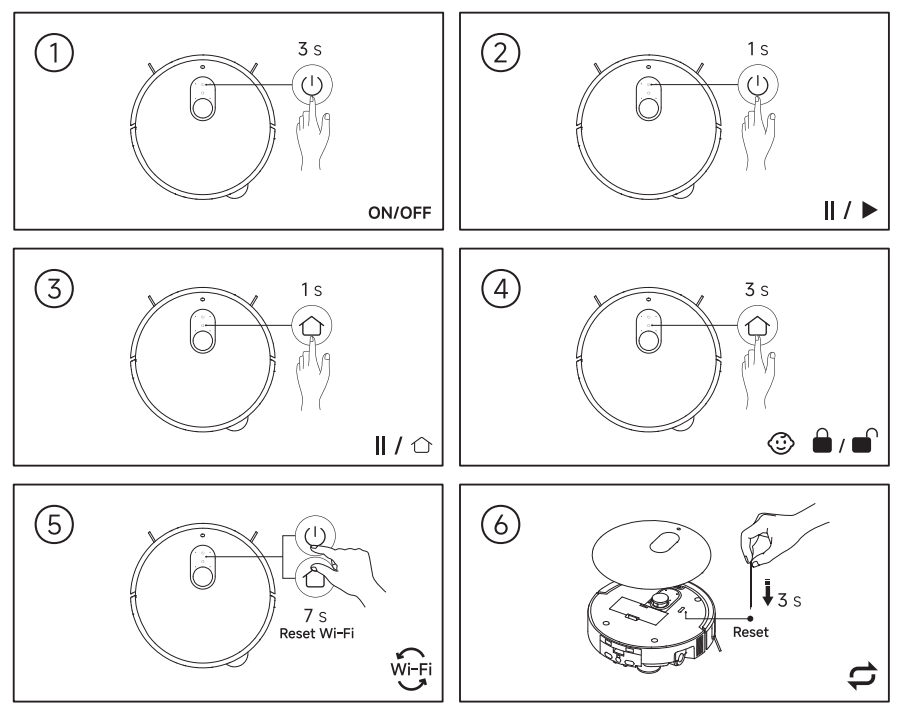
Q2: What are the buttons on the Xiaomi Robot Vacuum 6 Max?
A: The Xiaomi Robot Vacuum 6 Max has three buttons: the power/clean button, the recharge button, and the reset button.
The power/clean button on the Xiaomi Robot Vacuum 6 Max has the following functions: Press and hold for 3 seconds to turn the robot vacuum on or off. When the robot vacuum is on, press to start cleaning or pause.
The recharge button on the Xiaomi Robot Vacuum 6 Max has the following functions: When the robot vacuum is running, press to pause. When paused, press to start returning to the omni station for charging. When charging, press to stop returning to the omni station.
Press and hold the recharge button on the Xiaomi Robot Vacuum 6 Max for 3 seconds to enable or disable the child lock function.
The reset button on the Xiaomi Robot Vacuum 6 Max has the following functions: Press and hold for 3 seconds to restore factory settings. Press and hold for 10 seconds to force shut down and restore factory settings simultaneously.
Press and hold the recharge button and the power/clean button for 7 seconds to reset Wi-Fi.
Q3: What do the indicators on the Xiaomi Robot Vacuum 6 Max omni station mean?
A: The indicators on the Xiaomi Robot Vacuum 6 Max omni station have the following meanings:
1. Solid white: Normal status.
2. Breathing in white: Drying, washing mop pad, or collecting dust.
3. Breathing in orange: Charging (low battery).
4. Flashing in orange: Omni station error.
5. Off: Do Not Disturb mode or sleep mode.
6. Light up within 10 seconds in response to button operation, then turn off: Button operation triggered during Do Not Disturb mode.
Note:
Flashing in orange does not indicate a product malfunction. Please restart both the robot vacuum and the omni station, then try operating them again following the correct usage instructions.
Q4: What is the indicator logic of the Xiaomi Robot Vacuum 6 Max omni station?
A: The indicator logic of the Xiaomi Robot Vacuum 6 Max omni station is as follows:
1. When the robot vacuum is not on the omni station or is charging on the omni station, the omni station indicator stays on.
2. When the robot vacuum is on the omni station and is in Do Not Disturb mode or sleep mode, the omni station and robot vacuum indicators turn off.
3. When the robot vacuum is on the omni station and a button operation is triggered during Do Not Disturb mode, the indicator responds within 10 seconds and then turns off.
Note:
When the robot vacuum is in sleep mode and is removed from the omni station, the omni station light will remain off. After waking up the robot vacuum and placing it back on the omni station, the indicator will turn on.
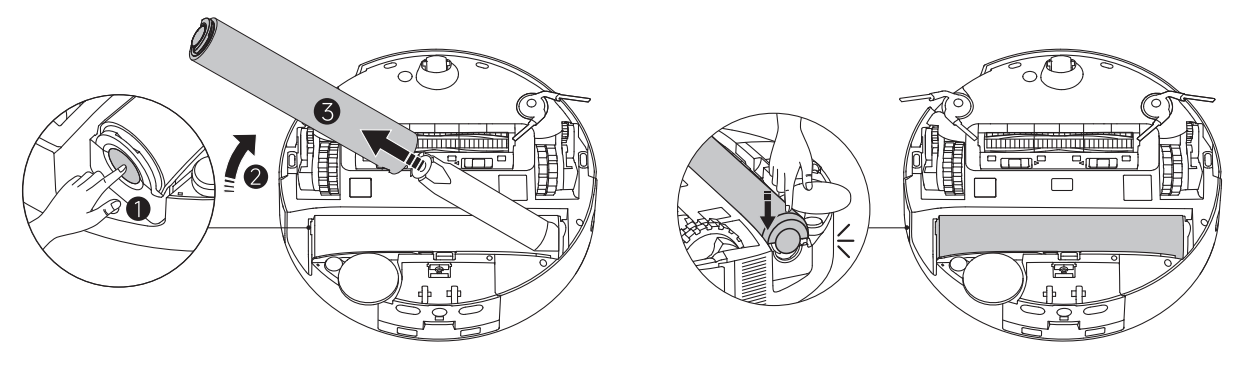
Q5: How to remove, install, replace, or clean the roller mop pad of the Xiaomi Robot Vacuum 6 Max?
A: Please refer to the following steps:
1. Flip the Xiaomi Robot Vacuum 6 Max over.
2. Press the roller mop pad release button to remove the roller mop pad.
3. If you are cleaning the roller mop pad, clean both the roller mop pad and the roller mop pad compartment.
4. To install or replace the roller mop pad, insert the roller mop pad into the mop pad holder, then press the roller mop pad release button until you hear a "click" to ensure it is securely installed.
Q6: How to remove, install, replace, or clean the water guide channel of the Xiaomi Robot Vacuum 6 Max?
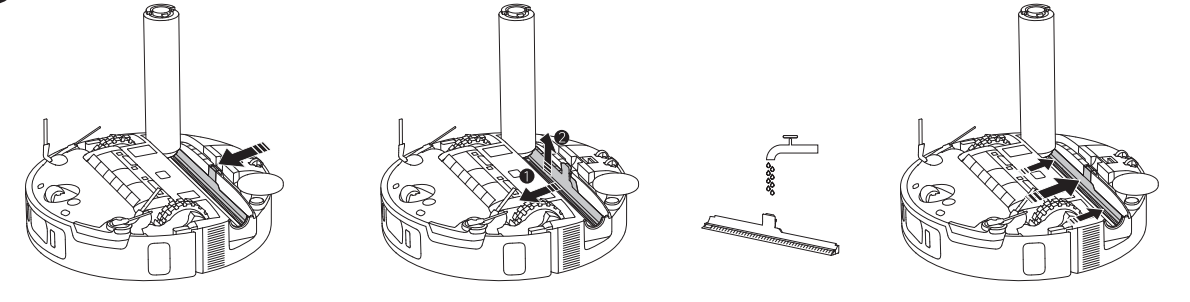
A: Please refer to the following steps:
1. Flip the Xiaomi Robot Vacuum 6 Max over and press the roller mop pad release button to lift the roller mop pad.
2. Push the water guide channel forward to release the latch, then remove the water guide channel.
3. If you are cleaning the water guide channel, rinse it thoroughly and wipe it dry before reinstalling it.
4. To install or replace the water guide channel, align it with the slot and push it backward until you hear a "click" to ensure it is securely installed.
5. Reinstall the roller mop pad by inserting it into the mop pad holder, then press the roller mop pad release button until you hear a "click" to ensure it is securely installed.
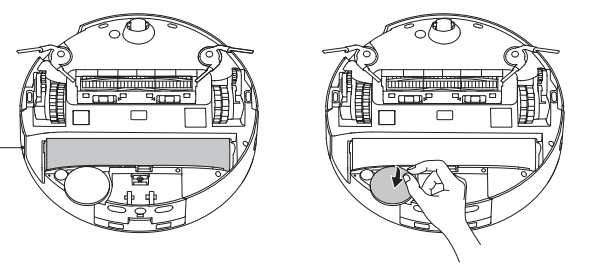
Q7: How to remove, install, or replace the corner cleaning mop pad of the Xiaomi Robot Vacuum 6 Max?
A: Please refer to the following steps:
1. Flip the Xiaomi Robot Vacuum 6 Max over.
2. To remove the corner cleaning mop pad, peel it off from the robot vacuum.
3. To install or replace the corner cleaning mop pad, align it with the corresponding position and press it firmly into place.
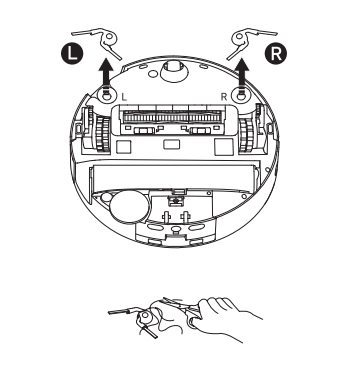
Q8: How to remove, install, replace, or clean the side brushes of the Xiaomi Robot Vacuum 6 Max?
A: Please refer to the following steps:
1. Flip the Xiaomi Robot Vacuum 6 Max over.
2. Pull the side brush straight up to remove it.
3. If you are cleaning the side brush, remove any tangled hair or foreign objects from it.
4. To install or replace the side brushes, match the side brush color and the "L" or "R" label with the corresponding position, then press each side brush into place until you hear a "click" to ensure it is securely installed.
Q9: What to do if the side brush of the Xiaomi Robot Vacuum 6 Max falls off?
A: If the side brush of the Xiaomi Robot Vacuum 6 Max falls off, please refer to the following steps:
1. Match the side brush color and the "L" or "R" label to install the two side brushes in their corresponding positions until you hear a "click" to ensure they are properly installed.
2. Check whether the side brush or interface is damaged. Check whether there are any broken pieces remaining on the robot vacuum, and remove them if found. Also check whether the side brush interface on the robot vacuum is broken. If broken, please contact the after-sales support for repair.
3. Check for foreign object interference. Clean any tangled hair or foreign objects on the side brush to avoid affecting installation stability.
4. Tidy up the home environment before cleaning. Pick up fragile items and clutter from the floor in advance to prevent the side brush from falling off.
Q10: How many side brushes does the Xiaomi Robot Vacuum 6 Max have?
A: The Xiaomi Robot Vacuum 6 Max has two side brushes to adapt to the roller mop cleaning logic and improve cleaning efficiency and coverage. You can install them according to the side brush color and the "L" or "R" label. Installing the side brushes incorrectly may cause abnormal movement or reduced cleaning performance.
1. Debris gathering: The dual side brushes rotate symmetrically, sweeping dust, hair, and other debris from both sides and corners of the robot vacuum to the roller mop or suction opening, working in conjunction with the roller mop to achieve coordinated vacuuming and mopping.
2. Eliminating blind spots: Two side brushes avoid missed cleaning that could occur with a single side brush, especially in areas such as along walls and around table legs where the roller mop cannot reach.
3. Body balance: The counter-rotating dual brushes cancel out lateral forces, preventing the device from veering off course and ensuring a neat cleaning path.
Q11: What to do if the side brush of the Xiaomi Robot Vacuum 6 Max is stuck?
A: If the side brush of the Xiaomi Robot Vacuum 6 Max is abnormal, please refer to the following troubleshooting steps:
1. Flip the robot vacuum over, remove the side brush, and check whether there are any foreign objects caught or hair tangled in the side brush or its components.
2. Match the side brush color and the "L" or "R" label to install the side brushes in their corresponding positions, and ensure you hear a "click" indicating the latch is fully engaged.
3. Try restarting the robot vacuum and attempt again.
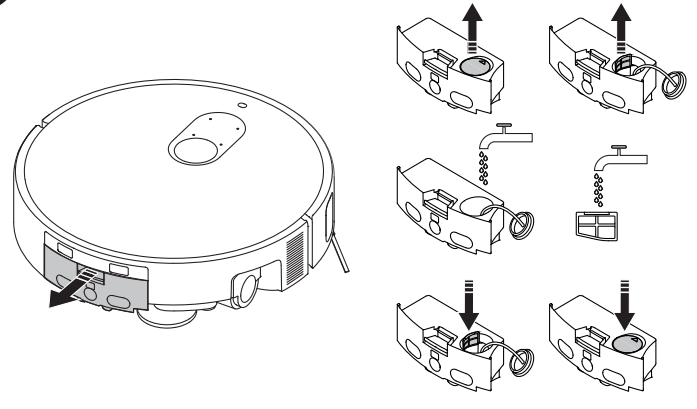
Q12: How to remove, install, or clean the dirty water compartment of the Xiaomi Robot Vacuum 6 Max?
A: Please refer to the following steps:
1. The dirty water compartment is located at the rear of the Xiaomi Robot Vacuum 6 Max. Press the dirty water compartment release button and pull the compartment outward to remove it.
2. If you are cleaning the dirty water compartment, open the lid, remove the filter, and rinse both the compartment and the filter with clean water. Allow them to dry completely before reassembly.
3. Reinstall the filter and close the dirty water compartment lid.
4. Insert the dirty water compartment into the rear of the robot vacuum until you hear a "click" to ensure it is securely installed.
Q13: How to remove, install, replace, or clean the main brush of the Xiaomi Robot Vacuum 6 Max?
A: Please refer to the following steps:
1. Flip the Xiaomi Robot Vacuum 6 Max over and press the two main brush cover release buttons to remove the main brush cover.
2. Lift the main brush straight up to remove it.
3. If you are cleaning the main brush, remove the detachable end cap, then clean the main brush and the main brush compartment before reinstalling the end cap.
4. To install or replace the main brush, align it with the slot and push it into place, ensuring both ends are fully seated with no looseness. Gently rotate the main brush by hand to confirm it rotates smoothly without unusual sounds.
5. Align the main brush cover with the slot and press down until you hear a "click" to ensure it is securely installed.
Note:
1. When there is a large amount of tightly tangled hair, do not pull it forcefully, as this may damage the main brush.
2. If the automatic hair-cutting anti-tangle main brush has severe hair tangling, check whether the dust compartment or disposable dust bag is full. Empty the dust compartment and replace the disposable dust bag promptly to ensure the automatic dust collection function operates properly.
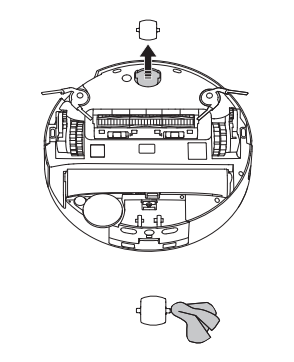
Q14: How to remove, install, replace, or clean the caster wheel of the Xiaomi Robot Vacuum 6 Max?
A: Please refer to the following steps:
1. Flip the Xiaomi Robot Vacuum 6 Max over, grip both sides of the caster wheel, and pull it straight up to remove it.
2. If you are cleaning the caster wheel, remove any hair or foreign objects from the wheel.
3. To install or replace the caster wheel, align it with the slot and press it straight down until you hear a "click" to ensure it is securely installed.
Note:
1. If needed, use a small screwdriver or a similar tool to gently pry out the wheel axle for cleaning. Do not apply excessive force.
2. The caster wheel can be rinsed with clean water. Make sure it is completely dry before reinstalling it.
Q15: How to remove, install, or clean the dust compartment and dust compartment filter of the Xiaomi Robot Vacuum 6 Max?
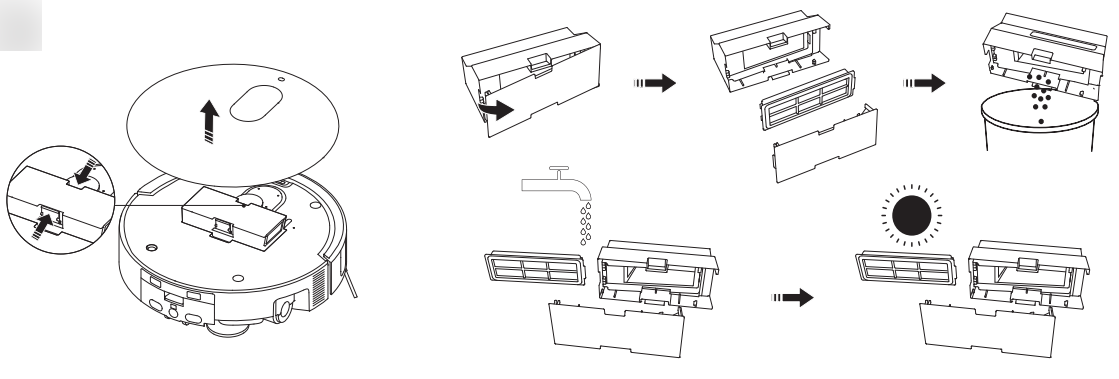
A: Please refer to the following steps:
1. Open the top cover of the Xiaomi Robot Vacuum 6 Max, press the dust compartment release button, and lift the dust compartment straight up to remove it.
2. If you are cleaning the dust compartment, open the dust compartment lid and remove the dust compartment filter.
3. Clean the dust compartment. If necessary, rinse it with clean water and allow it to dry completely before reassembly.
4. Reinstall the dust compartment filter (if removed) and close the dust compartment lid.
5. Align the dust compartment with the slot and insert it until you hear a "click" to ensure it is securely installed.
Note:
1. Use only clean water to wash the dust compartment. Do not use detergent.
2. Do not use a brush or fingers to clean the dust compartment filter. Frequent water washing of the dust compartment filter is not recommended to avoid damage.
Q16: How to clean the sensors and charging contacts of the Xiaomi Robot Vacuum 6 Max?
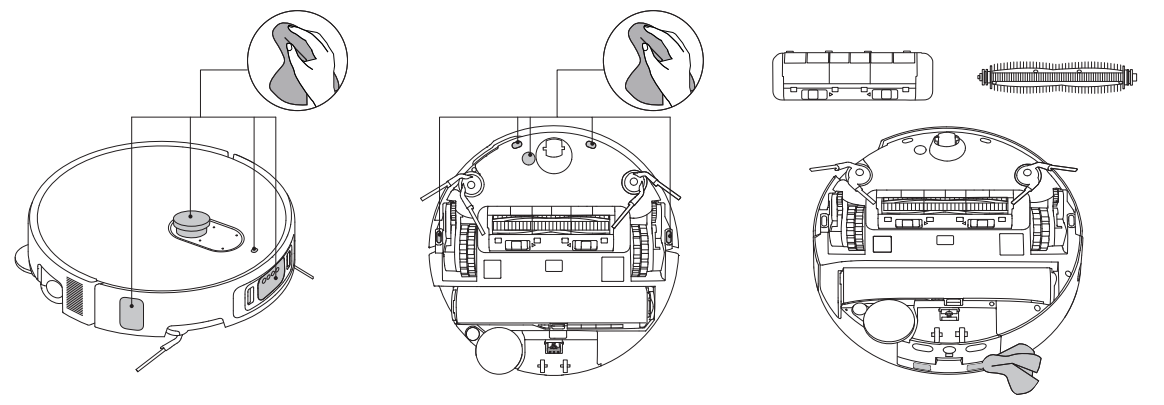
A: Use a soft, dry cloth to gently wipe and clean the following sensors and charging contacts on the Xiaomi Robot Vacuum 6 Max:
1. The retractable LiDAR sensor and low-clearance space detection sensor on the top of the robot vacuum.
2. The collision buffer bumper and AI triple-camera intelligent obstacle avoidance module on the front of the robot vacuum.
3. The structured light edge sensor on the side of the robot vacuum.
4. The charging contacts on the rear of the robot vacuum.
5. The cliff sensors and ultrasonic sensor on the bottom of the robot vacuum.
Q17: How to turn the Xiaomi Robot Vacuum 6 Max on or off?
A: To turn the Xiaomi Robot Vacuum 6 Max on or off, please refer to the following steps:
1. Press and hold the power/clean button for 3 seconds to turn on the robot vacuum. The indicator will turn on, and the robot vacuum will enter standby mode.
2. When the robot vacuum is not charging and is paused, press and hold the power/clean button for 3 seconds to turn off the robot vacuum.
Note:
If the robot vacuum is charging, it will automatically turn on and cannot be turned off. If the robot vacuum is not charging and is paused for more than 10 minutes, it will automatically enter sleep mode. In sleep mode, the indicator turns off. Press any button on the robot vacuum to wake it up. If the sleep time exceeds 12 hours, the robot vacuum will automatically turn off.
Q18: How to pause the Xiaomi Robot Vacuum 6 Max?
A: When the Xiaomi Robot Vacuum 6 Max is running, press any button on the robot vacuum or tap the pause button in the Xiaomi Home App to pause its operation.
Note:
During the pause state, it is not recommended to lift or move the robot vacuum, as this may cause positioning deviation, leading to issues such as the robot vacuum being unable to return to the omni station or map loss.
Q19: How to connect the Xiaomi Robot Vacuum 6 Max omni station to power?
A: After the Xiaomi Robot Vacuum 6 Max omni station is properly placed and installed, connect the power cable and plug it in. Push the power cable firmly until the omni station indicator turns solid white.
Q20: How to use the disposable bag of the Xiaomi Robot Vacuum 6 Max?
A: The disposable bag of the Xiaomi Robot Vacuum 6 Max is used as follows:
1. A new disposable bag is pre-installed in the omni station at the factory. When the disposable bag needs to be replaced, open the dust compartment cover via the handle, remove the old disposable bag, and replace it with a new one.
2. Pull out the disposable bag handle to seal the bag opening, and then dispose of it.
3. After the disposable bag is properly installed, it will press against the internal detection switch. Once the disposable bag is detected as installed, the dust collection function can be used normally.
Note:
After 60 dust collection cycles, the Xiaomi Home App will notify you to replace the disposable bag. Please check the disposable bag status, purchase a replacement in time, and reset the counter. If the disposable bag can still be used, please reset it in the consumables management section of the Xiaomi Home App.
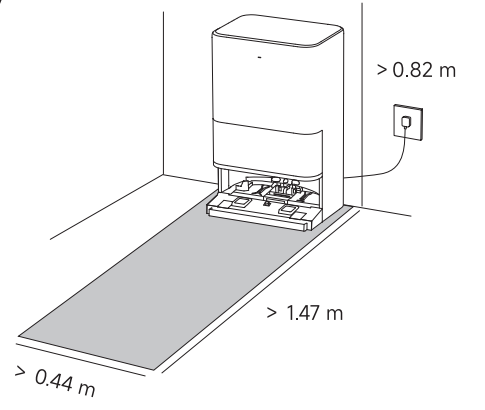
Q21: What are the placement requirements for the Xiaomi Robot Vacuum 6 Max omni station?
A: The placement requirements for the Xiaomi Robot Vacuum 6 Max omni station are as follows:
1. Place the omni station against a wall on a hard, level surface (such as wood flooring or tile) near a power outlet and in an area with a good Wi-Fi signal.
2. Ensure the installation space meets the minimum requirements: a height greater than 0.82 m, a length greater than 1.47 m, and a width greater than 0.44 m.
Q22: Are there any alternatives to the cleaning agent for the Xiaomi Robot Vacuum 6 Max?
A: The following suggestions are for reference only and aim to minimize the impact on the product:
1. If there is a mild need to remove odors or oil stains, you can add baking soda to the water tank or baking soda water to the cleaning agent compartment.
2. The recommended ratio is 1:50 (1 g of baking soda to 50 ml of water), with a maximum of once per month. Do not add excessively.
3. Set the mop pad washing temperature to warm and start the task.
Q23: How to clean the Xiaomi Robot Vacuum 6 Max omni station?
A: To clean the Xiaomi Robot Vacuum 6 Max omni station, please refer to the following information:
1. Check and clean any foreign objects in the dust collection opening to prevent blockage.
2. Clean the disposable bag. If the disposable bag is full, replace it promptly to prevent hair and wet debris from sticking.
3. Wipe the bottom of the omni station. Use a dry cloth or paper towel to clean dust from the omni station surface. Do not rinse directly with water to prevent short circuits.
4. Clean the washboard. Remove the washboard and washboard filter, clean them thoroughly under running water with a brush, wipe them dry with a dry cloth, and reinstall the washboard until you hear a "click" to ensure it is properly installed. Ensure the omni station's wastewater hose is positioned within the washboard's groove to avoid the hose sticking up and affecting use.
5. Clean the omni station bottom sensor. Use a soft, dry cloth to wipe the signal-emitting area and charging springs on the omni station.
Q24: What to do if the Xiaomi Robot Vacuum 6 Max has low water output during cleaning?
A: If the Xiaomi Robot Vacuum 6 Max has low water output during cleaning, please refer to the following troubleshooting steps:
1. Check the omni station status. Confirm that the clean water tank in the omni station has water.
2. Confirm the cleaning mode. Go to the Xiaomi Home App >> select the robot vacuum >> [Modes], and confirm whether the mode is set to [Vacuuming & Mopping]. If it is set to [Vacuuming before mopping], the robot vacuum will not mop during the vacuuming phase.
3. Increase the mopping water volume. Go to the Xiaomi Home App >> select the robot vacuum >> [Modes], and increase the mopping water volume.
4. Place the robot vacuum back on the omni station. Place the robot vacuum back on the omni station until it announces "start charging", and the light ring lights up in white. Start cleaning, and after the mop pad washing is complete and cleaning begins, observe whether the omni station bottom dispenses water and whether the mop pad is moist.
Q25: What to do if the Xiaomi Robot Vacuum 6 Max omni station has low water output or does not dispense water during mop pad washing?
A: If the Xiaomi Robot Vacuum 6 Max omni station has low water output or does not dispense water during mop pad washing, please refer to the following troubleshooting steps:
1. Check the omni station status. Remove the dirty water tank and ensure the dirty water tank lid is securely closed before reinstalling. Confirm that the clean water tank in the omni station is full. Check whether cleaning agent has been added to the clean water tank, which could cause a water path blockage or corrosion. If so, rinse with clean water as soon as possible.
2. Clean the charging contacts. Gently wipe the charging contacts on the rear of the robot vacuum and the charging springs and black lens on the omni station with a soft, dry cloth to remove dust or stains.
3. Reinstall the washboard. Remove the washboard from the bottom of the omni station and reinstall it until you hear a "click" to ensure it is properly installed.
4. Place the robot vacuum back on the omni station until it announces "start charging", and the light ring lights up in white. Go to the Xiaomi Home App >> select the robot vacuum >> [Station] >> [Clean the mop], and tap to wash the mop pad. After the mop pad washing is complete, remove the robot vacuum to confirm whether the omni station bottom dispenses water and whether the mop pad is moist.
Xiaomi Home App
Q1: How to connect the Xiaomi Robot Vacuum 6 Max to the Xiaomi Home App?
A: The Xiaomi Robot Vacuum 6 Max has been integrated into the Xiaomi Home ecosystem and can be controlled through the Xiaomi Home App, as well as interconnected with other products.
To connect the Xiaomi Robot Vacuum 6 Max to the Xiaomi Home App, please refer to the following steps:
1. Download and install the Xiaomi Home App.
2. Press and hold the power/clean button and the recharge button simultaneously for 7 seconds until the voice prompt says "waiting for network configuration".
3. Open the Xiaomi Home App homepage, tap the "+" icon in the top-right corner, and follow the in-app instructions to add the device.
Note:
The supported phone systems for connecting to the Xiaomi Home App are Android 9.0 or iOS 12.0 and above. The Xiaomi Robot Vacuum 6 Max only supports connecting to 2.4 GHz Wi-Fi networks. It also supports Wi-Fi networks with dual-band merging enabled. Due to upgrades and updates to the Xiaomi Home App, the actual operation may differ slightly from the description above. Please follow the current in-app instructions.
Q2: How to reset the Wi-Fi of the Xiaomi Robot Vacuum 6 Max?
A: When the Xiaomi Robot Vacuum 6 Max is disconnected from the network or needs to switch to a different network, please refer to the following steps:
1. Press and hold the power/clean button and the recharge button simultaneously for 7 seconds until the voice prompt says "waiting for network configuration". The light ring will display a blue running light pattern, indicating that the reset was successful.
2. Open the Xiaomi Home App homepage, tap the "+" icon in the top-right corner, and follow the in-app instructions to add the device. The light ring will turn solid blue, indicating that the network connection was successful.
Note:
Resetting the Wi-Fi will not reset maps, cleaning records, custom cleaning settings, or other data.
Q3: How to restore the Xiaomi Robot Vacuum 6 Max to factory settings?
A: To restore the Xiaomi Robot Vacuum 6 Max to factory settings, please refer to the following steps:
1. If the robot vacuum is experiencing issues and cannot be used normally, use a tool to press and hold the reset button for 3 seconds until the voice prompt says it is restoring factory settings. The robot vacuum will be restored to its factory state.
2. If the factory reset cannot be performed, press and hold the reset button for 10 seconds to force shut down and restore factory settings simultaneously.
Q4: How to force shut down the Xiaomi Robot Vacuum 6 Max?
A: Open the top cover of the Xiaomi Robot Vacuum 6 Max and use tweezers or a toothpick to press and hold the reset button for 10 seconds to force shut down the robot vacuum.
Q5: How to submit feedback and upload logs through the Xiaomi Home App for the Xiaomi Robot Vacuum 6 Max?
A: To submit feedback and upload logs for the Xiaomi Robot Vacuum 6 Max through the Xiaomi Home App, please refer to the following methods:
Method 1: Open the Xiaomi Home App >> [Profile] >> [Help & Feedback] >> select the corresponding model >> submit feedback. Fill in the problem description, attach videos or photos, check the option to send problem logs, and tap [Submit] to complete.
Method 2: Open the Xiaomi Home App >> go to the Xiaomi Robot Vacuum 6 Max >> tap the three dots icon in the upper right corner >> [Settings] >> [Help & Feedback].
Q6: How to upgrade the firmware of the Xiaomi Robot Vacuum 6 Max?
A: To upgrade the firmware of the Xiaomi Robot Vacuum 6 Max, go to the Xiaomi Home App >> select the robot vacuum >> tap the three dots icon in the upper right corner >> [Settings] >> [Firmware update] to update the firmware or check the current version.
Note:
Before upgrading the firmware, ensure the robot vacuum is on the omni station and charging, with a battery level above 30%. During the firmware upgrade, all buttons will flash. It is recommended to upgrade the firmware to the latest version.
Q7: What are the possible reasons for firmware upgrade failure of the Xiaomi Robot Vacuum 6 Max?
A: The possible reasons for firmware upgrade failure of the Xiaomi Robot Vacuum 6 Max are as follows:
1. The robot vacuum is not on the omni station charging or the battery level is below 30%.
2. The robot vacuum is currently working.
3. The home network is experiencing issues.
Q8: How to quickly create a map and save a complete map for the Xiaomi Robot Vacuum 6 Max?
A: To quickly create a map and save a complete map for the Xiaomi Robot Vacuum 6 Max, please refer to the following steps:
1. Preparation before mapping. Open all doors in the area to be cleaned, and tidy up the environment by picking up fragile items and clutter from the floor.
2. Start from the omni station. Ensure the area around the omni station is clear of obstacles. Place the robot vacuum on the omni station with the charging contacts aligned with the charging springs to start mapping from the omni station.
3. Create a map when the robot vacuum has no map. Trigger the quick mapping task from the Xiaomi Home App homepage for the robot vacuum. If a cleaning task is triggered from the app homepage or the robot vacuum button, the robot vacuum will first complete the quick mapping task before proceeding with the cleaning task.
4. Create a new map when the robot vacuum already has a map. Go to the Xiaomi Home App >> select the robot vacuum >> tap the map icon in the top-right corner to quickly create a new map. Alternatively, go to [Settings] >> [Map list] >> [Create a new map].
5. During quick mapping, the robot vacuum will explore the home environment without cleaning. The entire mapping process takes approximately 5 to 15 minutes. After mapping is complete, the robot vacuum will return to the omni station, and a partitioned map will be generated.
Note:
Please ensure the robot vacuum has sufficient battery. During mapping, do not follow, move, or interrupt the robot vacuum, and do not move the omni station. During mapping, you can go to the Xiaomi Home App >> select the robot vacuum >> tap the map icon in the top-right corner >> [Edit] >> [Restricted areas & virtual walls] to add restricted areas or virtual walls to block areas that are not suitable for the robot vacuum to enter (such as areas prone to entrapment, long-pile carpets, or fringed carpet areas).
Q9: What is the difference between cleaning with and without a map on the Xiaomi Robot Vacuum 6 Max?
A: The difference between cleaning with and without a map on the Xiaomi Robot Vacuum 6 Max is as follows:
1. Cleaning without a map: When cleaning without a map for the first time, the robot vacuum will first complete the quick mapping task before proceeding with the cleaning task.
2. Cleaning with a map: After a map is saved, the robot vacuum will clean room by room, first cleaning along the edges and then cleaning in a zigzag pattern, completing each room in sequence. In Vacuuming & Mopping and Vacuuming before mopping modes, the room cleaning order may differ from Vacuuming mode to avoid the robot vacuum passing through already cleaned rooms and causing secondary contamination.
Q10: What are the precautions for creating a map with the Xiaomi Robot Vacuum 6 Max?
A: The precautions for creating a map with the Xiaomi Robot Vacuum 6 Max are as follows:
1. Open all doors in the area to be cleaned, and tidy up the environment by picking up fragile items and clutter from the floor.
2. Ensure the area around the omni station is clear of obstacles. Place the robot vacuum on the omni station with the charging contacts aligned with the charging springs to start mapping from the omni station.
3. Please ensure the robot vacuum has sufficient battery.
4. During mapping, do not follow, move, or interrupt the robot vacuum, and do not move the omni station.
5. During mapping, you can add restricted areas or virtual walls to block areas that are not suitable for the robot vacuum to enter.
6. Highly reflective objects in the environment, such as mirrors, windows, or shiny metal surfaces, may affect mapping quality.
Q11: Does the Xiaomi Robot Vacuum 6 Max support quick mapping?
A: Yes, the Xiaomi Robot Vacuum 6 Max supports quick mapping. After connecting to the Xiaomi Home App for the first time, the homepage will prompt you to start quick mapping. You can also access it through the map management section on the side: Go to the Xiaomi Home App >> select the robot vacuum >> tap the map icon in the top-right corner to quickly create a new map. Alternatively, go to [Settings] >> [Map list] >> [Create a new map].
Note:
During exploration mapping, please do not stand too close to the device, as this may affect mapping efficiency and accuracy. For a better experience, it is recommended to use quick mapping to quickly create a home environment map, which enables a more intelligent and efficient cleaning experience. The map created during quick mapping may be slightly incomplete, but this does not affect usage. The map will be gradually refined during subsequent whole-house cleaning. During quick mapping, the robot vacuum will explore the home environment without cleaning. The entire mapping process takes approximately 5 to 15 minutes. After mapping is complete, the robot vacuum will return to the omni station, and a complete partitioned map will be generated.
Q12: How many maps can the Xiaomi Robot Vacuum 6 Max save?
A: The Xiaomi Robot Vacuum 6 Max currently supports saving one temporary map and four permanent maps. When using the device for the first time, you can create a map through quick mapping or whole-house cleaning. When you need multiple maps, you can create and manage new maps in the Xiaomi Home App >> select the robot vacuum >> tap the map icon in the top-right corner >> [Edit] >> [Map list], or go to [Settings] >> [Map list].
Q13: How to delete a map on the Xiaomi Robot Vacuum 6 Max?
A: To delete a map on the Xiaomi Robot Vacuum 6 Max, please refer to the following methods:
Method 1: In the Xiaomi Home App >> select the robot vacuum >> tap the map icon in the top-right corner >> [Edit] >> [Map list] >> tap the corresponding map >> delete map. After confirming, the map will disappear, and you will need to create a new map.
Method 2: In the Xiaomi Home App >> select the robot vacuum >> tap the three dots icon in the upper right corner to enter [Settings] >> [Map list] >> tap the corresponding map >> delete map. After confirming, the map will disappear, and you will need to create a new map.
Q14: How to restore a map on the Xiaomi Robot Vacuum 6 Max?
A: To restore a map on the Xiaomi Robot Vacuum 6 Max, please refer to the following methods:
Method 1: In the Xiaomi Home App >> select the robot vacuum >> tap the map icon in the top-right corner >> [Edit] >> [Map list] >> [Restore]. You can restore the currently applied map. If you need to restore a different map, please tap [Apply] first.
Method 2: In the Xiaomi Home App >> select the robot vacuum >> tap the three dots icon in the upper right corner to enter [Settings] >> [Map list] >> [Restore].
Q15: What does the "Map loading, please wait" prompt of the Xiaomi Robot Vacuum 6 Max mean in the Xiaomi Home App?
A: The map loading process can be understood as follows: When you enter the Xiaomi Robot Vacuum 6 Max plugin in the Xiaomi Home App, the App sends a request to the server through the phone's network; the server sends the command to the router, and the router communicates with the robot vacuum to retrieve the map information.
For the detailed explanation, please check below:
1. If the "Map loading, please wait" prompt flashes by briefly, this is normal. It may occur when operating too quickly or frequently entering and exiting.
2. If the "Map loading, please wait" prompt persists for more than ten seconds before the map appears, it may be caused by slow upload or download data between the phone and router. It is recommended to check the network status of the phone and router.
3. If the map cannot be loaded at all, it is recommended to reset the Wi-Fi and use the phone's hotspot to connect to the robot vacuum. If the map loads, check the network status and submit a log for analysis. If the map still does not load, submit a log for analysis of whether the firmware version is abnormal.
Q16: How to create maps or clean other floors without moving the Xiaomi Robot Vacuum 6 Max omni station?
A: To create maps or clean other floors without moving the Xiaomi Robot Vacuum 6 Max omni station, please refer to the following steps:
1. If you do not want to move the omni station to a new environment, you can move only the robot vacuum to the new environment, open the Xiaomi Home App >> tap the map icon in the top-right corner >> [Map list] >> [Create a new map].
2. After the map is created, move the robot vacuum to the floor you want to clean, and manually select the corresponding map in the Xiaomi Home App >> select the robot vacuum >> tap the map icon in the top-right corner >> [Map list].
3. Go to the Xiaomi Home App >> select the robot vacuum >> tap the three dots icon in the upper right corner to enter [Settings] >> [Mop cleaning settings] >> turn off [Auto cleaning the mop]. The robot vacuum will start the cleaning task directly without returning to wash the mop pad midway.
Q17: How to create multiple maps for the Xiaomi Robot Vacuum 6 Max?
A: To create multiple maps for the Xiaomi Robot Vacuum 6 Max, please refer to the following steps:
1. Move the robot vacuum and omni station to the new environment and ensure the omni station is connected to power.
2. Open the Xiaomi Home App >> tap the map icon in the top-right corner >> [Map list] >> [Create a new map].
3. After the map is saved, move the robot vacuum to the floor you want to clean, and manually select the corresponding map in the [Map list] of the Xiaomi Home App.
Q18: What is the custom cleaning function of the Xiaomi Robot Vacuum 6 Max?
A: The custom cleaning function of the Xiaomi Robot Vacuum 6 Max offers the following features:
1. Multi-task plans: You can create multiple cleaning plans, each with multiple tasks (such as different rooms and different modes), and start them all with one tap for continuous execution.
2. Parameter customization: Set the cleaning mode and cleaning area for each task.
3. Automatic post-processing: After tasks are completed, you can choose automatic dust collection, automatic mop pad washing, and other follow-up operations to suit different usage scenarios.
4. To create a custom cleaning plan, swipe up on the main interface of the Xiaomi Robot Vacuum 6 Max in the Xiaomi Home App.
Q19: How to set up custom cleaning on the Xiaomi Robot Vacuum 6 Max?
A: To set up custom cleaning on the Xiaomi Robot Vacuum 6 Max, please refer to the following steps:
1. Swipe up on the main interface of the Xiaomi Robot Vacuum 6 Max in the Xiaomi Home App to create a custom cleaning plan.
2. Add sub-tasks in sequence and set different cleaning modes for each sub-task. In [Additional settings], you can choose to enable dust collection after task completion or mop pad washing after task completion.
3. After creating the plan, tap the button on the right to start it with one tap. You can also select the custom cleaning plan in scheduled cleaning and smart scenes.
Q20: How to delete a custom cleaning plan on the Xiaomi Robot Vacuum 6 Max?
A: After creating a custom cleaning plan on the Xiaomi Robot Vacuum 6 Max, tap the custom cleaning name to enter the edit page and delete the custom cleaning plan.
Q21: How to adjust the map display on the Xiaomi Robot Vacuum 6 Max?
A: To adjust the map display on the Xiaomi Robot Vacuum 6 Max, tap the map icon on the main page >> [Display], and choose 2D or 3D map according to your preference (the 3D map can be switched after the map is saved). You can also choose whether to display room names, furniture, floor type, carpets, and obstacles on the map.
Q22: What are virtual walls and restricted areas on the Xiaomi Robot Vacuum 6 Max?
A: The Xiaomi Robot Vacuum 6 Max supports three types of restricted areas:
1. Virtual wall: A virtual wall draws an invisible line on the map that the robot vacuum cannot cross.
Usage scenarios: Prevent the robot vacuum from entering bathrooms, balconies, or kitchens, or from getting stuck under sofas, beds, or in cabinet gaps.
2. Vacuuming & mopping restricted area: This draws an area on the map where the robot vacuum will completely avoid during cleaning.
Usage scenarios: Areas where the robot vacuum is prone to entrapment or not suitable for entry, such as long-pile carpets or areas with cables.
3. Mopping restricted area: This draws an area on the map where the robot vacuum will only vacuum and never mop.
Usage scenarios: Carpet areas that should not be wetted by the mop pad.
Q23: How to set up virtual walls and restricted areas on the Xiaomi Robot Vacuum 6 Max?
A: To set up virtual walls and restricted areas on the Xiaomi Robot Vacuum 6 Max, please refer to the following methods:
Method 1: Go to the Xiaomi Home App >> select the robot vacuum >> tap the map icon in the top-right corner >> [Edit] >> [Restricted areas & virtual walls].
Method 2: Go to Settings >>[Map List] >> select the corresponding map >> [Restricted area].
Operation: Tap [Virtual wall], [Vacuuming & mopping restricted area], or [Mopping restricted area], then drag or resize as needed.
Note:
Moving the robot vacuum or significant changes to the home environment may cause the original map to become invalid, and virtual walls or restricted areas may be lost.
Q24: How to merge, split, or rename rooms on the Xiaomi Robot Vacuum 6 Max map?
A: To merge, split, or rename rooms on the Xiaomi Robot Vacuum 6 Max map, please refer to the following steps:
1. Go to the Xiaomi Home App >> select the robot vacuum >> tap the map icon in the top-right corner >> [Edit] >> [Edit room]. Alternatively, go to Settings >> [Map list] >> select the corresponding map >> [Room].
2. Split, merge, or rename rooms as needed.
3. Merge: To merge areas, select two or more rooms and tap [Merge].
4. Split: To split an area, select a room and tap [Divide]. Adjust the position or angle of the split line.
5. Rename: To rename an area, select a room and tap [Rename] to choose a default name or enter a custom name.
Note:
After merging rooms, the custom cleaning and scheduled cleaning settings for the selected rooms will be invalidated and will need to be reconfigured.
Q25: How to add furniture on the Xiaomi Robot Vacuum 6 Max map?
A: To add furniture on the Xiaomi Robot Vacuum 6 Max map, go to the Xiaomi Home App >> select the robot vacuum >> tap the map icon in the top-right corner >> [Edit] >> [Edit furniture]. Alternatively, go to Settings >> [Map list] >> select the corresponding map >> [Furniture]. You can add, move, or delete furniture as needed.
Q26: How to set floor materials on the Xiaomi Robot Vacuum 6 Max map?
A: To set floor materials on the Xiaomi Robot Vacuum 6 Max map, go to the Xiaomi Home App >> select the robot vacuum >> tap the map icon in the top-right corner >> [Edit] >> [Edit floor material]. Alternatively, go to Settings >> [Map list] >> select the corresponding map >> [Materials]. You can adjust the floor material for each room as needed.
Q27: How to set up carpets on the Xiaomi Robot Vacuum 6 Max?
A: To set up carpets on the Xiaomi Robot Vacuum 6 Max, go to the Xiaomi Home App >> select the robot vacuum >> tap the map icon in the top-right corner >> [Edit] >> [Edit carpet]. Alternatively, go to Settings >> [Map list] >> select the corresponding map >> [Carpet]. You can add, delete, or move carpets and edit carpet preferences as needed.
You can choose from the following carpet modes based on the carpet type:
1. Vacuums only on carpets: When encountering a carpet area, the robot vacuum will raise the mop pad and only vacuum. The [Vacuums only on carpets] mode supports [Carpet boost] (automatically increases suction to strong mode when set to silent or standard modes), [Carpet deep cleaning] (the robot vacuum cleans the carpet both horizontally and vertically), and [Clean carpet first] (cleans all carpets first without wetting the mop pad).
2. Carpet avoidance: When encountering a carpet area, the robot vacuum will avoid the carpet and stop cleaning it.
3. Carpet crossing: When encountering a carpet area, the robot vacuum will stop cleaning and cross the carpet directly.
4. Ignore carpets: When encountering a carpet area, the robot vacuum will ignore the carpet and clean normally.
Q28: What is the difference between enabling and disabling carpet recognition on the Xiaomi Robot Vacuum 6 Max?
A: The difference between enabling and disabling carpet recognition on the Xiaomi Robot Vacuum 6 Max is as follows:
1. When carpet recognition is enabled, the ultrasonic sensor is active and can proactively identify carpets and execute the configured cleaning strategy: [Vacuums only on carpets], [Carpet avoidance], [Carpet crossing], or [Ignore carpets].
2. When carpet recognition is disabled, the ultrasonic sensor is turned off and cannot proactively identify carpets. You can manually set carpet areas to achieve carpet cleaning effects.
Q29: How to enable automatic map switching on the Xiaomi Robot Vacuum 6 Max?
A: To enable automatic map switching on the Xiaomi Robot Vacuum 6 Max, please refer to the following methods:
Method 1: Main page >> tap the map icon >> [Edit] >> [Map list] >> enable [Auto switching map].
Method 2: Settings >> [Map list] >> enable [Auto switching map].
After enabling automatic map switching, when the robot vacuum is moved to any environment, it will automatically switch to the map for that environment. If this function is disabled, the current map will be automatically updated after cleaning is complete.
Q30: How to rotate the map on the Xiaomi Robot Vacuum 6 Max?
A: To rotate the map on the Xiaomi Robot Vacuum 6 Max, please refer to the following methods:
Method 1: Xiaomi Home App >> select the robot vacuum >> tap the map icon >> [Edit] >> [Map rotation].
Method 2: Settings >> [Map list] >> select the corresponding map >> [Rotate].
Each time you tap the rotate button, the map will rotate 90° clockwise.
Q31: How to delete extra areas from the Xiaomi Robot Vacuum 6 Max map?
A: To delete extra areas from the Xiaomi Robot Vacuum 6 Max map, please refer to the following methods:
Method 1: Xiaomi Home App >> select the robot vacuum >> tap the map icon >> [Edit] >> [Delete area].
Method 2: Settings >> [Map list] >> select the corresponding map >> [Delete area].
You can tap rooms or add areas to hide extra areas on the map. After saving, the corresponding areas will be hidden on other pages as well.
Q32: Why does the 2D map of the Xiaomi Robot Vacuum 6 Max appear square and regular?
A: The Xiaomi Robot Vacuum 6 Max supports automatic map beautification, which automatically optimizes irregular areas and scanned outdoor environments for a better map display.
Q33: What cleaning modes does the Xiaomi Robot Vacuum 6 Max support?
A: The Xiaomi Robot Vacuum 6 Max supports the following cleaning modes in the Xiaomi Home App:
1. Cleaning mode: Vacuuming, Vacuuming & Mopping, or Vacuuming before mopping.
2. Suction level: Four levels including Silent, Standard, Strong, and Turbo.
3. Mopping water volume: Level 1, Level 2, and Level 3.
4. Cleaning path: Quick, Standard, and Deep.
5. Cleaning times: Once or Twice.
Note:
Vacuuming before mopping or 2-time cleaning counts as one task. If the two cleaning routes are the same, the map route will display a grid pattern. If the two routes are different, the map will maintain a zigzag pattern. The difference between cleaning paths is that more thorough cleaning provides higher coverage but takes longer.
Q34: How to set the cleaning mode on the Xiaomi Robot Vacuum 6 Max?
A: To set the cleaning mode on the Xiaomi Robot Vacuum 6 Max, go to the Xiaomi Home App >> select the robot vacuum >> [Modes] >> select the corresponding mode. Press the robot vacuum button or tap [Start cleanup] on the app homepage, and the robot vacuum will execute the cleaning task based on the optimal cleaning plan generated from the map.
Q35: How to set the suction level on the Xiaomi Robot Vacuum 6 Max?
A: To set the suction level on the Xiaomi Robot Vacuum 6 Max, go to the Xiaomi Home App >> select the robot vacuum >> [Modes] >> select the corresponding suction level. Press the robot vacuum button or tap [Start cleanup] on the app homepage, and the robot vacuum will execute the cleaning task based on the optimal cleaning plan generated from the map.
Note:
Strong or Turbo suction levels will increase noise and power consumption, and the robot vacuum may return to charge at low battery during cleaning.
Q36: How to set the mopping water volume on the Xiaomi Robot Vacuum 6 Max?
A: To set the mopping water volume on the Xiaomi Robot Vacuum 6 Max, go to the Xiaomi Home App >> select the robot vacuum >> [Modes] >> select the corresponding water output volume level. Press the robot vacuum button or tap [Start cleanup] on the app homepage, and the robot vacuum will execute the cleaning task based on the optimal cleaning plan generated from the map.
Q37: How to use the Vacuuming & Mopping mode on the Xiaomi Robot Vacuum 6 Max?
A: To use the Vacuuming & Mopping mode on the Xiaomi Robot Vacuum 6 Max, please refer to the following steps:
1. Ensure the robot vacuum has the mop pad assembly, water guide channel, dirty water compartment, and other components installed.
2. Go to the Xiaomi Home App >> select the robot vacuum >> [Modes] >> select [Vacuuming & Mopping].
3. Press the robot vacuum button or tap [Start cleanup] on the app homepage, and the robot vacuum will execute the cleaning task based on the optimal cleaning plan generated from the map.
Note:
Before starting, ensure the omni station is connected to power, and the robot vacuum is connected to the omni station. To ensure the robot vacuum can successfully return to the omni station after cleaning, it is recommended to start from the omni station and avoid moving the omni station during operation. Before departure, the robot vacuum will wet the mop pad first, so please wait patiently. You can enable the hot water mop pad washing function in the Xiaomi Home App >> select the robot vacuum >> Settings >> [Mop cleaning settings] >> [Water temp for mop washing]. After enabling, do not touch the mop pad washing water outlet on the omni station base to prevent burns. For first-time use, it is recommended to follow the robot vacuum throughout the cleaning process to assist in clearing any items that may affect its operation. During cleaning, you can add restricted areas or virtual walls to block areas that are not suitable for the robot vacuum to enter.
Note:
The robot vacuum's station heats the water for this function. Please do not fill it with hot water.
The robot vacuum's station heats the water for this function. Please do not fill it with hot water.
Q38: How to set the Xiaomi Robot Vacuum 6 Max to vacuuming only mode?
A: To set the Xiaomi Robot Vacuum 6 Max to vacuuming-only mode, go to the Xiaomi Home App >> select the robot vacuum >> [Modes] >> select [Vacuuming]. Press the robot vacuum button or tap [Start cleanup] on the app homepage, and the robot vacuum will raise the mop pad assembly and execute the cleaning task based on the optimal cleaning plan generated from the map.
Note:
Before starting, ensure the omni station is connected to power, and the robot vacuum is connected to the omni station. To ensure the robot vacuum can successfully return to the omni station after cleaning, it is recommended to start from the omni station and avoid moving the omni station during operation. For first-time use, it is recommended to follow the robot vacuum throughout the cleaning process. During cleaning, you can add restricted areas or virtual walls.
Q39: Does the Xiaomi Robot Vacuum 6 Max support mopping-only mode?
A: The Xiaomi Robot Vacuum 6 Max does not support mopping-only mode. This is because the Xiaomi Robot Vacuum 6 Max uses a roller mop system, which provides stronger cleaning performance. If only mopping were performed, solid particles on the floor that are not vacuumed in time would likely get stuck in the roller mop area, causing abnormal operation.
Q40: How to set the Xiaomi Robot Vacuum 6 Max to Vacuuming before mopping mode?
A: To set the Xiaomi Robot Vacuum 6 Max to Vacuuming before mopping mode, please refer to the following steps:
1. Ensure the robot vacuum has the mop pad assembly, water guide channel, dirty water compartment, and other components installed.
2. Go to the Xiaomi Home App >> select the robot vacuum >> [Modes] >> select [Vacuuming before mopping].
3. Press the robot vacuum button or tap [Start cleanup] on the app homepage. The robot vacuum will first raise the mop pad assembly and complete the vacuuming task based on the optimal cleaning plan generated from the map. After completing the vacuuming task, the robot vacuum will return to the omni station to wet the mop pad and then start the mopping task.
Note:
Before starting, ensure the omni station is connected to power, and the robot vacuum is connected to the omni station. To ensure the robot vacuum can successfully return to the omni station after cleaning, it is recommended to start from the omni station and avoid moving the omni station during operation. For first-time use, it is recommended to follow the robot vacuum throughout the cleaning process. During cleaning, you can add restricted areas or virtual walls.
Q41: What is the whole house cleaning function of the Xiaomi Robot Vacuum 6 Max?
A: When no map is saved, selecting whole house cleaning will cause the Xiaomi Robot Vacuum 6 Max to first create a map and then clean. After a map is saved in the Xiaomi Home App, selecting whole house cleaning will cause the robot vacuum to automatically plan a route, clean room by room, and return to the charging station after cleaning is complete.
Q42: What is the custom area cleaning function of the Xiaomi Robot Vacuum 6 Max?
A: The custom area cleaning function of the Xiaomi Robot Vacuum 6 Max allows you to define specific areas for cleaning. To use this function, please refer to the following steps:
1. In the Xiaomi Home App main interface, select [Area] >> [Custom area], and adjust the area size, position, or delete it as prompted. Custom area cleaning supports customizing 1 to 5 areas.
2. Tap [Start cleanup] to execute the task. The robot vacuum will announce "starting area cleaning" and clean according to the planned area.
Note:
During cleaning, the robot vacuum may move beyond the defined area. Please ensure the area around the defined zone is clear of obstacles. The custom area boundary lines do not serve as a safety barrier.
Q43: What is the room cleaning function of the Xiaomi Robot Vacuum 6 Max?
A: The room cleaning function of the Xiaomi Robot Vacuum 6 Max allows you to select specific rooms for cleaning. To use this function, please refer to the following steps:
1. In the Xiaomi Home App main interface, select [Area] >> [Room], and tap to select the rooms you want to clean and the room cleaning order on the map as prompted.
2. Tap [Start cleanup] to execute the task. The robot vacuum will announce "starting room cleaning" and clean the selected rooms in order.
Q44: How to set the room cleaning order on the Xiaomi Robot Vacuum 6 Max?
A: You can set the room cleaning order on the Xiaomi Robot Vacuum 6 Max through the Xiaomi Home App. In the main interface, select [Area] >> [Room], and tap to select the rooms you want to clean and the room cleaning order on the map as prompted. Tap [Start cleanup] to execute the task, and the robot vacuum will clean the selected rooms in order.
Q45: How does the Cleanup resumption function work on the Xiaomi Robot Vacuum 6 Max?
A: The Cleanup resumption function of the Xiaomi Robot Vacuum 6 Max works as follows:
1. Cleanup resumption switch: The Cleanup resumption switch is enabled by default. Go to the Xiaomi Home App >> select the robot vacuum >> Settings >> [Cleanup resumption] to enable or disable the function.
2. Usage scenario: If the robot vacuum's continuous working time exceeds its battery life (due to a large cleaning area, too many custom cleaning tasks, or using Vacuuming before mopping or Strong/Turbo suction), the robot vacuum will prioritize returning to the omni station for charging when the battery is too low, and then resume cleaning after charging to an appropriate level.
3. Working principle: When the breakpoint resume switch is enabled, if the battery becomes too low during cleaning, the robot vacuum will automatically return to the omni station for charging. After charging to an appropriate level, the robot vacuum will automatically continue to clean the uncleaned area.
Q46: How to set up scheduled cleaning on the Xiaomi Robot Vacuum 6 Max?
A: To set up scheduled cleaning on the Xiaomi Robot Vacuum 6 Max, please refer to the following steps:
1. Swipe up on the main interface to see the scheduled cleaning entry, or go to Settings >> [Scheduled cleanup].
2. Set the scheduled cleaning time, repeat method, and cleaning range as needed. The robot vacuum will automatically start cleaning at the specified time and return to the omni station after cleaning is complete.
Note:
If DND mode is enabled, scheduled cleaning will not be executed during the DND period.
Q47: How to reset the consumable life on the Xiaomi Robot Vacuum 6 Max?
A: To reset the consumable life on the Xiaomi Robot Vacuum 6 Max, go to Settings >> [Consumables management] to view the estimated remaining life of the main brush, side brush, filter, roller mop pad, edge-cleaning mop pad, and disposable bag. After replacing a consumable, enter the corresponding consumable interface to reset it.
Q48: Can the Xiaomi Robot Vacuum 6 Max manually start dust collection, mop pad washing, or drying?
A: When the Xiaomi Robot Vacuum 6 Max is charging on the omni station, you can manually start dust collection, mop pad washing, or drying from the Xiaomi Home App >> select the robot vacuum >> [Station].
Q49: How to adjust the drying duration on the Xiaomi Robot Vacuum 6 Max?
A: To adjust the drying duration on the Xiaomi Robot Vacuum 6 Max, go to the Xiaomi Home App >> select the robot vacuum >> Settings >> [Drying settings], and adjust the drying time as needed. The available options are 2 hours, 3 hours, and 4 hours.
Q50: Can the drying function of the Xiaomi Robot Vacuum 6 Max be manually turned on or off?
A: To prevent the mop pad from developing odors, the drying function is enabled by default and cannot be manually turned off. You can adjust the drying time by going to the Xiaomi Home App >> select the robot vacuum >> [Drying settings], and selecting the desired duration as needed.
Q51: How to set up the dust collection function on the Xiaomi Robot Vacuum 6 Max?
A: To set up the dust collection function on the Xiaomi Robot Vacuum 6 Max, go to Settings >> [Dust collection].
1. Automatic dust collection: When enabled, the omni station will automatically collect dust after the robot vacuum completes cleaning and returns to charge.
2. Dust collection frequency: The omni station will collect dust after every 1, 2, or 3 cleaning tasks.
Note:
After 60 dust collection cycles, the Xiaomi Home App will notify you to replace the disposable bag. Please check the disposable bag status, purchase a replacement in time, and reset the counter. If the disposable bag can still be used, please reset it in the consumables management section of the Xiaomi Home App.
Q52: How to set up the mop pad washing mode on the Xiaomi Robot Vacuum 6 Max?
A: To set up the mop pad washing mode on the Xiaomi Robot Vacuum 6 Max, go to the Xiaomi Home App >> Settings >> [Mop cleaning settings]. You can adjust the [Auto cleaning the mop] switch, type/frequency of returning to clean the mop, mop pad washing temperature, and water volume.
Q53: Does the Xiaomi Robot Vacuum 6 Max support remote control?
A: Yes, the Xiaomi Robot Vacuum 6 Max supports remote control. The remote control function allows you to move the robot vacuum forward, left, or right. The remote control works by sending commands from the Xiaomi Home App to the server, which then sends commands to the robot vacuum. Due to network conditions, there may be delays or no response. To access, go to Settings >> [More functions] >> [Remote control].
Q54: How to set up the child lock on the Xiaomi Robot Vacuum 6 Max?
A: The child lock on the Xiaomi Robot Vacuum 6 Max is disabled by default. You can press and hold the recharge button on the robot vacuum for 3 seconds to enable or disable the child lock, or go to the Xiaomi Home App >> select the robot vacuum >> Settings >> [More functions] >> [Child lock] to enable or disable it. When the child lock is enabled, the buttons on the robot vacuum will be disabled, and the robot vacuum can only be controlled through the Xiaomi Home App.
Q55: Does the Xiaomi Robot Vacuum 6 Max support the Find robot vacuum function?
A: Yes, the Xiaomi Robot Vacuum 6 Max supports the Find robot vacuum function. Tap [Find robot vacuum], and the robot vacuum will emit a sound. Please locate it based on the direction of the sound. To access, go to Settings >> [More functions] >> [Find robot vacuum].
Q56: Does the Xiaomi Robot Vacuum 6 Max support volume adjustment?
A: Yes, the Xiaomi Robot Vacuum 6 Max supports volume adjustment. The volume adjustment range is 0% to 100%. You can drag it to adjust the device's voice volume and tap the preview button to listen. To access it, go to Settings >> [Robot vacuum voice].
Q57: Does the Xiaomi Robot Vacuum 6 Max support voice tone adjustment?
A: No, the Xiaomi Robot Vacuum 6 Max does not support voice tone adjustment.
Q58: What is the Corners & edges focus function on the Xiaomi Robot Vacuum 6 Max?
A: The Corners & edges focus function on the Xiaomi Robot Vacuum 6 Max is available at Settings >> [Corners & edges focus]. When enabled, the robot vacuum will automatically swing out the mop pad or side brush when cleaning along edges, increasing the cleaning coverage area and reducing edge cleaning omissions. You can adjust the swing-out frequency (once every 7 days or for every cleaning task).
Q59: How to modify the device name of the Xiaomi Robot Vacuum 6 Max?
A: To modify the device name of the Xiaomi Robot Vacuum 6 Max, go to Settings >> [Device name].
Q60: What is the difference between the main account and a shared account on the Xiaomi Robot Vacuum 6 Max?
A: The difference between the main account and a shared account on the Xiaomi Robot Vacuum 6 Max is as follows:
1. A shared account cannot use smart scenes.
2. The video manager function requires the main account's approval before a shared account can use it.
Q61: Does the Xiaomi Robot Vacuum 6 Max support the video manager function?
A: Yes, the Xiaomi Robot Vacuum 6 Max supports the video manager function. After entering the Xiaomi Home App >> select the robot vacuum, tap the video icon in the top-right corner, and complete all the steps to enable video manager. Once enabled, you can tap this icon to view the home environment, take photos, record videos, remotely control the robot vacuum, and make voice calls with family members.
Q62: Is the video manager function enabled or disabled by default on the Xiaomi Robot Vacuum 6 Max?
A: The video manager function is disabled by default on the Xiaomi Robot Vacuum 6 Max. You can enable it by entering the Xiaomi Home App >> select the robot vacuum, tap the video icon in the top-right corner, and complete all the steps. Once enabled, you can view the home environment, take photos, record videos, remotely control the robot vacuum, and make voice calls with family members.
Q63: How to disable the video manager function on the Xiaomi Robot Vacuum 6 Max?
A: To disable the video manager function on the Xiaomi Robot Vacuum 6 Max, go to the Xiaomi Home App >> select the robot vacuum >> Settings >> [Video manager], and turn off the video manager switch. After disabling the video manager, the video password and related settings will be cleared and cannot be recovered. If you need to re-enable the video manager, enter the Xiaomi Home App >> select the robot vacuum, tap the video icon in the top-right corner, and complete all the steps.
Q64: Can the video manager function of the Xiaomi Robot Vacuum 6 Max be shared with others?
A: Yes, the video manager function of the Xiaomi Robot Vacuum 6 Max can be shared. The video manager sharing switch is disabled by default. If you are the device owner, you can enable it by going to the Xiaomi Home App >> select the robot vacuum >> Settings >> [Video manager], and turning on the sharing switch. If you are a shared user, please contact the device owner to enable it.
Q65: Is the video manager function of the Xiaomi Robot Vacuum 6 Max secure?
A: The video manager function of the Xiaomi Robot Vacuum 6 Max requires physical authorization from you. Video transmission is secured using RSA-2048 encryption and SHA-256 cryptographic hashing, providing a high level of protection against unauthorized access and data tampering. The transmission uses a real-time code stream, and the information is not stored.
Q66: How to set the obstacle avoidance strategy on the Xiaomi Robot Vacuum 6 Max?
A: To set the obstacle avoidance strategy on the Xiaomi Robot Vacuum 6 Max, go to Settings >> [Obstacle avoidance strategy]. You can choose between the following modes:
[Less collision mode]: The robot vacuum will reduce collisions with furniture and other obstacles, but some narrow areas may be missed during cleaning.
[High coverage mode]: The robot vacuum will attempt to cover the entire house for cleaning and try to enter more narrow areas, which may result in collisions or scratches.
Q67: How to quickly reset the map on the Xiaomi Robot Vacuum 6 Max?
A: To quickly reset the map on the Xiaomi Robot Vacuum 6 Max, enter the main interface, zoom in to view the map, and tap the reset icon on the right side of the Xiaomi Home App homepage to reset the map.
Q68: How to drain the water tank of the Xiaomi Robot Vacuum 6 Max?
A: To drain the water tank of the Xiaomi Robot Vacuum 6 Max, go to Settings >> [More functions] >> [Maintenance] >> [Empty water tank of robot vacuum]. To prevent water leakage and potential damage, please drain the water tank before moving the robot vacuum.
Q69: How to view the cleaning records of the Xiaomi Robot Vacuum 6 Max?
A: To view the cleaning records of the Xiaomi Robot Vacuum 6 Max, go to Settings >> [Cleaning history].
The cleaning records display the cumulative cleaning time, cumulative area, and cumulative number of cleanings.
You can view the working time, area, and number of cleanings on a weekly basis.
By entering any cleaning record, you can view the map (with dynamic route display), the route, the start time, duration, area, number of mop pad washings, and general settings for that task.
Q70: What do the elements on the Xiaomi Robot Vacuum 6 Max map represent?
A: The elements on the Xiaomi Robot Vacuum 6 Max map represent the following:
1. Path display: During vacuuming, the path is displayed as line routes. During mopping, the path is displayed as a filled (painted) trail. During Vacuuming & Mopping, both the line path and the filled mopping trail are displayed.
2. AI recognition display: The map shows AI-recognized obstacles and dirty areas. The robot vacuum will execute different strategies based on the recognized type. Some dirty areas and obstacles require timely manual handling.
3. Unreachable areas: After mapping is complete, the robot vacuum will automatically beautify the map. Areas that the robot vacuum cannot reach are indicated by diagonal lines.
4. Furniture: If you have added furniture to the map, the furniture will be displayed at the corresponding location on the map.
5. Floor materials: If you have set floor materials, the floor material textures will be displayed on the map.
6. Carpets: Carpets automatically recognized by the robot vacuum are displayed as irregular scattered dots on the map, while manually added carpets are displayed as block shapes.
Common Troubleshooting
Q1: Why does the Xiaomi Robot Vacuum 6 Max automatically shut down?
A: If the Xiaomi Robot Vacuum 6 Max is not charging and is in a paused state for more than 10 minutes, it will automatically enter sleep mode. In sleep mode, the indicator turns off. Press any button on the robot vacuum to wake it up. If the sleep time exceeds 12 hours, the robot vacuum will automatically shut down.
If the device is not automatically powering off due to sleep mode, please refer to the following troubleshooting steps:
1. If the robot vacuum automatically shuts down while on the omni station, it may be due to poor charging contact. It is recommended to wipe the charging contacts on the robot vacuum and the omni station with a paper towel or cloth.
2. If the robot vacuum automatically shuts down outside the omni station during a task, it may be due to being trapped. Please check whether there are carpets, cables, or threshold obstacles at the location where it was trapped, and check the Xiaomi Home App for any related prompts.
3. If the above troubleshooting does not resolve the issue, it is recommended to apply for after-sales repair.
Q2: What to do if the Xiaomi Robot Vacuum 6 Max cannot be powered on?
A: If the Xiaomi Robot Vacuum 6 Max cannot be powered on, please refer to the following information:
1. Please charge the robot vacuum before use.
2. Please use the robot vacuum in an environment above 0°C and below 40°C.
3. If the robot vacuum is not charging and is paused for 10 minutes, it will enter sleep mode. After 12 hours of sleep, it will automatically shut down.
If the robot vacuum cannot be powered on after leaving the omni station and losing power, please contact the after-sales support for repair.
If the robot vacuum was trapped outside the omni station for a long time and shut down, it could be powered on. Please check whether the robot vacuum is getting stuck in any of the following situations:
1. Check the location where the robot vacuum gets stuck and see whether it is encountering a carpet, cables, loose obstacles, narrow spaces, low-clearance areas, thresholds, or similar scenarios.
2. If the robot vacuum is stuck on a thick, high-pile carpet, the drive wheels may experience overcurrent protection, which is outside the supported operating conditions. Please set a restricted area to avoid the carpet.
3. If there are cables or loose obstacles, remove them manually before cleaning.
4. For narrow spaces or low-clearance areas, first make sure that bed sheets, curtains, or other hanging fabrics are not causing false obstacle detection. Tidy the area and test again. If the robot vacuum still cannot pass through, set a restricted area to avoid the area.
5. If the robot vacuum cannot cross a threshold, try adding a threshold in the Xiaomi Home App. To access this feature, go to Settings >> [More functions] and quickly tap [More functions] 10 consecutive times. The [Edit threshold] option will then appear. Before creating a virtual threshold, make sure there are no drop-offs, fragile items, or surfaces that could be easily scratched nearby.
6. If none of the above scenarios apply, please collect information about the environment and submit feedback through the Xiaomi Home App.
If the robot vacuum cannot be powered on due to an inability to charge, please contact the after-sales support for repair.
Q3: What to do if the Xiaomi Robot Vacuum 6 Max cannot charge?
A: If the Xiaomi Robot Vacuum 6 Max cannot charge, please refer to the following troubleshooting steps:
Scenario 1: Cannot charge when manually placed back.
1. Wipe the charging contacts on the robot vacuum and the omni station repeatedly with a cloth.
2. Check whether the charging springs on the omni station are dented or deformed.
Scenario 2: The robot vacuum charges normally when placed on the omni station manually, but fails to dock automatically for recharging.
1. Place the robot vacuum outside the omni station and start the return-to-charge process.
2. If the robot vacuum can locate the approximate position of the omni station but cannot accurately align with it, the docking signal transmission or reception may be abnormal.
3. If the robot vacuum can locate and accurately align with the omni station but shakes or deviates while backing onto the station, check whether the drive wheels or caster wheel are obstructed by debris. Turn the robot vacuum over and remove any hair or foreign objects tangled around the drive wheels and caster wheel. With the robot vacuum powered off, verify that the wheels can rotate freely without resistance.
4. Make sure the washboard is installed correctly, the omni station is placed on a level surface, and the omni station is not elevated by any objects.
Q4: Why does the Xiaomi Robot Vacuum 6 Max perform secondary docking when returning to the omni station for charging?
A: When the Xiaomi Robot Vacuum 6 Max returns to the omni station for charging, it needs to ensure precise contact between the charging contacts and the charging springs, which requires high accuracy. The robot vacuum will automatically correct its return-to-charge route based on the omni station's signal. If the initial docking is not perfect, it will back off and attempt secondary docking. This is a normal behavior. Please ensure the omni station is placed on a level surface with no water residue on or near the omni station to prevent slipping.
Q5: What to do if the Xiaomi Robot Vacuum 6 Max cannot find the omni station?
A: If the Xiaomi Robot Vacuum 6 Max cannot find the omni station, please refer to the following troubleshooting steps:
1. Check whether the omni station power plug is loose or has fallen out. Confirm that the omni station is properly plugged in and powered on. When the omni station is powered on normally, the indicator stays on.
2. Wipe the charging contacts on the robot vacuum and the charging springs and black lens on the omni station. Dirty contacts can cause return-to-charge issues.
3. Place the omni station in an open area, ensuring there are no obstacles within 5 cm on both sides and within 1.5 meters in front of the omni station.
4. Check whether the omni station position on the map matches the actual scene. If there is drift, consider changing the omni station location.
5. Manually place the robot vacuum on the omni station for charging.
Q6: What to do if the Xiaomi Robot Vacuum 6 Max cannot connect to the network?
A: If the Xiaomi Robot Vacuum 6 Max cannot connect to the network, please refer to the following troubleshooting steps:
1. Confirm that the Wi-Fi password entered during connection is correct. The Wi-Fi username should not contain Chinese characters, and the password should not contain special characters such as @, ¥, or %. If so, please reset the account and password in English or with numbers and letters, then try again.
2. Confirm whether the distance between the router and the robot vacuum is too far (beyond 5 meters or with walls in between). Try moving the robot vacuum within 1 to 2 meters of the router and attempt to reconnect.
3. Check whether the router's network connection is abnormal or whether the router has too many smart devices connected. Check whether a phone connected to the Wi-Fi can open web pages normally, or try restarting the router.
4. The robot vacuum currently does not support corporate EAP802.1x authentication networks, 5 GHz networks, or public Wi-Fi networks requiring web authentication. Please switch to a different network and try connecting.
5. If the device has not been connected to the network for more than 1 hour, the Wi-Fi module will disable the network connection. Try resetting the robot vacuum and connecting to the network again.
6. Connection failure may also be related to the phone model or permissions. Check whether the phone has restricted the app's permissions (such as network access or location). You can also try using a different phone model to connect.
Q7: What to do if the Xiaomi Robot Vacuum 6 Max is connected to the Xiaomi Home App but the connection is unstable or the device is offline?
A: If the Xiaomi Robot Vacuum 6 Max is connected to the Xiaomi Home App but the connection is unstable or the device is offline, please refer to the following information:
1. Ensure the distance between the router and the omni station is within 5 meters. The RSSI signal strength at the omni station location should be higher than -80 (check through Settings >> [Cleaning history] >> tap the [Total area] 10 times consecutively to enter the backend).
2. Restart the phone and upgrade the Xiaomi Home App to the latest version.
Q8: What to do if the Xiaomi Robot Vacuum 6 Max gets stuck in front of the omni station and cannot return?
A: If the Xiaomi Robot Vacuum 6 Max gets stuck in front of the omni station and cannot return, please refer to the following troubleshooting steps:
1. Place the omni station in an open area, ensuring there are no obstacles within 5 cm on both sides and within 1.5 meters in front of the omni station.
2. Manually place the robot vacuum on the omni station for charging.
3. It is recommended to manually clean any water accumulation on the floor.
4. After installing and placing the omni station, try again.
Q9: What to do if the Xiaomi Robot Vacuum 6 Max misses cleaning a room?
A: If the Xiaomi Robot Vacuum 6 Max misses cleaning a room, please refer to the following troubleshooting steps:
1. Check whether the room deviation is incorrect. You can adjust the room deviation in the Xiaomi Home App.
2. Check whether the room door is closed, preventing entry.
3. Check whether there is a threshold in the room. Thresholds may occasionally cause obstacle-crossing failure. It is recommended to add an auxiliary ramp pad to resolve this.
4. Check whether there is a dark-colored door threshold stone in the room. Dark surfaces may occasionally be identified as cliffs. It is recommended to wipe the cliff sensors or change the floor color.
Q10: What to do if the Xiaomi Robot Vacuum 6 Max frequently enters restricted areas or virtual walls?
A: If the Xiaomi Robot Vacuum 6 Max frequently enters restricted areas or virtual walls, please refer to the following troubleshooting steps:
1. Check the map in the Xiaomi Home App. If there are anomalies, delete the anomalous map in the Map list and create a new map.
2. Due to the map scale, the virtual walls or restricted areas may deviate from the target area. It is recommended to refer to the robot vacuum's running route and compare the home environment to adjust the boundaries, ensuring all areas prone to entrapment (such as sunken steps and furniture bottoms) are included.
Q11: What to do if the scheduled cleaning on the Xiaomi Robot Vacuum 6 Max does not work?
A: If the scheduled cleaning on the Xiaomi Robot Vacuum 6 Max does not work, please refer to the following troubleshooting steps:
1. The battery level may be insufficient. Scheduled cleaning requires the remaining battery level to be above 30%. Please fully charge the robot vacuum.
2. Do Not Disturb mode may be enabled. Scheduled cleaning will not be executed during the Do Not Disturb time period. Please disable Do Not Disturb mode.
3. The charging may be interrupted. Please wipe the charging contacts on the robot vacuum and the omni station.
Q12: What to do if the Xiaomi Robot Vacuum 6 Max unexpectedly interrupts a task during cleaning?
A: If the Xiaomi Robot Vacuum 6 Max unexpectedly interrupts a task during cleaning, please refer to the following troubleshooting steps:
1. Confirm that the robot vacuum is not in Do Not Disturb mode. In Do Not Disturb mode, the robot vacuum will not resume cleaning.
2. Manually returning to charge or placing the robot vacuum on the omni station will not trigger resume cleaning.
3. Confirm whether the charging status is stable. Poor contact may cause intermittent charging or charging not reaching the target level.
Q13: What to do if the Xiaomi Robot Vacuum 6 Max returns to charge due to low battery but does not resume cleaning?
A: If the Xiaomi Robot Vacuum 6 Max returns to charge due to low battery but does not resume cleaning, note that in Do Not Disturb mode or when manually returning to charge, the robot vacuum will not resume cleaning.
Q14: What to do if the Xiaomi Robot Vacuum 6 Max reports a clean water tank error falsely?
A: If the Xiaomi Robot Vacuum 6 Max reports a clean water tank error falsely, please manually help the floater reset. If the issue persists, please contact the after-sales support.
Q15: Why does the Xiaomi Robot Vacuum 6 Max report low water in the clean water tank when there is still water?
A: The Xiaomi Robot Vacuum 6 Max will report low water in the clean water tank when approximately 500 ml or less remains. This notifies you to add water in advance to avoid running out of water during subsequent cleaning. If the clean water tank is full but still reports low water, please check whether the floater has floated or fallen off.
Q16: What to do if the Xiaomi Robot Vacuum 6 Max omni station base water level is abnormal?
A: If the Xiaomi Robot Vacuum 6 Max omni station base water level is abnormal, please refer to the following troubleshooting steps:
1. Clean the washboard and the omni station base.
2. Reinstall the dirty water tank.
3. Ensure the dirty water tank seal ring is properly installed.
4. If the issue persists, please contact the after-sales support.
Q17: Does the Xiaomi Robot Vacuum 6 Max have reduced cleaning efficiency in complex environments?
A: To ensure cleaning coverage, the Xiaomi Robot Vacuum 6 Max will clean all corners. In complex environments, it will increase turning and edge-cleaning actions, which may reduce cleaning efficiency. It is recommended to tidy up the home furniture environment and pick up fragile items and clutter from the floor before cleaning.
Q18: What to do if the Xiaomi Robot Vacuum 6 Max takes too long to complete a whole-house cleaning?
A: The long cleaning time is mainly caused by the cleaning area, environmental complexity, and Xiaomi Home App settings. Please refer to the following tips to reduce the cleaning time:
1. It is recommended to tidy up the home furniture environment and pick up fragile items and clutter from the floor before cleaning.
2. You can adjust the suction level, Corners & edges focus, cleaning strategy, and mop pad washing settings in the Xiaomi Home App to extend battery life.
3. If the cleaning area is too large and the above two steps do not resolve the issue, the robot vacuum will automatically return to charge when the battery is low during an incomplete cleaning task. After charging to an appropriate level, it will continue cleaning from the breakpoint to complete the task. This is the normal working logic of the product.
Q19: What causes the Xiaomi Robot Vacuum 6 Max to drain its battery quickly during cleaning?
A: If the Xiaomi Robot Vacuum 6 Max drains its battery quickly during cleaning, please refer to the following information:
1. After being fully charged and left for a long time, the battery level may drop quickly during the first few minutes of cleaning. This is normal, and the battery consumption will return to normal after a few minutes.
2. When using Strong or Turbo suction levels, the battery will drain faster.
3. When the dust compartment and filter are blocked, the battery life will decrease. Please clean or replace the filter promptly.
Q20: What to do if the Xiaomi Robot Vacuum 6 Max produces abnormal noise or loud sounds during operation?
A: If the Xiaomi Robot Vacuum 6 Max produces abnormal noise during operation, please refer to the following troubleshooting steps:
1. Remove the mop pad, main brush, main brush cover, and side brush from the bottom of the robot vacuum. If the abnormal noise disappears after removing these accessories, clean any tangled hair or foreign objects from the accessories and reinstall them one by one to confirm whether the noise disappears. If any accessories are damaged, please replace them promptly.
2. When the robot vacuum works on smooth tile or wood floors, the bottom scraper may produce slight sounds due to friction with the floor. This is normal.
3. Side brush and mop pad swing-out may produce slight gear sounds. This is normal.
4. When the robot vacuum passes through joints between tiles and floorboards, if the joints are uneven, it may produce slight clicking sounds.
5. Sudden abnormal noise may be caused by inhaling large foreign objects. Please clean promptly.
If the robot vacuum produces loud sounds during operation, please clean the dust compartment, remove the filter, and tap it repeatedly over a trash can, rinse with clean water, dry, and reinstall. If the filter is severely dirty or damaged, please replace it promptly. You can also lower the suction level to Standard or Silent.
Q21: What to do if the Xiaomi Robot Vacuum 6 Max gets stuck during cleaning?
A: If the Xiaomi Robot Vacuum 6 Max gets stuck during cleaning, please refer to the following information:
1. The robot vacuum may get stuck on household items such as slippers or plastic bags during cleaning. After resolving the entrapment, try to place the robot vacuum in a nearby cleaned area to continue cleaning.
2. It is recommended to tidy up household clutter before cleaning to prevent the robot vacuum from getting stuck during cleaning.
Q22: What to do if the Xiaomi Robot Vacuum 6 Max gets stuck under furniture?
A: If the Xiaomi Robot Vacuum 6 Max gets stuck under furniture with a height similar to the robot vacuum's body, please set up a virtual wall to prevent the robot vacuum from entering again.
Q23: What to do if the main brush or side brush of the Xiaomi Robot Vacuum 6 Max gets tangled during cleaning?
A: If the main brush or side brush of the Xiaomi Robot Vacuum 6 Max gets tangled with power cables or charging cables during cleaning, please resolve the entanglement and try to place the robot vacuum in a nearby cleaned area to continue cleaning. It is recommended to tidy up household clutter before cleaning to prevent tangling.
Q24: What to do if the Xiaomi Robot Vacuum 6 Max tangles the omni station power cable during cleaning?
A: Please wind the excess power cable into the cord set groove and do not leave it on the floor.
Q25: Why does the Xiaomi Robot Vacuum 6 Max re-clean already cleaned areas after being moved?
A: After being moved, the Xiaomi Robot Vacuum 6 Max will attempt to position itself again. If repositioning is successful, it will continue cleaning. If repositioning fails, it will start cleaning from the beginning.
Q26: What causes repositioning failure on the Xiaomi Robot Vacuum 6 Max?
A: Moving the Xiaomi Robot Vacuum 6 Max to an area that has not been previously cleaned will cause repositioning failure. Please ensure the robot vacuum is moved to an area that has already been cleaned. During repositioning, please prevent pets or children from following the robot vacuum, as this may cause positioning anomalies.
Q27: Why does the mop pad of the Xiaomi Robot Vacuum 6 Max fall off?
A: If the mop pad of the Xiaomi Robot Vacuum 6 Max falls off, please refer to the following troubleshooting steps:
1. Check whether the location where the mop pad fell off is at a threshold, carpet edge, or cable edge. If so, please tidy up the environment.
2. Confirm that the mop pad is properly installed.
Q28: What to do if the Xiaomi Robot Vacuum 6 Max cannot clean stubborn stains or the floor becomes dirtier after mopping?
A: If the Xiaomi Robot Vacuum 6 Max cannot clean stubborn stains, please refer to the following troubleshooting steps:
1. Adjust the cleaning mode. Go to the Xiaomi Home App >> select the robot vacuum >> [Modes], change the mode to [Vacuuming before mopping], set the cleaning path to [Deep], increase the mopping water volume, and set the cleaning times to [Twice].
2. Confirm the mop pad status. Worn mop pads have reduced water absorption and cleaning ability. Please clean or replace the mop pad promptly.
Note:
Do not use the robot vacuum for post-renovation cleaning or on excessively dirty floors. It is recommended to manually clean the floor first and then use the robot vacuum for daily maintenance. Be sure to regularly clean the dust compartment, rinse and replace the filter and mop pad to ensure the best experience.
Q29: What causes reduced cleaning ability, missed dust, or dropped debris with the Xiaomi Robot Vacuum 6 Max?
A: If the Xiaomi Robot Vacuum 6 Max shows reduced cleaning ability, please refer to the following information:
For reduced suction and missed dust during cleaning:
1. Wipe the exterior of the robot vacuum with a clean fiber cloth to remove attached dust and particles.
2. Clean the dust compartment and filter, and replace them regularly. Otherwise, cleaning performance will be affected.
3. Clean the main brush and any tangled hair or foreign objects at both ends.
For missed dust at floor joints: There is a height difference at the floor joints, causing the robot vacuum to bump and leak water as it passes over them; clear the debris from the dust compartment and check that the dust compartment flap has not detached.
For missed cleaning around the omni station:
1. Check and update the software to the latest version.
2. Check whether the omni station position on the Xiaomi Home App matches the actual scene.
3. Submit feedback through the Xiaomi Home App Help & Feedback section. Do not operate the robot vacuum within 15 minutes after submitting feedback.
For incomplete dust collection by the omni station:
1. Check whether there are foreign objects blocking the dust collection openings on the robot vacuum and omni station, and clean them.
2. Check whether the disposable bag is full and replace it promptly.
3. Check the dust collection duct for any adhered wet waste, excessive hair, or lint; manual cleaning is recommended. Such debris can easily cause blockages.
Q30: Can the Xiaomi Robot Vacuum 6 Max operate in dark environments?
A: Yes, the Xiaomi Robot Vacuum 6 Max can operate in dark environments. The LDS laser sensor is not affected by light. However, in low-light environments, the recognition and obstacle avoidance for power cables, shoes, and other obstacles may be reduced.
Q31: What to do if the map cannot be loaded in the Xiaomi Home App for the Xiaomi Robot Vacuum 6 Max?
A: If the map cannot be loaded in the Xiaomi Home App for the Xiaomi Robot Vacuum 6 Max, please refer to the following troubleshooting steps:
1. Ensure the phone's network is working properly.
2. Reset the Wi-Fi, connect to the phone's hotspot, and confirm whether the map can be loaded.
3. Submit an anomaly record through Help & Feedback.
Q32: What causes odor from the Xiaomi Robot Vacuum 6 Max?
A: The odor mainly comes from components that frequently contact debris, such as the dirty water tank, washboard, mop pad, dust compartment, and filter. Please clean them promptly after use:
1. It is recommended to empty and rinse the dirty water tank promptly after each use.
2. It is recommended to clean the washboard once every 2 to 3 mopping uses.
3. It is recommended to dry the mop pad after washing.
Note:
If you are in a humid area or season, the mop pad may not dry completely. It is recommended to regularly manually wash and air-dry the mop pad to prevent odor from dampness. Please wipe the omni station and clean the washboard regularly.
Q33: What to do if the Xiaomi Robot Vacuum 6 Max map is skewed?
A: If the Xiaomi Robot Vacuum 6 Max map is skewed, please refer to the following troubleshooting steps:
1. Mirror reflections can cause the map to be skewed. It is recommended to cover the bottom 15 cm of the mirror.
2. If the map has overlaps or rotations after being created for a while, you can restore the map in the Map list.
3. Regularly check whether the side of the navigation scanning component is dirty, and wipe it with a clean cloth or paper towel.
4. Restart or reset the robot vacuum.
Q34: What to do if the Xiaomi Robot Vacuum 6 Max has an abnormal walking path?
A: If the Xiaomi Robot Vacuum 6 Max has an abnormal walking path, please refer to the following information:
Normal path: The robot vacuum will clean according to the planned path. During cleaning, it will navigate to uncleaned areas, which may appear as repeated back and forth movements visually, but it is not actually re-cleaning. Circular paths around obstacles (table, chair, and sofa legs) and messy lines when avoiding irregular obstacles or escaping entrapment are normal as long as the robot vacuum can avoid obstacles or escape.
Check the environment:
1. It is recommended to tidy up the floor before use. Scattered items on the floor can affect the robot vacuum's normal operation.
2. It is recommended to manually clean any water accumulation on the floor to prevent the robot vacuum from slipping on wet surfaces.
Check the robot vacuum:
1. Check whether the drive wheels are tangled with foreign objects.
2. Check the LiDAR sensor: whether it rotates normally, whether the lid rebounds properly, and whether there are any foreign objects or hair.
3. Confirm whether there are any uneven or raised stickers or large objects on the surface of the robot vacuum.
4. Try tapping the collision bumper to confirm it is in a state where it can rebound freely.
5. Gently wipe the black lens areas on the front and right side of the robot vacuum with a clean, soft cloth.
6. Try restarting the robot vacuum and attempt again.
Q35: What to do if the Xiaomi Robot Vacuum 6 Max reports a collision bumper error?
A: If the Xiaomi Robot Vacuum 6 Max reports a collision bumper error, please refer to the following troubleshooting steps:
1. Try tapping the collision bumper to confirm it is in a state where it can rebound freely.
2. Try restarting the robot vacuum and attempt again.
Q36: Does the Xiaomi Robot Vacuum 6 Max support multiple device connections?
A: The Xiaomi Robot Vacuum 6 Max does not support multiple device connections directly. However, you can share the device with others through the Xiaomi Home App >> Settings >> [Share device]. A shared user can perform basic operations and settings (start, pause, end cleaning, adjust suction and humidity).
Q37: What to do if the Xiaomi Home App shows the Xiaomi Robot Vacuum 6 Max as offline?
A: If the Xiaomi Home App shows the Xiaomi Robot Vacuum 6 Max as offline, please refer to the following information:
Possible causes:
1. When the robot vacuum is turned off, the Xiaomi Home App cannot connect to it.
2. The online and offline status changes are related to the network signal strength at the robot vacuum's location. If the network signal is weak or unstable, the robot vacuum may go offline.
3. The home Wi-Fi has no network.
Solutions:
1. Check whether the robot vacuum is turned off. If so, press and hold the power button to turn it on.
2. If the robot vacuum goes offline during normal operation, it will not affect its ability to complete cleaning. When the network signal improves, the robot vacuum will automatically recover to online status.
3. You can add or reset the network for the robot vacuum, selecting a router network close to the robot vacuum for configuration.
4. Check whether the home Wi-Fi is working properly.
Q38: Why are there water marks after mopping with the Xiaomi Robot Vacuum 6 Max?
A: After mopping, it is normal for the floor to have some water marks as the moisture evaporates. The visibility of the water marks depends greatly on the floor material and lighting. It is recommended to set up scheduled cleaning with the robot vacuum and replace the mop pad promptly. The floor will become cleaner over time, and the water marks will become less noticeable. Using a dedicated cleaning solution can also make tile floors cleaner and shinier.
Q39: What to do if the Xiaomi Robot Vacuum 6 Max repeatedly enters restricted areas or virtual walls?
A: If the Xiaomi Robot Vacuum 6 Max repeatedly enters restricted areas or virtual walls, please refer to the following troubleshooting steps:
1. Check the map in the Xiaomi Home App. If there are anomalies, delete the map in the Map list and create a new map.
2. When setting virtual walls or restricted areas, compare the home environment to adjust the boundaries, ensuring all areas prone to entrapment (such as sunken steps and furniture bottoms) are included.
Q40: Why is there residual water inside the Xiaomi Robot Vacuum 6 Max omni station tanks?
A: When lifting the clean water tank or dirty water tank from the Xiaomi Robot Vacuum 6 Max omni station, there may be a small amount of residual water around the seal. This is normal. A small amount of residual water inside the compartment is also normal. If there is too much water, it will drain through the drain outlet into the washboard to prevent accumulation and odor.
Q41: Is it normal for the dust compartment of the Xiaomi Robot Vacuum 6 Max to be tight when removing or installing?
A: To ensure a better dust collection seal, the dust compartment is designed to fit securely. As a result, you may find that it requires a little more force to install or remove. This is normal.
Q42: What to do if the replacement side brush cannot be installed on the Xiaomi Robot Vacuum 6 Max?
A: If the replacement side brush cannot be installed on the Xiaomi Robot Vacuum 6 Max, please refer to the following troubleshooting steps:
1. Check whether the purchased side brush is compatible with the robot vacuum model. Different models may have different side brush structures. Check whether the interfaces match.
2. Check whether there are broken pieces remaining on the robot vacuum that prevent installation. Remove the broken pieces before installing.
3. Check whether the side brush interface on the robot vacuum is broken. If so, please contact the after-sales support for repair.
Q43: Why does the Xiaomi Robot Vacuum 6 Max collide with, break, or scratch furniture?
A: If the Xiaomi Robot Vacuum 6 Max collides with furniture, please refer to the following information:
1. The robot vacuum cannot recognize highly reflective, high-gloss, or black furniture. It is recommended to set up virtual walls or restricted areas after cleaning to isolate these areas.
2. During use, organize and store excess power cables.
Note:
For first-time use, it is recommended to follow the robot vacuum throughout the cleaning process to assist in clearing any items that may affect its operation. If certain areas may trap the robot vacuum or its operation may scratch furniture surfaces, you can set up restricted areas in the Xiaomi Home App to prevent the robot vacuum from entering these areas. Before use, please pick up cables, fragile items, and clutter from the floor to prevent damage to valuable items during the robot vacuum's operation.
Q44: Why does the Xiaomi Robot Vacuum 6 Max glow at night when in standby mode?
A: In standby mode, some sensors on the Xiaomi Robot Vacuum 6 Max are not fully disabled. It is normal for them to glow at night.
Q45: What to do if the dust collection function of the Xiaomi Robot Vacuum 6 Max is not working or not collecting dust properly?
A: If the dust collection function of the Xiaomi Robot Vacuum 6 Max is not working properly, please refer to the following troubleshooting steps:
1. Check the dust compartment and disposable bag. Ensure the omni station is powered on, the dust compartment lid is closed, and the disposable bag is properly installed. If the disposable bag is full, replace it with a new one and try again.
2. Check whether the dust collection openings on the robot vacuum and omni station and the dust compartment outlet are blocked. Clean any foreign objects before use.
3. Check the automatic dust collection settings. Open the Xiaomi Home App >> select the robot vacuum >> Settings >> [Dust collection], and confirm that the automatic dust collection function is enabled.
4. Clean the charging contacts. Wipe the charging contacts with a dry paper towel to prevent dirt from affecting signal transmission.
5. Adjust the dust collection frequency. If there is a lot of dust in the home, set the dust collection frequency to "Once" in the Xiaomi Home App dust collection settings.
Q46: What to do if the Xiaomi Robot Vacuum 6 Max dust compartment still has debris after dust collection is enabled?
A: If the Xiaomi Robot Vacuum 6 Max dust compartment still has debris after dust collection is enabled, please refer to the following troubleshooting steps:
1. Check the dust compartment and disposable bag. Ensure the omni station is powered on, the dust compartment lid is closed, and the disposable bag is properly installed. If the disposable bag is full, replace it with a new one and try again.
2. Check whether the dust collection openings on the robot vacuum and omni station and the dust compartment outlet are blocked. Clean any foreign objects before use.
3. Check the automatic dust collection settings. Open the Xiaomi Home App >> select the robot vacuum >> Settings >> [Dust collection], and confirm that the automatic dust collection function is enabled.
4. Clean the charging contacts. Wipe the charging contacts with a dry paper towel to prevent dirt from affecting signal transmission.
5. Adjust the dust collection frequency. If there is a lot of dust in the home, set the dust collection frequency to "Once" in the Xiaomi Home App dust collection settings.
Q47: Why has the dust collection time of the Xiaomi Robot Vacuum 6 Max increased?
A: After the Xiaomi Robot Vacuum 6 Max omni station has been used for a period of time, it may extend the dust collection time to maintain stable operation. This is normal.
Q48: What to do if the mop pad of the Xiaomi Robot Vacuum 6 Max is still wet after drying?
A: If the mop pad of the Xiaomi Robot Vacuum 6 Max is still wet after drying, please refer to the following information:
1. Adjust the drying time. In the drying settings, adjust the drying duration to 2, 3, or 4 hours.
2. The robot vacuum will only wash and dry the mop pad after completing a cleaning task and returning to the omni station. If it is in a washing pause state, the drying task will not be executed.
3. The drying task takes a long time. Please wait patiently for the task to complete.
4. If you feel the mop pad is still slightly wet after automatic drying, you can manually dry the mop pad on the omni station again to extend the drying time, or manually remove the mop pad and air-dry it.
Q49: What to do if the Xiaomi Robot Vacuum 6 Max reports a clean water tank error?
A: If the Xiaomi Robot Vacuum 6 Max reports a clean water tank error, it may be due to the clean water tank not being installed or the water level being insufficient. Please refer to the following troubleshooting steps:
1. Remove the clean water tank and check whether the floater and floater magnet at the bottom are in place. If they are missing, please contact the after-sales support.
2. When the clean water tank water level is insufficient to complete the task, an error will be prompted. After adding sufficient clean water, press the omni station cleaning button or the Xiaomi Home App start button to continue.
3. Reinstall the clean water tank and press it gently.
4. If the water tank has water but still reports an error, unplug the omni station power, wait 1 minute, plug it back in, and try again.
5. If the issue persists, please contact the after-sales support.
Q50: What to do if the Xiaomi Robot Vacuum 6 Max reports a dirty water tank error?
A: If the Xiaomi Robot Vacuum 6 Max reports a dirty water tank error, please refer to the following troubleshooting steps:
1. If the dirty water tank is full, please empty it first.
2. Reinstall the dirty water tank and press it gently.
3. Tap [Start cleanup] in the Xiaomi Home App to continue the cleaning task.
Q51: What to do if the Xiaomi Robot Vacuum 6 Max omni station washboard has residual dirty water or is very dirty?
A: After long mop pad washing, the omni station washboard may accumulate dust or hair and requires regular cleaning and maintenance. Please refer to the following steps:
1. Clean the dust collection opening. Check and clean any foreign objects in the dust collection opening to prevent blockage.
2. Clean the disposable bag. If the disposable bag is full, replace it promptly to prevent hair and wet debris from sticking.
3. Wipe the omni station. Use a dry cloth or paper towel to clean dust from the omni station surface. Do not rinse directly with water to prevent short circuits.
Q52: What to do if the Xiaomi Robot Vacuum 6 Max reports a high water level in the washboard or the dirty water tank cannot pump water?
A: If the Xiaomi Robot Vacuum 6 Max reports a high water level in the washboard or the dirty water tank cannot pump water, please refer to the following troubleshooting steps:
1. Enter the device plugin, check for and upgrade to the latest version.
2. Remove the washboard, clean the base and the water-full detection electrode areas of any dirt or water stains, and rinse the washboard thoroughly.
3. Check whether the wastewater hose is disconnected or kinked. If the wastewater hole is blocked, clean the dirt.
4. If pressing the wastewater tank or the area around its seam causes the fault to disappear, open the tank lid and reinstall the sealing ring.
5. Move the float inside the wastewater tank to resolve any jamming or failure to return to position that is preventing wastewater from being drawn up.
6. Remove the dirty water tank and check whether the seal ring at the connection between the dirty water tank and the omni station is deformed or damaged.
7. If the above steps do not resolve the issue, replace the dirty water tank and seal ring and test again.
Q53: Is it normal for the Xiaomi Robot Vacuum 6 Max omni station to make noise during operation?
A: The following noises from the Xiaomi Robot Vacuum 6 Max omni station during operation are normal. If they disturb your rest, please interrupt the task and execute it at another time:
1. During mop pad washing, there will be sounds from water dispensing, mop pad rotation, and water extraction.
2. The dust collection fan has a working sound when it draws debris from the dust compartment into the disposable bag.
3. During drying, the fan blows hot air outward, producing a slight noise.
Q54: Why are there scratches inside the Xiaomi Robot Vacuum 6 Max omni station cover?
A: After opening the omni station cover, you may see square-shaped scratches or glue overflow on the surface. These appear at the gate location; this is a normal manufacturing characteristic, and we are continuously working to optimize the process.
Q55: Why does the Xiaomi Robot Vacuum 6 Max take a very long time to complete a full cleaning, or start charging before completing?
A: The Xiaomi Robot Vacuum 6 Max will charge when the battery level is low and continue working after charging to an appropriate level. For typical homes under 150 m², the cleanable area is generally half of the total floor area, and a fully charged battery can complete the task in one go.
1. If a single task's working time exceeds the battery life, using Vacuuming before mopping or cleaning twice is easier to trigger low-battery return-to-charge. After cleanup resumption, the total working time becomes longer. This is normal.
2. If the cleaning mode is set to Turbo suction or Deep cleaning, power consumption increases, which may also cause the robot vacuum to be unable to complete a single task and return to charge.
3. As the battery undergoes more charge-discharge cycles, the battery capacity will decrease normally, which may also cause the robot vacuum to be unable to complete a single task and return to charge.
Q56: Why can the Xiaomi Robot Vacuum 6 Max not pass through or only occasionally enter some narrow spaces?
A: The Xiaomi Robot Vacuum 6 Max has a diameter of 35 cm. The minimum width for passing through narrow areas is 40 cm. If the width is less than 40 cm, the robot vacuum cannot pass. If the width is approximately 40 cm, it may or may not pass. If the width is greater than 40 cm, the robot vacuum can pass.
Q57: What to do if cockroaches enter the Xiaomi Robot Vacuum 6 Max?
A: The following suggestions are for reference only and aim to minimize the impact on the product:
1. It is recommended to place mothballs in the dust compartment of the robot vacuum or the dust collection compartment of the omni station. During operation, the smell will circulate throughout the machine, effectively repelling insects.
2. Add a small amount of dinotefuran to the water tank to achieve an insecticidal effect through daily cleaning. Please use it according to the product instructions, with a maximum of once per month. Do not add excessively.
Q58: Why does the Xiaomi Robot Vacuum 6 Max icon on the map stay in one place or the status does not update?
A: When the network connection is poor, the Xiaomi Robot Vacuum 6 Max status may not update in time.
Q59: Why does the Xiaomi Robot Vacuum 6 Max still collide with obstacles?
A: If the Xiaomi Robot Vacuum 6 Max still collides with obstacles, please refer to the following information:
1. Gently wipe the lens of the obstacle avoidance sensor on the front of the robot vacuum with a soft, dry cloth to ensure there are no fingerprints or dust.
2. Some dark-colored, highly reflective surfaces (such as metal), transparent objects (glass walls), small table and chair legs, and some shorter obstacles, or obstacles in blind spots, may occasionally be undetected and result in collisions.
3. When ambient light is weak, the recognition ability for fabrics, power cables, pet waste, shoes, base stations, and scales will decrease.
4. When the robot vacuum encounters soft obstacles such as curtains or doors that are slightly ajar, it will slow down and make gentle contact or avoid contact entirely. Light contact is normal.
5. If the home environment is complex with many floor obstacles, the robot vacuum may collide during entrapment recovery.
6. If the obstacle avoidance sensor malfunctions, the robot vacuum may still collide with obvious obstacles.
Q60: Why does the Xiaomi Robot Vacuum 6 Max produce a "popping" sound during mop pad washing, cleaning, or pause?
A: When the water guide channel or dirty water compartment is blocked by foreign objects, a "popping" sound may occur during different operating states. This indicates that the water guide channel and dirty water compartment should be cleaned promptly.
Dirty water compartment cleaning steps:
1. Press the dirty water compartment release button and pull it outward to remove the dirty water compartment.
2. Open the dirty water compartment lid, remove the filter, and rinse with clean water.
3. Reinstall the filter, close the dirty water compartment lid, wipe any residual water, and reinstall it on the robot vacuum.
Water guide channel cleaning steps:
1. Lift the roller mop pad, push the water guide channel forward to release the latch, and remove the water guide channel.
2. Rinse the water guide channel thoroughly with tap water, wipe it dry, and reinstall it until you hear a "click" to ensure it is properly installed.
Q61: What to do if the roller mop pad of the Xiaomi Robot Vacuum 6 Max gets tangled with hair?
A: If the roller mop pad of the Xiaomi Robot Vacuum 6 Max gets tangled with hair, please refer to the following information:
For first-time use (Areas or seasons with pets, long-haired individuals, or high levels of lint and fluff), it is recommended to use the Vacuuming mode to clean the entire house multiple times, thoroughly removing hair and lint from low-clearance and hidden areas indoors.
After the environment is clean, a small amount of hair may still tangle on the roller mop pad. Clean it as needed.
Q62: What to do if the Xiaomi Robot Vacuum 6 Max produces abnormal noise during cleaning?
A: If the Xiaomi Robot Vacuum 6 Max produces abnormal noise during cleaning, please refer to the following information:
1. There may be foreign objects tangled on the main brush. Please clean promptly.
2. The robot vacuum may have inhaled large or hard foreign objects. Please clean promptly.
3. After long-term use, the main brush and main brush cover may wear and produce abnormal noise. Please replace them promptly.
Q63: Why does the Xiaomi Robot Vacuum 6 Max produce a humming sound when paused?
A: To prevent dirty water from flowing back onto the floor, the robot vacuum's wastewater pump continues operating for approximately 3 seconds after cleaning is paused. This is normal.
Q64: What to do if the mopping water volume of the Xiaomi Robot Vacuum 6 Max is too large or too small?
A: To ensure cleaning effect, the roller mop pad water volume is at its highest level when the robot vacuum leaves the omni station after mop pad washing. This is normal. During mopping, the water volume will gradually decrease.
If the mopping water volume is too large or too small, go to the Xiaomi Home App >> select the robot vacuum >> [Modes] >> [Water output for mopping] to adjust, or go to Settings >> [Mop cleaning settings] to adjust the return-to-wash method and frequency.
If the minimum or maximum water volume still does not meet your requirements, please contact the after-sales support or submit feedback through the Xiaomi Home App.
Q65: What to do if there are water drops on the floor during cleaning with the Xiaomi Robot Vacuum 6 Max?
A: After the roller mop pad is torn and worn, the overall water retention capacity decreases, and there may be water drops remaining on the floor during mopping. Please replace the roller mop pad promptly.
During cleaning, if there are conditions that cause the robot vacuum to shake (such as suddenly lifting the machine, colliding, or crossing a threshold), there may be water drops remaining on the floor. This is normal.
Q66: What to do if the Xiaomi Robot Vacuum 6 Max fails to return to the omni station for charging or repeatedly aligns?
A: If the Xiaomi Robot Vacuum 6 Max fails to return to the omni station for charging or repeatedly aligns, please refer to the following troubleshooting steps:
1. For first-time use, be sure to remove all orange stickers, bumper strips, or decorative items from the robot vacuum and omni station. Ensure the omni station extension is properly installed and the seams are flat.
2. Ensure the omni station is placed against a wall on a flat surface, with no obstacles within 5 cm on both sides and 1.5 meters in front. There should be no highly reflective objects (such as mirrors, windows, or shiny metal) across from the omni station.
3. Flip the robot vacuum over and check and clean the caster wheel and drive wheels. If the caster wheel or drive wheels are stuck, the robot vacuum may walk abnormally, causing return-to-charge failure or repeated alignment.
4. Check the omni station power. Ensure both ends of the omni station power cable are securely plugged in and the indicator is on.
5. The charging module may be dirty. Gently wipe the charging contacts on the robot vacuum and the charging springs and black lens on the omni station with a soft, dry cloth.
6. Damp or standing water on the ground around the omni station may cause the robot vacuum to slip. Please wipe it dry manually.
7. The return-to-charge path may be blocked. Please open all doors and tidy up the floor environment to ensure the return-to-charge path is clear.
8. Ensure the robot vacuum starts from the omni station and completes mapping or cleaning, and the omni station position is displayed on the Xiaomi Home App map.
9. Check whether the omni station position on the map matches the actual scene. If not, go to the Xiaomi Home App >> Settings >> Map list to restore the map or delete the map and create a new one.
Q67: What to do if the Xiaomi Robot Vacuum 6 Max battery life cannot complete whole-house cleaning or the battery life has decreased?
A: If the Xiaomi Robot Vacuum 6 Max battery life cannot complete whole-house cleaning, please refer to the following information:
1. The Xiaomi Robot Vacuum 6 Max supports the breakpoint resume function. If the battery level becomes too low during cleaning, the robot vacuum will automatically return to the omni station for charging and continue cleaning after charging to an appropriate level.
2. Some task times are close to the battery life, and it is normal for the robot vacuum to return to charge at low battery.
3. You can set a light cleaning mode to extend battery life: lower the return-to-wash frequency, lower the suction level, set the cleaning path to Quick, and set the cleaning times to 1.
4. If you wish to deep clean the floor, you can set schedule cleaning or customize cleaning as needed.
5. Battery capacity is affected by charge-discharge cycles, and battery life will decrease normally. This is normal.
Q68: Why does the Xiaomi Robot Vacuum 6 Max shake during operation?
A: If the Xiaomi Robot Vacuum 6 Max shakes during operation, please refer to the following information:
1. The left and right side brushes may be installed incorrectly, causing unstable movement. Please check the left and right side brush colors and install them correctly to resolve the issue.
2. Flip the robot vacuum over and check and clean the caster wheel and drive wheels. If the caster wheel or drive wheels are stuck, the robot vacuum may walk unstably.
Q69: What to do if the roller mop pad of the Xiaomi Robot Vacuum 6 Max gets stuck on a carpet?
A: Small and lightweight carpets or mats at room doors may get stuck by the roller mop pad during normal cleaning. Go to the Xiaomi Home App >> select the robot vacuum >> tap the map icon in the top right >> [Edit] >> [Edit carpet], add a carpet at the corresponding position, and set the carpet cleaning preference to [Carpet avoidance] or [Carpet crossing] mode.
Q70: What are the carpet recognition principles and common issues for the Xiaomi Robot Vacuum 6 Max?
A: The Xiaomi Robot Vacuum 6 Max recognizes carpets through the ultrasonic sensor (located near the caster wheel) or map positioning recognition (if ultrasonic is not available).
Xiaomi Home App setup:
1. The robot vacuum's mop pad supports lifting. If carpet settings are not configured, the robot vacuum will not actively lift the mop pad when encountering a carpet. You need to go to the Xiaomi Home App >> tap the map icon in the top-right corner >> [Edit] >> [Edit carpet] to add carpet areas and set carpet cleaning preferences as needed.
2. The robot vacuum will lift the mop pad during quick mapping, repositioning, return-to-charge, navigating to the mopping position, and entrapment recovery to avoid secondary contamination.
Common issues:
1. For ultrasonic carpet recognition issues, first check whether the Xiaomi Home App has enabled carpet recognition and the avoidance function. If enabled and issues persist, contact the after-sales service for support.
2. For map positioning carpet recognition issues, there is no need to contact the after-sales service. Check in the Xiaomi Home App whether carpet areas and the corresponding recognition and avoidance functions are set.
Q71: Does the Xiaomi Robot Vacuum 6 Max support AI recognition?
A: Yes, the Xiaomi Robot Vacuum 6 Max supports AI recognition. The robot vacuum is equipped with an AI camera that can perform object recognition and dirt detection. Based on the recognized objects, the robot vacuum will adopt different cleaning strategies. To improve recognition accuracy, images of specific types of dirt (such as liquid stains) will be uploaded to the cloud for assisted recognition.
You can enable or disable the AI recognition switch by going to the Xiaomi Home App >> select the robot vacuum >> Settings >> [AI recognition].
Q72: Does the Xiaomi Robot Vacuum 6 Max support obstacle recognition?
A: Yes, the Xiaomi Robot Vacuum 6 Max supports obstacle recognition. The robot vacuum is equipped with an AI camera that can perform object recognition. Based on the recognized objects, the robot vacuum will adopt different cleaning strategies.
Q73: Does the Xiaomi Robot Vacuum 6 Max support dirt recognition?
A: Yes, the Xiaomi Robot Vacuum 6 Max supports dirt recognition. The robot vacuum is equipped with an AI camera that can perform dirt detection. Based on the recognized dirt types, the robot vacuum will adopt different cleaning strategies. To improve recognition accuracy, images of specific types of dirt (such as liquid stains) will be uploaded to the cloud for assisted recognition.
You can enable or disable the dirt recognition switch by going to the Xiaomi Home App >> select the robot vacuum >> Settings >> [AI recognition] >> [Dirt recognition].
Q74: How to set up the AI recognition function on the Xiaomi Robot Vacuum 6 Max?
A: To set up the AI recognition function on the Xiaomi Robot Vacuum 6 Max, go to the Xiaomi Home App >> select the robot vacuum >> Settings >> [AI recognition]. You can enable or disable the AI recognition switch, and also choose whether to enable dirt recognition and real-scene photo.
Q75: How does the Xiaomi Robot Vacuum 6 Max detect and clean dirt on the floor?
A: The Xiaomi Robot Vacuum 6 Max AI triple-camera intelligent sensing system can achieve AI intelligent obstacle recognition, precise obstacle avoidance, and AI dirt detection. Based on the detection results, it automatically executes different cleaning strategies:
1. Particle cleaning strategy: The mop pad is raised, the side brush is raised, the main brush is lowered, and the fan level is boosted. Based on the detected area, the robot vacuum starts a grid cleaning pattern.
2. Liquid cleaning strategy: The side brush is raised, the main brush is raised, the mop pad is lowered, and the fan is closed. The robot vacuum first performs a grid cleaning pattern in the area, returns to the omni station to wash the mop pad, and then returns to the dirty area for a second grid cleaning.
3. Solid-liquid mixture: The robot vacuum will avoid and not clean, requiring you to handle it manually.
Q76: What types of objects can the Xiaomi Robot Vacuum 6 Max recognize?
A: The Xiaomi Robot Vacuum 6 Max can recognize shoes, cables, earphones, power strips, textiles, scales, base stations, plant stems, pet waste, and other major categories of objects. It can also recognize solid particles, liquids, solid-liquid mixtures, and other common household floor stains.
Q77: Can the Xiaomi Robot Vacuum 6 Max view real-time images?
A: Yes, the Xiaomi Robot Vacuum 6 Max can view real-time images. To enable, go to Settings >> Function Settings >> [AI recognition] >> [Real-scene photo]. After enabling, when obstacles or dirt are detected during a cleaning task, the recognition type icon will be displayed on the Xiaomi Home App map. Tap the corresponding icon to view the real-time image.
Q78: Why are some obstacles and dirt not recognized by the Xiaomi Robot Vacuum 6 Max?
A: Please confirm whether AI recognition has been enabled. This function needs to be set in the Xiaomi Home App >> select the robot vacuum >> Settings >> [AI recognition].
The AI recognition of obstacles and dirt may be affected by the robot vacuum's operating angle during cleaning, as well as scenarios and lighting conditions such as black high-gloss tiles, patterned tiles, high-contrast light spots or reflections, and dark environments. If the obstacle and dirt icons displayed on the Xiaomi Home App map do not match the real scene after cleaning, you can tap the icon to upload error information to help the AI learn and continuously optimize recognition accuracy.
Q79: What to do if the Xiaomi Robot Vacuum 6 Max falsely recognizes dirt and repeatedly mops the same area?
A: After the first cleaning task is completed, tap the AI icon on the map and select "No longer recognize this area". It is also recommended to proactively upload error images to help the product continuously optimize recognition accuracy.
Q80: Why does the video call on the Xiaomi Robot Vacuum 6 Max lag or have out-of-sync audio and video?
A: To resolve video call lag or out-of-sync audio and video on the Xiaomi Robot Vacuum 6 Max, upgrade the Xiaomi Home App to version 10.8 or above.
Q81: Why does the Xiaomi Robot Vacuum 6 Max vacuum the carpet first and then return to wash the mop pad?
A: The current firmware version defaults to cleaning carpets first during operation. If you have set the Vacuuming & Mopping mode, the robot vacuum will first go to the carpet for vacuuming only, clean all carpets, return to the omni station for self-cleaning, and then vacuum and mop the other hard floors.
If you do not want to use this mode, tap the carpet on the map and disable the carpet-first function. The robot vacuum will then clean normally and clean the carpet last.
Q82: What is the housekeeper mode on the Xiaomi Robot Vacuum 6 Max?
A: The housekeeper mode on the Xiaomi Robot Vacuum 6 Max allows the robot vacuum to automatically select appropriate cleaning strategies based on the home environment without manual parameter adjustment, achieving fully autonomous intelligent cleaning management for the entire house.
In housekeeper mode, the robot vacuum will intelligently determine the floor material (such as tile, wood flooring, or carpet) and automatically match the corresponding mopping water volume. At the same time, it will adjust the cleaning mode, number of passes, and intensity based on different room types (living room, bedroom, kitchen, etc.) according to preset strategies. For example, kitchen and dining areas will be automatically cleaned twice.
Top FAQs
Q1: What is the capacity of the clean water tank and dirty water tank on the Xiaomi Robot Vacuum 6 Max main unit?
A: The clean water tank on the Xiaomi Robot Vacuum 6 Max main unit has a capacity of 110 ml, and the dirty water tank has a capacity of 80 ml.
Q2: Does the Xiaomi Robot Vacuum 6 Max spray hot water on the roller mop pad?
A: The Xiaomi Robot Vacuum 6 Max does not support internal heating of water sprayed onto the roller mop pad. However, the water in the main unit's water tank is heated by the omni station, so the water used for mop pad washing is hot.
Q3: Can both side brushes of the Xiaomi Robot Vacuum 6 Max lift?
A: Only the right side brush of the Xiaomi Robot Vacuum 6 Max supports lifting and outward extension. The left side brush does not support lifting or outward extension.
Q4: What is the height of the Xiaomi Robot Vacuum 6 Max when the LiDAR sensor is raised?
A: When the LiDAR sensor of the Xiaomi Robot Vacuum 6 Max is raised, the height is approximately 11.5 cm.
Q5: Where does the dirty water from mopping go on the Xiaomi Robot Vacuum 6 Max?
A: The dirty water from mopping on the Xiaomi Robot Vacuum 6 Max is collected in the main unit's dirty water compartment and then drained to the wastewater through the omni station.
Q6: Why are there large water stains when the Xiaomi Robot Vacuum 6 Max is first used?
A: The fibers of a new mop pad are softer and more absorbent, allowing the pad to retain more water. As a result, with the same water output, the mop pad may leave more visible moisture on the floor.
After repeated use, washing, and wringing, the fibers become more compact and retain less water. This allows the mop pad to release less moisture during cleaning, leaving lighter water marks that dry more quickly.
This is a normal characteristic of a new mop pad and is not a problem with the robot vacuum. After a few cleaning sessions, the mop pad fibers will naturally settle, and the amount of water left on the floor will noticeably decrease without requiring any special handling.
Q7: What is the downward pressure of the Xiaomi Robot Vacuum 6 Max?
A: The downward pressure range of the Xiaomi Robot Vacuum 6 Max is 8 to 12 N, varying under different working conditions.
Q8: What to do if the side brush of the Xiaomi Robot Vacuum 6 Max frays or curls?
A: If the pile length of the long-pile carpet exceeds 25 mm, it may tangle with the side brush and cause curling. To avoid usage issues, please set restricted areas in the carpet area or select carpet avoidance mode.
Q9: What to do if the Xiaomi Robot Vacuum 6 Max reports "Corner cleaning mop pad error, please check and clean"?
A: If the Xiaomi Robot Vacuum 6 Max reports a corner cleaning mop pad error, please refer to the following troubleshooting steps:
1. If the error occurs during cleaning in an open area, remove the corner cleaning mop pad on the right rear side and clean any tangled foreign objects.
2. If the error occurs during edge-cleaning outward extension, disable the [Edge-cleaning mop pad swing] function, as table or chair legs may have stuck the mop pad.
Q10: What to do if the Xiaomi Robot Vacuum 6 Max main unit's vacuuming ability decreases?
A: If the Xiaomi Robot Vacuum 6 Max main unit's vacuuming ability decreases, check whether the dust compartment outlet is not properly closed, which would prevent debris from being vacuumed.
Q11: Why does the Xiaomi Robot Vacuum 6 Max shut down immediately after powering on?
A: If the Xiaomi Robot Vacuum 6 Max shuts down immediately after powering on, it may be due to a blocked air duct causing the fan to have excessive power and triggering a shutdown. It is recommended to clean the dust compartment debris, rinse the filter, and check for issues. If a new firmware version is available, please upgrade promptly.
Q12: Can the Xiaomi Robot Vacuum 6 Max be used in a squat toilet area?
A: It is not recommended to use the Xiaomi Robot Vacuum 6 Max in a squat toilet area, as it may get stuck or fall. It is recommended to set a restricted area in the squat toilet area.
Q13: What is the maximum recommended usage area for the Xiaomi Robot Vacuum 6 Max?
A: The maximum recommended usage area for the Xiaomi Robot Vacuum 6 Max is 300 square meters.
Q14: What to do if the Xiaomi Robot Vacuum 6 Max continuously washes the mop pad?
A: If the Xiaomi Robot Vacuum 6 Max continuously washes the mop pad, please follow the steps below to troubleshoot the issue:
1. First, clean the dirty water tank and the washboard, then check whether the issue is resolved.
2. Confirm the issue by noting how long the mop washing continues and whether you hear any alert tones or receive any notifications in the Xiaomi Home App.
3. Inspect the contact points on the washboard for any signs of moisture or contamination. If you find any, clean and dry the washboard thoroughly. If the issue persists, replace the washboard with a new one.
4. Check for any water between the washboard and the station. If water is present, clean and dry the area completely.
5. Check whether there is any water around the station. If so, wipe the station, the side walls of the washboard, and the surrounding floor dry.
6. Inspect the roller mop pad for dirt or blockages and clean it if necessary.
7. Check whether the dirty water tank filter is clogged with dirt or debris, and clean it thoroughly if needed.
8. After completing the above checks and cleaning, test the robot vacuum again. If the issue persists, please contact the after-sales service for further assistance.
Q15: Why does the Xiaomi Robot Vacuum 6 Max not cross thresholds in the center?
A: When the Xiaomi Robot Vacuum 6 Max crosses a threshold, it intentionally shifts slightly toward one side to reserve space for single-wheel climbing. This behavior is normal.
Due to certain deviations in threshold length detection, the robot vacuum may not always align perfectly during the first crossing attempt, which may result in slight contact with the wall. In this case, it will adjust its position and attempt the crossing again during the second attempt, completing the threshold crossing normally.
A: The Xiaomi Robot Vacuum 6 Max cannot guarantee avoidance of flat objects such as diapers, paper, books, data cables, yarn, phones, or remote controls. It is recommended to clean up the environment before starting cleaning to prevent tangling. If AI recognition is supported, enabling the switch will assist in identifying and avoiding obstacles.
Q17: Where can I view the AI recognition images from the Xiaomi Robot Vacuum 6 Max?
A: On the Xiaomi Home App plugin main interface, tap the AI-recognized obstacle to view the image. If it is a false recognition, you can select "No longer recognize this area". AI recognition images are not supported in cleaning records for viewing.
Q18: What is the obstacle avoidance capability of the Xiaomi Robot Vacuum 6 Max, and what is the difference with AI enabled or disabled?
A: The robot vacuum’s obstacle detection data mainly comes from LDS laser radar, active binocular vision, and AI recognition.
When AI is turned off, AI-based recognition data is not used. In this case, the robot vacuum may have reduced ability to detect and avoid low-profile objects such as cables, small items, and soft materials like fabrics.
In navigation mode, the obstacle avoidance height is up to 2.5 cm (based on active binocular point cloud data, and not affected by AI data). In cleaning mode, the obstacle avoidance height is up to 1.5 cm.
The effectiveness of AI obstacle avoidance depends on the AI recognition capability. Larger and taller objects can still be detected and avoided by the active binocular system even without AI assistance.
The above describes sensing capability only. Actual avoidance performance may vary depending on system logic and real-world conditions.
Due to current product limitations, certain objects such as TV remotes and mobile phones may not be reliably recognized, especially when they are thin or flat, which makes detection more difficult.
Overall, this is expected behavior. Objects lower than 1.5 cm are generally not avoided unless they are likely to cause entanglement or operational issues (such as cables or wires), which are specifically trained for AI recognition. Other low-profile objects are typically not avoided to prevent unnecessary avoidance and missed cleaning coverage, as this is consistent with common industry logic and performance levels.
Q19: What are shortcuts on the Xiaomi Robot Vacuum 6 Max, and why does it say settings cannot be changed in housekeeper mode?
A: Shortcuts are preset cleaning modes in the Xiaomi Home App plugin, including General settings, Low-noise cleanup, Deep cleaning, and Housekeeper mode. Enabling different modes will limit some function settings. For example, enabling Housekeeper mode will limit the selection of modes and areas, and enabling Deep cleaning will limit the selection of suction levels.
General settings: Manually set functions and cleaning preferences. Switch to General settings to exit Low-noise cleanup, Deep cleaning, and Housekeeper mode.
Low-noise cleanup: Quiet suction, low-volume announcements, no automatic dust collection.
Deep cleaning: Strong suction, deep cleaning.
Housekeeper mode: Automatically adjusts cleaning strategies based on room attributes.
Q20: What are the causes of abnormal noise from the Xiaomi Robot Vacuum 6 Max?
A: The possible causes of abnormal noise from the Xiaomi Robot Vacuum 6 Max are as follows:
1. High-frequency noise from the main unit air pump, which may sound like a high-pitched electrical hum or whistle.
2. Deformation of the roller mop pad, which may cause abnormal noise during high-speed spinning and drying.
3. Deformation of the side brush, which may cause knocking or tapping noises when it contacts the floor.
Q21: What to do if the dirty water compartment of the Xiaomi Robot Vacuum 6 Max is blocked or can't drain?
A: If the dirty water compartment of the Xiaomi Robot Vacuum 6 Max is blocked or can't drain, please refer to the following troubleshooting steps:
1. Do not add cleaning agents that easily produce foam.
2. Lower the mopping water volume.
3. Remove the dirty water compartment, empty the dirty water, and take out the small filter inside the dirty water compartment for cleaning.
Q22: Why does the Xiaomi Robot Vacuum 6 Max not follow the tile pattern when cleaning?
A: The Xiaomi Robot Vacuum 6 Max plans its own cleaning path and does not follow the direction of the floor's grain; consequently, it may or may not move along the grain.
Q23: Why are there thick lines like stairs on the Xiaomi Robot Vacuum 6 Max map?
A: When the door is in a partially open state, it may generate a visual artifact on the map—specifically, a thick line resembling a staircase.
Q24: What do the colors, shadows, and symbols on the Xiaomi Robot Vacuum 6 Max map represent?
A: On the Xiaomi Robot Vacuum 6 Max map:
1. Each room is distinguished by a different color.
2. White lines represent the cleaning path.
3. Shaded areas represent obstacles.
4. Red dashed lines represent virtual walls.
5. Red dashed line boxes represent Vacuuming & Mopping restricted areas.
6. Pink dashed line boxes represent Mopping restricted areas.
7. Light blue and diamond-shaped boxes represent manually set carpets.
8. Irregular diamond-shaped areas represent automatically recognized carpet areas.
Q25: How to turn off the fill light on the Xiaomi Robot Vacuum 6 Max?
A: The fill light on the Xiaomi Robot Vacuum 6 Max automatically adjusts based on the light sensor. It will automatically turn on in low-light conditions.
Q26: What are the dimensions of the roller mop pad on the Xiaomi Robot Vacuum 6 Max?
A: The dimensions of the roller mop pad are 50.50 × 51.30 × 273.40 mm.
Q27: Why does the Xiaomi Robot Vacuum 6 Max make a "click" sound when docking with the omni station?
A: Once the robot vacuum successfully docks and is properly positioned, a locking mechanism engages to secure the main unit, which produces a normal “click” sound.
For the Xiaomi Robot Vacuum 6 Max, this sound may be relatively crisp and more noticeable due to the structural design, which is normal behavior.
Q28: What is the product power of the Xiaomi Robot Vacuum 6 Max?
A: The product power of the Xiaomi Robot Vacuum 6 Max varies under different working states:
Main unit rated power: 70 W
Omni station power under different states:
Dust collection: 650 W
Hot water washing: 1200 W
Note:
The robot vacuum's station heats the water for this function. Please do not fill it with hot water.
The robot vacuum's station heats the water for this function. Please do not fill it with hot water.
Drying and charging: 120 W
Q29: What is the maximum suction power of the Xiaomi Robot Vacuum 6 Max?
A: The maximum suction power of the Xiaomi Robot Vacuum 6 Max is 35 kPa.
Q30: What is the obstacle crossing height of the Xiaomi Robot Vacuum 6 Max?
A: The obstacle crossing height of the Xiaomi Robot Vacuum 6 Max is 60 mm (vertical step).
Q31: What is the working noise range of the Xiaomi Robot Vacuum 6 Max?
A: The working noise range of the Xiaomi Robot Vacuum 6 Max is as follows:
Mopping mode: ≤60 dB(A)
Silent: ≤63 dB(A)
Standard: ≤66 dB(A)
Strong: ≤70 dB(A)
Turbo: ≤74 dB(A) (after stabilization)
Q32: What are the product dimensions of the Xiaomi Robot Vacuum 6 Max?
A: The Xiaomi Robot Vacuum 6 Max includes a main unit and an omni station. The specific dimensions (length × width × height) are as follows:
Main unit dimensions: 350 mm × 350 mm × 90 mm (90 mm is the main unit body height when the LiDAR sensor is lowered)
Omni station dimensions: 470 mm × 360 mm × 582 mm
Q33: What is the battery capacity and battery life of the Xiaomi Robot Vacuum 6 Max?
A: The Xiaomi Robot Vacuum 6 Max is equipped with a high-capacity battery. The specific parameters and battery life are as follows:
Battery nominal capacity: 6400 mAh
Battery life: In the Vacuuming & Mopping mode with Standard suction, the battery life is not less than 110 minutes.
Note:
The actual battery life may vary depending on the complexity of the home floor environment and the selected suction level. Silent mode provides longer battery life, while Turbo mode provides relatively shorter battery life. The robot vacuum supports automatic return-to-charge and breakpoint resume functions.
Q34: Can water be added to the Xiaomi Robot Vacuum 6 Max during cleaning?
A: Water cannot be directly added to the Xiaomi Robot Vacuum 6 Max during cleaning. Before use, fill the clean water tank with clean water to the max water level line. If the clean water is insufficient during cleaning, pause the operation, manually add water to the clean water tank, and then continue cleaning.
Q35: Why is the Xiaomi Robot Vacuum 6 Max map incomplete during quick mapping?
A: If the Xiaomi Robot Vacuum 6 Max map is incomplete during quick mapping, please refer to the following information:
1. After Quick mapping is complete, open all doors to the areas you want to clean, remove any obstacles from the floor, and start a Whole house task. Do not follow or walk near the robot vacuum while it is cleaning. Once the cleaning cycle is complete, the robot vacuum will automatically update and complete the map.
2. During Quick mapping, if people or pets move around the robot vacuum and block the laser sensor, the map may be incomplete, or some areas may be missed.
3. If doorways are not fully open or objects block access to certain areas, the robot vacuum may determine that those areas are inaccessible and will not enter them, resulting in an incomplete map.
Q36: What to do if the Xiaomi Robot Vacuum 6 Max reports "Area too small, cannot divide" when dividing rooms?
A: If the Xiaomi Robot Vacuum 6 Max reports "Area too small, cannot divide" when dividing rooms, please refer to the following steps:
1. Please re-create the map.
2. Check whether there are glass doors nearby and temporarily cover them during mapping.
Q37: Why does the Xiaomi Robot Vacuum 6 Max run over obstacles during cleaning?
A: If the Xiaomi Robot Vacuum 6 Max runs over obstacles during cleaning, please refer to the following information:
1. The structured light cannot recognize cables (power cables, data cables, etc.), highly reflective surfaces, or black objects. It is recommended to set up virtual walls or restricted areas after cleaning to isolate these areas.
2. During use, organize and store excess power cables.
Q38: Can the Xiaomi Robot Vacuum 6 Max be controlled by voice? Which voice assistants are supported?
A: The Xiaomi Robot Vacuum 6 Max supports voice control through third-party speakers, including Google Assistant and Amazon Alexa. However, it does not support built-in voice assistants.
To bind the robot vacuum to the speaker, go to the Xiaomi Home App >> [Profile] >> [Voice Assistant] >> select Google/Alexa to bind.
Q39: How to set the Do Not Disturb time period on the Xiaomi Robot Vacuum 6 Max?
A: The Xiaomi Robot Vacuum 6 Max has Do Not Disturb mode enabled by default with a default time period of 22:00 to 08:00. You can go to the Xiaomi Home App >> tap the settings icon in the top-right corner >> [DND period] to disable the mode or modify the time period.
Note:
During the Do Not Disturb time period, the robot vacuum will not perform cleaning tasks and will turn off the body indicators. The voice announcements will be at low volume, and the volume cannot be adjusted during the Do Not Disturb period. To adjust the volume, please modify the Do Not Disturb time period or disable the mode. Scheduled cleaning will not be executed, and cleanup resumption will continue after the Do Not Disturb period ends.
Q40: How to set the time zone for the Xiaomi Robot Vacuum 6 Max?
A: To set the time zone for the Xiaomi Robot Vacuum 6 Max, go to the Xiaomi Home App >> [Profile] >> [Additional settings] >> [Region] >> select the region, and the robot vacuum will follow that region's time zone.
Q41: How to add a desktop shortcut for the Xiaomi Robot Vacuum 6 Max?
A: To add a desktop shortcut for the Xiaomi Robot Vacuum 6 Max, open the Xiaomi Home App >> press and hold the Xiaomi Robot Vacuum 6 Max device card >> [More] >> [Add to Home Screen].
Q42: Why does the Wi-Fi of the Xiaomi Robot Vacuum 6 Max disconnect?
A: The possible reasons for Wi-Fi disconnection of the Xiaomi Robot Vacuum 6 Max are as follows:
1. When the robot vacuum is turned off, the Xiaomi Home App cannot connect to it.
2. The online and offline status changes are related to the network signal strength at the robot vacuum's location. If the network signal is weak or unstable, the robot vacuum may go offline.
3. The home Wi-Fi has no network.
Q43: What does the omni station of the Xiaomi Robot Vacuum 6 Max look like?
A: The Xiaomi Robot Vacuum 6 Max omni station has the following specifications:
Product color: Warm gray silver
Product material: PC + ABS
Station dimensions: 470 mm × 360 mm × 582 mm
Q44: What is the principle and temperature of the hot water mop pad washing on the Xiaomi Robot Vacuum 6 Max?
A: The Xiaomi Robot Vacuum 6 Max features a dual cleaning system that combines hot water mop washing with PTC hot air drying.
Note:
The robot vacuum's station heats the water for this function. Please do not fill it with hot water.
The robot vacuum's station heats the water for this function. Please do not fill it with hot water.
Hot water mop washing:
Maximum water temperature: 85°C
How it works: The omni station is equipped with an instant water heating module that rapidly heats clean water to a maximum of 85°C before washing the mop. The high-temperature water helps dissolve stubborn grease and effectively reduces bacteria, keeping the mop cleaner during use.
Hot air drying:
Maximum air temperature: 50°C
How it works: After the mop is washed, the omni station uses PTC-heated air to dry the mop, helping reduce moisture and minimize odors.
Note:
The 85°C value refers to the maximum instantaneous water temperature during the washing process and is not the continuous water output temperature. The mop drying duration can be customized in the Xiaomi Home app.
Q45: Does the Xiaomi Robot Vacuum 6 Max have reduced cleaning efficiency in complex environments?
A: To ensure cleaning coverage, the Xiaomi Robot Vacuum 6 Max will clean all corners. In complex environments, it will increase turning and edge-cleaning actions, which may reduce cleaning efficiency. It is recommended to tidy up the home furniture environment and pick up fragile items and clutter from the floor before cleaning.
Q46: Which accessories of the Xiaomi Robot Vacuum 6 Max are compatible with other products?
A: The following accessories of the Xiaomi Robot Vacuum 6 Max are compatible with the Xiaomi Robot Vacuum 6 Pro: dust compartment, dust compartment filter, automatic hair-cutting anti-tangle main brush, main brush cover, left and right side brushes, and roller mop pad.
Does it help?
Yes
No