

Xiaomi Watch 5 FAQ
Overview
Q1: What are the key features of the Xiaomi Watch 5?
A: The key features of the Xiaomi Watch 5 are as follows:
1. The Xiaomi Watch 5 features a large 1.54-inch AMOLED display, delivering vibrant colors, sharp details, and an immersive viewing experience on your wrist.
2. It is protected by a durable sapphire glass cover, offering enhanced scratch resistance and long-lasting clarity for everyday wear.
3. Equipped with a large-capacity battery, the watch provides long-lasting endurance to support your daily activities without frequent charging.
4. The Xiaomi Watch 5 supports rich gesture controls, allowing you to interact with the device more intuitively and conveniently.
5. With support for over 150 sports modes, it helps you track a wide range of workouts and fitness activities with precision and versatility.
Q2: What are the differences between Smart mode and Power saver mode on the Xiaomi Watch 5?
A: The Xiaomi Watch 5 supports switching between Smart mode and Power Saver mode. Smart mode can be understood as the full-feature mode. In Smart mode, you can access and experience all available functions, but it consumes more power. Power saver mode focuses on extending battery life. To achieve longer endurance, high power consumption features are limited or disabled, such as Google Apps and certain advanced system settings.
For your reference, the main differences between Smart mode and Power saver mode are outlined as follows:
1. Bluetooth: Smart mode supports full Bluetooth functionality, while Power saver mode only allows Bluetooth to be turned on or off and does not support viewing connected devices or pairing with new devices.
2. Wi-Fi: Smart mode supports Wi-Fi connectivity, while Power saver mode does not support Wi-Fi.
3. NFC: Smart mode supports NFC functionality, while Power saver mode does not support NFC.
4. Airplane mode: Smart mode supports Airplane Mode, while Power saver mode does not support Airplane mode.
5. App notifications: Smart mode supports App notifications, while Power saver mode does not support App notifications.
6. Do Not Disturb: Both Smart mode and Power saver mode support Do Not Disturb.
7. App management: Smart mode supports App management, while Power saver mode does not support App management.
8. Google Assistant: Smart mode supports Google Assistant, while Power saver mode does not support Google Assistant.
9. Google built-in Apps: Smart mode supports Google built-in Apps, while Power saver mode does not support Google built-in Apps.
10. Google Account: Smart mode supports Google Account login and synchronization, while Power saver mode does not support Google Account functionality.
11. TalkBack: Smart mode supports TalkBack accessibility features, while Power saver mode does not support TalkBack.
12. Accessibility magnification: Smart mode supports screen magnification, while Power saver mode does not support this feature.
13. Accessibility Text Size Adjustment: Smart mode supports text size adjustment, while Power saver mode does not support this feature.
14. Gestures: Smart mode supports full gesture controls, while Power saver mode only supports tilt-to-wake, touch-to-wake, and quick gestures, and does not support touch lock or touch and hold watch face to quickly change watch faces.
15. Text-to-speech output: Smart mode supports text-to-speech output, while Power saver mode does not support this feature.
16. Screen lock: Smart mode supports screen lock, while Power saver mode does not support screen lock.
17. Find my phone: Smart mode supports the Find my phone feature, while Power saver mode does not support this feature.
Appearance
Body
Q1: What does the Xiaomi Watch 5 look like?
A: The Xiaomi Watch 5 measures 47 mm × 47 mm × 12.3 mm (excluding the heart rate sensor protrusion) and weighs 56 g (excluding the strap). It features a 1.54-inch round AMOLED display with a resolution of 480 × 480 and a pixel density of 312 PPI. The cover glass is made of 2D sapphire glass, while the middle frame uses stainless steel, delivering a solid and premium feel.
Please refer to the product structure diagram of the Xiaomi Watch 5 below:
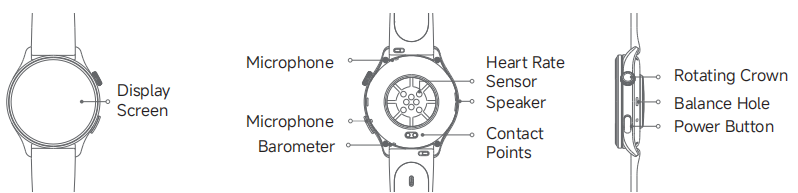
On the front, you can see the display screen. On the back, there are two microphones, one heart rate sensor, one speaker, contact points, and a barometer. On the side, the watch is equipped with a rotating crown, a power button, and a balance hole.
Q2: What is the strap length of the Xiaomi Watch 5?
A: 1. Xiaomi Watch 5 fluororubber strap (black) paired with a dark-colored middle frame and button coating:
Short strap: 88 mm
Long strap: 126 mm
2. Xiaomi Watch 5 fluororubber strap (juniper green) paired with a silver-colored middle frame and button coating:
Short strap: 88 mm
Long strap: 126 mm
Bezel and Strap
Q1: What are the button functions of the Xiaomi Watch 5?
A: On the front of the Xiaomi Watch 5, you can see the display screen. On the back, there are two microphones, one heart rate sensor, one speaker, contact points, and a barometer. On the side, the watch is equipped with a rotating crown, a power button, and a balance hole.
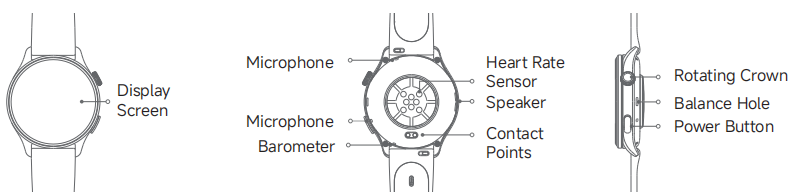
Below are the functions of the rotating crown and power button on the Xiaomi Watch 5:
1. Rotating crown:
Press: Enter App list / return to watch face
Press and hold for over 1 second: Activate Google Voice Assistant
Rotate: Scroll through lists
Double press: Recent App list
Triple press: Recent Apps (APK)
2. Power button:
Press: Open the Workout App or a customized App
Press twice: Open Google Wallet
Triple press: Accessibility features
Press and hold for over 3 seconds: Restart / Power off options / SOS
Press and hold for over 12 seconds: Force restart
Press 5 times: Call emergency contact (Set up in the Mi Fitness App first)
Q2: What screen material does the Xiaomi Watch 5 use?
A: The Xiaomi Watch 5 features a sapphire glass screen, providing excellent scratch resistance and durability for daily use.
Q3: Will wearing the Xiaomi Watch 5 cause skin allergies?
A: The Xiaomi Watch 5 is made of professional, health-conscious, and environmentally friendly materials and has passed sensitization testing by certified institutions. Parts that frequently contact the skin, such as the strap, back cover, and buttons, have passed strict inspection for allergenic and harmful substances and comply with relevant regulatory requirements.
Due to individual differences, a small number of people can experience discomfort when exposed to certain materials or red and green light sensors. If you feel skin irritation while wearing the watch, stop wearing it and consult a doctor.
For a more comfortable wearing experience of the Xiaomi Watch 5, please follow these recommendations:
1. During workouts, wear the watch neither too tight nor too loose, ensuring it does not slide on your wrist.
2. For daily use, slightly loosen the strap to allow better skin ventilation.
3. After wearing the watch continuously for a long time, remove it and let your wrist rest for about 30 minutes.
4. After exercise, clean and dry sweat from your arm and the strap before wearing it again.
Q4: Why can’t the strap be installed after removing it from the Xiaomi Watch 5?
A: If you cannot reinstall the strap on the Xiaomi Watch 5 following the standard procedure, check the following:
1. Whether there is any foreign matter blocking the lug holes on the watch body. If so, clean the holes and try again.
2. Whether the spring bar rebounds properly. If the spring bar does not rebound normally, the strap can be defective and should be repaired or replaced.
Q5: How to replace the strap on the Xiaomi Watch 5?
A: The Xiaomi Watch 5 supports quick-release straps. Follow these steps to replace the strap:
1. Press the spring bar inward toward the strap direction to remove the strap.
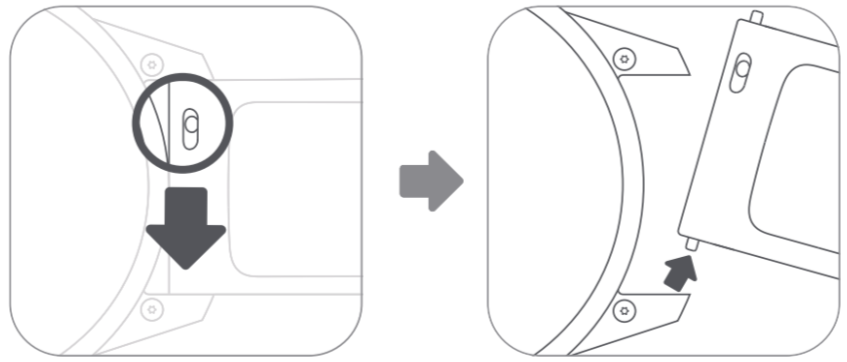
2. Insert one end of the strap with the spring bar into one lug hole, then press the spring bar on the other side and guide it into the opposite lug hole. Gently adjust until you feel the spring bar lock into place.
3. After installation, pull the strap gently to confirm it is securely attached.
Note:
The spring bar is the metal pin used to connect the strap to the watch body.
Q6: How to adjust the strap on the Xiaomi Watch 5?
A: Hold the strap of the Xiaomi Watch 5 with your right hand. With your left hand, grip both ends of the clasp on the back cover and slide them in parallel until the strap fits your wrist comfortably.
Q7: Is the Xiaomi Watch 5 strap compatible with straps from previous watches?
A: The Xiaomi Watch 5 is compatible with watches that use 22 mm lug-width straps.
Screen
Q1: Why does the Xiaomi Watch 5 show slight color deviation at low brightness levels?
A: The Xiaomi Watch 5 uses an AMOLED display. Due to the inherent characteristics of AMOLED materials, the activation voltages of the red, green, and blue sub-pixels are different. As a result, slight color deviation can occur when the screen is displayed at low brightness. This phenomenon disappears as brightness increases.
AMOLED pixels are made of organic light-emitting materials, and their luminance does not have a perfectly linear relationship with the driving current. Brightness coordinates fluctuate within tolerance ranges. At low brightness levels (low driving current), the quantum efficiency of the materials decreases, leading to larger tolerance variations that can be noticeable. All test results remain within controlled specifications. As brightness increases, tolerance variations are reduced and the issue disappears. This is normal. Please feel confident using the device.
Q2: Why does the Xiaomi Watch 5 display uneven colors during initial pairing?
A: During the initial pairing process, the Xiaomi Watch 5 can display uneven screen colors due to the background image being shown. This is not a quality issue and does not affect normal use. Please feel confident using the watch.
Q3: Why can you see evenly divided stripes at certain angles, or notice a grainy effect at low brightness on the Xiaomi Watch 5 screen?
A: The Xiaomi Watch 5 uses an AMOLED display with a polarizer stack that includes a very thin film layer. Thin film materials tend to shrink in the direction perpendicular to the stretching direction during extension. After bonding with the base material, rib-like marks can remain. This phenomenon is inherent to the material and is considered normal. Please feel confident using the watch.
In addition, differences in luminance between individual pixels can cause macroscopic brightness variations across the display. At low brightness levels, your eyes are more sensitive to these differences, making the grainy effect more noticeable. This is also a normal phenomenon.
Q4: Why can’t the Xiaomi Watch 5 screen turn on?
A: If the Xiaomi Watch 5 screen does not turn on when the display is off, and tilt-to-wake or pressing the power button/rotating crown does not activate the screen, try the following steps:
1. Check if the battery level is too low. Connect the watch to the charging dock and check whether the battery is sufficient.
2. Press and hold the power button for 12 seconds to force the watch to restart. After restarting, check the system version and update the watch to the latest version.
Q5: Why is tilt-to-wake not responsive on the Xiaomi Watch 5?
A: The tilt-to-wake feature on the Xiaomi Watch 5 relies on the built-in accelerometer. The screen wakes when you tilt or raise your wrist. If the wrist movement angle is too small or the motion is too slow, the screen can not turn on.
Q6: Why does the Xiaomi Watch 5 screen freeze or display distortion during normal use?
A: If the Xiaomi Watch 5 screen freezes or displays distortion during normal use, it can be caused by electrostatic interference on the display. During the self-recovery process, temporary freezing or distortion can occur. After the issue appears, wait about 5 seconds to see if the screen recovers. If it does not recover, press and hold the power button for 3 seconds to restart.
Q7: Why does the animation stutter during the pairing process on the Xiaomi Watch 5?
A: During pairing, the Xiaomi Watch 5 plays animations while simultaneously exchanging data with the phone. At the same time, the system performs high read/write operations for data storage, resulting in a higher overall system load. This can cause slight animation stuttering. Once data synchronization is complete, the stuttering will disappear. This is normal. Please feel confident using the device.
Q8: Why does the Xiaomi Watch 5 briefly flash when switching from screen-off to Always-on screen?
A: When the Xiaomi Watch 5 transitions from a fully off screen to Always-on screen mode, the screen goes through a very brief “wake-up” process. The display lights up momentarily before entering AOD mode. During this short transition, you can briefly see a bright screen, which can appear as a flicker. This is a normal visual effect.
Q9: Why are the widgets on the Xiaomi Watch 5 watch face not clickable?
A: The widgets on the Xiaomi Watch 5 refer to the data items displayed on the watch face. Some of these data items are fixed, such as steps, time, or date, and are part of the static watch face design, so they cannot be tapped. However, if a data item is linked to an application, such as Weather or Heart rate, tapping it will redirect you to the corresponding App.
Therefore, not all widgets on the watch face support interaction. Whether they are tappable depends on the nature of the specific data item.
Q10: Why can’t you swipe on the Xiaomi Watch 5 screen?
A: If you cannot swipe on the Xiaomi Watch 5 screen, try the following steps:
1. Check whether the battery level is too low.
2. The issue can be caused by ESD (electrostatic discharge) interference. Wait about 5 seconds to see if the screen recovers.
3. Press the rotating crown to return to the watch face. If the screen still cannot be swiped, press and hold the power button for 12 seconds to force restart the watch.
Q11: What to do if the Xiaomi Watch 5 freezes, shows a black screen, or cannot power on?
A: If the Xiaomi Watch 5 freezes, shows a black screen, or cannot power on, try the following steps:
1. Connect the watch to the charging dock and charging cable, and charge it for more than 10 minutes.
2. If the device still cannot power on after charging, try a force restart by pressing and holding the power button for more than 12 seconds.
3. If the device still cannot power on, contact the after-sales service center for further inspection.
Q12: Why does the Xiaomi Watch 5 show slight stuttering after restarting or during data synchronization?
A: When the Xiaomi Watch 5 triggers data synchronization, the processor handles interaction tasks between the watch and the App while writing data to storage. This can slightly affect screen refresh performance. After synchronization is completed, wait 5-10 seconds and the stuttering will disappear. This is normal. Please feel confident using the watch.
Battery and Endurance
Q1: What is the battery life of the Xiaomi Watch 5?
A: The Xiaomi Watch 5 has a 930mAh battery, which takes approximately 90 minutes to fully charge using the included charging dock (5V/1.5A or higher adapter, at room temperature).
Battery life:
Smart mode: Approximately 6 days with normal use; with Always-On Display (AOD) enabled, it lasts approximately 4 days with normal use.
Power saver mode: The maximum battery life is 18 days; 12 days with normal use; 7 days with AOD enabled.
Note:
The battery life test data comes from Xiaomi Labs. In actual use, battery life is related to various factors such as settings, operation, usage habits, and environment, and may differ from the lab data.
The Xiaomi Watch 5 endurance test scenarios are as follows:
In Smart mode:
1. 6-day battery life with typical usage was tested with the watch fully charged, using factory default settings and a default watch face, with high-precision sleep monitoring, all-day stress monitoring and all-day blood oxygen monitoring turned on, heart health checkup and heart rate continues monitoring turned on; with message notifications (100 messages, 6 calls, 3 alarms, and 8 NFC payments a day) turned on, with the wrist raised to engage the screen 300 times a day; manually starting the App to sync data once a day; 30 minutes of Bluetooth calls every week; local music playback via connected earphones 30 minutes per week (local music playback is supported only on Android phones); workout recording with GNSS enabled 180 minutes per week.
2. 4-day battery life with typical AOD usage was tested with the watch fully charged, using factory default settings, a default watch face and AOD turned on, with high-precision sleep monitoring, all-day stress monitoring, all-day blood oxygen monitoring, heart health checkup and heart rate continues monitoring turned on; message notifications (100 messages, 6 calls, 3 alarms, and 8 NFC payments a day) turned on, with the wrist raised to engage the screen 300 times a day; manually starting the App to sync data once a day; 30 minutes of Bluetooth calls every week; local music playback via connected earphones 30 minutes per week (local music playback is supported only on Android phones); workout recording with GNSS enabled 180 minutes per week.
In Power saver mode:
1. 18-day battery life was tested with the watch fully charged, and enabling the Power saver mode; using factory default settings and a default watch face, with high-precision sleep monitoring turned on; daily every 10 minutes heart rate detection and message notifications (100 messages, 6 calls, 3 alarms) turned on, with the wrist raised to engage the screen 300 times a day; screen interactions total 6 minutes per day; manually starting the App to sync data once a day; 30 minutes of Bluetooth calls every week; local music playback via connected earphones 30 minutes per week (local music playback is supported only on Android phones); workout recording with GNSS enabled 90 minutes per week.
2. 12-day battery life with regular detection usage was tested with the watch fully charged, and enabling the Power saver mode; using factory default settings and a default watch face, with high-precision sleep monitoring, all-day stress monitoring, all-day blood oxygen monitoring, heart health checkup and heart rate continues monitoring turned on; message notifications (100 messages, 6 calls, 3 alarms) turned on, with the wrist raised to engage the screen 300 times a day; screen interactions total 6 minutes per day; manually starting the App to sync data once a day; 30 minutes of Bluetooth calls every week; local music playback via connected earphones 30 minutes per week (local music playback is supported only on Android phones); workout recording with GNSS enabled 180 minutes per week.
3. 7-day battery life with typical AOD usage was tested with the watch fully charged, and enabling the Power saver mode; using factory default settings, a default watch face and AOD turned on, with high-precision sleep monitoring, all-day stress monitoring, all-day blood oxygen monitoring, heart health checkup and heart rate continues monitoring turned on; message notifications (100 messages, 6 calls, 3 alarms) turned on, with the wrist raised to engage the screen 300 times a day; screen interactions total 6 minutes per day; manually starting the App to sync data once a day; 30 minutes of Bluetooth calls every week; local music playback via connected earphones 30 minutes per week (local music playback is supported only on Android phones); workout recording with GNSS enabled 180 minutes per week.
Q2: What is the battery capacity of the Xiaomi Watch 5 and how to charge it?
A: The Xiaomi Watch 5 has a 930 mAh battery and uses a magnetic pogo-pin charging dock.
Charging instructions for the Xiaomi Watch 5 are as follows:
1. Place the watch on the charging dock, ensuring the charging contacts on the back of the watch fully align with the metal pins on the dock.
2. Connect the charging dock to a USB-A power adapter with an output of 5 V and ≥1 A.
Note:
1. When the battery level drops below 15%, 10%, or 5%, the Xiaomi Watch 5 prompts you to connect the charger. A charging indicator appears during charging.
2. If the Xiaomi Watch 5 has been left unused for a long time and cannot power on, pre-charge it for about 1 minute until the charging icon appears.
3. Clean the charging contacts before charging to avoid sweat or moisture residue.
Q3: What charging cable does the Xiaomi Watch 5 use?
A: The Xiaomi Watch 5 uses the Xiaomi Watch Charging Dock.
Q4: How to use wireless charging on the Xiaomi Watch 5?
A: The Xiaomi Watch 5 does not support wireless charging.
Q5: Can the Xiaomi Watch 5 be charged with a third-party charger?
A: The Xiaomi Watch 5 supports compatible third-party chargers. For optimal performance and charging stability, it is recommended to use the official charger. Voltage may be unstable in Southeast Asian regions, and substandard chargers pose safety hazards.
Q6: How to check battery health on the Xiaomi Watch 5 (such as remaining capacity or charge cycles)?
A: The Xiaomi Watch 5 does not support viewing detailed battery health information.
Q7: How long is the battery endurance of the Xiaomi Watch 5, and when should the battery be replaced?
A: Under normal temperature conditions, the battery of the Xiaomi Watch 5 supports approximately 300 charge cycles. When you notice a significant decrease in battery life compared to regular usage, it is recommended to replace the battery to maintain stable performance and daily usability.
Note:
The Xiaomi Watch 5 can be used for at least 4 years with being charged every 5-7 days on average.
Q8: Why does the Xiaomi Watch 5 drain battery quickly or have a short standby time?
A: If the Xiaomi Watch 5 shows fast battery drain or short standby time, check the following:
1. Check the background Apps or features. Verify whether GPS, Bluetooth connections, music playback, or other functions continue running in the background, as these significantly increase power consumption.
2. View the screen brightness and display settings. High screen brightness or enabling always-on display accelerates battery drain. Using automatic brightness or disabling AOD improves endurance.
3. Keep watch's operating system and the Mi Fitness App up to the latest version. Some updates optimize battery management, improving overall battery life.
4. If your device has short standby time and drains battery quickly, check if you've updated your operating system. OTA updates tend to drain battery faster, and this is also related to network conditions. It's recommended to use a location with a good network connection.
5. If your device still drains battery quickly, you need to submit feedback in the Mi Fitness App under [Profile] >> [Feedback]. And please also request after-sales service for inspection.
Q9: Why does the Xiaomi Watch 5 not reach the advertised 6-day battery life in daily use?
A: The 6-day endurance result is measured under laboratory. Daily usage varies depending on enabled features.
To improve battery endurance on the Xiaomi Watch 5, please refer to the following tips:
1. Disable or enable scheduled AOD feature.
2. Set [Screen timeout] to 5s, because the longer the automatic screen-off time, the shorter the battery life.
3. Switch to a lower-power watch face.
4. Reduce notification frequency or disable unnecessary App notifications.
5. Enable Power saver mode or DND mode at night or when not in use.
6. If high power consumption scenarios are not enabled, you can go to the Mi Fitness App >> [Profile] >> [Feedback] >> select [Xiaomi Watch 5] >> [Charging], fill in the problem you encountered, check [Add logs], and then tap [Submit].
Q10: Does the Xiaomi Watch 5 support Power saver mode?
A: The Xiaomi Watch 5 supports Power saver mode.
To enable Power saver mode on the Xiaomi Watch 5, please refer to the following methods:
1. Open [Settings] on the watch >> select [Modes] >> enable [Power saver].
2. Swipe up on the watch face to open the Control center and tap the mode switch icon, then enable Power saver mode.
3. When the watch displays low-battery alerts at 10% or 5%, tap [Enable power saver] on the prompt.
To exit Power saver mode on the Xiaomi Watch 5, please refer to the following methods:
1. If you enable [Turn off Power save mode automatically] in watch settings >> [Battery], the watch will automatically turn off Power saver mode when the device is cherging and battery level is over 20%. This is normal. If you don't want to exit Power saver mode, simply turn off this switch.
2. Open [Settings] on the watch >> select [Modes] >> enable [Smart mode].
3. Swipe up on the watch face to open the Control center and tap the mode switch icon, then enable Smart mode.
Q11: What is the water resistance rating of the Xiaomi Watch 5?
A: The Xiaomi Watch 5 has a 5 ATM water resistance rating and is suitable for shallow-water activities such as swimming in pools or at the beach. It is not suitable for hot showers, saunas, hot springs, or high-temperature and high-humidity environments. It is also not suitable for diving, cliff jumping, surfing, or activities involving high-speed water flow or deep water.
If the Xiaomi Watch 5 is exposed to water, it is recommended to use the vibration water-draining function and gently shake the watch to remove residual water from openings.
Note:
The 50-meter water resistance rating refers to static pressure resistance under standard conditions. This rating is calculated based on atmospheric pressure equivalence rather than actual underwater depth.
Q12: Does the Xiaomi Watch 5 support independent satellite positioning?
A: The Xiaomi Watch 5 supports independent satellite positioning with dual-frequency five-system GNSS, including BeiDou (BDS), GPS, Galileo, GLONASS, and QZSS.
System
Q1: What operating systems does Xiaomi Watch 5 support for binding, and how to bind it?
A: Before using the Xiaomi Watch 5, you need to bind it through the Mi Fitness App, which you can download from the App store. After binding, keep the App locked in the background to prevent the system from closing it, as this could cause the watch to disconnect and affect normal use. However, the Xiaomi Watch 5 does not support iOS phones.
To bind the Xiaomi Watch 5, please refer to the following information:
1. Press and hold the power button for about 3 seconds to power on the Xiaomi Watch 5. Use your phone to scan the QR code displayed on the watch, or search for Mi Fitness in the App store and install the App.
2. Open the Mi Fitness App, log in as prompted, and grant the required permissions.
3. The watch supports three pairing methods:
(1) Tap [Scanner] and scan the QR code on the watch screen.
(2) Tap [Add device], and the App will automatically search for nearby devices. From the list, select your watch’s Bluetooth name (Xiaomi Watch 5XXXX). If it does not appear, try searching again.
(3) Tap [Add device], then tap [Add model] at the bottom of the interface, select Xiaomi Watch 5, and choose your watch’s Bluetooth name (Xiaomi Watch 5XXXX) from the list. If the device is not found, try again. If an older App version shows the device as unsupported, update the App and retry.
4. On an Android phone, when the same security code appears on both the phone and the Xiaomi Watch 5, confirm the pairing request on both devices to complete the connection.
Note:
1. During pairing, make sure the Bluetooth is enabled on your phone to ensure a stable connection.
2. If a security code appears on the watch but no confirmation pop-up appears on the phone, check the phone’s notification shade for the pairing request.
3. If the watch cannot be found during device addition or cannot connect during use, press and hold the power button for 3 seconds, select factory reset from the system menu, and then add the watch again.
Q2: What permissions need to be enabled on the phone when connecting the Xiaomi Watch 5 to the Mi Fitness App?
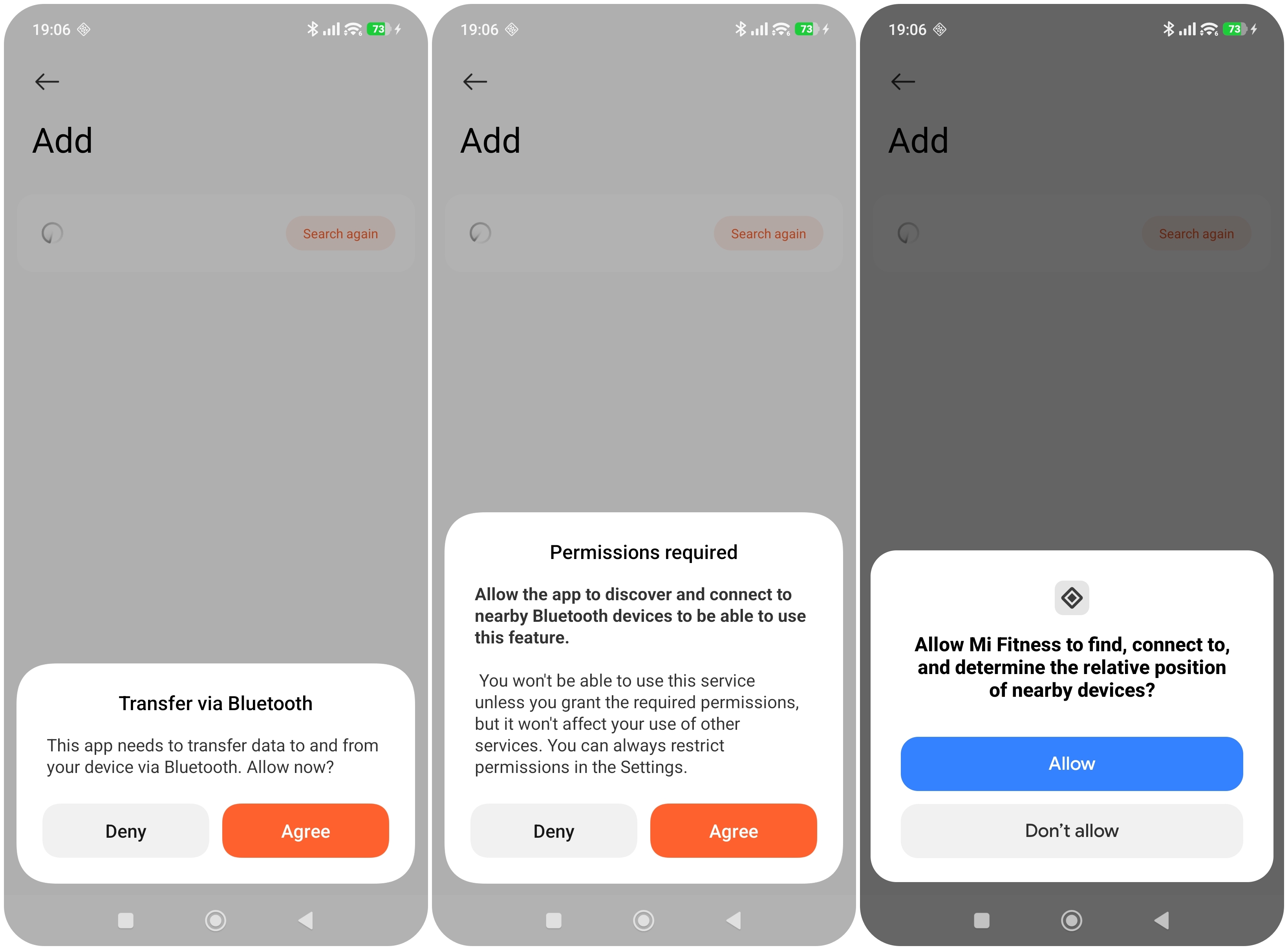
A: When connecting the Xiaomi Watch 5 to the Mi Fitness App, enable the following permissions on your phone:
1. Allow Bluetooth data transmission.
2. Bluetooth scanning and Bluetooth connection permissions.
3. Allow the Mi Fitness App to find and connect to nearby devices and determine their relative location.
Q3: Why is there noticeable delay or stutter when binding the Xiaomi Watch 5?
A: When the Xiaomi Watch 5 is being bound, animations are playing while the phone and watch are exchanging data. This results in higher read/write activity and overall system load, which can cause slight animation stutter. This is normal. Please feel confident using the watch.
Q4: How to rebind the Xiaomi Watch 5 after changing the phone?
A: To rebind the Xiaomi Watch 5 after changing the phone, please refer to the following information:
1. Binding with a different Xiaomi Account: restore the watch to factory settings, then bind it again using the new phone.
2. Binding with the same Xiaomi Account on a new phone: while the watch is still connected to the original phone, go to [Settings] >> [System] >> [Connect new phone] on the watch. After confirmation, the watch will switch phones and complete rebinding.
Q5: Why does the Xiaomi Watch 5 fail to connect or pair during the binding process?
A: Connection failure with the Xiaomi Watch 5 can be caused by an unstable network connection on the phone. Please check the phone’s network status. Another possible cause is a Bluetooth issue. Please try turning the Bluetooth off and back on, then attempt pairing again.
Pairing can also fail if the pairing request is not confirmed in time or if Cancel is tapped during the process.
If the Xiaomi Watch 5 still cannot connect, try the following steps:
1. Reset the watch to factory settings.
2. Remove the watch’s Bluetooth information from the phone’s Bluetooth device list.
3. Turn the phone’s Bluetooth off and then back on.
4. Open the Mi Fitness App and add the device again.
Q6: Why can’t the phone find the Bluetooth of the Xiaomi Watch 5 during pairing?
A: If the phone cannot find the Bluetooth of the Xiaomi Watch 5 during pairing, please check the following situations:
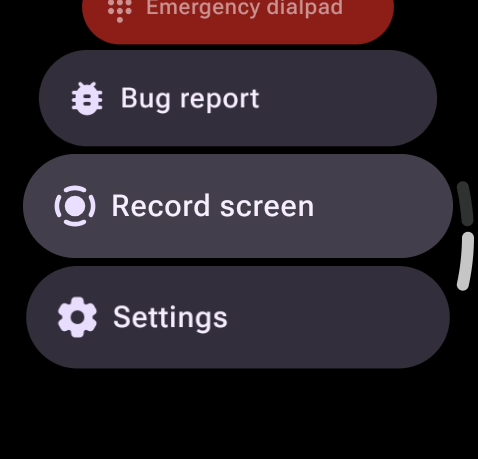
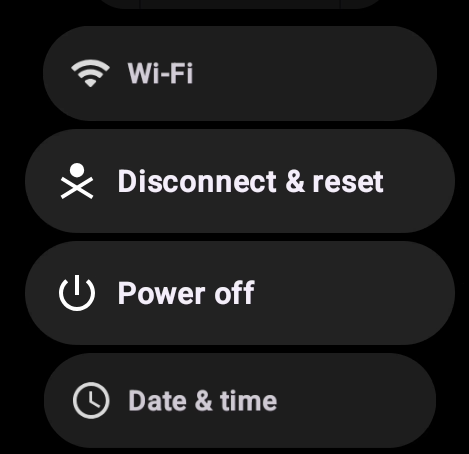
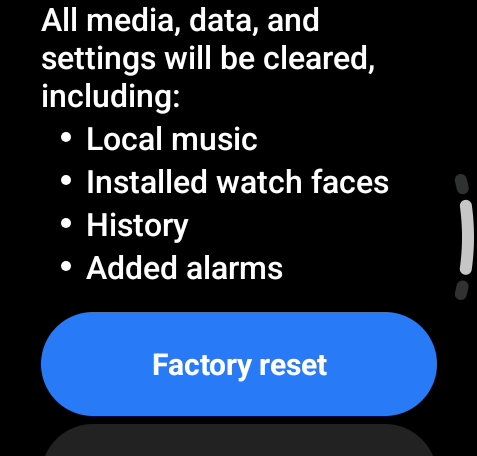
1. The phone and watch appear to have completed pairing, but the binding was not successfully established. In this case, the phone and watch remain disconnected. You can press and hold the power button on the watch >> swipe down and tap [Settings] >> select [Disconnect & reset] >> tap [Factory reset]. After restoring factory settings, try pairing again.
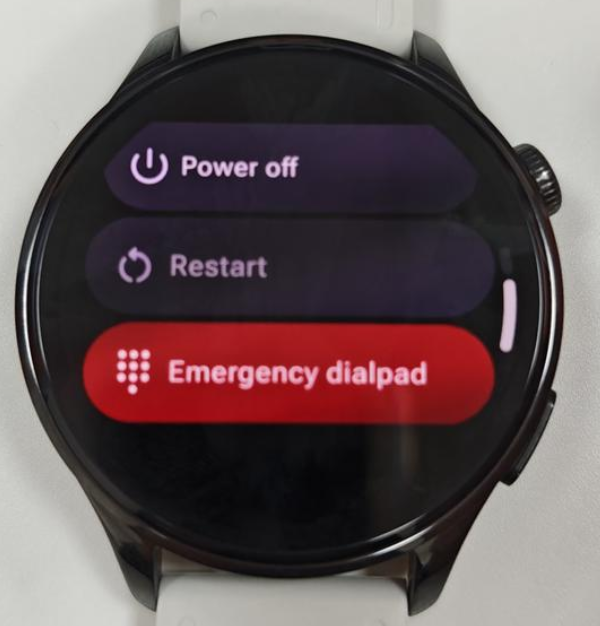
2. During pairing, the phone cannot detect the watch’s Bluetooth signal, preventing the process from continuing. Please press and hold the power button on the watch, tap [Restart], and wait until the watch restarts successfully. Then try pairing again.
Q7: How to keep the Xiaomi Watch 5 connected to the Mi Fitness App?
A: To keep the Xiaomi Watch 5 connected to the Mi Fitness App, lock the App to run in the background, keep Bluetooth enabled on your phone, and stay within the effective Bluetooth range between the watch and the phone.
Right after binding the device, a reminder message will appear in the center of the [Device] interface to guide you through the necessary permission settings. However, once this prompt is dismissed, it will not appear again when you reopen the App.
If you need to configure the permissions manually, you can follow this path: Mi Fitness App >> [Profile] >> [App permissions], and ensure all required permissions are enabled to maintain a stable connection.
Q8: What is the maximum distance between the Xiaomi Watch 5 and your phone before Bluetooth automatically disconnects?
A: The Bluetooth connection between the Xiaomi Watch 5 and your phone is affected by the surrounding environment, and actual performance can vary. Please refer to the following information:
1. In environments with obstacles, Bluetooth will automatically disconnect when the watch and phone are 5 m to 8 m apart.
2. In open areas or long corridors, Bluetooth will automatically disconnect when the watch and phone are about 20 m apart.
3. If separated by one person’s body (with the watch and phone facing each other), Bluetooth will automatically disconnect when the watch and phone are 3 m to 5 m apart.
Q9: How to power on, power off, and restart the Xiaomi Watch 5?
A: The Xiaomi Watch 5 has two buttons on the right side: the rotating button and the power button.
In Smart mode:
Power on: When the watch is powered off, press and hold the power button for 3 seconds to power it on and enter the home screen.
Power off:
1. When the watch is powered on, press and hold the power button for 3 seconds to access the restart and power-off menu. Then select [Power off].
2. You can also go to [Settings] >> [System] on the watch to power off.
Restart:
1. When the watch is powered on, press and hold the power button for 3 seconds to access the restart and power-off menu. Then select [Power off].
2. If the watch is powered on, press and hold the power button for about 12 seconds to force a restart.
3. You can also go to [Settings] >> [System] on the watch to restart.
Q10: How to use the screen and buttons on the Xiaomi Watch 5?
A: Please follow the instructions below to learn how to use your watch's screen:
1. Swipe down or turn the crown to view notifications.
2. Swipe up or turn the crown to enter the control center.
3. Swipe left or right to view tiles.
4. Press and hold to edit the watch face.
Please follow the instructions to learn how to use the buttons:
1. Press the crown to enter the application list.
2. Double press to see recent applications (not supported in Power saver mode).
3. Press and hold the crown to wake the Voice assistant (not supported in Power saver mode).
4. Press the Down button to open the Workout or custom App (not supported in Power saver mode).
5. Triple press the button to start the recent application (not supported in Power saver mode).
6. Press and hold the Down button for 3s to open the System menu.
7. Press both buttons simultaneously to take a screenshot (not supported in Power saver mode).
Q11: What functions are available in the Control center on the Xiaomi Watch 5?
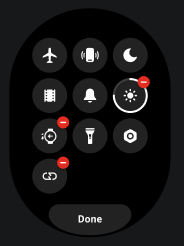
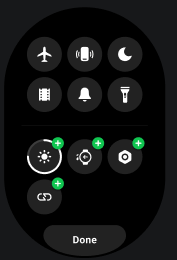
A: The functions of the Control center of the Xiaomi Watch 5 in Smart mode are shown in the images and described below:
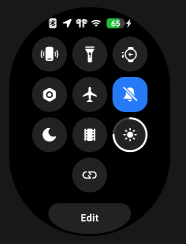
1. The status bar (the top row in the image), from left to right, displays the following: Bluetooth connection status (the icon is gray and disconnected when the watch is not connected to the Mi Fitness App, and gray-highlighted when connected), location usage status (displayed when an App is using location permission and hidden when not in use), headphone connection status (displayed when the watch is connected to headphones and hidden when not connected), Wi-Fi connection status (displayed when the watch is connected to Wi-Fi and hidden when not connected), and the current battery level of the watch (the battery icon is green and shows a charging symbol while charging, and when not in charge, the battery icon is red when battery is 0-10%; the battery icon is orange when the battery is 11-20%; the battery icon is white when battery is 21-100%).
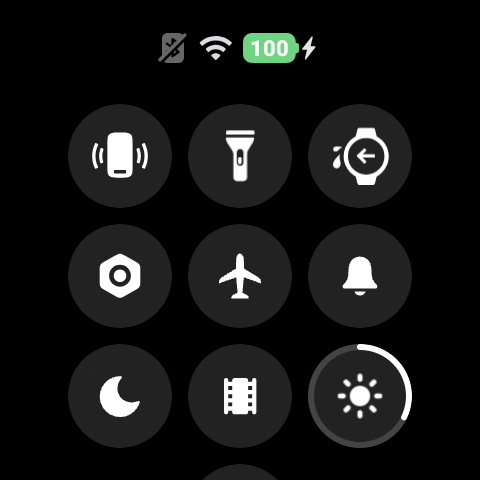
2. The shortcut icons, from left to right, correspond to the following functions: Find my phone, Flashlight, Water drainage, Settings, Airplane mode (tap to enable or disable Airplane mode, hold and press to enter the Connectivity interface), Silence mode (tap to enable or disable Silence mode, hold and press to enter the Sound interface), Do Not Disturb mode (tap to enable or disable Do Not Disturb mode, hold and press to enter the Do Not Disturb interface), Theater mode (tap to enable or disable Theater mode), Brightness (tap to enter the Brightness interface), and Modes (tap to enter the mode switching interface).
3. Tap [Edit] to enter the editing interface to delete or add shortcut functions. Shortcuts that cannot be deleted do not display a delete icon, while deletable shortcuts display a delete icon. The non-deletable shortcuts are Airplane mode, Find my phone, Flashlight, Silence mode, Do Not Disturb mode, and Theater mode. In the editing state, hold and press on the interface to drag and reorder the icons. Tap [Done] to save the current interface settings.
The functions of the Control center of the Xiaomi Watch 5 in Power saver mode are shown in the images and described below:
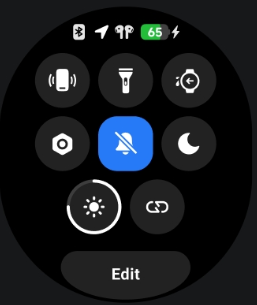
1. The status bar (the top row in the image), from left to right, displays the following: Bluetooth connection status (the icon is gray and disconnected when the watch is not connected to the Mi Fitness App, and gray-highlighted when connected), location usage status (displayed when an App is using location permission and hidden when not in use), headphone connection status (displayed when the watch is connected to headphones and hidden when not connected), and the current battery level of the watch (the battery icon is green and shows a charging symbol while charging, and orange when not charging).
2. The shortcut control icons, from left to right, correspond to the following functions: Find my phone, Flashlight, Water drainage, Settings, Silence mode (tap to enable or disable Silent mode, hold and press to enter the Sound interface), Do Not Disturb mode (tap to enable or disable Do Not Disturb mode, hold and press to enter the Do Not Disturb interface), Brightness (tap to enter the Brightness interface), and Modes (tap to enter the mode switching interface).
3. Tap [Edit] to enter the editing interface to delete or add shortcut functions. Shortcuts that cannot be deleted do not display a delete icon, while deletable shortcuts display a delete icon. The non-deletable shortcuts are Find my phone, Flashlight, Silence mode, and Do Not Disturb mode. In the editing state, hold and press on the interface to drag and reorder the icons. Tap [Done] to save the current interface settings.
Q12: What functions are included in the system settings of the Xiaomi Watch 5?
A: You can access the Settings App on the Xiaomi Watch 5 through the Control center or by pressing the rotating crown to enter the App list.
In Smart mode, the Settings App of the Xiaomi Watch 5 includes: Modes, Connectivity, Display, Gestures, Apps & notifications, Home screen, Google, Sound, Vibration, Battery, General, Location, Accessibility, Security, Advanced features, System, and About watch.
In Power saver mode, the Settings App of the Xiaomi Watch 5 includes: Modes, Connectivity, Display, Gestures, Apps & notifications, Home screen, Sound, Vibration, Battery, General, Location, Accessibility, Advanced features, System, and About watch.
Q13: How to view device information on the Xiaomi Watch 5?
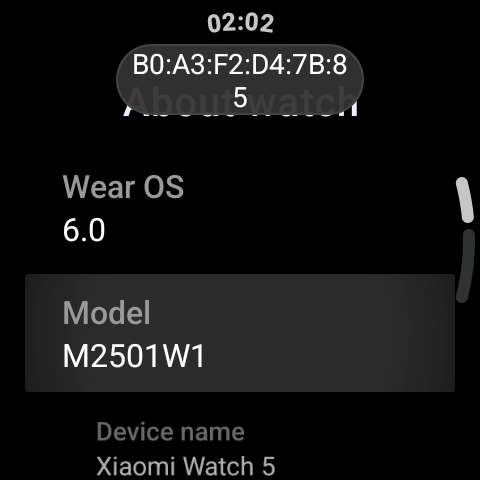
A: On the Xiaomi Watch 5, press the rotating crown button to enter the [Settings] App, then tap [About watch] to view device information, including the Wear OS version, model, versions, serial number, product serial number, connection information, system licenses, regulatory information, and legal notices.
Q14: How to customize tiles on the Xiaomi Watch 5?
A: The Xiaomi Watch 5 supports the tiles feature. On the watch face main interface, swipe left or right to access tiles. Editing tiles on the Mi Fitness App is supported only in Smart mode.
Note:
1. Before editing tiles, make sure the Xiaomi Watch 5 is in Smart mode, as only Smart mode supports tile editing, while Power saver mode does not.
2. Tiles edited in Smart mode will be displayed in Power saver mode based on App support. Unsupported tiles will not be displayed.
To customize tiles on the Xiaomi Watch 5, please refer to the following steps:
1. Swipe left or right on the watch face main interface to enter the tiles editing interface, then hold and press a tile card to drag and reorder the tiles.
2. In the tiles editing interface, tap [Remove] below a tile card to delete a previously added tile.
3. In the tiles editing interface, swipe left to the far right to access the tile addition entry, then tap the plus icon to enter the tile selection interface.
4. Tap any tile preview or press the rotating crown to exit the tiles editing interface.
Q15: Does the Xiaomi Watch 5 support customizing the Down button (Power button)?
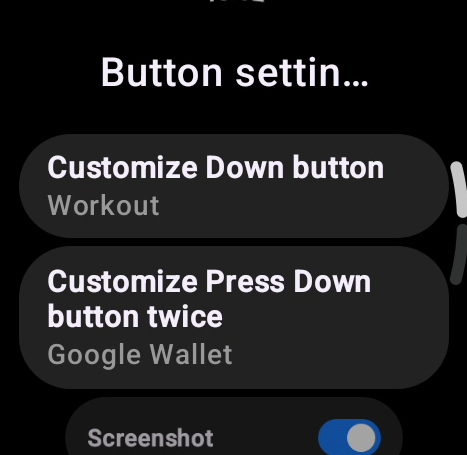
A: The Xiaomi Watch 5 supports customizing the Down button (Power button). You can open the [Settings] App on the watch, then go to [Advanced features] >> [Button settings] >> select [Customize Down button] or [Customize Press Down button twice] to set shortcut actions. In addition, you can enable [Screenshot] in this interface, allowing you to take a screenshot by pressing the Rotating crown and the Power button at the same time.
Q16: What applications are available on the Xiaomi Watch 5, and how to switch the App layout?
A: The available applications on the Xiaomi Watch 5 vary by mode.
In Smart mode, the Xiaomi Watch 5 includes the following Apps: Alarm, Google Voice assistant, Breathing exercises, Calendar, Camera, Checkup, Compass, Contacts, Cycles, Find my phone, Flashlight, Google Wallet, Heart rate, History, Maps, Media Controls, Messages, Phone, Play Store, Pressure & elevation, Recorder, Running courses, Settings, Sleep, SpO₂, Stats, Stopwatch, Stress, Timer, Training review, Vitality score, Weather, Workout, World Clock, Xiaomi TV remote, and YouTube Music.
In Power saver mode, the Xiaomi Watch 5 includes the following Apps: Alarm, Breathing exercises, Camera, Checkup, Compass, Cycles, Find phone, Flashlight, Heart rate, History, Media plugin, Pressure & elevation, Running courses, Settings, Sleep, SpO₂, Stats, Stopwatch, Stress, Timer, Training state, Vitality score, Weather, and Workout.
To switch the App layout on the Xiaomi Watch 5, please follow these methods:
Method 1:
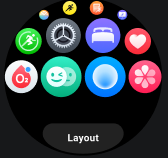
1. Press the rotating crown to open the App list.
2. Scroll down to the bottom of the interface.
3. Tap [Layout].
4. Select [Icons], [Icons and text], or [List] according to your preference.
Method 2:
Press the rotating crown to open the App list, then select [Settings] >> [Home screen] >> [Layout].
Q17: What features does the Xiaomi Watch 5 support?
A: The Xiaomi Watch 5 supports the following features: NFC, tiles, fall detection during skiing, Notifications, preset watch faces, workouts map navigation, navigation vibration alert, health monitoring, communication, interconnection features (remote control camera), timer tile, training state (in Power saver mode)/training review (in Smart mode), gestures 3.0, third-party apps, Checkup, sleep improvment plan, synchronized sleep, device control of Xiaomi Home devices (Xiaomi HyperOS models only), and Visual OS 2.0 optimizations.
Q18: How to customize tiles on the Xiaomi Watch 5?
A: To customize tiles on the Xiaomi Watch 5, please refer to the following steps:
1. Swipe left or right on the watch face main interface to enter the tiles editing interface, then hold and press a tile card to drag and reorder the tiles.
2. In the tiles editing interface, tap [Remove] below a tile card to delete a previously added tile.
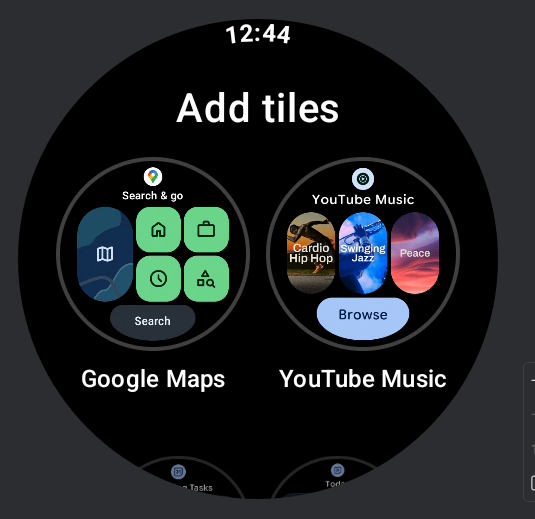
3. In the tiles editing interface, swipe left to the far right to access the tile addition entry, then tap the plus icon to enter the tile selection interface.

4. Tap any tile preview or press the rotating crown to exit the tiles editing interface.
Q19: How to add, delete, or switch frequently used Apps on the Xiaomi Watch 5?
A: Preinstalled Apps in the App list of the Xiaomi Watch 5 cannot be deleted. Third-party Apps downloaded from the Google Play Store can be deleted by holding and pressing the App, entering the App editing state, and tapping the delete icon in the upper-right corner of the App.
If you want to reorder frequently used Apps on the Xiaomi Watch 5, you can hold and press in the App list interface to enter the editing state, then drag frequently used Apps to the top for easier access. In addition, double pressing the Rotating crown opens the Recents interface, where recently used Apps are automatically managed and displayed.
Q20: What screen-off methods are available on the Xiaomi Watch 5, and how to set them?
A: The screen-off behavior of the Xiaomi Watch 5 differs by mode. Please refer to the following information:
1. In Smart mode, if there is no operation within 5 seconds, the screen turns off automatically by default. You can modify the screen-off time in the [Settings] >> [Display] >> [Screen timeout], with a range from 5 seconds to 60 seconds.
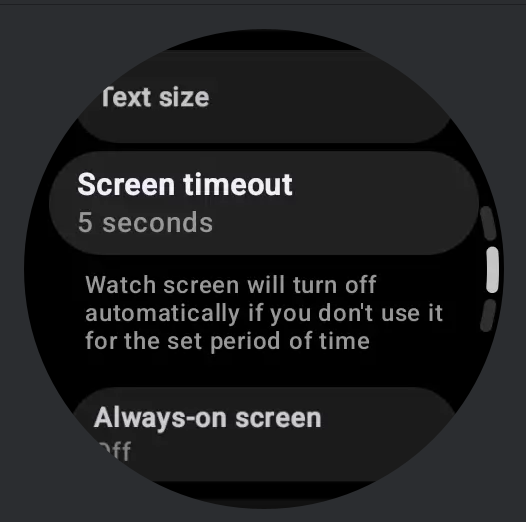
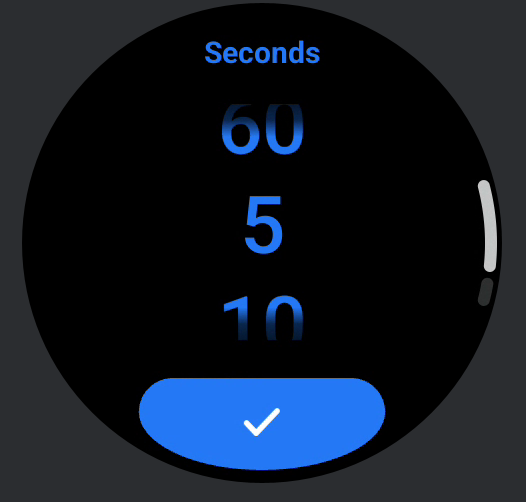
In addition, the watch supports Cover to sleep, which is enabled by default. When you cover and touch the watch face with your palm, covering more than half of the screen area, the display turns off directly. No additional settings are required.
2. In Power saver mode, if there is no operation within 10 seconds, the screen turns off automatically by default. You can modify the screen-off time in the [Settings] >> [Display] >> [Auto lock screen], with a range from 5 seconds to 60 seconds. The watch also supports Cover to sleep, which is enabled by default. When you cover and touch the watch face with your palm, covering more than half of the screen area, the display turns off directly. No additional settings are required.
Q21: What screen wake-up methods are supported by the Xiaomi Watch 5?
A: The Xiaomi Watch 5 supports the following screen wake-up methods:
1. When the screen is off, you can wake the display by pressing the Power button or the Rotating crown once.
2. If Tilt-to-wake is enabled, raising your wrist will wake the screen.
3. If Touch-to-wake is enabled, you can tap the screen to wake it when the display is off or in the Always-on Display state.
Q22: Does the Xiaomi Watch 5 support Always-on Display (AOD)?
A: The Xiaomi Watch 5 supports Always-on Display. After enabling this feature, the watch enters the Always-on Display state when the screen turns off. In this state, you can wake the screen by raising your wrist or pressing a button to exit Always-on Display.
To enable Always-on Display, go to the [Settings] App on the Xiaomi Watch 5 >> [Display] >> [Always-on screen] >> enable [Always-on screen]. You can also tap [Scheduled] to set a scheduled time period. The default schedule is 08:00-22:00, and you can adjust the time according to your needs.
Note:
1. When Always-on Display is enabled, the screen will turn completely black after the watch is removed from the wrist for 5 minutes, and it will also turn black when sleep is detected at night.
2. Enabling this feature reduces battery life. It is recommended to enable it based on actual usage needs.
Q23: Why does the Xiaomi Watch 5 show a black screen after enabling Always-on Display?
A: When Always-on Display is enabled on the Xiaomi Watch 5, the screen can turn black under the following conditions:
1. If the watch detects that it has been removed from the wrist for more than 5 minutes, it will automatically turn the screen black to reduce power consumption caused by continuous display.
2. After sleep is detected for 15 minutes, the watch will automatically turn the screen black.
Q24: How to set Tilt-to-wake/Raise to wake on the Xiaomi Watch 5?
A: The Xiaomi Watch 5 allows you to set Tilt-to-wake/Raise to wake through the following paths depending on the mode in use:
1. In Power saver mode, enter [Settings] >> [Gestures] >> [Raise to wake], then set the active time for wrist-raise screen wake according to your needs. You can choose all-day activation or customize a specific time period.
2. In Smart mode, enter [Settings] >> [Gestures] >> [Tilt-to-wake], then set the active time for wrist-raise screen wake according to your needs. You can choose all-day activation or customize a specific time period.
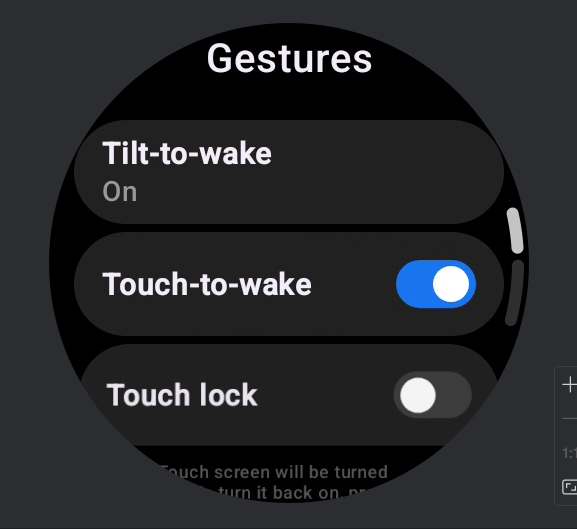
3. After the Xiaomi Watch 5 is paired with the Mi Fitness App, open the App and switch to [Device] >> enter [System] >> [Raise to wake], then set the active time according to your needs. You can choose all-day activation or customize a specific time period.
Q25: Why does the scheduled Tilt-to-wake/Raise to wake setting not take effect on the Xiaomi Watch 5?
A: If the scheduled Tilt-to-wake/Raise to wake setting does not take effect on the Xiaomi Watch 5, please refer to the following information:
1. First, check whether the current time falls within the time range set on the phone (Mi Fitness App >> switch to [Device] >> enter [System] >> [Raise to wake]). If it is outside the configured time range, the feature will take effect during the next valid period.
2. Confirm whether the phone is currently using the 12-hour or 24-hour time format. While the watch is connected via Bluetooth, check the phone settings at [Settings] >> [Additional settings] >> [Date and time] >> [24-hour format]. If the 24-hour format is disabled, the watch will synchronize to the 12-hour format. If it is enabled, the watch will synchronize to the 24-hour format.
Note:
1. If the phone is using the 12-hour format (or when the 24-hour format is disabled), the scheduled Tilt-to-wake/Raise to wake time of “12:00 PM” on the watch refers to noon, while “12:00 AM” refers to midnight.
2. The path for enabling the 12-hour or 24-hour time format can vary depending on the phone model. Please follow the actual settings path on your phone.
Q26: How to enable Always-on screen on the Xiaomi Watch 5?
A: On the Xiaomi Watch 5, press the rotating crown to enter the App list, then enter [Settings] >> [Display] and enable [Always-on screen].
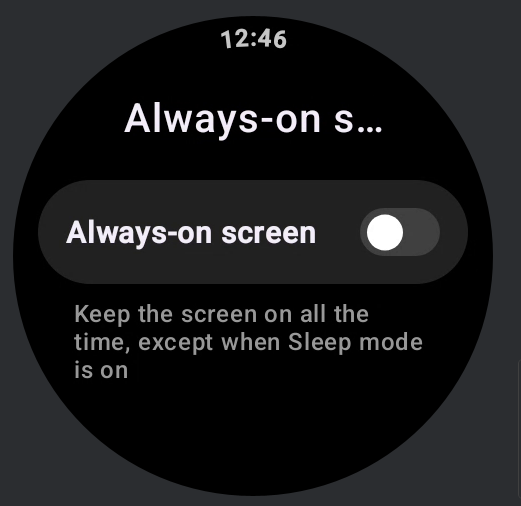
Q27: Does the Xiaomi Watch 5 support double-tap to wake the screen?
A: The Xiaomi Watch 5 does not support double-tap to wake the screen. However, it supports Touch-to-wake. You can enable this feature by entering [Settings] >> [Gestures] and enabling [Touch-to-wake].
Q28: How to adjust the brightness on the Xiaomi Watch 5?
A: The Xiaomi Watch 5 supports brightness adjustment. Please refer to the following methods:
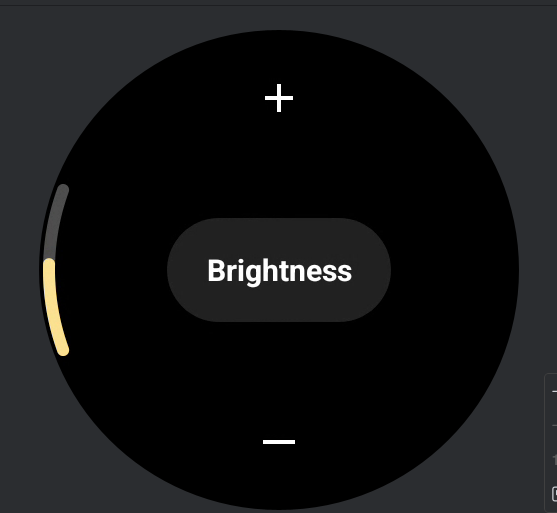
1. In Smart mode, you can manually adjust the brightness by entering [Settings] >> [Display] >> [Brightness] >> [Adjust manually]. You can rotate the rotating crown or tap the [+] or [-] icons to reach your desired brightness level.
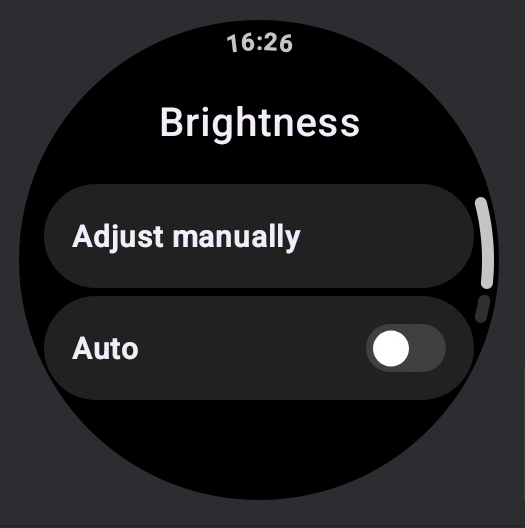
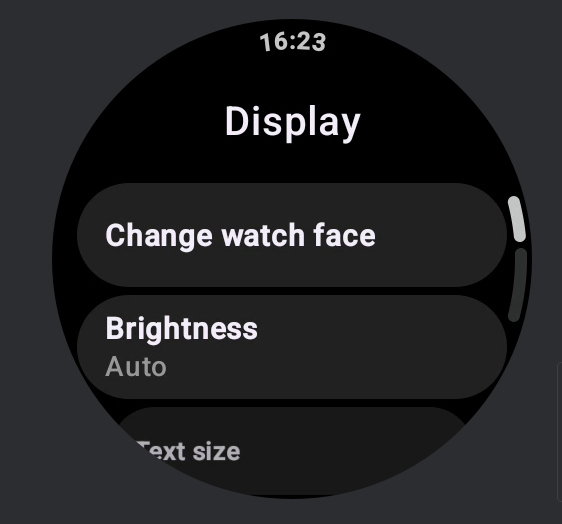
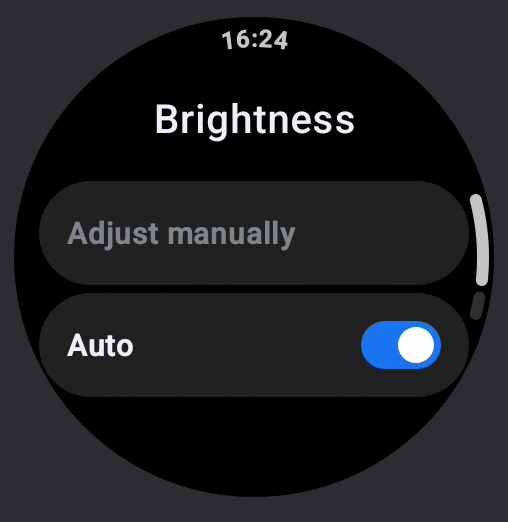
You can also enable automatic brightness by entering [Settings] >> [Display] >> [Brightness] and enabling [Auto], allowing the watch to automatically adjust brightness based on ambient light.
Note:
After automatic brightness is disabled, manual brightness adjustment will become available for operation.
2. In Power saver mode, you can enable automatic brightness by entering [Settings] >> [Display] >> [Brightness] and enabling [Auto]. The watch will automatically adjust brightness based on ambient light.
Q29: How does the Xiaomi Watch 5 connect to the internet?
A: The Xiaomi Watch 5 supports internet access through Bluetooth or Wi-Fi. Please refer to the following information:
1. The Xiaomi Watch 5 supports accessing the network via Bluetooth by using the phone’s shared network. When the watch is properly connected to the Mi Fitness App, it automatically obtains the phone’s network connection to support Apps that require internet access. The music App on the watch can log in to an account and download songs via the Bluetooth network, enabling standalone music playback on the watch.
Note:
1. Bluetooth network access is only supported when connected to an Android phone.
2. Using Bluetooth network access requires the watch to be properly connected to the phone via Bluetooth and the phone’s network connection to be functioning normally.
2. The Xiaomi Watch 5 also supports accessing the internet by connecting to Wi-Fi. Open [Settings] >> [Connectivity] >> [Wi-Fi] on the watch, enable Wi-Fi, wait for the scan to complete, select the Wi-Fi network from the list, enter the password, and wait for the connection to be established.
Note:
Currently, the Xiaomi Watch 5 only supports searching for and connecting to 2.4 GHz Wi-Fi networks.
Q30: How to use Wi-Fi independently on the Xiaomi Watch 5 without connecting to a phone to browse the internet or download Apps?
A: To use Wi-Fi independently on the Xiaomi Watch 5 without connecting to a phone, open [Settings] >> [Connectivity] >> [Wi-Fi] on the watch, enable Wi-Fi, wait for the scan to complete, select the Wi-Fi network from the list, enter the password, and wait for the connection to be established.
Note:
Currently, the Xiaomi Watch 5 only supports searching for and connecting to 2.4 GHz Wi-Fi networks.
Q31: Why is the Xiaomi Watch 5 unable to connect to the internet after a system update?
A: If the Xiaomi Watch 5 is unable to connect to the internet after a system update, this can occur in rare cases due to surrounding Wi-Fi network conditions. You can try reopening [Settings] >> [Connectivity] >> [Wi-Fi] and reconnecting to an available Wi-Fi network, or restart the watch to restore connectivity.
Q32: Does the Xiaomi Watch 5 support connecting Bluetooth headphones?
A: The Xiaomi Watch 5 supports connecting Bluetooth headphones. Except during phone calls and voice assistant usage, all watch audio can be played through Bluetooth headphones. To connect headphones, open [Settings] >> [Connectivity] >> [Bluetooth] on the watch, enable Bluetooth, tap to pair a new device, wait for the headphones to appear in the list, then tap the desired headphones and wait for the connection to complete.
To reconnect previously paired Bluetooth headphones, tap the headphone name in the list, enter the details interface, and tap reconnect. Paired headphones will be displayed in the headphone list. You can manage each headphone in the details interface by disconnecting, reconnecting, or unpairing.
Note:
If there is no sound from the headphones during music playback, this can be due to certain headphone models having independent volume controls. The Xiaomi Watch 5 does not support synchronizing volume control with such headphones, and the volume needs to be adjusted directly on the headphones.
Q33: Does the Xiaomi Watch 5 support using Bluetooth headphones during phone calls?
A: The Xiaomi Watch 5 does not support using Bluetooth headphones for phone calls in either Smart mode or Power saver mode.
Q34: How to adjust the volume on the Xiaomi Watch 5?
A: The Xiaomi Watch 5 supports adjusting the alarm volume, ring volume, media volume, workout volume, notification volume, and call volume. The specific adjustment methods are as follows:
1. Alarm volume adjustment: On the Xiaomi Watch 5, open [Settings] >> [Sound] >> [Alarm volume]. Tap the volume increase or decrease buttons on both sides of the volume bar to adjust the desired volume level. The alarm volume supports adjustment from 0 to 10. Alarm reminders and countdown reminders are both categorized as alarm volume.
2. Ring volume adjustment: On the Xiaomi Watch 5, open [Settings] >> [Sound] >> [Ring volume]. Tap the volume increase or decrease buttons on both sides of the volume bar to adjust the desired volume level. The ring volume supports adjustment from 0 to 10. Incoming call alerts are categorized as ring volume. After enabling mute mode on the watch, the ring volume will automatically be set to 0.
3. Media volume adjustment: On the Xiaomi Watch 5, open [Settings] >> [Sound] >> [Media volume]. Tap the volume increase or decrease buttons on both sides of the volume bar to adjust the desired volume level. The media volume supports adjustment from 0 to 10. Music playback on the watch is categorized as media volume. Third-party music applications support volume adjustment within the application interface, and the adjustment method depends on the App’s design.
4. Workout volume adjustment: The Xiaomi Watch 5 supports adjusting the workout volume during a workout session.
(1). Open [Settings] on the watch >> [Advanced features] >> [Workout settings] >> slide down to find the [Workout volume] and you can tap the [+] or [-] icon to adjust the volume.
(2). The workout volume supports adjustment from 0 to 10. Voice broadcasts during workouts are categorized as workout volume.
(3). During a workout, swipe right to enter the workout secondary interface, then tap [Volume]. Tap the top volume icon to increase the volume, or tap the bottom volume icon to decrease the volume. You can also rotate the rotating crown to adjust the volume level.
5. Call volume adjustment:
(1). The Xiaomi Watch 5 supports adjusting the call volume during a call. During a call, tap the volume button on the call interface to enter the volume adjustment interface. Tap the top volume icon to increase the volume, or tap the bottom volume icon to decrease the volume. You can also rotate the rotating crown to adjust the volume level.
(2). On the Xiaomi Watch 5, open [Settings] >> [Sound] >> [Call volume]. You can adjust the call volume by sliding the volume bar, or tapping [+] or [-] icon.
(3). The call volume supports adjustment from 1 to 15 and does not support being set to 0.
6. Notification volume adjustment: On the Xiaomi Watch 5, open [Settings] >> [Sound] >> [Notification volume]. Tap the volume increase or decrease buttons on both sides of the volume bar to adjust the desired volume level. The notification volume supports adjustment from 0 to 10.
Q35: How to enable Silence mode on the Xiaomi Watch 5?
A: The Xiaomi Watch 5 supports enabling Silence mode. After the Silence mode is enabled, incoming call alerts, message notifications, system prompts, and workout health reminders will no longer produce sound and will only provide vibration alerts.
To enable the Silence mode on the Xiaomi Watch 5, refer to the following methods:
1. On the Xiaomi Watch 5, open [Settings] >> [Sound] >> enable [Mute ring & notifications].
2. On the watch face main interface, swipe up to open the Control center, then tap the Silence mode icon.
3. On the Xiaomi Watch 5, open [Settings] >> [Sound] >> [Ring volume], and manually adjust the ring volume to 0.
Q36: Why does the Xiaomi Watch 5 not vibrate?
A: If the Xiaomi Watch 5 does not vibrate, please refer to the following:
1. First, check whether vibration alerts are enabled on the Xiaomi Watch 5. Open [Settings] >> [Vibration] >> enable [Vibration & haptics].
2. Check whether Do Not Disturb mode is enabled. If Do Not Disturb mode is enabled, please disable it.
3. If Do Not Disturb mode is not enabled, restart the Xiaomi Watch 5. After restarting, set several alarms on the watch. If the alarm reminder interface displays normally at the scheduled time but the watch still does not vibrate, it is recommended to contact the after-sales service center for further assistance.
Q37: Does the Xiaomi Watch 5 support custom ringtones?
A: The Xiaomi Watch 5 does not support custom ringtones. All ringtones are system default ringtones.
Q38: How to enable Do Not Disturb mode on the Xiaomi Watch 5?
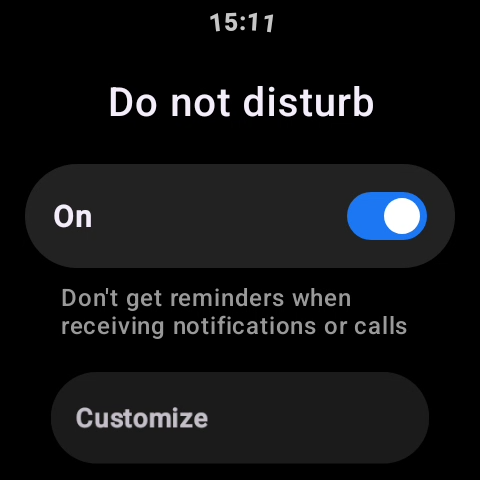
A: The Xiaomi Watch 5 supports enabling Do Not Disturb mode. Open the watch [Settings] App >> [Apps & notifications] >> [Do not disturb], and set it to [On] to enable Do Not Disturb mode.
Alternatively, on the main watch face interface of the Xiaomi Watch 5, swipe up to enter the Control center, then tap the Do Not Disturb mode icon to enable this feature. You can also press and hold the Do Not Disturb mode icon to enter the Do Not Disturb settings.
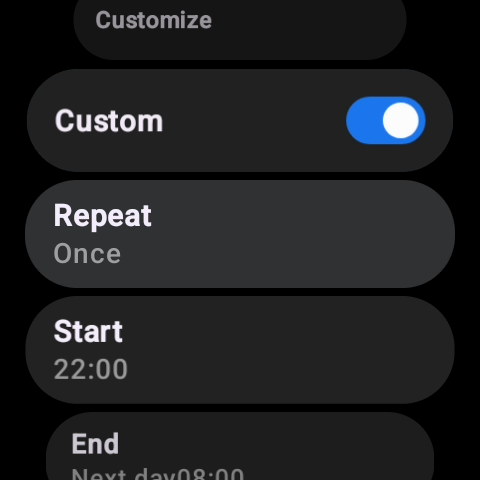
In addition, you can customize the Do Not Disturb schedule. On the Xiaomi Watch 5, open [Settings] App >> [Apps & notifications] >> [Do not disturb] >> enable [Custom], then select [Repeat], [Start], and [End] to set the desired time period.
Q39: How to enable Airplane mode on the Xiaomi Watch 5?
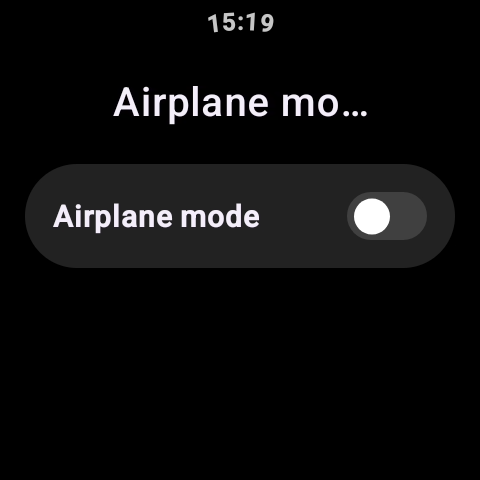
A: On the Xiaomi Watch 5, open [Settings] >> [Connectivity] >> [Airplane mode] >> enable [Airplane mode].
Alternatively, swipe up on the main watch face interface to enter the Control center, then tap the Airplane mode icon to quickly enable Airplane mode.
Q40: How to view the User Experience Program on the Xiaomi Watch 5?
A: On the Xiaomi Watch 5, tap [Settings] >> [Security] >> [Privacy and permissions] >> [User Experience Program] >> enable [User Experience Program], which allows Xiaomi to collect relevant information to analyze product usage in order to improve product services and using experience.
For more information, refer to the User Experience Program. You can scan the QR code shown in the User Experience Program interface on the watch for more details.
Note:
Agreement content can vary by version. It is recommended to update the watch to the latest version for the most accurate information.
Q41: How to send usage and diagnostics information on the Xiaomi Watch 5?
A: On the Xiaomi Watch 5, tap [Settings] >> [Security] >> [Privacy and permissions] >> [Send usage and diagnostics info] >> enable [Send usage and diagnostics info]. This allows the watch to automatically send device and app usage data, as well as diagnostic information, to help improve your experience.
You can also scan the QR code shown in the Send usage and diagnostics info interface on the watch for more details.
Note:
The agreement content can vary by version. It is recommended to update the Xiaomi Watch 5 to the latest version for the most accurate information.
Q42: Why is the Xiaomi Watch 5 tilt-to-wake duration too short and turns off screen automatically?
A: By default, the screen automatically turns off 5 seconds after lighting up; if there is no interaction within these 5 seconds, the screen will go dark. To adjust the automatic screen-off duration, please go to: [Settings] >> [Display] >> [Auto lock screen], select your desired duration from the options available (please note that increasing the screen-on time may result in higher power consumption).
Tools
Q1: How to use the Events App on the Xiaomi Watch 5?
A: When the Xiaomi Watch 5 is connected to your phone and both are logged in with the same Google account, any addition or modification of events on the phone will automatically sync to the watch. If the events do not sync properly, you can open the Calendar App on the watch to refresh and manually synchronize the event.
Note:
The Calendar App is not supported on the Xiaomi Watch 5 while in Power saver mode.
Q2: How to use the Calendar App on the Xiaomi Watch 5?
A: While connected to your phone and logged in with a Google account, you can view the Calendar App on the Xiaomi Watch 5 as follows: On the home screen, press the rotating crown to open the App list, and select the Calendar App. The watch will display events for approximately one month. To see detailed calendar information, scroll to the bottom of the events list and tap [View more on phone], which will open the calendar App on your phone.
Q3: How to check the weather on the Xiaomi Watch 5?
A: While connected to your phone, you can check the weather on the Xiaomi Watch 5 in the following ways:
1. On the home screen, press the rotating crown to open the App list, and select the Weather App. Swipe up and down to view information such as local temperature, weather conditions, AQI (air quality index), hourly weather forecast for the day, wind level, UV index, relative humidity, NE wind, air pressure, sunrise and sunset times, and a five-day weather forecast.
2. Swipe left or right on the watch face to view the Weather tile, which shows temperature and weather conditions. Tap the tile to open the Weather App for more information.
Note:
1. To view real-time weather on the watch in the power saver mode, the phone must remain connected and weather synchronization in the Mi Fitness App must be enabled. Weather synchronization is synchronized by default in smart mode.
2. Weather data displayed on the watch is provided by the Mi Fitness App from the service provider. If it differs from your phone’s weather service, slight discrepancies can occur.
If the Xiaomi Watch 5 is not connected to the phone, please refer to the following information:
1. If disconnection has not exceeded 2 hours and does not cross midnight, the watch will display cached local weather data.
2. If disconnection exceeds 2 hours, the data will expire. Reconnect the device in the Mi Fitness App and enable weather synchronization to update the weather automatically.
Note:
To view real-time weather on the watch in the power saver mode, the phone must remain connected and weather synchronization in the Mi Fitness App must be enabled. Weather synchronization is synchronized by default in smart mode.
Q4: Why does the weather on the Xiaomi Watch 5 fail to update?
A: Weather data is updated every 15-30 minutes.
If the weather on the Xiaomi Watch 5 does not update for an extended period, please check the following:
1. Open the Mi Fitness App and verify that the watch is still connected via Bluetooth.
2. Go to the Mi Fitness App >> [Device] >> [Apps] >> [Weather], and ensure [Weather updates] is enabled.
Note:
To view real-time weather on the watch in the power saver mode, the phone must remain connected and weather synchronization in the Mi Fitness App must be enabled. Weather synchronization is synchronized by default in smart mode.
Q5: Why does the weather language on the Xiaomi Watch 5 display incorrectly after changing the phone language?
A: The region names in the Weather App on the Xiaomi Watch 5 follow the language setting of the Mi Fitness App. For example, if the App language is English, the region names on the watch will also appear in English.
Q6: How to use the Stopwatch App on the Xiaomi Watch 5?
A: To use the Stopwatch App on the Xiaomi Watch 5, please refer to the following steps:
1. Press the rotating crown to enter the App list and open the Stopwatch App.
2. Tap the start icon to begin timing. During timing, tap the lap button. Swipe up or down in the lap record area to view all recorded laps. The watch can display up to 50 lap records.
3. Tap the end button to clear all stopwatch data.
Q7: How to use the Timer App on the Xiaomi Watch 5?
A: The Xiaomi Watch 5 provides default countdown times of 1, 2, 3, 5, 10, and 30 minutes, and also allows custom durations.
To use the Timer App on the Xiaomi Watch 5, please refer to the following steps:
1. Press the rotating crown to enter the App list and open the Timer App.
2. Select a preset time or set a custom duration, then tap to start the countdown.
3. When the countdown ends, the watch will alert you with vibration and sound (the alarm volume follows your watch alarm volume). You can tap the screen to stop the alert or start a new countdown.
Q8: Does the Xiaomi Watch 5 support Find my phone/Find device features?
A: The Xiaomi Watch 5 supports Find my phone, and the phone supports Find device. These features require the watch and phone to be connected via Bluetooth.
To find your phone using the Xiaomi Watch 5, please refer to the following steps:
1. Press the rotating crown to open the App list and select [Find my phone], then tap [Search].
2. You can also use voice commands to wake Google Assistant with “Ok Google” or “Hey Google”, then say “Find my phone”.
3. Tap [Stop] to end the search.
To find the Xiaomi Watch 5 using your phone, please refer to the following steps:
1. Open the Mi Fitness App >> enter [Device] >> select [System] >> tap [Find device].
2. Tap [Stop] to end the search.
Q9: Does the Xiaomi Watch 5 support a compass?
A: The Xiaomi Watch 5 supports a compass. Press the rotating crown to enter the App list, open the Compass App, and follow the on-screen instructions to calibrate the watch. Once calibration is complete, you can use the compass for navigation.
Note:
External magnetic fields can affect the geomagnetic sensor. Keep the watch away from magnets, phones, and other devices that generate magnetic fields while using the compass.
Q10: When does the compass on the Xiaomi Watch 5 need to be calibrated?
A: The compass on the Xiaomi Watch 5 does not require calibration every time you open the Compass App. The watch evaluates whether nearby magnetic interference affects accuracy. If interference is significant, calibration is prompted.
Note:
Strong magnetic fields in the environment can affect normal compass functionality.
Q11: Does the Xiaomi Watch 5 support viewing barometric pressure and elevation?
A: The Xiaomi Watch 5 supports viewing both barometric pressure and elevation. You can press the rotating crown to enter the App list, then tap the Pressure & elevation App. The watch will display the current barometric pressure, historical maximum pressure, and historical minimum pressure. The unit is hectopascals (hPa), and values below one hectopascal are rounded to the nearest whole number. Historical pressure data is recorded starting from when the watch is bound to your account.
On the air pressure interface, swipe left to view elevation data. The supported elevation range is –200 m to 9000 m, and the barometric pressure range is 300 hPa to 1100 hPa.
Note:
1. Elevation data is affected by surrounding environmental factors and is for reference only.
2. If there is a large deviation, please open the Mi Fitness App to check for updates, and update the watch to the latest firmware before trying again.
3. If the watch is not updated for a long period, data accuracy can be affected. Please regularly open the Mi Fitness App to sync data.
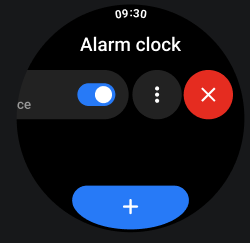
Q12: How to set an alarm on the Xiaomi Watch 5?
A: The Xiaomi Watch 5 supports alarm reminders. Alarms notify you through vibration and sound (the sound volume follows the alarm volume setting). It supports multiple alarms and repeating alarms.
To set an alarm on the Xiaomi Watch 5, please refer to the following steps:
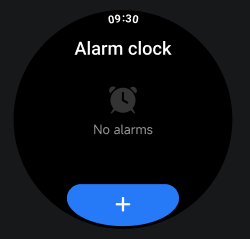
1. Press the rotating crown to enter the App list and open the Alarm app.
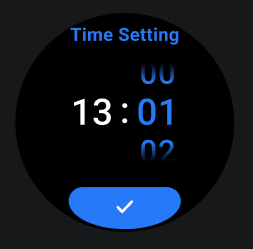
2. Tap [+] to create a new alarm, then set the reminder time.
3. If no repeat date is selected, the alarm will be a one-time alarm.
4. If repeat dates are selected, the alarm will repeat according to the chosen schedule.
5. Tap the [√] icon to complete the setup.
To turn off an alarm on the Xiaomi Watch 5, please refer to the following steps:
1. Tap the power button or the on-screen [Snooze] button to delay the alarm for 10 minutes.
2. Tap [Turn off] on the screen to end the alarm reminder.
To delete an alarm on the Xiaomi Watch 5, please refer to the following steps:
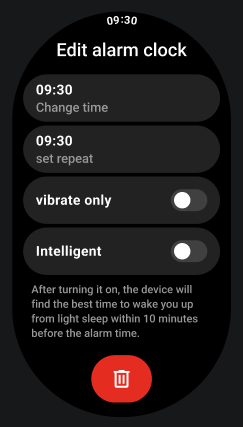
1. From the watch face, press the rotating crown to enter the App list, open the Alarm App, tap the alarm you want to delete to enter the edit page, then tap the delete icon to remove the alarm.
2. From the Alarm App list, swipe left on the alarm you want to delete, then tap the delete icon to remove the alarm.
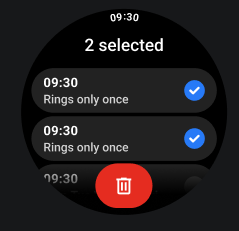
3. From the Alarm App list, press and hold to select alarms, then tap the delete icon to remove the alarm. This method is suitable for batch deletion.
Q13: How to turn off alarm vibration and sound on the Xiaomi Watch 5?
A: On the Xiaomi Watch 5, alarm vibration cannot be disabled. However, when the alarm rings, you can press the power button to delay the alarm for 10 minutes.
If you want to turn off the alarm sound, go to [Settings] >> [Sound] >> [Alarm volume] on the watch and set the alarm volume to the lowest. Alternatively, you can enable [Vibration only] in the alarm editing interface.
Q14: Does the Xiaomi Watch 5 support syncing phone alarms?
A: If your watch is bound to a Xiaomi phone, the Xiaomi Watch 5 supports syncing phone alarms to the watch. Please ensure that Bluetooth is connected properly and that the Mi Fitness App is running normally in the background. You can go to Mi Fitness App >> [Device] >> [Apps] >> [Alarm], then enable or disable [Sync alarms from phone].
If the watch is bound to a non-Xiaomi phone, syncing phone alarms to the watch is not supported at this time.
When alarm syncing is enabled, alarms will ring on both the phone and the watch. Any action taken on either device, such as turning off or snoozing the alarm, will apply to both devices simultaneously.
Q15: What is the Sleep mode on the Xiaomi Watch 5, and how to use it?
A: The Xiaomi Watch 5 does not support manual Sleep mode switching. Instead, you can avoid interruptions during sleep by enabling Do Not Disturb. This can be done either from the watch’s Control center or through [Settings] >> [Apps & notifications] >> [Do not disturb] on the watch.
Q16: How to use the remote control camera on the Xiaomi Watch 5?
A: The Xiaomi Watch 5 supports remote control camera in both Smart mode and Power saver mode.
In Smart mode, the Xiaomi Watch 5 offers two camera control options:
1. Basic photo mode: Photo capture only. Open the phone camera, then open the Camera App on the watch and tap the shutter button to take a photo.
2. Camera preview mode: Supports real-time camera preview on the watch. You can take photos, record videos, and switch shooting modes directly from the watch.
Note:
Camera preview mode requires a phone running HyperOS 3.0.
In Power saver mode, it does not support automatically opening the phone camera and does not support real-time preview. You need to open the phone camera manually according to on-screen prompts.
Note:
1. During remote shooting, the watch must remain connected to the phone, and the Mi Fitness App must stay running in the background.
2. If the remote control fails, please check whether the number of Bluetooth-connected devices on the phone is below 7.
Q17: What is the Water drainage function on the Xiaomi Watch 5?
A: The Water drainage function on the Xiaomi Watch 5 is designed for situations such as after swimming or when water enters the speaker during daily use.
This function works by playing sounds at specific frequencies to make the speaker vibrate, using vibration to expel water from inside the speaker and protect it from moisture damage.
To enable the Water drainage function on the Xiaomi Watch 5, please refer to the following methods:
1. From the main watch face, swipe up to open the Control center, then tap the Water drainage icon.
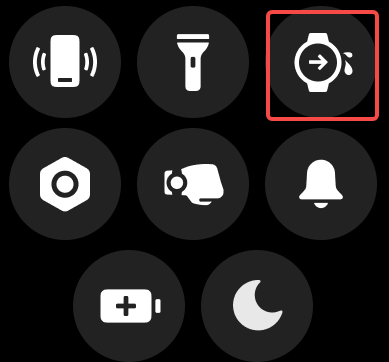
2. After completing a swimming workout, the watch will automatically start the drainage process.
Q18: How to use the flashlight on the Xiaomi Watch 5?
A: On the Xiaomi Watch 5, press the rotating crown on the home screen to open the App list, then tap the Flashlight App to turn it on. You can swipe left or right on the screen to switch between different flashlight styles.
Q19: How to use quick gestures on the Xiaomi Watch 5?
A: The Xiaomi Watch 5 supports five types of gestures. On pages that support gestures, you can quickly complete actions by pinching your index finger and thumb twice or rubbing your index finger and thumb twice. In addition, the watch supports custom gestures, including snap fingers, shake wrist, and rotate wrist. You can customize gestures to start workouts or open an App.
The five supported gestures on the Xiaomi Watch 5 are described below:
1. Pinch twice: Keep your forearm parallel to your chest with your palm facing down and the screen facing up. Stand or sit still while using gestures. With the back of your hand (screen) facing up, curl the other three fingers, then pinch your index finger and thumb together and release. Quickly repeat this motion twice, and perform the gesture within 5 seconds after the screen lights up.
2. Rub twice: Keep your forearm parallel to your chest with your palm facing down and the screen facing up. Stand or sit still while using gestures. With the back of your hand (screen) facing up, curl the other three fingers, then rub your index finger and thumb together. Quickly repeat twice, and perform the gesture within 5 seconds after the screen lights up.
3. Snap fingers: Keep your forearm parallel to your chest with your palm facing down and the screen facing up. Stand or sit still while using gestures. With the back of your hand (screen) facing up, snap your fingers, or rub your thumb with your middle finger and index finger. Perform the gesture within 5 seconds after the screen lights up.
4. Shake wrist: Keep your forearm parallel to your chest with your palm facing down and the screen facing up. Stand or sit still while using gestures. With the back of your hand (screen) facing up, quickly shake your wrist horizontally outward twice, and perform the gesture within 5 seconds after the screen lights up.
5. Rotate wrist: Keep your forearm parallel to your chest with your palm facing down and the screen facing up. Stand or sit still while using gestures. With the back of your hand (screen) facing up, quickly rotate your wrist outward by 90 degrees, then rotate it back inward to the original position. Quickly repeat twice, and perform the gesture within 5 seconds after the screen lights up.
To use the custom gestures on the Xiaomi Watch 5, please refer to the following steps:
1. From the home screen, press the rotating crown to enter the App list, then open [Settings] >> [Gestures] >> [Quick gestures] >> enable [Gestures] >> tap [Custom gestures].
2. Tap the corresponding gesture (snap fingers, shake wrist, or rotate wrist) and set the desired custom action.
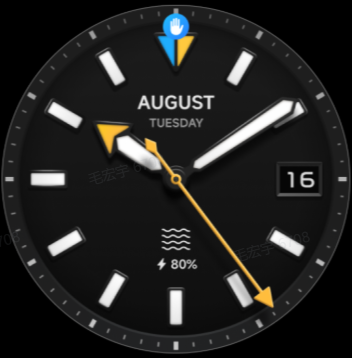
3. After configuration, raise your wrist on the home screen. When the small blue hand icon appears, perform the configured gesture. Once recognized, the watch will execute the assigned action.
To use the general gestures on the Xiaomi Watch 5, please refer to the following steps:
1. From the home screen, press the rotating crown to enter the App list, then open [Settings] >> [Gestures] >> [Quick gestures] >> enable [Gestures] >> turn on [General gestures].
2. After enabling, you can use general gestures in supported scenarios. Typical usage scenarios are displayed at the bottom of the general gestures interface for learning and practice.
Note:
1. Gestures only work when the screen is on and you've turned on Raise to wake. Enabling this feature will reduce battery life.
2. Gestures do not respond when sleep is detected. Actual availability depends on the gesture description interface on the watch.
3. General gestures are available in some scenarios, in which case reminders will be displayed on the page.
4. Gestures won't work on the AOD watch face or when you're sleeping.
5. Try to avoid performing similar gestures in the course of your day.
6. Use gestures when the watch vibrates. If recognition fails, try making gestures with more force.
Q20: How to use the Xiaomi Smart Hub on the Xiaomi Watch 5?
A: When the Xiaomi Watch 5 is connected to a phone running Xiaomi HyperOS 3.0, you can view available devices on the Control center interface of the watch. Tap a device to use it directly.
If you do not need the Xiaomi Smart Hub on the watch, you can turn it off by going to [Settings] >> [Home screen] >> [Control center] >> turn off [Xiaomi Smart Hub].
Q21: How to use HR Broadcast on the Xiaomi Watch 5?
A: The Xiaomi Watch 5 supports HR Broadcast. You can enable it by going to [Settings] >> [Advanced features] >> [Workout settings] >> [HR broadcast].
After enabling this feature, your heart rate data will be shared with a third-party device. Once HR Broadcast is turned on, heart rate data is continuously transmitted. You can start any workout from this interface. After ending the workout, you need to manually turn off HR Broadcast.
Q22: Does the Xiaomi Watch 5 support Focus App?
A: The Xiaomi Watch 5 does not support Focus App.
Q23: Does the Xiaomi Watch 5 support dual time zone settings?
A: The Xiaomi Watch 5 does not support dual time zone settings.
Q24: In what form does the voice assistant on the Xiaomi Watch 5 respond?
A: By default, the voice assistant on the Xiaomi Watch 5 responds with both voice output and on-screen text.
Q25: Can the voice assistant on the Xiaomi Watch 5 be set to display text only without voice output?
A: By default, voice output is enabled on the Xiaomi Watch 5. If you want to turn off voice output and display text only, go to [Settings] >> [Google] >> [Digital assistant] and turn off the voice output option.
Q26: Why does the voice assistant on the Xiaomi Watch 5 not respond after being activated?
A: If the voice assistant on the Xiaomi Watch 5 does not respond after being activated, please check the following:
1. Check the connection between the watch and the phone and ensure they are paired. Open watch settings and use Find my phone to test. If the phone rings, the connection is normal.
2. Ensure Bluetooth and network connections are stable. Keep the watch and phone close to each other, and make sure the network is working properly. It is recommended to connect the watch directly to Wi-Fi.
3. Confirm Google Assistant configuration. On the phone, ensure Google Assistant is enabled. On the watch, confirm that you are logged in to a Google Account and have completed the initial assistant setup.
4. Try restarting both the watch and the phone.
Note:
If the phone and the watch are logged in to different Google Accounts, the voice assistant can not function properly.
Q27: What to do if the voice assistant on the Xiaomi Watch 5 reports an error?
A: If the voice assistant on the Xiaomi Watch 5 reports an error, please troubleshoot as follows:
1. Check the connection between the watch and the phone and ensure they are paired. Open watch settings and use Find my phone to test. If the phone rings, the connection is normal.
2. Ensure Bluetooth and network connections are stable. Keep the watch and phone close to each other, and make sure the network is working properly. It is recommended to connect the watch directly to Wi-Fi.
3. Check whether the phone and watch are logged in to the same Google account. If the accounts do not match, the Google Assistant can not function correctly.
4. Clear the Google Assistant cache on the phone, then restart both the phone and the watch and test again.
5. If the issue persists, clear the Google Assistant cache on the watch ([Settings] >> [Apps & notifications] >> [App storage] >> [Google Digital Assistant] >> [Clear cache]).
6. If none of the above resolves the issue, reset the watch to factory settings and try again.
Q28: How to set the time on the Xiaomi Watch 5?
A: After the Xiaomi Watch 5 is paired with a phone via Bluetooth and data is synced, the watch automatically synchronizes the system time from the phone. Manual time setting is not required.
If the phone’s time is changed, the watch will update automatically once it reconnects to the phone.
Q29: Does wearing the Xiaomi Watch 5 on the left or right wrist affect monitoring accuracy?
A: The Xiaomi Watch 5 can be worn on either the left or right wrist without affecting the normal collection of sports and health data. Monitoring accuracy remains the same, and you can choose based on your personal preference.
Q30: Can the vibration intensity of the Xiaomi Watch 5 be adjusted?
A: The Xiaomi Watch 5 supports vibration intensity adjustment. You can go to [Settings] >> [Vibration] >> [Vibration intensity] and choose [Standard] or [Strong].
Note:
Selecting Strong intensity will reduce battery life.
Q31: After the Xiaomi Watch 5 is remotely locked via Google’s Find Hub App, can the finder still reset and use the watch?
A: After remote locking via Google’s Find Hub App, if the finder enters the wrong password multiple times on the Xiaomi Watch 5, the watch will prompt whether to restore factory settings.
If confirmed, the watch will automatically reset and enter the pairing setup screen upon restart. To pair and use the watch, the finder must either log in with the original Google Account used on the watch or verify using the password set during remote locking. Only after successful verification can the watch be paired and accessed.
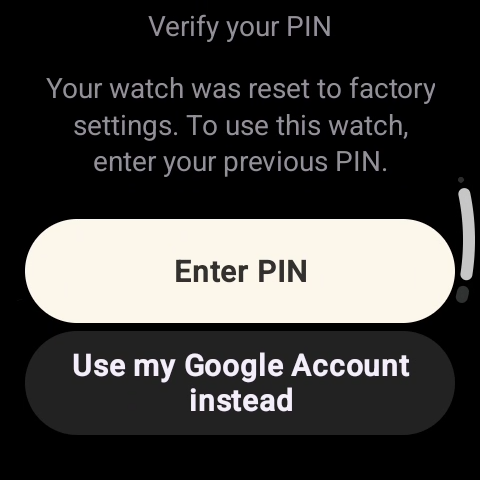
Q32: How can the finder view the contact information left when the Xiaomi Watch 5 is locked via Google’s Find Hub App?
A: After leaving contact information in Google’s Find Hub App, the Xiaomi Watch 5 will automatically lock and display the message content. However, viewing the contact details themselves is not supported at this time.

Function and Use
Health
Q1: Does the Xiaomi Watch 5 support sleep tracking?
A: The Xiaomi Watch 5 supports all-day sleep tracking, including long nighttime sleep and naps throughout the day. After enabling Advanced monitoring, the watch can display the distribution of sleep quality.
When you wear the watch normally while sleeping at night, the Xiaomi Watch 5 automatically detects sleep through its built-in sensors.
You can view sleep data on the Xiaomi Watch 5 in the following ways:
1. On the watch, swipe left or right from the watch face to enter the Tiles interface. On the Sleep tile, you can view last night’s sleep duration. Tap to enter the App for more details.
2. Open the Sleep App from the App list on the watch to view sleep data for the current day.
3. After the watch syncs data with the phone, open the Mi Fitness App, go to the Health section, and tap Sleep. You can view historical sleep data in daily, weekly, and monthly views, including sleep periods, proportions of deep sleep, light sleep, REM sleep, and awake time, as well as detailed sleep status at each time point.
Note:
1. Sleep report generation is delayed. If you open the Sleep feature immediately after waking up, the sleep report can not be available yet.
2. The watch stores detailed sleep data from the previous night and sleep period data for the past 7 days. Please sync data to the Mi Fitness App in time to avoid data loss.
Q2: How to enable sleep rhythm screening on the Xiaomi Watch 5?
A: The Xiaomi Watch 5 does not support sleep rhythm screening.
Q3: How to use the heart rate measurement feature on the Xiaomi Watch 5?
A: Open the Heart rate App on the Xiaomi Watch 5 and wear the watch properly. The measurement will start automatically. Wait a few seconds and the heart rate value will be displayed.
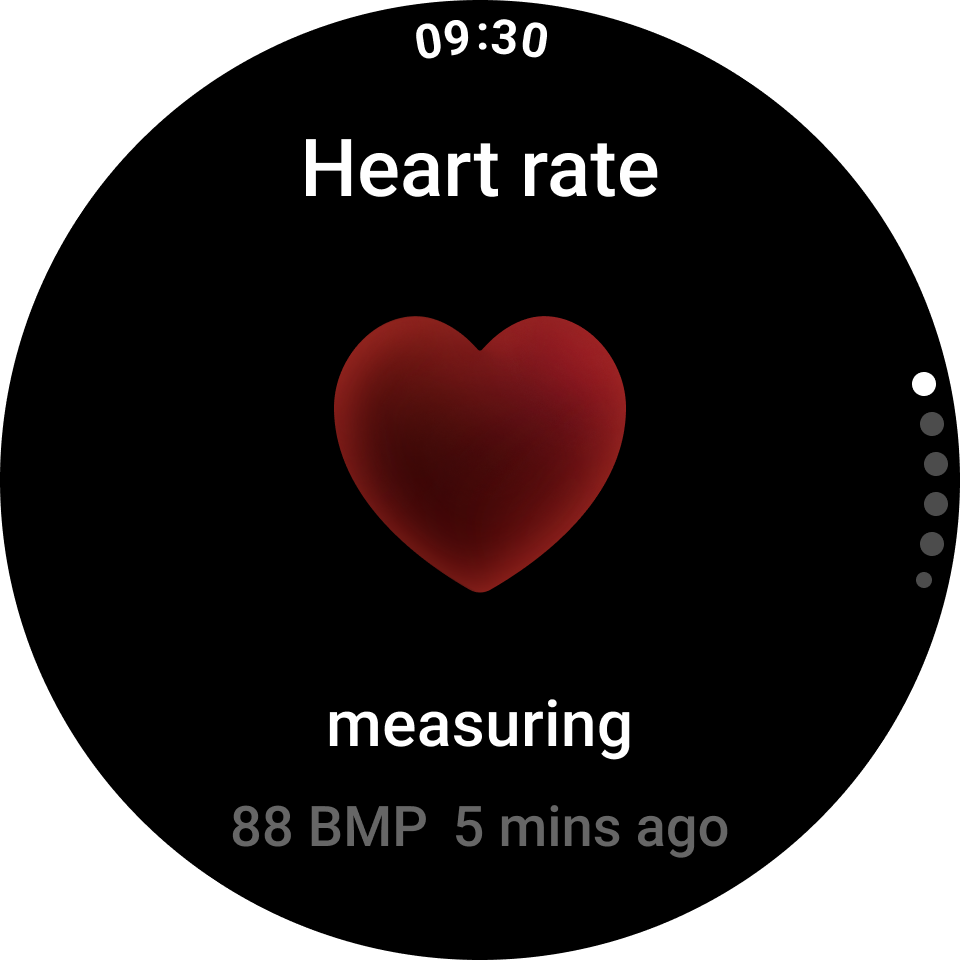
In addition, you can open the Heart rate App, tap [Continuous monitoring], and select the detection frequency according to your needs.
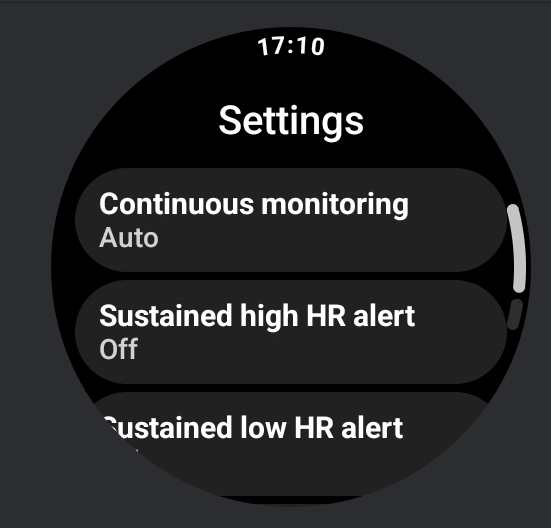
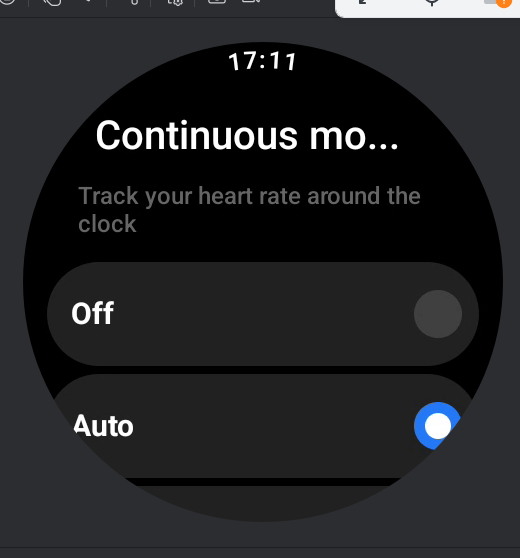
Q4: How to set high or low heart rate alerts on the Xiaomi Watch 5?
A: Open the Heart rate App on the Xiaomi Watch 5, then tap [Sustained high HR alert] or [Sustained low HR alert] to enter the alert settings interface. Select the appropriate monitoring options based on your needs.
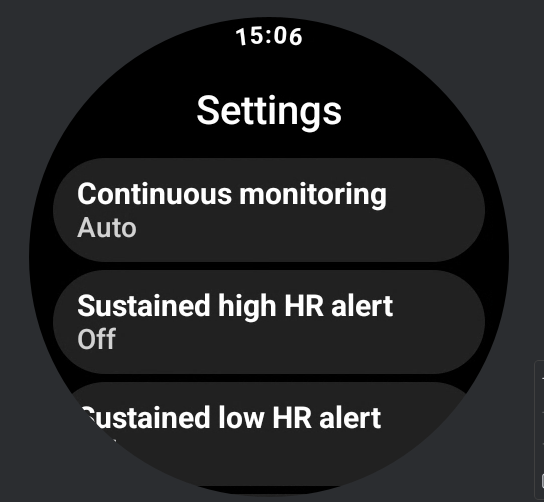
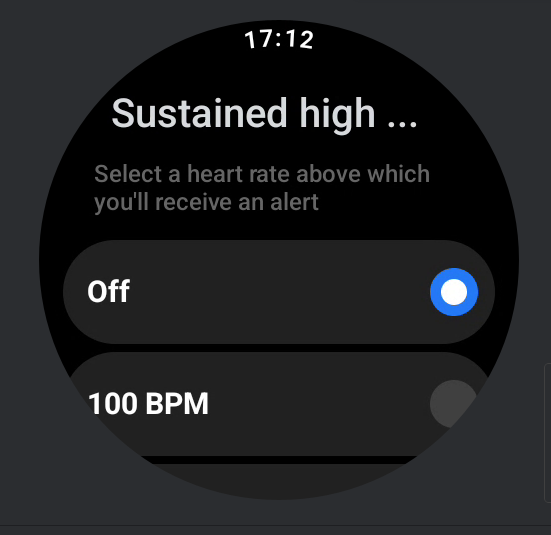
Q5: Will the Xiaomi Watch 5 display heart rate data when it is not worn?
A: When the Xiaomi Watch 5 is not worn, opening the Heart rate App will not show real-time heart rate data. Instead, it will display the most recent historical heart rate measurement, and you can swipe to the second screen to view heart rate history. After enabling Continuous monitoring, you can view resting heart rate data.
Note:
1. Watch faces that support heart rate display will show the most recent historical heart rate when the watch is not worn.
2. In some cases, due to the heart rate detection mechanism, placing the watch on certain dark surfaces can cause heart rate data to appear.
Q6: Why is the heart rate data on the Xiaomi Watch 5 inaccurate?
A: Inaccurate heart rate data on the Xiaomi Watch 5 can be caused by wearing position, skin tone, body hair, reduced blood perfusion, low temperature leading to vasoconstriction, or dirt and moisture between the watch and the wrist.
To ensure accurate measurements, wear the watch snugly. Wearing it too loosely can cause inaccurate data during movement. Make sure the watch does not slide down during arm movement and position it about one finger-width above the wrist bone.
In cold conditions, low temperatures cause capillaries in the extremities to constrict, reducing blood flow in the wrist area. This makes it more difficult for the optical heart rate sensor to obtain accurate signals and increases the likelihood of signal loss during exercise. It is recommended to warm up sufficiently before exercise to increase blood flow and improve measurement accuracy.
Please ensure the back of the watch is clean and dry, the watch temperature is not excessively high or low, and the wrist is free of sweat or foreign substances. Maintain a comfortable and secure fit.
The system is continuously being optimized. Please keep the device updated to the latest version and wait for future improvements.
Note:
Heart rate data comes from Xiaomi's internal testing laboratories. Heart rate accuracy refers to the percentage of measurements with an absolute error (AE) of less than 10 bpm compared to the gold standard. Actual accuracy can vary depending on individual differences, usage habits, and environmental factors.
Q7: Why does heart rate measurement fail on the Xiaomi Watch 5?
A: If heart rate measurement fails on the Xiaomi Watch 5, first check whether the protective film on the back cover has been removed. If it has been removed, turn off continuous heart rate monitoring, open the Heart rate App, and perform a manual measurement.
While the watch is measuring, check whether the heart rate sensor light on the back of the watch turns on. If it does not light up, try unbinding and rebinding the watch or restarting the watch. If the issue persists, please contact the after-sales service center for further assistance.
Note:
The back cover of the watch is shipped with a protective film to prevent scratches during transportation. Blood oxygen and heart rate measurements rely on sensors on the back cover. The protective film must be removed before use. Otherwise, the sensor light cannot reach the skin, resulting in measurement failure or no data.
Q8: Why does the Xiaomi Watch 5 indicate “not worn” during heart rate monitoring even though it is being worn?
A: If the Xiaomi Watch 5 indicates that it is not worn during heart rate monitoring and asks you to wear it according to the illustration and try again, please contact the after-sales service center to update the firmware and resolve the issue.
Q9: Why is the blood oxygen (SpO₂) data on the Xiaomi Watch 5 inaccurate?
A: Inaccurate SpO₂ data on the Xiaomi Watch 5 can be caused by wearing position, skin tone, body hair, reduced blood perfusion, low temperature leading to vasoconstriction, or dirt and moisture between the watch and the wrist.
Please wear the watch about one finger-width above the wrist bone, wear it snugly, and remain still during measurement. The system is continuously being optimized, so please keep the device updated to the latest version.
Note:
This product is not a medical device. All health data, results, and suggestions provided are for reference only and should not be used as a basis for diagnosis or treatment.
Q10: How to measure blood oxygen saturation on the Xiaomi Watch 5?
A: Open the SpO₂ App on the Xiaomi Watch 5, then tap [Measure] to start measurement. Wear the watch snugly and remain still during the measurement. The result will be displayed after approximately 20 seconds.
Q11: Can the Xiaomi Watch 5 measure blood oxygen saturation during workouts?
A: Yes. The Xiaomi Watch 5 can measure blood oxygen saturation during workouts. Press the rotating crown to run the workout in the background, open the SpO₂ App to take a measurement, and once completed, return to the home screen and tap the workout icon to resume the workout.
Q12: How to enable all-day blood oxygen tracking on the Xiaomi Watch 5?
A: On the Xiaomi Watch 5, open the SpO₂ App and swipe to the last screen to access the settings interface. Enable [All-day tracking] to turn on all-day blood oxygen monitoring.
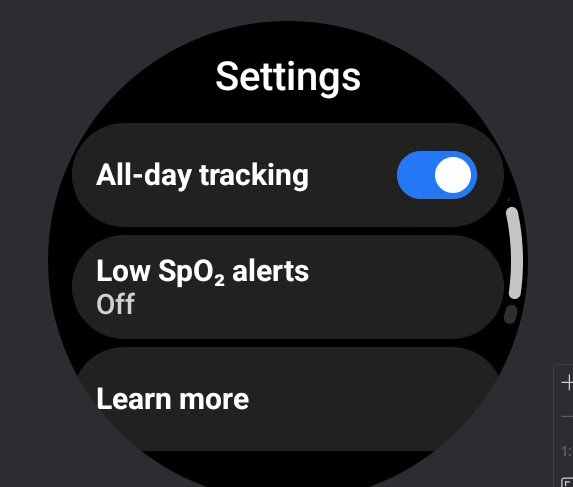
Q13: Why does blood oxygen measurement fail on the Xiaomi Watch 5?
A: If blood oxygen measurement fails on the Xiaomi Watch 5, first check whether the protective film on the rear case has been removed. If it has already been removed, follow the on-screen prompts and re-wear the watch before retrying.
Turn off all-day blood oxygen monitoring, open the SpO₂ App, and perform a manual measurement. Wear the watch snugly and remain still during measurement. While measuring, check whether the SpO₂ sensor light on the back of the watch is illuminated. If it does not light up, try unpairing and re-pairing the watch or restarting it. If the issue persists, please contact the after-sales service center for further assistance.
Note:
The Xiaomi Watch 5 is shipped with a protective film on the rear case to prevent damage during transportation. Blood oxygen and heart rate measurements rely on the rear sensors. The protective film must be removed before use. Otherwise, the sensor light cannot contact the skin properly, resulting in measurement failure or no data.
Q14: Why does the Xiaomi Watch 5 show multiple low blood oxygen readings during sleep or single measurements when all-day tracking is enabled?
A: If the Xiaomi Watch 5 shows multiple low blood oxygen readings during sleep or in a single measurement with all-day tracking enabled, please note the following:
1. During sleep, factors such as snoring can cause normal blood oxygen levels to temporarily drop below 90%.
2. Ensure the watch fits snugly against the wrist during wear.
Q15: How does the Xiaomi Watch 5 notify when the heart rate exceeds or falls below the set value?
A: When the Xiaomi Watch 5 is in a resting state, it starts a 10-minute monitoring session. If the heart rate remains continuously above or below the preset value for 10 minutes, the watch will display a high or low heart rate alert. If you leave the resting state during this period, abnormal monitoring will stop.
Note:
During workouts and within 20 minutes after exercise, non-active high or low heart rate alerts are not triggered.
Q16: How to set and use the Cycles feature on the Xiaomi Watch 5?
A: After pairing the Xiaomi Watch 5 with a phone, open the Mi Fitness App and enter the Cycles module. Tap the three dots icon in the upper-right corner and select [Settings] to access the Cycles settings interface. Enable [Calendar-based predictions] and [Show on wearable device].
Return to the main Cycles interface and log menstrual data. The App will then intelligently predict ovulation periods and ovulation days. You can also set advanced reminders. Data recorded in the App will sync to the Xiaomi Watch 5 for viewing on the watch.
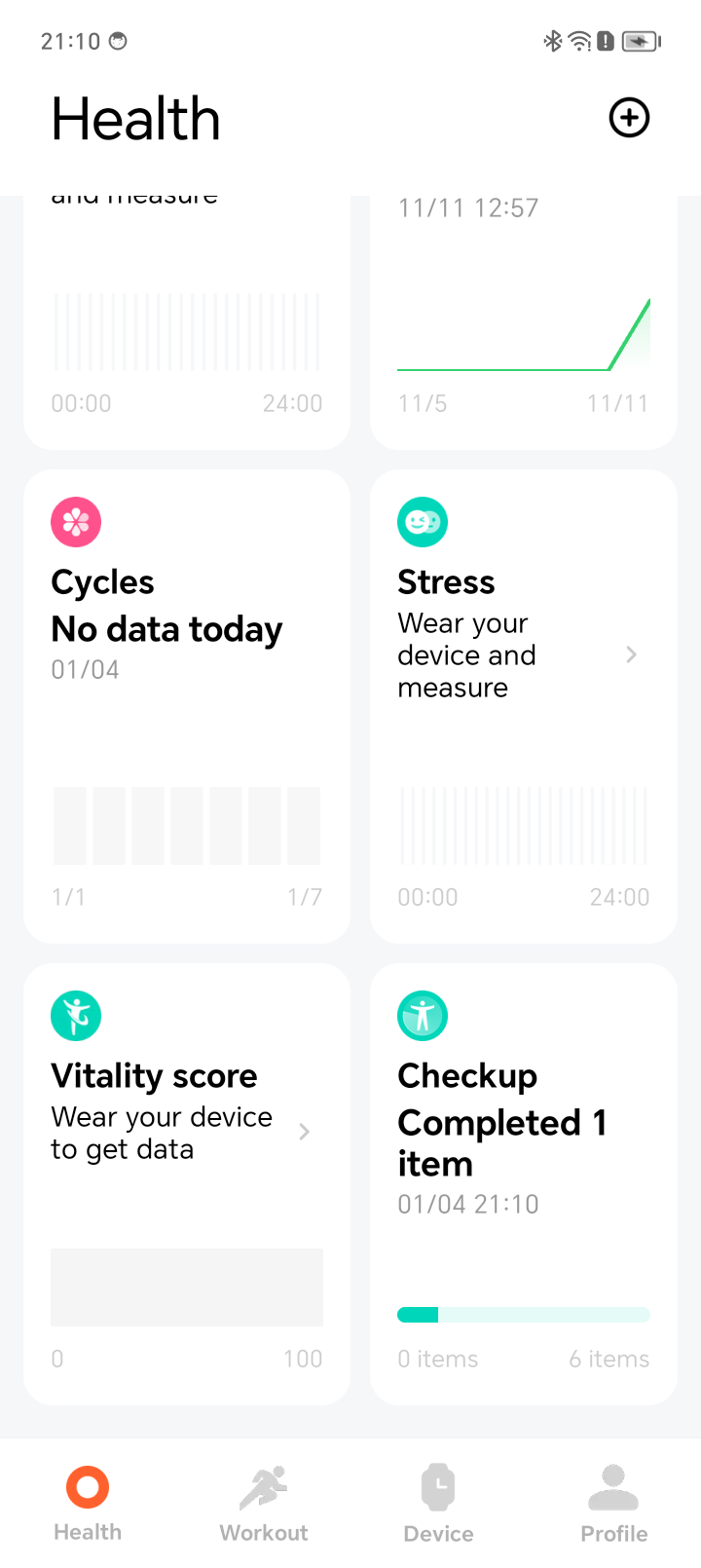
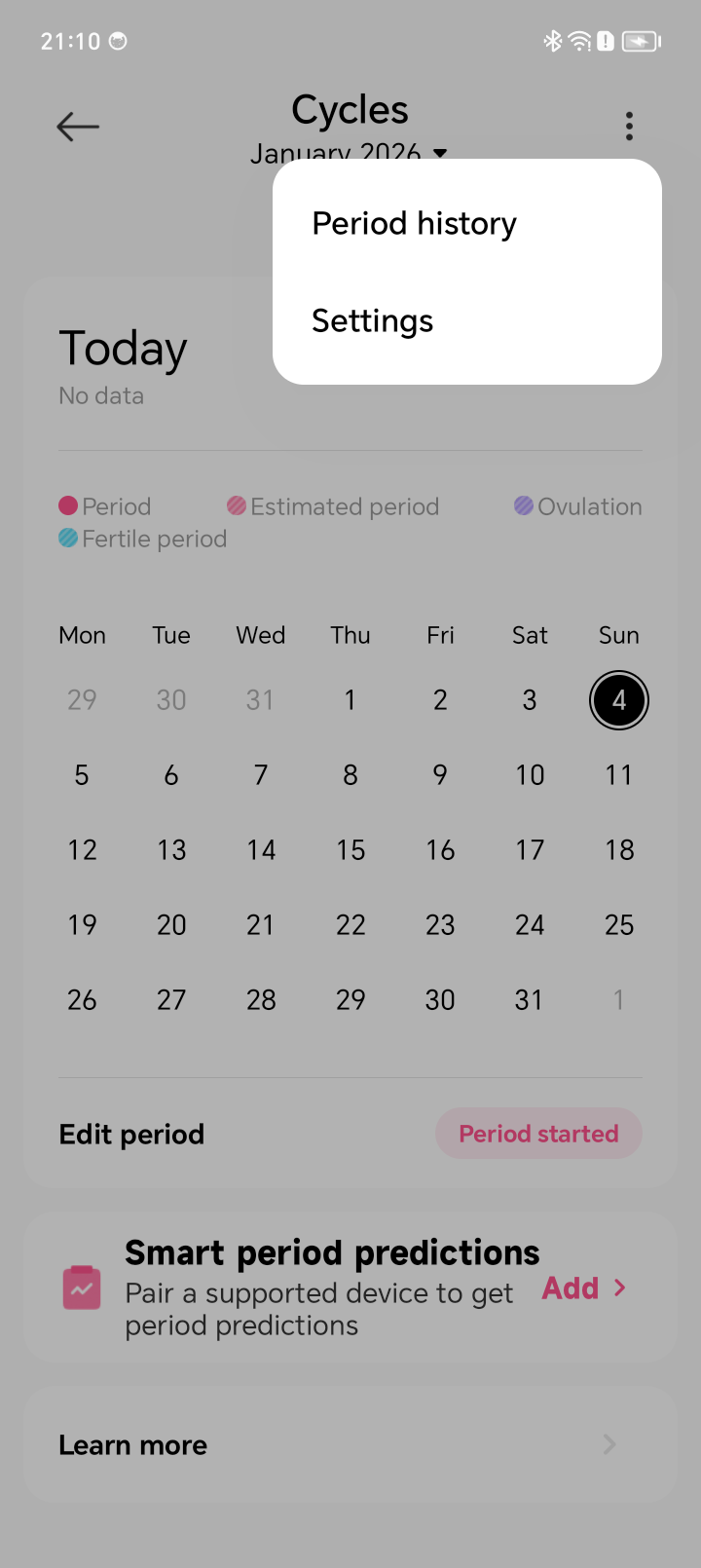
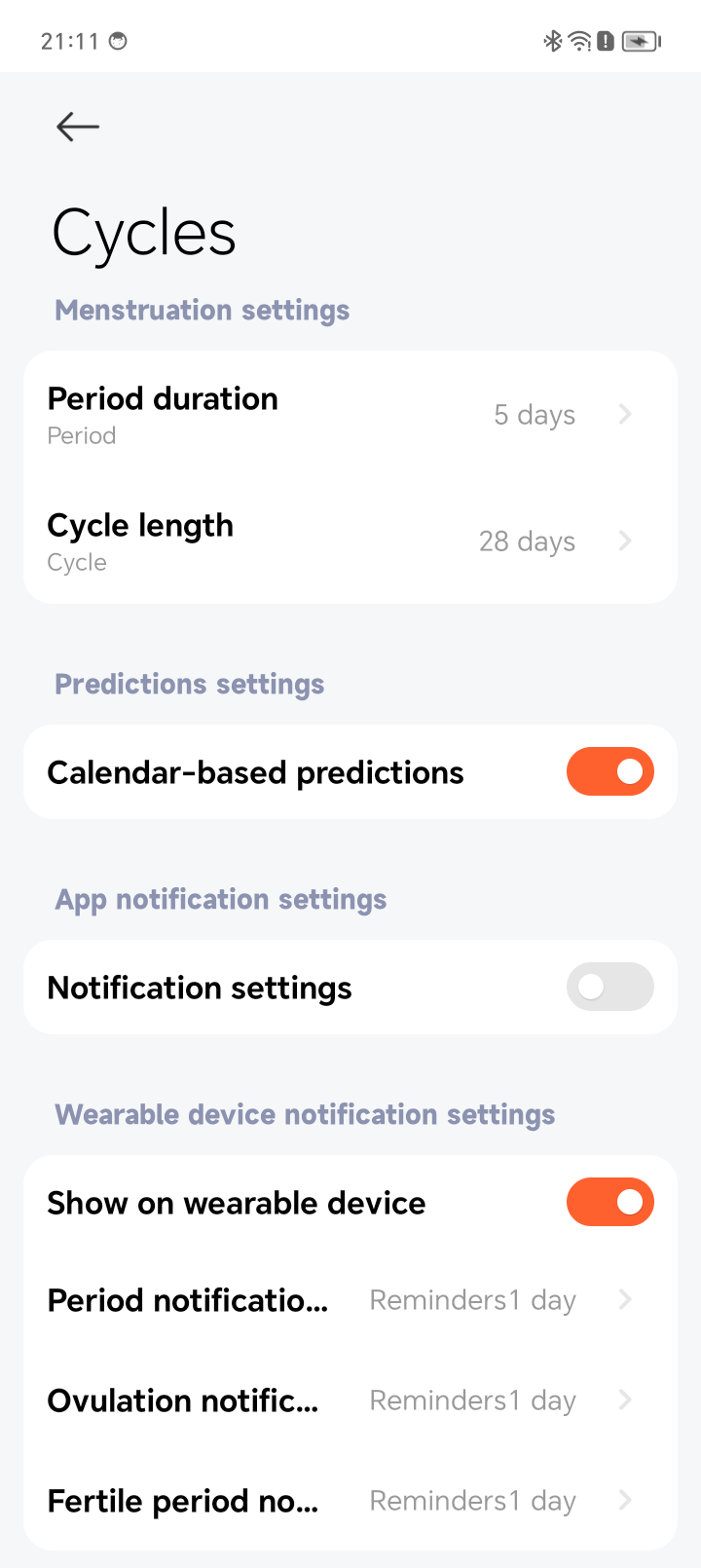
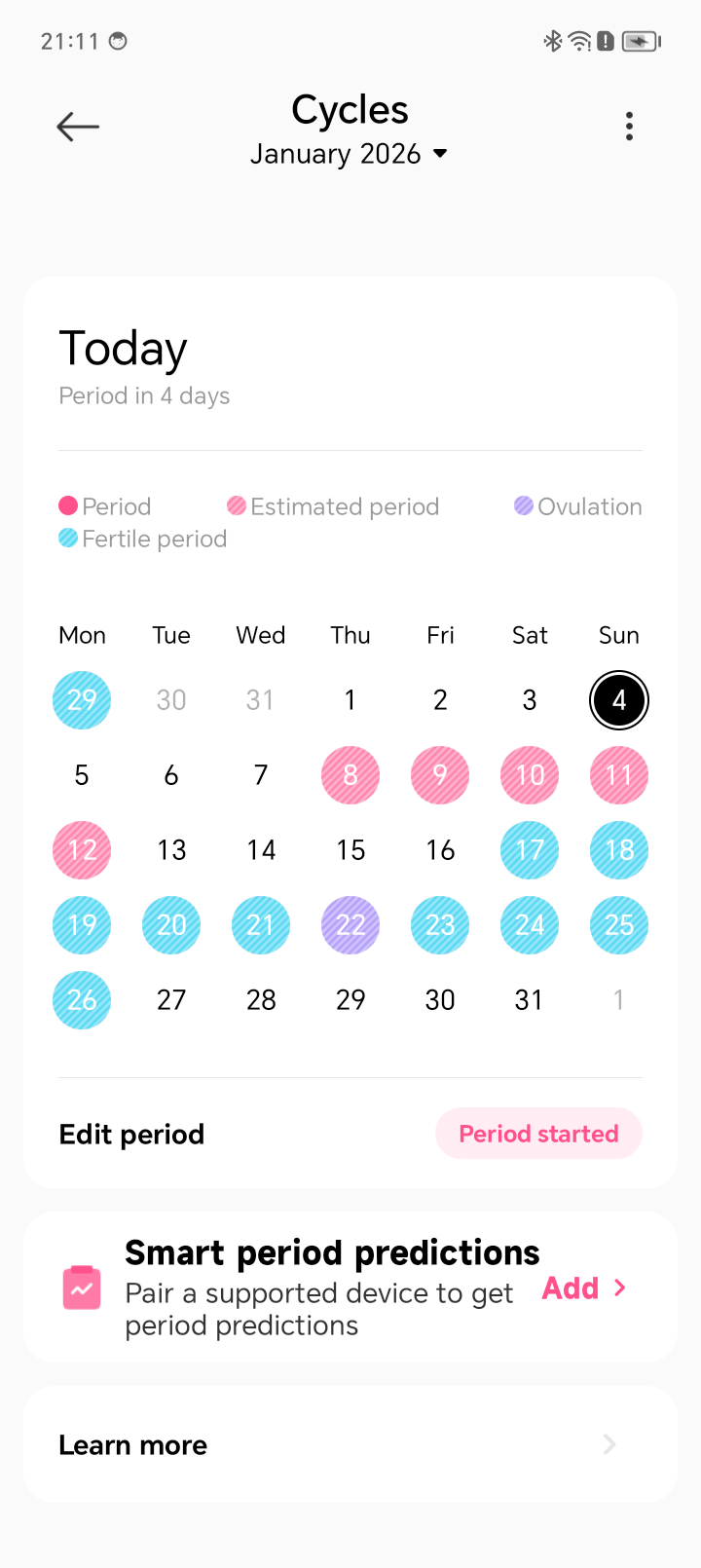
Q17: Why is Cycles not displayed in the App list on the Xiaomi Watch 5?
A: By default, the Xiaomi Watch 5 displays the Cycles App. If there is no historical women’s health data, the App is hidden and will not appear in the App list. Once historical data is available or women’s health information is logged in the App, the Cycles App will be displayed on the watch. If visibility settings have been customized in the App, those settings will apply.
Note:
The gender setting in the Mi Fitness App must be set to female for the Cycles App to appear.
Q18: Why does the Xiaomi Watch 5 have no data available in the Cycles App after enabling smart period predictions?
A: After enabling smart period predictions on the Xiaomi Watch 5, open the Cycles module in the Mi Fitness App and complete the initial information setup. Once completed, data will be displayed in the App.
Q19: What is the Checkup feature on the Xiaomi Watch 5?
A: The Checkup feature on the Xiaomi Watch 5 integrates multiple health functions, allowing you to obtain heart rate, blood oxygen, stress, sleep, sleep heart rate, and sleep blood oxygen data with one tap.
Q20: Why does the Xiaomi Watch 5 record sleep while placed on the charger?
A: Under normal conditions, the Xiaomi Watch 5 does not record sleep while placed on the charger. If this issue occurs repeatedly, please contact the after-sales service center for further assistance.
Q21: Does the Xiaomi Watch 5 support sleep apnea monitoring?
A: No. The Xiaomi Watch 5 does not support sleep apnea monitoring.
Q22: Why is there no sleep apnea data on the Xiaomi Watch 5?
A: The Xiaomi Watch 5 does not support sleep apnea monitoring.
Q23: Does the Xiaomi Watch 5 support the blood pressure health research feature?
A: No. The Xiaomi Watch 5 does not support the blood pressure health research feature.
Q24: Does the Xiaomi Watch 5 support the heart health research feature?
A: No. The Xiaomi Watch 5 does not support the heart health research feature.
Q25: Does the Xiaomi Watch 5 support body temperature measurement?
A: No. The Xiaomi Watch 5 does not support body temperature measurement.
Q26: How to set up sleep-time body temperature monitoring on the Xiaomi Watch 5?
A: The Xiaomi Watch 5 does not support body temperature measurement. Therefore, sleep-time body temperature monitoring cannot be set.
Q27: How to set high skin temperature alerts on the Xiaomi Watch 5?
A: The Xiaomi Watch 5 does not support body temperature measurement. Therefore, high skin temperature alerts cannot be set.
Q28: How does the Xiaomi Watch 5 record emotions?
A: The Xiaomi Watch 5 does not support recording emotions.
Q29: How to measure stress on the Xiaomi Watch 5?
A: On the Xiaomi Watch 5, open the Stress App and tap [Measure] to start the stress measurement. Wear the watch snugly and remain still during the measurement. The result will be displayed after approximately 60 seconds.
Q30: How to enable all-day stress monitoring on the Xiaomi Watch 5?
A: On the Xiaomi Watch 5, open the Stress App and swipe to the last screen to access the settings interface. Enable [All-day monitoring] to turn on all-day stress tracking.
Q31: How to set Relax reminder on the Xiaomi Watch 5?
A: On the Xiaomi Watch 5, open the Stress App and swipe to the last screen to access the settings interface. Enable [All-day monitoring], then tap [Relax reminder] and enable it. When your stress level remains above 80 while awake, the watch will prompt a breathing exercise.
Q32: Does the Xiaomi Watch 5 support energy monitoring?
A: No. The Xiaomi Watch 5 does not support energy monitoring.
Q33: Does the Xiaomi Watch 5 support connection to a heart rate chest strap?
A: No. The Xiaomi Watch 5 does not support connection to a heart rate chest strap.
Q34: Does the Xiaomi Watch 5 support blood pressure measurement?
A: No. The Xiaomi Watch 5 does not support blood pressure measurement.
Q35: Does the Xiaomi Watch 5 support body composition measurement?
A: No. The Xiaomi Watch 5 does not support body composition measurement.
Q36: Does the Xiaomi Watch 5 support breathing exercises?
A: Yes. The Xiaomi Watch 5 supports breathing exercises. Open the Breathing exercise App on the watch and choose a mode: [Relax], [Concentrate], [Take a nap], or [Sleep soundly]. Swipe up to set the duration and toggle breathing sound effects. You can also tap [Learn more] for additional information. Tap [Tap to start] and follow the on-screen guidance.
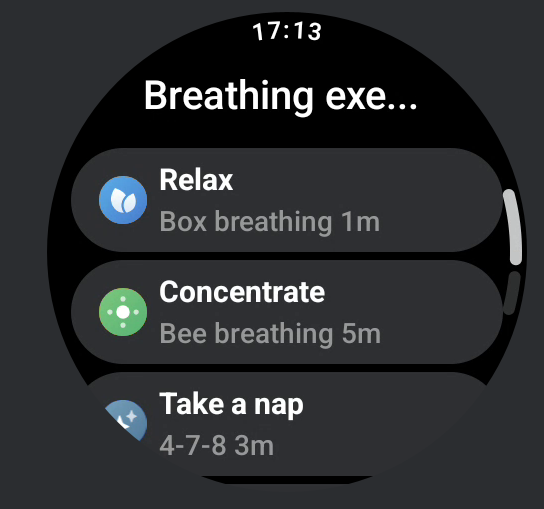
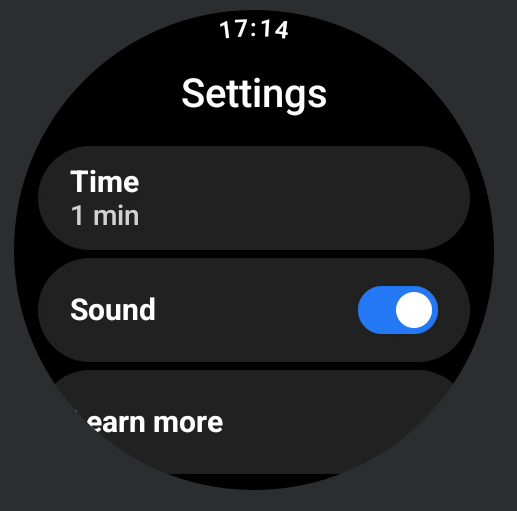
Note:
These breathing methods are supported by psychological research from Peking University.
Q37: Why does the Sleep App show sleep data, but the sleep tile does not display it on the Xiaomi Watch 5?
A: On the Xiaomi Watch 5, the sleep tile only displays data for long sleep sessions and does not show data for naps.
Q38: Why does the Xiaomi Watch 5 mistakenly recognize sleep while watching movies, TV, or using a phone?
A: Resting states such as lying down, watching movies, or using a phone have motion characteristics similar to sleep, which can trigger sleep detection. This is normal. The system is continuously being optimized, so please keep the device updated to the latest version.
Q40: Why are all continuous health monitoring toggles turned off on the Xiaomi Watch 5?
A: If all continuous health monitoring toggles are turned off on the Xiaomi Watch 5, please check whether the watch is in a low battery state. In this case, continuous monitoring of blood oxygen, heart rate, and stress is disabled to extend battery life. After the watch powers off and is recharged and turned on, these monitoring features must be manually re-enabled.
Continuous monitoring of blood oxygen: SpO2 App >> [Settings] >> [All-day tracking].
Continuous monitoring of heart rate: Heart rate App >> [Settings] >> [Continuous monitoring].
Continuous monitoring of stress: Stress App >> [Settings] >> [All-day monitoring].
Q41: Why are all-day blood oxygen, heart rate, and stress monitoring disabled after the Xiaomi Watch 5 shuts down in power saver mode?
A: When the Xiaomi Watch 5 is in Power saver mode, power consumption is reduced by disabling continuous monitoring for blood oxygen, heart rate, and stress. After the watch shuts down and is recharged and turned on again, these features must be manually re-enabled.
Continuous monitoring of blood oxygen: SpO2 App >> [Settings] >> [All-day tracking].
Continuous monitoring of heart rate: Heart rate App >> [Settings] >> [Continuous monitoring].
Continuous monitoring of stress: Stress App >> [Settings] >> [All-day monitoring].
Q42: What is the QR code in the Checkup feature on the Xiaomi Watch 5?
A: When using the Checkup feature on the Xiaomi Watch 5 for the first time, an agreement pop-up appears. Tapping the privacy policy displays a QR code. Scanning the QR code shows the corresponding privacy agreement content.
Note:
Agreement content can vary by version. It is recommended to update the watch to the latest version for the most accurate information.
Sports
Q1: What workout modes does the Xiaomi Watch 5 support?
A: The workout modes are as follows:
The Xiaomi Watch 5 offers 18 sports modes that provide professional workout metrics beyond heart rate and calories, including Outdoor running, Walking, Treadmill, Outdoor cycling, Trekking, Trail run, Hiking, Triathlon, Pool swimming, Open water swimming, Elliptical, Rower, Jump rope, HIIT, Snowboarding, Skiing, and Cross-country skiing. Additionally, 130 extended sports can record your heart rate, calorie consumption, exercise duration, and performance data.
Complete list of workout modes:
Pool swimming, Open water swimming, Sailing, Paddleboarding, Water polo, Water sports, Water skiing, Kayaking, Rafting, Rowing, Powerboating, Finswimming, Diving, Artistic swimming, Kitesurfing, Flowriding, Dragon boat, Outdoor running, Walking, Hiking, Outdoor cycling, Trekking, Trail run, Triathlon, Skateboarding, Roller skating, Parkour, ATV, Paragliding, BMX, Race walk, Freestyle, Treadmill, Jump rope, HIIT, Yoga, Indoor cycling, Elliptical, Rower, Stair climber, Stepper, Spinning, Flexibility, Pilates, Gymnastics, Stretching, Cross training, Stair climbing, Aerobics, Wall ball, Weightlifting, Deadlift, Burpee, Sit-ups, Functional training, Abs, Back, Air walker, Horizontal bar, Parallel bars, Step aerobics, Mass gymnastics, Cardio combat, Battle rope, Aerobic combo, Indoor walking, Square dancing, Belly dance, Ballet, Street dance, Zumba, Folk dance, Jazz dance, Latin dance, Hip hop, Pole dance, Breaking, Ballroom dance, Modern dance, Dance, Boxing, Wrestling, Martial arts, Tai Chi, Muay Thai, Judo, Taekwondo, Karate, Kickboxing, Kendo, Fencing, Jujitsu, Basketball, Soccer, Volleyball, Baseball, Softball, American football, Hockey, Table tennis, Cricket, Handball, Bowling, Squash, Billiards, Shuttlecock, Beach soccer, Beach volleyball, Sepak takraw, Futsal, Hacky sack, Bocce, Jai alai, Gateball, Dodgeball, Snowboarding, Skiing, Cross-country skiing, Ice skating, Indoor ice skating, Curling, Other winter sports, Snowmobile, Ice hockey, Bobsleigh, Archery, Darts, Horse riding, Tug of war, Hula hoop, Kite flying, Frisbee, Kicking shuttlecock, Swinging, Somatosensory game, Table football, Shuffleboard, Esports, Chess, Checkers, Weiqi, Bridge, Board game, Equestrian, and Athletics.
The Auto detect function:
When enabled, the watch will notify you when it detects that you are starting or stopping a workout. Supported workout types include Walking, Running, Cycling, Rowing, Elliptical, and Jump rope. Setting path: Go to [Settings] on the watch >> [Advanced features] >> [Workout settings] >>[Auto detect] >> turn on the switch.
Q2: What data does the Xiaomi Watch 5 display for workout modes?
A: It supports 18 workout modes that display the following data:
Outdoor running:
Workout summary, Goal completion (will only display if a goal is set), Data item display, Heart rate chart, Heart rate zone, Recovery heart rate chart (if recovery heart rate function is enabled), Pace chart, Cadence chart, Elevation chart, Training effect (data), Training effect (chart), Operation interface, and Workout results.
Note:
The goal completion interface (only displays if a goal is set) and recovery heart rate chart (if recovery heart rate function is enabled) will not be illustrated in subsequent exercise modes, specifically referring to the outdoor running mode for details.
Walking:
Workout summary, Goal completion (will only display if a goal is set), Data item display, Heart rate chart, Heart rate zone, Recovery heart rate chart (if recovery heart rate function is enabled), Pace chart, Cadence chart, Elevation chart, Training effect (data), Training effect (chart), Operation interface, and Workout results.
Treadmill:
Workout summary, Goal completion (will only display if a goal is set), Data item display, Heart rate chart, Heart rate zone, Recovery heart rate chart (if recovery heart rate function is enabled), Pace chart, Pace zone chart, Cadence chart, Training effect (data), Training effect (chart), Operation interface, and Workout results.
Outdoor cycling:
Workout summary, Goal completion (will only display if a goal is set), Data item display, Heart rate chart, Heart rate zone, Recovery heart rate chart (if recovery heart rate function is enabled), Speed chart, Elevation chart, Training effect (data), Training effect (chart), Operation interface, and Workout results.
Hiking/Trail run/Trekking:
Workout summary, Goal completion (will only display if a goal is set), Data item display, Heart rate chart, Heart rate zone, Speed chart, Elevation chart, Recovery heart rate chart (if recovery heart rate function is enabled), Training effect (data), Training effect (chart), Operation interface, and Workout results.
Triathlon:
Workout summary, Overview page, Swimming data, Outdoor cycling data, Outdoor running data, Switching sports interface, Training effect, Training evaluation, Operation interface, and Workout results.
Pool swimming:
Workout summary, Goal completion (will only display if a goal is set), Data item display, Pace chart, Heart rate chart, Heart rate zone, Stroke rate chart, SWOLF interface, Training effect, Training evaluation, Operation interface, and Workout results.
Open water swimming:
Workout summary, Goal completion (will only display if a goal is set), Data item display, Pace chart, Heart rate chart, Heart rate zone, Stroke rate chart, SWOLF interface, Training effect (data), Training effect (chart), Operation interface, and Workout results.
Elliptical:
Workout summary, Goal completion (will only display if a goal is set), Data item display, Heart rate chart, Heart rate zone, Recovery heart rate chart (if recovery heart rate function is enabled), Cadence chart, Training effect (data), Training effect (chart), Operation interface, and Workout results.
Rower:
Workout summary, Goal completion (will only display if a goal is set), Data item display, Heart rate chart, Heart rate zone, Pace chart, Training effect (data), Training effect (chart), Operation interface, and Workout results.
Jump rope:
Workout summary, Goal completion (will only display if a goal is set), Overview page, Data item display, Heart rate chart, Heart rate zone, Recovery heart rate chart (if recovery heart rate function is enabled), Pace chart, Training effect (data), Training effect (chart), Operation interface, and Workout results.
HIIT:
Workout summary, Goal completion (will only display if a goal is set), Data item display, Heart rate chart, Heart rate zone, Recovery heart rate chart (if recovery heart rate function is enabled), Training effect, Training evaluation, Operation interface, and Workout results.
Snowboarding/Skiing:
Workout summary, Goal completion (will only display if a goal is set), Data item display (Calories, Average heart rate), Data item display (Distance), Heart rate chart, Heart rate zone, Recovery heart rate chart (if recovery heart rate function is enabled), Speed chart, Total descent, Operation interface, and Workout results.
Cross-country skiing:
Workout summary, Goal completion (will only display if a goal is set), Data item display (Max. Speed, Average heart rate, Average sliding speed, and sliding duration), Heart rate chart, Heart rate zone, Speed chart, Elevation chart, Training effect, Training evaluation, Operation interface, and Workout results.
Other extended workouts:
Workout summary, goal completion (requires setting a workout goal to display), data item display (duration, calories), heart rate chart, heart rate zone, and training effect.
Q3: How to start/pause/end a workout on the Xiaomi Watch 5?
A: Start:
In the App list, tap the Workout App to enter the workout list, then select the workout you want to begin and tap [GO] to start.
Pause:
Press the down button (Power Button) or swipe left during the workout to access the control interface, then tap [Pause] to pause the workout. Afterward, you can choose to either end or continue the workout.
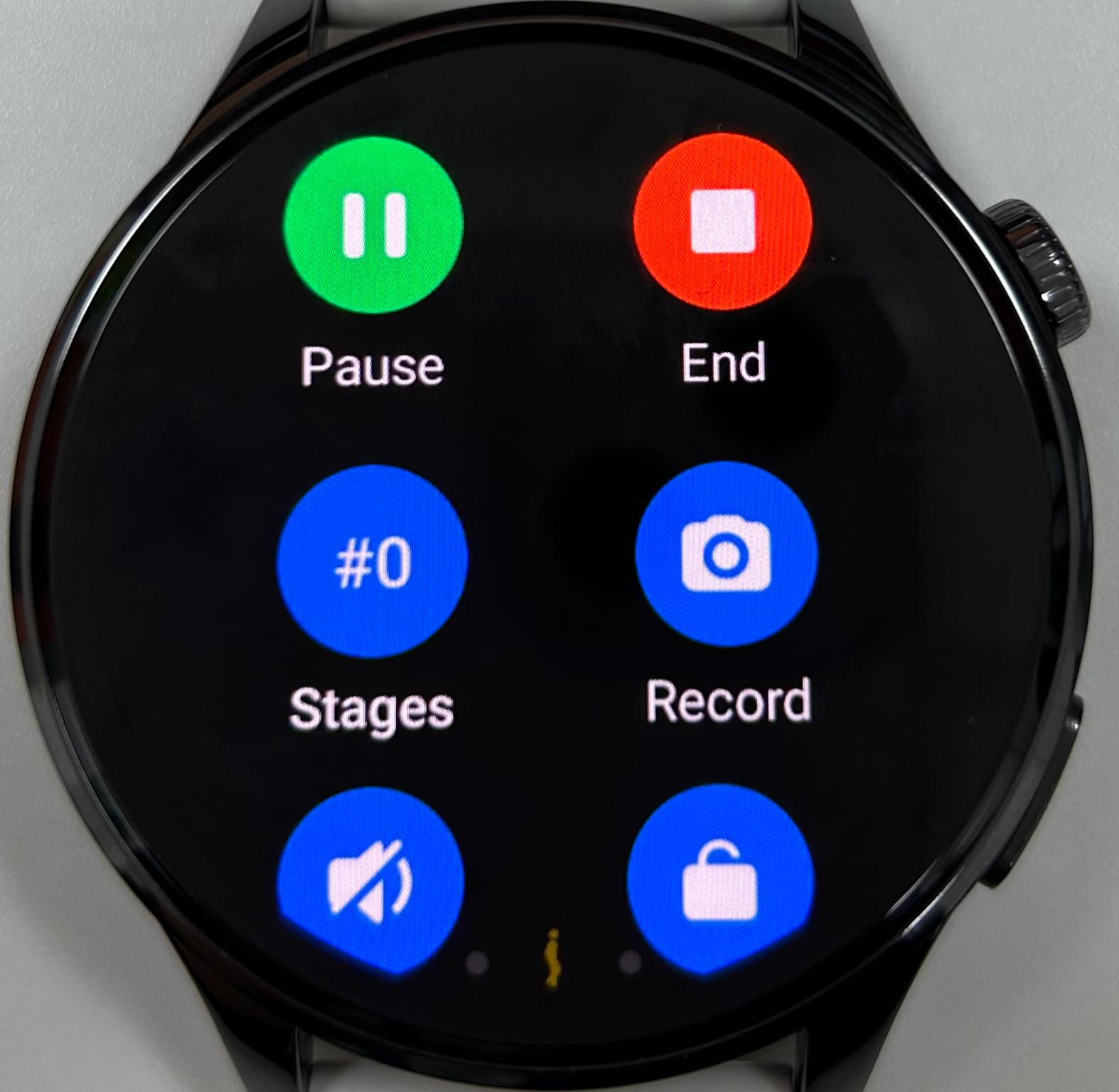
End:
After pausing, the following icons will be displayed:
1. Tap the [Resume] icon to resume the workout.
2. Press and hold the [End] icon for 1.5 seconds to end the workout.
3. Tap the [Volume] icon to adjust the voice broadcast volume during the workout.
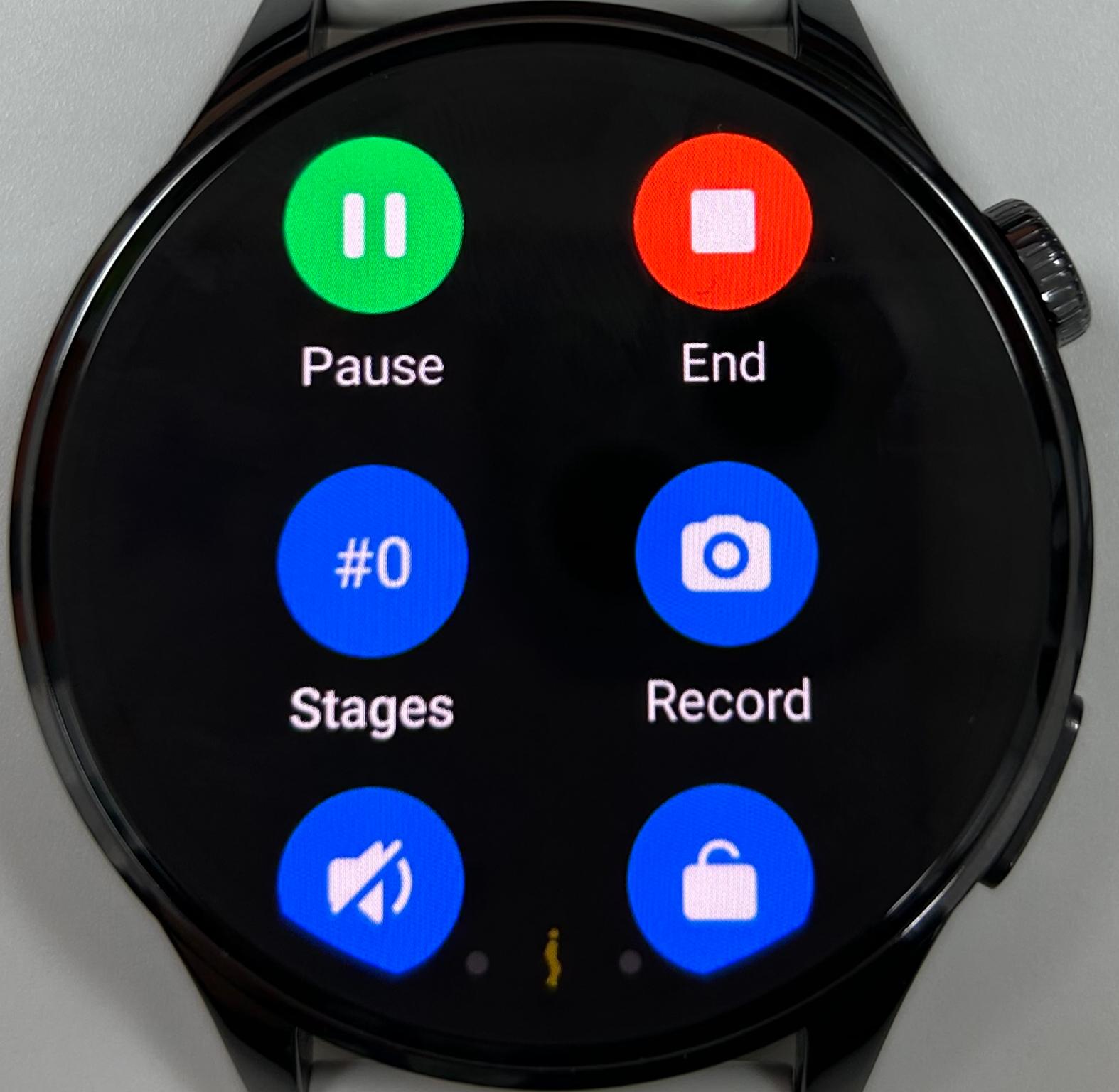
Note:
1. If the workout intensity is too low (short duration or distance), the workout record will not be saved.
2. Some workout modes have an [Interconnectivity] or [Next set] icon on the control interface.
Q4: Does the Xiaomi Watch 5 support running courses?
A: The Xiaomi Watch 5 supports 10 running courses:
Basic Introduction
1. Basic run/walk
Suitable for beginner runners. Alternating between jogging and fast walking, helps the body adapt to running and other aerobic activities.
2. Advanced run/walk
Suitable for beginner runners. Alternating between jogging and fast walking, gradually increases jogging duration to improve physical performance.
3. Basic jog
Moderate to low-intensity running training. Suitable for beginner runners, progressively improves personal physical performance.
Fat Loss and Weight Reduction
1. Fat burn run (Basic)
Suitable for runners aiming for fat loss and weight reduction. Increasing energy expenditure to promote fat loss and weight reduction.
2. Fat burn run (Advanced)
A single long-duration moderate to low-intensity training. Continuous jogging for sustained fat loss and weight reduction.
3. MIIT fat-burning run
Moderate-intensity interval fat-burning running training. Alternating between jogging and medium-speed running to improve fat-burning efficiency.
Stamina Improvement
1. Endurance run (Basic)
Suitable for runners wanting to improve running endurance. Improving running endurance levels and enhancing aerobic capacity.
2. Endurance run (Advanced)
A single long-duration jogging training. Improving aerobic endurance levels and enhancing long-distance running ability.
Cardiopulmonary Exercise
1. Interval run (Basic)
Suitable for runners wanting to improve cardiopulmonary ability. Enhancing cardiopulmonary capacity and improving VO2 max levels.
2. Interval run (Advanced)
Suitable for runners wanting to improve cardiopulmonary ability. High-intensity stimulation of the cardiopulmonary system to boost VO2 max levels.
Tap the [Running] icon in the watch's application list to enter the running courses App. In an open outdoor environment, after selecting the desired course, you can tap to start the workout.
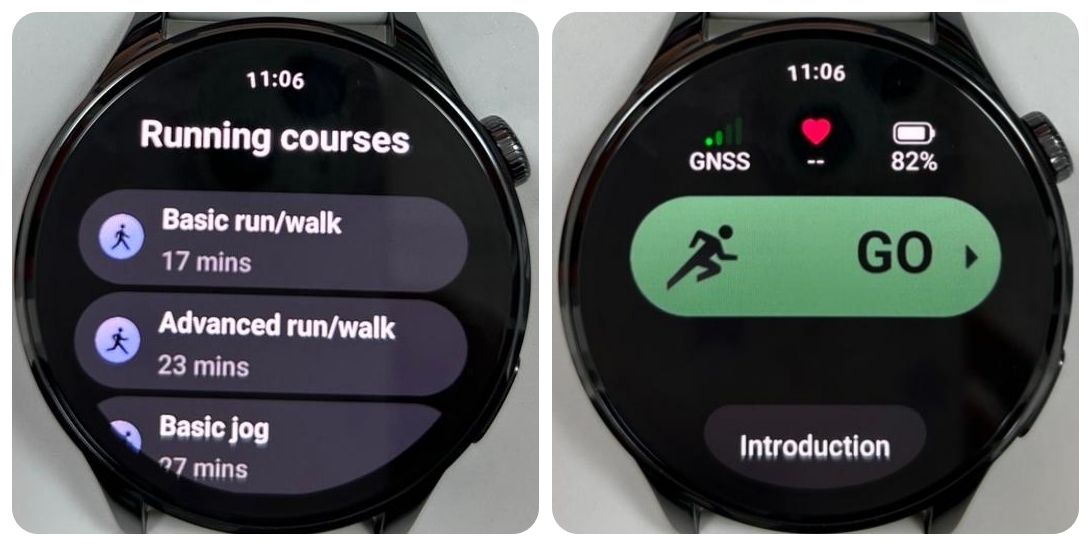
Tap [Introduction] at the bottom of the positioning preparation page allows you to view the introduction of the current running course, such as the basic run-walk combination course shown in the image below.
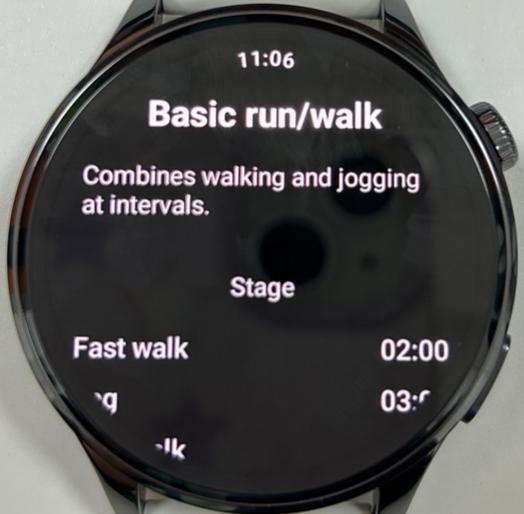
Q5: Does the Xiaomi Watch 5 support interactive sensory courses?
A: Yes, The Xiaomi Watch 5 supports interactive sensory courses. After the watch is connected to the Mi Fitness App, switch to [Workout] and randomly select an interactive sensory course from the workout courses. Once you tap Start, the interactive sensory course will be launched on the watch.
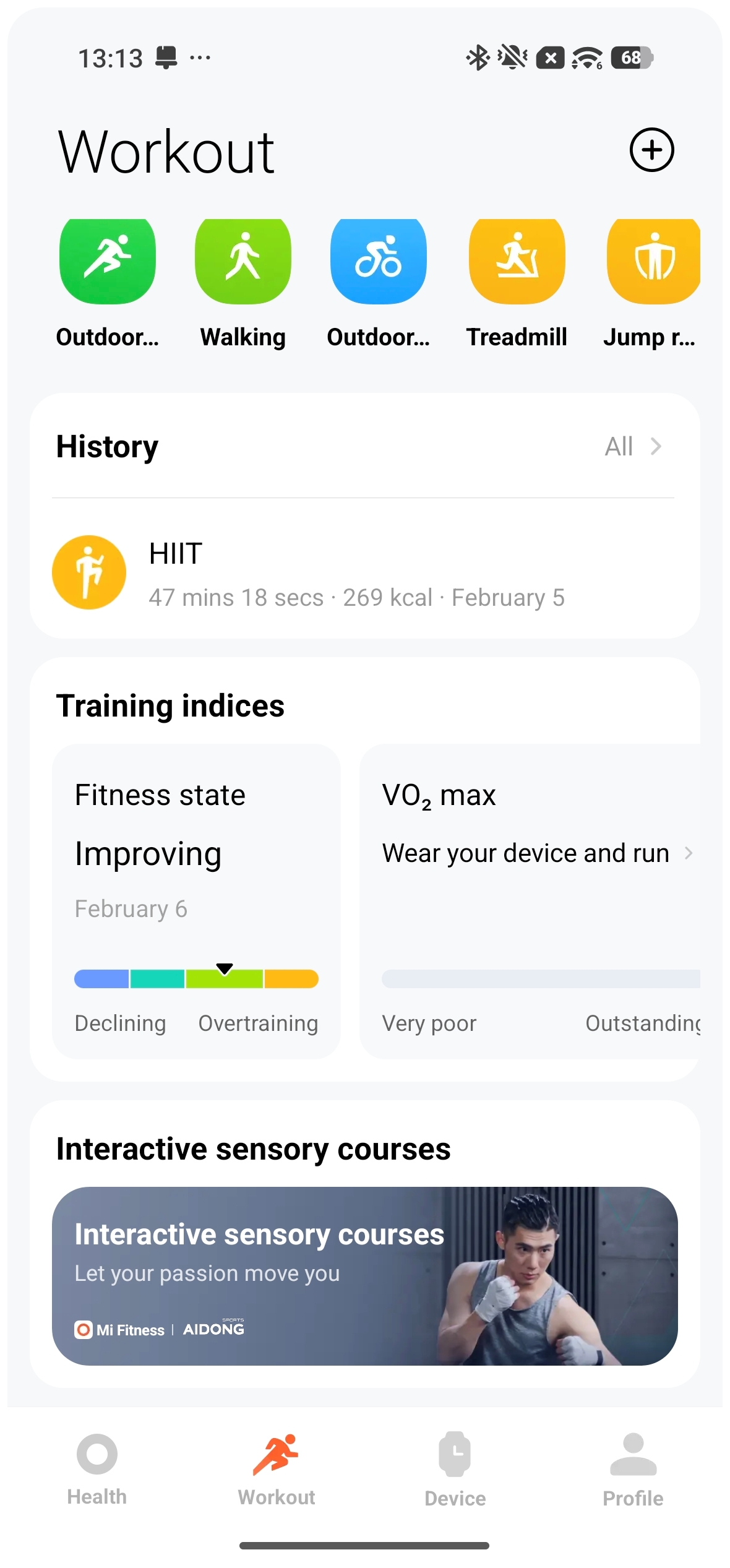
Q6: How to set the exercise reminder on the Xiaomi Watch 5?
A: To set the exercise reminder on the Xiaomi Watch 5, please refer to the following steps:
1. You can enter the sports list by tapping on the sports application on the watch. Tap a specific sport in the sports list to enter the go interface. You can tap the [Setting] icon at the bottom of the go interface to set it.
2. Tap [Alerts] in the settings. You can choose to set reminder items based on Reminder, Pace alert, Target HR zone, High HR alert, and Hydration according to your own needs.
Take outdoor running as an example:
1. Distance reminder: The default is 1 km, and the adjustment unit is 1 km. You can set it according to your situation.
2. Pace alert: The default is 5 minutes and 30 seconds, and the adjustment unit is 10 seconds. You can set it according to your situation.
3. Target HR zone: You can choose the heart rate zone corresponding to light, intensive, aerobic, anaerobic, and VO2 max.
4. High HR alert: The default is the automatically calculated maximum heart rate. The adjustment unit is 1 beat/min. You can set it according to your situation.
5. Hydration reminder: Reminder by distance, the default is 1 km, the adjustment unit is 1 km, and you can set it according to your situation.
Reminder according to the duration, the default is 10 minutes, and the adjustment unit is 5 minutes. You can set it according to your situation.
Q7: How to set exercise goal reminders on the Xiaomi Watch 5?
A: You can enter the sports list by tapping on the sports application on the watch. Tap a specific sport in the sports list to enter the go interface. Then tap the [Settings] icon, select the corresponding distance/time/calorie target. Once the set target is achieved, a corresponding notification will be displayed.
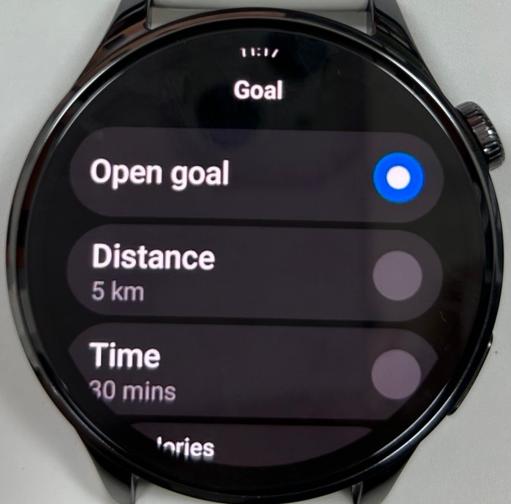
Q8: How to set Distance reminder on the Xiaomi Watch 5?
A: You can enter the sports list by tapping on the sports application on the watch. Tap a specific sport in the sports list to enter the go interface. Then tap the [Settings] icon, select [Alerts] >> enable [Reminder] >> choose the corresponding distance >> tap [√].
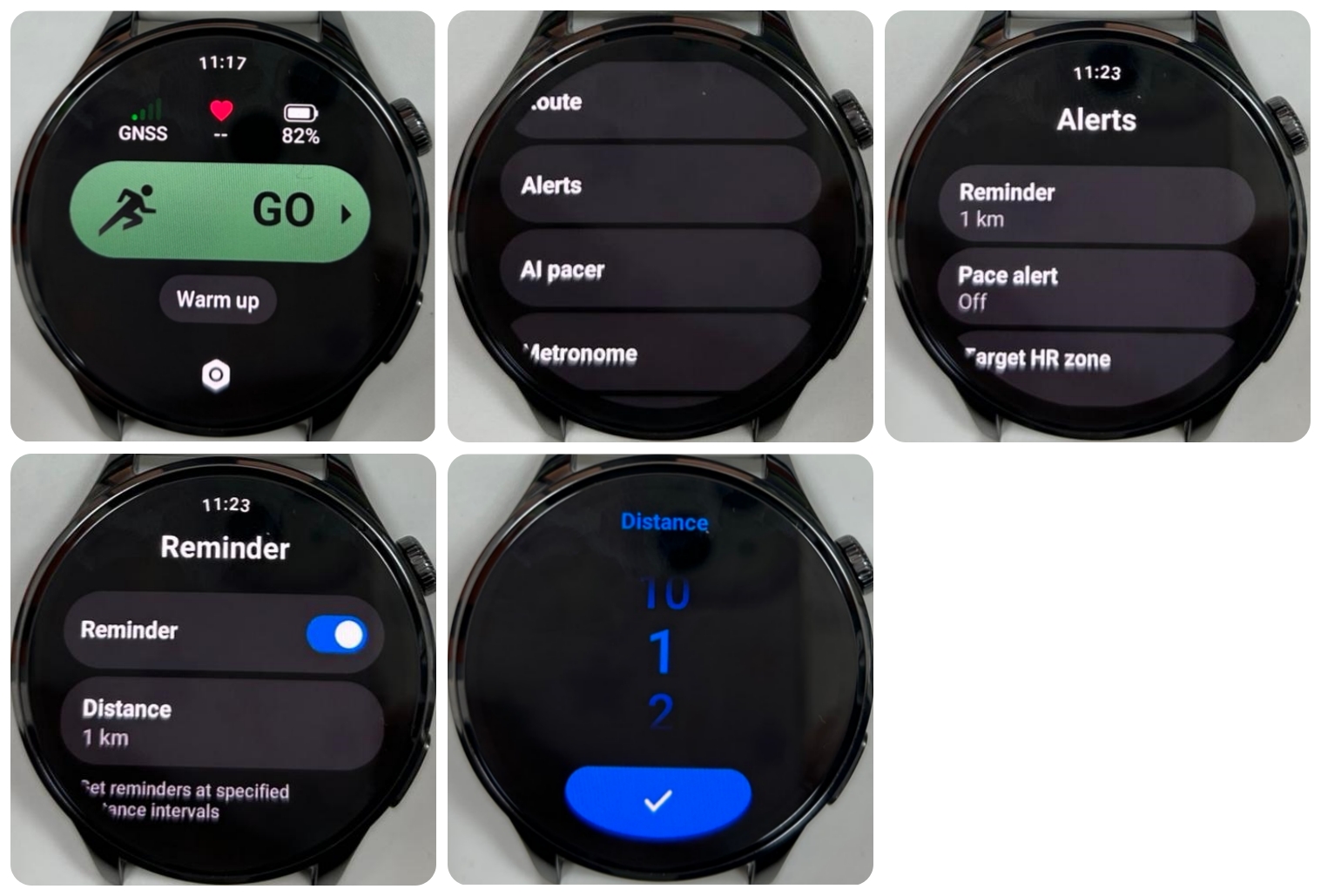
Q9: How to check the Running ability on the Xiaomi Watch 5?
A: Open the Xiaomi Watch 5, press the rotating crown to enter the App list. Swipe down to find and tap [Training review], the running ability will be displayed on the fourth screen of the App.
Q10: What do the data of maximum altitude, average altitude, cumulative ascent, and descent mean respectively on the Xiaomi Watch 5?
A: The data for maximum elevation, average elevation, cumulative ascent, and cumulative descent are explained as follows:
1. The highest altitude is the maximum value of the altitude per unit of time during exercise.
2. The average altitude is the average value obtained by accumulating and dividing the altitude values of each unit of time during exercise.
3. The cumulative ascent/descent is the accumulation of the cumulative upward/downward data during the exercise. Take the cumulative ascent as an example. For example, when riding, there are 5 uphills on flat ground. After climbing each slope, the altitude will increase by 8 meters. Then the cumulative ascent after climbing these 5 slopes is 5 x 8 = 40 m (the same is true for the cumulative decline, and the cumulative height difference of the slopes is summed).
Q11: How to set goals during exercise on the Xiaomi Watch 5?
A: When selecting sports mode on the Xiaomi Watch 5, you can set sports goals. You can choose sports with distance, time, and calorie consumption as goals according to your own needs, and you can set the target values for these sports based on the above three goals. Slide down to clear the target.
Take outdoor running as an example:
1. Time: The default is 30 minutes, with an adjustment unit of 5 minutes. You can set it according to your own needs.
2. Distance: The default is 3 kilometers, with an adjustment unit of 1 kilometer. You can set it according to your own needs.
3. Calories: The default is 300 kcal, with an adjustment unit of 50 kcal. You can set it according to your own needs.
Special target settings:
1. Sliding Time (Skiing support): The default is 30 minutes, and you can adjust it based on your needs.
2. Lengths (Swimming support): The default is 8 laps, and you can adjust it based on your needs.
3. Strokes (Rower support): The default is 200 strokes, and you can adjust it based on your needs.
4. Jumps (Jump rope support): The default is 1000 jumps, and you can adjust it based on your needs.
When selecting skiing as the activity, there will be safety settings. Depending on whether you choose to enable skiing fall detection, there will be an emergency call option. If a fall is detected, the skiing emergency call will default to calling the emergency contact, and when enabled, it allows you to choose between calling the emergency contact or the nearby ski resort.
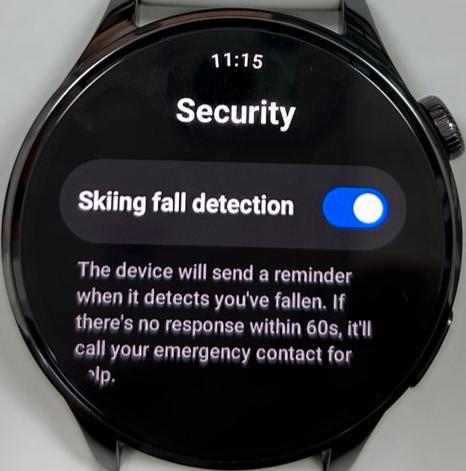
Each sport supports experience: When the training experience switch is turned on, a training experience page will pop up at the end of the workout. After selecting your experience, it can be viewed in the workout report.
Q12: How to check exercise records on the Xiaomi Watch 5?
A: After the exercise is completed, the Xiaomi Watch 5 will generate a rich and vivid exercise report. All exercise record data include exercise date, time, distance, calories, number of steps, pace, speed, heart rate, pace curve, speed curve, heart rate curve, heart rate ratio, cadence curve, and stride length, etc.
The viewing methods are as follows:
1. View detailed exercise data in the [History] application of the watch.
2. After the watch is connected to your phone, tap [Workout] on the Mi Fitness App homepage. On today's activities page, tap the [History] icon to view the exercise records of any day. In addition to the exercise information on the watch, you can also view Movement trajectories and other information.
Q13: How to add sports activities to the sports list on the Xiaomi Watch 5? How many sports activities can be added?
A: At the bottom of the Xiaomi Watch 5's workout list homepage, there is an [Add] button. You can add up to 25 workout activities through this [Add] button.
Q14: Does the Xiaomi Watch 5 support hiding sports items in the sports list?
A: The Xiaomi Watch 5 doesn’t support hiding sports items in the sports list.
Q15: How to adjust the order of the Xiaomi Watch 5 workout list?
A: Press down the rotating crown of the Xiaomi Watch 5 to access the App list, then open the Workout App. After opening the Workout App, you'll see a list of workouts. Pressing and holding a workout in the list will take you to the workout editing interface.
You can pin frequently used workouts to the top of the list, and the App will also automatically sort workouts based on your usage frequency, placing the most frequently used workouts at the top of the list.
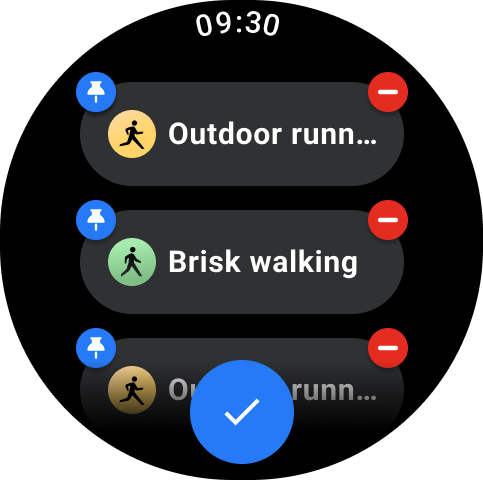
Q16: Does the Xiaomi Watch 5 support voice broadcast during exercise? How to turn off exercise broadcasts on the watch?
A: The Xiaomi Watch 5 supports voice broadcast. If you need to turn it off, you can turn off the corresponding exercise reminder in the exercise settings before starting the exercise, or directly pull the volume to the bottom in the volume settings.
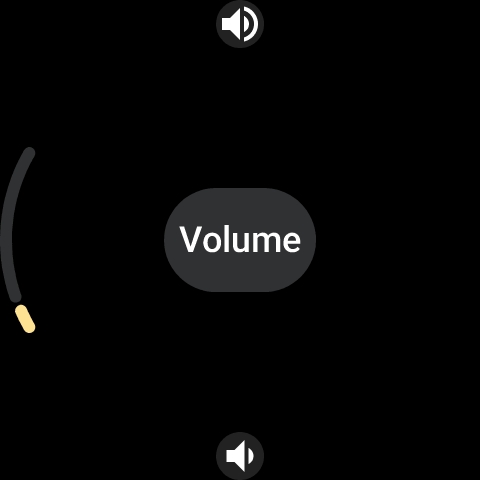
Q17: How to check the day’s steps, activity calories, and breaks/moving activities of the Xiaomi Watch 5?
A: To check the steps, activity calories, and breaks/moving activities of the Xiaomi Watch 5, please refer to the following methods:
1. Tiles card: Swipe left or right on the watch's home interface to view current calories, steps, breaks/moving activities on the corresponding tiles.
2. App list: Press down the rotating crown of the Xiaomi Watch 5 to access the App list, and tap the [Stats] application to view it.
3. Mi Fitness App: With the phone connected to the watch, open the Mi Fitness App and tap the [Stats] card on the [Health] interface to view it.
Note:
Only one of the two [Breaks] and [Moving] in the stats can be displayed. You can go to the Mi Fitness App >> [Health] >> tap the [Stats] card >> tap the three-dot icon at the upper right corner >> [Stats] >> [Suggested], and select [Breaks] or [Moving] as the third data item.
Q18: How to set up daily goal achievement reminders on the Xiaomi Watch 5?
A: To set up daily goal achievement reminders on the Xiaomi Watch 5, you can enable [Achievement reminders] in the Mi Fitness App >> [Device] >> [Fitness and health] >> [Stats].
After connecting the Xiaomi Watch 5 to the Mi Fitness App, set your goals in the Mi Fitness App, and the watch will display a pop-up notification when you achieve them.
Q19: How to set a standing reminder on the Xiaomi Watch 5?
A: Turn on [Breaks reminders] in the Mi Fitness App >> [Device] >> [Fitness and health]. If there is no walking or strenuous hand activity within an hour, a standing reminder will be sent.
The following conditions need to be considered:
1. If there is any behavior of walking around or wearing the watch for exercise within one hour, the reminder will be extended for half an hour, and the delay time shall not exceed one hour.
2. If the violent hand activity reaches 10 seconds, the reminder will be delayed for half an hour. If it reaches 20 seconds, the reminder will be delayed for one hour.
3. The current time is within the reminder time range set by you (Please note that the Do Not Disturb function during lunch break is enabled. The default is 12:00~14:00). There is no standing reminder during the workout.
Q20: What is the reminder logic of the Xiaomi Watch 5's standing reminder?
A: A standing reminder will be sent on the Xiaomi Watch 5 when all the following conditions are met:
1. Standing reminder is turned on in settings.
2. The 50th minute of each natural hour (49'59") determines the following conditions:
(1). You have not stood up this hour.
(2). The time off the wrist should not exceed 10 seconds between 49'00" and 49'59", and it should also be worn when reminding.
(3). This minute is in inactive states (number of active steps < 3).
(4). In the first 50 minutes of this hour, the not-wearing state is less than 5 minutes, and the sleeping state is less than 5 minutes. The power-on time is more than 30 minutes.
(5). The current time is within the reminder time range set by you (Please note that the Do Not Disturb function during lunch break is enabled. The default is 12:00~14:00).
3. The sleep algorithm determines that the stand-up reminder will not be issued after falling asleep. Do Not Disturb mode and sleep mode will issue notifications but not reminders.
4. When you initiate exercise, the standing reminder will not be issued during exercise mode.
Q21: How to delete workout data on the Xiaomi Watch 5?
A: To delete the exercise data from the Xiaomi Watch 5, please refer to the following methods:
1. On the watch, swipe to the second-to-last interface of a workout record in the [History] App, as shown in the image below, and tap [Delete record] to delete it.
2. Open a single exercise record in the [History] of the [Workout] on the Mi Fitness App and tap [Delete] in the three-dot icon in the upper right corner to delete it manually.
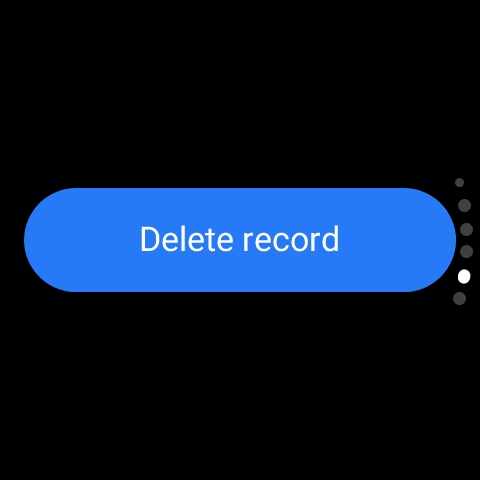
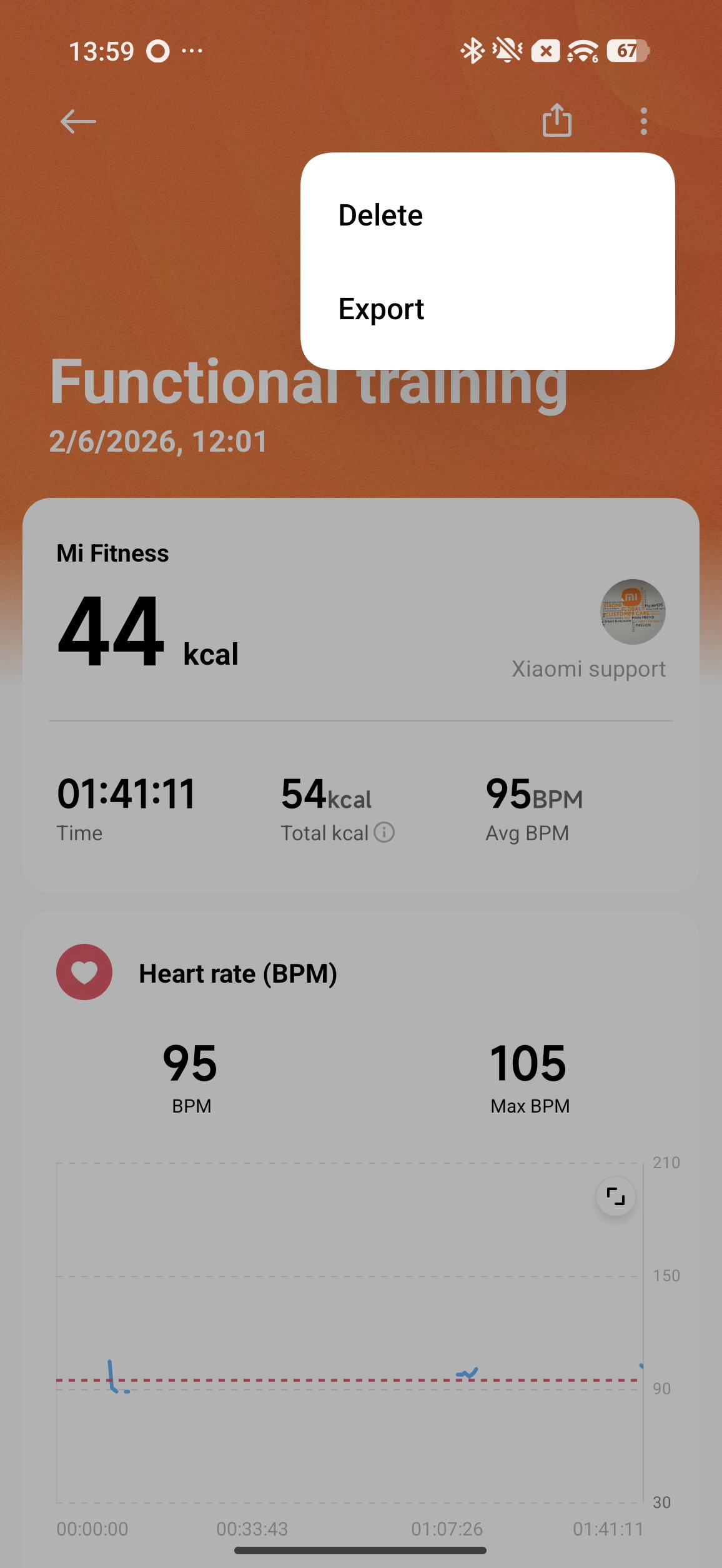
Q22: Can the Xiaomi Watch 5 be set to pause automatically during exercise?
A: The Xiaomi Watch 5 supports automatic pause during exercise. Outdoor running, indoor running, walking, and cycling support auto pause by default. You can turn it off in the workout settings.
For example: Select [Workout] on the watch >> [Outdoor running] >> [Settings] icon >> turn on/off [Auto pause].
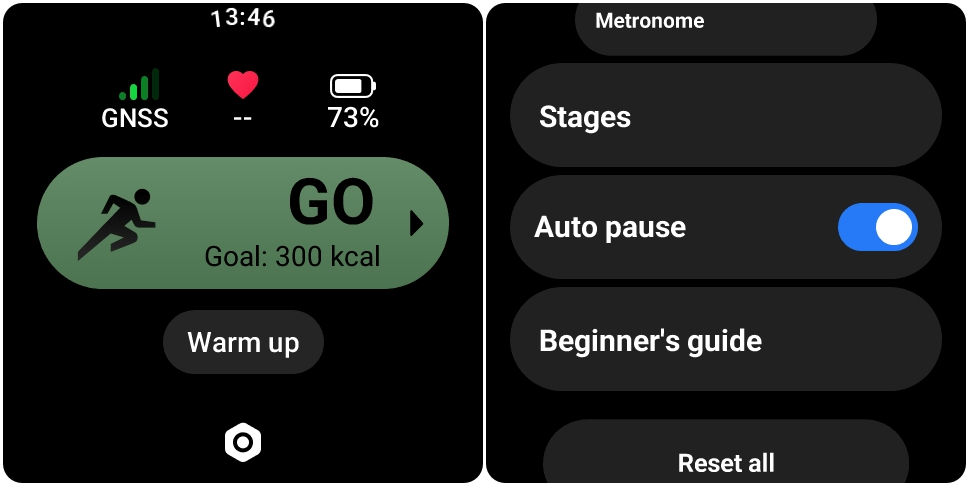
Q23: Why is the data displayed on the Mi Fitness App inconsistent with the data displayed on the Xiaomi Watch 5 after syncing?
A: If the data is different between the Mi Fitness App and the Xiaomi Watch 5 after syncing, please refer to the following aspects:
1. Due to the definition of the dual-end mutual writing synchronization protocol of the Mi Fitness App, according to your usage habits, there will be a minimum data difference of 5 minutes and a maximum of 30 minutes after completing automatic synchronization or manual synchronization.
2. For example, after synchronization, if there is a minimum 5-minute data difference, the calories and steps data generated within the 5 minutes will not be reflected until the next synchronization.
3. This setting is currently being interpreted and continuously optimized by Mi Fitness App engineers.
Q24: Why is the swimming data on the Xiaomi Watch 5 inaccurate?
A: If the swimming data on the Xiaomi Watch 5 is inaccurate, please refer to the following aspects:
1. Please confirm that the pool length setting on the Xiaomi Watch 5 matches the actual length of the pool.
2. The identification of swimming laps needs to be calculated based on the movements during swimming.
3. When swimming, please ensure that your wearable device is properly and securely fastened and that you maintain correct posture.
4. At the same time, regarding the known issue of potentially inaccurate lap counts during swimming, engineers are actively working on a solution and optimization. Please wait for subsequent updates to improve recognition accuracy.
Q25: Why is the mileage record of the Xiaomi Watch 5 inaccurate?
A: If the mileage record of the Xiaomi Watch 5 is inaccurate, please refer to the following aspects:
1. When exercising outdoors, distance calculation depends on positioning information. Please choose an open field as much as possible when exercising outdoors to ensure better positioning accuracy.
2. At the same time, the Xiaomi Watch 5 supports intelligent selection of positioning signal sources when connected to a mobile phone. Therefore, it is recommended to check whether the mobile phone has given complete positioning permissions to the Mi Fitness App to improve distance accuracy.
Q26: Why is the maximum oxygen uptake displayed in the Mi Fitness App of the Xiaomi Watch 5 inaccurate compared to other products?
A: This problem has been optimized in the latest software version. Please press and hold the Xiaomi Watch 5 power button (side button) for 12 seconds to force a restart.
After the watch restarts and the screen lights up properly, open the Mi Fitness App and check for updates in the App, and follow the instructions to update to the latest software version.
Q27: After completing a triathlon, why is the movement track graph displayed differently on the Xiaomi Watch 5 and the phone?
A: This bug has been fixed in the latest firmware version of the Xiaomi Watch 5. Please check for updates in the Mi Fitness App, update the watch to the latest firmware version, and try again.
Q28: Why is there a difference between the Xiaomi Watch 5 and other devices in recording calories during a workout?
A: The calorie algorithm involves a lot. The personal information of the Xiaomi Watch 5 and other products needs to be consistent. Each manufacturer’s algorithm is different, and there could be small-scale differences, which will continue to be optimized.
Q29: How to use Warm up stretching before and after exercise on the Xiaomi Watch 5?
A: In the waiting interface for workout types that support Warm up, you can tap [Warm up] on the Xiaomi Watch 5 to start the warm up. After finishing the exercise, you can tap [Stretch] under the exercise report to do stretching.
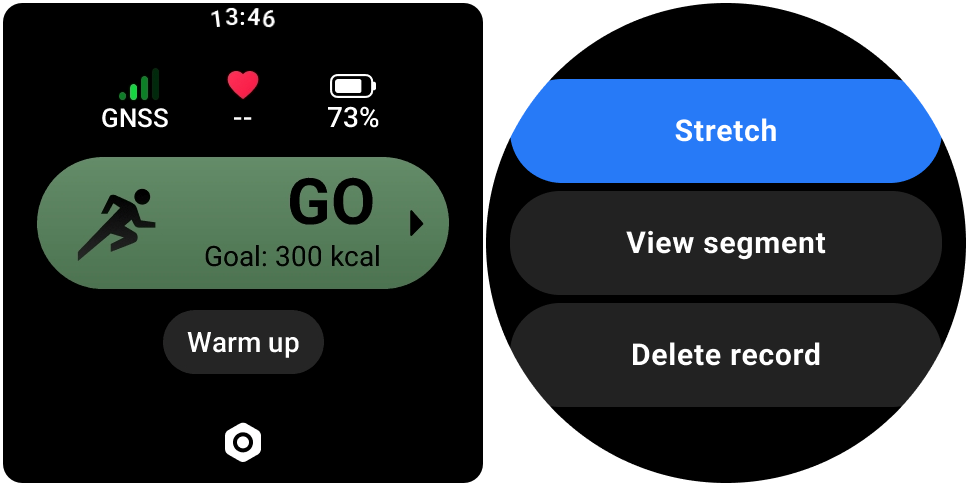
Q30: How to measure the lactate threshold on the Xiaomi Watch 5?
A: The Xiaomi Watch 5 does not support lactate threshold measurement.
Q31: How to set the Metronome on the Xiaomi Watch 5?
A: Press down the rotating crown of the Xiaomi Watch 5 to access the App list, then open the Workout App. Select a workout and enter its settings, and you can tap Metronome and enable it. In this interface, you can set up the metronome.
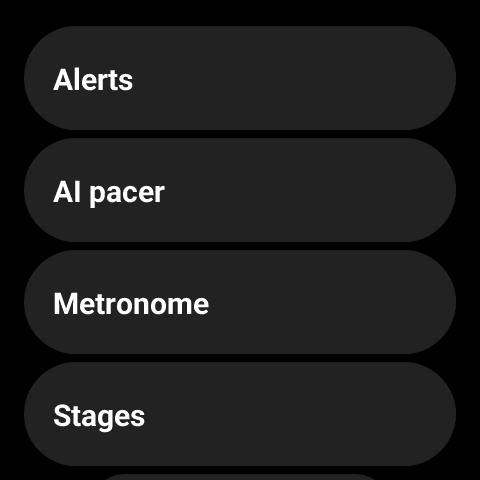
Q32: How to set up AI pacer on the Xiaomi Watch 5?
A: Press down the rotating crown of the Xiaomi Watch 5 to access the App list, then open the Workout App. Select a workout and enter its settings, and you can tap AI pacer and enable it. In this interface, you can set up the pace.
During a workout, swipe up to view this interface:
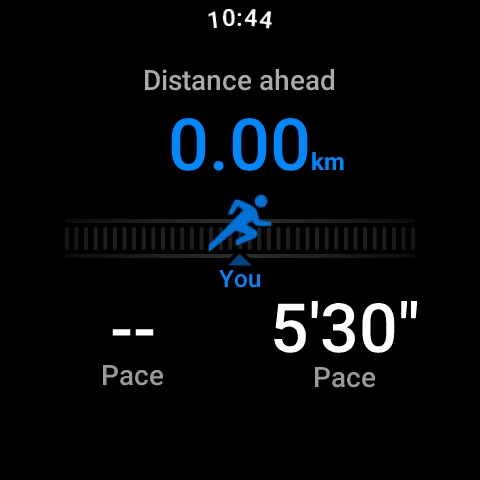
Q33: How to activate the AI-powered workout route function on the Xiaomi Watch 5?
A: The Xiaomi Watch 5 does not support AI-based route planning.
Q34: How to customize routes on the Xiaomi Watch 5?
A: The Xiaomi Watch 5 does not support custom routes.
Q35: Which cities does the Xiaomi Watch 5's custom AI route feature support?
A: The Xiaomi Watch 5 does not support custom AI routes.
Q36: How to adjust the order of the Xiaomi Watch 5 workout list?
A: Press down the rotating crown of the Xiaomi Watch 5 to access the App list, then open the Workout App. After opening the Workout App, you'll see a list of workouts. Pressing and holding a workout in the list will take you to the workout editing interface.
You can pin frequently used workouts to the top of the list, and the App will also automatically sort workouts based on your usage frequency, placing the most frequently used workouts at the top of the list.
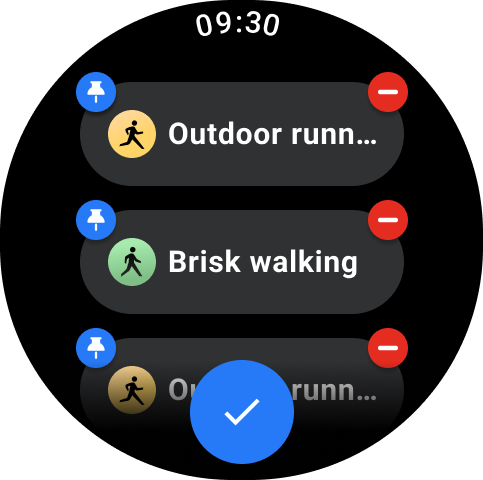
Q37: Why there's no training load records when wearing the Xiaomi Watch 5 during Training workouts?
A: Press down the rotating crown of the Xiaomi Watch 5 to access the App list, then open the Training review App, and you can view your training load this week.
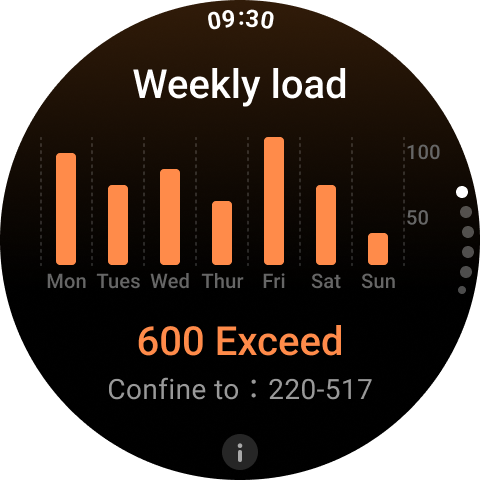
Q38: How to enable the Skiing fall detection function on the Xiaomi Watch 5?
A: The Xiaomi Watch 5 and the phone are properly connected. Here's how to enable the function:
1. On the phone: Open the Mi Fitness App >> [Device] >> [Security] >> enable [Emergency SOS] and [Fall detection] (make sure to set up emergency contacts).
2. On the watch: When entering a skiing workout, tap the settings icon >> [Security] >> turn on [Skiing fall detection].
Note:
Fall detection and emergency calls for skiing need to be enabled and configured in the security settings interface of any skiing mode. It only supports calling emergency cantacts or 911. To use the emergency call function, ensure the watch is connected to the Mi Fitness App on the phone.
Q39: Does the Xiaomi Watch 5 support Skiing fall detection that triggers automatic calls to emergency contacts repeatedly?
A: The Xiaomi Watch 5 supports Skiing fall detection that triggers automatic calls to emergency contacts. Here's how to enable the function:
1. On the phone: To enable emergency contacts, please open the Mi Fitness App on your phone, go to [Device] >> [Security] >> enter [Emergency SOS] and enable it >> tap [Emergency contacts] to manually set the phone number and names, or add emergency contacts directly from your contacts list. Enable [Emergency SOS] and [Fall detection].
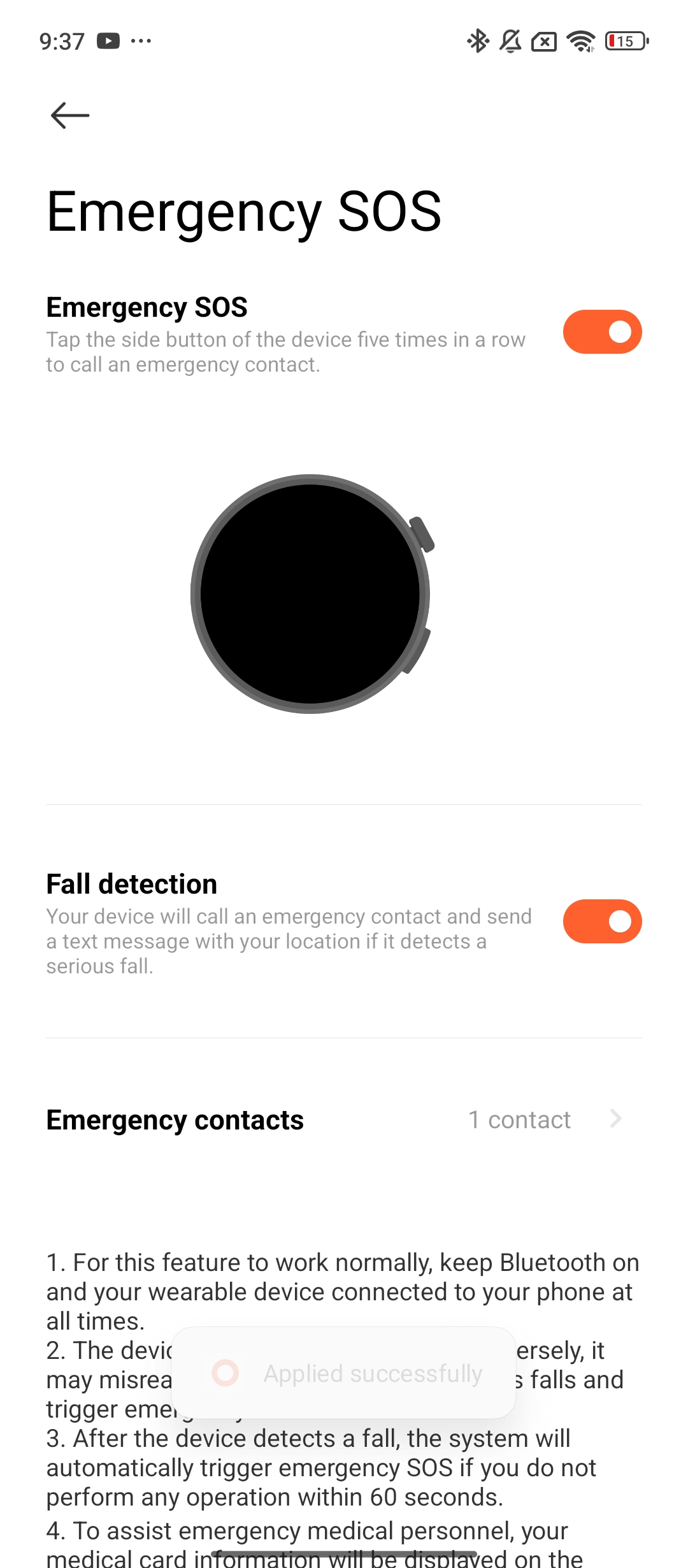
2. On the watch: When entering a skiing workout, tap the settings icon >> [Security] >> turn on [Skiing fall detection]. Please set the [Emergency contacts] via the Mi Fitness App.
Q40: How to enable workout experience on the Xiaomi Watch 5?
A: The Xiaomi Watch 5 doesn't support workout experience.
Q41: How to start a vitality competition on the Xiaomi Watch 5?
A: The Xiaomi Watch 5 doesn't support vitality competition.
Q42: How to set workout performance on the Xiaomi Watch 5?
A: The Xiaomi Watch 5 does not support setting workout performance.
Q43: How to view wrist-based running posture data on the Xiaomi Watch 5?
A: When a wrist-based running form–supported workout is enabled on the Xiaomi Watch 5, the wrist running posture data can be viewed both during and after the workout.
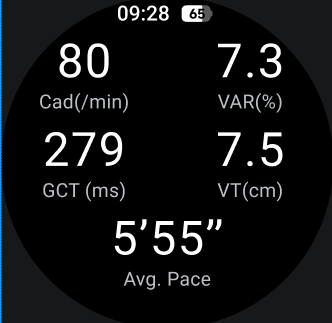
Q44: How to set up and view Stats on the Xiaomi Watch 5?
A: To view Stats on the Xiaomi Watch 5, please refer to the following methods:
1. On the watch face, swipe right or left to access the Stats tile interface and view relevant data.
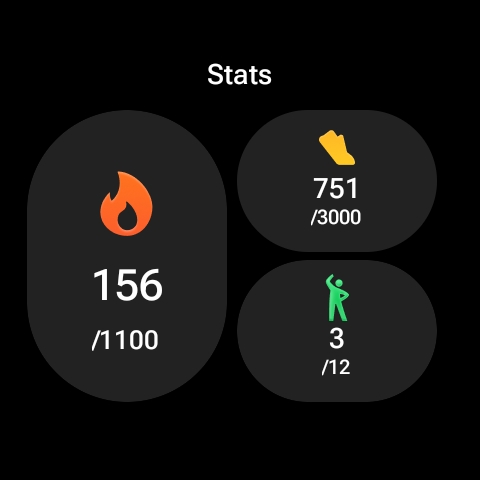
2. Press down the rotating crown of the Xiaomi Watch 5 to access the App list, then open the [Stats] App to view relevant data.
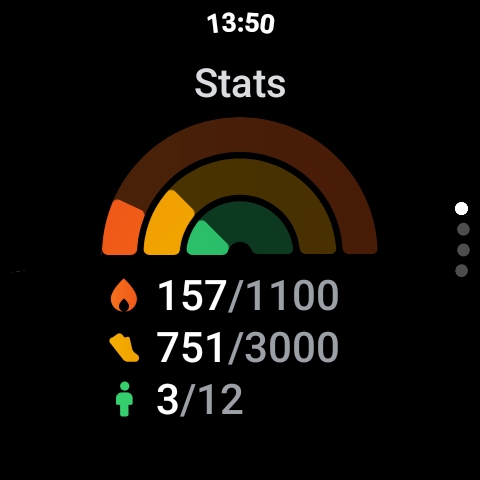
3. You can go to the Mi Fitness App >> [Health] to view Stats data.
To set up Stats on the Xiaomi Watch 5, please refer to the following methods:
1. You can go to the Mi Fitness App >> [Health] >> tap [Stats] >> tap the three-dot icon in the upper right corner >> select [Stats]. In this interface, you can set up Stats data.
2. You can go to the Mi Fitness App >> [Device] >> [Fitness and health] >> [Stats] to set up Stats data.
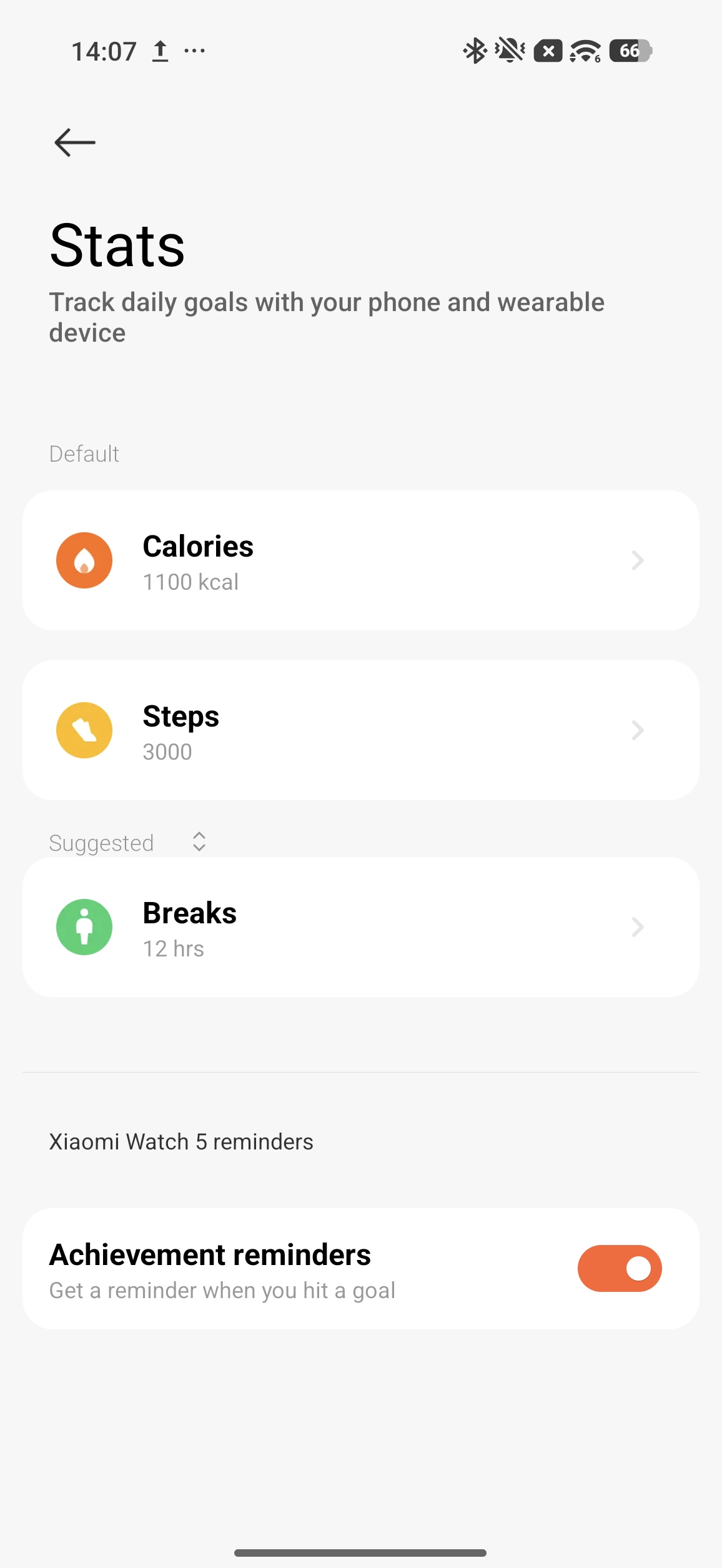
Q45: How to set up Vitality score-related reminders on the Xiaomi Watch 5?
A: The Xiaomi Watch 5 doesn't support setting up a Vitality score reminder. This data comes from your workout report. To view this value, please check your workout report in a workout record in the [History] App on the Xiaomi Watch 5.
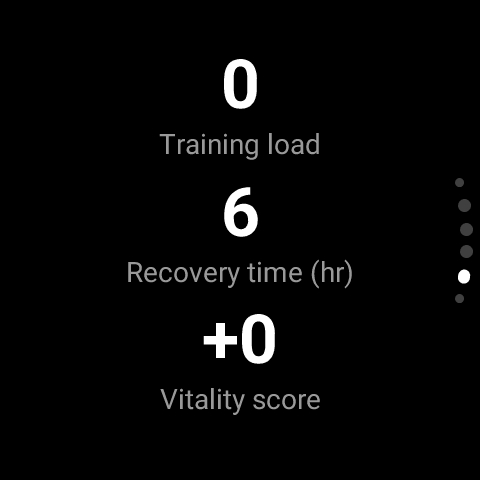
Q46: What to do if the Xiaomi Watch 5 shows a storage full warning and cannot sync data after workout mode has been enabled for a long time?
A: It is recommended to delete some applications on the Xiaomi Watch 5 to free up storage space.
Q47: Does the Xiaomi Watch 5 support recording workout data only when worn on the wrist?
A: The Xiaomi Watch 5 supports recording workout data only when worn.
Q48: Why can’t the workout record be viewed on the Xiaomi Watch 5 after ending the workout initiated from the Mi Fitness App?
A: The workout initiated from the Mi Fitness App will not be saved to the Xiaomi Watch 5. You need to view your workout report in the Mi Fitness App.
Q49: Why do two activities run at the same time when workout linking is started from the Mi Fitness App during a Warm up workout on the Xiaomi Watch 5?
A: The Warm up phase is not considered an active workout, so the Mi Fitness App can trigger workout linking. This is by design and is normal behavior.
Q50: Why does the Xiaomi Watch 5 exit the Warm up when the screen locks?
A: The Warm up interface does not have background functionality. It will exit this interface whenever you switch screens or lock the screen.
Q51: How to enable Auto detect on the Xiaomi Watch 5?
A: Press down the rotating crown of the Xiaomi Watch 5 to access the App list, then open the [Workout] App, scroll down to the bottom to access [Settings]. Enter [Auto detect] and enable it.
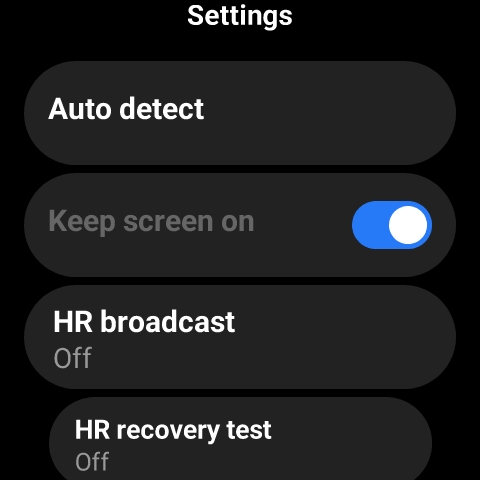
Q52: How to trigger Auto detect on the Xiaomi Watch 5 after enabling the feature?
A: In the Xiaomi Watch 5, Walking workout triggers Auto detect every 7 minutes, while other sports trigger it every 3 minutes.
Q53: What to do if false detections occur or workouts fail to be recognized after enabling Auto detect on the Xiaomi Watch 5?
A: The Xiaomi Watch 5 will re-identify the type of workout. The algorithm continuously monitors and identifies the workout.
Q54: What to do if the Xiaomi Watch 5 automatically detects a workout, but the signal is weak, and positioning is slow?
A: The Xiaomi Watch 5 starts tracking your activity after automatically detecting movement. At this point, the GPS is just beginning to acquire a signal, and since you are in motion and your location is constantly changing, the positioning process is slower.
To obtain accurate positioning, please refer to the following:
1. It is recommended that you manually update the satellite data while your phone and watch are connected to obtain the latest GPS data and speed up positioning. Press down the rotating crown of the Xiaomi Watch 5 to access the App list, then open the Workout App >> Scroll down to the bottom to access [Settings] >> select [Update satellite data] >> [Update].
2. Keep the Xiaomi Watch 5 connected to your phone daily. The satellite data will be automatically updated at 0:00, 8:00-11:00, and 14:00-17:00 every day.
Q55: Why aren’t the corresponding categories hidden when all activities in a workout category on the Xiaomi Watch 5 are shown in the main workout list?
A: This is normal behavior. The Xiaomi Watch 5 does not hide the corresponding categories. This watch supports displaying synchronized workouts in both the main list and the category list.
Q56: Why does the Xiaomi Watch 5 display a double arrow when all fitness indicators are exactly 100%?
A: The Xiaomi Watch 5 displays an arrow indicator when the standing activity goal is met or exceeded. This is normal behavior.
Q57: How to enable Bluetooth heart rate broadcasting on the Xiaomi Watch 5?
A: On the Xiaomi Watch 5, you can enable the [HR broadcast] function by going to Watch [Settings] App >> [Advanced features] >> [Workout settings] >> [HR broadcast]. Once enabled, you can connect the watch with third-party Apps via Bluetooth to transmit and display the heart rate detected by the watch.
Q58: Which workouts on the Xiaomi Watch 5 support map navigation?
A: The Xiaomi Watch 5 supports map navigation for the following workouts: Outdoor running, Walking, Outdoor cycling, Trekking, Trail run, Hiking, Open water, and Triathlon.
Q59: Does the Xiaomi Watch 5 support heart rate measurement underwater?
A: The Xiaomi Watch 5 supports heart rate measurement underwater. When you start [Pool swimming] or [Open water] on the Xiaomi Watch 5, heart rate measurement will automatically be enabled.
However, due to the impact of water flow in the underwater environment, heart rate measurement may be less accurate than in a land environment. It is recommended to wear the watch snugly when measuring heart rate underwater.
Q60: Why is the step counting on the Xiaomi Watch 5 inaccurate or not working?
A: The Xiaomi Watch 5 is equipped with a built-in accelerometer, which captures motion data. This data is processed through algorithms combined with basic human body parameters to calculate metrics such as step count and calories burned.
Factors affecting accuracy are as follows:
1. The principle behind calculating walking distance on the watch is based on your preset height, gender, and weight, which are used to estimate your step length. This estimated step length is then multiplied by your total step count to generate an approximate walking distance.
2. Different heights, weights, and genders can have different step lengths, causing deviations in calculations.
3. Factors such as arm swing amplitude, walking habit, human activity scene (e.g., walking, riding, driving, or showering), or complex arm movements (e.g., keyboard typing, moving the mouse, lifting and pulling objects) can influence step detection.
4. Due to the reasons mentioned above, the distance calculated by the watch is ultimately an estimated value. The watch is not intended to serve as a professional measurement tool for distance. Continuous optimization of the software algorithms will be carried out to improve the accuracy of these calculations.
Note:
The watch updates step counts multiple times per minute but does not provide real-time updates every second.
Q61: Why does the Xiaomi Watch 5 still display pace information after stopping the workout?
A: On the Xiaomi Watch 5, distance and pace during workouts require a brief calculation period. After stopping the activity (complete stillness), it takes approximately 10 seconds for the pace information to stop updating.
Q62: Why does the workout route sometimes not appear after syncing data with an older version of the Mi Fitness App on the Xiaomi Watch 5?
A: To optimize the accuracy of workout tracking and the data synchronization experience, we have upgraded the data storage and synchronization mechanism of the Xiaomi Watch 5.
Currently, newly generated workout tracks are only supported for display in the Mi Fitness App (Android version 3.42.0 and above).
Q63: Why does the heart rate reading on the Xiaomi Watch 5 not match how it feels while swimming?
A: During swimming, if the Xiaomi Watch 5 is worn too loosely, the gap between the watch and the skin may be too large, causing water to impact the sensor during movement, resulting in poor PPG signal quality.
To ensure data accuracy and reliable heart rate monitoring, please refer to the following:
1. Tighten the watch strap appropriately, ensuring there is enough slack to insert one finger between the strap and your skin.
2. Make sure the sensor on the back of the watch is in close contact with your wrist.
Q64: How to use offline maps on the Xiaomi Watch 5 during workouts?
A: Before downloading offline maps, the Xiaomi Watch 5 must be in Smart mode. Please also check whether offline maps are supported in your country or region. If supported, please go to Mi Fitness App >> [Device] >> [Fitness and health] >> [Manage offline maps] to download the corresponding offline map.
After the download is complete, the map will be automatically installed. When you work out within that area, the offline map will be displayed. During the workout, swipe down on the default data interface to the last page to enter the map, where you can view your workout route and the map.
After the download is complete, the map will be automatically installed. When you work out within that area, the offline map will be displayed. During the workout, swipe down on the default data interface to the last page to enter the map, where you can view your workout route and the map.
Q65: How to use route navigation on the Xiaomi Watch 5 during workouts?
A: Before using the navigation feature, please go to the Mi Fitness App >> [Device] >> [Fitness and health] >> [Manage device routes] >> [Import from My routes] >> [Send to watch].
If there are no routes available, you can go to Mi Fitness App >> [Profile] >> [My routes] >> [Import from device] to add routes first.
If there are no routes available, you can go to Mi Fitness App >> [Profile] >> [My routes] >> [Import from device] to add routes first.
After the route is transferred, open a workout that supports navigation (for example Outdoor running) >> tap the Settings icon >> [Route] >> start to begin navigation.
During navigation, you can swipe to the map at any time. Press the power button to enter editing mode and adjust the map scale. In editing mode, you can also press and hold the power button for 1.5 seconds to enter the navigation settings menu.
Q66: How does the map display during workouts on the Xiaomi Watch 5?
A: If the Xiaomi Watch 5 has not yet obtained a location, the screen will display the GNSS satellite searching status.
If an offline map has been downloaded, and the map feature is supported in your country/region, the downloaded offline map will be displayed when you are within the corresponding area, even if the watch has no network connection. If no offline map has been downloaded, a black background with white grid lines will be displayed.
When the watch is connected to the internet via Bluetooth tethering or Wi-Fi, and the map feature is supported in your country/region, an online map will be displayed. If maps are not supported in that region, the watch will display the default black background with white grid lines.
Notifications
Q1: Does the Xiaomi Watch 5 support receiving phone notifications? How to view and manage notifications?
A: The Xiaomi Watch 5 supports receiving notifications from the phone. After enabling the App notifications in the Mi Fitness App, and with the watch and phone connected, you can sync and view phone notifications on the watch. The watch only supports viewing messages and allows for quick replies to text messages.
To enable this function, please open the Mi Fitness App >> [Device] >> select [Notifications and calls] >> tap [App notifications] and enable it. You can either select [Mirror phone notifications] to sync notifications from all phone Apps to the watch or choose specific Apps for notifications.
Note:
For Apps enabled in the Mi Fitness App, ensure notification permissions are also enabled on the phone.
To view the notifications, please refer to the following steps:
1. When the watch and the Mi Fitness App are connected, messages received on the phone’s notification shade will sync to the watch.
Note:
By default, the watch will only vibrate and not turn on the screen when a notification is received. You can use the Raise to wake feature or manually turn on the screen to view the notification details. If you want the watch to turn on the screen when receiving a notification, open the Mi Fitness App >> [Device] >> [Notifications and calls] >> tap [App notifications] and enable it >> enable [Wake screen].
2. On the main interface of the watch face, swipe down to open the notification shade and view the received notifications.
To delete notifications, please refer to the following methods:
1. When the watch and the Mi Fitness App are connected, notifications that have been read on the phone will automatically be deleted from the watch.
2. You can delete the notification on the notification detail interface on the watch. If the watch and the Mi Fitness App are connected, the notification will also be deleted from the phone.
3. In the notification detail interface on the watch, you can check the notification on your phone, and the notification will be deleted from the watch, while the phone will open the corresponding App for that notification (this feature is supported only on some Android phones and requires the watch and the App to be connected).
4. In the notification shade on the watch, swipe left on a notification in the list to delete it, or tap [Clear all] at the top of the list to delete all notifications.
Note:
1. Turning off or restarting the watch will clear all notifications.
2. The watch can store a maximum of 50 notifications. If the number exceeds 50, new notifications will overwrite the oldest ones.
Q2: What reply methods does the Xiaomi Watch 5 support, and how to reply to message notifications directly?
A: The Xiaomi Watch 5 supports replying via emojis, voice input, and keyboard input by default.
Note:
Message notification reply function varies among apps.
Q3: How to block notifications from certain Apps on the Xiaomi Watch 5?
A: You can go to the Mi Fitness App >> go to [Device] >> enter [Notifications and calls] >> enter [App notifications] >> enable [App notifications] >> select [Custom notifications]. Then you can select which Apps are allowed to send notifications. Apps that are not selected will not display notifications on the watch.
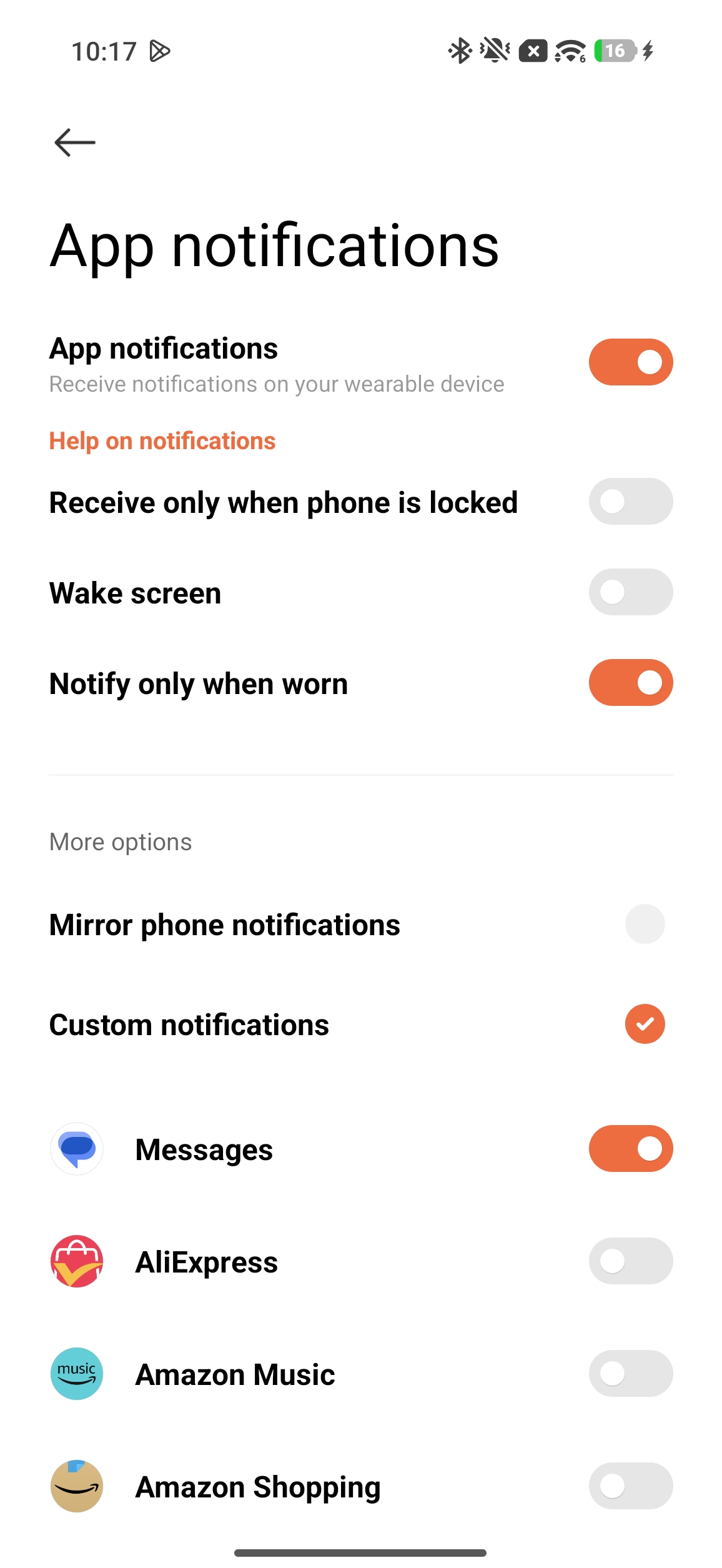
Q4: Why doesn’t the Xiaomi Watch 5 receive notifications from the phone?
A: When the Mi Fitness App maintains a Bluetooth connection with your Xiaomi Watch 5, it pushes notifications from the phone’s notification shade to the watch, notifying you of new notifications on the phone.
However, if there are no notifications displayed in the phone's notification shade, the watch will not receive any notifications, even if the phone's Apps have new notifications.
If you find that the Xiaomi Watch 5 doesn’t receive notifications from the phone, please follow these steps to troubleshoot:
1. Ensure that the phone has a stable network connection, Bluetooth is enabled, and the phone is properly connected to the watch.
2. Make sure that notifications are set to display in the phone's notification shade.
3. Check if the App notifications option is enabled in the Mi Fitness App.
4. Verify whether the watch is in Do Not Disturb or Sleep mode. During these periods, the watch will not vibrate to alert you of new notifications.
5. Check if [Notify only when worn] is enabled on the Mi Fitness App. With this switch turned on, the watch will only receive notifications while being worn.
6. If your phone is running on the Android system, it is recommended to enable background running permissions to ensure that the App operates properly in the background.
Q5: How many characters and message notifications does the Xiaomi Watch 5 support for message reminders?
A: The message display on the Xiaomi Watch 5 supports approximately 16 lines. Any text beyond that will not be displayed.
Messages received on the watch that exceed 160 characters will be truncated with an ellipsis, and you’ll need to view the full notification content on the phone.
The watch can receive up to 50 notifications. If more than 50 notifications are received, the new messages will overwrite the earliest ones.
Q6: When will the severe weather alert reminder on the Xiaomi Watch 5 be triggered?
A: The Xiaomi Watch 5 will provide warnings in extreme weather conditions and low-oxygen environments at high altitudes, helping to prevent exposure to dangerous areas.
Storm warning is based on air pressure changes over the past three hours to predict the risk of sudden weather changes in the next hour.
High-altitude blood oxygen monitoring automatically starts when outdoor activity reaches elevations above 2,500 meters, and the watch issues a timely alert if blood oxygen falls below the warning threshold to help prevent physical harm.
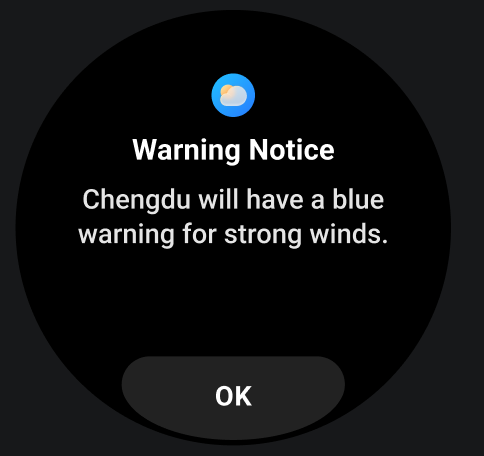
Q7: Why does the Xiaomi Watch 5 automatically delete notifications?
A: When notifications are deleted on your phone, the Xiaomi Watch 5 will also delete the corresponding notifications.
Q8: Why do some notifications on the Xiaomi Watch 5 have an ignore option while others do not?
A: Some mobile phone applications send messages with a built-in ignore option, which is unrelated to the Xiaomi Watch 5.
Q9: What to do if tapping “Open on phone” in the Xiaomi Watch 5 notification details doesn’t work?
A: Please check whether the Xiaomi Watch 5 is connected to the phone. If it isn’t connected, there will be no response.
Q10: Why can the Xiaomi Watch 5 still receive notifications after turning off the Mi Fitness App notification switch?
A: The Xiaomi Watch 5 can generate local notifications, such as abnormal heart rate alerts.
Q11: How to turn off Xiaomi Interconnectivity notifications on the Xiaomi Watch 5?
A: The Xiaomi Smart Hub of the Xiaomi Watch 5 will not send you the Xiaomi Interconnectivity notifications.
Q12: Does the Xiaomi Watch 5 support displaying real-time notifications from third-party Apps?
A: The Xiaomi Watch 5 supports real-time notifications from third-party Apps. When a message arrives from a third-party App on your phone, a full-screen instant notification will be displayed on the watch.
Q13: Does the Xiaomi Watch 5 support replying to notifications from third-party Apps?
A: The Xiaomi Watch 5 supports replying to notifications from third-party Apps. When you receive a message notification from a third-party App on your phone, you can quickly reply on your watch, just like with quick replies for text messages.
Q14: Does the Xiaomi Watch 5 support incoming call notifications?
A: The Xiaomi Watch 5 supports incoming call notifications. When connected to the phone, the watch will vibrate and ring when there is an incoming call, displaying the caller's number or name (if contacts permission is granted). You can reject the call by tapping the red phone icon or answer it by tapping the green phone icon on the watch screen. You can also tap the message reply button on the far right for a quick reply.
In Power saver mode, the incoming call interface on the watch is as follows:
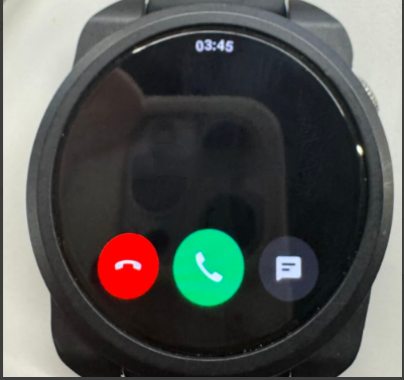
In Smart mode, the incoming call interface on the watch is as follows:
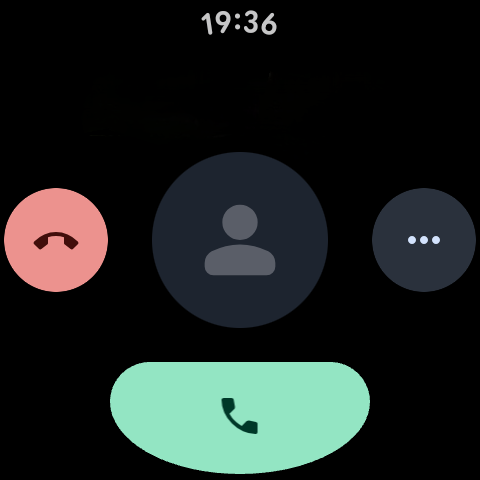
The [Reply with message] function on the watch's incoming call notification interface is enabled by default.
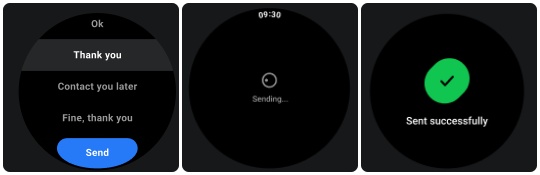
Note:
1. The name displayed for incoming calls will match what is saved in the phone's contacts, while unknown numbers will display the phone number.
2. If Do Not Disturb mode is activated, and you are within the Do Not Disturb time period, you will not receive incoming call notifications.
Q15: What to do if the Xiaomi Watch 5 does not receive incoming call notifications?
A: If the Xiaomi Watch 5 does not receive incoming call notifications, please follow these steps to troubleshoot:
1. The Xiaomi Watch 5 supports incoming call notifications and is enabled by default. Ensure the Mi Fitness App is running in the background (check permissions such as background process lock, background auto-start, and background high battery consumption).
2. In your phone's Bluetooth settings, confirm that call audio is enabled for the connected watch (this feature is enabled by default, and turning it off will prevent call notifications).
3. Check if the device is being worn. When worn, incoming calls will trigger a notification by default. If the device is not being worn, and [Notify only when worn] is enabled in the Mi Fitness App >> go to [Device] >> enter [Notifications and calls] >> enter [App notifications], then no notification will be received.
4. If Do Not Disturb mode is activated, and you are within the Do Not Disturb time period, you will not receive incoming call notifications.
Q16: Does the Xiaomi Watch 5 support Bluetooth disconnection reminders?
A: The Xiaomi Watch 5 does not support Bluetooth disconnection reminders. However, you can check the Bluetooth connection status in the status bar of the watch's Control center.
The icon for Bluetooth disconnection is shown below: Bluetooth icon with a diagonal slash, indicating Bluetooth is not connected.
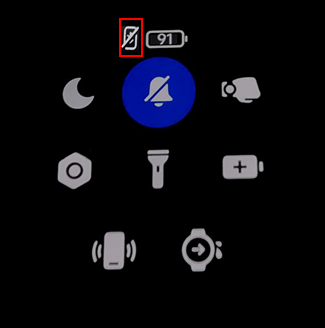
The icon for Bluetooth connection is shown below: Bluetooth icon without a diagonal slash, indicating Bluetooth is connected.
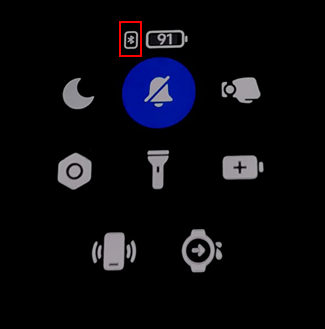
Q17: How to use emergency contacts on the Xiaomi Watch 5?
A: The Xiaomi Watch 5 supports setting up emergency contacts. To enable and call emergency contacts, the watch must be connected to the Mi Fitness App.
To enable emergency contacts, please open the Mi Fitness App on your phone, go to [Device] >> [Security] >> enter [Emergency SOS] and enable it >> tap [Emergency contacts] to manually set the phone number and names, or add emergency contacts directly from your contacts list. The settings will automatically sync to the watch.
To call an emergency contact, you can press the power button five times in quick succession to call your emergency contact (this syncs with the phone's dialing system).
The watch's interface for calling SOS emergency contacts is shown below:
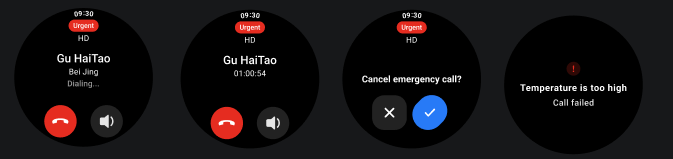
Note:
If you haven't set the emergency contacts in the Mi Fitness App, then press the power button five times in quick succession will not call your emergency contact.
Q18: How to use the fall detection function of the Xiaomi Watch 5?
A: Fall detection needs to be enabled and set up in the Mi Fitness App. After binding and connecting the Xiaomi Watch 5, go to the Mi Fitness App >> [Device] >> [Security] >> tap [Emergency SOS] >> enable [Emergency SOS] and [Fall detection].
Note:
1. To enable Emergency SOS, emergency contacts need to be added the first time it’s used.
2. After the fall detection switch is turned on, the call switch can be turned on according to need.
3. The device can not detect all falls and can mistakenly identify activities with high impact as falls, triggering alerts and emergency help. If there is no fall at this time, you can tap "I'm fine" on the reminder interface to close it.
4. When the watch detects a fall while worn, it waits for approximately 20 seconds to determine whether you are active. If no activity is detected, it will send the alert. If no action is taken within 60 seconds after the reminder, the watch will automatically call for help.
5. The watch must be connected to the Mi Fitness App for it to make emergency calls and send notifications. If you connect to other brands of mobile phones, sending help messages can be restricted due to system limitations.
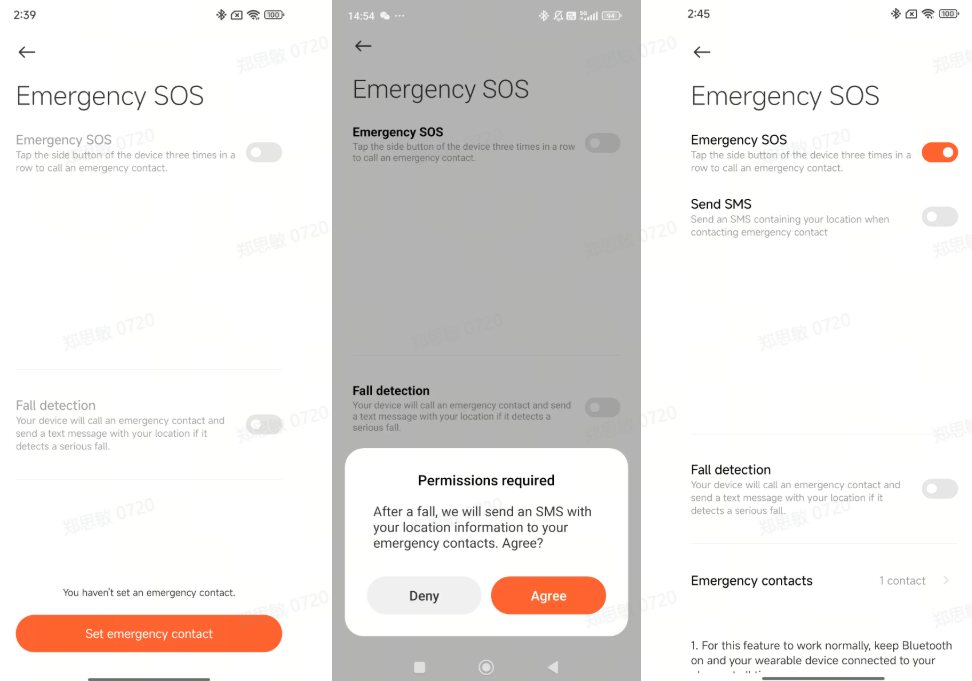
Q19: How to use the favorite contacts of the Xiaomi Watch 5?
A: The Xiaomi Watch 5 supports setting Google phone's favorite contacts. You can set your favorite contact by going to the phone's [Contacts], selecting the contact you want to set, tapping the star icon in the upper right corner, and then syncing your watch to complete the setup.
Q20: How to check the call history of the Xiaomi Watch 5?
A: You can go to the App list on your Xiaomi Watch 5 and enter the Phone App to check the call history in [Recents].
The call history includes 4 types of records:
Missed calls, calls ended on the watch, calls answered on the watch, and calls dialed from the watch. You can also tap a record to initiate a call (this is synced with the phone).
Note:
The watch only stores the most recent 100 call records. Once 100 records are reached, new calls will overwrite the oldest ones.
Q23: How to answer and make calls for the Xiaomi Watch 5?
A: To answer and make calls for the Xiaomi Watch 5, you can refer to the following aspects:
1. Answering calls on the watch: When the phone and the Xiaomi Watch 5 are connected, incoming call notifications from the phone are synchronized to the watch. You can accept or reject the call by pressing the respective icons on the watch (this syncs with the phone's actions).
2. Making calls from the watch: When the phone and watch are connected, you can dial a number using favorite contacts, emergency contacts, call history, or missed calls (this initiates the call on the phone).
3. Switching phone calls to the watch: While the phone and watch are connected, you can switch an ongoing phone call to the watch by changing the call device to the watch and continuing the conversation on the watch.
Note:
Some phone models can experience a delay when hanging up a call on the watch, due to compatibility issues between the phone and the watch. This is a normal occurrence.
Q24: What to do if incoming calls on the Xiaomi Watch 5 cannot be answered?
A: If incoming calls on the Xiaomi Watch 5 cannot be answered, please follow these steps to troubleshoot:
1. Ensure that the phone has a stable network connection, Bluetooth is enabled, and the phone is properly connected to the watch, especially that the connection does not drop during incoming calls.
2. Restart the devices by rebooting both the watch and the phone to rule out temporary link issues.
3. Re-pair the devices by unpairing and reconnecting to ensure the connection is complete.
Q25: How to set quick SMS replies for incoming call notifications on the Xiaomi Watch 5?
A: The Xiaomi Watch 5 currently uses the native Google Phone app on Wear OS, where quick replies are typically system-preset and cannot be edited or customized directly on the watch.
Q26: How to set up delayed call notifications on the Xiaomi Watch 5?
A: The Xiaomi Watch 5 does not support setting delayed call notifications.
Q27: Does the Xiaomi Watch 5 support answering calls from third-party Apps?
A: Third-party Apps do not require special adaptation. If the Xiaomi Watch 5 can answer calls from third-party Apps, it means it is supported. Please refer to the actual situation for confirmation.
Q28: Why doesn't the Xiaomi Watch 5 display contacts for incoming calls from third-party Apps?
A: The Xiaomi Watch 5 only displays notifications. If a third-party App doesn't show contact information in incoming call notifications, then the watch simply cannot display contacts, and the notification content is determined by the App itself.
Q29: What to do if calls on the Xiaomi Watch 5 are choppy when it is far from the phone?
A: In long-distance scenarios (such as sports fields or open areas), call interruptions may be caused by the following reasons:
1. If the Xiaomi Watch 5 and phone exceed the effective Bluetooth connection range, it can cause lag. Please keep the watch and phone within 10 meters of each other for a stable connection.
2. Electromagnetic devices and metal obstacles can interfere with signal transmission, causing lag. Please make calls in an area without walls or other obstructions.
Q30: What to do if calls on the Xiaomi Watch 5 are choppy when the watch and phone are in different rooms?
A: The Bluetooth signal between the Xiaomi Watch 5 and your phone can be interfered with by walls. Please try to make calls in the same room to improve your call quality.
Q31: Why does the Xiaomi Watch 5 vibrate but not light up when a notification is received?
A: By default, the Xiaomi Watch 5 vibrates for new notifications without lighting up the screen. To view the notification, you can raise your wrist to wake the screen or manually turn it on.
If you prefer the screen to light up with notifications, you can go to the Mi Fitness App, go to [Device] >> select [Notifications and calls] >> enter [App notifications] >> toggle on the [Wake screen] setting.
Data Synchronization
Q1: How long can the data on the Xiaomi Watch 5 be saved independently?
A: Exercise data on the Xiaomi Watch 5 will always be saved, and heart rate, pressure data, blood oxygen, and sleep data can be stored for 30 days.
Please connect to your mobile phone in time and synchronize it to the Mi Fitness App. If the watch is reset, the previous exercise data on the watch will be cleared, and the data synced to the Mi Fitness App will not be cleared.
Note:
All exercises need to meet the minimum exercise recording standard (calorie consumption is no less than 3 kilocalories) before they will be saved. Otherwise, they will not be saved.
Q2: How to delete all personal data on the Xiaomi Watch 5 (without performing a factory reset)?
A: The Xiaomi Watch 5 does not support any method other than a factory reset to delete all personal data.
Q3: Why do the health data measured by the Xiaomi Watch 5 differ from those measured by other brands’ devices or medical equipment?
A: The differences in health data between the Xiaomi Watch 5 and other brands/medical devices mainly stem from variations in sensor technology, algorithmic models, and usage scenarios.
Note:
Watch data is for daily reference only and should not replace professional medical diagnoses from medical devices.
Q4: Will the Xiaomi Watch 5 still function properly after uninstalling the Mi Fitness App, and will the data be retained?
A: After connecting the Xiaomi Watch 5 to the Mi Fitness App on your phone, the data will not be cleared unless you actively remove the device from the Mi Fitness App. Uninstalling the Mi Fitness App will not affect the continued use of the Xiaomi Watch 5, and the data will be retained.
Q5: How to view and manage the data synced from the Xiaomi Watch 5 in the Mi Fitness App?
A: You can view and manage the data by going to the Mi Fitness App >> select [Health]/[Workout] to see the corresponding synchronized data.
Q6: Does the Xiaomi Watch 5 support independently disabling data synchronization for specific sections?
A: The Xiaomi Watch 5 does not support disabling the synchronization of specific data sections (such as sleep data or heart rate information) individually.
Q7: Why can't the Xiaomi Watch 5 sync with Apple Health data after being paired with an iOS device?
A: The Xiaomi Watch 5 only supports pairing and binding with Android systems, and does not support binding with iOS systems. Therefore, it cannot synchronize with Apple Health data.
Q8: What to do if the Xiaomi Watch 5 frequently disconnects from the Mi Fitness App and data cannot be synchronized?
A: If the Xiaomi Watch 5 frequently disconnects from the Mi Fitness App and data cannot be synchronized, please refer to the following aspects:
1. Please make sure your phone's Bluetooth is turned on, and the Xiaomi Watch 5 and your phone are properly connected.
2. Please keep the Mi Fitness App running in the background.
3. Manually tap the sync button in the Mi Fitness App to initiate synchronization.
4. If the above steps do not resolve the issue, please contact the after-sales service center for further inspection.
Q9: What to do if data synced from the Xiaomi Watch 5 to the Mi Fitness App is lost?
A: If data synced from the Xiaomi Watch 5 to the Mi Fitness App is lost, please try reconnecting the watch and phone and synchronizing data until synchronization is successful.
Q10: What to do if the Xiaomi Watch 5 can not sync data with the Mi Fitness App?
A: If the Xiaomi Watch 5 can not sync data with the Mi Fitness App, please refer to the following aspects:
1. Please make sure your phone's Bluetooth is turned on, and the Xiaomi Watch 5 and your phone are properly connected.
2. Please keep the Mi Fitness App running in the background.
3. Manually tap the sync button in the Mi Fitness App to initiate synchronization.
4. If the above steps do not resolve the issue, please contact the after-sales service center for further inspection.
Q11: Does the Xiaomi Watch 5 automatically back up health and fitness data, and where is it backed up to?
A: When the Xiaomi Watch 5 is connected to the Mi Fitness App and [Sync with the cloud] is enabled in the App settings, health and fitness data will be synchronized and recorded in the cloud.
Q12: How to manually back up data on the Xiaomi Watch 5, and can the backup files be exported to a computer?
A: The Xiaomi Watch 5 does not support manual data backup, and the backup files cannot be exported to a computer.
Q13: Will changing the paired phone for the Xiaomi Watch 5 affect the data?
A: After changing the bound phone, the Xiaomi Watch 5 will be restored to factory settings, and all data on the Xiaomi Watch 5 will be erased.
Q14: How to transfer data from the old watch to the new Xiaomi Watch 5?
A: The Xiaomi Watch 5 does not support transferring data from an old watch to a new one.
Q15: How to sync workout data from the Xiaomi Watch 5 to other third-party fitness Apps?
A: The Xiaomi Watch 5 supports syncing workout data to other third-party fitness Apps. You can go to the Mi Fitness App >> [Profile] >> [Third-party data] to select other third-party fitness Apps to sync workout data.
Q16: Does the Xiaomi Watch 5 support syncing workout/health data from other brands of smartwatches?
A: The Xiaomi Watch 5 does not support syncing workout/health data from other brands of smartwatches.
Q17: Does the Xiaomi Watch 5 support syncing data from other health tracking devices?
A: The Xiaomi Watch 5 does not support syncing data from other health monitoring devices (such as electronic blood pressure monitors).
Q18: Why can’t the Xiaomi Watch 5 be recognized when connected to a computer?
A: The Xiaomi Watch 5 has two contact points on the back, which only support charging and not data transfer. Therefore, USB recognition is not involved.
Audio
Q1: Can the Xiaomi Watch 5 control the phone to play music?
A: The Xiaomi Watch 5 can control the phone to play music. To use this function, the phone and the watch need to be connected. Ensure [App notifications] are turned on in the Mi Fitness App, and the permission to use message notifications is turned on.
Open the music player on the mobile phone and start playing music. Enter the function list on the watch. Select the music application to enter the music control interface. You can play/pause music, switch to the previous/next track, and increase/reduce the volume.
Note:
It supports most music players on the market, but due to differences in the openness of music players and App versions, the experience of the watch’s music control function can be affected to a certain extent.
Q2: Does the Xiaomi Watch 5 support local music playback on the watch?
A: The Xiaomi Watch 5 supports local music playback on the watch. The watch can use YouTube Music to play local music. After signing in to a Google account, you can download music or stream it online directly on the watch. You can also install third-party music Apps to play local music.
Note:
The watch does not support pairing with iPhones.
Q3: What to do if the Xiaomi Watch 5 shows an “Insufficient music storage space” prompt when downloading or transferring songs?
A: The Xiaomi Watch 5 has a limited storage system. To ensure sufficient space for other modules, such as watch faces and third-party Apps, and to maintain system stability, storage limits are set for each module.
A pop-up prompt will appear when any of the following conditions are triggered:
1. More than 60 songs (up to 60 songs can be downloaded).
2. Audio file memory exceeds 2 GB (including recordings, music files, etc.).
Q4: What to do if the network speed is slow when downloading music on the Xiaomi Watch 5?
A: Please use Bluetooth to share your network connection. Please enable Bluetooth on your phone for network sharing or switch to a different Wi-Fi network and try again.
Q5: Why is there a delay when tapping the function icon on the Xiaomi Watch 5 when importing music?
A: When the Xiaomi Watch 5 is transferring or reading/writing large files, sending messages to the phone at the same time will result in a delay of several hundred milliseconds. Therefore, while transferring music from the phone to the watch, avoid controlling music on the watch to prevent stuttering or delays. Normal operation can resume once the music transfer is complete.
Q6: Does the Xiaomi Watch 5 watch face support automatically displaying the background music logo?
A: After the phone and the Xiaomi Watch 5 are successfully connected, when the phone plays music, the watch will automatically display a music logo on its watch face. If the source of the music is from the watch, the logo will also be automatically displayed.
Q7: What to do if the music icon on the Xiaomi Watch 5 watch face cannot be turned off?
A: After the phone and the Xiaomi Watch 5 are successfully connected, when the phone plays music, the watch will automatically display a music icon on its watch face. To turn it off, please pause the music on your phone or on your watch.
Note:
To exit the watch's built-in music application, you need to swipe right to go back. Pressing the top button directly to return to the watch face will cause the application to continue running in the background.
Q8: How to enable the recording function on the Xiaomi Watch 5?
A: Press down the rotating crown of the Xiaomi Watch 5 to access the App list, then open the Recorder App and tap the red button in the center to start recording.
Note:
The maximum recording duration is 2 hours.
Q9: How to export audio recordings from the Xiaomi Watch 5?
A: If you are using a non-Xiaomi phone or Xiaomi phones with versions before Xiaomi Hyper OS 2.0, please refer to the following steps:
1. Open the Mi Fitness App >> go to [Device] >> enter [Recorder].
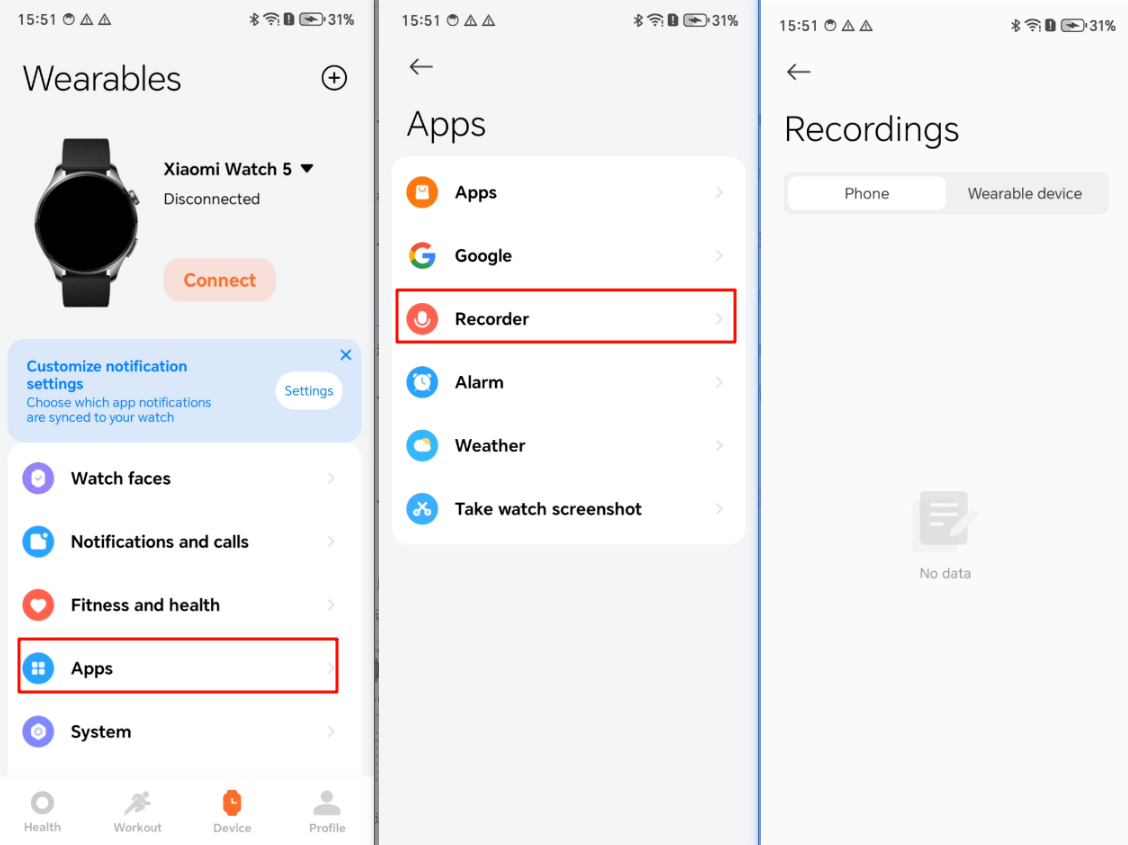
2. Select the files you want to synchronize and tap [Save to phone].
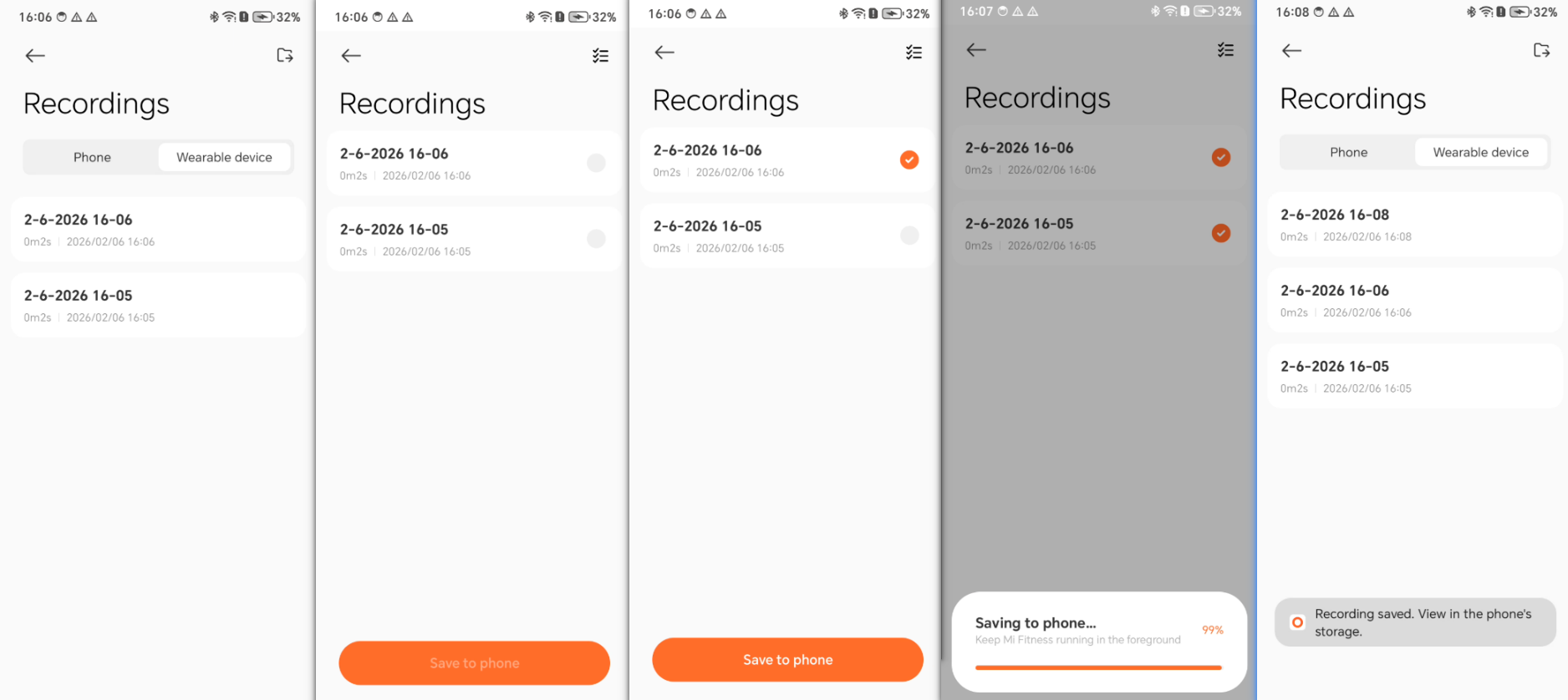
If you are using a Xiaomi Hyper OS 2.0 or later phone:
Tapping the [Sync] button on the watch's Recorder App will directly sync the recording to the phone's built-in Recorder App.
Q10: Why does the Xiaomi Watch 5 produce noise from the speaker when swimming, diving, showering, or washing hands while wearing it?
A: This problem is caused by water not being completely drained, resulting in static noise from the speaker. Please swipe up to access the Control center on the watch, tap the water drain icon, and shake the watch according to the arrow directions on the screen to accelerate water drainage. This issue is caused by residual water and is not a device malfunction. Please use the device with confidence.
Watch Face
Q1: How to change and delete the watch face of the Xiaomi Watch 5?
A: To change the watch face of the Xiaomi Watch 5, please refer to the following methods:
1. On the watch, you can swipe up to access the Control center >> tap the Settings App >> [Display] >> [Change watch face]. Alternatively, press and hold the main interface of the watch for 2 seconds to enter the watch face selection interface. Swipe left or right to switch between available watch faces. Both the system’s pre-installed watch faces and any previously downloaded or changed watch faces will be displayed on the watch face selection interface.
2. In the Mi Fitness App, you can go to [Device] >> enter [Watch faces] >> select the watch face you want to set and tap [Apply]. You can also tap [More], and the interface will redirect to Google Play. On this interface, you can choose your preferred watch face to set.
Note:
Due to the large memory usage of watch faces, to ensure the smooth operation of the watch's system, if too many watch faces are added, you will not be able to add new ones. A memory shortage warning will appear during the download process.
Due to the large memory usage of watch faces, to ensure the smooth operation of the watch's system, if too many watch faces are added, you will not be able to add new ones. A memory shortage warning will appear during the download process.
To delete the watch face, please refer to the following methods:
1. On the watch, you can press and hold the main interface of the watch for 2 seconds or go to the watch face selection in the settings. Swipe up on the watch face to display the [Remove] icon, and tap it to remove the watch face.
2. Open the Mi Fitness App >> go to [Device] >> enter [Watch faces] >> go to the downloaded watch face. Choose [Delete] to remove it.
Q2: Can the watch face background be customized on the Xiaomi Watch 5?
A: The Xiaomi Watch 5 supports custom watch face backgrounds (requires updating to the latest system). This feature can be achieved through the Mi Fitness App.
For your reference, please refer to the following steps:
1. Open the Mi Fitness App and ensure the device is correctly connected and synced.
2. Go to [Device] and enter [Watch faces].
3. Select custom watch faces according to your preference, including Custom analog, Custom colorful, Custom diamond, Custom digital, Custom elegance.
4. Tap [Apply], then you can see [+] option, tap it and add and custom watch face background photos.
Note:
Different styles allow you to display different data items on the watch face, such as steps, heart rate, battery level, and weather.
Q3: Why does the Xiaomi Watch 5 not automatically turn on the Always-on display watch face?
A: After enabling the smart Always-on display function on the Xiaomi Watch 5 ([Settings] >> [Display] >> [Always-on screen]), the screen will automatically turn off during sleep or when the watch is removed.
1. Once you wake up, the Always-on display will function normally after the first screen activation (via raise to wake or button press) and the subsequent screen-off.
2. If you enable [Scheduled], the Always-on display will turn off automatically when time exceeds or when the watch is not worn.
Q4: Does the Xiaomi Watch 5 support customizable watch faces?
A: The Xiaomi Watch 5 supports customizable watch faces. When switching watch faces, a customizable watch face will display [Edit] below, allowing you to personalize the watch face.
Q5: What is the meaning of the power consumption icon on the Xiaomi Watch 5 watch face?
A: The Xiaomi Watch 5 watch face doesn't support showing power consumption icon.
Q6: Why are the Xiaomi Watch 5 watch face thumbnail and preview different?
A: To make the watch face thumbnails look better, the content displayed when you press and hold the watch face is predetermined, while another part is a real-time screenshot, which can result in different appearances depending on the watch face.
Q7: Why are the watch face thumbnails on the Xiaomi Watch 5 so blurry?
A: Some watch faces on the Xiaomi Watch 5 have rich and detailed designs, so the thumbnails appear relatively small and slightly blurry. However, when you tap to enlarge them, every detail becomes clear.
Q8: What is the Pet Park watch face on the Xiaomi Watch 5?
A: The Pet Park watch face aims to encourage you to exercise more. You can earn food by increasing calories or earn interaction opportunities by increasing steps, allowing you to experience the growth and evolution of your pets.
You will earn points to feed and raise your virtual pets. Pets have three stages, each with specific evolution goals and values (Juvenile stage: 0-500 points, Adolescent stage: 501-1500 points, Mature stage: 1501 and above). Reaching the evolution requirements allows advancement to the next stage.
Every 25% of step completion allows for one interaction, with a daily limit of 4 interactions. Tapping the interaction icon consumes points and increases growth value. The same applies to calories, also with a daily limit of 4 interactions.
To cultivate and maintain your exercise habits, the Pet Park watch face will regress to a lower stage after a period of inactivity in feeding or interaction at a higher stage.
Q9: Why does downloading or deleting the Pet Park watch face show fail in the App, but succeed on the Xiaomi Watch 5?
A: The Pet Park watch face file is very large, which can cause download or deletion failures in the Mi Fitness App. However, if the download or deletion is successful on the Xiaomi Watch 5, it should function normally.
Q10: Why can’t the watch face on the Xiaomi Watch 5 be changed?
A: Please check if the Xiaomi Watch 5 is in Power saver mode; you cannot download watch faces in this mode.
Q11: Why does the content shown on the Xiaomi Watch 5 watch face differ from what is displayed in the Mi Fitness App?
A: You need to keep the Xiaomi Watch 5 connected to your phone and tap the sync button in the Mi Fitness App. The data on the watch face will then be synchronized with the data in the App on your watch.
Q12: Why does the Xiaomi Watch 5 show a different display from the selected Always-On Screen watch face?
A: Watch faces that have their own built-in Always-On Screen will not use the default Always-On Screen settings. Only watch faces without a built-in Always-On Screen will use the default Always-On Screen settings.
Q13: Why is the time display format on the watch face of the Xiaomi Watch 5 incorrect?
A: The Xiaomi Watch 5's watch face time format follows your phone's settings. So the time format on the watch face can't be edited.
Q14: Why is the watch face data on the Xiaomi Watch 5 not syncing?
A: You need to keep the Xiaomi Watch 5 connected to your phone and tap the sync button in the Mi Fitness App. The data on the watch face will then be synchronized with the data in the App on your watch.
Q15: How to get more watch faces on the Xiaomi Watch 5?
A: 1. The Xiaomi Watch 5 has pre-installed 46 watch faces. To access the watch face selection interface, simply press and hold the current watch face screen for one second; you can then swipe left or right to browse through additional options.
2. Alternatively, you can change the watch face via the Mi Fitness App: go to [Device] >> [Watch faces] and then select your desired watch face from the management menu.
3. You can also visit the Google Play Store to search for and select watch faces you like; simply tap [Download] and wait for the installation to complete.
Q16: Are third-party watch faces supported in the Power saver mode on the Xiaomi Watch 5?
A: Third-party watch faces are supported only in Smart mode. They are not supported in Power saver mode. If you have set a third-party watch face as the default in Smart mode, the device will automatically switch to the system's default watch face upon switching to the Power saver mode.
NFC
Q1: How to enable NFC on the Xiaomi Watch 5?
A: The NFC switch on the Xiaomi Watch 5 is enabled by default. You can choose to turn the switch on or off in the watch's [Settings] >> [Connectivity] >> [NFC].
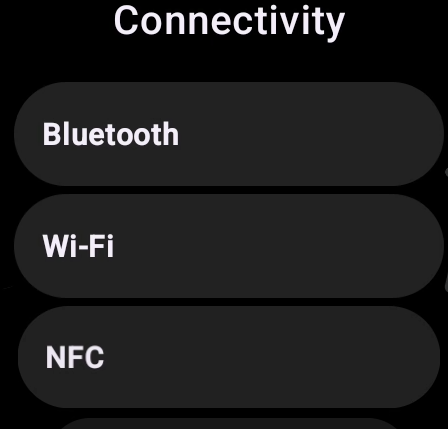
Q2: What types of NFC does the Xiaomi Watch 5 support?
A: The Xiaomi Watch 5 supports NFC types A, B, and F.
Q3: How to add an NFC bank card to the Xiaomi Watch 5?
A: You can go to the Xiaomi Watch 5 App list, enter Google Pay, tap [Add], and follow the prompts to add your NFC bank card.

Q4: What platform is used to add NFC bank cards to the Xiaomi Watch 5?
A: You can add NFC bank cards via Google Pay to the Xiaomi Watch 5.
Q5: What permissions does the Xiaomi Watch 5 require to enable NFC?
A: To enable NFC functionality on the Xiaomi Watch 5, simply grant NFC permissions.
Q6: What is the optimal distance and angle for using NFC with the Xiaomi Watch 5?
A: When using NFC payments on the Xiaomi Watch 5, keep the distance within 0–2 cm. Try to align the back of the watch (the NFC antenna area) directly with the card reader and avoid excessive tilting.
Q7: How to set the default NFC payment card on the Xiaomi Watch 5?
A: The NFC payment feature of the Xiaomi Watch 5 relies on the Google Wallet App.
Q8: How to manage multiple NFC cards on the Xiaomi Watch 5?
A: The NFC payment feature of the Xiaomi Watch 5 relies on the Google Wallet App.
Q9: How to set frequently used NFC cards as a priority on the Xiaomi Watch 5?
A: The NFC payment feature of the Xiaomi Watch 5 relies on the Google Wallet App.
Q10: Why can’t NFC be used on the Xiaomi Watch 5 even after it’s turned on?
A: Before making an NFC payment on the Xiaomi Watch 5, the screen should be activated, and the Google Wallet App should be opened, then NFC tap-to-pay can be used.
Q11: Will disconnecting the Xiaomi Watch 5 from the phone via Bluetooth affect its NFC functionality?
A: The Xiaomi Watch 5 will be affected when using the NFC bank card for payments.
Q12: Can the Xiaomi Watch 5 use NFC payment when the screen is off?
A: The Xiaomi Watch 5 does not support NFC payments when the screen is off.
Q13: What is the required time interval between two NFC payments on the Xiaomi Watch 5?
A: The Xiaomi Watch 5 does not require a mandatory time interval between two NFC payments, so it can theoretically tap consecutively. However, in practice, there will be a 1–2 second “cooldown” or processing time, depending on the device and the payment terminal.
Q14: Why can the Xiaomi Watch 5 add a bank card but not make payments?
A: If the Xiaomi Watch 5 can add a bank card but not make payments, please refer to the following aspects:
1. Due to regional restrictions, this payment service can not be available in your country or region.
2. The added bank card type does not support payment functions, or the payment function has not been enabled, resulting in payment failure.
3. Failure to complete account or bank card security verification will result in payment failure.
4. For security reasons, the payment function requires you to set a screen lock password on your watch first.
5. Some POS terminals, turnstiles, or other NFC readers do not support the payment method used by this watch.
6. The watch is not connected to the phone, which will prevent payments from being processed. Please ensure your watch and phone maintain a stable connection.
Q15: What to do if the POS terminal does not respond when making a payment with the Xiaomi Watch 5?
A: If the POS terminal does not respond when making a payment with the Xiaomi Watch 5, please refer to the following aspects:
1. Due to regional restrictions, this payment service can not be available in your country or region.
2. The added bank card type does not support payment functions, or the payment function has not been enabled, resulting in payment failure.
3. Failure to complete account or bank card security verification will result in payment failure.
4. Some older POS machines can have difficulty recognizing the NFC signal from the watch. Try different angles or switch to a different terminal.
Q16: Can the Xiaomi Watch 5 still make NFC payments after the battery runs out?
A: The Xiaomi Watch 5 does not support NFC payments after its battery is depleted.
Q17: Why does the Xiaomi Watch 5 show a failure prompt when activating, recharging, or checking NFC cards?
A: If the Xiaomi Watch 5 shows a failure prompt when activating, recharging, or checking NFC cards, please refer to the following aspects:
1. The operation failed due to network issues. Please switch to a different network and then tap Retry under the “Card activation failed” prompt.
2. Some smartphones have a built-in NFC module. If the watch is too close to the phone, the phone’s NFC may occupy the NFC writing channel, causing the operation to fail. It is recommended to turn off the phone’s NFC function or keep the watch at least 10 cm away from the phone.
3. Turn off Bluetooth and then turn it back on again on the phone. After switching to a different network, try again.
4. Close all background applications on your phone, ensure the watch and phone are properly connected, and then try recharging your Google Wallet.
5. Make sure the watch’s system firmware and the Mi Fitness App on the paired phone are updated to the latest versions.
Q18: What to do if the NFC function on the Xiaomi Watch 5 is completely unresponsive?
A: If the NFC function on the Xiaomi Watch 5 is completely unresponsive, please refer to the following steps for troubleshooting:
1. Ensure that all NFC-related settings are correctly configured on the watch. Clear any cached data that might affect system performance.
2. Make sure the watch’s system firmware and the Mi Fitness App on the paired phone are updated to the latest versions.
3. Restart the watch to refresh the system.
4. Try using NFC on different payment terminals, gates, or card readers to rule out issues caused by a single terminal.
5. If, after performing the above steps, the watch still does not respond on any terminal, it can be concluded that it is a hardware problem. Please contact the after-sales service center for further inspection.
Note:
In some countries/regions, Google Wallet or other NFC services may not be fully supported, and the watch will show “software unavailable.” Confirm that the service is officially supported in your area.
Q19: What to do if the NFC function on the Xiaomi Watch 5 is intermittently malfunctioning?
A: If the NFC function on the Xiaomi Watch 5 is intermittently malfunctioning, please refer to the following aspects:
1. Some older POS machines can have difficulty recognizing the NFC signal from the watch. Try different angles or switch to a different terminal.
2. Payment failed due to cache or data corruption. Restart your watch and phone, and refresh the NFC service. Clear the Google Wallet App cache and data, then log in to your account again and re-bind your NFC card.
Q20: Will a low battery level on the Xiaomi Watch 5 affect NFC functionality?
A: Low battery on the Xiaomi Watch 5 will not affect NFC usage, but you won't be able to switch or activate new cards when in Power saver mode.
Q21: Can a metallic environment or strong magnetic fields interfere with the NFC function of the Xiaomi Watch 5?
A: Metal environments or strong magnetic fields can interfere with the Xiaomi Watch 5's NFC function.
Q22: Can NFC malfunction on the Xiaomi Watch 5 if the system firmware is not updated?
A: Outdated system firmware can cause NFC malfunctions; please update to the latest version promptly.
Q23: Does the NFC function on the Xiaomi Watch 5 need to be set up again after restoring to factory settings?
A: Performing a factory reset on the Xiaomi Watch 5 will erase all payment and access control data. Applications and data will need to be reconfigured, but the NFC function itself does not require any further setup.
Q24: How to determine if the NFC malfunction on the Xiaomi Watch 5 is a software or hardware issue?
A: To determine if the NFC malfunction on the Xiaomi Watch 5 is a software or hardware issue, please refer to the following aspects:
1. Ensure that all NFC-related settings are correctly configured on the watch. Clear any cached data that might affect system performance.
2. Make sure the watch’s system firmware and the Mi Fitness App on the paired phone are updated to the latest versions.
3. Restart the watch to refresh the system.
4. Try using NFC on different payment terminals, gates, or card readers to rule out issues caused by a single terminal.
5. If, after performing the above steps, the watch still does not respond on any terminal, it can be concluded that it is a hardware problem. Please contact the after-sales service center for further inspection.
Note:
1. In some countries/regions, Google Wallet or other NFC services may not be fully supported, and the watch will show “software unavailable.” Confirm that the service is officially supported in your area.
2. If the problem is related to a bank card, verify that the card type is supported and the relevant payment service is activated.
Q25: How to protect the security of NFC-linked payment cards if the Xiaomi Watch 5 is lost?
A: If your Xiaomi Watch 5 is lost, immediately unbind or freeze your payment cards and disable related functions through the payment platform or bank. Also, you can enable the device lock screen and account security verification to prevent unauthorized use.
Third-party App
Q1: Does the Xiaomi Watch 5 support installing third-party Apps?
A: The Xiaomi Watch 5 supports downloading Apps through the Google Play Store. Any App available on the Google Play Store can be downloaded. Once downloaded, the App will appear in the App list. Press and hold the App, and an uninstall icon will appear in the top-right corner. Tap this icon to delete the App.
Security
Q1: Does the Xiaomi Watch 5 support device password when it is removed from the wrist?
A: The Xiaomi Watch 5 supports the device password when it is removed from the wrist.
After enabling this function, when the watch detects that it is not being worn, it will activate the password lock screen to ensure information security. You can set a 4-digit password using a combination of numbers from 0 to 9, or a pattern password.
In [Smart mode], you can go to [Settings] >> [Security] >> [Screen lock] to set the password.
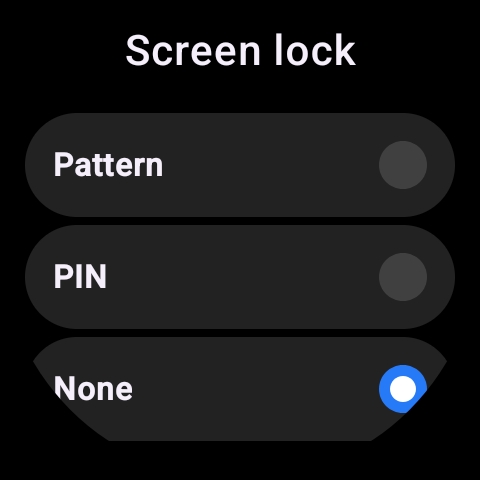
Q2: What to do if the password of the Xiaomi Watch 5 is forgotten?
A: If the password of the Xiaomi Watch 5 is forgotten, please refer to the following aspects:
In Smart mode:
After entering the wrong password five times in a row on the watch, a prompt will appear asking you to try again in 60 seconds. You can also tap [Help] at the bottom of the watch’s incorrect password interface. A pop-up will inform you that proceeding will restore the watch to factory settings and erase all data. Tap [√] to start the factory reset process, then follow the instructions to clear the password and set up the watch again.
In Power saver:
The password cannot be unlocked in this mode; you need to switch to Smart mode to unlock the password.
Note:
When performing a factory reset on your watch, you will need to verify your Google account or your old password. If you have forgotten both, you will need to contact the after-sales service for a forced firmware update.
Q3: Does the Xiaomi Watch 5 support unlocking the phone with Bluetooth?
A: The Xiaomi Watch 5 supports unlocking the phone. This function currently supports Xiaomi phones with system versions of MIUI 12 and above.
When the phone and watch are connected via Bluetooth, the watch unlocking is a one-to-one binding between the watch and the phone. Within a safe distance, the watch can be used as an identity ID to replace the input of the unlock password or pattern, which greatly improves the convenience of operation while ensuring security.
To unlock the phone with the watch, please refer to the following details:
1. Go to the Mi Fitness App >> [Device] >> [Security] >> [Unlock phone] >> set the password and confirm on the watch.
2. After the lock screen password is set, confirm the unlock on the watch to bind successfully. You can choose the unlock distance (Close, Very close, Less close).
If you want to unbind the watch, you need to disable the Bluetooth device unlocking function in the phone. Take the Xiaomi phone as an example: [Settings] >> [Fingerprints, face data, and screen lock] >> [Unlock with Bluetooth device] >> turn off [Unlock device].
Note:
The function of unlocking the phone needs to be used with Xiaomi phones running MIUI 12 or above, so if the model and system do not match, the Mi Fitness App will not display the [Unlock phone].
Q4: How to activate the SOS emergency assistance feature on the Xiaomi Watch 5?
A: To activate the SOS emergency assistance feature on the Xiaomi Watch 5, you can enable [Emergency SOS] in the Mi Fitness App on your phone, go to [Device] >> [Security] >> enter [Emergency SOS] and enable it >> tap [Emergency contacts] to manually set the phone number and names, or add emergency contacts directly from your contacts list. When a fall or emergency occurs, the watch will automatically dial the emergency contact number. You can also activate the Emergency SOS function directly by pressing the power button (side button) five times.
Q5: How to enable Fall detection on the Xiaomi Watch 5?
A: You can turn on or off [Fall detection] in the Mi Fitness App >> [Device] >> [Security] >> [Emergency SOS]. After a fall, if [Emergency SOS] and [Fall detection] are enabled in the Mi Fitness App and an emergency contact number has been set, the Xiaomi Watch 5 will automatically dial the emergency contact number and send a text message with your location if it detects a serious fall.
Q6: Does the Xiaomi Watch 5 support unlocking a laptop via Bluetooth?
A: The Xiaomi Watch 5 does not support unlocking laptops via Bluetooth.
Q7: Does the Xiaomi Watch 5 support privacy data security protection?
A: The Xiaomi Watch 5 only supports setting a lock screen password and does not provide dedicated protection for individual privacy data. For account-related information, if a Google account is used, it will be protected by the corresponding password and verification mechanisms.
Software Updates and Compatibility
Q1: How to update the system firmware of the Xiaomi Watch 5, and what precautions should be taken during the update?
A: You can upgrade the firmware in the Xiaomi Watch 5's [Settings] App >> [System] >> [System updates]. If a new version is available, the download will start automatically on this interface.
Please note the following points when updating the firmware:
1. Ensure the device has at least 30% battery during the OTA update and remains connected to the charger throughout. Do not remove the watch from the charging dock, as this can pause the update. Avoid frequently changing the charging state (repeatedly plugging/unplugging the charger or removing and replacing the watch), as this can cause the update to fail.
2. Ensure the device is connected to a stable Wi‑Fi network, and do not disconnect from the network during the download. A network interruption can cause the update to fail.
3. During the OTA update, avoid frequent operation of the watch, turning off the device, or interrupting the update process. The system downloads and installs new firmware during the update, and suddenly turning off the device can result in update failure or even render the device unable to power on.
Q2: What to do if a feature disappears or is removed after updating the Xiaomi Watch 5?
A: This issue only occurs if the updated version explicitly removes a certain feature. In most cases, it does not happen. If it does occur, restore the watch to factory settings, re-pair it, and check again.
Q3: Why does the Xiaomi Watch 5 remain black for several minutes after the update progress bar reaches 100% before powering on?
A: Since the Xiaomi Watch 5 contains built-in applications, after the update progress bar completes, the system still needs to load, decompress, and install App resources. Therefore, it is normal for the watch to remain black for about 1–3 minutes before powering on and displaying the startup screen.
Q4: What to do if the Xiaomi Watch 5 system update fails?
A: If the Xiaomi Watch 5 system update fails, please refer to the following steps for troubleshooting:
1. If the network connection is interrupted during the download of the update package, the download will be paused. Please ensure your device is connected to a stable Wi-Fi network; the download will resume once the network connection is restored.
2. Low battery power can cause the watch to shut down automatically during the update process. Ensure the device has at least 30% battery during the OTA update and remains connected to the charger throughout.
3. Frequent operation of the watch during the update process can lead to update failure.
When the system update fails, a corresponding error pop-up will appear to notify you. You can follow the instructions promptly to take action.
Update failures generally fall into the following scenarios. Please try the suggested solutions accordingly:
1. If the prompt “Update failed, rolled back to the previous version” appears, this indicates that the watch is still usable after booting up, but it's running the pre-updated version. Please try downloading the update package again and reinstalling it.
2. If the prompt “Update failed, some features will not be available” appears, this indicates that the watch can still be used. Please wait for a new version to be released, as updating to the new version will restore the unavailable features.
3. If the prompt “Update failed, verification failed, please re-download the full update package” or “Update failed, timestamp check failed, please re-download the full update package” appears, this indicates that it is necessary to download the full current update package or wait for a new update package to be released before updating again. The full update package will consume a large amount of data, so it is recommended to download over a WLAN connection.
4. If the prompt “Update failed, installation of the update package failed, please restart and try again” appears, you need to restart the watch as prompted, then go to [Settings] >> [System] >> [System updates] and download the update package again.
5. If the watch cannot power on after an update, and no prompt appears, please contact the after-sales service for assistance.
6. If the download fails at startup and the prompt "Unable to download the full package" appears, you need to restart the watch as prompted, then go to [Settings] >> [System] >> [System updates] and download the update package again.
7. If the restart fails and the device prompts that a restart is needed to update, but tapping the restart button shows insufficient battery, you need to place the watch on the charging dock, and when the battery exceeds 30%, restart the device to perform the update.
Q5: What to do if the system OTA update on the Xiaomi Watch 5 gets stuck at 100%?
A: If the Xiaomi Watch 5 system OTA update stalls at 99% or 100%, the watch is still downloading the update file and verifying it to ensure file integrity. The verification process usually takes no more than one to two minutes, depending on the network speed.
If the progress does not update for an extended time, check the device’s network connection. Try reconnecting to the network, or press and hold the power button (side button) for 12 seconds to force a restart, and then try updating again.
Q6: Can the Xiaomi Watch 5 downgrade its system, and will data be lost after downgrading?
A: The Xiaomi Watch 5 does not support system downgrading.
Q7: How to restore the Xiaomi Watch 5 to factory settings, and what data will be deleted?
A: To restore the Xiaomi Watch 5 to factory settings, you can access this setting on your watch by going to [Settings] App >> [System] >> [Disconnect & reset] >> [Factory reset].
After restoring to factory settings, all media, data, and settings will be deleted, including local music, installed watch faces, workout history, and added alarms.
Q8: How to recover previous pairing information and health data after restoring the Xiaomi Watch 5 to factory settings?
A: Restoring to factory settings means agreeing to delete certain information. Before performing a factory reset, a pop-up notification will inform you which data will be cleared and cannot be recovered. Therefore, please use the factory reset function with caution.
Q9: How to clear cache data and free up storage space on the Xiaomi Watch 5?
A: You can access this setting on the Xiaomi Watch 5 by going to [Settings] >> [Apps & notifications] >> [App storage] >> select the application whose cache you want to clear >> select [Clear data] or [Clear cache].
Q10: How to change the system language on the Xiaomi Watch 5?
A: After connecting the Xiaomi Watch 5 to your phone, the Xiaomi Watch 5 will synchronize its language with the phone when the phone’s language and region are changed, allowing the watch system language to be switched accordingly.
Q11: How to synchronize the system language of the Xiaomi Watch 5 if it doesn't match the language of the phone?
A: After connecting the Xiaomi Watch 5 to your phone, reset the language and region settings on the phone. The Xiaomi Watch 5 will synchronize with the phone’s language, allowing the watch system language to be switched.
Q12: Why does the system language of the Xiaomi Watch 5 change to a different language after a firmware update?
A: After pairing with a phone, the Xiaomi Watch 5 synchronizes with the phone’s language settings. After an update, it will retrieve the phone’s language again.
If the language is supported by the watch, the system language will change to match the phone. If the language is not supported, a pop-up will notify you that the language is not supported.
Satellite positioning systems
Q1: How to turn GPS positioning on or off on the Xiaomi Watch 5, and does GPS consume a lot of power?
A: After starting a workout or enabling GPS calibration for barometric altitude, GPS positioning will be turned on automatically. Once the workout ends, the GPS will be turned off automatically. Enabling GPS will increase power consumption to a certain extent.
Q2: Does the Xiaomi Watch 5's positioning function rely on the phone or its own GPS?
A: When the Xiaomi Watch 5 positioning feature is enabled during a workout, it acquires both the phone’s location information and its own GPS data, rather than relying solely on the phone or the watch’s GPS.
Q3: Why is the GPS positioning of the Xiaomi Watch 5 slow?
A: If the GPS positioning of the Xiaomi Watch 5 is slow, please refer to the following steps for troubleshooting:
1. Please make sure you are outdoors. Positioning can be slower in complex environments (e.g., surrounded by tall buildings or near large water bodies). It is recommended to move to an open area and restart the positioning process.
2. If it has been a long time since your last outdoor activity, the satellite ephemeris data on the watch can have expired. Open the Mi Fitness App, reconnect the watch, and refresh the synchronization to improve GPS positioning speed.
3. GPS positioning is not possible in locations such as indoors, basements, tunnels, indoor swimming pools, or sports arenas.
Q4: Why does it take longer than usual for the Xiaomi Watch 5 to acquire a GPS signal after a firmware update?
A: This is because after an OTA update, the device requires about 1 minute (37–47 seconds) to complete the initialization and reboot of the GNSS function. Starting an outdoor workout during this period will result in longer GPS acquisition times. It is recommended to wait 2 minutes after the OTA update before beginning your workout to ensure the positioning system is fully initialized for the best experience.
Maintenance
Q1: Why does the Xiaomi Watch 5 have a strange smell after being unboxed?
A: When you unpack the Xiaomi Watch 5, you will notice a slight odor. Plastic products and packaging materials often have a mild plastic smell due to the nature of their materials. Since the product is stored in a sealed package for a period of time, the odor will accumulate and seem more noticeable when first opened. This smell will usually dissipate naturally after the device is left out for a while and will not affect human health or the normal use of the product.
Q2: Can the Xiaomi Watch 5 be cleaned with alcohol or soapy water?
A: You can wipe the Xiaomi Watch 5 with a lint-free cloth or tissue lightly moistened with alcohol or clean water. Using soapy water for cleaning is not recommended.
Q3: How to clean and maintain the different types of watch straps for the Xiaomi Watch 5?
A: To clean and maintain the different types of watch straps for the Xiaomi Watch 5, please refer to the following aspects:
1. Fluororubber strap: You can clean it with clean water and a soft-bristle brush.
2. Leather strap: Do not use alcohol for cleaning. It is recommended to use professional leather care products for cleaning or maintenance.
3. Metal strap: For the titanium version, you can first soak it in warm water with dishwashing liquid for 5 minutes, then use a soft-bristle brush to clean the crevices, and finally rinse thoroughly and wipe dry. To maintain this type of strap, avoid contact with seawater or disinfectants. If there are sweat stains, wipe them dry promptly. Regularly polish the strap with a silver polishing cloth or metal polishing cloth, and apply a small amount of lubricating oil to the connecting parts to prevent rust and sticking.
Q4: Why do the Xiaomi Watch 5's charging dock and black strap easily attract dust?
A: The charging dock has protective stickers around the perimeter and on the top, which effectively help prevent dust accumulation. If you notice dust during use, it is recommended to clean it promptly.
The watch straps include fluororubber straps and leather straps. Both types have surface treatments that are hypoallergenic and skin-friendly for comfortable wear. However, during daily use, contact with dust is unavoidable, and dust will be more noticeable on black straps. It is recommended to clean the strap in a timely manner whenever dust is observed during wear.
Q5: Can the Xiaomi Watch 5 be worn while swimming or showering?
A: You can wear it while swimming, as the Xiaomi Watch 5 meets the 5 ATM water resistance rating, but it is not suitable for diving.
However, it should not be worn while taking a hot shower, as the steam can enter the device and cause corrosion and damage to the components.
Does it help?
Yes
No