

Xiaomi Smart Band 10 Glimmer Edition FAQ
Overview
1. Q: What are the key features of the Xiaomi Smart Band 10 Glimmer Edition?
A: The Xiaomi Smart Band 10 Glimmer Edition offers the following features:
- A 1.72'' AMOLED runway-style display with ultra-narrow 2.0 mm bezels on all sides, delivering a high screen-to-body ratio (73%), peak brightness of 1500nits, and a smooth 60Hz refresh rate. The display also features improved touch sensitivity when your hands are wet;
- Equipped with a high-performance PPG biosensor, it supports advanced health monitoring capabilities, including more accurate heart rate, blood oxygen, sleep, and activity tracking. The smart band can help you gain deeper insights into your body;
- Features an ambient light sensor that automatically adjusts screen brightness based on surrounding light conditions. The display supports a maximum brightness of 1500nits, a maximum refresh rate of 60Hz, and a minimum of 5Hz for Always-on display (AOD) mode;
- Comes with over 220 customizable band displays, many of which support AOD. Some built-in styles also allow you to choose specific elements for customization. It pairs with colorful and varied strap materials, allowing you to mix and match freely to express your personality;
- The band adopts a high-gloss aluminum alloy middle frame;
- Offers comprehensive health tracking: heart rate monitoring, sleep tracking, breathing rate during sleeping, all-day tracking in blood oxygen and stress monitoring, breathing, vitality score, cycles, and the newly added Bluetooth HR broadcast feature;
- Supports 159 workout modes with a professional sports algorithm. You can track key performance metrics such as VO₂ max, training load, recovery time, and aerobic/anaerobic training effects. It can help you evaluate your workout outcomes comprehensively;
- The smart band also displays vitality metrics including calories, steps, standing, and moving (choose any three to display). You can easily track daily goals and progress through Stats. You can also start one-week competition with friends via the Mi Fitness App. By starting a competition, invite your friends to join a 7-day challenge to compare health points and keep each other motivated. The one with the most scores at the end of the week will get an exclusive trophy;
- Packed with useful lifestyle features to enhance daily experiences: supports AOD, Focus, Compass, and the ability to enable various health monitoring features directly from the band (such as heart rate continuous monitoring, blood oxygen, stress monitoring, Bluetooth HR broadcast, etc.);
- The band offers up to 21 days of battery life under typical usage mode, 9 days with AOD enabled, and 8 days in heavy-load mode;
- It can be paired with pendant accessories;
- It is compatible with 7 different retail strap styles for personalized wear;
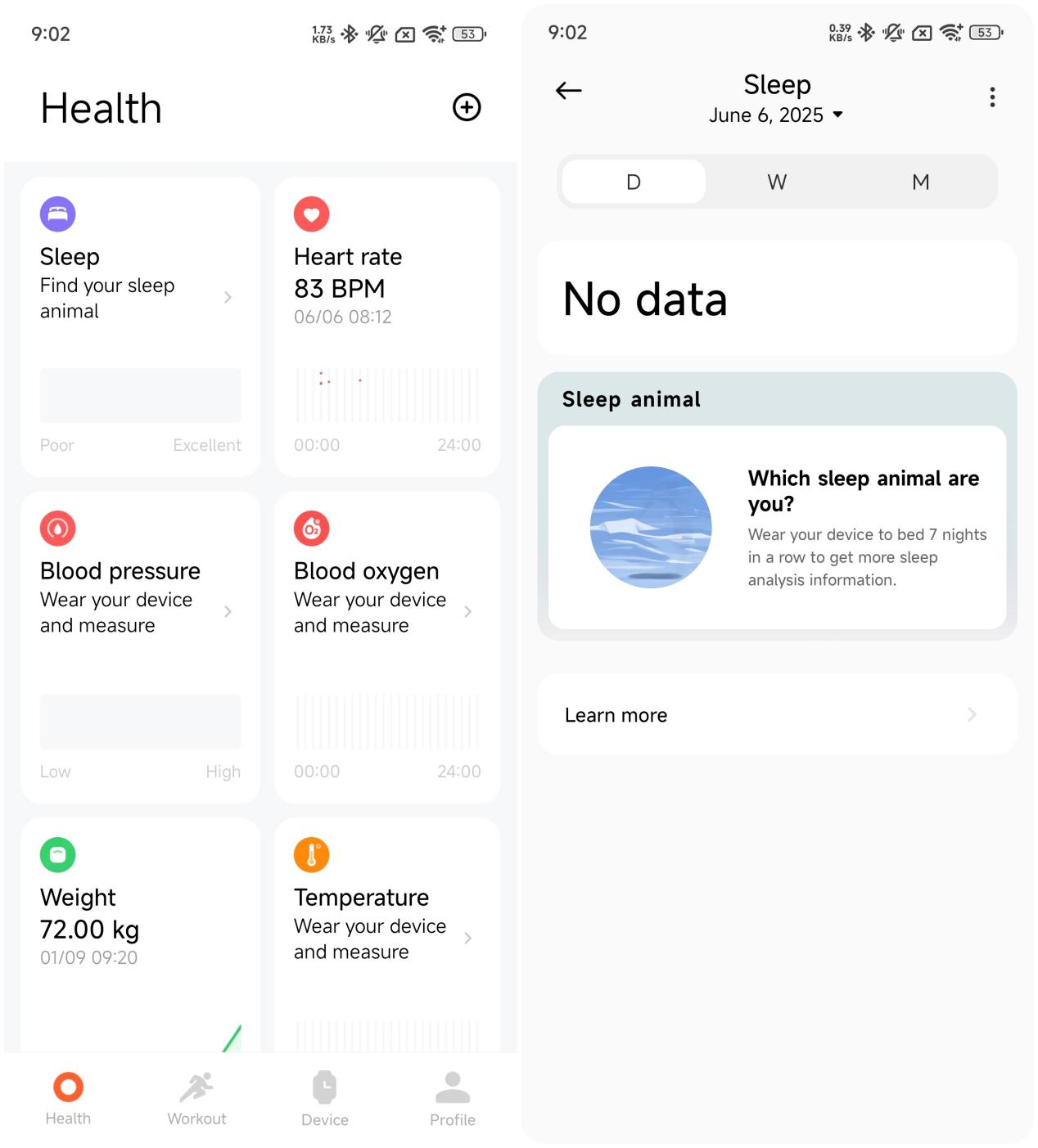
- Based on the past 7 days of sleep data, the App will generate a representative Sleep animal to help visualize sleep trends.
2. Q: What is the appearance of the Xiaomi Smart Band 10 Glimmer Edition?
A: The dimensions and weight of the Xiaomi Smart Band 10 Glimmer Edition are as follows:
- Product dimensions (H * W * T): 46.57 × 22.54 × 10.95 mm (without the heart rate sensor), 46.6 × 22.5 × 11.8 mm (with the heart rate sensor);
- Product weight: 16.25 g (without strap);
On the back of the band, you will find the quick release button, heart rate sensor, and charging port.
The appearance of the Xiaomi Smart Band 10 Glimmer Edition is as follows:
Middle Frame: Aluminum Alloy
Back Cover: Black
Inbox Strap: Stainless steel (SUS316L) + Glass crystal
Watch Face: PVD Exclusive Glimmer Watch Face
3. Q: What are the applications of the Xiaomi Smart Band 10 Glimmer Edition?
A: Xiaomi Smart Band 10 Glimmer Edition comes with a variety of built-in applications, including:
Stats, Workout, History, Running course, Training state, Heart rate, Vitality score, SpO₂, Sleep, Stress, Weather, Calendar, Alarm, Xiaomi Smart Hub, Settings, and More.
Within the More section, you’ll find additional features such as Events (only supported on Xiaomi phones and iOS devices), Tasks, Breathing, Cycles, Stopwatch, Music, Find phone, World clock, Silence phone, Remote control phone camera (only supported on select models), Timer, Flashlight, Focus, and Compass.
You can swipe up or down on the screen to browse through the App list and tap to enter any function.
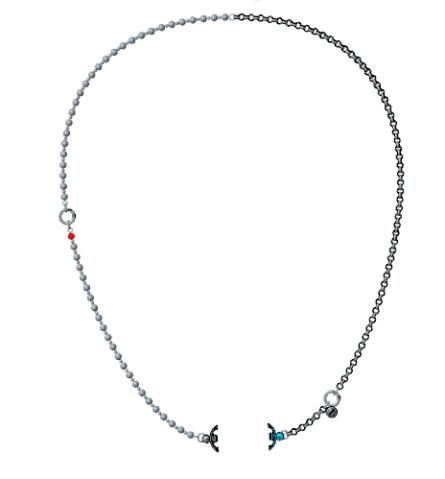
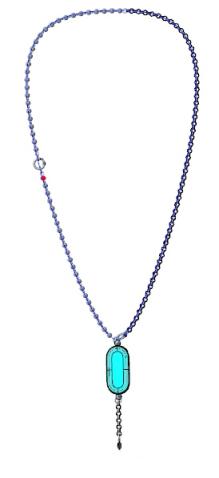
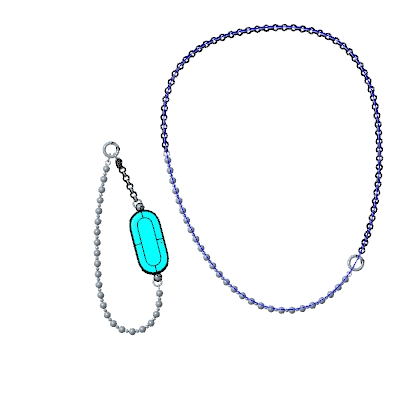
In addition to functional applications, the band also supports Pebble mode for recording professional fitness data and Necklace mode, allowing you to wear the band as a stylish accessory.
Here are some of the new features introduced with the Xiaomi Smart Band 10 Glimmer Edition:
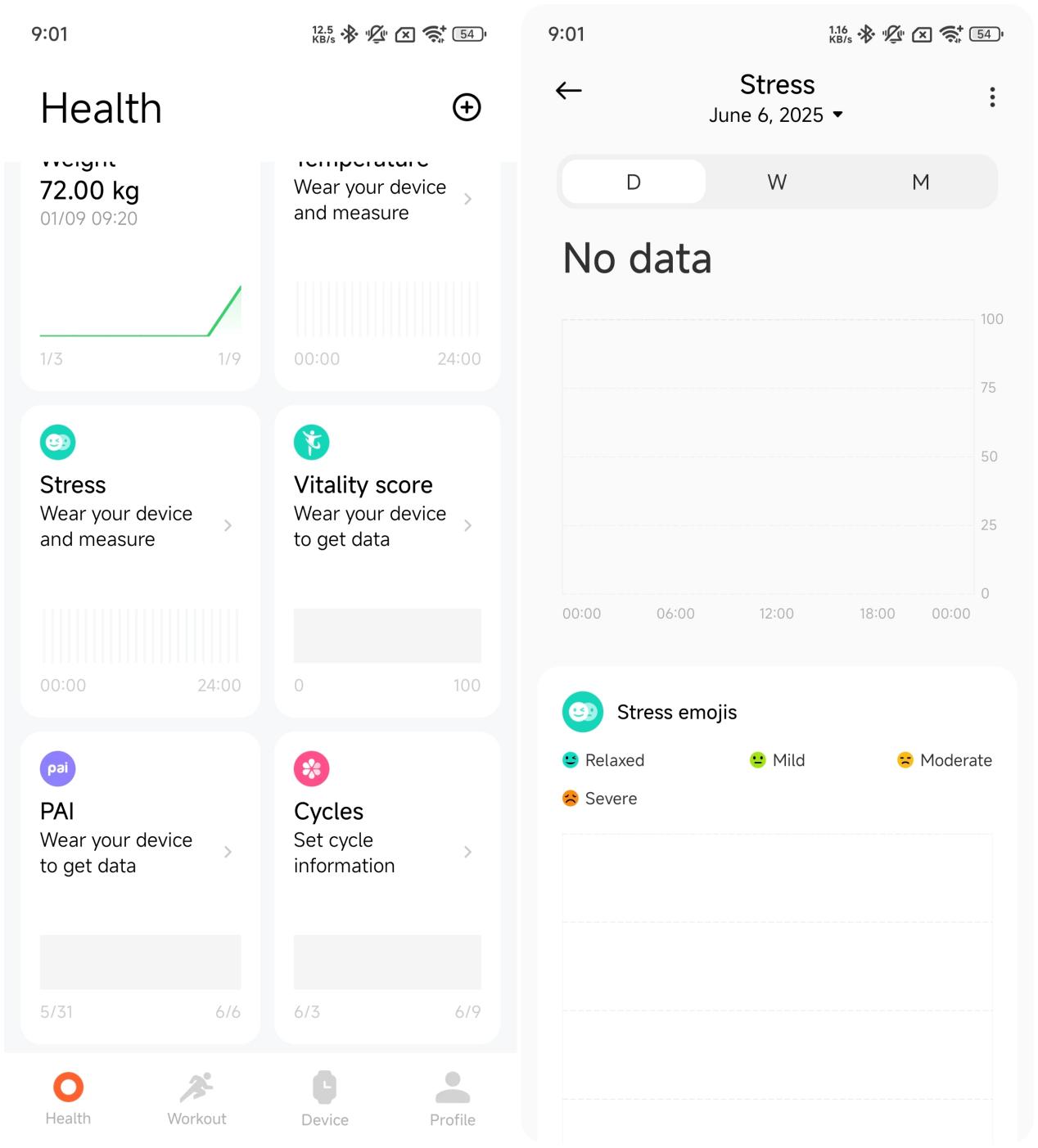
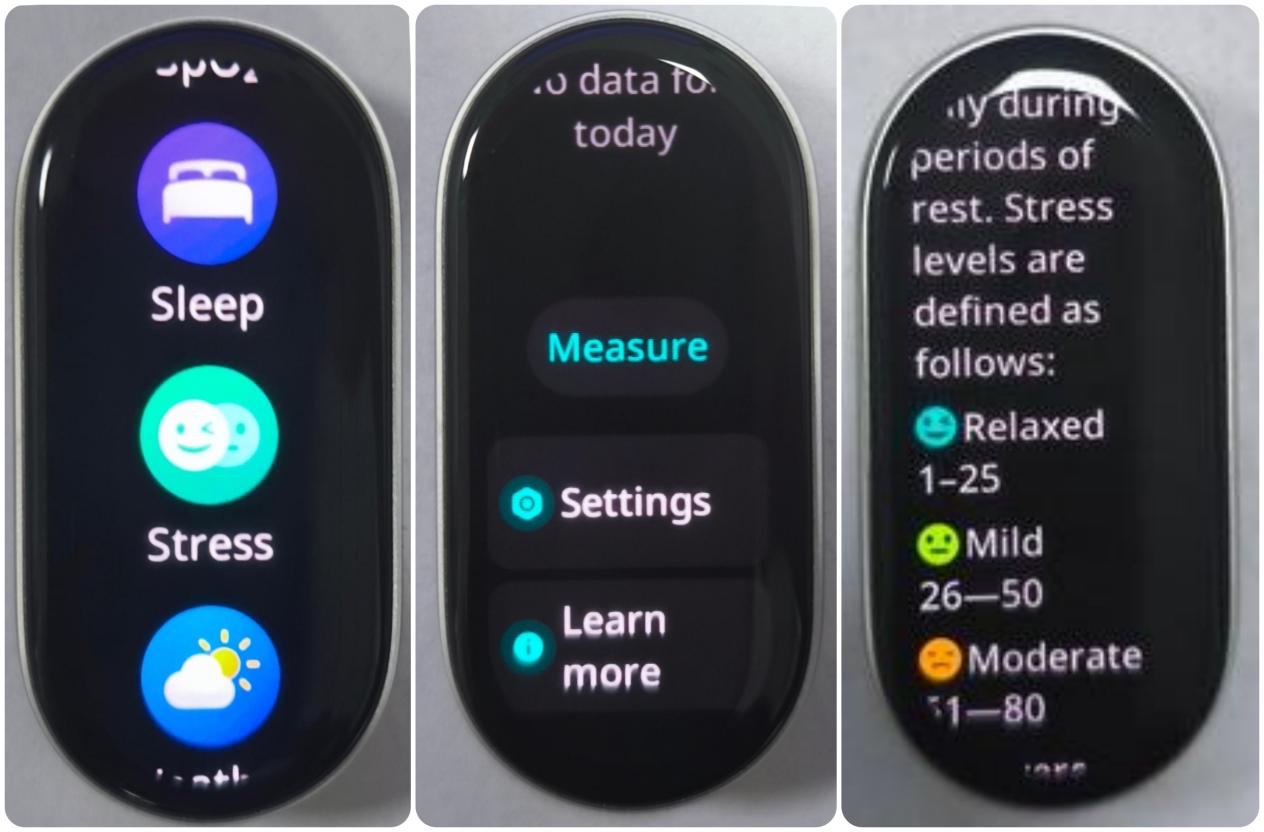
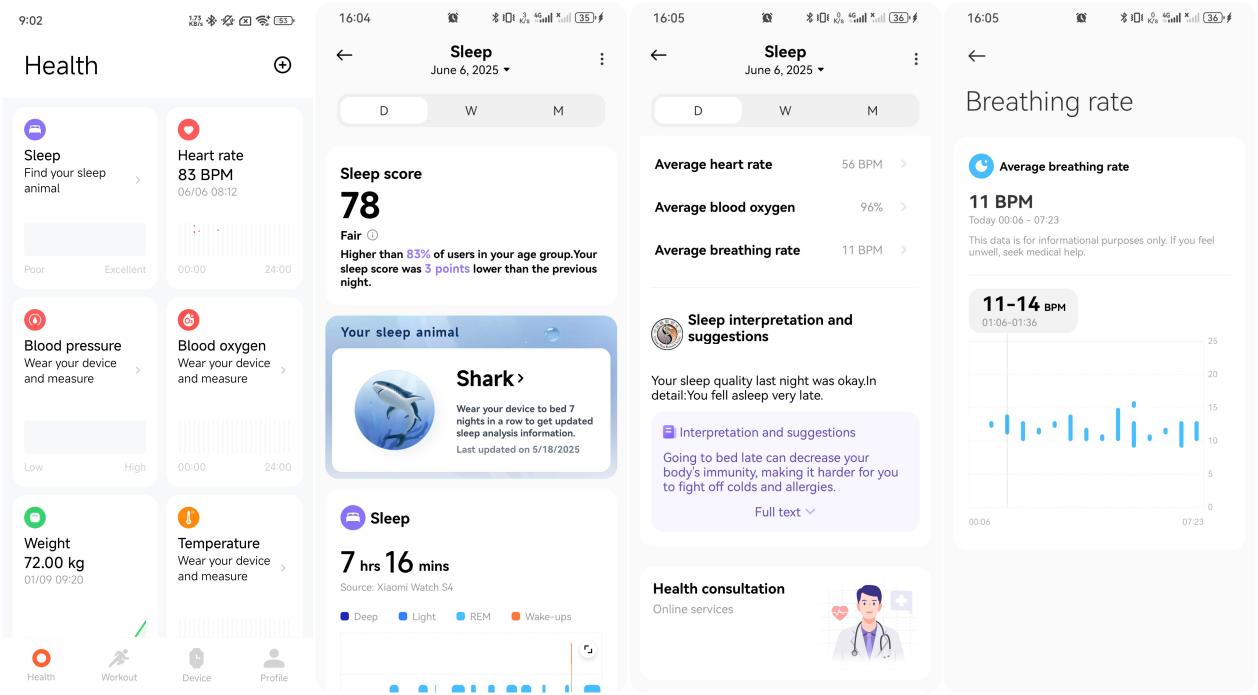
- Stress emojis: The band uses expressive emojis to help visualize your stress levels. You can view them in the Mi Fitness App >> [Health] >> [Stress] >> [Stress emojis], or view it by going to the band’s App list >> [Stress] >> [Learn more];
- Sleep animal: After you wear the band to sleep, it will analyze your most recent 7 days of long sleep data (within a 30-day window) to generate a Sleep animal that represents your sleep habits. The App then provides personalized daily routine suggestions based on the latest Sleep animal. You can check it in the Mi Fitness App >> [Health] >> [Sleep] >> [D] >> [Sleep animal];
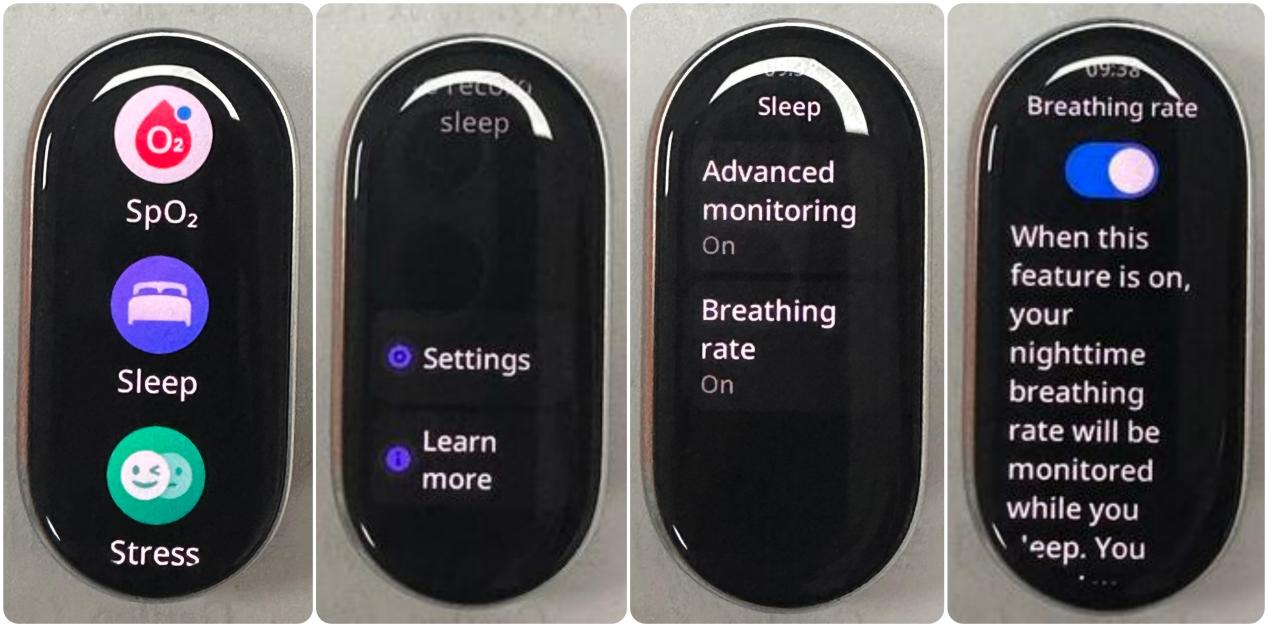
- Breathing rate during sleep: When the band detects that you're asleep, it will automatically monitor your average breathing rate. You can view the data in the Mi Fitness App >> [Health] >> [Sleep] >> [D] >> [Average breathing rate], or view it by going to the band’s App list >> [Sleep] >> [Settings] >> [Breathing Rate];
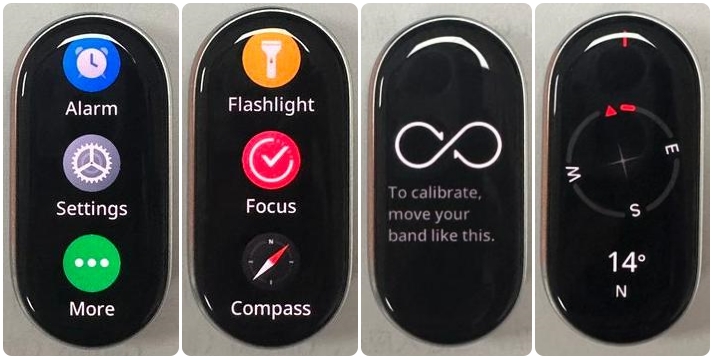
- Compass: The built-in magnetic sensor allows the band to function as a compass. To use it, go to the band’s App list >> [More] >> [Compass], then follow the on-screen instructions to rotate the band and complete calibration. Once calibrated, the compass interface will display;
Note:
When calibrating, move the band in a three-dimensional figure-eight motion.
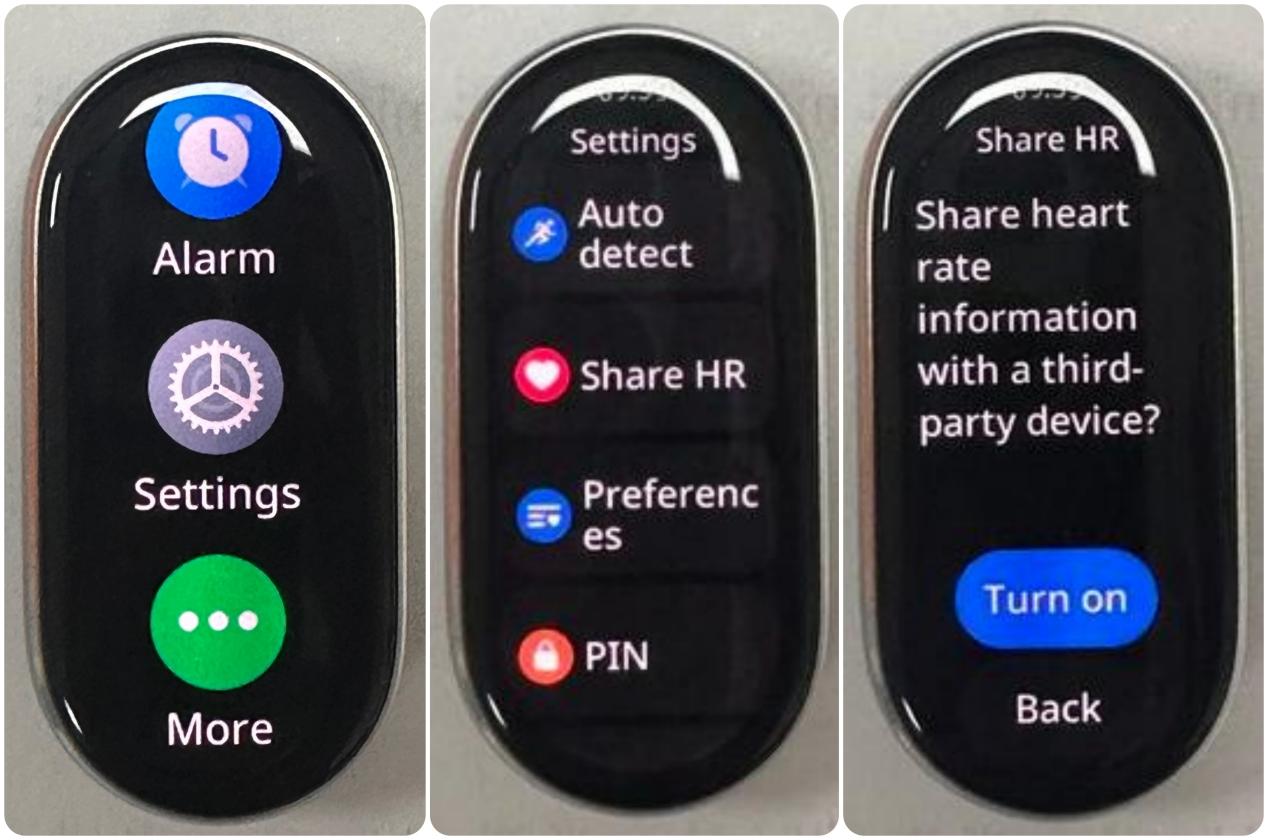
- Bluetooth HR broadcast: After enabling this feature, the band can transmit real-time heart rate data via Bluetooth to other devices that support heart rate broadcast reception. To activate it, go to the band’s App list >> [Settings] >> [Share HR] >> [Turn on];
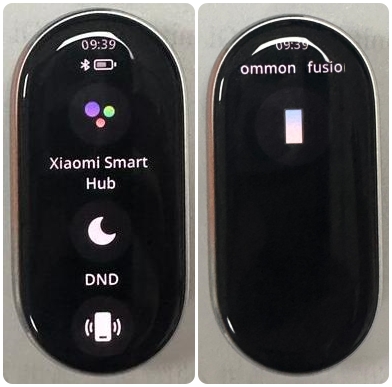
- Xiaomi Smart Hub: It now supports more device types. In addition to headphones, phones, TVs, and speakers, it also supports PCs and tablets. You can use the band to control PC and tablet features such as PPT slide flipping and ring to locate the tablet.
4. Q: What functions does the Xiaomi Smart Band 10 Glimmer Edition support?
A: The supported functions of the Xiaomi Smart Band 10 Glimmer Edition are as follows:
System requirements | Features | Compatible with iOS phones | Compatible with Android phones | Notes |
iOS 12.0 or later | Android 8.0 or later | |||
Mode switching | Pebble mode | Y | Y | |
Necklace mode | Y | Y | ||
Quick access | Widgets | Y | Y | |
Style band displays | Y | Y | ||
Component band displays | Y | Y | ||
Reminders | Incoming-call alert | Y | Y | |
Reject call | Y | Y | ||
App notifications | Y | Y | ||
Remind to stand up | Y | Y | ||
Quick reply to calls | N | Y | ||
Workout | 159 sports modes | Y | Y | |
Running courses | Y | Y | ||
Workout linking | Y | Y | ||
Professional sport algorithms | Y | Y | ||
History | Y | Y | ||
Training status | Y | Y | ||
Stats | Calories, Steps, Moving/Standing | Y | Y | |
Notifications | Emoji display | N | N | Ongoing updates: only some emojis show now. Unsupported ones appear as squares. |
Health | Heart rate | Y | Y | |
Sleep | Y | Y | ||
Blood oxygen | Y | Y | ||
Stress | Y | Y | ||
Breathing | Y | Y | ||
Cycles | Y | Y | ||
Vitality score | Y | Y | ||
Tools | Stopwatch | Y | Y | |
Control phone playback from device | Y | Y | ||
Remote control phone camera | Y | Y | Supported on select models (phones that allow volume button to be used as shutter control) | |
Alarm | Y | Y | ||
Weather | Y | Y | ||
Calendar | Y | Y | ||
Events | Y | Y | Only supported on MIUI and Xiaomi HyperOS devices | |
Sleep mode | Y | Y | ||
Timer | Y | Y | ||
Flashlight | Y | Y | ||
Find phone | Y | Y | ||
Focus | Y | Y | ||
Compass | Y | Y | ||
Unlock phone | N | Y | Only supported on MIUI and Xiaomi HyperOS devices | |
Xiaomi Smart Hub | N | Y | ||
Tasks | Y | Y | ||
World clock | Y | Y | ||
Silence phone | N | Y |
5. Q: What are the differences between the Xiaomi Smart Band 10 and the Xiaomi Smart Band 10 NFC?
A: The differences between the Xiaomi Smart Band 10 and the Xiaomi Smart Band 10 NFC are as follows:
- The Xiaomi Smart Band 10 NFC includes an NFC chip, which is not available on the Xiaomi Smart Band 10;
- The Xiaomi Smart Band 10 features a plastic buckle with a CD-pattern finish and the Xiaomi Smart Band 10 NFC comes with a metal buckle featuring a sandblasted finish.
6. Q: What are the differences between the Xiaomi Smart Band 10 and the Xiaomi Smart Band 9?
A: There are four versions of the Xiaomi Smart Band 10: Xiaomi Smart Band 10, Xiaomi Smart Band 10 NFC, Xiaomi Smart Band 10 Glimmer Edition, and Xiaomi Smart Band 10 Ceramic Edition.
The Xiaomi Smart Band 9 has two versions: Xiaomi Smart Band 9 and Xiaomi Smart Band 9 NFC.
Their main differences are as follows:
Category | Xiaomi Smart Band 10
Xiaomi Smart Band 10 Glimmer Edition
Xiaomi Smart Band 10 Ceramic Edition | Xiaomi Smart Band 10 NFC
| Xiaomi Smart Band 9 | Xiaomi Smart Band 9 NFC |
Bluetooth version | BT5.4 dual-mode Bluetooth | BT5.4 dual-mode Bluetooth | BT5.4 dual-mode Bluetooth | BT5.4 dual-mode Bluetooth |
Battery life | Typical usage mode: 21 days AOD mode: 9 days Heavy-load mode: 8 days | Typical usage mode: 18 days AOD mode: 8 days Heavy-load mode: 7 days | Typical usage mode: 21 days AOD mode: 9 days Heavy-load mode: 6.6 days | Typical usage mode: 18 days AOD mode: 8 days Heavy-load mode: 6 days |
NFC | Not support | Support | Not support | Support |
Compass | Support | Support | Not support | Not support |
7. Q: What is included in the Xiaomi Smart Band 10 Glimmer Edition package, and what color options are available?
A: The Xiaomi Smart Band 10 Glimmer Edition package includes the following items:
- Xiaomi Smart Band 10 Glimmer Edition × 1;
- Strap × 1;
- Charging cable × 1;
- User manual × 1
Available colors: Bright Gold
8. Q: What strap options are available for the Xiaomi Smart Band 10 Glimmer Edition?
A: There are currently 7 retail strap options available for the Xiaomi Smart Band 10 Glimmer Edition: Xiaomi Fluororubber Multicolor Strap (Cream Macaroon), Xiaomi Genuine Leather Strap (Elephant Gray), Xiaomi Silk Knit Strap (Ebony/Arrow Feather), Xiaomi Kona Leather Magnetic Strap (Glacier White), Xiaomi Asymmetrical Metal Strap (Original Color), and Xiaomi Pearl Half-Link Strap (True Linen), Glass crystal bracelet.
9. Q: How to install the pendant accessory on the Xiaomi Smart Band 10 Glimmer Edition?
A: To use the Xiaomi Smart Band 10 Glimmer Edition in Necklace mode with the pendant accessory, please follow these steps:
- Press the quick release button on the back of the band to detach the strap;
- Position the band so that it matches the pendant connector slot;
- Slide or snap the band into the pendant accessory until you hear a click or feel it lock into place.
Now you're ready to wear your band as a stylish and elegant pendant.
10. Q: How to install or uninstall the strap of the Xiaomi Smart Band 10 Glimmer Edition?
A: If you need to install or uninstall the strap of the Xiaomi Smart Band 10 Glimmer Edition, please refer to the following steps:
Install the strap of the Xiaomi Smart Band 10 Glimmer Edition:
Align the strap with the band and fasten it. Before wearing, please pull the strap to ensure a firm fit.
Uninstall the strap of the Xiaomi Smart Band 10 Glimmer Edition:
Press the quick release buttons on both sides of the band respectively to pull the strap out and separate it from the band.
Note:
- Please adjust the position of the strap buckle hole according to the circumference of your wrist;
- After installing the strap, please pull the strap to ensure that it is installed successfully.
11. Q: Are the straps of the Xiaomi Smart Band 9 compatible with the Xiaomi Smart Band 10 Glimmer Edition?
A: Yes, the straps of the Xiaomi Smart Band 8, the Xiaomi Smart Band 9 and the Xiaomi Smart Band 10 Glimmer Edition are compatible.
Note:
Sometimes, there is a gap between the strap and the band.
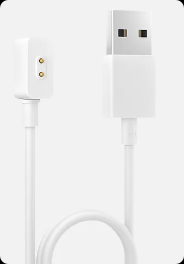
12. Q: What is the charging cable of the Xiaomi Smart Band 10 Glimmer Edition?
A: The charging cable of the Xiaomi Smart Band 10 Glimmer Edition is standard charging cable for wearable devices.
13. Q: Is the Xiaomi Smart Band 10 Glimmer Edition waterproof?
A: Xiaomi Smart Band 10 Glimmer Edition supports 5ATM waterproof, so you can enjoy the water without taking it off when swimming in the pool. However, it is not suitable for wearing in hot showers, hot springs, saunas, and high-speed water sports.
Note:
Leather straps, braided straps, silk straps and Corner leather straps are not suitable for use in water contact scenarios such as swimming and sports scenarios where sweating occurs. For meeting such requirements, it is recommended to replace them with TPU rubber or other types of straps.
Function and use
Device connection
1. Q: What devices and App does the Xiaomi Smart Band 10 Glimmer Edition support?
A: The Xiaomi Smart Band 10 Glimmer Edition supports running Android 8.0 or iOS 12.0 and above and it is equipped with Bluetooth 5.4. Moreover, it only supports pairing with the Mi Fitness App, not the Zepp Life App.
2. Q: How to pair or unpair the Xiaomi Smart Band 10 Glimmer Edition on the Mi Fitness App?
A: Download and open the Mi Fitness App, log in Xiaomi account, and turn on related App permissions according to the prompts.
To pair or unpair the Xiaomi Smart Band 10 Glimmer Edition, please refer to the following methods:
Android pairing methods:
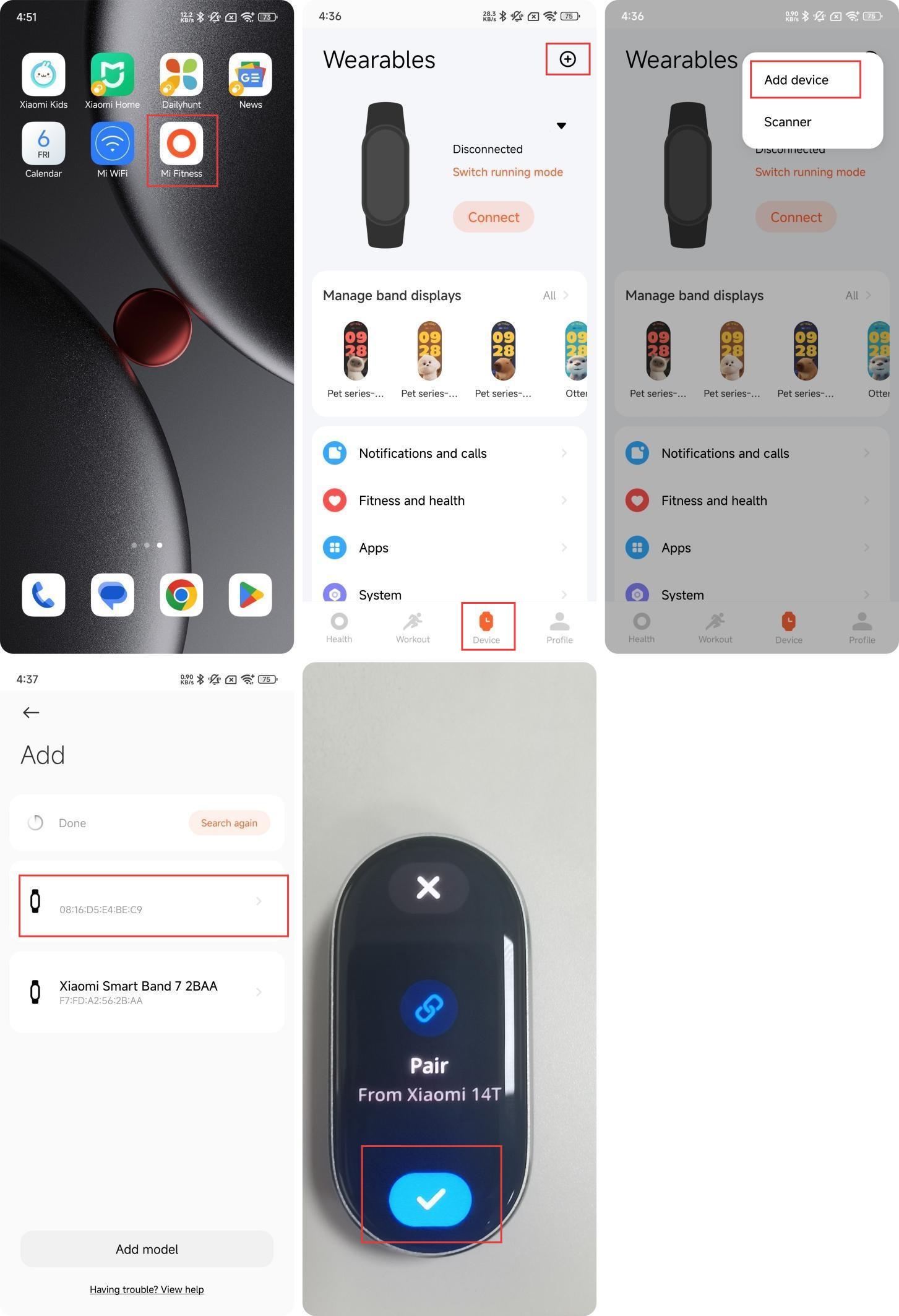
Method 1:
- Open the Mi Fitness App and go to [Device];
- Tap the [+] icon at the upper right corner;
- Tap [Add device];
- Place the band next to the phone and wait for the search;
- Select the device that matches the last four digits of the Bluetooth address of your band;
- After connecting your band to the smartphone, there will be a check on the band;
- Tap the [√] icon on the band.
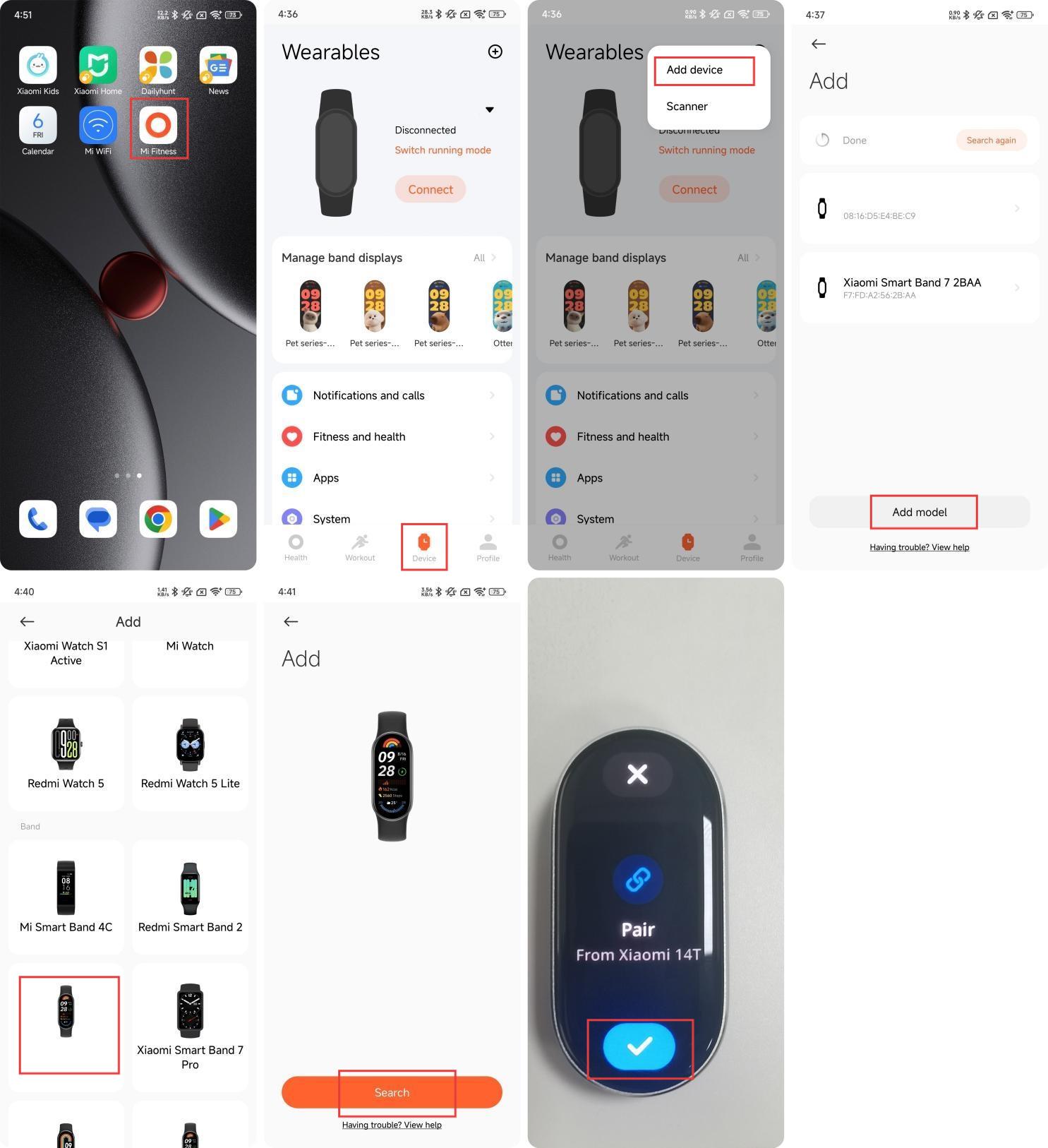
Method 2:
- Open the Mi Fitness App and go to [Device];
- Tap the [+] icon at the upper right corner;
- Tap [Add device];
- Tap [Add model];
- Select the device and tap [Search], the phone will search for the device nearby and connect to the band;
- After connecting your band to the smartphone, there will be a check on the band;
- Tap the [√] icon on the band.
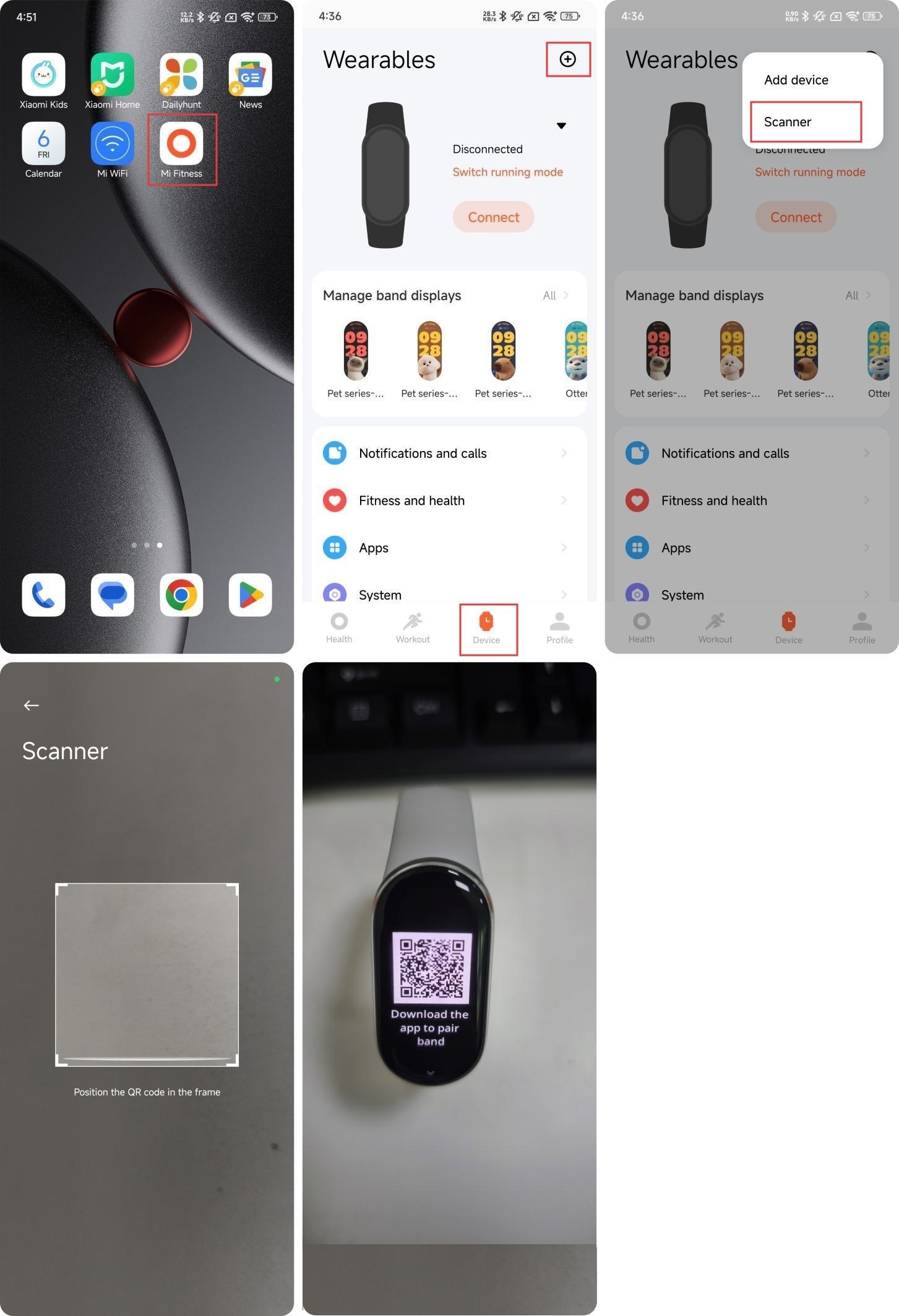
Method 3:
- Open the Mi Fitness App and go to [Device];
- Tap the [+] icon at the upper right corner;
- Select [Scanner] and scan the QR code on the band to connect.
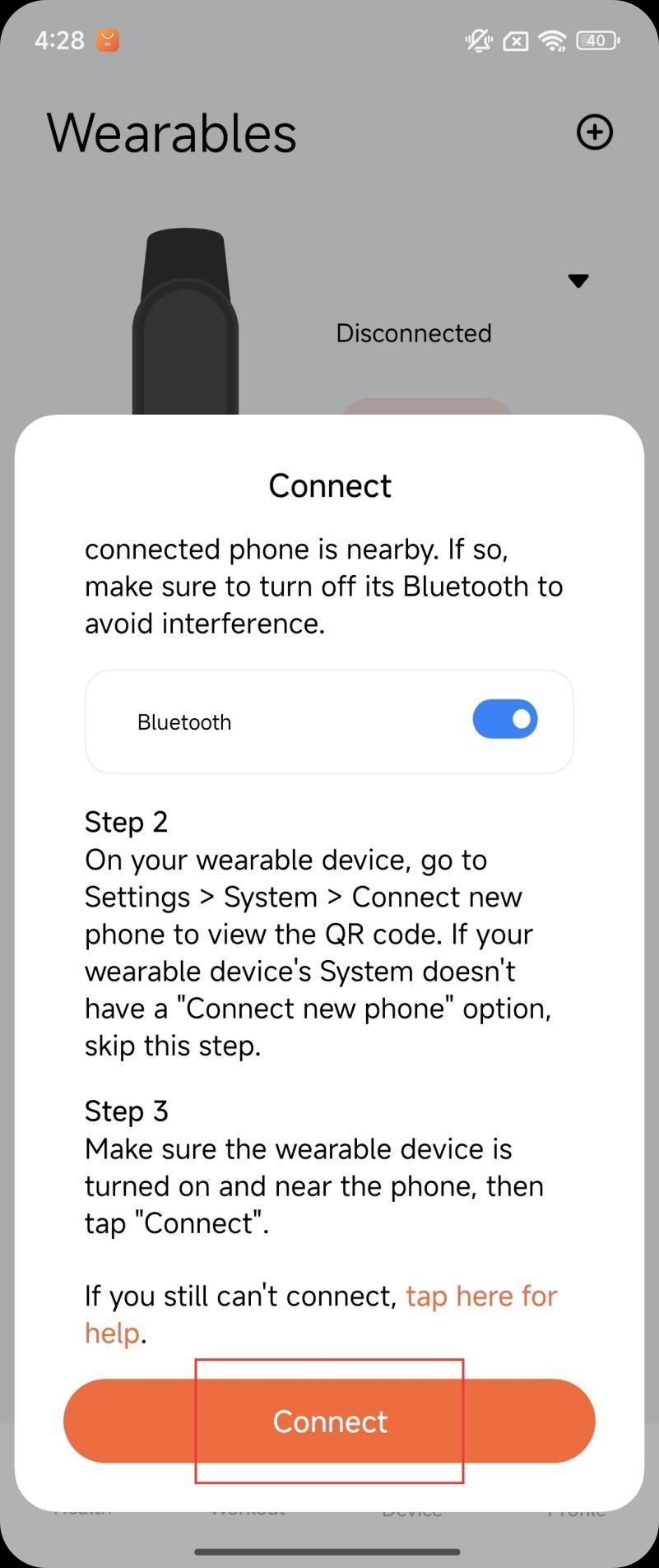
Method 4:
When an unpaired new band Approaches the smartphone (only supported by some Xiaomi/Redmi models), the smartphone will pop up a window to discover the device, indicating the device model, the last four digits of the Bluetooth address, and the device image. You can directly tap [Connect].
Android unpairing methods:
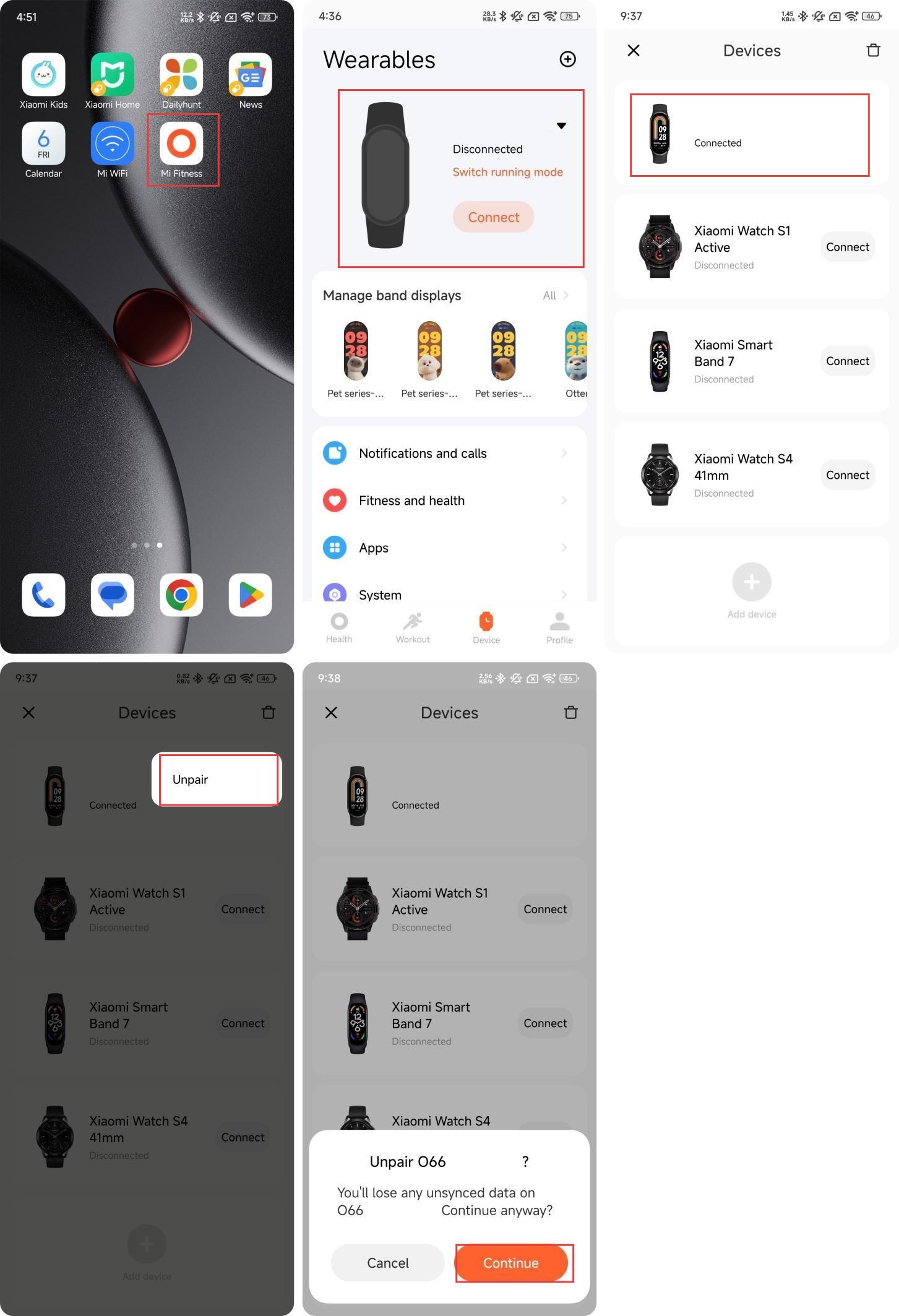
Method 1:
- Open the Mi Fitness App and go to [Device];
- Tap [Xiaomi Smart Band 10 Glimmer Edition];
- Press and hold on the Xiaomi Smart Band 10 Glimmer Edition and tap [Unpair];
- Tap [Continue];
- After unpairing, the band will reset to the factory settings.
Method 2:
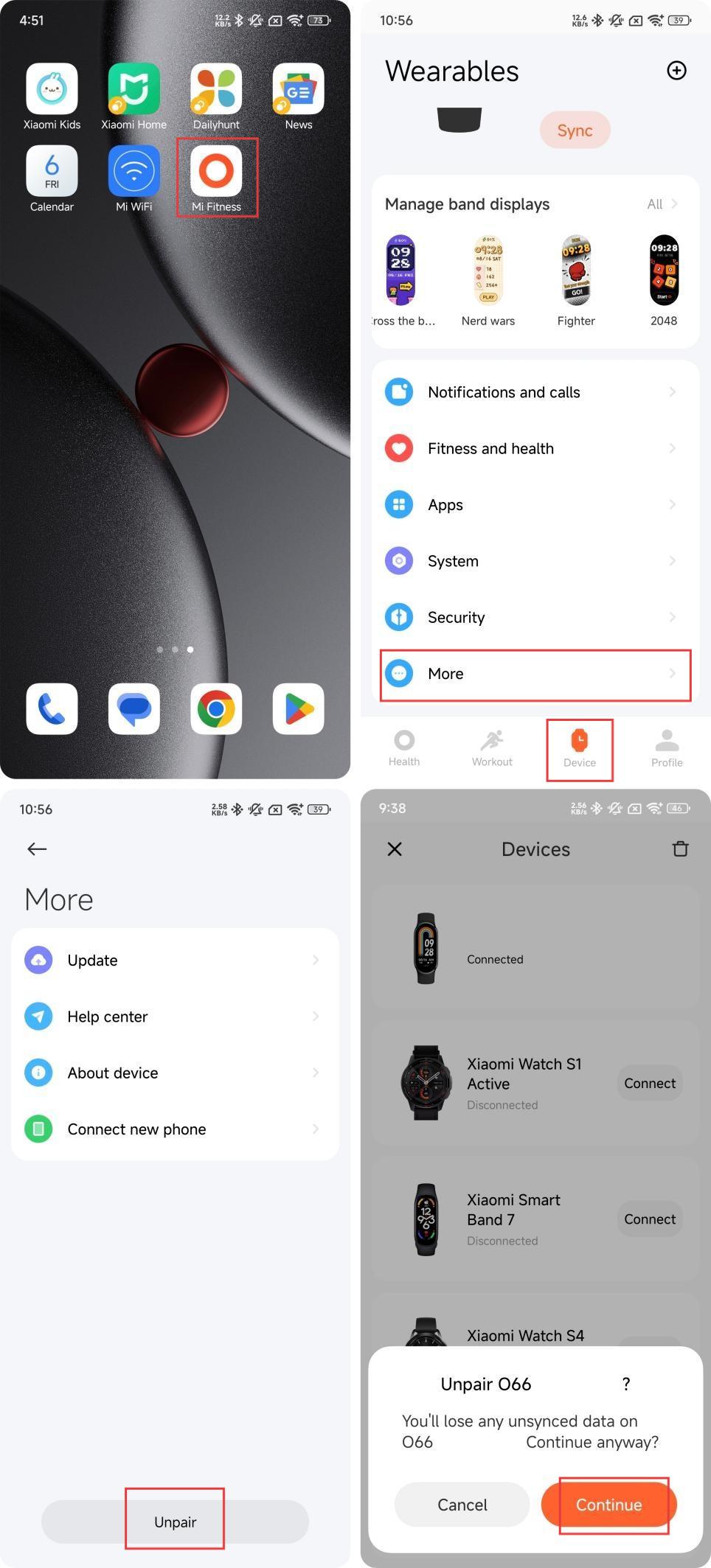
- Open the Mi Fitness App and go to [Device];
- Tap [More] and select [Unpair] when the band has been connected to the Mi Fitness App;
- Tap [Continue];
- After unpairing, the band will reset to the factory settings.
Note:
- If you cannot find the band during the process of pairing, or if you are unable to connect the band during use, please try sliding up and down on the pending pairing page, select [Reset] on the System interface, and then connect the band to the Mi Fitness App again;
- When the band is not paired, the screen will display [Download the App to pair band], so you need to pair it before you can use the band.
iOS pairing methods
Method 1:
- Open the Mi Fitness App and go to [Device];
- Tap the [+] icon at the upper right corner;
- Tap [Add device];
- Place the band next to the phone and wait for the search;
- Select the device that matches the last four digits of Bluetooth address of your band;
- After connecting your band to the smartphone, there will be a check on the band;
- Tap the [√] icon on the band and tap [Pair] on the phone;
- Tap [Cancel] to cancel pair.
Method 2:
- Open the Mi Fitness App and go to [Device];
- Tap the [+] icon at the upper right corner;
- Tap [Add device];
- Tap [Add model];
- Select [Xiaomi Smart Band 10 Glimmer Edition] and the phone will search for the device nearby and connect to the band;
- After connecting your band to the smartphone, there will be a check on the band;
- Tap the [√] icon on the band and tap [Pair] on the phone;
- Tap [Cancel] to cancel pair.
Method 3:
- Open the Mi Fitness App and go to [Device];
- Tap the [+] icon at the upper right corner;
- Select [Scanner] and scan the QR code on the band to connect;
- Tap the [√] icon on the band and tap [Pair] on the phone;
- Tap [Cancel] to cancel pair.
iOS unpairing methods
Method 1:
- Open the Mi Fitness App and go to [Device];
- Tap [Xiaomi Smart Band 10 Glimmer Edition];
- Slide left and tap [Unpair];
- After unpairing, the band will reset to the factory settings.
Method 2:
- Open the Mi Fitness App and go to [Device];
- Tap [More] and select [Unpair] when the band has been connected to the Mi Fitness App;
- Tap [Continue];
- After unpairing, the band will reset to the factory settings.
Note:
After unpairing device A in the Mi Fitness App on iOS phone, before repairing device A next time, you need to select device A in the system Bluetooth and tap [Ignore this device], as shown below, otherwise the current device cannot be bound.
Note:
If the band is added to the Bluetooth blacklist of the HyperOS phone, Bluetooth pairing and binding operations can no longer be performed. You need to manually delete this device from the blacklist before you can perform Bluetooth pairing and binding operations.
3. Q: What to do if the Xiaomi Smart Band 10 Glimmer Edition can’t be found by iOS phones?
A: If the Xiaomi Smart Band 10 Glimmer Edition can’t be found by iOS phones, please refer to the following steps to troubleshoot:
- Please check whether the region setting on the Mi Fitness App is the region where you purchased the device;
- Check whether there is the band in the Bluetooth settings on your phone. If there is, tap the Bluetooth name and [Ignore this device], return to the Mi Fitness App to search for pairing again;
- After the device is restored to factory settings, the iOS phone system Bluetooth will try to reconnect to the device. You need to enter the original paired iOS phone system Bluetooth, find the corresponding connected device Bluetooth in the Bluetooth list, tap [Ignore this device], and then use the unpaired iOS phone to search and pair with the device.
Note:
Under this situation, the unpaired iOS phone can’t find the band: The unpaired iOS phone and the band connect and disconnect all the time, the unpaired phone cannot search during the connection period. However, during the disconnection period, the unpaired phone is in scanning mode and can search.
4. Q: What to do if the Xiaomi Smart Band 10 Glimmer Edition can’t be found by Xiaomi/Redmi phones?
A: If the Xiaomi Smart Band 10 Glimmer Edition can’t be found by Xiaomi/Redmi phones, please refer to the following steps to troubleshoot:
- Please check whether the region setting on the Mi Fitness App is the region where you purchased the device;
- Reopen the Bluetooth on the phone and try again;
- If there are multiple mobile phones nearby, you need to confirm whether there is a pop-up prompt for connection on the nearby mobile phone. If so, you need to refuse;
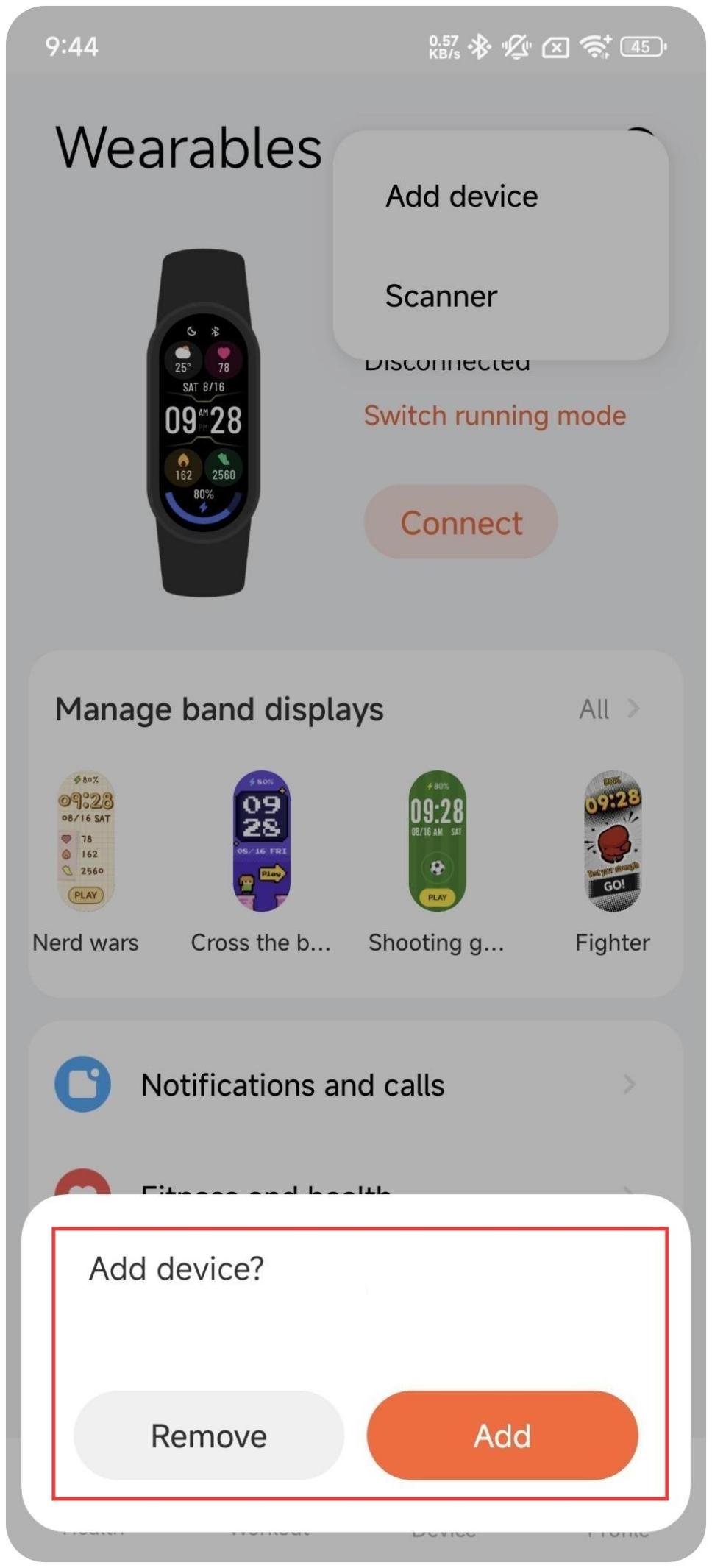
- If the device is restored to factory settings, the previously paired Mi Fitness App will try to reconnect while the device is paired, and prompt the you to tap [Remove] or [Add]. At this time, the unpaired phone cannot search for the device. Tap [Remove] and then use the unpaired phone to search and connect the band.
5. Q: What to do if the Xiaomi Smart Band 10 Glimmer Edition can’t be found by other Android phones?
A: If the Xiaomi Smart Band 10 Glimmer Edition can’t be found by other Android phones, please refer to the following steps to troubleshoot:
- Please check whether the region setting on the Mi Fitness App is the region where you purchased the device;
- Reopen the Bluetooth on the phone and try again;
- If there are multiple mobile phones nearby, you need to confirm whether there is a pop-up prompt for connection on the nearby mobile phone. If so, you need to refuse;
- If the device is restored to factory settings, the previously paired Mi Fitness App will try to reconnect while the device is paired, and prompt the you to [Remove] or [Add]. At this time, the unpaired phone cannot search for the device. Tap [Remove] or [Add] and then use the unpaired phone to search and connect the band.
6. Q: What to do if the Xiaomi Smart Band 10 Glimmer Edition can’t pair with iOS phones?
A: If the Xiaomi Smart Band 10 Glimmer Edition can’t pair with iOS phones, please refer to the following steps to troubleshoot:
- If the iOS phone Bluetooth is turned off during pairing, the Mi Fitness App will pop up the pairing failure. The Mi Fitness App will prompt you to turn on Bluetooth and rescan. After reopening the iOS phone Bluetooth, the pairing failure interface will appear. Tap the [Connect] again and it will repair successfully;
- Turn on the Bluetooth to confirm whether the device is connected. If the device is connected, tap [Ignore this device] to confirm whether the reconnection is normal; if the Bluetooth is not connected to the device, restart the device, then open the Mi Fitness App and tap [Connect];
- If the above operations still cannot work, restore the device operation to factory settings, and tap [Ignore this device] in the Bluetooth settings interface, and pair it again in the Mi Fitness App.
7. Q: What to do if the Xiaomi Smart Band 10 Glimmer Edition can’t pair with Xiaomi/Redmi phones?
A: If the Xiaomi Smart Band 10 Glimmer Edition can’t pair with Xiaomi/Redmi phones, please refer to the following steps to troubleshoot:
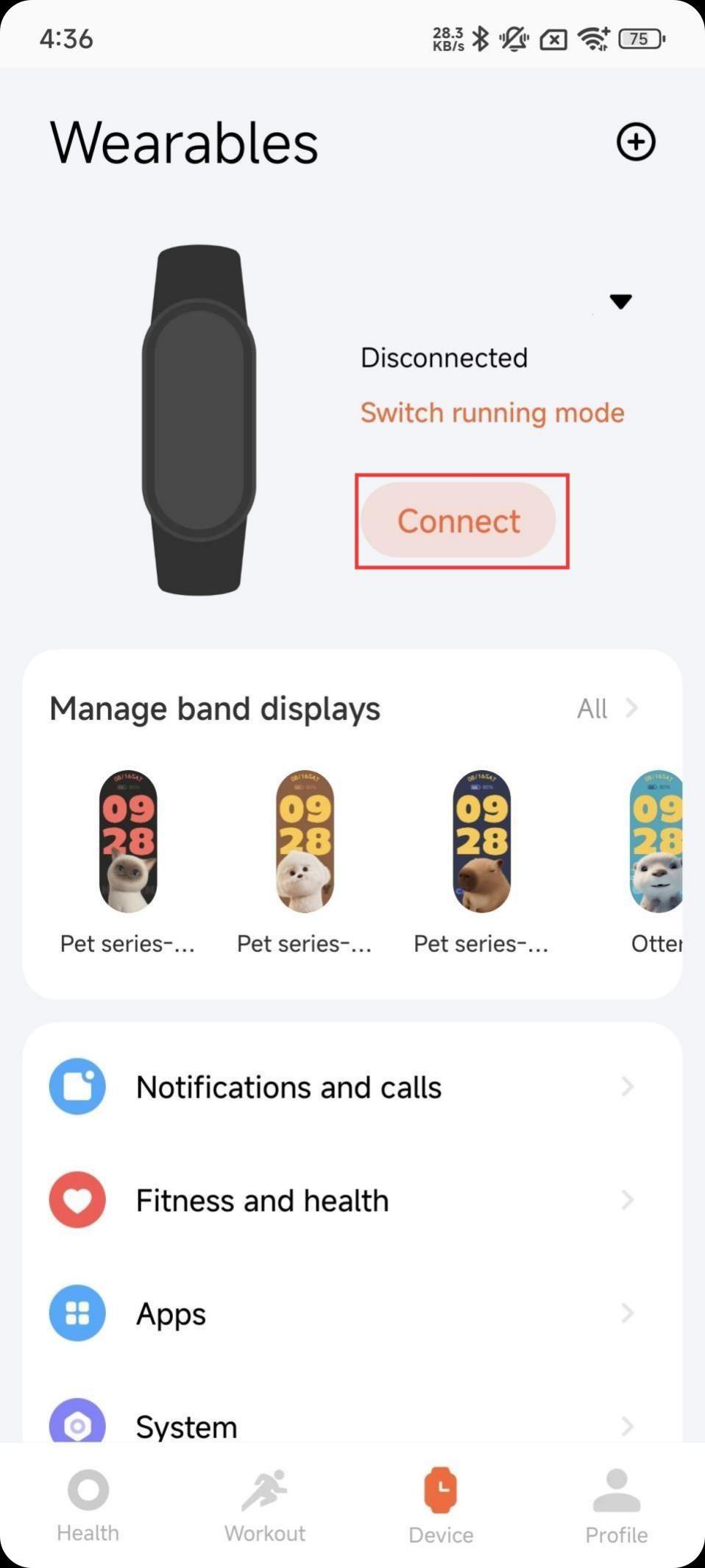
- If the Bluetooth on the phone be turned off during pairing, the Mi Fitness App will pop up the pairing failure interface. Taping [Connect] again, the Mi Fitness App will prompt you to turn on the Bluetooth. and the pairing will be successful if Bluetooth is turned on;
- If the first step is invalid, restore the device to factory settings and pair it again in the Mi Fitness App.
8. Q: What to do if the Xiaomi Smart Band 10 Glimmer Edition can’t pair with other Android phones?
A: If the Xiaomi Smart Band 10 Glimmer Edition can’t pair with other Android phones, please refer to the following steps to troubleshoot:
- If the Bluetooth on the phone be turned off during pairing, the Mi Fitness App will pop up the pairing failure interface. Taping [Connect] again, the Mi Fitness App will prompt you to turn on the Bluetooth. and the pairing will be successful if Bluetooth is turned on;
- If the first step is invalid, restore the device to factory settings and pair it again in the Mi Fitness App.
9. Q: What to do if the Bluetooth of the Xiaomi Smart Band 10 Glimmer Edition disconnects from iOS phones?
A: The Xiaomi Smart Band 10 Glimmer Edition uses Bluetooth wireless technology to connect to mobile phones. Wireless connection is affected by distance, radio frequency interference, obstruction and other factors, which cause the band and mobile phone to be disconnected. When this hAppens, the band will automatically reconnect to the phone after returning to the range of the phone.
If the band does not automatically reconnect after returning to the range, please refer to the following steps to troubleshoot:
- Confirm whether the location permission of Mi Fitness App is configured as [Allow all the time]. Only when it is configured as always allowed, the phone can start Mi Fitness App and initiate the reconnection action when the band returns to the range;
- Try to close the Mi Fitness App and restart the Mi Fitness App.
- Try to turn off the Bluetooth on the phone and then turn it back on;
- Select the band in the Bluetooth interface of the phone and cancel the pairing. Try reconnect in the Mi Fitness App, and tap [Confirm] to complete the reconnection when the pairing prompt pops up.
Note:
- The device's Bluetooth connection, message synchronization, data synchronization, etc., rely on the Mi Fitness App to continue running in the background. Please do not manually swipe up to close the Mi Fitness App;
- If there are many applications running in the background on an iOS phone, the system will close the background. If the Mi Fitness App is closed, reopen the Mi Fitness App and tap [Connect] on the device page to restore.
- Check whether the device or phone has turned on the [Battery saver], which will cause Bluetooth disconnection.
10. Q: What to do if the Bluetooth of the Xiaomi Smart Band 10 Glimmer Edition disconnects from Xiaomi/Redmi phones?
A: If the Bluetooth of the Xiaomi Smart Band 10 Glimmer Edition disconnects with Xiaomi/Redmi phones, please refer to the following steps to troubleshoot:
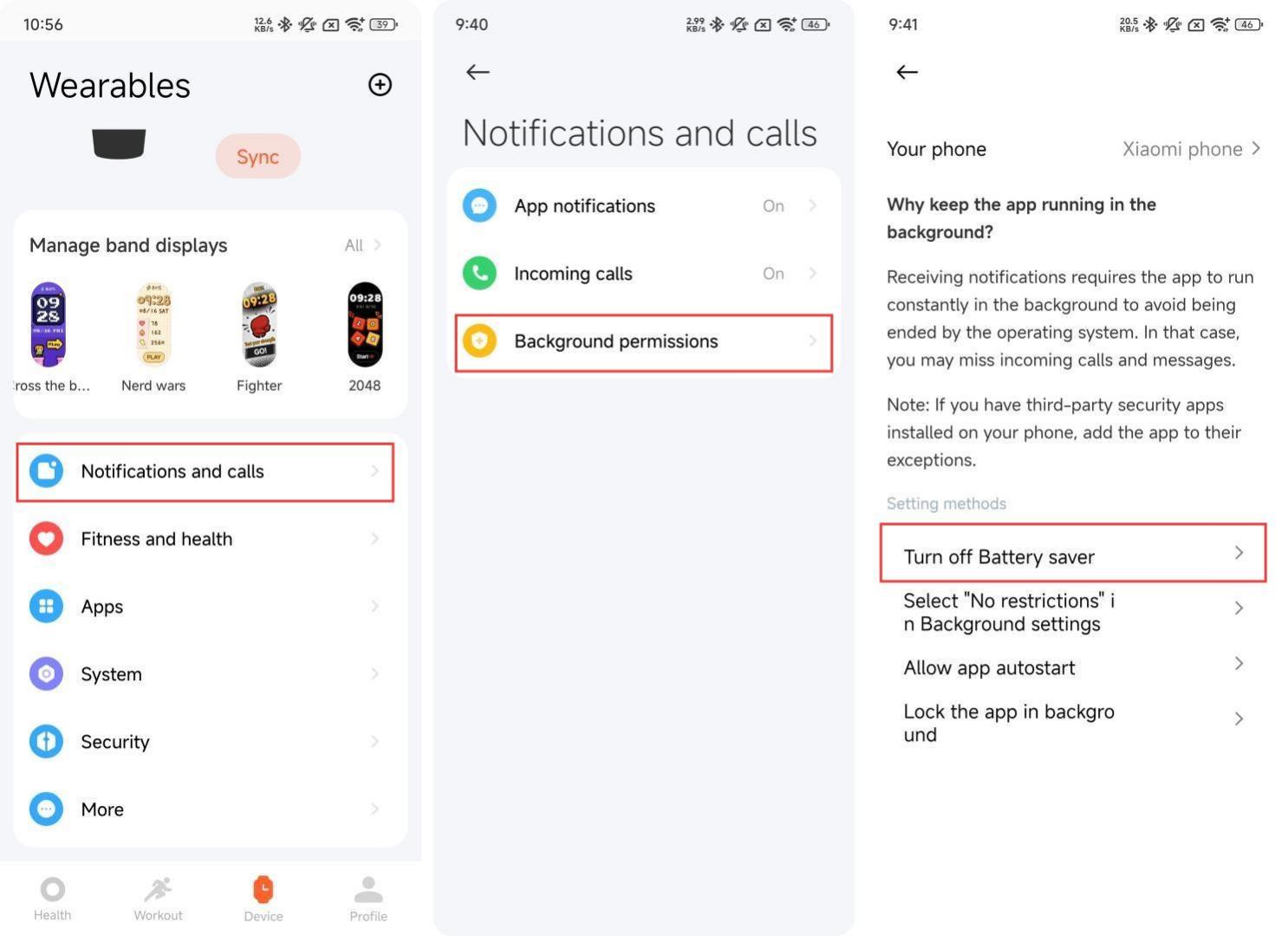
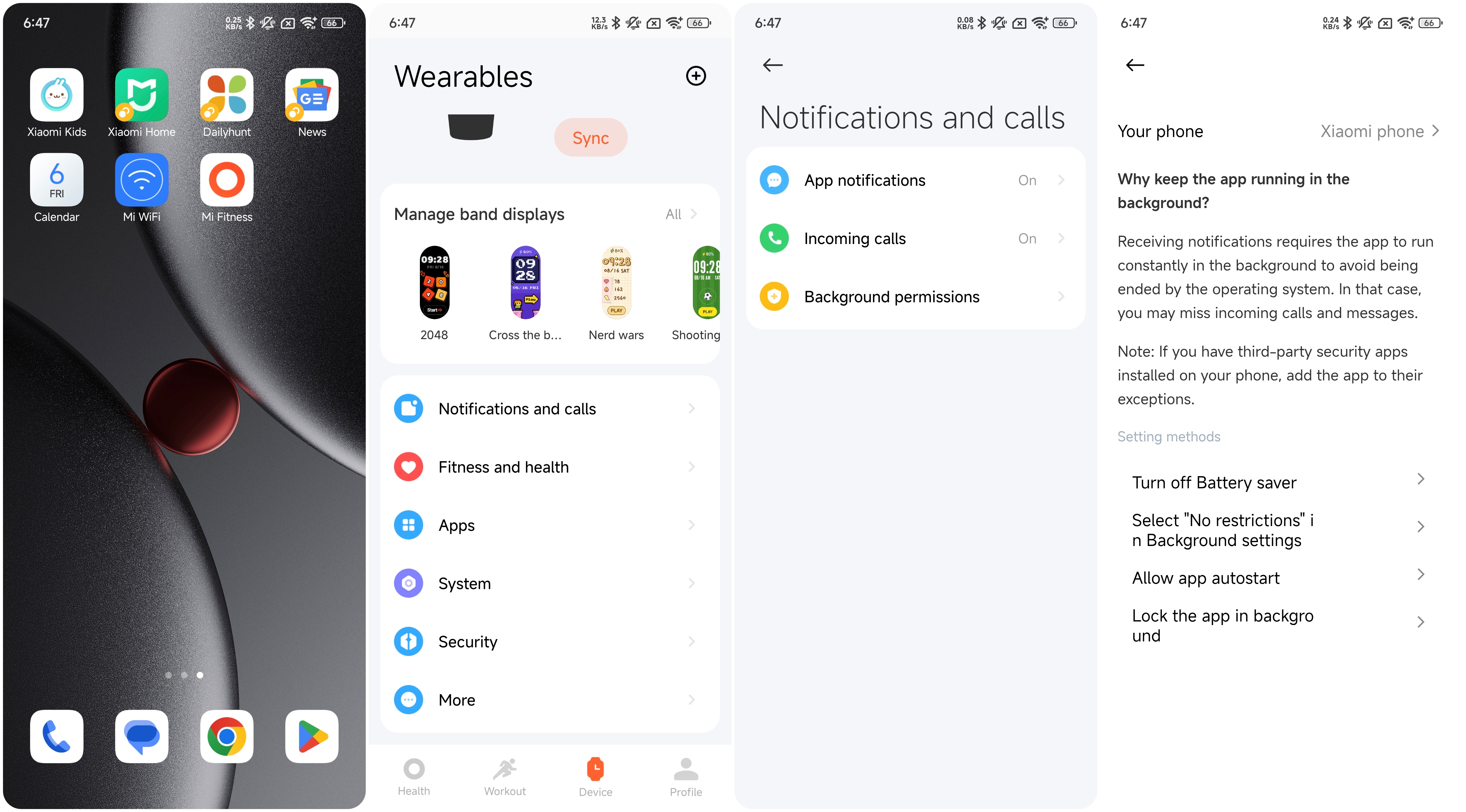
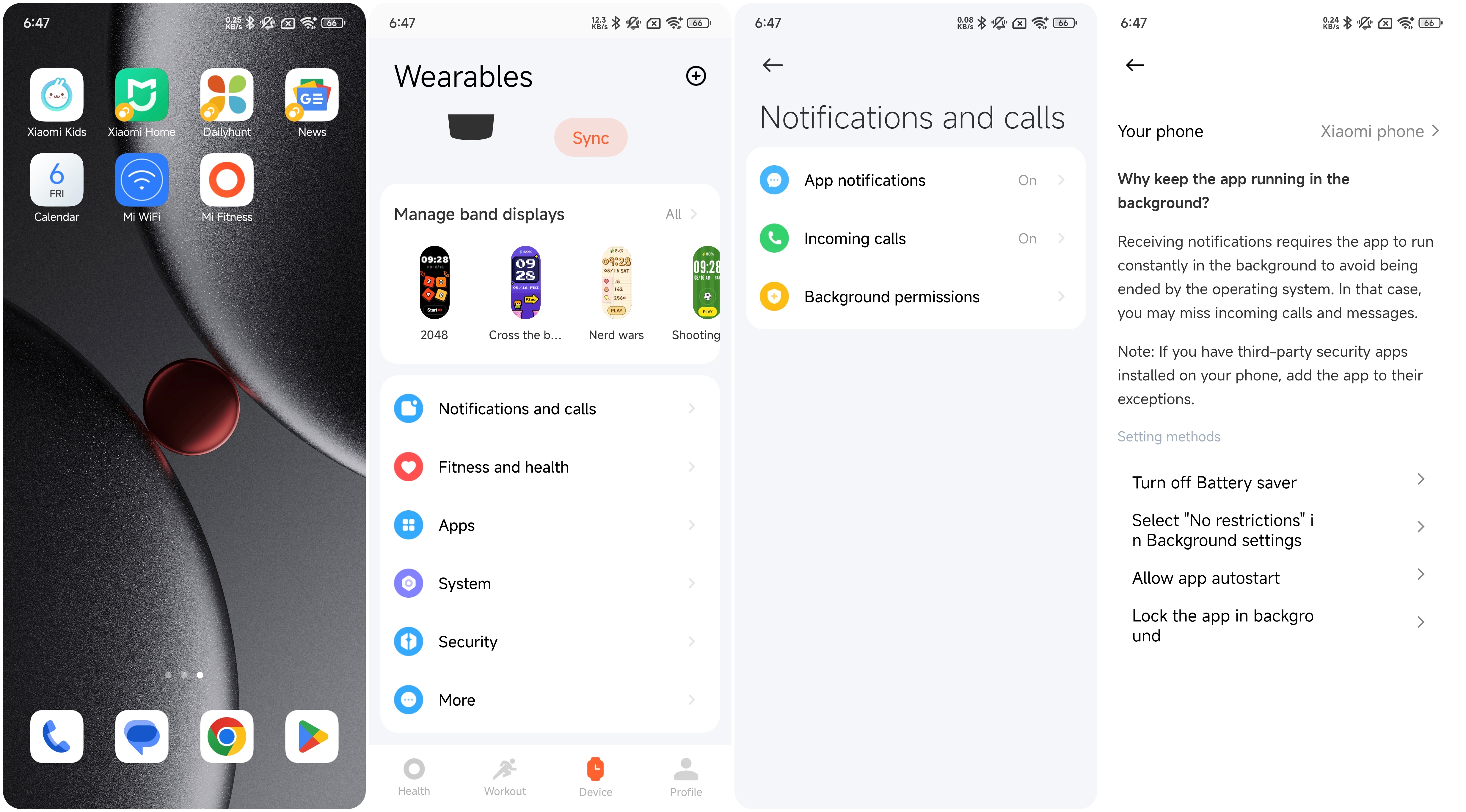
- The device Bluetooth connection, message synchronization, data synchronization, etc. rely on the Mi Fitness App to run continuously in the background. Please do not clean up and close the Mi Fitness App. Open the Mi Fitness App and go to [Device]>>[Notifications and calls]>>[Background permissions], follow the prompts to set the background unlimited, background locked, and turn off the power saving mode;
- If the Mi Fitness App is closed, you need to reopen it and tap [Connect] on the device page to restore;
- Check whether the device or mobile phone has turned on [Battery saver]. Turning it on will cause Bluetooth to disconnect. On the Mi Fitness App device page, go to [Notifications and calls]>>[Background permissions], and turn off [Battery saver] according to the prompts.
Note:
If the band is added to the Bluetooth blacklist of the HyperOS phone, Bluetooth pairing and binding operations can no longer be performed. You need to manually delete this device from the blacklist before you can perform Bluetooth pairing and pairing operations.
11. Q: What to do if the Bluetooth of the Xiaomi Smart Band 10 Glimmer Edition disconnects from other Android phones?
A: If the Bluetooth of the Xiaomi Smart Band 10 Glimmer Edition disconnects from other Android phones, please refer to the following steps to troubleshoot:
- The device Bluetooth connection, message synchronization, data synchronization, etc. rely on the Mi Fitness App to run continuously in the background. Please do not clean up and close the Mi Fitness App. Open the Mi Fitness App and go to [Device]>>[Notifications and calls]>>[Background permissions], follow the prompts to set the background unlimited, background locked, and turn off the power saving mode;
- If the Mi Fitness App is closed, you need to reopen it and tap [Connect] on the device page to restore
- Check whether the device or mobile phone has turned on [Battery saver]. Turning it on will cause Bluetooth to disconnect. On the Mi Fitness App device page, go to [Notifications and calls]>>[Background permissions], and turn off [Battery saver] according to the prompts.
12. Q: What to do if the Xiaomi Smart Band 10 Glimmer Edition can’t reconnect in the Mi Fitness App?
A: If the Xiaomi Smart Band 10 Glimmer Edition can’t reconnect in the Mi Fitness App, please refer to the following steps to troubleshoot:
- Open the Mi Fitness App and tap the [Connect] to check whether you can reconnect normally;
- If you still cannot reconnect, turn on the Bluetooth on your phone and confirm whether the device is listed in your phone's Bluetooth settings. If it is connected, tap [Unpair] to confirm whether the reconnection is normal; if the Bluetooth is not connected to the device, you need to restart the device, then open the Mi Fitness App and tap [Connect];
- If the above operations still cannot work, restore the device to factory settings, and tap [Unpair] in the Bluetooth settings interface of your phone, and repair it in the Mi Fitness App;
- Check whether the device or phone has turned on [Battery saver]. Turning it on will cause Bluetooth to be unable to reconnect.
13. Q: What to do if the Xiaomi Smart Band 10 Glimmer Edition has paired with other accounts or App when pairing?
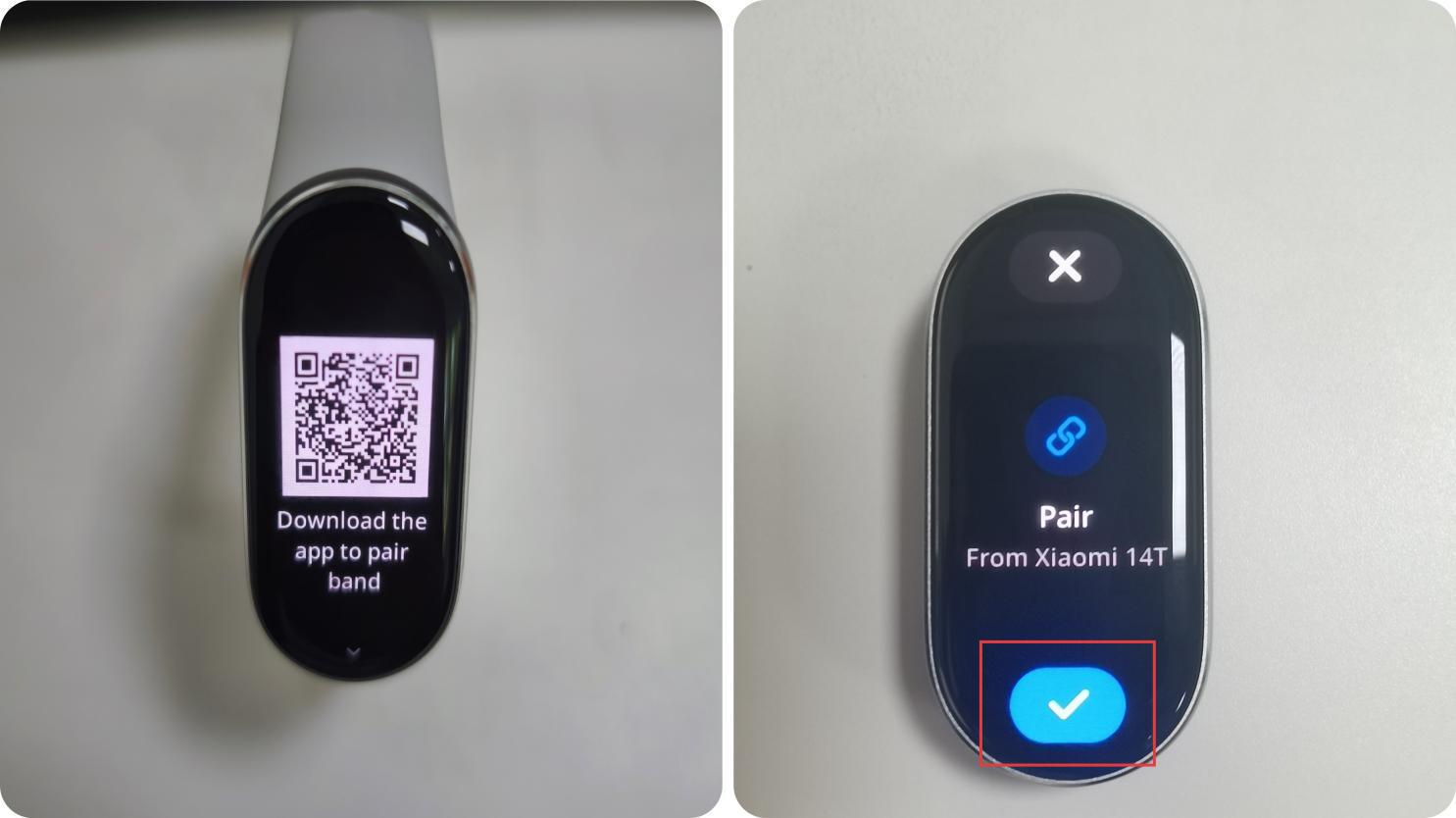
A: The unpaired Xiaomi Smart Band 10 Glimmer Edition will vibrate and display [Pair, From xxx] when you pair the device.
If the band has paired with other accounts or App, please refer to the following steps to troubleshoot:
- This problem will hAppen when you search and pair bands with other people;
- If you are using the band for the first time, please check whether the band is in the pending pairing state. In the pending pairing state, the band will display [Download the App to pair band];
- Check whether the band vibrates during the pairing process and prompts [Pair, From xxx]. If the band does not prompt, the device being connected is not yours. Please check whether there are other band around;
- After the band vibrates normally and prompts, tap the [√] icon to bind. After the successful pairing, the Mi Fitness App will show that the addition is successful, and the band will display the Home screen.
14. Q: Does the Xiaomi Smart Band 10 Glimmer Edition support discovering and pairing the phone nearby?
A: The Xiaomi Smart Band 10 Glimmer Edition supports discovering and pairing the phone nearby. Only the MIUI or Xiaomi HyperOS system will pop up a window for device nearby. When a new band that hasn't been paired is brought close to the phone, the phone will display a pop-up with the device model, Bluetooth address, and device image.
To achieve this function, the following conditions need to be met:
- On the phone, network, Bluetooth, and the Pair compatible devices function need to be turned on for band searching to begin. The Pair compatible devices function activation path is [Bluetooth] >> [More settings] >> [Additional settings] >> [Pair compatible devices];
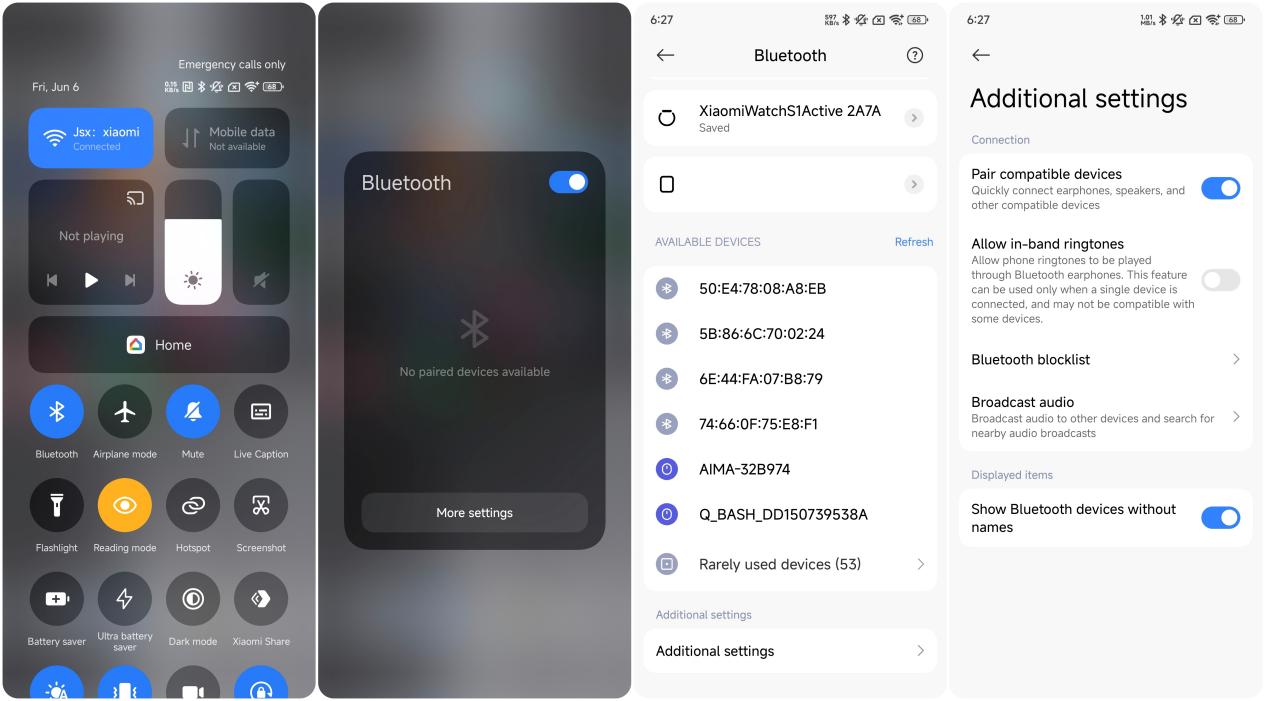
- The band should be in an unpaired state;
- Distance between the band and phone is recommended to be within 1 meter.
15. Q: Does the phone’s Bluetooth need to be turned on all the time when using the Xiaomi Smart Band 10 Glimmer Edition?
A: Please refer to the following steps for Xiaomi Smart Band 10 Glimmer Edition Bluetooth usage:
- Step counting, sleep & heart rate monitoring, breathing rate, stress/blood oxygen monitoring, vitality scores, breathing training and women's health management can record data independently without the need for a constant Bluetooth connection. However, regular connection to the phone is necessary to sync health data. It is recommended to connect the phone during exercise to record the trajectory;
- Functions such as Stopwatch, Alarm, Focus, Calendar, World clock, Compass, third-party Apps and other functions do not require the Bluetooth to be constantly turned on;
- Functions like Call reminders, App notification reminders, Find phone, Events, Weather, Find device, Control phone music playback, Xiaomi Smart Hub, Remote control phone camera, Share HR, require Bluetooth to be turned on to maintain communication with the band and phone.
Note:
- For better usage of the band, it is recommended to keep the Mi Fitness App running in the background. To avoid memory cleaning and interference from some management software on Android systems, please follow the instructions on the App: [Mi Fitness] App >> [Device] >> [Notifications and calls] >> [Background permissions];
- iOS cannot perform background protection for Apps. When the App is removed in the background, the Bluetooth connection will not be disconnected and message notifications can be used normally. However, other sync data Apps such as weather, health data sync, schedule, etc. will require reopening the Mi Fitness App;
- Enabling power-saving mode on iOS will result in decreased Bluetooth connection stability and potential disconnection issues;
- The App needs to enable the location permission [Always allow] to ensure that the App background remains connected.
16. Q: Why does the Xiaomi Smart Band 10 Glimmer Edition experience unsynchronized data when in a prolonged disconnected state with an iOS phone?
A: Here are reasons for this issue on the Xiaomi Smart Band 10 Glimmer Edition:
When Apps run in the background for an extended period, they will be removed, causing the device to disconnect from the Mi Fitness App and preventing data synchronization. To sync data, you need to enter the Mi Fitness App for automatic reconnection and data synchronization. After the App is removed in the background, reopening it will automatically reconnect the Xiaomi Smart Band 10 Glimmer Edition for normal synchronization.
The occurrence of being removed in the background is primarily due to the App using up the RAM. To free up sufficient resources for newly opened Apps, the system needs to terminate some background-running Apps to free up RAM. The frequency of being removed in the background varies depending on the device model and iOS software version. For example, on an iPhone 12 with iOS 16.3.1 and 4 GB of RAM, running 4 Apps will remove the App from the background. However, on the iOS 16.4 official version, running 5-6 Apps will not remove the App from the background. This varies depending on specific Apps, such as the camera App which consumes more memory.
To reduce the frequency of being removed from the background during normal usage, consider the following two points:
- Ensure sufficient battery power to avoid overheating of the phone and disable low-power mode. Insufficient battery power, severe overheating or running the phone in low-power mode will significantly increase the frequency of background App termination;
- Open [Settings] >> [General] >> [Background App Refresh] on your iPhone and enable this feature.
To determine whether the App has been removed in the background by the system, please refer to the following operation:
- If the Mi Fitness App has been removed in the background, reopening it will follow these two steps: first, display the App launch interface, then display the App's home interface;
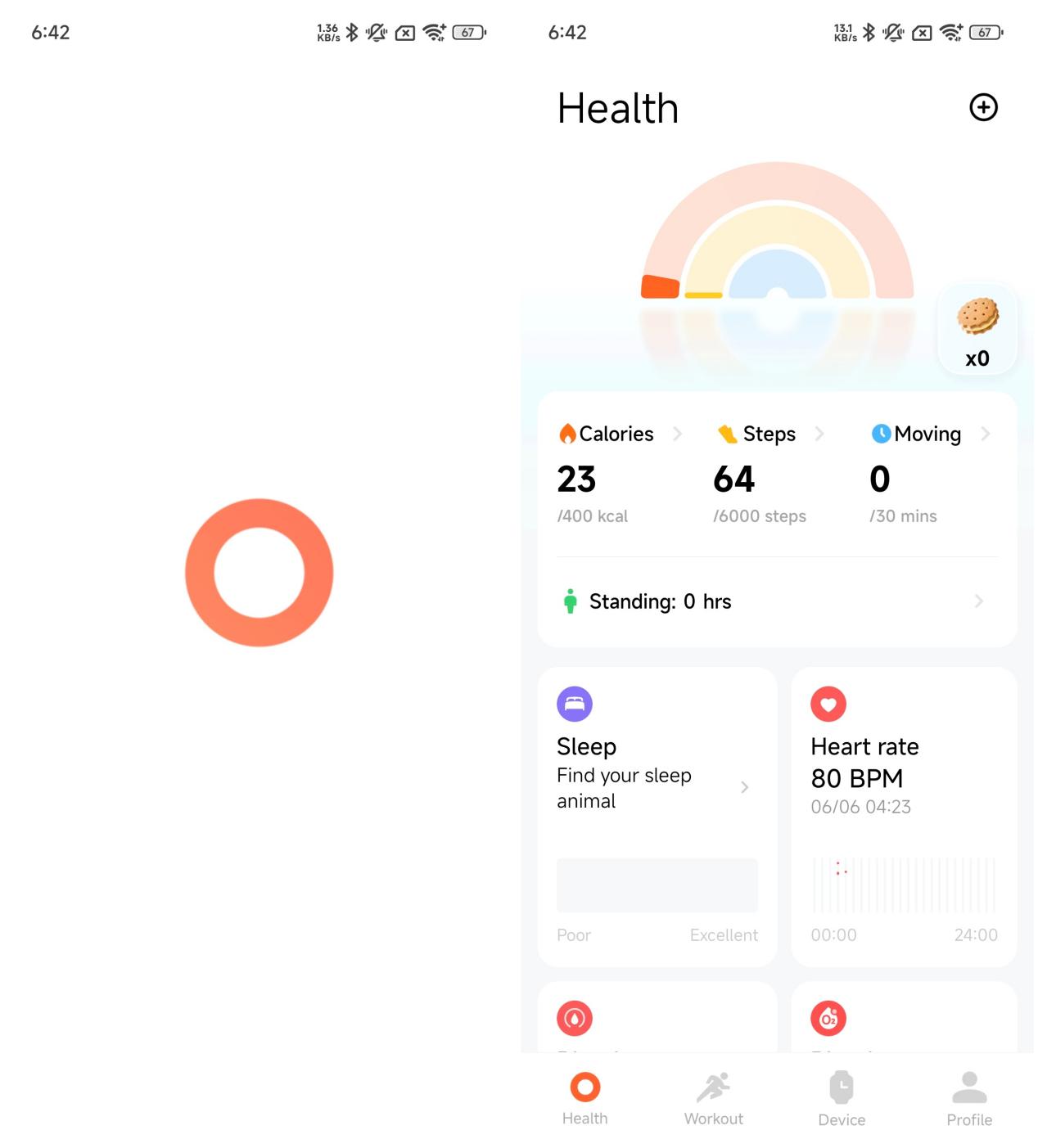
- If the Mi Fitness App has not been removed in the background, reopening the App will resume the previous operation interface before exiting.
17. Q: Why can't the phone reconnect or the Mi Fitness App not showing the Xiaomi Smart Band 10 Glimmer Edition when multiple phones are logged into the same Xiaomi Account?
A: Here are several reasons for this issue on the Xiaomi Smart Band 10 Glimmer Edition:
- The current phone cannot reconnect because the previous phone has unbound the device and the current phone has not synchronized the account. Therefore it cannot reconnect to this device;
- Check which interface the band is displaying. If it's on the QR code interface or language selection interface, unbind the device from the Mi Fitness App on your phone and then re-scan to pair;
- Make sure the Bluetooth icon on the band is constantly on. If it is, use the [Find phone] feature to check if it's connected to the current phone. If not, unbind the device from the App and then rebind it with the current phone;
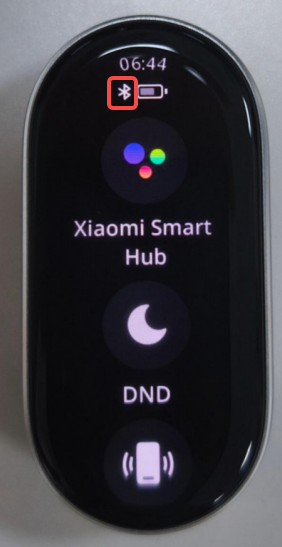
- If the device is not shown on the previous phone's Mi Fitness App device management interface, it means the previous phone has unbound the device. After logging in with the same account on the new phone and syncing, the band will not be displayed. If the band is on the QR code interface or language selection interface, re-scan to pair;
- When connecting the band to two phones using the same Xiaomi Account, after resetting the band, pair it again with the new phone and turn off Bluetooth on the previous phone. If the new phone still cannot reconnect, it is because the new phone did not automatically retrieve new login and pairing information.
To avoid this issue, here are some suggestions as follows:
- Try to avoid logging in with the same account on multiple phones;
- If there is already a situation where you cannot connect back, turn off Bluetooth on other devices logged in with the same account and then try again;
- Ensure a stable network connection and restart the App after removing it to trigger the re-delivery of login and pairing information from the cloud, ensuring the band can reconnect.
18. Q: Why does the Xiaomi Smart Band 10 Glimmer Edition show disconnected when connecting to a device?
A: Because the Mi Fitness App was removed in the background, the Xiaomi Smart Band 10 Glimmer Edition will show disconnected. Please check if you have enabled all background running permissions for the App.
Here are two ways to set the permissions:
- After the device and the Mi Fitness App are first connected, go to the phone settings and let the Mi Fitness App always run in the background;
- Open the [Mi Fitness] App >> [Device] >> [Notifications and calls] >> [Background permissions] to set the permissions. Check whether the permissions of [Turn off Battery saver], [Select “No restrictions” in Background settings], [Allow App autostart] and [Lock the App in background] are all enabled.
19. Q: Why can't the Xiaomi Smart Band 10 Glimmer Edition be found when pairing with a new phone after it has been reset to factory settings?
A: To resolve this issue on the Xiaomi Smart Band 10 Glimmer Edition, please troubleshoot as follows:
- When the band is connected to an iOS phone and it is reset to factory settings, the iOS phone's Bluetooth will attempt to reconnect to it. This can result in the new phone being unable to find the band because the iOS phone and the band will keep connecting and disconnecting. During the connection period, the new phone cannot search for the band. If the new phone is in scanning mode during the disconnection period, it will find the band. To resolve this, go to the iOS phone's Bluetooth settings, find the previously connected band and tap [Forget this device]. Then, use the new phone to search and pair with the band;
- When the band is connected to an Android phone and it is reset to factory settings, the Mi Fitness App will reconnect to the band and prompt the account holder to either [Remove this device] or [Add]. In this case, the new phone cannot find the band. Select [Remove this device] and then use the new phone to search and connect.
20. Q: What to do if the Xiaomi Smart Band 10 Glimmer Edition fails to bind to the Mi Fitness App?
A: Please solve the issue on the Xiaomi Smart Band 10 Glimmer Edition by following the steps below:
- Check the network connection of your phone. If the Wi-Fi is disconnected, try to reconnect. If the Wi-Fi connection is normal but you still cannot bind, please use the mobile data;
- Reset the device to factory settings;
- Clear the Bluetooth information of the device in the Bluetooth list of the phone (if there is no Bluetooth pairing information of the device in the Bluetooth list, you can skip this step);
- Turn off the Bluetooth and then turn it back on;
- Open the Mi Fitness App and add the device again.
Note:
- If the band is added to the blacklist in the Bluetooth settings of the Xiaomi HyperOS/MIUI phone, Bluetooth pairing and binding can no longer be performed. You need to manually delete this device from the blacklist before you can perform Bluetooth pairing and binding;
- If these steps do not fix the issue, it is recommended to restart the band and the phone's Bluetooth, and then retry after restarting the phone.
21. Q: How to enable Background permissions for the Mi Fitness App after pairing with the Xiaomi Smart Band 10 Glimmer Edition?
A: Device Bluetooth connection, message synchronization, data synchronization, etc., rely on the Mi Fitness App to continue running in the background.
Note:
If you are using the Xiaomi 15 (HyperOS 2.0), please turn the function in [Settings] >> [Battery] >> scroll down to find the Mi Fitness App and tap it >> [No restrictions].
Pebble mode and necklace mode
1. Q: How to use the Xiaomi Smart Band 10 Glimmer Edition necklace mode?
A: The Xiaomi Smart Band 10 Glimmer Edition offers a fashionable necklace pendant that prioritizes accessory style. The device can be worn as a pendant for improved aesthetics and presentation in this mode.
We provide several exquisite band displays specifically designed for necklace wear. These band displays offer superior visual effects in both the active and standby screens. For more details, please visit the [Manage band displays] and then go to [Necklace mode] section.
In this mode, the data of steps is supported for monitoring. However, the data items such as heart rate, blood oxygen, sleep, and vitality score are not supported for monitoring. The band does not support turning off message notifications and heart rate light. Due to the wearing style, detection accuracy cannot be ensured.
Note:
You cannot switch to necklace mode from the App while during the workout, or in Fcous or Timer.
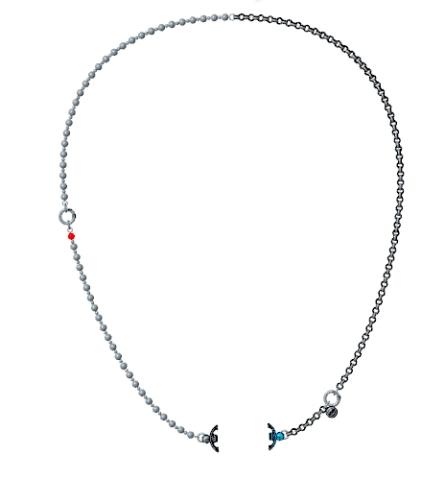
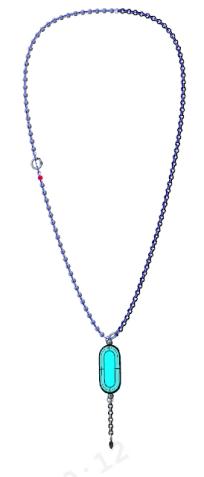
The following is the combination pattern of necklace pendant for your reference:
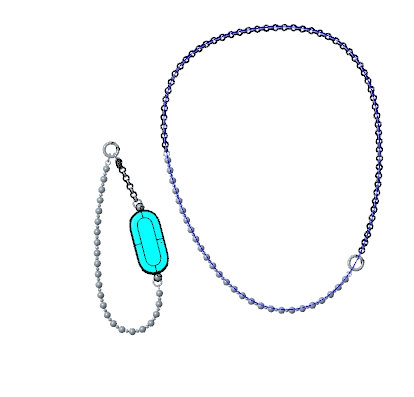
2. Q: Why is the step count on the Xiaomi Smart Band 10 Glimmer Edition deviation larger in necklace mode?
A: The step count in necklace mode on the Xiaomi Smart Band 10 Glimmer Edition only supports daily walking. In other scenarios such as cycling or running, the larger movement will cause significant deviations in the step count. For more accurate results, it is recommended to refer to the step count while walking when using necklace mode.
3. Q: Why are there no exercise data tracked in the necklace mode on the Xiaomi Smart Band 10 Glimmer Edition?
A: For your reference, the reasons for this issue on the Xiaomi Smart Band 10 Glimmer Edition are as follows:
The necklace mode is specifically designed for necklace pendants. In this mode, the device functions as a pendant, enhancing aesthetic Appeal and presentation. It only supports step count detection and does not support other workouts or health-related data items.
4. Q: How to use the pebble mode on the Xiaomi Smart Band 10 Glimmer Edition and what should to be aware of during use?
A: The Xiaomi Smart Band 10 Glimmer Edition series retains and provides the pebble mode, but the Xiaomi Smart Band 10 Glimmer Edition is not compatible with the pebbles of the Xiaomi Smart Band 8 and the Xiaomi Smart Band 9 in terms of hardware.
The Xiaomi Smart Band 10 Glimmer Edition has adjustments and differences in overall size, especially in the ceramic edition. If you put it into the pebbles of the previous generation, there will be a problem of inAppropriate size, which can cause the band to be thrown out of the pebbles while running. If you need to use this function, it is recommended that you observe the state of the pebbles to avoid physical damage caused by throwing them out (physical damage is not covered by the free warranty).
The Xiaomi Smart Band 10 Glimmer Edition supports a Running form recognition feature. By using a specific wearing method, you can obtain particular running form information from the device, helping you analyze and improve your running form.
The detailed instructions for the installation of the pebble mode are as follows:
- To use the pebble mode, press the main body of the band into the pebble capsule in the correct orientation;
- Then press the shoe clip button at the bottom of the pebble capsule to release the spring clip;
- Finally thread the shoe clip through your shoelaces from underneath and press to secure the spring clip.
Note:
After wearing, please check that the band display is oriented towards you. If the direction is incorrect, it will result in inaccurate data recording.
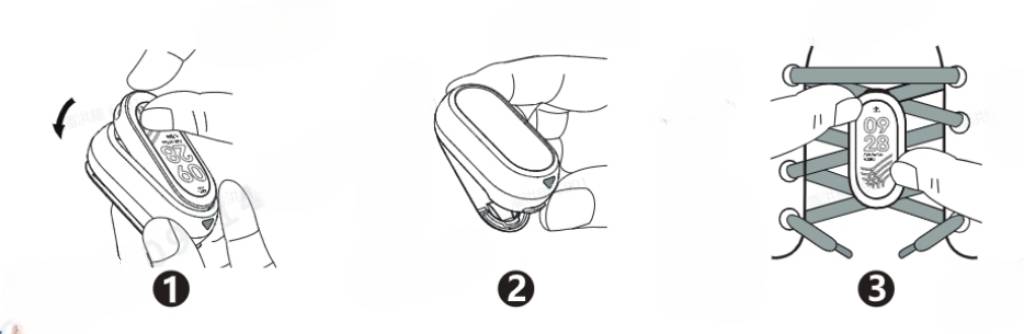
The data items that support detection include running and cycling, detailed introductions are as follows:
- Cadence refers to the frequency of footsteps during walking or running, representing the number of times the legs alternate per unit of time. It is a crucial factor in determining walking or running speed, expressed in steps per second. In race walking, cadence can reach 3.5 to 3.7 steps per second, while in sprinting it can reach 4.6 to 5.1 steps per second. Cadence is primarily influenced by the flexibility of the nervous system, the percentage of fast-twitch muscle fibers in the muscles, the coordination of the motor organs, muscle strength and contraction speed. These factors are largely innate but can be improved through scientific training;
- Running styles with relatively high cadence are referred to as cadence running while those with larger stride lengths are known as stride length running. Among elite runners, stride length is the key factor determining performance;
- When the pace is fast and the cadence is too low, it indicates a larger stride length, which increases the risk of injury. When the pace is slow and the cadence is too high, it indicates a smaller stride length, resulting in lower running efficiency;
- Ground contact time refers to the time it takes for a single foot's sole to make contact with and completely leave the ground during running, measured in milliseconds per footstrike;
- The pebble mode supports detecting impact force at landing, the force experienced by the foot upon landing on the ground, which is also a potential factor contributing to sports injuries. Upon landing, the impact force can be Approximately 1.15 times body weight, and upon full support, it will reach 2.0 to 3.0 times body weight. However, reducing running speed by 30 seconds per minute increases the force by 0.5 to 0.6 times body weight;
- Cadence is measured by the number of revolutions per minute of the pedals.
Note:
You cannot switch to necklace mode from the App while during the workout, in Focus or Timer.
The detailed instructions about the pebble mode are as follows:
- To use the pebble mode, switch to it on the App or wearable device. Follow the prompts to initiate outdoor running, indoor running, walking, or cycling on the App's exercise interface;
- On the band, you need to tap [Settings] >> [Running mode] >> [Pebble mode] to switch it. On the Mi Fitness App, you need to tap [Device] >> [Switch running mode] >> [Pebble mode] to switch it on;
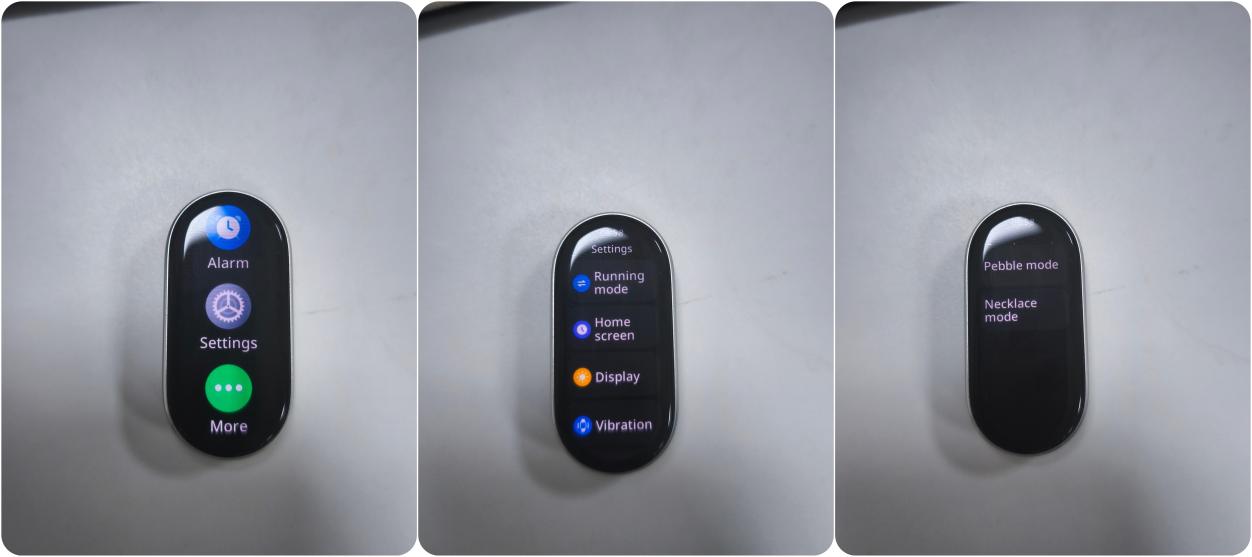
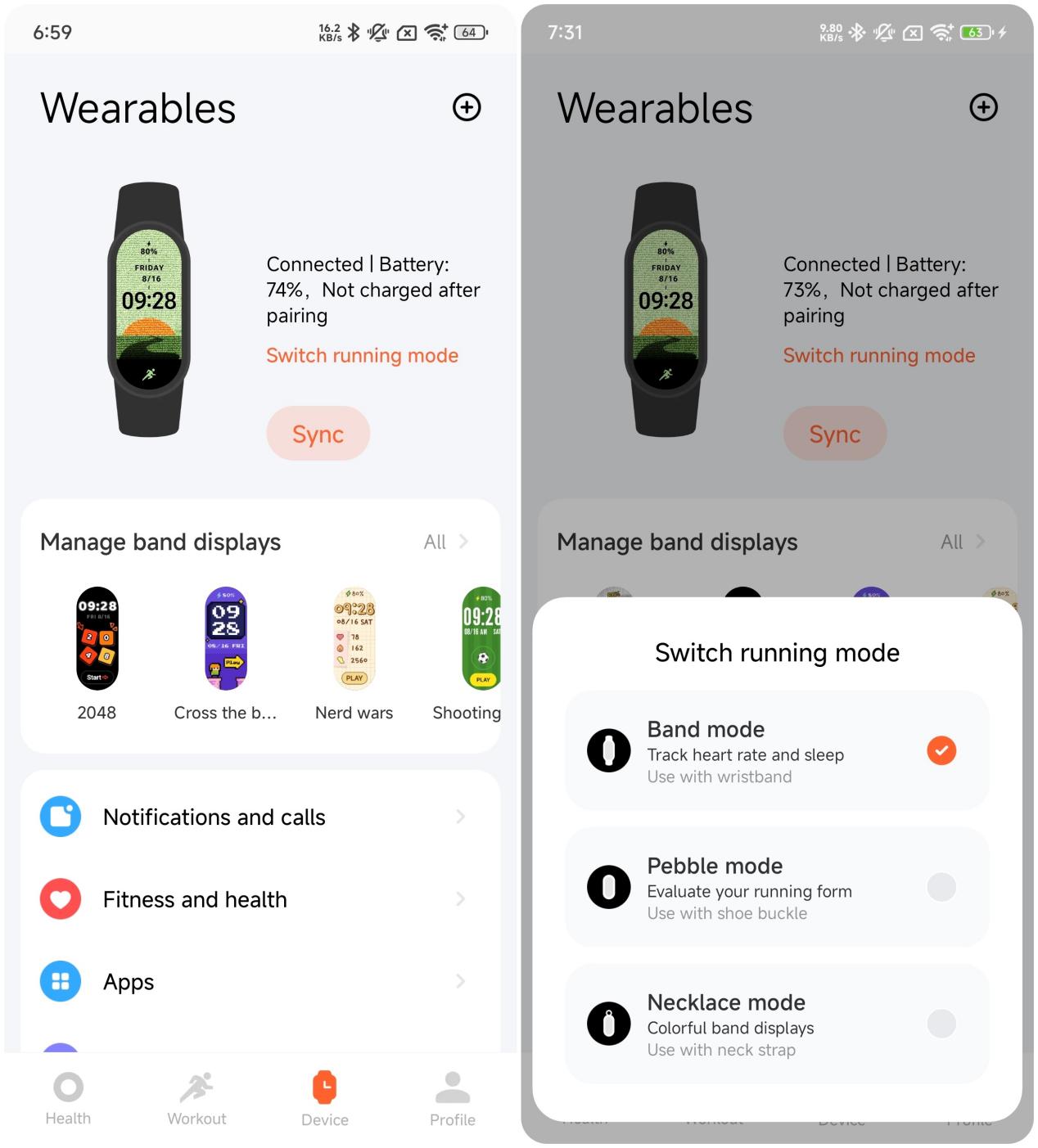
- If you want to exit the pebble mode, touch the screen to wake it up, swipe up to exit and hold the arrow while sliding up to confirm exit;
- If you want to initiate a workout session using the pebble mode, open the [Mi Fitness App] >> [Workout] >> choose any of the exercise options >> select [The pebble mode] >> select [GO] >> ready to wear.
Note:
- This mode cannot record heart rate, blood oxygen, or other similar data;
- Ensure that the exercise session is initiated within the App to record exercise data.
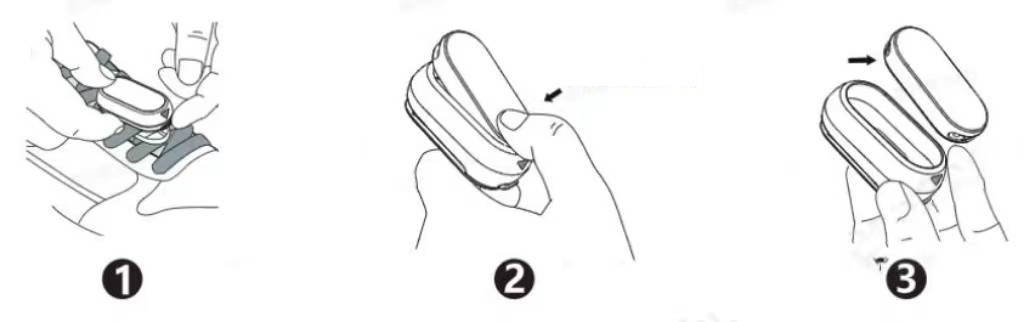
The detailed instructions for the removal of the pebble mode are as follows:
- To remove the pebble mode, press the shoe buckle clip button at the bottom of the pebble capsule, release the spring clip and remove the pebble capsule from the shoelace;
- Use your fingertips or a pry piece to gently insert into the top or bottom of the pebble capsule and pull it out from the groove of the wristband body;
- Separate the wristband body from the pebble capsule.
5. Q: Why is there exercise data lost in the pebble mode when using the Xiaomi Smart Band 10 Glimmer Edition?
A: If you encounter missing exercise data in the pebble mode when using the Xiaomi Smart Band 10 Glimmer Edition, you can ensure the Mi Fitness App is added to the background protection list. Additionally, ensure the App has necessary permissions enabled to allow the wristband functions to work correctly. Open the [Mi Fitness] App >> [Device] >> [Notifications and calls] >> [Background permissions] to set the permissions. Check whether the permissions of [Turn off Battery saver], [Select “No restrictions” in Background settings], [Allow App autostart] and [Lock the App in background] are all enabled.
6. Q: Why is there a discrepancy between the actual data and the recorded data in the pebble mode when using the Xiaomi Smart Band 10 Glimmer Edition?
A: The discrepancies of the Xiaomi Smart Band 10 Glimmer Edition are summarized as follows:
- The pebble mode only supports wearing the band display towards yourself. There can be significant data differences if worn in the opposite direction, so please ensure correct wearing orientation;
- If you are running outdoors, discrepancies in data, such as ground contact to flight ratio and step count will arise due to individual differences in running habits. The latest software version has been optimized to address this;
- For indoor running, as actual movement is not occurring, the estimated exercise distance is based on personal information (height, weight, etc.) and exercise conditions, which will lead to data discrepancies. The App allows a distance calibration feature, which allows for manual adjustment of distance post-indoor running.
Band display related
1. Q: How to change the band display of the Xiaomi Smart Band 10 Glimmer Edition?
A: The Xiaomi Smart Band 10 Glimmer Edition comes with 8 pre-installed band displays. And you can download more than 220 market band displays in the Mi Fitness App. The style of the band display can be changed on the band.
To change the band display on the Xiaomi Smart Band 10 Glimmer Edition, please refer to the following methods:
- Enter the main interface of the band >> [Settings] >> [Home screen] >> [Band display] >> [Band displays] >> swipe up and down to select your favourite band display >> tap the screen to confirm and change the band display;
- Press and hold on the main interface to enter preview mode. Swipe up and down to select your favourite preview image of the band display. Tap the preview image to confirm and Apply the selected band display.
Note:
- You can turn on/off the [Press and hold screen] function by swiping right on the main interface and going to [Settings] >> [Home screen] >> [Band display] >> [Press and hold screen]. When turned on, press and hold the screen to edit the band display;
- Change the band display on the Mi Fitness App:
Go to [Mi Fitness] App >> [Device] >> [Manage band displays] >> select your favourite band display >> download and Apply it.
2. Q: How many band displays can the Xiaomi Smart Band 10 Glimmer Edition install at most?
A: The Xiaomi Smart Band 10 Glimmer Edition comes with 8 pre-installed band displays. Up to 9 market band displays can be downloaded, and deleting pre-installed band displays will not increase this limit.
The band reserves around 20MB of storage for band displays. The photos of the band display can also be stored in this storage space. Since each band display occupies different amounts of space, the total number of installable band displays can vary. When the limit is reached, you can delete the market band displays and download new ones.
Note:
The capacity of a regular band display is Approximately 0.5MB, while more complex band displays require more storage space, up to several megabytes.
3. Q: How many band displays does the Xiaomi Smart Band 10 Glimmer Edition support?
A: The Xiaomi Smart Band 10 Glimmer Edition supports over 200 market band displays, with multiple categories, colors, and styles to better match your outfit and strap.
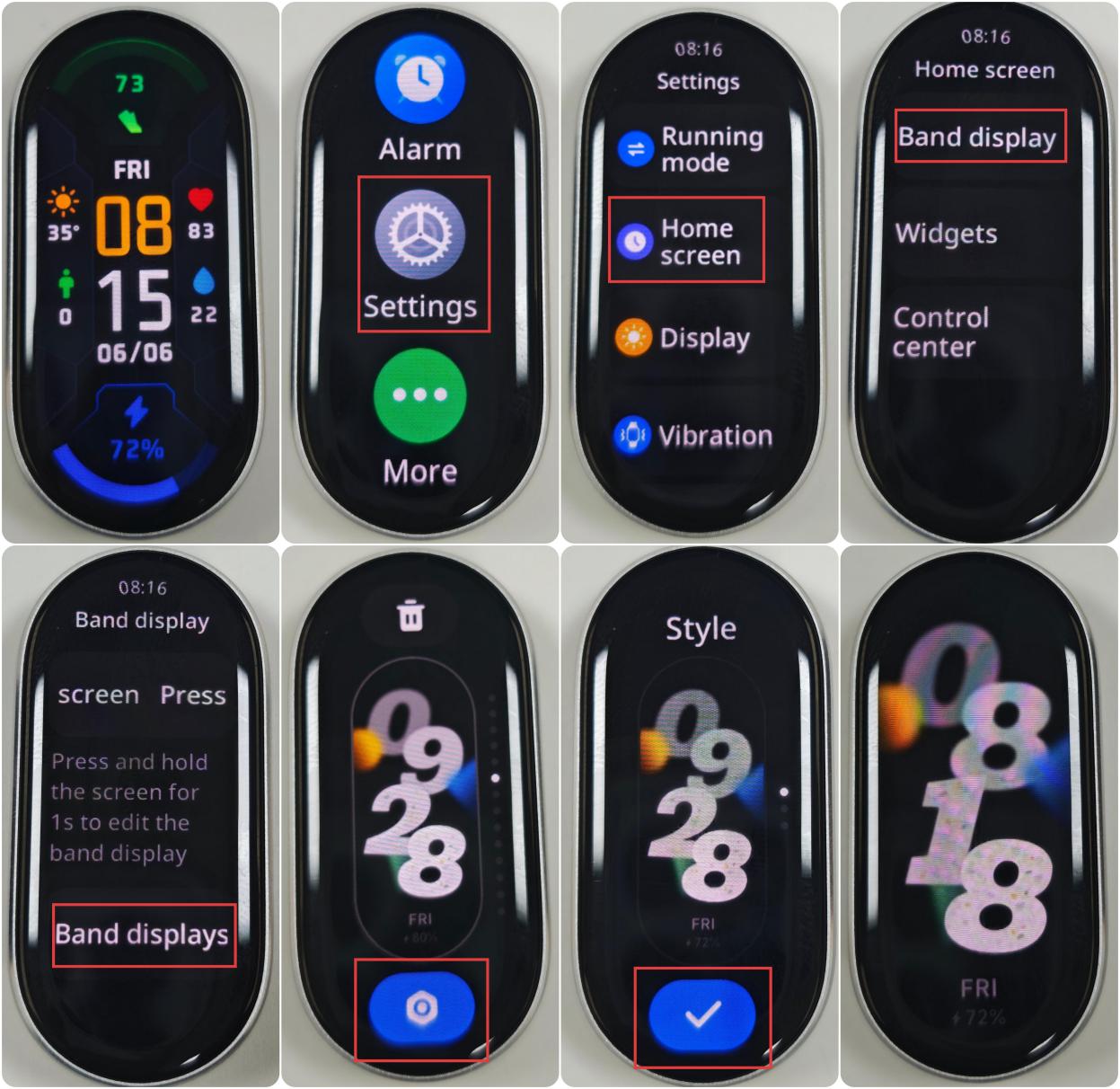
4. Q: How to edit the band display of the Xiaomi Smart Band 10 Glimmer Edition?
A: Enter the main interface of the Xiaomi Smart Band 10 Glimmer Edition >> [Settings] >> [Home screen] >> [Band display] >> [Band displays] >> swipe up and down to select your favourite band display.
And then tap the settings icon at the bottom to jump to the style selection interface. Swipe up and down to choose your favourite style, and tap [√] to Apply the band display.
Note:
Not all band displays support editing the band display’s style.
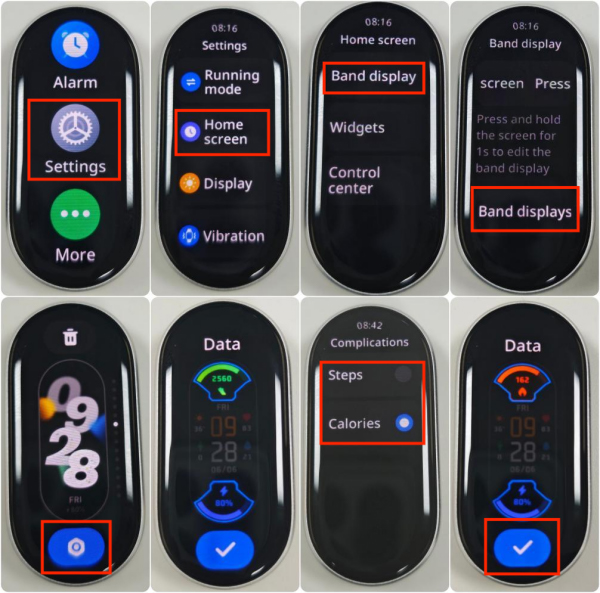
5. Q: How to change the band display’s data of the Xiaomi Smart Band 10 Glimmer Edition?
A: Enter the main interface of the Xiaomi Smart Band 10 Glimmer Edition >> [Settings] >> [Home screen] >> [Band display] >> [Band displays] >> swipe up and down to select your favourite band display. And then tap the settings icon at the bottom.
Swipe left to the [Data] interface. Tap the highlighted part and select the function icon that you wish to change to, and tap [√] to Apply the band display.
Note:
Not all band displays support changing the band display’s data.
6. Q: Does the Xiaomi Smart Band 10 Glimmer Edition support a custom background for the band display?
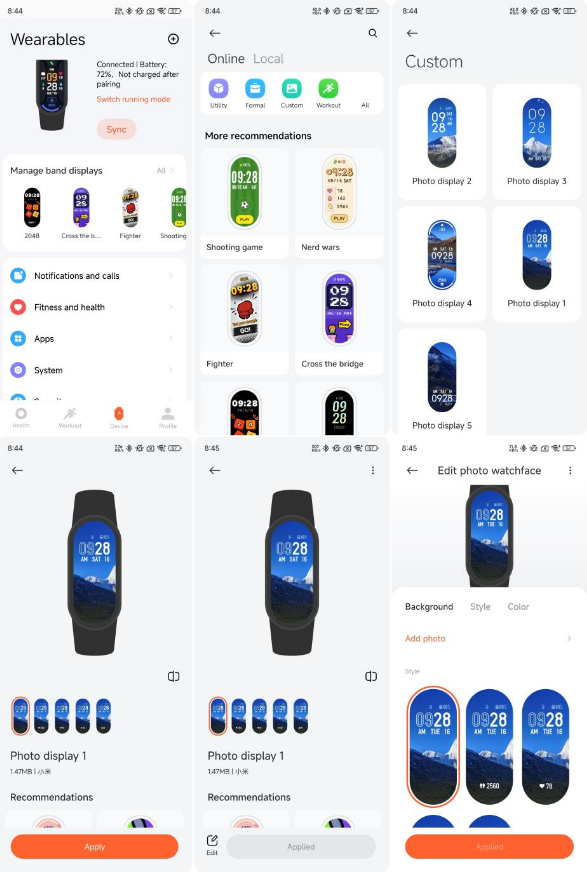
A: The Xiaomi Smart Band 10 Glimmer Edition supports a custom background for the band display. This function needs to be implemented through a [Custom] band display and needs to be set on the Mi Fitness App.
For your reference, please refer to the following steps:
Go to [Mi Fitness] App >> [Device] >> [Manage band displays] >> [Custom] >> select the band display style >> tap [Apply] >> [Edit] >> add custom images (Support selecting up to 8 images) >> follow the instructions to complete the band display configuration.
7. Q: Does the Xiaomi Smart Band 10 Glimmer Edition support the Always-on display function, and how to enable it?
A: The Xiaomi Smart Band 10 Glimmer Edition supports the Always-on display function.
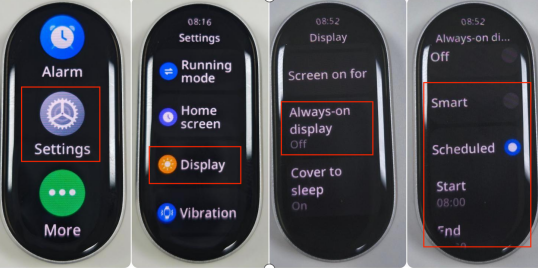
To enable the Always-on display function, please refer to the following steps:
Enter the main interface of the band >> go to [Settings] >> [Display] >> [Always-on display] >> you can choose [Off], [Smart] or [Scheduled]. In the [Scheduled] option, you can set the start and end time. (Use the Always-on display function all day: start time = end time).
Note:
- After turning on this function, the power consumption of the band will increase significantly;
- After turning on this function, the band will continue to display the sport status while in workout mode and the screen will not be off;
- Each band display style for the Always-on display is different, and you can check the style for the Always-on display in the band display market.
8. Q: Can the function on the band display of the Xiaomi Smart Band 10 Glimmer Edition be customized?
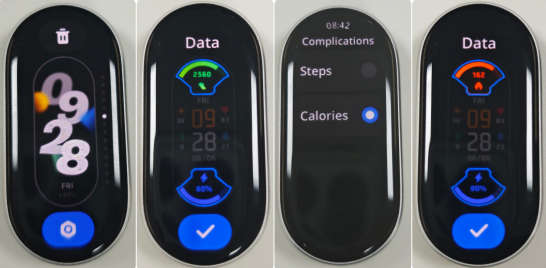
A: The function on the band display of the Xiaomi Smart Band 10 Glimmer Edition can be customized (only some band displays support customization). The band display with the settings icon supports customization. You can adjust the band display according to your preferences. Due to the diversity of band displays, the content displayed on each band display will vary.
There are two methods to customize the function of the band display:
- Press and hold the main interface on the Xiaomi Smart Band 10 Glimmer Edition >> tap the settings icon >> select the function icon that needs to be changed >> select the function option that you wish to change to >> tap [√];
- Enter the main interface of the band >> go to [Settings] >> [Home screen] >> [Band display] >> [Band displays] >> select a band display with the settings icon >> tap the settings icon >> select the function icon that needs to be changed >> select the function option that you wish to change to >> tap [√].
9. Q: How to turn off the settings of pressing and holding for editing the band display on the Xiaomi Smart Band 10 Glimmer Edition?
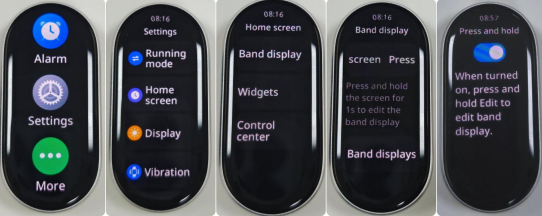
A: To turn off the settings of pressing and holding for editing the band display on the Xiaomi Smart Band 10 Glimmer Edition, please refer to the following information:
You can go to [Settings] >> [Home screen] >> [Band display] >> [Press and hold screen] >> turn off this option.
10. Q: Does the Xiaomi Smart Band 10 Glimmer Edition support game band displays?
A: The Xiaomi Smart Band 10 Glimmer Edition supports game band displays. You can go to the Mi Fitness App >> [Device] >> [Manage band displays] >> choose some game band displays, such as shooting games, cross the bridge, as you prefer.
11. Q: How to switch photos on the custom band display of the Xiaomi Smart Band 10 Glimmer Edition?
A: To switch photos on the custom band display of the Xiaomi Smart Band 10 Glimmer Edition, please refer to the following methods:
- Tap the main interface of the band to switch photos;
- Return to the main interface from another interface (Enter the main interface after resting the screen, and enter the main interface by raising the wrist).
12. Q: Is there a prompt on the Xiaomi Smart Band 10 Glimmer Edition when installing a band display?
A: The Xiaomi Smart Band 10 Glimmer Edition supports installing prompts. After confirming to download the band display on the App, you can view the installation progress on the App. At the same time, the band will display “syncing”. After the transmission and installation, the band will automatically update to the selected one.
13. Q: Why do some band displays on the Xiaomi Smart Band 10 Glimmer Edition flicker in Always-on display (AOD) mode?
A: When the AOD function is enabled and the screen is off, the Xiaomi Smart Band 10 Glimmer Edition will reduce screen brightness and refresh rate to conserve power. Under these conditions, some time band displays with large display areas can flicker.
Additionally, some band displays with large text areas in AOD mode can appear to flicker slightly. This does not affect daily use and will not cause any functional issues with the screen, so please feel assured when using it.

14. Q: Does the Xiaomi Smart Band 10 Glimmer Edition support paid band displays, and how to get a refund?
A: Please refer to the band display market within the Mi Fitness App for specific details.
Message reminder related
1. Q: Does the Xiaomi Smart Band 10 Glimmer Edition support the Wake screen function?
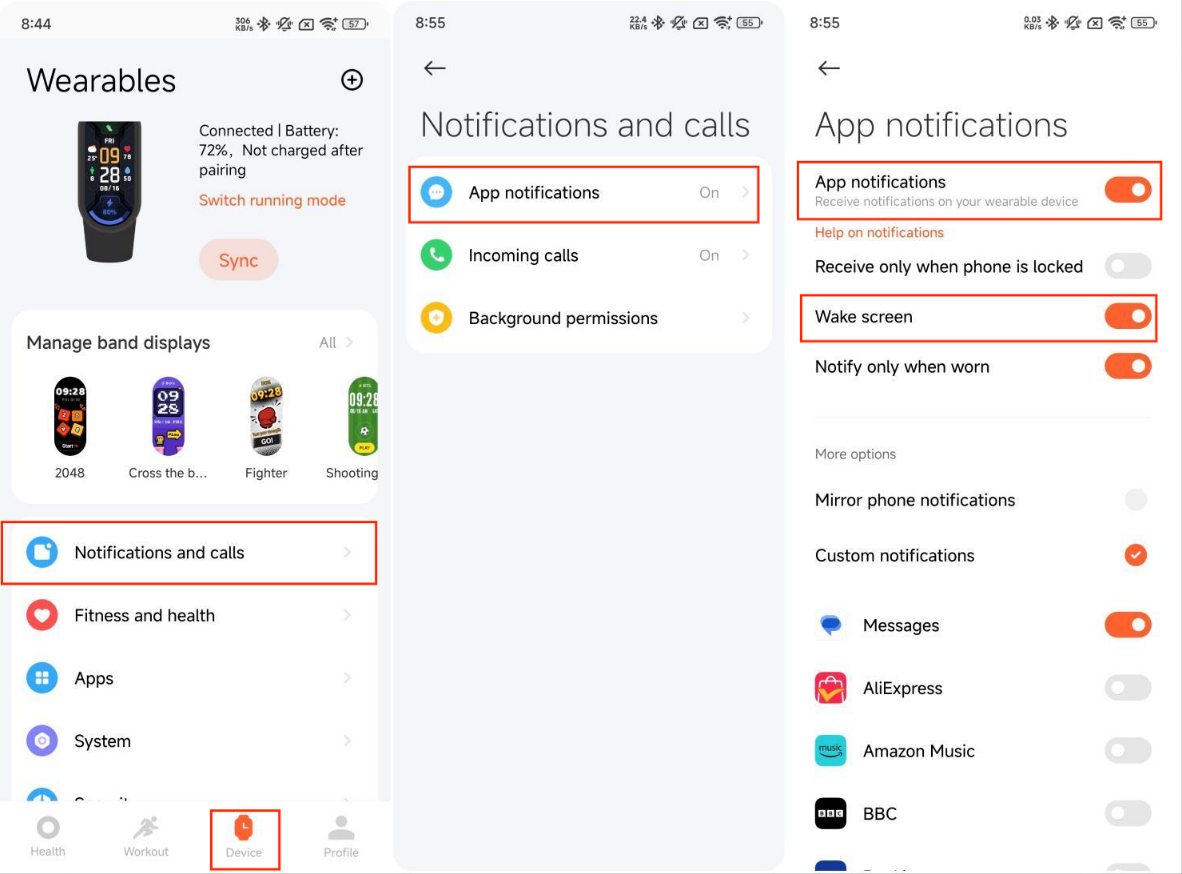
A: The Xiaomi Smart Band 10 Glimmer Edition supports the Wake screen function. After enabling this function, the band screen will automatically light up when it receives notifications from the App on your phone. If this function is disabled, the band will not light up but only vibrate when receiving App notifications, which helps improve the battery life.
The setting path of turning on the Wake screen function on the Mi Fitness App:
Open the [Mi Fitness] App >> [Device] >> [Notifications and calls] >> [App notifications] >> enable [App notifications] >> enable [Wake screen].
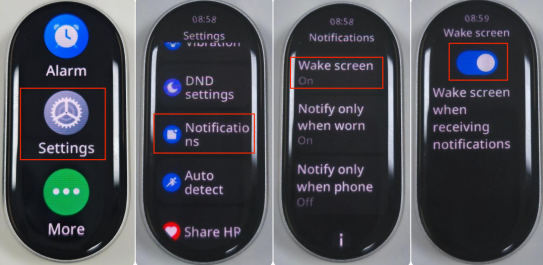
The setting path of turning on the Wake screen function on the Xiaomi Smart Band 10 Glimmer Edition:
Enter the main interface of the band >> go to [Settings] >> [Notifications] >> [Wake screen] >> enable the function.
2. Q: How to view the notifications on the Xiaomi Smart Band 10 Glimmer Edition?
A: When the Xiaomi Smart Band 10 Glimmer Edition receives a notification, it will vibrate to alert you and automatically display the notification content. If the notification is not viewed immediately after it is received, you can access the notification center by sliding down on the main interface.
When you enter the notification center, the first content you see is the latest notification. Scroll down in the notification center and you can view the history of notifications. If the contents of the notifications exceed one screen, you can continue to swipe down to view them.
For your reference, here are more details about deleting or emptying the notifications on the Xiaomi Smart Band 10 Glimmer Edition:
- The band can save up to 20 notifications. After exceeding this limit, each new notification received will automatically replace the oldest one;
- Tap the notification list to enter the notification details. Tap [Dismiss] to delete the notification;
- In the notification list, swipe left and tap the delete icon to delete the notification;
- In the notification center, scroll down to the top and tap [Clear all] to delete all the notifications;
- Aggregated messages are displayed as "+X" in the upper right corner. Aggregated messages can only be deleted by swiping left or entering the group of aggregated messages.
3. Q: How to use the "open on phone" function on the notification detail interface of the Xiaomi Smart Band 10 Glimmer Edition?
A: This function can quickly open the phone’s message interface by tapping the notification details on the Xiaomi Smart Band 10 Glimmer Edition.
This function requires the following conditions:
- Ensure the Mi Fitness App is running in the background;
- The phone is not in lock screen status. The phone cannot jump to another interface when the screen is locked;
- The function cannot be realized on some phones;
- The compatibility between the phone system and the application is important. The current function is trying to adapt to more models. Please wait patiently.
4. Q: Why is there no response when tapping "open on phone" on the Xiaomi Smart Band 10 Glimmer Edition?
A: If there is no response when you tap "open on phone" on your Xiaomi Smart Band 10 Glimmer Edition, please check the following reasons:
- Check whether the Mi Fitness App is running in the background. Please turn on the App background protection;
- Check if your phone is in lock screen status. If the phone is locked, the phone can not jump to the interface;
- Currently, the function is trying to adapt to more Android models. Please wait patiently;
- iOS phones do not support this feature.
5. Q: Why does the Xiaomi Smart Band 10 Glimmer Edition not support the "open on phone" function?
A: The "open on phone" function is limited by the phone model and system version. As a result, this function is not available or not displayed. If the "open on phone" is not displayed on your Xiaomi Smart Band 10 Glimmer Edition or there is no response when you tap it, it is because your phone model does not support this function.
For your reference, here are more details:
- iOS phones and some Android phones do not support this function;
- The phone with the Android 14 system does not support this function;
- Huawei, Samsung, and Honor phones do not support this function.
6. Q: Why is the dismiss option on the Xiaomi Smart Band 10 Glimmer Edition only available for some notifications?
A: The Xiaomi Smart Band 10 Glimmer Edition supports notification aggregation. Whether the notifications are aggregated are related to the App. You can't delete the single notification that is aggregated or in the aggregated notifications.
Tap the aggregated notification card to enter the aggregated notification list, and the [Clear all] option will be displayed at the bottom. You can tap [Clear all] to clear these aggregated notifications.
Message Reminding
1. Q: Does the Xiaomi Smart Band 10 Glimmer Edition support reminding incoming calls?
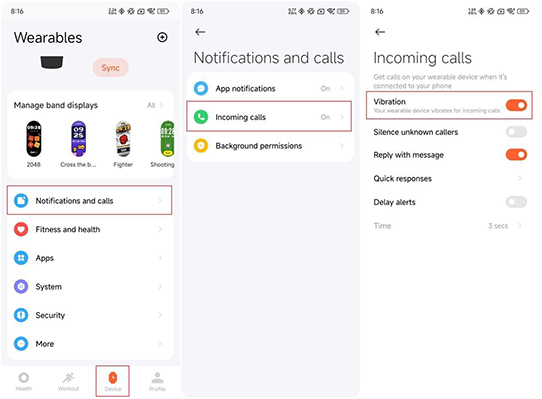
A: The Xiaomi Smart Band 10 Glimmer Edition supports reminding incoming calls. In the status of connecting with the phone, when there is incoming calls on the phone, the band will vibrate as a reminder and display the phone number or name of the caller. You can tap the red phone icon on the band to reject the incoming call or tap the ignoring option to silence the incoming calls. The Xiaomi Smart Band 10 Glimmer Edition doesn’t support answering calls.
You can enable the feature by going to the Mi Fitness App >> [Device] >> [Notifications and calls] >> [Incoming calls] >> [Vibration] and configuring other settings.
2. Q: Does the Xiaomi Smart Band 10 Glimmer Edition support replying incoming calls with message?
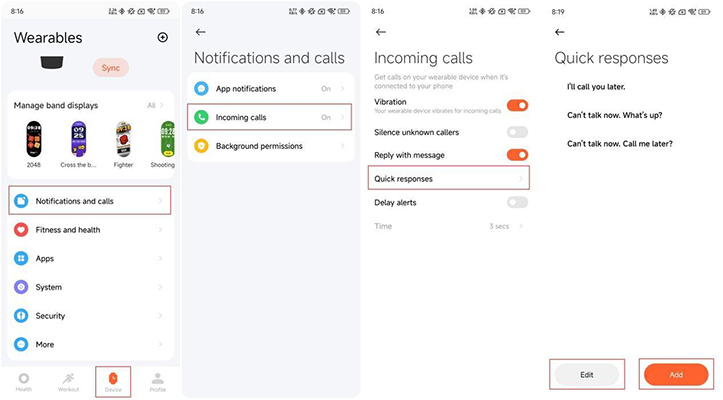
A: The Xiaomi Smart Band 10 Glimmer Edition supports replying incoming calls with message. In the status of connecting with the phone, you can reply the incoming calls with message on the band.
To configure the messages that are used to reply incoming calls, you can go to the Mi Fitness App >> [Device] >> [Notifications and calls] >> [Incoming calls] >> [Quick responses] >> [Edit] or [Add].
Note:
The permission of replying with message can’t be gotten on the iOS device, so this feature is not supported on the iOS device.
3. Q: Does the Xiaomi Smart Band 10 Glimmer Edition support replying the notifications of third-party Apps?
A: The Xiaomi Smart Band 10 Glimmer Edition doesn’t support replying the notifications of third-party Apps.
4. Q: Why does the Xiaomi Smart Band 10 Glimmer Edition not receive incoming call reminder?
A: If the Xiaomi Smart Band 10 Glimmer Edition doesn’t receive incoming call reminder, please refer to the following methods for troubleshooting:
- Please confirm whether the incoming call reminder is enabled on the Mi Fitness App;
- Please confirm whether the Mi Fitness App has sufficient permissions, including the permission to receive incoming calls and the permission to run in the background, to ensure that the Mi Fitness App can push incoming calls to the band in the background;
- Please confirm whether the following modes are enabled on the band, which will silence the message reminders:
(1). DND mode;
(2). DND Sync and DND is enabled on the phone;
(3). Sleep mode.
5. Q: Why does the Xiaomi Smart Band 10 Glimmer Edition fail to reply incoming calls with message?
A: If the Xiaomi Smart Band 10 Glimmer Edition fails to reply incoming calls with message, please refer to the following details for troubleshooting:
Failing to reply incoming calls with message is a result of the process of replying with message. It is an unexpected problem and has noting to do with the band. It is caused by the permission gotten by the Mi Fitness App from the phone or the incompatibility of the phone with the Mi Fitness App. By checking whether the relevant permissions and options are enabled on the phone, the issue will be solved.
6. Q: Why does the Xiaomi Smart Band 10 Glimmer Edition fail to receive the messages of third-party Apps on the phone?
A: If the Xiaomi Smart Band 10 Glimmer Edition fails to receive the messages of third-party Apps on the phone, please refer to the following methods for troubleshooting:
- Please check whether the notification permission of the third-party Apps is enabled;
- Please check whether [App lock] is enabled on your phone. You need to disable the feature of hiding notification content by going to [Settings] >> [Apps] >> [App lock] >> [Want to hide sensitive notifications?] >> select from the Apps;
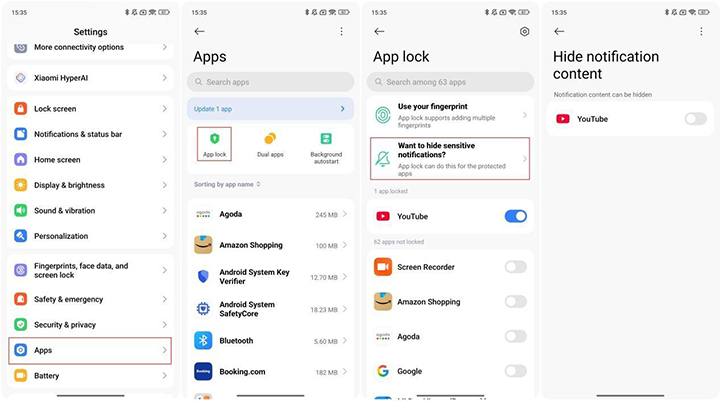
- Please check whether background lock or auto start-up of the Mi Fitness App is enabled. If the App disconnects with the band, the notifications will not be synchronized to the band.
7. Q: Why does the Xiaomi Smart Band 10 Glimmer Edition still display missed calls after the incoming calls are rejected on the phone or the band, replying to incoming calls with message, or ignoring incoming calls?
A: The reminders of missed calls are pushed by the phone, which can’t be controlled by the Xiaomi Smart Band 10 Glimmer Edition or the Mi Fitness App.
8. Q: Why does the Xiaomi Smart Band 10 Glimmer Edition still vibrate after silencing unknown callers on the phone?
A: The current Android system can’t synchronize silencing unknown callers between the phone and the Xiaomi Smart Band 10 Glimmer Edition. Please wait the relevant upgrades.
9. Q: How many notification icons does the Xiaomi Smart Band 10 Glimmer Edition support when it is connected to iOS devices?
A: When the Xiaomi Smart Band 10 Glimmer Edition is connected to the iOS devices, apart from the App icons preinstalled on the band, all other message notifications adopt the default icon and the Apps will not push the corresponding App icon to the band. The phone will push the corresponding App icons of the Apps downloaded in the App store to the band.
10. Q: Why does the Xiaomi Smart Band 10 Glimmer Edition display default icons when receiving notifications?
A: The Xiaomi Smart Band 10 Glimmer Edition supports dynamically caching 20 notification icons. If the 21st message is received when 20 icons are cached, the band will delete the icon of the corresponding App not receiving notifications for the longest time and cache the new icon of the corresponding App. At this time, if the App of its icon being deleted receives notification again, it is necessary to request the icon again. Therefore, if there are many Apps on the phone and messages are pushed regularly, you will view that when the notifications are pushed on the band, the corresponding icon of the App will be displayed in the notification center after the default icon is displayed on the global reminder interface. You can disable the uncommon notifications.
11. Q: What is the number of characters and items of notification reminder on the Xiaomi Smart Band 10 Glimmer Edition?
A: For your reference, here are the details about the number of characters and items of notification reminder on the Xiaomi Smart Band 10 Glimmer Edition:
- The notifications can be kept up to 20 in the notification list and tapping can clear all notifications in the current list. When the band is connected to the phone, the notification on the band will be deleted automatically after it is read on the phone;
- Notifications can be viewed by flipping pages. The maximum number of characters displayed on the band is 200, which is usually the same as the number of characters displayed in the notification bar on the phone, and also depends on the specific App;
- Picture notification display is not supported. Some emoji expressions are supported, and unsupported emoji expressions are displayed as “□” on the band.
Note:
The display of emoji expressions on the band is related to the specific expressions. The emoji that comes with the keyboard is more compatible than the expressions in the App.
12. Q: How long can the data on the Xiaomi Smart Band 10 Glimmer Edition be kept?
A: The Xiaomi Smart Band 10 Glimmer Edition supports storing data independently and using some features without the phone. When synchronizing data, you need to enable Bluetooth on the phone and make the phone close to the band, and ensure the connection status. The Xiaomi Smart Band 10 Glimmer Edition supports saving up to about 100 hours of workout data, displaying 20 pieces of workout record, and saving the vitality score and health data of sleep, heart rate, blood oxygen, stress, etc. of recent 7 days. The band can only display data for the day.
The data synchronized to the App will be uploaded to the cloud automatically. You can go to the Mi Fitness App >> [Profile] >> [App settings] >> [Sync with the cloud] >> enable [Sync with the cloud]. If you change to a new phone, you only need to use the previous Xiaomi account to bind the band on the new phone, and the previous data can be synchronized from the cloud to the new phone.
Note:
The number of the saved workout record items is related to the storage space that the workout record takes up. Please refer to the actual situation.
13. Q: Will the screen of the Xiaomi Smart Band 10 Glimmer Edition light up when receiving notifications?
A: For your reference, here are the conditions of lighting up for the Xiaomi Smart Band 10 Glimmer Edition screen when receiving notifications:
- When you enable [Notify only when worn], the band will not notify any messages synchronized from your phone if you don’t wear the band;
- When you disable [Notify only when worn], according to the logic of notification processing, only active messages can light up the screen and vibrate to remind you. Passive notifications can be received normally, and can be displayed by manually lighting the screen and can also be viewed in the notification center, but there will be no vibration or screen lighting.
Note:
Active messages: Alarm, Stopwatch, Find device, Alarm in Sleep mode, Auto detect, Unlock phone, Goal hit. Only active messages will be notified when you don’t wear the band. The App notifications on the phone belong to passive notifications.
14. Q: Why does the Xiaomi Smart Band 10 Glimmer Edition not remind of high heart rate?
A: In the quiet status, when the Xiaomi Smart Band 10 Glimmer Edition detects 10 minutes of heart rate higher than the configured high heart rate or lower than the configured low heart rate in a row, heart rate alert will be pushed. It is a normal design that no alert is pushed when the heart rate is higher or lower than the configured value once or several times.
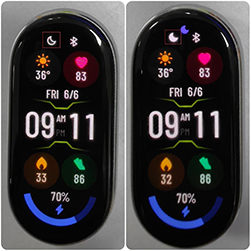
15. Q: Why does the screen of the Xiaomi Smart Band 10 Glimmer Edition display two moon icons after adopting G-Functional band display and enabling DND mode?
A: The moon icon in the upper left corner of G-Functional band display on the Xiaomi Smart Band 10 Glimmer Edition indicates whether DND is enabled. When DND is disabled the moon icon is hollow, and when DND is enabled, the moon icon is solid. The purple DND icon in the center is an icon floating on the homepage. Regardless of the band display, the purple moon icon can indicate whether the DND mode is on. It will be optimized in terms of band display.
16. Q: Why does the Xiaomi Smart Band 10 Glimmer Edition not push third-party notifications after connecting to iOS devices?
A: If the Xiaomi Smart Band 10 Glimmer Edition doesn’t push third-party notifications from the iOS phone, please first check whether the relevant options are enabled.
Please refer to the following methods for troubleshooting:
- Please ensure the Mi Fitness App is running in the background and keep the connection status between the App and the band;
- Please check whether the App notification is enabled in the Mi Fitness App. You can go to the Mi Fitness App >> [Device] >> [Notifications and calls] >> [App notifications] >> enable [App notifications] >> [Custom notifications] >> select corresponding third-party App;
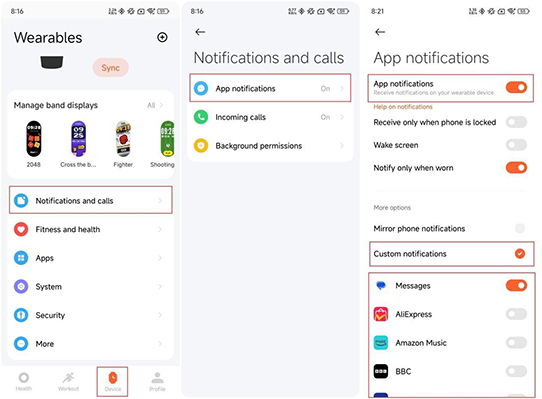
- Please check whether [Notify only when worn] is enabled in the Mi Fitness App. If this option is enabled, when you don’t wear the band, the notification will not be pushed in full screen, but it will be kept at the notification center. When you wear the band, the notifications will be pushed in full screen;
- Please check whether the App is beyond the screen usage time limit. If so, please disable the limit;
- Please check whether the Bluetooth settings on your phone can share system notifications;
- Please go to the settings App on your phone, enable the notification permission of corresponding third-party App and select the option of notification center;
- Please configure the display preview of corresponding App as Always in the settings App on your phone;
- Please search corresponding third-party App in the settings App on your phone and select the option of notification center in the notification settings interface.
Health Related
1. Q: What is the sleep monitoring range on the Xiaomi Smart Band 10 Glimmer Edition?
A: The Xiaomi Smart Band 10 Glimmer Edition supports sleep monitoring, including long sleep and nap, all of which are monitored 24 hours a day. After wearing the band normally and falling asleep, the band can automatically identify the sleeping state through the built-in sensor.
For your reference, here are more details about the sleep monitoring on the band:
- Sleep duration greater than or equal to 3 hours will be recorded as long sleep, and sleep duration less than 3 hours will be recorded as naps (sleep duration less than 20 minutes will not be recorded);
- The Xiaomi Smart Band 10 Glimmer Edition supports [Advanced monitoring], which can track the distribution of REM, but greatly affect the battery life. You can check the sleep distribution status on the band and the App;
- Method for checking sleep record: You can check the main sleep record of the day on the band. After synchronizing the data to the App, you can go to the Mi Fitness App >> [Sleep] to check the historical sleep data, including Day, Week, and Month. Sleep distribution includes total sleep time, Wake-ups duration, Light sleep time, and Deep sleep time. You can also check the sleep status of at each time point during your daily sleep period. REM can only be recorded when [Advanced monitoring] is enabled.
Note:
- If the band is in a relatively quiet state and there are movements similar to sleeping, the sensor will judge it as sleeping, resulting in errors in the sleeping time. For example, if the sleep is miscalculated when watching TV, playing with mobile phone in bed, or reading, it will be that the movement amplitude and frequency are relatively small, which is similar to the scene of sleeping;
- When you enable [Advanced monitoring] and synchronize the sleep report to the Mi Fitness App, you can manually correct in the App, which will not be synchronized to the band. The final result is based on the data in the App.
2. Q: Why does the Xiaomi Smart Band 10 Glimmer Edition generate such health data as heart rate, blood oxygen, and sleep data when not worn?
A: If the Xiaomi Smart Band 10 Glimmer Edition generates such health data as heart rate, blood oxygen, and sleep data when not worn, please refer to the following details for troubleshooting:
- Please check whether one account is bound to multiple devices;
- The band indirectly calculates health data such as sleep and heart rate through the changes in the intensity of the PPG light signal reflection. Since the signal reception is relatively sensitive, there will be other non-living objects (curtains, sheets, etc.) in life scenes that can reflect light close to them, which will cause misdetection. This is a normal phenomenon.
3. Q: Does the Xiaomi Smart Band 10 Glimmer Edition support monitoring breathing rate during sleep?
A: After enabling [Breathing rate], the Xiaomi Smart Band 10 Glimmer Edition supports automatically monitoring breathing rate when you wear the band and go to sleep at night. This feature will greatly affect the battery life. Please enable this feature according to your needs.
To enable [Breathing rate] on the phone, you can go to the Mi Fitness App >> [Sleep] >> three-dot icon >> [Settings] >> [Breathing rate].
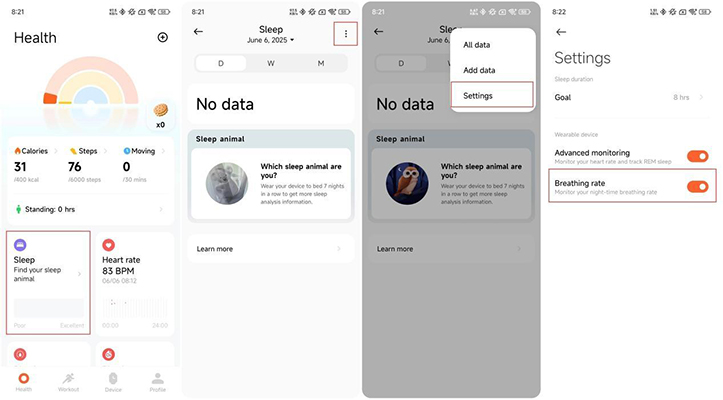
To enable [Breathing rate] on the band, you can also go to the Sleep App on the band >> [Settings] >> [Breathing rate] >> enable the option.
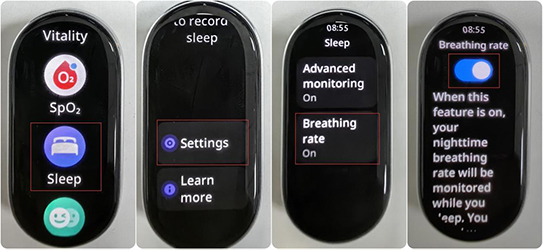
4. Q: Why is there no monitoring record after enabling [Breathing rate] on the Mi Fitness when using the Xiaomi Smart Band 10 Glimmer Edition?
A: If there is no monitoring record after enabling [Breathing rate] on the Mi Fitness when using the Xiaomi Smart Band 10 Glimmer Edition, please refer to the following methods for troubleshooting:
- Please check whether [Breathing rate] is enabled on the Mi Fitness App. You can go to the Mi Fitness App >> [Sleep] >> three-dot icon >> [Settings] >> [Breathing rate];
- If the sleep duration is too short, the breathing rate data will not be displayed because the effective monitoring time is too short (the night sleep time is more than 3 hours);
- Improper wearing will result in failure to monitor sleep breathing rate. It is recommended not to wear it too loosely, and keep the device one finger away from the wrist bone;
- If the above methods can’t solve the problem, please check the available App and band firmware updates. You can also restart the band or rebind the band and try it again.
5. Q: How long does the Xiaomi Smart Band 10 Glimmer Edition take to singly measure the blood oxygen?
A: It takes about 30 seconds for the Xiaomi Smart Band 10 Glimmer Edition to singly measure the blood oxygen. If the measuring time is too long, it will be caused by wearing status, skin texture, and environment. Please adjust the band position to ensure the band cover fits snugly on the wrist.
6. Q: What changes does the sensor indication at the bottom of the Xiaomi Smart Band 10 Glimmer Edition have when measuring blood oxygen?
A: Three indicators on the Xiaomi Smart Band 10 Glimmer Edition will be turned on when measuring blood oxygen, including green light, red light, and blood oxygen infrared light (invisible to the naked eye).
7. Q: Why does the sensor indicator on the Xiaomi Smart Band 10 Glimmer Edition flash in red when not worn at night?
A: For your reference, here are the reasons for the sensor indicator on the Xiaomi Smart Band 10 Glimmer Edition slashing in red when not worn at night:
- When the Xiaomi Smart Band 10 Glimmer Edition enables [Advanced monitoring] in the sleep settings and [All-day tracking] in the blood oxygen settings, the sensor indicator on the band will flash in red when worn. If you do not wear the device and find the red light flashing, it will be a misdetection of the wearing monitoring function. The Xiaomi Smart Band 10 Glimmer Edition adopts an infrared + green light high-precision PPG heart rate sensor. Compared with traditional wearing monitoring, the monitoring accuracy has been greatly improved. However, when the band is placed in an environment similar to the wrist, misdetection will also occur;
- When the band is not worn, please avoid blocking the heart rate indicator with any objects (Common misdetection scenarios: The band is placed in a bag, on a bed or table, etc.);
- If you don’t wear the band during sleep, it is recommended that you disable [Advanced monitoring], which can save the band power.
8. Q: Does the Xiaomi Smart Band 10 Glimmer Edition support abnormal blood oxygen alert when the blood oxygen data is at risk?
A: The Xiaomi Smart Band 10 Glimmer Edition supports configuring [Blood oxygen alert] as [80%], [85%], and [90%]. The measured values are for reference only and are not intended for medical reference or diagnosis. If you feel any discomfort, please consult a medical institution.
9. Q: Why are the measured values of blood oxygen on the Xiaomi Smart Band 10 Glimmer Edition too low?
A: If the measured values of blood oxygen are too low on the Xiaomi Smart Band 10 Glimmer Edition, please refer to the following details:
- Please check if the band is not worn in the correct position. Since there are fewer blood vessels in the wrist, the blood oxygen value is not easy to measure. Please wear the band at a distance of one finger from the wrist bone (ulnar protrusion);
- Please check if the band is worn too loosely. Please wear the band tightly, with a slight sense of tightness, and the band will not move when shaking the wrist;
- Stretch your forearm and open your elbow joint to avoid squeezing the blood vessels, which will cause blood to flow poorly and make the measurement value inaccurate;
- Put your arm on a stable place such as a desktop for measurement, with the band screen facing up, to avoid shaking and unstable signals;
- It is recommended that you move the band wearing position, ensure that the back of the band fits the wrist and keep it still before measuring again;
- The latest version has been optimized accordingly, please upgrade to the latest version for further experience.
10. Q: Does the Xiaomi Smart Band 10 Glimmer Edition support Remind to stand up?
A: The Xiaomi Smart Band 10 Glimmer Edition supports Remind to stand up. After [Remind to stand up] is enabled in the Mi Fitness App, when the band detects inactivity for 50 minutes in each natural hour, it will vibrate and remind you to stand up at the 50th minute.
Sitting for extended periods can lead to various health issues. While wearing the band daily, it is recommended to get up and move around once every hour. Frequently staying in a standing position is a convenient way to reduce sedentary behavior and increase energy expenditure.
The stand reminder can only be enabled through the App, where you can set the start and end times, as well as configure a do-not-disturb period during lunch break.
To turn on the stand reminder, open the Mi Fitness App >> [Device] >> [Fitness and health] >> [Standing] >> turn on/off [Remind to stand up] >> Set time period.
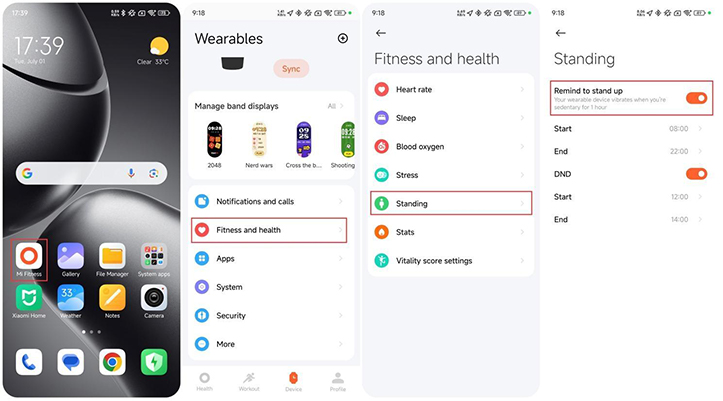
11. Q: Why does the Xiaomi Smart Band 10 Glimmer Edition remind me to stand up when I’m in the standing status?
A: The purpose of reminding to stand up on the Xiaomi Smart Band 10 Glimmer Edition is to get you moving. The band needs to detect wrist movement and step count to determine whether the standing activity behavior has been achieved. Therefore, if you have been standing still or moving slightly, you will receive a standing reminder. At the same time, we are also constantly optimizing the standing determination algorithm to gradually improve your experience.
12. Q: Why does the Xiaomi Smart Band 10 Glimmer Edition remind to stand up when the movement just hAppened?
A: The determination of a standing reminder requires certain conditions. If you just start to move and suddenly receive a standing reminder from the band, it is because you are in an active state but have not reached the condition of determining the standing. At this time, you can continue to move and ignore the standing reminder issued by the band. If this phenomenon occurs frequently, you can submit relevant feedback. The algorithm is constantly being improved to improve your experience.
13. Q: How to check the Vitality score of the Xiaomi Smart Band 10 Glimmer Edition?
A: The Xiaomi Smart Band 10 Glimmer Edition supports the Vitality score function.
In the band, you can check the Vitality score of the last 7 days and the Vitality score gained every day in the application list. After each exercise, you can also view the Vitality score that can be increased by this exercise in the exercise report.
In the Mi Fitness App, you can go to the [Health] interface, and check the Vitality score of the last 7 days and the Vitality score gained every day.
14. Q: Why does the Vitality score achievement notification on the Xiaomi Smart Band 10 Glimmer Edition appear at midnight every day?
A: The notification appears only when your 7 days cumulative Vitality score increases from below to equal or above the thresholds of 30, 60, or 100. Please update to the latest version to enjoy this feature.
15. Q: Why is today's Vitality score on the Xiaomi Smart Band 10 Glimmer Edition lower than yesterday's?
A: The Vitality score is calculated based on personalized data from the past 7 days. At midnight each day, the Vitality score earned exactly 7 days ago expires and is no longer counted. As a result, you can notice a decrease in your score compared to the previous day. To maintain your Vitality score, you need to keep earning new points consistently.
16. Q: Why does the Xiaomi Smart Band 10 Glimmer Edition not have Heart rate records?
A: If the Xiaomi Smart Band 10 Glimmer Edition does not have Heart rate records, please refer to the following to troubleshoot:
- First check whether the green light flashes when the back of the band touches the skin. If the green light flashes, it means that the Heart rate monitoring function of the band is enabled normally. If there is no green light flashing, please verify whether the Heart rate monitoring is enabled;
- Please wear it accurately. The band can not be worn too loose. Adjust the wearing and then re-enter the page of Heart rate function of the band on the App to check;
- Excessively dry skin and skin scars will affect heart rate measurement. Low winter temperatures will also affect heart rate measurement;
- If the problem is not caused by the details above, you can restart the band and change the arm to wear to try again.
17. Q: Why does the green light flicker even when the Xiaomi Smart Band 10 Glimmer Edition is not being worn?
A: If the green light flickers intermittently for 10-30 seconds, it is because the band uses infrared and green light for wear detection. Compared to traditional wear detection, this provides much higher accuracy and precision. Therefore, even when not worn, there will be brief green light flickering.
If the green light continues to flash, check whether you have activated sports mode. In this mode, the green light stays on to ensure fast heart rate measurement.
Sports Related
1. Q: What sports modes does the Xiaomi Smart Band 10 Glimmer Edition support?
A: The Xiaomi Smart Band 10 Glimmer Edition supports 159 sports modes, and the information chart is listed below:
The sports list of the band displays 8 common sports and the [More] sports entrance by default. The eight common sports are Outdoor running, Walking, Freestyle, Hiking, Outdoor cycling, Indoor running, Jump rope, and Pool swimming.
Category | Sport mode | Type |
Defaulted display | Outdoor running | Professional sport |
Walking | Professional sport | |
Freestyle | Extended sport | |
Hiking | Professional sport | |
Outdoor cycling | Professional sport | |
Indoor running | Professional sport | |
Jump rope | Professional sport | |
Pool swimming | Professional sport | |
Water activities | Pool swimming | Professional sport |
Sailing | Extended sport | |
Paddleboarding | Extended sport | |
Water polo | Extended sport | |
Other water sports | Extended sport | |
Water skiing | Extended sport | |
Kayaking | Extended sport | |
Rafting | Extended sport | |
Rowing | Extended sport | |
Powerboating | Extended sport | |
Finswimming | Extended sport | |
Diving | Extended sport | |
Artistic swimming | Extended sport | |
Snorkeling | Extended sport | |
Kitesurfing | Extended sport | |
Flowriding | Extended sport | |
Dragon boat | Extended sport | |
Outdoor activities | Outdoor running | Professional sport |
Walking | Professional sport | |
Hiking | Professional sport | |
Outdoor cycling | Professional sport | |
Cross-country running | Professional sport | |
Mountaineering | Professional sport | |
Rock climbing | Extended sport | |
Skateboarding | Extended sport | |
Roller skating | Extended sport | |
Parkour | Extended sport | |
ATV | Extended sport | |
Paragliding | Extended sport | |
BMX | Extended sport | |
Race walk | Extended sport | |
Training | Freestyle | Extended sport |
Indoor running | Professional sport | |
Jump rope | Professional sport | |
HIIT | Extended sport | |
Yoga | Extended sport | |
Indoor cycling | Extended sport | |
Elliptical | Professional sport | |
Rower | Professional sport | |
Stair climber | Extended sport | |
Stepper | Extended sport | |
Spinning | Extended sport | |
Core training | Extended sport | |
Flexibility | Extended sport | |
Pilates | Extended sport | |
Gymnastics | Extended sport | |
Stretching | Extended sport | |
Strength | Extended sport | |
Cross training | Extended sport | |
Stair climbing | Extended sport | |
Aerobics | Extended sport | |
Physical training | Extended sport | |
Wall ball | Extended sport | |
Dumbbell | Extended sport | |
Barbell | Extended sport | |
Weightlifting | Extended sport | |
Deadlift | Extended sport | |
Burpee | Extended sport | |
Sit-ups | Extended sport | |
Functional training | Extended sport | |
Upper body | Extended sport | |
Lower body | Extended sport | |
Abs | Extended sport | |
Back | Extended sport | |
Air walker | Extended sport | |
Horizontal bar | Extended sport | |
Parallel bar | Extended sport | |
Stepper | Extended sport | |
Mass gymnastics | Extended sport | |
Cardio combat | Extended sport | |
Battle rope | Extended sport | |
Aerobic combo | Extended sport | |
Indoor walking | Extended sport | |
Indoor fitness | Extended sport | |
Dance | Square dance | Extended sport |
Belly dance | Extended sport | |
Ballet | Extended sport | |
Street dance | Extended sport | |
Zumba | Extended sport | |
Folk dance | Extended sport | |
Jazz dance | Extended sport | |
Lating dance | Extended sport | |
Hip hop | Extended sport | |
Pole dance | Extended sport | |
Breaking | Extended sport | |
Ballroom dance | Extended sport | |
Modern dance | Extended sport | |
Dance | Extended sport | |
Combating activities | Boxing | Extended sport |
Wrestling | Extended sport | |
Martial arts | Extended sport | |
Tai chi | Extended sport | |
Muay thai | Extended sport | |
Judo | Extended sport | |
Taekwondo | Extended sport | |
Karate | Extended sport | |
Kickboxing | Extended sport | |
Kendo | Extended sport | |
Fencing | Extended sport | |
Jujitsu | Extended sport | |
Ball sports | Tennis | Extended sport |
Basketball | Extended sport | |
Golf | Extended sport | |
Soccer | Extended sport | |
Volleyball | Extended sport | |
Baseball | Extended sport | |
Softball | Extended sport | |
American ball | Extended sport | |
Hockey | Extended sport | |
Table tennis | Extended sport | |
Badminton | Extended sport | |
Cricket | Extended sport | |
Handball | Extended sport | |
Bowling | Extended sport | |
Squash | Extended sport | |
Billiards | Extended sport | |
Shuttlecock | Extended sport | |
Beach soccer | Extended sport | |
Beach Volleyball | Extended sport | |
Sepak takraw | Extended sport | |
Futsal | Extended sport | |
Hacky sack | Extended sport | |
Bocce | Extended sport | |
Jai alai | Extended sport | |
Gateball | Extended sport | |
Dodgeball | Extended sport | |
Winter sports | Snowboarding | Extended sport |
Skiing | Extended sport | |
Cross-country skiing | Extended sport | |
Ice skating | Extended sport | |
Indoor ice skating | Extended sport | |
Curling | Extended sport | |
Other winter sports | Extended sport | |
Snowmobile | Extended sport | |
Ice hockey | Extended sport | |
Bobsleigh | Extended sport | |
Sledding | Extended sport | |
Recreation sports | Archery | Extended sport |
Darts | Extended sport | |
Horse | Extended sport | |
Tug of war | Extended sport | |
Hula hoop | Extended sport | |
Kite flying | Extended sport | |
Fishing | Extended sport | |
Frisbee | Extended sport | |
Shuttlecock | Extended sport | |
Swinging | Extended sport | |
Somatosensory game | Extended sport | |
Table football | Extended sport | |
Shuffleboard | Extended sport | |
Esports | Extended sport | |
Card/board game | Chess | Extended sport |
Checkers | Extended sport | |
Weiqi | Extended sport | |
Bridge | Extended sport | |
Board game | Extended sport | |
Other | Equestrian | Extended sport |
Athletics | Extended sport | |
Auto racing | Extended sport |
A total of 14 professional sports and 145 extended sports are supported.
Take outdoor running as an example:
- Turn on the Xiaomi Smart Band 10 Glimmer Edition;
- When you tap on outdoor running on the band, it will prompt that positioning is in progress. If positioning fails, the exercise trajectory will not be recorded;
- Tap [GO] to start the countdown, and then the band starts recording data after 3, 2, 1;
- Slide the band to the right on the exercise interface to pause and end the exercise. Tap the pause icon above to pause the exercise. Press and hold the end icon to end the exercise. Slide to the left to control the phone's music playback during exercise;
- After finishing the exercise, you can immediately view the overview data of this exercise on the band. You can also view the historical exercise records in the exercise records on the band;
- After finishing exercise, connect to the Mi Fitness App to synchronize exercise data, and then you can view all historical exercise data in the exercise record on the App home interface. Tap on a piece of exercise data to view detailed exercise data, such as the heart rate chart during exercise.
2. Q: How to use the running course on the Xiaomi Smart Band 10 Glimmer Edition?
A: The Xiaomi Smart Band 10 Glimmer Edition has added new running courses. You can choose different courses based on your exercise goals for each workout.
For example, beginners can opt for basic run-walk combinations, those in a fat loss phase can choose basic fat-burning runs, and advanced runners can select advanced interval training. Each course has an introduction and a breakdown of its structure on the start page, allowing you to choose one that suits your needs.
10 types of running courses include: Basic run/walk, Advanced run/walk, Basic jog, Fat burn run (Basic), Far burn run (Advanced), MIIT run, Endurance run (Basic), Endurance run (Advanced), Interval run (Basic) and Interval run (Advanced).
3. Q: How to use Competition on the Xiaomi Smart Band 10 Glimmer Edition?
A: The Xiaomi Smart Band 10 Glimmer Edition supports Vitality score display: supports Calories, Steps, Standing, Moderate- to high-intensity exercise, Scientific records of daily activities, Exercise standard results, Vitality rainbow, and Healthy life. (need to bind the Mi Fitness App).
It supports stats display: Calories, Steps, Standing and Moving (moderate-intensity exercise). It can display three items in the interface, and record daily activities. When you hit a goal, there will be achievement reminders (need to bind the Mi Fitness App).
You can also start a one-week competition with your friends. Through the Mi Fitness App, you can invite your friends to participate in the 7-day competition, and monitor each other's exercise results. At the end of the week, the person with the most total points will receive an exclusive medal to motivate you to start the next competition.
Competition rules:
Start a one-week vitality competition with your friends. You will get 1 point for every 1% of your Vitality score completed during the competition, and you can get up to 600 points per day in this way. If all three vitality goals reach 100% on the same day, you will get an additional 100 points! The person with the most total points at the end of the week will receive an exclusive trophy.
Start a competition:
Invite your friends in the Mi Fitness App to participate in a 7-day competition.
Path: Mi Fitness App >> [Profile] >> [Competition] >> [Invite].
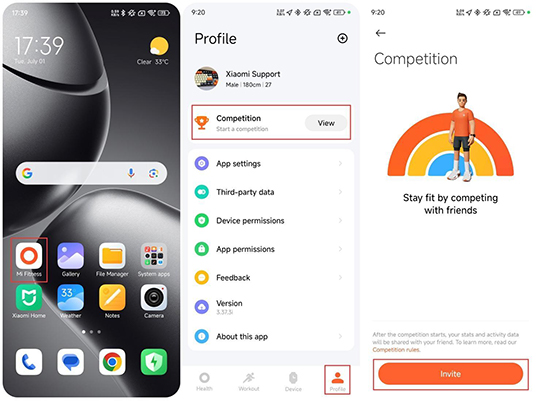
The competition content is the Vitality score set for you by default. If you need to modify it, please go to the [Health] interface >> tap the rainbow icon >> tap the three dots icon in the upper right corner >> [Stats] >> modify the duration of Moving (medium-high intensity exercise)/Standing. The target can also be modified during the competition.
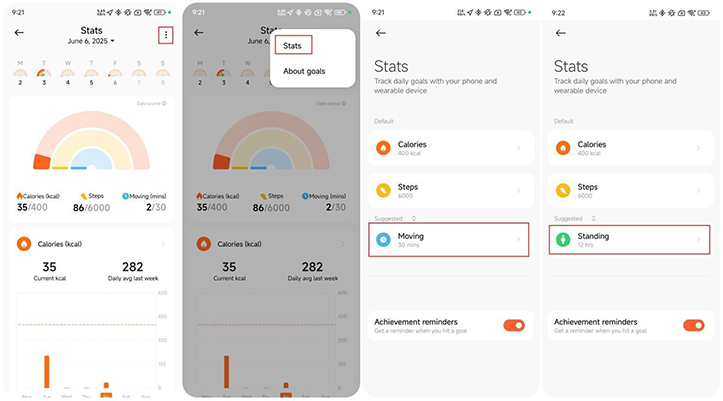
Accept the invitation:
When you receive a competition invitation from a friend in the Mi Fitness App, tap to accept the invitation.
After receiving the competition invitation link from your friend, open the Mi Fitness App through the link and accept the competition invitation from your friend.
During the competition:
- After joining the competition, you can check your friends' racing progress;
- After your friends complete an exercise, they will receive a notification reminder;
- The current competition situation will be notified at 20:00 every night during the competition.
Competition ends:
If you win the competition, you will receive a medal, which can be viewed on the [My Medal] interface.
Note:
- During the competition, please ensure that your phone and device remain connected to each other to avoid data synchronization issues that will affect the competition results;
- The Competition requires the Mi Fitness App to be updated to the latest version.
4. Q: Does the Xiaomi Smart Band 10 Glimmer Edition support reminders during exercise?
A: The Xiaomi Smart Band 10 Glimmer Edition supports reminders during exercise.
Tap the Workout App on the band, select the sports mode, and tap the icon at the bottom to enter the settings. You can set exercise goals as needed, as well as internal training and AI pacer. You can also enable the reminders such as Auto pause, High HR, Target HR zone, Pace, Distance and Hydration.
After turning on the reminder, the band will vibrate to remind you when you reach the set target value. After turning on auto pause, the movement will be automatically paused when the band is detected to be in a stationary state.
Note:
If you turn on the workout mode in the Mi Fitness App, you can also set workout reminders on the workout interface of the App. Open the Mi Fitness App: [Workout] >> select workout mode >> tap the settings icon >> select the required reminder.
5. Q: Does the Xiaomi Smart Band 10 Glimmer Edition support the Auto detect function?
A:
- The Xiaomi Smart Band 10 Glimmer Edition supports the Auto detect function. After turning it on, it can automatically identify running, walking, cycling, rowing, elliptical, and rope jumping. In actual exercise, the accuracy and sensitivity of the exercise recognition function vary from person to person and are related to the posture and proficiency of the sport; short exercise duration or frequent changes in posture can not trigger the automatic detection function. Some life scenes, such as driving a car, taking a bus, and special activities in life that are similar to sports, could trigger misdentification;
- If the exercise scene is not successfully identified, it can be because the exercise duration is not enough or the exercise posture is not standard.
6. Q: Why does the Xiaomi Smart Band 10 Glimmer Edition wrongly display the information about outdoor cycling?
A: The wrist position in some scenarios, like brushing teeth, pushing a stroller or driving on bumpy roads, is highly similar to cycling. If the position lasts for over 3 minutes, cycling will be wrongly detected by the band. The algorithm will be continually optimized to provide you with an enhanced experience.
7. Q: How to adjust the order of sports modes/sports items on the Xiaomi Smart Band 10 Glimmer Edition?
A: The Xiaomi Smart Band 10 Glimmer Edition supports 159 sports modes. The sport list supports automatic sorting based on usage frequency-the more frequently used sports will appear closer to the top. Once you start a sport type and complete a session that generates a sport report, the band will automatically add it to the sport list and sort it in descending order of usage.
8. Q: How to enable the Always-on display of the Xiaomi Smart Band 10 Glimmer Edition during exercise?
A: On the band, go to [Settings] >> [Display], then scroll down to find [Always-on display]. After enabling this function, the band will keep the screen on during workouts, showing real-time exercise data for activities such as outdoor running, treadmill running, walking, outdoor cycling, indoor cycling, freestyle, pool swimming, hiking, trail running, and trekking. For other workout types, it will show the AOD band display.
9. Q: What types of professional sports data can be viewed on the Xiaomi Smart Band 10 Glimmer Edition?
A: Xiaomi Smart Band 10 Glimmer Edition supports four types of professional sports data: VO₂ max, training load, recovery time, and aerobic/anaerobic training effect. These metrics provide a comprehensive evaluation of your workout performance.
10. Q: What data can be viewed during workouts on the Xiaomi Smart Band 10 Glimmer Edition?
A: For major workout types, the Xiaomi Smart Band 10 Glimmer Edition allows you to view different data during exercise.
Typical supported data for each activity include:
- Outdoor running: duration, distance, heart rate & heart rate zones, pace, calories, cadence, average pace, steps;
- Walking: duration, distance, heart rate & heart rate zones, pace, calories, cadence, steps, average pace;
- Freestyle workout: duration, calories, heart rate & heart rate zones;
- Hiking: duration, distance, heart rate & heart rate zones, real-time speed, calories, cadence, steps, average speed;
- Outdoor cycling: duration, distance, heart rate & heart rate zones, real-time speed, calories, average speed;
- Treadmill running: duration, distance, heart rate & heart rate zones, pace, calories, cadence, steps;
- Jump rope: current set count, duration of current set, reps of current set, calories, frequency, heart rate & heart rate zones, total duration, total reps, total active calories;
- Pool swimming: duration, distance, calories, average pace, SWOLF, heart rate & heart rate zones;
- Ultimate frisbee: duration, calories, heart rate & heart rate zones, throw count;
- Extended workouts: duration, calories, heart rate & heart rate zones.
11. Q: Why is the outdoor activity distance on the Xiaomi Smart Band 10 Glimmer Edition sometimes highly inaccurate?
A: Since the Xiaomi Smart Band 10 Glimmer Edition does not have a built-in GPS module, all positioning and track data rely on the connected smartphone. Therefore, outdoor workouts require the phone’s location services to be enabled and the band to remain connected to the phone throughout the activity.
The methods to enable phone location services are as follows:
- For Android phones: Before starting an outdoor workout with the band, set the location permission for the Mi Fitness App to [Allow all the time] or [Allow only while using the App]. Also, enable [Background permission] for the App in the device interface. If location permission is set to [Allow only while using the App] and the Mi Fitness App runs in the background, the GPS track can be lost and the recorded distance can be inaccurate;
- For iOS phones: Before starting an outdoor workout, set the location permission for the Mi Fitness App to [Always] via [Settings] >> [Mi Fitness] >> [Location], and enable [Background App Refresh] for the App. Otherwise, the GPS track can be missing and distance data can be inaccurate after the workout;
- If the phone’s location services are properly enabled and the workout track is displayed in the Mi Fitness App, but the recorded distance is still inaccurate, try zooming in on the track. If long straight lines are observed, it can indicate signal obstruction (such as buildings or trees), which can lead to GPS deviation and affect distance accuracy.
12. Q: Why is no workout data generated after exercising with the Xiaomi Smart Band 10 Glimmer Edition?
A: If no workout data is saved on the Xiaomi Smart Band 10 Glimmer Edition, please consider the following reasons:
- Ensure the band has sufficient battery before starting your workout. If the band powers off or restarts during the activity, no workout data will be generated;
- If the workout is initiated via the Mi Fitness App, make sure the App remains running in the background and stays connected to the band. If the App is force-closed in the background, the workout session can be forcibly ended. When you reopen the App, it can ask whether to continue the workout. If you choose not to continue, the workout data will not be saved;
- Outdoor workouts rely on the phone’s GPS to record routes and distance, so it is necessary to enable GPS and location permissions for the App.
(1). On iOS: Go to [Settings] >> [Privacy & Services] >> [Location Services], find the Mi Fitness App, and set location access to [Always]/[While Using the App]. If location is set only to [While Using the App], GPS data can be incomplete or missing;
(2). On Android: The path to location settings can vary by manufacturer. For the Mi Fitness App, go to [Settings] >> [Apps] >> [Manage Apps] >> [Mi Fitness] >> [App permissions] >> [Location] >> enable [Allow all the time].
13. Q: Why can't the latest workout record be viewed directly on the Xiaomi Smart Band 10 Glimmer Edition?
A: If a workout is initiated from the Mi Fitness App, the workout summary will not sync to the Xiaomi Smart Band 10 Glimmer Edition. Only workouts started directly from the band can be viewed on the band itself. Therefore, to view workout records on the band, please start your workout from the band.
14. Q: Why do the Stats on the Xiaomi Smart Band 10 Glimmer Edition differ from those shown on the phone?
A: If the Stats shown on the Xiaomi Smart Band 10 Glimmer Edition and the phone appear inconsistent, please note that workouts initiated via the Mi Fitness App will not sync their summaries to the band. Only workouts started from the band can be viewed on the band. If you want to view your stats directly on the band, please start the workout from the band.
15. Q: Does the Xiaomi Smart Band 10 Glimmer Edition support swim stroke recognition?
A: The Xiaomi Smart Band 10 Glimmer Edition supports recognition of four swimming strokes: breaststroke, backstroke, butterfly, and freestyle. The band automatically detects the stroke used during swimming workouts and displays the primary stroke. If the swimming form is irregular, the band can fail to correctly identify the stroke. When multiple strokes are used in a single session, the stroke will be labeled as mixed.
16. Q: Is it necessary to always allow location access for the Xiaomi Smart Band 10 Glimmer Edition when using an iPhone?
A: Yes, on iPhone, workouts can only be started when location access is set to [Always]. Location permission settings typically include [Never], [While Using the App], [Ask Next Time Or When I Share], and [Always]. To ensure accurate tracking and complete workout data, Mi Fitness requires the [Always] setting to initiate workouts properly.
Please note that even with this permission, the App does not constantly collect your location data. It only uses location services during workout sessions or other scenarios where location tracking is needed.
If location access is set to [While Using the App], GPS signals and track data can be lost once the App goes into the background, which severely impacts the workout experience.
In addition, for wearables without independent GPS, all location data relies on the phone. If the phone does not grant sufficient location permission, the wearable can be unable to retrieve GPS information. Therefore, to ensure complete and accurate workout tracking, it is required to grant [Always] location access on iOS. We are also continuously exploring new ways to optimize how permissions are managed.
17. Q: Why is there a large deviation in the calorie calculation on the Xiaomi Smart Band 10 Glimmer Edition?
A: Calorie calculation on the Xiaomi Smart Band 10 Glimmer Edition is based on factors like heart rate and wrist movement. With each product generation, the algorithm is updated to incorporate more variables. Therefore, the calculation logic can differ from earlier models.
On wearable devices, calories burned throughout the day are generally divided into two categories:
- Passive calories (daily calories): These are calories burned during daily activities without starting a workout manually. When the band is not worn or you are asleep, calorie count will not increase. However, light activities, such as office work, even without steps, can still generate calorie readings based on movement. The amount of calories depends on both the intensity and duration of the activity.
Note:
On models like the Xiaomi Smart Band 7 and earlier, calories are only calculated when step count or heart rate data is available.
- Active calories (workout calories): These are calories recorded during manually initiated workouts and are mainly affected by heart rate and your profile (e.g., age, weight, height). The higher the heart rate and the longer the workout duration, the more calories are burned.
If you find your calorie data abnormal, please first check if your weight, height, and age are correctly set in the Mi Fitness App. If the information is accurate and issues persist, you can submit feedback for further data analysis.
18. Q: Why does the screen of the Xiaomi Smart Band 10 Glimmer Edition become unresponsive?
A: If the Xiaomi Smart Band 10 Glimmer Edition becomes unresponsive when waking during a workout after the Always-on display is enabled, please refer to the following information:
When the Always-on display is enabled on the band ([Settings] >> [Display] >> [Always-on display]) and the [Raise to wake] feature is turned off, the screen will dim after the set screen-off time during a workout. At this point, raising your wrist will slightly brighten the screen, but it will still remain in Always-on display mode. In this mode, touch gestures like swiping are disabled. To interact with the screen, you need to tap it once to exit the Always-on display mode, after which sliding and other operations will become responsive.
19. Q: Why doesn’t the step count increase when taking a few light steps with the Xiaomi Smart Band 10 Glimmer Edition?
A: To avoid mistakenly increasing the step count due to light wrist movements, the Xiaomi Smart Band 10 Glimmer Edition uses an optimized algorithm that filters out false steps. Only when continuous and clear walking activity is detected will the step count increase. Therefore, if you only take a few steps or simply move your wrist, the step count can not change. We recommend walking more steps continuously before checking the step count. Meanwhile, we are continually optimizing the step-counting algorithm to further improve your using experience.
20. Q: Why are the number of laps and swimming distances recorded inaccurately on the Xiaomi Smart Band 10 Glimmer Edition?
A: The swimming function requires correct pool length settings to generate accurate workout reports.
If the lap count or distance appears inaccurate in your swimming report, please adjust the pool length setting as follows to improve accuracy:
- On the band, go to the App list >> [Workout] >> [Pool swimming] >> tap the settings icon >> [Pool length] >> select the correct pool length;
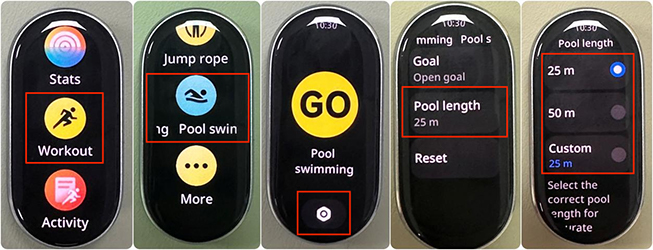
- Alternatively, go to the App list >> [Workout] >> [Pool swimming] >> select the correct pool length before starting the workout.
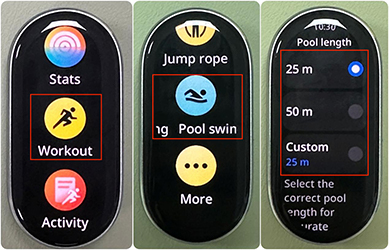
21. Q: Why does the Xiaomi Smart Band 10 Glimmer Edition record a high number of steps without any actual walking?
A: The Mi Fitness App supports multi-device data merging. If multiple devices (including phones connected to the band, phones logged into the same Xiaomi Account, or multiple bands and watches linked to the same account) are used under one Xiaomi Account, the step count and calorie data will be combined.
If multiple people use the same Xiaomi Account, step count and calorie data can appear significantly higher than actual. To ensure accuracy, it’s recommended to use one Xiaomi Account per person and avoid account sharing.
22. Q: Why does the Xiaomi Smart Band 10 Glimmer Edition show locating for a long time when using workout mode without a phone nearby?
A: The Xiaomi Smart Band 10 Glimmer Edition does not have an independent GPS module. When used without a phone nearby, it will continuously display Locating, which is normal.
If you prefer to exercise without your phone, you can choose to start the workout immediately. However, please note that this can result in significant inaccuracies in your workout data such as route, distance, and pace.
For accurate workout tracking, please use the band in conjunction with your phone, ensure that your phone’s location services are enabled, and confirm that the Mi Fitness App has been granted location access.
System Settings
1. Q: How to edit widgets on the Xiaomi Smart Band 10 Glimmer Edition?
A: The Xiaomi Smart Band 10 Glimmer Edition supports widget editing directly on the band. Simply hold and press on any widget to enter the edit screen. From there, widgets can be rearranged by dragging, or new widgets can be added and existing ones removed to customize the display.
2. Q: What features are available in the Settings of the Xiaomi Smart Band 10 Glimmer Edition?
A: The Settings of the Xiaomi Smart Band 10 Glimmer Edition includes a range of features and system tools such as Running mode, Home screen, Display, Vibration, DND settings, Notifications, Auto detect, Share HR, Preferences, PIN, Battery, System, and About.
3. Q: How to customize the App list on the Xiaomi Smart Band 10 Glimmer Edition?
A: The App list on the Xiaomi Smart Band 10 Glimmer Edition refers to the main menu that appears when swiping up or down on the home screen. This menu can be customized to rearrange the order of Apps based on your preferences. To customize the list, open the Mi Fitness App, go to [Device] interface >> [System] >> [Sort Apps] >> hold the Sort button to rearrange items as needed.
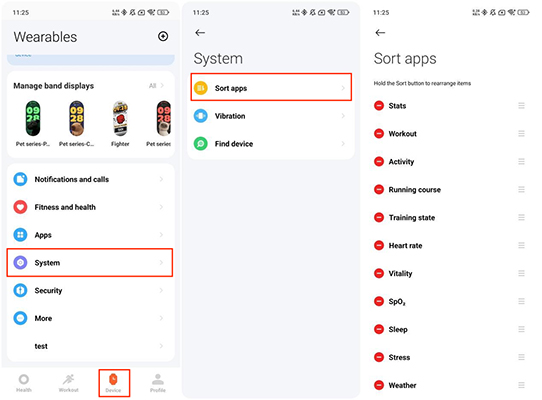
4. Q: What types of notifications are supported on the Xiaomi Smart Band 10 Glimmer Edition?
A: The Xiaomi Smart Band 10 Glimmer Edition supports a variety of notification types, including incoming calls, task reminders, alarms, notifications, standing, goal alert, and events.
In addition, the band supports customizable vibration patterns, allowing you to personalize vibration feedback according to your preferences. You can set up these custom vibration patterns in the Mi Fitness App, with support for up to 50 personalized patterns.
To set a custom vibration pattern, please follow these steps:
- Open the Mi Fitness App >> go to [Device] >> [System] >> [Vibration];
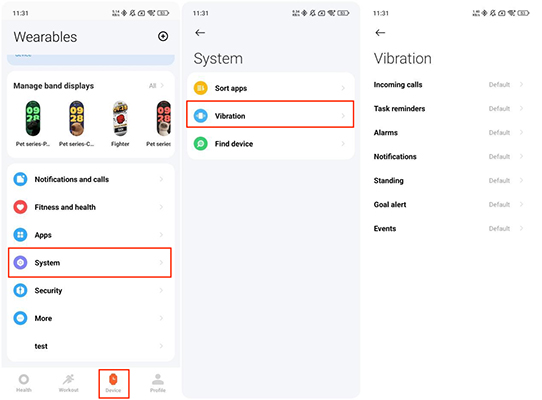
- Tap the phone screen in the strong, medium, or weak vibration areas to simulate vibration (each tap simulates a vibration as the band would feel). Do not tap for no vibration. When tapped for the first time, a progress bar will begin moving. Either let it move to the end or tap [Stop] to finish recording;
- After setting your preferred vibration strength, tap the [√] icon at the top right corner to save and name the pattern. You can also tap [Record] to start over, or tap [Play] to preview how the pattern will feel on your band.
5. Q: How to enable Do Not Disturb (DND) mode on the Xiaomi Smart Band 10 Glimmer Edition?
A: When DND mode is enabled on the Xiaomi Smart Band 10 Glimmer Edition, notifications such as incoming calls, messages, and App notifications will still be received but will no longer trigger vibrations or screen wake-up. By default, DND mode is turned off.
The following alerts are not blocked by DND mode: abnormal heart rate alerts, blood oxygen alerts, relax reminder, low battery warnings, find device, alarms, timer, and wake-up alarms from sleep mode.
To set DND mode on your band, please refer to the following information:
- Go to the App list on your band >> [Settings] >> [DND settings] >> enter [DND]. Keep the switch turned off to keep DND mode disabled. Turn on the switch to enable DND mode all day. In addition, tap [Custom] to automatically activate DND mode during the preset time period;
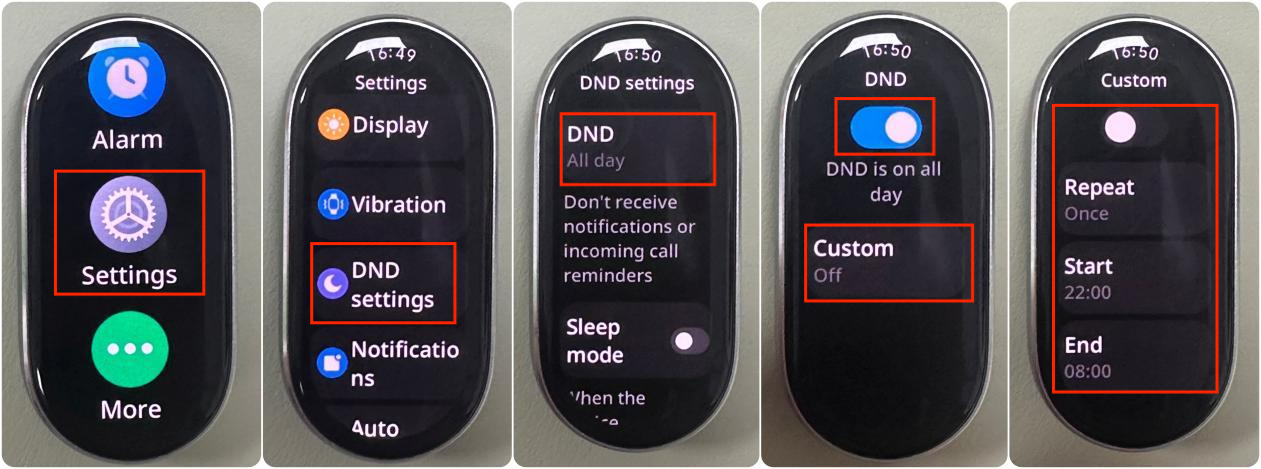
- You can also quickly toggle DND mode by swiping right on the home screen to enter the Control center. Tap [DND], and you’ll see four DND options available.
Tap [On] to keep DND mode enabled continuously. Choose [Turn on for 1 hr] to activate DND mode for 1 hour, or tap [Turn on for 4 hrs] to keep it active for 4 hours. In addition, you can tap [Custom] to schedule DND mode to activate at your preferred time.
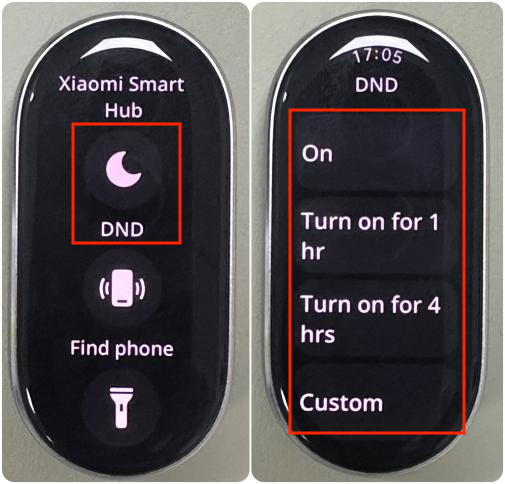
Additionally, you can press and hold [DND] on the Control center to enter the DND settings interface, where you can adjust the mode according to your preferences.
When DND mode is active, tap [DND] once to turn it off.
6. Q: How to calibrate the time on the Xiaomi Smart Band 10 Glimmer Edition?
A: The Xiaomi Smart Band 10 Glimmer Edition automatically synchronizes the time with your phone when connected to the Mi Fitness App. It also supports a 24-hour time format.
Note:
RTC (Real-Time Clock) time error testing is as follows (tested over a 24-hour period):
- Normal temperature: ±3 seconds;
- High temperature (40°C): ±5 seconds;
- Low temperature (–10°C): ±5 seconds
7. Q: How to operate the screen on the Xiaomi Smart Band 10 Glimmer Edition?
A: Once the Xiaomi Smart Band 10 Glimmer Edition is successfully paired, it begins recording and analyzing activities such as workouts and sleep. Tap the touchscreen to wake up the screen.
You can operate the screen with the following gestures:
- Swipe up or down to browse the main menu and access different features;
- Swipe down from the top of the home screen to view notifications;
- Swipe up from the bottom of the home screen to open the App list;
- Swipe left on the home screen to switch between widgets;
- Swipe right on the home screen to open the Control center;
- Swipe right from the left edge on any other interface to return to the previous screen.
Additionally, hold and press on the band display to enter the band display preview mode. Swipe up or down to browse and change your preferred band display.
8. Q: What is the Screen on for feature on the Xiaomi Smart Band 10 Glimmer Edition?
A: When the Screen on for feature is enabled, the Xiaomi Smart Band 10 Glimmer Edition’s screen will stay on for a selected duration.
To use this feature, please go to the App list on your band >> [Settings] >> [Display] >> [Screen on for]. You can choose from [5 mins], [10 mins], [15 mins], or [20 mins]. Please note that enabling this feature will significantly increase power consumption.
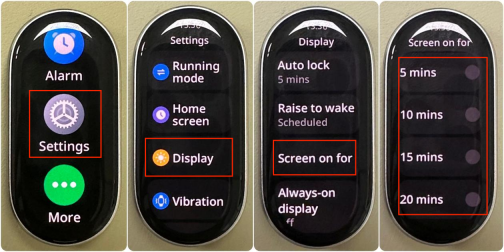
9. Q: How to configure wake methods on the Xiaomi Smart Band 10 Glimmer Edition?
A: The Xiaomi Smart Band 10 Glimmer Edition supports two wake methods: tap screen or swipe up.
To set your preferred wake method, go to the App list on your band >> [Settings] >> [Preference] >> [Wake method] >> [Tap screen]/[Swipe up].
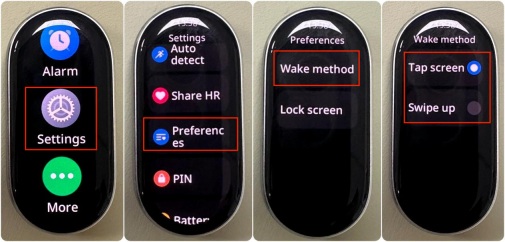
Note:
- Tap screen: When the screen is off, simply tap it to wake it up;
- Swipe up: When the screen is off, swipe up to turn it on.
10. Q: Does the Xiaomi Smart Band 10 Glimmer Edition support Cover to sleep?
A: The Xiaomi Smart Band 10 Glimmer Edition supports the Cover to sleep feature by default.
To manage this feature, go to the App list on your band >> [Settings] >> [Display] >> [Cover to sleep] and enable it.
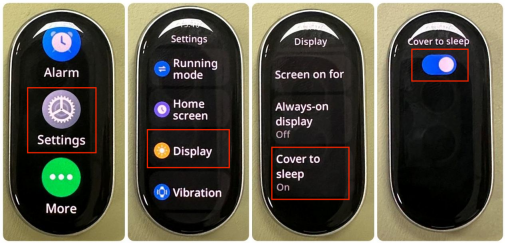
When you cover the screen with your palm or an object, the display will turn off.
The default Auto lock time is 5 seconds. You can also customize the Auto lock. To set it, go to the App list on your band >> [Settings] >> [Display] >> [Auto lock] >> choose from [5 secs], [10 secs], [20 secs], [30 secs], [1 min], or [5 mins].
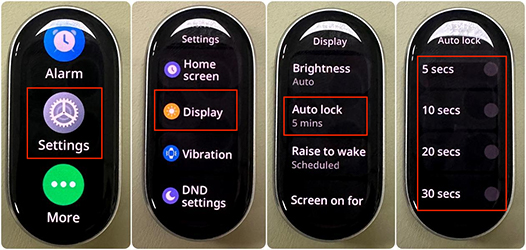
11. Q: How to power on/off, reboot, reset, or connect new phone with the Xiaomi Smart Band 10 Glimmer Edition?
A: To power on/off the Xiaomi Smart Band 10 Glimmer Edition, please refer to the following information:
The band will shut down automatically when the battery is critically low. You can also manually power it off from the settings. When charging after a low-battery shutdown, the band will automatically power on once the battery level reaches the startup threshold (about 3 minutes).
To reset or restart the Xiaomi Smart Band 10 Glimmer Edition, please refer to the following information:
- Go to [Settings] on your band >> tap [System] >> select [Reboot] or [Reset]. If the band is currently paired, you can also unbind it from the Mi Fitness App to restore factory settings;
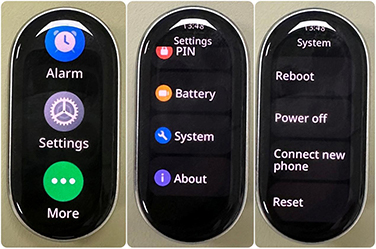
- On the pairing screen with the QR code, swipe up to go to [Settings] >> [Reset].
To connect new phone with the Xiaomi Smart Band 10 Glimmer Edition, please refer to the following information:
Go to [Settings] on your band >> [Connect new phone]. A reminder screen will appear. Tap the [√] icon to display the QR code for pairing. You can also initiate pairing from the Mi Fitness App.
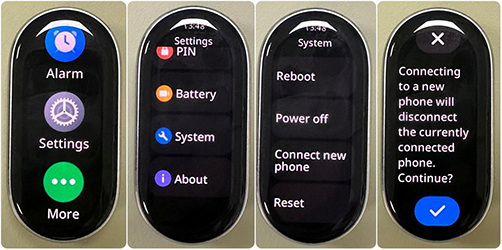
Note:
- If the new phone uses the same Xiaomi Account, you can pair normally;
- If the new phone uses a different Xiaomi Account, the band will prompt that the account does not match and require a factory reset before pairing can continue.
12. Q: What data will be cleared when resetting the Xiaomi Smart Band 10 Glimmer Edition?
A: The following data will be cleared when resetting the band:
- Heart rate, Vitality score, Sleep, Stress, Blood oxygen, and daily activity data (such as Calories, Steps, Standing, Moving) on the band, and historical data not synchronized to the App;
- Workout data on the band;
- Weather data cached on the band;
- Non-preinstalled band displays pushed on the band;
- Notifications in the notification center;
- Added alarms;
- Configured settings will be restored to factory settings.
13. Q: How to update the firmware version of the Xiaomi Smart Band 10 Glimmer Edition?
A:
- Please go to the Mi Fitness App >> [Device] >> [More] >> [Update];
- If there is an available update, please download the update package;
- After the update package is downloaded, it will be automatically pushed to the band. After the update package is received, the band will automatically update and restart.
Note:
The battery level of the band needs to be kept at 20% or above during the update. During the update process, the band needs to remain connected to the phone, try to keep the band close to the phone, and try to keep the Mi Fitness App running in the foreground. If the Mi Fitness App is removed from running in the background, the update will be suspended.
14. Q: Why does updating the firmware version of the Xiaomi Smart Band 10 Glimmer Edition take a long time?
A: If the update process of the band is slow, it will wait for a long time to make the band restart after the accomplished transmission displayed on the App.
If the band takes a long time to update the firmware version, please refer to the following methods for troubleshooting:
- In normal conditions, the time required for upgrading depends on the version downloaded and the phone model. Android updates take about 15 minutes, and iOS updates take about 20 minutes. Please wait patiently;
- Check whether the battery of the band is sufficient. The remaining power will affect the update speed of the band. Please make sure that the battery of the band is above 20% during the update. You can connect the band to a charging dock before updating;
- Check whether the network status is good. The time required for the update is closely related to the network status. Please ensure that the network environment (4G/5G/WLAN) is in good condition;
- Check the phone system version. If you are using the Android phone, please update the system version to above Android 8.0 before updating the band firmware version.
Note:
Please don’t use the band and the App frequently during the update process. Frequent use of the band or the App during the update process will cause the system to take longer to complete the update of the band.
15. Q: Why does the Xiaomi Smart Band 10 Glimmer Edition display the update failure and downgrading to the former version?
A: In the process of updating the Xiaomi Smart Band 10 Glimmer Edition, if the Bluetooth disconnects, the update package transmission will fail to be accomplished and the band will display the update failure and downgrading to the former version.
Please refer to the following methods for troubleshooting:
- If the App does not perform other operations and is still in the update transmission interface, after the device reconnects and completes synchronization, please go to a place with fewer Bluetooth and Wi-Fi devices to reduce other signal interference and update it again. If the App has returned to the function interface, please go to a place with fewer Bluetooth and Wi-Fi devices, tap [Update], and re-initiate the update;
- When you re-initiate the update, the band update will be continued from the suspension point;
- If the update fails again in the Bluetooth connection status, it is recommended that you reset the device (disband the band with the phone) and rebind the band to the phone. After the phone and the band restart, rebind the band to the App and update it again;
- Make your band close to the phone and follow the instructions to update. Ensure that the Mi Fitness App is running in the foreground and wait patiently for the update;
- If there are display abnormalities after the update, such as abnormal display of characters and pictures, you can re-initiate the update on the Mi Fitness App or Apply to professional after-sales technical staff for instructions on updating.
16. Q: Why does the Xiaomi Smart Band 10 Glimmer Edition stay at the update verification interface for a long time after 100% of transmission?
A: When the transmission interface displays 100%, it means that the new version update package has been transferred. The interface preparing to update verification is verifying the competeness, legality, and encryption of the update package. This is a normal update process. Please wait patiently.
17. Q: Does the Xiaomi Smart Band 10 Glimmer Edition support setting device password?
A: The Xiaomi Smart Band 10 Glimmer Edition supports setting device password. The device password is disabled by default. After enabling the device password, when you don’t wear the band, the band will be locked. When you wear the band again, and switch to the on-wrist mode from Pebble mode or Necklace mode or restart the band, you need to input the password to unlock the device.
You can go to the Mi Fitness App >> [Device] >> [Security] >> [Set password] >> [PIN] >> enter 6-digit PIN.
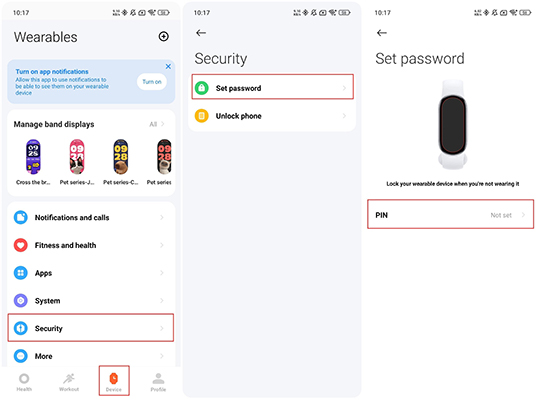
You can also go to [Settings] on the band >> [PIN] >> [Set PIN] >> enter 6-digit PIN.
18. Q: What to do if the password of the Xiaomi Smart Band 10 Glimmer Edition is forgotten?
A: If the password of the Xiaomi Smart Band 10 Glimmer Edition is forgotten, you can connect the band to the Mi Fitness App, and go to the Mi Fitness App >> [Device] >> [Security] >> [Set password] >> [Turn off PIN]/[Change PIN] >> you can turn off or change PIN password.
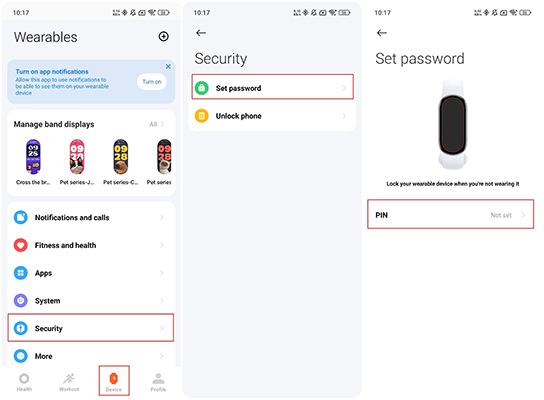
Note:
If the password is forgotten and the bind can’t be reconnected to the phone, please Apply to the professional after-sales center.
19. Q: Does the Xiaomi Smart Band 10 Glimmer Edition support unlocking the phone?
A: The Xiaomi Smart Band 10 Glimmer Edition supports unlocking phone. The function of unlocking the phone with the band can be achieved by one-to-one binding between the band and the phone. Within a safe distance, the band can be used as an identity ID instead of entering the unlock password or pattern, which greatly improves the convenience of operation while ensuring security. The unlocking phone function is enabled in the Mi Fitness App and requires the phone and band to be in the Bluetooth connection status.
You can go to the Mi Fitness App >> [Device] >> [Security] >> [Unlock phone] >> [Set scree lock] >> [Confirm on your wearable device].
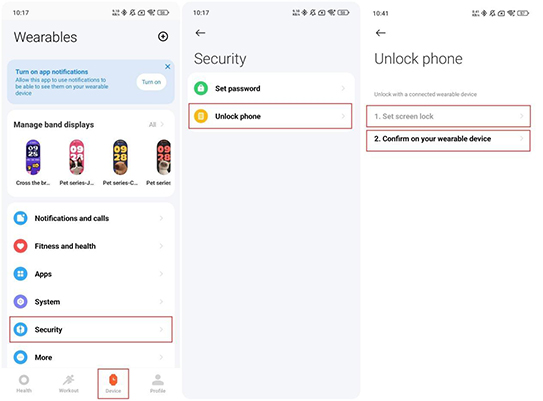
After the lock-screen password is configured, you can confirm locking the phone on the band and configure the unlocking range as [Very close], [Close], and [Less close].
Note:
The tested unlocking distance is ≤1m (very close), ≤2m (close), and ≤14m (less close).
If you need to disable the function of unlocking phone with the band, you need to go to [Settings] on your phone >> [Fingerprints, face data, and screen lock] >> [Unlock with Bluetooth device] >> disable [Unlock device].
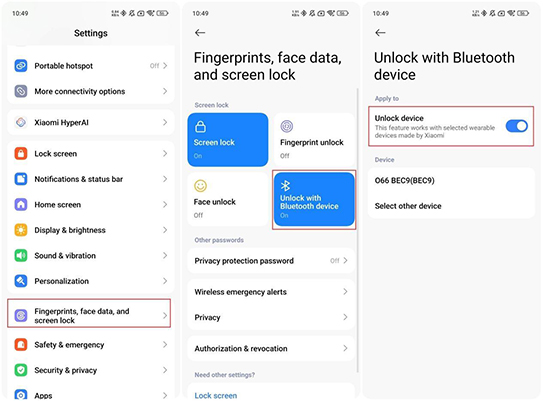
Note:
Only the Xiaomi phones with the version of above MIUI 12 can support the unlocking phone function.
20. Q: Does the Xiaomi Smart Band 10 Glimmer Edition support connecting to the body composition scale?
A: The Xiaomi Smart Band 10 Glimmer Edition doesn’t support connecting to the body composition scale.
21. Q: What to do if the Xiaomi Smart Band 10 Glimmer Edition displays system abnormality?
A: If the band displays system abnormality, please refer to the following methods for troubleshooting:
- Restart the band and check whether the system restores to normal conditions. If so, please submit feedback, otherwise, refer to the next method;
- Power off the band and connect the band to the standard adapter to power on the band to check whether the system restores to normal conditions. If so, please submit feedback, otherwise, refer to the next method;
- Reset the band and check whether the system restores to normal conditions. If so, please submit feedback. If the system abnormality persists, please update the firmware of the Mi Fitness App to the latest version.
If the above methods can’t solve the issue, please submit feedback or Apply to the professional after-sales center.
Charging and Battery Endurance
1. Q: What is the battery endurance of the Xiaomi Smart Band 10 Glimmer Edition?
A: The different conditions for battery endurance of the band are listed below:
- Typical endurance mode (21 days): After being fully charged and under the default factory settings, the Xiaomi Smart Band 10 Glimmer Edition can be used for 21 days in the conditions of using the static band display, disabling [Advanced monitoring] and [Breathing rate] in sleep settings, disabling [All-day monitoring] in stress settings, and disabling [All-day tracking] in blood oxygen settings, enabling the heart rate monitoring every 30 minutes, enabling notification push (100 pieces of notification, 10 incoming calls, and 3 alarms), 240 times of raising to wake, 2 times of manual blood oxygen monitoring everyday, and 60 minutes of workout record every week;
- AOD endurance mode (9 days): After being fully charged and under the default factory settings, the Xiaomi Smart Band 10 Glimmer Edition can be used for 9 days in the conditions of using the static band display, selecting [Smart] in [Always-on display], disabling [Advanced monitoring] and [Breathing rate] in sleep settings, disabling [All-day monitoring] in stress settings, and disabling [All-day tracking] in blood oxygen settings, enabling the heart rate monitoring every 30 minutes, enabling notification push (100 pieces of notification, 10 incoming calls, and 3 alarms), 240 times of high light time display after raising to wake, 2 times of manual blood oxygen monitoring everyday, and 60 minutes of workout record every week;
- Heavy-load mode (8 days): After being fully charged and under the default factory settings, the Xiaomi Smart Band 10 Glimmer Edition can be used for 8 days in the conditions of using the static band display, selecting [Smart] in [Always-on display], enabling [Advanced monitoring] and [Breathing rate] in sleep settings, enabling [All-day monitoring] in stress settings, and enabling [All-day tracking] in blood oxygen settings, enabling the heart rate monitoring once a minute, enabling notification push (100 pieces of notification, 10 incoming calls, and 3 alarms), 200 times of high light time display after raising to wake, and 60 minutes of workout record every week.
Note:
In actual use, battery life depends on various factors such as settings, operations and usage environment, and will differ from laboratory data.
2. Q: Why does the Xiaomi Smart Band 10 Glimmer Edition consume power quickly?
A: For your reference, here are the details about the band settings related to power consumption:
- You can go to [Settings] on the band >> [Battery] to check the remaining usage duration at current battery level, which is estimated on the basis of the function and setting status;
- If the band consumes power quickly, you can fully charge the band and go to [Settings] >> [Battery] to check the estimated usage duration when fully charged and tap [Optimization] to check some of the enabled functions with a great impact on power consumption. You can disable some of the enabled functions according to [Optimization] to use the band and check whether the usage duration accords with the estimated value;
- The Xiaomi Smart Band 10 Glimmer Edition supports the function of battery management. You can go to [Settings] >> [Battery] >> [Optimization] to check the enabled functions consuming more power and check the improved usage duration (laboratory data) in the fully-charged status after disabling them.
If your band consumes power quickly, please refer to the following methods for troubleshooting:
- It takes about 1 hour to fully charge the band. Please check whether band is fully charged;
- Please update the band firmware version to the latest after being charged;
- Please check whether the following functions are enabled: [Continuous monitoring] in heart rate settings, [Advanced monitoring] in sleep settings, Always-on display, [Keep screen on] during workout, frequent notification push, frequently waking up the screen, [All-day monitoring] in stress settings, [All-day tracking] in blood oxygen settings or frequently monitoring blood oxygen, frequently playing games in the game band display. The functions mentioned above will affect the battery life, and you can disable them and restart the device to check the condition;
- If the functions consuming more power aren’t enabled, you can reset the device and to check the condition;
- If the functions consuming more power aren’t enabled and the power consumption of the band is quick, please submit feedback in the App.
3. Q: Does the Xiaomi Smart Band 10 Glimmer Edition support Battery saver?
A: The Xiaomi Smart Band 10 Glimmer Edition supports Battery saver, which only keeps time and step. The Bluetooth and other functions (raise to wake, heart rate monitoring, blood oxygen monitoring, etc) on the band will be disabled and data can’t be synchronized to the App. Battery saver mode doesn’t support swiping on the screen. You can tap to wake up the screen and check the time and steps. After about 3 seconds, the screen will be off.
You can go to [Settings] on the band >> [Battery] >> [Battery saver]. After enabling the Battery saver mode, if you press and hold the screen for about 3 seconds or charge the band, the Battery saver mode will be disabled.
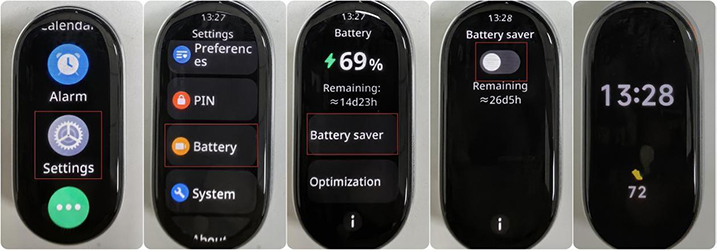
Note:
- Enabling [Battery saver] will disconnect the Bluetooth with the phone and disable [Raise to wake] function;
- The band can be used about 38 days under the Battery saver mode in the fully-charged status.
4. Q: How to charge the Xiaomi Smart Band 10 Glimmer Edition?
A: The Xiaomi Smart Band 10 Glimmer Edition has the battery capacity of 233mAh and can be fully charged in about 1 hour, with a standard magnetic charging dock that can be shared with the Xiaomi Smart Band 10 NFC.
You don’t need to remove the wristband to charge. You need to connect the two ends with metal contacts to the dedicated charging dock (illustrated in the pictures below). Then connect the charging cable to a standard USB charging head with a voltage of 5V and an output current of up to 500mA.
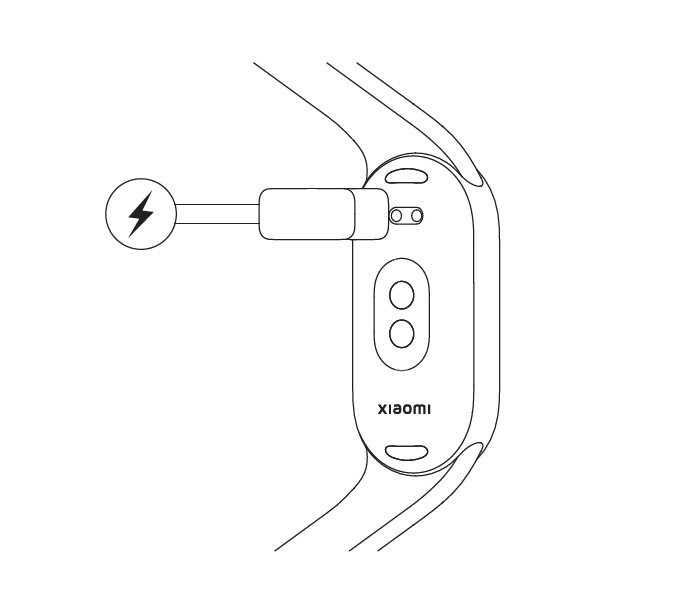
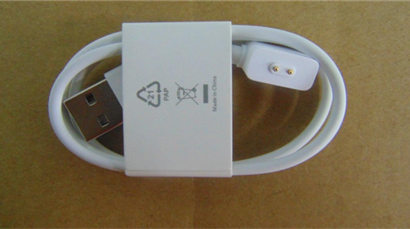
Note:
- When charging, please make sure that the charging contacts are clean and dry, and check whether the charging buckle and the charger are in good contact;
- If the band has not been used for a long time, you need to wait for a while before the screen displays the charging interface when charging again;
- While the band is charging, you can check the current time, receive incoming calls and App notifications;
- It is recommended that you charge the band with the standard charging head;
- Only the charging cable that comes with the Xiaomi Smart Band 10 Glimmer Edition is allowed to charge. Other non-standard charging cables are not allowed. If other non-standard charging cables are used, it will cause abnormalities such as burning of the entire device.
5. Q: How to check the charging status the Xiaomi Smart Band 10 Glimmer Edition?
A: After connecting the band to the charging dock, the charging icon, current time, and specific battery level will be displayed. The band will vibrate as the reminder of being fully charged and the battery level will be displayed as 100%.
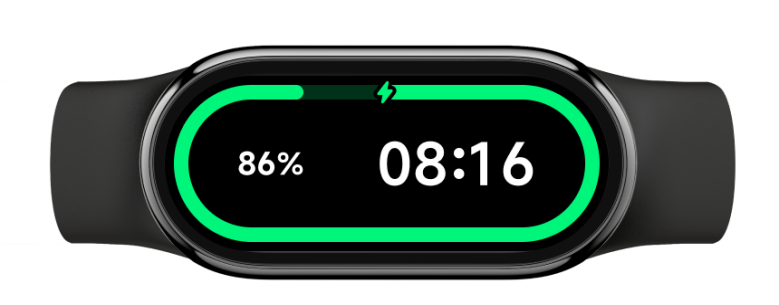
6. Q: Why does the Xiaomi Smart Band 10 Glimmer Edition fail to charge or charge to the full status?
A: If your band fails to charge or charge to the full status, please refer to the following methods for troubleshooting:
- If you use a power bank to charge, because of the protection mechanism of power bank, the power bank can’t charge the band to the full status if the battery level of the power bank is low. It is recommended to use a standard USB charging head with a voltage of 5V and an output current of up to 500mA and a standard dedicated charging cable for charging;
- Check whether the metal contacts of the band body and the metal contacts of the charging cable are stained. You can try to wipe them with alcohol cotton, paper towels, etc. to ensure that there is no poor contact between the band body and the charging cable;
- Check whether the charging adapter is normal, you can try to replace other standard adapters to connect the band charging cable for charging;
- Check whether the charging cable is normal, if there is a spare charging cable for the band, you can try to replace the charging cable;
- Try to charge in an environment with a temperature above 10℃;
- The charging time of the Xiaomi Smart Band 10 Glimmer Edition is about 1 hour. When it is not fully charged, please check the charging time to determine whether it is caused by insufficient charging time;
- When the charging power display reaches 100%, don’t unplug the charging cable immediately. It is recommended that the band continue to charge on the charging dock for 5 minutes;
- If there is no response after charging for a long time, you can Apply for after-sales inspection.
Note:
Please confirm whether the ambient temperature of the band is too low or too high during charging. If the temperature of the band is too high or too low, the system will prohibit charging. The charging function will automatically resume after the temperature returns to normal.
7. Q: Can the Xiaomi Smart Band 10 Glimmer Edition be charged with the power bank?
A: It is not recommended that you charge the band with the power bank, because the band can’t be charged to the full status.
Most of the power bank have a function to automatically shut off charging when fully charged. When the discharge current of the power bank is small, it will automatically disconnect. When the band is charging, the current is very small, and the power bank will mistakenly determine that it is fully charged, and thus disconnect the charging current of the band, which will cause the band to not be fully charged or cannot be charged.
8. Q: What to do if the charging dock falls when charging the Xiaomi Smart Band 10 Glimmer Edition?
A: The back cover of the Xiaomi Smart Band 10 Glimmer Edition is arc-shaped, and the charging dock is flat. In the magnetic state, the main unit and the base will shake or loosen during pressing or pulling. It is recommended to place the band on a stable surface for charging, and avoid pulling the charging dock during charging.
9. Q: Why can’t the Xiaomi Smart Band 10 Glimmer Edition be powered on after automatic power-off due to a low battery level or prolonged inactivity?
A: If the battery is not used for a long time or is over-discharged due to battery depletion, you can connect the original charging cable and a standard charger to charge for about 5-10 minutes to start up normally.
Other Applications
1. Q: How to use the Alarm function on the Xiaomi Smart Band 10 Glimmer Edition?
A: To use the Alarm function on the Xiaomi Smart Band 10 Glimmer Edition, please refer to the following details:
- The alarm function of the Xiaomi Smart Band 10 Glimmer Edition can be set in the Mi Fitness App, or set, edit, add, and delete alarms in the band;
- You can choose to set alarms only once, daily, workdays, public holidays, and custom settings for single and multiple days from Monday to Sunday on the Mi Fitness App. You can set up to 10 alarms;
- The Xiaomi Smart Band 10 Glimmer Edition can automatically synchronize the alarm of Xiaomi smartphones. When connected, if the alarm on one device is turned off, the other will also be turned off;
- The Xiaomi Smart Band 10 Glimmer Edition supports smart wake-up 10 minutes in advance. Within 10 minutes before the alarm rings, the device will automatically find the best time for you to be in light sleep and ring the alarm. If the light sleep time is not found, the alarm will ring at the original time;
- When the alarm on the band rings, tap the [Off] icon to turn off the alarm. Tap the [Snooze] icon to remind you again in 10 minutes. If you tap the [Snooze] icon twice in a row, you can only tap the [Off] icon for the third time.
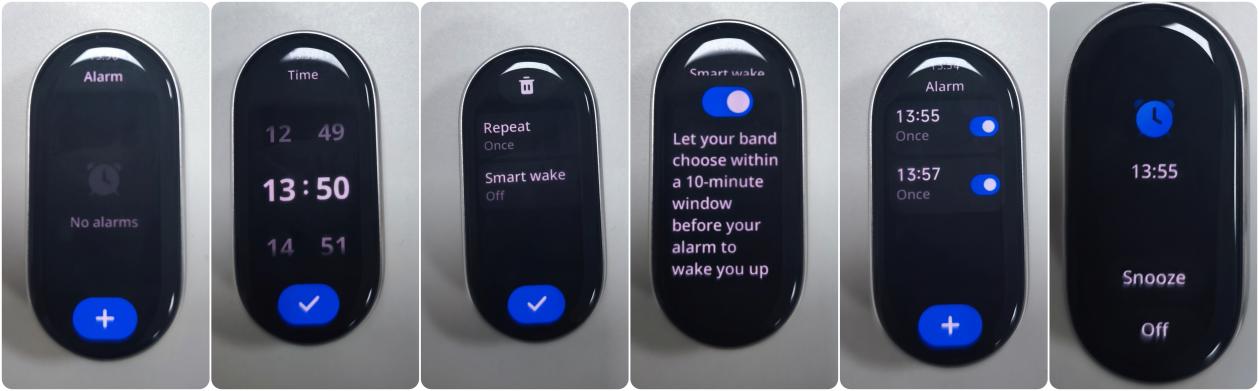
2. Q: Does the Xiaomi Smart Band 10 Glimmer Edition support alarm reminders on the mobile phone? How to turn off and delete the alarms synchronized with Xiaomi smartphones?
A: Yes, this function is only supported by the Xiaomi phones and currently needs to be set in the Mi Fitness App. To use this function, you need to keep the phone and the band connected. When the phone alarm rings, the band will vibrate synchronously to remind you.
- Connection state:
Turn on the alarm reminder on the Xiaomi smartphone. When the alarm is set, it will be triggered on both the phone and the band. You can use the band to turn off and postpone the alarm reminder. The band cannot change the phone alarm information. If you need to change it, you need to modify it on the phone;
- Disconnected state:
The alarm on the Xiaomi smartphone cannot be synchronized to the band and needs to be processed on the phone. The alarm on the phone will not be synchronized to the band, it only serves as a synchronization reminder;
Alarms added on the band and added in the Mi Fitness App ([Device] >> [Apps] >> [Alarm]) can be synchronized to the App and band in both directions. Alarms added can be deleted and synchronized.
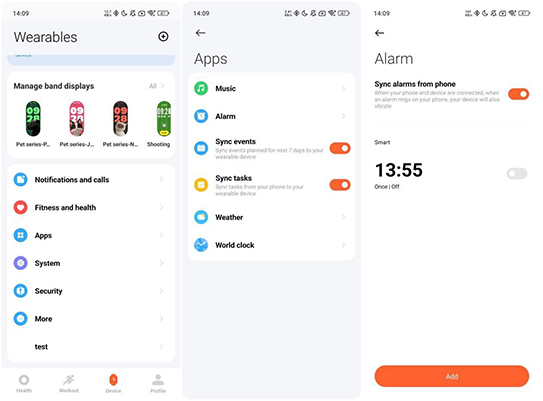
3. Q: Why can't the events on the Xiaomi Smart Band 10 Glimmer Edition sync properly?
A: The events synchronization only supports the built-in calendars of Xiaomi smartphones, and iOS phones, and does not support third-party calendars.
4. Q: How to check the weather with the Xiaomi Smart Band 10 Glimmer Edition?
A: To check the weather on the Xiaomi Smart Band 10 Glimmer Edition, you should set the weather in the Mi Fitness App:
Open the Mi Fitness App >> [Device] >> [Apps] >> [Weather] >> turn on [Weather updates].
Tap the weather App on the band interface to view the current weather. The displayed content includes update time, weather icon, current temperature, all-day temperature, air quality, location, sunrise and sunset, wind scale, humidity, and UVI. You can view the weather for up to 5 days in the future.
Tap the city switch icon at the top of the band interface to switch to other regions (supports manual addition of up to 4 cities in the App).
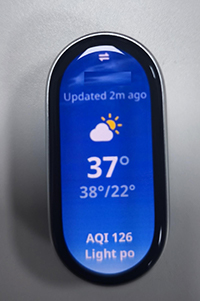
You can set the region and city in the Mi Fitness App and turn on the weather alert. After turning it on, the band will receive a push notification when you receive a weather alert notification.
Open the Mi Fitness App >> [Device] >> [Apps] >> [Weather] >> you can set the following options: [Weather updates], [Locations] (automatically locate or manually select a city), [Temperature unit].
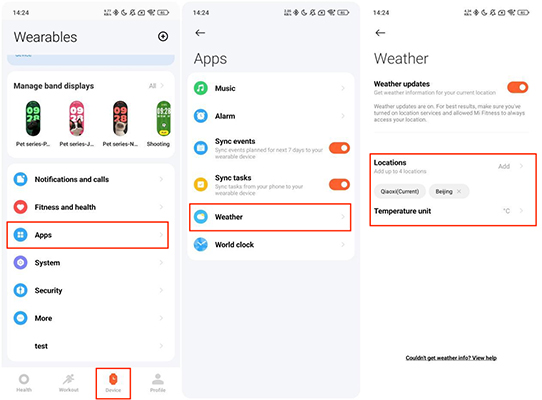
Note:
To check the real-time weather on the band, the phone and the band should be connected. If the band and phone are not connected, the weather displayed is the information synchronized when it was last connected to the phone.
5. Q: Does the weather App on the Xiaomi Smart Band 10 Glimmer Edition support switching cities?
A: The Xiaomi Smart Band 10 Glimmer Edition supports switching cities. You need to add other cities on the App, and the icon to switch cities will be displayed on the band. If no other cities are added, only the current city will be located, and the switch icon will not be displayed.
To add the cities on the Mi Fitness App, here are the steps for your reference:
Open the Mi Fitness App >> [Device] >> [Apps] >> [Weather] >> tap [Locations] >> enter the location.
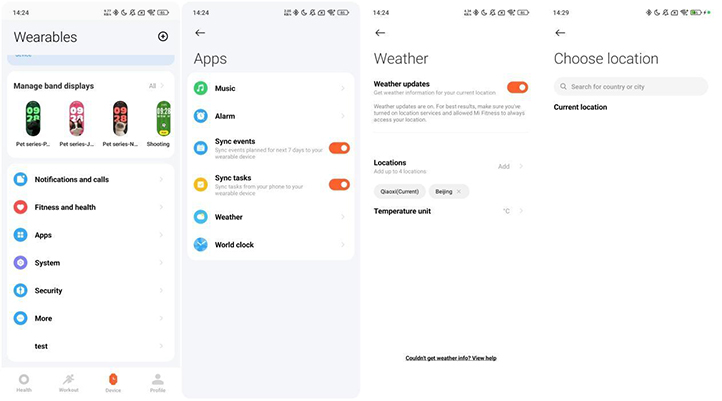
6. Q: Why doesn't weather area on the Xiaomi Smart Band 10 Glimmer Edition automatically update after switching cities?
A: If the area on the Xiaomi Smart Band 10 Glimmer Edition does not automatically update after switching cities, it is recommended that you resynchronize in the Mi Fitness App.
- Android phone: Enter the Mi Fitness App >> [Device] >> [Apps] >> [Weather], and refresh after entering or tap on the city to reposition;
- iOS phone: Enter the Mi Fitness App >> [Device] >> tap [Sync].
7. Q: Why does the weather data on the Xiaomi Smart Band 10 Glimmer Edition disappear every night at midnight? Is it not possible to store weather data for the next seven days?
A: The weather data on the Xiaomi Smart Band 10 Glimmer Edition refreshes every night at midnight because the band stores Approximately seven days' worth of weather data when connected to the Mi Fitness App on your phone. Weather forecasts require real-time updates and high accuracy. The band clears the cached data at midnight to ensure the information is up-to-date and to avoid potentially misleading offline weather data. The band clears the cached data at midnight and updates it with the latest weather forecasts.
8. Q: Does the Mi Fitness App support third-party data sync when connected to the Xiaomi Smart Band 10 Glimmer Edition?
A: Yes, the Mi Fitness App supports third-party data sync when connected to the Xiaomi Smart Band 10 Glimmer Edition.
To sync the third-party data, please refer to the following methods:
- Open the Mi Fitness App >> [Profile] >> [App settings] >> [Sync with the cloud] >> enable [Sync with the cloud];
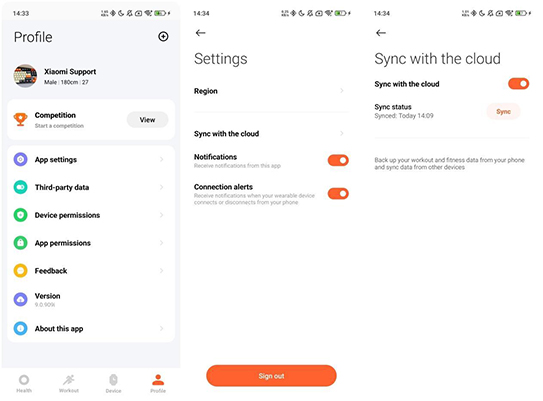
- Open the Mi Fitness App >> [Profile] >> [Third-party data] >> select the data source you want to sync.
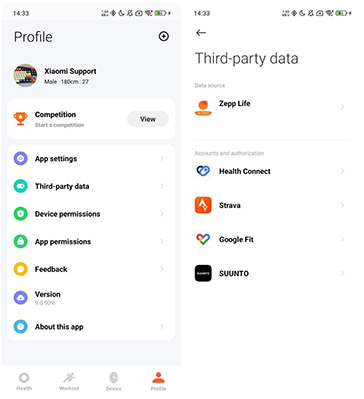
9. Q: Why can't the Mi Fitness App on iOS sync Apple Health data?
A: If the the Mi Fitness App on iOS cannot sync Apple Health data, please follow these steps to troubleshoot:
- Open the Mi Fitness App >> [Profile] >> [Third-party data] >> turn on [Health] >> select the data items you want to sync;
- Open the Health App >> select [Browse] >> tap the small circle in the upper right corner >> tap [Apps] >> [Mi Fitness] >> select the data items you want to sync;
- After syncing the data, wait a moment for it to appear in Apple Health;
- If the data still does not appear, please submit a log in the Mi Fitness App so that we can analyze the issue with the data synchronization.
10. Q: What to do if data from the Zepp Life App is not importing fully into the Mi Fitness App?
A: After importing data from the Zepp Life App, if the current version of the Mi Fitness App displays incomplete data, you can resolve this issue by referring to the following methods:
- Close the Mi Fitness App completely by clearing it from the background. Then, reopen the Mi Fitness App and wait for about 1 minute to see if the missing data appears;
- Uninstall and reinstall the Mi Fitness App then reopen the Mi Fitness App and wait for about 1 minute to check whether the missing data is displayed.
11. Q: How to use the Xiaomi Smart Hub on the Xiaomi Smart Band 10 Glimmer Edition?
A: The Xiaomi Smart Band 10 Glimmer Edition supports the Xiaomi Smart Hub, inviting you to experience the new world of interconnection. Whether it is a mobile phone, tablet, TV, or speaker, with just one tap, the content can flow between multiple devices.
For your reference, here are more details about the Xiaomi Smart Hub:
- After entering the Xiaomi Smart Hub App on the band, you can select mobile phones, speakers, TVs, and other devices (devices in the same LAN and need to support the Xiaomi Smart Hub) in the device list for control. Currently, it supports the display of singer and song information, play and pause status switching, volume adjustment, and previous and next song switching of music on the mobile phone and speaker;
- It supports previous channel and next channel switching, volume reduction and increase, return to home page, return to the previous interface, open the menu bar, switch up, down, left, right, and confirm the home page, shut down, etc. The specific functions are subject to actual experience.
To use audio streaming, please refer to the following steps:
Entering the band’s Xiaomi Smart Hub App and select a device. When connected to the mobile phone and playing music synchronously, enter the control interface and tap the projection button in the lower right corner. Select the Xiaomi smart device, such as the speaker or TV to which the mobile phone audio source is expected to be streamed from the list. The audio on the mobile phone will be transferred to the selected device for playback.
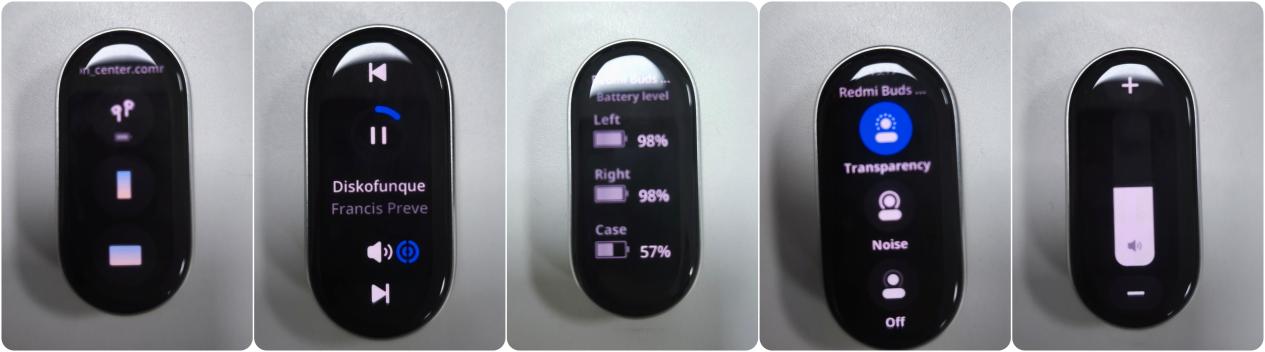
Note:
The band’s Xiaomi Smart Hub needs to be paired with a mobile phone that supports the Xiaomi Smart Hub. The screen projection version 13.2 and above can be used.
12. Q: Why does the Xiaomi Smart Band 10 Glimmer Edition trigger the phone screen to light up during use?
A: The phone screen lights up because the phone's Xiaomi Smart Hub is triggered to search for available audio and video devices.
The Xiaomi Smart Band 10 Glimmer Edition supports the Xiaomi Smart Hub, which realizes device interconnection and interoperability. You can experience the special features of audio and video and application cross-device flow.
13. Q: Can the Xiaomi Smart Band 10 Glimmer Edition control music playback on the phone?
A: The Xiaomi Smart Band 10 Glimmer Edition can control the music playback of your phone. When the band and the phone are in a connected state, the band will enter the music interface after the phone starts playing music. Tap the [Pause] button on the band to pause the playback, tap the [Cut] button to switch to the previous or next song, and tap the [Volume] button to adjust the volume.
At present, this function supports most of the music Apps on the market. However, the openness of the music player and the different App versions will affect the experience of this function to a certain extent.
Note:
- When the band is connected to a Xiaomi phone, you need to enable the notification permission of the Mi Fitness App to use the music control function;
- In order to better use the band to control the music playback of the phone, you need to keep the Mi Fitness App running in the background after the music starts playing on the phone side. In order to avoid some software cleaning Apps in the Android system, please go to [Settings] >> [Apps] >> [Background autostart] >> select [Mi Fitness].
14. Q: What music control functions does the Xiaomi Smart Band 10 Glimmer Edition support?
A: For your reference, please check the following details of music control functions on the Xiaomi Smart Band 10 Glimmer Edition:
Phone system | Xiaomi phone | IOS phone | Other phones |
Mainstream music players | Support | Support | Support |
Show artist name | Support | Support | Support |
Show progress bar | Support | Not support | Support |
Show lyrics | Only Xiaomi phones with MIUI/Xiaomi HyperOS that support Interconnectivity can display lyrics when using the built-in player | Show lyrics when the music player is running in the background and no lyrics when the music player is in the foreground. | Not support |
15. Q: What to do if the Xiaomi Smart Band 10 Glimmer Edition can't access to music of the phone?
A: If the Xiaomi Smart Band 10 Glimmer Edition can't access to music of the phone, please check the following methods:
- Check whether the App has enabled notification permissions correctly. If it is the latest system of Xiaomi phone, please go to [Settings] >> [Security & privacy] >> [Privacy controls] >> [Permission manager] >> [Notifications] >> navigate to [Mi Fitness] App >> turn it off and then turn it on;
- Confirm whether the music player of your phone is turned on, and whether the Mi Fitness App is connected to your band;
- If only a certain music App cannot be controlled, it is recommended to reinstall that App and try again. At present, this function supports most of the music Apps on the market. However, the openness of the music player and the different App versions will affect the experience of this function to a certain extent.
16. Q: Does the Xiaomi Smart Band 10 Glimmer Edition support music storage?
A: The Xiaomi Smart Band 10 Glimmer Edition does not support music storage. Since the band does not have a speaker, it does not support the band side to actively play songs and store music files. It supports convenient control of mobile phone music playback through the band.

Troubleshooting
1. Q: Why is the Xiaomi Smart Band 10 Glimmer Edition powered off automatically when it is not paired?
A: When the Xiaomi Smart Band 10 Glimmer Edition is not paired, it will automatically power off after 30 minutes of inactivity. It can be powered on again by connecting it to a charger.
2. Q: Why is the Xiaomi Smart Band 10 Glimmer Edition shut down in high-temperature environments?
A: The Xiaomi Smart Band 10 Glimmer Edition features an automatic shutdown mechanism for high-temperature protection. A warning will be displayed before shutdown occurs. After thermal protection is triggered, the band can be restarted by connecting it to a charger.
Wearing Status | Temperature Range | Shutdown Time |
Worn for over 3 minutes | 41 °C | Shutdown after 10 minutes |
Worn for over 3 minutes | 43 °C | Shutdown after 1 minute |
Worn for over 3 minutes | 45 °C | Shutdown after 1 minute |
Worn for over 3 minutes | 48 °C | Shutdown after 1 minute |
Not worn | 45 °C | Shutdown after 10 minutes |
Not worn | 48 °C | Shutdown after 1 minute |
/ | 58 °C | Immediate shutdown |
/ | -18 °C | Immediate shutdown |
3. Q: Why is the quick release button on the Xiaomi Smart Band 10 Glimmer Edition not able to rebound properly when pressed?
A: The quick release button on the Xiaomi Smart Band 10 Glimmer Edition is a movable part. If the button fails to rebound properly after assembly, the strap should be firmly pressed during installation to ensure it is securely fitted. Once assembled correctly, the button will return to its proper position.
4. Q: Will the Xiaomi Smart Band 10 Glimmer Edition become loose after the strap is installed?
A: The quick release button on the Xiaomi Smart Band 10 Glimmer Edition is a movable structure that works with the strap connector, leaving a slight gap. Minor movement of the strap after installation is normal and not a defect. This gap is intentionally designed to ensure smooth operation of the quick release mechanism.
5. Q: Is the black strap of the Xiaomi Smart Band 10 Glimmer Edition prone to attracting dust?
A: During daily wear the Xiaomi Smart Band 10 Glimmer Edition, contact with dust is inevitable. Dust attraction is not related to color. However, dust can appear more noticeable on the black strap due to higher contrast.
6. Q: Why is the pin buckle on the Xiaomi Smart Band 10 Glimmer Edition strap difficult to be fastened?
A: To ensure that the Xiaomi Smart Band 10 Glimmer Edition strap remains securely attached after fastening, the pin buckle and strap hole are designed with a tight fit. To install, place the band on the wrist, insert the long strap through the loop on the short strap, adjust for a comfortable fit, align the pin buckle with the hole, support the long strap with the index finger underneath, and press firmly with the thumb to fasten the pin.
7. Q: Is the pin buckle on the Xiaomi Smart Band 10 Glimmer Edition strap easily detached?
A: During wear, contact with hard objects should be avoided to prevent accidental release of the pin buckle on the short strap of the Xiaomi Smart Band 10 Glimmer Edition. The strap is designed to follow the natural curve of the wrist. If accidental detachment occurs, the buckle can be re-fastened immediately. Detachment will not occur under normal conditions without external force. If the pinhole becomes worn or deformed over time, and detachment becomes frequent, the strap should be replaced promptly.
8. Q: Can the pin buckle on the Xiaomi Smart Band 10 Glimmer Edition strap fall off after prolonged use?
A: The pin buckle on the Xiaomi Smart Band 10 Glimmer Edition strap will not fall off during regular use. It is assembled using cold-press riveting and an automated installation process, and has passed durability inspection. Since the pin buckle is a critical component for connecting and securing the strap, it should not be forcibly removed, as this can lead to loosening and affect both durability and using experience.
9. Q: Can the Xiaomi Smart Band 10 Glimmer Edition be worn together with metal or mineral accessories?
A: The Xiaomi Smart Band 10 Glimmer Edition features an aluminum alloy body with an anodized surface. When worn alongside harder accessories such as metal bracelets or mineral jewelry (e.g., jade, crystal), the surface can be scratched, chipped, or the paint can peel. Therefore, it is not recommended to wear the band together with such items. Wearing them on separate wrists is advised.
10. Q: What should be done if the strap of the Xiaomi Smart Band 10 Glimmer Edition becomes loose?
A: During daily use with the Xiaomi Smart Band 10 Glimmer Edition, strong pulling, twisting, or stretching of the strap should be avoided. Such actions can deform the positioning pins at the strap head, causing looseness or noticeable gaps.
If looseness has already occurred, the following solutions are recommended:
- Firmly pinch the strap head to help the positioning pins return to their original shape, which can reduce movement and gaps;
- Additionally, Xiaomi offers 7 retail strap options. You can make a purchase based on your needs.
11. Q: How to clean the strap of the Xiaomi Smart Band 10 Glimmer Edition?
A: The default strap of the Xiaomi Smart Band 10 Glimmer Edition is made of antibacterial TPU. Lighter-colored straps tend to show stains or dyes more visibly than darker ones. Contact with red ink, markers, or industrial dyes should be avoided. If contamination occurs, daily detergents such as laundry detergent or soap can be used to wipe the strap clean. Additionally, Xiaomi also offers 7 retail straps that can be purchased as replacements.
12. Q: Should the Xiaomi Smart Band 10 Glimmer Edition be removed during MRI scans or medical check-ups?
A: The Xiaomi Smart Band 10 Glimmer Edition must be removed before undergoing MRI or similar medical examinations. Charging relies on magnetic attraction. Strong magnetic fields, such as those in MRI, can affect the internal magnets, potentially reversing their polarity. This can prevent proper charging or even damage internal screen components, causing issues like screen blackouts.
Therefore, it is important to follow medical instructions and remove the band beforehand. Similarly, the band should also be removed before entering other strong magnetic environments.
13. Q: Why does the screen of the Xiaomi Smart Band 10 Glimmer Edition light up when tapped after 15 minutes of inactivity in an unpaired state?
A: When left idle for 15 minutes on the language selection or pairing code interface, the Xiaomi Smart Band 10 Glimmer Edition enters a sleep mode where the screen turns off but the device remains active. tapping the screen will wake the device. If no action is taken for 30 minutes, the device will automatically power off and will need to be restarted by connecting to a charger.
Does it help?
Yes
No