

Xiaomi Gaming Monitor G24i 2026 FAQ
Appearance Craftsmanship
Q1: What are the features of the Xiaomi Gaming Monitor G24i 2026?
A: The features of the Xiaomi Gaming Monitor G24i 2026 are listed below:
- 200Hz high refresh rate brings you a smooth experience.
- The device is equipped with a fast IPS gaming monitor.
- It features HDR 400, giving you 400 nits of peak brightness, deep shadows, and bright highlights.
- It boasts a 95% DCI-P3 wide color gamut, giving you a cinematic viewing experience with rich colors.
- It supports FreeSync Premium, which reduces screen tearing during gaming.
- With a G to G time of 1ms, its lightning-fast response speed gives you the advantage.
- Its color calibration degree, ΔE<2, supports high color precision individual calibration to ensure true color reproduction.
- The monitor is TÜV Low Blue Light certified, filtering shortwave blue light to reduce eye strain.
Q2: What does the Xiaomi Gaming Monitor G24i 2026 look like?
A: The front frame is designed in black plastic with a matte/firework finish.
The lower trim is also made of black plastic with a matte/firework finish.
The back panel is crafted from black plastic with an etched surface.
The rear cover includes multiple parts: the upper back case in black plastic with a matte etching and high-gloss A0 character mold, the lower back case in black plastic with a glossy etched finish, and the button decorative ring featuring a high-gloss A0 mold for added detail.
The pillar is constructed from galvanized sheet in black, treated with powder coating and silk screen printing.
The base is also made from black galvanized sheet with powder coating and silk screen printing, matching the pillar for a unified design.
The buttons are made of black plastic with a fire pattern finish.
The tilt angle ranges from -5° ±2° to +15° ±2°.
The frame type is designed with three micro edges.
Q3: What are the package contents of the Xiaomi Gaming Monitor G24i 2026?
A: Adapter × 1
Packaging material (EPS)
Carton (Color or Brown Box): ordinary
Display monitor × 1
Base set × 1
Screw set × 1
Base mount set × 1
User manual × 1
HDMI 2.0 cable × 1 (1.5m)
Warranty card × 1
Q4: How to install the Xiaomi Gaming Monitor G24i 2026?
A: The installation method for the Xiaomi Gaming Monitor G24i 2026 is as follows:
- Remove the foam and monitor from the box. Peel back the foam containing the accessories. Place the monitor screen-side down on a flat surface with the foam in front of the screen.
- Remove the stand and base. Insert the stand into the positioning posts and holes in the direction of the arrows shown, and tighten the screws.
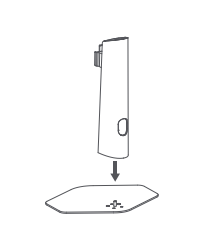
- Place the metal hinge at the front of the stand into the slot on the back of the monitor. Push the stand in the direction of the arrows until it clicks into place.
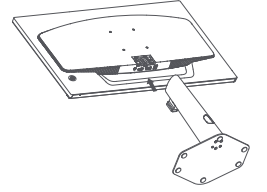
- After installation, adjust the monitor's tilt as needed.
Note:
When adjusting the forward or backward tilt angle, it is recommended to hold the base with one hand and adjust the monitor with the other hand. If you adjust with one hand, the monitor may easily fall over.
Q5: How to wall mount the Xiaomi Gaming Monitor G24i 2026?
A: The wall mount must be purchased separately. This product is compatible with wall mounts that have a hole spacing of 75 × 75 mm. The bolts used to secure the wall mount must meet the following requirements: Quantity: 4; Thread: M4; Length: 10 mm.
Lay the monitor flat, with its back facing upwards. Use your finger to press the spring clip that joins the base to the monitor and remove the base.
Note:
When removing the base, be careful not to pinch your finger in the spring clip.
Follow the wall mount user manual and install the wall mount onto the bolts that are built into the housing back.
Q6: Can the Xiaomi Gaming Monitor G24i 2026 be adjusted for height, tilt, and vertical rotation?
A: It does not support height adjustment, left-right rotation, or landscape rotation. It only supports pitch angles of 5°±2 in front and 15°±2 in back.
Q7: What ports does the Xiaomi Gaming Monitor G24i 2026 have?
A: Audio out × 1
DC Socket × 1
DP(1.2/1.4/DSC): DP 1.4 × 1
HDMI(1.4/2.0/2.1/ARC/eARC): HDMI 2.0 × 1
Q8: What devices can the Xiaomi Gaming Monitor G24i 2026 connect to?
A: This product comes standard with an HDMI signal cable; The DP cable is sold separately. It can be connected to output devices such as consoles, laptops, set-top boxes, and PS4s that have HDMI or DP ports. It does not support AC sockets, VGA, or USB (2.0/3.0) ports.
Q9: How to operate the buttons on the Xiaomi Gaming Monitor G24i 2026?
A: This display has a five-way button, and the button is on the back of the fuselage.
The button functions are as shown below:
When you press the right button, you can enter or select the operation instructions of the main menu options.
When you press the up and down keys, you can quickly adjust the screen brightness or system volume control bar.
When you press the left button, you can open the signal source switching list and return to the previous page.
When you press the middle button, you can open the monitor or open the shortcut menu to confirm or select.
You can turn off the Xiaomi Gaming Monitor G24i 2026 by pressing and holding on for 3 seconds.
Q10: What is the brightness of the Xiaomi Gaming Monitor G24i 2026?
A: The brightness (typical value) of the Xiaomi Gaming Monitor G24i 2026 is 350 nits/400 nits.
Q11: What are the lengths of the power cable and HDMI cable for the Xiaomi Gaming Monitor G24i 2026?
A: The Xiaomi Gaming Monitor G24i 2026 HDMI cable is about 1.5m, and the power cord length is about 1.5m.
Q12: How to replace the Xiaomi Gaming Monitor G24i 2026 power cord, HDMI cable if damaged?
A: If the power cord or HDMI signal cable is damaged, it must be replaced with a dedicated cord or a dedicated component purchased from the manufacturer or after-sales service.
Q13: What are the dimensions of the Xiaomi Gaming Monitor G24i 2026?
A: Dimensions with stand (L*W*H): 539.2 mm × 441.5 mm × 105.4 mm.
Dimensions without stand (L*W*H): 539.2 mm × 321.5 mm × 44.3 mm.
Q14: Why does a buzzing sound occur or one channel become silent when using the speaker plug to connect to the Xiaomi Gaming Monitor G24i 2026 audio out ports?
A: When plugging a speaker into the Xiaomi Gaming Monitor G24i 2026 audio interface, a squeaking sound or a muted audio channel can occur. If this occurs, try using headphones to see if the problem persists. If the problem persists with headphones, the monitor will be faulty and require after-sales service. If the problem disappears with headphones, the speaker's plug can be too large, preventing it from fully inserting into the monitor's audio interface. We recommend replacing the speaker plug.
Display Introduction
Q1: What is the best resolution for the Xiaomi Gaming Monitor G24i 2026?
A: The optimal resolution is 1920 × 1080. At 1920 × 1080, it supports up to 200Hz.
The higher the resolution, the more pixels a monitor can display, resulting in a finer image and more information that can be displayed within the same screen area.
The higher the refresh rate, the less flickering the image on the screen will be, and the more stable it will be, which in turn is better for eyesight.
Q2: What is the maximum refresh rate of the Xiaomi Gaming Monitor G24i 2026?
A: When connecting an HDMI cable (HDMI 2.0), the details are as follows:
- Make sure both the monitor and computer are powered off.
- Connect one end of the HDMI cable to the computer's HDMI 2.0 port and the other end to the monitor's HDMI port.
When connecting a DP cable (DP 1.4, sold separately), the details are as follows:
- Make sure both the monitor and computer are powered off.
- Connect one end of the DP cable to the computer's DP port and the other end to the monitor's DP port.
To change the refresh rate in Windows 10, go to [Start] >> [Settings] >> [System] >> [Display] >> [Advanced display settings] >> [Monitor] >> [Screen refresh rate].
Q3: What is dynamic brightness?
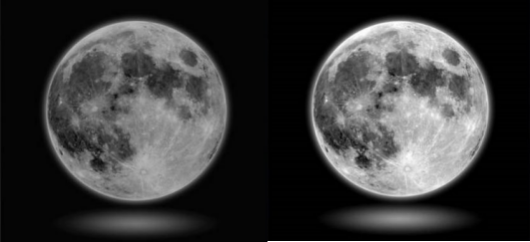
A: Dynamic brightness changes during the picture changes, making white whiter and black darker, making the picture brighter and more vivid, which can reduce eye fatigue caused by long-term exposure to overly bright or dark pictures.
Q4: What is the contrast ratio of the Xiaomi Gaming Monitor G24i 2026? What is a static contrast ratio?
A: The Xiaomi Gaming Monitor G24i 2026 has a static contrast ratio of 1000:1.
Static contrast ratio is calculated by dividing the brightness of a white screen (at its brightest) by the brightness of a black screen (at its darkest). The higher the screen's contrast, the better the display quality (color and depth).
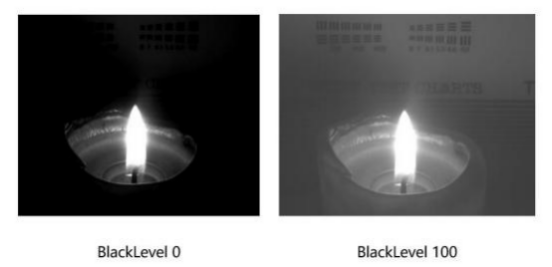
Q5: What is BlackLevel?
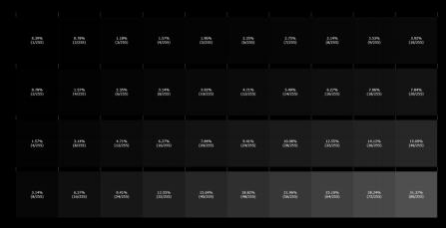
A: BlackLevel can improve the blur caused by insufficient image contrast in black scenes, making the picture in black scenes very clear. If there is too much black in the image, details will be lost. Lack of black will result in a dull appearance.
Q6: How to adjust the color temperature on the Xiaomi Gaming Monitor G24i 2026?
A: The Xiaomi Gaming Monitor G24i 2026 supports color adjustment.
Please use the five-way button to open the monitor's menu for adjustment.
Q7: What is chroma/hue?
A: Chroma reflects the color hue without brightness.
Q8: What is saturation?
A: Saturation represents the purity of color. The higher the purity, the brighter the color, and the lower the purity, the duller the color.
Q9: What is the function of the gamma value adjustment on the Xiaomi Gaming Monitor G24i 2026?
A: Gamma value is a curve optimization adjustment and an auxiliary function of brightness and contrast. It can make subtle adjustments to the light and dark levels of the picture, control the contrast performance of the entire picture, and make the picture more three-dimensional and vivid.
Q10: How to adjust the aspect ratio on the Xiaomi Gaming Monitor G24i 2026?
A: The Xiaomi Gaming Monitor G24i 2026 allows you to adjust the image aspect ratio in the display menu.
When in full-screen mode, the image will be stretched to a full 16:9 display regardless of the output resolution;
The image will automatically be stretched horizontally or vertically to fit the screen size based on the output resolution. Non-16:9 resolutions will not be distorted.
Note:
Adjusting the output resolution requires adjusting the graphics card settings.
Q11: How to adjust the Xiaomi Gaming Monitor G24i 2026 for optimal image quality?
A: Due to individual differences, you can adjust the contrast, brightness, hue, and saturation yourself, or you can choose your own preferences in the color space of the display image mode.
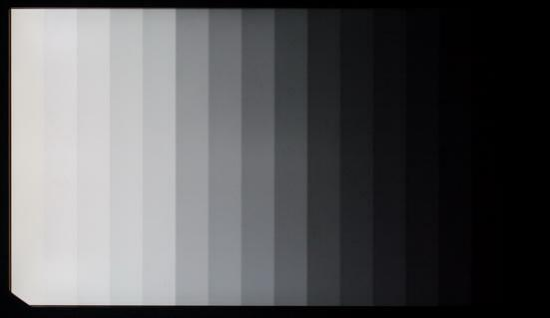
Q12: What is Gray-to-Gray (GTG) Time?
A: The time it takes for each point on the screen to transition from one color to the next is called response time. Images on the screen are all grayscale changes, so the response time we're talking about here refers to grayscale response time.
Q13: What is Adaptive Sync?
A: Adaptive Sync, or adaptive vertical synchronization technology, is the first open standard developed by VESA (Video Electronics Standards Association) for variable refresh rate monitors. This standard addresses monitor developments and market demand, further improving visual quality and experience for you.
It primarily synchronizes the graphics card's output image signal with the monitor's refresh rate, thus avoiding the screen tearing that occurs when the two are out of sync. Simply put, Adaptive Sync adjusts the monitor's refresh rate in real time to sync it with the graphics card's output frame rate, eliminating tearing and lag, and improving the smoothness and stability of games and videos.
Adaptive Sync technology can be implemented in various ways, including AMD's FreeSync and Nvidia's G-Sync. It requires support from both the monitor and graphics card, and requires appropriate configuration.
Q14: Does turning Adaptive Sync on or off have any impact on the performance and lifespan of the monitor?
A: Generally speaking, enabling or disabling Adaptive Sync has a minimal impact on monitor performance. Enabling Adaptive Sync primarily improves visual quality and reduces issues like screen tearing.
As for the impact on monitor lifespan, it's generally negligible, as it doesn't directly damage the monitor hardware.
Q15: How many output devices can the Xiaomi Gaming Monitor G24i 2026 display simultaneously?
A: It can connect to 2 display lines at the same time, supports only one screen display, and can switch between input sources.
Q16: Does the Xiaomi Gaming Monitor G24i 2026 support changing the language?
A: You can set the language by operating the five-way key on the back of the Xiaomi Gaming Monitor G24i 2026 to open the menu.
Q17: How to use the Xiaomi Gaming Monitor G24i 2026 after connecting headphones?
A: The output device transmits audio to the monitor via DP or HDMI cables. After the monitor is connected to the audio, you only need to select the corresponding input source in the settings. If there is no sound, you need to switch to the playback device on the output source device.
Note:
A device can only output one audio at a time. For example, if you use an external headset on your monitor, your PC will not be able to use the external speaker or PC headphone jack. You can switch between them if needed.
Q18: How to adjust the volume on the Xiaomi Gaming Monitor G24i 2026 after connecting an audio output device?
A: You can adjust it in the computer sound. If the volume is still too loud or too low, you can adjust it in the monitor menu volume setting. The computer volume and monitor volume are adjusted asynchronously.
Q19: How to restore the Xiaomi Gaming Monitor G24i 2026 to factory settings?
A: You can restore the factory settings by entering the monitor menu.
Frequently Asked Questions
Q1: What to do if the Xiaomi Gaming Monitor G24i 2026 won't power on?
A: If the Xiaomi Gaming Monitor G24i 2026 won't power on, the following methods are for your reference:
- Remove the monitor's signal cable while keeping the monitor powered on. If the power-on logo appears, the monitor is functioning properly, and the video cable is not properly connected. Check the signal cable connector, signal cable, and signal source.
- Try another HDMI port.
- Try another DP port.
- Try another cable.
- Try another signal source.
- If using an adapter, remove it and try again.
Q2: How to connect the Xiaomi Gaming Monitor G24i 2026 HDMI cable and DP cable to the computer?
A: Connecting the HDMI (2.0) signal cable
a. Make sure both the monitor and computer are powered off.
b. Connect one end of the HDMI (2.0) signal cable to the computer's HDMI (2.0) port and the other end to the monitor's HDMI (2.0) port.
Note: This product supports a maximum resolution of 1920 × 1080 with a maximum refresh rate of 200Hz.
Connecting the DP (1.4) signal cable (sold separately)
a. Make sure both the monitor and computer are powered off.
b. Connect one end of the DP (1.4) signal cable to the computer's DP (1.4) port and the other end to the monitor's DP (1.4) port.
Note: The maximum output resolution of these ports is 1920 × 1080 with a maximum refresh rate of 200Hz.
Plug the computer's power cord and the monitor's adapter into power outlets.
Note: If the adapter or signal cable is damaged, it must be replaced with a dedicated cord or a dedicated component purchased from the manufacturer or a repair center.
Q3: How to fix the issue of blurry screen capture on the Xiaomi Gaming Monitor G24i 2026?
A: If you're experiencing blurry screenshots on your monitor. Please try to change the zoom and layout from 150 to 100 on your computer..
This is because the screenshot tool requires a 100% setting. Because Windows has a scaling factor, the screenshot tool uses 100% when taking a screenshot, but the system isn't set to 100% scaling, resulting in blurry screenshots.
Q4: Why can't I adjust the monitor volume through macOS when connecting the Xiaomi Gaming Monitor G24i 2026 to a MacBook?
A: Because macOS and Windows support external monitors differently, macOS doesn't support adjusting the monitor's audio volume from a computer when connected to a monitor via HDMI or DP. This requires installing additional software. To adjust the monitor's volume using macOS, you can use the monitor's built-in volume control in [Settings] >> [Volume]. You can also search for other methods that support volume adjustment in macOS.
Q5: Why is there no image displayed on the Xiaomi Gaming Monitor G24i 2026 screen after powering on?
A: The Xiaomi Gaming Monitor G24i 2026 has no image when the power light is on and it is powered on. You can check whether the video cable is connected properly and whether the video output device is turned on. You can try changing to another output device.
Q6: What to do if the screen color is dark when using the Xiaomi Gaming Monitor G24i 2026?
A: If the screen color is dark when using the Xiaomi Gaming Monitor G24i 2026, the following methods are for your reference:
- You can adjust the screen brightness and increase the contrast.
- You can check the current display mode switching standard.
- Turn off HDR to see if it works properly.
- Restore the monitor to factory settings in the display menu.
Q7: Why does the Xiaomi Gaming Monitor G24i 2026 experience image flickering or rippling when in use?
A: You can try moving the monitor away from electronic devices that will be causing electrical interference.
Q8: What is the issue when the Xiaomi Gaming Monitor G24i 2026 displays “Out of Range” on the screen during use?
A: This is due to incorrect resolution. Please use the recommended resolution settings.
Q9: Can the Xiaomi Gaming Monitor G24i 2026 be used for wireless screen mirroring?
A: Wireless screen mirroring is not supported.
Q10: Why are the colors on the screen different after replacing the Xiaomi Gaming Monitor G24i 2026?
A: The main reason for the difference in the displayed image color is the different screen color temperature settings. The display color temperature can be modified in the menu settings.
Q11: How to clean the screen of the Xiaomi Gaming Monitor G24i 2026?
A: Cleaning your monitor can be done as follows:
- Ensure the LCD monitor is turned off;
- Spray evenly with a dedicated screen cleaning solution;
- Use a screen cleaning cloth with good water and dust absorption properties, and gently wipe the screen. Dust will easily adhere to the fabric and will not re-adhere to the screen with repeated wiping, nor will dust particles scratch the LCD screen.
Note:
Using water is not recommended. Alkaline or chemical solutions are strictly prohibited for cleaning the screen, as this can cause short circuits or corrosion.
Q12: Are warm or cool colors better on the Xiaomi Gaming Monitor G24i 2026?
A: If the indoor light is strong, it is recommended to use cool colors, which can make the colors clearer and brighter; if the indoor light is weak, you can use warm colors, which will be softer.
Q13: What manufacturer/material is used for the display screen of the Xiaomi Gaming Monitor G24i 2026?
A: The panel type of the display screen of the Xiaomi Gaming Monitor G24i 2026 is IPS; The panel source of the display screen of the Xiaomi Gaming Monitor G24i 2026 is HKC/CSOT; The panel P/N of the display screen of the Xiaomi Gaming Monitor G24i 2026 is HKC SN238CS04-1 V1.5/CSOT and SG2381B04-3_VH.1.
Q14: How to fix the Xiaomi Gaming Monitor G24i 2026 when videos are not playing smoothly?
A: If the playback is not smooth, please check whether it is playing normally on other devices, or try changing the video source. It is recommended to use the standard DP signal cable. If you are using a video adapter cable, please check whether the connection is secure or try another adapter cable.
Q15: How to deal with white dots and black dots on the screen of the Xiaomi Gaming Monitor G24i 2026?
A: If you encounter white spots or black spots that are not lit, it is recommended that you perform a screen test (change the background color) to determine whether it is a screen display problem.
If the display points are abnormal, you can go to our local official after-sales service center along with the invoice.
Q16: Why are there colored stripes when taking photos with a mobile phone/camera of the Xiaomi Gaming Monitor G24i 2026?
A: This is a normal physical phenomenon (called moiré). Almost all devices will produce moire patterns when recording computer screens. This is caused by different refresh rates. A video is composed of countless photos arranged in sequence and at specific times. The camera is actually capturing photos continuously, meaning the shutter has a fixed frequency. A typical video is around 30 frames per second. The refresh rate of the Xiaomi Gaming Monitor G24i 2026 is around 60Hz. The difference between these two frequencies can cause the screen to refresh intermittently when recording video. You can adjust the camera's refresh rate to match that of the monitor.
Q17: How to deal with screen lag and ghosting on the Xiaomi Gaming Monitor G24i 2026?
A: If you experience noticeable lag and sluggishness, it's mainly due to the computer graphics driver not being installed and the material of the adapter cable. We recommend that you check the graphics driver in the PC device manager. If you use an adapter cable, test it without the adapter or replace it.
Q18: Why does the brightness of the Xiaomi Gaming Monitor G24i 2026 fluctuate between bright and dim when it automatically adjusts?
A: If the display screen is sometimes bright and sometimes dark, it is recommended that you check whether the video signal cable is properly plugged in.
Q19: How to fix the Xiaomi Gaming Monitor G24i 2026 not producing sound after connecting headphones?
A: If the Xiaomi Gaming Monitor G24i 2026 has no sound when connected to headphones, follow these steps:
- Check if the output volume is low and adjust it appropriately.
- Check the monitor's volume settings.
- If the monitor's audio isn't detected, try restarting the output device or updating the driver and checking again.
- Please check whether the computer's sound output is correctly switched to the headphones.
Q20: Why does prolonged use of the Xiaomi Gaming Monitor G24i 2026 cause dizziness?
A: Symptoms of vertigo arise when there's a mismatch between what you see and what you experience in reality. This is caused by a mismatch between the inner ear's balance organs and the visual input to the brain. The severity of vertigo can also be affected by the monitor's performance. If you experience vertigo, it's recommended that you rest and wait until the symptoms subside before using the device again.
Q21: How to deal with screen flickering on the Xiaomi Gaming Monitor G24i 2026?
A: The Xiaomi Gaming Monitor G24i 2026 display distortion can be resolved as follows:
- Check the product for damage.
- It is recommended to use the official standard DP cable. If using an adapter, try replacing it with a high-quality adapter.
- Check whether the display driver is functioning properly. In Device Manager, check for updated display adapter drivers. You can also try connecting a different output device to see if the display function works properly.
Q22: Why does the screen brightness decrease after setting the dynamic contrast?
A: The dynamic contrast function controls the screen brightness by the light-to-dark ratio of the input signal. The larger the screen light ratio, the brighter the screen, and the larger the screen dark ratio, the darker the screen.
Q23: What to do if the text on the display is fuzzy or the picture is unclear?
A: If the screen is blurry after expanding the screen, you can perform the following operations on a Windows computer:
- Right-click and select Personalize.
- Select Fonts.
- Select the clearest text based on your subjective preferences and click Next.
- Select your monitor and click Next.
- Select the clearest text based on your subjective preferences and click Next. You will need to test four times to complete the text setup.
If the screen is not clear, change the resolution to 1920 × 1080 in Windows Display Settings.
Note:
If blurry text appears at small sizes due to Windows font optimization, you can disable ClearType by going to [Personalize Settings] >> [Fonts] >> [Adjust ClearType Text] >> [Enable ClearType].
Q24: How to choose to switch to the main screen when selecting extended mode (connecting two monitors at the same time)?
A: To switch the primary display on a Windows computer, follow these steps:
- Right-click your mouse and select Display Settings.
- Identify monitors 1 and 2 and select the identified monitor.
- Select Set as Primary Display.
Q25: What dimming method does the Xiaomi Gaming Monitor G24i 2026 use?
A: The Xiaomi Gaming Monitor G24i 2026 supports global dimming.
Q26: How to switch resolutions on the Xiaomi Gaming Monitor G24i 2026 with Windows?
A: The steps for setting up Windows 10 are as follows:
- Right-click on the desktop and left-click [Display Settings].
- If you have multiple displays, first click the icon to confirm which monitor is currently connected to your PC, then click the current monitor. If it's 2 here, left-click and select 2.
- Left-click [Advanced Display Settings].
- Left-click [Display Adaptation Properties for Display 1].
- Left-click [List All Modes].
- Select [Desired Resolution].
- Left-click [Monitor] and select the resolution and vertical refresh rate for the monitor you want to display, then left-click [OK].
Q27: How to switch resolutions on the MacBook when the Xiaomi Gaming Monitor G24i 2026 is connected to it?
A: To set up your MacBook, follow these steps:
- Click to open [System Preferences].
- Left-click on the [Display] option.
- Click the [Arrangement] option in the upper row of options with the left mouse button. If the [Mirror Display] option in the lower left corner is checked, it means that the currently connected display and the MacBook are in mirror (copy mode) display. If it is not checked, it means that the display currently connected to the MacBook is in extended mode. Go to step (5) to set it up.
- Adjusting the Resolution.
(1). This displays the monitors connected to your MacBook, including the built-in monitor. Select the monitor whose resolution you want to adjust.
(2). Select the [Scale] option.
(3). Select the desired resolution in the white box.
- Switch to an external monitor and adjust the resolution.
(1). Select [Display Options].
(2). Right-click [Cluster Window] to adjust the resolution of the monitor connected to the MacBook.
- Adjusting the resolution and vertical refresh rate.
(1). Select the [Scale] option.
(2). Select the resolution you want to switch to in the white box.
(3). Select the vertical refresh rate you want to switch to in the refresh rate section. If the refresh rate is grayed out and unavailable, the current resolution has only one refresh rate.
Does it help?
Yes
No