

Xiaomi Smart Temperature and Humidity Monitor 3 Mini FAQ
FAQs
1. Q: What are the functions of the side button of the Xiaomi Smart Temperature and Humidity Monitor 3 Mini?
A: 1. Press the button to confirm that the device has been bound and turn on Bluetooth broadcasting;
2. Press and hold the button for 7 seconds to reset the device. After resetting, you can add and bind the device again in the Xiaomi Home/Mi Home APP.
2. Q: What is the product overview of the Xiaomi Smart Temperature and Humidity Monitor 3 Mini?
A: The product overview of the Xiaomi Smart Temperature and Humidity Monitor 3 Mini is listed below:
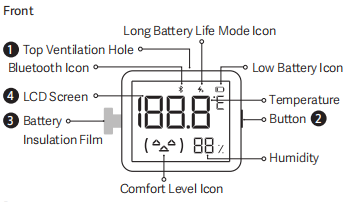
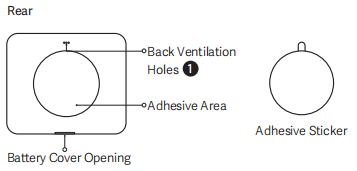
There are Long Battery Life Mode Icon, Low Battery Icon, Temperature, Button, Humidity, Comfort Level Icon, Top Ventilation Hole, Bluetooth Icon, LCD Screen, and Battery Insulation Film in the front. There are Back Ventilation Holes, Adhesive Area, and Battery Cover Opening in the rear. There is also a Adhesive Sticker separately.
3. Q: Can the temperature unit of the Xiaomi Smart Temperature and Humidity Monitor 3 Mini be switched to Fahrenheit?
A: The temperature units of the Xiaomi Smart Temperature and Humidity Monitor 3 Mini are Celsius and Fahrenheit. You can switch them in the APP after connecting to the Xiaomi Home/Mi Home APP.
4. Q: Can the positions of the temperature and humidity display on the Xiaomi Smart Temperature and Humidity Monitor 3 Mini be interchanged?
A: Not support.
5. Q: What do the expressions displayed on the Xiaomi Smart Temperature and Humidity Monitor 3 Mini screen mean?
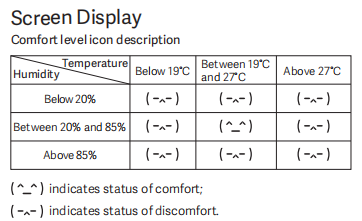
A: The expressions displayed on the Xiaomi Smart Temperature and Humidity Monitor 3 Mini represent the comfort level. A smile expression indicates comfort, while a sad expression indicates discomfort.
The comfort level is indicated as follows:
1. A sad expression will appear in the following situations:
Temperature below 19°C, between 19-27°C, above 27°C and humidity is below 20%;
Temperature below 19°C, above 27°C and humidity is between 20%-85%;
Temperature below 19°C, between 19-27°C, above 27°C and humidity is above 85%;
2. A smile expression will appear in the following situations:
Temperature is between 19-27°C, and humidity is between 20%-85%.
6. Q: What do the icons “H” and “L” displayed on the Xiaomi Smart Temperature and Humidity Monitor 3 Mini represent?
A: 1. When the temperature exceeds the temperature measurement range, the screen displays the over-temperature character. When the temperature is higher than 60°C, the screen displays the character "H";
2. When the temperature is lower than -9.9°C, the screen displays the character "L".
7. Q: How to stick the Xiaomi Smart Temperature and Humidity Monitor 3 Mini on the wall?
A: One of the accessories of the Xiaomi Smart Temperature and Humidity Monitor 3 Mini is a double-sided wall adhesive. Stick this wall adhesive to the back of the monitor, and you can stick the monitor on the wall or anywhere else.
8. Q: Can the Xiaomi Smart Temperature and Humidity Monitor 3 Mini be attached to the refrigerator door or other iron surface?
A: Not support. There is no magnet fitting in the package contents.
9. Q: Is the Xiaomi Smart Temperature and Humidity Monitor 3 Mini waterproof?
A: Not support. The monitor cannot be immersed in the water.
10. Q: What is the precaution when first using the Xiaomi Smart Temperature and Humidity Monitor 3 Mini?
A: When using the Xiaomi Smart Temperature and Humidity Monitor 3 Mini for the first time, you need to pull the battery insulation sheet outwards and remove it before it can be powered on. Without removing the insulation sheet, the monitor cannot be powered on.
11. Q: If the Xiaomi Smart Temperature and Humidity Monitor 3 Mini cannot display normally, how to solve it?
A: When the screen does not display or shows incomplete content, the reason is that the battery is out of power or has low power. Please replace it with a new CR2450 coin battery.
12. Q: Why does the button of the Xiaomi Smart Temperature and Humidity Monitor 3 Mini not respond to pressing?
A: If the button pressing does not respond, one of the reasons is that the battery is out of power or the battery terminals are installed incorrectly. Reinstall the battery correctly to resolve the problem.
13. Q: How to install the battery on the Xiaomi Smart Temperature and Humidity Monitor 3 Mini?
A: Remove the battery cover from the cover opening at the bottom of the monitor. Install a CR2450 coin battery with the positive (+) side facing upwards, then reinstall the cover.
14. Q: What are the differences between the Xiaomi Smart Temperature and Humidity Monitor 3 Mini and the Xiaomi Smart Temperature and Humidity Monitor 3?
A: Different sizes:
1. The size of the Xiaomi Smart Temperature and Humidity Monitor 3 is about 79.6×70.2×14.5mm;
2. The size of the Xiaomi Smart Temperature and Humidity Monitor 3 Mini is about 53×45.3×13mm.
Different screen display content:
1. The Xiaomi Smart Temperature and Humidity Monitor 3 supports displaying temperature and humidity information, time information;
2. The Xiaomi Smart Temperature and Humidity Monitor 3 Mini only supports displaying temperature and humidity information.
Different accessories:
1. The Xiaomi Smart Temperature and Humidity Monitor 3 accessories: stand, wall adhesive;
2. The Xiaomi Smart Temperature and Humidity Monitor 3 Mini accessories: only wall adhesive.
Battery life mode: Normal Mode and Long Battery Life Mode
1. The Xiaomi Smart Temperature and Humidity Monitor 3 battery life mode: 1.5 years in Normal Mode;
2. The Xiaomi Smart Temperature and Humidity Monitor 3 Mini battery life mode: 2 years in Normal Mode and 3 years in Long Battery Life Mode.
15. Q: How to check the SN of the Xiaomi Smart Temperature and Humidity Monitor 3 Mini?
A: 1. Open the bottom cover of the monitor to view the SN;
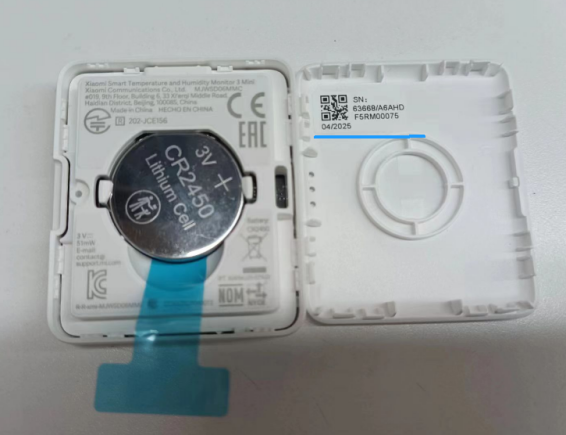
2. The SN can also be viewed at the barcode position in the lower right corner of the back of the monitor packaging.
About APP
1. Q: How to connect the Xiaomi Smart Temperature and Humidity Monitor 3 Mini to the Xiaomi Home/Mi Home APP?
A: The methods of connection are listed below:
1. Scan the QR code to download and install the Xiaomi Home/Mi Home APP. If you have installed the Xiaomi Home/Mi Home APP, you will directly enter the device connection interface. Or search the Xiaomi Home/Mi Home APP in the Play Store to download and install it;
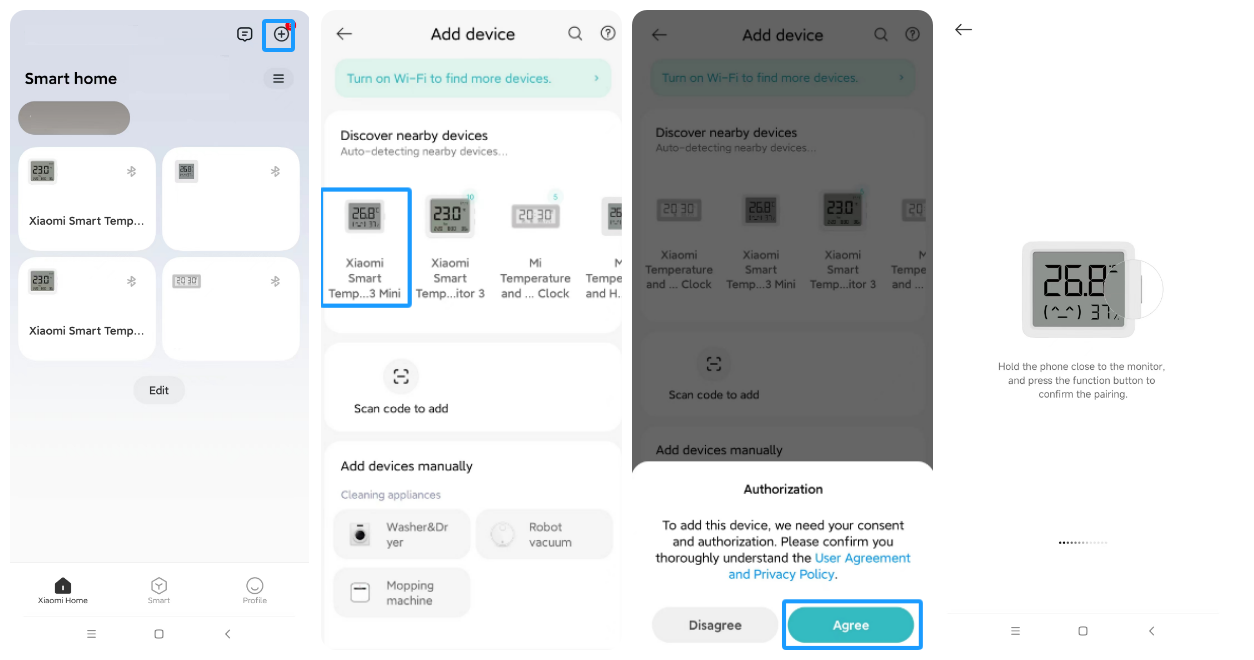
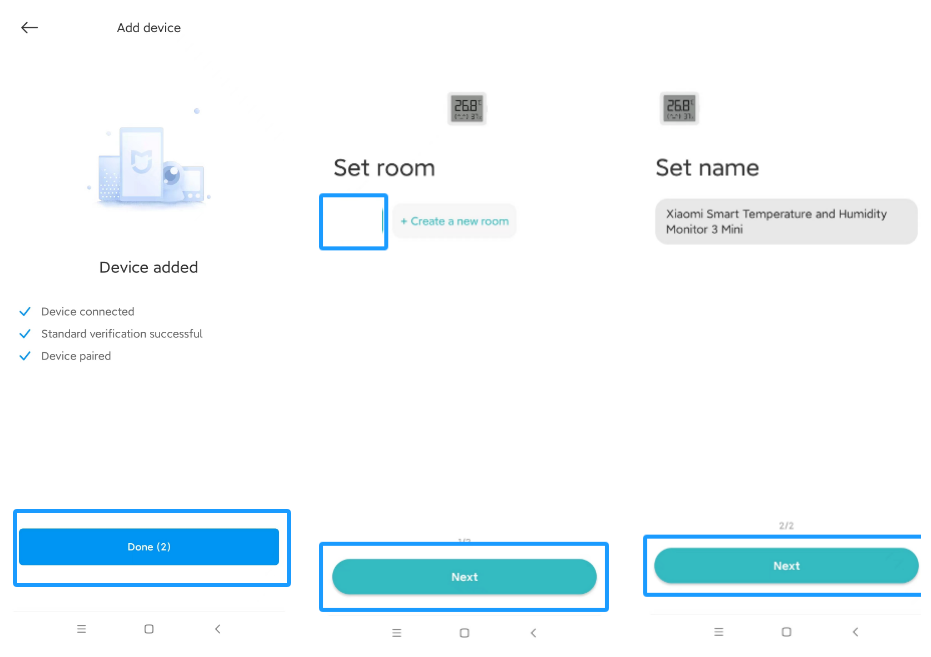
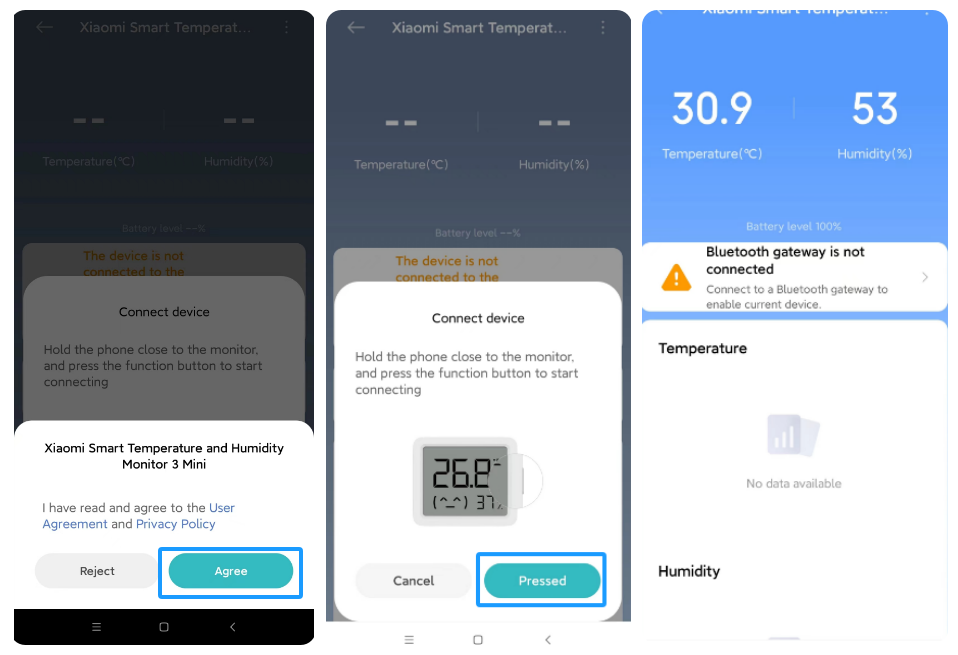
2. Open the Xiaomi Home/Mi Home APP, tap [+] at the right top of the interface and connect with the monitor according to the instructions.
Note:
1. Because the device has not been added for a long time, you need to press and hold the button on the right side of the monitor for 7 seconds to reset the monitor and connect;
2. There will be some deviations in actual operation, and please follow the instructions of the current Xiaomi Home/Mi Home APP.
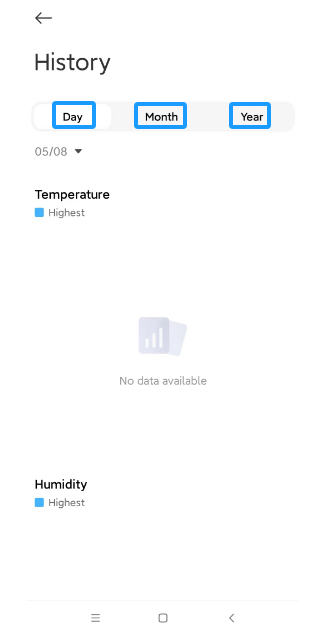
2. Q: How to check the history values of temperature and humidity of the Xiaomi Smart Temperature and Humidity Monitor 3 Mini?
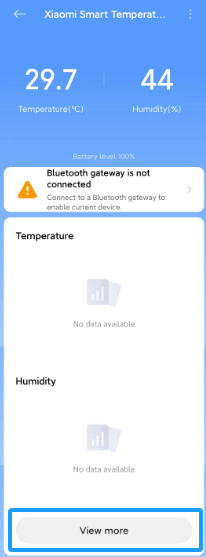
A: When the monitor is connected to the Xiaomi Home/Mi Home APP, tap [View more] and you will see history records according to day, month or half-year.
3. Q: How to switch between Celsius and Fahrenheit in the Xiaomi Smart Temperature and Humidity Monitor 3 Mini?
A: To switch the temperature unit, please refer to the following steps:
1. Connect the monitor to the Xiaomi Home/Mi Home APP;
2. You will see the interface of device controlling;
3. Tap [...] at the right top of the screen;
4. Tap [Fahrenheit] to turn on or turn off.
4. Q: Which devices can the Xiaomi Smart Temperature and Humidity Monitor 3 Mini be linked with through a Bluetooth gateway?
A: After binding with the Xiaomi Home/Mi Home APP, you can connect to the Bluetooth gateway with the same account and in the same physical space, and can be linked with air conditioners/fans/electric heaters/humidifiers and other devices.
5. Q: How does the Xiaomi Smart Temperature and Humidity Monitor 3 Mini connect to the humidifier?
A: The Xiaomi Smart Temperature and Humidity Monitor 3 Mini can only be connected to the humidifier through a Bluetooth gateway, please refer to the following steps:
1. Bind the Xiaomi Smart Temperature and Humidity Monitor 3 Mini, the humidifier, and Bluetooth gateway under one Xiaomi Account, and the distance between the Bluetooth gateway and the Xiaomi Smart Temperature and Humidity Monitor 3 Mini cannot exceed 5m;
2. Open the Xiaomi Home/Mi Home APP, tap [+] at the right top of the interface, tap [Automation], tap [Add a trigger condition], [Smart home devices], and select [Xiaomi Smart Temperature and Humidity Monitor 3 Mini] to set the condition you want. Tap [Add an action] to select the humidifier and select the action, and the humidifier will follow the action that you set.
6. Q: Does the Xiaomi Smart Temperature and Humidity Monitor 3 Mini support firmware update?
A: The Xiaomi Smart Temperature and Humidity Monitor 3 Mini supports firmware upgrades. It is recommended to upgrade the firmware to the latest version to ensure the using experience.
To update to the latest version, please refer to the following steps:
1. After connecting the Xiaomi Smart Temperature and Humidity Monitor 3 Mini to the Xiaomi Home/Mi Home APP, tap [Xiaomi Smart Temperature and Humidity Monitor 3 Mini], and you will see the home interface;
2. Tap [...] at the right top of the screen;
3. Tap [Firmware update];
4. Make your phone close to the monitor, press the button at the right bottom of the monitor and wait to be connected;
5. Check the updated firmware.
Note:
Only when the monitor is connected to the phone can the firmware be updated. When using the connection of Bluetooth gateway, the firmware cannot be updated.
7. Q: How many phones can the Xiaomi Smart Temperature and Humidity Monitor 3 Mini connect?
A: The Xiaomi Smart Temperature and Humidity Monitor 3 Mini only supports connection to one Xiaomi Account, but it can be shared with other Xiaomi Accounts or households through the Xiaomi Home/Mi Home APP.
To share the device, please refer to the following steps:
1. After the connection of the Xiaomi Smart Temperature and Humidity Monitor 3 Mini to the Xiaomi Home/Mi Home APP, you will see the interface of device controlling;
2. Tap [...] at the right top of the interface;
3. Tap [Share device] to share your monitor with other accounts.
Note:
After the shared one confirms the device in the Xiaomi Home/Mi Home APP, the sharing is completed.
8. Q: How to reset the Xiaomi Smart Temperature and Humidity Monitor 3 Mini?
A: The Xiaomi Smart Temperature and Humidity Monitor 3 Mini is bound to a Xiaomi Account. If you want to change the account binding, you need to press and hold the right button of the device for 7 seconds, and then follow the instructions of the Xiaomi Home/Mi Home APP to bind to the new account. After binding with the new account, it will automatically unbind from the original account.
9. Q: How often does the Xiaomi Smart Temperature and Humidity Monitor 3 Mini upload data to the Cloud?
A: Mobile phone direct connection device situation:
Temperature and humidity data are transmitted to the mobile phone for display every 6 seconds, and historical records are synchronized to the mobile phone at the same time. The mobile phone will directly upload historical records to the Cloud.
Long Battery Life Mode:
Bluetooth gateway connection situation: The monitor reports data to the Bluetooth gateway once every 1 minute at the fastest and 5 minutes at the slowest. Different gateways have different upload times to the Cloud, most of which are around 5-10 minutes. If the device turns on the Long Battery Life Mode, the fastest is 3 minutes and the slowest is 13 minutes.
10. Q: Is the data of the Xiaomi Smart Temperature and Humidity Monitor 3 Mini uploaded in real time?
A: It is not real time. The data is reported to the Bluetooth gateway once every 1 minute at the fastest and 5 minutes at the slowest. Different gateways have different upload times to the Cloud, most of which are around 5-10 minutes. If the device is in Long Battery Life Mode, the fastest is 3 minutes and the slowest is 13 minutes.
11. Q: What are the values of the historical data displayed in the Xiaomi Smart Temperature and Humidity Monitor 3 Mini?
A: Every hour: The minimum time unit for the display interface is an hour, showing the highest temperature and humidity for each hour.
Day: The highest temperature and humidity for each hour.
Month: The highest and lowest temperatures and humidity for each day.
Half-year: The highest and lowest temperatures and humidity for every month.
Note:
In the Xiaomi Home/Mi Home APP, you can choose to display data for a specific day.
12. Q: Why is the Calibrate option in the "Historical data calibration" of the Xiaomi Smart Temperature and Humidity Monitor 3 Mini grayed out?
A: The Calibrate option can only be tapped when the APP and the device are not connected via Bluetooth. When Bluetooth is connected, historical data will be automatically synchronized, so the Calibrate option is grayed out.
13. Q: When the Xiaomi Smart Temperature and Humidity Monitor 3 Mini is directly connected to a mobile phone via Bluetooth, how often is the data updated?
A: After the monitor and the mobile phone are directly connected via Bluetooth, the temperature and humidity data on the APP are consistent with the device. The temperature and humidity are collected once every 6 seconds and updated if there is a change.
14. Q: Do I need to reconnect and press a button every time I open the Xiaomi Home/Mi Home APP?
A: Xiaomi Home/Mi Home APP is a platform that integrates many product plug-ins. In the Xiaomi Home/Mi Home APP, you can add devices to complete the binding between the device and the APP. The device list contains all the added devices. Tap a card in the device list to enter the plug-in interface of the product. Follow the prompts to press the button to complete the connection between the device and the APP. Each time you exit the plug-in interface, the connection will be disconnected. You need to press the button again to connect the APP next time.
Troubleshooting
1. Q: If the Xiaomi Smart Temperature and Humidity Monitor 3 Mini shows incorrect values, how to solve it?
A: To solve the problem, please refer to the following steps:
1. The ventilation holes are blocked. Remove any obstructions;
2. Water gets into the ventilation holes. Dry the monitor in a well-ventilated area or use absorbent paper to wipe it dry.
2. Q: Why does the Xiaomi Home/Mi Home APP have no temperature and humidity values after connecting to the Xiaomi Smart Temperature and Humidity Monitor 3 Mini?
A: After the Xiaomi Smart Temperature and Humidity Monitor 3 Mini is turned on, it will start to save temperature and humidity values. The saved values will be displayed in the Xiaomi Home/Mi Home APP on the hour after the monitor is turned on.
3. Q: Why is there a difference between the values displayed on the Xiaomi Home/Mi Home APP and the Xiaomi Smart Temperature and Humidity Monitor 3 Mini?
A: Only when the phone is directly connected to the monitor, the temperature and humidity values displayed on the Xiaomi Home/Mi Home APP home interface will be consistent with the monitor. If the phone is only connected to the Bluetooth gateway, the value displayed on the Xiaomi Home/Mi Home APP home interface is reported by the Bluetooth gateway and will not be real-time data. The Bluetooth gateway data is updated every 5 to 10 minutes on average, and is inconsistent with the temperature and humidity data of the device because they are not updated at the same time.
4. Q: Why are the temperature and humidity data of multiple monitors inconsistent during use?
A: 1. In an open environment, temperature and humidity measurements are affected by the external environment. It is recommended that you check whether the vents are blocked. Please remove the obstructions. If water enters the vents, place them in a dry and ventilated place to dry or wipe them with absorbent paper. People approaching, walking, breathing or holding them will cause differences in the measurement results. Even the temperature and humidity at different locations in the same room can vary greatly. The temperature and humidity differences at different locations are normal;
2. It is recommended to place multiple devices in a closed environment and let them stand for about half an hour before comparing them. Although the data obtained in this way can only be used as a reference, it can reduce the impact of external environmental changes. If accurate measurements are required, they must be sent to an authoritative laboratory for testing and confirmation;
3. The humidity error standard of this product is ±5%RH (within the range of 10~90%RH), and the temperature error standard is ±0.5℃;
4. In an open environment, due to uneven distribution of temperature and humidity, even if the difference in humidity readings of two products reaches about 10%RH, it is normal. For example, one product can be within the upper limit of the error +5%RH, and another product can be within the lower limit of the error -5%RH. The difference between the two will reach 10%, but as long as they are within the error range of ±5%RH, each is in compliance with the standard;
5. Wrong comparison method: The monitor uses high-precision sensors. It is recommended not to compare the displayed temperature and humidity with the temperature/humidity of the weather forecast, humidifier, air conditioner, and the monitors of different brands.
1. Q: What are the functions of the side button of the Xiaomi Smart Temperature and Humidity Monitor 3 Mini?
A: 1. Press the button to confirm that the device has been bound and turn on Bluetooth broadcasting;
2. Press and hold the button for 7 seconds to reset the device. After resetting, you can add and bind the device again in the Xiaomi Home/Mi Home APP.
2. Q: What is the product overview of the Xiaomi Smart Temperature and Humidity Monitor 3 Mini?
A: The product overview of the Xiaomi Smart Temperature and Humidity Monitor 3 Mini is listed below:
There are Long Battery Life Mode Icon, Low Battery Icon, Temperature, Button, Humidity, Comfort Level Icon, Top Ventilation Hole, Bluetooth Icon, LCD Screen, and Battery Insulation Film in the front. There are Back Ventilation Holes, Adhesive Area, and Battery Cover Opening in the rear. There is also a Adhesive Sticker separately.
3. Q: Can the temperature unit of the Xiaomi Smart Temperature and Humidity Monitor 3 Mini be switched to Fahrenheit?
A: The temperature units of the Xiaomi Smart Temperature and Humidity Monitor 3 Mini are Celsius and Fahrenheit. You can switch them in the APP after connecting to the Xiaomi Home/Mi Home APP.
4. Q: Can the positions of the temperature and humidity display on the Xiaomi Smart Temperature and Humidity Monitor 3 Mini be interchanged?
A: Not support.
5. Q: What do the expressions displayed on the Xiaomi Smart Temperature and Humidity Monitor 3 Mini screen mean?
A: The expressions displayed on the Xiaomi Smart Temperature and Humidity Monitor 3 Mini represent the comfort level. A smile expression indicates comfort, while a sad expression indicates discomfort.
The comfort level is indicated as follows:
1. A sad expression will appear in the following situations:
Temperature below 19°C, between 19-27°C, above 27°C and humidity is below 20%;
Temperature below 19°C, above 27°C and humidity is between 20%-85%;
Temperature below 19°C, between 19-27°C, above 27°C and humidity is above 85%;
2. A smile expression will appear in the following situations:
Temperature is between 19-27°C, and humidity is between 20%-85%.
6. Q: What do the icons “H” and “L” displayed on the Xiaomi Smart Temperature and Humidity Monitor 3 Mini represent?
A: 1. When the temperature exceeds the temperature measurement range, the screen displays the over-temperature character. When the temperature is higher than 60°C, the screen displays the character "H";
2. When the temperature is lower than -9.9°C, the screen displays the character "L".
7. Q: How to stick the Xiaomi Smart Temperature and Humidity Monitor 3 Mini on the wall?
A: One of the accessories of the Xiaomi Smart Temperature and Humidity Monitor 3 Mini is a double-sided wall adhesive. Stick this wall adhesive to the back of the monitor, and you can stick the monitor on the wall or anywhere else.
8. Q: Can the Xiaomi Smart Temperature and Humidity Monitor 3 Mini be attached to the refrigerator door or other iron surface?
A: Not support. There is no magnet fitting in the package contents.
9. Q: Is the Xiaomi Smart Temperature and Humidity Monitor 3 Mini waterproof?
A: Not support. The monitor cannot be immersed in the water.
10. Q: What is the precaution when first using the Xiaomi Smart Temperature and Humidity Monitor 3 Mini?
A: When using the Xiaomi Smart Temperature and Humidity Monitor 3 Mini for the first time, you need to pull the battery insulation sheet outwards and remove it before it can be powered on. Without removing the insulation sheet, the monitor cannot be powered on.
11. Q: If the Xiaomi Smart Temperature and Humidity Monitor 3 Mini cannot display normally, how to solve it?
A: When the screen does not display or shows incomplete content, the reason is that the battery is out of power or has low power. Please replace it with a new CR2450 coin battery.
12. Q: Why does the button of the Xiaomi Smart Temperature and Humidity Monitor 3 Mini not respond to pressing?
A: If the button pressing does not respond, one of the reasons is that the battery is out of power or the battery terminals are installed incorrectly. Reinstall the battery correctly to resolve the problem.
13. Q: How to install the battery on the Xiaomi Smart Temperature and Humidity Monitor 3 Mini?
A: Remove the battery cover from the cover opening at the bottom of the monitor. Install a CR2450 coin battery with the positive (+) side facing upwards, then reinstall the cover.
14. Q: What are the differences between the Xiaomi Smart Temperature and Humidity Monitor 3 Mini and the Xiaomi Smart Temperature and Humidity Monitor 3?
A: Different sizes:
1. The size of the Xiaomi Smart Temperature and Humidity Monitor 3 is about 79.6×70.2×14.5mm;
2. The size of the Xiaomi Smart Temperature and Humidity Monitor 3 Mini is about 53×45.3×13mm.
Different screen display content:
1. The Xiaomi Smart Temperature and Humidity Monitor 3 supports displaying temperature and humidity information, time information;
2. The Xiaomi Smart Temperature and Humidity Monitor 3 Mini only supports displaying temperature and humidity information.
Different accessories:
1. The Xiaomi Smart Temperature and Humidity Monitor 3 accessories: stand, wall adhesive;
2. The Xiaomi Smart Temperature and Humidity Monitor 3 Mini accessories: only wall adhesive.
Battery life mode: Normal Mode and Long Battery Life Mode
1. The Xiaomi Smart Temperature and Humidity Monitor 3 battery life mode: 1.5 years in Normal Mode;
2. The Xiaomi Smart Temperature and Humidity Monitor 3 Mini battery life mode: 2 years in Normal Mode and 3 years in Long Battery Life Mode.
15. Q: How to check the SN of the Xiaomi Smart Temperature and Humidity Monitor 3 Mini?
A: 1. Open the bottom cover of the monitor to view the SN;
2. The SN can also be viewed at the barcode position in the lower right corner of the back of the monitor packaging.
About APP
1. Q: How to connect the Xiaomi Smart Temperature and Humidity Monitor 3 Mini to the Xiaomi Home/Mi Home APP?
A: The methods of connection are listed below:
1. Scan the QR code to download and install the Xiaomi Home/Mi Home APP. If you have installed the Xiaomi Home/Mi Home APP, you will directly enter the device connection interface. Or search the Xiaomi Home/Mi Home APP in the Play Store to download and install it;
2. Open the Xiaomi Home/Mi Home APP, tap [+] at the right top of the interface and connect with the monitor according to the instructions.
Note:
1. Because the device has not been added for a long time, you need to press and hold the button on the right side of the monitor for 7 seconds to reset the monitor and connect;
2. There will be some deviations in actual operation, and please follow the instructions of the current Xiaomi Home/Mi Home APP.
2. Q: How to check the history values of temperature and humidity of the Xiaomi Smart Temperature and Humidity Monitor 3 Mini?
A: When the monitor is connected to the Xiaomi Home/Mi Home APP, tap [View more] and you will see history records according to day, month or half-year.
3. Q: How to switch between Celsius and Fahrenheit in the Xiaomi Smart Temperature and Humidity Monitor 3 Mini?
A: To switch the temperature unit, please refer to the following steps:
1. Connect the monitor to the Xiaomi Home/Mi Home APP;
2. You will see the interface of device controlling;
3. Tap [...] at the right top of the screen;
4. Tap [Fahrenheit] to turn on or turn off.
4. Q: Which devices can the Xiaomi Smart Temperature and Humidity Monitor 3 Mini be linked with through a Bluetooth gateway?
A: After binding with the Xiaomi Home/Mi Home APP, you can connect to the Bluetooth gateway with the same account and in the same physical space, and can be linked with air conditioners/fans/electric heaters/humidifiers and other devices.
5. Q: How does the Xiaomi Smart Temperature and Humidity Monitor 3 Mini connect to the humidifier?
A: The Xiaomi Smart Temperature and Humidity Monitor 3 Mini can only be connected to the humidifier through a Bluetooth gateway, please refer to the following steps:
1. Bind the Xiaomi Smart Temperature and Humidity Monitor 3 Mini, the humidifier, and Bluetooth gateway under one Xiaomi Account, and the distance between the Bluetooth gateway and the Xiaomi Smart Temperature and Humidity Monitor 3 Mini cannot exceed 5m;
2. Open the Xiaomi Home/Mi Home APP, tap [+] at the right top of the interface, tap [Automation], tap [Add a trigger condition], [Smart home devices], and select [Xiaomi Smart Temperature and Humidity Monitor 3 Mini] to set the condition you want. Tap [Add an action] to select the humidifier and select the action, and the humidifier will follow the action that you set.
6. Q: Does the Xiaomi Smart Temperature and Humidity Monitor 3 Mini support firmware update?
A: The Xiaomi Smart Temperature and Humidity Monitor 3 Mini supports firmware upgrades. It is recommended to upgrade the firmware to the latest version to ensure the using experience.
To update to the latest version, please refer to the following steps:
1. After connecting the Xiaomi Smart Temperature and Humidity Monitor 3 Mini to the Xiaomi Home/Mi Home APP, tap [Xiaomi Smart Temperature and Humidity Monitor 3 Mini], and you will see the home interface;
2. Tap [...] at the right top of the screen;
3. Tap [Firmware update];
4. Make your phone close to the monitor, press the button at the right bottom of the monitor and wait to be connected;
5. Check the updated firmware.
Note:
Only when the monitor is connected to the phone can the firmware be updated. When using the connection of Bluetooth gateway, the firmware cannot be updated.
7. Q: How many phones can the Xiaomi Smart Temperature and Humidity Monitor 3 Mini connect?
A: The Xiaomi Smart Temperature and Humidity Monitor 3 Mini only supports connection to one Xiaomi Account, but it can be shared with other Xiaomi Accounts or households through the Xiaomi Home/Mi Home APP.
To share the device, please refer to the following steps:
1. After the connection of the Xiaomi Smart Temperature and Humidity Monitor 3 Mini to the Xiaomi Home/Mi Home APP, you will see the interface of device controlling;
2. Tap [...] at the right top of the interface;
3. Tap [Share device] to share your monitor with other accounts.
Note:
After the shared one confirms the device in the Xiaomi Home/Mi Home APP, the sharing is completed.
8. Q: How to reset the Xiaomi Smart Temperature and Humidity Monitor 3 Mini?
A: The Xiaomi Smart Temperature and Humidity Monitor 3 Mini is bound to a Xiaomi Account. If you want to change the account binding, you need to press and hold the right button of the device for 7 seconds, and then follow the instructions of the Xiaomi Home/Mi Home APP to bind to the new account. After binding with the new account, it will automatically unbind from the original account.
9. Q: How often does the Xiaomi Smart Temperature and Humidity Monitor 3 Mini upload data to the Cloud?
A: Mobile phone direct connection device situation:
Temperature and humidity data are transmitted to the mobile phone for display every 6 seconds, and historical records are synchronized to the mobile phone at the same time. The mobile phone will directly upload historical records to the Cloud.
Long Battery Life Mode:
Bluetooth gateway connection situation: The monitor reports data to the Bluetooth gateway once every 1 minute at the fastest and 5 minutes at the slowest. Different gateways have different upload times to the Cloud, most of which are around 5-10 minutes. If the device turns on the Long Battery Life Mode, the fastest is 3 minutes and the slowest is 13 minutes.
10. Q: Is the data of the Xiaomi Smart Temperature and Humidity Monitor 3 Mini uploaded in real time?
A: It is not real time. The data is reported to the Bluetooth gateway once every 1 minute at the fastest and 5 minutes at the slowest. Different gateways have different upload times to the Cloud, most of which are around 5-10 minutes. If the device is in Long Battery Life Mode, the fastest is 3 minutes and the slowest is 13 minutes.
11. Q: What are the values of the historical data displayed in the Xiaomi Smart Temperature and Humidity Monitor 3 Mini?
A: Every hour: The minimum time unit for the display interface is an hour, showing the highest temperature and humidity for each hour.
Day: The highest temperature and humidity for each hour.
Month: The highest and lowest temperatures and humidity for each day.
Half-year: The highest and lowest temperatures and humidity for every month.
Note:
In the Xiaomi Home/Mi Home APP, you can choose to display data for a specific day.
12. Q: Why is the Calibrate option in the "Historical data calibration" of the Xiaomi Smart Temperature and Humidity Monitor 3 Mini grayed out?
A: The Calibrate option can only be tapped when the APP and the device are not connected via Bluetooth. When Bluetooth is connected, historical data will be automatically synchronized, so the Calibrate option is grayed out.
13. Q: When the Xiaomi Smart Temperature and Humidity Monitor 3 Mini is directly connected to a mobile phone via Bluetooth, how often is the data updated?
A: After the monitor and the mobile phone are directly connected via Bluetooth, the temperature and humidity data on the APP are consistent with the device. The temperature and humidity are collected once every 6 seconds and updated if there is a change.
14. Q: Do I need to reconnect and press a button every time I open the Xiaomi Home/Mi Home APP?
A: Xiaomi Home/Mi Home APP is a platform that integrates many product plug-ins. In the Xiaomi Home/Mi Home APP, you can add devices to complete the binding between the device and the APP. The device list contains all the added devices. Tap a card in the device list to enter the plug-in interface of the product. Follow the prompts to press the button to complete the connection between the device and the APP. Each time you exit the plug-in interface, the connection will be disconnected. You need to press the button again to connect the APP next time.
Troubleshooting
1. Q: If the Xiaomi Smart Temperature and Humidity Monitor 3 Mini shows incorrect values, how to solve it?
A: To solve the problem, please refer to the following steps:
1. The ventilation holes are blocked. Remove any obstructions;
2. Water gets into the ventilation holes. Dry the monitor in a well-ventilated area or use absorbent paper to wipe it dry.
2. Q: Why does the Xiaomi Home/Mi Home APP have no temperature and humidity values after connecting to the Xiaomi Smart Temperature and Humidity Monitor 3 Mini?
A: After the Xiaomi Smart Temperature and Humidity Monitor 3 Mini is turned on, it will start to save temperature and humidity values. The saved values will be displayed in the Xiaomi Home/Mi Home APP on the hour after the monitor is turned on.
3. Q: Why is there a difference between the values displayed on the Xiaomi Home/Mi Home APP and the Xiaomi Smart Temperature and Humidity Monitor 3 Mini?
A: Only when the phone is directly connected to the monitor, the temperature and humidity values displayed on the Xiaomi Home/Mi Home APP home interface will be consistent with the monitor. If the phone is only connected to the Bluetooth gateway, the value displayed on the Xiaomi Home/Mi Home APP home interface is reported by the Bluetooth gateway and will not be real-time data. The Bluetooth gateway data is updated every 5 to 10 minutes on average, and is inconsistent with the temperature and humidity data of the device because they are not updated at the same time.
4. Q: Why are the temperature and humidity data of multiple monitors inconsistent during use?
A: 1. In an open environment, temperature and humidity measurements are affected by the external environment. It is recommended that you check whether the vents are blocked. Please remove the obstructions. If water enters the vents, place them in a dry and ventilated place to dry or wipe them with absorbent paper. People approaching, walking, breathing or holding them will cause differences in the measurement results. Even the temperature and humidity at different locations in the same room can vary greatly. The temperature and humidity differences at different locations are normal;
2. It is recommended to place multiple devices in a closed environment and let them stand for about half an hour before comparing them. Although the data obtained in this way can only be used as a reference, it can reduce the impact of external environmental changes. If accurate measurements are required, they must be sent to an authoritative laboratory for testing and confirmation;
3. The humidity error standard of this product is ±5%RH (within the range of 10~90%RH), and the temperature error standard is ±0.5℃;
4. In an open environment, due to uneven distribution of temperature and humidity, even if the difference in humidity readings of two products reaches about 10%RH, it is normal. For example, one product can be within the upper limit of the error +5%RH, and another product can be within the lower limit of the error -5%RH. The difference between the two will reach 10%, but as long as they are within the error range of ±5%RH, each is in compliance with the standard;
5. Wrong comparison method: The monitor uses high-precision sensors. It is recommended not to compare the displayed temperature and humidity with the temperature/humidity of the weather forecast, humidifier, air conditioner, and the monitors of different brands.
Does it help?
Yes
No