

What to do if the Xiaomi Smart Door Lock Fingerprint unlock is not sensitive?
If the fingerprint unlock fails or is not sensitive when you use the fingerprint to unlock the Xiaomi Smart Door Lock, please refer to the following steps:
1. Check whether the door lock has a firmware version update. Xiaomi will continue to optimize the product experience. If you encounter the above problems, it is recommended to upgrade the door lock firmware to the latest version;
2. Check whether the fingerprint unlock gesture is consistent with the gesture when the fingerprint was initially entered, and try again after changing the fingerprint unlock gesture.
Friendly tips:
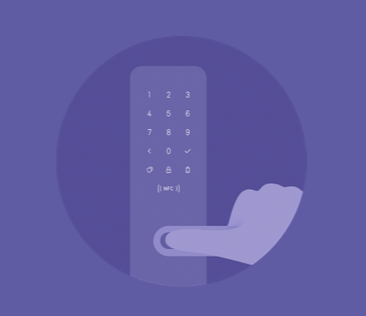
It is recommended to use the gesture shown below to enter the fingerprint, which will make the fingerprint unlock more sensitive. (If you are used to entering the fingerprint vertically, but when unlocking the door lock with the fingerprint, you need to hold the handle horizontally to identify the fingerprint.)
3. If you can continue to add other fingerprints in the Mi Home/Xiaomi Home APP, it is recommended to try adding the same fingerprint twice;
4. If the fingerprint recognition module of the door lock or your finger is dirty or has water stains, it will affect the sensitivity of fingerprint recognition. It is recommended to check whether there is dust, sweat, or other dirt on the fingerprint recognition module or your finger. If there is dirt, clean it and try fingerprint input again;
5. Getting up in the morning, winter, hot weather, etc. will cause your fingers to become dry and peel, which will affect fingerprint recognition. It is recommended to keep the unlocking finger at a certain humidity or press with greater force so that the unlocking can reach the ideal level;
6. It is recommended that fingerprints recorded in summer be recorded again in winter, and fingerprints recorded in winter be recorded again in summer to improve the recognition rate;
7. If the above steps still fail to solve the problem, we recommend that you apply for after-sales inspection to see if it is a performance failure.
If the fingerprint cannot be recognized and there is no response, please refer to the following steps:
1. After pressing the fingerprint, a voice prompt "Ding Dong" will sound to confirm whether the fingerprint has been entered. If it has not been entered, you need to enter the fingerprint.
2. Touch the password area with your right hand to check if the indicator is on. If the indicator is off, check the power supply of the door lock. If the indicator is on, try again;
3. For a newly installed door lock, press the door lock reset button for more than 3 seconds, and try again after hearing the reset success. For a door lock that is not newly installed, use a USB power supply to see if it can be restored;
4. Check whether the front and rear panel cables are in poor contact or damaged and re-plug the cables. If damaged, replace the cables and record the SN;
5. If the above cannot solve the problem, replace the door lock and record the SN.
If adding fingerprint fails, please refer to the following steps:
1. Make sure the fingerprint sensor and finger are clean, free of foreign matter and liquid;
2. The time between two presses should not exceed 10 seconds. The next press should be added as soon as possible after the last press;
3. Make sure the fingerprint is not damaged or calloused, otherwise, it will affect the addition and use of fingerprints.
1. Check whether the door lock has a firmware version update. Xiaomi will continue to optimize the product experience. If you encounter the above problems, it is recommended to upgrade the door lock firmware to the latest version;
2. Check whether the fingerprint unlock gesture is consistent with the gesture when the fingerprint was initially entered, and try again after changing the fingerprint unlock gesture.
Friendly tips:
It is recommended to use the gesture shown below to enter the fingerprint, which will make the fingerprint unlock more sensitive. (If you are used to entering the fingerprint vertically, but when unlocking the door lock with the fingerprint, you need to hold the handle horizontally to identify the fingerprint.)
3. If you can continue to add other fingerprints in the Mi Home/Xiaomi Home APP, it is recommended to try adding the same fingerprint twice;
4. If the fingerprint recognition module of the door lock or your finger is dirty or has water stains, it will affect the sensitivity of fingerprint recognition. It is recommended to check whether there is dust, sweat, or other dirt on the fingerprint recognition module or your finger. If there is dirt, clean it and try fingerprint input again;
5. Getting up in the morning, winter, hot weather, etc. will cause your fingers to become dry and peel, which will affect fingerprint recognition. It is recommended to keep the unlocking finger at a certain humidity or press with greater force so that the unlocking can reach the ideal level;
6. It is recommended that fingerprints recorded in summer be recorded again in winter, and fingerprints recorded in winter be recorded again in summer to improve the recognition rate;
7. If the above steps still fail to solve the problem, we recommend that you apply for after-sales inspection to see if it is a performance failure.
If the fingerprint cannot be recognized and there is no response, please refer to the following steps:
1. After pressing the fingerprint, a voice prompt "Ding Dong" will sound to confirm whether the fingerprint has been entered. If it has not been entered, you need to enter the fingerprint.
2. Touch the password area with your right hand to check if the indicator is on. If the indicator is off, check the power supply of the door lock. If the indicator is on, try again;
3. For a newly installed door lock, press the door lock reset button for more than 3 seconds, and try again after hearing the reset success. For a door lock that is not newly installed, use a USB power supply to see if it can be restored;
4. Check whether the front and rear panel cables are in poor contact or damaged and re-plug the cables. If damaged, replace the cables and record the SN;
5. If the above cannot solve the problem, replace the door lock and record the SN.
If adding fingerprint fails, please refer to the following steps:
1. Make sure the fingerprint sensor and finger are clean, free of foreign matter and liquid;
2. The time between two presses should not exceed 10 seconds. The next press should be added as soon as possible after the last press;
3. Make sure the fingerprint is not damaged or calloused, otherwise, it will affect the addition and use of fingerprints.
Does it help?
Yes
No