

Xiaomi Outdoor Camera CW500 Dual FAQ
Product introduction
1. Q: What does the Xiaomi Outdoor Camera CW500 Dual look like?
A: For your reference, the structure of the Xiaomi Outdoor Camera CW500 Dual is shown in the image below:
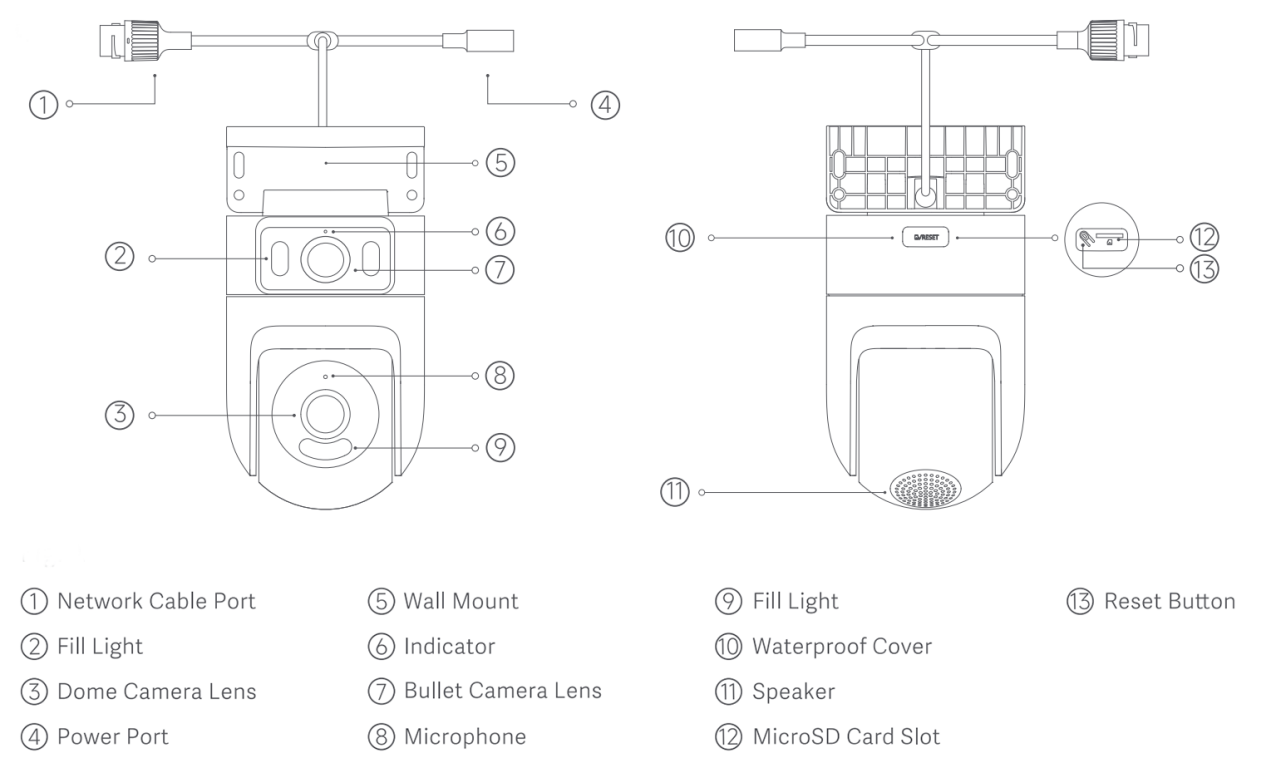
The Xiaomi Outdoor Camera CW500 Dual has two lenses: a Dome camera lens and a Bullet camera lens. Both lenses are equipped with infrared night vision LEDs and white lights. On the front of the camera, there is an indicator and a microphone, while the back of the camera has a reset button and a microSD card slot. The speaker is located at the bottom of the camera (when inverted). There is also a network cable port and a power port.
2. Q: What is the power supply method for the Xiaomi Outdoor Camera CW500 Dual?
A: The Xiaomi Outdoor Camera CW500 Dual is powered by a 12V/1A adapter.
Note:
To ensure proper functionality, please be sure to use the original adapter.
3. Q: What are the installation methods for the Xiaomi Outdoor Camera CW500 Dual?
A: The Xiaomi Outdoor Camera CW500 Dual can be installed in side-mount, hanging-mount, or pole-mount configurations.
Note:
It supports universal 8mm and 12mm width clamps, which need to be purchased separately.
4. Q: How to mount the Xiaomi Outdoor Camera CW500 Dual on a wall?
A: To mount the Xiaomi Outdoor Camera CW500 Dual on a wall, please refer to the following steps:
1. Paste the mounting template sticker where the camera needs to be installed, and drill four holes in the wall with a drilling tool according to the locating holes on the sticker. The hole is approx. 6 mm in diameter and approx. 40 mm in depth;
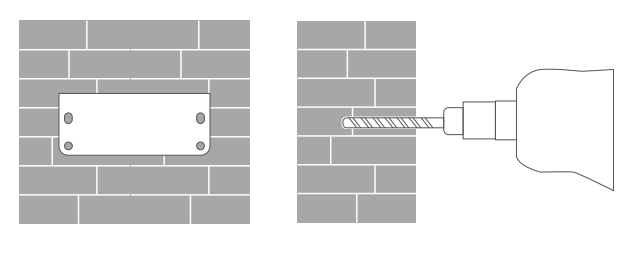
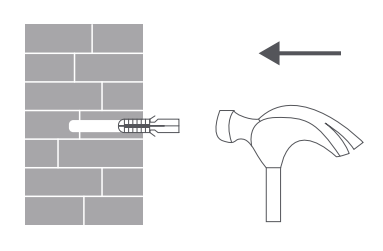
2. Insert four plastic wall plugs into the holes in the wall;
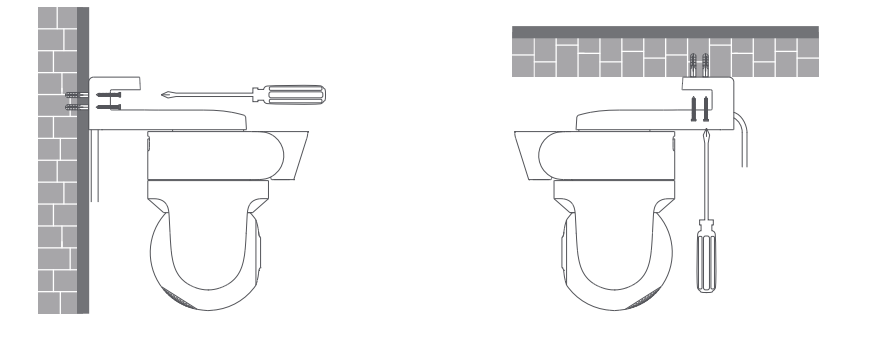
3. Place the mount against the wall, insert screws into the holes, and drill them into the plastic wall plugs on the wall;
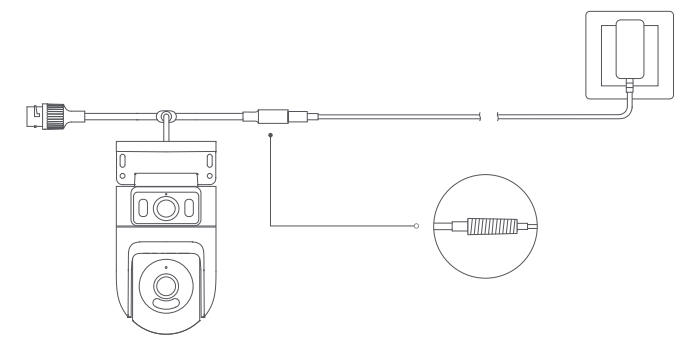
4. Wrap the power cable port with the waterproof tape after the camera is fixed to ensure waterproof performance;
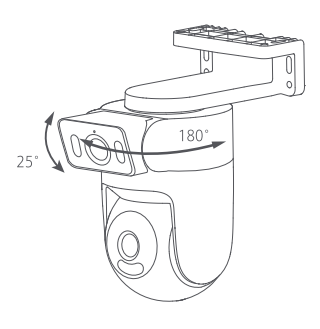
5. Once the camera is fixed and turned on, the shooting angle of the bullet camera lens can be adjusted manually. The mount can be adjusted horizontally by 180° and the bullet camera lens can be adjusted up and down by 25°;
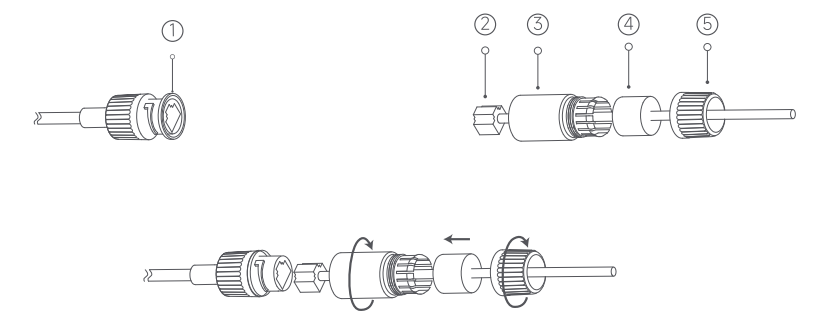
6. Place the sealing ring on the camera's network cable port. Thread the waterproof rear cover, stopper, and waterproof sleeve over the network cable in order, then plug the network cable into the port. Screw together the waterproof sleeve and stopper, then screw together the waterproof rear cover and waterproof sleeve.
Note:
1. The wall must be able to support at least three times the total weight of the camera;
2. The camera must be firmly fixed to the wall according to the installation instructions in the user manual to prevent accidental injury;
3. Do not install near an air conditioner outdoor unit, range hood outlet, gas water heater outlet, or other heat sources.
5. Q: How to turn on the Xiaomi Outdoor Camera CW500 Dual?
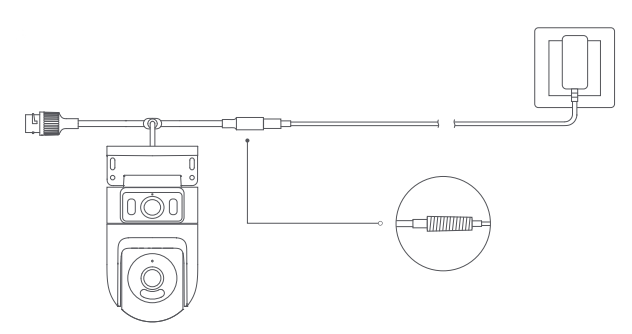
A: Insert the power adapter cable into the power port to automatically turn on the camera.
Note:
1. The camera is successfully turned on when the indicator is yellow and a voice prompt is heard;
2. Please make sure to use the original charging cable of the power adapter provided to connect the camera to avoid the camera not working properly. When the camera is turned on, don’t turn the dome camera lens manually to force it to rotate. If the positioning of the lens is inaccurate, please calibrate it in the Mi Home/Xiaomi Home APP.
6. Q: How to install a microSD card on the Xiaomi Outdoor Camera CW500 Dual?
A: Make sure that the camera is unplugged. Open the waterproof cover above the microSD card slot and insert a microSD card with its contact points facing down.
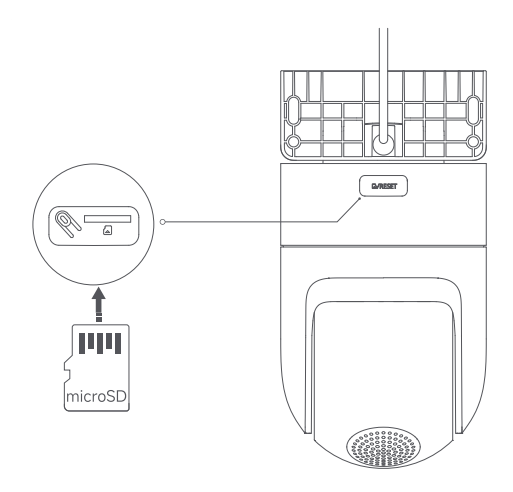
Note:
1. Unplug the camera when inserting or removing the microSD card. Please use a microSD card from a qualified brand (the camera supports a microSD card of 16GB to 256GB. The microSD card needs to be formatted via [Settings] >> [Manage storage] on the camera's interface in the Mi Home/Xiaomi Home APP). It is recommended that the microSD card has a read/write speed of no less than U1/Class 10;
2. After installing or removing the microSD card, make sure to place the waterproof cover back on the card slot properly to prevent water from entering the camera and affecting normal use.
7. Q: How to reset the Xiaomi Outdoor Camera CW500 Dual?
A: To change the network the Xiaomi Outdoor Camera CW500 Dual is connected to, press the reset button. When you hear the voice prompt, the reset is successful.
Note:
Resetting the camera will not delete any data on the microSD card.
8. Q: Does the Xiaomi Outdoor Camera CW500 Dual support NAS network storage?
A: Yes, it supports. In the Mi Home/Xiaomi Home APP, go to the real-time monitoring interface of the camera >> tap the three-dot icon at the upper right corner of the screen >> [Manage storage] >> [NAS network storage] >> follow the prompts to add the storage device.
Note:
The router or network drive the camera is connected to must support storage transfer, and the camera must have a microSD card installed and be recording properly.
9. Q: How to check the SN code of the Xiaomi Outdoor Camera CW500 Dual?
A: 1. You can check the SN code on the back of the camera body;
2. You can check the SN code on the back of the product packaging.
10. Q: How to check the certificate of compliance of the Xiaomi Outdoor Camera CW500 Dual?
A: To view the certificate of compliance for the Xiaomi Outdoor Camera CW500 Dual, please check the sticker on the bottom back of the product packaging.
11. Q: Can the Xiaomi Outdoor Camera CW500 Dual be powered by a battery?
A: The camera does not include a battery and must be powered by an adapter.
Note:
Please make sure to use the original 12V/1A adapter.
12. Q: Does the Xiaomi Outdoor Camera CW500 Dual support two-way voice intercom?
A: Yes, the Xiaomi Outdoor Camera CW500 Dual has a built-in microphone and speaker, supporting two-way voice intercom with the camera via the Mi Home/Xiaomi Home APP on your mobile device.
To use the two-way voice intercom function, please go to the camera interface in the Mi Home/Xiaomi Home APP and tap the microphone icon to speak. When you need to hang up, just tap the microphone icon again.
13. Q: What are the precautions when using the Xiaomi Outdoor Camera CW500 Dual?
A: For your reference, here are some precautions when using the Xiaomi Outdoor Camera CW500 Dual:
1. The operating temperature for the camera ranges from -30°C to 60°C. Do not use the camera in environments with temperatures above or below the specified range;
2. The camera is a precision electronic product that has an IP66 dust-tight and water-resistant rating. To ensure normal use, do not use the camera in extremely humid environments or locations that can cause water ingress;
3. To improve the camera's performance, do not place it where its lens faces or is next to a reflective surface, such as glass and white walls, as this will cause the image to appear overly bright in areas close to the camera and darker in areas further away, or can cause the camera to produce white images;
4. When using Wi-Fi, please make sure that the camera is installed in an area with a strong Wi-Fi signal. Do not install the camera near microwave ovens or other objects or places that can affect its Wi-Fi signal;
5. If the power cable is damaged or broken, it must be replaced by professionals from the manufacturer, after-sales service department, or departments of similar functions to avoid safety hazards.
14. Q: What are the meanings of the different statutes of the indicator on the Xiaomi Outdoor Camera CW500 Dual?
A: There is one indicator on the Xiaomi Outdoor Camera CW500 Dual that can show either blue or yellow.
For your reference, the meanings of the different statutes of the indicator are as follows:
1. The indicator is yellow when the camera is awaiting connection;
2. The indicator blinks blue when the camera is connecting to a server;
3. The indicator blinks yellow when the camera is connecting to a network;
4. The indicator blinks yellow slowly when the camera is updating;
5. The indicator keeps blue when connected successfully.
15. Q: What is the IP rating of the Xiaomi Outdoor Camera CW500 Dual?
A: The Xiaomi Outdoor Camera CW500 Dual meets IP66, making it suitable for outdoor use.
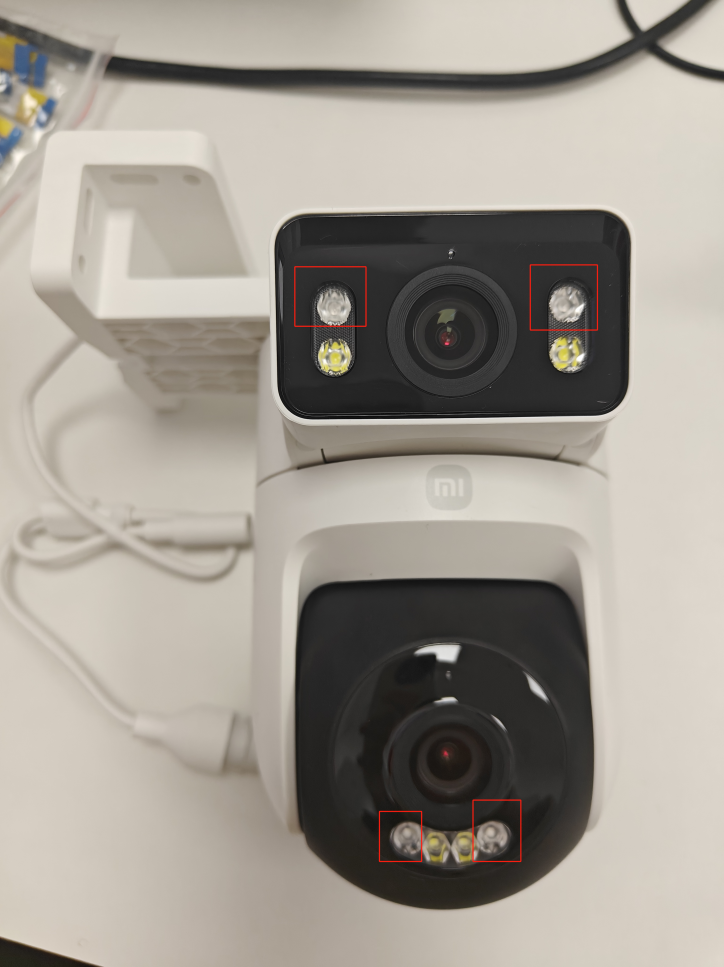
16. Q: Where are the infrared LEDs located on the Xiaomi Outdoor Camera CW500 Dual?
A: For your reference, the infrared LEDs are located at the following positions:
17. Q: Can the mounting bracket on the Xiaomi Outdoor Camera CW500 Dual be removed?
A: No, the mounting bracket is not removable.
APP related
1. Q: How to connect the Xiaomi Outdoor Camera CW500 Dual to the Mi Home/Xiaomi Home APP?
A: To connect the Xiaomi Outdoor Camera CW500 Dual to the Mi Home/Xiaomi Home APP, please refer to the following steps:
1. Take the camera out of the packaging and place it on a table;
2. Power on the camera by connecting the power adapter cable to the camera's power port;
3. The camera will start up and the indicator will remain in yellow. After about 20 seconds, you will hear a voice prompt from the camera. Open the Mi Home/Xiaomi Home APP, tap the [+] icon in the top right corner, and tap [Scan]. Scan the QR code on the bottom of the camera;
4. The Mi Home/Xiaomi Home APP will display the connection interface;
Note:
For the first binding, you don’t need to press any button and your phone can connect to the device directly.
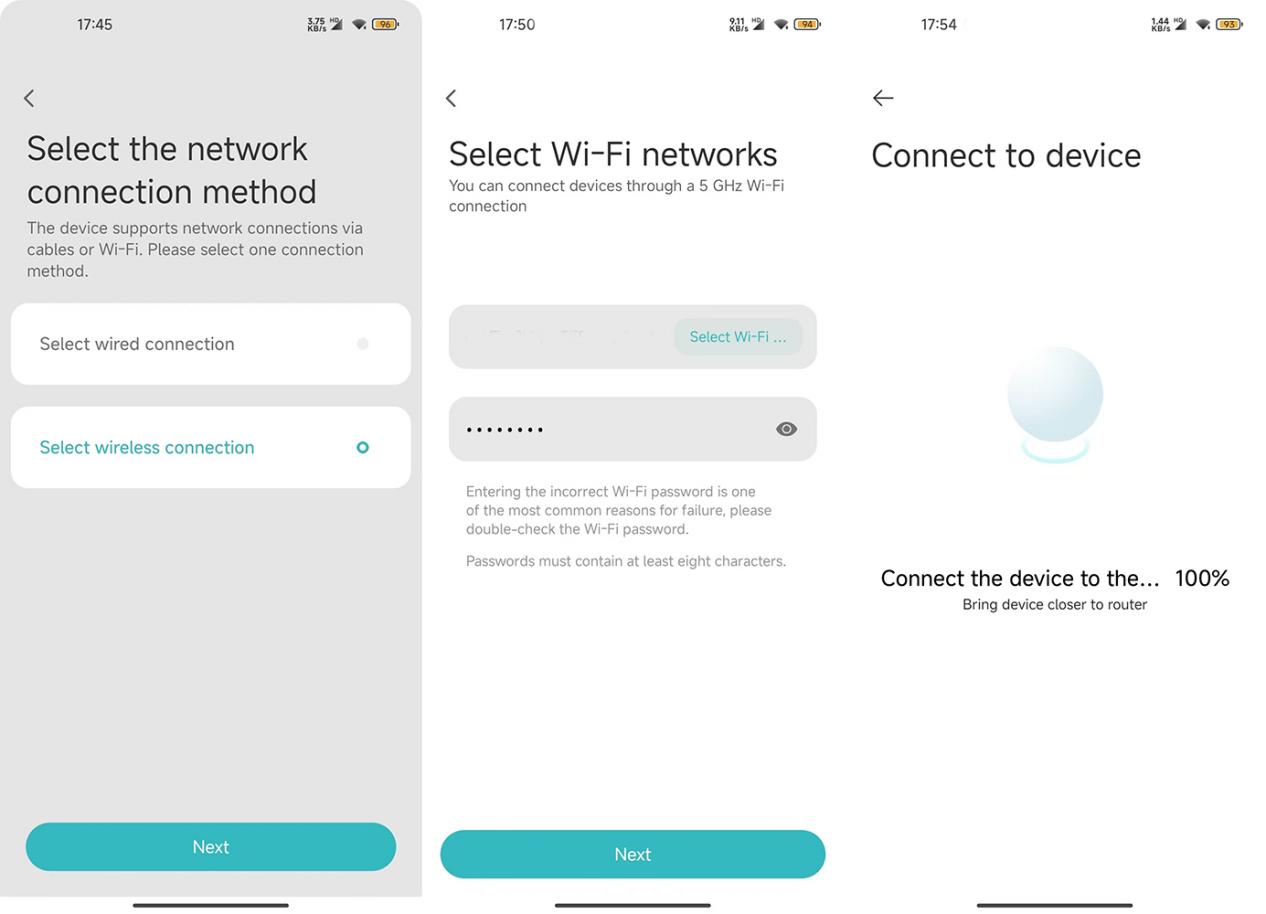
5. Tap [Device reset] >> your phone starts scanning the camera >> select a 2.4GHz or 5GHz router and enter the Wi-Fi password >> tap [Next] >> add device (keep the phone as close to the device as possible during the process). After a few seconds, the camera will prompt you by voice that the Wi-Fi is successfully connected;
6. The APP will display that the device has been added successfully. Set room and tap [Next]. Set the name of the device and tap [Next]. You can hear a voice prompt from the device that the account is bound successfully, and you can start using it now.
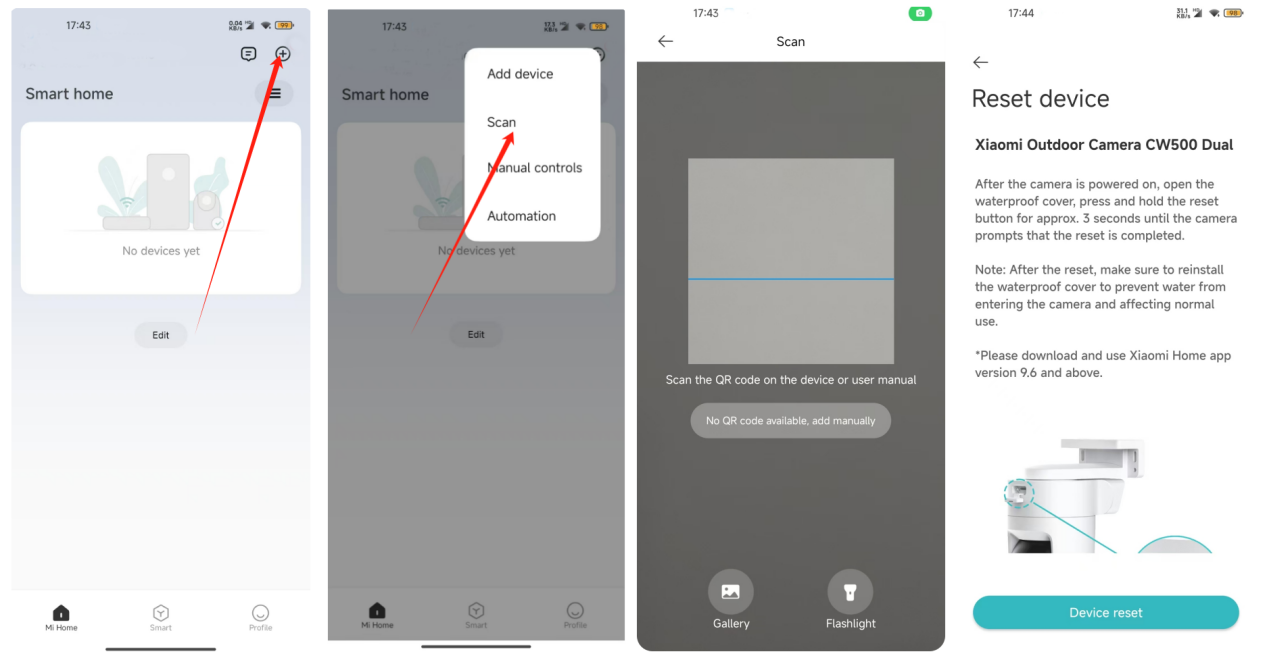
Note:
1. The device supports both 2.4GHz and 5GHz Wi-Fi;
2. Select the network connection method: select wired connection;
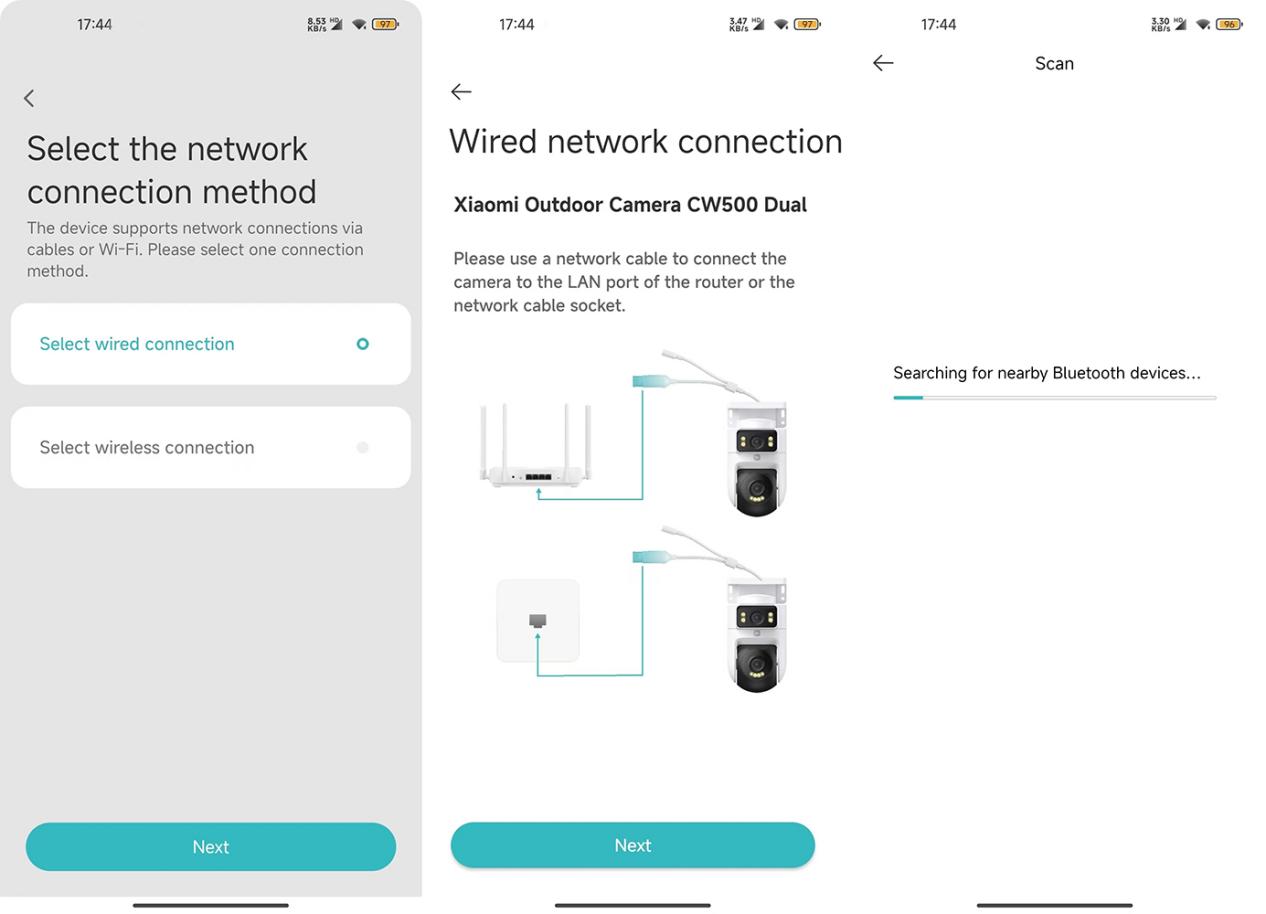
3. Select the network connection method: select wireless connection;
2. Q: What are the functions of the icons on the real-time monitoring interface of the Xiaomi Outdoor Camera CW500 Dual?
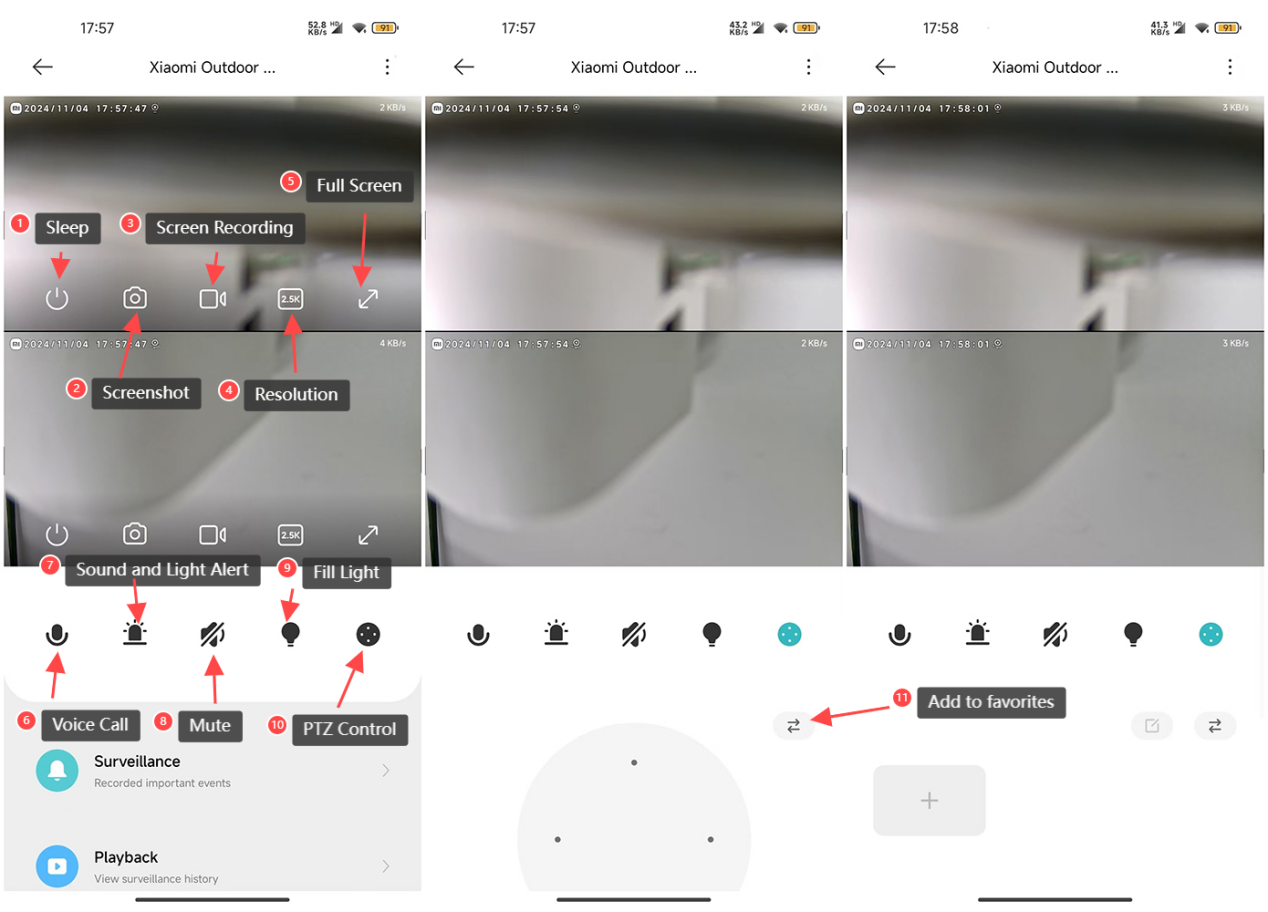
A: For your reference, the functions of the icons on the real-time monitoring interface are as follows:
1. Sleep Button: Tap the sleep button to turn off the camera. Once turned off, the camera will no longer stream real-time monitoring or record videos. Tapping again will turn the camera back on. You can put each of the two lenses into sleep mode separately;
2. Screenshot: You can take a screenshot of the current monitoring view. The image will be saved to both the local album and the Mi Home/Xiaomi Home APP. Screenshots can be taken separately for each lens;
3. Screen Recording: Tap the screen recording button to record the current monitoring view. The video will be saved to both the local album and the Mi Home/Xiaomi Home APP. Video recording can be done separately for each lens;
4. Resolution: You can adjust the resolution of the monitoring screen. Options include 2.5K HD, 720P Smooth, and Auto (Auto means the camera will automatically adjust the resolution based on the network environment). The resolution can be adjusted separately for each lens;
5. Full Screen: Tap this button to switch the camera's monitoring screen to landscape mode;
6. Voice Call: Tap the microphone button to make a remote call between the camera and the mobile device through the Mi Home/Xiaomi Home APP;
7. Sound and Light Alert: Tap the alarm button to trigger a sound and light alert for 30 seconds. During playback, you can tap again to cancel the alert;
8. Mute: By default, the monitoring screen is in mute mode when entering the camera view. If you want to hear sound while viewing, tap the mute button to enable sound;
9. Fill Light: The fill light is off by default. Tap to turn it on, and it will stay on for 1 minute. You can tap again to turn it off during the process;
10. PTZ Control: Tap to display the directional control pad (up, down, left, right) for PTZ control;
11. Add to favorites: After setting [Add to favorites] as a frequently viewed position, you can quickly check specific areas of interest.
Using method: Access the frequently viewed position through the PTZ control icon.
3. Q: How to use the human tracking feature of the Xiaomi Outdoor Camera CW500 Dual?
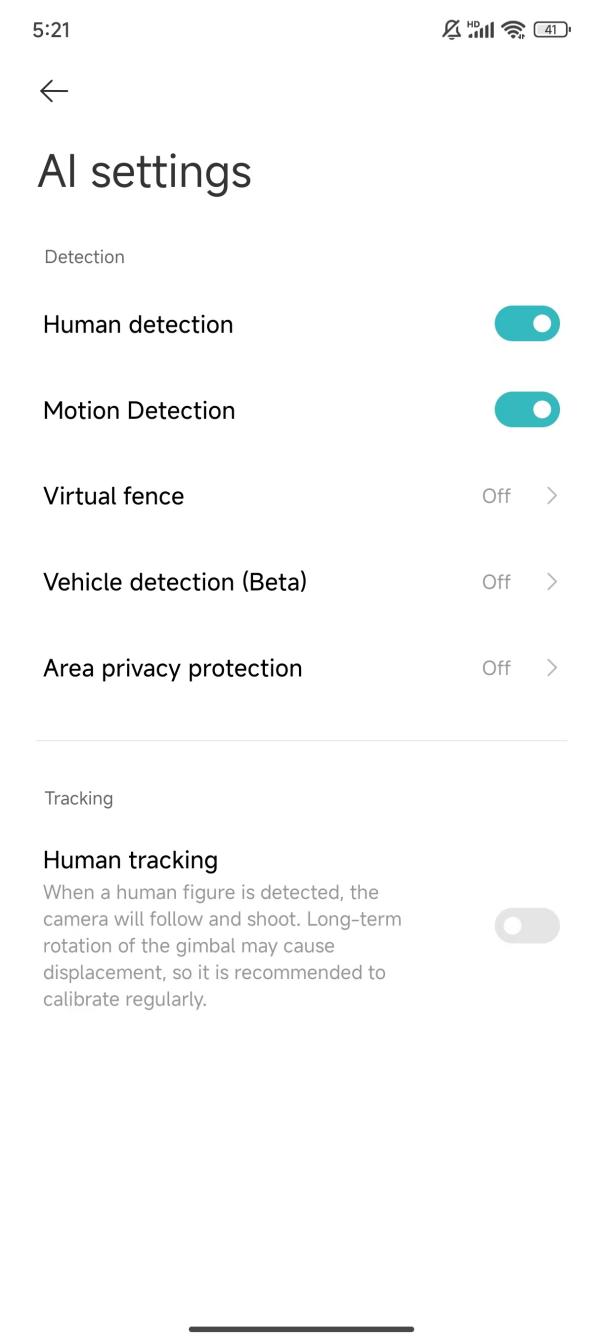
A: To use the human tracking feature, please go to the Mi Home/Xiaomi Home APP >> select the camera >> tap the three-dot icon at the upper right corner of the screen >> [AI settings] >> enable [Human tracking] and the camera will track the detected people.
4. Q: How to set up home surveillance settings on the Xiaomi Outdoor Camera CW500 Dual?
A: To set up home surveillance settings, please go to the Mi Home/Xiaomi Home APP >> select the camera >> tap the three-dot icon at the upper right corner of the screen >> [Home surveillance settings] >> enable [Home surveillance]. You can also set the home surveillance period, sensitivity settings, alarm interval, and detection push notifications.
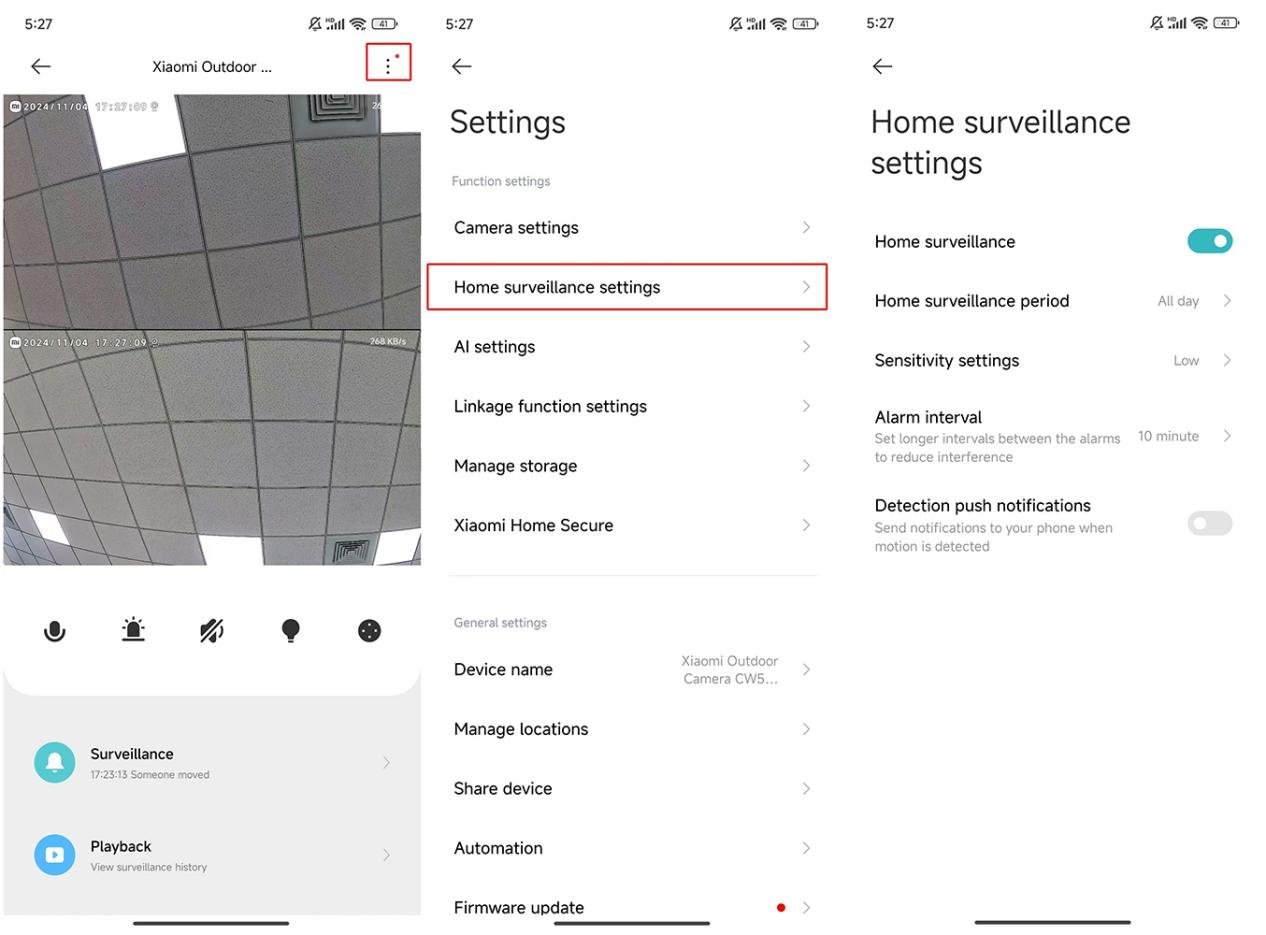
Home surveillance period: You can set for 24-hour surveillance or specific time segments.
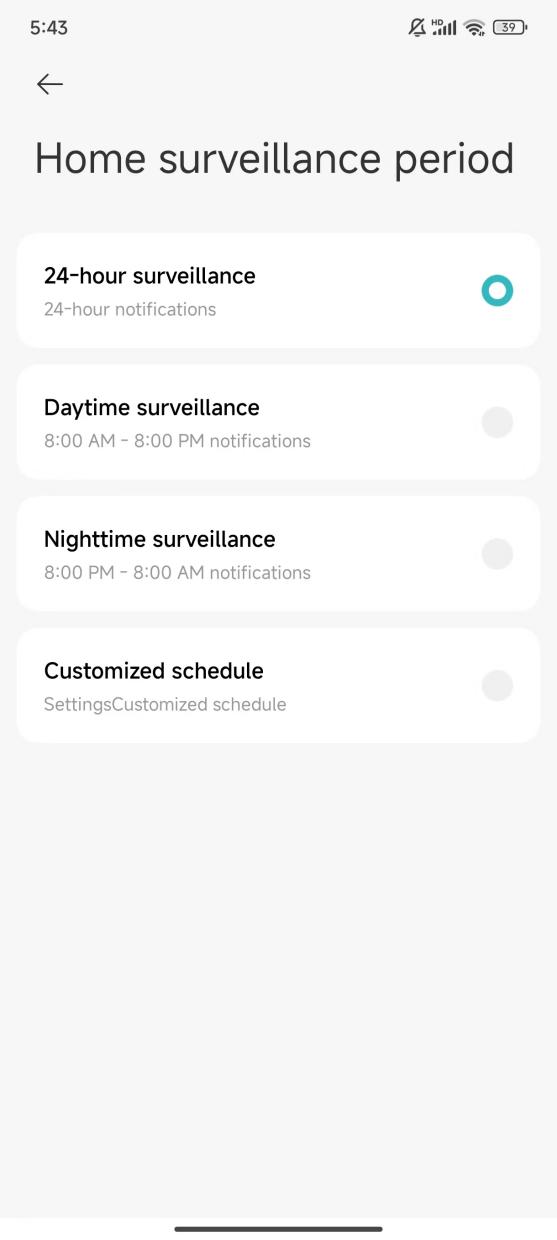
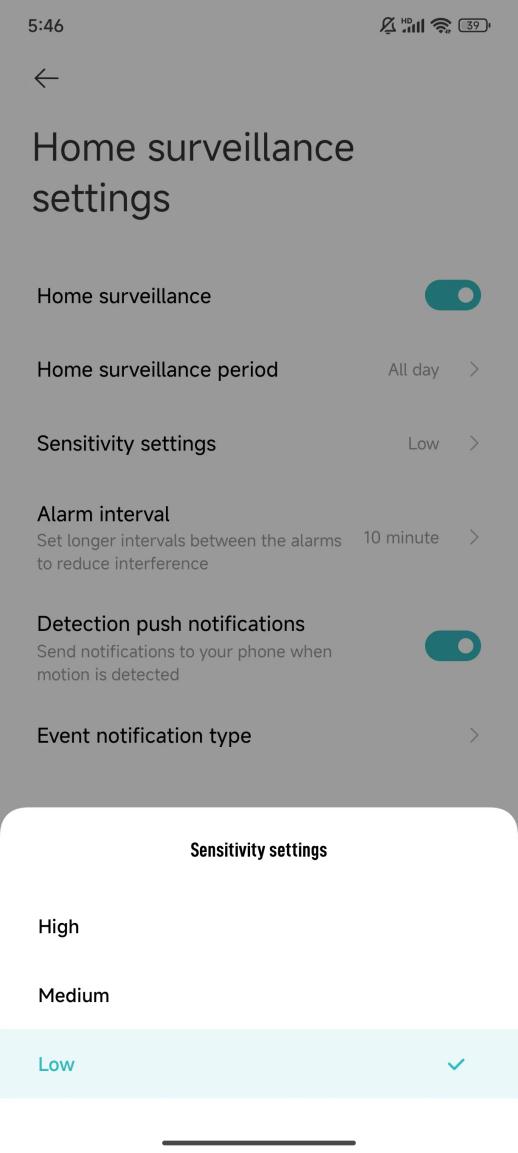
Sensitivity settings: Choose from High, Medium, or Low sensitivity:
1. Low sensitivity: approximately 1~2.5 meters;
2. Medium sensitivity: approximately 2.5~5 meters;
3. High sensitivity: approximately 5~7.5 meters.
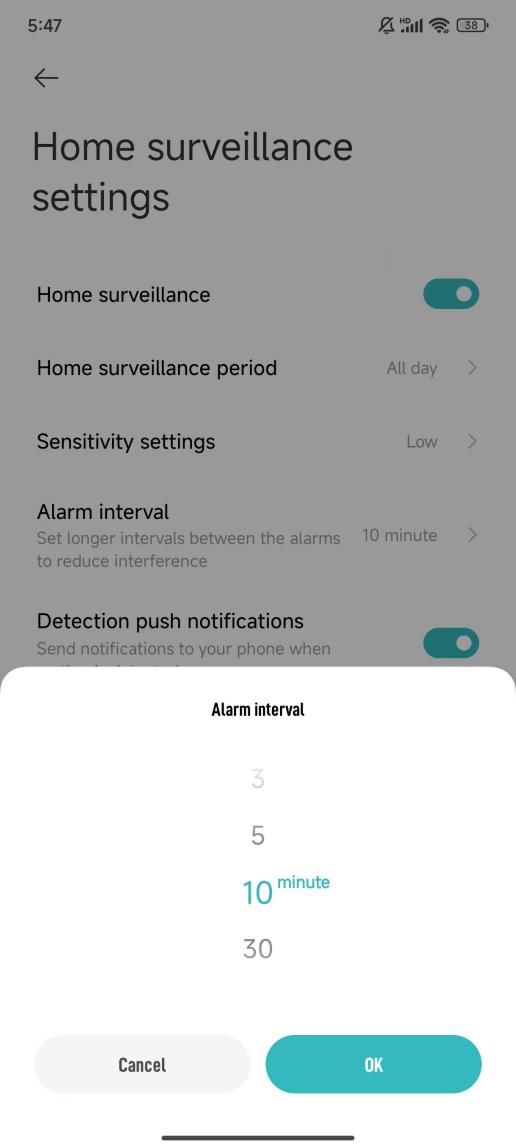
Alarm interval: Choose from 3 to 30 minutes (you can only choose the preset intervals and can’t customize intervals).
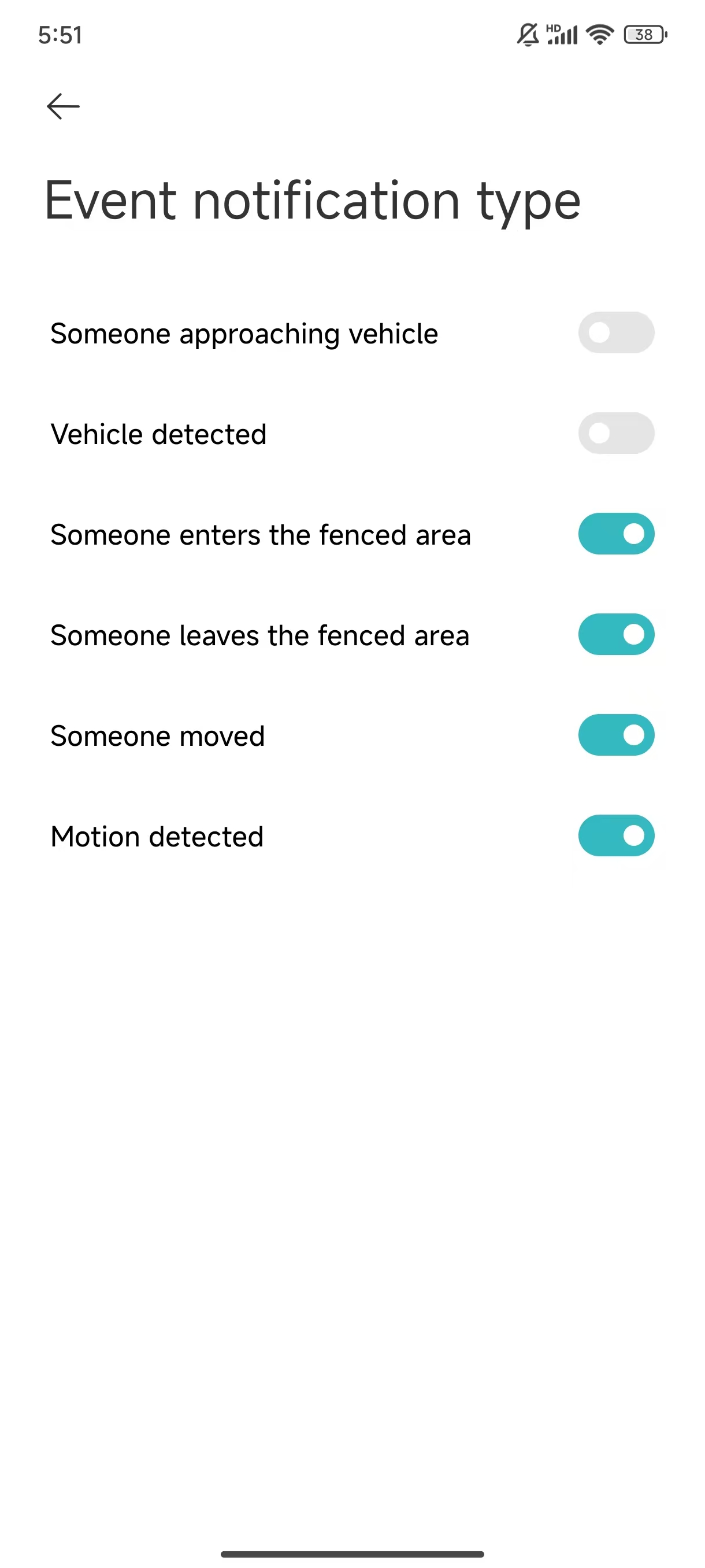
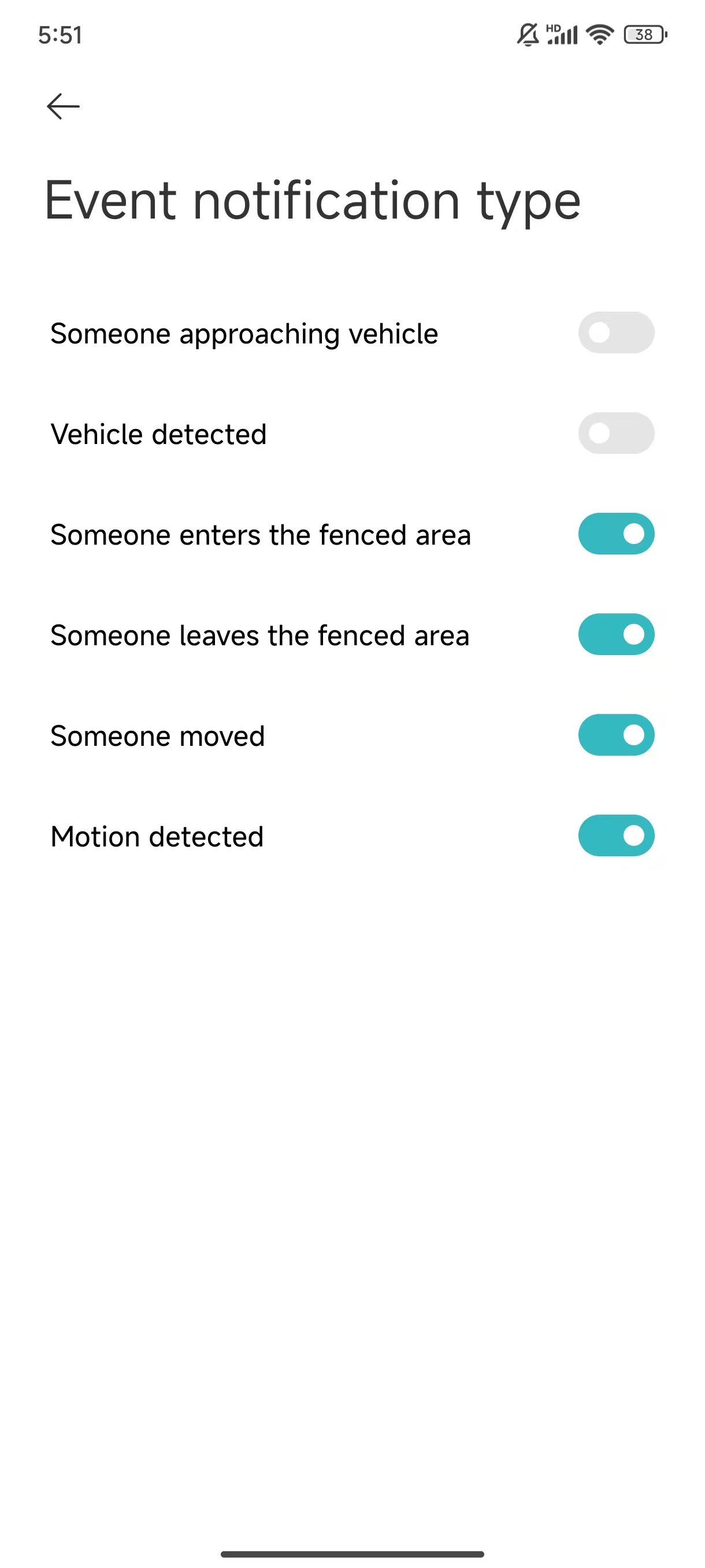
Event notification type: The types include Someone approaching vehicle, Vehicle detected, Someone enters the fenced area, Someone leaves the fenced area, Someone moved, and Motion detected.
Note:
1. Videos in the Home surveillance cannot be deleted in bulk;
2. You can also use Home surveillance without using the SD card and the Xiaomi Home Secure;
3. If you are not receiving push notifications, please refer to the following methods:
(1). Check if the switch for [Event notification type] is enabled in [Home surveillance settings];
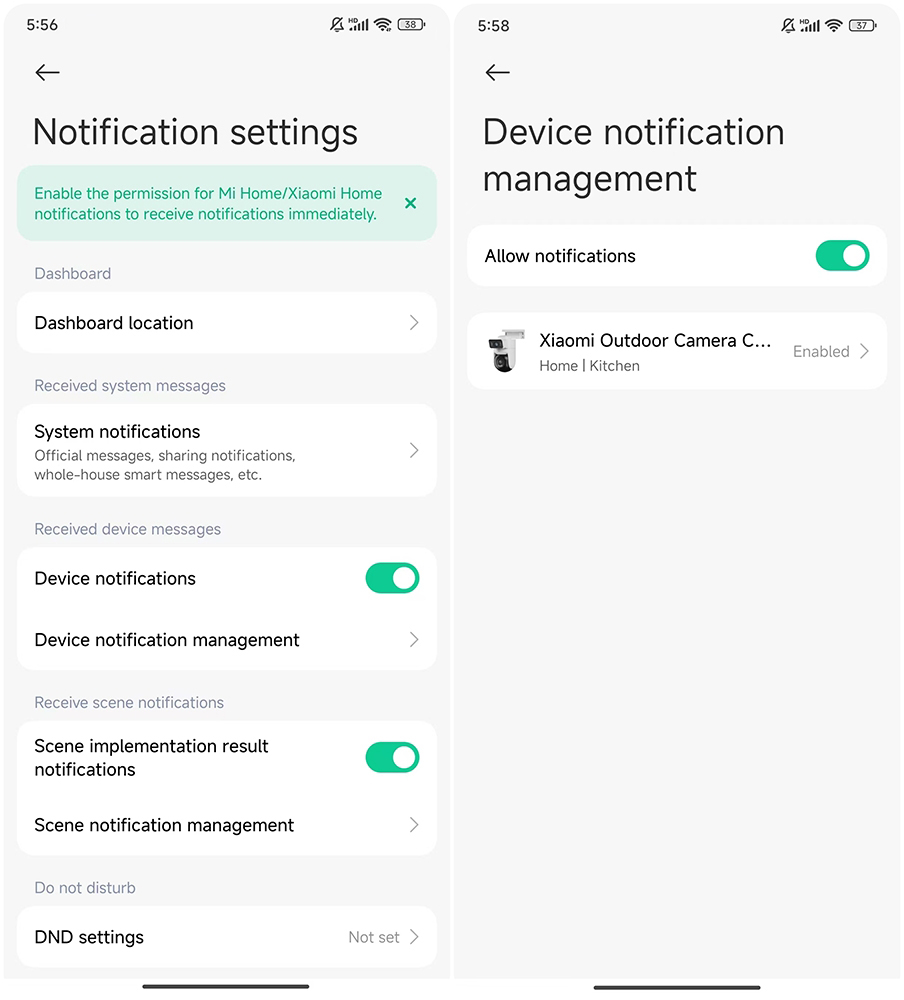
(2). Verify that [Device notifications] is enabled in [Notification settings] in the Mi Home/Xiaomi Home APP;
(3). Ensure that notifications for the Mi Home/Xiaomi Home APP are enabled in your phone's notification settings.
5. Q: How to remove the smart frame displayed on the real-time monitoring interface of the Xiaomi Outdoor Camera CW500 Dual?
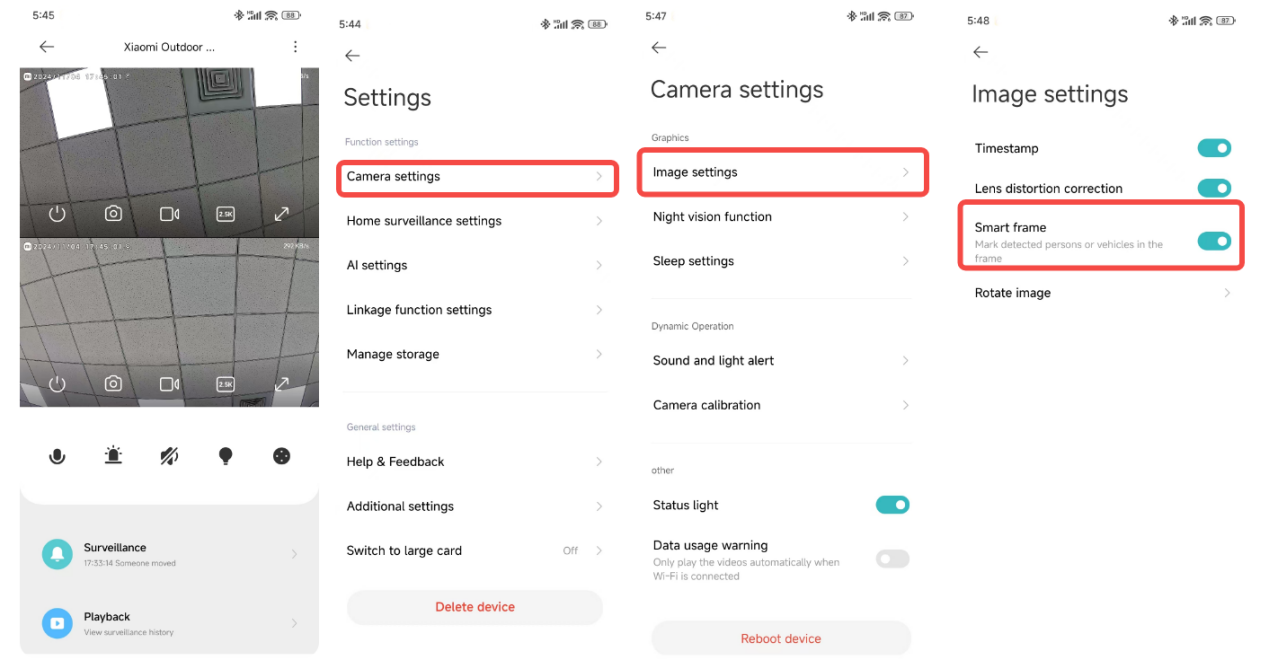
A: To remove the smart frame displayed on the real-time monitoring interface, you can open the Mi Home/Xiaomi Home APP >> select the camera >> tap the three-dot icon at the upper right corner >> [Camera settings] >> [Image settings] >> turn off [Smart frame].
Note:
If you enable the smart frame feature, the camera will mark detected objects such as people or vehicles.
6. Q: How to review videos from the SD card on the Xiaomi Outdoor Camera CW500 Dual?
A: To review videos from the SD card, you can open the Mi Home/Xiaomi Home APP >> select the camera >> tap [Playback] >> view videos on the SD card.
Note:
1. The playback on the SD card supports 1x, 4x, and 16x speeds;
2. The timeline on the page uses colors to indicate different event types, matching the labels at the bottom. Specifically, yellow represents motion detected, teal represents someone moved, blue indicates vehicle detection, orange represents someone approaching car, and lavender blue indicates entering or leaving geofenced area.
7. Q: How to format the SD card on the Xiaomi Outdoor Camera CW500 Dual?
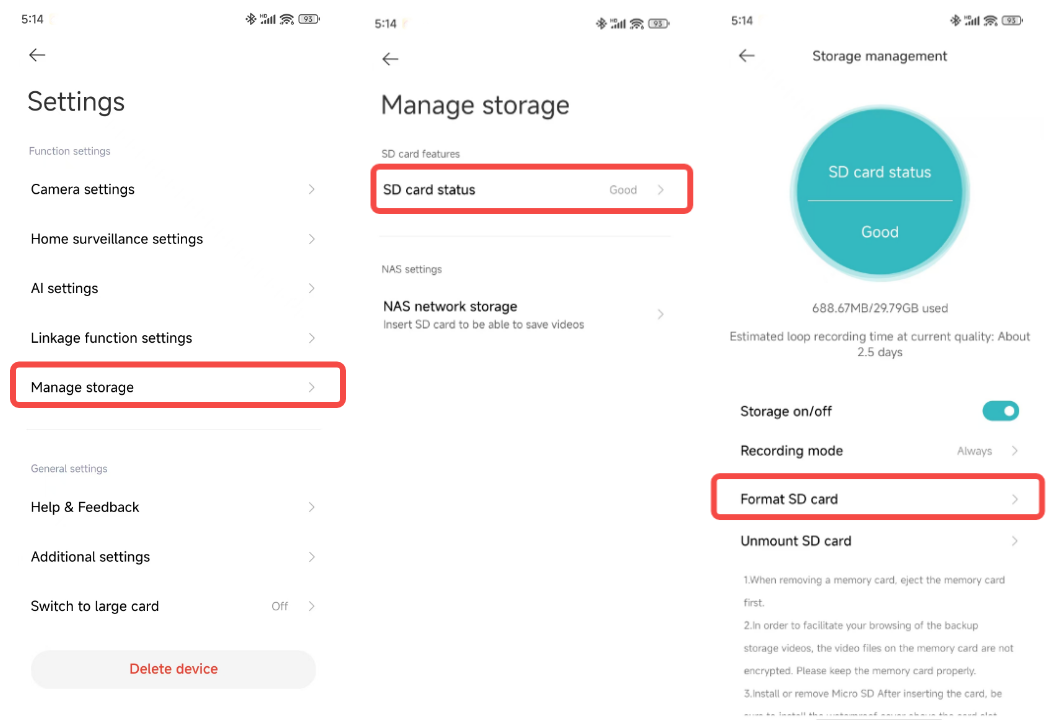
A: To format the SD card, you can open the Mi Home/Xiaomi Home APP >> select the camera >> tap the three-dot icon at the upper right corner >> [Manage storage] >> [SD card status] >> [Format SD card].
Note:
Formatting will erase all videos on the SD card. Ensure you save any important videos first.
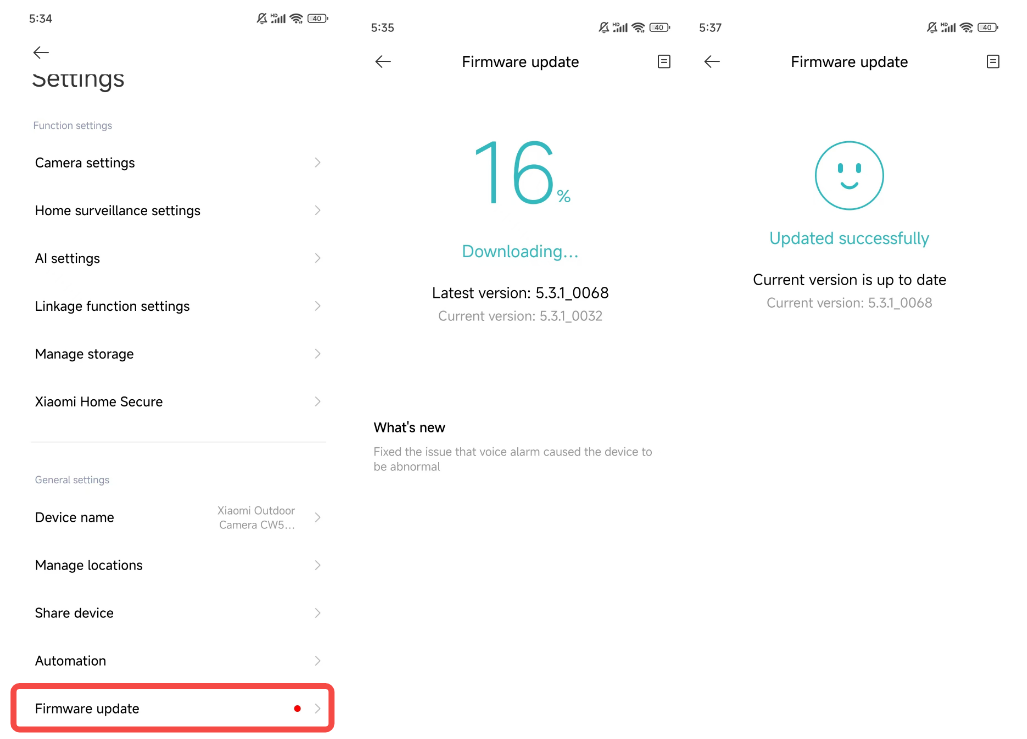
8. Q: How to update the firmware of the Xiaomi Outdoor Camera CW500 Dual?
A: To update the firmware, you can open the Mi Home/Xiaomi Home APP >> select the camera >> tap the three-dot icon at the upper right corner >> [Firmware update] >> please update the firmware in time if it is available.
9. Q: Does the Xiaomi Outdoor Camera CW500 Dual support HomeKit?
A: No, it does not support HomeKit.
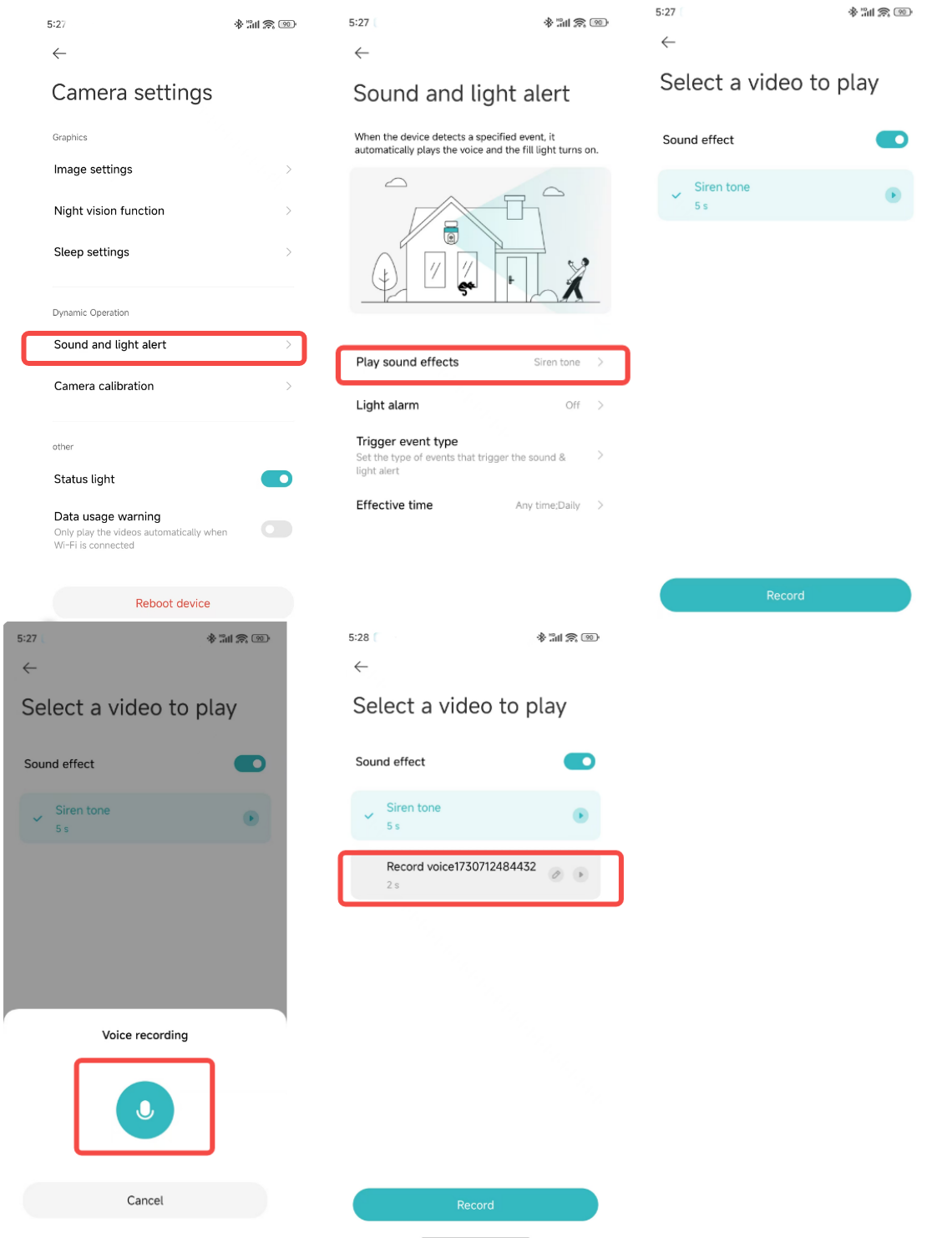
10. Q: How to use the sound and light alert feature on the Xiaomi Outdoor Camera CW500 Dual?
A: Sound alert:
1. Open the Mi Home/Xiaomi Home APP >> select the camera >> tap the three-dot icon at the upper right corner >> [Camera settings] >> [Sound and light alert] >> [Play sound effect] >> enable [Sound effect];
2. Once enabled, the camera will play recorded audio when motion is detected;
3. You can choose from the preset tone or custom recorded sounds.
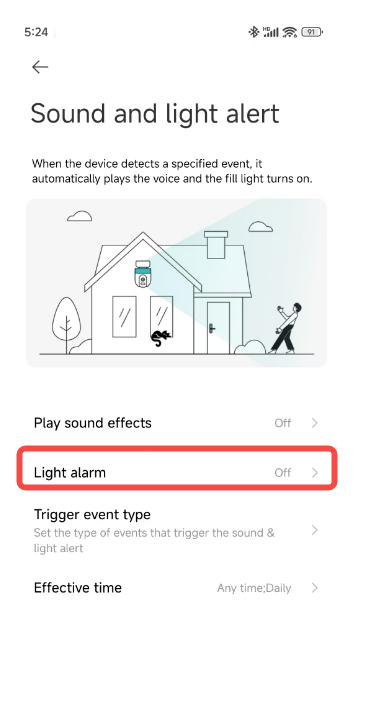
Light alarm:
1. Open the Mi Home/Xiaomi Home APP >> select the camera >> tap the three-dot icon at the upper right corner >> [Camera settings] >> [Sound and light alert] >> enable [Light alarm];
2. When the light alarm is enabled, the supplementary light will automatically turn on when motion is detected.
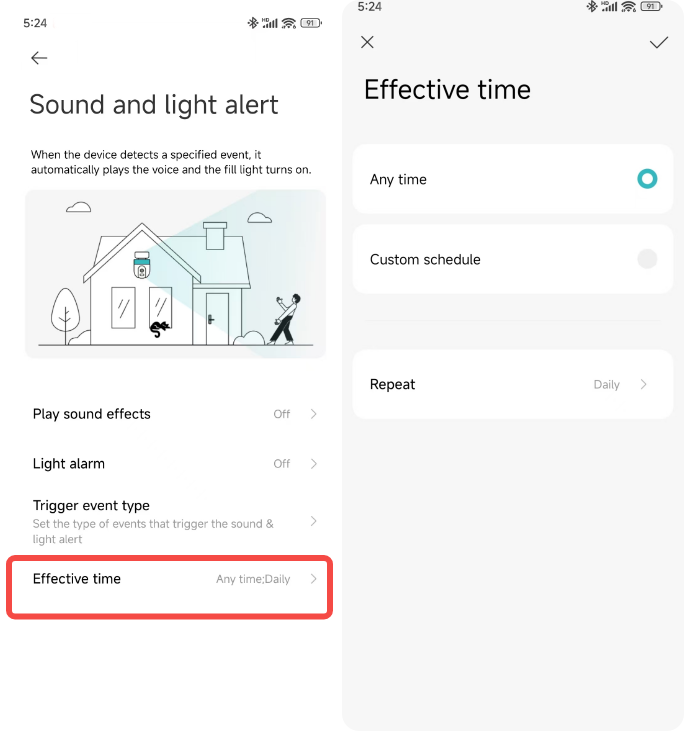
Effective time:
You can set specific times for alarm activation by selecting from [Any time], [Custom schedule], and [Repeat].
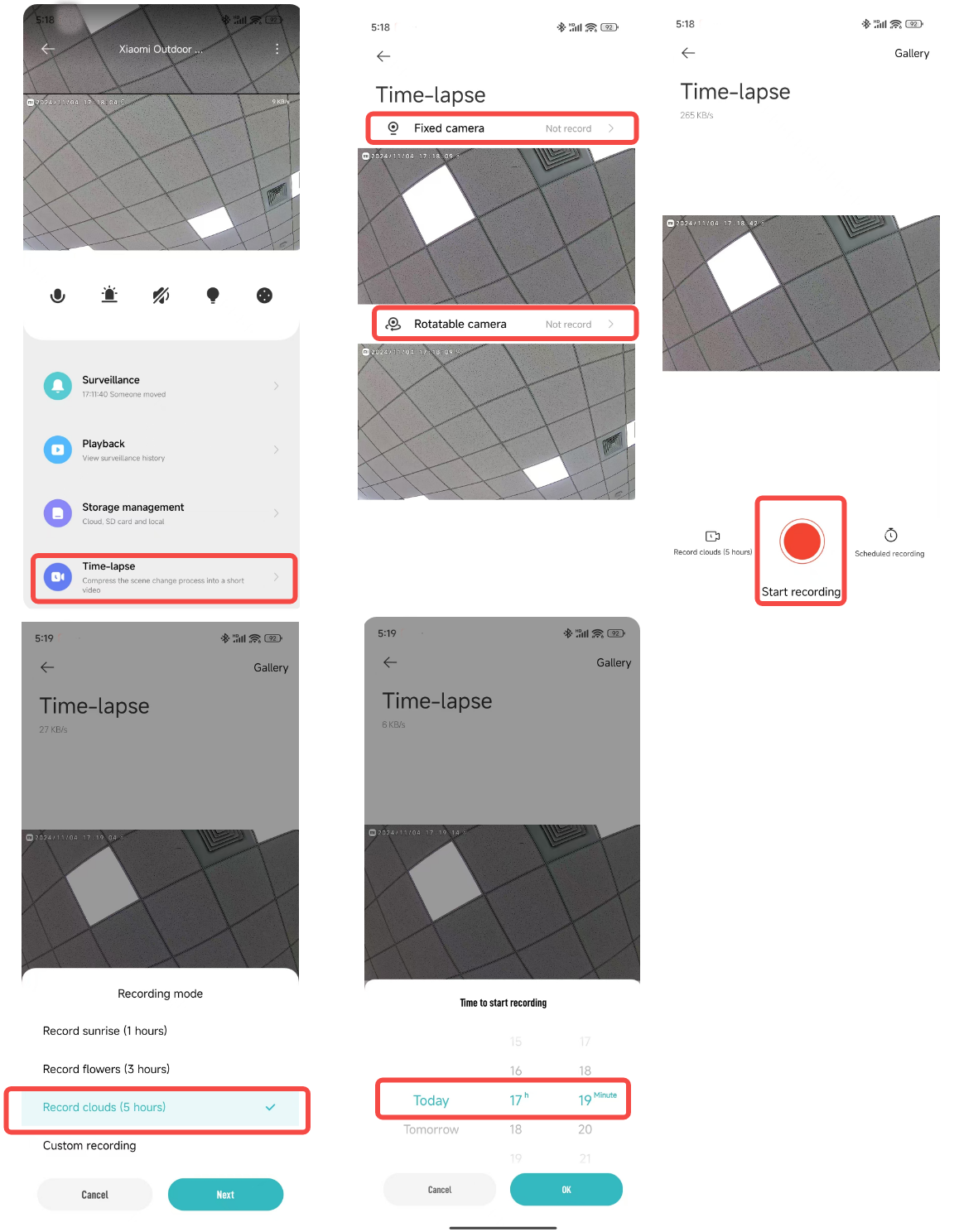
11. Q: How to use the time-lapse feature on the Xiaomi Outdoor Camera CW500 Dual?
A: 1. Open the Mi Home/Xiaomi Home APP >> select the camera >> tap [Time-lapse];
2. Select the lens for recording, and both lenses can record simultaneously;
3. Tap [Start recording] at the bottom of the recording interface to begin, and tap again to end;
4. Tap [Recording mode] to choose different modes and tap [Scheduled recording] to set scheduled start times.
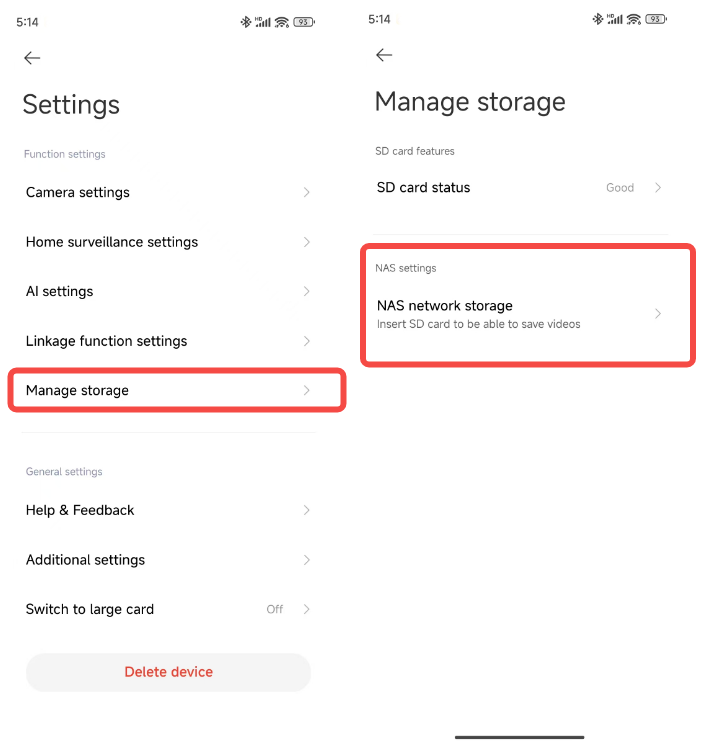
12. Q: How to set up NAS network storage for the Xiaomi Outdoor Camera CW500 Dual?
A: In the real-time monitoring interface, tap the three-dot icon at the upper right corner >> [Manage storage] >> [NAS network storage] >> follow the prompts to add the storage device.
Note:
The router or network drive connected to the camera must support storage forwarding, and the camera must have a functional SD card and recording enabled.
13. Q: How to check the plugin version of the Xiaomi Outdoor Camera CW500 Dual?
A: To check the plugin version, you can open the Mi Home/Xiaomi Home APP >> select the camera >> tap the three-dot icon at the upper right corner >> tap [Additional settings] >> check the plugin version.
Troubleshooting
1. Q: What to do if there are sound issues when viewing the real-time monitoring of the Xiaomi Outdoor Camera CW500 Dual?
A: If there are sound issues when viewing the real-time monitoring, please refer to the following methods:
1. The volume for real-time monitoring video is muted by default in the Mi Home/Xiaomi Home APP. You can turn it on in the real-time monitoring interface. If the volume is low, please try to increase your phone's volume;
2. Check if the camera's microphone is blocked by the outer shell;
3. If there is noise in the real-time monitoring video, move your phone away from the camera and avoid placing the camera near electronic devices like refrigerators or microwaves.
2. Q: What to do if the monitoring video of the Xiaomi Outdoor Camera CW500 Dual is choppy or the audio is out of sync?
A: If the monitoring video is choppy or the audio is out of sync, please refer to the following methods:
1. If the video is choppy or frequently shows loading, switch the video quality to automatic or smooth mode;
2. If the audio and video are out of sync, check if the network connection for the camera is stable. If there's too much delay, try exiting and re-entering the real-time monitoring interface.
3. Q: What to do if there is no sound on the camera end during a call with the Xiaomi Outdoor Camera CW500 Dual?
A: If there is no sound on the camera end, please refer to the following methods:
1. Check if the phone's sound is too low;
2. Ensure the Mi Home/Xiaomi Home APP has permission to use the phone's microphone. If not, enable it in your phone settings.
4. Q: What to do if the historical playbacks on the Xiaomi Outdoor Camera CW500 Dual are not continuous or smooth?
A: If the historical playbacks are not continuous or smooth, please refer to the following methods:
1. If the playbacks are not continuous, it is because the option to only record when motion is detected is enabled. This means the camera records only when there is movement;
2. If the playback is choppy, it is due to network issues. Check if too many devices are connected to the camera's network or if other devices are playing videos simultaneously.
5. Q: What to do if the SD card in the Xiaomi Outdoor Camera CW500 Dual is abnormal?
A: If the SD card is abnormal, please refer to the following methods:
1. Please use a dedicated storage card produced by reputable manufacturers;
2. Ensure the camera has an appropriate storage card installed. Cameras without a storage card cannot record videos or historical playbacks;
3. If the storage card isn't recording or can’t delete files automatically in cycles, you can format the card in the Mi Home/Xiaomi Home APP >> [Settings] >> [Manage storage];
4. If you can't format the card in the APP, use a card reader to format it on a computer. After formatting, power off the camera and reinsert the card;
5. If you find that the recording is incomplete, please check the recording mode in the Mi Home/Xiaomi Home APP >> select the camera >> tap the three-dot icon at the upper right corner >> [Manage storage] >> [SD card status] >> [Recording mode].
Note:
Formatting will delete all files on the storage card.
6. Q: What to do if the Mi Home/Xiaomi Home APP indicates that the Xiaomi Outdoor Camera CW500 Dual is offline?
A: If the Mi Home/Xiaomi Home APP indicates that the camera is offline, please refer to the following methods:
1. Check if the camera is powered off and ensure you're using the original adapter;
2. Try restarting the router;
3. If the device is powered on and the network is fine, check the device's indicator:
(1). Blinking in yellow: The camera is connecting to the network. If you have changed the Wi-Fi name or password, reset the camera and reconnect;
(2). Remaining in yellow: The camera has been reset. Please reconnect;
(3). Blinking in yellow slowly: The camera is upgrading. Please wait for the upgrade to complete;
4. Please check whether the MicroSD card is inserted into the camera and remove the MicroSD card to check whether the camera is offline. MicroSD cards with poor quality will make the camera offline.
7. Q: What to do if the indicator on the Xiaomi Outdoor Camera CW500 Dual is blinking in yellow and is not functioning properly?
A: If the indicator is blinking in yellow, please refer to the following methods:
1. If the indicator is blinking in yellow when connecting to the Mi Home/Xiaomi Home APP, it indicates that the camera cannot connect to the network. Check if the Wi-Fi password is correct and if the network meets the camera's requirements;
2. If the APP was previously connected and suddenly the camera has a yellow blinking indicator, check if the network is stable;
3. If the indicator is blinking in yellow slowly, the device is upgrading. Please wait until the upgrade is complete.
8. Q: What to do if the password is forgotten in the security settings of the Xiaomi Outdoor Camera CW500 Dual?
A: Delete the device in the Mi Home/Xiaomi Home APP, then press and hold the reset button on the camera for about 3 seconds and re-add the camera to the Mi Home/Xiaomi Home APP.
9. Q: Why does the Xiaomi Outdoor Camera CW500 Dual produce a whistling sound during voice calls?
A: During voice calls, please try to keep the phone and the camera in separate spaces and maintain a distance of at least 10 meters from the device. The echo whistling generated by the close calls is a normal phenomenon.
10. Q: What to do if the Xiaomi Outdoor Camera CW500 Dual has a blurry image or no image during night vision?
A: If the camera has a blurry image or no image during night vision, please refer to the following methods:
1. Ensure that the camera lens is clean and free of dust;
2. Make sure to remove the protective film of the camera lens;
3. Avoid placing reflective objects such as glass or white walls near the front or sides of the lens, as this can cause bright areas close to the camera and dark or washed-out areas in the background.
11. Q: What to do if the indicator on the Xiaomi Outdoor Camera CW500 Dual is not lit?
A: If the indicator is not lit, please go to the camera's real-time monitoring interface in the Mi Home/Xiaomi Home APP >> tap the three-dot icon in the upper right corner to enter the camera settings >> turn on [Status light].
12. Q: Why is there no sound when viewing videos from the SD card of the Xiaomi Outdoor Camera CW500 Dual on a computer?
A: This issue is due to incompatibility with the video playback software on your computer. Try using a different video player, such as the VLC player.
13. Q: What to do if the videos recorded on the SD card in the Xiaomi Outdoor Camera CW500 Dual are not continuous or the audio is out of sync?
A: If the videos recorded on the SD card are not continuous or the audio is out of sync, please refer to the following methods:
1. Restart the device to see if it resolves the issue;
2. Avoid frequently hot-swapping the SD card. It should be inserted or removed only when the camera is powered off. Frequent hot-swapping can degrade card performance, causing recording issues;
3. Check if the SD card's read speed is too low;
4. Replace the SD card.
14. Q: What to do if the Xiaomi Outdoor Camera CW500 Dual cannot recognize the SD card?
A: If the camera cannot recognize the SD card, please refer to the following methods:
1. Restart the device;
2. Check if the camera's firmware and the Mi Home/Xiaomi Home APP need updates;
3. Clear the data of the Mi Home/Xiaomi Home APP;
4. Replace the SD card.
Note:
SD cards have a service life. If a card is used for a long time, it will cause the card to be erased and rewritten multiple times and cannot be used again. Please be sure to change the SD card for use.
15. Q: What to do if the SD card in the Xiaomi Outdoor Camera CW500 Dual isn't recording video or cannot delete videos automatically?
A: If the SD card isn't recording video or cannot delete videos automatically, please refer to the following methods:
1. Check if the camera's firmware and the Mi Home/Xiaomi Home APP need updates;
2. Go to the Mi Home/Xiaomi Home APP >> select the camera >> tap the three-dot icon in the upper right >> [Manage storage] >> check if the storage switch is turned off or if it is set to record only when motion is detected;
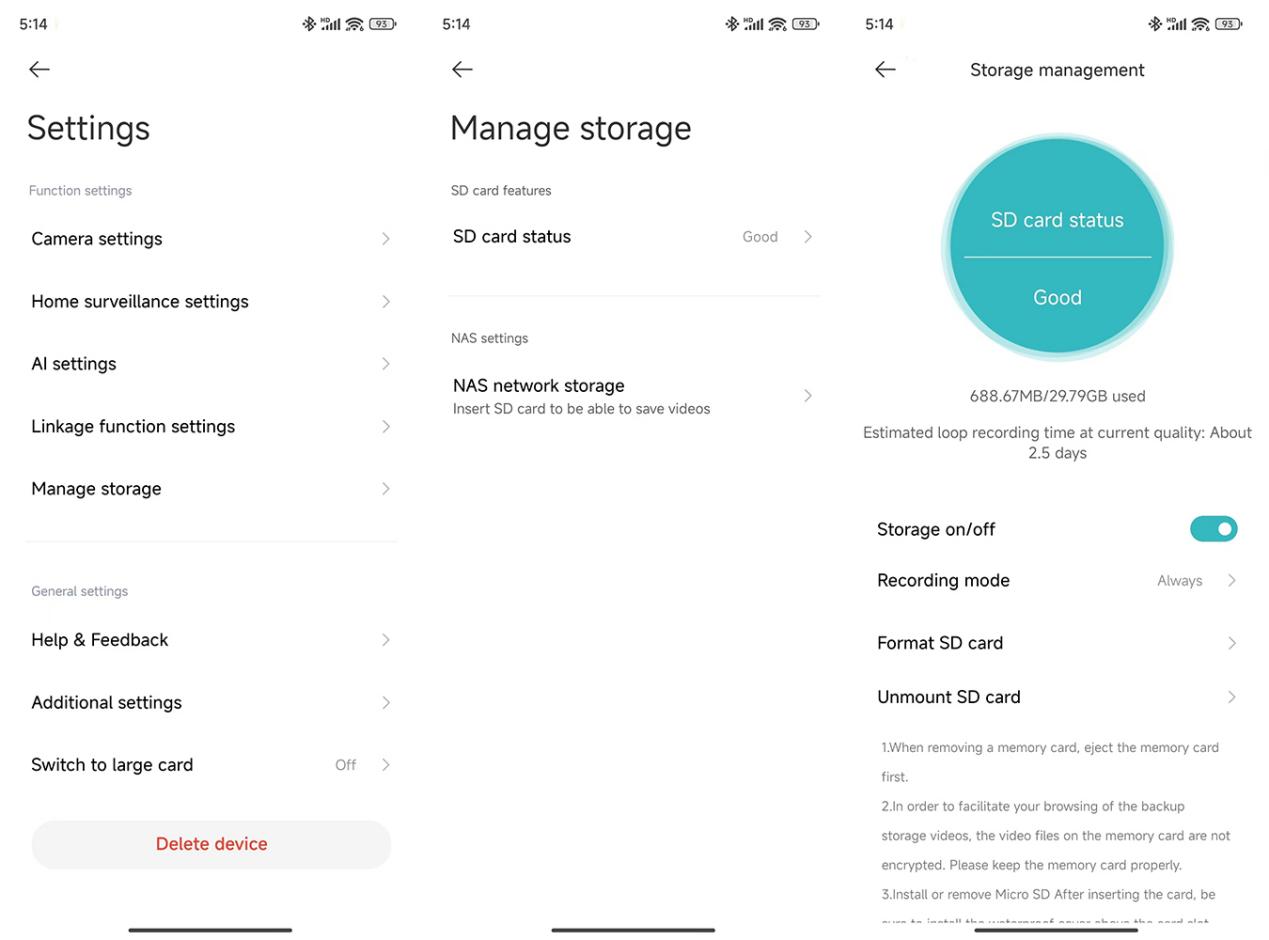
3. Format the SD card in the APP (note that formatting will erase all videos, so back them up first);
4. If you cannot format the card in the APP, use a card reader to format it on a computer. After formatting, power off the camera and reinsert the card;
5. If the SD card cannot record video, it is due to the hardware issue of the card. Consider replacing it to see if the issue persists.
16. Q: What to do if the screen goes black on the Xiaomi Outdoor Camera CW500 Dual?
A: If the screen goes black, please refer to the following methods:
1. If the network environment for the camera is unstable, the real-time monitoring can be affected, resulting in a black screen. You can wait a moment or re-enter the real-time monitoring interface, and the image should display normally;
2. Check if the camera’s firmware and the Mi Home/Xiaomi Home APP versions need updates;
3. Verify whether too many devices are connected to the router;
4. Try restarting the router.
17. Q: What to do if the Xiaomi Outdoor Camera CW500 Dual cannot connect to Wi-Fi when added to the APP?
A: If the camera cannot connect to Wi-Fi when adding to the APP, please refer to the following methods:
1. If during scanning binding it shows that Wi-Fi cannot be found, you can choose to connect manually and select the Wi-Fi starting with "isa.camera.hlmax" from the Wi-Fi list;
2. If the Wi-Fi starting with "isa.camera.hlmax" is not found, it is due to the Wi-Fi list refresh mechanism. Please wait a moment and refresh the list several times;
3. If manually connecting to the Wi-Fi starting with "isa.camera.hlmax" fails, go to the Wi-Fi list and forget the "isa.camera.hlmax" Wi-Fi, then return to the APP interface to reconnect;
4. If there is an issue connecting to the router Wi-Fi during binding, it could be related to router settings such as the IP address not being dynamically assigned, insufficient IP address pool, or DNS failure. Please change the router settings or restart the router and then try to reconnect.
18. Q: What to do if one of the lenses on the Xiaomi Outdoor Camera CW500 Dual displays abnormal colors?
A: If one of the lenses displays abnormal colors, please refer to the following information:
1. If one lens displays black and white while the other lens shows color, this is due to the different angles and light intensity received by the two lenses, which is a normal occurrence;
2. If one lens appears red, it could indicate that the IR-CUT filter has not been switched. In this case, you can request a replacement or return.
19. Q: What to do if the white light on the Xiaomi Outdoor Camera CW500 Dual turns on or flashes frequently?
A: If the white light turns on or flashes frequently, please refer to the following methods:
1. If the night vision mode is set to Intelligent full color, the white light will automatically turn on when the camera detects human figures. In scenes with frequent human detection, the white light can turn on and off frequently, which is normal. It is recommended to switch the mode to Black and white night vision to avoid this;
2. If the night vision mode is set to Intelligent full color and no human movement is detected in the monitoring area, it is due to an AI false positive detection of a human figure. In this case, switching to Black and white night vision can help resolve the issue.
20. Q: What to do if the screen on the Xiaomi Outdoor Camera CW500 Dual is blurry?
A: If the screen on the camera is blurry, please refer to the following methods:
1. Ensure that the camera lens is clean and free of dust;
2. Make sure to remove the protective film of the camera lens;
3. When you enter the real-time monitoring, the image will initially display in 360P, then quickly switch to 2.5K UHD. If the camera's network connection is poor, the image will remain at 360P. It is recommended to check the network environment, and once the network is optimized, the image will automatically switch to 2.5K UHD.
21. Q: What to do if the SD card of the Xiaomi Outdoor Camera CW500 Dual prompts that it cannot be formatted or repeatedly prompts to format?
A: If it prompts that the SD card cannot be formatted or repeatedly prompts to format, please refer to the following methods:
1. Please use a memory card specifically designed for cameras by reputable manufacturers;
2. The camera only supports memory cards between 16GB and 256GB;
3. After tapping format, please be patient and wait for the process to complete;
4. Avoid frequently hot-swapping the memory card. Always power off the camera before inserting or removing the memory card, as frequent hot-swapping can degrade the performance of the memory card and cause issues;
5. Try restarting the device and attempt to format again;
6. Check if the camera firmware and the Mi Home/Xiaomi Home APP require updates;
7. Replace the SD card;
8. If you cannot format the SD card in the APP, you can use a card reader to format the memory card on a computer. After formatting, power off the camera and reinsert the card.
22. Q: What to do if the Xiaomi Outdoor Camera CW500 Dual cannot set up NAS network storage?
A: If the camera cannot set up NAS network storage, please refer to the following methods:
1. The NAS network storage function requires the camera to have a storage card inserted;
2. In the Mi Home/Xiaomi Home APP, go to the real-time monitoring interface of the camera >> tap the three-dot icon at the upper right corner of the screen >> [Manage storage] >> [NAS network storage] >> follow the prompts to add the storage device;
3. The router or network drive connected to the camera must support storage forwarding, and the camera must have a functional SD card and recording enabled.
23. Q: What to do if the Xiaomi Outdoor Camera CW500 Dual's Home surveillance function is not working?
A: If the Home surveillance function is not working, please refer to the following methods:
1. Try to restart the camera;
2. Enable [Home surveillance] again in [Home surveillance settings];
3. Check the sensitivity settings and alarm interval in [Home surveillance settings];
4. Go to [Camera settings] >> [Image settings] >> turn on [Smart frame] to mark detected human shapes or vehicles in the video;
5. Confirm the settings for the Home surveillance. Go to the Mi Home/Xiaomi Home APP >> select the camera >> tap the three-dot icon at the upper right corner of the screen >> [Home surveillance settings] >> enable [Home surveillance]. You can also set the home surveillance period, sensitivity settings, alarm interval, and detection push notifications.
24. Q: What to do if the virtual fence of the Xiaomi Outdoor Camera CW500 Dual is not working?
A: If the virtual fence is not working, please refer to the following methods:
1. Try to restart the camera;
2. Re-enable and set up the virtual fence in [AI settings];
3. Confirm the settings for the Home surveillance. Go to the Mi Home/Xiaomi Home APP >> select the camera >> tap the three-dot icon at the upper right corner of the screen >> [Home surveillance settings] >> enable [Home surveillance]. You can also set the home surveillance period, sensitivity settings, alarm interval, and detection push notifications.
25. Q: What to do if the Xiaomi Outdoor Camera CW500 Dual is frequently offline?
A: If the camera is frequently offline, please refer to the following methods:
1. Check if the camera's firmware and the Mi Home/Xiaomi Home APP need to be updated;
2. Check if the router has too many devices connected;
3. The router's performance can vary, especially with routers or optical modems (which also function as routers) provided by ISPs. They have poorer transmission distance, speed, and stability compared to other brand routers. Try restarting the router;
4. Check if the camera's power supply is stable and ensure you are using the original adapter;
5. If the device is powered on and the network is fine, check the device's indicator:
(1). Blinking in yellow: The camera is connecting to the network. If you have changed the Wi-Fi name or password, reset the camera and reconnect;
(2). Remaining in yellow: The camera has been reset. Please reconnect;
(3). Blinking in yellow slowly: The camera is upgrading. Please wait for the upgrade to complete;
6. Check the network environment, reset the camera, and reconnect it to the Mi Home/Xiaomi Home APP;
Note:
1. If the 2.4GHz Wi-Fi connection was unstable previously, it is due to strong interference in the wireless environment. When reconnecting, you can choose 5GHz Wi-Fi or a wired connection;
2. If the 5GHz Wi-Fi connection was unstable previously, it is due to too many obstacles between the camera and the router. When reconnecting, you can choose 2.4GHz Wi-Fi or a wired connection;
3. If the wired connection was unstable previously, it is due to poor cable quality and compatibility. You can choose to replace the cable or use Wi-Fi for the connection.
7. Confirm if the camera has an SD card inserted. Remove the card and check if it resolves the issue, as some low-quality SD cards can cause offline problems;
8. Poor-quality cables can lead to connectivity issues, you can replace the cable with a higher-quality one;
9. If you have set an automation scene of Away mode, the camera will turn off when you leave, causing it to go offline.
26. Q: What to do if the Xiaomi Outdoor Camera CW500 Dual shows a pink screen?
A: If the camera shows a pink screen, please refer to the following methods:
1. Try restarting the camera via the Mi Home/Xiaomi Home APP. Go to [Camera settings] >> tap [Reboot device] and check if the pink screen issue disappears;
2. Restart the camera by unplugging and plugging the power again to see if the pink screen issue is resolved;
3. Go to [Camera settings] >> tap [Night vision] >> disable and re-enable the Night vision function to check if the pink screen issue disappears.
1. Q: What does the Xiaomi Outdoor Camera CW500 Dual look like?
A: For your reference, the structure of the Xiaomi Outdoor Camera CW500 Dual is shown in the image below:
The Xiaomi Outdoor Camera CW500 Dual has two lenses: a Dome camera lens and a Bullet camera lens. Both lenses are equipped with infrared night vision LEDs and white lights. On the front of the camera, there is an indicator and a microphone, while the back of the camera has a reset button and a microSD card slot. The speaker is located at the bottom of the camera (when inverted). There is also a network cable port and a power port.
2. Q: What is the power supply method for the Xiaomi Outdoor Camera CW500 Dual?
A: The Xiaomi Outdoor Camera CW500 Dual is powered by a 12V/1A adapter.
Note:
To ensure proper functionality, please be sure to use the original adapter.
3. Q: What are the installation methods for the Xiaomi Outdoor Camera CW500 Dual?
A: The Xiaomi Outdoor Camera CW500 Dual can be installed in side-mount, hanging-mount, or pole-mount configurations.
Note:
It supports universal 8mm and 12mm width clamps, which need to be purchased separately.
4. Q: How to mount the Xiaomi Outdoor Camera CW500 Dual on a wall?
A: To mount the Xiaomi Outdoor Camera CW500 Dual on a wall, please refer to the following steps:
1. Paste the mounting template sticker where the camera needs to be installed, and drill four holes in the wall with a drilling tool according to the locating holes on the sticker. The hole is approx. 6 mm in diameter and approx. 40 mm in depth;
2. Insert four plastic wall plugs into the holes in the wall;
3. Place the mount against the wall, insert screws into the holes, and drill them into the plastic wall plugs on the wall;
4. Wrap the power cable port with the waterproof tape after the camera is fixed to ensure waterproof performance;
5. Once the camera is fixed and turned on, the shooting angle of the bullet camera lens can be adjusted manually. The mount can be adjusted horizontally by 180° and the bullet camera lens can be adjusted up and down by 25°;
6. Place the sealing ring on the camera's network cable port. Thread the waterproof rear cover, stopper, and waterproof sleeve over the network cable in order, then plug the network cable into the port. Screw together the waterproof sleeve and stopper, then screw together the waterproof rear cover and waterproof sleeve.
Note:
1. The wall must be able to support at least three times the total weight of the camera;
2. The camera must be firmly fixed to the wall according to the installation instructions in the user manual to prevent accidental injury;
3. Do not install near an air conditioner outdoor unit, range hood outlet, gas water heater outlet, or other heat sources.
5. Q: How to turn on the Xiaomi Outdoor Camera CW500 Dual?
A: Insert the power adapter cable into the power port to automatically turn on the camera.
Note:
1. The camera is successfully turned on when the indicator is yellow and a voice prompt is heard;
2. Please make sure to use the original charging cable of the power adapter provided to connect the camera to avoid the camera not working properly. When the camera is turned on, don’t turn the dome camera lens manually to force it to rotate. If the positioning of the lens is inaccurate, please calibrate it in the Mi Home/Xiaomi Home APP.
6. Q: How to install a microSD card on the Xiaomi Outdoor Camera CW500 Dual?
A: Make sure that the camera is unplugged. Open the waterproof cover above the microSD card slot and insert a microSD card with its contact points facing down.
Note:
1. Unplug the camera when inserting or removing the microSD card. Please use a microSD card from a qualified brand (the camera supports a microSD card of 16GB to 256GB. The microSD card needs to be formatted via [Settings] >> [Manage storage] on the camera's interface in the Mi Home/Xiaomi Home APP). It is recommended that the microSD card has a read/write speed of no less than U1/Class 10;
2. After installing or removing the microSD card, make sure to place the waterproof cover back on the card slot properly to prevent water from entering the camera and affecting normal use.
7. Q: How to reset the Xiaomi Outdoor Camera CW500 Dual?
A: To change the network the Xiaomi Outdoor Camera CW500 Dual is connected to, press the reset button. When you hear the voice prompt, the reset is successful.
Note:
Resetting the camera will not delete any data on the microSD card.
8. Q: Does the Xiaomi Outdoor Camera CW500 Dual support NAS network storage?
A: Yes, it supports. In the Mi Home/Xiaomi Home APP, go to the real-time monitoring interface of the camera >> tap the three-dot icon at the upper right corner of the screen >> [Manage storage] >> [NAS network storage] >> follow the prompts to add the storage device.
Note:
The router or network drive the camera is connected to must support storage transfer, and the camera must have a microSD card installed and be recording properly.
9. Q: How to check the SN code of the Xiaomi Outdoor Camera CW500 Dual?
A: 1. You can check the SN code on the back of the camera body;
2. You can check the SN code on the back of the product packaging.
10. Q: How to check the certificate of compliance of the Xiaomi Outdoor Camera CW500 Dual?
A: To view the certificate of compliance for the Xiaomi Outdoor Camera CW500 Dual, please check the sticker on the bottom back of the product packaging.
11. Q: Can the Xiaomi Outdoor Camera CW500 Dual be powered by a battery?
A: The camera does not include a battery and must be powered by an adapter.
Note:
Please make sure to use the original 12V/1A adapter.
12. Q: Does the Xiaomi Outdoor Camera CW500 Dual support two-way voice intercom?
A: Yes, the Xiaomi Outdoor Camera CW500 Dual has a built-in microphone and speaker, supporting two-way voice intercom with the camera via the Mi Home/Xiaomi Home APP on your mobile device.
To use the two-way voice intercom function, please go to the camera interface in the Mi Home/Xiaomi Home APP and tap the microphone icon to speak. When you need to hang up, just tap the microphone icon again.
13. Q: What are the precautions when using the Xiaomi Outdoor Camera CW500 Dual?
A: For your reference, here are some precautions when using the Xiaomi Outdoor Camera CW500 Dual:
1. The operating temperature for the camera ranges from -30°C to 60°C. Do not use the camera in environments with temperatures above or below the specified range;
2. The camera is a precision electronic product that has an IP66 dust-tight and water-resistant rating. To ensure normal use, do not use the camera in extremely humid environments or locations that can cause water ingress;
3. To improve the camera's performance, do not place it where its lens faces or is next to a reflective surface, such as glass and white walls, as this will cause the image to appear overly bright in areas close to the camera and darker in areas further away, or can cause the camera to produce white images;
4. When using Wi-Fi, please make sure that the camera is installed in an area with a strong Wi-Fi signal. Do not install the camera near microwave ovens or other objects or places that can affect its Wi-Fi signal;
5. If the power cable is damaged or broken, it must be replaced by professionals from the manufacturer, after-sales service department, or departments of similar functions to avoid safety hazards.
14. Q: What are the meanings of the different statutes of the indicator on the Xiaomi Outdoor Camera CW500 Dual?
A: There is one indicator on the Xiaomi Outdoor Camera CW500 Dual that can show either blue or yellow.
For your reference, the meanings of the different statutes of the indicator are as follows:
1. The indicator is yellow when the camera is awaiting connection;
2. The indicator blinks blue when the camera is connecting to a server;
3. The indicator blinks yellow when the camera is connecting to a network;
4. The indicator blinks yellow slowly when the camera is updating;
5. The indicator keeps blue when connected successfully.
15. Q: What is the IP rating of the Xiaomi Outdoor Camera CW500 Dual?
A: The Xiaomi Outdoor Camera CW500 Dual meets IP66, making it suitable for outdoor use.
16. Q: Where are the infrared LEDs located on the Xiaomi Outdoor Camera CW500 Dual?
A: For your reference, the infrared LEDs are located at the following positions:
17. Q: Can the mounting bracket on the Xiaomi Outdoor Camera CW500 Dual be removed?
A: No, the mounting bracket is not removable.
APP related
1. Q: How to connect the Xiaomi Outdoor Camera CW500 Dual to the Mi Home/Xiaomi Home APP?
A: To connect the Xiaomi Outdoor Camera CW500 Dual to the Mi Home/Xiaomi Home APP, please refer to the following steps:
1. Take the camera out of the packaging and place it on a table;
2. Power on the camera by connecting the power adapter cable to the camera's power port;
3. The camera will start up and the indicator will remain in yellow. After about 20 seconds, you will hear a voice prompt from the camera. Open the Mi Home/Xiaomi Home APP, tap the [+] icon in the top right corner, and tap [Scan]. Scan the QR code on the bottom of the camera;
4. The Mi Home/Xiaomi Home APP will display the connection interface;
Note:
For the first binding, you don’t need to press any button and your phone can connect to the device directly.
5. Tap [Device reset] >> your phone starts scanning the camera >> select a 2.4GHz or 5GHz router and enter the Wi-Fi password >> tap [Next] >> add device (keep the phone as close to the device as possible during the process). After a few seconds, the camera will prompt you by voice that the Wi-Fi is successfully connected;
6. The APP will display that the device has been added successfully. Set room and tap [Next]. Set the name of the device and tap [Next]. You can hear a voice prompt from the device that the account is bound successfully, and you can start using it now.
Note:
1. The device supports both 2.4GHz and 5GHz Wi-Fi;
2. Select the network connection method: select wired connection;
3. Select the network connection method: select wireless connection;
2. Q: What are the functions of the icons on the real-time monitoring interface of the Xiaomi Outdoor Camera CW500 Dual?
A: For your reference, the functions of the icons on the real-time monitoring interface are as follows:
1. Sleep Button: Tap the sleep button to turn off the camera. Once turned off, the camera will no longer stream real-time monitoring or record videos. Tapping again will turn the camera back on. You can put each of the two lenses into sleep mode separately;
2. Screenshot: You can take a screenshot of the current monitoring view. The image will be saved to both the local album and the Mi Home/Xiaomi Home APP. Screenshots can be taken separately for each lens;
3. Screen Recording: Tap the screen recording button to record the current monitoring view. The video will be saved to both the local album and the Mi Home/Xiaomi Home APP. Video recording can be done separately for each lens;
4. Resolution: You can adjust the resolution of the monitoring screen. Options include 2.5K HD, 720P Smooth, and Auto (Auto means the camera will automatically adjust the resolution based on the network environment). The resolution can be adjusted separately for each lens;
5. Full Screen: Tap this button to switch the camera's monitoring screen to landscape mode;
6. Voice Call: Tap the microphone button to make a remote call between the camera and the mobile device through the Mi Home/Xiaomi Home APP;
7. Sound and Light Alert: Tap the alarm button to trigger a sound and light alert for 30 seconds. During playback, you can tap again to cancel the alert;
8. Mute: By default, the monitoring screen is in mute mode when entering the camera view. If you want to hear sound while viewing, tap the mute button to enable sound;
9. Fill Light: The fill light is off by default. Tap to turn it on, and it will stay on for 1 minute. You can tap again to turn it off during the process;
10. PTZ Control: Tap to display the directional control pad (up, down, left, right) for PTZ control;
11. Add to favorites: After setting [Add to favorites] as a frequently viewed position, you can quickly check specific areas of interest.
Using method: Access the frequently viewed position through the PTZ control icon.
3. Q: How to use the human tracking feature of the Xiaomi Outdoor Camera CW500 Dual?
A: To use the human tracking feature, please go to the Mi Home/Xiaomi Home APP >> select the camera >> tap the three-dot icon at the upper right corner of the screen >> [AI settings] >> enable [Human tracking] and the camera will track the detected people.
4. Q: How to set up home surveillance settings on the Xiaomi Outdoor Camera CW500 Dual?
A: To set up home surveillance settings, please go to the Mi Home/Xiaomi Home APP >> select the camera >> tap the three-dot icon at the upper right corner of the screen >> [Home surveillance settings] >> enable [Home surveillance]. You can also set the home surveillance period, sensitivity settings, alarm interval, and detection push notifications.
Home surveillance period: You can set for 24-hour surveillance or specific time segments.
Sensitivity settings: Choose from High, Medium, or Low sensitivity:
1. Low sensitivity: approximately 1~2.5 meters;
2. Medium sensitivity: approximately 2.5~5 meters;
3. High sensitivity: approximately 5~7.5 meters.
Alarm interval: Choose from 3 to 30 minutes (you can only choose the preset intervals and can’t customize intervals).
Event notification type: The types include Someone approaching vehicle, Vehicle detected, Someone enters the fenced area, Someone leaves the fenced area, Someone moved, and Motion detected.
Note:
1. Videos in the Home surveillance cannot be deleted in bulk;
2. You can also use Home surveillance without using the SD card and the Xiaomi Home Secure;
3. If you are not receiving push notifications, please refer to the following methods:
(1). Check if the switch for [Event notification type] is enabled in [Home surveillance settings];
(2). Verify that [Device notifications] is enabled in [Notification settings] in the Mi Home/Xiaomi Home APP;
(3). Ensure that notifications for the Mi Home/Xiaomi Home APP are enabled in your phone's notification settings.
5. Q: How to remove the smart frame displayed on the real-time monitoring interface of the Xiaomi Outdoor Camera CW500 Dual?
A: To remove the smart frame displayed on the real-time monitoring interface, you can open the Mi Home/Xiaomi Home APP >> select the camera >> tap the three-dot icon at the upper right corner >> [Camera settings] >> [Image settings] >> turn off [Smart frame].
Note:
If you enable the smart frame feature, the camera will mark detected objects such as people or vehicles.
6. Q: How to review videos from the SD card on the Xiaomi Outdoor Camera CW500 Dual?
A: To review videos from the SD card, you can open the Mi Home/Xiaomi Home APP >> select the camera >> tap [Playback] >> view videos on the SD card.
Note:
1. The playback on the SD card supports 1x, 4x, and 16x speeds;
2. The timeline on the page uses colors to indicate different event types, matching the labels at the bottom. Specifically, yellow represents motion detected, teal represents someone moved, blue indicates vehicle detection, orange represents someone approaching car, and lavender blue indicates entering or leaving geofenced area.
7. Q: How to format the SD card on the Xiaomi Outdoor Camera CW500 Dual?
A: To format the SD card, you can open the Mi Home/Xiaomi Home APP >> select the camera >> tap the three-dot icon at the upper right corner >> [Manage storage] >> [SD card status] >> [Format SD card].
Note:
Formatting will erase all videos on the SD card. Ensure you save any important videos first.
8. Q: How to update the firmware of the Xiaomi Outdoor Camera CW500 Dual?
A: To update the firmware, you can open the Mi Home/Xiaomi Home APP >> select the camera >> tap the three-dot icon at the upper right corner >> [Firmware update] >> please update the firmware in time if it is available.
9. Q: Does the Xiaomi Outdoor Camera CW500 Dual support HomeKit?
A: No, it does not support HomeKit.
10. Q: How to use the sound and light alert feature on the Xiaomi Outdoor Camera CW500 Dual?
A: Sound alert:
1. Open the Mi Home/Xiaomi Home APP >> select the camera >> tap the three-dot icon at the upper right corner >> [Camera settings] >> [Sound and light alert] >> [Play sound effect] >> enable [Sound effect];
2. Once enabled, the camera will play recorded audio when motion is detected;
3. You can choose from the preset tone or custom recorded sounds.
Light alarm:
1. Open the Mi Home/Xiaomi Home APP >> select the camera >> tap the three-dot icon at the upper right corner >> [Camera settings] >> [Sound and light alert] >> enable [Light alarm];
2. When the light alarm is enabled, the supplementary light will automatically turn on when motion is detected.
Effective time:
You can set specific times for alarm activation by selecting from [Any time], [Custom schedule], and [Repeat].
11. Q: How to use the time-lapse feature on the Xiaomi Outdoor Camera CW500 Dual?
A: 1. Open the Mi Home/Xiaomi Home APP >> select the camera >> tap [Time-lapse];
2. Select the lens for recording, and both lenses can record simultaneously;
3. Tap [Start recording] at the bottom of the recording interface to begin, and tap again to end;
4. Tap [Recording mode] to choose different modes and tap [Scheduled recording] to set scheduled start times.
12. Q: How to set up NAS network storage for the Xiaomi Outdoor Camera CW500 Dual?
A: In the real-time monitoring interface, tap the three-dot icon at the upper right corner >> [Manage storage] >> [NAS network storage] >> follow the prompts to add the storage device.
Note:
The router or network drive connected to the camera must support storage forwarding, and the camera must have a functional SD card and recording enabled.
13. Q: How to check the plugin version of the Xiaomi Outdoor Camera CW500 Dual?
A: To check the plugin version, you can open the Mi Home/Xiaomi Home APP >> select the camera >> tap the three-dot icon at the upper right corner >> tap [Additional settings] >> check the plugin version.
Troubleshooting
1. Q: What to do if there are sound issues when viewing the real-time monitoring of the Xiaomi Outdoor Camera CW500 Dual?
A: If there are sound issues when viewing the real-time monitoring, please refer to the following methods:
1. The volume for real-time monitoring video is muted by default in the Mi Home/Xiaomi Home APP. You can turn it on in the real-time monitoring interface. If the volume is low, please try to increase your phone's volume;
2. Check if the camera's microphone is blocked by the outer shell;
3. If there is noise in the real-time monitoring video, move your phone away from the camera and avoid placing the camera near electronic devices like refrigerators or microwaves.
2. Q: What to do if the monitoring video of the Xiaomi Outdoor Camera CW500 Dual is choppy or the audio is out of sync?
A: If the monitoring video is choppy or the audio is out of sync, please refer to the following methods:
1. If the video is choppy or frequently shows loading, switch the video quality to automatic or smooth mode;
2. If the audio and video are out of sync, check if the network connection for the camera is stable. If there's too much delay, try exiting and re-entering the real-time monitoring interface.
3. Q: What to do if there is no sound on the camera end during a call with the Xiaomi Outdoor Camera CW500 Dual?
A: If there is no sound on the camera end, please refer to the following methods:
1. Check if the phone's sound is too low;
2. Ensure the Mi Home/Xiaomi Home APP has permission to use the phone's microphone. If not, enable it in your phone settings.
4. Q: What to do if the historical playbacks on the Xiaomi Outdoor Camera CW500 Dual are not continuous or smooth?
A: If the historical playbacks are not continuous or smooth, please refer to the following methods:
1. If the playbacks are not continuous, it is because the option to only record when motion is detected is enabled. This means the camera records only when there is movement;
2. If the playback is choppy, it is due to network issues. Check if too many devices are connected to the camera's network or if other devices are playing videos simultaneously.
5. Q: What to do if the SD card in the Xiaomi Outdoor Camera CW500 Dual is abnormal?
A: If the SD card is abnormal, please refer to the following methods:
1. Please use a dedicated storage card produced by reputable manufacturers;
2. Ensure the camera has an appropriate storage card installed. Cameras without a storage card cannot record videos or historical playbacks;
3. If the storage card isn't recording or can’t delete files automatically in cycles, you can format the card in the Mi Home/Xiaomi Home APP >> [Settings] >> [Manage storage];
4. If you can't format the card in the APP, use a card reader to format it on a computer. After formatting, power off the camera and reinsert the card;
5. If you find that the recording is incomplete, please check the recording mode in the Mi Home/Xiaomi Home APP >> select the camera >> tap the three-dot icon at the upper right corner >> [Manage storage] >> [SD card status] >> [Recording mode].
Note:
Formatting will delete all files on the storage card.
6. Q: What to do if the Mi Home/Xiaomi Home APP indicates that the Xiaomi Outdoor Camera CW500 Dual is offline?
A: If the Mi Home/Xiaomi Home APP indicates that the camera is offline, please refer to the following methods:
1. Check if the camera is powered off and ensure you're using the original adapter;
2. Try restarting the router;
3. If the device is powered on and the network is fine, check the device's indicator:
(1). Blinking in yellow: The camera is connecting to the network. If you have changed the Wi-Fi name or password, reset the camera and reconnect;
(2). Remaining in yellow: The camera has been reset. Please reconnect;
(3). Blinking in yellow slowly: The camera is upgrading. Please wait for the upgrade to complete;
4. Please check whether the MicroSD card is inserted into the camera and remove the MicroSD card to check whether the camera is offline. MicroSD cards with poor quality will make the camera offline.
7. Q: What to do if the indicator on the Xiaomi Outdoor Camera CW500 Dual is blinking in yellow and is not functioning properly?
A: If the indicator is blinking in yellow, please refer to the following methods:
1. If the indicator is blinking in yellow when connecting to the Mi Home/Xiaomi Home APP, it indicates that the camera cannot connect to the network. Check if the Wi-Fi password is correct and if the network meets the camera's requirements;
2. If the APP was previously connected and suddenly the camera has a yellow blinking indicator, check if the network is stable;
3. If the indicator is blinking in yellow slowly, the device is upgrading. Please wait until the upgrade is complete.
8. Q: What to do if the password is forgotten in the security settings of the Xiaomi Outdoor Camera CW500 Dual?
A: Delete the device in the Mi Home/Xiaomi Home APP, then press and hold the reset button on the camera for about 3 seconds and re-add the camera to the Mi Home/Xiaomi Home APP.
9. Q: Why does the Xiaomi Outdoor Camera CW500 Dual produce a whistling sound during voice calls?
A: During voice calls, please try to keep the phone and the camera in separate spaces and maintain a distance of at least 10 meters from the device. The echo whistling generated by the close calls is a normal phenomenon.
10. Q: What to do if the Xiaomi Outdoor Camera CW500 Dual has a blurry image or no image during night vision?
A: If the camera has a blurry image or no image during night vision, please refer to the following methods:
1. Ensure that the camera lens is clean and free of dust;
2. Make sure to remove the protective film of the camera lens;
3. Avoid placing reflective objects such as glass or white walls near the front or sides of the lens, as this can cause bright areas close to the camera and dark or washed-out areas in the background.
11. Q: What to do if the indicator on the Xiaomi Outdoor Camera CW500 Dual is not lit?
A: If the indicator is not lit, please go to the camera's real-time monitoring interface in the Mi Home/Xiaomi Home APP >> tap the three-dot icon in the upper right corner to enter the camera settings >> turn on [Status light].
12. Q: Why is there no sound when viewing videos from the SD card of the Xiaomi Outdoor Camera CW500 Dual on a computer?
A: This issue is due to incompatibility with the video playback software on your computer. Try using a different video player, such as the VLC player.
13. Q: What to do if the videos recorded on the SD card in the Xiaomi Outdoor Camera CW500 Dual are not continuous or the audio is out of sync?
A: If the videos recorded on the SD card are not continuous or the audio is out of sync, please refer to the following methods:
1. Restart the device to see if it resolves the issue;
2. Avoid frequently hot-swapping the SD card. It should be inserted or removed only when the camera is powered off. Frequent hot-swapping can degrade card performance, causing recording issues;
3. Check if the SD card's read speed is too low;
4. Replace the SD card.
14. Q: What to do if the Xiaomi Outdoor Camera CW500 Dual cannot recognize the SD card?
A: If the camera cannot recognize the SD card, please refer to the following methods:
1. Restart the device;
2. Check if the camera's firmware and the Mi Home/Xiaomi Home APP need updates;
3. Clear the data of the Mi Home/Xiaomi Home APP;
4. Replace the SD card.
Note:
SD cards have a service life. If a card is used for a long time, it will cause the card to be erased and rewritten multiple times and cannot be used again. Please be sure to change the SD card for use.
15. Q: What to do if the SD card in the Xiaomi Outdoor Camera CW500 Dual isn't recording video or cannot delete videos automatically?
A: If the SD card isn't recording video or cannot delete videos automatically, please refer to the following methods:
1. Check if the camera's firmware and the Mi Home/Xiaomi Home APP need updates;
2. Go to the Mi Home/Xiaomi Home APP >> select the camera >> tap the three-dot icon in the upper right >> [Manage storage] >> check if the storage switch is turned off or if it is set to record only when motion is detected;
3. Format the SD card in the APP (note that formatting will erase all videos, so back them up first);
4. If you cannot format the card in the APP, use a card reader to format it on a computer. After formatting, power off the camera and reinsert the card;
5. If the SD card cannot record video, it is due to the hardware issue of the card. Consider replacing it to see if the issue persists.
16. Q: What to do if the screen goes black on the Xiaomi Outdoor Camera CW500 Dual?
A: If the screen goes black, please refer to the following methods:
1. If the network environment for the camera is unstable, the real-time monitoring can be affected, resulting in a black screen. You can wait a moment or re-enter the real-time monitoring interface, and the image should display normally;
2. Check if the camera’s firmware and the Mi Home/Xiaomi Home APP versions need updates;
3. Verify whether too many devices are connected to the router;
4. Try restarting the router.
17. Q: What to do if the Xiaomi Outdoor Camera CW500 Dual cannot connect to Wi-Fi when added to the APP?
A: If the camera cannot connect to Wi-Fi when adding to the APP, please refer to the following methods:
1. If during scanning binding it shows that Wi-Fi cannot be found, you can choose to connect manually and select the Wi-Fi starting with "isa.camera.hlmax" from the Wi-Fi list;
2. If the Wi-Fi starting with "isa.camera.hlmax" is not found, it is due to the Wi-Fi list refresh mechanism. Please wait a moment and refresh the list several times;
3. If manually connecting to the Wi-Fi starting with "isa.camera.hlmax" fails, go to the Wi-Fi list and forget the "isa.camera.hlmax" Wi-Fi, then return to the APP interface to reconnect;
4. If there is an issue connecting to the router Wi-Fi during binding, it could be related to router settings such as the IP address not being dynamically assigned, insufficient IP address pool, or DNS failure. Please change the router settings or restart the router and then try to reconnect.
18. Q: What to do if one of the lenses on the Xiaomi Outdoor Camera CW500 Dual displays abnormal colors?
A: If one of the lenses displays abnormal colors, please refer to the following information:
1. If one lens displays black and white while the other lens shows color, this is due to the different angles and light intensity received by the two lenses, which is a normal occurrence;
2. If one lens appears red, it could indicate that the IR-CUT filter has not been switched. In this case, you can request a replacement or return.
19. Q: What to do if the white light on the Xiaomi Outdoor Camera CW500 Dual turns on or flashes frequently?
A: If the white light turns on or flashes frequently, please refer to the following methods:
1. If the night vision mode is set to Intelligent full color, the white light will automatically turn on when the camera detects human figures. In scenes with frequent human detection, the white light can turn on and off frequently, which is normal. It is recommended to switch the mode to Black and white night vision to avoid this;
2. If the night vision mode is set to Intelligent full color and no human movement is detected in the monitoring area, it is due to an AI false positive detection of a human figure. In this case, switching to Black and white night vision can help resolve the issue.
20. Q: What to do if the screen on the Xiaomi Outdoor Camera CW500 Dual is blurry?
A: If the screen on the camera is blurry, please refer to the following methods:
1. Ensure that the camera lens is clean and free of dust;
2. Make sure to remove the protective film of the camera lens;
3. When you enter the real-time monitoring, the image will initially display in 360P, then quickly switch to 2.5K UHD. If the camera's network connection is poor, the image will remain at 360P. It is recommended to check the network environment, and once the network is optimized, the image will automatically switch to 2.5K UHD.
21. Q: What to do if the SD card of the Xiaomi Outdoor Camera CW500 Dual prompts that it cannot be formatted or repeatedly prompts to format?
A: If it prompts that the SD card cannot be formatted or repeatedly prompts to format, please refer to the following methods:
1. Please use a memory card specifically designed for cameras by reputable manufacturers;
2. The camera only supports memory cards between 16GB and 256GB;
3. After tapping format, please be patient and wait for the process to complete;
4. Avoid frequently hot-swapping the memory card. Always power off the camera before inserting or removing the memory card, as frequent hot-swapping can degrade the performance of the memory card and cause issues;
5. Try restarting the device and attempt to format again;
6. Check if the camera firmware and the Mi Home/Xiaomi Home APP require updates;
7. Replace the SD card;
8. If you cannot format the SD card in the APP, you can use a card reader to format the memory card on a computer. After formatting, power off the camera and reinsert the card.
22. Q: What to do if the Xiaomi Outdoor Camera CW500 Dual cannot set up NAS network storage?
A: If the camera cannot set up NAS network storage, please refer to the following methods:
1. The NAS network storage function requires the camera to have a storage card inserted;
2. In the Mi Home/Xiaomi Home APP, go to the real-time monitoring interface of the camera >> tap the three-dot icon at the upper right corner of the screen >> [Manage storage] >> [NAS network storage] >> follow the prompts to add the storage device;
3. The router or network drive connected to the camera must support storage forwarding, and the camera must have a functional SD card and recording enabled.
23. Q: What to do if the Xiaomi Outdoor Camera CW500 Dual's Home surveillance function is not working?
A: If the Home surveillance function is not working, please refer to the following methods:
1. Try to restart the camera;
2. Enable [Home surveillance] again in [Home surveillance settings];
3. Check the sensitivity settings and alarm interval in [Home surveillance settings];
4. Go to [Camera settings] >> [Image settings] >> turn on [Smart frame] to mark detected human shapes or vehicles in the video;
5. Confirm the settings for the Home surveillance. Go to the Mi Home/Xiaomi Home APP >> select the camera >> tap the three-dot icon at the upper right corner of the screen >> [Home surveillance settings] >> enable [Home surveillance]. You can also set the home surveillance period, sensitivity settings, alarm interval, and detection push notifications.
24. Q: What to do if the virtual fence of the Xiaomi Outdoor Camera CW500 Dual is not working?
A: If the virtual fence is not working, please refer to the following methods:
1. Try to restart the camera;
2. Re-enable and set up the virtual fence in [AI settings];
3. Confirm the settings for the Home surveillance. Go to the Mi Home/Xiaomi Home APP >> select the camera >> tap the three-dot icon at the upper right corner of the screen >> [Home surveillance settings] >> enable [Home surveillance]. You can also set the home surveillance period, sensitivity settings, alarm interval, and detection push notifications.
25. Q: What to do if the Xiaomi Outdoor Camera CW500 Dual is frequently offline?
A: If the camera is frequently offline, please refer to the following methods:
1. Check if the camera's firmware and the Mi Home/Xiaomi Home APP need to be updated;
2. Check if the router has too many devices connected;
3. The router's performance can vary, especially with routers or optical modems (which also function as routers) provided by ISPs. They have poorer transmission distance, speed, and stability compared to other brand routers. Try restarting the router;
4. Check if the camera's power supply is stable and ensure you are using the original adapter;
5. If the device is powered on and the network is fine, check the device's indicator:
(1). Blinking in yellow: The camera is connecting to the network. If you have changed the Wi-Fi name or password, reset the camera and reconnect;
(2). Remaining in yellow: The camera has been reset. Please reconnect;
(3). Blinking in yellow slowly: The camera is upgrading. Please wait for the upgrade to complete;
6. Check the network environment, reset the camera, and reconnect it to the Mi Home/Xiaomi Home APP;
Note:
1. If the 2.4GHz Wi-Fi connection was unstable previously, it is due to strong interference in the wireless environment. When reconnecting, you can choose 5GHz Wi-Fi or a wired connection;
2. If the 5GHz Wi-Fi connection was unstable previously, it is due to too many obstacles between the camera and the router. When reconnecting, you can choose 2.4GHz Wi-Fi or a wired connection;
3. If the wired connection was unstable previously, it is due to poor cable quality and compatibility. You can choose to replace the cable or use Wi-Fi for the connection.
7. Confirm if the camera has an SD card inserted. Remove the card and check if it resolves the issue, as some low-quality SD cards can cause offline problems;
8. Poor-quality cables can lead to connectivity issues, you can replace the cable with a higher-quality one;
9. If you have set an automation scene of Away mode, the camera will turn off when you leave, causing it to go offline.
26. Q: What to do if the Xiaomi Outdoor Camera CW500 Dual shows a pink screen?
A: If the camera shows a pink screen, please refer to the following methods:
1. Try restarting the camera via the Mi Home/Xiaomi Home APP. Go to [Camera settings] >> tap [Reboot device] and check if the pink screen issue disappears;
2. Restart the camera by unplugging and plugging the power again to see if the pink screen issue is resolved;
3. Go to [Camera settings] >> tap [Night vision] >> disable and re-enable the Night vision function to check if the pink screen issue disappears.
Does it help?
Yes
No