

How to use the gesture shortcuts on the Redmi 13C?
Gesture shortcuts on the Redmi 13C allow you to perform various actions quickly and efficiently without navigating through menus. These shortcuts include swiping, or pressing specific buttons to access applications, take screenshots, or turn on the flashlight. By utilizing gesture shortcuts, you can enhance your productivity and streamline your interactions with the device.
To use the gesture shortcuts on your phone, please refer to the following steps:
1. Open [Settings];
2. Go to [Additional settings];
3. Tap [Gesture shortcuts];
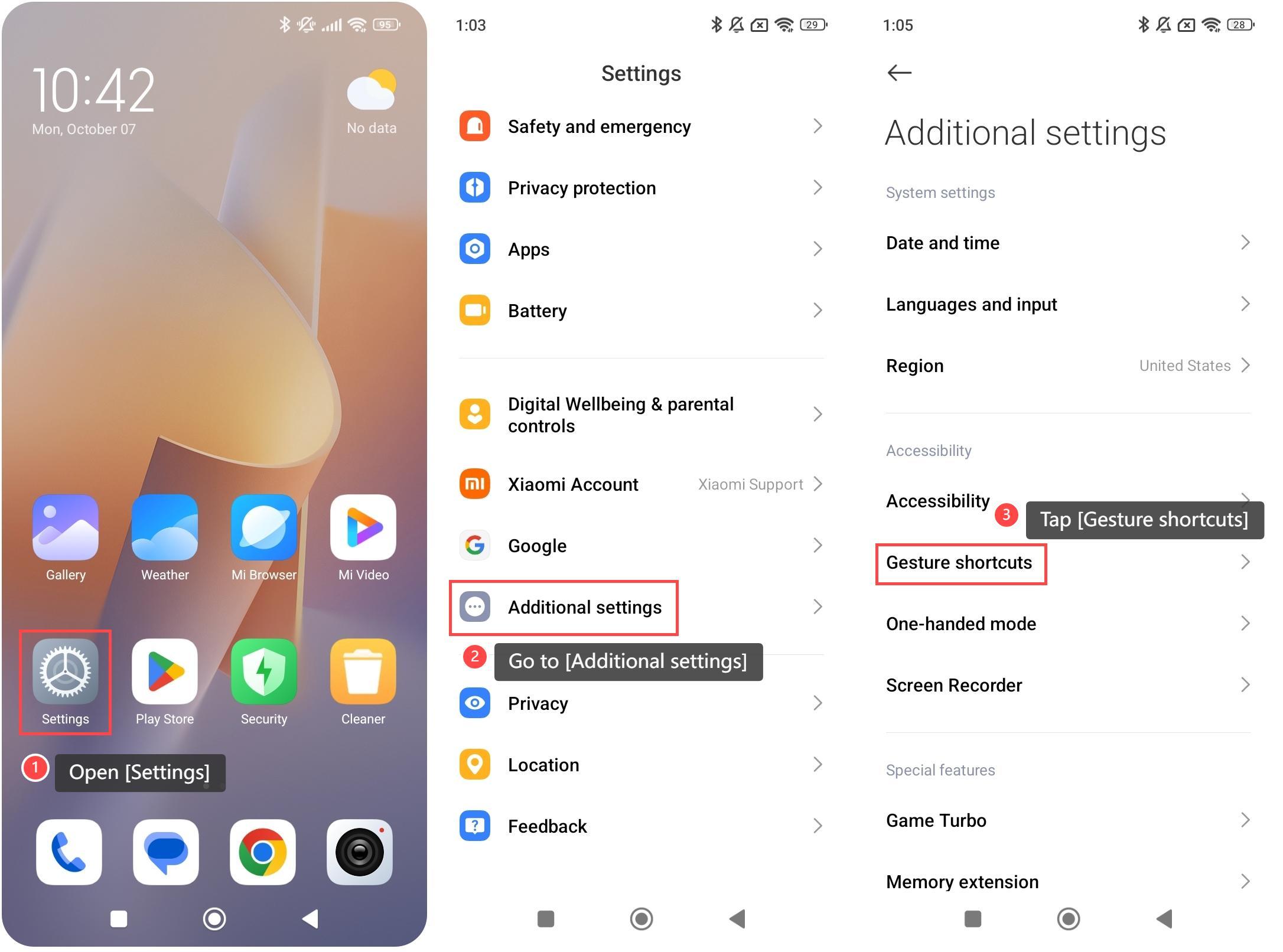
4. You can modify the gestures of [Launch Google Assistant], [Take a screenshot], [Launch camera], [Turn on torch], or custom gestures on this surface;
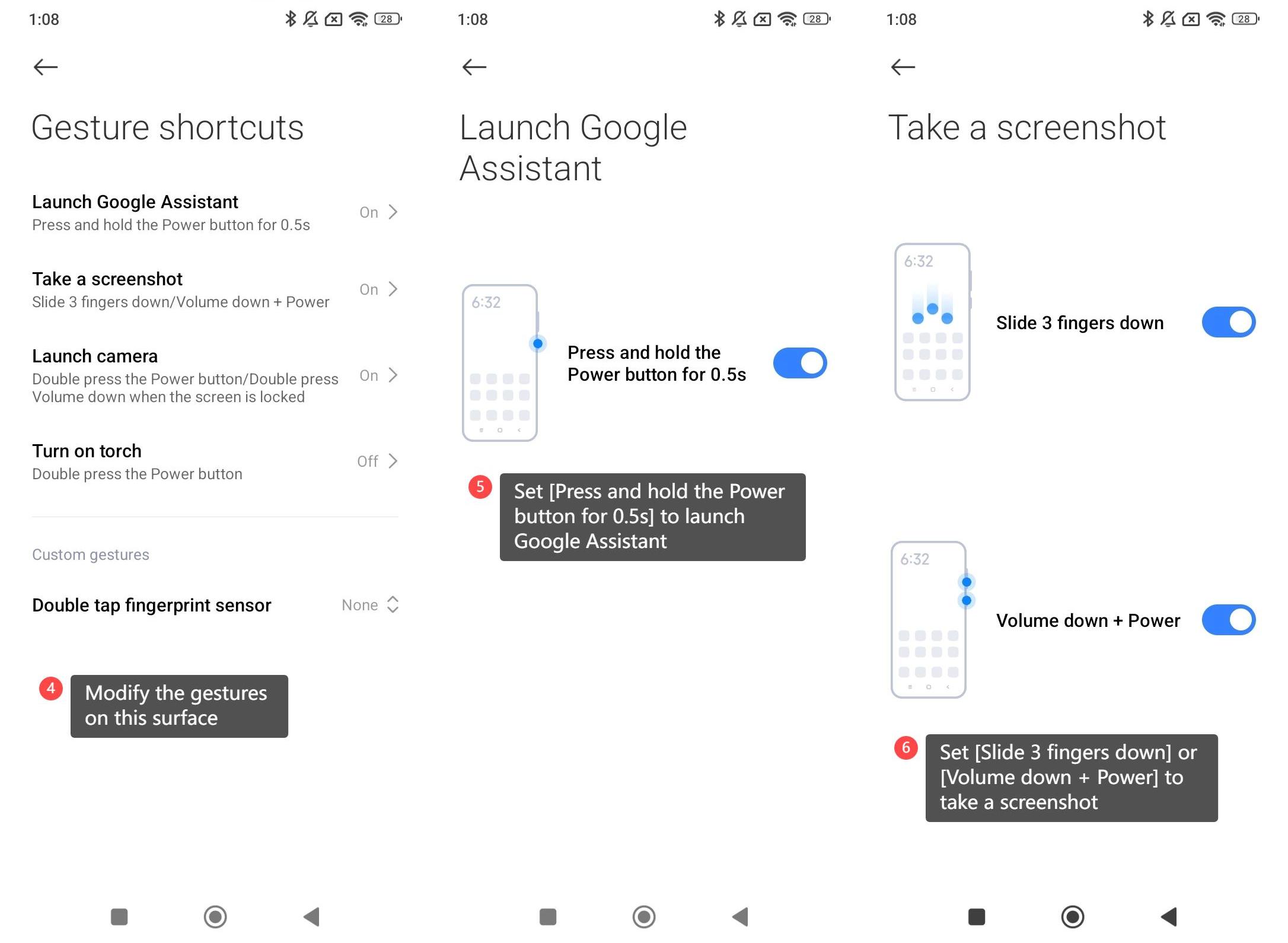
5. Tap [Launch Google Assistant], and you can set [Press and hold the Power button for 0.5s] to launch Google Assistant;
6. Tap [Take a screenshot], and you can set [Slide 3 fingers down] or [Volume down + Power] to take a screenshot;
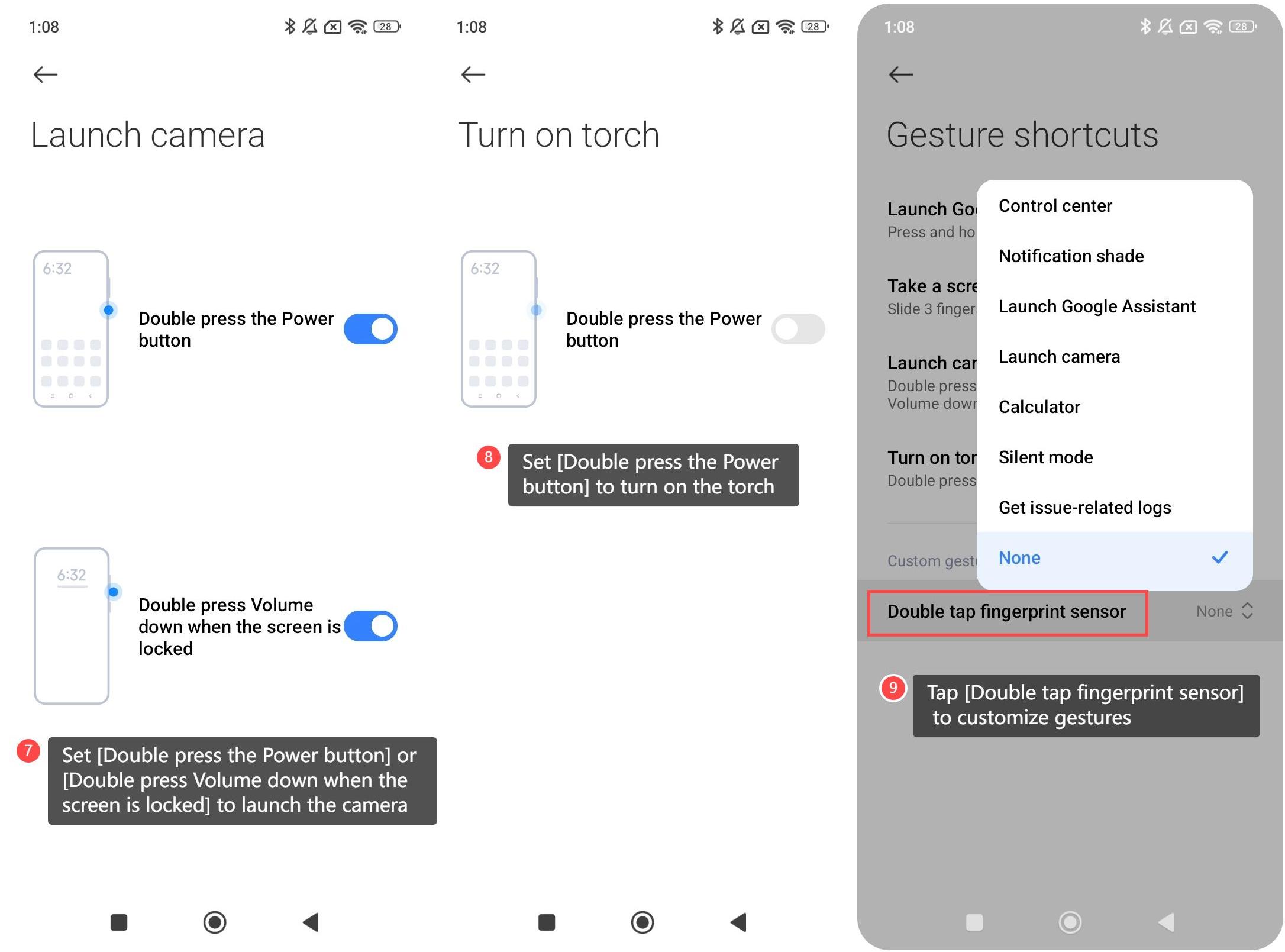
7. Tap [Launch camera], and you can set [Double press the Power button] or [Double press Volume down when the screen is locked] to launch the camera;
8. Tap [Turn on torch], and you can set [Double press the Power button] to turn on the torch;
9. Additionally, tap [Double tap fingerprint sensor] to customize gestures.
Note:
Be careful not to set the same gesture for different functions.
To use the gesture shortcuts on your phone, please refer to the following steps:
1. Open [Settings];
2. Go to [Additional settings];
3. Tap [Gesture shortcuts];
4. You can modify the gestures of [Launch Google Assistant], [Take a screenshot], [Launch camera], [Turn on torch], or custom gestures on this surface;
5. Tap [Launch Google Assistant], and you can set [Press and hold the Power button for 0.5s] to launch Google Assistant;
6. Tap [Take a screenshot], and you can set [Slide 3 fingers down] or [Volume down + Power] to take a screenshot;
7. Tap [Launch camera], and you can set [Double press the Power button] or [Double press Volume down when the screen is locked] to launch the camera;
8. Tap [Turn on torch], and you can set [Double press the Power button] to turn on the torch;
9. Additionally, tap [Double tap fingerprint sensor] to customize gestures.
Note:
Be careful not to set the same gesture for different functions.
Does it help?
Yes
No