

What are the functions of the icons on the real-time surveillance interface of the Xiaomi Smart Camera C300 Dual?
The icon overview is listed below:
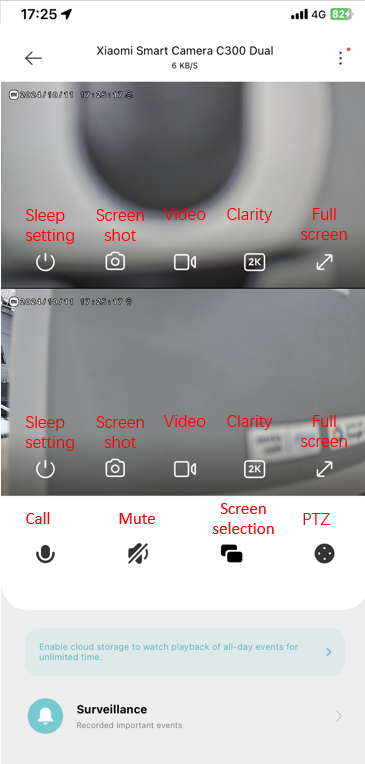
1. Sleep: Tap this icon to make the camera sleep or wake up directly. After the camera enters sleep mode, you can no longer perform any monitoring or recording operations. The fixed screen and PTZ screen can be set to sleep or wake up respectively. When you don't need to shoot, you can press " " in the Xiaomi Smart Camera C300 Dual interface of the Mi Home/Xiaomi Home APP to enter sleep mode;
2. Mute: When you enter the camera interface in the Mi Home/Xiaomi Home APP, the surveillance image is mute by default. You can tap the mute icon to turn on the sound;
3. Clarity: You can select the clarity of the video from Auto, 480 smooth, or 2KHD (Auto means the camera will adjust the clarity automatically according to the network). The clarity of the fixed image and PTZ image can be configured respectively;
4. Full screen: Tap this icon and the surveillance image will become horizontal;
5. Call: Tap this icon and you can have a call with the camera through the Mi Home/Xiaomi Home APP;
6. Screenshot: You can take a screenshot of the current surveillance image of the corresponding lens, and a picture will be generated and saved to the gallery and Mi Home/Xiaomi Home APP. Fixed screen and PTZ screen can be screenshot separately;
7. Video: Tap this icon and you can record the current surveillance image, and the videos will be saved to the gallery and Mi Home/Xiaomi Home APP. Fixed screen and PTZ screen can be recorded separately;
8. PTZ: Tap this icon and you can see the PTZ control interface and control the movement of the camera;
9. Screen selection: Tap this icon and you can switch the screen displayed among dual screen, fixed screen and PTZ screen.
1. Sleep: Tap this icon to make the camera sleep or wake up directly. After the camera enters sleep mode, you can no longer perform any monitoring or recording operations. The fixed screen and PTZ screen can be set to sleep or wake up respectively. When you don't need to shoot, you can press "
" in the Xiaomi Smart Camera C300 Dual interface of the Mi Home/Xiaomi Home APP to enter sleep mode;2. Mute: When you enter the camera interface in the Mi Home/Xiaomi Home APP, the surveillance image is mute by default. You can tap the mute icon to turn on the sound;
3. Clarity: You can select the clarity of the video from Auto, 480 smooth, or 2KHD (Auto means the camera will adjust the clarity automatically according to the network). The clarity of the fixed image and PTZ image can be configured respectively;
4. Full screen: Tap this icon and the surveillance image will become horizontal;
5. Call: Tap this icon and you can have a call with the camera through the Mi Home/Xiaomi Home APP;
6. Screenshot: You can take a screenshot of the current surveillance image of the corresponding lens, and a picture will be generated and saved to the gallery and Mi Home/Xiaomi Home APP. Fixed screen and PTZ screen can be screenshot separately;
7. Video: Tap this icon and you can record the current surveillance image, and the videos will be saved to the gallery and Mi Home/Xiaomi Home APP. Fixed screen and PTZ screen can be recorded separately;
8. PTZ: Tap this icon and you can see the PTZ control interface and control the movement of the camera;
9. Screen selection: Tap this icon and you can switch the screen displayed among dual screen, fixed screen and PTZ screen.
Does it help?
Yes
No