

Xiaomi Smart Camera C300 Dual FAQ
Function introduction
1. Q: What are the upgrades of the Xiaomi Smart Camera C300 Dual?
A: The upgrades of the Xiaomi Smart Camera C300 Dual are listed below:
1. With two lenses in one camera, there are fewer blind spots;
2. The Xiaomi Smart Camera C300 Dual supports more true intelligence, including sound detection, area detection, frequently checked location and virtual fence;
3. The Xiaomi Smart Camera C300 Dual comes with dual-band Wi-Fi 6, supporting 2.4GHz and 5GHz Wi-Fi;
4. The Xiaomi Smart Camera C300 Dual supports independent BOX audio settings, with better two-way voice call effects.
2. Q: How does the Xiaomi Smart Camera C300 Dual ensure security and privacy?
A: The built-in MJA1 security chipset on the Xiaomi Smart Camera C300 Dual will ensure the security of communication and storage and support the encrypted data transmission process. Cloud data uses AES128-bit encryption to ensure security and privacy.
3. Q: What are the packaging contents of the Xiaomi Smart Camera C300 Dual?
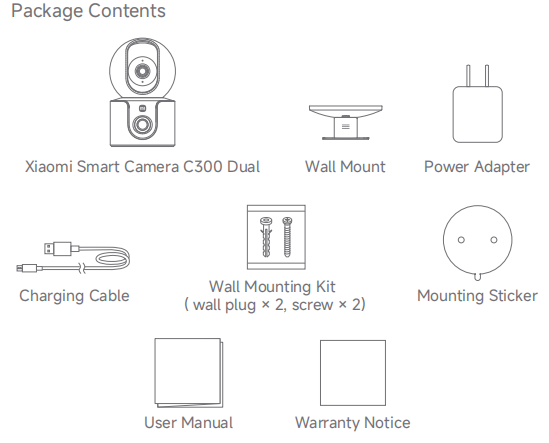
A: There is a Xiaomi Smart Camera C300 Dual, a Wall Mount, a Power Adapter, a Charging Cable, a Wall Mounting Kit (with two wall plugs and two screws), a Mounting Sticker, a User Manual and a Warranty Notice.
4. Q: What is the product overview of the Xiaomi Smart Camera C300 Dual?
A: The product overview of the Xiaomi Smart Camera C300 Dual is listed below:
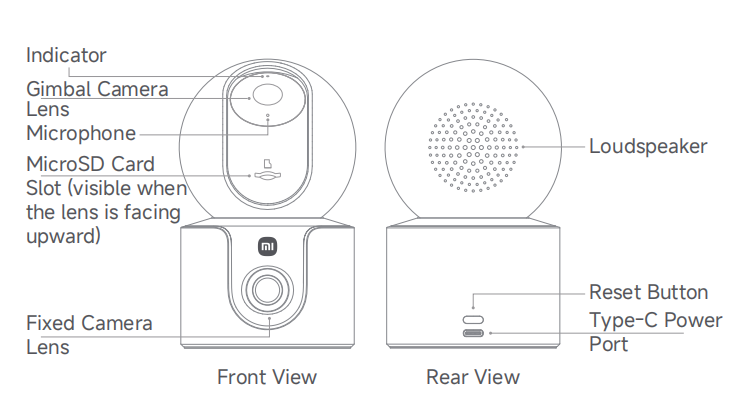
The front view of the Xiaomi Smart Camera C300 Dual has Indicator, Gimbal Camera Lens, Microphone, MicroSD card Slot (visible when the lens is facing upward) and Fixed Camera Lens.
The rear view of the Xiaomi Smart Camera C300 Dual has Loudspeaker, Reset Button and Type-C Power Port.
5. Q: How to install the Xiaomi Smart Camera C300 Dual?
A: The Xiaomi Smart Camera C300 Dual supports many installation methods. The camera can be placed on flat surfaces, such as desks, dining tables, and coffee tables. It can also be wall-mounted. When placing it on a desktop, consider positioning the camera near an edge or elevating the camera to optimize its fixed camera lens view.
6. Q: What are the steps of mounting the Xiaomi Smart Camera C300 Dual on a wall?
A: To mount the camera on a wall, please refer to the following steps:
1. Paste the mounting sticker where the camera needs to be installed, and drill two holes in the wall with a drilling tool according to the locating holes on the sticker. The hole is approximately 6mm in diameter and approximately 30mm in depth;
2. Insert the two wall plugs into the drilled holes;
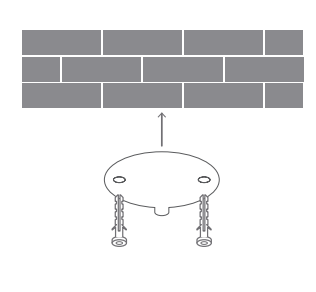
3. Position the wall mount with the side marked with an arrow facing outward. Align the wall mount holes with the holes in the wall. Pass the screws through the wall mount holes, and tighten them into the wall plugs on the wall using a Phillips screwdriver;
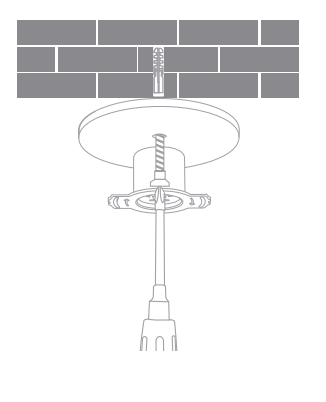
4. Align the grooves at the bottom of the camera with the raised part on the wall mount and snap them together. Hold the sides of the wall mount marked with “≡” and rotate the camera clockwise until you hear a click, indicating the camera is securely locked in place;
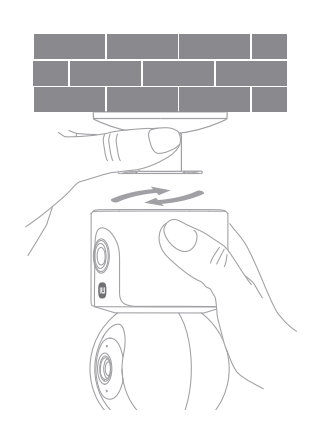
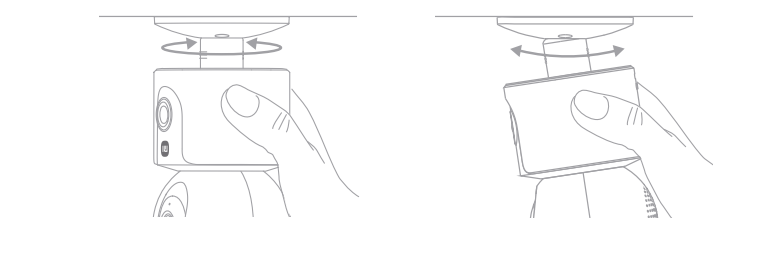
5. Adjust the camera to a desired angle by using the adjusting pivot on the wall mount. Hold and rotate the camera body to adjust the horizontal direction of the fixed camera lens, and along the direction marked with “≡” on the wall mount, adjust the tilt angle of the fixed camera lens.
Note:
1. The wall must be able to support at least three times the total weight of the camera;
2. The camera must be securely fixed to a ceiling or wall in accordance with the installation instructions to prevent potential damages;
3. After the downward installation, you need to rotate the image 180° in the camera settings in the Mi Home/Xiaomi Home APP.
7. Q: How to turn on the Xiaomi Smart Camera C300 Dual?
A: Plug the charging cable into the Type-C power port on the back of the camera, and the camera automatically turns on. Turning off the camera requires cutting off the power.
Note:
1. The indicator blinking in orange means the camera turns on successfully. If the indicator does not blink in orange, press and hold the reset button for 7 seconds to restart the camera;
2. Do not forcibly rotate the camera’s spherical body after turning on the camera. If the positioning of the lens is not accurate, please calibrate it in the Mi Home/Xiaomi Home APP.
8. Q: How to restore the Xiaomi Smart Camera C300 Dual to the factory settings?
A: If you need to change the connected Wi-Fi network or the bound Xiaomi Account, press and hold the reset button for 7 seconds when the camera is powered on to restore the camera to the factory settings and reconnect it to the APP.
Note:
1. The version requirement of the Mi Home/Xiaomi Home APP is 9.7 and above;
2. Restoring to the factory settings will not delete the data stored in the MicroSD card.
9. Q: Can the Xiaomi Smart Camera C300 Dual rotate 360°?
A: Not support. The Xiaomi Smart Camera C300 Dual supports 360° viewing angle, which means the PTZ lens can rotate 360° to shoot, not the rotation angle of the camera body.
10. Q: How to check the SN of the Xiaomi Smart Camera C300 Dual?
A: 1. You can check the SN at the back of the package;
2. You can check the SN at the bottom of the camera.
11. Q: How to check the certification of the Xiaomi Smart Camera C300 Dual?
A: You can check the certification at the right bottom of the back of the package.
12. Q: Does the Xiaomi Smart Camera C300 Dual support recording video to the MicroSD card when the network is disconnected but the power is on?
A: Support. The device can be connected to the network without power failure and can continue to record videos on the MicroSD card. The premise is that the device has been successfully connected to the network once. In addition, if the device is powered off and then powered on again but not connected to the network, it is also impossible to record videos to the MicroSD card. It needs to be powered on again and connected to the network. When the device is powered off or disconnected from the network, the video on the MicroSD card can only be viewed by removing the MicroSD card from the device and viewing it on the computer. It does not support viewing in the Mi Home/Xiaomi Home APP.
13. Q: Do the videos recorded by the Xiaomi Smart Camera C300 Dual in Home Surveillance, Cloud and MicroSD card have sound?
A: The videos recorded in these video recording modes all have sound. However, if you turn on the double-speed playback, the default playback will be silent, which is normal. In addition, every time you enter the camera monitoring screen or enter the Cloud or MicroSD card video playback interface, the default playback is silent. If you want to play the sound normally, please tap the mute icon to restore the sound.
14. Q: What are the precautions for using the Xiaomi Smart Camera C300 Dual?
A: The precautions for using the Xiaomi Smart Camera C300 Dual are listed below:
1. The version requirement of the Mi Home/Xiaomi Home APP is 9.7 and above and keep the Bluetooth turned on;
2. The operating temperature range for this camera is between -10°C and 40°C. Do not use the camera in environments with temperatures above or below the specified range;
3. The camera is a precision electronic product. To ensure its normal operation, do not use the camera in environments with high humidity levels nor allow water to get into it;
4. Make the camera installed in an area with a strong Wi-Fi signal. Do not place the camera near objects that will affect its Wi-Fi signal, such as metal objects and microwave ovens;
5. Please use the original 5V 2A power adapter provided with the camera to prevent camera errors due to inadequate power supply;
6. This device supports connecting to 2.4GHz or 5GHz Wi-Fi, and you can choose to connect according to the situation at home. The router must be close to the device, and the home Wi-Fi name and password can not use special characters, otherwise, it will fail to connect or disconnect.
About APP
1. Q: How to connect the Xiaomi Smart Camera C300 Dual to the Mi Home/Xiaomi Home APP?
A: To connect the Xiaomi Smart Camera C300 Dual with the Mi Home/Xiaomi Home APP, please refer to the following steps:
1. Go to [Mi Home/Xiaomi Home] APP;
2. Tap [+] at the right top of the screen;
3. Tap [Scan] to scan the QR code on the camera and follow the instructions on the APP (press and hold the reset button for 7 seconds until the indicator blinks in orange);
4. Wait for the successful connection.
2. Q: Does the Xiaomi Smart Camera C300 Dual support zooming in the monitoring image and what is the maximum supported zoom?
A: Support. The maximum supported zoom is 6 times. You can pinch the image to zoom in or zoom out.
3. Q: How to configure the sleep settings on the Xiaomi Smart Camera C300 Dual?
A: The sleep settings of the fixed camera and PTZ camera can be configured separately.
Please refer to the following methods to configure the sleep settings:
Method 1:
Tap the sleep icon at the interface of the monitoring image, and the camera will enter the sleep mode.
Method 2:
Go to [Mi Home/Xiaomi Home] APP >> [Xiaomi Smart Camera C300 Dual] >> the three-dot icon >> [Camera settings] >> [Sleep settings] >> [Fixed frame]/[PTZ screen].
Simply tap the sleep icon and the device will enter sleep mode immediately. If you want to set a timed sleep mode, you can set the scheduled sleep time first without tapping the sleep icon.
4. Q: How to configure the Camera settings on the Xiaomi Smart Camera C300 Dual?
A: Please refer to the following details to configure the Camera settings of the Xiaomi Smart Camera C300 Dual:
1. Timestamp/Lens distortion correction: Go to [Mi Home/Xiaomi Home] APP >> [Xiaomi Smart Camera C300 Dual] >> the three-dot icon >> [Camera settings] >> [Timestamp]/[Lens distortion correction];
2. Wide Dynamic Range mode: Go to [Mi Home/Xiaomi Home] APP >> [Xiaomi Smart Camera C300 Dual] >> the three-dot icon >> [Camera settings] >> [Wide Dynamic Range mode];
3. Rotate image: You can rotate the image and switch the images among living, playback and rotation images simultaneously. You can go to [Mi Home/Xiaomi Home] APP >> [Xiaomi Smart Camera C300 Dual] >> the three-dot icon >> [Camera settings] >> [Rotate image].
If the camera is placed on a horizontal surface, the upper image is recorded by the PTZ camera and the lower image is recorded by the fixed camera;
If the camera is placed downward, the upper image is recorded by the fixed camera and the lower image is recorded by the PTZ camera.
5. Q: How to calibrate the PTZ of the Xiaomi Smart Camera C300 Dual?
A: To calibrate the PTZ of the Xiaomi Smart Camera C300 Dual, please refer to the following steps:
1. Go to [Mi Home/Xiaomi Home] APP;
2. Tap [Xiaomi Smart Camera C300 Dual];
3. Tap the three-dot icon on the right top of the screen;
4. Tap [Camera settings];
5. Tap [Camera calibration] and the camera will start to calibrate.
The function of camera calibration can be performed when the device cannot automatically return the lens or the lens surveillance angle cannot be accurately adjusted.
6. Q: How to reboot the Xiaomi Smart Camera C300 Dual?
A: To reboot the Xiaomi Smart Camera C300 Dual, please refer to the following steps:
1. Go to [Mi Home/Xiaomi Home] APP;
2. Tap [Xiaomi Smart Camera C300 Dual];
3. Tap the three-dot icon on the right top of the screen;
4. Tap [Camera settings];
5. Tap [Reboot device].
7. Q: How to configure the Night-vision settings of the Xiaomi Smart Camera C300 Dual?
A: To configure the Night-vision settings on the Xiaomi Smart Camera C300 Dual, please refer to the following steps:
1. Go to [Mi Home/Xiaomi Home] APP;
2. Tap [Xiaomi Smart Camera C300 Dual];
3. Tap the three-dot icon on the right top of the screen;
4. Tap [Camera settings];
5. Tap [Night-vision settings];
6. Select from [Switch automatically], [On] and [Off].
Note:
If you select [On] in [Night-vision settings], the Low light full-color function does not work and the image will be kept in black and white or black. It is recommended that you select [Switch automatically].
8. Q: How to turn on Data usage warning on the Xiaomi Smart Camera C300 Dual?
A: To turn on the Data usage warning on the Xiaomi Smart Camera C300 Dual, please refer to the following steps:
1. Go to [Mi Home/Xiaomi Home] APP;
2. Tap [Xiaomi Smart Camera C300 Dual];
3. Tap the three-dot icon on the right top of the screen;
4. Tap [Camera settings];
5. Enable or disable [Data usage warning].
When [Data usage warning] is enabled, the surveillance image will not be played when using the mobile network.
Note:
The videos stored in the Cloud and MicroSD card will be played automatically, without the limitation of data usage warning.
9. Q: What are the functions of the icons on the real-time surveillance interface of the Xiaomi Smart Camera C300 Dual?
A: The icon overview is listed below:
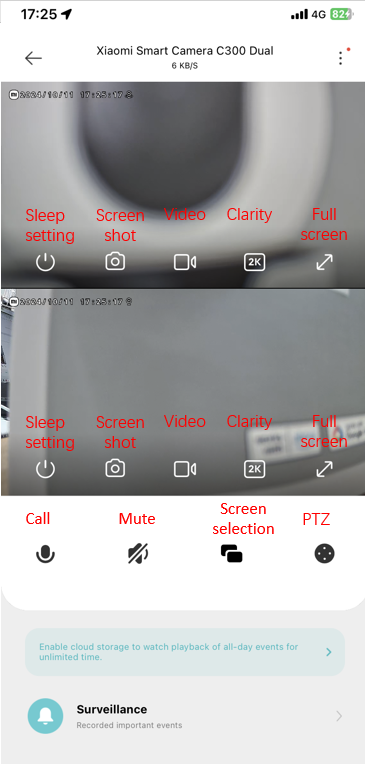
1. Sleep: Tap this icon to make the camera sleep or wake up directly. After the camera enters sleep mode, you can no longer perform any monitoring or recording operations. The fixed screen and PTZ screen can be set to sleep or wake up respectively. When you don't need to shoot, you can press " " in the Xiaomi Smart Camera C300 Dual interface of the Mi Home/Xiaomi Home APP to enter sleep mode;
2. Mute: When you enter the camera interface in the Mi Home/Xiaomi Home APP, the surveillance image is mute by default. You can tap the mute icon to turn on the sound;
3. Clarity: You can select the clarity of the video from Auto, 480 smooth, or 2KHD (Auto means the camera will adjust the clarity automatically according to the network). The clarity of the fixed image and PTZ image can be configured respectively;
4. Full screen: Tap this icon and the surveillance image will become horizontal;
5. Call: Tap this icon and you can have a call with the camera through the Mi Home/Xiaomi Home APP;
6. Screenshot: You can take a screenshot of the current surveillance image of the corresponding lens, and a picture will be generated and saved to the gallery and Mi Home/Xiaomi Home APP. Fixed screen and PTZ screen can be screenshot separately;
7. Video: Tap this icon and you can record the current surveillance image and the videos will be saved to the gallery and Mi Home/Xiaomi Home APP. Fixed screen and PTZ screen can be recorded separately;
8. PTZ: Tap this icon and you can see the PTZ control interface and control the movement of the camera;
9. Screen selection: Tap this icon and you can switch the screen displayed among dual screen, fixed screen and PTZ screen.
10. Q: How to use the frequently viewed position on the Xiaomi Smart Camera C300 Dual?
A: To configure the frequently viewed position on the Xiaomi Smart Camera C300 Dual, please refer to the following steps:
1. Go to [Mi Home/Xiaomi Home] APP;
2. Tap [Xiaomi Smart Camera C300 Dual];
3. Tap the PTZ icon;
4. Tap the arrow icon;
5. Add, delete or control the frequently viewed position.
11. Q: How to configure the Dual camera linkage view on the Xiaomi Smart Camera C300 Dual?
A: To configure the Dual camera linkage view on the Xiaomi Smart Camera C300 Dual, please refer to the following steps:
1. Go to [Mi Home/Xiaomi Home] APP;
2. Tap [Xiaomi Smart Camera C300 Dual];
3. Tap the three-dot icon on the right top of the screen;
4. Tap [Camera settings];
5. Tap [Dual camera linkage view];
6. Enable or disable [Dual camera linkage view].
After it is turned on, press and hold a fixed position on the live screen, and the PTZ camera will automatically move to the corresponding position to see the details. In full screen, floating windows are not supported.
12. Q: How to configure Human linkage tracking on the Xiaomi Smart Camera C300 Dual?
A: To configure Human detection on the Xiaomi Smart Camera C300 Dual, please refer to the following steps:
1. Go to [Mi Home/Xiaomi Home] APP;
2. Tap [Xiaomi Smart Camera C300 Dual];
3. Tap the three-dot icon on the right top of the screen;
4. Tap [AI settings];
5. Tap [Human detection];
6. Enable or disable [Human linkage tracking].
When [Human linkage tracking] is disabled, the camera will not rotate the image to track human.
13. Q: How to configure Home surveillance on the Xiaomi Smart Camera C300 Dual?
A: To configure Home surveillance on the Xiaomi Smart Camera C300 Dual, please refer to the following steps:
1. Go to [Mi Home/Xiaomi Home] APP;
2. Tap [Xiaomi Smart Camera C300 Dual];
3. Tap the three-dot icon on the right top of the screen;
4. Tap [Home surveillance settings];
5. Enable or disable [Home surveillance];
6. Tap [Monitoring time] and you can configure the surveillance time period;
7. Tap [Push interval] and you can configure the notification interval from 3 minutes, 5 minutes, 10 minutes and 30 minutes;
8. Enable or disable [Detection push notifications];
9. Tap [Message push type management] and select from [Motion detected], [Person detected], [Enter fence], [Leave fence] and [Loud noise detected].
Note:
1. When [Home surveillance] is enabled, 3 to 9-second videos will be recorded and saved in the Cloud. Videos in home surveillance will be covered in a cycle of 7 days;
2. Videos in home surveillance cannot be deleted in batches;
3. Home surveillance can also be used without using a MicroSD card and Cloud.
14. Q: How to check the videos stored in the MicroSD card on the Xiaomi Smart Camera C300 Dual?
A: To play the videos stored in the MicroSD card on the Xiaomi Smart Camera C300 Dual, please refer to the following steps:
1. Go to [Mi Home/Xiaomi Home] APP;
2. Tap [Xiaomi Smart Camera C300 Dual];
3. Tap [Playback];
4. Tap [SD card];
5. Check the videos according to your needs. The different colors represent different recorded events, you can scroll left or right to play the corresponding event. Gray represents there are no events recorded.
Each video on the MicroSD card is 1 minute long and can be deleted in batches.
When the camera is disconnected from the network or powered off, the videos stored in the MicroSD card cannot be played in the Mi Home/Xiaomi Home APP. You can use a card reader to check the videos on the MicroSD card on the computer.
Here are the icon functions in the playback interface:
1. Play/pause: You can pause and continue playing the MicroSD card playback screen. You need to tap the playback screen for the play/pause icon to appear;
2. Screenshot: You can take a screenshot of the current surveillance screen, and a picture will be generated and saved to the gallery and Mi Home/Xiaomi Home APP;
3. Video: Tap the video icon to record the current surveillance interface and save the video to the gallery and Mi Home/Xiaomi Home APP;
4. Speed playback: The video in the MicroSD card supports 1×, 4×, and 16× speed playback in the camera. When you select speed playback, the video will play in silence by default;
5. Mute: Every time you enter the camera playback, the video stored in the MicroSD card will be played in silence by default. If you want to have sound when viewing the surveillance screen, tap the mute icon to turn on the sound;
6. Full screen: Press this button, and the camera surveillance screen will become horizontal.
Note:
Videos stored on the MicroSD card can only be played on one smartphone.
15. Q: How to format the SD card on the Xiaomi Smart Camera C300 Dual?
A: To format SD card on the Xiaomi Smart Camera C300 Dual, please refer to the following steps:
1. Go to [Mi Home/Xiaomi Home] APP;
2. Tap [Xiaomi Smart Camera C300 Dual];
3. Tap the three-dot icon on the right top of the screen;
4. Tap [Manage storage];
5. Tap [SD card status];
6. Tap [Format SD card].
Note:
Formatting an SD card will delete all the videos stored in the SD card. Please back up these videos in advance.
16. Q: How to update the firmware of the Xiaomi Smart Camera C300 Dual?
A: To update the firmware on the Xiaomi Smart Camera C300 Dual, please refer to the following steps:
1. Go to [Mi Home/Xiaomi Home] APP;
2. Tap [Xiaomi Smart Camera C300 Dual];
3. Tap the three-dot icon on the right top of the screen;
4. Tap [Firmware update] and check whether there is an available update.
17. Q: Does the Xiaomi Smart Camera C300 Dual support connecting to HomeKit?
A: Not support.
18. Q: How to purchase the Cloud storage on the Xiaomi Smart Camera C300 Dual?
A: To purchase the Cloud storage on the Xiaomi Smart Camera C300 Dual, please refer to the following steps:
1. Go to [Mi Home/Xiaomi Home] APP;
2. Tap [Xiaomi Smart Camera C300 Dual];
3. Tap the three-dot icon on the right top of the screen;
4. Tap [Cloud storage settings];
5. Select the combo according to your needs.
19. Q: How to check the videos stored in the Cloud on the Xiaomi Smart Camera C300 Dual?
A: To playback the videos stored in the MicroSD card on the Xiaomi Smart Camera C300 Dual, please refer to the following steps:
1. Go to [Mi Home/Xiaomi Home] APP;
2. Tap [Xiaomi Smart Camera C300 Dual];
3. Tap [Playback];
4. Tap [Cloud];
5. Select from the options.
Note:
The different colors represent different recorded events, you can scroll left or right to play the corresponding event.
20. Q: Does the Xiaomi Smart Camera C300 Dual support panoramic drawing?
A: Not support.
21. Q: Does the Xiaomi Smart Camera C300 Dual support adjusting volume during calls?
A: Support. During a voice call, you can adjust the sound on the phone by adjusting the volume of the phone, and you can also adjust the sound on the camera.
To adjust the volume during calls on the Xiaomi Smart Camera C300 Dual, please refer to the following steps:
1. Go to [Mi Home/Xiaomi Home] APP;
2. Tap [Xiaomi Smart Camera C300 Dual];
3. Tap the three-dot icon on the right top of the screen;
4. Tap [Camera settings];
5. Tap [Camera output volume adjustment].
22. Q: Why can the phone not receive push notifications of home surveillance and other information from the Xiaomi Smart Camera C300 Dual?
A: 1. Enable the notification permission of the Mi Home/Xiaomi Home APP in settings;
2. Keep the device notifications in the Mi Home/Xiaomi Home APP enabled.
23. Q: Why does the Xiaomi Smart Camera C300 Dual have alert videos but no push notifications from home surveillance?
A: Please check whether the [Home surveillance] and [Event notification type] are enabled in [Home surveillance settings].
24. Q: How to share the Xiaomi Smart Camera C300 Dual with other Xiaomi Accounts?
A: 1. Press and hold [Xiaomi Smart Camera C300 Dual], tap [Share] on the homepage of the Mi Home/Xiaomi Home APP and follow the instructions to share the device;
2. Tap [Share device] in the settings page of [Xiaomi Smart Camera C300 Dual] and follow the instructions to share the device.
25. Q: What to do if the Xiaomi Smart Camera C300 Dual reports person detected but no one moves?
A: If the Xiaomi Smart Camera C300 Dual reports wrongly, please refer to the following steps:
1. Go to [Mi Home/Xiaomi Home] APP;
2. Tap [Xiaomi Smart Camera C300 Dual];
3. Tap [Surveillance];
4. Select the wrongly reported video;
5. Tap the recognition error icon;
6. Tap [Recognition errors report].
26. Q: How to use Sound detection on the Xiaomi Smart Camera C300 Dual?
A: To use Sound detection on the Xiaomi Smart Camera C300 Dual, please refer to the following steps:
1. Go to [Mi Home/Xiaomi Home] APP;
2. Tap [Xiaomi Smart Camera C300 Dual];
3. Tap the three-dot icon on the right top of the screen;
4. Tap [AI settings];
5. Tap [Sound detection];
6. Enable [Sound detection].
When [Sound detection] is enabled, the loud sound will be detected by the camera and the camera will push message to the phone.
27. Q: How to use Image detection on the Xiaomi Smart Camera C300 Dual?
A: To use Image detection on the Xiaomi Smart Camera C300 Dual, please refer to the following steps:
1. Go to [Mi Home/Xiaomi Home] APP;
2. Tap [Xiaomi Smart Camera C300 Dual];
3. Tap the three-dot icon on the right top of the screen;
4. Tap [AI settings];
5. Tap [Image detection];
6. Enable [Image detection].
When [Image detection] is enabled, the camera will record the videos in time if the image is detected and push message to the phone.
28. Q: How to use Area detection on the Xiaomi Smart Camera C300 Dual?
A: To use Area detection on the Xiaomi Smart Camera C300 Dual, please refer to the following steps:
1. Go to [Mi Home/Xiaomi Home] APP;
2. Tap [Xiaomi Smart Camera C300 Dual];
3. Tap the three-dot icon on the right top of the screen;
4. Tap [AI settings];
5. Tap [Area detection];
6. Enable [Area detection].
After enabling the [Area detection], manually select the detection area in the fixed screen. When the camera detects changes in the area, it pushes a message to the phone and records the event. Note:
The AI functions related to the screen will not be triggered outside the fixed screen detection area, including image detection, human detection, etc. Area detection is only effective in the fixed screen, and the PTZ screen is not affected. The virtual fence outside the detection area will be invalid, and it will work normally within the detection area.
29. Q: How to use Virtual fence on the Xiaomi Smart Camera C300 Dual?
A: To use Virtual fence on the Xiaomi Smart Camera C300 Dual, please refer to the following steps:
1. Go to [Mi Home/Xiaomi Home] APP;
2. Tap [Xiaomi Smart Camera C300 Dual];
3. Tap the three-dot icon on the right top of the screen;
4. Tap [AI settings];
5. Tap [Virtual fence];
6. Enable [Virtual fence];
7. You can also tap [Fenced area] to edit the fenced area;
8. Select from [Someone enters the fence] and [Someone leaves the fence].
30. Q: Does the Xiaomi Smart Camera C300 Dual support Bluetooth Mesh gateway?
A: Not support.
31. Q: What is the lowest APP version supported the Xiaomi Smart Camera C300 Dual?
A: You can go to [Mi Home/Xiaomi Home] APP >> [Profile] >> [Additional settings] >> [About Mi Home/Xiaomi Home] to check the current version.
The supported lowest version is 9.7 for Android and 9.7 for iOS. If the version is lower than 9.7, please update it to the latest version or reinstall the Mi Home/Xiaomi Home APP.
Troubleshooting
1. Q: Why is there no sound or why is there noisy when checking the real-time surveillance on the Xiaomi Smart Camera C300 Dual?
A: 1. The volume of the real-time surveillance is turned off by default in the Mi Home/Xiaomi Home APP. You can turn on the volume icon in the video interface. If the volume is low, you can turn up the volume of the phone;
2. If there is noise in the real-time surveillance, please keep the phone away from the camera and avoid placing the camera next to electronic devices such as refrigerators and microwave ovens;
3. If your device is placed high or the lens is facing down, the microphone will be buried in the shell, forming an echo when receiving the sound of the speaker. At this time, you need to move the device microphone out of the shell.
2. Q: Why are the videos not smooth and the sound and image out of sync on the Xiaomi Smart Camera C300 Dual?
A: 1. When the video lags or frequently displays loading, please switch the video clarity to automatic or smooth mode;
2. When the picture and sound are out of sync, please check whether the network connected to the camera is normal. If the delay is too large, try to exit the video and re-enter it.
3. Q: Why does the Xiaomi Smart Camera C300 Dual have no sound during calls?
A: 1. Check if the volume on the phone is turned down too low, resulting in silence;
2. Check if the Mi Home/Xiaomi Home APP has been permitted to use the phone's microphone (recording). If not, turn on the relevant permission in the phone's settings.
4. Q: Why is playing the historical videos of the Xiaomi Smart Camera C300 Dual not smooth?
A: 1. If the video in the MicroSD card is not continuous, please check whether only the function of only recording moving images is turned on. After this function is turned on, the camera will only record when the image changes; (If the videos in the Cloud are not continuous, it is normal. Cloud storage video only records moving images and cannot record 24 hours a day)
2. If the video is stuck, it will be due to network problems. Check whether the network connected to the camera is connected to too many devices, or whether other devices are playing videos at the same time.
5. Q: Why is the MicroSD card on the Xiaomi Smart Camera C300 Dual abnormal?
A: 1. Please use a dedicated FAT32 high-speed MicroSD card for dashcams or cameras produced by regular manufacturers;
2. Please make sure that the MicroSD card that meets the requirements has been installed in the camera. A camera without a MicroSD card cannot store videos or review historical videos;
3. If the MicroSD card does not record, or it cannot automatically delete files in a loop, you can format the MicroSD card in the storage settings of the camera in the Mi Home/Xiaomi Home APP;
4. If the MicroSD card cannot be formatted in the APP, you can format the MicroSD card on the computer through a card reader. After formatting, power off the camera and reinstall the MicroSD card.
Note:
After formatting, the files in the MicroSD card will be deleted.
6. Q: Why does the indicator of the Xiaomi Smart Camera C300 Dual blink in blue and cannot the camera be used?
A: 1. If the blue light blinks when connecting to the APP, it means that the camera cannot connect to the network or cannot be bound to the account. Please check whether the account password is correct and whether the network meets the camera requirements;
2. If the APP has been successfully connected, the blue light suddenly blinks and cannot be used, please check whether the network is normal.
7. Q: Why does the Xiaomi Smart Camera C300 Dual have echoes during calls?
A: 1. When making a call, please try not to place the phone and the device in the same space, and keep them at least 10 meters away from the device. The echoes caused by the close distance are normal phenomena;
2. If there are many electronic products near the device, electromagnetic interference will be generated, which will cause howling and noise during voice calls.
8. Q: Why are the videos recorded in night-vision mode by the Xiaomi Smart Camera C300 Dual blurry and no images?
A: 1. Please make sure the camera lens is clean and dust-free;
2. Please check whether the lens is blocked by debris. If so, please rotate the PTZ or move the camera position in the Mi Home/Xiaomi Home APP to move the lens out of the blocked area.
9. Q: What to do if the indicator on the Xiaomi Smart Camera C300 Dual is not on?
A: You can adjust the indicator status in the interface of the Xiaomi Smart Camera C300 Dual in the Mi Home/Xiaomi Home APP.
10. Q: Why do the videos recorded by the Xiaomi Smart Camera C300 Dual in the MicroSD card have no sound in the computer?
A: This problem occurs because the video playback software on the computer is incompatible. You can try replacing the computer player.
11. Q: Why are the videos recorded by the Xiaomi Smart Camera C300 Dual in the MicroSD card not smooth and out of sync in terms of sound and image?
A: 1. Restart the device to see if it can return to normal;
2. Please check whether you frequently remove the MicroSD card when powered on. The MicroSD card must be powered off when the camera is powered on. Frequently removing the MicroSD card will cause the MicroSD card to perform poorly and cause abnormal problems in the recorded video;
3. Please check whether the reading rate of the MicroSD card is slow;
4. Replace the MicroSD card. (It is recommended that you use a MicroSD card that meets the requirements, otherwise, there will be many abnormal problems during use, such as discontinuous recording, and memory abnormalities.)
12. Q: Why can the Xiaomi Smart Camera C300 Dual not identify the MicroSD card?
A: 1. Check if the MicroSD card meets the requirements. The maximum supported capacity of MicroSD card is 256GB and the minimum supported capacity is 16GB (256GB, exFAT MicroSD card needs to be formatted to FAT32 in camera settings in the Mi Home/Xiaomi Home APP). It is recommended that the read and write speed of MicroSD card should not be lower than U1/Class10;
2. Restart the device;
3. Check if the camera firmware version and Mi Home/Xiaomi Home APP version need to be updated;
4. Clear the data of the Mi Home/Xiaomi Home APP (clearing data will erase the downloaded videos in the Cloud);
5. Replace the MicroSD card.
Note:
MicroSD cards have a service life. If a card is used for a long time, it will cause the card to be erased and rewritten multiple times and cannot be used again. Please be sure to change the MicroSD card for use.
13. Q: What to do if the PTZ of the Xiaomi Smart Camera C300 Dual does not rotate?
A: 1. Power off and restart the device;
2. You can restart the device in the camera settings in the Mi Home/Xiaomi Home APP.
If the PTZ cannot rotate after restarting, please contact the local after-sales service center.
14. Q: What to do if the firmware update of the Xiaomi Smart Camera C300 Dual fails?
A: Update failure is caused by poor network or server abnormality. Please change the network environment and try again. If the network is smooth, please change the time period and try again.
15. Q: Why does the MicroSD card on the Xiaomi Smart Camera C300 Dual not record videos and why can the videos not be deleted in a loop?
A: 1. Please check whether the camera firmware and APP version need to be updated;
2. Please check whether the function of only recording moving images is turned on in the Mi Home/Xiaomi Home APP;
3. Format the MicroSD card in the Mi Home/Xiaomi Home APP (formatting the MicroSD card will clear the videos, so back up the videos before formatting);
4. If the MicroSD card cannot be formatted in the Mi Home/Xiaomi Home APP, you can format the MicroSD card on the computer using a card reader. After formatting, power off the camera and reinstall the MicroSD card;
5. The inability to record videos with a MicroSD card is related to the card itself. You can replace the MicroSD card to see if the problem recurs.
16. Q: Why does the Xiaomi Smart Camera C300 Dual rotate automatically?
A: Go to [Mi Home/Xiaomi Home] APP >> [Xiaomi Smart Camera C300 Dual] >> the three-dot icon >> [AI settings] >> disable [Human detection].
When [Human detection] is enabled, the camera will rotate with the image rotation and return to the original position after rotation.
17. Q: Why is the timestamp on the videos recorded by the Xiaomi Smart Camera C300 Dual not accurate?
A: 1. Press and hold the reset button for 7 seconds to reset and reconnect the camera;
2. Select the automatic time zone setting in the phone’s settings.
18. Q: Why can the Xiaomi Smart Camera C300 Dual not be bound and connected to the Mi Home/Xiaomi Home APP?
A: 1. Try to change other mobile phones and hotspots to see if the binding is successful;
2. Please download the latest Mi Home/Xiaomi Home APP version in the Google Play Store and try to bind;
3. Make sure the location service and Bluetooth function are enabled on the phone.
19. Q: Why does the Xiaomi Smart Camera C300 Dual frequently disconnect to the Mi Home/Xiaomi Home APP?
A: 1. Please check whether the camera is powered off, and make sure that the original adapter and data cable are used (please do not use an extension cable);
2. Please try to restart the router;
3. If the device is powered and the network is normal, please check the device indicator. If the indicators keeps in blue, the camera is connected successfully or working properly. If the indicator blinks in blue, the network has the error. If the indicator blinks in orange quickly, please wait for the connection. If the indicator blinks in orange quickly, please wait for updates;
4. Confirm whether the camera has a MicroSD card inserted. Remove the MicroSD card and observe whether it will still go offline. MicroSD cards with poor quality will cause the camera to go offline.
1. Q: What are the upgrades of the Xiaomi Smart Camera C300 Dual?
A: The upgrades of the Xiaomi Smart Camera C300 Dual are listed below:
1. With two lenses in one camera, there are fewer blind spots;
2. The Xiaomi Smart Camera C300 Dual supports more true intelligence, including sound detection, area detection, frequently checked location and virtual fence;
3. The Xiaomi Smart Camera C300 Dual comes with dual-band Wi-Fi 6, supporting 2.4GHz and 5GHz Wi-Fi;
4. The Xiaomi Smart Camera C300 Dual supports independent BOX audio settings, with better two-way voice call effects.
2. Q: How does the Xiaomi Smart Camera C300 Dual ensure security and privacy?
A: The built-in MJA1 security chipset on the Xiaomi Smart Camera C300 Dual will ensure the security of communication and storage and support the encrypted data transmission process. Cloud data uses AES128-bit encryption to ensure security and privacy.
3. Q: What are the packaging contents of the Xiaomi Smart Camera C300 Dual?
A: There is a Xiaomi Smart Camera C300 Dual, a Wall Mount, a Power Adapter, a Charging Cable, a Wall Mounting Kit (with two wall plugs and two screws), a Mounting Sticker, a User Manual and a Warranty Notice.
4. Q: What is the product overview of the Xiaomi Smart Camera C300 Dual?
A: The product overview of the Xiaomi Smart Camera C300 Dual is listed below:
The front view of the Xiaomi Smart Camera C300 Dual has Indicator, Gimbal Camera Lens, Microphone, MicroSD card Slot (visible when the lens is facing upward) and Fixed Camera Lens.
The rear view of the Xiaomi Smart Camera C300 Dual has Loudspeaker, Reset Button and Type-C Power Port.
5. Q: How to install the Xiaomi Smart Camera C300 Dual?
A: The Xiaomi Smart Camera C300 Dual supports many installation methods. The camera can be placed on flat surfaces, such as desks, dining tables, and coffee tables. It can also be wall-mounted. When placing it on a desktop, consider positioning the camera near an edge or elevating the camera to optimize its fixed camera lens view.
6. Q: What are the steps of mounting the Xiaomi Smart Camera C300 Dual on a wall?
A: To mount the camera on a wall, please refer to the following steps:
1. Paste the mounting sticker where the camera needs to be installed, and drill two holes in the wall with a drilling tool according to the locating holes on the sticker. The hole is approximately 6mm in diameter and approximately 30mm in depth;
2. Insert the two wall plugs into the drilled holes;
3. Position the wall mount with the side marked with an arrow facing outward. Align the wall mount holes with the holes in the wall. Pass the screws through the wall mount holes, and tighten them into the wall plugs on the wall using a Phillips screwdriver;
4. Align the grooves at the bottom of the camera with the raised part on the wall mount and snap them together. Hold the sides of the wall mount marked with “≡” and rotate the camera clockwise until you hear a click, indicating the camera is securely locked in place;
5. Adjust the camera to a desired angle by using the adjusting pivot on the wall mount. Hold and rotate the camera body to adjust the horizontal direction of the fixed camera lens, and along the direction marked with “≡” on the wall mount, adjust the tilt angle of the fixed camera lens.
Note:
1. The wall must be able to support at least three times the total weight of the camera;
2. The camera must be securely fixed to a ceiling or wall in accordance with the installation instructions to prevent potential damages;
3. After the downward installation, you need to rotate the image 180° in the camera settings in the Mi Home/Xiaomi Home APP.
7. Q: How to turn on the Xiaomi Smart Camera C300 Dual?
A: Plug the charging cable into the Type-C power port on the back of the camera, and the camera automatically turns on. Turning off the camera requires cutting off the power.
Note:
1. The indicator blinking in orange means the camera turns on successfully. If the indicator does not blink in orange, press and hold the reset button for 7 seconds to restart the camera;
2. Do not forcibly rotate the camera’s spherical body after turning on the camera. If the positioning of the lens is not accurate, please calibrate it in the Mi Home/Xiaomi Home APP.
8. Q: How to restore the Xiaomi Smart Camera C300 Dual to the factory settings?
A: If you need to change the connected Wi-Fi network or the bound Xiaomi Account, press and hold the reset button for 7 seconds when the camera is powered on to restore the camera to the factory settings and reconnect it to the APP.
Note:
1. The version requirement of the Mi Home/Xiaomi Home APP is 9.7 and above;
2. Restoring to the factory settings will not delete the data stored in the MicroSD card.
9. Q: Can the Xiaomi Smart Camera C300 Dual rotate 360°?
A: Not support. The Xiaomi Smart Camera C300 Dual supports 360° viewing angle, which means the PTZ lens can rotate 360° to shoot, not the rotation angle of the camera body.
10. Q: How to check the SN of the Xiaomi Smart Camera C300 Dual?
A: 1. You can check the SN at the back of the package;
2. You can check the SN at the bottom of the camera.
11. Q: How to check the certification of the Xiaomi Smart Camera C300 Dual?
A: You can check the certification at the right bottom of the back of the package.
12. Q: Does the Xiaomi Smart Camera C300 Dual support recording video to the MicroSD card when the network is disconnected but the power is on?
A: Support. The device can be connected to the network without power failure and can continue to record videos on the MicroSD card. The premise is that the device has been successfully connected to the network once. In addition, if the device is powered off and then powered on again but not connected to the network, it is also impossible to record videos to the MicroSD card. It needs to be powered on again and connected to the network. When the device is powered off or disconnected from the network, the video on the MicroSD card can only be viewed by removing the MicroSD card from the device and viewing it on the computer. It does not support viewing in the Mi Home/Xiaomi Home APP.
13. Q: Do the videos recorded by the Xiaomi Smart Camera C300 Dual in Home Surveillance, Cloud and MicroSD card have sound?
A: The videos recorded in these video recording modes all have sound. However, if you turn on the double-speed playback, the default playback will be silent, which is normal. In addition, every time you enter the camera monitoring screen or enter the Cloud or MicroSD card video playback interface, the default playback is silent. If you want to play the sound normally, please tap the mute icon to restore the sound.
14. Q: What are the precautions for using the Xiaomi Smart Camera C300 Dual?
A: The precautions for using the Xiaomi Smart Camera C300 Dual are listed below:
1. The version requirement of the Mi Home/Xiaomi Home APP is 9.7 and above and keep the Bluetooth turned on;
2. The operating temperature range for this camera is between -10°C and 40°C. Do not use the camera in environments with temperatures above or below the specified range;
3. The camera is a precision electronic product. To ensure its normal operation, do not use the camera in environments with high humidity levels nor allow water to get into it;
4. Make the camera installed in an area with a strong Wi-Fi signal. Do not place the camera near objects that will affect its Wi-Fi signal, such as metal objects and microwave ovens;
5. Please use the original 5V 2A power adapter provided with the camera to prevent camera errors due to inadequate power supply;
6. This device supports connecting to 2.4GHz or 5GHz Wi-Fi, and you can choose to connect according to the situation at home. The router must be close to the device, and the home Wi-Fi name and password can not use special characters, otherwise, it will fail to connect or disconnect.
About APP
1. Q: How to connect the Xiaomi Smart Camera C300 Dual to the Mi Home/Xiaomi Home APP?
A: To connect the Xiaomi Smart Camera C300 Dual with the Mi Home/Xiaomi Home APP, please refer to the following steps:
1. Go to [Mi Home/Xiaomi Home] APP;
2. Tap [+] at the right top of the screen;
3. Tap [Scan] to scan the QR code on the camera and follow the instructions on the APP (press and hold the reset button for 7 seconds until the indicator blinks in orange);
4. Wait for the successful connection.
2. Q: Does the Xiaomi Smart Camera C300 Dual support zooming in the monitoring image and what is the maximum supported zoom?
A: Support. The maximum supported zoom is 6 times. You can pinch the image to zoom in or zoom out.
3. Q: How to configure the sleep settings on the Xiaomi Smart Camera C300 Dual?
A: The sleep settings of the fixed camera and PTZ camera can be configured separately.
Please refer to the following methods to configure the sleep settings:
Method 1:
Tap the sleep icon at the interface of the monitoring image, and the camera will enter the sleep mode.
Method 2:
Go to [Mi Home/Xiaomi Home] APP >> [Xiaomi Smart Camera C300 Dual] >> the three-dot icon >> [Camera settings] >> [Sleep settings] >> [Fixed frame]/[PTZ screen].
Simply tap the sleep icon and the device will enter sleep mode immediately. If you want to set a timed sleep mode, you can set the scheduled sleep time first without tapping the sleep icon.
4. Q: How to configure the Camera settings on the Xiaomi Smart Camera C300 Dual?
A: Please refer to the following details to configure the Camera settings of the Xiaomi Smart Camera C300 Dual:
1. Timestamp/Lens distortion correction: Go to [Mi Home/Xiaomi Home] APP >> [Xiaomi Smart Camera C300 Dual] >> the three-dot icon >> [Camera settings] >> [Timestamp]/[Lens distortion correction];
2. Wide Dynamic Range mode: Go to [Mi Home/Xiaomi Home] APP >> [Xiaomi Smart Camera C300 Dual] >> the three-dot icon >> [Camera settings] >> [Wide Dynamic Range mode];
3. Rotate image: You can rotate the image and switch the images among living, playback and rotation images simultaneously. You can go to [Mi Home/Xiaomi Home] APP >> [Xiaomi Smart Camera C300 Dual] >> the three-dot icon >> [Camera settings] >> [Rotate image].
If the camera is placed on a horizontal surface, the upper image is recorded by the PTZ camera and the lower image is recorded by the fixed camera;
If the camera is placed downward, the upper image is recorded by the fixed camera and the lower image is recorded by the PTZ camera.
5. Q: How to calibrate the PTZ of the Xiaomi Smart Camera C300 Dual?
A: To calibrate the PTZ of the Xiaomi Smart Camera C300 Dual, please refer to the following steps:
1. Go to [Mi Home/Xiaomi Home] APP;
2. Tap [Xiaomi Smart Camera C300 Dual];
3. Tap the three-dot icon on the right top of the screen;
4. Tap [Camera settings];
5. Tap [Camera calibration] and the camera will start to calibrate.
The function of camera calibration can be performed when the device cannot automatically return the lens or the lens surveillance angle cannot be accurately adjusted.
6. Q: How to reboot the Xiaomi Smart Camera C300 Dual?
A: To reboot the Xiaomi Smart Camera C300 Dual, please refer to the following steps:
1. Go to [Mi Home/Xiaomi Home] APP;
2. Tap [Xiaomi Smart Camera C300 Dual];
3. Tap the three-dot icon on the right top of the screen;
4. Tap [Camera settings];
5. Tap [Reboot device].
7. Q: How to configure the Night-vision settings of the Xiaomi Smart Camera C300 Dual?
A: To configure the Night-vision settings on the Xiaomi Smart Camera C300 Dual, please refer to the following steps:
1. Go to [Mi Home/Xiaomi Home] APP;
2. Tap [Xiaomi Smart Camera C300 Dual];
3. Tap the three-dot icon on the right top of the screen;
4. Tap [Camera settings];
5. Tap [Night-vision settings];
6. Select from [Switch automatically], [On] and [Off].
Note:
If you select [On] in [Night-vision settings], the Low light full-color function does not work and the image will be kept in black and white or black. It is recommended that you select [Switch automatically].
8. Q: How to turn on Data usage warning on the Xiaomi Smart Camera C300 Dual?
A: To turn on the Data usage warning on the Xiaomi Smart Camera C300 Dual, please refer to the following steps:
1. Go to [Mi Home/Xiaomi Home] APP;
2. Tap [Xiaomi Smart Camera C300 Dual];
3. Tap the three-dot icon on the right top of the screen;
4. Tap [Camera settings];
5. Enable or disable [Data usage warning].
When [Data usage warning] is enabled, the surveillance image will not be played when using the mobile network.
Note:
The videos stored in the Cloud and MicroSD card will be played automatically, without the limitation of data usage warning.
9. Q: What are the functions of the icons on the real-time surveillance interface of the Xiaomi Smart Camera C300 Dual?
A: The icon overview is listed below:
1. Sleep: Tap this icon to make the camera sleep or wake up directly. After the camera enters sleep mode, you can no longer perform any monitoring or recording operations. The fixed screen and PTZ screen can be set to sleep or wake up respectively. When you don't need to shoot, you can press "
" in the Xiaomi Smart Camera C300 Dual interface of the Mi Home/Xiaomi Home APP to enter sleep mode;2. Mute: When you enter the camera interface in the Mi Home/Xiaomi Home APP, the surveillance image is mute by default. You can tap the mute icon to turn on the sound;
3. Clarity: You can select the clarity of the video from Auto, 480 smooth, or 2KHD (Auto means the camera will adjust the clarity automatically according to the network). The clarity of the fixed image and PTZ image can be configured respectively;
4. Full screen: Tap this icon and the surveillance image will become horizontal;
5. Call: Tap this icon and you can have a call with the camera through the Mi Home/Xiaomi Home APP;
6. Screenshot: You can take a screenshot of the current surveillance image of the corresponding lens, and a picture will be generated and saved to the gallery and Mi Home/Xiaomi Home APP. Fixed screen and PTZ screen can be screenshot separately;
7. Video: Tap this icon and you can record the current surveillance image and the videos will be saved to the gallery and Mi Home/Xiaomi Home APP. Fixed screen and PTZ screen can be recorded separately;
8. PTZ: Tap this icon and you can see the PTZ control interface and control the movement of the camera;
9. Screen selection: Tap this icon and you can switch the screen displayed among dual screen, fixed screen and PTZ screen.
10. Q: How to use the frequently viewed position on the Xiaomi Smart Camera C300 Dual?
A: To configure the frequently viewed position on the Xiaomi Smart Camera C300 Dual, please refer to the following steps:
1. Go to [Mi Home/Xiaomi Home] APP;
2. Tap [Xiaomi Smart Camera C300 Dual];
3. Tap the PTZ icon;
4. Tap the arrow icon;
5. Add, delete or control the frequently viewed position.
11. Q: How to configure the Dual camera linkage view on the Xiaomi Smart Camera C300 Dual?
A: To configure the Dual camera linkage view on the Xiaomi Smart Camera C300 Dual, please refer to the following steps:
1. Go to [Mi Home/Xiaomi Home] APP;
2. Tap [Xiaomi Smart Camera C300 Dual];
3. Tap the three-dot icon on the right top of the screen;
4. Tap [Camera settings];
5. Tap [Dual camera linkage view];
6. Enable or disable [Dual camera linkage view].
After it is turned on, press and hold a fixed position on the live screen, and the PTZ camera will automatically move to the corresponding position to see the details. In full screen, floating windows are not supported.
12. Q: How to configure Human linkage tracking on the Xiaomi Smart Camera C300 Dual?
A: To configure Human detection on the Xiaomi Smart Camera C300 Dual, please refer to the following steps:
1. Go to [Mi Home/Xiaomi Home] APP;
2. Tap [Xiaomi Smart Camera C300 Dual];
3. Tap the three-dot icon on the right top of the screen;
4. Tap [AI settings];
5. Tap [Human detection];
6. Enable or disable [Human linkage tracking].
When [Human linkage tracking] is disabled, the camera will not rotate the image to track human.
13. Q: How to configure Home surveillance on the Xiaomi Smart Camera C300 Dual?
A: To configure Home surveillance on the Xiaomi Smart Camera C300 Dual, please refer to the following steps:
1. Go to [Mi Home/Xiaomi Home] APP;
2. Tap [Xiaomi Smart Camera C300 Dual];
3. Tap the three-dot icon on the right top of the screen;
4. Tap [Home surveillance settings];
5. Enable or disable [Home surveillance];
6. Tap [Monitoring time] and you can configure the surveillance time period;
7. Tap [Push interval] and you can configure the notification interval from 3 minutes, 5 minutes, 10 minutes and 30 minutes;
8. Enable or disable [Detection push notifications];
9. Tap [Message push type management] and select from [Motion detected], [Person detected], [Enter fence], [Leave fence] and [Loud noise detected].
Note:
1. When [Home surveillance] is enabled, 3 to 9-second videos will be recorded and saved in the Cloud. Videos in home surveillance will be covered in a cycle of 7 days;
2. Videos in home surveillance cannot be deleted in batches;
3. Home surveillance can also be used without using a MicroSD card and Cloud.
14. Q: How to check the videos stored in the MicroSD card on the Xiaomi Smart Camera C300 Dual?
A: To play the videos stored in the MicroSD card on the Xiaomi Smart Camera C300 Dual, please refer to the following steps:
1. Go to [Mi Home/Xiaomi Home] APP;
2. Tap [Xiaomi Smart Camera C300 Dual];
3. Tap [Playback];
4. Tap [SD card];
5. Check the videos according to your needs. The different colors represent different recorded events, you can scroll left or right to play the corresponding event. Gray represents there are no events recorded.
Each video on the MicroSD card is 1 minute long and can be deleted in batches.
When the camera is disconnected from the network or powered off, the videos stored in the MicroSD card cannot be played in the Mi Home/Xiaomi Home APP. You can use a card reader to check the videos on the MicroSD card on the computer.
Here are the icon functions in the playback interface:
1. Play/pause: You can pause and continue playing the MicroSD card playback screen. You need to tap the playback screen for the play/pause icon to appear;
2. Screenshot: You can take a screenshot of the current surveillance screen, and a picture will be generated and saved to the gallery and Mi Home/Xiaomi Home APP;
3. Video: Tap the video icon to record the current surveillance interface and save the video to the gallery and Mi Home/Xiaomi Home APP;
4. Speed playback: The video in the MicroSD card supports 1×, 4×, and 16× speed playback in the camera. When you select speed playback, the video will play in silence by default;
5. Mute: Every time you enter the camera playback, the video stored in the MicroSD card will be played in silence by default. If you want to have sound when viewing the surveillance screen, tap the mute icon to turn on the sound;
6. Full screen: Press this button, and the camera surveillance screen will become horizontal.
Note:
Videos stored on the MicroSD card can only be played on one smartphone.
15. Q: How to format the SD card on the Xiaomi Smart Camera C300 Dual?
A: To format SD card on the Xiaomi Smart Camera C300 Dual, please refer to the following steps:
1. Go to [Mi Home/Xiaomi Home] APP;
2. Tap [Xiaomi Smart Camera C300 Dual];
3. Tap the three-dot icon on the right top of the screen;
4. Tap [Manage storage];
5. Tap [SD card status];
6. Tap [Format SD card].
Note:
Formatting an SD card will delete all the videos stored in the SD card. Please back up these videos in advance.
16. Q: How to update the firmware of the Xiaomi Smart Camera C300 Dual?
A: To update the firmware on the Xiaomi Smart Camera C300 Dual, please refer to the following steps:
1. Go to [Mi Home/Xiaomi Home] APP;
2. Tap [Xiaomi Smart Camera C300 Dual];
3. Tap the three-dot icon on the right top of the screen;
4. Tap [Firmware update] and check whether there is an available update.
17. Q: Does the Xiaomi Smart Camera C300 Dual support connecting to HomeKit?
A: Not support.
18. Q: How to purchase the Cloud storage on the Xiaomi Smart Camera C300 Dual?
A: To purchase the Cloud storage on the Xiaomi Smart Camera C300 Dual, please refer to the following steps:
1. Go to [Mi Home/Xiaomi Home] APP;
2. Tap [Xiaomi Smart Camera C300 Dual];
3. Tap the three-dot icon on the right top of the screen;
4. Tap [Cloud storage settings];
5. Select the combo according to your needs.
19. Q: How to check the videos stored in the Cloud on the Xiaomi Smart Camera C300 Dual?
A: To playback the videos stored in the MicroSD card on the Xiaomi Smart Camera C300 Dual, please refer to the following steps:
1. Go to [Mi Home/Xiaomi Home] APP;
2. Tap [Xiaomi Smart Camera C300 Dual];
3. Tap [Playback];
4. Tap [Cloud];
5. Select from the options.
Note:
The different colors represent different recorded events, you can scroll left or right to play the corresponding event.
20. Q: Does the Xiaomi Smart Camera C300 Dual support panoramic drawing?
A: Not support.
21. Q: Does the Xiaomi Smart Camera C300 Dual support adjusting volume during calls?
A: Support. During a voice call, you can adjust the sound on the phone by adjusting the volume of the phone, and you can also adjust the sound on the camera.
To adjust the volume during calls on the Xiaomi Smart Camera C300 Dual, please refer to the following steps:
1. Go to [Mi Home/Xiaomi Home] APP;
2. Tap [Xiaomi Smart Camera C300 Dual];
3. Tap the three-dot icon on the right top of the screen;
4. Tap [Camera settings];
5. Tap [Camera output volume adjustment].
22. Q: Why can the phone not receive push notifications of home surveillance and other information from the Xiaomi Smart Camera C300 Dual?
A: 1. Enable the notification permission of the Mi Home/Xiaomi Home APP in settings;
2. Keep the device notifications in the Mi Home/Xiaomi Home APP enabled.
23. Q: Why does the Xiaomi Smart Camera C300 Dual have alert videos but no push notifications from home surveillance?
A: Please check whether the [Home surveillance] and [Event notification type] are enabled in [Home surveillance settings].
24. Q: How to share the Xiaomi Smart Camera C300 Dual with other Xiaomi Accounts?
A: 1. Press and hold [Xiaomi Smart Camera C300 Dual], tap [Share] on the homepage of the Mi Home/Xiaomi Home APP and follow the instructions to share the device;
2. Tap [Share device] in the settings page of [Xiaomi Smart Camera C300 Dual] and follow the instructions to share the device.
25. Q: What to do if the Xiaomi Smart Camera C300 Dual reports person detected but no one moves?
A: If the Xiaomi Smart Camera C300 Dual reports wrongly, please refer to the following steps:
1. Go to [Mi Home/Xiaomi Home] APP;
2. Tap [Xiaomi Smart Camera C300 Dual];
3. Tap [Surveillance];
4. Select the wrongly reported video;
5. Tap the recognition error icon;
6. Tap [Recognition errors report].
26. Q: How to use Sound detection on the Xiaomi Smart Camera C300 Dual?
A: To use Sound detection on the Xiaomi Smart Camera C300 Dual, please refer to the following steps:
1. Go to [Mi Home/Xiaomi Home] APP;
2. Tap [Xiaomi Smart Camera C300 Dual];
3. Tap the three-dot icon on the right top of the screen;
4. Tap [AI settings];
5. Tap [Sound detection];
6. Enable [Sound detection].
When [Sound detection] is enabled, the loud sound will be detected by the camera and the camera will push message to the phone.
27. Q: How to use Image detection on the Xiaomi Smart Camera C300 Dual?
A: To use Image detection on the Xiaomi Smart Camera C300 Dual, please refer to the following steps:
1. Go to [Mi Home/Xiaomi Home] APP;
2. Tap [Xiaomi Smart Camera C300 Dual];
3. Tap the three-dot icon on the right top of the screen;
4. Tap [AI settings];
5. Tap [Image detection];
6. Enable [Image detection].
When [Image detection] is enabled, the camera will record the videos in time if the image is detected and push message to the phone.
28. Q: How to use Area detection on the Xiaomi Smart Camera C300 Dual?
A: To use Area detection on the Xiaomi Smart Camera C300 Dual, please refer to the following steps:
1. Go to [Mi Home/Xiaomi Home] APP;
2. Tap [Xiaomi Smart Camera C300 Dual];
3. Tap the three-dot icon on the right top of the screen;
4. Tap [AI settings];
5. Tap [Area detection];
6. Enable [Area detection].
After enabling the [Area detection], manually select the detection area in the fixed screen. When the camera detects changes in the area, it pushes a message to the phone and records the event. Note:
The AI functions related to the screen will not be triggered outside the fixed screen detection area, including image detection, human detection, etc. Area detection is only effective in the fixed screen, and the PTZ screen is not affected. The virtual fence outside the detection area will be invalid, and it will work normally within the detection area.
29. Q: How to use Virtual fence on the Xiaomi Smart Camera C300 Dual?
A: To use Virtual fence on the Xiaomi Smart Camera C300 Dual, please refer to the following steps:
1. Go to [Mi Home/Xiaomi Home] APP;
2. Tap [Xiaomi Smart Camera C300 Dual];
3. Tap the three-dot icon on the right top of the screen;
4. Tap [AI settings];
5. Tap [Virtual fence];
6. Enable [Virtual fence];
7. You can also tap [Fenced area] to edit the fenced area;
8. Select from [Someone enters the fence] and [Someone leaves the fence].
30. Q: Does the Xiaomi Smart Camera C300 Dual support Bluetooth Mesh gateway?
A: Not support.
31. Q: What is the lowest APP version supported the Xiaomi Smart Camera C300 Dual?
A: You can go to [Mi Home/Xiaomi Home] APP >> [Profile] >> [Additional settings] >> [About Mi Home/Xiaomi Home] to check the current version.
The supported lowest version is 9.7 for Android and 9.7 for iOS. If the version is lower than 9.7, please update it to the latest version or reinstall the Mi Home/Xiaomi Home APP.
Troubleshooting
1. Q: Why is there no sound or why is there noisy when checking the real-time surveillance on the Xiaomi Smart Camera C300 Dual?
A: 1. The volume of the real-time surveillance is turned off by default in the Mi Home/Xiaomi Home APP. You can turn on the volume icon in the video interface. If the volume is low, you can turn up the volume of the phone;
2. If there is noise in the real-time surveillance, please keep the phone away from the camera and avoid placing the camera next to electronic devices such as refrigerators and microwave ovens;
3. If your device is placed high or the lens is facing down, the microphone will be buried in the shell, forming an echo when receiving the sound of the speaker. At this time, you need to move the device microphone out of the shell.
2. Q: Why are the videos not smooth and the sound and image out of sync on the Xiaomi Smart Camera C300 Dual?
A: 1. When the video lags or frequently displays loading, please switch the video clarity to automatic or smooth mode;
2. When the picture and sound are out of sync, please check whether the network connected to the camera is normal. If the delay is too large, try to exit the video and re-enter it.
3. Q: Why does the Xiaomi Smart Camera C300 Dual have no sound during calls?
A: 1. Check if the volume on the phone is turned down too low, resulting in silence;
2. Check if the Mi Home/Xiaomi Home APP has been permitted to use the phone's microphone (recording). If not, turn on the relevant permission in the phone's settings.
4. Q: Why is playing the historical videos of the Xiaomi Smart Camera C300 Dual not smooth?
A: 1. If the video in the MicroSD card is not continuous, please check whether only the function of only recording moving images is turned on. After this function is turned on, the camera will only record when the image changes; (If the videos in the Cloud are not continuous, it is normal. Cloud storage video only records moving images and cannot record 24 hours a day)
2. If the video is stuck, it will be due to network problems. Check whether the network connected to the camera is connected to too many devices, or whether other devices are playing videos at the same time.
5. Q: Why is the MicroSD card on the Xiaomi Smart Camera C300 Dual abnormal?
A: 1. Please use a dedicated FAT32 high-speed MicroSD card for dashcams or cameras produced by regular manufacturers;
2. Please make sure that the MicroSD card that meets the requirements has been installed in the camera. A camera without a MicroSD card cannot store videos or review historical videos;
3. If the MicroSD card does not record, or it cannot automatically delete files in a loop, you can format the MicroSD card in the storage settings of the camera in the Mi Home/Xiaomi Home APP;
4. If the MicroSD card cannot be formatted in the APP, you can format the MicroSD card on the computer through a card reader. After formatting, power off the camera and reinstall the MicroSD card.
Note:
After formatting, the files in the MicroSD card will be deleted.
6. Q: Why does the indicator of the Xiaomi Smart Camera C300 Dual blink in blue and cannot the camera be used?
A: 1. If the blue light blinks when connecting to the APP, it means that the camera cannot connect to the network or cannot be bound to the account. Please check whether the account password is correct and whether the network meets the camera requirements;
2. If the APP has been successfully connected, the blue light suddenly blinks and cannot be used, please check whether the network is normal.
7. Q: Why does the Xiaomi Smart Camera C300 Dual have echoes during calls?
A: 1. When making a call, please try not to place the phone and the device in the same space, and keep them at least 10 meters away from the device. The echoes caused by the close distance are normal phenomena;
2. If there are many electronic products near the device, electromagnetic interference will be generated, which will cause howling and noise during voice calls.
8. Q: Why are the videos recorded in night-vision mode by the Xiaomi Smart Camera C300 Dual blurry and no images?
A: 1. Please make sure the camera lens is clean and dust-free;
2. Please check whether the lens is blocked by debris. If so, please rotate the PTZ or move the camera position in the Mi Home/Xiaomi Home APP to move the lens out of the blocked area.
9. Q: What to do if the indicator on the Xiaomi Smart Camera C300 Dual is not on?
A: You can adjust the indicator status in the interface of the Xiaomi Smart Camera C300 Dual in the Mi Home/Xiaomi Home APP.
10. Q: Why do the videos recorded by the Xiaomi Smart Camera C300 Dual in the MicroSD card have no sound in the computer?
A: This problem occurs because the video playback software on the computer is incompatible. You can try replacing the computer player.
11. Q: Why are the videos recorded by the Xiaomi Smart Camera C300 Dual in the MicroSD card not smooth and out of sync in terms of sound and image?
A: 1. Restart the device to see if it can return to normal;
2. Please check whether you frequently remove the MicroSD card when powered on. The MicroSD card must be powered off when the camera is powered on. Frequently removing the MicroSD card will cause the MicroSD card to perform poorly and cause abnormal problems in the recorded video;
3. Please check whether the reading rate of the MicroSD card is slow;
4. Replace the MicroSD card. (It is recommended that you use a MicroSD card that meets the requirements, otherwise, there will be many abnormal problems during use, such as discontinuous recording, and memory abnormalities.)
12. Q: Why can the Xiaomi Smart Camera C300 Dual not identify the MicroSD card?
A: 1. Check if the MicroSD card meets the requirements. The maximum supported capacity of MicroSD card is 256GB and the minimum supported capacity is 16GB (256GB, exFAT MicroSD card needs to be formatted to FAT32 in camera settings in the Mi Home/Xiaomi Home APP). It is recommended that the read and write speed of MicroSD card should not be lower than U1/Class10;
2. Restart the device;
3. Check if the camera firmware version and Mi Home/Xiaomi Home APP version need to be updated;
4. Clear the data of the Mi Home/Xiaomi Home APP (clearing data will erase the downloaded videos in the Cloud);
5. Replace the MicroSD card.
Note:
MicroSD cards have a service life. If a card is used for a long time, it will cause the card to be erased and rewritten multiple times and cannot be used again. Please be sure to change the MicroSD card for use.
13. Q: What to do if the PTZ of the Xiaomi Smart Camera C300 Dual does not rotate?
A: 1. Power off and restart the device;
2. You can restart the device in the camera settings in the Mi Home/Xiaomi Home APP.
If the PTZ cannot rotate after restarting, please contact the local after-sales service center.
14. Q: What to do if the firmware update of the Xiaomi Smart Camera C300 Dual fails?
A: Update failure is caused by poor network or server abnormality. Please change the network environment and try again. If the network is smooth, please change the time period and try again.
15. Q: Why does the MicroSD card on the Xiaomi Smart Camera C300 Dual not record videos and why can the videos not be deleted in a loop?
A: 1. Please check whether the camera firmware and APP version need to be updated;
2. Please check whether the function of only recording moving images is turned on in the Mi Home/Xiaomi Home APP;
3. Format the MicroSD card in the Mi Home/Xiaomi Home APP (formatting the MicroSD card will clear the videos, so back up the videos before formatting);
4. If the MicroSD card cannot be formatted in the Mi Home/Xiaomi Home APP, you can format the MicroSD card on the computer using a card reader. After formatting, power off the camera and reinstall the MicroSD card;
5. The inability to record videos with a MicroSD card is related to the card itself. You can replace the MicroSD card to see if the problem recurs.
16. Q: Why does the Xiaomi Smart Camera C300 Dual rotate automatically?
A: Go to [Mi Home/Xiaomi Home] APP >> [Xiaomi Smart Camera C300 Dual] >> the three-dot icon >> [AI settings] >> disable [Human detection].
When [Human detection] is enabled, the camera will rotate with the image rotation and return to the original position after rotation.
17. Q: Why is the timestamp on the videos recorded by the Xiaomi Smart Camera C300 Dual not accurate?
A: 1. Press and hold the reset button for 7 seconds to reset and reconnect the camera;
2. Select the automatic time zone setting in the phone’s settings.
18. Q: Why can the Xiaomi Smart Camera C300 Dual not be bound and connected to the Mi Home/Xiaomi Home APP?
A: 1. Try to change other mobile phones and hotspots to see if the binding is successful;
2. Please download the latest Mi Home/Xiaomi Home APP version in the Google Play Store and try to bind;
3. Make sure the location service and Bluetooth function are enabled on the phone.
19. Q: Why does the Xiaomi Smart Camera C300 Dual frequently disconnect to the Mi Home/Xiaomi Home APP?
A: 1. Please check whether the camera is powered off, and make sure that the original adapter and data cable are used (please do not use an extension cable);
2. Please try to restart the router;
3. If the device is powered and the network is normal, please check the device indicator. If the indicators keeps in blue, the camera is connected successfully or working properly. If the indicator blinks in blue, the network has the error. If the indicator blinks in orange quickly, please wait for the connection. If the indicator blinks in orange quickly, please wait for updates;
4. Confirm whether the camera has a MicroSD card inserted. Remove the MicroSD card and observe whether it will still go offline. MicroSD cards with poor quality will cause the camera to go offline.
Does it help?
Yes
No