

How to make and check the private files on the REDMI 13C 5G?
The REDMI 13C 5G allows you to encrypt private files through the File Manager APP, using the built-in Privacy protection password feature in your phone.
To make and check the private files on your phone, please refer to the following steps:
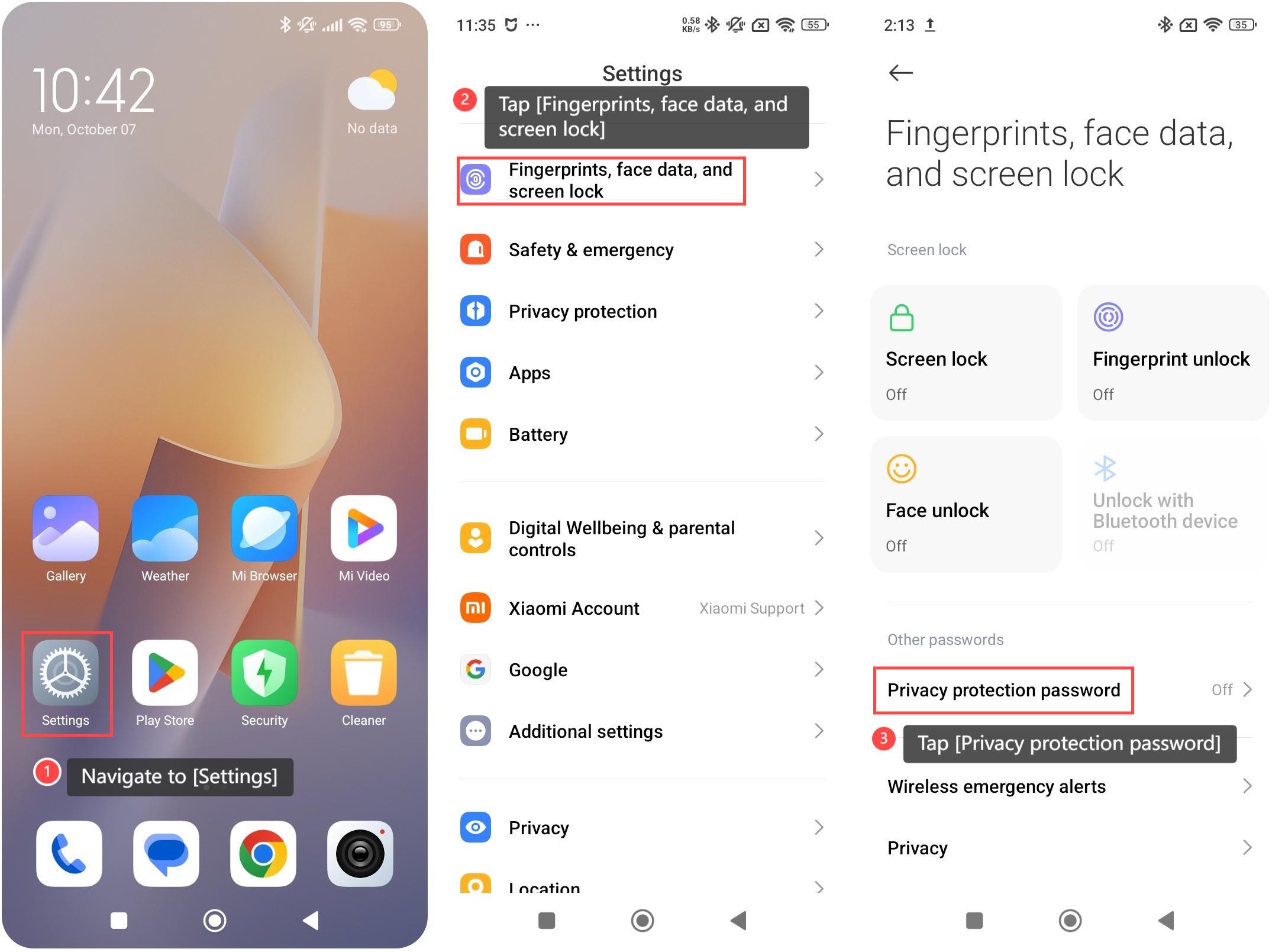
1. Navigate to [Settings] on your smartphone;
2. Swipe down and tap [Fingerprints, face data, and screen lock];
3. Tap [Privacy protection password];
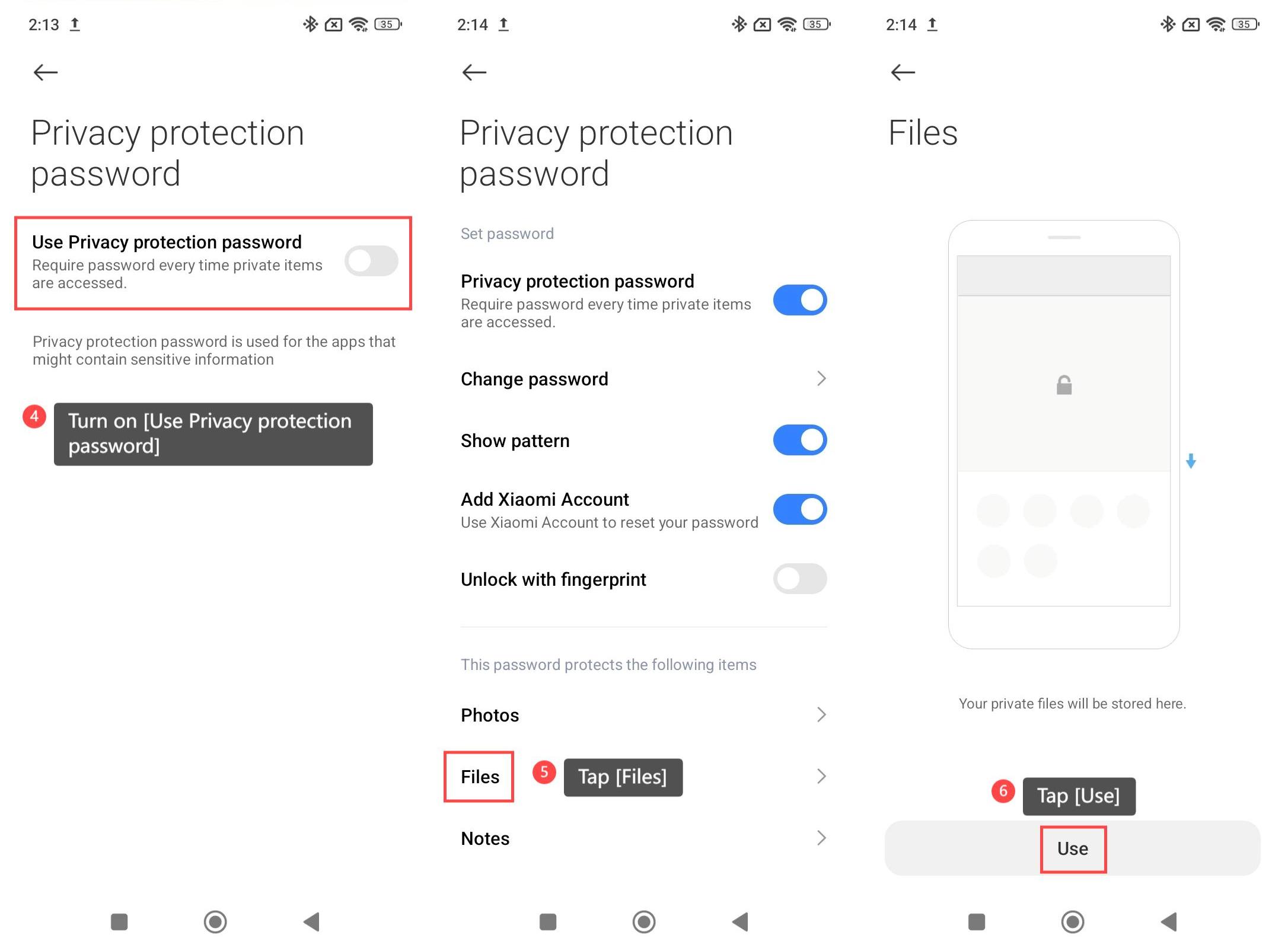
4. Turn on [Use Privacy protection password] and set the unlock pattern;
5. After setting the unlock pattern, tap [Files] to encrypt private files;
6. Tap [Use] to confirm. Your phone will enter the File Manager APP automatically;
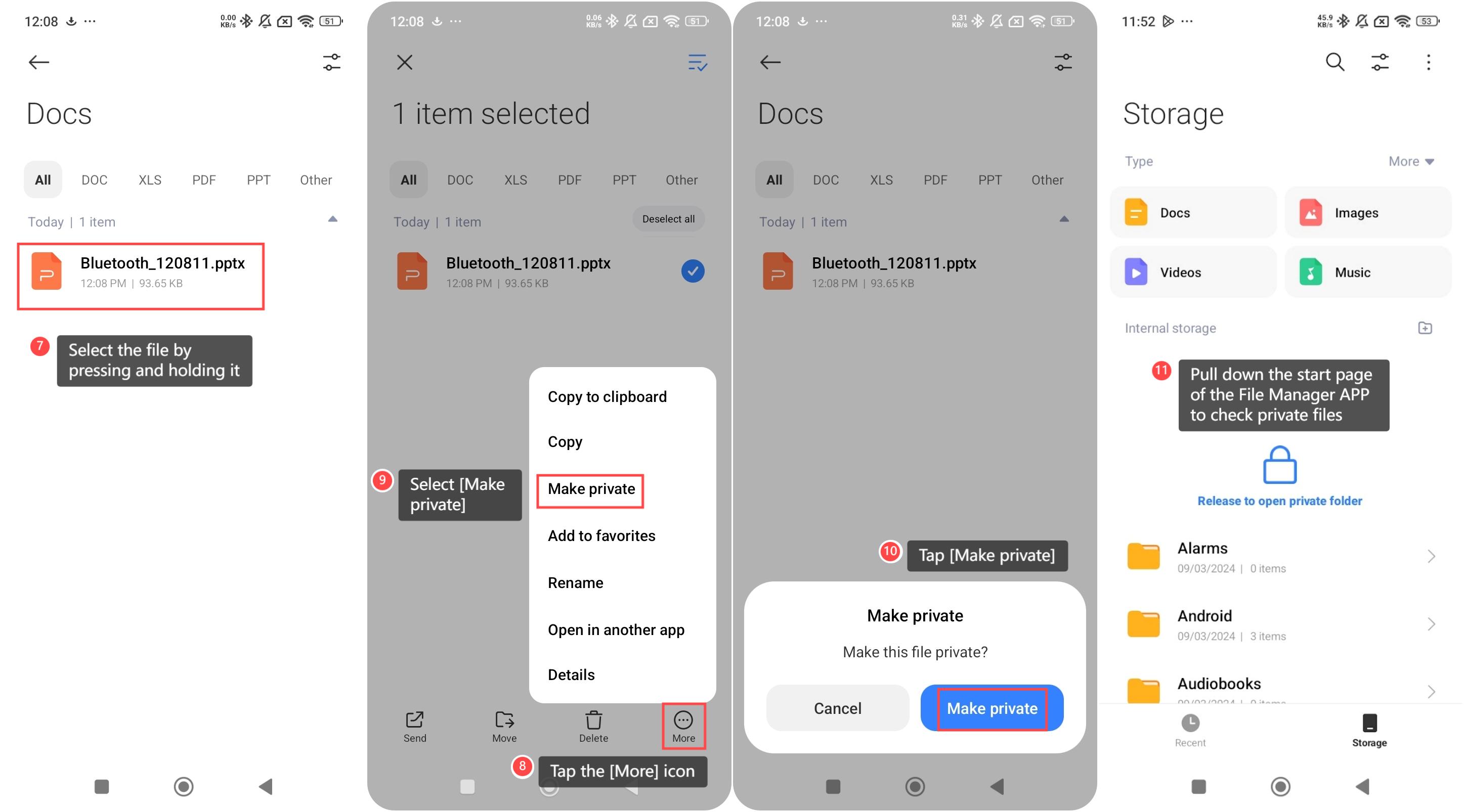
7. Navigate to the file you want to hide and select the file by pressing and holding it;
8. Tap the [More] icon at the lower right corner;
9. Select [Make private];
10. Tap [Make private] to confirm. Your phone will prompt you that the items are now private;
11. To check the private files, go back to the start page of the File Manager APP and pull down. Release to open the private folder.
To make and check the private files on your phone, please refer to the following steps:
1. Navigate to [Settings] on your smartphone;
2. Swipe down and tap [Fingerprints, face data, and screen lock];
3. Tap [Privacy protection password];
4. Turn on [Use Privacy protection password] and set the unlock pattern;
5. After setting the unlock pattern, tap [Files] to encrypt private files;
6. Tap [Use] to confirm. Your phone will enter the File Manager APP automatically;
7. Navigate to the file you want to hide and select the file by pressing and holding it;
8. Tap the [More] icon at the lower right corner;
9. Select [Make private];
10. Tap [Make private] to confirm. Your phone will prompt you that the items are now private;
11. To check the private files, go back to the start page of the File Manager APP and pull down. Release to open the private folder.
Does it help?
Yes
No