

How to manage the system navigation on the Redmi Pad SE 8.7?
The system navigation on the Redmi Pad SE 8.7 includes gesture-based controls or navigation buttons, depending on your settings.
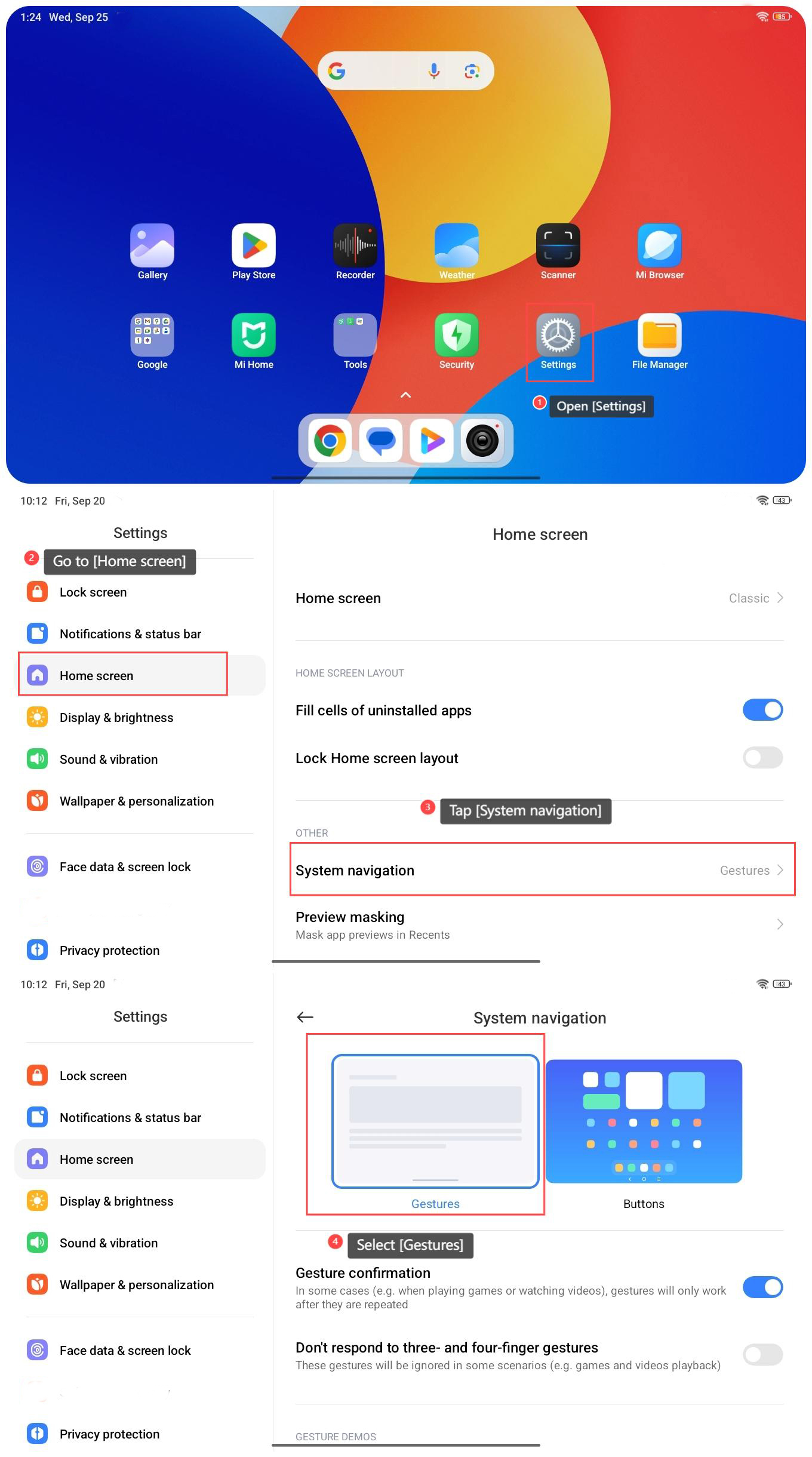
To use gesture system navigation on the Redmi Pad SE 8.7, please refer to the following steps:
1. Open [Settings] on your tablet;
2. Go to [Home screen];
3. Tap [System navigation];
4. Select [Gestures];
To use gesture system navigation on the Redmi Pad SE 8.7, please refer to the following steps:
1. Open [Settings] on your tablet;
2. Go to [Home screen];
3. Tap [System navigation];
4. Select [Gestures];
5. In the gesture system navigation, you can swipe up from the bottom of the screen to go to the Home screen, swipe up from the bottom of the screen and pause to open Recents, or swipe from the side to the center of the screen to go back;
6. If you turn on [Gesture confirmation], gestures will only work after they are repeated in some cases (e.g. when playing games or watching videos);
7. If you turn on [Don’t respond to three- and four-finger gestures], these gestures will be ignored in some cases (e.g. games and videos playback).
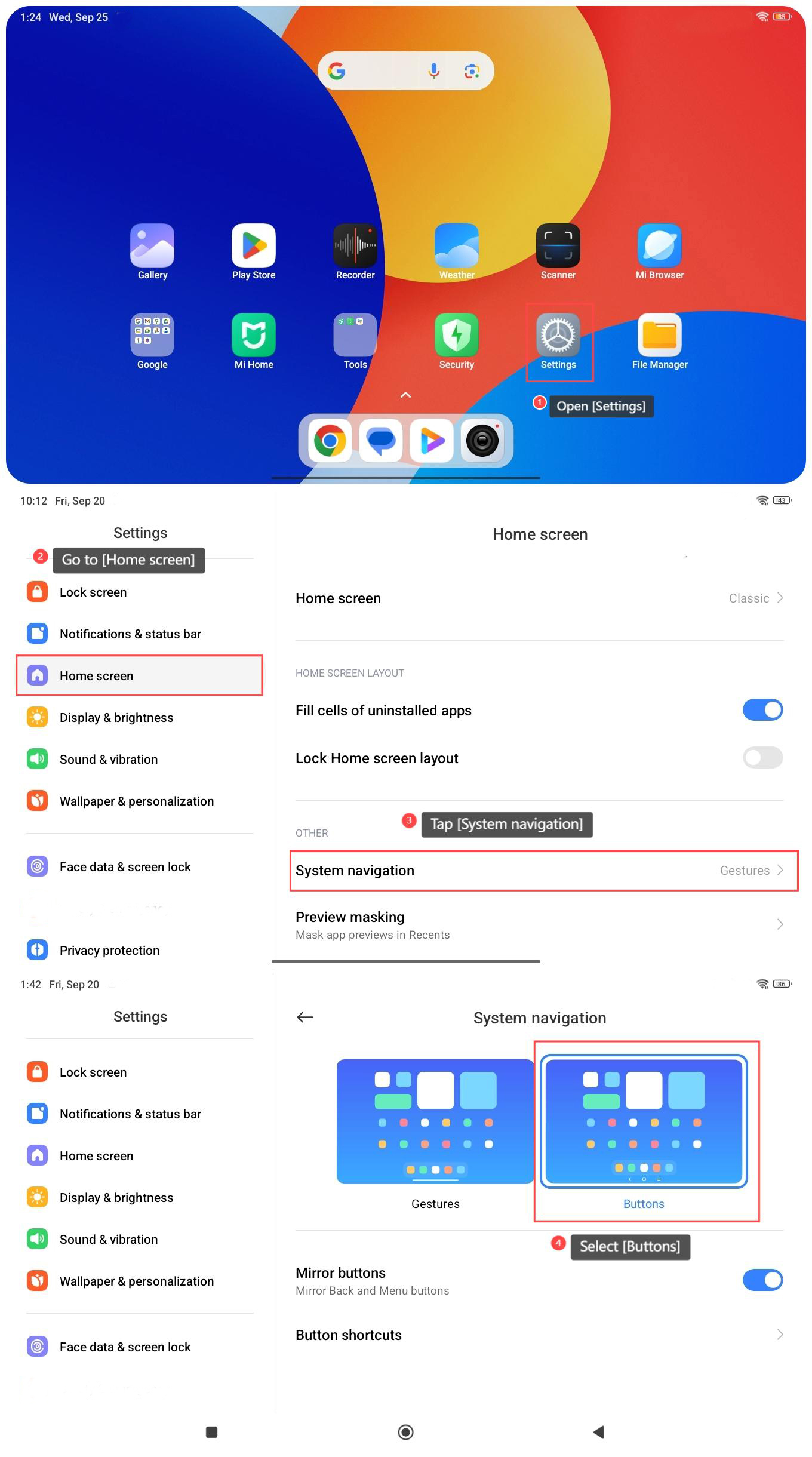
To use the navigation buttons on the Redmi Pad SE 8.7, please refer to the following steps:
1. Open [Settings] on your tablet;
2. Go to [Home screen];
3. Tap [System navigation];
4. Select [Buttons];
6. If you turn on [Gesture confirmation], gestures will only work after they are repeated in some cases (e.g. when playing games or watching videos);
7. If you turn on [Don’t respond to three- and four-finger gestures], these gestures will be ignored in some cases (e.g. games and videos playback).
To use the navigation buttons on the Redmi Pad SE 8.7, please refer to the following steps:
1. Open [Settings] on your tablet;
2. Go to [Home screen];
3. Tap [System navigation];
4. Select [Buttons];
5. Once selected, there will be three buttons (Back button, Home button and Menu button) at the bottom of the screen;
6. You can turn on [Mirror buttons] to mirror the Back button and Menu button;
7. Tap [Button shortcuts], then you can customize the shortcut functions of the buttons.
6. You can turn on [Mirror buttons] to mirror the Back button and Menu button;
7. Tap [Button shortcuts], then you can customize the shortcut functions of the buttons.
Does it help?
Yes
No