

How to link the Redmi Pad SE 8.7 to Chromebook?
When connecting the Redmi Pad SE 8.7 4G to a Chromebook, you can sync notifications, share files, send text messages, use the tablet's network to connect the Chromebook, and even unlock your Chromebook with your tablet.
To link your tablet to the Chromebook, please refer to the following steps:
1. Open the [Settings] APP on your tablet;
2. Tap [More connectivity options];
3. Scroll down and you can see the [Chromebook];
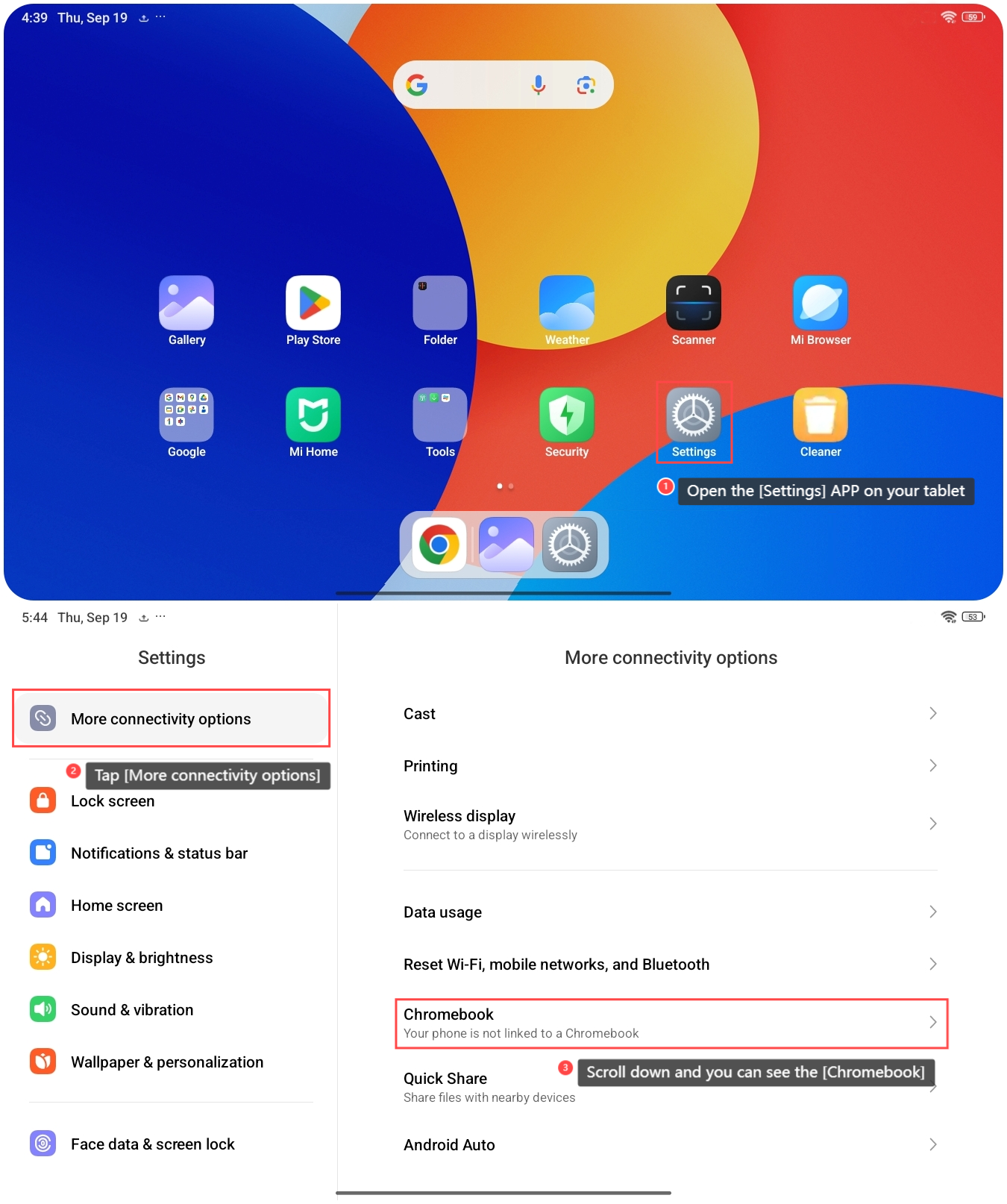
4. Connect your tablet by following the steps on the Chromebook screen. When prompted on your Chromebook, select accept and continue. To skip this step, select cancel. You can opt-in at any time with these steps. Finally, select done. You'll get a confirmation on your phone that the Smart Lock is turned on.
Note:
If there are issues with your Internet connection, there can be a delay in verifying your connected device. However, these features won't be available until you're online.
To link your tablet to the Chromebook, please refer to the following steps:
1. Open the [Settings] APP on your tablet;
2. Tap [More connectivity options];
3. Scroll down and you can see the [Chromebook];
4. Connect your tablet by following the steps on the Chromebook screen. When prompted on your Chromebook, select accept and continue. To skip this step, select cancel. You can opt-in at any time with these steps. Finally, select done. You'll get a confirmation on your phone that the Smart Lock is turned on.
Note:
If there are issues with your Internet connection, there can be a delay in verifying your connected device. However, these features won't be available until you're online.
Does it help?
Yes
No