

Xiaomi Smart Camera C400 FAQ
Features
1. Q: What are the selling points of the Xiaomi Smart Camera C400?
A: Here are the selling points of the Xiaomi Smart Camera C400:
1. Updated to a 4MP camera with a resolution of 2560 x 1440, Xiaomi Smart Camera C400 can deliver amazing 2.5K videos with all the subtle details that are true to life.
2. Combined with the 6P lens, the camera effectively reduces light refraction. As a result, the images are so clear as if you are on the spot and seeing them for yourself.
3. It supports night vision with no visible red glow for clearer and safer monitoring.
4. The dual-motor pan-tilt zoom design enables the lens to rotate up, down, left, and right.
5. The product supports two-way real-time voice calling and can pick up audio within a distance of up to 5 metres for smoother call conversations; smart noise reduction is enabled for the microphone for clearer conversations.
6. The built-in AI human detection module can identify humanoid contours faster and automatically locate and shoot after locking the humanoid, reducing false alarms caused by disturbances of other objects (such as small animals walking, light changes). In this way, you will be less bothered by false alarms.
7. It supports working with Google Home and Alexa. You can even control it with just your voice.
8. Equipped with the Xiaomi Security Chip, the camera can fundamentally prevent privacy leakage caused by video streaming, device forgery, etc.
9. Support 2.4GHz/5GHz dual-band Wi-Fi connections for reduced signal interference and a more stable connection while delivering faster network transmission.
10. The H.265 encoding technology allows you to save storage space and enable smoother data transmission.
2. Q: How is the security and privacy of the Xiaomi Smart Camera C400 guaranteed?
A: Xiaomi Smart Camera C400 has a built-in Xiaomi Security Chip, which effectively guarantees the security of communication and storage. The whole process of data transmission is encrypted, and the data in the cloud is encrypted with AES128 encryption to ensure security and privacy.
3. Q: What is the power supply method of the Xiaomi Smart Camera C400?
A: The Xiaomi Smart Camera C400 supports a 5V2A adapter power supply. In order to ensure the normal use of the function, be sure to use the compatible adapter. This camera does not have a built-in power supply and needs to be powered for a long time.
Note:
The Xiaomi Smart Camera C400 has a Type-C power supply interface. It is recommended to use the original power cord.
4. Q: What is the length of the Xiaomi Smart Camera C400 power cord?
A: The Xiaomi Smart Camera C400 power cable is 2 m long, and the use of an extension cable is not recommended as it may lead to abnormal use of the device.
5. Q: What are the installation methods for Xiaomi Smart Camera C400?
A: The Xiaomi Smart Camera C400 can be placed and installed in a variety of ways. It can be placed on flat objects such as desks, dining tables, coffee tables, etc., or the camera can be fixed on the wall.
6. Q: What are the steps to install the Xiaomi Smart Camera C400 on the wall?
A: To install the Xiaomi Smart Camera C400 on the wall, please refer to the following steps:
1. According to the hole distance of the base, use a drilling tool to make two holes in the wall. It is recommended to use a pencil to make a good job on the wall before drilling. The drilling diameter is about 6 mm, and the hole depth is about 30 mm.
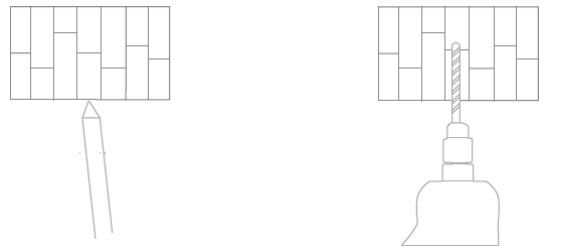
2. Insert the plastic wall plugs into the drilled holes.
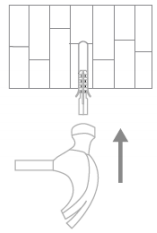
3. Place the side of the base with the arrows facing forward, and then align the holes. Insert the screws and then tighten them into the wall plugs with a Phillips head screwdriver.
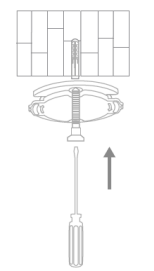
4. Align the groove at the bottom of the camera with the raised part on the base, and after the buckle is installed, turn it clockwise until it is locked in place
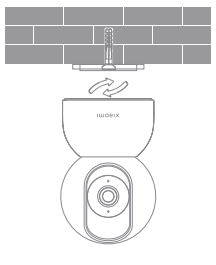
Note:
1. The installation wall needs to withstand more than 3 times the total weight of the camera.
2. In order to prevent injury, the device must be firmly fixed on the floor/wall according to the installation instructions.
3. After installing upside down the camera, you need to rotate the screen settings by 180° in the Xiaomi Home App.
8. Q: How to turn on the Xiaomi Smart Camera C400?
A: Plug the power cord of the camera into the Type-C power port on the rear of the camera, plug the power cord into the adapter, turn on the power, and the camera will automatically turn on. To shut down the camera, you need to cut off the power.
1. The orange indicator flashes to indicate that the boot is successful. If the indicator is not blinking orange, press and hold the reset button to restart.
2. When the camera is working, do not turn the lens of the camera or force it to rotate. If the positioning of the lens is inaccurate, please calibrate it in the Xiaomi Home App.
9. Q: What status indicators does the Xiaomi Smart Camera C400 have? What do they mean?
A: There is an indicator, which will display blue or yellow.
Blue light on: Connected successfully/Working normally
Blinking blue: Network error
Blinking orange rapidly: To be connected
Blinking orange slowly: Updating
10. Q: How to install a Micro SD card in the Xiaomi Smart Camera C400?
A: The MicroSD card slot of the Xiaomi Smart Camera C400 is under the camera lens. First, make sure that the camera is powered off, and turn the lens upward to expose the MicroSD card slot. Insert the MicroSD card with the contact side facing down into the card slot.
Note:
When installing or removing the MicroSD card, it is necessary to turn off the power of the camera before operating.
11. Q: What type of Micro SD card should I use for the Xiaomi Smart Camera C400?
A: The Xiaomi Smart Camera C400 should use a MicroSD card produced by a regular manufacturer, preferably a special card for security monitoring. The MicroSD card supports a maximum capacity of 256GB (the MicroSD card in exFAT format needs to be formatted into FAT32 format in the Xiaomi Home App). It is recommended that the read and write speed of the memory card should not be lower than U1/Class 10.
12. Q: How long can the memory card of the Xiaomi Smart Camera C400 store video?
A: A 256GB memory card is expected to store about 28 days of video.
A 128GB memory card is expected to store about 14 days of video.
A 64GB memory card is expected to store about 7 days of video.
A 32GB memory card is expected to store about 3 days of video.
A 16GB memory card is expected to store about 36 hours of video.
The video quality recorded onto the memory card is 2.5K (1440P).
13. Q: How to reset the Xiaomi Smart Camera C400 to factory settings?
A: If you need to change the network connected to the camera or bind the Xiaomi Home App, you need to press the reset button above the power port for 5 seconds to restore the camera to factory settings when the camera is powered on, and then reconnect to the App.
A factory reset will not delete the contents of the MicroSD card.
14. Q: Does the Xiaomi Smart Camera C400 support infrared night vision function?
A: The Xiaomi Smart Camera C400 supports infrared night vision function. Xiaomi Smart Camera C400 can automatically switch to night vision mode at night according to the change of surrounding light.
The camera has an infrared night vision light; the night vision distance can reach 10 meters, and it can shoot clearly in the dark.
15. Q: Can the Xiaomi Smart Camera C400 rotate 360°?
A: No. The Xiaomi Smart Camera C400 supports a 360° panoramic viewing angle; only the lens can rotate the shooting angle to 360°, not the body can rotate 360°. The up and down rotation angle is 60°, and the left and right rotation angles are 355°
Note:
The camera adopts a dual-motor gimbal design, which supports a 360° horizontal viewing angle and 106° vertical viewing angle.
16. Q: Does the Xiaomi Smart Camera C400 support the NAS dump function?
A: The Xiaomi Smart Camera C400 doesn't support the NAS dump function.
17.Q: Where can I check the SN number of the Xiaomi Smart Camera C400?
A: The SN number can be viewed from the back of the product package and the bottom of the camera.
18. Q: What is the lens of the Xiaomi Smart Camera C400 like?
A: 1. Xiaomi Smart Camera C400 adopts a 4 million high-definition pixel lens with a resolution of up to 2560 × 1440.
2. The F1.4 large aperture lens can capture the details of the picture even in weak light.
19. Q: Can the Xiaomi Smart Camera C400 be installed outdoors?
A: It is not recommended for outdoor installation. The Xiaomi Smart Camera C400 is an indoor camera, not waterproof or dustproof. If it is used outside, please make sure that it will not be exposed to rain. If water enters on rainy days, it will damage the camera.
20. Q: Does the Xiaomi Smart Camera C400 need to be plugged into a power source? Or is it battery powered?
A: It needs to be connected to the power supply. The camera does not contain batteries and must be plugged in for use. Please be sure to use the 5V2A adapter.
21. Q: Does the Xiaomi Smart Camera C400 support two-way voice calls?
A: Support. The Xiaomi Smart Camera C400 has built-in dual microphones and uses active noise reduction technology to eliminate speaker echo and effectively improve the call experience.
22. Q: Does the Xiaomi Smart Camera C400 support continuous shooting of videos on the memory card even when the network is disconnected?
A: Yes, it can continuously record videos to the memory card when the network is disconnected. The premise is that the device has been successfully connected to the Internet once. When the device is powered off or disconnected from the network, you can only take out the memory card from the device and view videos on the computer, not in the Xiaomi Home App.
23. Q: Do the Home Surveillance, cloud storage, and MicroSD card videos recorded by the Xiaomi Smart Camera C400 have sound?
A: The videos recorded in these recording formats all have sound. However, if speed playback is enabled, it will play silently by default, which is normal.
In addition, every time you enter the camera monitoring screen or enter the cloud storage, memory card video playback interface, it will be played silently by default. If you want to play the sound normally, please tap the mute button to restore the sound.
24.Q: When using the Xiaomi Smart Camera C400, what should be paid attention to?
A: 1. The applicable working temperature of this product is -10 °C~40 °C; please do not use this product in an environment where the temperature is too high or too low.
2. This product is a precision electronic product. Please do not use this product in an environment that is excessively humid or may cause water to enter the product.
3. For your better use of this product, avoid the front and side of the lens close to reflective objects such as glass and white walls, so as to avoid the phenomenon that the near part of the picture is bright, and the far part is dark or whitish.
4. Please make sure that this product is installed within the coverage of the Wi-Fi signal, and place it in a location with a better Wi-Fi signal as much as possible. Try to install it away from metal and microwave ovens that may affect the signal.
5. This device supports 2.4GHz/5GHz Wi-Fi connection. Make sure the router is closer to the device, and do not use Chinese or special characters in the Wi-Fi name and password, otherwise it will fail to connect or disconnect.
App related
1. Q: How to connect the Xiaomi Smart Camera C400 to the Xiaomi Home App?
A: On the iOS side: Xiaomi Home App >> tap [+] in the upper right corner >> select [Scan] >> operate according to the prompts on the page (press and hold the reset button for 3 seconds until the indicator flashes orange) >> wait for the binding to succeed. It is recommended to use the "scan" method for binding on the iOS side.
Android: Open the Xiaomi Home App >> press and hold the reset button on the device body for 3 seconds until the indicator flashes orange >> tap [+] in the upper right corner >> select [Add device] >> wait for Xiaomi Home App to automatically search for nearby devices >> wait for the binding to succeed.
2. Q: Can the monitoring screen of the Xiaomi Smart Camera C400 be zoomed in, and how many times can it be zoomed in?
A: The monitoring screen supports up to 6 times of screen magnification.
On the camera monitoring interface, pinch two fingers to zoom in and out. The mark below is the magnification of the screen.
3. Q: How to set sleep mode for the Xiaomi Smart Camera C400?
A: 1. Enter the camera monitoring screen, tap the sleep button, and the device will immediately enter the sleep state.
2. Xiaomi Home App >> select the camera >> tap the three-dot icon in the upper right corner >> [Camera settings] >> [Sleep settings] >> you can directly turn on sleep or set a scheduled sleep.
4. Q: How to configure screen settings for the Xiaomi Smart Camera C400?
A: Xiaomi Home App >> select the camera >> tap the three-dot icon in the upper right corner >> [Camera settings] >> [Image settings] >> you can choose to turn on/off the time watermark on the surveillance, turn on lens distortion correction, turn on/off Wide dynamic range mode, rotate the monitoring screen 180°(This setting is required when the camera is installed upside down).
5. Q: How to calibrate the gimbal of the Xiaomi Smart Camera C400?
A: Xiaomi Home App >> select the camera >> [Camera settings] >> [Camera calibration], wait for the device to be calibrated successfully.
This operation can be performed when the device cannot automatically return the lens, or the lens monitoring angle cannot be adjusted accurately.
6. Q: How to restart the Xiaomi Smart Camera C400?
A: Xiaomi Home App >> select the camera >> tap the three-dot icon on the upper right corner >> [Camera settings] >> [Reboot device]. When the device fails to record video, cloud storage does not upload video, Home Surveillance, and other abnormal functions, you can choose to restart the device.
7. Q: How to set the night vision related functions of the Xiaomi Smart Camera C400?
A: Xiaomi Home App >> select the camera >> tap the three-dot icon in the upper right corner >> [Camera settings] >> [Night-vision settings] >> select [Switch automatically], [On] or [Off].
If the night vision function is always turned on, the low-light full-color function will not take effect and the screen will always be in black and white or black.
It is recommended to choose to switch automatically.
8. Q: How to enable the traffic protection function of the Xiaomi Smart Camera C400?
A: Xiaomi Home App >> select the device >> tap the three-dot icon in the upper right corner >> [Camera settings] >> turn on/off [Data usage warning].
After this function is enabled, the real-time surveillance will not be played automatically under the mobile network.
Note:
Videos recorded in Xiaomi Home Secure and memory cards will be played automatically, and are not limited by the [Data usage warning] function.
9. Q: What are the functions of the buttons on the real-time surveillance of the Xiaomi Smart Camera C400?
A: The real-time surveillance buttons are as shown in the figure below: the sleep, mute, image quality adjustment, and full-screen buttons need to be tapped on the real-time monitoring screen to appear.
1. Sleep: Tap this button and the camera can directly enter the sleep state. After the camera enters the sleep state, it cannot be monitored any more.
2. Mute: Every time you enter the camera, the default surveillance interface is muted. If you want to have sound when viewing the surveillance, please tap the mute button to turn on the sound.
3. Sharpness: You can adjust the sharpness of the surveillance, optional: 480P Smooth, 2.5K HD, Auto (Auto means that the camera will automatically adjust the picture definition in the network environment).
4. Full screen: Tap this button, and the camera monitoring screen will enter the horizontal screen interface.
5. Voice call: Tap the microphone button to make a remote call with the camera through the Xiaomi Home App on the mobile phone.
6. Screenshot: You can take a screenshot of the current surveillance, and a picture will be generated and saved to the local album and Xiaomi Home App.
7. Screen recording: Tap the screen recording button to record the current monitoring interface and save the video to the local photo album and Xiaomi Home App.
8. PTZ control: Tap this button, and the PTZ control interface will pop up, which can control the camera to turn up, down, left, and right.
10. Q: Does the Xiaomi Smart Camera C400 support face recognition?
A: The Xiaomi Smart Camera C400 doesn't support face recognition.
11. Q: How does the Xiaomi Smart Camera C400 perform human tracking?
A: Xiaomi Home App >> select the camera >> tap the three-dot icon in the upper right corner >> [Camera settings] >> turn on or off [Human tracking].
12. Q: How to set Home Surveillance for the Xiaomi Smart Camera C400?
A: Xiaomi Home App >> select the camera >> tap the three-dot icon >> [Home surveillance settings] >> you can set Home surveillance on/off >> set the monitoring time, sensitivity, alarm interval, notification events, etc.
13. Q: How to view the videos in the memory card of the Xiaomi Smart Camera C400?
A: Xiaomi Home App >> select the camera >> [Playback] >> select microSD card >> view the video according to your needs.
When the camera is disconnected from the network/power, the video in the memory card cannot be viewed in the Xiaomi Home App. You can take out the memory card and view the video in the memory card on the computer through a card reader.
Different colors below represent different recording events, you can directly drag the time axis to the position of the color according to your needs to watch the recording control events. Gray indicates that no events occurred during this time period.
Each video in the memory card is 1 minute long and can be deleted in batches.
14. Q: How to format the memory card of the Xiaomi Smart Camera C400?
A: Xiaomi Home App >> select the camera >> tap the three-dot icon in the upper right corner >> [Manage storage] >> [SD card status] >> [Format SD card].
Formatting the memory card will clear all the videos in the memory card, please save the video first.
15. Q: How to update the firmware of the Xiaomi Smart Camera C400?
A: Xiaomi Home App >> select the camera >> tap the three-dot icon in the upper right corner >> [Firmware update] >> if there is an update, please update the firmware in time.
16. Q: Does the Xiaomi Smart Camera C400 support access to HomeKit?
A: The Xiaomi Smart Camera C400 doesn’t support access to HomeKit.
17. Q: How to view the videos in the cloud storage of the Xiaomi Smart Camera C400?
A: Xiaomi Home App >> select the camera >> [Playback] >> select [Cloud] >> view the video according to your needs.
18. Q: Does the Xiaomi Smart Camera C400 support panoramic drawing function?
A: The Xiaomi Smart Camera C400 doesn’t support the panoramic drawing function.
19. Q: Is the volume adjustable when the Xiaomi Smart Camera C400 is making a voice call?
A: No. During a voice call, only the volume on the phone can be adjusted, and the sound on the camera cannot be adjusted.
Troubleshooting
1. Q: What to do if the Xiaomi Smart Camera C400 has no sound or there is noise when viewing real-time surveillance?
A: 1. The Xiaomi Home App turns off the volume of real-time surveillance by default. You can turn on the volume by tapping the mute button in the surveillance of the Xiaomi Home App. If the volume is low, you can increase the volume of the phone.
2. If there is noise in the real-time surveillance, please keep the mobile phone away from the camera, and avoid placing the camera next to electronic devices such as refrigerators and microwave ovens, or next to equipment.
3. If the device is placed in a high place or the lens is facing down, the mic will be buried in the cavity, and the sound of the speaker will be received, forming an echo. At this time, please move the device mic out of the cavity.
2. Q: What to do if the video freezes or the picture and sound are out of sync when viewing the surveillance on the Xiaomi Smart Camera C400?
A: 1. When the video freezes or displays loading frequently, please switch the video definition to automatic or smooth mode.
2. When the picture and sound are not synchronized, please check whether the network connected to the camera is normal. If the delay is too large, try to exit the video and re-enter frequently.
3. Q: What to do if there is no sound on the Xiaomi Smart Camera C400 side during a call?
A: 1. Check whether the sound on the mobile phone is too small to cause no sound.
2. Check whether the Xiaomi Home App has obtained permission to use the microphone (recording) of the mobile phone. If not, please open the relevant permission in the phone settings.
4. Q: What to do if the history video of the Xiaomi Smart Camera C400 is not continuous or smooth?
A: 1. If the video in the memory card is not continuous, it may be that only recording moving pictures is enabled. After this function is turned on, the camera will only record when the picture changes; (if the cloud storage video is not continuous, it is normal, and the Xiaomi Home Secure only records when detect a moving pictures, not 24-hour recording)
2. If the video freezes, it may be caused by the network. Check whether there are too many devices connected to the network connected to the camera, or whether there are other devices playing video at the same time.
5. Q: What to do if the memory card of the Xiaomi Smart Camera C400 is abnormal?
A: 1. Please use a special high-speed memory card in FAT32 format produced by a regular manufacturer for driving recorders or cameras.
2. Please confirm that a memory card that meets the requirements has been installed in the camera. A camera without a memory card cannot store video and review historical video.
3. If the memory card does not record, or if the memory card cannot automatically delete files, you can format the memory card in the storage settings of the Xiaomi Home App.
4. If the memory card cannot be formatted in the App, you can format the memory card on the computer through a card reader. After formatting, power off the camera and reinsert the memory card.
Note:
After formatting, the files in the memory card will be deleted.
6. Q: What to do if the Xiaomi Smart Camera C400 is offline in the Xiaomi Home App?
A: 1. Please check whether the camera is powered off, and make sure you are using the compatible adapter.
2. Please try to restart the router.
3. If the power supply of the device is normal and the network is normal, please check the indicator of the device:
Blue light on: Connected successfully/Working normally
Blinking blue: Network error
Blinking orange rapidly: To be connected
Blinking orange slowly: Updating
4. Confirm whether the camera is inserted into the memory card. Pull out the memory card to see if it is still offline, because some memory cards of poor quality will cause the camera to go offline.
7. Q: What to do if the blue light of the Xiaomi Smart Camera C400 flashes and cannot be used normally?
A: 1. If the blue light flashes when connecting to the App, it means that the camera cannot connect to the network, or cannot be bound to the account. Please check whether the account password is correct and whether the network meets the requirements of the camera.
2. If you have successfully connected to the App, but suddenly the blue light flashes and cannot be used, please check whether the network is normal.
8. Q: Why does the Xiaomi Smart Camera C400 whistle when making a voice call?
A: 1. When calling, please try not to place the mobile phone and the device in the same space, and keep them away from the device by more than 10 meters apart. The echo and howling caused by close-range calls are normal phenomenon.
2. If there are many electronic products near the device, electromagnetic interference will be generated, which may cause howling and noise during voice calls.
9. Q: What to do if the night vision footage from the Xiaomi Smart Camera C400 is blurry or fails to display an image?
A: 1. Please ensure that the lens of the camera is clean and dust-free.
2. Please check whether the lens is blocked by debris. If so, please turn the gimbal or move the camera position in the Xiaomi Home App to move the lens out of the blocked area.
10. Q: What to do if the indicator of the Xiaomi Smart Camera C400 is not on?
A: From the Xiaomi Home App, enter the camera's real-time surveillance, tap the three-dot icon in the upper right corner, enter [Camera settings], and enable [Status light].
11. Q: Why does the video in the memory card have sound when viewed on the mobile phone, but be silent when viewed on the computer?
A: This problem is caused by the incompatibility of the video playback software on the computer. You can try to replace the computer player.
12. Q: What to do if the video recorded in the memory card is incoherent, and the picture and sound are out of sync?
A: 1. Restart the device to see if it will return to normal.
2. Whether the memory card is inserted and removed frequently. Plugging and unplugging the memory card needs to be done when the camera is powered off. Frequent plugging and unplugging will cause the performance of the memory card to decline, resulting in abnormal problems in the recorded video.
3. Whether the reading rate of the memory card is too low.
4. Replace the memory card (the memory card is recommended to use a memory card that meets the requirements, otherwise there will be many problems, such as incoherent recording, always prompting memory abnormalities, etc.).
13. Q: What to do if the Xiaomi Smart Camera C400 cannot recognize the memory card?
A: 1. Restart the device.
2. Check whether the camera firmware version and the Xiaomi Home App version need to be updated.
3. Clear the Xiaomi Home App data (clearing the data will cause the cloud storage videos downloaded to be cleared).
4. Replace the memory card.
Note:
Memory cards have a service life. If a card is used for a long time, it may cause the memory card to be erased many times, and it cannot be used again. Please replace the brand memory card.
14. Q: What to do if the Xiaomi Smart Camera C400 is stuck and does not turn on?
A: 1. Power off and restart the device.
2. Xiaomi Home App >> select the camera >> tap the three-dot icon on the upper right corner >> [Camera settings] >> [Reboot device]. If the camera still cannot be turned on, please apply for after- sales service.
15. Q: What to do if the firmware upgrade of the Xiaomi Smart Camera C400 fails?
A: The upgrade failure is generally due to a poor network or an abnormal server. Please try again in another network environment; if the network is unblocked, just change the time zone and try again.
16. Q: What should I do if the memory card does not record video, or the video in the card cannot be deleted cyclically?
A: 1. Check whether the camera firmware and Xiaomi Home App version need to be updated.
2. Enter Xiaomi Home App >> select the camera >> tap the three-dot icon in the upper right corner >> [Manage storage] >> [SD card status] >> check whether the storage switch is turned off or turned on to record only when motion is detected.
3. Format the memory card in the Xiaomi Home App (formatting the memory card will clear the video, and the video can be backed up before formatting).
4. If the memory card cannot be formatted in the Xiaomi Home App, you can format the memory card on the computer through a card reader. After formatting, power off the camera and reinstall the memory card.
5. The failure of the memory card to record video is mostly related to the memory card itself. You can replace the memory card to see if the problem recurs.
17. Q: What to do if the Xiaomi Smart Camera C400 always rotates by itself?
A: In the Xiaomi Home App >> select the camera >> tap three-dot icon in the upper right corner >> [Camera settings], turn off the Human tracking function. After the Human tracking function is turned on, the camera will rotate with the screen when it detects movement, and will return to its original position to continue monitoring after the rotation is completed.
18. Q: What to do if the Xiaomi Smart Camera C400 freezes while watching high-definition video on iPhone 6/6S?
A: This camera is a 4 million-pixel high-definition video recording. Due to the limited CPU computing power of iPhone 6/6S, it will cause freezes when watching high-definition videos. It is recommended to switch to smooth mode to watch.
Does it help?
Yes
No