

What to do if the application update fails on the Xiaomi TV F2 55?
If the application update fails on your Xiaomi TV F2 55, please refer to the following troubleshooting steps:
1. Ensure that your TV is connected to the internet and that the connection is stable. A weak or unstable internet connection can cause download and update issues. Navigate to [Settings] >> [Network] >> Make sure [Enable Wi-fi/Ethernet] is on;
2. Restarting your TV can resolve many temporary issues. You can restart your TV by navigating to [Settings] >> [Device & Software] >> select [Restart];
3. If the problem persists with a particular app, you can try clearing the app's cache and data by going to [Settings] >> select [Applications] >> [Manage Installed Applications] >> select the specific app >> select [Clear data] and [Clear cache];
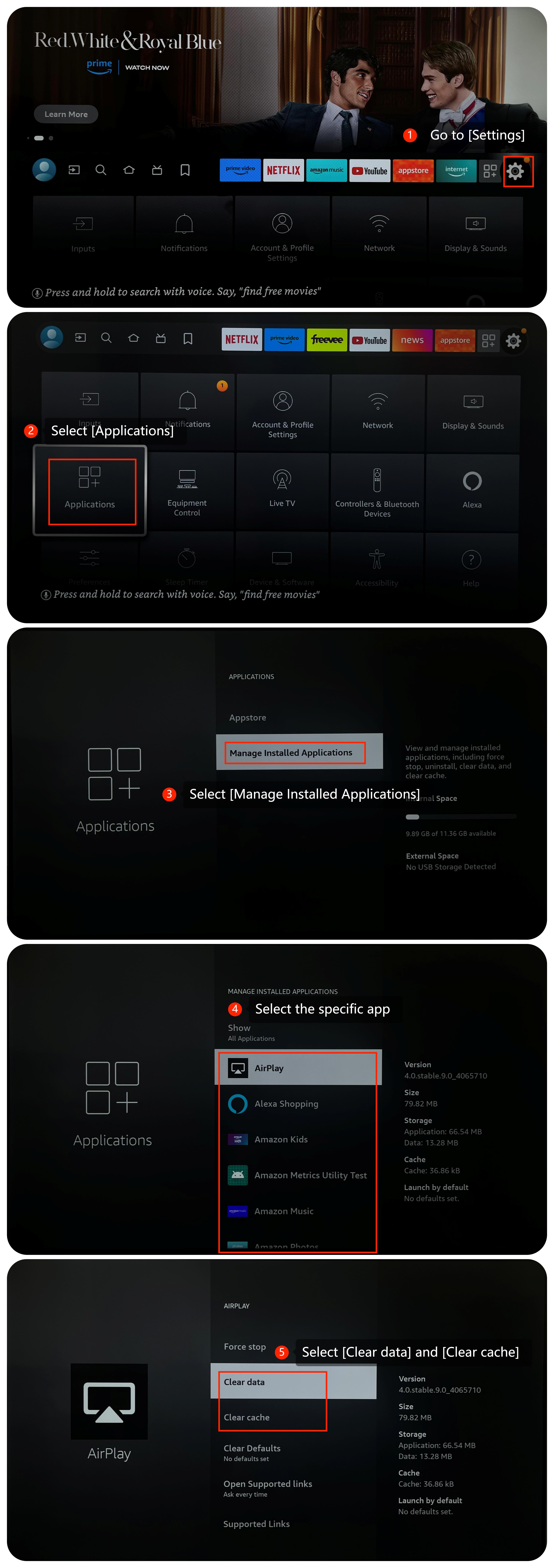
4. If your TV has limited storage space, it might not have enough space to download and install updates. Delete unnecessary apps or files to free up space by navigating to [Settings] >> [Applications] >> select an app you want to uninstall >> select [Uninstall];
5. If a specific app is failing to update, try uninstalling it and then reinstalling it from the App Store;
6. Make sure that your TV's operating system is up-to-date, which often includes bug fixes and improvements. Go to [Settings] >> [Device & Software] >> select [About] >> select [Install Update];
7. If the issue persists, you can consider performing a factory reset. Go to [Settings] >> select [Device & Software] >> select [Reset to Factory Defaults].
We hope the above methods can resolve the issue. If the issue persists, you could submit your feedback on your TV by going to [Settings] >> [Help] >> [Send feedback], and following the instructions on this interface.
1. Ensure that your TV is connected to the internet and that the connection is stable. A weak or unstable internet connection can cause download and update issues. Navigate to [Settings] >> [Network] >> Make sure [Enable Wi-fi/Ethernet] is on;
2. Restarting your TV can resolve many temporary issues. You can restart your TV by navigating to [Settings] >> [Device & Software] >> select [Restart];
3. If the problem persists with a particular app, you can try clearing the app's cache and data by going to [Settings] >> select [Applications] >> [Manage Installed Applications] >> select the specific app >> select [Clear data] and [Clear cache];
4. If your TV has limited storage space, it might not have enough space to download and install updates. Delete unnecessary apps or files to free up space by navigating to [Settings] >> [Applications] >> select an app you want to uninstall >> select [Uninstall];
5. If a specific app is failing to update, try uninstalling it and then reinstalling it from the App Store;
6. Make sure that your TV's operating system is up-to-date, which often includes bug fixes and improvements. Go to [Settings] >> [Device & Software] >> select [About] >> select [Install Update];
7. If the issue persists, you can consider performing a factory reset. Go to [Settings] >> select [Device & Software] >> select [Reset to Factory Defaults].
We hope the above methods can resolve the issue. If the issue persists, you could submit your feedback on your TV by going to [Settings] >> [Help] >> [Send feedback], and following the instructions on this interface.
Does it help?
Yes
No