

What are the functions of the buttons on the live surveillance interface of Xiaomi Smart Camera C500 Pro?
The buttons of the live surveillance interface are shown as follows:
Privacy protection, Mute, Video Quality Selection, and Full-Screen buttons need to be tapped on the live surveillance screen to appear.
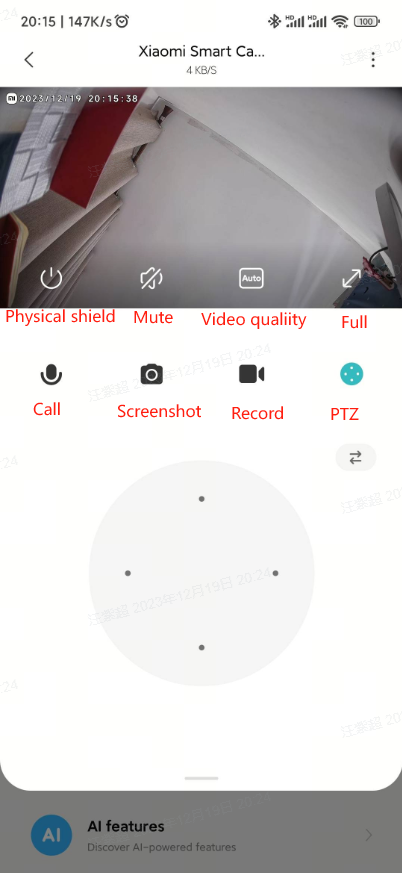
1. Privacy protection:
The camera can directly enter the Privacy protection status by tapping this button. When the camera enters the Privacy protection state, it cannot perform any further tasks like surveillance and video recording.When you do not need to shoot, you can tap “
 ” in the control interface of Xiaomi Smart Camera C500 Pro in Mi Home APP to enter Privacy protection.
2. Mute:
Every time you enter the camera, the surveillance interface is mute by default, you can tap the mute button to turn on the sound if you want to hear sound when you view the surveillance screen.3. Clarity:
Adjust the clarity of the monitoring screen here. Options are auto, 480P smooth, 1080P HD, and 3K HD (auto means that the camera will automatically adjust the screen clarity according to the network environment).4. Full screen:
By tapping this button, the camera surveillance screen will enter the horizontal screen interface.5. Voice Call:
Tap the microphone button, you can make a remote call with the camera via the [Mi Home] APP on your phone.6. Screenshot:
You can take a screenshot of the current surveillance screen, which will generate a picture and save it to the local album and Mi Home APP.7. Screen Recording:
Tap the Screen Recording button to record the current surveillance screen and save the video to the local album and Mi Home App.8. PTZ Control:
Tap the PTZ button, the PTZ control interface will pop up, you can control the camera to rotate up, down, left, and right.
Does it help?
Yes
No