

How to use Find device feature of Xiaomi Cloud?
The Find device feature is a vital service offered by Xiaomi Cloud that aids in locating your device and safeguarding your data in the event it gets lost or stolen. This functionality includes options to locate the device, make a sound, activate lost mode, and erase data. Overall, the Find device service is an effective tool that enables timely device tracking and ensures data security when faced with loss or theft.
Here's a general guide on how to use the Find device feature:
Method 1:
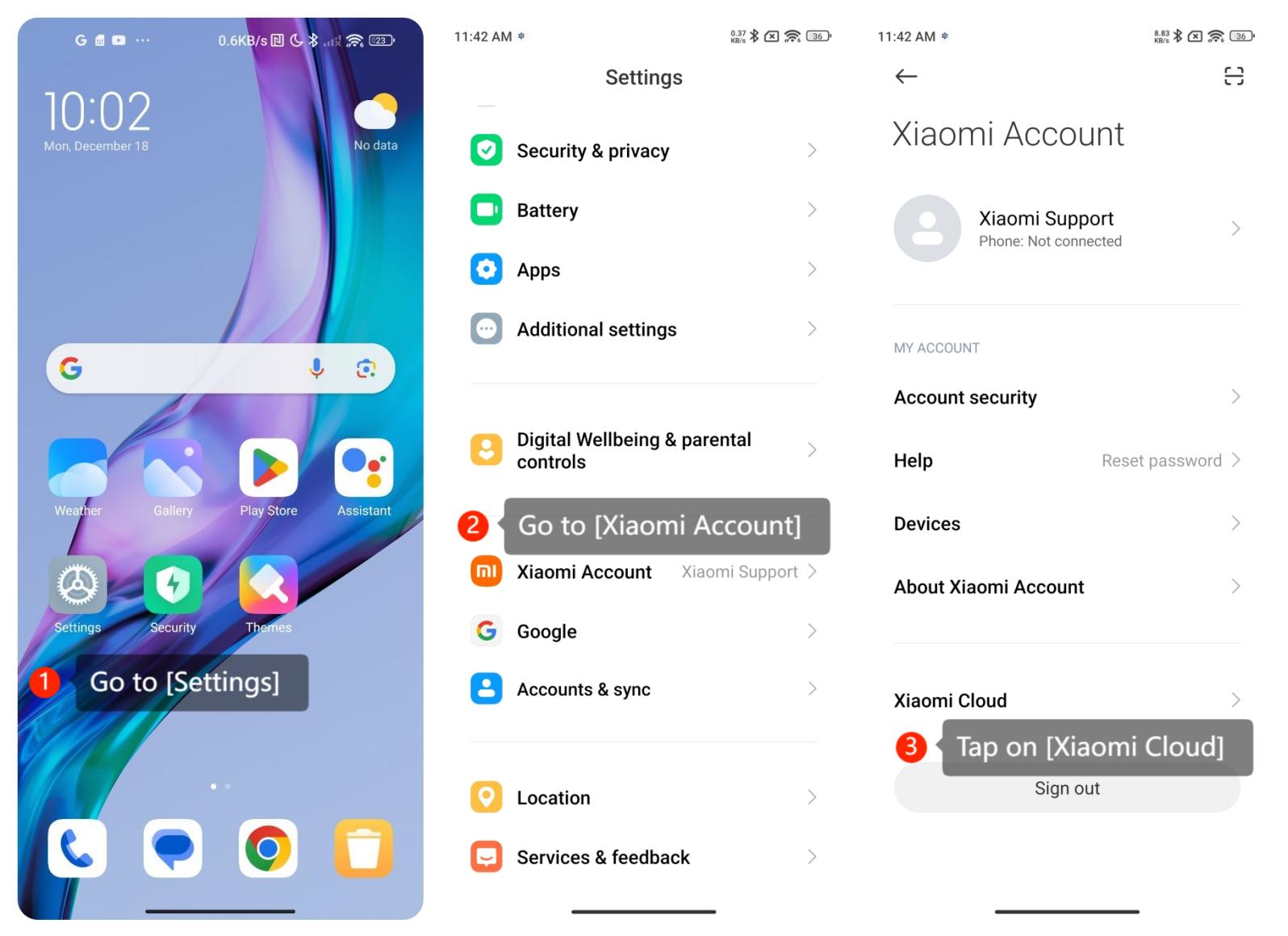
(1). Go to [Settings];
(2). Log in to your Mi Account and go to [Xiaomi Account];
(3). Tap on [Xiaomi Cloud];
Here's a general guide on how to use the Find device feature:
Method 1:
(1). Go to [Settings];
(2). Log in to your Mi Account and go to [Xiaomi Account];
(3). Tap on [Xiaomi Cloud];
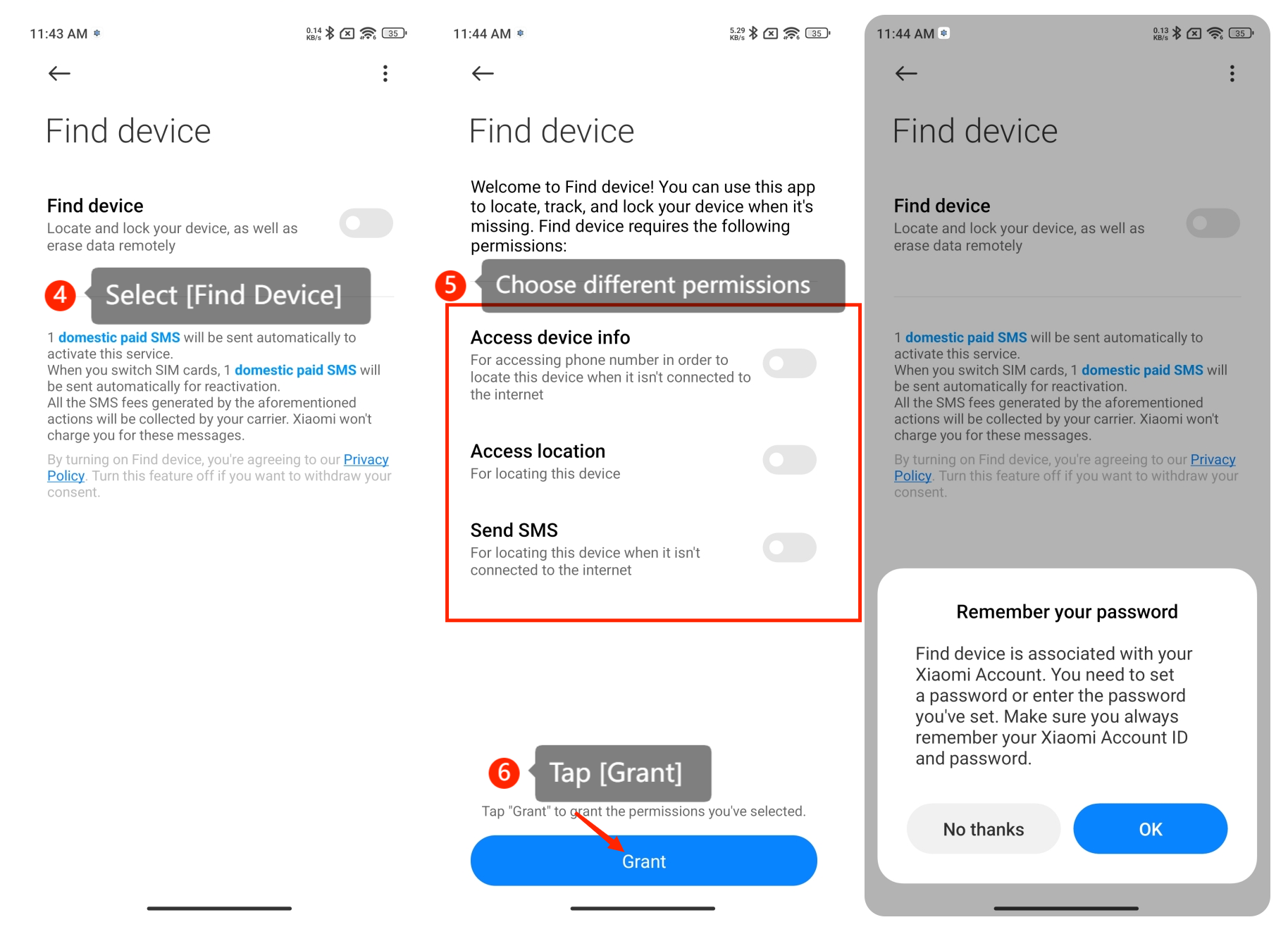
(4). Select [Find device] and access different permissions;
(5). Choose different permissions you want to use for Find device, and tap [Grant] on the bottom of the screen;
(6). Follow the on-screen instructions to enter the Mi account password to enable this feature;
(7). Make sure that location services are enabled on your phone. This is usually necessary for the Find device feature to work accurately.
(5). Choose different permissions you want to use for Find device, and tap [Grant] on the bottom of the screen;
(6). Follow the on-screen instructions to enter the Mi account password to enable this feature;
(7). Make sure that location services are enabled on your phone. This is usually necessary for the Find device feature to work accurately.
Method 2:
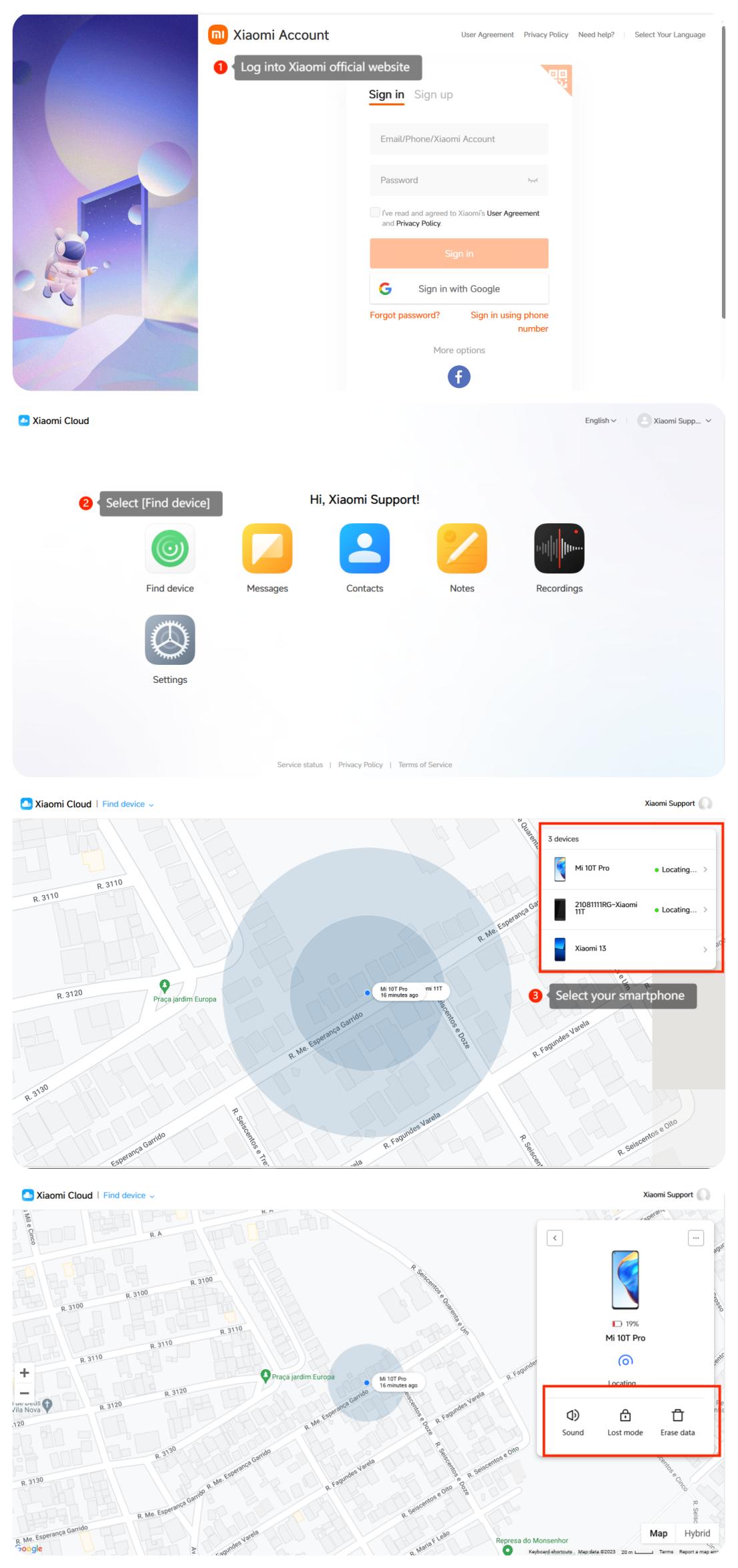
(1). Log into Xiaomi official website (https://us.i.mi.com) with the same Mi Account;
(2). Select [Find device], and you can perform the following operations:
a. You can select [Sound]. In silent mode, the phone can also sound at the maximum volume;
b. Select [Lost Mode] to remotely lock the phone. The phone will become fully non-functional;
c. Select [Clear Data] to delete the system's contacts, pictures, emails, and other data (including SD card).
Note:
1. If the phone is not connected to the Internet or the SIM card is replaced, the above operations cannot be performed;
2. Before remotely clearing data, please ensure that important data has been backed up. Furthermore, data cannot be restored after clearing, so please proceed with caution;
3. If the device is stolen or involved in any illegal activities, please contact the police and seek assistance promptly.
(1). Log into Xiaomi official website (https://us.i.mi.com) with the same Mi Account;
(2). Select [Find device], and you can perform the following operations:
a. You can select [Sound]. In silent mode, the phone can also sound at the maximum volume;
b. Select [Lost Mode] to remotely lock the phone. The phone will become fully non-functional;
c. Select [Clear Data] to delete the system's contacts, pictures, emails, and other data (including SD card).
Note:
1. If the phone is not connected to the Internet or the SIM card is replaced, the above operations cannot be performed;
2. Before remotely clearing data, please ensure that important data has been backed up. Furthermore, data cannot be restored after clearing, so please proceed with caution;
3. If the device is stolen or involved in any illegal activities, please contact the police and seek assistance promptly.
Does it help?
Yes
No