

Xiaomi Desktop Speaker FAQ
Overview
1. Q: How to use the Xiaomi Desktop Speaker?
A: Connect the speaker's USB cable to the computer's USB port or a power source with a USB port, such as a power socket, computer monitor, or USB charger. The speaker will automatically power on with a startup sound and lighting effects when the power supply meets the requirements.
If manually turned off without disconnecting the power, press the speaker's Multi-function Button to turn it on.

2. Q: What are the features of the Xiaomi Desktop Speaker?
A: The selling points and the specific descriptions are as follows:
1. Four-unit wide-field stereo with 53° upward angle design. 2 44 × 80mm full-range 5W units + 2 racetrack-shaped passive radiators, with symmetrical native stereo design. 53° desktop high angle design can provide stable sound pressure and flat frequency response with heavenly sound field coverage;
2. High-quality appearance with colorful ambient light ribbon. Elegant design with woven mesh and a metallic side knob, which is an ideal accessory for your desktop decoration.
RGB ambient light ribbon formed with 16 RGB LEDs, offering five preset lighting effects (Party, Rainbow, Aurora, Fireplace, and Color breath). Create light displays that are in sync with the music, bringing you a stunning audiovisual experience;
3. One-press switching between audio-visual entertainment scenarios with five preset sound effect modes (Music, Bass, Vocals, Game, Movie), which adopts professional audio DSP and 24-bit audio decoding. It supports 3.5mm AUX IN and Bluetooth A2DP/HFP, and freely switches between leisure entertainment and office scenarios. Convenient one-line USB connection, compatible with PC/laptop USB-A and Type-C ports for both power supply and audio playback.
The multi-channel design includes a USB channel (default), Bluetooth channel and AUX IN channel. It also supports a channel memory mechanism.
3. Q: What are the button names, operation instructions, and indicator instructions on the Xiaomi Desktop Speaker?
A: 1. Button names:
On the top, there are an Action Button and a Lighting Button. At the side, there is a Muti-function Button.
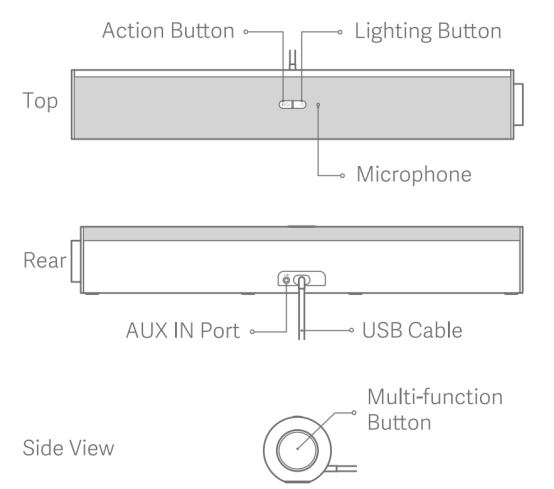
2. Button instructions:
3. Indicator instructions:
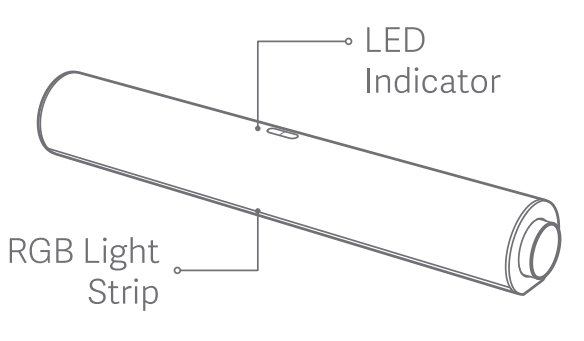
4. Q: What is the acoustic architecture of the Xiaomi Desktop Speaker?
A: The Xiaomi Desktop Speaker utilizes a four-unit acoustic configuration with one 44 × 80mm racetrack full-range unit and one racetrack passive radiator on each side, forming a symmetrical native stereo stack design. Each speaker has a rated power of 5W and a peak power of 7W.
The far-end layout creates a better stereo sound field, with independent sound chambers on each side and a 53° speaker tilt architecture, creating an upward sound angle for a heavenly sound field. Even when placed under a monitor, the sound is directed towards your ears.
5. Q: Does the Xiaomi Desktop Speaker come with a power adapter and separate power cable?
A: The Xiaomi Desktop Speaker doesn’t come with a power adapter and separate power cable. The power cable is integrated with the speaker. One end is fixed to the speaker (non-removable), and the other end is a Type-C + USB-A compatible port.
6. Q: How to turn on/off the Xiaomi Desktop Speaker and what are the instructions?
A: 1. The power-on instruction is as follows:
(1). Automatically power on: The speaker automatically turns on when connected to the computer USB port or USB power adapter;
(2). Manually power on: If manually turned off without disconnecting the power, press the Multi-function Button to power on;
2. The power-off instruction is as follows:
(1). Passively power off: The speaker turns off passively when the PC or power source is disconnected while the speaker is on;
(2). Manually power off: Press and hold the Multi-function Button for 2 seconds to turn off;
3. The logic of the power-on sound and the RGB startup lighting effect is as follows:
The speaker will play a power-on sound and an RGB startup lighting effect the first time it's used, when it is manually turned on, or when reset to the factory settings. When the speaker is automatically powered on by connecting to a power source, only the RGB startup lighting effect is displayed with no sound to minimize disturbance.
7. Q: How to adjust the volume on the Xiaomi Desktop Speaker?
A: Rotate the Multi-function Button clockwise to increase the volume and counter-clockwise to decrease it. The RGB ambient light will display the current volume level with bar light effects corresponding to real-time volume changes.
1. Bluetooth channel mode: The speaker and connected audio device adjust volume synchronously (e.g., adjusting media volume on a phone automatically adjusts the speaker volume, with ambient light reflecting the volume change);
2. USB channel mode: The speaker and connected audio device adjust volume independently (e.g., adjusting media volume on a computer does not affect the speaker volume, and vice versa);
3. AUX IN channel mode: The speaker and connected audio device adjust volume independently (e.g., adjusting media volume on a computer does not affect the speaker volume, and vice versa).
8. Q: How to play and pause music on the Xiaomi Desktop Speaker?
A: In USB and Bluetooth channels, press the Multi-function Button to play and pause music in most playback software. This function is unavailable in the AUX IN channel. Apple Music is supported with this function.
9. Q: How to go to the previous or next track on the Xiaomi Desktop Speaker?
A: In USB and Bluetooth channels, press the Multi-function Button twice for the next track and press thrice for the previous track. This function is unavailable in the AUX IN channel.
10. Q: How to answer, hang up, and reject calls on the Xiaomi Desktop Speaker?
A: 1. Bluetooth channel mode: When connected to a phone and there is an incoming call, use the Multi-function Button to answer, hang up, and reject calls. Press to answer, press and hold for 2 seconds to reject, and press during a call to hang up. When connected to a computer, these functions aren't available via the Multi-function Button. For direct calls through the speaker, you need to set both the computer's input and output to the Xiaomi Desktop Speaker;
2. USB channel mode: When connected to a phone and there is an incoming call, use the Multi-function Button to answer, hang up, and reject calls. Press to answer, press and hold for 2 seconds to reject, and press during a call to hang up. When connected to a computer, these functions aren't available via the Multi-function Button. For direct calls through the speaker, you need to set both the computer's input and output to the Xiaomi Desktop Speaker;
3. AUX IN channel mode: Cannot use the Multi-function Button for answering, ending, or rejecting calls, whether connecting to a phone or a computer. Actions must be performed on the audio source device.
11. Q: How many connection methods does the Xiaomi Desktop Speaker support?
A: The Xiaomi Desktop Speaker supports three connection methods.
1. Direct USB connection to the computer USB port (strongly recommended not to use a hub due to potential insufficient power supply causing abnormal use);
2. Bluetooth connection to mobile devices like phones and pads;
3. Wired connection through 3.5mm AUX IN.
12. Q: How to use the USB cable to connect the Xiaomi Desktop Speaker to a computer?
A: Take the computer as an example, connect the speaker's USB cable to the computer's USB port. The speaker will draw power from the computer's USB port and play audio from the computer. In the computer system, select the Xiaomi Desktop Speaker as the playback device. It is recommended to use a USB 2.0 port or above for connection.
13. Q: How to connect the Xiaomi Desktop Speaker to devices like phones via Bluetooth?
A: 1. First, connect the speaker's USB cable to a powered USB port (such as a power socket, USB charger, or computer);
2. The speaker will automatically power on, and you can connect via Bluetooth;
3. Initial pairing: While powered on, press and hold the Action Button for 2 seconds to hear a tinkling sound and see the LED indicator blinking in white, indicating the speaker is in Bluetooth pairing mode. On the device's Bluetooth settings interface, find the Xiaomi Desktop Speaker to connect. If the connection completes, you can hear a rub-a-dub sound and the LED indicator keeps in white;
4. Automatic pairing: After switching to the Bluetooth channel on power-up, the speaker will automatically connect to the last paired device. If unsuccessful, it enters Bluetooth pairing mode.
14. Q: How to connect the Xiaomi Desktop Speaker to devices like phones via AUX IN?
A: When the speaker is powered on, use a 3.5mm audio cable (need to purchase separately) to connect the speaker's 3.5mm port to the phone's headphone jack. The speaker will switch to the AUX IN channel automatically.
Note:
1. If plug in the 3.5mm AUX cable when the speaker is not powered on, and then power on the speaker, the speaker will be the last used channel by default;
2. When the speaker is powered on, press the Action Button twice can switch the channels;
3. The AUX IN wired connection requires the speaker to be powered on via USB before use. It doesn’t support plugging in the AUX cable separately.
15. Q: How to re-pair the Xiaomi Desktop Speaker?
A: While the speaker is on, press and hold the Action Button for 2 seconds to disconnect the current Bluetooth connection. This will enter Bluetooth pairing mode, accompanied by a tinkling sound and the LED indicator blinking in white.
16. Q: How to switch between the three audio channels on the Xiaomi Desktop Speaker?
A: The Xiaomi Desktop Speaker has three audio channels: USB channel, Bluetooth channel, and AUX IN channel.
Press the Action Button twice to cycle through the channels in this order: USB channel (default channel when powered on), Bluetooth channel, AUX IN channel. A prompt sound will indicate the successful switch.
The speaker supports remembering the last used channel before shutting down. If the last channel is USB/AUX IN and no signal is detected upon power-up, it will automatically switch to the Bluetooth/USB channel.
Press and hold the Action Button for 2 seconds in any non-Bluetooth channel, and the speaker will be forced to switch to the Bluetooth channel and enter Bluetooth search and pairing mode.
If no 3.5mm audio jack is inserted into the AUX IN port, only the Bluetooth channel and USB channel are available. When a 3.5mm audio jack is inserted, it automatically switches to the AUX IN channel with a prompt sound.
17. Q: How to switch sound effects on the Xiaomi Desktop Speaker?
A: The speaker has five sound effect modes: Music, Bass, Vocals, Game, and Movie. Press the Action Button to cycle through the five sound effect modes.
By default, the speaker starts with Music mode and supports selection memory, which retains the last sound effect mode when powered on again.
18. Q: Why is there noise when connecting the Xiaomi Desktop Speaker with both USB and AUX cables to the computer?
A: Connecting both USB and AUX cables to the same computer can create a ground loop effect, causing noise. It is not recommended. Prefer using only the USB cable for audio playback. If the 3.5mm audio cable must be used, power the speaker with a USB adapter or another USB-powered device.
19. Q: Why is there a static noise when inserting or removing the AUX IN cable on the Xiaomi Desktop Speaker?
A: The static noise is due to a small electrical potential difference occurring when inserting or removing the 3.5mm jack. This is a normal phenomenon for the 3.5mm audio jack and will not affect normal use.
20. Q: What to do if there is a delay in Bluetooth or AUX IN connections with the Xiaomi Desktop Speaker? What is an acceptable delay?
A: 1. Avoid Interference: Minimize interference from other Bluetooth devices, Wi-Fi signals, and physical obstacles. Place the speaker and connecting device in a clear, unobstructed area;
2. Choose a proper audio source: Some APPs and devices can introduce additional audio processing delay. Use applications that transmit audio directly and check device settings to disable unnecessary audio processing.
For video-watching or real-time audio applications, aim for a delay of less than 100 milliseconds to ensure synchronization. For audio playback, a delay of under 200 milliseconds is acceptable.
The Xiaomi Desktop Speaker’s Bluetooth and AUX IN delays are controlled to be below 200 milliseconds, which will not impact the experience.
21. Q: Can the Xiaomi Desktop Speaker be connected to a TV or gaming console?
A: The Xiaomi Desktop Speaker is primarily designed for use with desktop PCs and laptops. You can connect the speaker via a USB cable in this scenario.
For a TV connection, try using the TV's USB-A/Type-C port or 3.5mm headphone jack. Please note that if using the headphone jack, you need to use a USB adapter for power and purchase an additional AUX audio cable. Bluetooth connection is not recommended due to potential compatibility issues leading to audio-video sync problems.
22. Q: How to adjust the volume of the prompt sounds on the Xiaomi Desktop Speaker?
A: Rotate the Multi-function Button clockwise to increase volume and counter-clockwise to decrease volume. The RGB ambient light will change with the volume level.
23. Q: How to enable/disable the light effects and switch between them on the Xiaomi Desktop Speaker?
A: Press and hold the Lighting Button for 2 seconds to enable/disable the light effects. Press the Lighting Button to cycle through the light effects. A prompt sound will indicate the current light effect.
The five RGB light effects are:
1. Party (default on startup);
2. Rainbow;
3. Aurora;
4. Fireplace;
5. Color Breath (includes five single-color breathing effects: white, red, blue, purple, green).
24. Q: Can the brightness of the light effects on the Xiaomi Desktop Speaker be adjusted?
A: No, only the light effects that display volume will change with volume adjustments.
25. Q: What are the sleep/standby states of the Xiaomi Desktop Speaker?
A: Sleep mode: After 30 minutes of inactivity or no playback, the speaker enters sleep mode with the indicator breathing in orange. Any operation or audio input will wake the speaker from sleep mode.
Standby mode: After 30 minutes of inactivity in sleep mode, the speaker enters standby mode with the RGB lights off. Any operation or audio input will wake the speaker from standby mode.
26. Q: What is the energy management system of the Xiaomi Desktop Speaker?
A: The speaker has an intelligent energy management system that provides more than the USB power output during music playback to enhance dynamic performance. If played at high volume for a long time, the system will enter a power replenishment mode, reducing output power and RGB brightness. The orange LED will turn off once the replenishment is complete.
27. Q: Does the Xiaomi Desktop Speaker have an internal battery, and can it be powered solely by the battery?
A: The speaker has a 1500mAh lithium-ion battery. It is designed to be powered by USB (from a computer PC or USB adapter) and uses the battery only to improve the audio transient performance when USB power is insufficient, with high volume or with high power consumption. It is not designed for portable battery-powered use.
28. Q: Does the Xiaomi Desktop Speaker remember the last audio channel used before shutting down?
A: It defaults to the USB channel on the first power-up. After shutdown, it will return to the last used channel.
If the AUX IN port is not connected to a 3.5mm audio jack, it will switch between the Bluetooth channel and the USB channel. Inserting a 3.5mm audio jack will automatically switch to the AUX IN channel with a prompt sound.
29. Q: Does the Xiaomi Desktop Speaker support connection with an APP or networking?
A: Not support.
30. Q: Does the Xiaomi Desktop Speaker support multiple device connections simultaneously?
A: Not support.
31. Q: What is the length of the power cord for the Xiaomi Desktop Speaker?
A: Approximately 1.5 meters.
32. Q: What standard is the AUX IN port on the Xiaomi Desktop Speaker?
A: It uses a 3.5mm TRS jack.
33. Q: How to check the current volume level on the Xiaomi Desktop Speaker?
A: 1. Bluetooth channel: Volume adjustment is synchronized with the connected device. Check the length of the light bar or device volume display;
2. USB channel: If adjusted via the Multi-function Button, check the light bar display. If adjusted via the source device, check the device’s volume display;
3. AUX IN channel: If adjusted via the Multi-function Button, check the light bar display. If adjusted via the source device, check the device’s volume display.
34. Q: Can the Xiaomi Desktop Speaker be directly connected to a phone or pad via USB?
A: Yes, the speaker has both Type-C and USB-A connectors for direct connection to devices.
35. Q: Where is the SN located on the Xiaomi Desktop Speaker?
A: On the bottom of the product shell.
FAQs
1. Q: Why does the sound remain low even when the volume on the Xiaomi Desktop Speaker is turned up to the maximum?
A: The sound remains low at maximum volume due to the following reasons:
1. Volume mismatch: The volume settings on the computer and the speaker are not synchronized. Check the volume settings on your computer and adjust both the computer and speaker volumes until you reach the desired level. (If using the speaker as a long-term audio output device, it is recommended to set the computer volume to maximum and adjust the volume using the speaker's side Multi-function Button.);
2. Low power state: If the speaker's built-in battery is low, it will be in a low power state, indicated by an LED indicator blinking in orange twice every 5 seconds. In this state, the maximum volume is only 60% of the normal maximum volume. To speed up the charging process, reduce the playback volume or stop playing music. The speaker will return to normal state after about an hour of charging;
3. Ultra-low power state: When the power supply cannot provide the rated voltage required for the speaker (below 4.5V, such as when connected to some USB hubs), the speaker will enter an ultra-low power state. In this state, both the sound power and RGB brightness will reduce by 50%. To resolve this, connect the speaker's USB cable directly to the computer's USB port.
2. Q: Why does the Xiaomi Desktop Speaker have no sound even though it is connected to the computer or phone via Bluetooth?
A: 1. Check channel settings: Press the Action Button twice to switch channels and return to the Bluetooth channel. The speaker will automatically reconnect to previously paired devices within Bluetooth range. The re-connection will take about 5 seconds. After re-connection, try playing again;
2. Check Bluetooth connection: If the speaker's top LED is keeping in white, however, cannot be connected to the device you want to play from, press and hold the Action Button for 2 seconds to reset Bluetooth, then pair it with the desired device again;
3. Bluetooth exceeds effective range: The speaker’s Bluetooth effective range is within 10 meters. Exceeding this distance will cause playback lag or disconnection;
4. If issues persist, check the computer or phone to ensure the audio output is set to the Xiaomi Desktop Speaker.
3. Q: Why does the Xiaomi Desktop Speaker have no sound when connected via the USB cable (integrated cable)?
A: 1. Check if the speaker is in the USB channel. Press the Action Button twice to switch to the USB channel, indicated by the prompt sound: USB Channel, and the speaker will play normally;
2. If issues persist, check the computer or phone to ensure the audio output is set to the Xiaomi Desktop Speaker.
4. Q: Why does the Xiaomi Desktop Speaker have no sound when connected via AUX cable?
A: 1. Check if the speaker is in the AUX channel. Press the Action Button twice to switch to the AUX channel, indicated by the prompt sound: AUX IN Channel, and the speaker will play normally;
2. If issues persist, check the computer or phone to ensure the audio output is set to the Xiaomi Desktop Speaker;
3. If the speaker still has no sound, ensure the AUX cable and source device's AUX interface are compatible. The speaker uses a 3.5mm TRS jack.
5. Q: When the Xiaomi Desktop Speaker is connected to the computer via Bluetooth, why are there two Bluetooth names (Stereo, Hands-Free) and which one should be used for playback?
A: Hands-Free is optimized for voice communication and not suitable for audio playback. The Windows system automatically switches to Hands-Free when the microphone is active and switches back to Stereo when the microphone is off.
When two Bluetooth names appear in the Bluetooth list on the computer, select Xiaomi Desktop Speaker-XXXX Stereo for better sound quality and clearer music.
Note:
This issue occurs only in Windows 10 due to a bug in the operating system.
6. Q: Why does the sound of the Xiaomi Desktop Speaker suddenly decrease?
A: After 6-8 hours of continuous playback, the speaker's internal battery voltage will drop to a critical level, causing the speaker to enter a low power state. In this state, both the sound power and RGB brightness are reduced, with an LED indicator blinking in orange twice every 5 seconds. The speaker will return to normal after about an hour. To speed up the recovery, reduce the playback volume or stop playing music.
7. Q: Why can't the Xiaomi Desktop Speaker be powered on?
A: 1. The speaker needs to be connected to a power source (5V⎓1A). Check if the USB cable is properly connected and ensure there are no issues with the device and USB adapter. Then try connecting again;
2. Do not use other accessories to connect to the speaker such as hubs or splitters. Connect the speaker's USB cable directly to the computer's USB port. Compared to traditional USB-A 2.0/3.0 ports, USB-C/Type-C ports provide better power stability and performance;
3. Try pressing and holding the Multi-function Button for 8 seconds to reset the speaker to factory settings. After it restarts, try powering it on again.
8. Q: What is the minimum power requirement for the USB adapter for the Xiaomi Desktop Speaker?
A: 5V⎓1A
9. Q: Why is there a red LED light on the Xiaomi Desktop Speaker?
A: The red indicator means a battery error, which includes issues such as the battery not functioning correctly, not charging, or a loose battery connector. If a fault is detected, the red LED indicator will stay on for 30 minutes after starting the device and attempt charging. If charging fails, the red LED indicator will turn off after 30 minutes. The device will repeat this process on the next startup.
10. Q: What to do if the Xiaomi Desktop Speaker freezes, with unresponsive buttons, no sound, or light effects stuck?
A: 1. Disconnect the speaker and reconnect it to the computer's USB port or USB adapter. Wait for the speaker to automatically turn on;
2. If reconnecting power does not resolve the issue, press and hold the Multi-function Button for 8 seconds to reset the speaker to factory settings;
3. If problems persist, contact the local after-sales service center for further assistance.
11. Q: What are the potential risks of the Xiaomi Desktop Speaker that need to pay attention to?
A: 1. Connecting the speaker to a hub with multiple devices will prevent it from powering on properly. Reduce the number of connected devices or connect the USB cable directly to the computer's USB port;
2. In a low power (low battery) state, the speaker reduces volume to conserve battery. In this state, the maximum volume or every level of volume will reduce by 40% automatically and is only 60% of the normal volume. Please temporarily reduce playback volume or pause playback to improve charging efficiency;
3. In an ultra-low power state, the power supply or adapter cannot provide adequate voltage. Please directly connect the speaker’s USB cable to the computer’s USB port to ensure stable power. Compared to traditional USB-A 2.0/3.0 ports, USB-C/Type-C ports provide better power stability and performance.
If you experience sudden reductions in playback volume, or issues with the speaker not turning on, indicating it is in a low or ultra-low power state, you can refer to the following steps to troubleshoot:
1. The speaker needs to connect to a power source to use. Check if the USB cable is properly connected and try again, or check the connection status between the speaker and the USB adapter;
2. Other accessories to connect to the speaker such as hubs or splitters. Connect the speaker's USB cable directly to the computer's USB port. Compared to traditional USB-A 2.0/3.0 ports, USB-C/Type-C ports provide better power stability and performance;
3. Temporarily reduce playback volume or pause playback to improve charging efficiency;
4. If the speaker has been idle for a long time and exceeds the battery self-discharge period, the battery will be at risk of depletion.
1. Q: How to use the Xiaomi Desktop Speaker?
A: Connect the speaker's USB cable to the computer's USB port or a power source with a USB port, such as a power socket, computer monitor, or USB charger. The speaker will automatically power on with a startup sound and lighting effects when the power supply meets the requirements.
If manually turned off without disconnecting the power, press the speaker's Multi-function Button to turn it on.
2. Q: What are the features of the Xiaomi Desktop Speaker?
A: The selling points and the specific descriptions are as follows:
1. Four-unit wide-field stereo with 53° upward angle design. 2 44 × 80mm full-range 5W units + 2 racetrack-shaped passive radiators, with symmetrical native stereo design. 53° desktop high angle design can provide stable sound pressure and flat frequency response with heavenly sound field coverage;
2. High-quality appearance with colorful ambient light ribbon. Elegant design with woven mesh and a metallic side knob, which is an ideal accessory for your desktop decoration.
RGB ambient light ribbon formed with 16 RGB LEDs, offering five preset lighting effects (Party, Rainbow, Aurora, Fireplace, and Color breath). Create light displays that are in sync with the music, bringing you a stunning audiovisual experience;
3. One-press switching between audio-visual entertainment scenarios with five preset sound effect modes (Music, Bass, Vocals, Game, Movie), which adopts professional audio DSP and 24-bit audio decoding. It supports 3.5mm AUX IN and Bluetooth A2DP/HFP, and freely switches between leisure entertainment and office scenarios. Convenient one-line USB connection, compatible with PC/laptop USB-A and Type-C ports for both power supply and audio playback.
The multi-channel design includes a USB channel (default), Bluetooth channel and AUX IN channel. It also supports a channel memory mechanism.
3. Q: What are the button names, operation instructions, and indicator instructions on the Xiaomi Desktop Speaker?
A: 1. Button names:
On the top, there are an Action Button and a Lighting Button. At the side, there is a Muti-function Button.
2. Button instructions:
| Button | Multi-function Button | Action Button | Lighting Button |
| Press | Turn on the speaker Play/Pause music Answer/End a call | Switch sound effects | Switch RGB light effects |
| Press rapidly in succession | Press twice: Play the next track, or switch between incoming calls Press thrice: Play the previous track | Press twice: Switch between audio channels | / |
| Press and hold | Press and hold for 2 seconds: Tum off the speaker or reject a call Press and hold for 8 seconds: Restore factory settings | Press and hold for 2 seconds: Enable the Bluetooth pairing mode | Press and hold for 2 seconds: Enable/disable RGB light effects |
| Rotate | Clockwise: Increase volume Counter-clockwise: Decrease volume | / | / |
| LED Indicator Description | |
| Indicator status | Speaker status |
| Keeping in white | Bluetooth connected |
| Blinking in white | Bluetooth pairing |
| Blinking in orange | Charging |
| Keeping in red | Device error |
| RGB Light Strip Description | |
| Indicator status | Speaker status |
| Breathing in white | In-call |
| Blinking in white | Incoming call |
| Breathing in orange | Sleep mode |
4. Q: What is the acoustic architecture of the Xiaomi Desktop Speaker?
A: The Xiaomi Desktop Speaker utilizes a four-unit acoustic configuration with one 44 × 80mm racetrack full-range unit and one racetrack passive radiator on each side, forming a symmetrical native stereo stack design. Each speaker has a rated power of 5W and a peak power of 7W.
The far-end layout creates a better stereo sound field, with independent sound chambers on each side and a 53° speaker tilt architecture, creating an upward sound angle for a heavenly sound field. Even when placed under a monitor, the sound is directed towards your ears.
5. Q: Does the Xiaomi Desktop Speaker come with a power adapter and separate power cable?
A: The Xiaomi Desktop Speaker doesn’t come with a power adapter and separate power cable. The power cable is integrated with the speaker. One end is fixed to the speaker (non-removable), and the other end is a Type-C + USB-A compatible port.
6. Q: How to turn on/off the Xiaomi Desktop Speaker and what are the instructions?
A: 1. The power-on instruction is as follows:
(1). Automatically power on: The speaker automatically turns on when connected to the computer USB port or USB power adapter;
(2). Manually power on: If manually turned off without disconnecting the power, press the Multi-function Button to power on;
2. The power-off instruction is as follows:
(1). Passively power off: The speaker turns off passively when the PC or power source is disconnected while the speaker is on;
(2). Manually power off: Press and hold the Multi-function Button for 2 seconds to turn off;
3. The logic of the power-on sound and the RGB startup lighting effect is as follows:
The speaker will play a power-on sound and an RGB startup lighting effect the first time it's used, when it is manually turned on, or when reset to the factory settings. When the speaker is automatically powered on by connecting to a power source, only the RGB startup lighting effect is displayed with no sound to minimize disturbance.
7. Q: How to adjust the volume on the Xiaomi Desktop Speaker?
A: Rotate the Multi-function Button clockwise to increase the volume and counter-clockwise to decrease it. The RGB ambient light will display the current volume level with bar light effects corresponding to real-time volume changes.
1. Bluetooth channel mode: The speaker and connected audio device adjust volume synchronously (e.g., adjusting media volume on a phone automatically adjusts the speaker volume, with ambient light reflecting the volume change);
2. USB channel mode: The speaker and connected audio device adjust volume independently (e.g., adjusting media volume on a computer does not affect the speaker volume, and vice versa);
3. AUX IN channel mode: The speaker and connected audio device adjust volume independently (e.g., adjusting media volume on a computer does not affect the speaker volume, and vice versa).
8. Q: How to play and pause music on the Xiaomi Desktop Speaker?
A: In USB and Bluetooth channels, press the Multi-function Button to play and pause music in most playback software. This function is unavailable in the AUX IN channel. Apple Music is supported with this function.
9. Q: How to go to the previous or next track on the Xiaomi Desktop Speaker?
A: In USB and Bluetooth channels, press the Multi-function Button twice for the next track and press thrice for the previous track. This function is unavailable in the AUX IN channel.
10. Q: How to answer, hang up, and reject calls on the Xiaomi Desktop Speaker?
A: 1. Bluetooth channel mode: When connected to a phone and there is an incoming call, use the Multi-function Button to answer, hang up, and reject calls. Press to answer, press and hold for 2 seconds to reject, and press during a call to hang up. When connected to a computer, these functions aren't available via the Multi-function Button. For direct calls through the speaker, you need to set both the computer's input and output to the Xiaomi Desktop Speaker;
2. USB channel mode: When connected to a phone and there is an incoming call, use the Multi-function Button to answer, hang up, and reject calls. Press to answer, press and hold for 2 seconds to reject, and press during a call to hang up. When connected to a computer, these functions aren't available via the Multi-function Button. For direct calls through the speaker, you need to set both the computer's input and output to the Xiaomi Desktop Speaker;
3. AUX IN channel mode: Cannot use the Multi-function Button for answering, ending, or rejecting calls, whether connecting to a phone or a computer. Actions must be performed on the audio source device.
11. Q: How many connection methods does the Xiaomi Desktop Speaker support?
A: The Xiaomi Desktop Speaker supports three connection methods.
1. Direct USB connection to the computer USB port (strongly recommended not to use a hub due to potential insufficient power supply causing abnormal use);
2. Bluetooth connection to mobile devices like phones and pads;
3. Wired connection through 3.5mm AUX IN.
12. Q: How to use the USB cable to connect the Xiaomi Desktop Speaker to a computer?
A: Take the computer as an example, connect the speaker's USB cable to the computer's USB port. The speaker will draw power from the computer's USB port and play audio from the computer. In the computer system, select the Xiaomi Desktop Speaker as the playback device. It is recommended to use a USB 2.0 port or above for connection.
13. Q: How to connect the Xiaomi Desktop Speaker to devices like phones via Bluetooth?
A: 1. First, connect the speaker's USB cable to a powered USB port (such as a power socket, USB charger, or computer);
2. The speaker will automatically power on, and you can connect via Bluetooth;
3. Initial pairing: While powered on, press and hold the Action Button for 2 seconds to hear a tinkling sound and see the LED indicator blinking in white, indicating the speaker is in Bluetooth pairing mode. On the device's Bluetooth settings interface, find the Xiaomi Desktop Speaker to connect. If the connection completes, you can hear a rub-a-dub sound and the LED indicator keeps in white;
4. Automatic pairing: After switching to the Bluetooth channel on power-up, the speaker will automatically connect to the last paired device. If unsuccessful, it enters Bluetooth pairing mode.
14. Q: How to connect the Xiaomi Desktop Speaker to devices like phones via AUX IN?
A: When the speaker is powered on, use a 3.5mm audio cable (need to purchase separately) to connect the speaker's 3.5mm port to the phone's headphone jack. The speaker will switch to the AUX IN channel automatically.
Note:
1. If plug in the 3.5mm AUX cable when the speaker is not powered on, and then power on the speaker, the speaker will be the last used channel by default;
2. When the speaker is powered on, press the Action Button twice can switch the channels;
3. The AUX IN wired connection requires the speaker to be powered on via USB before use. It doesn’t support plugging in the AUX cable separately.
15. Q: How to re-pair the Xiaomi Desktop Speaker?
A: While the speaker is on, press and hold the Action Button for 2 seconds to disconnect the current Bluetooth connection. This will enter Bluetooth pairing mode, accompanied by a tinkling sound and the LED indicator blinking in white.
16. Q: How to switch between the three audio channels on the Xiaomi Desktop Speaker?
A: The Xiaomi Desktop Speaker has three audio channels: USB channel, Bluetooth channel, and AUX IN channel.
Press the Action Button twice to cycle through the channels in this order: USB channel (default channel when powered on), Bluetooth channel, AUX IN channel. A prompt sound will indicate the successful switch.
The speaker supports remembering the last used channel before shutting down. If the last channel is USB/AUX IN and no signal is detected upon power-up, it will automatically switch to the Bluetooth/USB channel.
Press and hold the Action Button for 2 seconds in any non-Bluetooth channel, and the speaker will be forced to switch to the Bluetooth channel and enter Bluetooth search and pairing mode.
If no 3.5mm audio jack is inserted into the AUX IN port, only the Bluetooth channel and USB channel are available. When a 3.5mm audio jack is inserted, it automatically switches to the AUX IN channel with a prompt sound.
17. Q: How to switch sound effects on the Xiaomi Desktop Speaker?
A: The speaker has five sound effect modes: Music, Bass, Vocals, Game, and Movie. Press the Action Button to cycle through the five sound effect modes.
By default, the speaker starts with Music mode and supports selection memory, which retains the last sound effect mode when powered on again.
18. Q: Why is there noise when connecting the Xiaomi Desktop Speaker with both USB and AUX cables to the computer?
A: Connecting both USB and AUX cables to the same computer can create a ground loop effect, causing noise. It is not recommended. Prefer using only the USB cable for audio playback. If the 3.5mm audio cable must be used, power the speaker with a USB adapter or another USB-powered device.
19. Q: Why is there a static noise when inserting or removing the AUX IN cable on the Xiaomi Desktop Speaker?
A: The static noise is due to a small electrical potential difference occurring when inserting or removing the 3.5mm jack. This is a normal phenomenon for the 3.5mm audio jack and will not affect normal use.
20. Q: What to do if there is a delay in Bluetooth or AUX IN connections with the Xiaomi Desktop Speaker? What is an acceptable delay?
A: 1. Avoid Interference: Minimize interference from other Bluetooth devices, Wi-Fi signals, and physical obstacles. Place the speaker and connecting device in a clear, unobstructed area;
2. Choose a proper audio source: Some APPs and devices can introduce additional audio processing delay. Use applications that transmit audio directly and check device settings to disable unnecessary audio processing.
For video-watching or real-time audio applications, aim for a delay of less than 100 milliseconds to ensure synchronization. For audio playback, a delay of under 200 milliseconds is acceptable.
The Xiaomi Desktop Speaker’s Bluetooth and AUX IN delays are controlled to be below 200 milliseconds, which will not impact the experience.
21. Q: Can the Xiaomi Desktop Speaker be connected to a TV or gaming console?
A: The Xiaomi Desktop Speaker is primarily designed for use with desktop PCs and laptops. You can connect the speaker via a USB cable in this scenario.
For a TV connection, try using the TV's USB-A/Type-C port or 3.5mm headphone jack. Please note that if using the headphone jack, you need to use a USB adapter for power and purchase an additional AUX audio cable. Bluetooth connection is not recommended due to potential compatibility issues leading to audio-video sync problems.
22. Q: How to adjust the volume of the prompt sounds on the Xiaomi Desktop Speaker?
A: Rotate the Multi-function Button clockwise to increase volume and counter-clockwise to decrease volume. The RGB ambient light will change with the volume level.
23. Q: How to enable/disable the light effects and switch between them on the Xiaomi Desktop Speaker?
A: Press and hold the Lighting Button for 2 seconds to enable/disable the light effects. Press the Lighting Button to cycle through the light effects. A prompt sound will indicate the current light effect.
The five RGB light effects are:
1. Party (default on startup);
2. Rainbow;
3. Aurora;
4. Fireplace;
5. Color Breath (includes five single-color breathing effects: white, red, blue, purple, green).
24. Q: Can the brightness of the light effects on the Xiaomi Desktop Speaker be adjusted?
A: No, only the light effects that display volume will change with volume adjustments.
25. Q: What are the sleep/standby states of the Xiaomi Desktop Speaker?
A: Sleep mode: After 30 minutes of inactivity or no playback, the speaker enters sleep mode with the indicator breathing in orange. Any operation or audio input will wake the speaker from sleep mode.
Standby mode: After 30 minutes of inactivity in sleep mode, the speaker enters standby mode with the RGB lights off. Any operation or audio input will wake the speaker from standby mode.
26. Q: What is the energy management system of the Xiaomi Desktop Speaker?
A: The speaker has an intelligent energy management system that provides more than the USB power output during music playback to enhance dynamic performance. If played at high volume for a long time, the system will enter a power replenishment mode, reducing output power and RGB brightness. The orange LED will turn off once the replenishment is complete.
27. Q: Does the Xiaomi Desktop Speaker have an internal battery, and can it be powered solely by the battery?
A: The speaker has a 1500mAh lithium-ion battery. It is designed to be powered by USB (from a computer PC or USB adapter) and uses the battery only to improve the audio transient performance when USB power is insufficient, with high volume or with high power consumption. It is not designed for portable battery-powered use.
28. Q: Does the Xiaomi Desktop Speaker remember the last audio channel used before shutting down?
A: It defaults to the USB channel on the first power-up. After shutdown, it will return to the last used channel.
If the AUX IN port is not connected to a 3.5mm audio jack, it will switch between the Bluetooth channel and the USB channel. Inserting a 3.5mm audio jack will automatically switch to the AUX IN channel with a prompt sound.
29. Q: Does the Xiaomi Desktop Speaker support connection with an APP or networking?
A: Not support.
30. Q: Does the Xiaomi Desktop Speaker support multiple device connections simultaneously?
A: Not support.
31. Q: What is the length of the power cord for the Xiaomi Desktop Speaker?
A: Approximately 1.5 meters.
32. Q: What standard is the AUX IN port on the Xiaomi Desktop Speaker?
A: It uses a 3.5mm TRS jack.
33. Q: How to check the current volume level on the Xiaomi Desktop Speaker?
A: 1. Bluetooth channel: Volume adjustment is synchronized with the connected device. Check the length of the light bar or device volume display;
2. USB channel: If adjusted via the Multi-function Button, check the light bar display. If adjusted via the source device, check the device’s volume display;
3. AUX IN channel: If adjusted via the Multi-function Button, check the light bar display. If adjusted via the source device, check the device’s volume display.
34. Q: Can the Xiaomi Desktop Speaker be directly connected to a phone or pad via USB?
A: Yes, the speaker has both Type-C and USB-A connectors for direct connection to devices.
35. Q: Where is the SN located on the Xiaomi Desktop Speaker?
A: On the bottom of the product shell.
FAQs
1. Q: Why does the sound remain low even when the volume on the Xiaomi Desktop Speaker is turned up to the maximum?
A: The sound remains low at maximum volume due to the following reasons:
1. Volume mismatch: The volume settings on the computer and the speaker are not synchronized. Check the volume settings on your computer and adjust both the computer and speaker volumes until you reach the desired level. (If using the speaker as a long-term audio output device, it is recommended to set the computer volume to maximum and adjust the volume using the speaker's side Multi-function Button.);
2. Low power state: If the speaker's built-in battery is low, it will be in a low power state, indicated by an LED indicator blinking in orange twice every 5 seconds. In this state, the maximum volume is only 60% of the normal maximum volume. To speed up the charging process, reduce the playback volume or stop playing music. The speaker will return to normal state after about an hour of charging;
3. Ultra-low power state: When the power supply cannot provide the rated voltage required for the speaker (below 4.5V, such as when connected to some USB hubs), the speaker will enter an ultra-low power state. In this state, both the sound power and RGB brightness will reduce by 50%. To resolve this, connect the speaker's USB cable directly to the computer's USB port.
2. Q: Why does the Xiaomi Desktop Speaker have no sound even though it is connected to the computer or phone via Bluetooth?
A: 1. Check channel settings: Press the Action Button twice to switch channels and return to the Bluetooth channel. The speaker will automatically reconnect to previously paired devices within Bluetooth range. The re-connection will take about 5 seconds. After re-connection, try playing again;
2. Check Bluetooth connection: If the speaker's top LED is keeping in white, however, cannot be connected to the device you want to play from, press and hold the Action Button for 2 seconds to reset Bluetooth, then pair it with the desired device again;
3. Bluetooth exceeds effective range: The speaker’s Bluetooth effective range is within 10 meters. Exceeding this distance will cause playback lag or disconnection;
4. If issues persist, check the computer or phone to ensure the audio output is set to the Xiaomi Desktop Speaker.
3. Q: Why does the Xiaomi Desktop Speaker have no sound when connected via the USB cable (integrated cable)?
A: 1. Check if the speaker is in the USB channel. Press the Action Button twice to switch to the USB channel, indicated by the prompt sound: USB Channel, and the speaker will play normally;
2. If issues persist, check the computer or phone to ensure the audio output is set to the Xiaomi Desktop Speaker.
4. Q: Why does the Xiaomi Desktop Speaker have no sound when connected via AUX cable?
A: 1. Check if the speaker is in the AUX channel. Press the Action Button twice to switch to the AUX channel, indicated by the prompt sound: AUX IN Channel, and the speaker will play normally;
2. If issues persist, check the computer or phone to ensure the audio output is set to the Xiaomi Desktop Speaker;
3. If the speaker still has no sound, ensure the AUX cable and source device's AUX interface are compatible. The speaker uses a 3.5mm TRS jack.
5. Q: When the Xiaomi Desktop Speaker is connected to the computer via Bluetooth, why are there two Bluetooth names (Stereo, Hands-Free) and which one should be used for playback?
A: Hands-Free is optimized for voice communication and not suitable for audio playback. The Windows system automatically switches to Hands-Free when the microphone is active and switches back to Stereo when the microphone is off.
When two Bluetooth names appear in the Bluetooth list on the computer, select Xiaomi Desktop Speaker-XXXX Stereo for better sound quality and clearer music.
Note:
This issue occurs only in Windows 10 due to a bug in the operating system.
6. Q: Why does the sound of the Xiaomi Desktop Speaker suddenly decrease?
A: After 6-8 hours of continuous playback, the speaker's internal battery voltage will drop to a critical level, causing the speaker to enter a low power state. In this state, both the sound power and RGB brightness are reduced, with an LED indicator blinking in orange twice every 5 seconds. The speaker will return to normal after about an hour. To speed up the recovery, reduce the playback volume or stop playing music.
7. Q: Why can't the Xiaomi Desktop Speaker be powered on?
A: 1. The speaker needs to be connected to a power source (5V⎓1A). Check if the USB cable is properly connected and ensure there are no issues with the device and USB adapter. Then try connecting again;
2. Do not use other accessories to connect to the speaker such as hubs or splitters. Connect the speaker's USB cable directly to the computer's USB port. Compared to traditional USB-A 2.0/3.0 ports, USB-C/Type-C ports provide better power stability and performance;
3. Try pressing and holding the Multi-function Button for 8 seconds to reset the speaker to factory settings. After it restarts, try powering it on again.
8. Q: What is the minimum power requirement for the USB adapter for the Xiaomi Desktop Speaker?
A: 5V⎓1A
9. Q: Why is there a red LED light on the Xiaomi Desktop Speaker?
A: The red indicator means a battery error, which includes issues such as the battery not functioning correctly, not charging, or a loose battery connector. If a fault is detected, the red LED indicator will stay on for 30 minutes after starting the device and attempt charging. If charging fails, the red LED indicator will turn off after 30 minutes. The device will repeat this process on the next startup.
10. Q: What to do if the Xiaomi Desktop Speaker freezes, with unresponsive buttons, no sound, or light effects stuck?
A: 1. Disconnect the speaker and reconnect it to the computer's USB port or USB adapter. Wait for the speaker to automatically turn on;
2. If reconnecting power does not resolve the issue, press and hold the Multi-function Button for 8 seconds to reset the speaker to factory settings;
3. If problems persist, contact the local after-sales service center for further assistance.
11. Q: What are the potential risks of the Xiaomi Desktop Speaker that need to pay attention to?
A: 1. Connecting the speaker to a hub with multiple devices will prevent it from powering on properly. Reduce the number of connected devices or connect the USB cable directly to the computer's USB port;
2. In a low power (low battery) state, the speaker reduces volume to conserve battery. In this state, the maximum volume or every level of volume will reduce by 40% automatically and is only 60% of the normal volume. Please temporarily reduce playback volume or pause playback to improve charging efficiency;
3. In an ultra-low power state, the power supply or adapter cannot provide adequate voltage. Please directly connect the speaker’s USB cable to the computer’s USB port to ensure stable power. Compared to traditional USB-A 2.0/3.0 ports, USB-C/Type-C ports provide better power stability and performance.
If you experience sudden reductions in playback volume, or issues with the speaker not turning on, indicating it is in a low or ultra-low power state, you can refer to the following steps to troubleshoot:
1. The speaker needs to connect to a power source to use. Check if the USB cable is properly connected and try again, or check the connection status between the speaker and the USB adapter;
2. Other accessories to connect to the speaker such as hubs or splitters. Connect the speaker's USB cable directly to the computer's USB port. Compared to traditional USB-A 2.0/3.0 ports, USB-C/Type-C ports provide better power stability and performance;
3. Temporarily reduce playback volume or pause playback to improve charging efficiency;
4. If the speaker has been idle for a long time and exceeds the battery self-discharge period, the battery will be at risk of depletion.
Does it help?
Yes
No