

MI Band 4 FAQ
Mi Band 4 FAQ
Keywords:
Mi Band 4
Applied To:
Mi Band 4
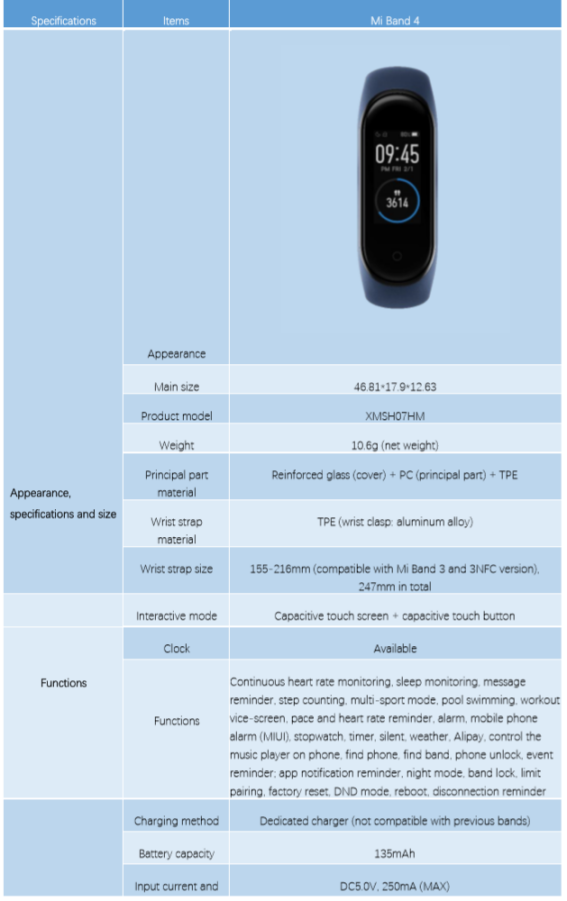
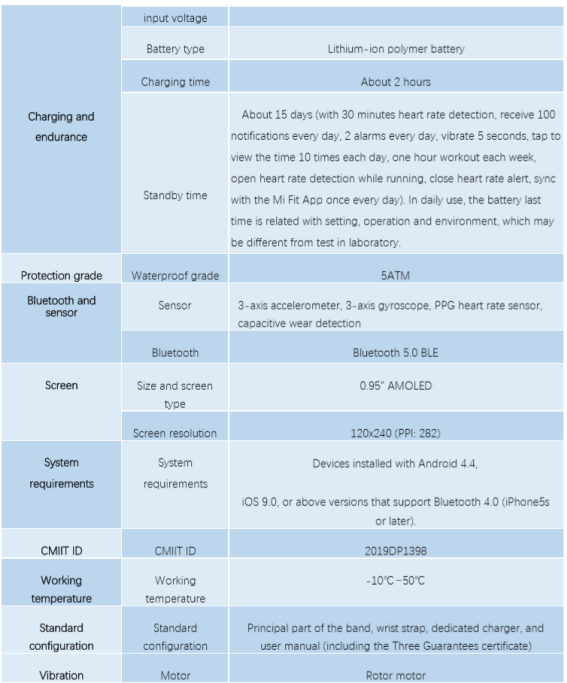
Specifications of Mi Band 4
1.Q: Does Mi Band 4 harm the human body?
A: Mi Band 4 applies Bluetooth Low Energy 5.0. Its radiation is much lower than that of a Bluetooth headset, and its signal strength is less than one thousandth of that of a mobile phone. After more than ten years of studies and surveys, the World Health Organization finds that Bluetooth signals will not do any harm to the human body. Therefore, please rest assured to use this band.
2.Q:What is the standard configuration for Mi Band 4, and what color is the wrist strap?
A: The standard Mi Band 4 contains the principal part of the band, wrist strap, charger, and user manual (including the Three Guarantees certificate). The color of the wrist strap is subject to the sold one.
3.Q:How to operate the screen and buttons of Mi Band 4?
A: Operation method: slide up and down to switch between functions (Band display, Status, Heart rate, Workout, Weather, Notifications, More), tap the function button to enter the function interface, and slide right to exit the function interface; tap the touch button to return.
4.Q:Can the band display style of Mi Band 4 be changed?
A: Yes. In the band display interface of Mi Smart Band 4. Please slide down to enter More - Band
display, and then select favorite band display style, or tap the Zepp Life App - Profile - Mi Smart Band 4 - Band display setting to download the custom band display.
5.Q:What is the "workout vice-screen", and how does it work?
A: After Mi Band 4 is paired with the Zepp Life App, if any of the modes such as Outdoor running,
Treadmill, Cycling, and Walking is enabled under the workout mode, and just lift wrist to
view all the key data on the band (such as workout duration, mileage, pace, heart rate, heart rate
zone, average pace, current time, etc.) during workouts.
6.Q:Is the wrist strap of Mi Band 4 compatible with that of other bands?
A: The wrist strap of Mi Band 4 is compatible with that of Mi Band 3, but is incompatible with that of other bands such as Mi Band 2, Mi Band 1S, Mi Band.
7.Q:How to install and disassemble the wrist strap of Mi Band 4?
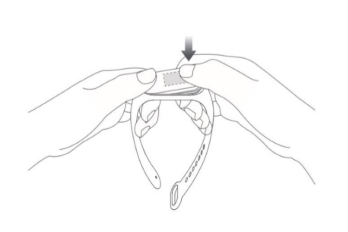
A: Installation:
Insert one end of the tracker unit into the slot on the wrist strap.
Press firmly on the other end to make the entire unit enter the slot and secure it.
Disassembly:
Remove the band, give a strong pull at both ends of the wrist strap to make a small gap between the tracker unit and the slot of the wrist strap, and then use fingers to remove the unit from the front side of the wrist strap.

8.Q:What is 50m water resistance (5ATM)?
A: 50m water resistance refers to the waterproof depth of the band under standard conditions. Such conditions mean that the band has a certain extent of resistance to water pressure under stationary state. The pressure resistance value is not obtained under water, but based on a conversion of atmospheric pressure.
The value of 50m water resistance indicates that the band can withstand the pressure of 50 meters under water under stationary state.
9.Q:Can I wear Mi Band 4 to bathe or swim?
A:Mi Band 4 has a water resistant rating of 5ATM, and it can be worn in a shower, swimming in the pool, and swimming in shallow waters.
10.Q:How to charge Mi Band 4?
A: It is recommended to use the dedicated charger to charge Mi Band 4 (remove the tracker unit,
insert the end with two metal contacts into the dedicated charger, as shown below). After the tracker unit is installed, connect the charging cable to a computer USB port or a mobile phone charger with a voltage of 5V and an output current of over 250mAh. The band itself limits the input current, so don't have to worry about any damage.

11.Q:How to view the charging progress of Mi Band 4?
A: When the band is inserted into the charger, the icon that is being charged will be displayed. In this way, the general charging progress can be displayed rather than the specific percentage. After about ten seconds, the screen will be off. If the owner wants to view the charging progress, it needs to tap the touch button with finger, and then the screen will display the charging interface.
12.Q:What are the battery capacity, charging time and endurance of Mi Band 4?
A: The battery capacity of Mi Band 4 is 135mAh, and the charging time is about 2 hours. Please tap the touch button to view the charging progress. The band can last about 15 days, which tested with the following use: with 30 minutes heart rate detection, receive 100 notifications every day, 2 alarms every day, vibrate 5 seconds, tap to view the time 10 times each day, one hour workout each week, open heart rate detection while running, close heart rate alert, sync with the Zepp Life App once every day. In daily use, the battery last time is related with setting, operation and environment, which may be different from test in laboratory.
13.Q:Can Mi Band 4 be charged with a portable power source?
A: Mi Band 4 can only be charged with a portable power source that supports low current charging. A portable power source that doesn't support low current charging is mainly designed for mobile phones, and its charging current is about 1A. When a mobile phone is fully charged, it will enter the trickle charging state and the charging current will become extremely low. Some portable power sources even turn off the charging to save power. The charging current of the band is relatively low, because of which some portable power sources mistakenly assume that the band is fully charged and thus turn off the charging.
14.Q:Is it required to turn on the Bluetooth all the time when using Mi Band 4?
A: The step counting, sleep monitoring, heart rate detection, stopwatch, alarm, and idle alert functions do not require turning on the Bluetooth all the time. It allows to wear the band only during workouts, and after that, it needs to connect the band to mobile phone to synchronize and view data.The incoming call, screen unlock, app alerts, find phone, and find band functions require connection between the mobile phone and the band, therefore it needs to turn on the mobile phone Bluetooth and keep the connection between the two devices.
15.Q:Does the band record data when not connected to the mobile phone?
A: Mi Band 4 can store data separately, so don't have to carry mobile phone when go out
for running or go to sleep. To synchronize data, it needs to turn on the mobile phone
Bluetooth and connect it to the band.
Mi Band 4 can retain workout data for about 7 days at most. The data that has been synchronized to the Zepp Life App will be automatically uploaded to the cloud for storage. If it is a new mobile phone, please bind previous Mi account with the band and synchronize previous data from the cloud to new mobile phone.
16.Q:Why aren't the steps increasing after I've started walking with Mi Band 4?
A: To reduce errors, Mi Band 4 sets an initial value of 10 steps. When the number of steps is greater than 10, the band will start counting and the real-time steps on the app interface will change accordingly. That is to say, the counting starts from 10 steps.
17.Q:Does Mi Band 4 record sleep data?
A: Mi Band 4 can record sleep data rather than afternoon nap data.
18.Q:Which mobile phone does Mi Band 4 support?
A: Mi Band 4 supports the devices installed with Android 4.4, iOS 9.0, or above versions that support Bluetooth 4.0 (iPhone 5s or later).
19.Q:Which app does Mi Band 4 use to connect?
Mi Band 4 uses the Zepp Life App to connect and pair.
20.Q:How to pair with Mi Band 4?
A: Open the Zepp Life App - Profile - Add device - Band to keep the mobile phone close to the band for searching and pairing, the mobile phone displays the Tick icon after searching the band, and please tap the Tick icon to confirm pairing.
21.Q:What is the screen unlock of the band?
A: The band and mobile phone are paired together one to one. Within a safe distance, the band
acts as identity ID and it can be used to enter the unlock password or pattern and unlock the
mobile phone screen, which greatly enhances the convenience while ensuring security.
Notes: This feature is available on mobile phones that have installed MIUI systems of Android 4.4 and above versions and on mobile phones that support Smart Lock with Android 5.0 systems. Some Chinese mobile phone brands have made major changes to the Android system and this feature may not be available on such brands.
22.Q:Mi Band 4 custom vibration mode settings
A: Mi Band 4 allows to edit the vibration mode according to the owner's preferences, and the mobile phone will automatically sense the frequency and intensity of the vibration. Meanwhile, the mobile phone will automatically record vibration rhythm mode. After that, it allows to tap to play. It can be stored directly or re-recorded according to the owner is satisfied or not.
Presently, it can be set in the following options: Incoming call, Event reminder, Alarm, App alerts,
Idle alerts, Incoming SMS, Disconnection reminder, Email alerts, Goal notifications.
23.Q:Does Mi Band 4 support the event reminder?
A: Yes. In daily life and work, something "trivial" or "important" is often forgotten. At this time, the event reminder function of Zepp Life4 comes into use. After setting the reminder, the band will
automatically vibrate when the event arrives, and the reminder period can also be set to "Once",
"Every day", "Every week", "Every month", "Every year", "Custom". Currently, the event reminder supports up to 60 events at most. After successfully set, the event reminder will be stored in the band, and timely remind the owner even if the Bluetooth or the mobile phone is not connected.
Setting method: Zepp Life App - Profile - Mi Smart Band 4 - Event reminder
24.Q:Does Mi Band 4 support the alarm?
A: Yes. When the band is turned on, please choose to set 10 alarms at most.
25.Q:How to set up the incoming call function?
A: It can be set by tapping the Zepp Life App - Profile - Mi Smart Band 4 - Incoming call.
26.Q:How to set up the app notification reminder?
A: It can be added by following the list in the Zepp Life App - Profile - Mi Smart Band 4 - App alerts - Manage apps.
Notes: This setting of notification only under "Only receive when the screen is off" on the Android phone rather than the iOS phone.
27.Q:Does Mi Band 4 support the idle alert?
A: Yes. When idle for one hour, the band will vibrate to remind the owner. In addition, the idle alert time can also be set and the DND mode during the lunch break.
28.Q:Does Mi Band 4 support the mobile phone alarm alert?
A: Yes. After the alarm is turned on, the band will vibrate when the mobile phone alarm sounds, but it is necessary to ensure that the band is connected to the mobile phone.
29.Q:Does Zepp Life App support the Find band function?
A: Yes. After tapping Find band (the band is within the Bluetooth connection range), the band will vibrate to find it.
30.Q:Does the lift wrist to view info function of Mi Band 4 allow for the effective period?
A: Yes. To avoid false wake-up during a certain period, the schedule of wrist lifting can be set
according to the actual use.
31.Q:Does it support to switch between the heart rate detection modes of Mi Band 4?
A: Yes. Please switch between the following modes: Turn off (active test only), Sleep assistant,
Automatic heart rate detection, Automatic heart rate detection & Sleep assistant. The modes differ in the effect on the band endurance.
32.Q:Does Mi Band 4 support the find device function?
A: Yes. When the mobile phone can't be found, slide the band to find the Find device function.
(The find device function is limited to the Bluetooth range). Set the default ringtone or
ringtone for the find device function, while the custom ringtone is not available.
33.Q:Does Mi Band 4 support the lock screen function?
A: Yes. To prevent accidental touch or misoperation when wearing the band, it needs to turn on this function on the Zepp Life App.After that, slide up the screen to unlock the screen when the band is awakened. And after the screen is unlocked, please operate the screen and buttons.
34.Q:How to set the weather on Mi Band 4?
A: Please set the weather on Mi Band 4 according to the following path, and the band supports getting location automatically or manually according to GPS on the phone (provided that Mi Band 4 needs to enable the positioning permission, and the mobile phone turns on GPS). Also, it allows to set the temperature units (Celsius/Fahrenheit) and the Push weather alerts function.
35.Q:How to set the friends function on the Zepp Life App?
A: On the Zepp Life App, select "Profile", and follow "Friends” by scanning the QR code or entering the
ID. After following friend, it supports to "Nudge" friend, and view the data of friend.
After tapping "Nudge", friend's band will vibrate to remind him/her. There is no limit to the
number of friends followed. And it also supports to add the user who registers and uses the Zepp Life App abroad.
36.Q:How to bind Alipay?
A: On the "Profile” - "Mi Smart Band 4" device page of the Zepp Life App, find the quick entry
setting, and tap to enter the page to place Alipay in the display column to enable Alipay
payment on the band.
Slide left on the band display page to enter the Alipay QR code binding page, open Alipay on
mobile phone, and tap "Scan QR code" to start the binding process.
During the binding, the band will display the binding process. When the binding is done, the
band will display a payment code.
37.Q:How to do if binding by scanning a code fails?
Firstly, it needs to check whether the current mobile Alipay version is the latest version, and
binding Alipay requires to upgrade the application to the latest version.
Secondly, during the binding process, be sure to keep the Bluetooth on and the band connected.
38.Q:What should I do if paying with a band fails?
A: The payment failure may be caused by insufficient pocket money or the daily payment limit. On the "Smart Device -> Smart band" page of the Alipay App, enter the band management page to check whether the pocket money is insufficient or it reaches the daily payment limit.
39.Q:How to use the music control function?
A: To better use the band to control the music player on phone, please make sure that:
The band and the mobile phone are always connected, and the Zepp Life App needs to keep
running in the background. To avoid process cleanup or interception performed by one-tap memory cleaners or some management software in Android systems, please set it as required on the Zepp Life App - "Profile" - "Mi Smart Band 4" - "Run in background" page.
Enable the notification reading permission on the app, and then the band can obtain the song
information. Enable this permission on the "Profile" -> "Mi Smart Band 4" -> "Settings" page.
Open the music player on phone in advance, and the band will automatically obtain the
information and status of the currently played song.
Through the music entry of the band, enter the music control interface, and it allows to pause
or play the song, or switch to the previous or next song.
40.Q:What is the band lock?
A: After the band lock function is enabled, when the band detects that it is not worn, the password lock screen function is activated to ensure information security.
The setup steps are as follows:
Tap the "Band lock" option on the Zepp Life App - "Profile” - "Mi Smart Band 4" page to enter
the settings page.
On the band lock setting page, set the unlock password according to prompts.
After successfully setting the password, can experience the band lock function on the band.
If password is forgotten during use, please change password again in the Band lock
settings page.
41.Q:Which music player can the band control?
A: Music players that the band currently supports include system music, KuGou, QQ Music, NetEase Music, Kuwo, Xiami, Lizhi, qingting.fm, Ximalaya.fm, Blog, lrts.me.
Notes: The openness of music players and the difference in app versions may to a certain extent
affect the music control experience of the band.
42.Q:Why is the wrist strap of Mi Band 4 skew after the installation of the principal
part?
A: The wrist strap of Mi Band 4 is made out of thermoplastic elastomer. It has elasticity and can be twisted. After the installation of the tracker unit, the wrist strap will be skew (as shown below). It can be restored to normal simply by gently twisting or reinstalling.
Do not pull the band hard when installing. The phenomenon of being skew is generally caused by
the large twisting force during installation, rather than by a product quality problem.
43.Q:How to do if Mi Band 4 is out of the search when connected?
A: Please follow the steps below to troubleshoot:
1. Check whether the band has power. In case of low or no power, try again after recharging.
2. Check whether the distance between the band and the mobile phone is too far, and try to get
the band as close as possible to the mobile phone.
3. Reboot the mobile phone Bluetooth and the mobile phone to try again.
4. Check whether there are too many Bluetooth or WiFi devices around, and change the
environment to try again.
If the binding fails many times, please try again by restoring the band to the factory setting
according to the app prompt.
44.Q:How to do if the firmware of Mi Band 4 fails to upgrade?
A: Please follow the steps below to troubleshoot:
1. After the app fails to upgrade, please tap Try again to re-upgrade.
2. After the band is connected to the app, pull down to sync data again in the "Status" and re?
trigger the firmware to upgrade.
3. Reboot the mobile phone Bluetooth and re-open the app to upgrade.
4.Check whether the band's battery power is lower than 10%. If so, it cannot be upgraded, and
try to upgrade after recharging.
46.Q:How to do if Mi band 4 cannot be charged or undercharged?
A: Please follow the steps below to troubleshoot:
1.It is recommended to use the standard charging cable for charging. Check whether the bands charging contacts and those of the charging cable are stained. Try to wipe them with a tissue to ensure that there is no contact failure between the principal part and the charging cable.
2.Check whether the charging cable and the band are inserted incorrectly.
3. Check whether the charging adapter is normal, it is also suggested to use the other adapter to
connect the charging cable of the band for charging.
4. If there is a spare charging cable (or the charging cable of the same band), try to use that
charging cable.
5. Try to charge in an environment at above 10°C.
6. In case of no response to charging for a long time, please apply for after-sales inspection.
It takes about 2 hours to fully charge Mi Band.
7. If the device cannot be fully charged, please check whether the charging time is too short.
47.Q:How to deal with the fast power consumption of Mi Band 4?
A: Please follow the steps below to troubleshoot:
1. The battery capacity of Mi Band 4 is 135mAh, and the charging time is about 2 hours. Please
confirm whether it is fully charged.
2. Mi Band 4 can last about 15 days, which tested with the following use: with 30 minutes heart
rate detection, receive 100 notifications every day, 2 alarms every day, vibrate 5 seconds, tap
to view the time 10 times each day, one hour workout each week, open heart rate detection
while running, close heart rate alert, sync with the Zepp Life App once every day. In daily use, the
battery last time is related with setting, operation and environment, which may be different
from test in laboratory.
3. If there is fast power consumption in a short time, please check according to the following methods:
(1) the band is fully charged.
(2) the alarm, the Bluetooth, and the sleep assistant are turned off.
(3) the power consumption is observed after 24 hours. In general, 3% of power consumption or less is normal.Please perform after-sales inspection.
48.Q:How to do if Mi Band 4 fails to synchronize data?
A: When the mobile phone turns on the Bluetooth and enables the Zepp Life App, the band data will be automatically synchronized to the Zepp Life App. In addition, it allows to manually pull down to
synchronize data on the "Status" page of the Zepp Life App. When the data prompt fails to be
synchronized, please check it according to the following steps:
1. Manually pull down the screen to re-synchronize data.
2. Please close the Zepp Life App and restart it again.
3. Switch off and then turn on the mobile phone Bluetooth once or restart the phone.
4. For Android users, please try to clear the Bluetooth data in mobile phone settings before restarting the phone. For iPhone users, please find the device "Mi Band 4" in the Bluetooth list of mobile phone settings, tap the icon to "Forget This Device", and then switch off and then turn on the mobile phone Bluetooth once or restart the phone.
49.Q:Why doesn't Mi Band 4 display the name when reminding incoming calls?
A: Please follow the steps below to troubleshoot:
1. Check whether "Show contact information” is enabled (the Zepp Life App - Profile - Mi Smart
Band 4 - Incoming call - Show contact information). If not, the contact name will not be
displayed.
2. Check and open the contact permissions read by the Zepp Life App.
3. Check whether the third party security app is installed on the mobile phone (the authorization
management on the third-party security software is required to enable the permission for Zepp Life to read the contact). If there is third-party security software, please stop third party security app first then try again.
50.Q: How to do if Mi Band 4 does not display the weather?
A: 1. The band does not update the weather data automatically. It needs to connect the band to the Zepp Life App and synchronize the weather data.
2. Check whether the city set is correct (the Zepp Life App - "Profile" - Mi Band 4 - Weather
setting).
3. Open the Zepp Life App, manually synchronize the band data, and then go to the band to view
When the positioning permission of the Zepp Life App is enabled, it will automatically locate the
city.
4. When the band and the Zepp Life App are connected, the band will update the
weather data through the Zepp Life App.
51.Q: How to troubleshoot if the app notification reminder of Mi Band 4 does not work?
A: Please follow the steps below to troubleshoot:
1. Check whether the app notification reminder function is enabled, the application that needs to
be reminded is selected, and the application notification function on the mobile phone is normal.
2. Check whether the Zepp Life App correctly enables the notification reading permission.
3. Turn off the power saving mode of the mobile phone, and the power saving or process optimization function of the third-party security software.
4. Make sure the mobile phone Bluetooth is turned on, and the mobile phone and the band keep
being connected.
5. Lock the Zepp Life App and try it in the background.
52.Q: How to restore the factory setting of the band?
A: 1. Slide down to display the "More" entry on the band display page, tap "More", slide the screen down to "Settings", tap "Settings" again to slide down the screen to "Factory reset", press and hold the touch button to enter, then the band can be restored to the factory setting according to the prompted operation steps. All data will be reset after the band is restored to the factory setting. If need to use it again, please re-bind it.
Does it help?