

Xiaomi Router AX3000T FAQ
Xiaomi Router AX3000T FAQ
About product
1. Q: What is Xiaomi Router AX3000T?
A: This product belongs to the Wi-Fi 6 mainstream routers.
1. Powerful hardware configuration: it is equipped with 4 external high-gain antennas (1*2.4GHz + 2*5GHz + 1dual-band antenna), MT7981B chip, dual-core 1.3GHz graphics processor, support for OFDMA+MU-MIMO technology. It has three antennas for 5GHz wireless networks, which provide better coverage and smoother internet access. Android smartphone users can easily connect to the device's wireless network by tapping on it, thanks to its NFC feature.
2. Q: What are the advantages of Xiaomi Router AX3000T?
A:
Supports Dual-band Wi-Fi 6 and speeds up to 2976Mbps.
3*5GHz Wi-Fi antenna for better coverage.
Supports 3T3R at 5GHz Wi-Fi and provides better 5GHz Wi-Fi coverage than normal AX3000 routers.
All Gigabit Ethernet Ports
Supports 4 gigabit ethernet ports, easily achieving network speeds of 1000Mbps.
Xiaomi Mesh
Support Xiaomi Mesh, can set up a mesh network with other Wi-Fi 6 Xiaomi routers to enhance Wi-Fi coverage.
NFC
No need to enter complicated passwords, you can easily connect to a network with one touch using the NFC feature on Android-powered smart devices*, making sharing content with friends easier.
3. Q: Why is the Xiaomi Router AX3000T advertised as "3000 megabit wireless speed"?
A: Xiaomi Router AX3000T supports Wi-Fi 6 standard. The "3000 megabit" is the wireless rate specification level of the router, including 2.4G band rate 574Mbps, 5G band rate 2402Mbps, stacked cumulative 2976Mbps, close to 3000Mbps, so it is advertised as 3000 megabit level.
4. Q: What interfaces/keys does the Xiaomi Router AX3000T have?
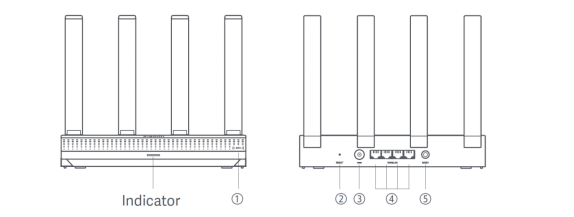
A: Xiaomi Router AX3000T has: NFC, Reset hole, power connector, mesh button, and 4 network ports.
| ① | NFC | Android phones can quickly connect to the router's Wi-Fi via this function. |
| To use this function, enable the NFC function on your Android phone, and keep your phone unlocked and it’s screen on. | ||
| ② | Reset button | Restore the router to it’s factory settings. |
| ③ | Power port | Connect the power adapter to the router. |
| ④ | 1G network port | Self-adaptive ports. With a maximum speed of 1 Gbps each and serve as either a WAN or LAN port. |
| ⑤ | Mesh | For Mesh networking with routers that support the Xiaomi Mesh function. |
NFC: This feature allows Android phones of end users to connect to the device's Wi-Fi with just a touch;
RESET hole: This is used to restore the device to its factory settings;
DC power connector: This port is used to connect the power adapter;
Mesh button: This button is used for quick mesh networking, and its usage is described separately later. Network port: The device has 4 x 10/100/1000M adaptive WAN/LAN ports.
5. Q: What does the indicator status of Xiaomi Router AX3000T mean?
A: There is only one indicator.
| Indicator Status | Description |
| Off | The router is off or unplugged. |
| Orange | The system is starting up or a network connection error occurred. |
| Blinking orange | The router is connecting to the Mesh main router or the system is updating. |
| Breathing orange | The router is started and the system is ready for configuration. |
| Blue | The router is working properly. |
| Breathing blue | A configurable satellite router is discovered. The indicator will automatically turn blue if there is no operation for network configuration within two minutes. |
| Blinking blue | The satellite router is connecting to the main router. |
6. Q: Does the backend of the router support external network access?
A: The backend of the router does not support access from outside the router, even if you set up DDNS to access the router via a domain name.
7. Q: What are the main Wi-Fi 6 technologies available in Xiaomi Router AX3000T? What are their features?
A: This device supports Wi-Fi6 and mainly has the following technologies:
OFDMA (Orthogonal Frequency Division Multiple Access).
Wi-Fi 6 has a special feature called OFDMA technology, which allows it to transmit to multiple devices on the same frequency band in a single transmission, making it more efficient than traditional Wi-Fi 5 routers.
Note: This feature requires support from both the endpoint and the router. In this case, "efficiency" refers to reducing network transmission latency, and OFDMA technology itself does not increase network speed.
MU-MIMO (Multi-User Multiple-Input Multiple-Output)
Allowing the router to communicate simultaneously with multiple terminals greatly improves the efficiency of wireless resource utilization and enhances the experience.
Note: This feature requires both router and terminal support to take effect.
Beamforming
BSS Coloring: Automatically adjusts the signal transmission angle enhances signal quality, increases reception distance and improves network data transmission rate.
This technology primarily reduces previous same-channel interference between routers, improving channel utilization efficiency. When multiple Wi-Fi 6 routers are used in the same network environment, it helps decrease same-channel interference.
WPA3 encryption protocol
WPA3 improves upon the original technology WPA2-Personal, by analyzing network security vulnerabilities and introducing additional data validation protocols. This significantly increases the difficulty of network breaches, ensuring comprehensive protection for your information security and privacy. Configuration on the backend is required, and both parties (endpoint and router) must support this functionality.
Note 1: When setting up Wi-Fi separately for 2.4GHz or 5GHz, this encryption method is supported.
Note 2: If the setting is set to super strong encryption (WPA3 personal version) or strong mixed encryption (WPA3/WPA2 personal version) but the terminal does not support it, Wi-Fi may not be found, cannot be connected, or other compatibility problems may occur. If this situation happens, it is recommended that the router be set to Hybrid encryption (WPA/WPA2 Personal).
LDPC (Low Density Parity Authentication)
When a device is located far from the router, it may experience a situation where the signal is normal but there is no internet speed. Incorporate LDPC (Low-Density Parity-Check) encoders and decoders into the information transfer process to ensure normal file transfer speeds over long distances and prevent distortion.
FAQs
1. Q: How to install and configure Xiaomi Router AX3000T for the first time?
A: Please refer to the following steps:
Step 1: Connecting the Network Cable
1. Turn on the router;
2. Plug one end of the network cable into either of the router’s ports and the other end into the internet wall socket or the LAN port of an optical modern or ADSL modern.
Note:
Optical modern or ADSL modern is provided by broadband operator.
Step 2: Configuring the Network
1. Connect your phone or computer to the Wi-Fi. See the nameplate on the bottom of the router for the Wi-Fi name;
2. Then the page will automatically redirect to the network setup page. If not, open the system’s default browser and enter miwifi.com;
3. Enter the account and password provided by your broadband operator and tap [Next];
4. Set a new Wi-Fi name and password. You can check the box to use the Wi-Fi password as the management password. If not, a new page for setting the management password will follow.
Note:
If a new Wi-Fi name or password is set, the Wi-Fi module will restart. Then the Wi-Fi cannot be discovered for a short period. Please search for the Wi-Fi again later.
A: 1. Check that the router's Ethernet cable is connected to the modem's port. If the modem has multiple Ethernet ports, please unplug any other cables;
2. Connect your computer to the modem using an Ethernet cable and check if the internet is working. If not, please contact your internet service provider;
3. Connect a computer directly to the modem via a network cable and check if the internet is working. If not, contact your internet service provider;
4. Log in to the router's web management page and go to the network settings to verify the Internet IP address. If the IP address is valid, set the primary DNS to 8.8.8.8 and the secondary DNS to 8.8.4.4. If the IP address is invalid, please check if the hardware is properly connected or contact your internet service provider for assistance.
3. Q: What to do if the wireless devices cannot connect to the Wi-Fi?
A:1. When configuring your Wi-Fi, make sure that the network name (SSID) and password do not contain any special characters;
2. Verify that you have selected the correct Wi-Fi network and entered the correct password;
3. Check whether your device has been blacklisted. If it has, remove it from the blacklist to allow it to connect;
4. To ensure compatibility, choose WPA2 encryption for your router;
5. Restart your router and device and try connecting again.
4. Q: What to do if the management password or Wi-Fi password of the router has been forgot?
A: Please restore the router to factory settings, and set up a new management password or Wi-Fi password.
5. Q: Why can't I add the router in the Mi Home/Xiaomi Home app?
A: 1. Check if your phone has connected to the Wi-Fi of the router;
2. Check if the selected product model is correct in the Mi Home/Xiaomi Home app;
3. If the network configuration of the router was completed via the web browser, make sure that the settings of the country or region via the web browser are consistent with the country or region selected in the Mi Home/ Xiaomi Home app.
6. Q: What is Wi-Fi 6?
A: Wi-Fi 6 is the abbreviation of the sixth generation wireless technology, the wireless LAN standard "IEEE 802.11ax", which is the successor of the 802.11ac (Wi-Fi 5) standard. Wi-Fi 6 uses new technologies such as OFDMA, MU-MIMO, higher-order modulation (1024-QAM), BSS Coloring, etc. Compared to the commonly used Wi-Fi 5, Wi-Fi 6 features a higher connection rate, more band capacity, lower latency, and lower power consumption.
Note 1:
As the Wi-Fi standard evolves, the Wi-Fi Alliance (known as the International Wi-Fi Alliance, or WFA for short) decided to rename the Wi-Fi standard using numbers in 2018 to make it easier for you and Xiaomi to understand which Wi-Fi models that devices connect to or support.
Note 2:
The Institute of Electrical and Electronics Engineers defined the name of the new standard as "IEEE 802.11ax". The Wi-Fi Alliance for commercial certification called it Wi-Fi 6 for promotional purposes.
Note 3:
On October 4, 2018, the Wi-Fi Alliance officially announced that the next-generation Wi-Fi technology, 802.11ax, will be renamed Wi-Fi 6, while the previous two generations, 802.11n and 802.11ac, will be renamed Wi-Fi 4 and Wi-Fi 5, respectively.
Note 4:
A comparison table of the old and new names is shown below.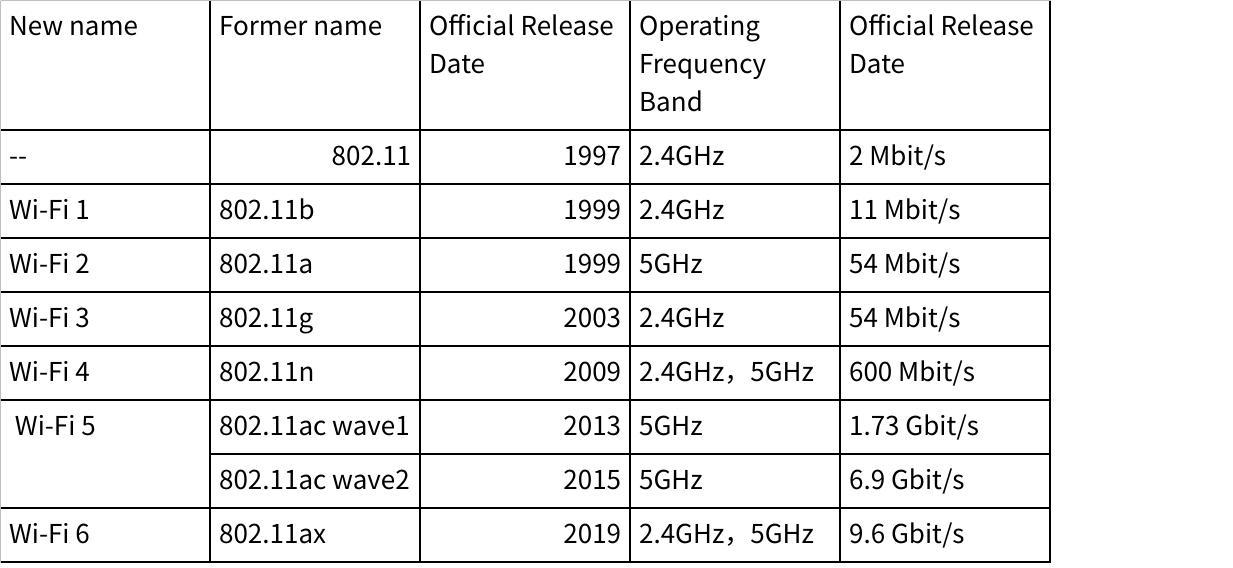
7. Q: What devices can connect to Xiaomi Router AX3000T via Wi-Fi 6 protocol?
A: Almost all mainstream smartphones can support Wi-Fi 6.
For example Xiaomi 11, Xiaomi 10 series (Xiaomi 10, Xiaomi 10Pro), iPhone 11 full series (iPhone11, iPhone11 Pro, iPhone11 Pro Max), Samsung Galaxy S10 series (S10e, S10, S10+), Samsung Galaxy Note10 series (Note10, Note10+ 5G), intel AX200 network card, and above.
Note 1:
Whether a particular mobile phone is supported depends on the product parameter page. To use the Wi-Fi 6 protocol, both the mobile phone and router must support it. To use the Wi-Fi 6 protocol, both the mobile phone and router must support it. To use the Wi-Fi 6 protocol, both the mobile phone and router must support it.
Note 2:
Xiaomi Router AX3000T also supports 802.11 a/b/g/n/ac protocol, so devices that do not support Wi-Fi 6 protocol can also connect to the router via other protocols.
8. Q: What is IPv6 and how to turn it on and set it up?
A: IPv6 is Internet Protocol version 6, the advantage of which is that it can not only solve the problem of the number of network address resources but also solve the barrier of multiple access devices to connect to the Internet.
9. Q: Does the Xiaomi Router AX3000T support child Internet protection function?
A: Yes.
10. Q: Does the Xiaomi Router AX3000T support to check the memory and CPU usage information?
A: No, it does not.
11. Q: Does the Xiaomi Router AX3000T support to enable SSH?
A: No, it does not. The Xiaomi Router AX3000T is designed for home users.
12. Q: How to set the relay mode to expand the Wi-Fi of the existing router on Xiaomi Router AX3000T?
A: The web setup steps are as follows.
Visit the management address through the browser, switch the router working mode to wired relay or wireless relay under [Common Settings] >> [Internet Settings] >> [Working Mode Switching], and then follow the interface instructions to set up.
Note:
It is not supported to connect the cable when switching the wireless relay on the website.
To meet the network coverage of larger households, purchase multiple models that support the Xiaomi Mesh function and follow the steps below to set up the network.
Method 1: Networking via the Mi Home/Xiaomi Home app
1. Open the Mi Home/Xiaomi Home app;
2. Go to the [Mesh network devices] page of the main router;
3. Tap [+] on the upper right corner of the page;
4. Follow the instructions to complete networking.
Method 2: Networking via the mesh button
1. Make sure the main router is connected to the network. Place the satellite router near the main router and turn it on;
Note:
Keep the satellite router at least one meter away from the main router. Otherwise, they will interfere with each other and affect the network configuration.
2. After the satellite router starts, the main router will automatically discover it, and the indicator of the main router will start breathing blue;
Note:
If the satellite router is already configured, press its reset button for 5 seconds to restore it to the factory settings first.
3. Press the mesh button on the main router, and its indicator will start blinking in blue. The router is now waiting for the mesh networking;
4. When the indicator/Internet indicator turns white or blue, the Mesh networking is completed;
5. Place the satellite router in the location where you need Wi-Fi coverage and turn it on.
Method 3: Networking via network cable
1. Make sure the main router is connected to the network. Place the satellite router in the location where you need Wi-Fi coverage and turn it on;
2. Connect the WAN port of the satellite router to the LAN port of the main router via a network cable. Then the main router's indicator will start blinking in blue, and the router is waiting for the Mesh networking;
Note:
If there is no WAN or LAN port, use any port of the router.
3. When the indicator/Internet indicator turns white or blue, the Mesh networking is completed.
A:
1. Ensure that the router has been turned on;
2. Press and hold the reset button on the router for 5 seconds or more;
Note:
You can release the reset button when the router's indicator turns orange.
3. The router resets successfully after it is restarted.
Note:
The router will restore to its factory settings and you need to reconfigure the router to use it.
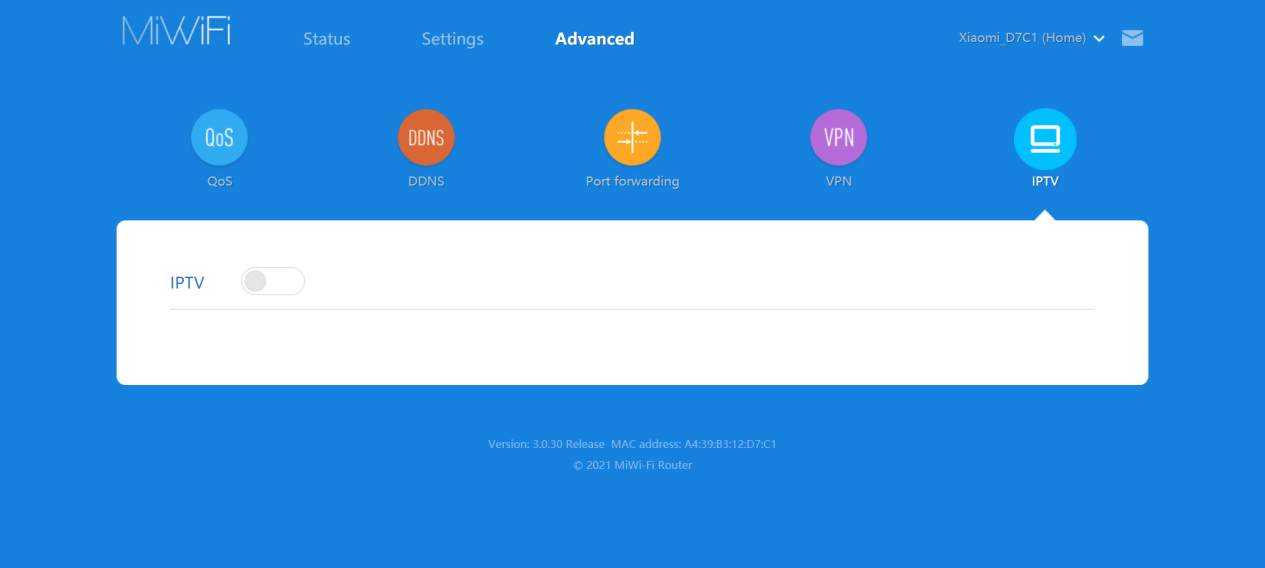
14. Q: Does the Xiaomi Router AX3000T support IPTV?
A: Yes, you can login to the management page and find the IPTV page as follows:
15. Q: How to solve if the device recognition type of the Mi Home APP is wrong?
A: Modify the device information by clicking on the device name in the Device Management interface in the plug-in and clicking Device Information in the interface that appears.
16. Q: Why can't I access the internet even after completing the internet setup?
A: Follow the steps below to investigate.
1. Please use the mobile phone to search the Wi-Fi set by the router. If the Wi-Fi can't be found, please make sure the router is powered on and started up;
2. Connect your phone to the router's Wi-Fi and visit the website "miWi-Fi.com". The webpage will automatically diagnose the network status. Follow the results of the network diagnostics to investigate and resolve the problem.
Does it help?