

What to do if the picture does not match with the screen of the Xiaomi TV F2 50?
If the picture does not match with the screen of the Xiaomi TV F2 50, please refer to the following scenarios and their troubleshooting methods:
Scenario 1:
If the issue occurs when you are using apps on your TV, please refer to the following methods:
1. Ensure that your TV is connected to a stable and high-speed network connection;
2. Restart the TV and try again;
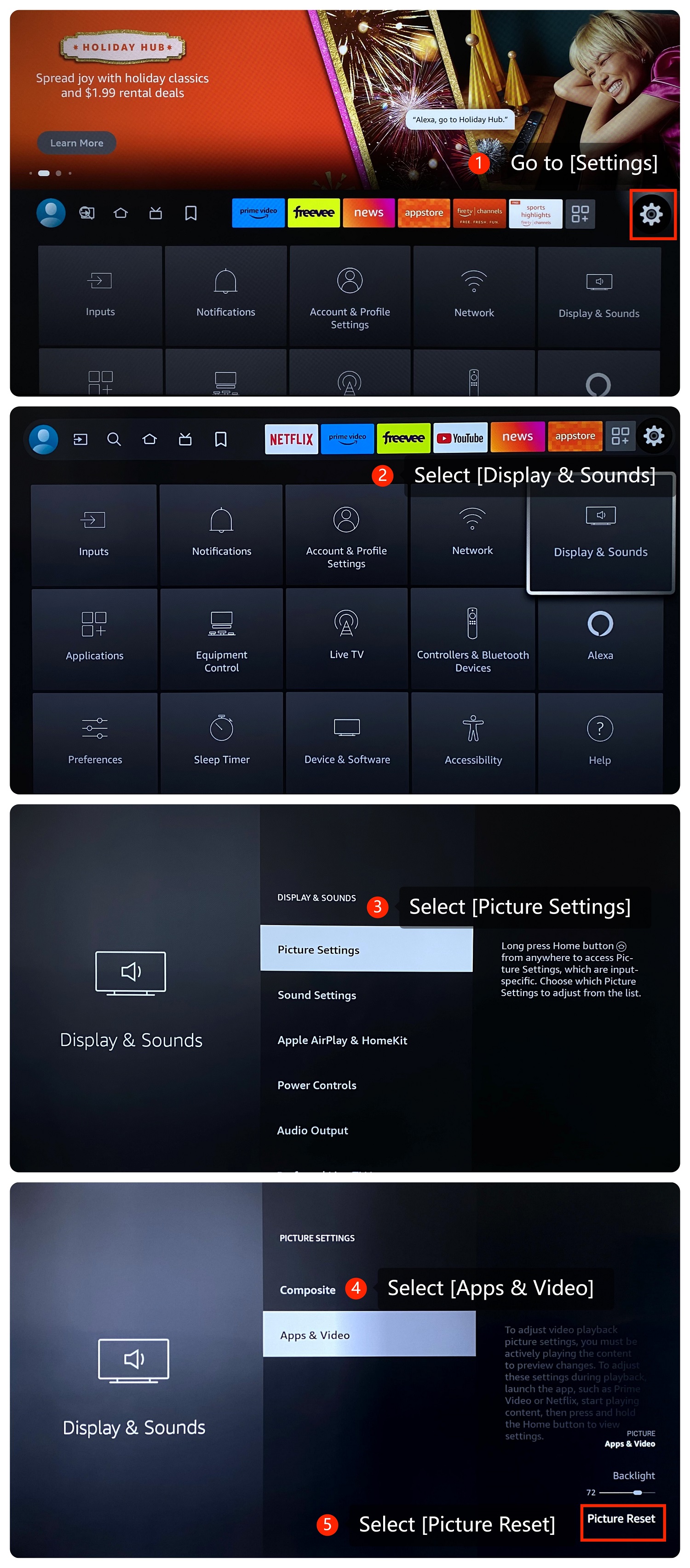
3. Try resetting the picture settings to default by going to [Settings] >> [Display & Sounds] >> [Picture Settings] >> [Apps & Video] >> [Picture Reset];
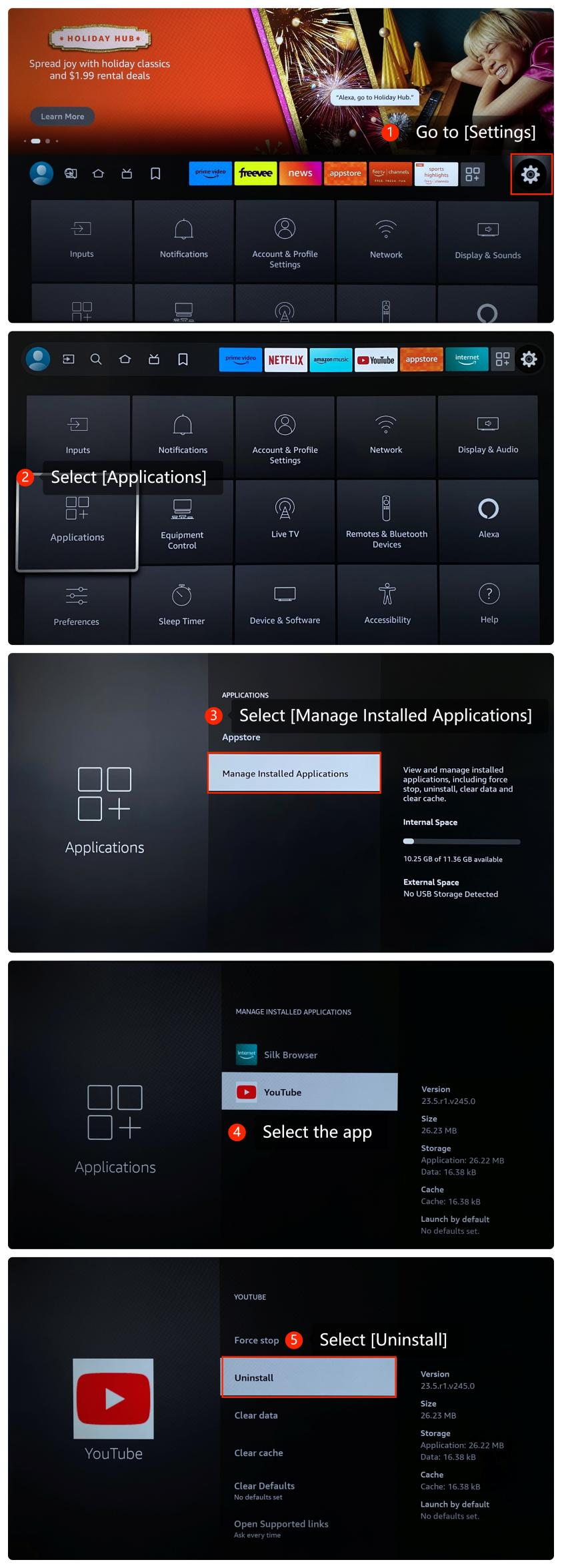
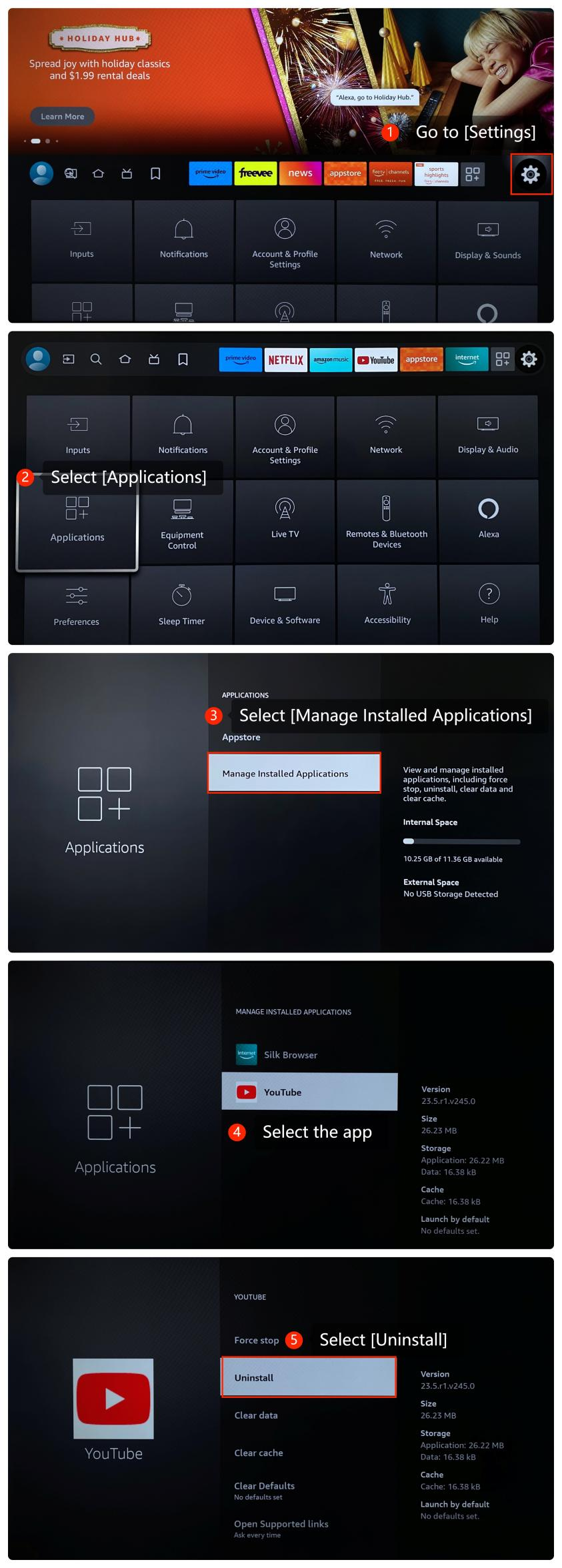
4. Too much cache will cause the app to crash, please go to [Settings] >> select [Applications] >> select [Manage Installed Applications] >> select the app >> select [Clear data] and [Clear cache] and then try opening the app again;
5. Make sure that the app is up to date. Go to Appstore, find the app and check if there is an update available;
6. Reinstalling the app ensures that you have the latest version, please uninstall the app by going to [Settings] >> select [Applications] >> select [Manage Installed Applications] >> select the app >> select [Uninstall] and reinstall the app from the Appstore.
Scenario 2:
If the issue occurs when you are using external devices, please refer to the following methods:
1. Disconnect the external device and reconnect it to your TV. Test if the issue persists with only the TV itself;
2. Ensure that all cables (such as HDMI, power, etc.) are properly connected to the TV;
3. Try using a different HDMI cable to rule out cable issues;
4. Switch to a different HDMI input on your TV to see if the issue persists. This can help determine if the problem is specific to one input or affects the entire TV.
Scenario 3:
If the issue occurs when you are using casting on your TV, please refer to the following methods:
1. Ensure that both your device and your TV are connected to the same Wi-Fi network;
2. Test casting with a different device to see if the issue persists. If the issue is device-specific, there might be a problem with the device;
3. Try casting different content to see if the issue is specific to certain types of media.
If the above troubleshooting methods can’t resolve the issue, please contact our local official service center or your seller for further assistance. They will help you in this regard.
Scenario 1:
If the issue occurs when you are using apps on your TV, please refer to the following methods:
1. Ensure that your TV is connected to a stable and high-speed network connection;
2. Restart the TV and try again;
3. Try resetting the picture settings to default by going to [Settings] >> [Display & Sounds] >> [Picture Settings] >> [Apps & Video] >> [Picture Reset];
4. Too much cache will cause the app to crash, please go to [Settings] >> select [Applications] >> select [Manage Installed Applications] >> select the app >> select [Clear data] and [Clear cache] and then try opening the app again;
5. Make sure that the app is up to date. Go to Appstore, find the app and check if there is an update available;
6. Reinstalling the app ensures that you have the latest version, please uninstall the app by going to [Settings] >> select [Applications] >> select [Manage Installed Applications] >> select the app >> select [Uninstall] and reinstall the app from the Appstore.
Scenario 2:
If the issue occurs when you are using external devices, please refer to the following methods:
1. Disconnect the external device and reconnect it to your TV. Test if the issue persists with only the TV itself;
2. Ensure that all cables (such as HDMI, power, etc.) are properly connected to the TV;
3. Try using a different HDMI cable to rule out cable issues;
4. Switch to a different HDMI input on your TV to see if the issue persists. This can help determine if the problem is specific to one input or affects the entire TV.
Scenario 3:
If the issue occurs when you are using casting on your TV, please refer to the following methods:
1. Ensure that both your device and your TV are connected to the same Wi-Fi network;
2. Test casting with a different device to see if the issue persists. If the issue is device-specific, there might be a problem with the device;
3. Try casting different content to see if the issue is specific to certain types of media.
If the above troubleshooting methods can’t resolve the issue, please contact our local official service center or your seller for further assistance. They will help you in this regard.
Does it help?
Yes
No