

What to do if the screen of the Xiaomi TV A Pro 50 goes black?
If the screen of your Xiaomi TV A Pro 50 goes black, please refer to the following scenarios and their troubleshooting methods:
Scenario 1:
If the issue occurs when you are using apps on your TV, please refer to the following methods:
1. Press the power button on the TV or the remote control to make sure the TV is not in standby mode. Check the batteries in the remote control and replace them if necessary;
2. Examine the TV screen for physical damage, such as cracks or pressure marks;
3. Some apps have their own display settings. Check if the app you're using has specific display settings. Adjust these settings within the app to see if it resolves the issue;
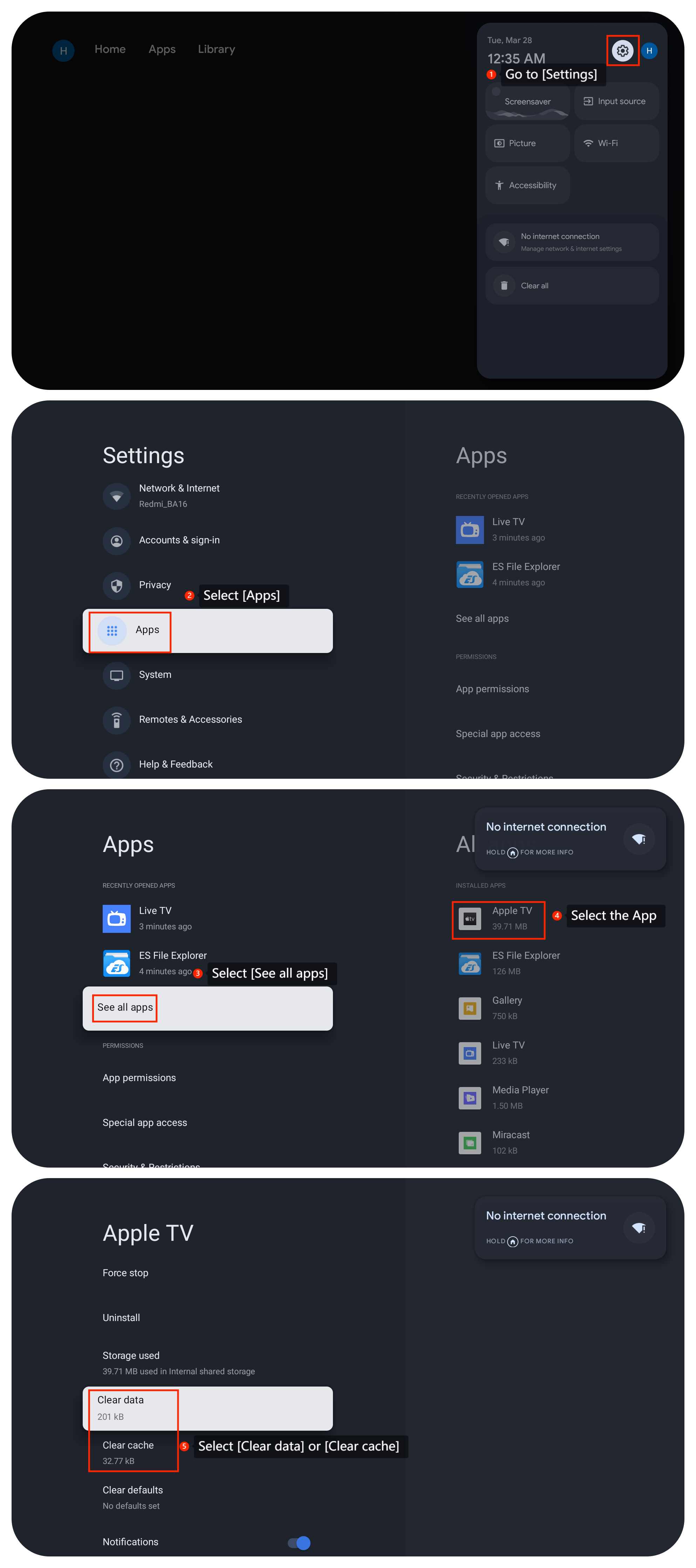
4. Clear the app’s cache by going to [Settings] >> [Apps] >> [See all apps] >> press the right button on the remote control and select the app >> [Clear data] or [Clear cache];
Scenario 1:
If the issue occurs when you are using apps on your TV, please refer to the following methods:
1. Press the power button on the TV or the remote control to make sure the TV is not in standby mode. Check the batteries in the remote control and replace them if necessary;
2. Examine the TV screen for physical damage, such as cracks or pressure marks;
3. Some apps have their own display settings. Check if the app you're using has specific display settings. Adjust these settings within the app to see if it resolves the issue;
4. Clear the app’s cache by going to [Settings] >> [Apps] >> [See all apps] >> press the right button on the remote control and select the app >> [Clear data] or [Clear cache];
5. Check if the app is the latest version;
6. If the above doesn't work, you can uninstall it and then reinstall it;
7. Make sure your TV’s operating system is up-to-date by going to [Settings] >> [System] >> [About] >> [System update];
8. As a last resort, you can try performing a factory reset on your TV by going to [Settings] >> [System] >> [About] >> [Reset]. Be aware that this will erase all your settings and data, so make sure to back up any important data before proceeding.
Scenario 2:
If the issue occurs when you are using an external device like a DVD player or game console, please refer to the following methods:
1. Ensure that the HDMI cable connecting your external device to the TV is securely plugged in. Try using a different HDMI port on both the TV and the device (if applicable);
2. Please connect a different device to the HDMI port (like another gaming console). This can help determine if the issue is with the TV or the HDMI port;
3. Check the HDMI port on the TV for any physical damage or debris that might be obstructing the connection. Be very careful if you’re attempting to clean the HDMI port and make sure the TV is unplugged;
4. Confirm that the correct input source is selected. The TV may be set to an input with no active signal. please go to [Settings] >> [Channels & Inputs] >> select [Inputs] and select the right input source.

6. If the above doesn't work, you can uninstall it and then reinstall it;
7. Make sure your TV’s operating system is up-to-date by going to [Settings] >> [System] >> [About] >> [System update];
8. As a last resort, you can try performing a factory reset on your TV by going to [Settings] >> [System] >> [About] >> [Reset]. Be aware that this will erase all your settings and data, so make sure to back up any important data before proceeding.
Scenario 2:
If the issue occurs when you are using an external device like a DVD player or game console, please refer to the following methods:
1. Ensure that the HDMI cable connecting your external device to the TV is securely plugged in. Try using a different HDMI port on both the TV and the device (if applicable);
2. Please connect a different device to the HDMI port (like another gaming console). This can help determine if the issue is with the TV or the HDMI port;
3. Check the HDMI port on the TV for any physical damage or debris that might be obstructing the connection. Be very careful if you’re attempting to clean the HDMI port and make sure the TV is unplugged;
4. Confirm that the correct input source is selected. The TV may be set to an input with no active signal. please go to [Settings] >> [Channels & Inputs] >> select [Inputs] and select the right input source.
Scenario 3:
If the issue occurs when you are using casting on your TV, please refer to the following methods:
1. Please ensure that both the casting device such as your computer or your smartphone and your TV are connected to the same Wi-Fi network;
2. Check the casting device settings for any display or casting settings. Make sure the casting device is set to the correct resolution and aspect ratio.
If the above troubleshooting methods can’t resolve the issue, please contact our local official service center or your seller for further assistance. They will help you in this regard.
If the issue occurs when you are using casting on your TV, please refer to the following methods:
1. Please ensure that both the casting device such as your computer or your smartphone and your TV are connected to the same Wi-Fi network;
2. Check the casting device settings for any display or casting settings. Make sure the casting device is set to the correct resolution and aspect ratio.
If the above troubleshooting methods can’t resolve the issue, please contact our local official service center or your seller for further assistance. They will help you in this regard.
Does it help?
Yes
No