

What to do if there is an echo on the Xiaomi TV A Pro 50?
If the Xiaomi TV A Pro 50 has an echo issue, please refer to the following scenarios and their troubleshooting methods:
Scenario 1:
If the issue occurs when you are using an external device like a soundbar, please refer to the following methods:
1. Ensure that the HDMI cable connecting the external device to the TV is securely plugged into both the device and the correct HDMI port on the TV;
2. Test the TV with different content or external devices to see if the echo is consistent across all sources. This can help identify whether the issue is content-specific or more widespread;
3. If you have external audio equipment like soundbars, speakers, or AV receivers connected to your TV, make sure they are functioning correctly;
4. If you have a surround sound system, try disabling any surround sound processing or special audio effects. Sometimes, these features can cause echoes or distortions.
Scenario 2:
If the issue occurs when you are using apps on your TV, please refer to the following methods:
1. An echo can occur if the TV volume is too high. So try reducing the TV's volume to see if the echo diminishes;
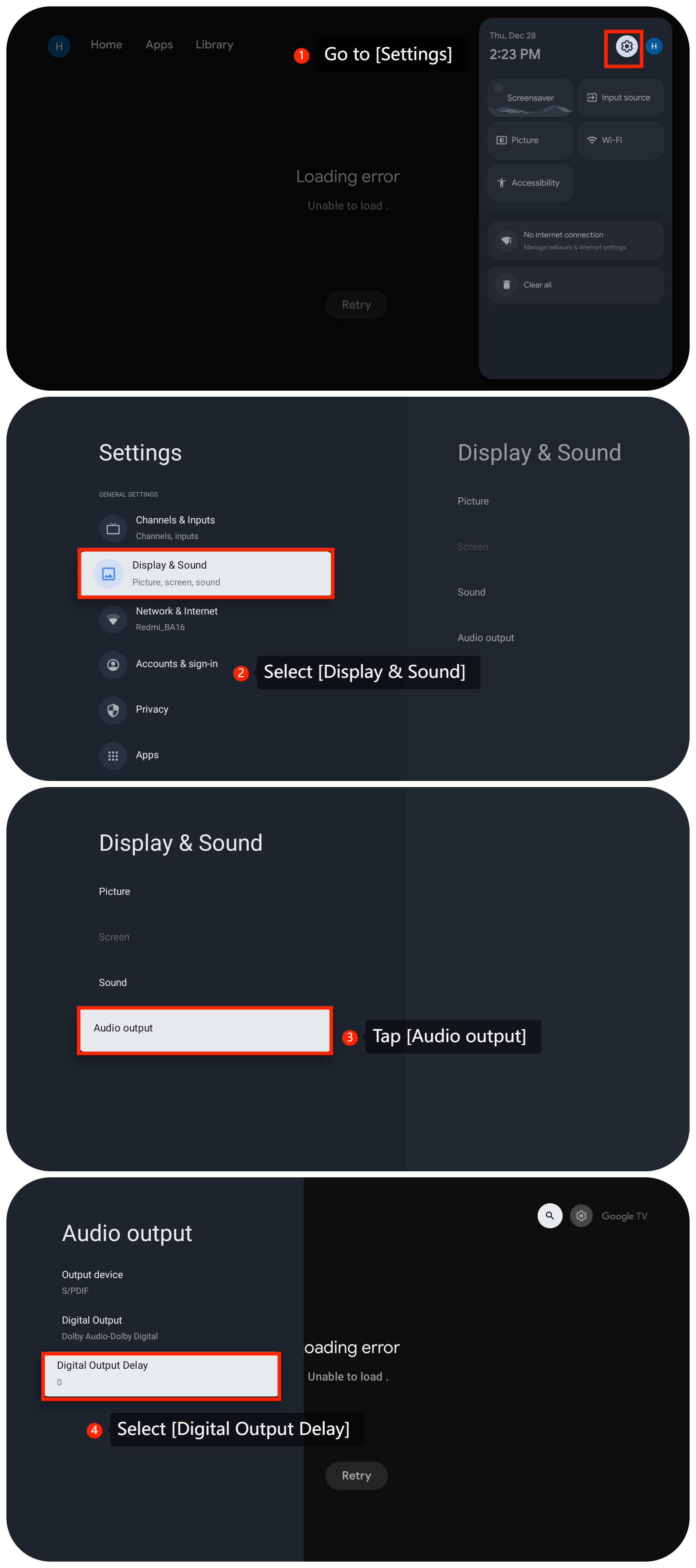
2. Access the audio settings on your Google TV and make sure that they are configured correctly. Go to [Settings] >> [Display & Sound] >> [Audio output] >> [Digital Output Delay];
Scenario 1:
If the issue occurs when you are using an external device like a soundbar, please refer to the following methods:
1. Ensure that the HDMI cable connecting the external device to the TV is securely plugged into both the device and the correct HDMI port on the TV;
2. Test the TV with different content or external devices to see if the echo is consistent across all sources. This can help identify whether the issue is content-specific or more widespread;
3. If you have external audio equipment like soundbars, speakers, or AV receivers connected to your TV, make sure they are functioning correctly;
4. If you have a surround sound system, try disabling any surround sound processing or special audio effects. Sometimes, these features can cause echoes or distortions.
Scenario 2:
If the issue occurs when you are using apps on your TV, please refer to the following methods:
1. An echo can occur if the TV volume is too high. So try reducing the TV's volume to see if the echo diminishes;
2. Access the audio settings on your Google TV and make sure that they are configured correctly. Go to [Settings] >> [Display & Sound] >> [Audio output] >> [Digital Output Delay];
3. Check if the app you're using has specific audio settings. Some apps allow you to adjust audio settings such as surround sound or audio output. Verify that these settings are configured appropriately;
4. Close the app and restart it. This can refresh the app and resolve temporary issues that may be causing the echo;
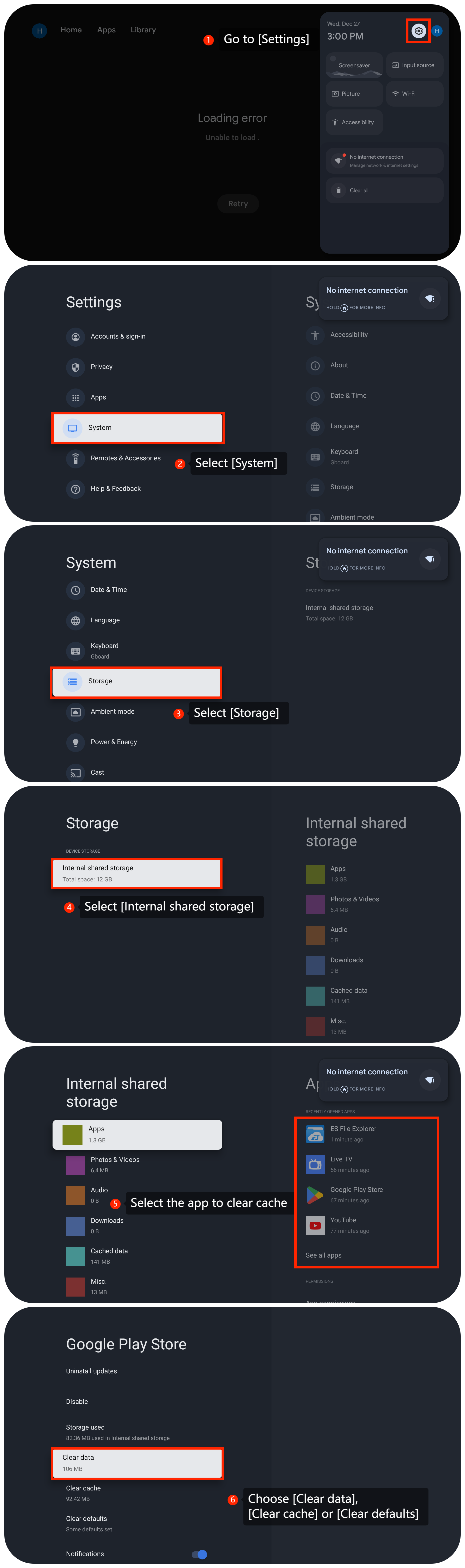
5. Clear the cache and data of the streaming app experiencing issues by going to [Settings] >> [System] >> [Storage] >> [Internal shared storage] >> select the app to clear cache >> select [Clear data], [Clear cache] or [Clear defaults];
4. Close the app and restart it. This can refresh the app and resolve temporary issues that may be causing the echo;
5. Clear the cache and data of the streaming app experiencing issues by going to [Settings] >> [System] >> [Storage] >> [Internal shared storage] >> select the app to clear cache >> select [Clear data], [Clear cache] or [Clear defaults];
6. Ensure that the app you're using is up to date;
7. You can uninstall and reinstall the apps from the TV and check if the issue persists;
8. Ensure that your TV’s firmware is up to date. You can check for updates in the TV's settings menu by navigating to [Settings] >> [System] >> [About] >> [System update] >> [Check for updates];
9. As a last resort, you can try performing a factory reset on your TV. Go to [Settings] >> [System] >>[About] >> [Reset] >> [Factory reset]. Be aware that this will erase all your settings and data, so make sure to back up any important data before proceeding.
Scenario 3:
If the issue occurs when you are using casting on your TV, please refer to the following methods:
1. Make sure that the audio source you're casting from (e.g., smartphone, tablet, computer) does not have multiple instances of the same content playing simultaneously. Ensure that only one device is actively casting on the TV;
2. Restart the device from which you are casting. This can help refresh the casting connection and may resolve any temporary issues causing the echo;
3. Wireless interference can impact the casting experience. Make sure there are no other devices or networks causing interference in the vicinity. Consider changing the Wi-Fi channel on your router to reduce interference.
Friendly Tips:
The recommended bit rates of the video stream are shown as below:
1. The 4K UHD video stream requires 10Mbps;
2. The 2K video stream requires 5Mbps;
3. The 720p video stream requires 2.5Mbps.
If the above troubleshooting methods can’t resolve the issue, please contact our local official service center or your seller for further assistance. They will help you in this regard.
7. You can uninstall and reinstall the apps from the TV and check if the issue persists;
8. Ensure that your TV’s firmware is up to date. You can check for updates in the TV's settings menu by navigating to [Settings] >> [System] >> [About] >> [System update] >> [Check for updates];
9. As a last resort, you can try performing a factory reset on your TV. Go to [Settings] >> [System] >>[About] >> [Reset] >> [Factory reset]. Be aware that this will erase all your settings and data, so make sure to back up any important data before proceeding.
Scenario 3:
If the issue occurs when you are using casting on your TV, please refer to the following methods:
1. Make sure that the audio source you're casting from (e.g., smartphone, tablet, computer) does not have multiple instances of the same content playing simultaneously. Ensure that only one device is actively casting on the TV;
2. Restart the device from which you are casting. This can help refresh the casting connection and may resolve any temporary issues causing the echo;
3. Wireless interference can impact the casting experience. Make sure there are no other devices or networks causing interference in the vicinity. Consider changing the Wi-Fi channel on your router to reduce interference.
Friendly Tips:
The recommended bit rates of the video stream are shown as below:
1. The 4K UHD video stream requires 10Mbps;
2. The 2K video stream requires 5Mbps;
3. The 720p video stream requires 2.5Mbps.
If the above troubleshooting methods can’t resolve the issue, please contact our local official service center or your seller for further assistance. They will help you in this regard.
Does it help?
Yes
No