

Xiaomi Smart Home Hub 2 FAQ
Q1: What is the product model of the Xiaomi Smart Home Hub 2?
A: The product model of the Xiaomi Smart Home Hub 2 is ZNDMWG04LM.
Q2: What are the selling points of the Xiaomi Smart Home Hub 2?
A: The selling points of the Xiaomi Smart Home Hub 2 are as follows:
- It supports dual-band Wi-Fi, ensuring you don’t have to worry about interference;
- It comes with a wired network port for stable and efficient transmission;
- The hub delivers rapid response thanks to its dual-core CPU and high-capacity memory;
- Its design features rounded edges with an elegant and streamlined appearance;
- It is crafted with premium quality and excellent workmanship.
Q3: What are the dimensions of the Xiaomi Smart Home Hub 2?
A: The dimensions of the Xiaomi Smart Home Hub 2 are 95 mm × 95 mm × 26 mm.
Q4: What are the input parameters of the Xiaomi Smart Home Hub 2?
A: The input parameters of the Xiaomi Smart Home Hub 2 are 5 V⎓1 A.
Q5: What is the operating temperature range of the Xiaomi Smart Home Hub 2?
A: The operating temperature range of the Xiaomi Smart Home Hub 2 is -10 °C to 50 °C.
Q6: What is the operating humidity range of the Xiaomi Smart Home Hub 2?
A: The operating humidity range of the Xiaomi Smart Home Hub 2 is 0%–95% RH (non-condensing).
Q7: What type of network ports does the Xiaomi Smart Home Hub 2 have?
A: The Xiaomi Smart Home Hub 2 is equipped with 10/100 Mbps Ethernet ports.
Q8: Which operating systems is the Xiaomi Smart Home Hub 2 compatible with?
A: The Xiaomi Smart Home Hub 2 is compatible with Android 5.0 or iOS 12.0 and above.
Q9: What wireless connections does the Xiaomi Smart Home Hub 2 support?
A: The Xiaomi Smart Home Hub 2 supports Wi-Fi IEEE 802.11 a/b/g/n (2.4GHz/5GHz), Zigbee 3.0 IEEE 802.15.4, and Bluetooth 5.0.
Q10: What is the Wi-Fi operation frequency of the Xiaomi Smart Home Hub 2?
A: The Wi-Fi operation frequency of the Xiaomi Smart Home Hub 2 is 2412–2472 MHz, 5150–5250 MHz, and 5725–5850 MHz.
Q11: What is the maximum Wi-Fi output power of the Xiaomi Smart Home Hub 2?
A: The maximum Wi-Fi output power of the Xiaomi Smart Home Hub 2 is < 20 dBm (2412–2472 MHz), < 23 dBm (5150–5250 MHz), and < 13.98 dBm (5725–5850 MHz).
Q12: What is the Bluetooth operation frequency of the Xiaomi Smart Home Hub 2?
A: The Bluetooth operation frequency of the Xiaomi Smart Home Hub 2 is 2402–2480 MHz.
Q13: What is the maximum Bluetooth output power of the Xiaomi Smart Home Hub 2?
A: The maximum Bluetooth output power of the Xiaomi Smart Home Hub 2 is less than 13 dBm.
Q14: What is the Zigbee operation frequency of the Xiaomi Smart Home Hub 2?
A: The Zigbee operation frequency of the Xiaomi Smart Home Hub 2 is 2405–2480 MHz.
Q15: What is the maximum Zigbee output power of the Xiaomi Smart Home Hub 2?
A: The maximum Zigbee output power of the Xiaomi Smart Home Hub 2 is less than 13 dBm.
Q16: What communication protocols does the Xiaomi Smart Home Hub 2 support?
A: The Xiaomi Smart Home Hub 2 supports Bluetooth, Bluetooth mesh, and ZigBee.
Q17: How much memory does the Xiaomi Smart Home Hub 2 have?
A: The Xiaomi Smart Home Hub 2 has 128 MB of memory.
Q18: What type of charging port does the Xiaomi Smart Home Hub 2 use?
A: The Xiaomi Smart Home Hub 2 uses a Type-C charging port.
Q19: What is included in the package of the Xiaomi Smart Home Hub 2?
A: The package of the Xiaomi Smart Home Hub 2 includes:
Xiaomi Smart Home Hub 2 × 1;
Type-C charging cable × 1;
User manual × 1;
Warranty notice × 1.
Q20: How to add the Xiaomi Smart Home Hub 2 in the Xiaomi Home App?
A: To add the Xiaomi Smart Home Hub 2 in the Xiaomi Home App, please refer to the following steps:
- Select the installation location of the hub, and avoid metal obstacles around the hub which will affect the wireless signal;
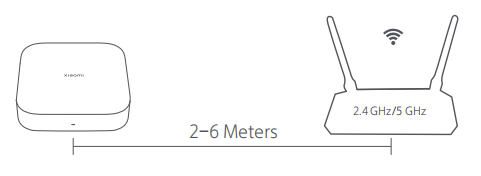
- For Wi-Fi networking, it is recommended to place the hub 2–6 meters away from the router to which the hub will be connected, and there should be no metal obstacles between the hub and the router. If using wired networking, please skip this step;
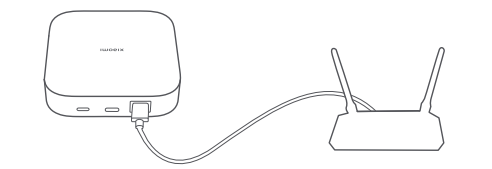
- Please select a suitable hub placement for networking with a network cable. Connect the hub to the router's LAN port with a network cable;
- Please use the provided Type-C charging cable and power adapter (purchase it separately) to power the hub;
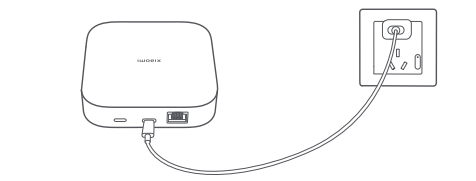
- After the power is turned on, wait for the hub to complete startup and the indicator to blink in orange, which indicates that the hub enters the awaiting connection mode;
- Open Xiaomi Home App, log into your account, and enter the homepage of the App;
- Tap [+] in the upper right corner on the homepage of the App, select [Add a device] or scan the QR code of the hub to enter the device adding interface, and operate according to on-screen instructions;
Note:
If the QR code of the hub cannot be scanned, search for its name to add it.
- Select a network access method and complete adding the hub according to on-screen instructions;
Note:
- Bluetooth function of the phone needs to be enabled for network access;
- If using wireless network access, make sure your phone is connected to a Wi-Fi network and placed as close to the hub as possible before adding the hub;
- If using wired network access, make sure that both the phone and the hub are connected to the same router or the same LAN and the phone is placed as close to the router as possible when adding the hub.
- If the hub cannot be added, please press and hold the reset button for more than 10 seconds to reset the hub, then release the button and wait for the indicator to blink in orange. Add the hub again on the Xiaomi Home App;
Note:
- If the hub cannot be added or the network cannot be connected due to startup timeout, please add the hub again after resetting or restarting it;
- Wi-Fi name or password containing unsupported special characters will result in failure to connect to the router, and please change them to commonly used characters and try again;
- If the router enables the AP isolation function, the phone will not be able to search for the hub in the LAN;
- The hub does not support WPA/WPA2 enterprise Wi-Fi networks;
- It is recommended not to connect to a bridged network.
- After the hub is successfully connected, refer to user manuals of smart devices accessible through the Xiaomi Home app, and add corresponding child devices;
- You can perform automation and scene configuration on the scene interface of the Xiaomi Home App, to enable a variety of automatic controls.
Note:
If the version of the App has been upgraded, please follow the instructions based on the current App version.
Q21: How to add a child device to the Xiaomi Smart Home Hub 2?
A: After the hub is successfully connected, please refer to user manuals of smart devices accessible through the Xiaomi Home App, and add corresponding child devices.
Q22: How to reset the Xiaomi Smart Home Hub 2's network?
A: Press and hold the reset button for more than 10 seconds to reset the hub, then release the button and wait for the indicator to blink in orange, indicating that the reset of the hub's network is completed. Repeat the [Add a device] steps to add the device.
Q23: How to restore the Xiaomi Smart Home Hub 2 to factory settings?
A: Press the reset button continuously for more than 10 times, then wait for the indicator to blink in orange to delete all the setting data (including network data) in the hub and related data of the child devices. Repeat the [Add a device] steps to add the device.
Q24: What do the indicator statuses of the Xiaomi Smart Home Hub 2 mean?
A: The meanings of the Xiaomi Smart Home Hub 2's indicator statuses are as follows:
- When the indicator is blinking in orange, the hub is not connected to a Wi-Fi or Ethernet network and has not been paired to the account;
- When the indicator is in white, the hub has not connected to the network after starting for over 30 minutes;
- When the indicator is blinking in blue, the hub is connecting or reconnecting to the network, waiting to add a child device, or upgrading the firmware manually via the Xiaomi Home App;
- When the indicator is in blue, the hub has successfully connected to the network and paired to the account.
Does it help?
Yes
No