

REDMI Watch 5 FAQ
Function and use
System settings
Q: How to bind the REDMI Watch 5 to the phone and what phones can be bound to the watch?
A: The REDMI Watch 5 needs to be bound to the phone through the Mi Fitness APP. The APP name is identical in iOS and Android system, so you can search the Mi Fitness APP in APP store.
Please refer to the following steps to bind the watch to the phone:
- Press and hold the power button for about 3 seconds to turn on the watch. Scan the QR code on the watch screen, or search for the Mi Fitness APP in the APP store, download and install the Mi Fitness APP;
- Open the Mi Fitness APP, log in to your Xiaomi Account according to the page prompts, and enable the relevant permissions required by the APP;
- The watch can be added in three ways below:
(1) Scan the QR code on the watch screen;
(2) Tap [Add device] and the APP will search the available devices automatically. You can select the watch (the Bluetooth name is REDMI Watch 5XXXX). If there is not the target watch, you can search it again;
(3) Tap [Add device] and tap [Add model] at the bottom. Select [REDMI Watch 5] and the APP will search the available REDMI Watch 5 automatically. Select the watch (the Bluetooth name is REDMI Watch 5XXXX) in the device list. If the watch is not searched, you can search it again.
- Android phones: When the phone displays the same code as the watch screen, agree to the pairing request on both the phone and the watch to complete the pairing connection with the watch.
iPhone: First, go to the Bluetooth list of the mobile phone system, select the Bluetooth name of your watch, and agree to the pairing request on the code page that pops up on the phone and watch respectively. Then return to the APP to select the Bluetooth name of your watch, and perform the pairing operation again to complete the pairing connection with the watch.
Note:
- During the pairing process, please make sure that the Bluetooth of your phone is turned on to ensure that the connection between the watch and the phone is normal;
- If the code has popped up on the watch, but the pop-up window to confirm the pairing is not displayed on the phone, please look for the pairing request in the notification bar of the phone;
- If you cannot find the watch during the device addition process, or cannot connect to the watch during use, try to press and hold the watch power button for 3 seconds, select factory reset on the system operation interface, and then add the watch again.
Q: How to rebind the REDMI Watch 5 to the new phone?
A:
- If the Xiaomi Account to be bound is different, you need to reset the watch and rebind on the new phone;
- If the Xiaomi Account to be bound is the same, in the connection status between the watch and the old phone, please go to [More] >> [Connect new phone] to rebind the watch.
Q: Why does the REDMI Watch 5 fail to bind or connect to the Bluetooth?
A: If the watch fails to bind, please refer to the following details:
- Please check whether the Bluetooth is enabled on the phone;
- Please check whether the watch is at the QR code pairing interface;
- Please do not disable the Bluetooth in the pairing process;
- During the binding process, the phone and watch should be within the pairing range and not too far apart (it is recommended not to exceed a range of 2 meters, which is subject to actual usage performance.)
If the watch fails to connect, please refer to the following details:
- iPhone cannot reconnect. If many APPs are running in the background on the iPhone, the Mi Fitness APP will be removed. Please refer to the following details:
(1) Please open the Mi Fitness APP to check whether the phone can reconnect;
(2) If it cannot reconnect, tap the connection icon to check whether it can reconnect;
(3) If you still cannot reconnect, confirm whether the device is connected to the system Bluetooth of the mobile phone. If it is connected, ignore the device and confirm whether the reconnection is normal. If the device is not connected, it is recommended to restart the watch and try again;
(4) If you still cannot reconnect, restore the device to factory settings, ignore the device in the system Bluetooth again, and scan and connect the device again in the Mi Fitness APP.
- If the connection fails after resetting the watch and searching the watch with the phone again, please refer to the following details:
(1) Check whether the phone system Bluetooth has this device. If so, please ignore it and return to the Mi Fitness APP to pair again according to the prompts;
(2) When the sign of three × appears during binding, check whether the system Bluetooth has forgot it. If so, please forget it and try to connect again.
- When the watch is restored to factory settings while connected to iOS, the watch fails to be added again on the APP. Please refer to the following details:
When pairing the watch with an iPhone, restore the watch to factory settings. If repeated adding fails on the APP, you need to forget the device in the system Bluetooth first, and then try again to pair successfully.
- The background permissions are not enabled on the Android phones, which make the Mi Fitness APP removed from the background. Please refer to the following details:
In order to better use the watch and avoid one-tap memory cleaning in the Android system and some housekeeper software cleaning processes or interception. It is recommended to keep the Mi Fitness APP running in the background. The opening path is as follows: After pairing, you can tap [Device] >> [Notifications and calls] >> [Background permissions] >> follow the instructions on the Mi Fitness APP.
- If the watch cannot be searched after restoring to the factory settings, please refer to the following details:
(1) After unbinding, if the device cannot be searched, turn off and on the Bluetooth of the mobile phone system again;
(2) Check whether there is a pop-up window prompting the connection on the nearby mobile phone. If so, you need to reject it.
- If battery saver mode is enabled on the watch or the phone, please refer to the following details:
(1) When the device is in battery saver mode, the watch Bluetooth will be turned off, the currently connected phone will be disconnected, and it will not be able to reconnect automatically;
(2) When the phone is in battery saver mode, the phone Bluetooth will be turned off, the currently connected watch will be disconnected, and it will not be able to reconnect.
- What to do when Bluetooth is disconnected or the phone is turned off during binding:
If the iPhone Bluetooth is turned off during binding, the watch will pop up the pairing failure interface, and the Mi Fitness APP will prompt that Bluetooth is turned off, prompting you to turn on Bluetooth and rescan. After turning on the iPhone system Bluetooth again, the binding failure interface will appear. Press the pop-up of retry again and the binding will be successful again.
- If you turn off the Bluetooth of your Android phone during binding, the watch will pop up the pairing failure interface, and the Mi Fitness APP will show that the binding failed. If you tap the retry icon, the APP will prompt you to turn on the Bluetooth prompt box. If you turn on Bluetooth again, the binding will be successful;
- When the phone is powered off or restarted, the watch will display pairing failure interface. You need to power on the phone to rebind the watch;
- Other reasons for connection failure:
(1) In disconnected status, unbind on the APP side, the watch does not restore to factory settings, and needs to be restored to factory settings before the next binding, otherwise it cannot be paired with a new phone;
(2) After the iPhone is connected to the watch and the watch is restored to factory settings, the iPhone system Bluetooth will try to reconnect to the watch, and the new phone will not be able to search for the watch (the iPhone and the watch will be disconnected all the time, and the new phone cannot search during the connection period; during the disconnection interval, the new phone is just in scanning mode and can search). You need to enter the Bluetooth of the old iPhone, find the corresponding connected device, and forget this device. At this time, use the new phone to search and pair the connection.
- After the Android phone is connected to the watch and the watch is restored to factory settings, the Mi Fitness APP will reconnect to the watch and prompt you to delete the device or add. At this time, the new phone cannot search for the device. Delete the device on the old phone and search and connect the watch on the new phone.
Q: How to keep the REDMI Watch 5 and the Mi Fitness APP connected?
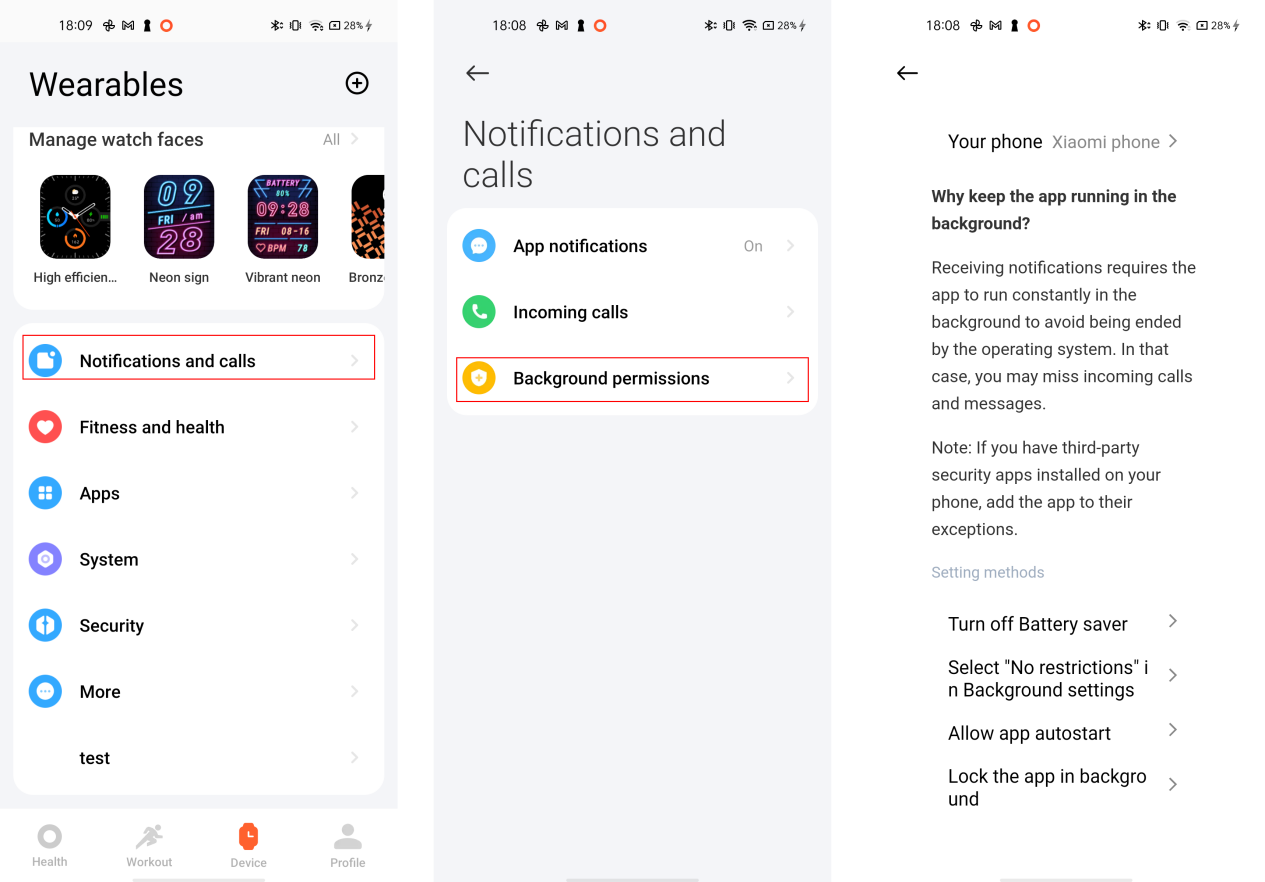
A: Please set the Mi Fitness APP to the application whitelist and lock the APP to run in the background. Do not turn off the Bluetooth of the mobile phone. Keep the connection within the Bluetooth connection distance between the watch and the mobile phone.
The setting methods are different for different mobile phone models. Please go to Mi Fitness APP >> [Device] >> [Notifications and calls] >> [Background permissions] and follow the prompts according to the specific setting method.
Q: How long the distance will make the REDMI Watch 5 disconnect with the Bluetooth?
A: The Bluetooth connection status between REDMI Watch 5 and the phone is affected by the surrounding environment. Under normal circumstances, when there are obstructions, the Bluetooth will be automatically disconnected when the watch and the phone are 5-8 meters apart. In an open area or a corridor, when the watch and the phone are 20 meters apart, the Bluetooth will be automatically disconnected. If there is one person between the watch and the phone (facing each other), the Bluetooth will be automatically disconnected when the watch and the phone are 3-5 meters apart. The specific performance is subject to actual use.
Q: How to power off, power on and reboot the REDMI Watch 5?
A: You can press the power button on the REDMI Watch 5.
Power on:
- In the off status, press and hold the power button for about 3 seconds to turn on and enter the watch homepage;
- In the off status, connect the watch charger for about 3 seconds to turn on and enter the watch homepage.
Power off:
- In the on status, press and hold the power button for 3 seconds and the watch will enter the page of reboot, power off and reset, select power off;
- In the on status, go to [Settings] >> [System] >> [Power off].
Reboot:
- In the on status, press and hold the power button for 3 seconds and the watch will enter the page of reboot, power off and reset, select reboot;
- In the on status, press and hold the power button for about 18 seconds until the logo appears and then release it, the watch will be forced to reboot;
- In the on status, go to [Settings] >> [System] >> [Reboot].
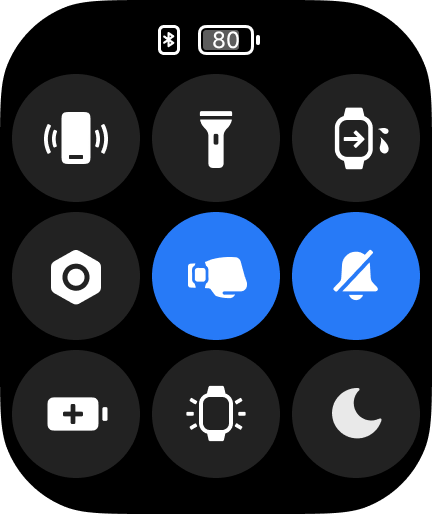
Q: What are the icon functions on the control panel of the REDMI Watch 5?
A: You can swipe up from the bottom edge of the REDMI Watch 5 to enter the control panel:
- Find Phone: Quickly enter the Find Phone APP;
- Flashlight: Quickly turn on the flashlight;
- Drainage: Tap to enter the drainage mode;
- Settings: Quickly enter the Settings APP;
- Raise to wake: Quickly turn on/off the function of raising to wake the screen. Press and hold for 1 second to enter the setting of raising to wake;
- Silence watch: Quickly turn on/off the ringtone volume;
- Battery saver: Tap to turn on the battery saver mode;
- Screen on for 5 minutes: After turning it on, the screen will stay on for 5 minutes;
- DND: Quickly turn on/off Do Not Disturb, Do Not Disturb for 1 hour/4 hours/All day/Custom.
Q: What are the system settings of the REDMI Watch 5?
A: Watch faces, Notifications, Bluetooth earphones, Sound and vibration, Display, DND, Auto detect, Layout, PIN, Battery, Newbie guide, System, About watch.
Q: How to customize widgets on the REDMI Watch 5?
A: REDMI Watch 5 supports widgets. On the main page of the watch, swipe up to view different widget cards.
Add widgets: Press and hold the widget on the widget interface to enter the edit mode, swipe to the bottom, tap the add icon, and select the widget you want to add.
Remove widgets: Press and hold the widget on the widget interface to enter the edit mode, and tap the remove icon.
Q: How to lock the REDMI Watch 5?
A:
- By default, if there is no operation within 5 seconds, the screen will be automatically locked. You can modify the screen off time in [Settings] >> [Display] >> [Auto lock] >> select from the options from 5 seconds to 60 seconds;
- The watch supports the function of covering to sleep. After turning it on, cover and touch the watch with your palm. When the covered area reaches 1/2, the screen will automatically be locked;
- Turn the wrist to lock the screen, turn the wrist watch in the opposite direction to lock the screen;
- Put your hands down to lock the screen, the screen will be locked when your arm is put down.
Q: How to configure Raise to wake on the REDMI Watch 5?
A: You can go to [Settings] on the watch >> [Display] >> [Raise to wake] >> select from the option. When the timing is configured, there will be an effective time period option, and you can set the effective time according to your needs.
Swipe up on the main page of the watch face, open the control panel, and tap the icon of raising to wake to quickly switch on and off the function of raising to wake.
Note:
When the watch is in the sleep mode, the function of raising to wake will be disabled automatically. Please go to the Mi Fitness APP >> [System] >> [Sleep mode] >> [Schedule] >> configure the relevant settings.
Q: How to adjust the brightness of the REDMI Watch 5?
A: The REDMI Watch 5 supports both automatic brightness adjustment and customized brightness adjustment.
Automatic brightness adjustment: Auto brightness is enabled on the watch by default. The brightness will be adjusted automatically according to the surrounding environment. You can go to [Settings] on the watch >> [Display] >> [Brightness] >> [Auto].
Customized brightness adjustment: Customized brightness adjustment is divided into 255 levels, which supports step-by-step adjustment of brightness by rotating the crown and sliding the brightness bar. You can go to [Settings] on the watch >> [Display] >> [Brightness] >> [Custom] >> adjust the brightness according to your needs.
Q: Does the REDMI Watch 5 support configuring password?
A: Support. After enabling this function, when the watch detects that it is not being worn, it will activate the password lock screen to ensure information security. The password is a 6-digit combination of 0-9.
To configure password of the watch, please refer to the following methods:
- Go to [Settings] on the watch >> [PIN] >> [Set PIN] >> input the password;
- Go to the Mi Fitness APP >> [Device] >> [Security] >> [Set password] >> [PIN] >> input the password.
Q: What to do if the password of the REDMI Watch 5 is forgotten?
A: If the password is forgotten, you cannot delete the password in the watch. You need to configure the relevant settings on the APP.
Please refer to the following settings:
- Please keep the watch and phone connected;
- Go to the Mi Fitness APP >> [Device] >> [Security] >> [Set password] >> disable or change the password according to the instructions.
Q: Does the REDMI Watch 5 support unlocking the phone with Bluetooth?
A: The watch supports unlocking the phone. This function currently supports Xiaomi phones with system versions of MIUI 12 and above.
When the phone and watch are connected via Bluetooth, the watch unlocking is a one-to-one binding between the watch and the phone. Within a safe distance, the watch can be used as an identity ID to replace the input of the unlock password or pattern, which greatly improves the convenience of operation while ensuring security.
Please refer to the following methods:
- Go to the Mi Fitness APP >> [Device] >> [Unlock phone] >> follow the instructions;
- After the lock screen password is set, confirm the unlock on the watch to successfully bind. You can choose the unlock distance (close, moderate, or slightly far);
- Unbind: You need to disable the function of unlocking with Bluetooth in the phone settings. Take Xiaomi phone as an example: go to [Settings] >> [Fingerprints, face data, and screen lock] >> [Unlock with Bluetooth device] >> disable the function.
Note:
Currently, the unlock phone function needs to be used with Xiaomi phones running MIUI 12 or above, so if the model and system do not match, the Mi Fitness APP will not display the option of [Unlock phone].
Q: Does the REDMI Watch 5 support Bluetooth earphones connection?
A: Support.
Q: How to adjust the volume of the REDMI Watch 5?
A: The REDMI Watch 5 supports manually adjust the volume of alarm, ring, media and call. You can go to [Settings] on the watch >> [Sound and vibration].
Alarm volume adjustment:
- Go to [Settings] on the watch >> [Sound and vibration] >> [Alarm]. Tap the + or - icon to adjust the volume;
- The alarm volume can be adjusted between 0-10. Alarm reminders and countdown reminders both belong to alarm volume.
Ring volume adjustment:
- Go to [Settings] on the watch >> [Sound and vibration] >> [Ring]. Tap the + or - icon to adjust the volume;
- The ring volume can be adjusted between 0-10. Incoming calls, notifications, system reminders and health and workout reminders belong to ring volume;
- If you enable [Silent], the ring volume will be 0.
Media volume adjustment:
- Go to [Settings] on the watch >> [Sound and vibration] >> [Media]. Tap the + or - icon to adjust the volume;
- The media volume can be adjusted between 0-10. Music played on the phone belongs to media volume;
- The volume of voice broadcast during workout can also be adjusted during workout. To adjust, swipe right to enter the workout page, tap the volume control, drag the volume bar on the screen, tap the + and - icon on the screen, or tap the up and down buttons to adjust the required volume;
- Third-party music APPs support adjusting the volume in the APP. Please follow the volume adjustment design in the APP.
Call volume adjustment:
- The call volume can only be adjusted during a call. Tap the volume button on the call page to enter the volume adjustment page. You can drag the volume bar on the screen, tap the + and - icon on the screen, or tap the up and down buttons to adjust the required volume;
- The call volume can be adjusted between 0-15.
Note:
The ringtone of the REDMI Watch 5 is defaulted, which is not supported customizing.
Q: How to enable silent mode on the REDMI Watch 5 and which sounds will be silent?
A: To enable silent mode on the watch, please refer to the following methods:
- Go to [Settings] on the watch >> [Sound and vibration] >> enable [Silent];
- Swipe up on the homepage of the watch to enter the control panel and tap the silent icon;
- Go to [Settings] on the watch >> [Sound and vibration] >> manually adjust the ring volume to 0.
When you enable [Silent], incoming calls, notifications, system reminders and workout and health reminders will not be pushed with ring, but with vibration.
Q: What is the drainage function on the REDMI Watch 5?
A: The drainage function can be used when the speaker of the watch is flooded after swimming or in daily life. The principle of the drainage function is to play a sound of a specific frequency to make the speaker vibrate, and use the vibration to drain the water that has invaded the speaker, thus protecting the speaker from being corroded by water.
To enable drainage function on the watch, please refer to the following methods:
- Swipe up on the homepage of the watch to enter the control panel and tap the drainage icon;
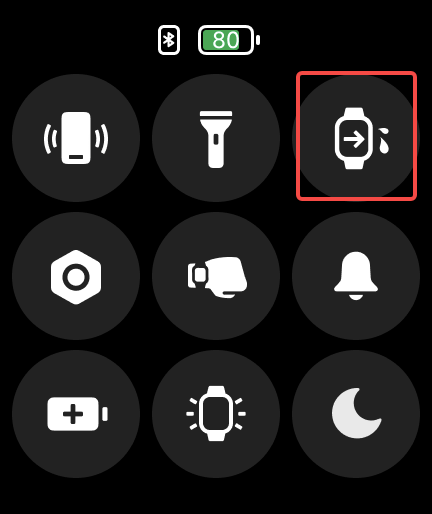
- After the swimming, the watch will start the drainage function automatically.
Q: How to wake the screen of the REDMI Watch 5?
A:
- Press the power button when the watch is locked;
- If you enable [Raise to wake], raise your arm to wake the screen;
- If you enable [Tap to wake], you can tap the screen to wake the screen.
Q: Does the REDMI Watch 5 support AOD (Always-on display)?
A: Support. When you enable it, the watch will be in the AOD status after the watch is locked.
In the AOD status, you can wake the screen through raising the arm or pressing the power button to exit AOD.
You can go to [Settings] on the watch >> [Display] >> [Always-on display] >> select from the options. You can customize the effective time period. The defaulted time period is 08:00-22:00. This function will reduce the battery life.
Note:
When AOD is enabled, it will be disabled when sleep is monitored at night.
Q: Does the REDMI Watch 5 support controlling the phone to play music?
A: The watch can control the phone to play music. To use this function, the phone and watch must be connected. In the Mi Fitness APP, notification permission needs to be enabled.
Open the music player on the phone and start playing music. Enter the function list on the watch and select the music icon to enter the music control page. You can start/pause music, switch to the previous/next song, and increase/decrease the volume.
Note:
Currently, it supports most music players. However, due to the differences in the openness of the music players and the APP versions, the experience of the watch's music control function will be affected to a certain extent.
Q: How to configure the time of the REDMI Watch 5?
A: After the watch and mobile phone are paired and synchronized via Bluetooth, the watch will automatically synchronize the time of the mobile phone system without manual setting. If the time of the mobile phone is changed, the watch will be synchronized after connecting with the mobile phone.
Q: How long can the data on the REDMI Watch 5 be kept?
A: The watch can save up to 20 pieces of workout data, heart rate and stress data for 30 days and sleep data is only saved for the day. Please connect to your phone and synchronize it to the Mi Fitness APP in time. If the watch is reset, the previous workout data on the watch will be cleared, but the data that has been synchronized to the Mi Fitness will not be cleared.
Health related
Q: Does the REDMI Watch 5 support sleep monitoring?
A: The watch supports all-day sleep monitoring, that is, all-day long sleep and sporadic nap monitoring. After enabling [Advanced monitoring], the distribution of sleep quality can be presented. After wearing the watch normally at night and falling asleep, the watch can automatically recognize it through the built-in sensor.
To check the sleep data, please refer to the following details:
- Swipe right or left on the homepage of the watch to the sleep widget and you can check the sleep duration last night. Tap to enter the APP to check more information;
- Tap the sleep icon in the APP list to check the sleep data of the day;
- After the watch is connected to the phone to synchronize data, in the [Health] page of the Mi Fitness APP, tap [Sleep] to view historical sleep data, including daily, weekly, monthly, and yearly data. You can also view the daily sleep time period, the proportion of deep sleep, light sleep, (REM) rapid eye movement, and wake-ups, as well as detailed sleep status at each time point.
Note:
- There is a delay in generating sleep reports. If you turn on the sleep function immediately after waking up, there will be no sleep report;
- The watch retains the detailed sleep data of the previous night and the sleep time period data of the past 7 days. Please synchronize the data to the Mi Fitness APP in time to avoid data loss.
Q: Why is the heart rate of the REDMI Watch 5 not inaccurate and unstable?
A:
- Inaccurate heart rate measurement will be caused by wearing method, skin color, hair, reduced blood perfusion, low temperature and blood vessel contraction, or dirt and water stains between the watch and the wrist;
- To ensure the accuracy of measurement, please wear it tightly, prevent the device from sliding down when the arm shakes, and wear the device one finger distance above the wrist bone;
- In cold weather, due to the low temperature, the capillaries at the extremities of the human body contract, and blood flows back to the trunk and organs, making it more difficult to obtain the photoelectric heart rate signal from the wrist, and it is also easier to lose the real heart rate signal during workout. Therefore, it is recommended to warm up fully before exercise to speed up the blood flow and facilitate the sensor to obtain more accurate heart rate data;
- Please ensure that the bottom case of the watch is clean and dry, the temperature of the watch body is neither too low nor too high, there is no sweat or foreign matter on the wrist, and the watch should be worn comfortably and snugly.
Q: Why does the REDMI Watch 5 fail to measure heart rate?
A: Disable all-day heart rate monitoring, tap the heart rate APP on the watch, measure the heart rate once, and when the watch is measuring, check whether the heart rate light on the bottom of the watch is on. If it is not on, you can unbind and rebind or restart the watch and clean the back cover lens (dirt and oil will affect the test and accuracy). If it is still ineffective, you can apply for after-sales inspection.
Q: Why does the sleep diagram seem inaccurate?
A: The sleep diagram will be optimized in the subsequent OTA plans.
Q: Why is the sleep data not accurate in the process of monitoring sleep and wake-up?
A: The monitoring principle of sleep and wake-up is listed below:
The sleep algorithm determines whether you sleep or wake up by detecting changes in the ACC. When the ACC data changes little for a period of time, it can be considered that the activity is small, and the algorithm will determine that you sleep. When the ACC data changes for a period of time, it can be considered that the activity consumes more power, and the algorithm will determine that you wake up. In scenes such as playing with your phone and watching movies, since the changes in ACC in this scene are relatively slight, sleeping will be detected wrongly. If you enable [Advanced monitoring] and [Breathing rate], the data of the PPG sensor will be used, and the algorithm will analyze the sleep status through the ACC and PPG data to obtain the sleep stage results and sleep data.
The reasons for inaccurate data of sleep and wake-ups are listed below:
- If the watch itself does not record sleep or the detection time is less than the actual sleep time, your wrist movements are more during sleep, and the sensor determines that you are not sleeping, resulting in no record or a shorter recorded sleep time;
- If the watch itself records more sleep than the actual sleep time, your wrist movements are less during non-sleep time and you are in a very quiet status (playing with your phone before going to bed or sitting and watching a movie, etc. will be judged as falling asleep), causing the sensor to detect it as a sleeping status.
Note:
- Over-optimization of the algorithm will lead to missed detection and false detection of sleep. However, due to the limitation of the algorithm detection principle, similar problems exist in the industry;
- For quiet scenes when not sleeping, the detection accuracy will be further improved with the promotion of joint detection of multiple sensors and auxiliary equipment.
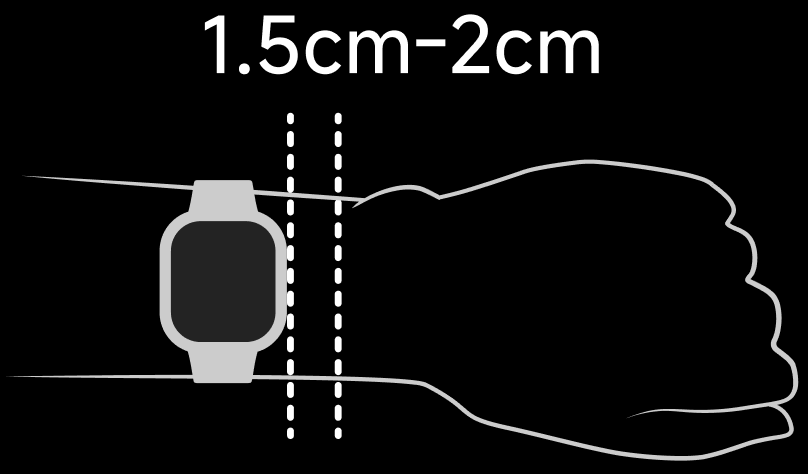
Q: What to do if the sleep data is lost or abnormal when the crown is mistakenly touched to reboot the watch in the sleep process?
A: It is recommended that you wear the watch 1.5cm-2cm away from the wrist bone to avoid accidentally restarting the watch.
Q: Why does the sleep data not update when checking the sleep data once waking up?
A: The reason for synchronization delay of sleep data is listed below:
The sleep algorithm can accurately capture changes in your sleep state. When you wake up, the watch will immediately determine whether you have left the sleep state (for example, if your hands shake significantly) and start the data generation process. However, since a lot of data analysis and verification is required in this process to ensure the accuracy and reliability of the data, there will be a certain delay.
The relevant algorithm and data processing procedures will be optimized to reduce the delay and improve your use experience.
Q: Why is there a large deviation of continuous stress measurement?
A: It is normal if the deviation between the stress values measured before and after is within 10.
Workout related
Q: What workout types does the REDMI Watch 5 support?
A: The workout types that the REDMI Watch 5 supports are listed below:
Category | Workout | Type |
Water workout | Pool swimming | Professional workout |
Open water swimming | Professional workout | |
Sailing | Extended workout | |
Paddle board | Extended workout | |
Water polo | Extended workout | |
Water workout | Extended workout | |
Water skiing | Extended workout | |
Kayaking | Extended workout | |
Kayaking drifting | Extended workout | |
Rowing | Extended workout | |
Motorboat | Extended workout | |
Flipping | Extended workout | |
Diving | Extended workout | |
Synchronized swimming | Extended workout | |
Snorkel | Extended workout | |
Kite surfing | Extended workout | |
Indoor surfing | Extended workout | |
Dragon boating | Extended workout | |
Outdoor activities | Outdoor running | Professional workout |
Walking | Professional workout | |
Hiking | Professional workout | |
Outdoor cycling | Professional workout | |
Climbing | Professional workout | |
Cross-country running | Professional workout | |
Triathlon | Professional workout | |
Rock climbing | Extended workout | |
Skateboarding | Extended workout | |
Roller skating | Extended workout | |
Parkour | Extended workout | |
ATV | Extended workout | |
Paragliding | Extended workout | |
BMX | Extended workout | |
Race walking | Extended workout | |
Training | Freestyles | Professional workout |
Indoor running | Professional workout | |
Jump rope | Professional workout | |
High-intensity interval training | Extended workout | |
Yoga | Extended workout | |
Indoor cycling | Extended workout | |
Elliptical | Professional workout | |
Rowing machine | Professional workout | |
Stair climbing machine | Extended workout | |
Stepper | Extended workout | |
Spinning bike | Extended workout | |
Core training | Extended workout | |
Flexibility | Extended workout | |
Pilates | Extended workout | |
Gymnastics | Extended workout | |
Stretching | Extended workout | |
Strengthening | Extended workout | |
Cross training | Extended workout | |
Stair climbing | Extended workout | |
Aerobics | Extended workout | |
Physical training | Extended workout | |
Wall ball | Extended workout | |
Dumbbell | Extended workout | |
Barbell | Extended workout | |
Weightlifting | Extended workout | |
Deadlift | Extended workout | |
Burpee | Extended workout | |
Sit-up | Extended workout | |
Functional training | Extended workout | |
Upper body | Extended workout | |
Lower body | Extended workout | |
Waist and abdomen training | Extended workout | |
Walking machine | Extended workout | |
Horizontal bar | Extended workout | |
Parallel bars | Extended workout | |
Stepping training | Extended workout | |
Group gymnastics | Extended workout | |
Combat gymnastics | Extended workout | |
Battle rope | Extended workout | |
Mixed aerobics | Extended workout | |
Indoor walking | Extended workout | |
Indoor fitness | Extended workout | |
Dance | Square dance | Extended workout |
Belly dance | Extended workout | |
Ballet | Extended workout | |
Street dance | Extended workout | |
Zumba | Extended workout | |
Folk dance | Extended workout | |
Jazz dance | Extended workout | |
Latin dance | Extended workout | |
Hip hop | Extended workout | |
Pole dance | Extended workout | |
Breaking | Extended workout | |
Ballroom dance | Extended workout | |
Modern dance | Extended workout | |
Dance | Extended workout | |
Combat sports | Boxing | Extended workout |
Wrestling | Extended workout | |
Martial arts | Extended workout | |
Tai chi | Extended workout | |
Muay Thai | Extended workout | |
Judo | Extended workout | |
Taekwondo | Extended workout | |
Karate | Extended workout | |
Kickboxing | Extended workout | |
Kendo | Extended workout | |
Fencing | Extended workout | |
Jujitsu | Extended workout | |
Ball sports | Tennis | Extended workout |
Basketball | Extended workout | |
Golf | Extended workout | |
Soccer | Extended workout | |
Volleyball | Extended workout | |
Baseball | Extended workout | |
Softball | Extended workout | |
American football | Extended workout | |
Hockey | Extended workout | |
Table tennis | Extended workout | |
Badminton | Extended workout | |
Cricket | Extended workout | |
Handball | Extended workout | |
Bowling | Extended workout | |
Squash | Extended workout | |
Billiards | Extended workout | |
Shuttlecock | Extended workout | |
Beach soccer | Extended workout | |
Beach volleyball | Extended workout | |
Sepak takraw | Extended workout | |
Futsal | Extended workout | |
Hacky sack | Extended workout | |
Booce | Extended workout | |
Jai alai | Extended workout | |
Gateball | Extended workout | |
Dodgeball | Extended workout | |
Winter sports | Snowboarding | Extended workout |
Skiing | Extended workout | |
Cross-country skiing | Extended workout | |
Outdoor ice skating | Extended workout | |
Indoor ice skating | Extended workout | |
Curling | Extended workout | |
Other winter sports | Extended workout | |
Snowmobile | Extended workout | |
Ice hockey | Extended workout | |
Bobsleigh | Extended workout | |
Sledding | Extended workout | |
Recreational sports | Archery | Extended workout |
Darts | Extended workout | |
Horse riding | Extended workout | |
Tug of war | Extended workout | |
Hula hoop | Extended workout | |
Kite flying | Extended workout | |
Fishing | Extended workout | |
Frisbee | Extended workout | |
Shuttlecock | Extended workout | |
Swinging | Extended workout | |
Somatosensory game | Extended workout | |
Table football | Extended workout | |
Shuffleboard | Extended workout | |
Esports | Extended workout | |
Card and board games | Chess | Extended workout |
Checkers | Extended workout | |
Weiqi | Extended workout | |
Bridge | Extended workout | |
Board game | Extended workout | |
Other | Equestrain | Extended workout |
Athletics | Extended workout | |
Auto racing | Extended workout |
Q: What professional workout types does the REDMI Watch 5 support?
A: The REDMI Watch 5 supports 14 professional workout types, including outdoor running, walking, freestyle, hiking, outdoor cycling, indoor running, jump rope, pool swimming, open water swimming, climbing, off-road running, triathlon, elliptical and rowing machine.
Q: What running course does the REDMI Watch 5 support?
A: 10 types of running courses include: Basic run/walk, Advanced run/walk, Basic jog, Fat burn run (Basic), Far burn run (Advanced), MIIT run, Endurance run (Basic), Endurance run (Advanced), Interval run (Basic) and Interval run (Advanced).
Q: How to enable workout mode on the REDMI Watch 5?
A: Please refer to the following details:
- Tap [Workout] on the watch, tap the selected workout in the workout list, and tap [GO] to start the workout;
- After the workout starts, workout data will be displayed;
- You can press the power button in the workout process to end or continue the workout.
Note:
If the amount of workout is too small (workout time is too short or workout distance is too short), the workout record cannot be saved.
Q: How to configure the workout reminder on the REDMI Watch 5?
A: Please refer to the following details:
- You can enter the workout list by tapping the workout APP or pressing the power button to enter the APP list and tap the workout APP. You can tap the setting icon on the right side of the workout item to set it;
- Tap the workout reminder and you can set the reminder item according to your needs by distance, pace, target heart rate range, high heart rate, and energy supply.
Take Outdoor running as an example:
- Distance reminder: The default setting is 1km. The adjustment unit is 1km. You can configure it according to your needs;
- Pace reminder: The default setting is 5 minutes and 30 seconds. The adjustment unit is 10 seconds. You can configure it according to your needs;
- Target heart rate range reminder: You can select from the corresponding heart rate range of the options of warm up, fat burning, aerobic, anaerobic and extreme;
- High heart rate reminder: The default setting is the highest heart rate that is automatically measured. The adjustment unit is once a minute. You can configure it according to your needs;
- Energy supply reminder:
(1) Based on the distance: The default setting is 1km. The adjustment unit is 1km. You can configure it according to your needs;
(2) Based on the duration: The default setting is 10-minute. The adjustment unit is 5-minute. You can configure it according to your needs.
Q: How to configure the workout goal on the REDMI Watch 5?
A: When the watch selects the workout mode, you can set the workout goal: you can choose the workout with distance, duration and calories as the goals according to your needs, and you can set the target values for this workout for the above 3 goals. Swipe down to clear the goal.
Take Outdoor running as an example:
- Target duration: The default setting is 10 minutes. The adjustment unit is 5 minutes. You can configure it according to your needs;
- Target distance: The default setting is 5km. The adjustment unit is 1km. You can configure it according to your needs;
- Target calories: The default setting is 300 kcal. The adjustment unit is 50 kcal. You can configure it according to your needs.
Q: How to check the workout records of the REDMI Watch 5?
A: After the workout is completed, the watch will generate a rich and vivid workout report. Among all the workout record data, it includes workout date, duration, distance, calories, steps, pace, speed, heart rate, pace curve, speed curve, heart rate curve, heart rate percentage, cadence curve, stride, etc.
To check the workout records, please refer to the following details:
- Check detailed workout data in the workout APP on the watch;
- After the watch is connected to the phone, go to the Mi Fitness APP >> tap the rainbow icon >> tap the date on the [Stats] interface to check the workout records of any day. Apart from the workout data, you can also check such information as workout trajectory.
Q: How to adjust the order of workout list on the REDMI Watch 5?
A: Not support.
Q: Does the REDMI Watch 5 support hiding the workout items in the workout list?
A: Not support.
Q: How to check the steps, calories, effective standing data and moving of the day on the REDMI Watch 5?
A: Please refer to the following methods:
- Widget: Swipe left or right on the homepage of the watch, and check the current calories, steps, effective standing data and moving in the corresponding widget;
- APP list: Press the power button to enter the APP list, and tap the stats icon to check the data;
- Mi Fitness APP: Go to the Mi Fitness APP >> tap the rainbow icon >> check the data.
Note:
In the [Stats] interface, only one of the two options, [Standing] and [Moving], can be displayed. You can go to the Mi Fitness APP >> tap the rainbow icon >> tap the three-dot icon >> [Stats] >> [Suggest] >> select from [Moving]/[Standing].
Q: Why does the step count increase on the REDMI Watch 5 during indoor exercise even when there is no movement?
A: The distance calculation methods for indoor walking and outdoor walking on the watch are different. Outdoor walking is calculated based on GPS positioning, while indoor walking relies on the product's sensor hardware. If the outdoor walking mode is activated in an indoor environment, the weak indoor GPS signal, simulated GPS amplifier signal drift, and the weak GPS signal from the phone indoors may cause the GPS location to fluctuate, leading to the issue of increased step count without actual movement. Please select the appropriate exercise mode based on the correct environment. For outdoor activities, you can choose outdoor cycling, outdoor running, etc. For indoor activities, please select indoor running, indoor swimming, etc.
Q: How to set the standing reminder on the REDMI Watch 5?
A: Turn on [Reminder to stand up] in the Mi Fitness APP. If there is no walking or strenuous hand activity within an hour, a standing reminder will be sent, but the following conditions need to be considered:
- If there is any behavior of walking around or wearing the watch for exercise within one hour, the reminder will be extended for half an hour, and the delay time shall not exceed one hour;
- If the violent hand activity reaches 10 seconds, the reminder will be delayed for half an hour. If it reaches 20 seconds, the reminder will be delayed for one hour;
- The current time point is within the reminder time range set by you (note that the Do Not Disturb function during lunch break is enabled, the default is 12:00~14:00);
- There is no standing reminder during the workout.
Q: What is the reminder logic of the REDMI Watch 5's standing reminder?
A: The activity reminder will be triggered every hour if the following conditions are met: the steps in that hour do not exceed 100 steps, or the duration of moderate to high-intensity activity is less than 2 minutes.
Q: How to delete exercise data from the REDMI Watch 5?
A: You cannot delete exercise data on the watch. It retains the last 20 entries of exercise data, and once this limit is exceeded, new exercise data will overwrite the oldest data, updating in a rolling manner.
You can manually delete the exercise data from the Mi Fitness APP.
Q: Can the REDMI Watch 5 be set to automatically pause during exercise?
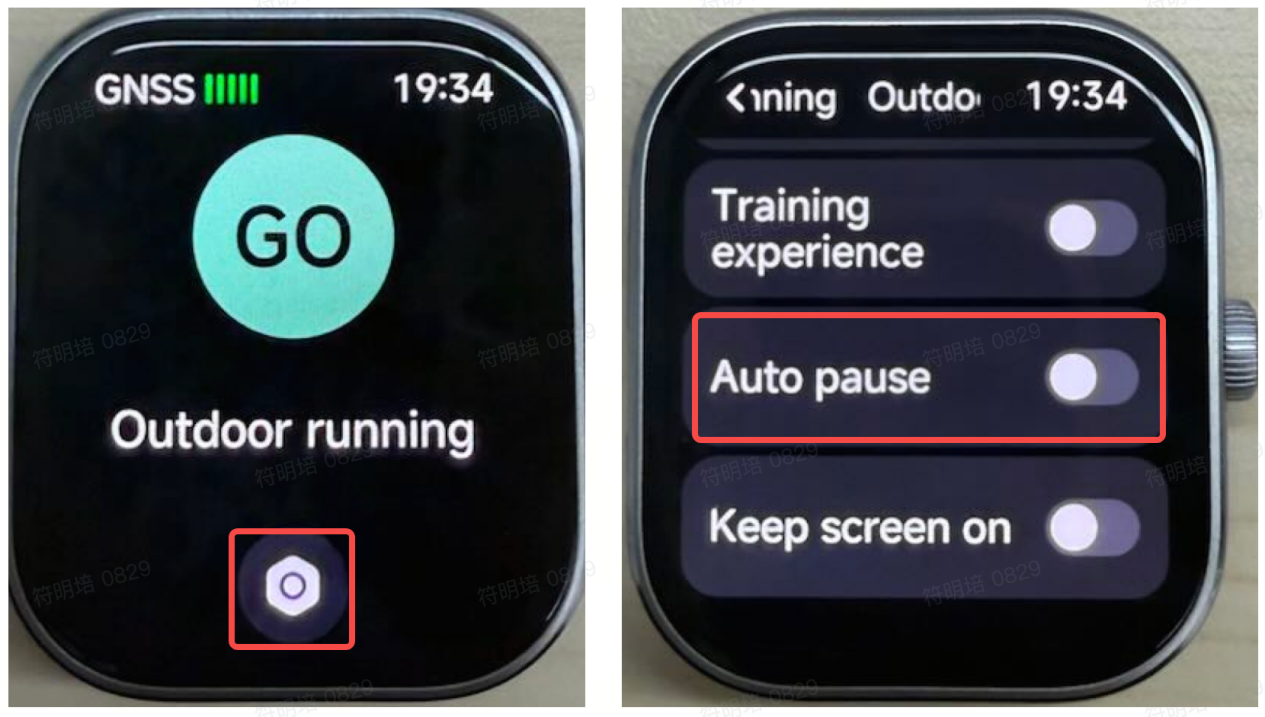
A: Yes, it supports automatic pause for specific sports modes like Outdoor running, Indoor running, Walking. You can disable this in Workouts settings.
Q: Why is the data displayed on the Mi Fitness APP inconsistent with the data displayed on the REDMI Watch 5 after syncing?
A: Due to the definition of the dual-end mutual writing synchronization protocol of Mi Fitness APP, according to your usage habits, there will be a minimum data difference of 5 minutes and a maximum of 30 minutes after completing automatic synchronization or manual synchronization. For example, after synchronization, If there is a minimum 5-minute data difference, the calories and steps data generated within the 5 minutes will not be reflected until the next synchronization. This setting is currently continuously optimized by Mi Fitness APP engineers.
Q: Why the number of swimming lap counts on the REDMI Watch 5 is inaccurate?
A: The identification of swimming laps needs to be calculated based on the movements during swimming. When swimming, please wear the watch properly and tightly.
Q: Why the mileage record of the REDMI Watch 5 is inaccurate? (During outdoor exercise, the phone recorded 6km, but the watch showed only 5km.)
A: When exercising outdoors, distance calculation depends on positioning information. Please choose an open field as much as possible when exercising outdoors to ensure better positioning accuracy. At the same time, the REDMI Watch 5 supports intelligent selection of positioning signal sources when connected to a mobile phone. Therefore, it is recommended to check whether the mobile phone has given complete positioning permissions to the Mi Fitness APP to improve distance accuracy.
Handy tool
Q: How to use the schedule on the REDMI Watch 5?
A: After turning on Mi Fitness APP >> [Device] >> [Apps] >> [Sync events], every time data is synchronized, the device will synchronize the mobile phone system schedule for the last 7 days. Sync events only support MIUI system and iOS, and other systems are not supported yet.
Quantitative restrictions:
The upper limit of all schedules is 20 (sorted according to the schedule list), and the excess will not be displayed.
- The title can display a maximum of 3 lines (including punctuation);
- The remarks can display a maximum of 3 lines (including punctuation);
- The address can display a maximum of 3 lines (including punctuation).
Q: How to check weather information on the REDMI Watch 5?
A: When the watch is connected to the mobile phone, the viewing method is as follows:
- Tap the up key on the home screen, select the weather application in the application list, and view it. You can get the local temperature, weather conditions, AQI (air quality) pollution, air quality forecast, wind level, ultraviolet rays, intensity, relative humidity, sunrise and sunset times, and weather forecast for the coming week by scrolling up and down;
- Swipe the screen left or right on the homepage of the watch face to view the weather widget to get temperature and weather condition information. Tap the widget to enter the weather APP to view more information.
Note:
To use the watch to check real-time weather, you need to keep your phone connected to the watch, and the Weather updates function of the Mi Fitness APP is turned on (Mi Fitness APP >> [Device] >> [Apps] >> [Weather updates]).
- If the watch is not connected to the phone, the weather displayed will be the information synced during the last connection with the phone;
- If the "Weather" widget is hidden in the Mi Fitness APP, the weather cannot be viewed on the watch through the widget;
The weather information displayed on the watch is obtained by the Mi Fitness APP from the service provider and pushed. If it is different from the weather service provider used by the mobile phone system, the displayed results could be slightly different.
Q: How to use the stopwatch function on the REDMI Watch 5?
A:
- Open [Stopwatch] in the application list;
- Tap it to start timing. During the timing process, tap [Start] to generate scoring data. In the scoring record display area, slide the screen up and down to view all scoring records, and up to 50 scoring records can be displayed;
- Tap the [Clear] icon to clear the stopwatch data.
Note:
The stopwatch application does not support running in the background. Exiting the stopwatch will clear all timing data.
Q: How to use the Timer function on the REDMI Watch 5?
A: The watch provides 1 minute, 2 minutes, 3 minutes, 5 minutes, 10 minutes and 30 minutes timer by default. You can also customize the time to adapt to the needs of different scenarios.
The settings are as follows:
- Open [Timer] in the application list;
- Select a number and start the countdown directly after tapping it. You can also tap [Custom] to set the time you need;
- After the countdown is over, the watch will vibrate and ring as a reminder (the ring volume is the alarm volume). You can tap the screen to turn off the countdown reminder or start a new countdown.
Q: Does the REDMI Watch 5 support the function of finding phone/finding device?
A: The REDMI Watch 5 supports the function of finding phone on the watch, however does not support finding device on the phone. When the phone and watch are connected via Bluetooth, if the phone cannot be found, you can use the find phone function on the watch.
To find the phone:
- Enter the [Find phone] APP in the application list and tap [Search];
- During the search process, tap [Stop] to end the search state.
Note:
If Bluetooth is not connected, the phone search function prompt is unavailable.
Q: Does the REDMI Watch 5 support the compass function?
A: The REDMI Watch 5 supports the compass function. Open the Compass APP from the application list, and follow the on-screen instructions to rotate the watch for calibration. Once calibration is complete, you can use the compass for navigation.
Q: Why does the compass function on the REDMI Watch 5 require an 8-shaped calibration every time?
A: To improve the accuracy of the compass, calibration is required every time the compass is used, ensuring more accurate direction readings.
Q: Does the REDMI Watch 5 support checking the altitude and barometric pressure?
A: The REDMI Watch 5 does not support checking the altitude and barometric pressure.
Q: How to set an alarm on the REDMI Watch 5?
A: The REDMI Watch 5 supports alarms with vibration and ringtones (alarm volume matches the set ringtone). You can set multiple and recurring alarms.
To set an alarm on the watch, please refer to the following steps:
- On the watch, press the power button to access the application list;
- Open the Alarm APP, and create a new alarm. Set the desired time. If no repeat dates are selected, it will be a one-time alarm;
- If a repeat date is selected, it will repeat according to the set repeat rules. Tap [√] to save the settings.
When the alarm triggers, it will vibrate and ring. Press a button or tap [Snooze] on the screen to delay the alarm by 10 minutes. Tap [Turn off] to stop the alarm completely.
If you want to delete an alarm, please go to the APP list of the watch >> open the Alarm APP >> select the alarm >> tap the delete icon to remove it.
Q: How to disable the vibration and ringtone for alarms on the REDMI Watch 5?
A: To disable the ringtone, please go to the [Settings] APP on your watch >> tap [Sound and vibration] >> you can see the alarm volume on the watch and set the volume to 0.
To disable the ringtone, please go to the [Settings] APP on your watch >> tap [Sound and vibration] >> disable [Vibration].
Q: What is the Sleep mode on the REDMI Watch 5, and how to use it?
A: To set up the Sleep mode, please refer to the following steps:
- Open the Mi Fitness APP;
- Enter [Device];
- Select [System];
- Enter [Sleep mode] and set custom schedule time. Select to sync with the phone's schedule (for MIUI system) or customize the bedtime and wake-up time (for non-MIUI system), and wait for the watch to successfully sync.
After enabling Sleep mode, daily reminders will be triggered. When the watch reaches bedtime, it will remind you to go to sleep and automatically activate Do Not Disturb mode, disabling the Raise to wake feature. When the watch reaches the wake-up time, an alarm will sound, similar to the one set on the watch, and once you dismiss the alarm, the watch will automatically exit Do Not Disturb mode and activate Raise to wake. For non-MIUI phones, after dismissing the alarm, an early report will pop up, displaying sleep duration and today's weather information. For MIUI phones, the wake-up early report will only appear on the phone and not on the watch to avoid duplication.
Q: Does the REDMI Watch 5 support syncing alarms with phones?
A: For MIUI phones, alarms set on the phone can be synchronized with the REDMI Watch 5 for reminders. This feature is not available for non-MIUI phones.
This function does not need to be enabled. MIUI 9.2.27.6 and above, and the phone's built-in clock APP 12.8.01 and above can support it.
Alarms will trigger on both the phone and watch simultaneously. Actions taken on either device (e.g., snoozing or stopping) will apply to both.
Alarm reminders can be synced to the Watch, provided that the Bluetooth connection between the phone and the watch is stable, and the Mi Fitness APP is running properly.
Note:
You can disable the alarm notification on the Mi Fitness APP (Mi Fitness APP >> [Device] >> [Alarm]).
Watch face related
Q: What to do if the REDMI Watch 5 shows a "watch face is full" message when downloading a new watch face?
A: Due to limited storage on the firmware, when the watch face storage is full, you need to manually delete some watch faces. You can do this by pressing and holding on the watch to enter the watch face edit mode >> swipe up the watch face >> tap [delete]. Or go to the watch face market in the Mi Fitness APP to delete a few watch faces. Afterward, try downloading other watch faces again.
Q: How to change and delete the watch face of the REDMI Watch 5?
A: To change the watch face, please refer to the following methods:
- On the watch, you can swipe up to enter the control center >> [Settings] >> select [Watch faces] to make the change. Alternatively, press and hold the main interface of the watch for 0.7 second to enter the watch face selection page. Swipe left or right to switch between available watch faces. Both the system pre-installed watch faces and any previously downloaded or changed watch faces will be displayed on the watch face selection page;
- To change the watch face through the Mi Fitness APP, please ensure the watch is connected to the phone. Open the Mi Fitness APP >> go to [Device] >> enter [Manage watch faces] >> tap the watch face you want to change to and apply it.
Note:
Due to the large memory usage of watch faces, to ensure the smooth operation of the watch's system, if too many watch faces are added, you will not be able to add new ones. A memory shortage warning will appear during the download process.
To delete the watch face, please refer to the following methods:
- Open the Mi Fitness APP >> [Device] >> [Manage watch faces] >> [Local] >> tap the downloaded watch face >> tap [Delete] to remove it;
- On the watch, you can press and hold the main interface of the watch for 0.7 second or go to [Settings] >> [Watch faces] >> [Change watch face] to enter the watch face selection screen. Swipe up on the watch face to display the [Delete] icon, tap it to remove the watch face.
Note:
The last preset watch face cannot be deleted.
Q: Can the watch face background be customized on the REDMI Watch 5?
A: The REDMI Watch 5 supports custom watch face backgrounds (requires updating to the latest system). This feature can be achieved through the album watch face.
To customize the watch face background, please refer to the following methods:
- Please open the Mi Fitness APP and ensure the device is correctly connected and synced;
- On the home page of the APP, tap [Manage watch faces] to enter the watch face management page;
- Select album watch face >> download and install >> select a picture and change the background image >> choose the position to keep the image >> select a watch face style and then confirm your set.
- The album watch face allows multiple background images. When the screen is on, each tap will cycle through the background images.
Note:
Different styles allow you to display different data items on the watch face, such as steps, heart rate, battery level, and weather.
Q: Why does the REDMI Watch 5 not automatically turn on the Always-on display watch face?
A: After enabling the Always-on display function, the screen will automatically turn off during sleep or when the watch is removed. Once you wake up, the Always-on display will function properly after the first screen activation (via raise to wake or button press) and the subsequent screen-off.
Q: Does the REDMI Watch 5 support custom watch face content?
A: The REDMI Watch 5 supports customizable watch faces. When switching watch faces, a customizable watch face will display [Edit] below, allowing you to personalize the watch face.
Notification reminder related
Q: Why does a third-party APP show a string of numbers for incoming calls on the REDMI Watch 5?
A: This is because third-party incoming calls are not handled by the system's default call system. They use a virtual number, which is why a string of numbers is shown instead of the contact's name.
Q: Why does the REDMI Watch 5 not display the contact name for incoming calls?
A:
- Please ensure that the Mi Fitness APP is running in the background and allowed to function.
- Go to the Mi Fitness APP >> [Device] >> [Notifications and calls] >> [Incoming calls] and enable [Show contact info].
Q: Does the REDMI Watch 5 support receiving notifications from the phone? How to view and manage notifications?
A: The REDMI Watch 5 supports receiving notifications from the phone. After enabling the APP notifications in the Mi Fitness APP, and with the watch and phone connected, you can sync and view phone notifications on the watch. The watch can only view notifications and does not support replies.
To enable this function, please open the [Mi Fitness] APP >> [Device] >> [Notifications and calls] >> tap [App notifications] and enable it. You can either select [Sync all notifications] to sync notifications from all phone APPs to the watch or choose specific APPs for notifications.
Note:
For APPs enabled in the Mi Fitness APP, ensure notification permissions are also enabled on the phone.
To view the notifications, please refer to the following steps:
- When the watch and Mi Fitness APP are connected, messages received on the phone’s notification bar will sync to the watch;
Note:
By default, the watch will only vibrate and not turn on the screen when a notification is received. You can use the Raise to wake feature or manually turn on the screen to view the notification details.
If you want the watch to turn on the screen when receiving a notification, open the Mi Fitness APP >> [Device] >> [Notifications and calls] >> tap [App notifications] and enable it >> enable [Wake screen].
- On the main interface of the watch face, swipe down to open the notification shade and view the received notifications.
To delete notifications, please refer to the following methods:
- When the watch and the Mi Fitness APP are connected, notifications that have been read on the phone will automatically be deleted from the watch;
- You can delete the notification on the notification detail page on the watch. If the watch and the Mi Fitness APP are connected, the notification will also be deleted from the phone;
- In the notification detail page on the watch, you can check the notification on your phone, and the notification will be deleted from the watch, while the phone will open the corresponding APP for that notification (this feature is supported only on some Android phones, and requires the watch and the APP to be connected);
- In the notification shade on the watch, swipe left on a notification in the list to delete it, or tap [Clear all] at the top of the list to delete all notifications.
Note:
- Turning off or restarting the watch will clear all notifications;
- The watch can store a maximum of 10 notifications. If the number exceeds 10, new notifications will overwrite the oldest ones.
Q: Why doesn’t the REDMI Watch 5 receive notifications from the phone?
A: When the Mi Fitness APP maintains a Bluetooth connection with your REDMI Watch 5, it pushes notifications from the phone’s notification bar to the watch, notifying you of new notifications on the phone. However, if there are no notifications displayed in the phone's notification bar, the watch will not receive any notifications, even if the phone's APPs have new notifications.
If you find that you're not receiving notifications, please follow these steps to troubleshoot:
- Ensure that the phone has a stable network connection, Bluetooth is enabled, and the phone is properly connected to the watch;
- Make sure that notifications are set to display in the phone's notification bar;
- Check if the APP notification option is enabled in the Mi Fitness APP;
- Verify whether the watch is in Do Not Disturb or Sleep mode. During these periods, the watch will not vibrate to alert you of new notifications;
- If your phone is running on the Android system, it is recommended to enable background running permissions to ensure that the APP operates properly in the background.
Q: What is the message display limit (character count) for the REDMI Watch 5?
A: A maximum of 200 Chinese characters and 600 English characters is supported.
Q: Does the REDMI Watch 5 support incoming call notifications?
A: The REDMI Watch 5 supports incoming call notifications. When connected to the phone, the watch will vibrate and ring when there is an incoming call, displaying the caller's number or name (if contacts permission is granted). You can reject the call by tapping the red phone icon or answer it by tapping the green phone icon on the watch screen.
Note:
- The name displayed for incoming calls will match what is saved in the phone's contacts, while unknown numbers will display the phone number;
- If Do Not Disturb mode is activated, incoming call notifications will be muted during the designated period.
Q: What to do if the REDMI Watch 5 does not receive incoming call notifications?
A: The REDMI Watch 5 supports incoming call notifications and is enabled by default. Ensure the Mi Fitness APP is running in the background (check permissions such as background process lock, background auto-start, and background high battery consumption).
Go to the Mi Fitness APP >> [Device] >> [Notifications and calls] >> [Incoming calls] >> enable [Optimize incoming call notifications].
Q: Does the REDMI Watch 5 support Bluetooth disconnection alerts?
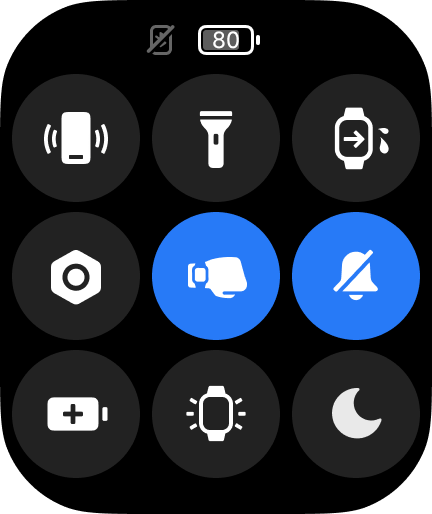
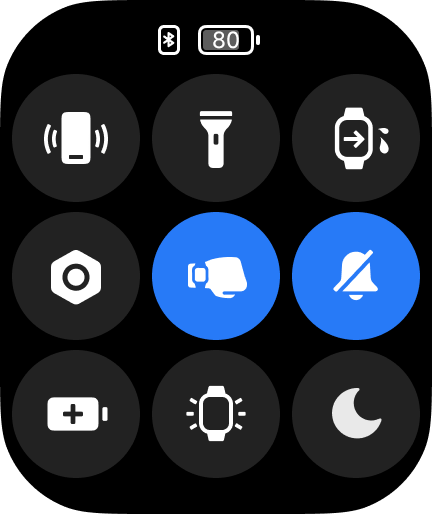
A: The REDMI Watch 5 does not support Bluetooth disconnection alerts. However, you can check the Bluetooth connection status in the status bar of the watch's control center.
The icon for Bluetooth disconnection is shown below:
The icon for Bluetooth connection is shown below:
Q: How to use Emergency contacts on the REDMI Watch 5?
A: To enable and call emergency contacts, the watch should be connected to the Mi Fitness APP.
Go to the Mi Fitness APP >> [Device] >> enter [Emergency SOS] and enable it >> tap [Add emergency contact] to set the phone number and notes. The settings will automatically sync to the watch.
To call an emergency contact, you can press the power button three times in quick succession to call your emergency contact (this syncs with the phone's dialing system).
Q: How to use the Favorite contacts of the REDMI Watch 5?
A: To add favorite contacts, ensure the REDMI Watch 5 is connected to the Mi Fitness APP, then go to [Device] >> [Favorite contacts] >> [Add]. This will open the phone's contact selection page (ensure that the APP has access to contacts). Select the contact you wish to add, and it will automatically sync to the watch.
To call a favorite contact, ensure the watch is connected to the phone. Open the Favorite contacts APP on the watch, select the contact you wish to call (this will sync with the phone's dialer).
Q: How to check the call history of the REDMI Watch 5?
A: You can go to the APP list on your Watch and enter the Phone APP to check the call history.
- The call history includes 4 types of records: Missed calls, Calls ended on the watch, Calls answered on the watch, and Calls dialed from the watch;
- You can tap [Clear all] to delete all call history from the watch;
- You can also tap a record to initiate a call (this is synced with the phone).
Note:
The watch only stores the most recent 30 call records. Once 30 records are reached, new calls will overwrite the oldest ones.
Q: How to answer and make calls for the REDMI Watch 5?
A:
- Answering calls on the watch: When the phone and the REDMI Watch 5 are connected, incoming call notifications from the phone are synchronized to the watch. You can accept or reject the call by pressing the respective icons on the watch (this syncs with the phone's actions);
- Making calls from the watch: When the phone and watch are connected, you can dial a number using Favorite contacts, Emergency contacts, Call history, or Missed calls (this initiates the call on the phone);
- Switching phone calls to the watch: While the phone and watch are connected, you can switch an ongoing phone call to the watch by changing the call device to the watch and continue the conversation on the watch.
Q: Why does the REDMI Watch 5 occasionally automatically light up the screen when there are no message reminders, call reminders, or when the raising to wake screen is not triggered?
A: Due to the synchronization settings of the Mi Fitness APP, depending on the usage habits, the Mi Fitness APP will automatically apply for synchronization with the watch every 15 to 30 minutes on average. If the synchronization is successful, the watch screen will be triggered to light up. However, this setting has a very slight impact on the battery endurance of the product and will not cause a significant reduction in battery endurance. If the automatic lighting during sleep affects your sleep state, you can adjust the brightness of the watch to the lowest. The setting engineers will continue to interpret and optimize.
Troubleshooting
Q: Why is the positioning inaccurate of the REDMI Watch 5 when swimming in open water?
A: Due to the interference of the water surface, it is impossible to accurately locate through GPS. The track of swimming in open water will be deviated.
Q: Why do some displays appear slightly reddish when the REDMI Watch 5 is used in a dark environment?
A: The REDMI Watch 5 uses an OLED screen. Due to the characteristics of OLED and its manufacturing process, it has varying degrees of color cast when viewed at low grayscale, low brightness, and wide viewing angles. This color cast problem could only occur at low brightness and will not cause other screen functional problems. You can use it with confidence.
Q: Why does the alarm on the REDMI Watch 5 ring on weekends?
A: Turn off the wake-up alarm in sleep mode.
Q: Why is the data in the watch face editing diagram on the REDMI Watch 5 different from the first time you enter?
A: When you enter the watch face editing for the first time, the default design diagram is used and the data is fixed. When you enter the watch face editing for the second time and thereafter, the data in the dial editing will be real-time data.
Q: What to do if it takes multiple taps to reconnect to iOS after connecting to a new phone?
A: Please close the Mi Fitness APP in the background of your phone and re-enter it to connect.
Q: What to do if the new phone cannot search for the REDMI Watch 5 when using the connect to new phone function?
A: Please turn off Bluetooth on your old phone and search again with your new phone (OTA2 fixes this problem).
Q: What to do if the REDMI Watch 5 and iPhone are frequently disconnected?
A: Please go to [Settings] on the phone >> [App] >> [Mi Fitness] >> [Location] >> select [Always].
Q: What to do if the REDMI Watch 5 freezes during use?
A: This problem can be restored after restarting, and the new OTA version has also fixed this problem. Please upgrade to the latest version.
Q: What to do if the screen of the REDMI Watch 5 is unresponsive?
A: When the screen is unresponsive, press the power button for about 18 seconds until the REDMI logo appears, then release it, force shutdown and restart to recover.
Q: Why is the step counting on the REDMI Watch 5 inaccurate?
A: The REDMI Watch 5 has a built-in accelerometer. The data detected by the accelerometer is then combined with algorithms and basic information about the human body, and ultimately converted into information such as the number of steps and consumption.
Factors affecting accuracy are as follows:
- The principle of measuring the walking distance of a watch is to estimate your step length according to the height, sex and weight set by yourself, and then multiply it by your step number to obtain an estimated value;
- Because the mileage varies, and people of the same height, sex, and weight can have different step counts, the final calculated value can also have large errors;
- The accuracy of step counting, that is, the number of steps you take, is influenced by many uncertain factors related to your behavior, such as the amplitude of your arm movements and your walking habits. There are many scenarios where human activity occurs (such as walking, riding, driving, bathing, etc.), and your arm movements can be complex (such as typing on a keyboard, moving a mouse, lifting and pulling objects, etc.);
- Due to the reasons mentioned above, the final calculated distance on your watch is also an estimate. The watch cannot be used as a professional measurement tool for measuring distance. We will continue optimizing the software algorithm to calculate more accurate data.
Q: Why is the GPS positioning of the REDMI Watch 5 slow?
A: GPS startup is divided into cold start, warm start and hot start.
Cold startup usually occurs in the following situations:
- When the GPS function of the watch is used for the first time;
- The watch battery runs out and the watch is turned off, resulting in loss of satellite ephemeris information;
- The watch moves more than 200 kilometers when it is turned off.
Due to the need for the watch's GPS system to download satellite ephemeris data during a cold start, the positioning time will be significantly longer compared to a warm or hot start.
Considering the way the watch is worn and the effect of the arm on the GPS antenna, it is recommended that you choose an open area during a cold start (including the first positioning). While the watch is properly worn, keep the watch face pointing towards the sky. The ephemeris download and GPS cold start positioning can be completed within 60 to 90 seconds. The exact positioning time will depend on the weather and surrounding environment.
If the watch has not moved significantly since the last location and the time interval since the last positioning is less than 2 hours, the GPS can perform a hot start. In an open area, with the watch worn properly and the watch facing the sky, it can complete the positioning in about 5 seconds. The exact time depends on the weather and surrounding environment.
If the GPS positioning is slow, you can try reopening the Mi Fitness APP and reconnecting the watch to sync the data, which will greatly improve the GPS positioning speed.
Q: Why does the REDMI Watch 5 still display pace information after stopping the workout?
A: Distance and pace during workouts require a brief calculation period. After stopping the activity (complete stillness), it takes approximately 10 seconds for the pace information to stop updating.
Q: What to do if the REDMI Watch 5 does not vibrate?
A: To resolve this issue, please refer to the following steps:
- First, check whether the Do Not Disturb mode is turned on;
- If the function is not enabled, try restarting the watch. After restarting, set several alarms on the watch. If the screen displays the alarm notification but the watch does not vibrate, you can contact the local after-sales service center for further inspection.
Q: What to do if the REDMI Watch 5 freezes, displays a black screen, or cannot be turned on?
A:
- Connect the REDMI Watch 5 to its charging dock and cable, and charge it for at least 10 minutes continuously;
- If the device still does not power on after charging, try performing a forced restart by pressing and holding the power button for more than 18 seconds;
- If the issue persists and the watch remains unresponsive, please contact the local after-sales service center for further inspection.
Q: What to do if the REDMI Watch 5 system upgrade fails?
A:
- If the Mi Fitness APP or the REDMI Watch 5 shows an upgrade failure notification, try restarting the device and updating again;
- Place the watch on the charger and ensure the battery level is above 20%, then attempt the update again;
- Reset the watch, re-pair it with your phone, and try updating again;
- Use a different phone to bind the watch and attempt the update;
- If the upgrade fails and the watch cannot power on, please contact the local after-sales service center for further inspection.
Q: What to do if the system OTA update on the REDMI Watch 5 gets stuck at 100%?
A: If the watch's system OTA update is stuck at 100% and does not proceed, press and hold the power button for 18 seconds to force a restart, and then try pushing the update again.
Q: Why does the REDMI Watch 5 have an odor when unboxed?
A: Glue is used for the gray board and paper lamination of the color box. The glue will dissipate faster under the conditions of high-temperature plastic sealing in the assembly process and long-term high-temperature storage.
Under sealed storage, the odor cannot evaporate and will gather inside the color box. There will be a more obvious odor when the box is opened, and it will dissipate in a short time after opening the box.
The glue is environmentally friendly glue, and the odor will not affect the human.
It is normal for the TPU strap to have odor due to long-term high-temperature sealing, and the odor will dissipate after a short ventilation.
Q: What to do if the REDMI Watch 5 cannot be bound?
A:
- Exit the APP and turn off the Bluetooth , then turn it back on and try to bind;
- If the watch cannot be found in the Mi Fitness APP, you can bring your watch close to the phone, or go to a place with fewer Bluetooth devices, and search and add it again;
- If it still cannot be found, check whether there is watch information in the Bluetooth settings of the phone, clear the Bluetooth pairing information of the watch, and then enter the Mi Fitness APP homepage to re-add the device.
Take Xiaomi mobile phone as an example:
Go to [Settings] >> Select your watch >> [Unpair], then add again;
- Restart the watch or phone, reset the watch and try changing the environment.
Q: What to do if the weather data on the REDMI Watch 5 is not updated?
A: The weather data is updated every 15 to 30 minutes.
If it is still not updated for a long time, please check the following options:
- Open the Mi Fitness APP, check whether the watch and the mobile phone are disconnected from the Bluetooth connection on the Device interface.
- Tap [Device] >> [Weather] >> [Weather updates]. Check whether the Weather updates toggle is turned on;
- In the APP, go to [Device] >> tap the [Sync] icon on the right side of the watch, and manually resynchronize the data.
Q: What to do if the screen of the REDMI Watch 5 cannot be lit?
A: If the watch screen is off, you cannot turn on the screen by raising to wrist or pressing the power button/shortcut key, please try the following:
- Please connect the charging dock to check whether the power is sufficient.
- Please press and hold the power button for 18 seconds to force the watch to restart. After restarting, please check the version of the watch and upgrade it to the latest version.
Q: What to do if Raise to wake function of the REDMI Watch 5 is not sensitive?
A: The working principle of this feature relies on the accelerometer in the watch. It can wake up the screen through actions like wrist rotation or raising the wrist. However, if the angle of rotation is too small or the speed is too slow, it will cause the screen not to turn on.
Q: Why is the bottom of the REDMI Watch 5's charging dock and the black strap prone to collecting dust?
A: The bottom of the watch's charging dock has a layer of specification sticker, which helps prevent dust accumulation. It's recommended to clean it promptly if any dust is noticed during use.
The straps are made of TPU and silicone materials, both of which are treated to be hypoallergenic, comfortable, and skin-friendly. However, it's inevitable that they will come into contact with dust during use, with the black strap showing dust more clearly. It's advisable to clean it promptly when dust is noticed during wear.
Q: Why does the REDMI Watch 5 only vibrate and not light up when there is a new message alert?
A: The REDMI Watch 5 by default only vibrates and does not actively light up the screen when you receive a message alert. You can also lift your wrist to light up the screen or manually light up the screen when viewing messages. If you need the screen to light up when you have a message alert, you can follow the steps below:
Mi Fitness APP >> [Devices] >> [App notifications] >> turn on [Wake screen].
Q: What to do if the REDMI Watch 5 is successfully bound but not connected?
A: Please refer to the following steps:
- First of all, make sure the REDMI Watch 5 is fully charged;
- Check the connection status of the Mi Fitness APP. If it is disconnected status, tap the [Connect] to restore the connection;
- End the process of the Mi Fitness APP. Restart the Bluetooth of your phone, and restart your phone or watch, then try to refresh the connection status in the App;
- Please try to restore the watch to the factory settings, and then tap [Connect] on the home interface of the App, when the same pairing code appears on the interface of the watch and the App, tap [Pairing];
- If it still can't be solved, please clear the Bluetooth pairing with the watch in the Bluetooth settings of your phone and restore the watch to the factory settings, and then go through the binding process again.
Q: What to do if the REDMI Watch 5's screen won't slide?
A: Please refer to the following steps:
- Check whether the power of the REDMI Watch 5 is too low;
- Press the power button to return to the Home screen. If you still can't slide the screen, you can press and hold on the power button for 18s to force restart the watch;
- Try to press and hold the power button for 3s, and choose [Reset] in the system operation to rebind the watch.
Q: Why is the REDMI Watch 5 not counting steps when I've already started walking?
A: The REDMI Watch 5 updates steps 1 time per minute, not every second in real-time.
Q: Why does the REDMI Watch 5 have a black screen when the AOD (Always on display) is turned on?
A: After you turn on the AOD (Always on display), the black screen will be displayed in the following cases:
- The “Smart AOD” function is turned on. When the REDMI Watch 5 detects that it is off the wrist or you are sleeping, the screen will be blacked out automatically to reduce the power consumption caused by the screen being always light;
- When the REDMI Watch 5 enters into sleep mode, it will go black automatically.
This is a normal phenomenon, please feel free to use it.
Q: Why the REDMI Watch 5 cannot be charged fully with a power bank?
A: Part of the power banks has a small current protection mechanism, fast full of charging current is small, the power bank self-protection leads to break charging. It is recommended to replace the 5V1A adapter charging.
Q: Why is the REDMI Watch 5 screen black after pressing and holding the button to reboot?
A: You can press and hold the button until the screen lights up and then release the button, or press and hold the button for 3 seconds on a black screen and then release the button.
Q: Why do light-colored straps on the REDMI Watch 5 get dirty easily?
A: It is true that light-colored straps on the REDMI Watch 5 are easy to appear dirty. You can be able to ensure the cleanliness and prolong the service life of light-colored straps through some daily attention and maintenance measures:
- Regular cleaning. You can use a soft damp cloth to gently wipe the surface of the strap to remove the dust and stains accumulated in daily life;
- Avoid contact with dark-colored or easily faded items. Light-colored straps are easily stained with other colors, so you should avoid prolonged contact with dark-colored clothes, bags, or objects that are prone to fading;
- Pay attention to the usage environment and avoid wearing it in a humid or greasy environment so that the strap will not absorb moisture or grease. Make sure your hands are clean when wearing and removing the watch. Avoid dirt, grease, etc. on your hands from staining the watch band.
Q: Why there are scratches on the case back of the REDMI Watch 5 easily?
A: The REDMI Watch 5 case back is made of a composite material consisting of a nylon (PA) base material and 55% glass fiber (GF). Its stiffness is strong, but there is still a risk of surface scratches due to daily use.
- When wearing the watch, try to avoid contact with other hard or sharp objects to minimize the risk of scratches on the case back;
- When the watch is not being worn, place it in a soft, clean cloth pad or watch case to avoid friction with hard objects;
- Clean the watch case back regularly to remove dust and stains, which will help minimize the appearance of scratches.
Q: Why is there accidental contact when rotating the crown side of the REDMI Watch 5?
A: It is recommended that the following guidelines be followed regarding the wearing of the watch:
The recommended distance between the watch and the wrist bone is two finger widths. When exercising, the watch should not be worn too loosely or too tightly to ensure that it does not slide up and down the wrist.
Q: Why is there a visible mold line on the side of the REDMI Watch 5’s strap?
A: This is a regular process machining phenomenon. When the plastic is injected, due to the existence of a certain gap between the molds, the plastic will be more or less squeezed into this gap. When the molded product is removed from the mold, a trace will be left on this gap, and this trace is the closing line.
Q: Why is it that after connecting the REDMI Watch 5 to the Bluetooth earphones and using the network intercom, there is still an incoming call ringing after receiving the Bluetooth incoming call and answering it? And why is the call silent and continues to ring after hanging up?
A: First of all, we are very sorry for the inconvenience and trouble caused to you, we attach great importance to your feedback on this issue. Our initial understanding is that you are experiencing a technical issue that is known to us and we are working to resolve it. In order to resolve your issue as soon as possible, we recommend that you try hanging up the phone and redialing to get back to normal, which may alleviate the problem for the time being. In the meantime, we have a detailed remediation plan in place and will address this issue completely in the next software update. Please rest assured that we will push the update as soon as possible.
Q: Why the Double tap to wake function is not sensitive after the REDMI Watch 5 sleep?
A: First of all, we are very sorry for the inconvenience and trouble caused to you, we attach great importance to your feedback on this issue. Our initial understanding is that you are experiencing a technical issue that is known to us and we are working to resolve it. In the meantime, we have a detailed remediation plan in place and will address this issue completely in the next software update. Please rest assured that we will push the update as soon as possible.
Q: Why does the call lag when I swipe the screen during a call using the REDMI Watch 5? Why does the call lag when I answer the phone during music playback?
A: First of all, we are very sorry for the inconvenience and trouble caused to you, we attach great importance to your feedback on this issue. Our initial understanding is that you are experiencing a technical issue that is known to us and we are working to resolve it. In the meantime, we have a detailed remediation plan in place and will address this issue completely in the next software update. Please rest assured that we will push the update as soon as possible.
Q: Why is there no sound when answering/dialing a call during music playback or switching back and forth between the REDMI Watch 5 and earphones after pairing Bluetooth earphones?
A: First of all, we are very sorry for the inconvenience and trouble caused to you, we attach great importance to your feedback on this issue. Our initial understanding is that you are experiencing a technical issue that is known to us and we are working to resolve it. In the meantime, we have a detailed remediation plan in place and will address this issue completely in the next software update. Please rest assured that we will push the update as soon as possible.
Q: Why the brightness adjustment on the REDMI Watch 5 is not smooth?
A: The REDMI Watch 5's brightness value starts at a maximum brightness of 600nit and will automatically dim according to the ambient light. First, it will gradually decrease to a brightness level of approximately 12nit. When the light sensor detects a change in ambient light, it triggers the first dimming operation to further adjust the brightness value. Subsequently, on top of the already reduced brightness value, the light sensor value will slowly decrease to 0, which will trigger the second dimming to complete the entire brightness adjustment process.
Q: After updating the OTA version, the name of the REDMI Watch 5's recording file changes to “1970”?
A: First of all, we are very sorry for the inconvenience and trouble caused to you, we attach great importance to your feedback on this issue. Our initial understanding is that you are experiencing a technical issue that is known to us and we are working to resolve it. In the meantime, we have a detailed remediation plan in place and will address this issue completely in the next software update. Please rest assured that we will push the update as soon as possible.
Q: What to do if the REDMI Watch 5 won't charge or doesn't charge enough?
A: Please follow the methods below:
- If charging with a power bank (rechargeable battery), the power bank has a protection mechanism that prevents it from fully charging the product normally when the rechargeable battery is low. It is recommended to use a standard USB charging head with a voltage of 5V output current of 500mA or more and a special charging cable that comes standard for charging;
- Check the metal contacts of the watch body and the charging cable for stains. You can try wiping them with alcohol cotton, paper towels, etc. to make sure that there is no poor contact between the watch body and the charging cable;
- Whether the charging adapter is normal. You can try to replace other standard adapters to connect the watch charging cable for charging;
- Whether the charging cable is normal. You can try to replace the charging cable if you have a spare charging cable for the same watch model;
- Try charging in an environment with a temperature of 10°C or higher;
- The charging time of the REDMI Watch 5 is about 1 hour. When it is not fully charged, please check the charging time to see if the charging time is too short to make it full;
- When the charging power display reaches 100%, please do not immediately unplug the charging cable. It is recommended that the watch continues to charge for about 10 minutes on the charging cradle;
- If there is no response even after a long time of charging, you can apply for after-sales testing.
Note:
Please make sure that the ambient temperature of the watch is not too low or too high when charging. If the temperature of the watch is too high or too low, the system will disable charging and the charging function will resume automatically when the temperature is normalized.
Q: Why does the REDMI Watch 5 measure Blood oxygen saturation inaccurately?
A: Please refer to the following suggestions:
- It is recommended to wear the REDMI Watch 5 1.5cm-2cm away from the wrist bone;
- Ensure that the sensing area on the back of the REDMI Watch 5 is in full contact with the skin of your wrist;
- A dirty sensor area on the back of the watch or sweat between the wrist and the device will affect the measurement results;
- In a cold environment, the wrist skin temperature will decrease, which in turn leads to a decrease in blood flow and affects the measurement results;
- Tattoos or pigmentation on the wrist where the watch is worn can affect the penetration of light from the sensor, resulting in inaccurate measurements.
Q: Why does the screen remain on the call screen and not exit after the other party hangs up during a call using the REDMI Watch 5?
A: First of all, we are very sorry for the inconvenience and trouble caused to you, we attach great importance to your feedback on this issue. After preliminary understanding, what you encountered is a technical problem known to us, we have solved this problem in the new version, we recommend that you upgrade to the latest version.
Q: Why is the REDMI Watch 5 demo sample (store sample) not charging when connected to the charger?
A: The REDMI Watch 5 can be charged when the battery level is ≤40%, and charging stops when it reaches >80% battery level.
Q: Does the REDMI Watch 5 support importing music when paired with an iPhone?
A: iPhone does not support importing music. Please add songs and create playlists through the Mi Fitness APP on your Android phone by going to [Device] >> [App settings] >> [Music].
Q: What to do if the version 1.1.137 of the REDMI Watch 5 cannot reconnect after being bound to an iPhone?
A: In order to provide you with a more stable experience, we would like to remind you to simply optimize the operation of the relevant devices.
When you encounter problems, you can also follow this step to self-help operation and try to optimize:
- Please upgrade your REDMI Watch 5 to the latest version (Mi Fitness APP >> [Device] >> [More settings] >> [Device update]). The new system version not only fixes past problems but also optimizes for performance and compatibility;
- You need to enter the system Bluetooth interface to restart Bluetooth ([Settings] >> [Bluetooth] >> operate Bluetooth switch to restart Bluetooth).
Thank you for your support!
Q: Why does the REDMI Watch 5 not display the contact name for missed calls?
A: Please confirm if “Display contact information” is enabled. Go to Mi Fitness APP >> [Devices] >> [Notifications and calls] >> [Incoming calls] >> [Show contact info].
Q: Why does the weather forecast for the REDMI Watch 5 paired with iOS show snow, which does not match the actual situation?
A: First of all, we are very sorry for the inconvenience and trouble caused to you, we attach great importance to your feedback on this issue. After preliminary understanding, what you encountered is a technical problem known to us, we have solved this problem in the new version. It is recommended that you upgrade the Mi Fitness APP to version 3.29.5 and above.
Q: Why is the counting inaccurate when wearing the REDMI Watch 5 to run independently?
A: When paired with your phone, it is recommended to exercise with your phone so that the exercise data can be more accurate.
If you don't want to take your phone with you, it is recommended to wear the REDMI Watch 5 for exercise after disconnecting the Bluetooth connection with your phone.
Q: Why can't I find portrait Watch faces inside the Watch face market of the REDMI Watch 5?
A: Sorry, the portrait Watch faces currently only is supported in Xiaomi phones (system in HyperOS).
Q: Why does the REDMI Watch 5 not record sleep?
A: There are several possibilities:
- The wearable device will not detect sleep if there is a large range of movement during sleep;
- In moving transportation, sleep may not be detected due to bumps;
- Wearing the watch too loosely will result in the watch not fitting the skin of the arm during sleep, and it will be judged as not being worn;
- If the sleep duration is less than 20 minutes, it will not be detected.
Q: Can the recording files on the REDMI Watch 5 be uploaded to the phone?
A: Uploading recording files to a phone is not supported.
Q: Why does the REDMI Watch 5 display inaccurate time?
A: Press and hold on the reboot button will power down the chip. If the backup power for the Real Time Clock (RTC) isn't working, it won't be able to remember the time. After the reboot, the time will go back to the way it was at the beginning. You need to reconnect to the Mi Fitness APP to recalibrate the time once more to get back to normal.
Does it help?
Yes
No