

What are the icons on the real-time monitoring interface of the Xiaomi Outdoor Camera CW500 Dual?
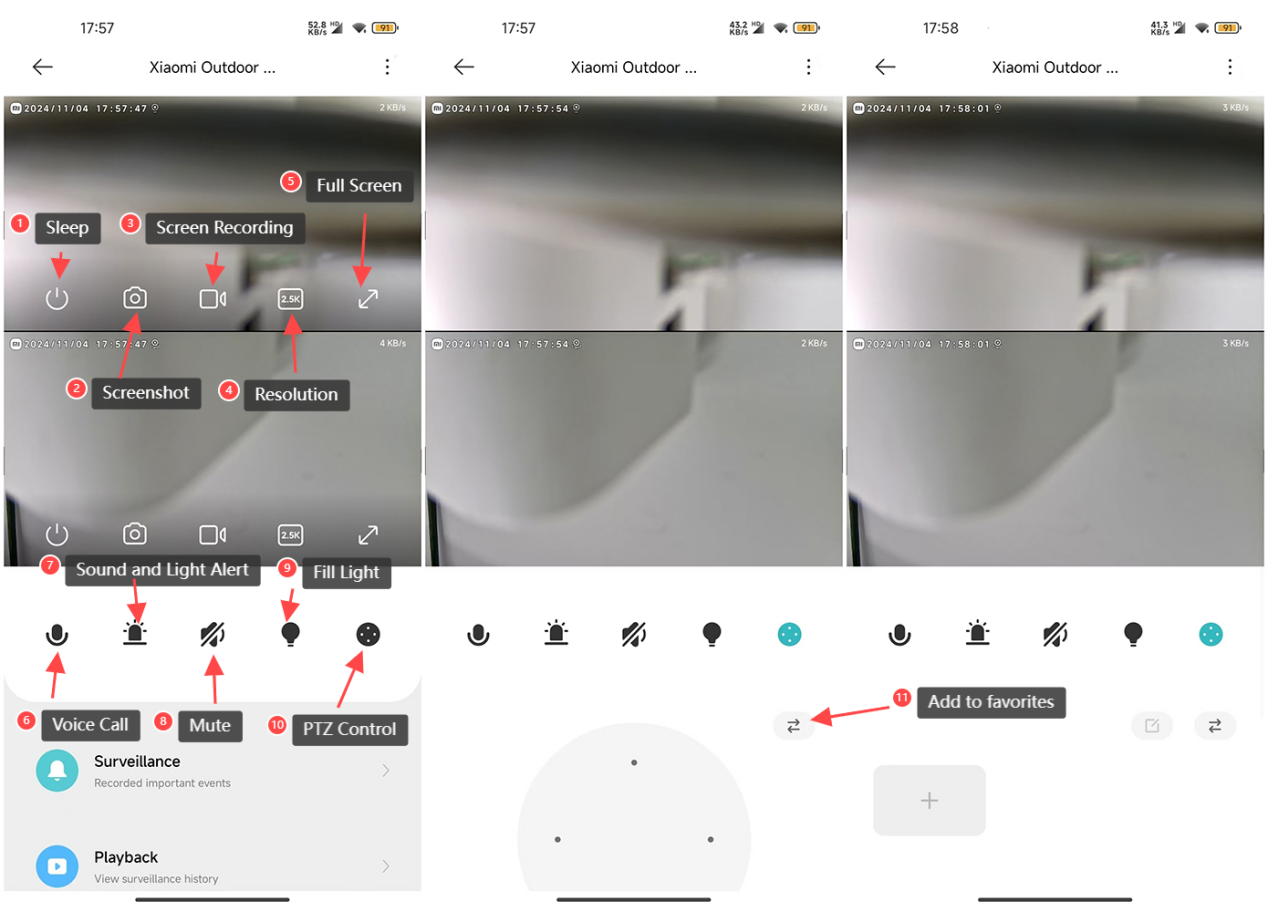
For your reference, the functions of the icons on the real-time monitoring interface are as follows:
1. Sleep Button: Tap the sleep button to turn off the camera. Once turned off, the camera will no longer stream real-time monitoring or record videos. Tapping again will turn the camera back on. You can put each of the two lenses into sleep mode separately;
2. Screenshot: You can take a screenshot of the current monitoring view. The image will be saved to both the local album and the Mi Home/Xiaomi Home APP. Screenshots can be taken separately for each lens;
3. Screen Recording: Tap the screen recording button to record the current monitoring view. The video will be saved to both the local album and the Mi Home/Xiaomi Home APP. Video recording can be done separately for each lens;
4. Resolution: You can adjust the resolution of the monitoring screen. Options include 2.5K HD, 720P Smooth, and Auto (Auto means the camera will automatically adjust the resolution based on the network environment). The resolution can be adjusted separately for each lens;
5. Full Screen: Tap this button to switch the camera's monitoring screen to landscape mode;
6. Voice Call: Tap the microphone button to make a remote call between the camera and the mobile device through the Mi Home/Xiaomi Home APP;
7. Sound and Light Alert: Tap the alarm button to trigger a sound and light alert for 30 seconds. During playback, you can tap again to cancel the alert;
8. Mute: By default, the monitoring screen is in mute mode when entering the camera view. If you want to hear sound while viewing, tap the mute button to enable sound;
9. Fill Light: The fill light is off by default. Tap to turn it on, and it will stay on for 1 minute. You can tap again to turn it off during the process;
10. PTZ Control: Tap to display the directional control pad (up, down, left, right) for PTZ control;
11. Add to favorites: After setting [Add to favorites] as a frequently viewed position, you can quickly check specific areas of interest.
Using method: Access the frequently viewed position through the PTZ control icon.
1. Sleep Button: Tap the sleep button to turn off the camera. Once turned off, the camera will no longer stream real-time monitoring or record videos. Tapping again will turn the camera back on. You can put each of the two lenses into sleep mode separately;
2. Screenshot: You can take a screenshot of the current monitoring view. The image will be saved to both the local album and the Mi Home/Xiaomi Home APP. Screenshots can be taken separately for each lens;
3. Screen Recording: Tap the screen recording button to record the current monitoring view. The video will be saved to both the local album and the Mi Home/Xiaomi Home APP. Video recording can be done separately for each lens;
4. Resolution: You can adjust the resolution of the monitoring screen. Options include 2.5K HD, 720P Smooth, and Auto (Auto means the camera will automatically adjust the resolution based on the network environment). The resolution can be adjusted separately for each lens;
5. Full Screen: Tap this button to switch the camera's monitoring screen to landscape mode;
6. Voice Call: Tap the microphone button to make a remote call between the camera and the mobile device through the Mi Home/Xiaomi Home APP;
7. Sound and Light Alert: Tap the alarm button to trigger a sound and light alert for 30 seconds. During playback, you can tap again to cancel the alert;
8. Mute: By default, the monitoring screen is in mute mode when entering the camera view. If you want to hear sound while viewing, tap the mute button to enable sound;
9. Fill Light: The fill light is off by default. Tap to turn it on, and it will stay on for 1 minute. You can tap again to turn it off during the process;
10. PTZ Control: Tap to display the directional control pad (up, down, left, right) for PTZ control;
11. Add to favorites: After setting [Add to favorites] as a frequently viewed position, you can quickly check specific areas of interest.
Using method: Access the frequently viewed position through the PTZ control icon.
Does it help?
Yes
No