

How to manage notifications on the lock screen on the Redmi Pad SE 8.7 4G?
Managing lock screen notifications helps protect privacy by controlling what information is displayed, reduces distractions by filtering unnecessary alerts, and provides quick access to important notifications without unlocking the Redmi Pad SE 8.7 4G.
To manage notifications on the lock screen of your tablet, please refer to the following steps:
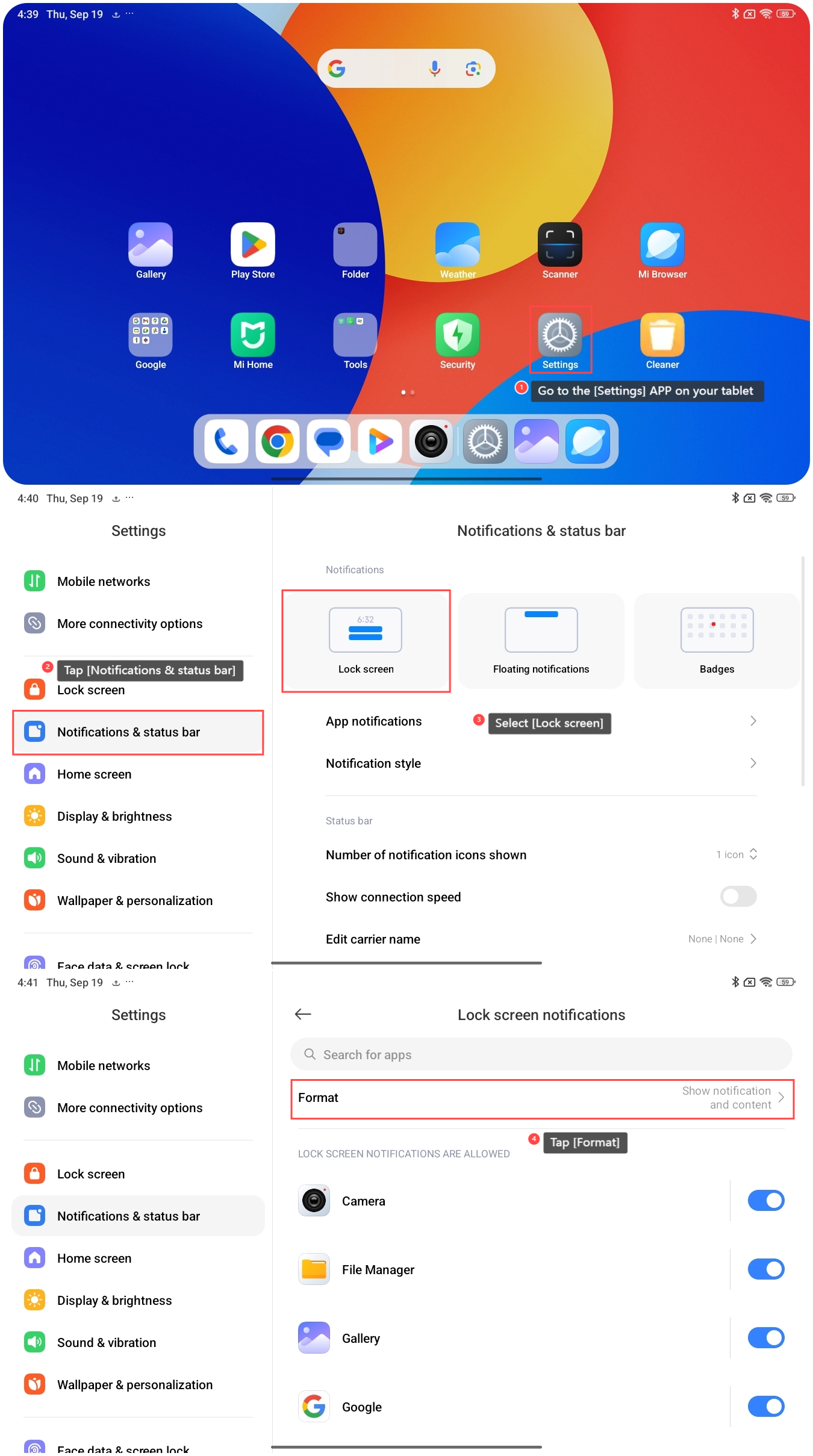
1. Go to the [Settings] APP on your tablet;
2. Tap [Notifications & status bar];
3. Select [Lock screen];
4. Tap [Format];
To manage notifications on the lock screen of your tablet, please refer to the following steps:
1. Go to the [Settings] APP on your tablet;
2. Tap [Notifications & status bar];
3. Select [Lock screen];
4. Tap [Format];
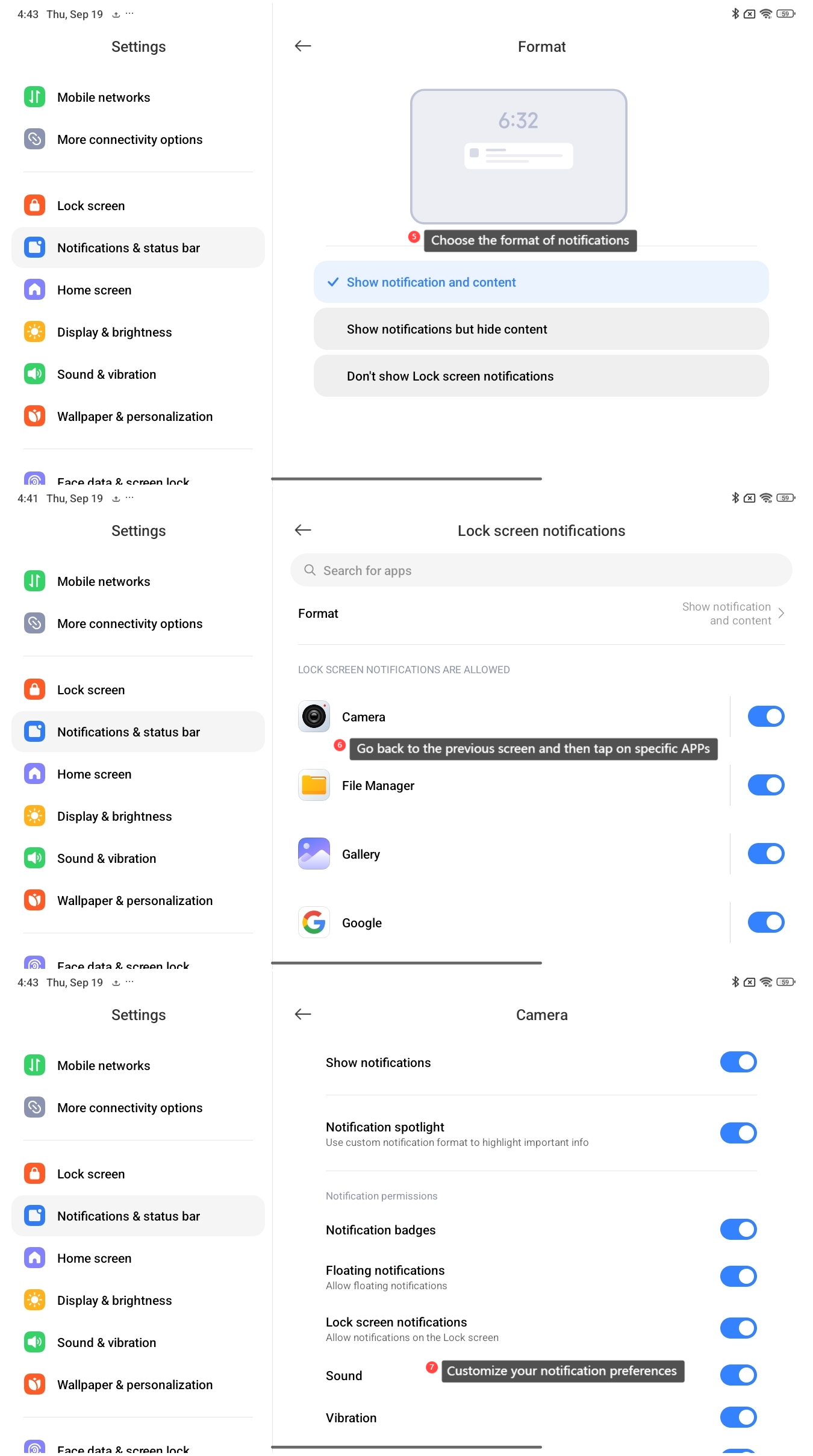
5. Choose the format of notifications. You can select [Show notification and content], [Show notifications but hide content] or [Don’t show Lock screen notifications];
6. Go back to the previous screen and then tap on specific APPs;
7. You can customize your notification preferences. For instance, by enabling [Lock screen notifications], you allow notifications to appear on the lock screen.
6. Go back to the previous screen and then tap on specific APPs;
7. You can customize your notification preferences. For instance, by enabling [Lock screen notifications], you allow notifications to appear on the lock screen.
Does it help?
Yes
No