

How to use the camera on the Redmi Pad SE 8.7 to scan a document?
The document scan function on the Redmi Pad SE 8.7 enables you to capture and digitize documents effortlessly using the tablet's camera. This feature allows you to take clear photos of documents, receipts, or handwritten notes, ensuring that scanned documents are legible and well-defined. Once scanned, you can save documents, and easily share them via email or messaging apps. This function is particularly beneficial for students, professionals, and anyone needing to digitize paperwork quickly and efficiently, streamlining organization and access to important documents in a digital format.
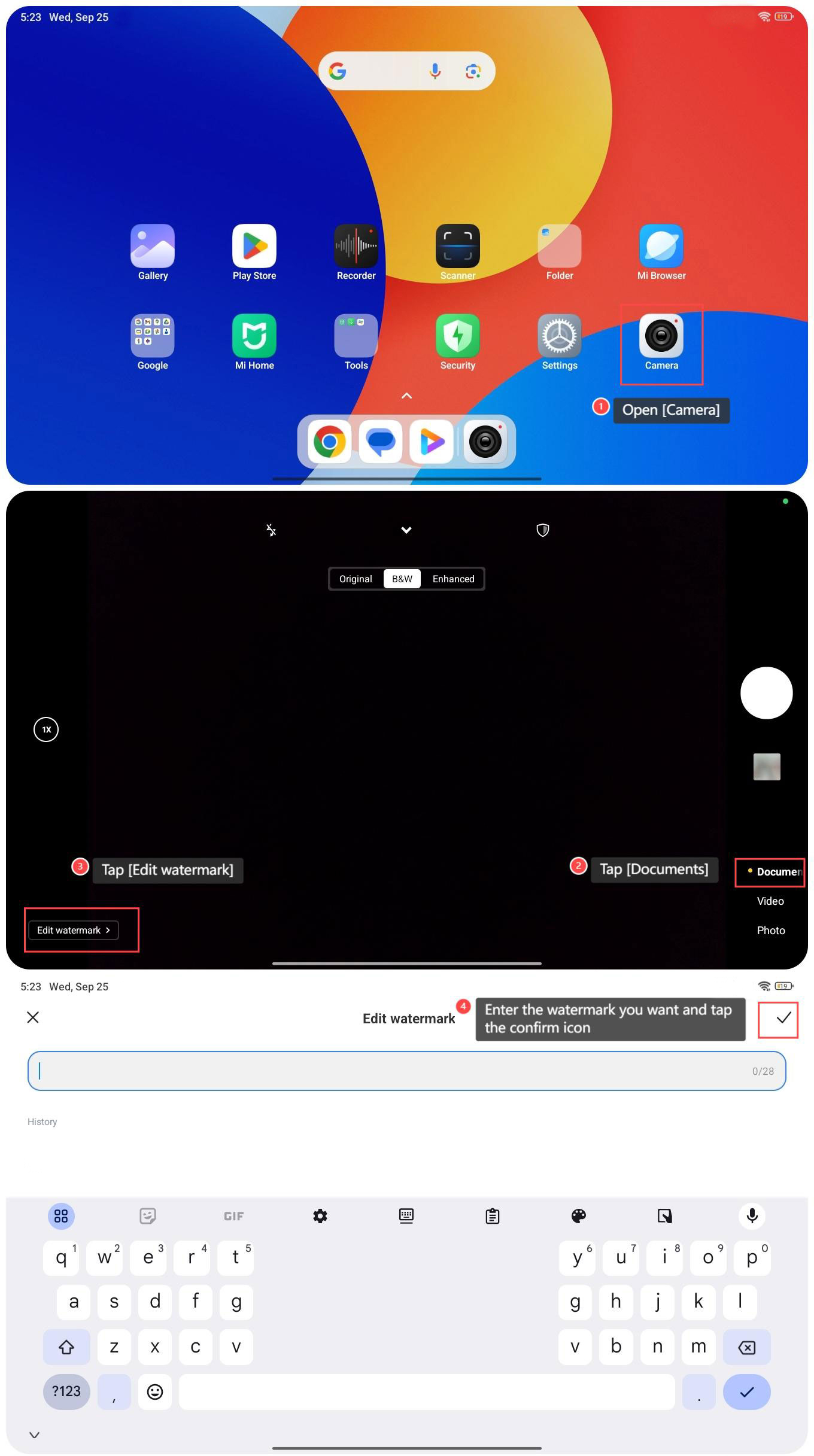
To scan a document with the camera of the Redmi Pad SE 8.7, please refer to the following steps:
1. Open [Camera] on your tablet;
2. Tap [Documents];
3. Tap [Edit watermark];
4. Enter the watermark you want and tap the confirm icon in the upper right corner;
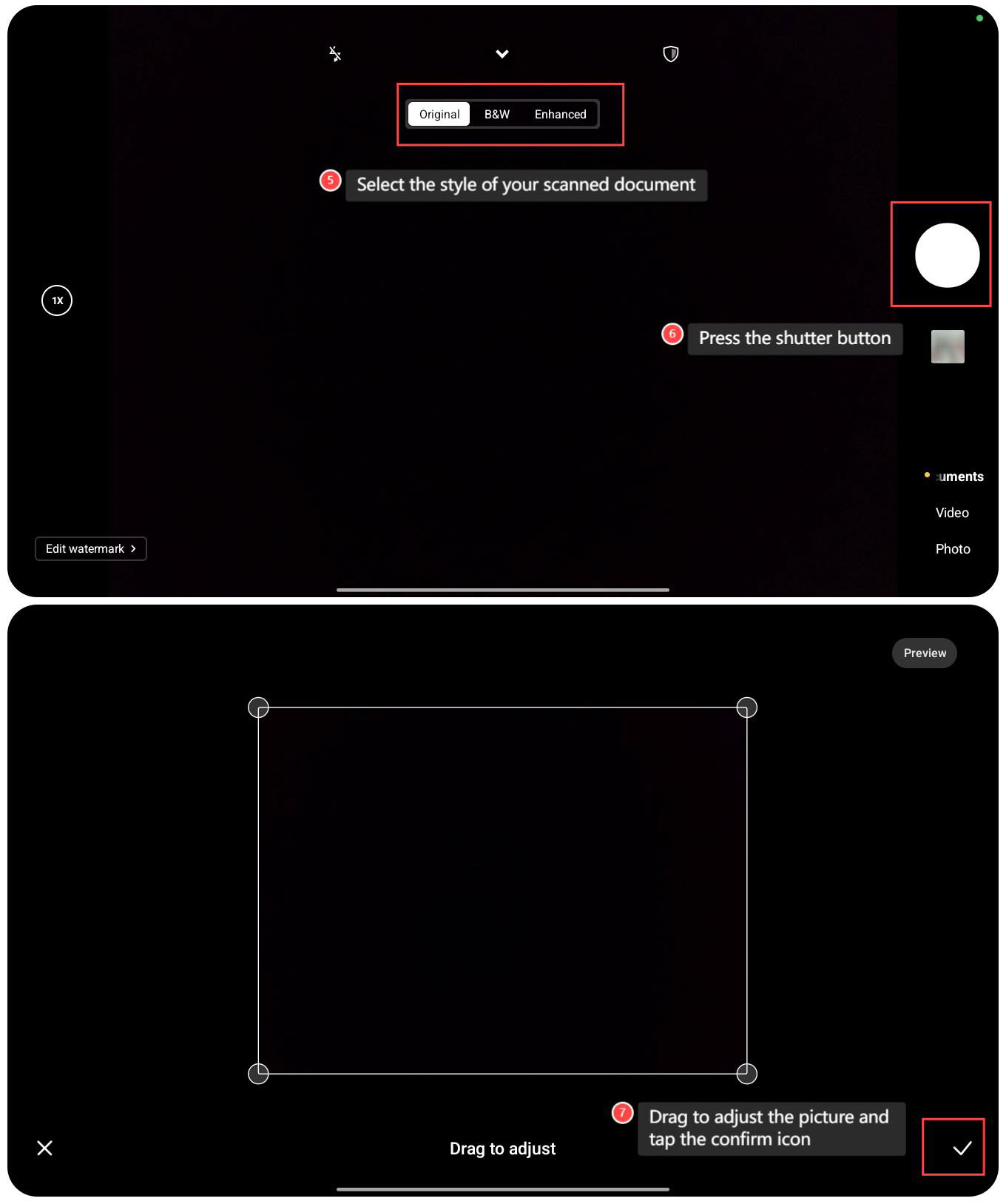
5. Select the style of your scanned document;
6. Press the shutter button;
7. Drag to adjust the picture and tap the confirm icon.
To scan a document with the camera of the Redmi Pad SE 8.7, please refer to the following steps:
1. Open [Camera] on your tablet;
2. Tap [Documents];
3. Tap [Edit watermark];
4. Enter the watermark you want and tap the confirm icon in the upper right corner;
5. Select the style of your scanned document;
6. Press the shutter button;
7. Drag to adjust the picture and tap the confirm icon.
Does it help?
Yes
No