

How to bind the Redmi Watch 5 Active?
The Redmi Watch 5 Active needs to be bound through the Mi Fitness APP. After binding, the APP should be locked in the background to avoid being shut down by the system, which will cause disconnection from the mobile phone and affect the normal use of the watch.
For your reference, the binding methods are as follows:
1. Press and hold the power button to turn on the watch. Then, either scan the QR code displayed on the watch screen using your phone or search for the Mi Fitness APP in your application store, download, and install it;
2. Open the Mi Fitness APP and grant the necessary permissions as prompted. Tap [Add device] at the upper right corner to search for the Redmi Watch 5 Active. If using an Android device, tap the watch's Bluetooth name when it appears, and confirm the pairing by matching the security code displayed on the watch screen with the one on your phone. Tap [Pair] to complete the connection;
3. If using an iOS device, after selecting the binding option or scanning the QR code, you will be prompted to connect the device from the Bluetooth list. Select the Redmi Watch 5 Active, then confirm the dual-ended pairing interface. After that, return to the APP to complete the device addition through the pairing list.
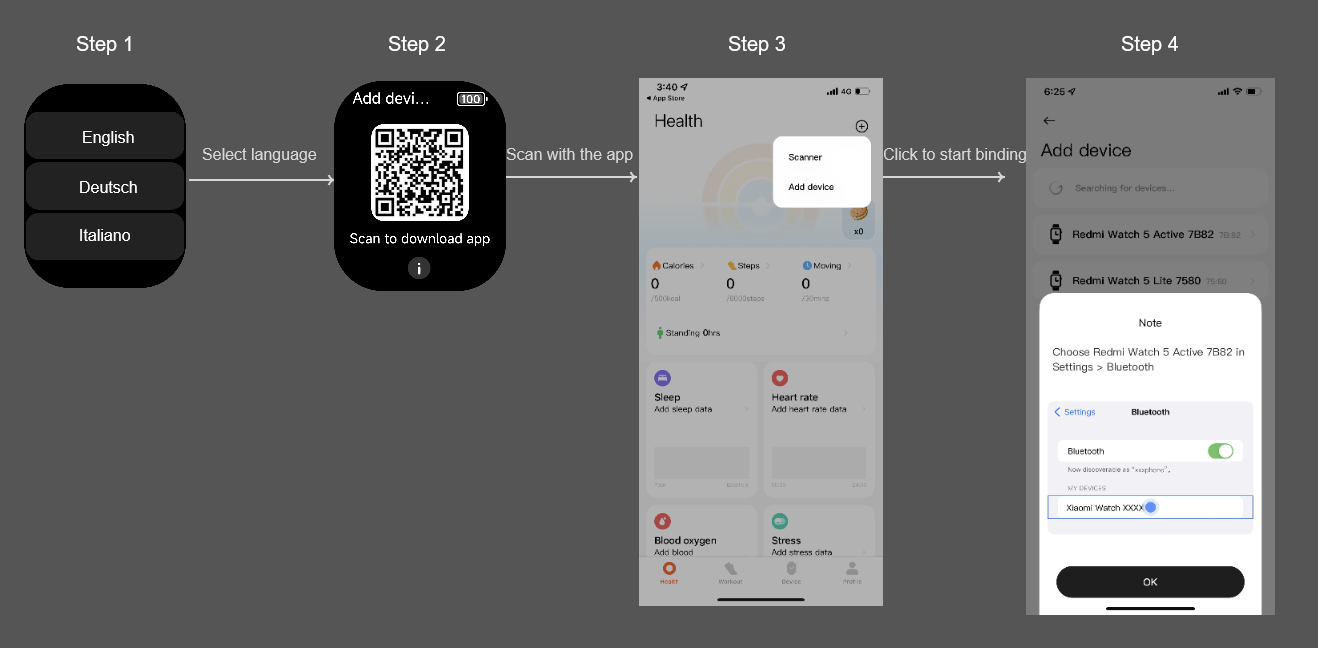
The detailed binding steps on the iOS phone are as follows:
1. Select language;
2. Scan with the APP;
3. Start binding;
4. Choose the Bluetooth name;
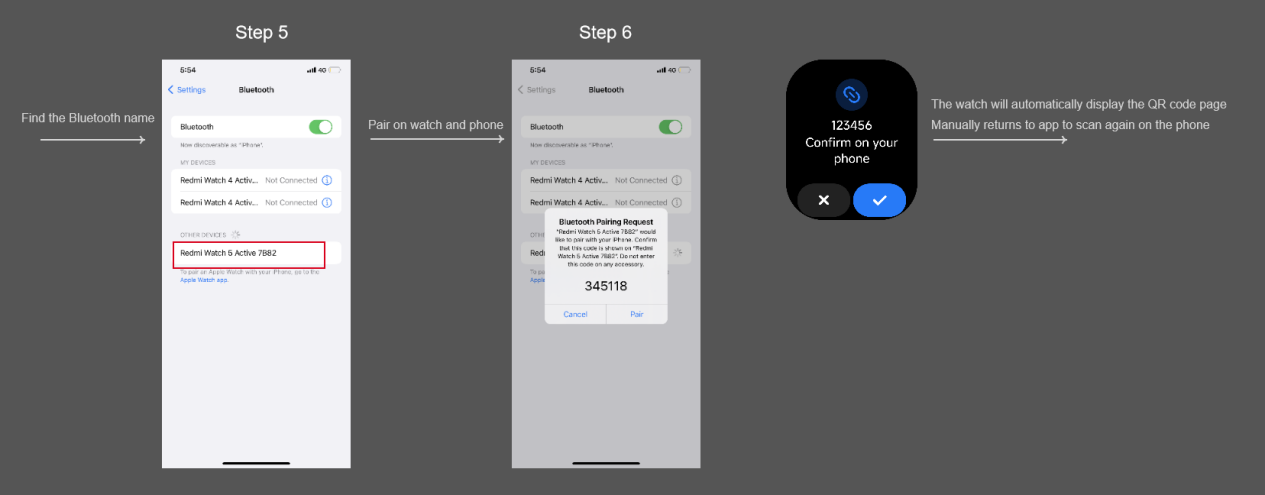
5. Pair on watch and phone;
6. The watch will automatically display the QR code page. Manually returns to the APP to scan again on the phone;
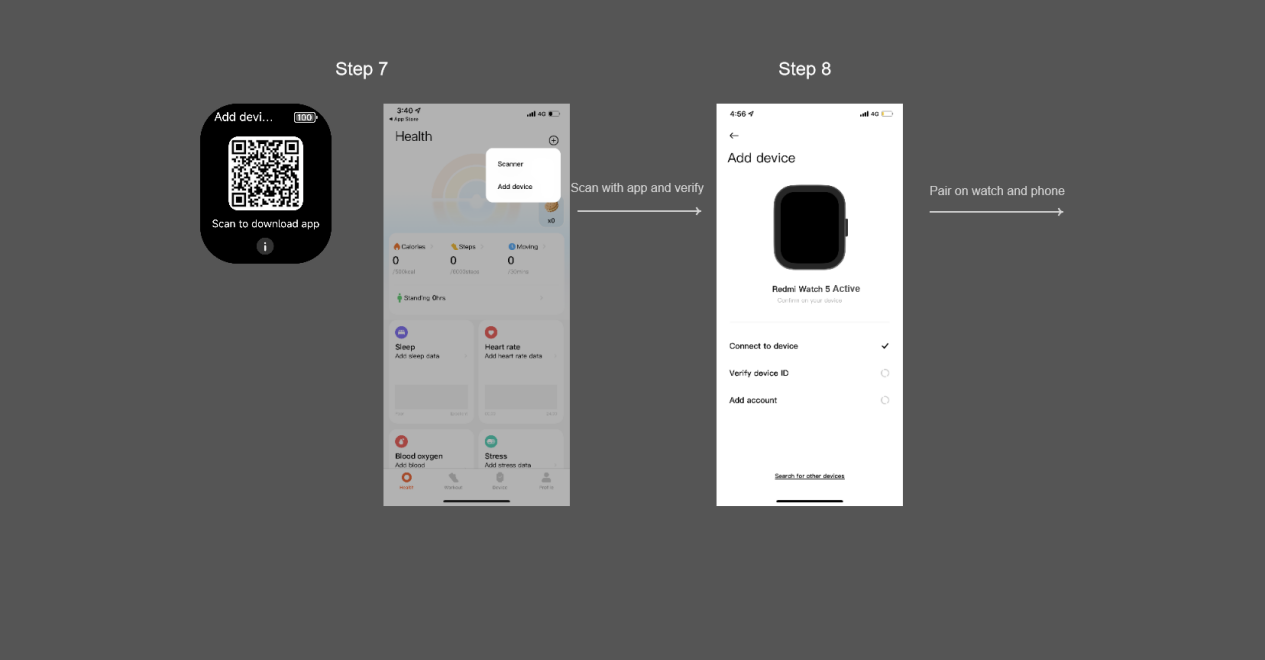
7. Scan with the APP and verify;
8. Pair on watch and phone;
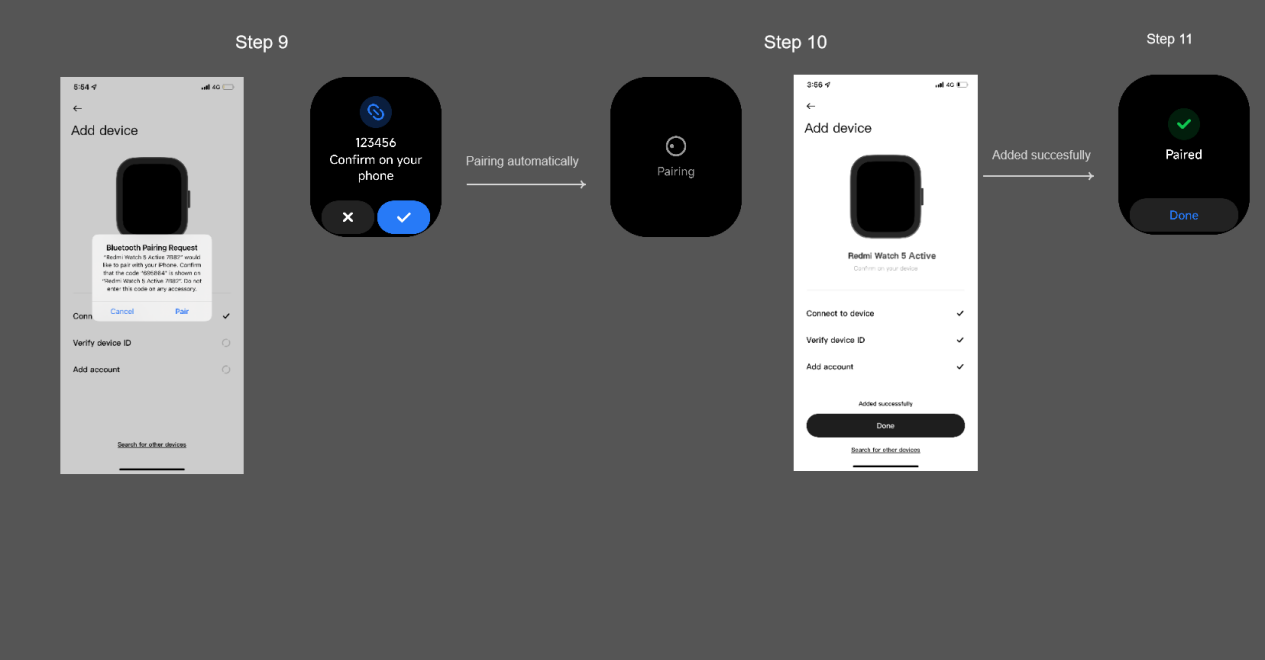
9. Pairing automatically;
10. Added successfully.
Note:
1. During the pairing process, please confirm that the Bluetooth of the mobile phone is on to ensure a normal connection between the watch and the mobile phone;
2. If the security code has popped up on the watch, however, the pop-up window for confirming pairing is not displayed on the mobile phone, please look for the pairing request in the notification shade of the mobile phone;
3. If the watch cannot be found during the process of adding the device, or the watch cannot be connected during use, please try to press and hold the power button for 3 seconds, select restore the factory in the system operation interface, and then add the watch again.
For your reference, the binding methods are as follows:
1. Press and hold the power button to turn on the watch. Then, either scan the QR code displayed on the watch screen using your phone or search for the Mi Fitness APP in your application store, download, and install it;
2. Open the Mi Fitness APP and grant the necessary permissions as prompted. Tap [Add device] at the upper right corner to search for the Redmi Watch 5 Active. If using an Android device, tap the watch's Bluetooth name when it appears, and confirm the pairing by matching the security code displayed on the watch screen with the one on your phone. Tap [Pair] to complete the connection;
3. If using an iOS device, after selecting the binding option or scanning the QR code, you will be prompted to connect the device from the Bluetooth list. Select the Redmi Watch 5 Active, then confirm the dual-ended pairing interface. After that, return to the APP to complete the device addition through the pairing list.
The detailed binding steps on the iOS phone are as follows:
1. Select language;
2. Scan with the APP;
3. Start binding;
4. Choose the Bluetooth name;
5. Pair on watch and phone;
6. The watch will automatically display the QR code page. Manually returns to the APP to scan again on the phone;
7. Scan with the APP and verify;
8. Pair on watch and phone;
9. Pairing automatically;
10. Added successfully.
Note:
1. During the pairing process, please confirm that the Bluetooth of the mobile phone is on to ensure a normal connection between the watch and the mobile phone;
2. If the security code has popped up on the watch, however, the pop-up window for confirming pairing is not displayed on the mobile phone, please look for the pairing request in the notification shade of the mobile phone;
3. If the watch cannot be found during the process of adding the device, or the watch cannot be connected during use, please try to press and hold the power button for 3 seconds, select restore the factory in the system operation interface, and then add the watch again.
Does it help?
Yes
No