

Xiaomi Robot Vacuum X20 Max FAQ
1. Q: What is the omni station of the Xiaomi Robot Vacuum X20 Max?
A: The omni station of the Xiaomi Robot Vacuum X20 Max has evolved from the traditional charging dock. It not only supports charging but also integrates more complex functions, such as supporting mop cleaning, collecting dirty water, collecting dust from the dust compartment of the robot vacuum, and drying the mop, making the cleaning function of the vacuum cleaner even more powerful.
2. Q: What is the LDS laser navigation technology on the Xiaomi Robot Vacuum X20 Max?
A: LDS laser navigation technology uses high-speed 360° continuous rotation, while emitting invisible laser and receiving reflected light. It measures the relative positions of boundaries and the device itself, draws a complete map of the boundaries, and accurately determines the device's position on the map in real time.
3. Q: What are the advantages of LDS laser navigation on the Xiaomi Robot Vacuum X20 Max compared to VSLAM/visual navigation?
A: The Xiaomi Robot Vacuum X20 Max adopts laser navigation technology, which offers more accurate positioning and faster mapping compared to VSLAM/visual navigation. Additionally, the map function operations are more stable.
Production introduction and usage
1. Q: What are the standard accessories included with the Xiaomi Robot Vacuum X20 Max?
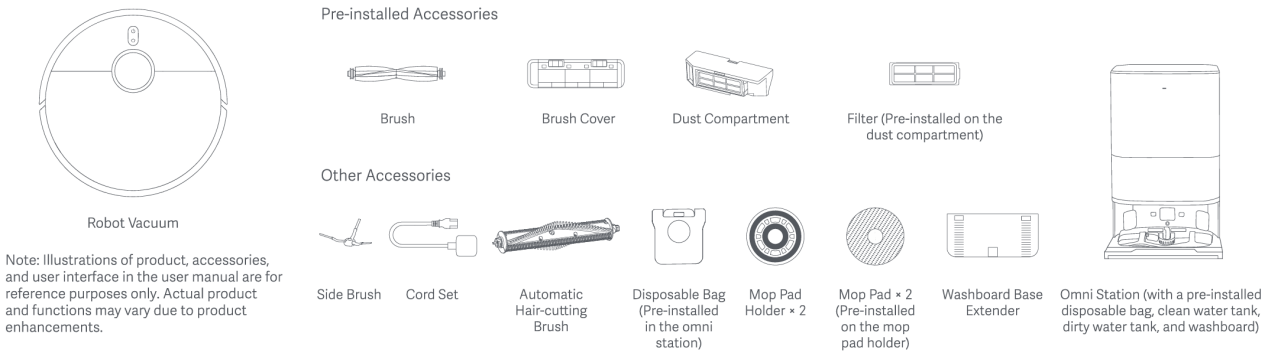
A: It consists of the Xiaomi Robot Vacuum X20 Max and the omni station. Accessories installed on the Xiaomi Robot Vacuum X20 Max include the brush, brush cover, dust compartment and filter. Components installed on the omni station include the clean water tank, dirty water tank, washboard, and disposable bag. Other accessories include side brush, cord set, automatic hair-cutting brush, mop pad holder x 2, mop pad x 2 (pre-installed on the mop holder), and washboard base extender.
2. Q: How to use the buttons on the Xiaomi Robot Vacuum X20 Max?
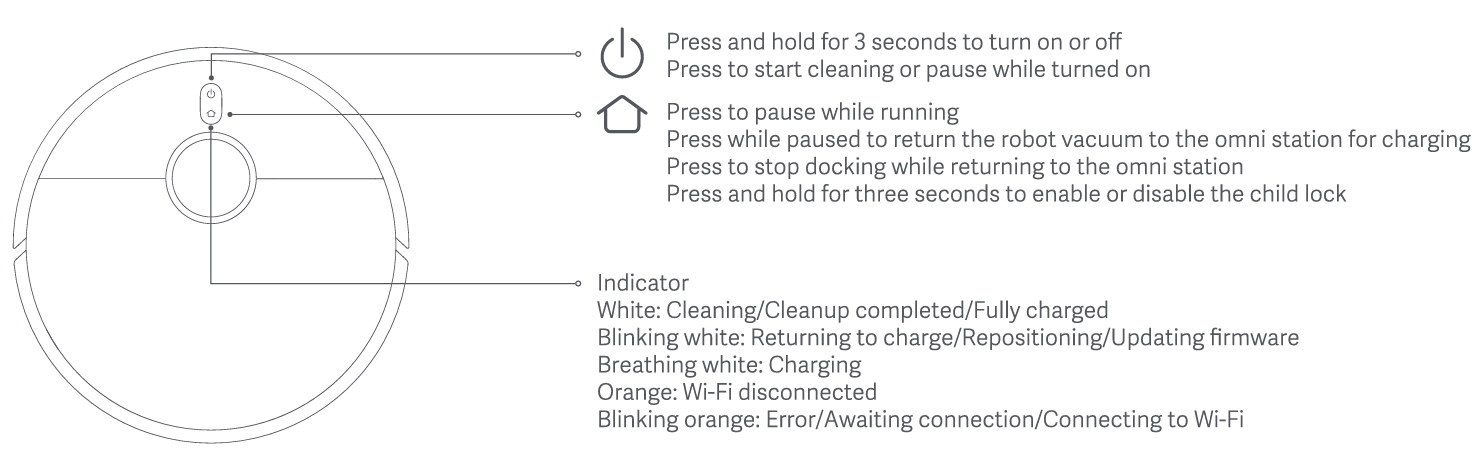
A: 1. Power button:
(1). Press and hold it for three seconds to turn on or off.
(2). Press it to start cleaning or pause while turned on.
2. Recharging button:
(1). Press it to pause while running.
(2). Press it while paused to return the robot vacuum to the omni station for charging.
(3). Press it to stop docking while returning to the omni station.
(4). Press and hold it for three seconds to enable or disable the child lock.
3. The status of the indicator:
(1). White: Cleaning/Cleanup completed/Fully charged.
(2). Blinking white: Returning to charge/Repositioning/Updating firmware.
(3). Breathing white: Charging.
(4). Orange: Wi-Fi is disconnected.
(5). Blinking in orange: Robot vacuum is in error/Awaiting connection/Connecting to Wi-Fi.
Note:
The robot vacuum cannot be shut down while charging. Press any button to pause during cleaning and recharging.
3. Q: How to use the reset button on the Xiaomi Robot Vacuum X20 Max?
A: Press and hold the reset button for 3 seconds to restore factory settings. Press and hold for 10 seconds to force shutdown.
4. Q: What does the status of the Wi-Fi indicator mean on the Xiaomi Robot Vacuum X20 Max?
A: The status of the Wi-Fi indicator is as follows:
When the indicator is on, it means that the Wi-Fi is connected. When the indicator is blinking, it means that the device is waiting for a Wi-Fi connection or connecting to Wi-Fi. When the indicator is off, it means that the Wi-Fi is not connected.
5. Q: What does the status of the omni station indicator mean on the Xiaomi Robot Vacuum X20 Max?
A: The status of the omni station indicator is as follows:
1. White: omni station works properly.
2. Blinking orange: omni station has an error. You can pay attention to the voice broadcast and the Xiaomi Home App prompts to understand the specific abnormalities.
6. Q: How to use the disposable bag of the Xiaomi Robot Vacuum X20 Max?
A: 1. The omni station is pre-installed with a disposable bag when leaving the factory. When the disposable bag needs to be replaced, remove the cover of the dust cabinet by the handle, take off the disposable bag, and replace it with a new one.
2. Pull out the disposable bag handle, close the disposable bag opening, and discard it.
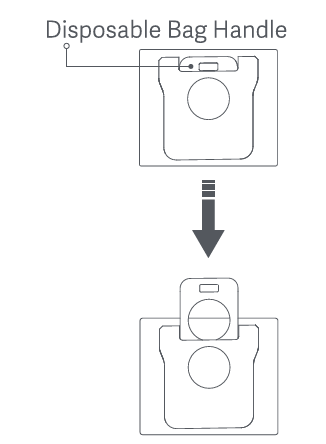
3. Install a new disposable bag as illustrated and insert the handle of the bag into the slot.
4. Put the dust cabinet cover back, and it is properly installed when you hear a “click”.
7. Q: Why do protective coverings need to be removed from the Xiaomi Robot Vacuum X20 Max?
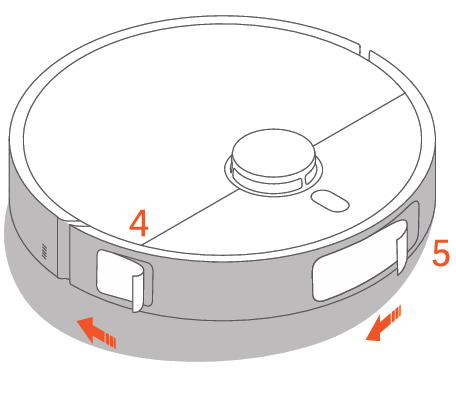
A: Before use, please be sure to remove the protective strips on both sides of the robot vacuum and the protective film on the body to avoid affecting normal use.
 | 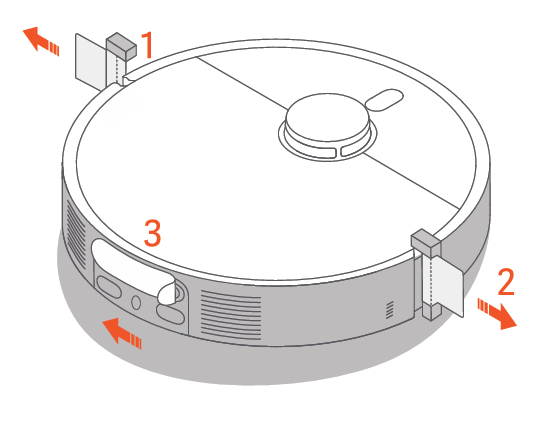 |
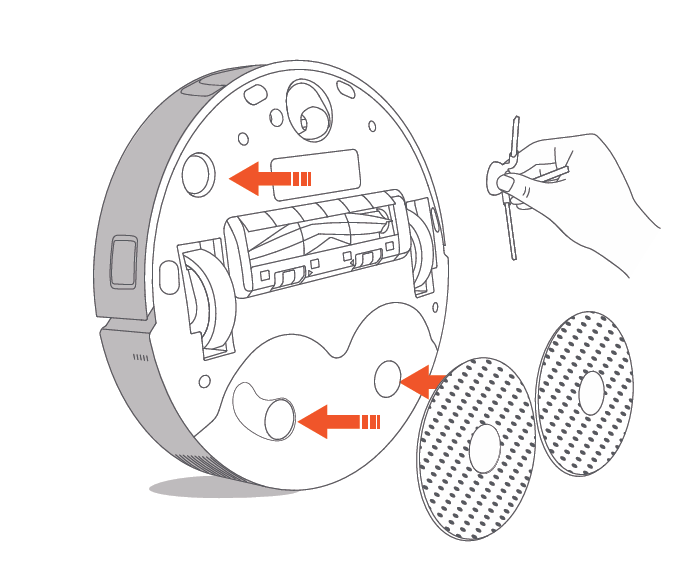
8. Q: How to install the side brush and the mop assembly of the Xiaomi Robot Vacuum X20 Max?
A: Install the side brush and the mop assembly in their respective positions until you hear a "click" sound, indicating that they are installed properly.
9. Q: How to use the omni station of the Xiaomi Robot Vacuum X20 Max?
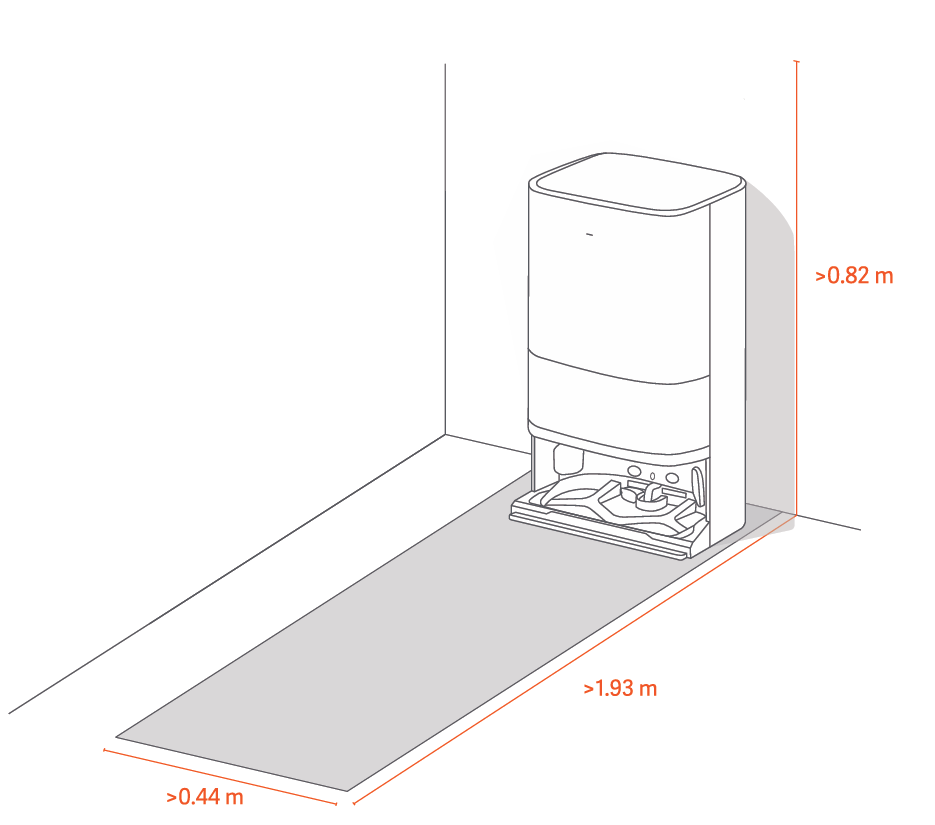
A: 1. To achieve a better experience, please place the omni station against the wall on a hard horizontal ground (such as a floor, tile, etc.) near a power outlet and in an area with good Wi-Fi signal.
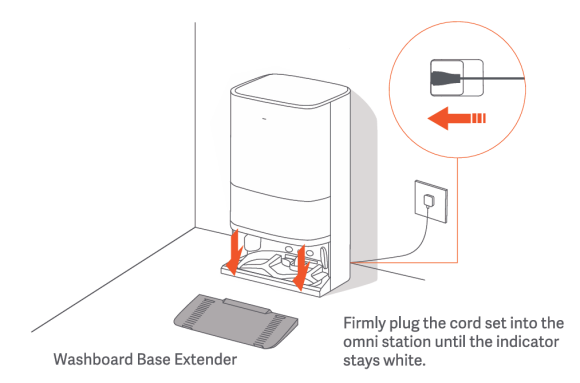
2. Make sure there is space of more than 0.82 meters in height, more than 1.93 meters in length, and more than 0.44 meters in width. Plug the connector of the cord set into the power port of the omni station until the indicator stays white.
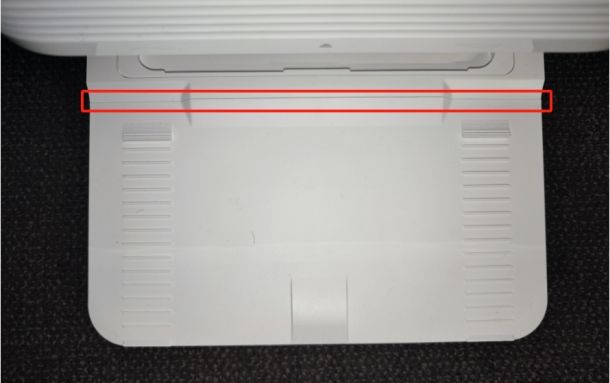
3. Install the washboard base extender to the omni station along the direction as illustrated. Make sure the washboard base extender is flush with the bottom of the omni station, and the bottom surface is even (If there is any installation jamming during assembly, please make sure to press it in place).
 |  |
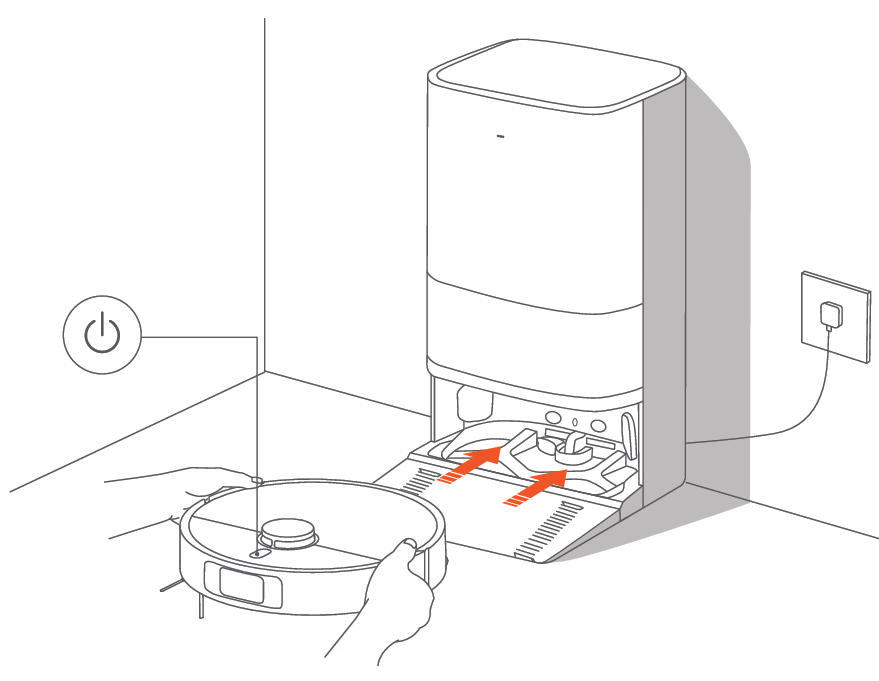
5. For the first use, it is recommended to fully charge the robot vacuum. The indicator on the omni station will light on (the indicator will be turned off when it is in DND mode. You can cover the indicator with a sticker). If the robot vacuum cannot be turned on due to the low battery level, manually place the robot vacuum onto the omni station to charge it for a while. When the robot vacuum is being charged, it will automatically turn on and cannot be turned off.
10. Q: How to add cleaning agents to the Xiaomi Robot Vacuum X20 Max?
A: The Xiaomi Robot Vacuum X20 Max does not support addition of cleaning agents.
11. Q: How to turn on/off the Xiaomi Robot Vacuum X20 Max?
A: Press and hold the power button for 3 seconds to turn on the robot vacuum. When the indicator on the robot vacuum lights up, it means the robot vacuum enters the standby mode.
When the robot vacuum is paused and not being charged, press and hold the power button for three seconds to turn it off.
Note:
When the robot vacuum is charging, it will automatically turn on and cannot be turned off.
12. Q: How to quickly create a map for the Xiaomi Robot Vacuum X20 Max?
A: After configuring the network for the first time, follow the App's instructions to quickly create a map, and the robot vacuum will only create maps without cleaning. The mapping process will be completed when the robot vacuum returns to the omni station, and the map will be saved automatically.
Note:
1. Make sure the robot vacuum is fully charged and starts from the omni station.
2. Before mapping, remove the items on the floor, open the doors of the rooms, and block the areas unsuitable for the robot vacuum to enter.
3. During mapping, do not follow, move, or interrupt the robot vacuum, and do not move the omni station.
4. After mapping, please set up virtual walls or restricted areas in areas prone to jamming or tassel carpets to avoid entanglement with the robot vacuum.
5. Set up virtual walls or restricted areas to exclude carpeted areas before mopping to prevent the carpet from getting wet.
13. Q: How to pause the Xiaomi Robot Vacuum X20 Max?
A: When the robot vacuum is running, press any button to pause it.
Note:
Please do not lift or move the robot vacuum while it is paused. Otherwise, it will have positioning errors that could prevent the robot vacuum from returning to the omni station or cause the loss of the map.
14. Q: How to enter the sleep mode on the Xiaomi Robot Vacuum X20 Max?
A: The robot vacuum will automatically enter sleep mode after it is paused for 10 minutes, and its indicator will go out. To wake it up, press any button on the robot vacuum.
Note:
The robot vacuum will automatically turn off after being in sleep mode for 12 hours.
15. Q: How to resume cleanup on the Xiaomi Robot Vacuum X20 Max?
A: The path: [Settings] >> [More functions] >> [Cleanup resumption].
The resuming cleanup function is enabled by default. If the robot vacuum starts running low on battery during a cleaning task, it will automatically return to the omni station to charge. When the robot vacuum is appropriately charged, it will resume cleanup where it left off.
16. Q: How to set the child lock on the Xiaomi Robot Vacuum X20 Max?
A: There are two methods to set the child lock function:
1. Press and hold the recharging button on the robot vacuum for three seconds to enable/disable this function.
2. Go to [Settings] >> [More functions] >> [Child lock].
When the robot vacuum is stationary, lock the button to prevent accidental startup. When the robot vacuum is working, it can be started by pressing any button.
17. Q: How to empty the dust of the Xiaomi Robot Vacuum X20 Max?
A: After the robot vacuum completes the task of vacuuming and mopping, vacuuming before mopping, and vacuuming, it will return to the omni station to recharge. The omni station starts to empty dust automatically.
Note:
1. When the robot vacuum returns midway to the omni station to clean mop pads, the station will not automatically empty the dust compartment.
2. If the function of auto dust emptying is disabled in the App, the omni station will not automatically empty the dust compartment.
3. If you change the auto-empty frequency in the App, the omni station will empty dust at the set frequency.
18. Q: How to use the Do Not Disturb mode on the Xiaomi Robot Vacuum X20 Max?
A: The Do Not Disturb mode is enabled by default on the Xiaomi Robot Vacuum X20 Max. With a default time period of 22:00-08:00.
You can disable the Do Not Disturb mode or modify the time period in the Xiaomi Home App:
Open the Xiaomi Home App >> select [Xiaomi Robot Vacuum X20 Max] >> enter [Settings] at the upper right corner >> select [DND period] >> adjust your time period.
During the Do Not Disturb period, the Xiaomi Robot Vacuum X20 Max will not initiate cleaning tasks, the voice volume will be lowered, and the indicators on the vacuum cleaner will be turned off. The omni station will not work. Scheduled cleanings will not take place during this time, however, resumption of interrupted cleanings will continue after the Do Not Disturb period ends.
19. Q: Why is the scheduled cleanup on the Xiaomi Robot Vacuum X20 Max not effective?
A: 1. The scheduled cleaning will only be activated when the remaining battery level is greater than 30%. Please charge it in time.
2. The scheduled cleaning time will not take effect during the Do Not Disturb mode period.
20. Q: How to save the map on the Xiaomi Robot Vacuum X20 Max?
A: 1. Before use, please open the door of the area to be cleaned to ensure the integrity of the building map.
2. The Xiaomi Robot Vacuum X20 Max supports quick map creation. After configuring the network for the first time, follow the Xiaomi Home App's instructions to quickly create a map. When the robot vacuum is quickly mapping, it will explore the home environment and only map without cleaning. The entire mapping process takes about 5-15 minutes. After the mapping is completed, the robot vacuum returns to the omni station and can generate recognized partition maps.
3. If you press the power button on the robot vacuum to start cleaning, or select cleaning after tapping start on the Xiaomi Home App, the robot vacuum will start the cleaning task from the station and return to the station autonomously, generating a complete partition map.
4. If manually recharged or manually moved back to the station midway, it can only generate a temporary map. The temporary map without automatic partitioning is unable to use functions such as selection cleaning, partition adjustment/rename, etc.
21. Q: Why isn’t the map displayed on the Xiaomi Home App after the Xiaomi Robot Vacuum X20 Max completes mapping?
A: It can be due to phone cache issues. Please reset the Xiaomi Robot Vacuum X20 Max, delete it from the Xiaomi Home App, and reconnect to resolve the problem.
22. Q: How does the Xiaomi Robot Vacuum X20 Max sweep the whole house?
A: When there is no saved map, selecting whole-house cleanup mode will cause the Xiaomi Robot Vacuum X20 Max to clean in a square area of 4.5m x 4.5m. Then it will use a bow shaped cleaning method until all areas are covered.
After saving the map, the robot vacuum will clean according to the room, starting with the edge cleaning and then the bow shaped cleaning, completing the cleaning of the room in sequence. To avoid secondary pollution caused by the robot vacuum passing through a cleaned room, the vacuuming and mopping modes have a different cleaning sequence from the vacuuming mode.
23. Q: Can the Xiaomi Robot Vacuum X20 Max stay charged all the time?
A: The Xiaomi Robot Vacuum X20 Max can be left on the omni station for standby charging. For short-term trips or long periods away from home, it is recommended to turn off the power (press and hold the power button to shut down the robot vacuum). The Xiaomi Robot Vacuum X20 Max supports overcharge protection, and will automatically switch to trickle charging once the battery is fully charged.
24. Q: What battery does the Xiaomi Robot Vacuum X20 Max use?
A: The Xiaomi Robot Vacuum X20 Max adopts a 5200mAh (nominal capacity) high-performance lithium battery pack.
25. Q: Does the Xiaomi Robot Vacuum X20 Max have motor overload protection?
A: All motors on the Xiaomi Robot Vacuum X20 Max, including the main brush motor, side brush motor, main wheel motor, and mop motor, have overload protection. When foreign objects enter or severe blockages cause overload, the protection will automatically start to prevent motor damage.
26. Q: How to use the Vacuuming and Mopping synchronization function on the Xiaomi Robot Vacuum X20 Max?
A: 1. Starting cleaning:
Before starting, ensure the mop assembly and other necessary parts have been installed onto the robot vacuum and the clean water tank has been added water.
Select the vacuuming and mopping mode in the Xiaomi Home App, and use the APP or press the power button on the robot vacuum to start the cleaning. The robot vacuum will start from the omni station. It will plan the optimal cleaning route and perform the cleaning task based on the created map.
Note:
It is recommended to follow the robot vacuum throughout the first use and assist in cleaning up items that can affect the operation of the robot vacuum. If certain areas cause it to get stuck or scratch the surface of the home while it is running, a restricted area can be set in the Xiaomi Home App to prevent the robot vacuum from entering the above areas.
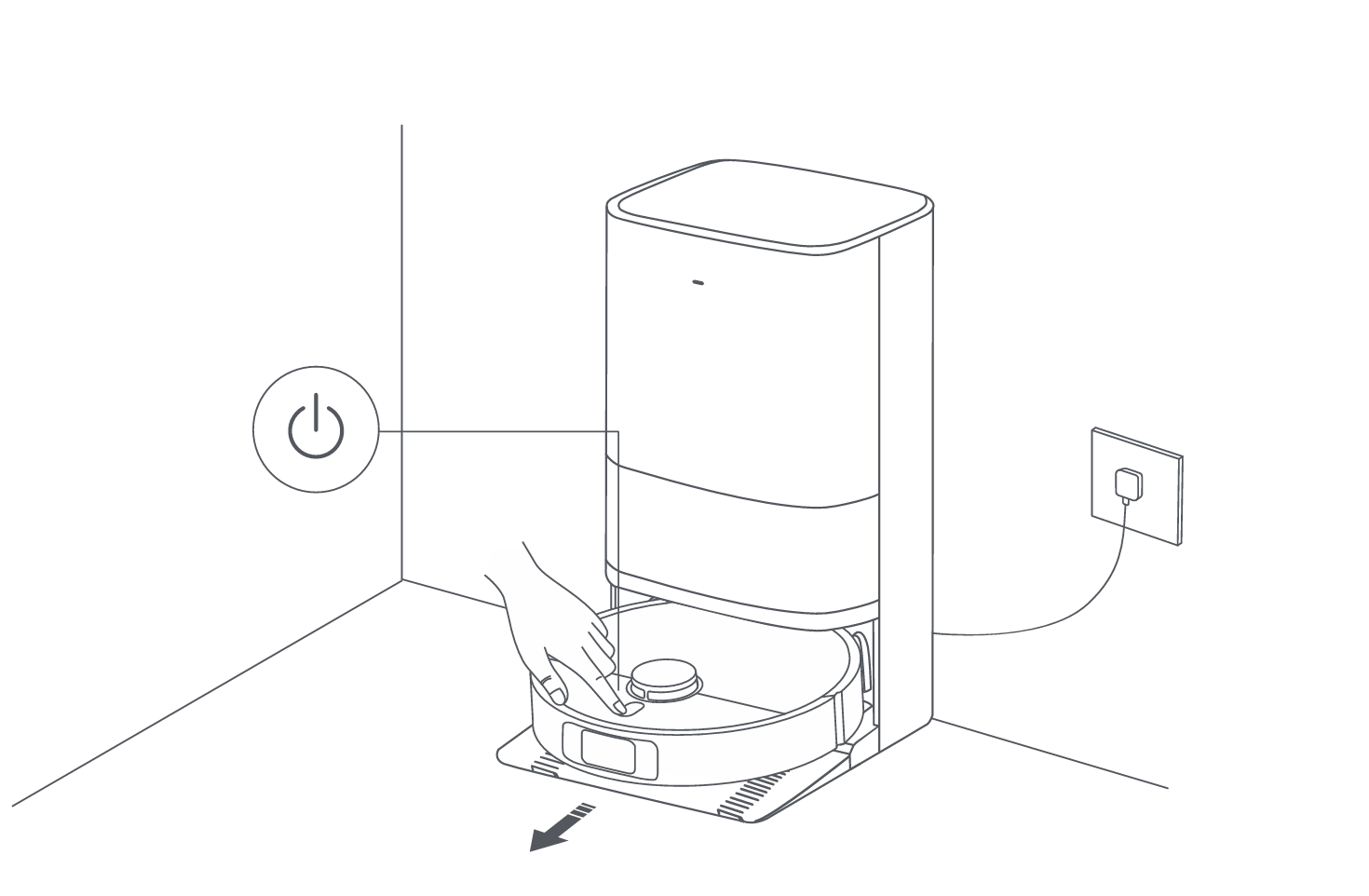
Note:
1. The robot vacuum will moisten the mop pads before starting, please wait with patience.
2. Before starting, ensure the omni station is connected to power and the robot vacuum is connected to the omni station.
3. To ensure that the robot vacuum can return to the omni station successfully after completing vacuuming and mopping, it is recommended to make the robot vacuum start from the omni station. Do not move the omni station, the clean water tank, the dirty water tank, or the washboard during cleaning.
2. Automatically return to clean mop pads midway:
During cleaning, the robot vacuum will automatically return to the omni station to wash the mop pads after it cleans certain squares of area. Once the mop pads have been washed, the robot vacuum will resume its cleaning task.
3. Auto dust emptying & mop pad cleaning and air-drying:
Once the robot vacuum has completed its cleaning task and returned to the omni station to charge, the omni station will automatically start emptying dust and then clean and air-dry the mop pads.
4. Clean the dirty water tank:
After the mop pads have been cleaned and air-dried, please clean the dirty water tank in time to prevent odors.
27. Q: How to use the Vacuuming before Mopping function on the Xiaomi Robot Vacuum X20 Max?
A: 1. Before starting, ensure the mop assembly has been installed onto the robot vacuum.
2. Select the vacuuming before mopping mode in the Xiaomi Home App, and use the APP or press the power button on the robot vacuum to start the cleaning task, then the robot vacuum will lift the mop assembly to vacuum.
3. Once it finishes vacuuming, it will return to the omni station to automatically empty the dust and moisten the mop pads, then it will lower the mop assembly to start mopping.
28. Q: How to use the Vacuuming function on the Xiaomi Robot Vacuum X20 Max?
A: Select the vacuuming mode in the APP, then use the APP or press the power button on the robot vacuum to start cleaning, and the robot vacuum will lift the mop assembly and start from the omni station to vacuum. Once it finishes vacuuming, it will return to the omni station to automatically empty the dust compartment.
Note:
If the mop assembly is not installed, the robot vacuum will automatically perform the vacuuming mode after starting.
29. Q: How to use the Mopping function on the Xiaomi Robot Vacuum X20 Max?
A: 1. Before starting, ensure the mop assembly has been installed onto the robot vacuum.
2. Select the mopping mode in the APP, and use the APP or press the power button on the robot vacuum to start cleaning. Then the robot vacuum will automatically moisten the mop pads first and leave the omni station to start mopping.
3. Once it finishes mopping, it will return to the omni station to wash and air-dry the mop pads.
30. Q: The maintenance of the parts on the Xiaomi Robot Vacuum X20 Max
A: To keep the robot vacuum in good condition, it is recommended to refer to the following methods for routine maintenance:
1. The dust compartment needs to be cleaned as required.
2. The filter should be cleaned every two weeks, and needs to be replaced in 3-6 months.
3. The clean water tank should be cleaned every two weeks.
4. It is recommended to clean the dirty water tank after each use.
5. Clean the washboard every 1-2 weeks.
6. Clean the brush every two weeks, and replace it in 6-12 months.
7. Clean the side brush every two weeks, and replace it in 3-6 months.
8. Replace the mop pad 1-3 months.
9. Clean the caster wheel, LDS Laser Sensor, Edge Sensor, Line Laser Sensor, Cliff Sensor and the charging contacts on the robot vacuum every month.
10. Clean the bumper, auto-empty vents of the robot vacuum, the bottom of the robot vacuum, the omni station, the charging contacts and the signaling area of the station depending on actual use.
11. To replace the disposable bag for about 2.5 months depending on actual use.
31. Q: How to maintain the battery of the Xiaomi Robot Vacuum X20 Max?
A: It is equipped with a high-performance lithium-ion rechargeable battery. To maintain battery performance during daily use, it's recommended to keep the robot vacuum charged.
Note:
If not in use for an extended period of time, power off and store the device. Charge it at least once every three months to prevent battery degradation due to discharging.
32. Q: How to replace the disposable bag of the Xiaomi Robot Vacuum X20 Max?
A: 1. When the disposable bag is full, pull the cover out from the dust cabinet opening. Remove the disposable bag using the handle, and discard it.
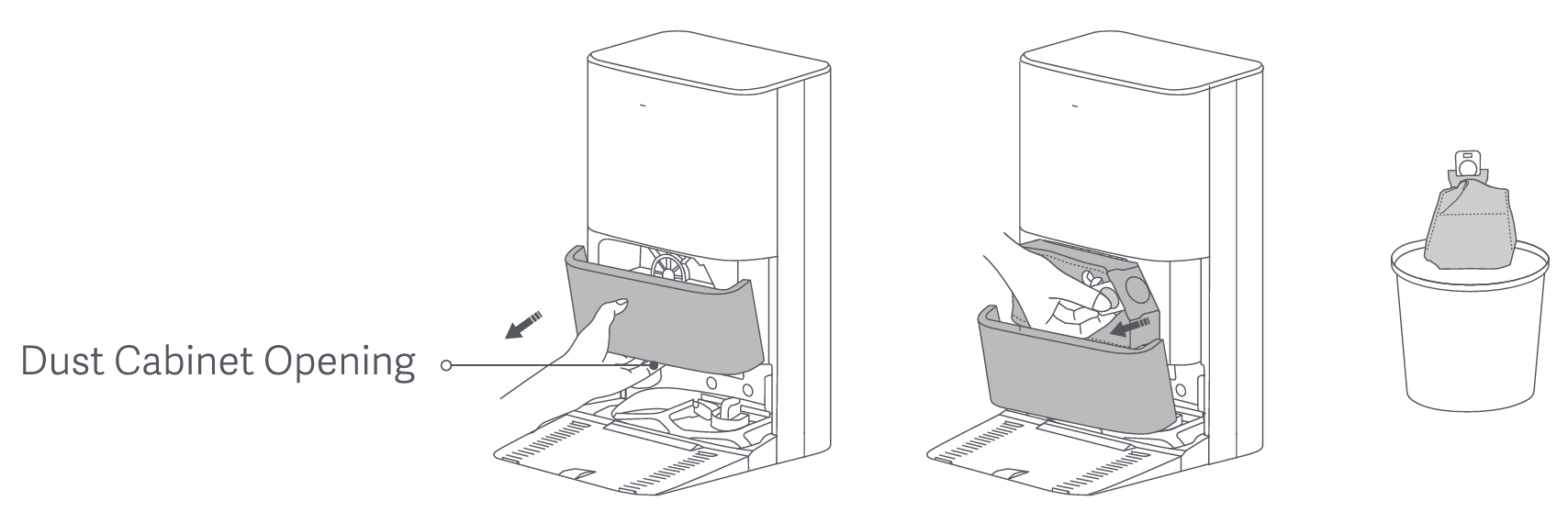
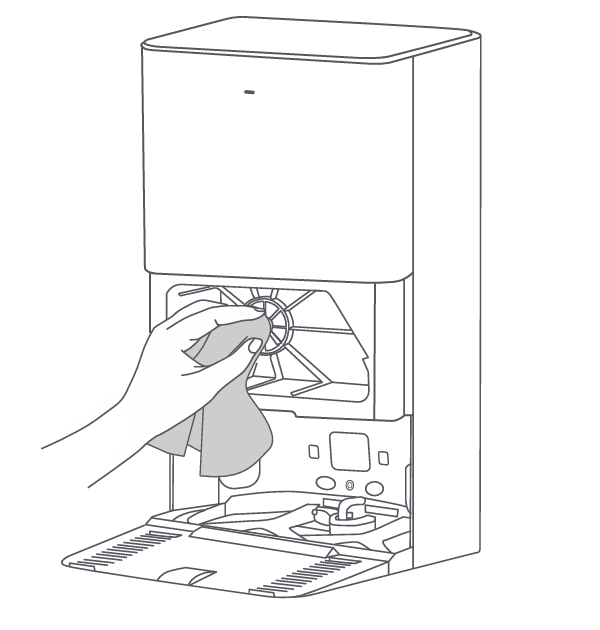
2. Use a dry cloth to wipe away any dirt from the filter.
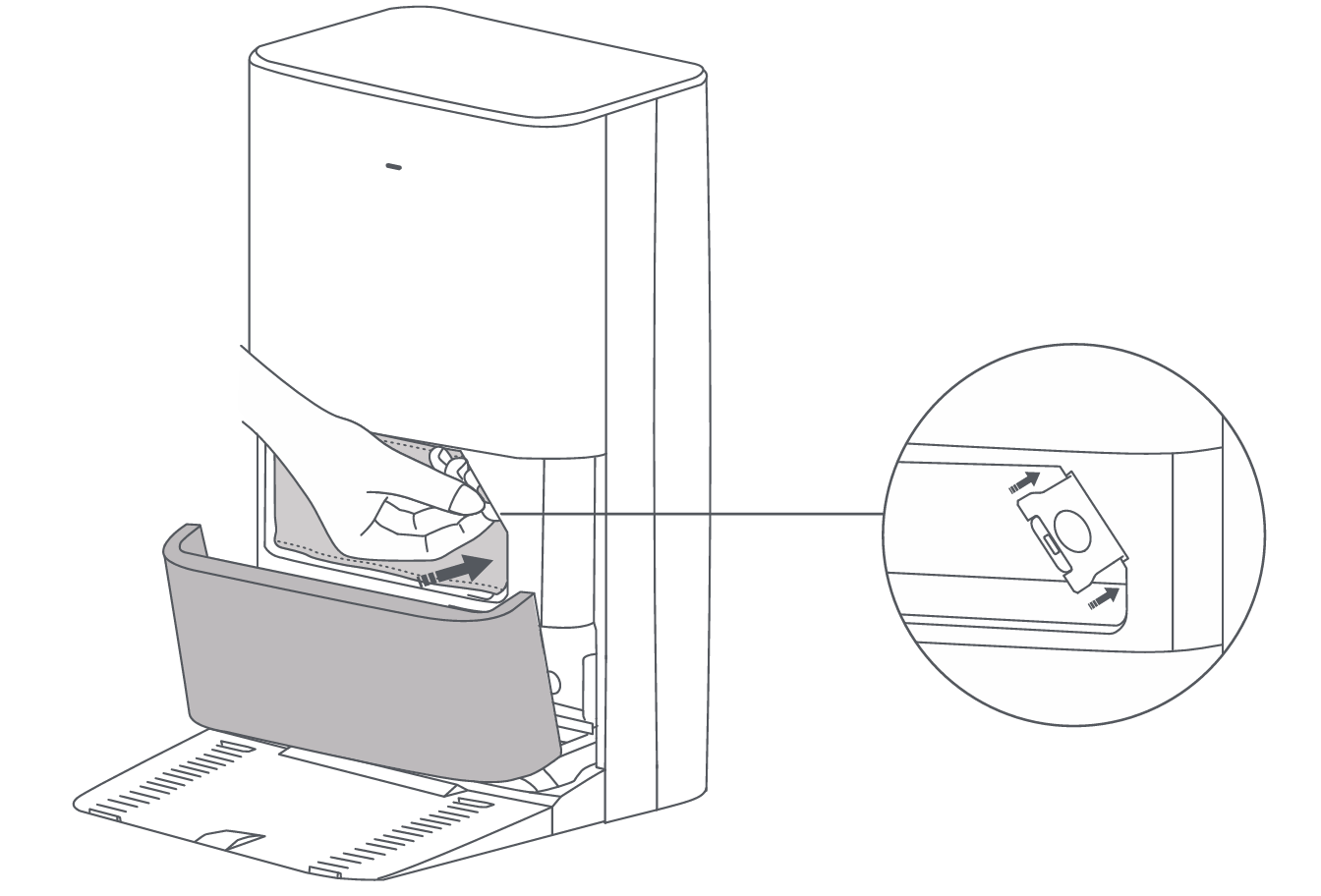
3. Install a new disposable bag as illustrated and insert the handle of the bag into the slot.
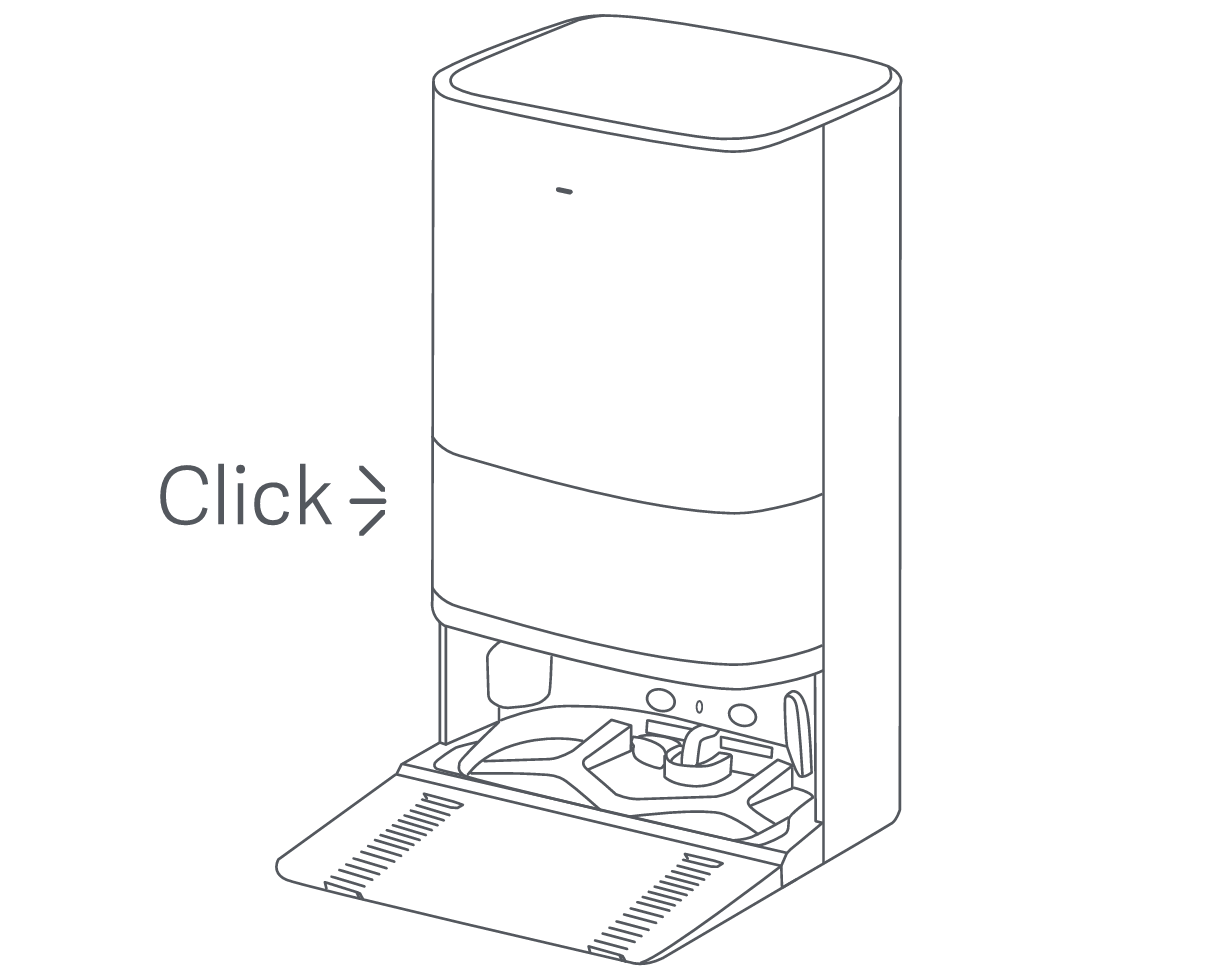
4. Then put the dust cabinet cover back, and it is properly installed when you hear a "click".
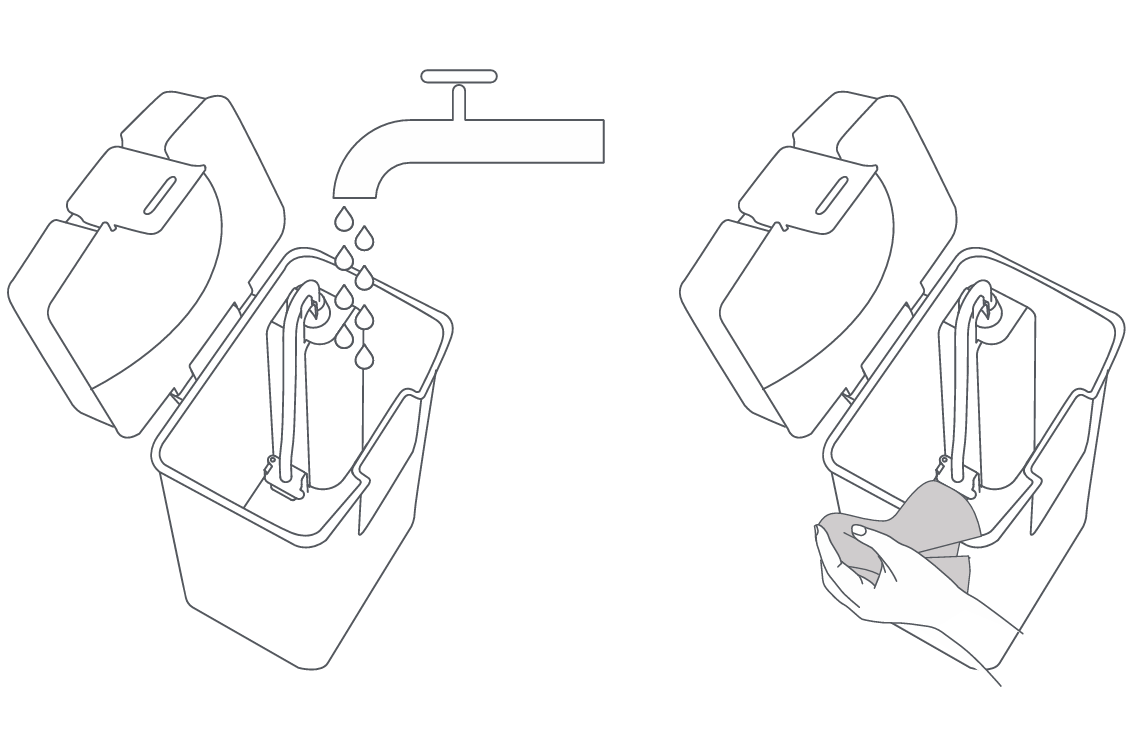
33. Q: How to clean the water tanks of the Xiaomi Robot Vacuum X20 Max?
A: 1. Remove both the clean and dirty water tanks, open their covers, and pour out the water.
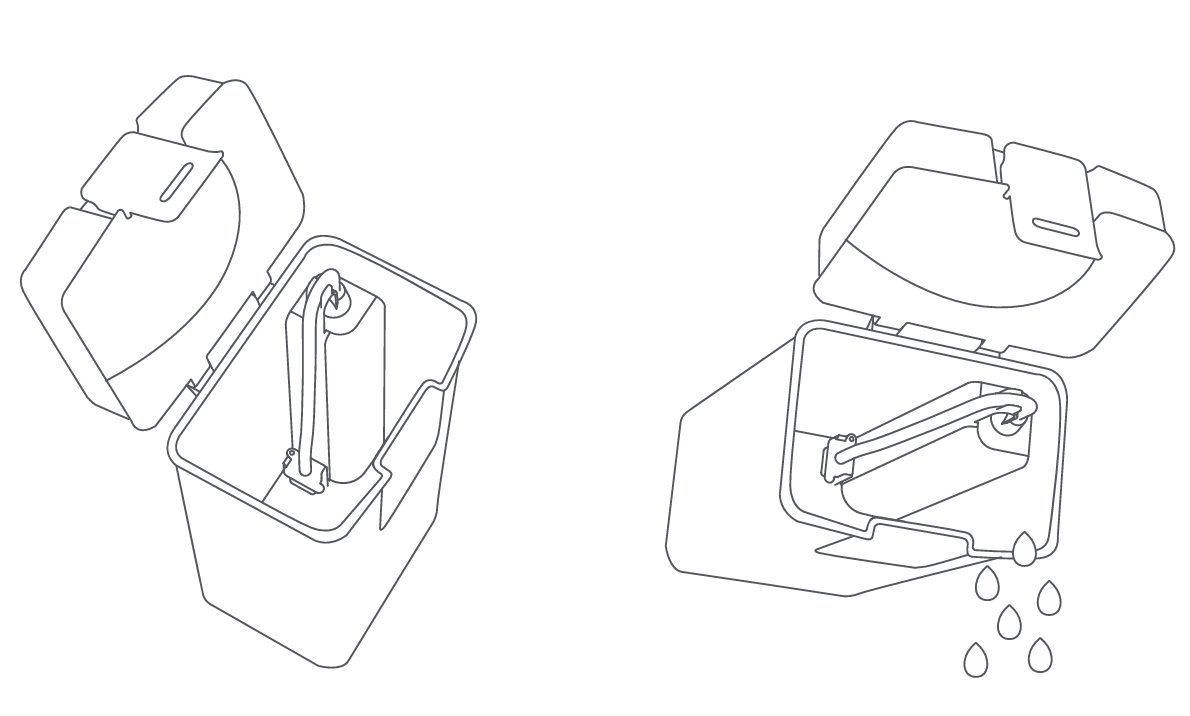
2. Use clean water to completely wash the tanks, then wipe the outside of the tanks dry before reinserting them into the omni station.
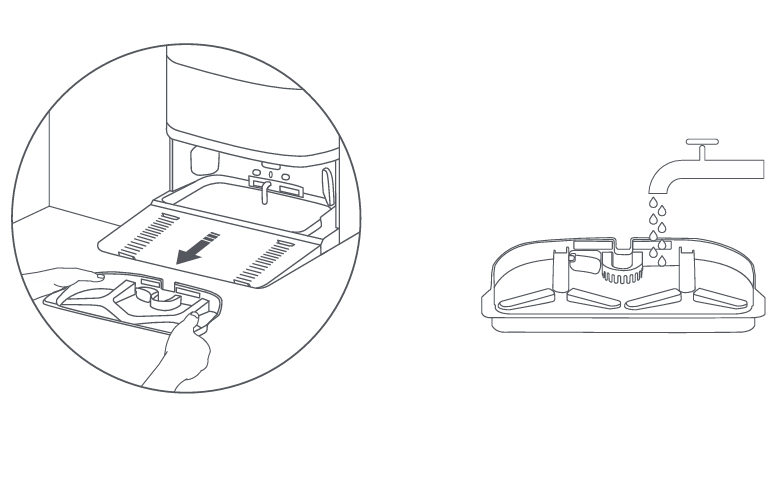
34. Q: How to clean the washboard of the Xiaomi Robot Vacuum X20 Max?
A: 1. Remove the washboard, and clean it with a brush using the tap water.
2. Wipe the washboard base with a dry cloth, and reinstall the washboard to the omni station. Make sure the water pipe is inside the groove of the washboard. Otherwise, it will affect normal use.
Note:
Do not tilt the omni station during daily use or cleaning. If water collects in the washboard base, wipe it dry with a cloth. It is normal for a small amount of water stains to remain on the cleaning base.
35. Q: How to clean sensors and charging contacts of the Xiaomi Robot Vacuum X20 Max?
A: Use a soft cloth to clean all sensors and charging contacts in the robot vacuum:
1. The cliff sensors on the bottom of the robot vacuum.
2. The charging contacts on the back of the robot vacuum.
3. The LDS laser sensor on the top of the robot vacuum.
4. The bumper and the line laser sensor on the front of the robot vacuum.
Note:
The black lens area of the robot vacuum and the omni station can not be obstructed, dirty, or worn, or it will cause abnormal functions such as recharging and obstacle avoidance.
36. Q: How to clean the main brush of the Xiaomi Robot Vacuum X20 Max?
A: 1. Flip the robot vacuum over and pinch the clips to remove the brush cover.
2. Lift the brush out, remove the bearings on both ends, and clean the brush's axle.
3. Use scissors to cut any hair tangled around the brush, and remove any debris.
4. Reinstall the brush bearings, the brush and brush cover, and ensure they are securely in place.
Note:
If too much hair is tangled in the brush, or if the hair is tightly tangled, do not forcibly pull on it, as this could damage the brush.
37. Q: How to clean the side brush of the Xiaomi Robot Vacuum X20 Max?
A: 1. Flip the robot vacuum over, pull out the side brush upwards, and clean it.
2. Reinstall it into the robot vacuum.
38. Q: How to clean the caster wheel of the Xiaomi Robot Vacuum X20 Max?
A: 1. Flip the robot vacuum over and pull out the caster wheel.
2. Remove hair, dirt, and other debris from the wheel and axle.
3. Reinsert the caster wheel and press it firmly back into place.
Note:
1. A small screwdriver or other pry tool can be used to gently pop out and remove the wheel.
2. The wheel can be cleaned with water and reinstalled after drying.
39. Q: How to clean the dust compartment and filter of the Xiaomi Robot Vacuum X20 Max?
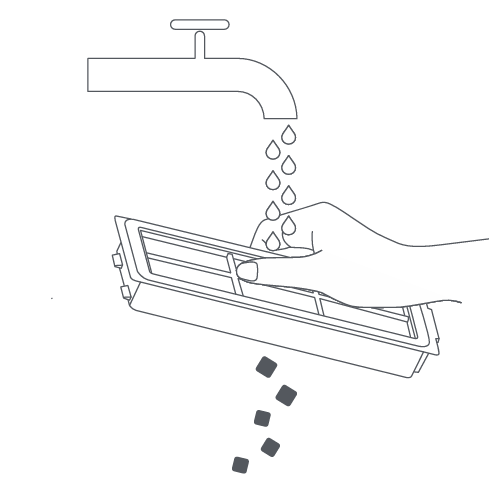
A: 1. Press and hold the dust compartment release button to take out the dust compartment, remove the filter from the filter clip, and empty the dust compartment. You can rinse it if needed.
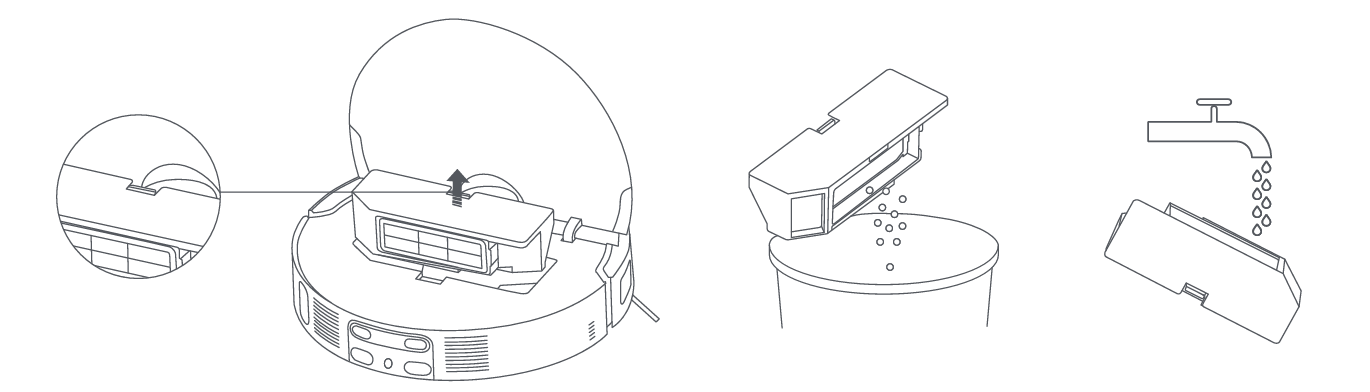
2. Gently tap the filter frame to remove dirt, or clean the filter with tap water.
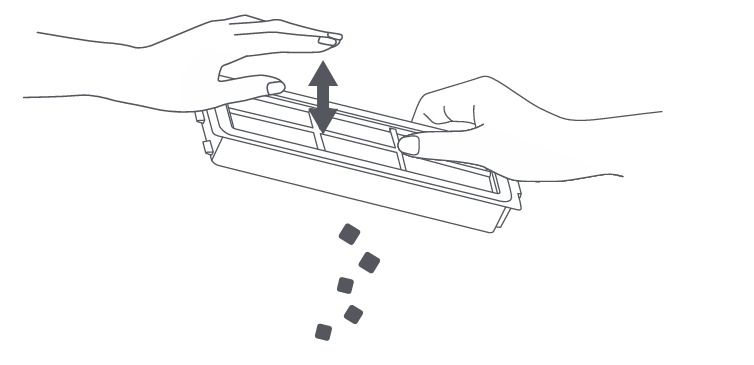 |  |
3. Fully dry the dust compartment and filter before reinstalling them.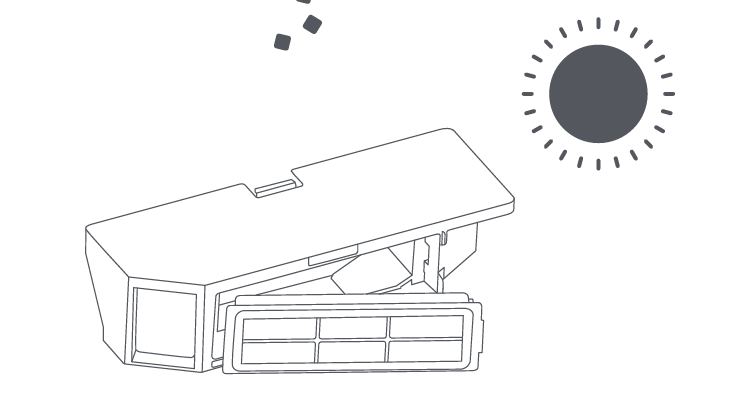
Note:
1. Do not use the brush or your fingers to clean the filter.
2. Frequent rinse is not recommended, or the filter will be damaged.
3. Only use clean water to clean the dust compartment and filter. Do not use detergent.
40. Q: How to replace the mop pad of the Xiaomi Robot Vacuum X20 Max?
A: Remove the mop holder, fix the mop pad to the mop holder with Velcro. Tear it off for cleaning or replace it with a new mop pad, align it with the middle hole and stick it in place.
41. Q: How to clean the omni station of the Xiaomi Robot Vacuum X20 Max?
A: Clean the charging contacts, the auto-empty vents, and the signaling area of the omni station with a soft, dry cloth.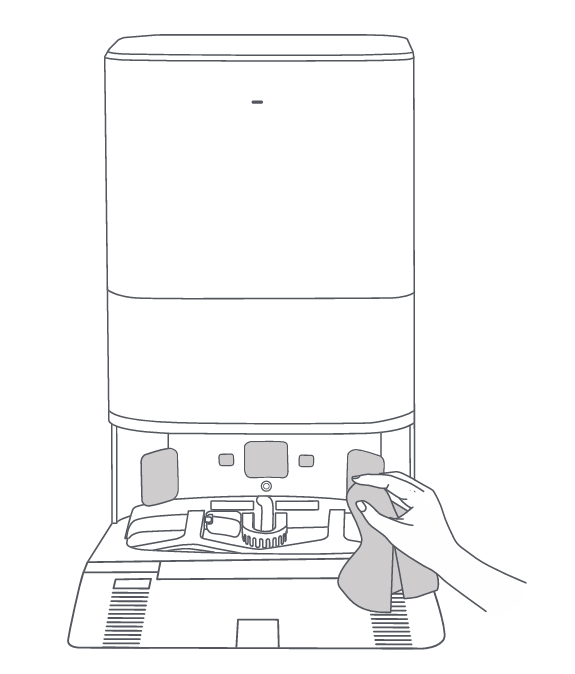
42. Q: How does the Xiaomi Robot Vacuum X20 Max return to the omni station to charge?
A: 1. After cleaning is completed, the robot vacuum will automatically return to the omni station to charge.
2. In pause mode, press the robot vacuum's home button to start to recharge.
3. You can also manually place the robot vacuum back on the omni station. With the mop component facing the cleaning stand position on the omni station, the robot vacuum will automatically dock.
When the robot vacuum is charging, it will prompt voice command (Start charging) and the power button will flash slowly, indicating successful connection to the omni station.
Note:
If the robot vacuum cannot find the omni station, it will automatically return to the starting point of cleaning. Please manually place the robot vacuum back on the omni station for charging.
43. Q: How does the Xiaomi Robot Vacuum X20 Max automatically clean the mop pad? Why does the the mop pad need to be cleaned frequently?
A: 1. Before each mopping or vacuum task, the robot vacuum will clean and dampen the mop.
2. During the mopping task, the robot vacuum will automatically return to the omni station for cleaning to maintain a clean state for better mopping results. After each cleaning is completed, it will return to its previous position to continue unfinished work. The frequency of cleaning can be set in the Xiaomi Home App.
3. After completing the mopping task and returning to charge, the robot vacuum will begin self-cleaning, and the omni station will thoroughly clean the mop and air dry it.
44. Q: Does the Xiaomi Robot Vacuum X20 Max automatically lift the mop when encountering carpets?
A: The mop holder of the robot vacuum supports auto lifting. If carpet settings have not been set, the robot vacuum will not lift the mop when encountering carpets. You need to add carpet areas in the Xiaomi Home App.
To enable this feature, please refer to the following steps:
Go to the Xiaomi Home App >> [Settings] >> [Carpet cleanup preferences] >> set carpet cleaning preferences as needed.
The robot vacuum lifts the mop during fast mapping, repositioning, returning to the omni station, navigating to mop locations, and escaping from tight spots.
45. Q: When does the Xiaomi Robot Vacuum X20 Max start air-drying the mop pad?
A: When the robot vacuum has completed its cleaning task and returns to the omni station to charge, the omni station will automatically air-dry the mop pads. You can manually enable/disable this function.
46. Q: When does the Xiaomi Robot Vacuum X20 Max start collecting dust?
A: After the robot vacuum completes the vacuuming task and returns to the omni station, the omni station will automatically start the dust collection process. The dust collection process lasts for about 10 seconds. To ensure the dust collection duct remains clear, the dust collection time is extended to around 20 seconds during regular dust collection. You can disable automatic dust collection or modify the dust collection frequency in the Xiaomi Home App according to your needs.
47. Q: How does the obstacle avoidance function of the Xiaomi Robot Vacuum X20 Max work?
A: 1. The front of the robot vacuum is equipped with a line laser sensor, which can sense various obstacles on the ground, measure distance, and autonomously plan to slow down in advance to avoid collisions.
2. Equipped with a laser sensor along the edge in front of the side. It can measure distance and reduce collisions during the edge process, resulting in higher edge efficiency.
3. The bumper can effectively protect the safety of the device.
4. The LDS laser sensor can measure the height of obstacles ahead and determine whether it is possible to enter under the bed or sofa.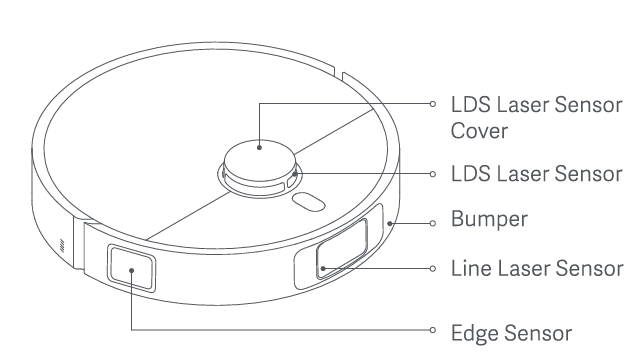
48. Q: Why does Xiaomi Robot Vacuum X20 Max still experience collisions despite having obstacle avoidance sensors?
A: 1. Please wipe the lens of the line laser sensor with a soft dry cloth to ensure there are no fingerprints or dust.
2. Some surfaces with darker colors and higher reflectivity (such as metal), transparent objects (glass walls), smaller table and chair legs, and some shorter obstacles, or obstacles appearing in the detection blind zone, will not be occasionally detected.
3. When the ambient light is weak, the recognition ability of six types of objects, including fabrics, power cords, feces, shoes, bases, and weight scales, will decrease.
4. When the device encounters flexible obstacles such as curtains or doors that are ajar, it will slow down and lightly touch and collide, or completely avoid contact. If there is slight contact, it is a normal phenomenon.
5. If the home environment is complex and there are a large number of ground obstacles trapping the robot vacuum, collisions will occur during rescue.
APP Related
1. Q: How to submit feedback or log through the Xiaomi Home App when using the Xiaomi Robot Vacuum X20 Max?
A: For your reference, here are the two methods to submit feedback or a log:
1. Open the Xiaomi Home App >> choose the [Xiaomi Robot Vacuum X20 Max] card >> tap the three dots at the upper right corner >> [Help & Feedback] >> fill in the problem description, attach a video or image if necessary >> [Submit log].
2. Open the Xiaomi Home App >> [Profile] >> [Help & Feedback] >> select the [Xiaomi Robot Vacuum X20 Max] >> fill in the problem description, attach a video or image if necessary >> [Submit log].
2. Q: How to connect the Xiaomi Robot Vacuum X20 Max to the Xiaomi Home App?
A: This product works with the Xiaomi Home App. Use the Xiaomi Home App to control your device, and to interact with other smart home devices.
Scan the QR code to download and install the APP. You will be directed to the connection setup page if the APP is installed already. You can also search for the Xiaomi Home App in the Google Play Store to download and install it. Open the Xiaomi Home App, tap [+] at the upper right corner, and then follow the instructions to add your device.
Note:
Due to upgrades and updates to the Xiaomi Home App, the actual operation can slightly differ from the instructions provided above. Please follow the current guidance within the App.
3. Q: How to reset the Wi-Fi on the Xiaomi Robot Vacuum X20 Max?
A: If the robot vacuum is unable to connect to the network due to changes in router settings, forgotten passwords, or other reasons, please refer to the following steps:
1. Open the cover of the robot vacuum so that you can see the Wi-Fi indicator.
2. Simultaneously press and hold the Power button and the Recharging button for 7 seconds until you hear a voice prompt to indicate that the robot vacuum is waiting for the network configuration.
3. When the Wi-Fi indicator blinks, the Wi-Fi connection has been reset successfully.
4. Q: How to update the firmware on the Xiaomi Robot Vacuum X20 Max?
A: You can update the robot vacuum’s firmware using the Xiaomi Home App. Before upgrading, ensure that the robot vacuum is charging on the omni station and that the battery level is above 30%. During the firmware upgrade, all buttons will flash. It is recommended to keep the firmware updated to the latest version for optimal performance.
To update the firmware, please refer to the following steps:
1. Open the Xiaomi Home App.
2. Choose the [Xiaomi Robot Vacuum X20 Max] card.
3. Tap the three dots at the upper right corner.
4. Select [Firmware update]. You can view the current version, and the firmware version history can be accessed at the upper right corner.
5. Q: How to restore the Xiaomi Robot Vacuum X20 Max to the factory settings?
A: Open the cover of the robot vacuum so that you can see the Reset button. Press and hold for three seconds to restore factory settings.
6. Q: How to force turn off the Xiaomi Robot Vacuum X20 Max?
A: Open the cover of the robot vacuum so that you can see the Reset button. Press and hold for ten seconds to turn it off forcefully.
7. Q: Does the Xiaomi Robot Vacuum X20 Max support Quick map creation?
A: Support. After connecting the robot vacuum to the network using the Xiaomi Home App for the first time, a prompt for [Quick map creation] will appear on the homepage. You can also tap the three dots at the upper right corner to access [Map list] to create a map.
To make the best use of this feature, please refer to the following instructions:
1. For optimal use of the product, it is recommended to the use Quick map creation function. Once the home environment map is quickly established, you can enjoy a smarter and more efficient experience.
2. The process of the Quick map creation can produce a slightly incomplete map, however, this does not affect usage. The map will be gradually improved during subsequent whole-house cleanup.
3. During Quick map creation, the robot vacuum will explore the home environment without performing any cleaning. The entire mapping process takes about 5 to 15 minutes. After the mapping is complete, the robot vacuum will return to the omni station, where a complete partitioned map can be generated.
8. Q: How many maps can the Xiaomi Robot Vacuum X20 Max save?
A: It currently supports saving 1 temporary map and 4 permanent maps. During the first use, you can create a map through Quick map creation or a whole-house cleanup. If you need multiple maps, you can create and manage new maps in the Xiaomi Home App. Select the [Device card] and tap at the upper right corner to access [Map list] to create a map. You can also access the map management from the homepage sidebar, tap the [Edit area] icon at the right corner to select the rectangular area to be cleaned.
9. Q: What is the Whole-house cleanup feature on the Xiaomi Robot Vacuum X20 Max?
A: When a map is not saved, selecting whole-house cleanup will cause the robot vacuum to clean each area in 4.5m × 4.5m square sections. After a map is saved in the APP, selecting whole-house cleanup will prompt the robot vacuum to automatically plan a path and clean each room sequentially, returning to the charging dock once the cleaning is complete.
10. Q: What is the zoned cleaning on the Xiaomi Robot Vacuum X20 Max?
A: You can set up zoned cleaning in the Xiaomi Home App, and the robot vacuum will clean according to the rooms that you select.
Note:
During cleaning, the robot vacuum can move beyond the designated areas. Be sure to clear any obstacles around the zoned areas, as the drawn lines do not serve as physical barriers.
11. Q: How to reset the map on the Xiaomi Robot Vacuum X20 Max?
A: To reset the map on the Xiaomi Robot Vacuum X20 Max, please refer to the following steps:
1. Open the Xiaomi Home App.
2. Choose the [Xiaomi Robot Vacuum X20 Max] card.
3. Tap the three dots icon at the upper right corner.
4. Select [Map list] and tap the map you want to delete.
5. Tap the delete icon at the upper right corner to remove the map. After confirming, the map will be deleted, and you will need to create a new one.
12. Q: How to create multiple maps on the Xiaomi Robot Vacuum X20 Max?
A: Move the robot vacuum and omni station to the new environment, plug in the omni station, and connect the robot vacuum to it. Open the Xiaomi Home App >> choose the [Xiaomi Robot Vacuum X20 Max] card >> tap the three dots icon at the upper right corner >> select [Map list] to create a map. It is recommended to use the Quick map creation feature to create the second or third map. After successfully saving a map, if you need to clean a specific floor, move the robot vacuum to the starting point near where the map was initially created, then manually select the corresponding map and start cleaning.
If you prefer not to move the omni station to the new environment, you can only move the robot vacuum. Open the Xiaomi Home App >> choose the [Xiaomi Robot Vacuum X20 Max] card >> tap the three dots icon at the upper right corner >> select [Map list] to create a map. Once the map is created, if you need to clean a specific floor, move the robot vacuum to that floor, manually select the corresponding map and disable the [Auto cleaning the mop] switch in the station settings. With this option disabled, the robot vacuum will begin vacuuming/vacuuming & mopping/mopping without returning to the omni station to wash the mop or empty the dust compartment. If wet mopping is needed, it is recommended to dampen the mop manually.
13. Q: Does the Xiaomi Robot Vacuum X20 Max support suction level settings?
A: Support. You can set the suction level in the App. There are four levels available: Silent, Standard, Strong, and Turbo.
14. Q: How to set up the custom cleanup on the Xiaomi Robot Vacuum X20 Max?
A: Once a partitioned map is saved or already exists, you can personalize settings for each area. Different rooms can be set with varying cleaning modes, suction settings, and the number of cleanup times. You can also manually adjust the cleaning sequence of the rooms in the cleaning order sorting.
15. Q: How to adjust the map display on the Xiaomi Robot Vacuum X20 Max?
A: To adjust the map display on the Xiaomi Robot Vacuum X20 Max, please refer to the following steps:
1. Open the Xiaomi Home App.
2. Choose the [Xiaomi Robot Vacuum X20 Max] card.
3. Tap the map display icon and choose either 2D or 3D map view based on your preference (3D maps can be selected after the map is saved). You can also choose whether to display room name, furniture, floor type, and carpet on the map.
Note:
Once floor material is selected, its texture will be shown in the 3D map.
16. Q: How to set up restricted areas & virtual walls on the Xiaomi Robot Vacuum X20 Max?
A: You can set up restricted areas & virtual walls using the Xiaomi Home App to prevent the robot vacuum from entering areas that do not need to be cleaned.
Note:
1. Before using this feature, you need to save a map in the APP.
2. Moving the robot vacuum or making significant changes to your home environment can render the original map invalid, causing the restricted areas & virtual walls to be lost.
3. Once the virtual wall, vacuuming & mopping restricted area, and mopping restricted area are set, the device will be unable to cross or will not enter these areas during operation.
To set up restricted areas & virtual walls on the Xiaomi Robot Vacuum X20 Max, please refer to the following methods:
1. Open the Xiaomi Home App and choose the [Xiaomi Robot Vacuum X20 Max] card >> on the homepage of the device, tap the map editing icon >> choose restricted areas & virtual walls. Depending on your needs, select virtual wall, vacuuming & mopping restricted area, and mopping restricted area. It will automatically add a dashed line or a colored box to the map. You can drag to move the area, adjust the size by pulling down the corner at the bottom right, or delete it by tapping the "X" at the top left. Once you’re done, confirm the settings to activate them.
2. Open the Xiaomi Home App and choose the [Xiaomi Robot Vacuum X20 Max] card >> tap the three dots icon at the upper right corner >> enter [Map list] >> select the corresponding map to set restricted area, room, furniture and materials.
17. Q: How to merge, divide, or rename rooms on the Xiaomi Robot Vacuum X20 Max?
A: Open the Xiaomi Home App and choose the [Xiaomi Robot Vacuum X20 Max] card >> on the homepage of the device, tap the map editing icon >> choose [Edit room] to merge, divide, or rename rooms.
To merge, divide, or rename rooms, please refer to the following instructions:
1. Merge: To merge areas, select the target areas (tap the areas, and they will turn gray), then tap the merge icon when it becomes active.
2. Divide: To divide an area, select the target area (tap the area, and it will turn gray), then tap the divide icon when it becomes active. A dividing line will appear on the map, which you can adjust.
Note:
After merging rooms, custom cleanup settings and scheduled cleanup for the selected rooms will be disabled and need to be reset.
3. Rename: To rename an area, select the target area (tap the area, and it will turn gray), then tap the rename icon when it becomes active. Choose a default name or create a custom one.
Once the settings are complete, confirm to apply the changes.
18. Q: How to add furniture to a room on the Xiaomi Robot Vacuum X20 Max?
A: Open the Xiaomi Home App and choose the [Xiaomi Robot Vacuum X20 Max] >> on the homepage of the device, tap the map editing icon >> select the [Edit furniture] and tap [Add furniture]. Choose the desired item from the furniture list, and it will appear on the map. You can adjust the size by dragging the bottom right corner of the furniture icon, rotate it using the top right corner, delete it with the top left corner, or move it by tapping and dragging the icon.
19. Q: How to set the floor material on the Xiaomi Robot Vacuum X20 Max?
A: Open the Xiaomi Home App and choose the [Xiaomi Robot Vacuum X20 Max] >> on the homepage of the device, tap the map editing icon >> select the [Edit floor material]. You can choose from three options: Tile floor, Floor, or other materials.
20. Q: Does the Xiaomi Robot Vacuum X20 Max support cleanup mode settings?
A: Support. Open the Xiaomi Home App and choose the [Xiaomi Robot Vacuum X20 Max] >> on the homepage of the device, you can adjust the cleanup modes as you prefer.
Here are the detailed information about cleanup settings:
1. The vacuuming modes include Vacuuming/Vacuuming & Mopping/Mopping/Vacuuming before mopping.
2. You can set the suction in four levels: Silent, Standard, Strong, and Turbo.
3. Water output for mopping is divided into 1, 2, and 3 levels.
4. The path for cleanup includes Quick (does not clean room edges, can miss some areas, effective only once), Standard and Deep mode.
Note:
1. Mopping water levels: Different levels result in varying drying times.
2. Mop water flow: The amount of water dispensed varies.
21. Q: How to manually enable the Collect dust/Clean the mop/Dry function on the Xiaomi Robot Vacuum X20 Max?
A: Open the Xiaomi Home App and choose the [Xiaomi Robot Vacuum X20 Max] >> you can manually enable the Collect dust/Clean the mop/Dry function from the APP’s homepage by going to [Station].
Note:
The Dry function can be manually stopped. The drying duration can be set to 2, 3, or 4 hours.
22. Q: Does the Xiaomi Robot Vacuum X20 Max support turning on/off the Dry function manually?
A: Support.
Here are some instructions on the Dry function:
1. To end the current drying operation, go to the homepage and tap [Station] to end Drying.
2. If you don’t need the Dry function, please switch off [Auto drying the mop].
3. To adjust the drying time, set the [Drying duration] to 2, 3, or 4 hours in the drying settings.
23. Q: How to set up custom cleanup on the Xiaomi Robot Vacuum X20 Max?
A: Custom cleanup allows you to create multiple cleanup plans, each with several tasks that can be started with one tap. Cleanup tasks support settings for cleanup mode, select areas, and times. After completing the tasks, you can choose to automatically wash the mop or empty the dust compartment.
24. Q: How to set up the scheduled cleanup on the Xiaomi Robot Vacuum X20 Max?
A: For your reference, here are two methods to set the scheduled cleanup:
1. Open the Xiaomi Home App and choose the [Xiaomi Robot Vacuum X20 Max] >> you can quickly set the cleanup start time, repeat mode, and whole-house cleanup mode from the homepage of the device. The robot vacuum will automatically start cleaning at the specified time and return to the omni station upon completion.
2. Open the Xiaomi Home App and choose the [Xiaomi Robot Vacuum X20 Max] >> tap the three dots icon at the upper right corner >> select [Scheduled cleanup] to set.
Note:
If Do Not Disturb mode is enabled, scheduled cleanup will not occur.
25. Q: How to reset the consumable service life on the Xiaomi Robot Vacuum X20 Max?
A: Open the Xiaomi Home App and choose the [Xiaomi Robot Vacuum X20 Max] >> tap the three dots icon at the upper right corner >> select [Consumables management] to view the estimated remaining service life of the brush, side brush, filter, and mop pad. After replacing a consumable, enter the corresponding consumable page to reset its lifespan.
26. Q: How to set the Dust collection function on the Xiaomi Robot Vacuum X20 Max?
A: Open the Xiaomi Home App and choose the [Xiaomi Robot Vacuum X20 Max] >> tap the three dots icon at the upper right corner >> select [Dust collection] to set [Automatic dust collection] and [Dust collection frequency].
Note:
1. If you enable the Automatic dust collection function, the robot vacuum will automatically empty dust when it is at the station to charge after the cleanup task.
2. The dust collection frequency means that the robot vacuum will carry out dust collection after completing a few cleaning tasks.
27. Q: Does the Xiaomi Robot Vacuum X20 Max support mop cleaning settings?
A: Open the Xiaomi Home App and choose the [Xiaomi Robot Vacuum X20 Max] >> tap the three dots icon at the upper right corner >> select [Mop cleaning settings] to set the water temp and water output for mop washing.
Note:
1. Deep mop washing: Suitable for occasional deep mop washing with a large water output.
2. Daily mop washing: Suitable for daily cleanup, which consumes a moderate amount of water to clean the mop.
28. Q: Can the mop washing frequency be adjusted on the Xiaomi Robot Vacuum X20 Max?
A: Open the Xiaomi Home App and choose the [Xiaomi Robot Vacuum X20 Max] >> tap the three dots icon at the upper right corner >> select [Mop cleaning settings]. You can choose to enable or disable [Auto cleaning the mop]. In the frequency of returning to clean the mop, you can set the robot vacuum to wash the mop every 10, 15, 20, or 25 square meters.
29. Q: Does the Xiaomi Robot Vacuum X20 Max support turn off auto cleaning the mop function?
A: Support. This feature can be turned off when the robot vacuum is unable to return to the omni station.
Open the Xiaomi Home App and choose the [Xiaomi Robot Vacuum X20 Max] >> tap the three dots icon at the upper right corner >> select [Mop cleaning settings] >> disable [Auto cleaning the mop].
30. Q: Does the Xiaomi Robot Vacuum X20 Max support remote control functionality?
A: Support. In the remote control function, you can choose to move the robot vacuum forward, left, right, or backward. The remote control is operated through uploading commands from the Xiaomi Home App to the server, which then sends instructions to the robot vacuum. This process is highly dependent on the network environment, so delays or lack of response can occur.
Open the Xiaomi Home App and choose the [Xiaomi Robot Vacuum X20 Max] >> tap the three dots icon at the upper right corner >> select [More functions] >> enter [Remote control] to move the robot vacuum manually.
31. Q: Does the Xiaomi Robot Vacuum X20 Max support the Find robot vacuum function?
A: Support. After tapping, the robot vacuum will emit a sound, allowing you to locate it by following the direction of the sound.
Open the Xiaomi Home App and choose the [Xiaomi Robot Vacuum X20 Max] >> tap the three dots icon at the upper right corner >> select [More functions] >> tap [Find robot vacuum] to locate the device.
32. Q: Does the Xiaomi Robot Vacuum X20 Max support volume adjustment?
A: Support. The volume can be adjusted from 10% to 100%, allowing you to drag the slider to set the device's volume. You can also tap [Listen] to preview the selected volume level.
Open the Xiaomi Home App and choose the [Xiaomi Robot Vacuum X20 Max] >> tap the three dots icon at the upper right corner >> enter [Select a language] >> drag the slider to set the device’s volume.
33. Q: Does the Xiaomi Robot Vacuum X20 Max support the Mop swing function?
A: Support. When enabled, the swinging motion of the robot will be increased while mopping along edges and corners, enhancing mop coverage and reducing missed spots.
Note:
This feature is only effective in vacuuming & mopping or mopping modes during Whole-house or room-specific cleanup, and it will slightly increase cleaning time.
Open the Xiaomi Home App and choose the [Xiaomi Robot Vacuum X20 Max] >> tap the three dots icon at the upper right corner >> choose [Mop swing] to enable this function.
34. Q: Does Xiaomi Robot Vacuum X20 Max support renaming?
A: Support. Open the Xiaomi Home App and choose the [Xiaomi Robot Vacuum X20 Max] >> tap the three dots icon at the upper right corner >> choose [Device name] to rename it.
Robot Vacuum FAQs
1. What to do if the Xiaomi Robot Vacuum X20 Max cannot be connected to the network?
A: 1. Confirm whether the Wi-Fi password entered during the connection is correct. The Wi-Fi name cannot contain Chinese characters or special characters such as @,¥, or % in the password setting. If so, please reset it to the English password or the format with English letters or numbers before trying again.
2. Check whether the router’s external network connection is normal. You can try to open the web page through a mobile phone or a computer connected to Wi-Fi to see if it is smooth.
3. Confirm whether the distance between the router and the robot is too far (beyond the range of 5 meters or there is a wall in the middle). You can try to move the robot in the range from 1 to 2 meters from the router and try to reconnect it.
4. Try to connect to the mobile phone’s hotspot.
5. Check whether the router is connected to too many smart devices, causing the network to slow down or the router to be unresponsive. You can restart the router and try again.
6. Currently, it does not support the company's EAP802.1x certified network, 5G signal network or public Wi-Fi network that requires web authentication. You need to switch the network again and try to connect.
7. After the network is turned off, if the device has not been connected to the Internet for more than 1 hour, the Wi-Fi module will turn off the network connection function, and the Wi-Fi indicator will flash. The connection can only be restored after restarting the device.
8. Check whether the phone has restricted the permissions of the APP, such as Internet access, positioning, etc. Please allow the permissions and try again.
9. The connection failure can also be related to the phone model. You can try to use other different models of mobile phones to try to connect.
10. If you still cannot connect to the Internet, you can try to reset the robot vacuum and connect to the network again.
2. What are the precautions before cleaning with the Xiaomi Robot Vacuum X20 Max?
A: Please try to fully charge the robot vacuum before starting cleaning from the omni station. Before cleaning, please tidy up the furniture environment and put away fragile items and debris on the floor in advance.
3. What to do if the Xiaomi Robot Vacuum X20 Max does not clean some rooms?
A: After the robot vacuum creates the map for the first time, it will clean the room.
If this happens, please upgrade the plug-in to the latest version and then check the following details:
1. Check whether the partition is wrong, and you can adjust the room partition on the APP in time.
2. Check whether the room door is closed and cannot be entered.
3. Check whether there is a threshold in the room, and whether the robot vacuum can go through the obstacles. It is recommended to add an auxiliary pad to make it climb the obstacles.
4. Check whether there is a dark black door stone in the room, and the robot vacuum will misidentify it as a cliff. It is recommended to wipe the cliff sensor or change the ground color.
4. Why does the Xiaomi Robot Vacuum X20 Max have repeated cleaning?
A: The Xiaoimi Robot Vacuum X20 Max will clean according to the planned path and navigate to the uncleaned areas during cleaning. There will be some repetition visually, however, it is not actually repeated cleaning.
5. Why cannot the Xiaomi Robot Vacuum X20 Max enter some narrow areas?
A: The most narrow distance that the Xiaomi Robot Vacuum X20 Max can go through is 37cm. Therefore, the robot vacuum cannot go through the area less than this width.
6. Will the efficiency of the Xiaomi Robot Vacuum X20 Max be reduced when cleaning complicated environments?
A: To ensure cleaning coverage, the Xiaomi Robot Vacuum X20 Max will clean all corners. In complicated environments, it will increase turning and edge movements, and the cleaning efficiency will be reduced.
7. Why does the Xiaomi Robot Vacuum X20 Max make loud sounds when cleaning?
A: 1. Check if the brush is entangled with foreign objects and makes abnormal noises. Clean the brush in time, otherwise it will be damaged.
2. To ensure the cleaning effect, the robot vacuum uses a fan with greater suction power, which has a stronger dust collection effect and a relatively louder sound. When cleaning, you can use the quiet mode like Silent or Standard with less noise.
8. Why does the Xiaomi Robot Vacuum X20 Max make abnormal sounds when cleaning?
A: 1. When the robot vacuum is working on smooth tile floors and wooden floors, the friction between the brush and the floor will produce a slight sound.
2. When the robot vacuum passes through the joints between tiles and floors, it will contact and clean the floor joints, which will produce a slight clicking sound.
Note:
The above sounds do not affect the normal use of the robot vacuum.
9. What to do if the Xiaomi Robot Vacuum X20 Max is stuck with foreign objects?
A: When the robot vacuum is cleaning, it will get stuck with slippers, plastic bags and other debris at home. After solving the stuck problem, try to place the robot vacuum in a nearby cleaned area to continue cleaning.
Note:
Please try to tidy up the debris at home before cleaning to avoid the robot vacuum getting stuck while cleaning.
10. What to do if the Xiaomi Robot Vacuum X20 Max is stuck on the surface?
A: When the Xiaomi Robot Vacuum X20 Max encounters the bottom of furniture that is close to the height of the robot body during cleaning, it will get stuck on the upper surface of the robot body. Please set up a Virtual wall/Restricted area to prevent the robot from entering again.
11. What to do if the brush and side brush of the Xiaomi Robot Vacuum X20 Max are entangled?
A: When the Xiaomi Robot Vacuum X20 Max is cleaning, the side brush and brush will be entangled with the power cord, charging cable, etc. in the home. After dealing with the entanglement, please put the robot near the place that needs further cleaning and make the robot continue to work.
Note:
Please try to tidy up the debris at home before cleaning to avoid the robot vacuum getting entangled while cleaning.
12. What to do if the Xiaomi Robot Vacuum X20 Max is entangled with the power cord of the omni station?
A: Keep the excess power cord of the omni station in the cord collection slot and away from the floor.
13. Why does the Xiaomi Robot Vacuum X20 Max repeatedly clean the cleaned area after being moved?
A: The Xiaomi Robot Vacuum X20 Max will perform repositioning after moving. If the repositioning is successful, it will continue cleaning. If the repositioning fails, it will restart cleaning.
14. Why does the Xiaomi Robot Vacuum X20 Max fail to reposition?
A: If the Xiaomi Robot Vacuum X20 Max is moved to an area that has not been cleaned before, repositioning will fail. Please try to move it to an area that has been cleaned before.
Note:
When the robot is relocating, please avoid pets or children following the robot, otherwise it will cause positioning abnormalities.
15. Why does the mop pad of the Xiaomi Robot Vacuum X20 Max fall off?
A: Please make sure the mop pad is well attached to the mop pad holder before working. If the mop pad cannot be attached well or is uneven after multiple uses, please replace it with a new mop pad or mop pad holder in time.
16. Why does the Xiaomi Robot Vacuum X20 Max crush the obstacles when cleaning?
A: The Xiaomi Robot Vacuum X20 Max has an LDS laser sensor and a Line laser sensor, which can detect obstacles and slow down in advance. However, some dark, reflective, small table and chair legs and some shorter obstacles will not be detected and will not slow down in advance, which is normal.
17. Why cannot the Xiaomi Robot Vacuum X20 Max be turned on?
A: If the battery is low, please charge it on the omni station before use. If the ambient temperature is too low (below 0°C) or too high (above 40°C), please use it in an environment of 0 to 40°C.
18. Why cannot the Xiaomi Robot Vacuum X20 Max be charged normally?
A: 1. It takes about 6.5 hours to charge the Xiaomi Robot Vacuum X20 Max from low power to full power.
2. When used in high or low-temperature environments, the robot vacuum will automatically reduce the charging speed to extend the battery life, which is a normal phenomenon.
3. Please wipe the charging spring and charging electrode with a dry cloth.
19. Why does the Xiaomi Robot Vacuum X20 Max consume more power when cleaning?
A: 1. After the Xiaomi Robot Vacuum X20 Max is left for a long time after charging, the power will drop quickly in the first few minutes of cleaning. This is normal. The power consumption will return to normal after a few minutes.
2. When using the Strong or Turbo standard, the robot vacuum power will be consumed quickly.
3. When the dust compartment and filter are clogged, the battery life will be reduced. Clean or replace the filter in time.
20. What to do if the Xiaomi Robot Vacuum X20 Max can not clean the stubborn stain?
A: Some stubborn stains cannot be removed by robot vacuum and need to be cleaned manually.
21. Why does the floor get dirtier when using the Xiaomi Robot Vacuum X20 Max to mop?
A: 1. If the floor is too dirty, please clean the mop regularly when mopping the floor.
2. It is not recommended to use the robot vacuum to clean the floor that is too dirty. It is recommended to use the robot vacuum for daily maintenance after cleaning the dust and garbage on the floor manually, and regularly clean the dust compartment and filter, wash or replace the mop pad to improve the cleaning experience.
22. Why does the Scheduled cleanup of the Xiaomi Robot Vacuum X20 Max not work?
A: 1. Scheduled cleanup will only start when the remaining battery is greater than 15%.
2. The scheduled cleanup tasks will not be performed during the DND period.
23. Why does not the Xiaomi Robot Vacuum X20 Max conduct the Cleanup resumption when the battery is insufficient during cleaning?
A: 1. Please make sure that the robot vacuum is not in DND mode. It will not conduct Cleanup resumption during the DND period.
2. Manual recharging or placing the robot vacuum back on the omni station will not continue to work.
3. Please make sure that the charging status is stable. The charging is disconnected due to poor contact or the robot vacuum is not charged to the required power level.
24. Why does the Xiaomi Robot Vacuum X20 Max have degradation of cleaning or leakage of dust?
A: 1. The dust compartment is full and the filter is blocked. Please clean the dust compartment and filter.
2. The brush is entangled with foreign objects. Please clean the brush.
3. Check whether the foreign object blocking the dust collection port of the robot vacuum. Please clean the dust collection port.
25. Can the Xiaomi Robot Vacuum X20 Max operate in dark environments?
A: Support. The LDS laser sensor are not affected by light. However, the Line laser sensor will reduce recognition and obstacle avoidance effects on power cord, shoes, and other obstacles in low light conditions.
26. Why does the Xiaomi Robot Vacuum X20 Max fail to update the firmware?
A: 1. When updating the firmware, the robot vacuum needs to be in the omni station and the battery level must be greater than 15%.
2. Check your home network and try using a different mobile hotspot.
27. Q: Why is the upgrade process for the Xiaomi Robot Vacuum X20 Max stuck, for example at 1%?
A: It can be due to phone cache issues. Please reset the Xiaomi Robot Vacuum X20 Max, delete it from the Xiaomi Home App, and reconnect to resolve the problem.
28. Why cannot the data of the Xiaomi Robot Vacuum X20 Max be loaded when using the Xiaomi Home App?
A: The information is stored inside the robot vacuum. If you load data through the APP, make sure that the robot vacuum is connected to the Internet normally and the network is unobstructed. If you cannot load, check whether your home network is normal, exit the APP and try again or uninstall and reinstall the APP and try again.
29. What to do if the Xiaomi Robot Vacuum X20 Max is stuck?
A: When the robot vacuum encounters some relatively small scenes, it will be stuck between objects. If the distance is less than 37cm, it will be difficult for the robot vacuum to escape and it will need to be escaped manually to continue cleaning.
30. Why does the Xiaomi Robot Vacuum X20 Max have abnormal odors?
A: The main sources of odor are the dirty water tank, washboard, mod pad, dust compartment, filter and other parts that are often in contact with garbage. They should be cleaned in time after the work is completed.
1. It is recommended to dump and rinse the dirty water tank in time after each use.
2. It is recommended to clean the washboard once every 2 to 3 times of mopping.
3. It is recommended to dry the mop pad after cleaning.
Note:
If the area or season you are in is relatively humid, the mop pad will not be completely dried. It is recommended to manually clean and dry it regularly to avoid long-term dampness and odor. Please wipe the mod pad holder regularly and clean the cleaning tray.
31. Why are the maps of the Xiaomi Robot Vacuum X20 Max skewed?
A: 1. Mirror reflection and other situations will cause the map to be skewed. It is recommended to block 15cm of the surrounding environment.
2. After a period of time, the map is overlapped or rotated, and it can be restored to the Map list in Map management. The map will be rebuilt during the next cleaning process.
3. Regularly check whether the side of the navigation scanning component is dirty. Wipe it with a clean cloth or paper towel.
4. Restart or reset the Robot Vacuum.
32. Why are the cleaning paths of the Xiaomi Robot Vacuum X20 Max abnormal?
A: Please refer to the following details to check the robot vacuum:
1. It is recommended to check and confirm whether the main wheel is entangled with foreign objects.
2. Confirm whether the LDS laser sensor of the robot vacuum rotates normally. Please try to check whether the LDS laser sensor cover is normal.
3. Please check whether there are foreign objects or hair on the rotating part of the LDS laser sensor, which causes poor rotation or stalling. If so, please try to remove it.
4. Please confirm whether there are uneven or raised stickers or large objects on the surface of the robot vacuum.
5. Please try to tap the bumper to confirm that the bumper is in a state where it can rebound.
6. Please wipe the Line laser sensor.
7. Please try to restart the robot and try again.
Please refer to the following details to check the environment:
1. It is recommended to tidy up the ground before use. Scattered items on the ground affect the normal operation of the robot vacuum.
2. It is recommended to manually clean the water on the ground to prevent the wet ground from causing the robot vacuum to slip.
33. Why is the bumper of the Xiaomi Robot Vacuum X20 Max abnormal?
A: 1. Please try to tap the bumper to make sure it can rebound.
2. Please try to restart the robot and try again.
34. Why is the side brush of the Xiaomi Robot Vacuum X20 Max abnormal?
A: 1. Please try to remove the side brush and check whether there are any foreign objects stuck or hair entangled in the side brush and its components.
2. Please try to restart the robot vacuum and try again.
35. Does the Xiaomi Robot Vacuum X20 Max support the connection with many Xiaomi Accounts?
A: Not support. You can share the device with other Xiaomi Accounts in the Xiaomi Home App. The shared Xiaomi Accounts can do such basic operations on the robot vacuum as Start, Pause, Stop cleanup, or adjusting the suction and humidity.
36. Why does the Xiaomi Home App display the Xiaomi Robot Vacuum X20 Max offline?
A: To check the issue, please refer to the following details:
1. When the robot vacuum is turned off, the APP cannot connect to the robot vacuum.
2. The switch of the robot's online and offline status is related to the strength of the network signal at the robot's location. If the network signal at the robot's location is weak or unstable, the robot will be offline.
3. There is no network on the home Wi-Fi.
To solve the issue, please refer to the following details:
1. Check whether the robot vacuum is turned off. If it is turned off, press and hold the robot's power button to turn it on.
2. Being offline during normal operation will not affect the robot's continued cleaning. When the network signal is better, the robot will automatically return to be online.
3. You can add or reset the network for the robot vacuum, and select a router network close to the robot to configure the network for the robot.
4. Check whether the home Wi-Fi is working properly.
37. Why are there abnormal sounds when the Xiaomi Robot Vacuum X20 Max is working?
A: 1. The brush is entangled with hair or foreign objects.
2. The side brush is entangled with hair or foreign objects.
3. Large particles of garbage (such as beans, rice grains, etc.) are sucked in.
To solve the problem, please refer to the following details:
1. Please check whether the brush or side brush is entangled with foreign objects and clean them.
2. If there is still a strange sound after cleaning, please remove the brush or side brush, clean the hair or foreign objects entangled inside, and then reinstall it.
38. Why are the maps incomplete in the Quick map creation of the Xiaomi Robot Vacuum X20 Max?
A: When quickly creating a map, all doors need to be opened. They cannot be left half-closed or half-opened. Please do not stand too close to the robot vacuum or follow it. If the map is incomplete, you can delete the map in the Map list and rebuild it. If you do not want to rebuild the map, you can also perform the whole-house cleanup mode on the original map. The map will automatically update, complete the missing areas, and partition them.
39. Why are there water marks after mopping by the Xiaomi Robot Vacuum X20 Max?
A: After mopping, the moisture on the floor evaporates, and it is normal to leave some water marks. The obviousness of the water marks has a lot to do with the floor material and light. It is recommended that the robot vacuum can be set to clean regularly and the mop can be replaced in time. The floor will become cleaner and the water stains will become less and less obvious.
40. Why does the Xiaomi Robot Vacuum X20 Max enter the virtual wall or restricted area?
A: 1. You can check the map in the Xiaomi Home App. If the map is abnormal, you can delete and rebuild the map.
2. When setting the virtual wall or restricted area, please adjust the edge of virtual walls or restricted areas according to the furniture location. Make the places where the robot vacuum is likely to be stuck in the virtual wall or restricted area, such as sunken steps and the bottom of the furniture.
41. Why does the sealing ring of the Xiaomi Robot Vacuum X20 Max have residual water?
A: When lifting the dirty water tank or clean water tank from the omni station, there is a small amount of residual water on the sealing ring, which is normal.
42. Why is the LDS laser sensor of the Xiaomi Robot Vacuum X20 Max abnormal?
A: 1. Restart or force restart the robot vacuum.
2. Check and update to the latest version.
3. Check and clean foreign objects, hair, and debris that have entered the LDS laser sensor. Wipe the black lens on the front and side of the robot vacuum to check for wear.
4. If the fault persists, please contact the local after-sales service center for resolution. If the fault still occurs occasionally, it is recommended to submit the details in [Help & Feedback] in the Xiaomi Home App.
43. Why is the dust compartment of the Xiaomi Robot Vacuum X20 Max tight?
A: For better dust collection and sealing, if you have less strength, you will feel that the dust compartment is too tight when installing and removing it, which is normal. We attach great importance to the feedback and continue to optimize the use experience.
44. What to do if the dirty water tank on the Xiaomi Robot Vacuum X20 Max is not collecting water?
A: If the Xiaomi Robot Vacuum X20 Max is not collecting water, please follow the steps below in the specified order to troubleshoot the issue:
1. Check waste tank installation and sealing. Remove the waste tank and verify that the rubber seal is free of deformation, dirt, or tangled hair. Reinstall the tank, ensuring that the locking latches are fully engaged and secured in place.
2. Clean the dirty water tank and filter. Empty the dirty water, rinse the tank, the water inlet, and the built-in filter; then wipe dry the metal contact points on the tank that interface with the base station.
3. Clean the Omni-station and suction port. Remove hair and debris from the base station's cleaning tank, and clear the suction port to ensure the drainage lines are free of blockages.
4. Disconnect the base station from power for 10 seconds, then reconnect it. Restart the robot via the Xiaomi Home App, and subsequently perform the self-cleaning test again.
5. Wipe the magnetic contact points on the dirty water tank and the corresponding sensor contacts on the base station to rule out false "tank full" alerts. During the self-cleaning process, listen for the sound of the dirty water pump motor; an absence of sound or the presence of abnormal noises may indicate a pump malfunction.
6. Update both the robot vacuum and the Xiaomi Home App to the latest firmware version to resolve any potential software anomalies.
If the issue still persists, please contact the local after-sales center for further assistance in this regard.
Omni Station Related
1. Q: Why does the Xiaomi Robot Vacuum X20 Max not collect dust or not clean properly?
A: 1. Ensure that the omni station is powered on and that the dust cabinet cover is properly closed and the disposable bag is securely installed when dust collection is in progress.
2. Check if the disposable bag is full. If so, replace it and try again.
3. Inspect the dust collection ports on the robot vacuum and the omni station, as well as the dust compartment, for any blockages. Clear any obstructions before using.
4. Verify in the Xiaomi Home App that automatic dust collection is enabled. If it's off, turn it on and try again.
5. Check if the charging contacts are dirty. Clean them with a dry tissue if necessary.
6. If there is a high amount of dust in your home, it is recommended to set the dust collection frequency to every cleaning session.
2. Q: Why does the Xiaomi Robot Vacuum X20 Max dock once again on the omni station when returning to charge?
A: When the device returns to charge, it needs to ensure that the charging contacts are properly aligned, which requires precise positioning. The robot vacuum can recalibrate its charging path based on the omni station's signal, and in cases of imperfect docking, it will dock once again. This is normal. Ensure that the omni station is placed on a level surface and that there is no residual water on or near the omni station to prevent slipping.
3. Q: Why does the Xiaomi Robot Vacuum X20 Max turn off?
A: After completing a cleaning task, the robot vacuum will automatically return to the omni station to charge. It will enter a low-power mode after some time, and the omni station's indicator will turn off automatically. The omni station will only power off when it is disconnected from the power supply. If you wish to turn off the omni station, unplug the power cord. When the omni station is powered off, the vacuum will not continue to charge and can eventually run out of battery if not recharged for an extended period. Before the next use, please reconnect the omni station to the power supply and allow the robot vacuum to charge.
4. Q: What to do if the mop is still wet after drying is completed on the Xiaomi Robot Vacuum X20 Max?
A: Adjust the drying time in the drying settings, where you can set the duration to 2, 3, or 4 hours.
1. The robot will only wash and dry the mop after completing a cleaning task and returning to the omni station. If it is in a paused state, the drying task will not be performed.
2. The drying task takes a long time, so please be patient while it is completed.
3. If you find the mop still slightly damp after automatic drying, you can manually start the drying process again on the omni station to extend the drying time or remove the mop to air dry manually.
5. Q: What to do if the clean water tank is abnormal when using the Xiaomi Robot Vacuum X20 Max?
A: This can occur if the clean water tank is not installed or if the water level is low.
1. Remove the clean water tank and check if the floater and filter at the bottom are in place. If missing, please contact the local after-sales service center.
2. If the water level is insufficient to complete the task, you will receive an error. Add enough water to make the robot vacuum continue to work.
3. Ensure the clean water tank is properly seated and gently press it down.
4. If the water tank is full and the error persists, unplug the omni station, wait for 1 minute, and then plug it back in before trying again.
If the problem continues, please contact the local after-sales service center.
6. Q: What to do if there is an issue with the dirty water tank when using the Xiaomi Robot Vacuum X20 Max?
A: 1. If the dirty water tank is full, please empty it.
2. Ensure the dirty water tank is properly seated and gently press it down.
3. Continue the cleaning task.
7. Q: What to do if the dirty water tank fails to draw water when using the Xiaomi Robot Vacuum X20 Max?
A: 1. Remove the dirty water tank and check if the seal is deformed or not properly placed. If so, re-secure the seal before using it again.
2. After confirming that the dirty water tank is functioning properly, secure the cover and gently press the tank down to ensure it is fully seated.
3. Remove the washboard from the omni station and check if there is any blockage at the bottom. If blocked, clear it before use.
4. Wipe any remaining water inside the omni station with a dry cloth, then reinstall the washboard.
8. Q: What to do if the water overflow sensor electrodes of the Xiaomi Robot Vacuum X20 Max's omni station turn yellow?
A: The water overflow sensor electrodes on the omni station are used to detect the water level in the washboard. When the water level rises and is in contact with the electrodes, it begins to drain the dirty water, preventing overflow. Since the electrodes are in contact with dirty water for extended periods, yellowing is normal and does not affect regular use. You can wipe them with a damp cloth before use.
9. Q: What to do if the Xiaomi Robot Vacuum X20 Max has recharging issues?
A: Recharging issues can manifest in several ways, such as the device not being able to find the omni station, failing to climb onto the omni station, misalignment during docking, or not charging. If the recharging process is functioning correctly, the device’s indicator will turn on and blink in white when it docks properly.
If you notice any abnormalities, you can troubleshoot with the following steps:
1. Check the power supply to the omni station. Ensure both ends of the power cable are securely plugged in, and the omni station's indicator is steady in white.
2. Wipe the charging contacts on both the omni station and the robot vacuum. Dirt or wear can cause recharging issues.
3. Check if the omni station's location on the map matches the actual setup. If there's any misalignment, consider repositioning the omni station.
4. For first-time use, install the washboard base extender correctly with smooth seams. Otherwise, the robot vacuum can not be able to climb onto the omni station. Wipe any water from the floor and the washboard base extender to prevent slipping which can cause recharging problems.
5. If the robot’s movement is abnormal, resulting in recharging issues, clear any hair or debris from the caster wheel and main wheels.
Note:
1. When using the device for the first time, ensure that it starts its mapping process from the omni station and automatically returns to the station upon completion.
2. Avoid placing obstacles too close to the omni station. Ensure that there are no obstacles within 5cm on either side and 1.5m in front of the omni station.
3. If the robot vacuum does not start its cleaning cycle from the omni station, it can not find the omni station during the cleaning process. It is recommended to start the cleaning task from the omni station.
4. If the robot vacuum is moved during the cleaning process, it can fail to reorient itself when the task resumes, leading to a new task being initiated.
5. Ensure the omni station and the floor in front of it are dry to prevent the robot vacuum from slipping during recharging.
10. Q: What to do if the Xiaomi Robot Vacuum X20 Max reports a high water level in the washboard?
A: 1. Remove the washboard, thoroughly rinse it, and wipe it dry with a clean cloth.
2. Check the bottom of the washboard for any blockages and wipe the inside of the omni station with a dry cloth.
3. Reinsert the washboard into the omni station.
4. Check the dirty water tank and its seal for any damage, and ensure the float ball inside the tank is not waterlogged. If there is any damage or waterlogging, please contact the local after-sales service center. If everything is normal, press the dirty water tank gently to ensure it is properly installed.
11. Q: Does the Xiaomi Robot Vacuum X20 Max consume power while it is in the omni station?
A: When the robot vacuum is in the omni station, the station supplies power to it. In sleep mode, power consumption is minimal, and the battery enters a low-power state to maintain optimal performance.
12. Q: Why is the Xiaomi Robot Vacuum X20 Max unable to return to the omni station?
A: 1. Ensure the omni station is placed in an open area.
2. Clean the signal emission area of the omni station to prevent dust or dirt accumulation.
3. Check the power connection to the omni station and ensure the indicator is steady in white.
4. Manually place the robot vacuum back into the omni station to charge.
5. It is advisable to manually remove any water from the floor.
6. Retry after properly setting up and placing the omni station.
13. Q: Why does the omni station make unusual noises when using the Xiaomi Robot Vacuum X20 Max?
A: 1. The water pump for cleaning the mop can produce a sound as it draws water into the washboard.
2. The mop motor assembly causes the washboard to rotate, creating friction and noise.
3. The dirty water pump creates a noise. Because it vacuums dirty water from the washboard into the dirty water tank.
4. The dust collection fan makes a sound as it creates negative pressure to pull dust into the disposable bag.
5. During the drying process, the fan blowing warm air can produce a slight noise.
14. Q: Why does the Xiaomi Robot Vacuum X20 Max report a lack of water?
A: When the water level in the clean water tank drops to approximately 500ml or lower, the system will report a lack of water. This is to alert you to add water in advance to avoid running out of water, which can affect subsequent cleaning tasks.
15. Q: Why are there air bubbles in the water tank of the Xiaomi Robot Vacuum X20 Max?
A: During production, a tight protective film is applied to the water tank to prevent scratches on its surface, which can result in a few air bubbles. This is not a defect in appearance. You can choose to remove the protective film or use it as is.
16. Q: Why does the Xiaomi Robot Vacuum X20 Max's omni station wobble slightly?
A: It is recommended to place the station against a wall on a hard, flat surface. A slight wobble when manually pushed is normal and does not affect the product's normal operation.
17. Q: Why are there scratches inside the cover of the Xiaomi Robot Vacuum X20 Max's omni station?
A: After opening the station cover, you can notice square-like scratches or glue overflow issues. These are marks from the gating area, which is a normal part of the manufacturing process. We are continuously working on improvements.
18. Q: Why does the Xiaomi Robot Vacuum X20 Max make a noise after washing the mop?
A: After the mop is washed, it rotates as it retracts, which can cause brief scraping noises with the washboard. This is not a performance issue, and we are continuously working on improvements.
Does it help?