

Xiaomi 5-in-1 Type-C Hub FAQ
Overview
1. Q: What are the functions of the Xiaomi 5-in-1 Type-C Hub?
A: By connecting the hub to host devices such as laptops, smartphones, and tablets with a full-featured Type-C port, the hub expands the original Type-C port to offer multiple functionalities, such as charging, connecting USB-A devices, and HDMI displays.
2. Q: What are the connection methods for the Xiaomi 5-in-1 Type-C Hub?
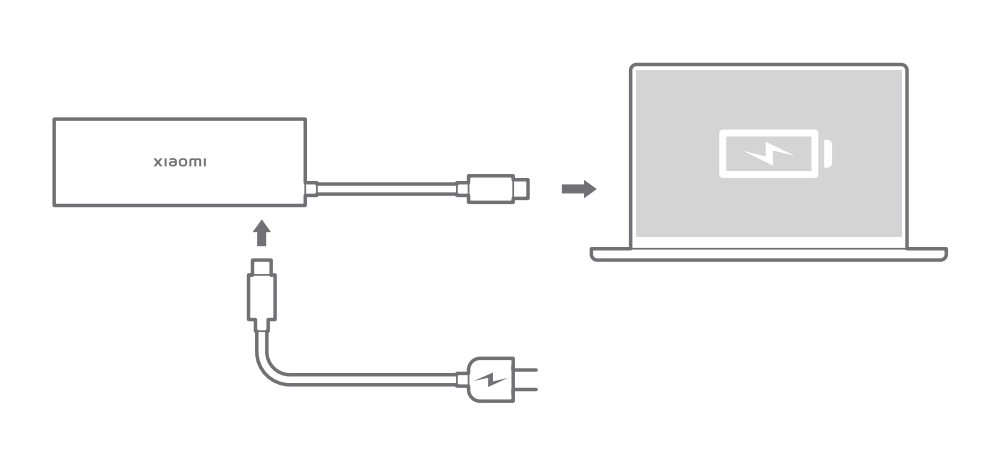
A: 1. Supply power to the laptop via the hub’s Type-C port;
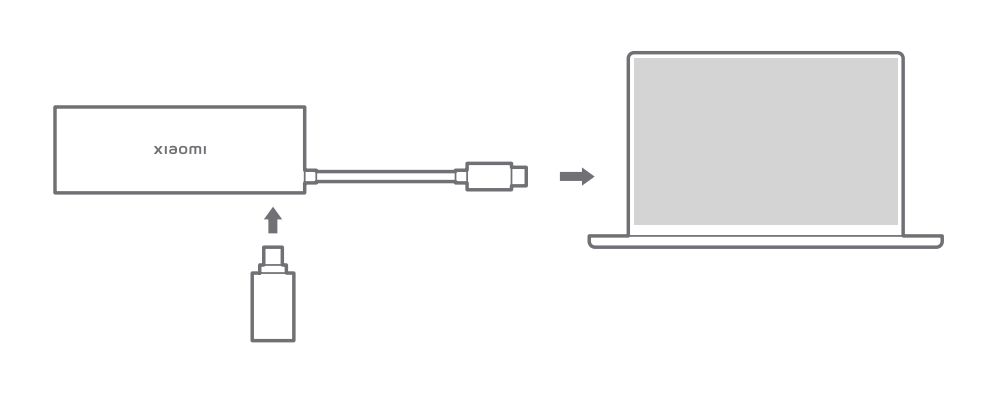
2. Connect an external Type-C device;
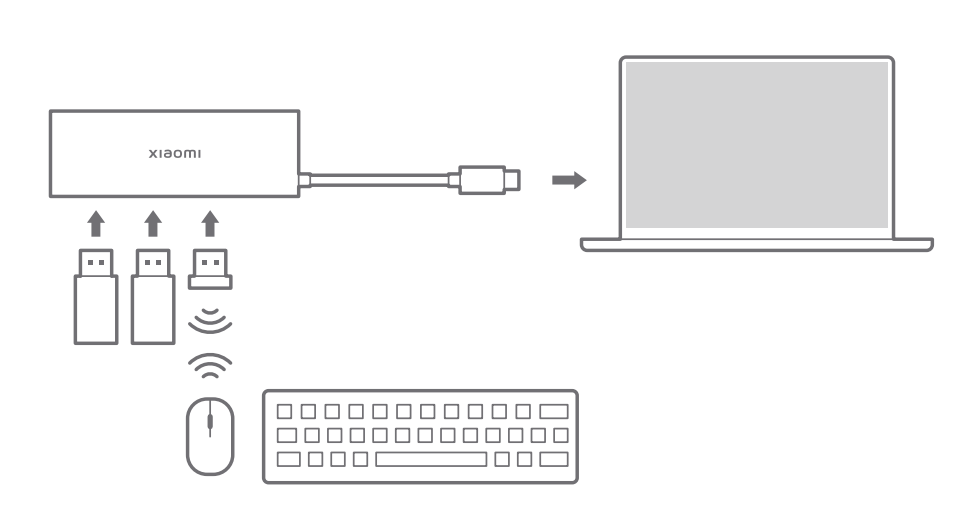
3. Connect external USB-A devices;
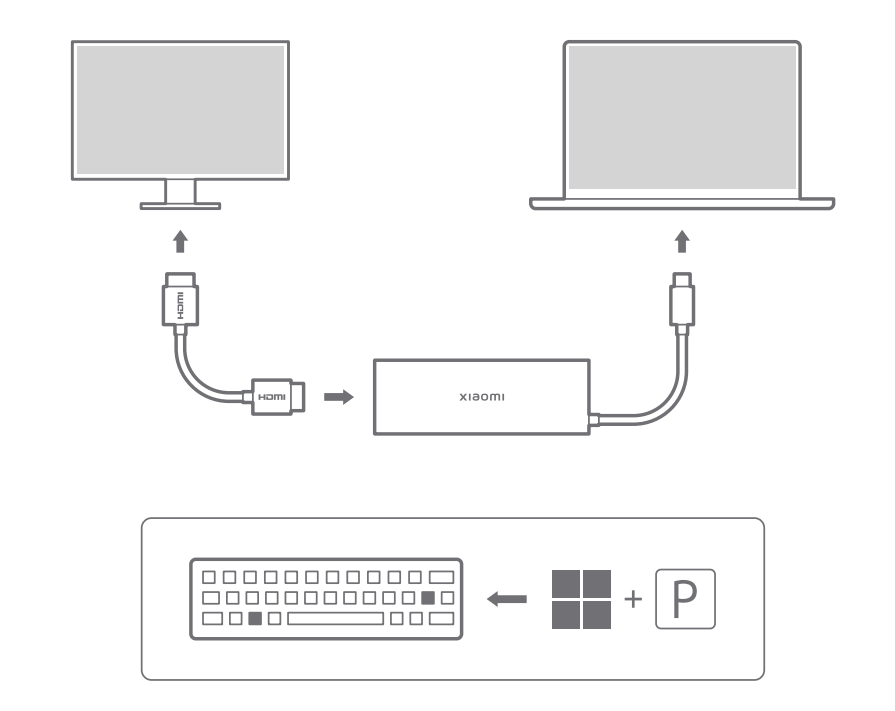
4. Connect an external HDMI device.
Functions
1. Q: What to do if the Xiaomi 5-in-1 Type-C Hub cannot charge the laptop by connecting to a power adapter?
A: 1. Check whether it is a Xiaomi Book or a MacBook. Some other brands’ laptops or laptop models are not supported yet;
2. Check if the power adapter of the laptop is original. If not, it could potentially harm your laptop, so it's not recommended to use it;
3. If it's an original power adapter of the laptop, check if it can charge the laptop without the hub;
4. Ensure that the connections between the power adapter and the laptop, and between the power adapter and the hub, are secure.
2. Q: What to do if the Xiaomi 5-in-1 Type-C Hub cannot charge the smartphone/tablet by connecting to a power adapter?
A: 1. Make sure your host device has a full-function Type-C port to support the full capabilities of the hub. Non-full-function Type-C ports only support partial features;
2. Check if the power adapter of your smartphone/tablet is original. If not, it could potentially harm your device, so it's not recommended to use it;
3. If it’s an original power adapter, check if it can charge the device without the hub;
4. Ensure that the connections between the power adapter and the device, and between the power adapter and the hub, are secure;
5. Mobile phones and tablets use different charging protocols from laptops. Confirm whether your device supports PD (Power Delivery) charging protocol by consulting the service center of your smartphone/tablet.
Note:
Charging Xiaomi smartphones/tablets through the hub can be slower than charging directly through their adapter due to different charging mechanisms, which is normal. It’s recommended to connect the power adapter directly to the device for faster charging.
3. Q: What to do if the Xiaomi 5-in-1 Type-C Hub’s USB-C port does not recognize USB-C drives or external hard drives when connecting to laptops?
A: 1. Ensure your device has a full-function Type-C port to support the hub’s full features. Non-full-function Type-C ports support only limited features;
2. Insert the USB-C drive directly into the laptop to verify if it can be read without the hub;
3. Check if the connections between the hub and the laptop, and between the USB-C drive and the hub, are secure;
4. If the external device’s required current is higher than the hub or the laptop’s Type-C port maximum output, it will not work properly.
4. Q: Why is data transfer slow when using the Xiaomi 5-in-1 Type-C Hub?
A: The Xiaomi 5-in-1 Type-C Hub adheres to USB Association standards, with USB 3.0 theoretical speeds of 5Gbps and transfer rates up to 450MB/s. Please ensure your devices and cables support USB 3.0 or higher standards.
5. Q: What to do if the Xiaomi 5-in-1 Type-C Hub’s USB-A port does not recognize USB-A drives or external hard drives?
A: 1. Please ensure your device has a full-function Type-C port to support the hub’s full features. Non-full-function Type-C ports support only limited features;
2. Insert the USB-A drive directly into the laptop to verify if it can be read without the hub;
3. Check if the connections between the hub and the laptop, and between the USB-A drive and the hub, are secure.
6. Q: What to do if the Xiaomi 5-in-1 Type-C Hub’s USB-A port cannot recognize a USB-A optical drive?
A: Due to rated power, the hub doesn’t support devices that exceed the power output of the laptop’s USB-C port. It’s recommended to connect the USB-A optical drive directly to the laptop’s USB-A port. If the external device’s required current is higher than the hub or the laptop’s Type-C port maximum output, it will not work properly. It’s recommended to connect the power adapter to the hub’s Type-C port to increase output power for stable operation.
7. Q: What to do if the HDMI device has no display by connecting to the Xiaomi 5-in-1 Type-C Hub?
A: 1. Ensure your device has a full-function Type-C port to support the hub’s full features. Non-full-function Type-C ports support only limited features;
2. Connect the monitor directly to the laptop through the HDMI port to check if the second screen displays properly;
3. Ensure that the connections between the hub and the laptop, and between the monitor and the hub via HDMI, are secure.
8. Q: What to do if the HDMI port on the Xiaomi 5-in-1 Type-C Hub cannot set the monitor to 4K (3840×2160) @60Hz or lower resolutions?
A: 1. Ensure your device has a full-function Type-C port to support the hub’s full features. Non-full-function Type-C ports support only limited features;
2. Ensure that the connections between the hub and the laptop, and between the monitor and the hub via HDMI, are secure;
3. Use an HDMI 2.0 or higher cable, and ensure the laptop’s Type-C port supports DP 1.4 or higher video output protocol. The monitor must support 4K@60Hz input for the HDMI port to support 4K@60Hz output.
Note:
Some devices do not support 4K (3840×2160) @60Hz due to lower configurations, which is not a hub issue.
9. Q: What to do if videos played on the second screen connected via HDMI on the Xiaomi 5-in-1 Type-C Hub are not smooth?
A: 1. Ensure your device has a full-function Type-C port to support the hub’s full features. Non-full-function Type-C ports support only limited features;
2. Connect the monitor directly to the laptop using HDMI to check if the second screen displays properly;
3. Ensure that the connections between the hub and the laptop, and between the monitor and the hub via HDMI, are secure. You can also plug and re-plug several times and wait for the signal adaptation.
10. Q: What to do if there is a snowy picture on the monitor connected via HDMI on the Xiaomi 5-in-1 Type-C Hub?
A: 1. Ensure your device has a full-function Type-C port to support the hub’s full features. Non-full-function Type-C ports support only limited features;
2. Connect the monitor directly to the laptop using HDMI to check if the monitor displays properly;
3. Ensure that the connections between the hub and the laptop, and between the monitor and the hub via HDMI, are secure. You can also plug and re-plug several times and wait for the signal adaptation.
11. Q: What to do if the screen jitters when connected via HDMI on the Xiaomi 5-in-1 Type-C Hub?
A: 1. Ensure your device has a full-function Type-C port to support the hub’s full features. Non-full-function Type-C ports support only limited features;
2. Connect the monitor directly to the laptop using HDMI to check if the monitor displays properly;
3. Ensure that the connections between the hub and the laptop, and between the monitor and the hub via HDMI, are secure. You can also plug and re-plug several times and wait for the signal adaptation.
12. Q: What to do if there is no sound on the second screen connected via HDMI on the Xiaomi 5-in-1 Type-C Hub?
A: 1. Ensure your device has a full-function Type-C port to support the hub’s full features. Non-full-function Type-C ports support only limited features;
2. Connect the monitor directly to the laptop using HDMI to check if the monitor displays properly;
3. Ensure that the connections between the hub and the laptop, and between the monitor and the hub via HDMI, are secure. You can also plug and re-plug several times and wait for the signal adaptation.
Note:
The connected monitor must support audio output. Ensure the system’s sound settings are switched to the appropriate device for sound output.
13. Q: Where is the SN location on the Xiaomi 5-in-1 Type-C Hub?
A: The SN (Serial Number) is laser-etched on the surface of the hub and can be obtained by scanning the QR code.
14. Q: What to do if the Xiaomi 5-in-1 Type-C Hub heats up?
A: Some heat generation is normal. When the hub is powered on, the motherboard operates and causes electronic components to emit heat. The amount of heat generated can vary depending on the duration of power and usage, as well as environmental temperature. Metal components have good thermal conductivity and heat dissipation properties, so it's normal for the hub to become warm during use. This is not a quality issue.
15. Q: What to do if the 2.4G wireless mouse lags when connected to the Xiaomi 5-in-1 Type-C Hub?
A: Different wireless mice have varying performance levels, and interference in the environment can occasionally cause lag. To improve the issue, it is recommended to plug the mouse’s wireless receiver into the hub’s outermost USB-A port or directly into the laptop’s USB-A port.
16. Q: Which Apple devices support Type-C data output and 4K@60Hz resolution when using the Xiaomi 5-in-1 Type-C Hub?
A: Devices that support 4K@60Hz resolution output:
iPad Pro 11-inch, iPad Pro 12.9-inch (3rd generation and later), MacBook Pro (16-inch, 2019 model), MacBook Pro (15-inch, 2017 model and later), MacBook Pro (13-inch, four Thunderbolt 3 ports, 2020 model), MacBook Air (2020 model), iMac (5K Retina display, 27-inch, 2017 model and later), iMac (4K Retina display, 21.5-inch, 2017 model and later), iMac Pro (2017 model and later).
Devices that support 1080p/60Hz or UHD (3840×2160)/30Hz:
iPad Air (4th generation), MacBook Air (2018 model and later), MacBook Pro (13-inch, 2016 model and later), MacBook Pro (15-inch, 2016 model), iMac (non-Retina display, 21.5-inch, 2017 model), Mac mini (2018 model).
Note:
The listed device models are for reference only. Actual interface specifications should be confirmed based on your purchased devices.
1. Q: What are the functions of the Xiaomi 5-in-1 Type-C Hub?
A: By connecting the hub to host devices such as laptops, smartphones, and tablets with a full-featured Type-C port, the hub expands the original Type-C port to offer multiple functionalities, such as charging, connecting USB-A devices, and HDMI displays.
2. Q: What are the connection methods for the Xiaomi 5-in-1 Type-C Hub?
A: 1. Supply power to the laptop via the hub’s Type-C port;
2. Connect an external Type-C device;
3. Connect external USB-A devices;
4. Connect an external HDMI device.
Functions
1. Q: What to do if the Xiaomi 5-in-1 Type-C Hub cannot charge the laptop by connecting to a power adapter?
A: 1. Check whether it is a Xiaomi Book or a MacBook. Some other brands’ laptops or laptop models are not supported yet;
2. Check if the power adapter of the laptop is original. If not, it could potentially harm your laptop, so it's not recommended to use it;
3. If it's an original power adapter of the laptop, check if it can charge the laptop without the hub;
4. Ensure that the connections between the power adapter and the laptop, and between the power adapter and the hub, are secure.
2. Q: What to do if the Xiaomi 5-in-1 Type-C Hub cannot charge the smartphone/tablet by connecting to a power adapter?
A: 1. Make sure your host device has a full-function Type-C port to support the full capabilities of the hub. Non-full-function Type-C ports only support partial features;
2. Check if the power adapter of your smartphone/tablet is original. If not, it could potentially harm your device, so it's not recommended to use it;
3. If it’s an original power adapter, check if it can charge the device without the hub;
4. Ensure that the connections between the power adapter and the device, and between the power adapter and the hub, are secure;
5. Mobile phones and tablets use different charging protocols from laptops. Confirm whether your device supports PD (Power Delivery) charging protocol by consulting the service center of your smartphone/tablet.
Note:
Charging Xiaomi smartphones/tablets through the hub can be slower than charging directly through their adapter due to different charging mechanisms, which is normal. It’s recommended to connect the power adapter directly to the device for faster charging.
3. Q: What to do if the Xiaomi 5-in-1 Type-C Hub’s USB-C port does not recognize USB-C drives or external hard drives when connecting to laptops?
A: 1. Ensure your device has a full-function Type-C port to support the hub’s full features. Non-full-function Type-C ports support only limited features;
2. Insert the USB-C drive directly into the laptop to verify if it can be read without the hub;
3. Check if the connections between the hub and the laptop, and between the USB-C drive and the hub, are secure;
4. If the external device’s required current is higher than the hub or the laptop’s Type-C port maximum output, it will not work properly.
4. Q: Why is data transfer slow when using the Xiaomi 5-in-1 Type-C Hub?
A: The Xiaomi 5-in-1 Type-C Hub adheres to USB Association standards, with USB 3.0 theoretical speeds of 5Gbps and transfer rates up to 450MB/s. Please ensure your devices and cables support USB 3.0 or higher standards.
5. Q: What to do if the Xiaomi 5-in-1 Type-C Hub’s USB-A port does not recognize USB-A drives or external hard drives?
A: 1. Please ensure your device has a full-function Type-C port to support the hub’s full features. Non-full-function Type-C ports support only limited features;
2. Insert the USB-A drive directly into the laptop to verify if it can be read without the hub;
3. Check if the connections between the hub and the laptop, and between the USB-A drive and the hub, are secure.
6. Q: What to do if the Xiaomi 5-in-1 Type-C Hub’s USB-A port cannot recognize a USB-A optical drive?
A: Due to rated power, the hub doesn’t support devices that exceed the power output of the laptop’s USB-C port. It’s recommended to connect the USB-A optical drive directly to the laptop’s USB-A port. If the external device’s required current is higher than the hub or the laptop’s Type-C port maximum output, it will not work properly. It’s recommended to connect the power adapter to the hub’s Type-C port to increase output power for stable operation.
7. Q: What to do if the HDMI device has no display by connecting to the Xiaomi 5-in-1 Type-C Hub?
A: 1. Ensure your device has a full-function Type-C port to support the hub’s full features. Non-full-function Type-C ports support only limited features;
2. Connect the monitor directly to the laptop through the HDMI port to check if the second screen displays properly;
3. Ensure that the connections between the hub and the laptop, and between the monitor and the hub via HDMI, are secure.
8. Q: What to do if the HDMI port on the Xiaomi 5-in-1 Type-C Hub cannot set the monitor to 4K (3840×2160) @60Hz or lower resolutions?
A: 1. Ensure your device has a full-function Type-C port to support the hub’s full features. Non-full-function Type-C ports support only limited features;
2. Ensure that the connections between the hub and the laptop, and between the monitor and the hub via HDMI, are secure;
3. Use an HDMI 2.0 or higher cable, and ensure the laptop’s Type-C port supports DP 1.4 or higher video output protocol. The monitor must support 4K@60Hz input for the HDMI port to support 4K@60Hz output.
Note:
Some devices do not support 4K (3840×2160) @60Hz due to lower configurations, which is not a hub issue.
9. Q: What to do if videos played on the second screen connected via HDMI on the Xiaomi 5-in-1 Type-C Hub are not smooth?
A: 1. Ensure your device has a full-function Type-C port to support the hub’s full features. Non-full-function Type-C ports support only limited features;
2. Connect the monitor directly to the laptop using HDMI to check if the second screen displays properly;
3. Ensure that the connections between the hub and the laptop, and between the monitor and the hub via HDMI, are secure. You can also plug and re-plug several times and wait for the signal adaptation.
10. Q: What to do if there is a snowy picture on the monitor connected via HDMI on the Xiaomi 5-in-1 Type-C Hub?
A: 1. Ensure your device has a full-function Type-C port to support the hub’s full features. Non-full-function Type-C ports support only limited features;
2. Connect the monitor directly to the laptop using HDMI to check if the monitor displays properly;
3. Ensure that the connections between the hub and the laptop, and between the monitor and the hub via HDMI, are secure. You can also plug and re-plug several times and wait for the signal adaptation.
11. Q: What to do if the screen jitters when connected via HDMI on the Xiaomi 5-in-1 Type-C Hub?
A: 1. Ensure your device has a full-function Type-C port to support the hub’s full features. Non-full-function Type-C ports support only limited features;
2. Connect the monitor directly to the laptop using HDMI to check if the monitor displays properly;
3. Ensure that the connections between the hub and the laptop, and between the monitor and the hub via HDMI, are secure. You can also plug and re-plug several times and wait for the signal adaptation.
12. Q: What to do if there is no sound on the second screen connected via HDMI on the Xiaomi 5-in-1 Type-C Hub?
A: 1. Ensure your device has a full-function Type-C port to support the hub’s full features. Non-full-function Type-C ports support only limited features;
2. Connect the monitor directly to the laptop using HDMI to check if the monitor displays properly;
3. Ensure that the connections between the hub and the laptop, and between the monitor and the hub via HDMI, are secure. You can also plug and re-plug several times and wait for the signal adaptation.
Note:
The connected monitor must support audio output. Ensure the system’s sound settings are switched to the appropriate device for sound output.
13. Q: Where is the SN location on the Xiaomi 5-in-1 Type-C Hub?
A: The SN (Serial Number) is laser-etched on the surface of the hub and can be obtained by scanning the QR code.
14. Q: What to do if the Xiaomi 5-in-1 Type-C Hub heats up?
A: Some heat generation is normal. When the hub is powered on, the motherboard operates and causes electronic components to emit heat. The amount of heat generated can vary depending on the duration of power and usage, as well as environmental temperature. Metal components have good thermal conductivity and heat dissipation properties, so it's normal for the hub to become warm during use. This is not a quality issue.
15. Q: What to do if the 2.4G wireless mouse lags when connected to the Xiaomi 5-in-1 Type-C Hub?
A: Different wireless mice have varying performance levels, and interference in the environment can occasionally cause lag. To improve the issue, it is recommended to plug the mouse’s wireless receiver into the hub’s outermost USB-A port or directly into the laptop’s USB-A port.
16. Q: Which Apple devices support Type-C data output and 4K@60Hz resolution when using the Xiaomi 5-in-1 Type-C Hub?
A: Devices that support 4K@60Hz resolution output:
iPad Pro 11-inch, iPad Pro 12.9-inch (3rd generation and later), MacBook Pro (16-inch, 2019 model), MacBook Pro (15-inch, 2017 model and later), MacBook Pro (13-inch, four Thunderbolt 3 ports, 2020 model), MacBook Air (2020 model), iMac (5K Retina display, 27-inch, 2017 model and later), iMac (4K Retina display, 21.5-inch, 2017 model and later), iMac Pro (2017 model and later).
Devices that support 1080p/60Hz or UHD (3840×2160)/30Hz:
iPad Air (4th generation), MacBook Air (2018 model and later), MacBook Pro (13-inch, 2016 model and later), MacBook Pro (15-inch, 2016 model), iMac (non-Retina display, 21.5-inch, 2017 model), Mac mini (2018 model).
Note:
The listed device models are for reference only. Actual interface specifications should be confirmed based on your purchased devices.
Does it help?
Yes
No