

How to adjust the Detection settings on the Xiaomi Outdoor Camera BW500?
The Xiaomi Outdoor Camera BW500 can adjust Scheduled detection, Detection sensitivity settings, and Detection interval of Motion detection after binding the Mi Home APP.
To adjust the Detection settings, please refer to the following steps:
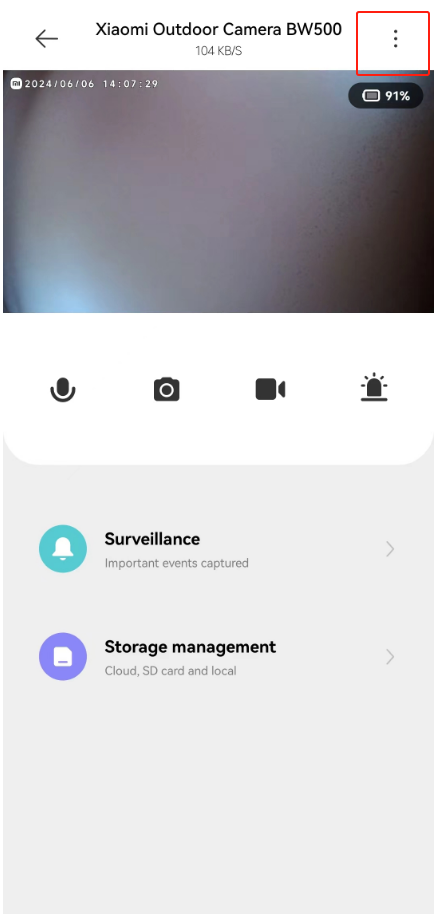
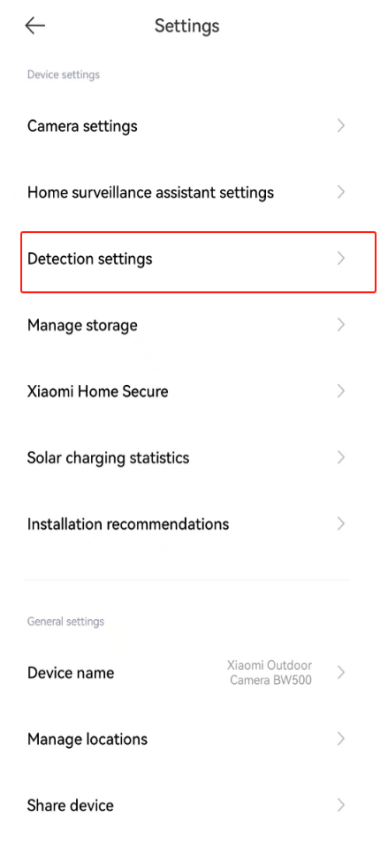
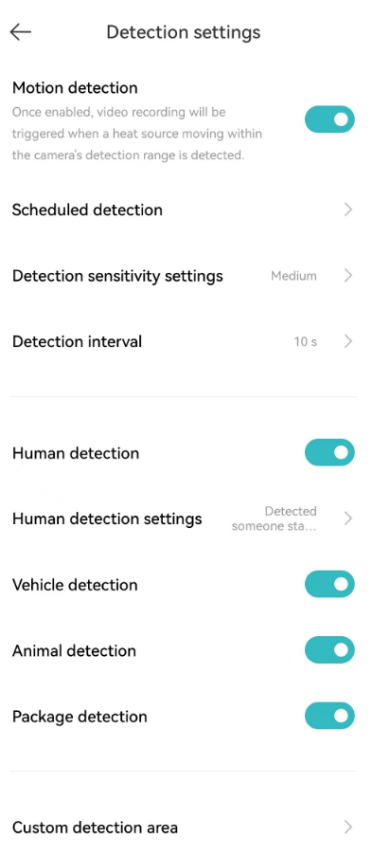
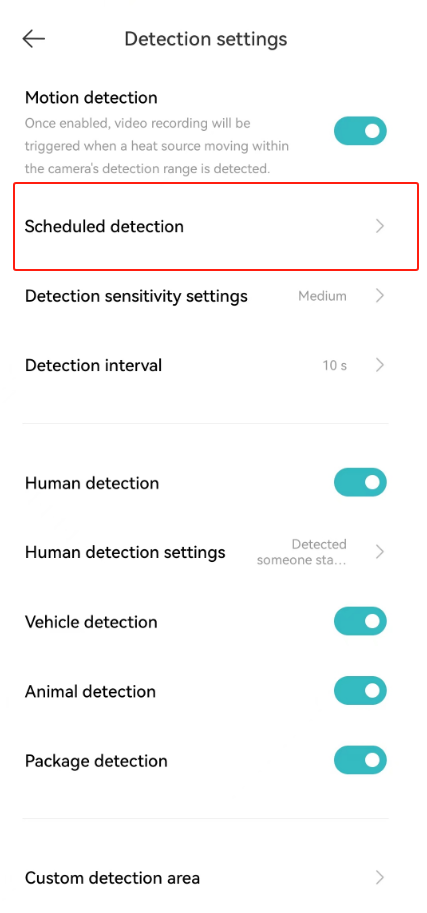
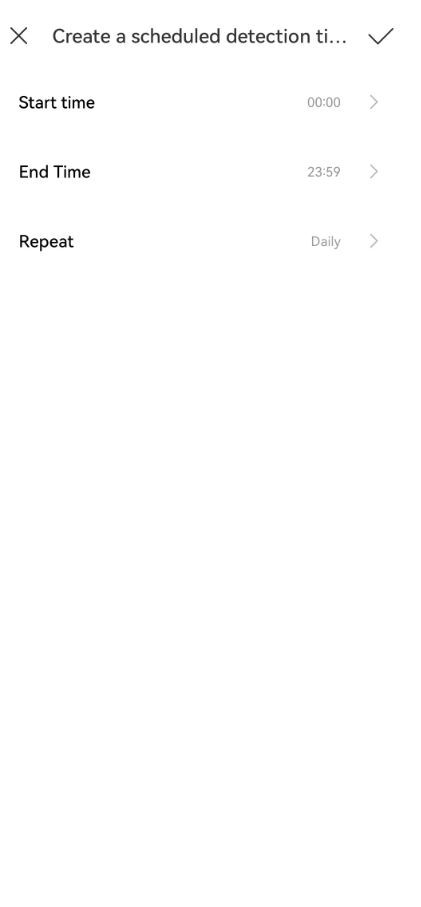
1. The scheduled detection feature allows you to set specific times during which the camera will actively monitor and detect motion. This can be useful for reducing unnecessary alerts and recordings during times when you know the area will be busy or when monitoring is not required. You can go to the [Mi Home] APP >> select [Device Card] >> tap the three-dot icon at the upper right corner >> [Detection settings] >> turn on [Motion detection] >> [Scheduled detection] >> you can create a scheduled detection time;
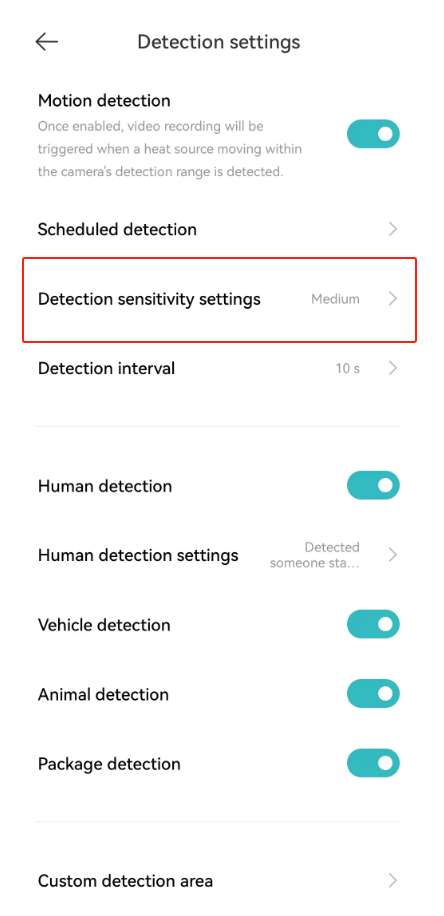
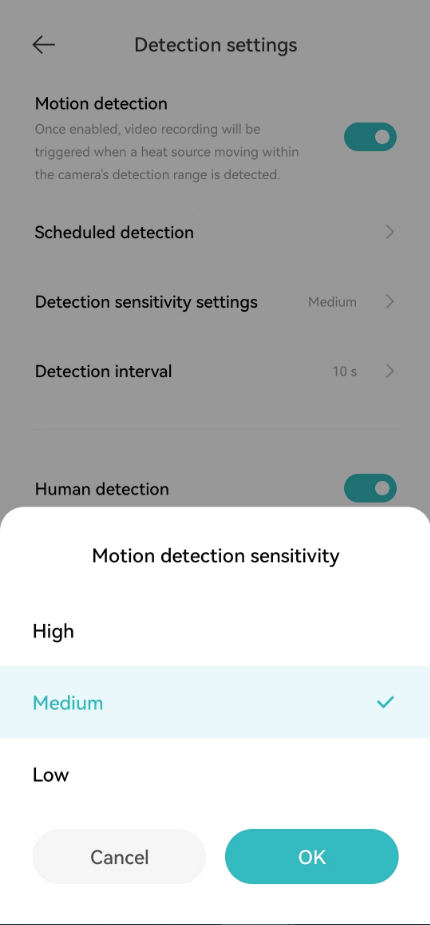
2. To adjust the Detection sensitivity settings on the camera, please go to the [Mi Home] APP >> select [Device Card] >> tap the three-dot icon at the upper right corner >> [Detection settings] >> turn on [Motion detection] >> [Detection sensitivity settings] >> you can select [High], [Medium], or [Low] >> tap [OK] to complete the settings;
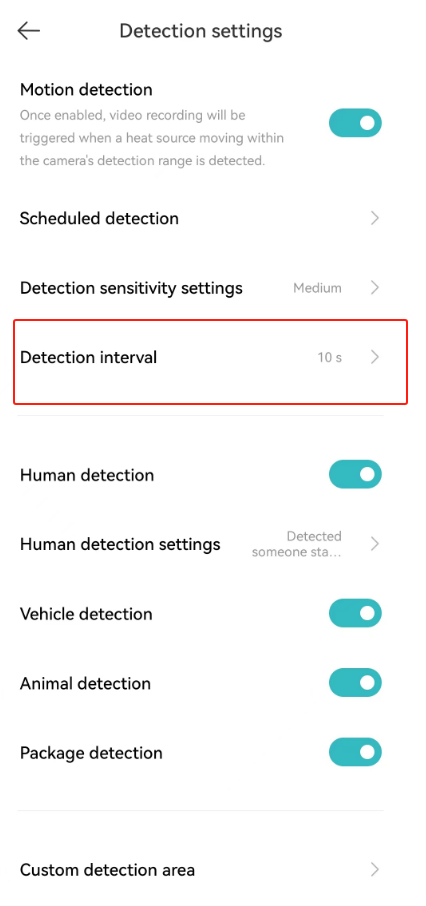
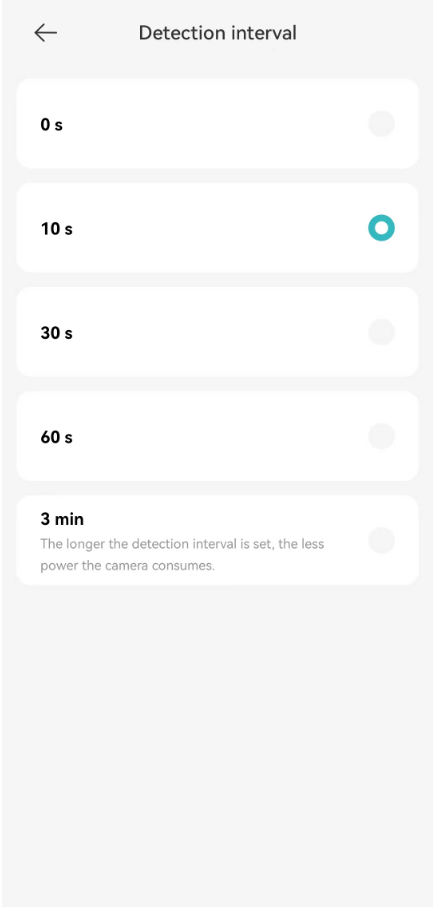
3. To set the Detection interval on the camera, please go to the [Mi Home] APP >> select [Device Card] >> tap the three-dot icon at the upper right corner >> [Detection settings] >> turn on [Motion detection] >> [Detection interval] >> select among [0 s], [10 s], [30 s], [60 s] and [3 min] according to your needs.
Note:
The longer the detection interval is set, the less power the camera consumes.
To adjust the Detection settings, please refer to the following steps:
1. The scheduled detection feature allows you to set specific times during which the camera will actively monitor and detect motion. This can be useful for reducing unnecessary alerts and recordings during times when you know the area will be busy or when monitoring is not required. You can go to the [Mi Home] APP >> select [Device Card] >> tap the three-dot icon at the upper right corner >> [Detection settings] >> turn on [Motion detection] >> [Scheduled detection] >> you can create a scheduled detection time;
2. To adjust the Detection sensitivity settings on the camera, please go to the [Mi Home] APP >> select [Device Card] >> tap the three-dot icon at the upper right corner >> [Detection settings] >> turn on [Motion detection] >> [Detection sensitivity settings] >> you can select [High], [Medium], or [Low] >> tap [OK] to complete the settings;
3. To set the Detection interval on the camera, please go to the [Mi Home] APP >> select [Device Card] >> tap the three-dot icon at the upper right corner >> [Detection settings] >> turn on [Motion detection] >> [Detection interval] >> select among [0 s], [10 s], [30 s], [60 s] and [3 min] according to your needs.
Note:
The longer the detection interval is set, the less power the camera consumes.
Does it help?
Yes
No