

In the Google Calendar app, you can change the way how events and tasks show on the initial interface of the Google Calendar app. Thus, you can efficiently manage your events and tasks in a way that is suitable for your work or study habits.
To schedule the initial interface of Google Calendar with Xiaomi HyperOS, please refer to the following steps:
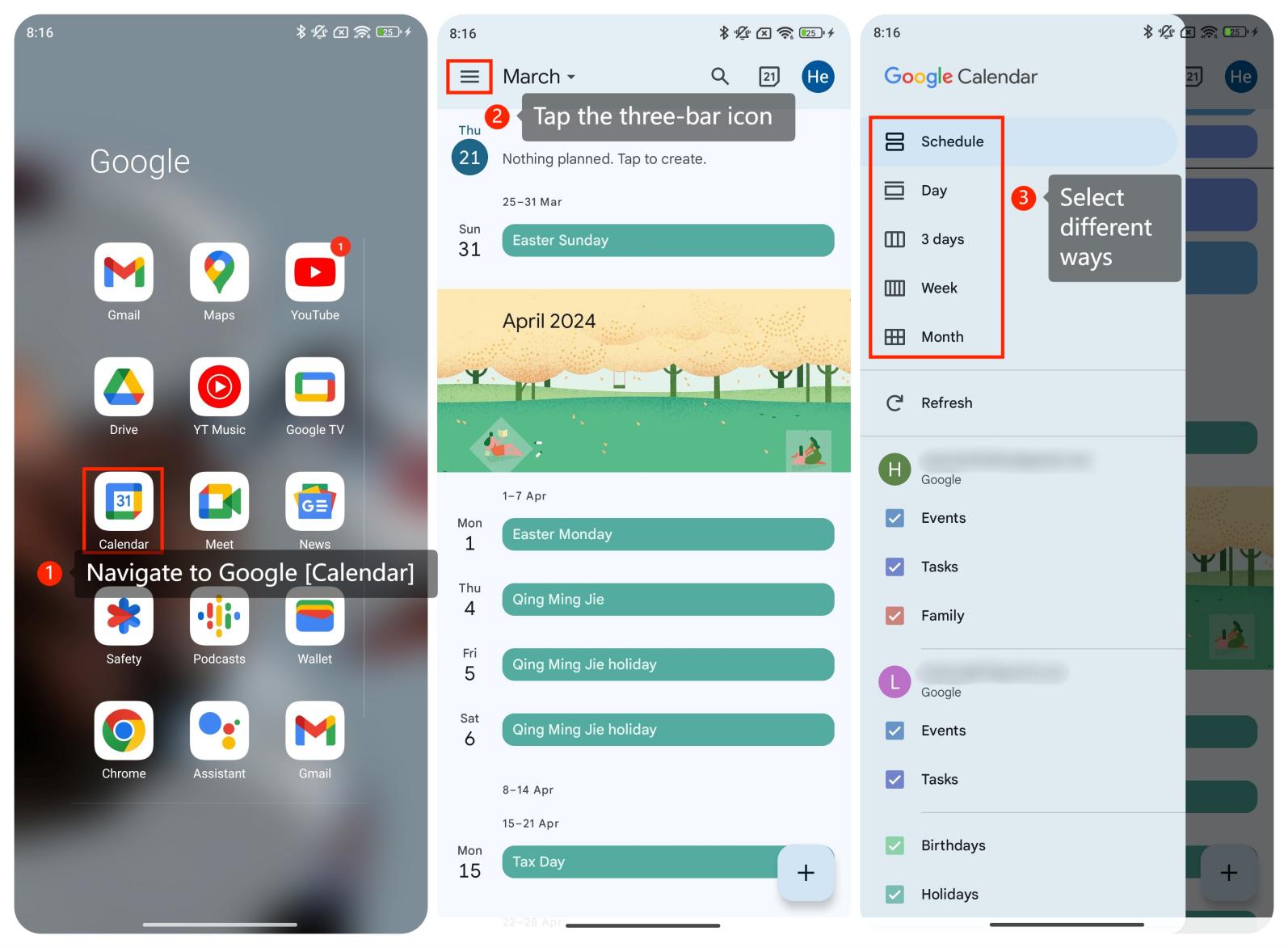
1. Navigate to the Google [Calendar] app on your phone and tap to open it;
2. Tap the three-bar icon at the upper left corner;
3. From there, you can select different ways of showing your events and tasks whether in schedule, day, three days, week, or month.
Friendly tips:
Choose the calendar view that best suits your preferences and workflow. Week view provides a detailed overview of your schedule for the upcoming week, while month view offers a broader perspective of your commitments for the entire month.
To schedule the initial interface of Google Calendar with Xiaomi HyperOS, please refer to the following steps:
1. Navigate to the Google [Calendar] app on your phone and tap to open it;
2. Tap the three-bar icon at the upper left corner;
3. From there, you can select different ways of showing your events and tasks whether in schedule, day, three days, week, or month.
Friendly tips:
Choose the calendar view that best suits your preferences and workflow. Week view provides a detailed overview of your schedule for the upcoming week, while month view offers a broader perspective of your commitments for the entire month.