
How to play back the videos on the memory card of the Xiaomi Smart Camera C301?
To play back the videos on the memory card of the camera, please refer to the following steps:
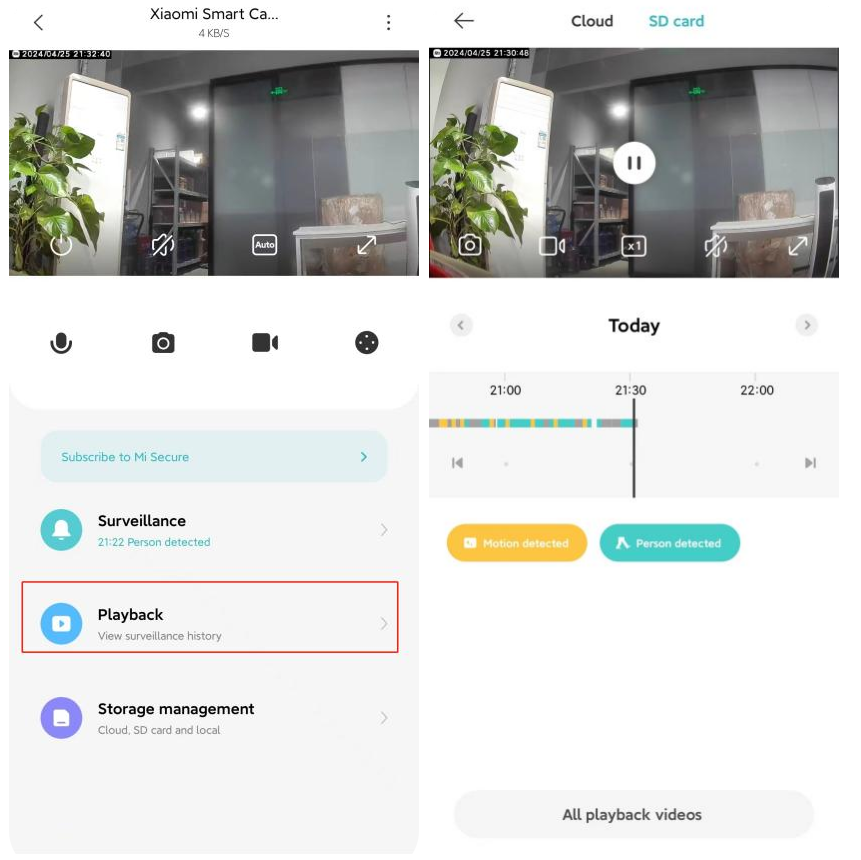
1. Open the Mi Home/Xiaomi Home APP;
2. Tap on [Device Card];
3. Tap [Playback];
4. Select [SD card];
5. Then you can view the video as needed.
Note:
1. When the camera is disconnected or powered off, you cannot view the videos in the memory card in the Mi Home/Xiaomi Home APP. You can also take out the memory card and view the videos in the memory card in the computer through the card reader;
2. Each video in the memory card is 1 minute, which can be selected and deleted in batches.
For your reference, here are the explanations about the playback interface below:
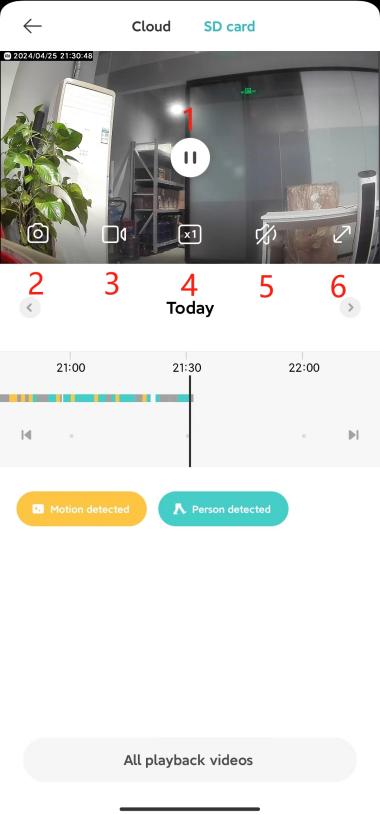
1. Different colors below represent different recording events, so you can drag the timeline directly to the color position according to your needs. Gray indicates that no event has occurred during this period;
2. You can tap the Play/Pause icon to stop or continue to play the videos on the memory card. The icon will appear only when you tap the screen;
3. You can tap the Screenshot icon to take a screenshot of the current monitoring screen, and a picture will be generated and saved to the local photo album and the Mi Home/Xiaomi Home APP;
4. Tap the Screen recording icon to record the current monitoring interface and save the video to the local photo album and the Mi Home/Xiaomi Home APP;
5. The videos in the memory card support 1 time, 4 times and 16 times speed playback in the camera. You can tap the Playback speed icon to select the default silent play at double speed;
6. When entering the camera, the video sound is turned off by default and is in the mute state. Tap the Mute icon to turn on the video sound;
7. Tap the Full-screen icon, and the camera monitoring screen will enter the landscape screen.
1. Open the Mi Home/Xiaomi Home APP;
2. Tap on [Device Card];
3. Tap [Playback];
4. Select [SD card];
5. Then you can view the video as needed.
Note:
1. When the camera is disconnected or powered off, you cannot view the videos in the memory card in the Mi Home/Xiaomi Home APP. You can also take out the memory card and view the videos in the memory card in the computer through the card reader;
2. Each video in the memory card is 1 minute, which can be selected and deleted in batches.
For your reference, here are the explanations about the playback interface below:
1. Different colors below represent different recording events, so you can drag the timeline directly to the color position according to your needs. Gray indicates that no event has occurred during this period;
2. You can tap the Play/Pause icon to stop or continue to play the videos on the memory card. The icon will appear only when you tap the screen;
3. You can tap the Screenshot icon to take a screenshot of the current monitoring screen, and a picture will be generated and saved to the local photo album and the Mi Home/Xiaomi Home APP;
4. Tap the Screen recording icon to record the current monitoring interface and save the video to the local photo album and the Mi Home/Xiaomi Home APP;
5. The videos in the memory card support 1 time, 4 times and 16 times speed playback in the camera. You can tap the Playback speed icon to select the default silent play at double speed;
6. When entering the camera, the video sound is turned off by default and is in the mute state. Tap the Mute icon to turn on the video sound;
7. Tap the Full-screen icon, and the camera monitoring screen will enter the landscape screen.
Does it help?
Yes
No