
How to manage the storage of the Xiaomi Outdoor Camera BW500?
To manage the storage of the Xiaomi Outdoor Camera BW500, please refer to the following steps:
1. Go to the [Mi Home] APP >> select [Device Card] >> tap the three-dot icon at the upper right corner >> [Storage management] >> you can set the video storage in cloud storage or local storage;
2. When you download videos or pictures to the phone locally, you can view the screenshots saved in the Mi Home APP as well as the recorded videos;
3. Go to the [Mi Home] APP >> select [Device Card] >> tap the three-dot icon at the upper right corner >> [Storage management] >> [Cloud] >> tap [Subscribe now], and you can manage cloud-stored videos;
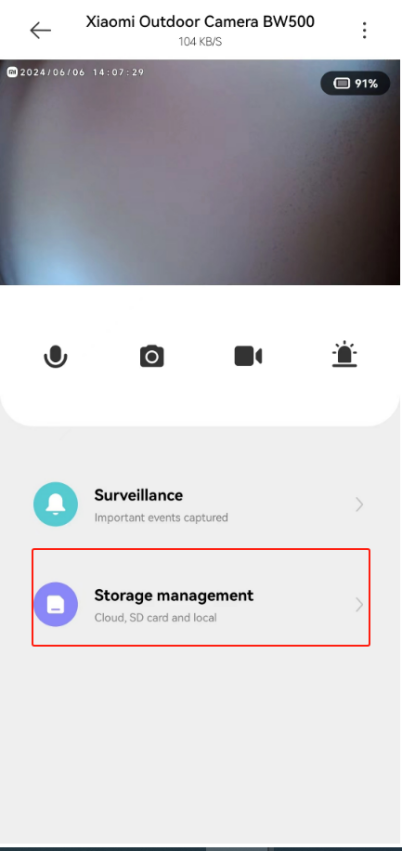

4. When the camera uses built-in eMMC storage, you can view and manage videos on the storage management interface;
5. When the camera uses the SD card of the base station for storage, you can go to the associated base station page to view and manage the storage content.
Note:
The Camera does not support the NAS (Network Attached Storage) transfer function.
1. Go to the [Mi Home] APP >> select [Device Card] >> tap the three-dot icon at the upper right corner >> [Storage management] >> you can set the video storage in cloud storage or local storage;
2. When you download videos or pictures to the phone locally, you can view the screenshots saved in the Mi Home APP as well as the recorded videos;
3. Go to the [Mi Home] APP >> select [Device Card] >> tap the three-dot icon at the upper right corner >> [Storage management] >> [Cloud] >> tap [Subscribe now], and you can manage cloud-stored videos;
4. When the camera uses built-in eMMC storage, you can view and manage videos on the storage management interface;
5. When the camera uses the SD card of the base station for storage, you can go to the associated base station page to view and manage the storage content.
Note:
The Camera does not support the NAS (Network Attached Storage) transfer function.
Does it help?
Yes
No