
System navigation typically refers to the process of moving through or interacting with a smartphone system or software interface. It involves using various menus, buttons, commands, or gestures to access different features, functions, or content within the system.
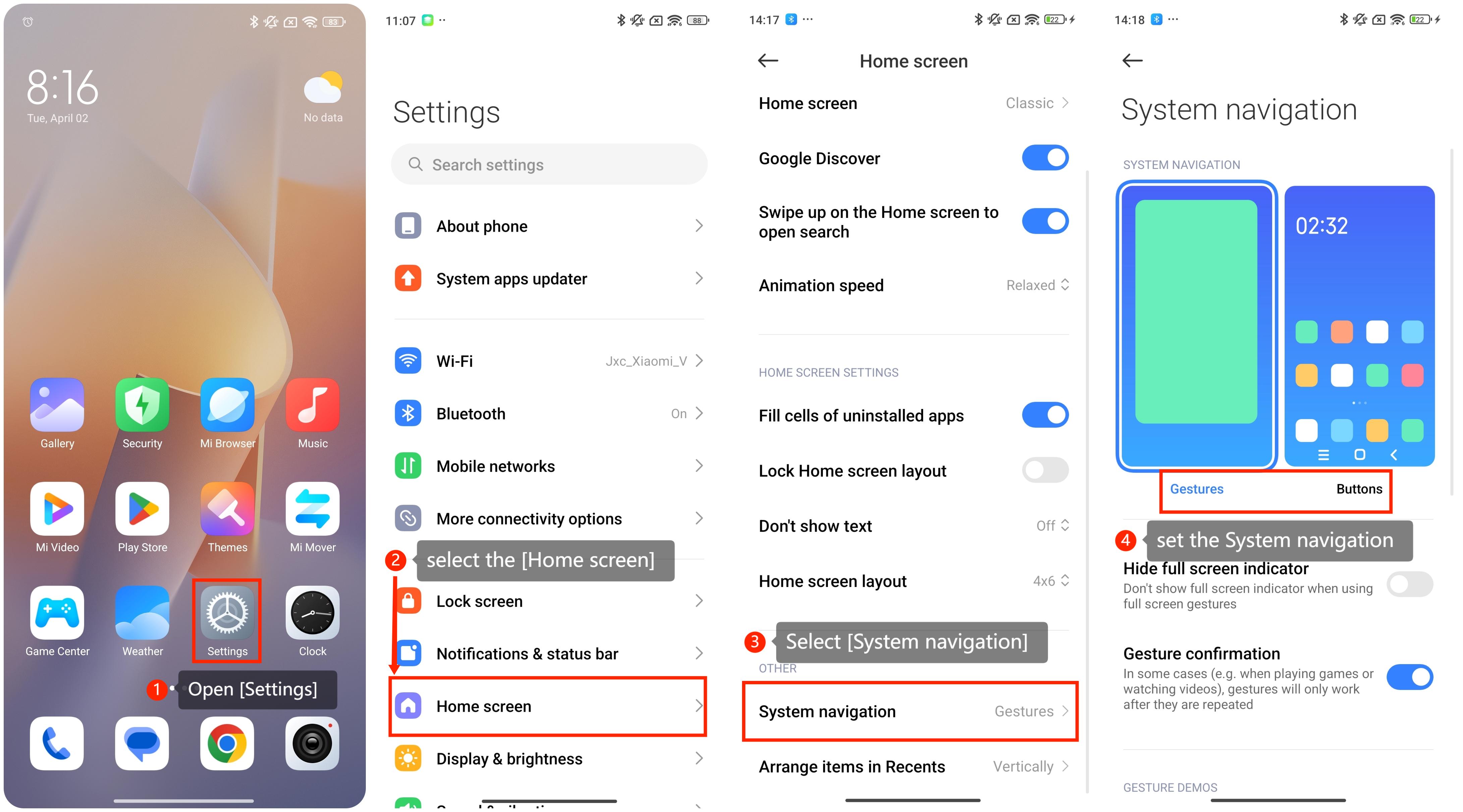
To set the System navigation on the Redmi Note 12 5G with Xiaomi HyperOS, please refer to the following steps:
1. Navigate to [Settings] on your home screen;
2. Look for and select the [Home screen] option;
3. Then you can find an option called [System navigation];
4. Go to the [System navigation] option, then you can set the System navigation as you prefer.
To set the System navigation on the Redmi Note 12 5G with Xiaomi HyperOS, please refer to the following steps:
1. Navigate to [Settings] on your home screen;
2. Look for and select the [Home screen] option;
3. Then you can find an option called [System navigation];
4. Go to the [System navigation] option, then you can set the System navigation as you prefer.
Friendly tips:
There are some methods to navigate the system with gestures:
1. Swipe up from the bottom of the screen to go back to the desktop;
2. Swipe up from the bottom of the screen and pause to switch to recent tasks;
3. Swipe in from the left or right side of the screen to go back to the previous state;
4. Swipe inward from the upper left and right edges to trigger app functions;
5. Swipe left or right from the prompt line or the bottom to switch apps.
There are some methods to navigate the system with gestures:
1. Swipe up from the bottom of the screen to go back to the desktop;
2. Swipe up from the bottom of the screen and pause to switch to recent tasks;
3. Swipe in from the left or right side of the screen to go back to the previous state;
4. Swipe inward from the upper left and right edges to trigger app functions;
5. Swipe left or right from the prompt line or the bottom to switch apps.