
Function introduction:
Sidebar allows you to quickly open the small window mode of other applications without leaving your current application.
Set path: Settings >> Special features >>Sidebar>> Always show.
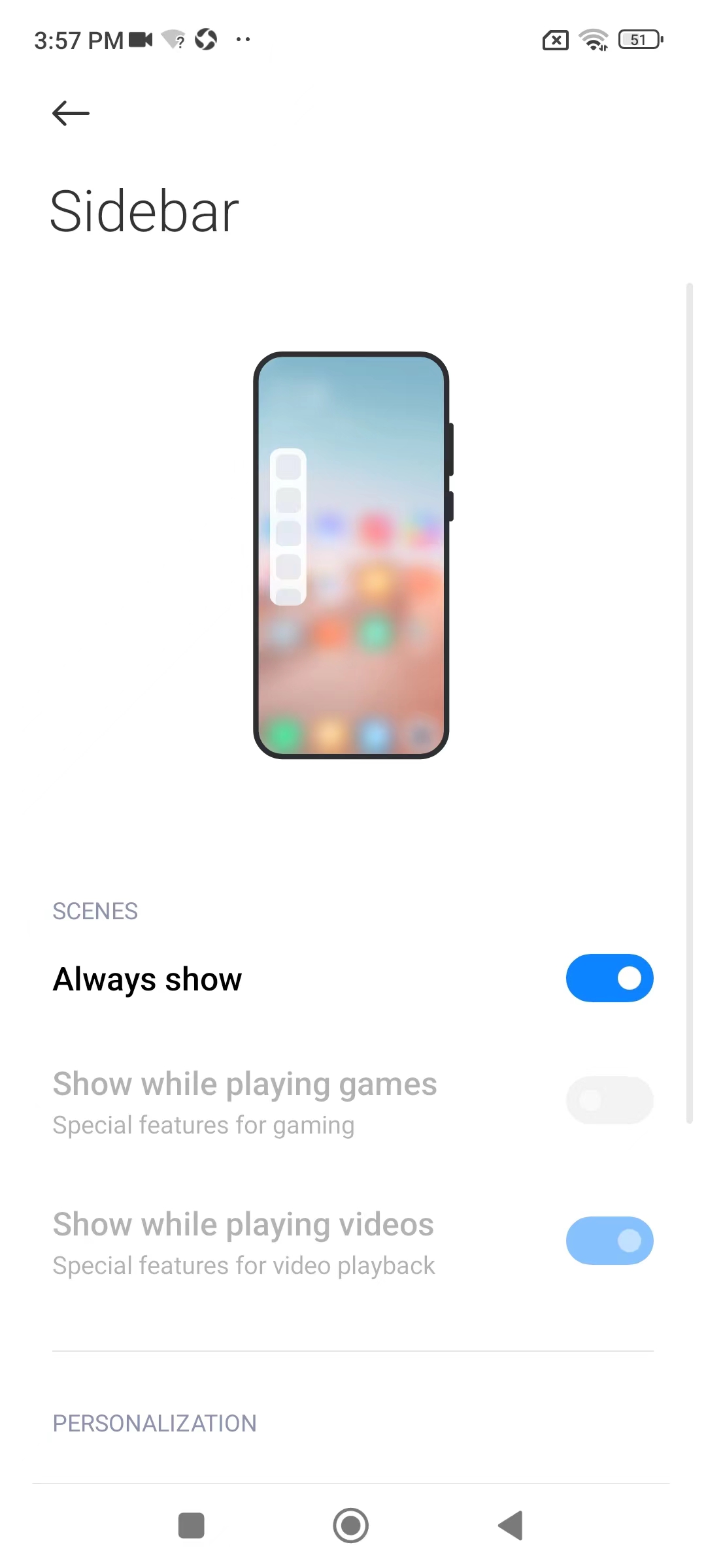
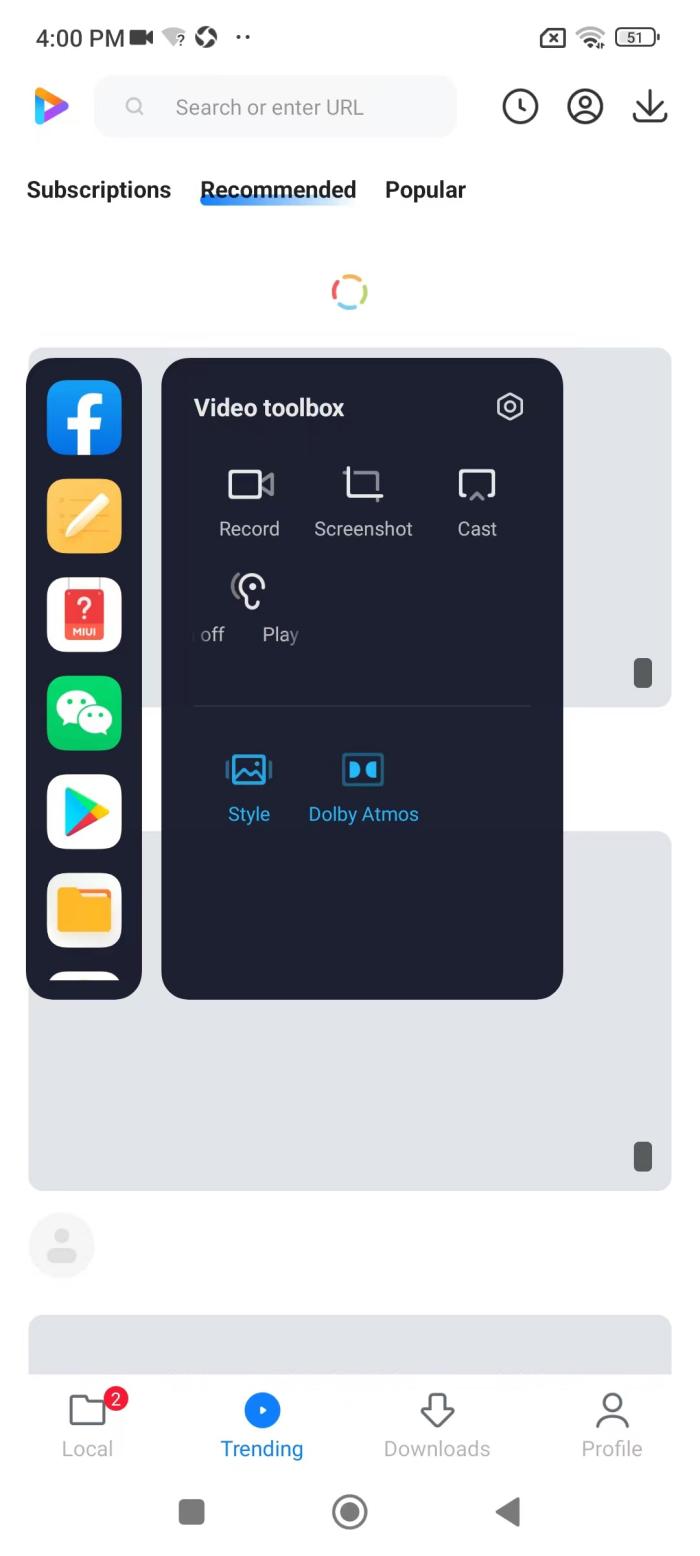
After it is opened, gently pull the prompt line from the side in any interface to call out the Sidebar, and click the application in the Sidebar to launch the quick small window.
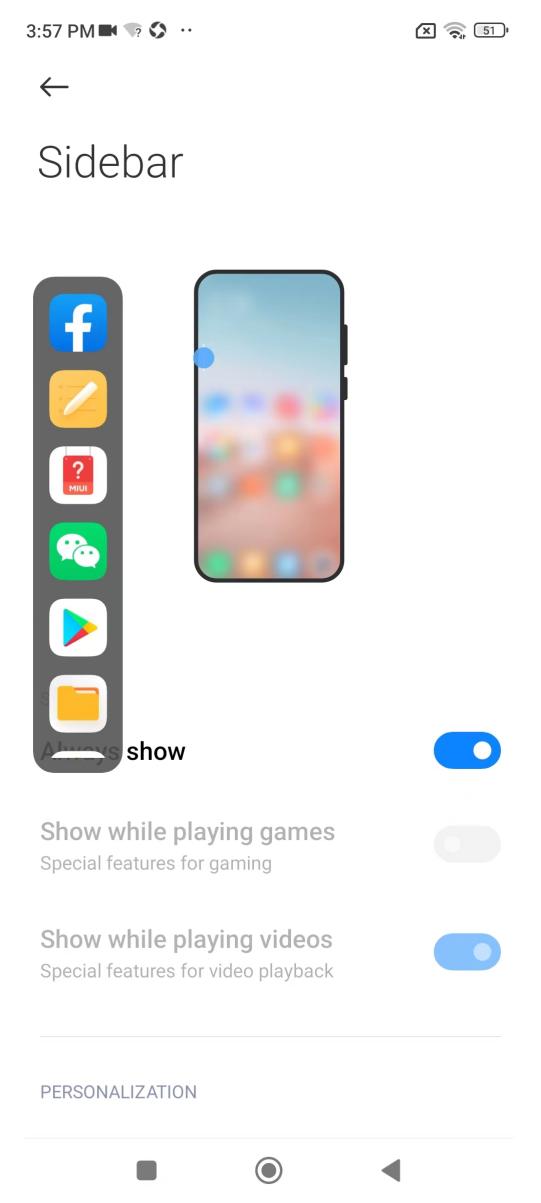
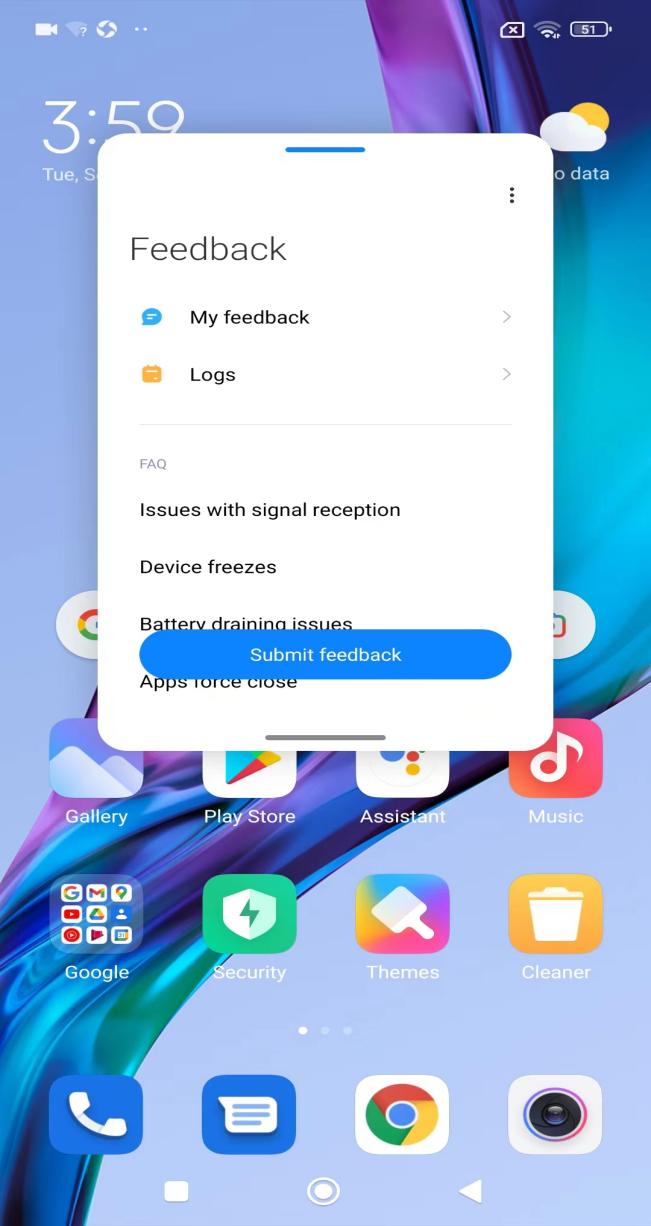
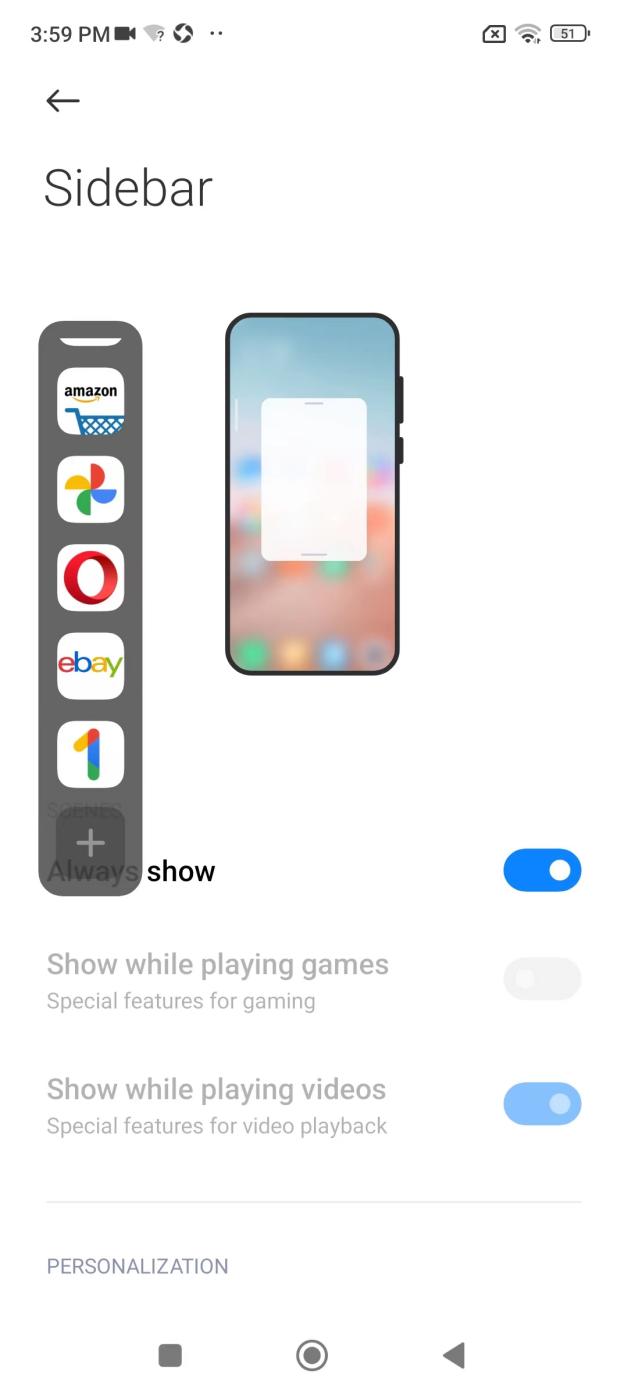
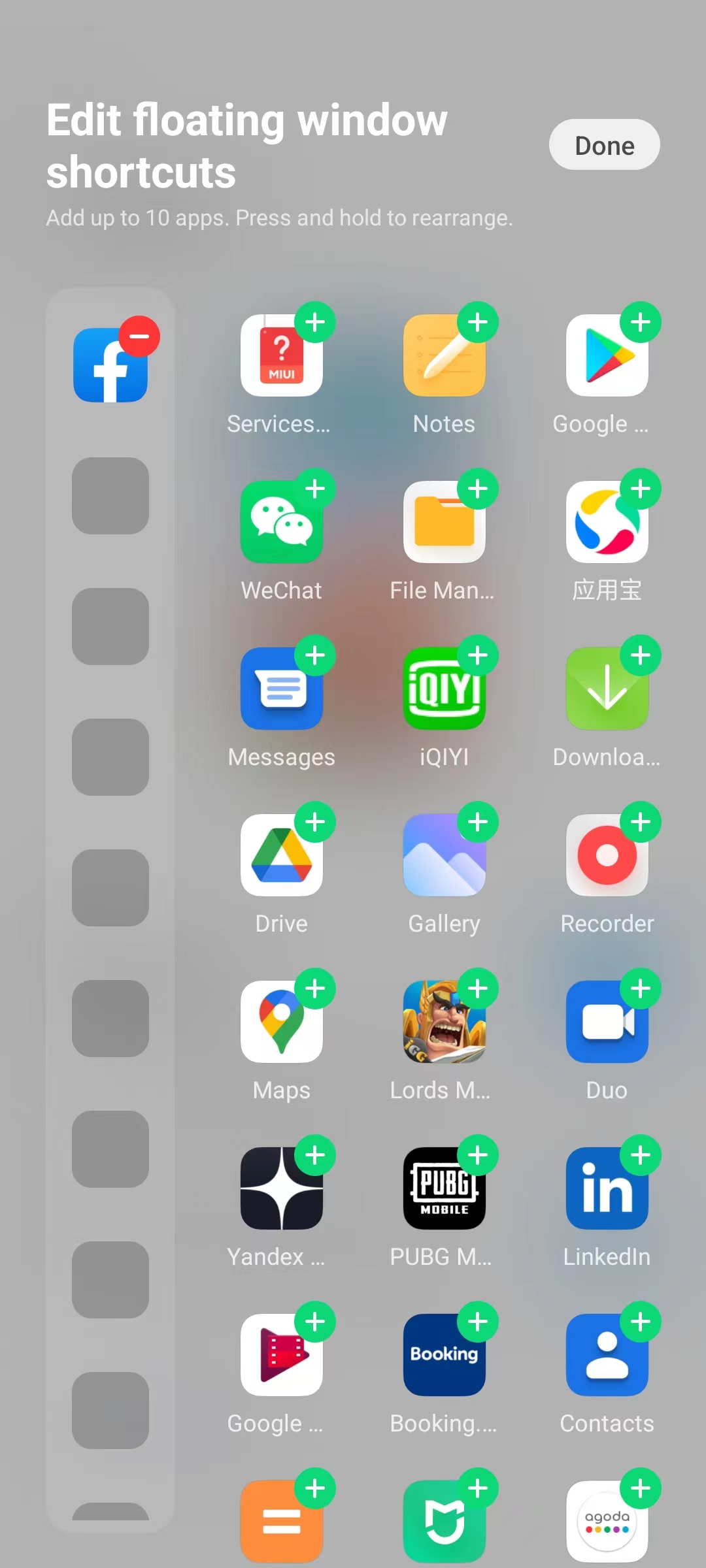
You can edit the commonly used small window applications by pulling the Sidebar to the bottom and selecting the plus sign. Up to 10 commonly used applications can be added, and you can hold and drag to customize the application order.
At present, a maximum of 30 applications can be displayed, of which 10 common applications can be added. When the number of common applications exceeds 10, other applications cannot be added. The plus sign in the upper right corner of the application that has not been added is changed from green to gray.
Sidebar can coexist with Games, Vedio Apps, and Note.
Sidebar allows you to quickly open the small window mode of other applications without leaving your current application.
Set path: Settings >> Special features >>Sidebar>> Always show.
After it is opened, gently pull the prompt line from the side in any interface to call out the Sidebar, and click the application in the Sidebar to launch the quick small window.
You can edit the commonly used small window applications by pulling the Sidebar to the bottom and selecting the plus sign. Up to 10 commonly used applications can be added, and you can hold and drag to customize the application order.
At present, a maximum of 30 applications can be displayed, of which 10 common applications can be added. When the number of common applications exceeds 10, other applications cannot be added. The plus sign in the upper right corner of the application that has not been added is changed from green to gray.
Sidebar can coexist with Games, Vedio Apps, and Note.