

Xiaomi Smart Standing Fan 2 Pro FAQ
Overview
Q1: What are the selling points of the Xiaomi Smart Standing Fan 2 Pro?
A: For your reference, here are the selling points of the Xiaomi Smart Standing Fan 2 Pro:
1. Its wireless, portable design with a built-in battery lets you enjoy a cool breeze anywhere, even during a power outage.
2. The double-layer fan blades and natural breeze algorithm generate a softer, wider, and more comfortable airflow.
3. It offers a 140° ultra-wide oscillation range and can project air up to 14 meters to efficiently cool an entire room.
4. You can control the fan via Google Assistant and Alexa, the Xiaomi Home App, and set 100 precise speed adjustments for personalized comfort.
5. The energy-saving BLDC motor operates quietly, with a minimum noise level of just 28.1 dB(A) for peaceful use.
6. Its modular design allows for easy assembly, quick height adjustment from tabletop to floor standing, and simple maintenance.
Product Introduction and Usage
Q1: How to turn on and off the Xiaomi Smart Standing Fan 2 Pro?
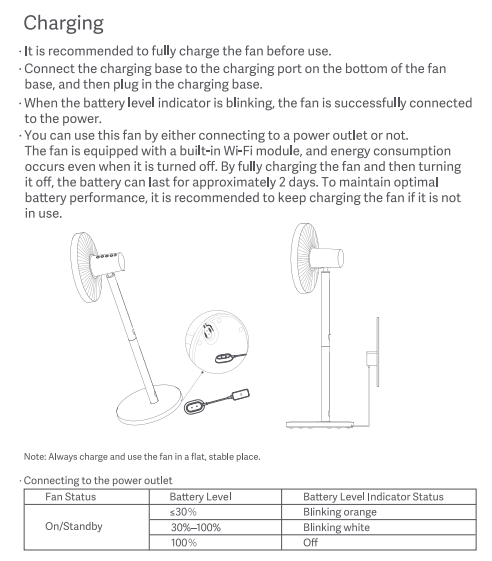
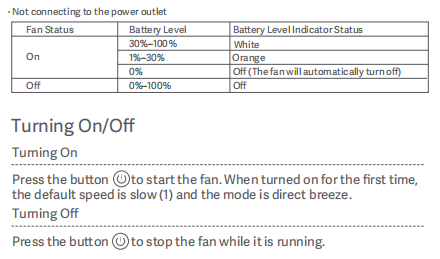
A: Connect the power adapter to the power port on the base, then plug in the power supply. When the battery level indicator is blinking, the fan is successfully connected to the power supply.
To turn on the fan, press the On/Off button to start the fan. When turned on for the first time, the default speed is level 1, and the mode is direct breeze. To turn off the fan, please press the On/Off button while it is running.
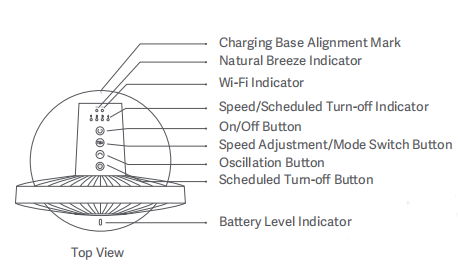
Q2: How many buttons does the Xiaomi Smart Standing Fan 2 Pro have?
A: There are four buttons in total, namely the On/Off Button, Speed Adjustment/Mode Switch Button, Oscillation Button, and Scheduled Turn-off Button.
Q3: How to switch modes of the Xiaomi Smart Standing Fan 2 Pro?
A: Press and hold the [Speed Adjustment/Mode Switch Button] to switch between direct breeze and natural breeze modes. In direct breeze mode, the natural breeze mode indicator is off. In natural breeze mode, the natural breeze mode indicator is on. The next time you turn the power on, it defaults to the mode you last turned off.
Q4: Does the Xiaomi Smart Standing Fan 2 Pro support shutdown memory?
A: Xiaomi Smart Standing Fan 2 Pro supports shutdown memory. After shutting down without powering off, the mode or air volume when it is turned on again will be maintained.
Q5: How to turn on and off the Child lock on the Xiaomi Smart Standing Fan 2 Pro?
A: To turn on or off the Child lock, please refer to the following steps:
1. Enabling Child lock:
You can enable the Child lock feature in the Xiaomi Home App. After enabling Child lock, pressing any button on the fan will cause all indicators to flash twice and the buzzer to beep twice. The fan will not respond to any button presses.
2. Disabling Child lock:
You can deactivate Child lock in the Xiaomi Home App or simultaneously press and hold the [Oscillation Button] and [Scheduled Turn-off Button] until the buzzer long beeps. You can also deactivate Child lock by resetting Wi-Fi or plugging in the fan again.
Q6: How to set the timed shutdown of the Xiaomi Smart Standing Fan 2 Pro?
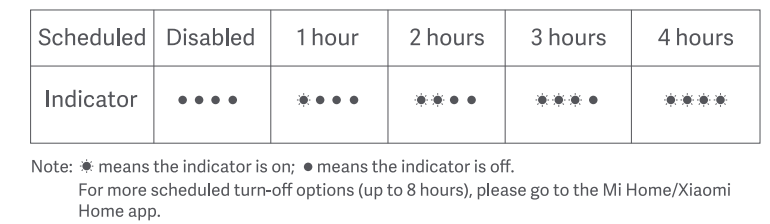
A: Press the [Scheduled Turn-off Button] to cycle through the timer shutdown positions of 1 hour, 2 hours, 3 hours, 4 hours, and off. The corresponding timer indicator lights up for 5 seconds (as shown in the table below). The timer indicator lights up for 5 seconds and returns to the air volume indicator mode.
Note:
1. ☀xingxing means the indicator is on; ● means the indicator is off.
2. For more scheduled turn-off options (up to 8 hours), please go to the Xiaomi Home App.
Q7: How to turn on the Oscillation of the Xiaomi Smart Standing Fan 2 Pro?
A: Press the [Oscillation Button] to turn the left and right shake on or off. You can set the left and right shake angle range in the Xiaomi Home App, supporting 30 °, 60 °, 90 °, 120 °, and 140 ° angle adjustments.
Note:
After resetting Wi-Fi, the fan's oscillation angle will return to the default 90°. Disconnect the power cord and restart the device, or reset Wi-Fi, and then turn on the oscillation function. The fan will enter the oscillation angle calibration state. Calibration takes different times depending on the angle, so please be patient.
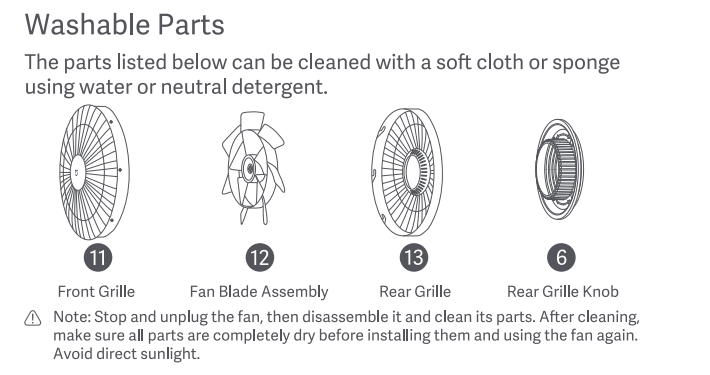
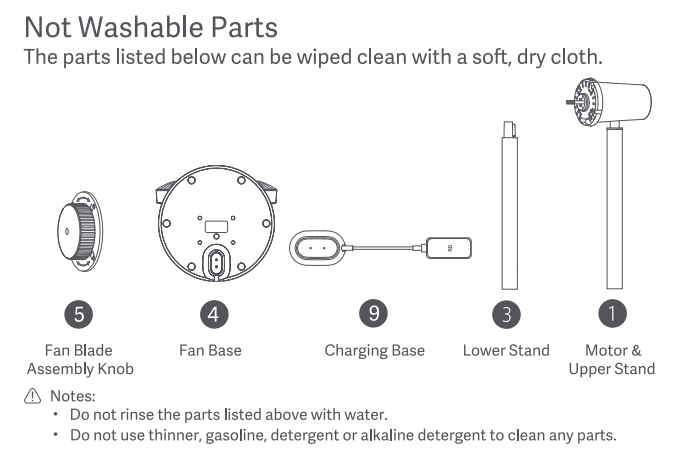
Q8: How to clean the Xiaomi Smart Standing Fan 2 Pro?
A: To clean the Xiaomi Smart Standing Fan 2 Pro, please refer to the following steps to remove the fan:
1. Unplug the fan's power cord from the socket, turn off the fan, and wait for the fan blades to stop rotating.
2. Remove the machine screws under the grille (ignore this step if the machine screws were not fixed during installation).
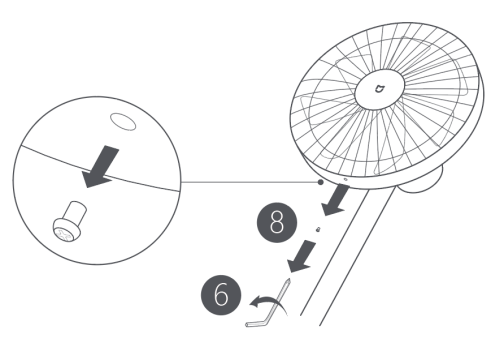
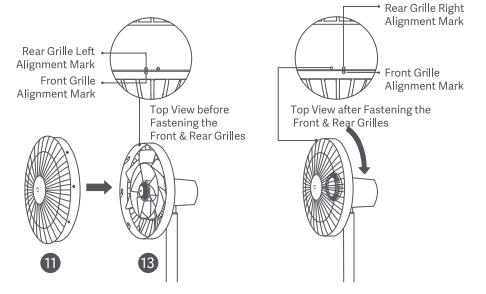
3. Turn the front grille alignment mark to the left and remove it.
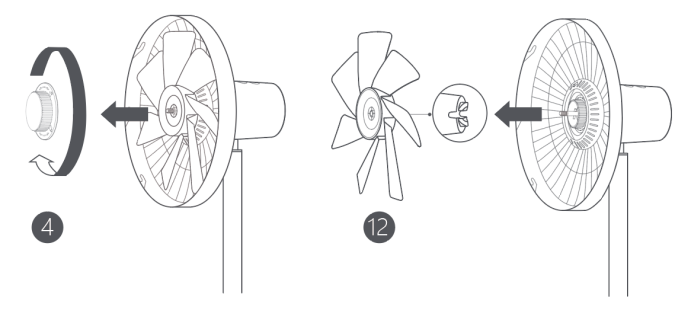
4. Turn the fan blade locking cover to the right, remove the fan blade locking cover, and pull out the fan blade.
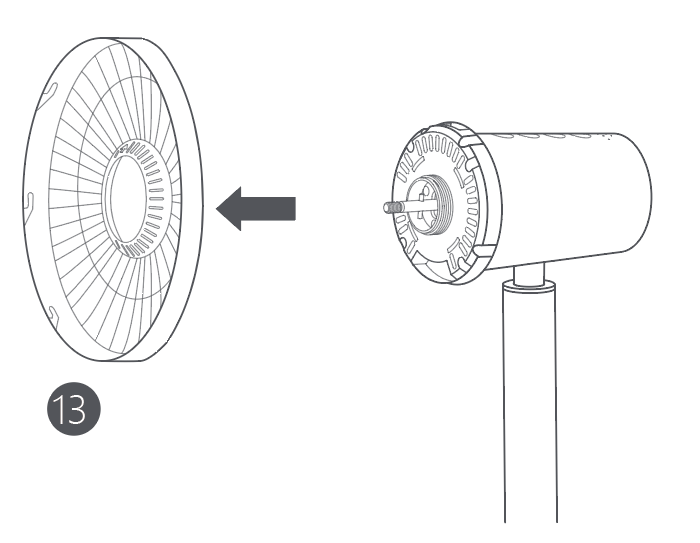
5. Turn the rear grille locking cover to the left, remove the rear grille locking cover, and then remove the rear grille.
Note:
Do not use thinners, benzine, detergents, alcohol, or other chemical products to clean or wipe any part of the machine.
Q9: Does the Xiaomi Smart Standing Fan 2 Pro support indicator brightness adjustment?
A: The Xiaomi Smart Standing Fan 2 Pro does not support adjusting the indicator brightness; it only supports turning it on or off in the Xiaomi Home App.
Q10: Does the Xiaomi Smart Standing Fan 2 Pro support notification sound adjustment?
A: The Xiaomi Smart Standing Fan 2 Pro does not support adjusting the notification sound; it only supports turning it on or off in the Xiaomi Home App.
Q11: Can the grilles of the Xiaomi Smart Standing Fan 2 Pro be fixed without installing the grille screws?
A: The grilles can be installed without screws, but the Xiaomi Smart Standing Fan 2 Pro cannot be completely fixed. There is a risk of it falling when the fan is running. Please fix the grilles to ensure the safety of you and others.
Connecting with the Xiaomi Home App
Q1: How to connect the Xiaomi Smart Standing Fan 2 Pro to the Xiaomi Home App?
A: Plug the fan into a power source, tap the [On/Off Button], and then open the Xiaomi Home App to connect.

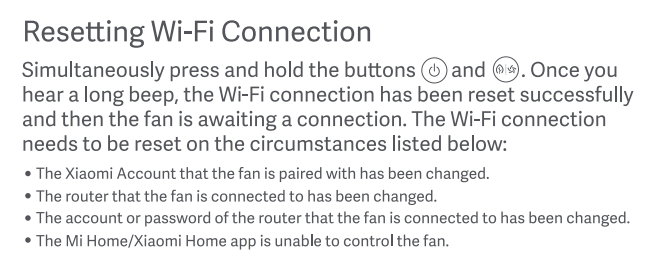
Q2: How to reset the Wi-Fi on the Xiaomi Smart Standing Fan 2 Pro?
A: When connecting for the first time or when unable to connect to the Xiaomi Home App, simultaneously press and hold the [On/Off Button] and [Speed Adjustment/Mode Switch Button]. A long beep indicates the Wi-Fi has been successfully reset and the fan is awaiting a connection.
The Wi-Fi connection needs to be reset on the circumstances listed below:
1. The Xiaomi account that the fan is paired with has been changed.
2. The router that the fan is connected to has been changed.
3. The account or password of the router that the fan is connected to has been changed.
4. The Xiaomi Home app is unable to control the fan.
Q3: Why can't the Xiaomi Smart Standing Fan 2 Pro reset the Wi-Fi?
A: If the Xiaomi Smart Standing Fan 2 Pro is not linked to the Xiaomi Home App within 30 minutes, the Wi-Fi will automatically turn off. To reset the Wi-Fi, you need to re-enable Wi-Fi and then reset it again. To turn Wi-Fi on and off, press and hold the [On/Off Button] and the [Oscillation Button] for 7 seconds.

Q4: What are the precautions for connecting the Xiaomi Smart Standing Fan 2 Pro to the Internet?
A: The Xiaomi Smart Standing Fan 2 Pro can only connect to 2.4 GHz (Wi-Fi IEEE 802.11b/g/n) Wi-Fi networks and does not currently support 5 GHz Wi-Fi.
Q5: Which settings will be lost after resetting the Xiaomi Smart Standing Fan 2 Pro?
A: After resetting the W-iFi, the Child lock and timer settings set in the Xiaomi Home App will be lost. The operating status will also change:
1. The direct breeze mode will return to level 1.
2. The oscillation function will be disabled.
3. The oscillation angle setting will be changed to 90 °.
FAQ and Troubleshooting
Q1: What to do if the Xiaomi Smart Standing Fan 2 Pro does not turn on?
A: If the Xiaomi Smart Standing Fan 2 Pro doesn't turn on, please refer to the following steps to troubleshoot:
1. When using a standard power supply, make sure the outlet is powered (it should meet the standard power requirements for your region) and confirm that the power cord is properly connected.
2. When using a non-standard power supply or a power bank, make sure it matches the model number of the device.
3. Check that the fan blades are properly installed and keep them clean to prevent dust from blocking them and affecting operation.
4. After turning the device off and back on, check and press the On/Off button to turn it on.
If the issue persists, it is recommended to take your fan to a nearby after-sales service center for further inspection.
Q2: What to do if the buttons on the Xiaomi Smart Standing Fan 2 Pro do not work?
A: If the buttons on the Xiaomi Smart Standing Fan 2 Pro do not work, please refer to the following steps to troubleshoot:
1. Check that the device is receiving power and can be turned on.
2. Check that the Child lock function is enabled.
3. Turn the power off and back on to check if the buttons work.
If the issue persists, it is recommended to take your fan to a nearby after-sales service center for further inspection.
Q3: What to do if the oscillation function of the Xiaomi Smart Standing Fan 2 Pro does not work?
A: If the oscillation function of the Xiaomi Smart Standing Fan 2 Pro does not work, please refer to the following steps to troubleshoot:
1. After turning on the device for the first time, it takes some time to find the oscillation angle. Usually, it takes about three turns to find the correct oscillation angle.
2. Check whether the oscillation angle is set in the Xiaomi Home App.
If the issue persists, it is recommended to take your fan to a nearby after-sales service center for further inspection.
Q4: What to do if the Xiaomi Smart Standing Fan 2 Pro automatically shuts down after turning it on?
A: If the Xiaomi Smart Standing Fan 2 Pro automatically shuts down after turning it on, please refer to the following steps to troubleshoot:
1. Check if the power cord is disconnected.
2. Check if there is power in the power outlet.
3. Check if the power off timer is enabled.
4. Check if someone else is controlling the device.
5. Reconnect the power adapter securely.
6. Reconnect the device to a working outlet.
7. Disable the power off timer.
8. Disable the sharing function to prevent others from controlling the device.
9. If the above solutions do not resolve the issue, please try resetting the device.
If the issue persists, it is recommended to take your fan to a nearby after-sales service center for further inspection.
Q5: What to do if the Xiaomi Smart Standing Fan 2 Pro can not connect to Wi-Fi?
A: If the Xiaomi Smart Standing Fan 2 Pro can not connect to Wi-Fi, please refer to the following steps to troubleshoot:
1. Check whether the fan is awaiting a Wi-Fi connection. Press and hold the [On/Off Button] and [Speed Adjustment/Mode Switch Button] until you hear a long beep to reset the Wi-Fi.
2. Check that your home network has a 2.4 GHz signal.
3. Check that the password you entered is correct.
4. Place the fan as close to the router as possible.
5. Connect the device to a mobile phone hotspot to troubleshoot router network issues.
If the issue persists, it is recommended to take your fan to a nearby after-sales service center for further inspection.
Q6: What to do if the Xiaomi Smart Standing Fan 2 Pro's wind speed suddenly decreases?
A: If the Xiaomi Smart Standing Fan 2 Pro's wind speed suddenly decreases, please refer to the following steps to troubleshoot:
1. Check that the natural breeze mode is enabled in the Xiaomi Home App.
2. Check that the timer mode is set.
3. Check if anyone else is controlling the device through the Xiaomi Home App.
5. Check that the power adapter input meets the requirements.
If the issue persists, it is recommended to take your fan to a nearby after-sales service center for further inspection.
Q7: How to fix abnormal noises during the operation of the Xiaomi Smart Standing Fan 2 Pro?
A: If there is an abnormal noise during the operation of the fan, please refer to the following steps:
1. Check the grille for proper installation.
2. Check the fan blade locking cover or rear grille cover for proper installation.
3. Check the grille cover for any obstructions.
4. Check the motor for any obstructions.
5. Reinstall the grille cover.
6. Reinstall the locking cover.
If the issue persists, it is recommended to take your fan to a nearby after-sales service center for further inspection.
Q8: Why does the Xiaomi Smart Standing Fan 2 Pro shake during operation?
A: The fan will shake slightly during operation. When the motor is running at high speed, the fan blades will rotate and generate wind resistance, which is normal. If the shaking is very obvious, follow the troubleshooting instructions below:
1. Check if the grilles are installed properly.
2. Check if there are other items placed on the device.
3. Check if the device is placed in a horizontal position.
4. Check if the fan blade is installed properly.
5. Check if the locking cover is installed properly.
6. Install the grilles properly.
7. Remove the items from the device.
8. Place the device in a horizontal position.
9. Reinstall the fan blade properly.
10. If the issue persists, it is recommended to take your fan to a nearby after-sales service center for further inspection.
Q9: Why does the Xiaomi Smart Standing Fan 2 Pro make electrical noise during operation?
A: The motor will make a slight electrical noise during operation, which can only be heard near the motor. This is a normal phenomenon. If the noise is noticeable, check for foreign objects inside the fan. Remove the blades and check whether the noise is coming from the motor or the fan itself. If the noise persists after removing the blades, replace the motor.
Q10: Why does the Xiaomi Smart Standing Fan 2 Pro make an unusual noise when the metal rod is shaken?
A: This is because the DC power cable runs through the middle of the fan's metal rod. Except for the ends, the cable in the middle is not fixed. When the fan is shaken left and right or up and down, the DC power cable hits the metal rod, causing the noise. This is a normal phenomenon.
Q11: How to disassemble and remove the upper and lower support poles of the Xiaomi Smart Standing Fan 2 Pro? Can I simply pull them out with force?
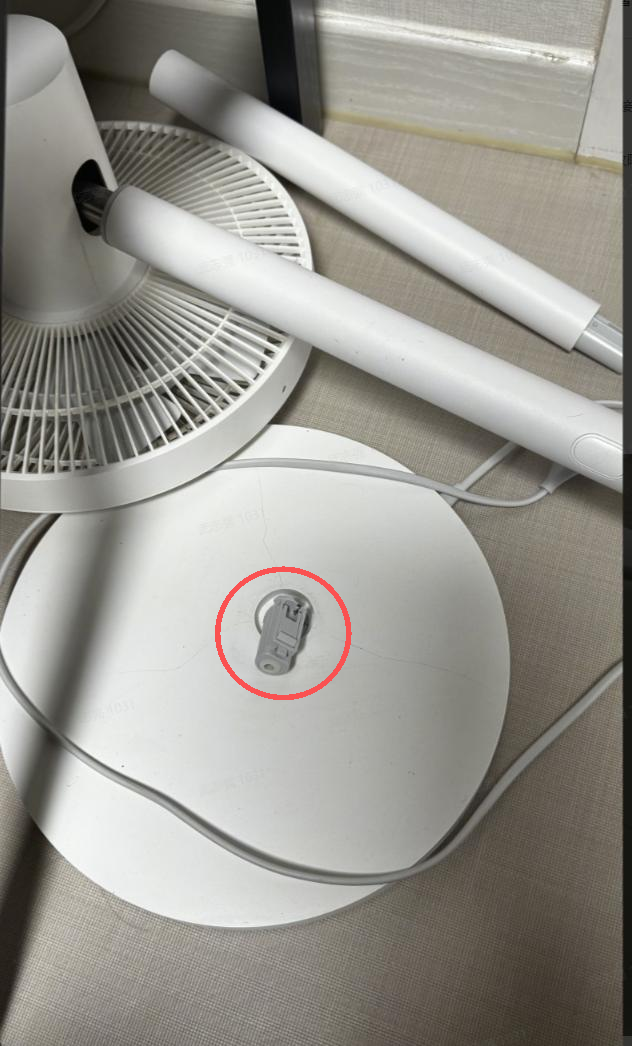
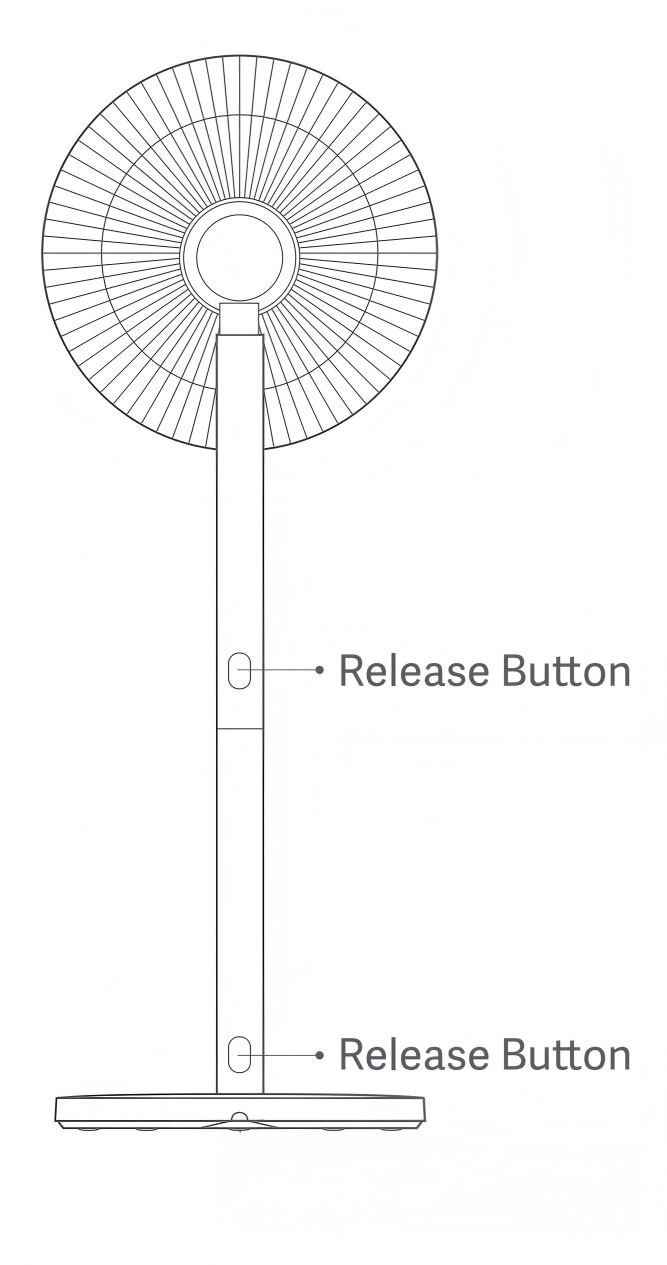
A: The support pole of the Xiaomi Smart Standing Fan 2 Pro features a snap-fit design; do not attempt to pull it out forcefully.
Upper support pole: To detach the upper pole, press and hold the oval-shaped release button on the back of the pole, then pull it straight up.
Lower support pole: To detach the lower pole, first loosen the securing bolt at the base, then press and hold the release button on the pole and pull it straight up.
Note:
Forcing a pull without pressing the button may damage the internal clips. If you encounter resistance during disassembly/assembly or if parts become damaged, it is recommended to contact after-sales support.
Q12: Is there a risk of overheating if the Xiaomi Smart Standing Fan 2 Pro is used for a long time? What is the overall safety status of the machine?
A: Please rest assured that this product has obtained relevant certifications such as EU CE, Russian EAC, Vietnamese CR, and Moroccan ANRT, and meets the corresponding regional safety standards and international electrical safety requirements. Please use the original power adapter provided, and ensure the device is kept away from standing water. When used properly and in accordance with the guidelines, the product is completely safe. If you have any concerns regarding the condition of your machine, please contact our after-sales support team to arrange for an inspection.
Q13: Is there a risk of overheating and damage to the Xiaomi Smart Standing Fan 2 Pro?
A: Thank you very much for your inquiry. Xiaomi products undergo strict quality control and are certified to meet various international safety standards, so you can use them with confidence. Regarding the information you may have seen online, such incidents are generally not due to inherent product defects, but rather relate to specific external environments or abnormal usage conditions. To ensure safety, we recommend that you avoid letting the base of the fan come into contact with standing water during regular use.
Does it help?
Yes
No