

Second Space Function Introduction FAQ
Q1: How to enable Second space on the Xiaomi smartphone?
A: Second space on a Xiaomi smartphone creates a completely separate and isolated environment within a single device, allowing you to keep personal and work data independently with its own apps, accounts, and settings.
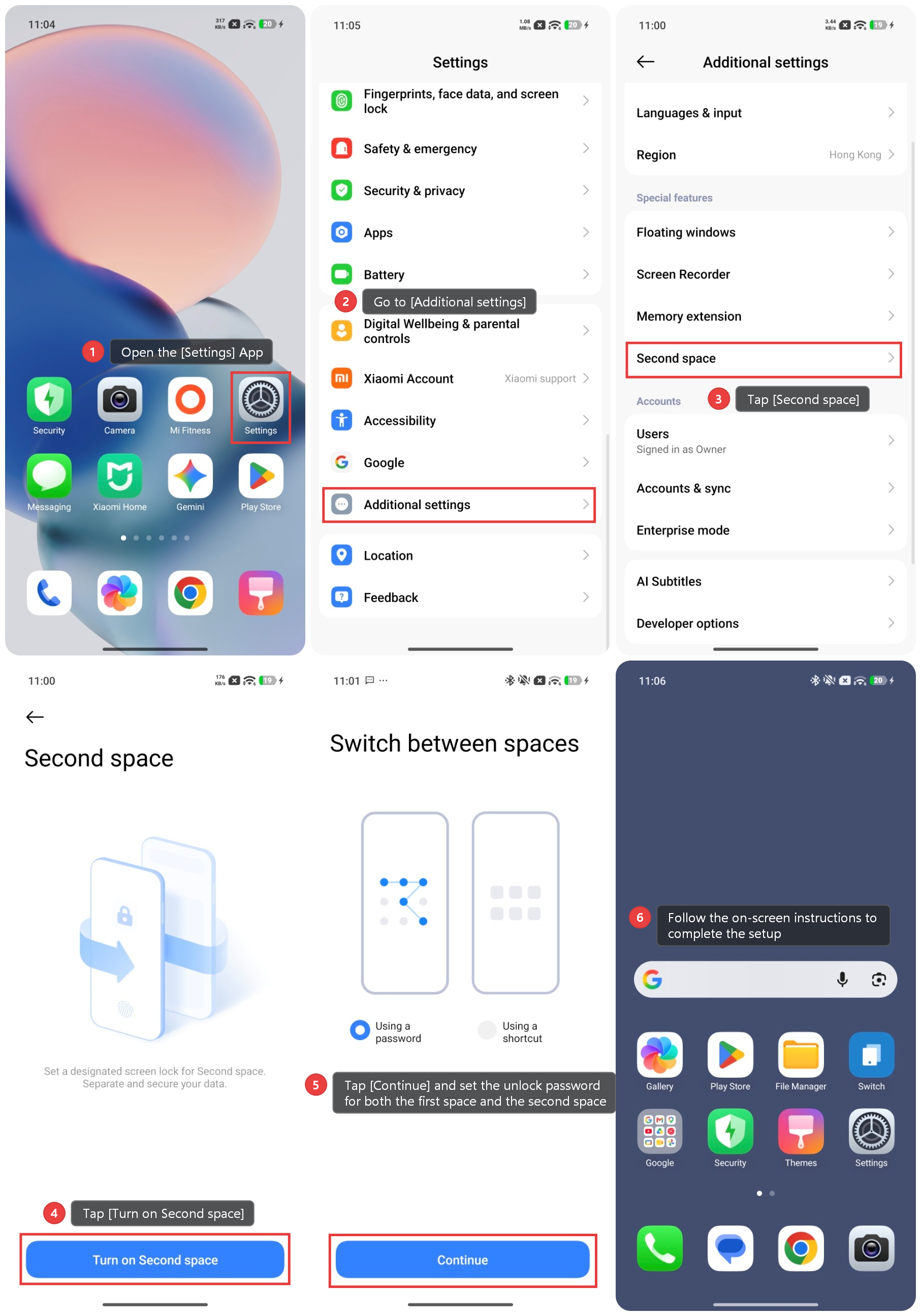
To enable Second space on your Xiaomi smartphone, please refer to the following steps:
1. Open the [Settings] App.
2. Go to [Additional settings].
3. Tap [Second space].
4. Tap [Turn on Second space] to enable the feature.
5. Tap [Continue] and set the unlock password for both the first space and the second space.
6. Follow the on-screen instructions to complete the setup.
Note:
Second space requires a small amount of storage to create, and the space you use inside it, such as apps, photos, and files, will consume additional storage
Q2: How to switch between the first space and the second space?
A: To switch between the first space and the second space, please refer to the following methods:
Method 1
On the lock screen, enter the password for the corresponding space. After unlocking, you will be automatically entered into that space.
Method 2
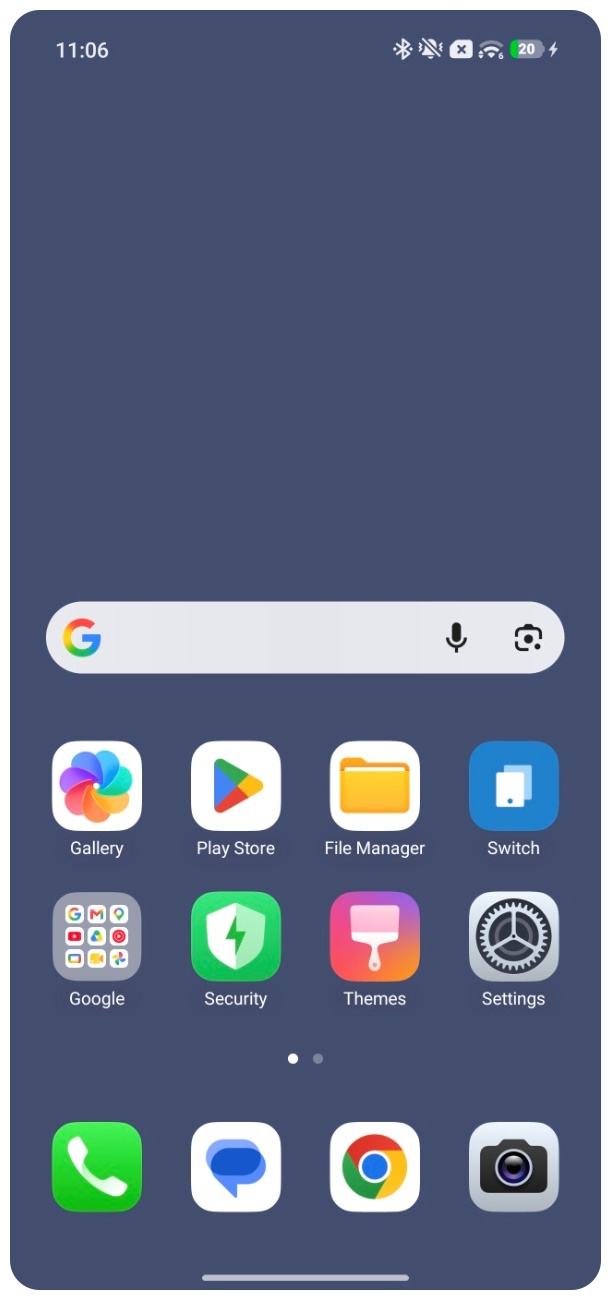
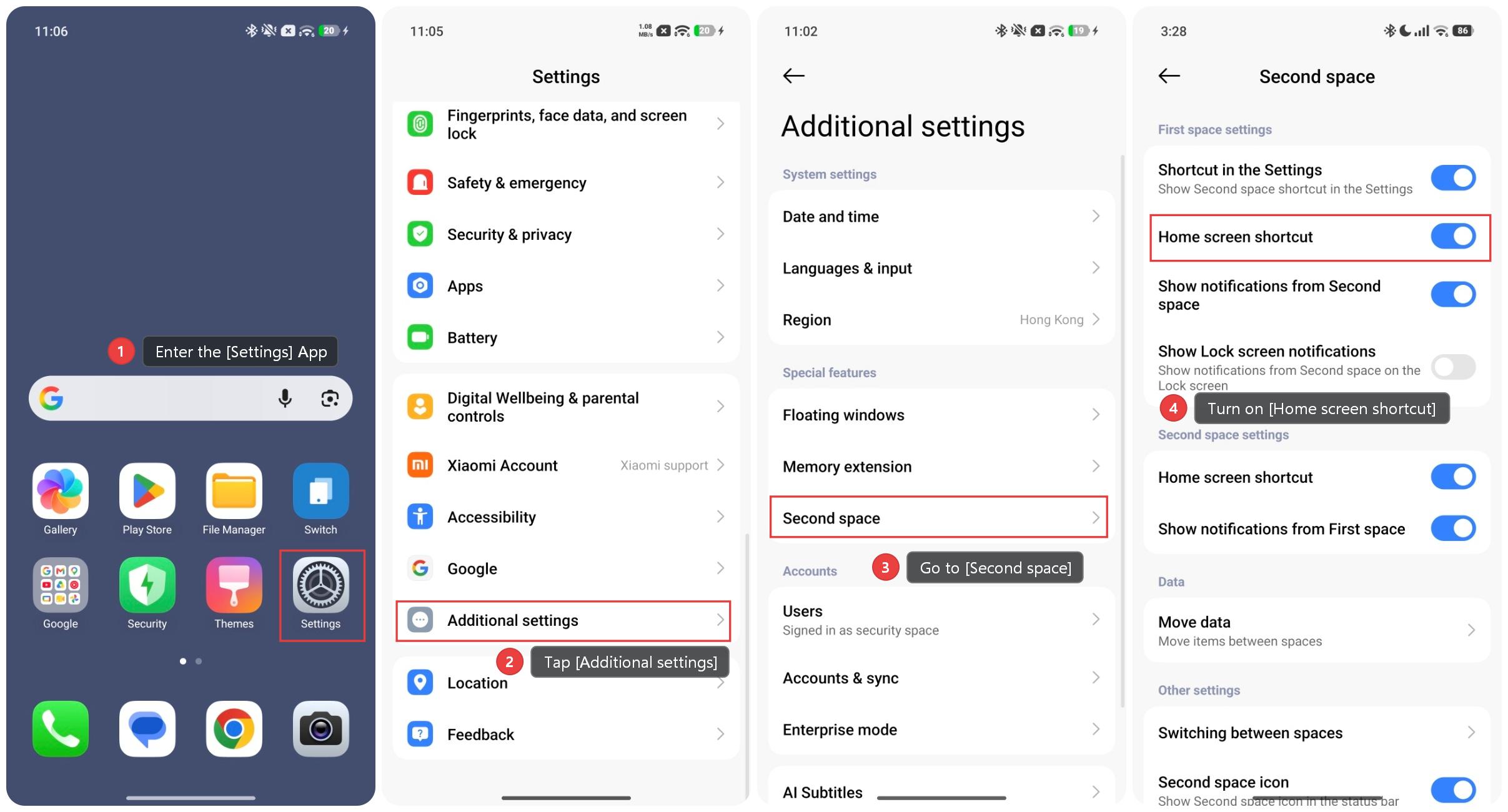
In the second space, tap the [Switch] shortcut on the home screen to switch to the first space.
Note:
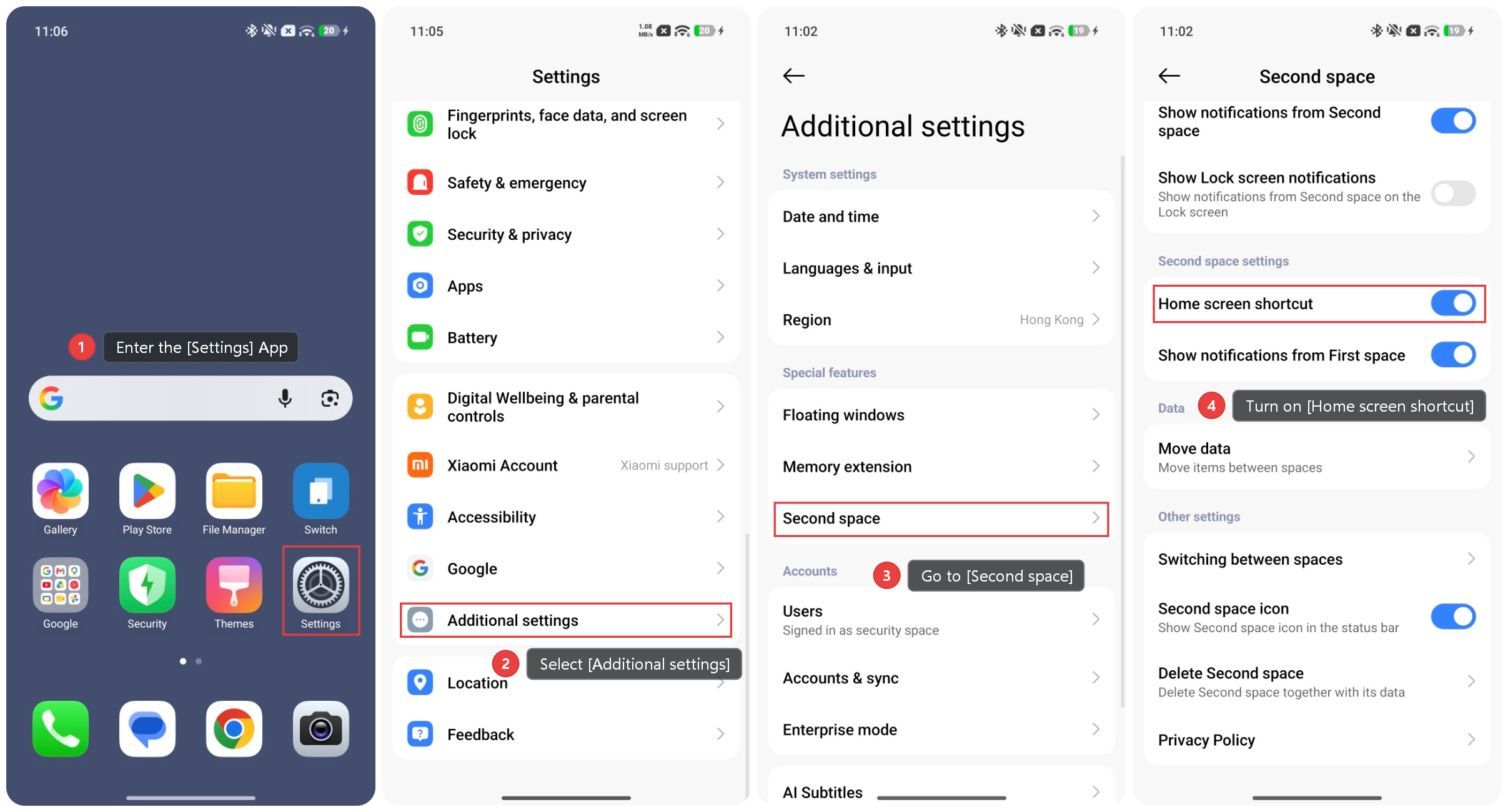
If there is no [Switch] shortcut, please enter the [Settings] App >> [Additional settings] >> [Second space] >> turn on [Home screen shortcut] in [Second space settings]. This feature is enabled by default.
Method 3
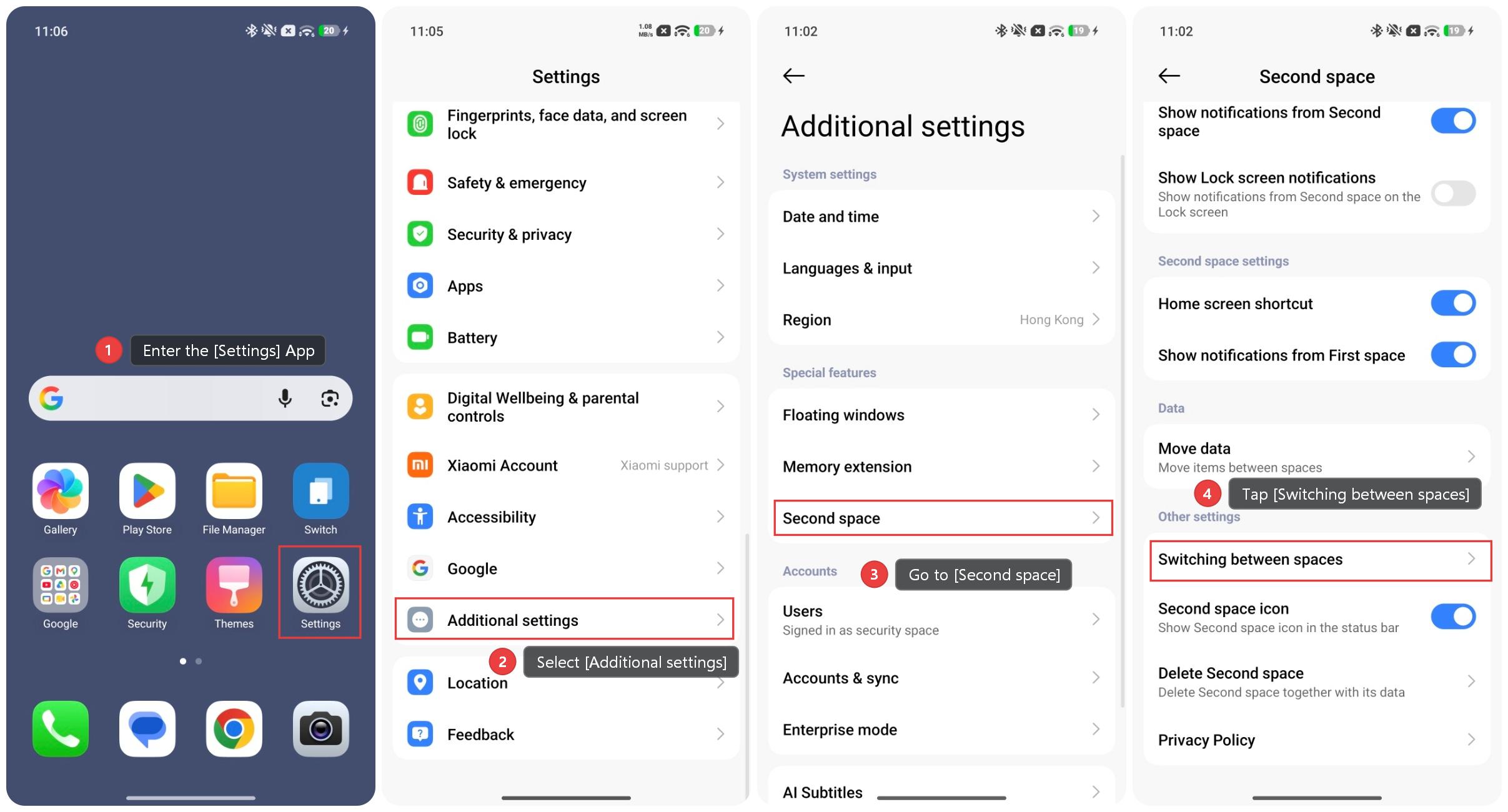
In the second space, please enter the [Settings] App >> [Additional settings] >> [Second space] >> [Switching between spaces] >> enter the password of the first space to switch.
Method 4
In the second space, please enter the [Settings] App >> [Additional settings] >> [Second space] >> turn on [Home screen shortcut] in [First space settings]. This feature is enabled by default.
Then, when you switch to the first space, you can tap the [Switch] shortcut on the home screen to switch to the second space.
Method 5
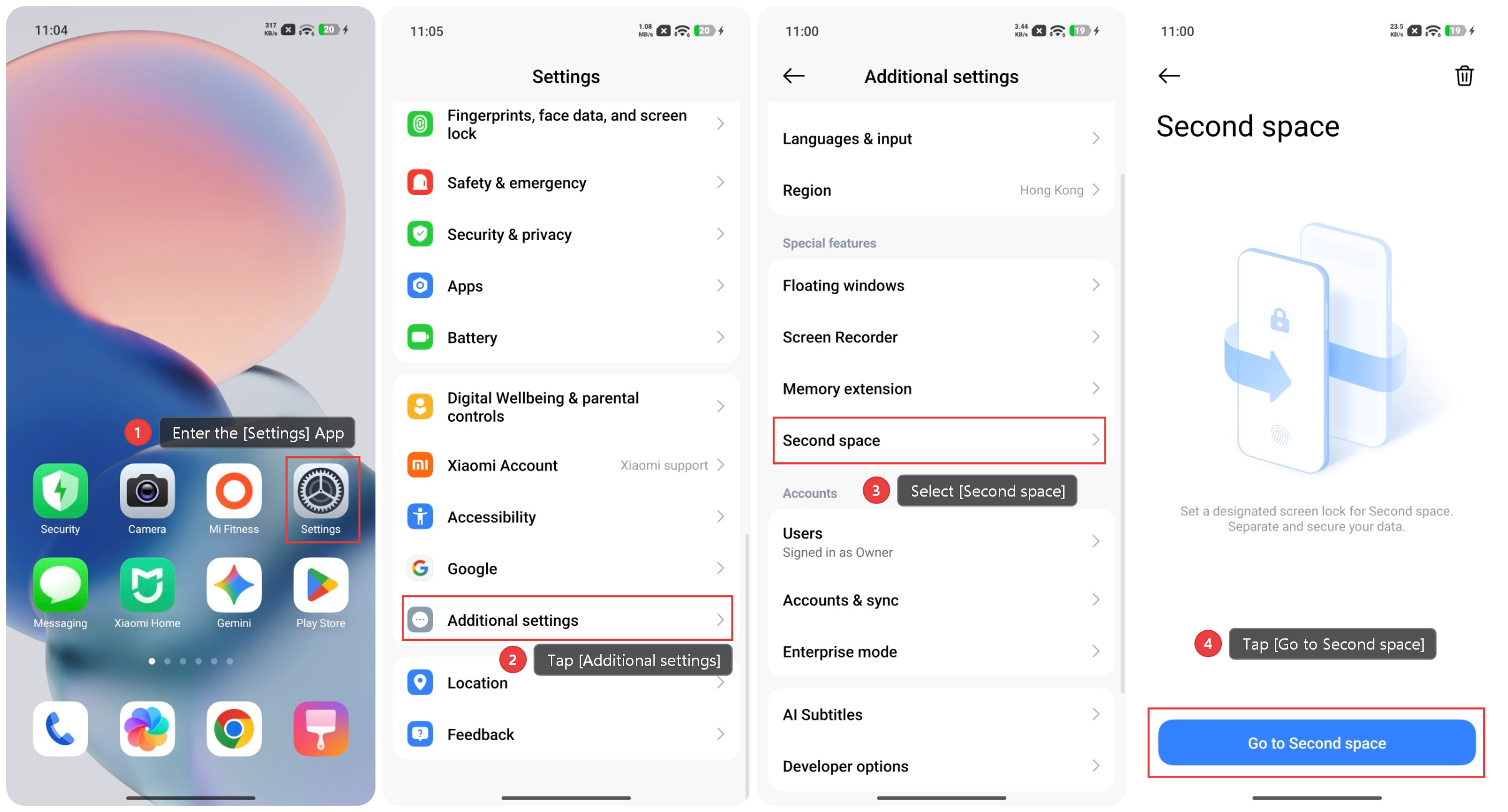
In the first space, please enter the [Settings] App >> [Additional settings] >> [Second space] >> tap [Go to Second space] to switch to the second space.
Q3: How to delete the Second space?
A: If you delete the second space, all app data in the second space will be lost. If you need any data from the second space, back it up to the first space or your computer before deletion.
To delete the Second space on your Xiaomi smartphone, please refer to the following methods:
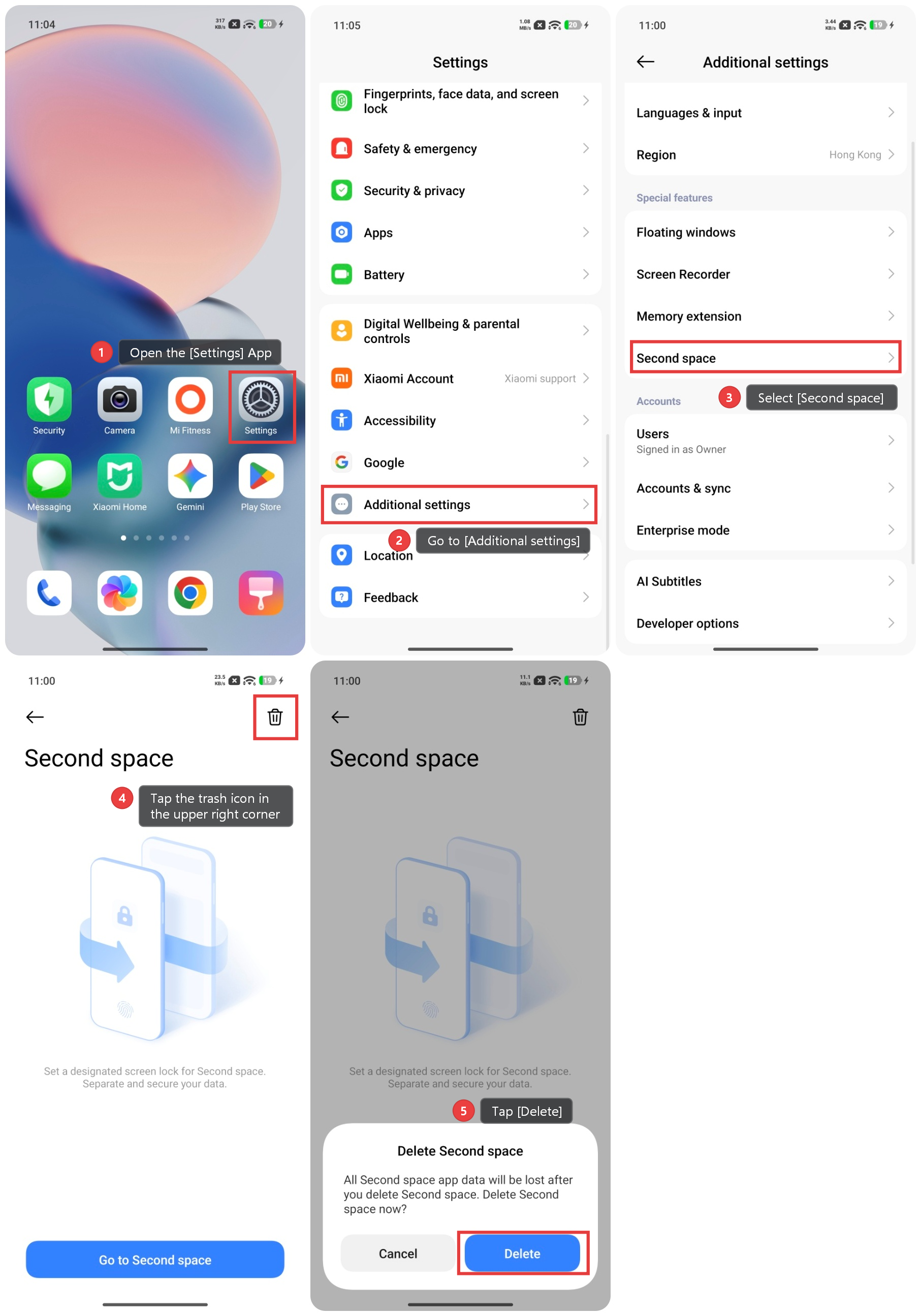
Method 1: In the first space
1. Open the [Settings] App.
2. Go to [Additional settings].
3. Select [Second space].
4. Tap the trash icon in the upper right corner.
5. Tap [Delete] to confirm the action.
6. Enter your Xiaomi account password to authorise the deletion.
Method 2: In the second space
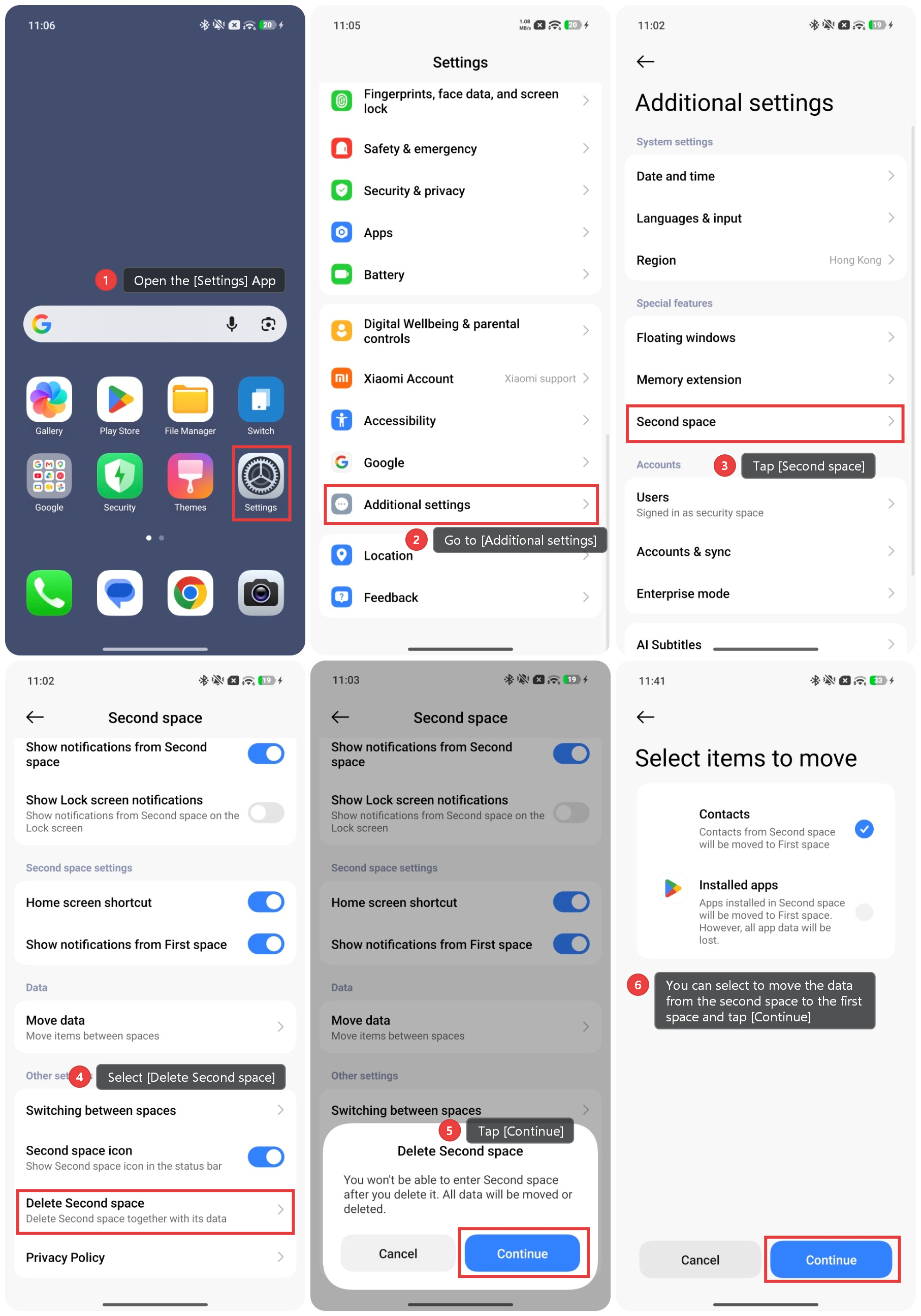
1. Open the [Settings] App.
2. Go to [Additional settings].
3. Tap [Second space].
4. Select [Delete Second space].
5. Tap [Continue] and enter the second space password.
6. You can select to move the data from the second space to the first space and tap [Continue].
7. Then the second space will be deleted.
Q4: Detailed explanation of settings in the First Space and Second Space after enabling the Second space feature.
A: In the Second space, the following features cannot be used:
1. The second space does not support screen recording.
2. Private files cannot be used in the Second space.
3. You cannot change the device name, update the system version, or perform a factory reset within the Second space.
4. Unable to access Developer options in Second space.
5. Once the language and region are set in one of the spaces, the other space will synchronize.
6. In the second space, you can only enable or disable mobile data. However, it is not possible to configure any settings related to mobile networks or calls.
7. You cannot configure a personal hotspot within the second space. The setting in the second space mirrors that of the first space. If a hotspot is enabled in the first space, it will also be active in the second space; however, to turn off the hotspot, you must switch to the first space to disable it.
8. There is no VPN setting in the second space. Once the VPN is set up in the first space, the settings in the second space will match those of the first.
9. If NFC is configured in the second space or the first space, the setting also changes in the other space.
10. Brightness, Reading mode, and color temperature can be set independently for each space.
11. The Dark mode or Light mode, Font, and refresh rate cannot be set in the second space. After setting it in the first space, the second space will mirror that of the first space.
12. The wallpaper of the lock screen and home screen can be set independently for the first space and the second space.
13. You can configure Silent mode independently for the First space or the second Space; once set in one space, the status is synchronized in the other.
14. Vibration mode and DND mode can be set independently for the first space and the second space.
15. Notification and incoming call ringtones can only be set in the First space; once set, they will sync to the Second space.
16. Alarm ringtone can be set independently for the first space and the second space.
17. You can log in to two separate Xiaomi accounts for the First space and Second space, respectively.
18. You can configure battery modes separately for the two spaces and view app power consumption.
Q5: Does the Second space feature on the phone take up extra storage space?
A: The second space requires a small amount of storage to create. But when using the second space, it works the same as the first space. Apps, contacts, messages, photos, files, and other data within the second space will consume additional storage space.
Q6: How to turn off the second space password?
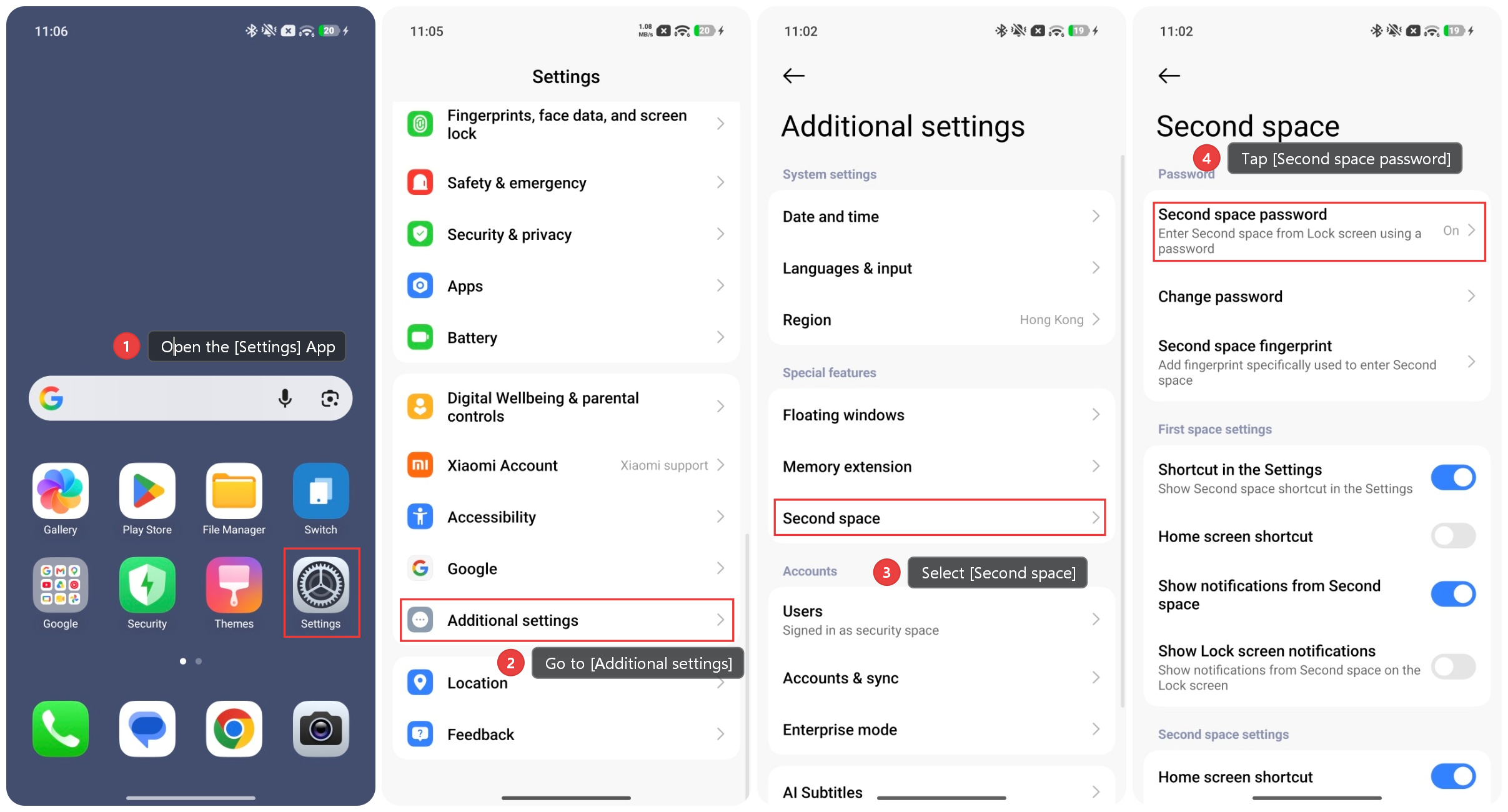
A: To turn off the second space password, please refer to the following steps:
1. In the second space, open the [Settings] App.
2. Go to [Additional settings].
3. Select [Second space].
4. Tap [Second space password] and enter the password.
5. Tap [OK] to turn off the password.
Note:
After turning the password off, you will not be able to enter the Second space from the Lock screen.
Q7: How to change the second space password?
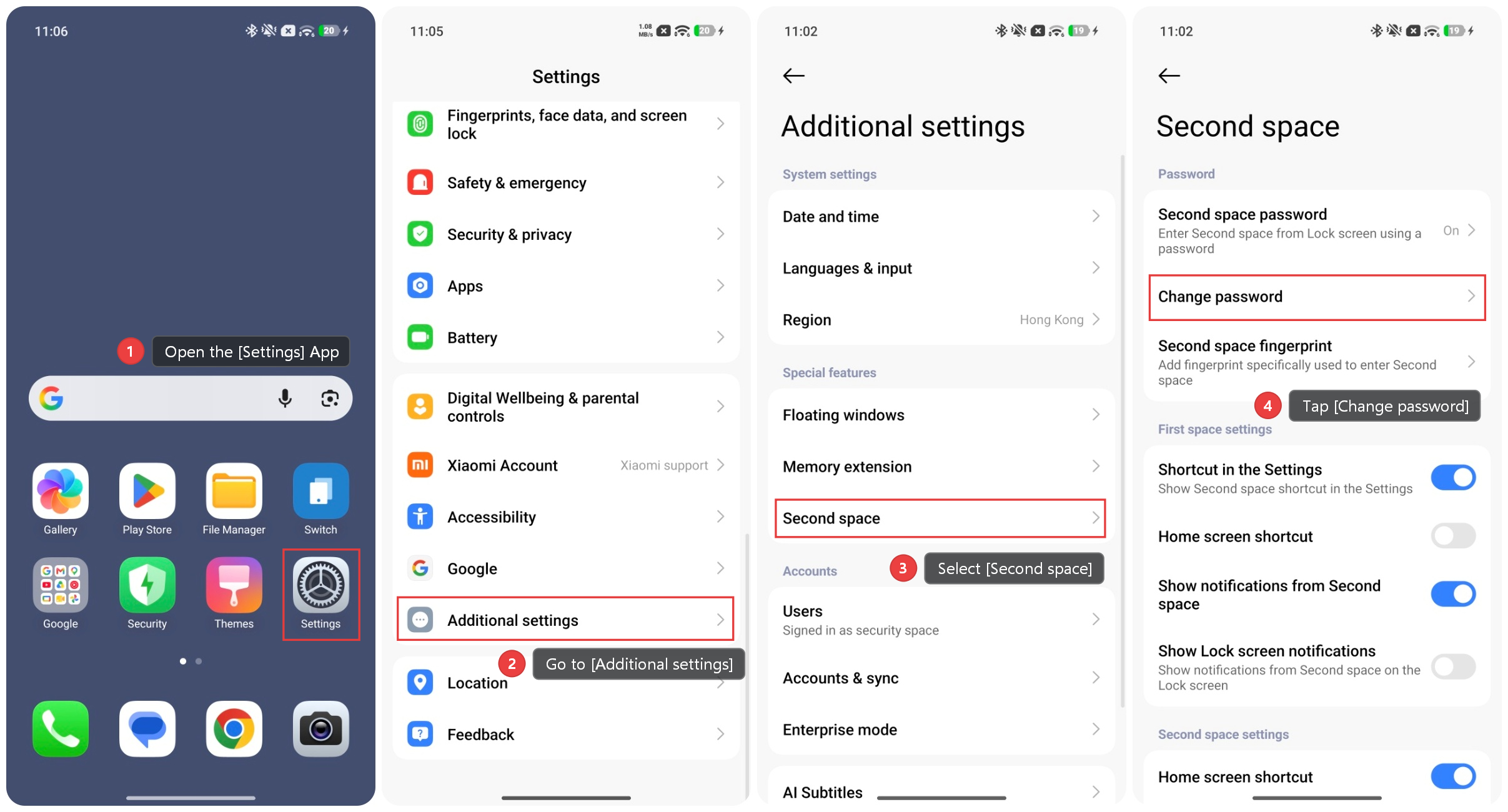
A: To change the second space password, please refer to the following steps:
1. In the second space, open the [Settings] App.
2. Go to [Additional settings].
3. Select [Second space].
4. Tap [Change password] and enter the password.
5. You can set a new password for the second space.
Q8: How to add a second space fingerprint?
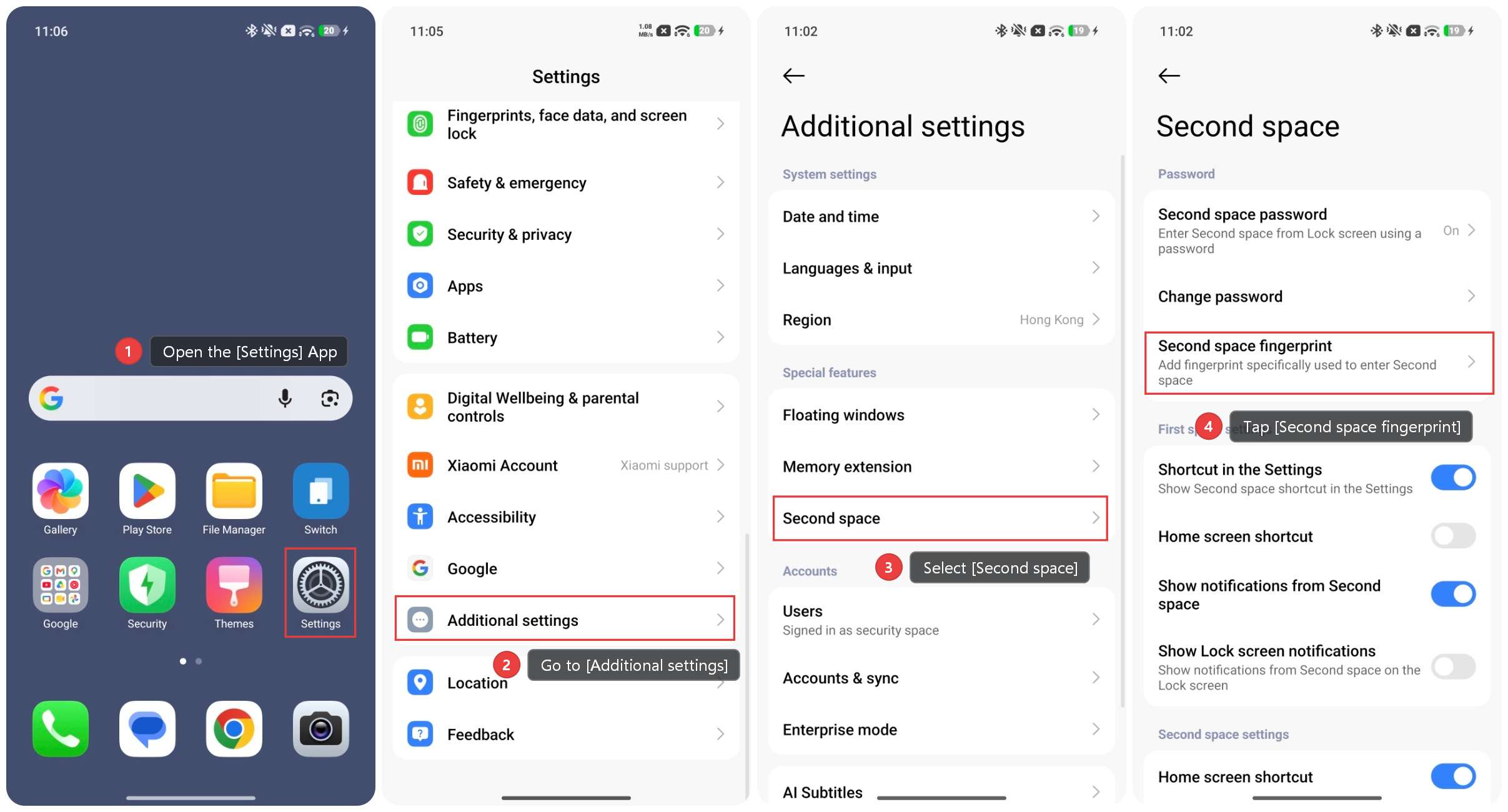
A: You can add a fingerprint specifically to enter the second space. To add a second space fingerprint, please refer to the following steps:
1. In the second space, open the [Settings] App.
2. Go to [Additional settings].
3. Select [Second space].
4. Tap [Second space fingerprint] and enter the password for both the first space and the second space.
5. Then you can add a fingerprint.
Note:
1. You do not need to set a fingerprint for the first space when setting up a fingerprint for the second space.
2. You can add a total of up to 5 fingerprints for both the first space and the second space. If five fingerprints have already been set up for the Second Space, you cannot set up fingerprints for the First Space.
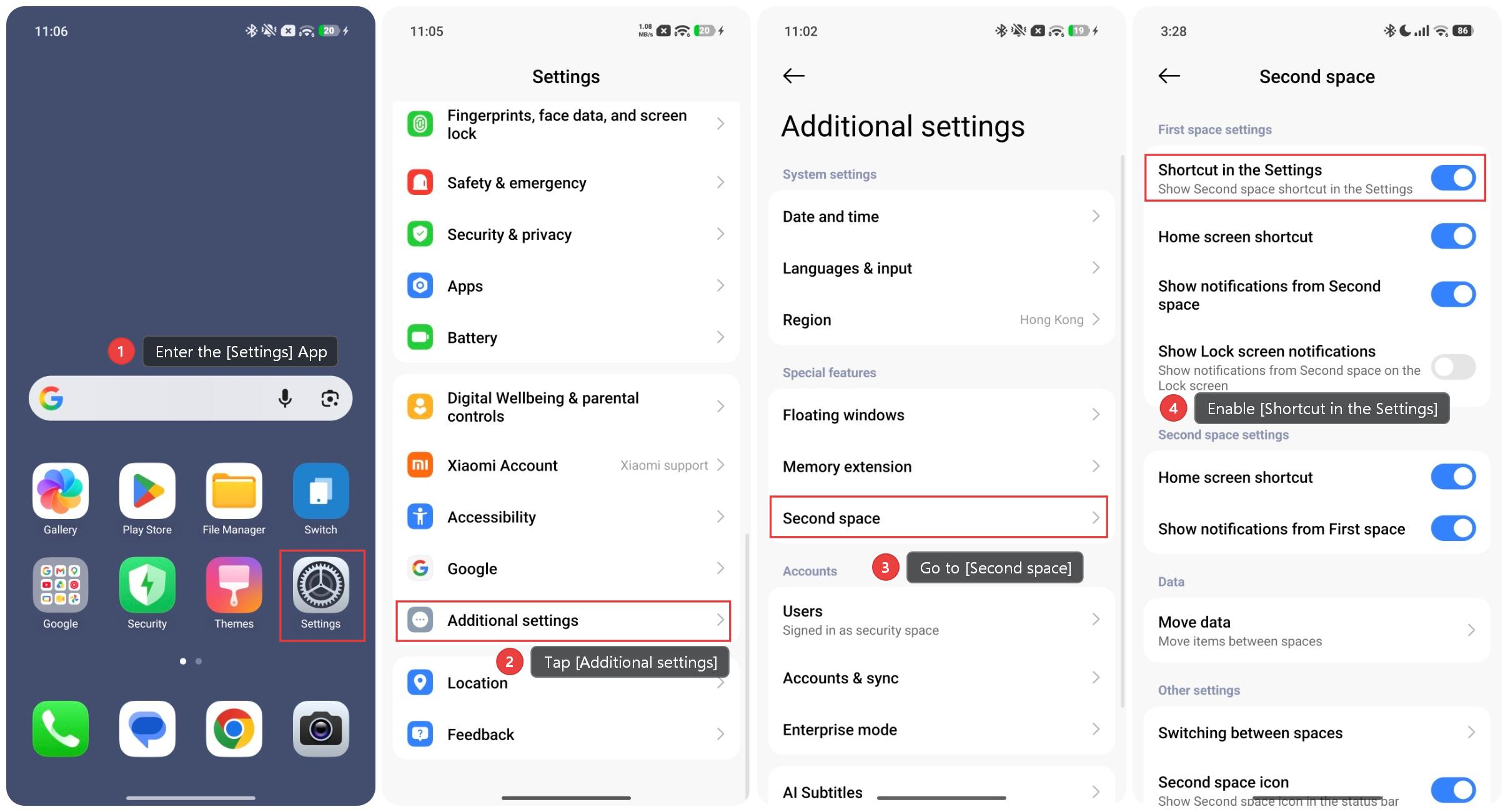
Q9: Why is there no Second space option in the Settings App of the First space?
A: If there is no Second space option in the Settings App of the First space, please switch to the Second space through other methods. Then, in the Second space, please enter the [Settings] App >> [Additional settings] >> [Second space] >> enable [Shortcut in the Settings] in [First space settings].
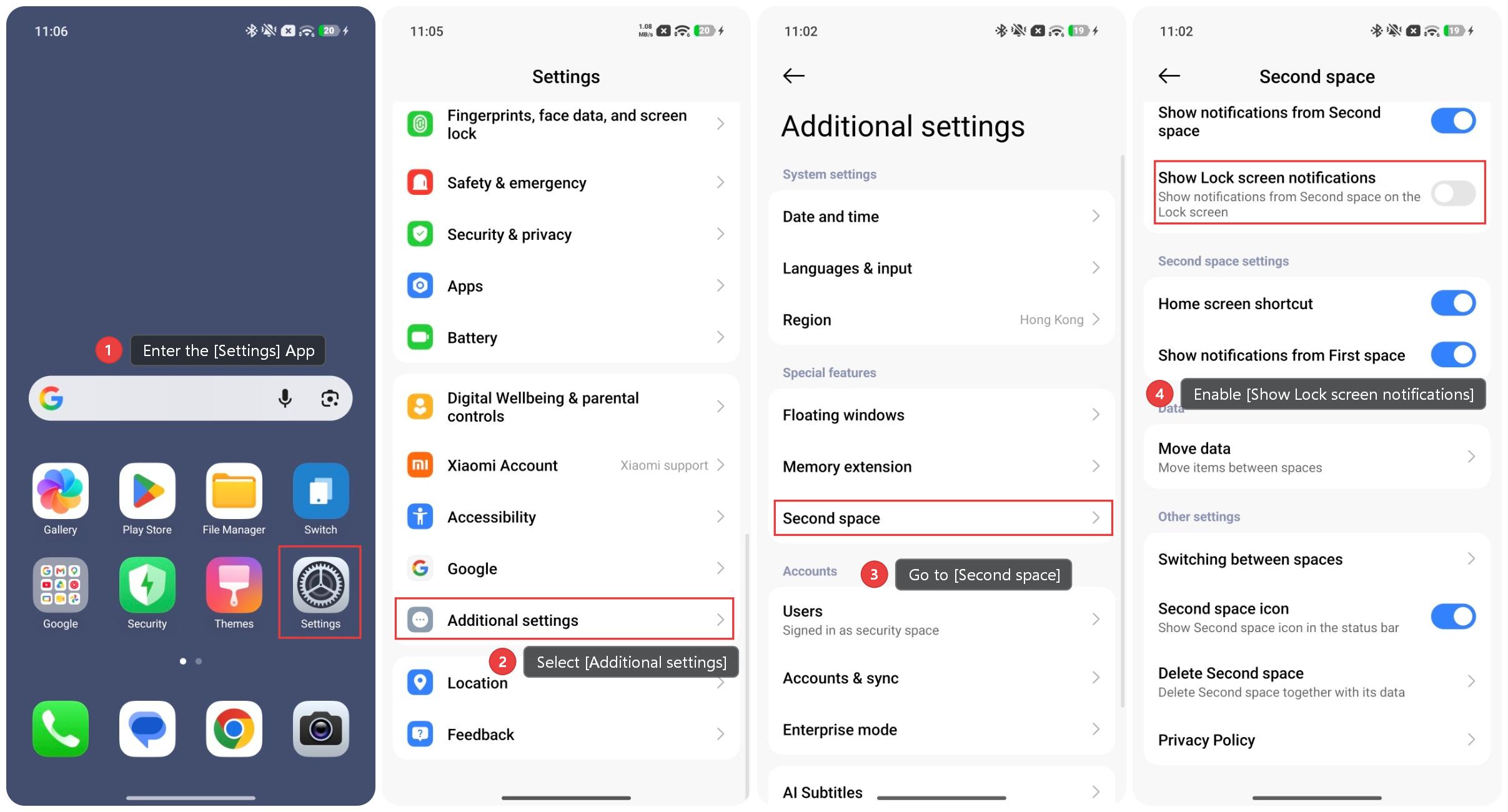
Q10: How are notifications displayed for the First space and Second space?
A: In the Second space, please enter the [Settings] App >> [Additional settings] >> [Second space] >> enable [Show notifications from Second space] and [Show notifications from First space].
After enabling the two options, a notification will appear in the current space if a message arrives from another space.
If you disable the two options, when a message arrives in another space, there will be no notification in the current space, but there will be a ringtone or vibration.
You can also enable [Show Lock screen notifications]. Then the notifications from the second space will be shown on the Lock screen.
Q11: Can I answer calls within the Second space?
A: Within the Second space, you can make and receive calls, as well as send or receive text messages.
Q12: Can I connect Bluetooth devices separately in the Second space and the First space?
A: When Bluetooth is enabled in one space, it is automatically disabled in the other, preventing independent use; however, Bluetooth data is shared between the first space and the second space, allowing a Bluetooth device connected in one space to remain usable after switching to the other.
Note:
When you first switch spaces, Bluetooth in the current space is turned off. Please wait 1 to 2 seconds. Once Bluetooth is activated, it will automatically reconnect to the device that was connected in the other space.
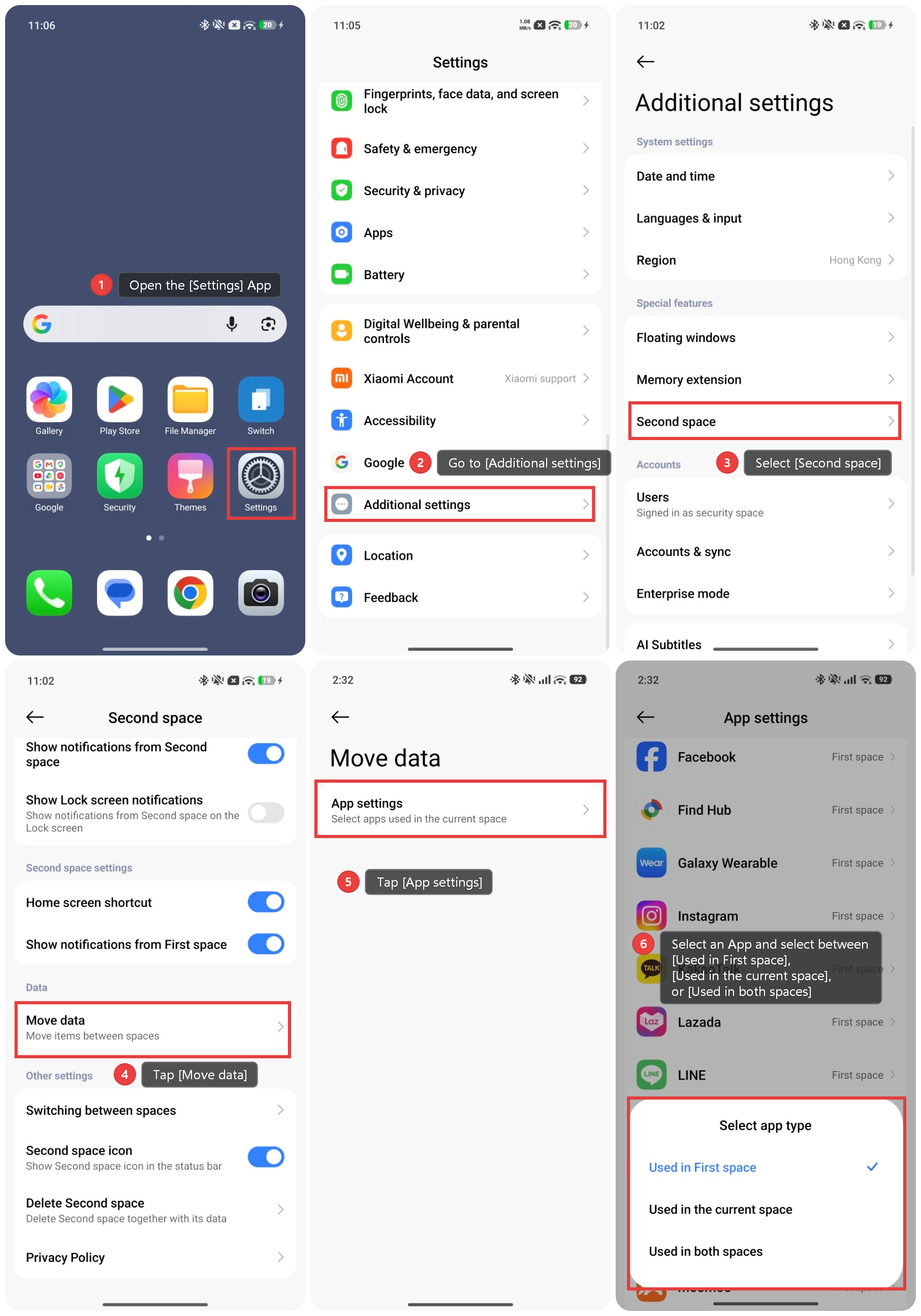
Q13: How to switch an App between the First space and the Second space?
A: To switch an App between the First space and the Second space, please refer to the following steps:
1. In the second space, open the [Settings] App.
2. Go to [Additional settings].
3. Select [Second space].
4. Tap [Move data] and enter the first space password.
5. Tap [App settings].
6. Select an App and select between [Used in First space], [Used in the current space], or [Used in both spaces].
Q14: After enabling Second space, which system should be unlocked using the Bluetooth smart band?
A: After enabling Second space, the smart band only supports unlocking the screen of the first space; it cannot be used to unlock the second space.
Q15: Can the First Space and Second Space connect to different Wi-Fi networks?
A: No, once Wi-Fi is set up in one space, the other space will synchronize.
Does it help?
Yes
No