

Mijia Smart Standing Fan Pro Slim FAQ
Overview
Q1: What is the Mijia Smart Standing Fan Pro Slim?
A: The Mijia Smart Standing Fan Pro Slim is a smart floor-standing fan that supports up to 90° upward tilt and delivers airflow over a distance of up to 14 meters. You can control it remotely through the Xiaomi Home App, as well as via Google Assistant or Alexa. It also supports Bluetooth remote control, includes a child lock for added safety, and allows a Type-C portable power supply for flexible use in different environments.
Q2: What are the selling points of the Mijia Smart Standing Fan Pro Slim?
A: The selling points of the Mijia Smart Standing Fan Pro Slim are as follows:
1. Featuring an ultra-slim design, the fan is easy to store and comes with a durable EPP storage case that saves space and keeps everything neatly organized.
2. You can operate the fan effortlessly through remote control or touch control, with instant response, no matter how far away you are.
3. With support for Type-C portable charging, the fan is convenient to use anytime and anywhere, giving you greater flexibility in daily use.
4. Operating at a low noise level of just 26.8 dB(A), the fan delivers a quiet and comfortable experience, even during rest or work.
5. The fan recreates a natural breeze by accurately simulating the gentle and varied airflow of wind found in nature.
6. Designed for versatile placement, the fan is suitable for both floor use and table use, allowing you to adapt it easily to different spaces.
Q3: What is the Natural breeze mode of the Mijia Smart Standing Fan Pro Slim?
A: The Natural breeze mode of the Mijia Smart Standing Fan Pro Slim is designed to simulate the feeling of wind in a natural environment, with airflow that gently varies in strength rather than remaining constant. This creates a more comfortable and natural breeze experience. In addition, you can customize the natural breeze settings through the Xiaomi Home App, allowing you to create a personalized airflow pattern that matches your preferences.
Product Information
Q1: What is the appearance of the Mijia Smart Standing Fan Pro Slim?
A: For the appearance of the Mijia Smart Standing Fan Pro Slim, please refer to the image below:
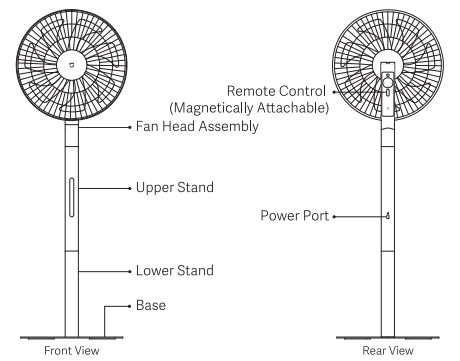
From the front, the components from top to bottom are the fan head assembly, the upper stand, the lower stand, and the base.
From the rear, the components from top to bottom are the magnetically attachable remote control and the power port.
For the touch control panel of the Mijia Smart Standing Fan Pro Slim, please refer to the image below:
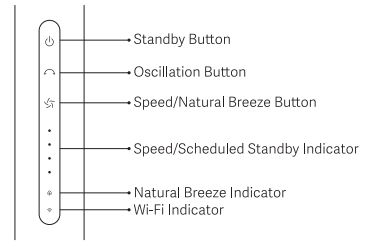
From top to bottom, the panel includes the Standby button, Oscillation button, Speed/Natural breeze button, Speed/scheduled standby indicator, Natural breeze indicator, and Wi-Fi indicator.
Q2: How to install the Mijia Smart Standing Fan Pro Slim?
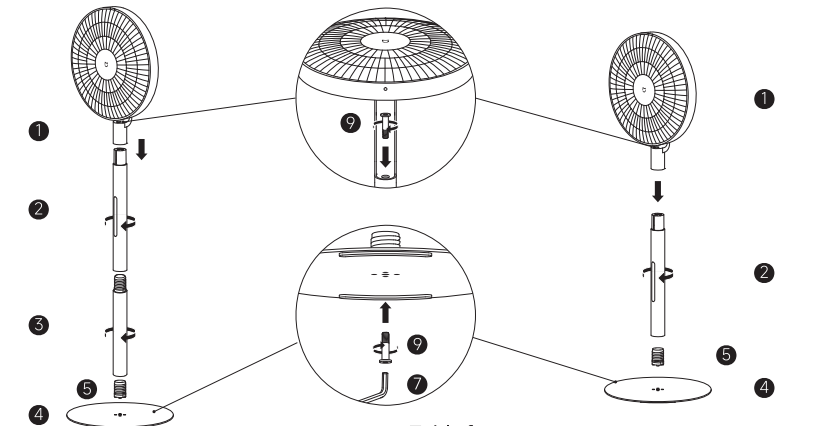
A: To install the Mijia Smart Standing Fan Pro Slim, please refer to the following steps:
Standing fan mode:
1. Install the base connector onto the base, and then screw the M8 bolt with the Allen key from the underside (with the rubber pad side) of the base.
2. Tighten the lower stand onto the base connector.
3. Tighten the upper stand onto the lower stand.
4. Install the fan head assembly onto the upper stand. Hold the stand and lift the fan head to make it level with the ground, and then screw the M8 bolt with the Allen key.
Table fan:
1. Install the base connector onto the base, and then screw the M8 bolt with the Allen key from the underside (with the rubber pad side) of the base.
2. Tighten the upper stand onto the base connector.
3. Install the fan head assembly onto the upper stand. Hold the stand and lift the fan head to make it level with the ground, and then screw the M8 bolt with the Allen key.
Q3: How to turn on or off the Mijia Smart Standing Fan Pro Slim?
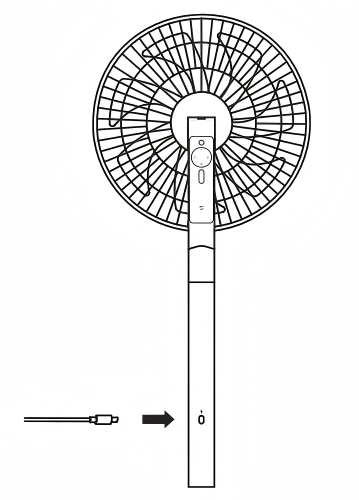
A: Connect the power adapter to the Mijia Smart Standing Fan Pro Slim’s power port, then plug it into a power outlet that meets the local standards. Once you hear a “beep” sound, the fan has successfully connected to the power supply.
Q4: What functions do the buttons of the Mijia Smart Standing Fan Pro Slim have?
A: The Mijia Smart Standing Fan Pro Slim has three buttons: the Standby button, the Oscillation button, and the Speed/Natural breeze button.
Please refer to the following instructions:
1. Standby button: Tap the Standby button to turn the fan on. When the fan is running, tap the Standby button again to stop it.
2. Speed/Natural breeze button: Tap this button to switch the fan speed. The corresponding airflow indicator will stay on. When the speed is set to Slow (1), 1 indicator will be on, for Medium (2), 2 indicators will be on, for Fast (3), 3 indicators will be on, and for Turbo (4), 4 indicators will be on.
Note:
The next time the fan is turned on, it will remember the fan speed used before the previous standby.
Hold and press the Speed/Natural breeze button to switch between Direct mode and Natural breeze mode. In Natural breeze mode, the Natural breeze indicator stays on, while in Direct mode, the indicator is off.
3. Oscillation button: Tap the Oscillation button to turn the oscillation function on or off.
Note:
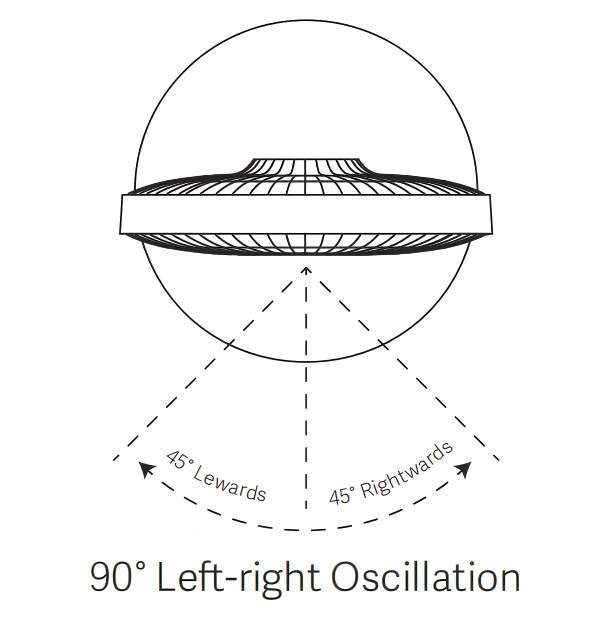
1. You can set the oscillation range to 30°, 60°, or 90° in the Xiaomi Home App.
2. After a power outage, the first time you turn on the oscillation function, the fan will enter the oscillation angle calibration mode. Calibration lasts up to 14 seconds, after which the fan returns to normal oscillation.
4. Child lock: Press and hold both the Speed/Natural breeze button and the Oscillation button simultaneously for 7 seconds to enable or disable the child lock. You can also disable the child lock by unplugging the power.
Note:
When the child lock is enabled, any button or remote control operation will cause all indicators to flash twice and the buzzer to sound two “beeps,” but the fan will not respond to button presses.
5. Reset Wi-Fi: Press and hold both the Standby button and the Speed/Natural breeze button for 7 seconds. Once you hear a long “beep,” the Wi-Fi has been reset and the fan enters pairing mode.
Note:
Wi-Fi reset is required in the following cases:
1. Changing the Xiaomi Home App account bound to the fan.
2. Changing the router the fan is connected to.
3. Changing the router’s account or password.
4. When the Xiaomi Home App cannot control the fan.
5. Re-pairing the remote control.
Q5: What are the statuses of the Wi-Fi indicator on the Mijia Smart Standing Fan Pro Slim?
A: The Wi-Fi indicator on the Mijia Smart Standing Fan Pro Slim displays different statuses as follows:
1. When the fan is awaiting a Wi-Fi connection, the Wi-Fi indicator blinks in white slowly.
2. When the fan is connecting to the Wi-Fi, the Wi-Fi indicator blinks in white quickly.
3. When the fan is connected to the Wi-Fi, the Wi-Fi indicator stays solid white.
4. When the fan fails to connect to the Wi-Fi, the Wi-Fi indicator blinks in white slowly.
5. When the fan's Wi-Fi connection times out, the Wi-Fi indicator turns off.
Q6: Does the Mijia Smart Standing Fan Pro Slim support upward and downward oscillation?
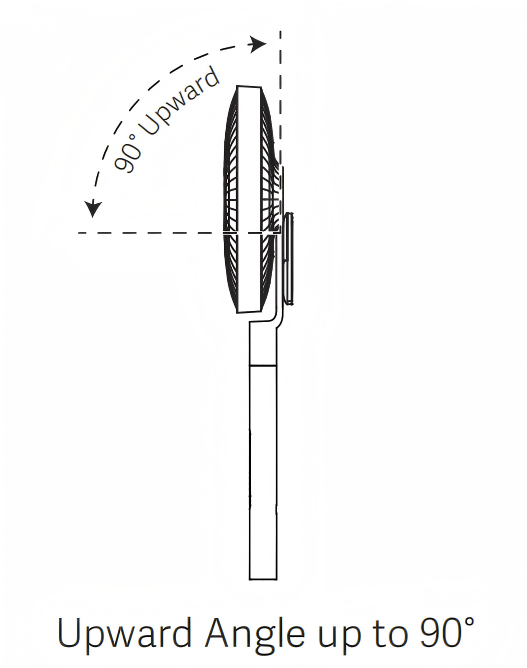
A: The Mijia Smart Standing Fan Pro Slim supports manual upward oscillation up to 90°, but it does not support downward oscillation.
Q7: How to adjust the airflow angle up and down on the Mijia Smart Standing Fan Pro Slim?
A: To adjust the airflow angle upward, gently lift or press the fan head or the grille. The fan does not support downward adjustment beyond its normal angle.
Q8: Does the Mijia Smart Standing Fan Pro Slim support power-off memory?
A: The Mijia Smart Standing Fan Pro Slim supports power-off memory. When you turn it on again, it will retain the previous settings, including mode, oscillation, and fan speed.
Q9: How to move the Mijia Smart Standing Fan Pro Slim?
A: To move the Mijia Smart Standing Fan Pro Slim, hold the stand securely and move it slowly.
Note:
Before moving, unplug the power adapter and ensure that the stand and base are securely fastened with bolts.
Q10: Can the height of the Mijia Smart Standing Fan Pro Slim be adjusted?
A: The height of the Mijia Smart Standing Fan Pro Slim cannot be further adjusted beyond the existing single or dual-rod configuration. It only supports the pre-set single or dual-rod setup.
Q11: Can the Mijia Smart Standing Fan Pro Slim be used in the kitchen to remove cooking fumes?
A: The Mijia Smart Standing Fan Pro Slim cannot remove cooking fumes. It cannot completely exhaust the smoke from the kitchen. Using the fan in areas with heavy smoke can result in oil residue accumulating on the fan blades, grille, or base, which can cause damage, discoloration, or odors. Misuse in this way will void the warranty.
Q12: Can the Mijia Smart Standing Fan Pro Slim be modified for other uses?
A: Any form of modification for the Mijia Smart Standing Fan Pro Slim is strictly prohibited. Modifying the fan can affect its safety and normal functionality and will void the warranty.
Q13: How to clean the Mijia Smart Standing Fan Pro Slim?
A: Wipe the Mijia Smart Standing Fan Pro Slim body with a clean, soft, damp cloth. To clean the fan blades, you can unscrew the screws on the grille to remove the blades, then wash them with water directly or wipe them with a clean, soft, damp cloth.
Note:
1. Always turn off the fan and unplug it from the power supply before cleaning. Make sure all cleaned parts are completely dry before reassembling.
2. Do not disassemble the main body of the standing fan yourself.
3. Do not allow water to enter the interior of the fan.
4. Do not use chemical agents such as thinners, light gasoline, toluene, acidic detergents, kerosene, or alcohol for cleaning.
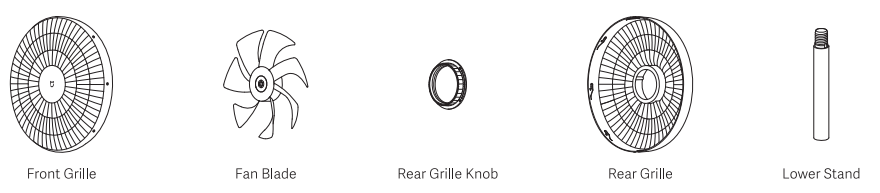
Clean the following parts with a soft cloth or sponge dipped in clean water or diluted neutral detergent:
1. Front grille.
2. Fan blade.
3. Rear grille knob.
4. Rear grille.
5. Lower stand.
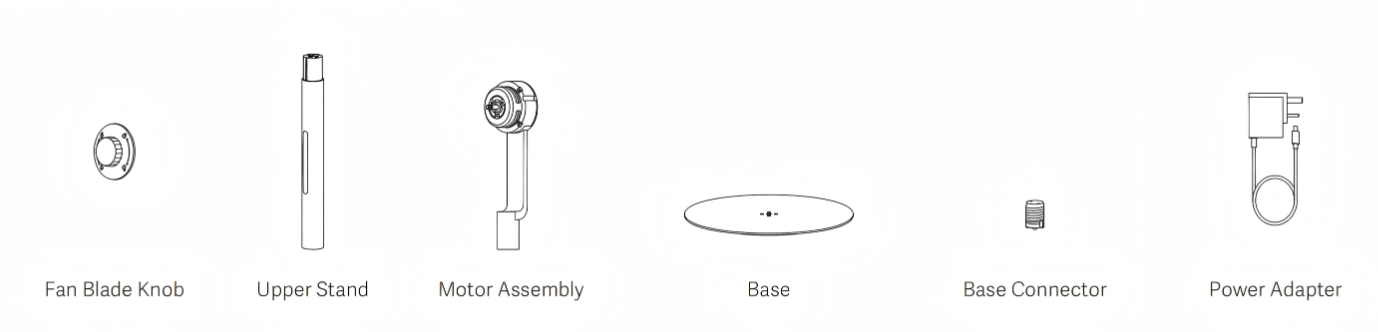
Wipe the following parts gently with a soft dry cloth:
1. Fan blade knob.
2. Upper stand.
3. Motor assembly.
4. Base.
5. Base connector.
6. Power adapter.
Note:
1. Do not rinse non-washable parts.
2. Do not use thinner or light gasoline to clean any parts.
Remote Control
Q1: How to pair the Bluetooth remote control with the Mijia Smart Standing Fan Pro Slim?
A: When pairing the remote control with the Mijia Smart Standing Fan Pro Slim for the first time, a Wi-Fi reset is not required. If the connection fails after multiple attempts, you need to reset the fan’s Wi-Fi. To do this, press and hold the Standby button and the Speed/Natural breeze button on the fan simultaneously for 7 seconds. Once you hear a “beep” and the Wi-Fi indicator starts blinking quickly, the Wi-Fi reset is successful.
Before pairing, make sure the remote control has batteries installed and that they have sufficient power. Press and hold the Standby button and the “+” button on the remote control for 7 seconds, until all three indicators on the fan blink and a long “beep” is heard. Then, press any button on the fan once. When you hear another long “beep,” the pairing is complete.
Note:
Each Bluetooth remote control must be paired with one Mijia Smart Standing Fan Pro Slim only (one-to-one pairing).
Q2: How to place the remote control of the Mijia Smart Standing Fan Pro Slim?
A: The back of the Bluetooth remote control is magnetic and can be attached to the magnetic remote holder on the back of the Mijia Smart Standing Fan Pro Slim. It is not recommended to place it anywhere other than the fan body to avoid losing it if unused for a long period.
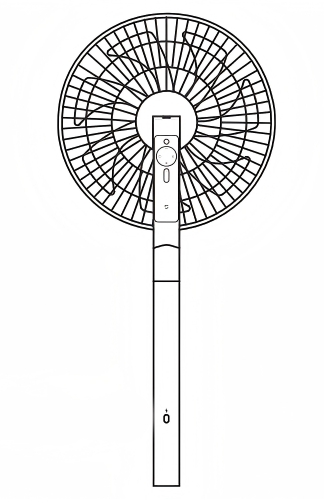
Note:
1. The fan’s magnetic holder contains a strong magnet and a metal plate, so please be cautious during daily use to avoid any accidental issues.
2. The remote control will only attach via its back. Placing the front of the remote against the magnetic holder will not work.
Q3: Why is the remote control of the Mijia Smart Standing Fan Pro Slim not equipped with batteries?
A: To ensure safe transportation, the remote control for the Mijia Smart Standing Fan Pro Slim does not come with batteries installed. The remote control requires two AAA alkaline batteries, which can be purchased locally according to the required specifications.
Note:
Both batteries must be of the same brand, model, and specifications. Mixing batteries is not allowed, as it can create safety risks.
Q4: What to do if the remote control of the Mijia Smart Standing Fan Pro Slim does not work?
A: If the remote control of the Mijia Smart Standing Fan Pro Slim does not work, please check the following information:
1. Ensure that batteries are installed (The remote control does not come with batteries, please use two AAA alkaline batteries).
2. Check that the batteries are not exhausted and are installed correctly. Replace with new batteries if necessary.
3. If the fan’s Wi-Fi has been reset, the pairing between the fan and the remote control will be cancelled. After resetting, press and hold the Standby button and the “+” button on the remote for 7 seconds, until all the fan’s indicators blink and a long “beep” is heard. Then, press any button on the fan once. When you hear another long “beep,” the pairing is complete. You can now try operating the fan with the remote control again.
4. Check that the remote control and the fan are not too far apart and that there are no devices causing interference.
5. If the above steps do not resolve the issue, please contact your local after-sales center for further assistance.
Q5: What happens if you force a re-pairing of the remote control while it is already paired with the Mijia Smart Standing Fan Pro Slim?
A: If the remote control is already paired with the Mijia Smart Standing Fan Pro Slim and you press and hold the Standby button and the “+” button for 7 seconds, the remote control will start searching for nearby devices. During this time, the fan will not respond to commands. After about 5 seconds, the fan will automatically reconnect to the remote, and normal operation will be restored.
Xiaomi Home App
Q1: How to remotely control the Mijia Smart Standing Fan Pro Slim using a phone?
A: Scan the QR code on the User Manual included with the Mijia Smart Standing Fan Pro Slim or install the "Xiaomi Home" App from your App store. Bind it with your Xiaomi Account. Ensure your home's 2.4 GHz Wi-Fi is working normally. Connect your phone to this Wi-Fi, power on the fan, and open the "Xiaomi Home" App. The App will automatically search for nearby smart devices and prompt you.
Alternatively, manually add a device by tapping the plus icon in the top right corner of the Xiaomi Home App. Follow the prompts to add the Mijia Smart Standing Fan Pro Slim. Once added, you can control the fan's power, mode switching, etc., via the App. Subsequently, as long as the fan is powered on and connected to the network normally, you can also control it remotely through the Xiaomi Home App.

Q2: What are the network connection considerations for the Mijia Smart Standing Fan Pro Slim?
A: The Mijia Smart Standing Fan Pro Slim supports network control and is compatible with most personal routers on the market.
Please note the following requirements for the router's wireless network:
1. The Mijia Smart Standing Fan Pro Slim can only connect to a 2.4 GHz Wi-Fi network. It does not currently support 5 GHz Wi-Fi networks.
2. The Wi-Fi encryption method must be WPA or WPA2. WEP is not supported.
3. The router must have DHCP enabled. Specifying a static IP is not supported, nor is web page authentication and enterprise-oriented 802.1X.
Note:
If you want to control the Mijia Smart Standing Fan Pro Slim remotely, please download the Xiaomi Home App.
Q3: How to connect the Mijia Smart Standing Fan Pro Slim to the Xiaomi Home App?
A: When first powered on, the Mijia Smart Standing Fan Pro Slim's Wi-Fi is turned off by default. To enable the Wi-Fi function, press and hold the Standby button and the Oscillation button simultaneously for 7 seconds. After a reset, the Wi-Fi is in the default "waiting to connect" state, indicated by the Wi-Fi indicator flashing in white slowly. If the fan fails to connect to Wi-Fi within 30 minutes, you need to reset the Wi-Fi function by pressing and holding the Standby button and the Speed/Natural breeze button for 7 seconds.
To connect the Mijia Smart Standing Fan Pro Slim to the Xiaomi Home App, please open the Xiaomi Home App on your phone. If you haven't downloaded it, you can scan the Xiaomi Home App QR code on the User Manual or search for and download the Xiaomi Home App from your App store. After downloading, tap to log in or register. Before connecting, enable your phone's Wi-Fi, Bluetooth, and location services.
Once in the App, power on the fan. On its first startup, the Wi-Fi function defaults to the "waiting to connect" state, indicated by the Wi-Fi indicator flashing quickly. At this point, a new device connection pop-up window should appear in the App. If it doesn't, you can also tap the plus icon in the top right corner of the home page, select [Add device] and then scroll down to find your fan's model for connection. Tap to select the Wi-Fi network you want to connect to. The selected network must be the same as the one your phone is connected to and must be a 2.4 GHz network. After selecting, enter the Wi-Fi password and tap [Next]. Once the Wi-Fi connection is successful, select the room where the fan is located and follow the steps to complete the setup.
Q4: How to turn on or off the notification sound on the Mijia Smart Standing Fan Pro Slim?
A: To turn on or off the notification sound of the Mijia Smart Standing Fan Pro Slim, please refer to the following steps:
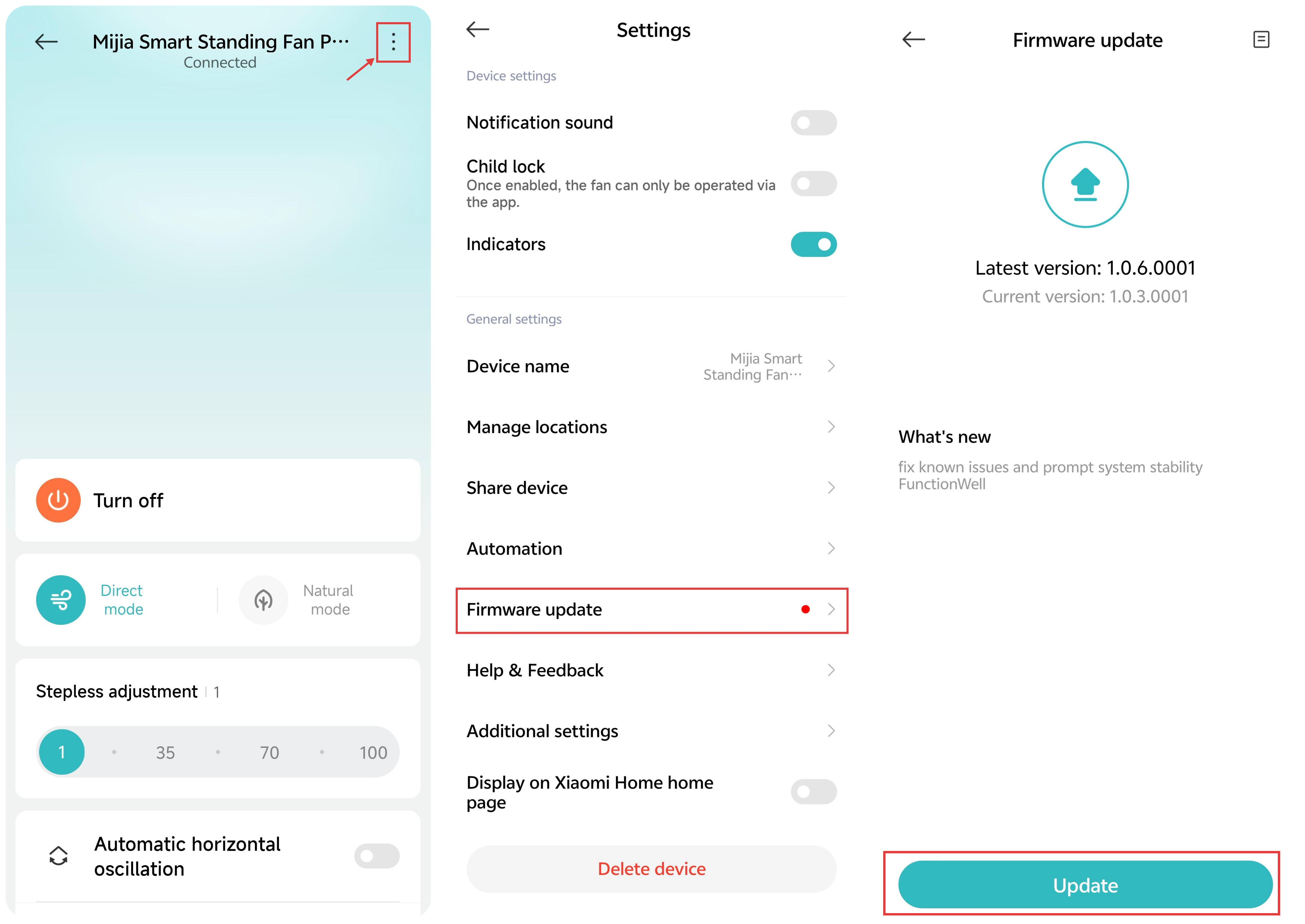
1. After entering the device card, tap the three dots icon in the upper right corner.
2. Enable or disable [Notification sound].
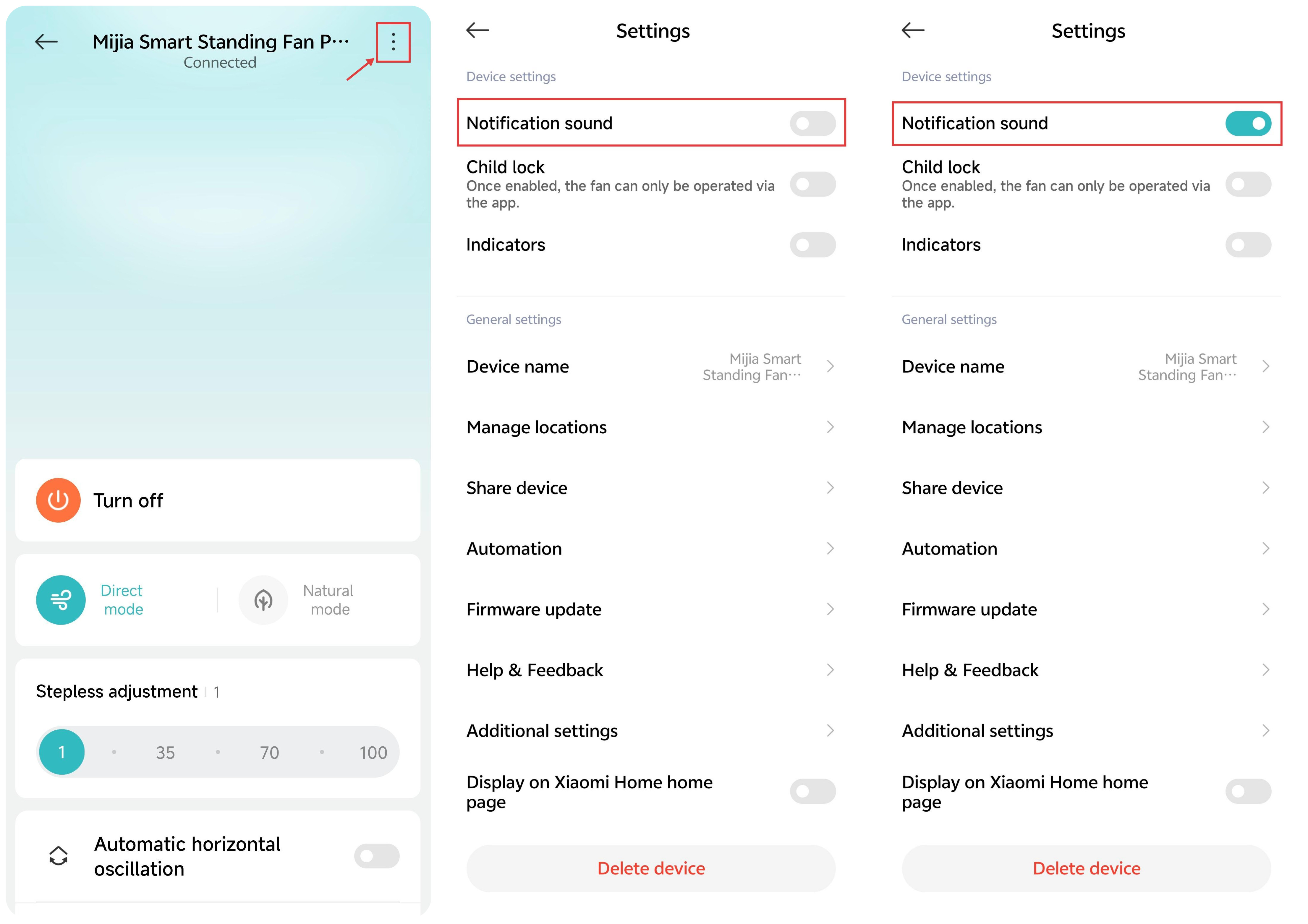
Note:
The Mijia Smart Standing Fan Pro Slim does not support voice broadcast functionality.
Q5: How to turn on or off the indicators on the Mijia Smart Standing Fan Pro Slim?
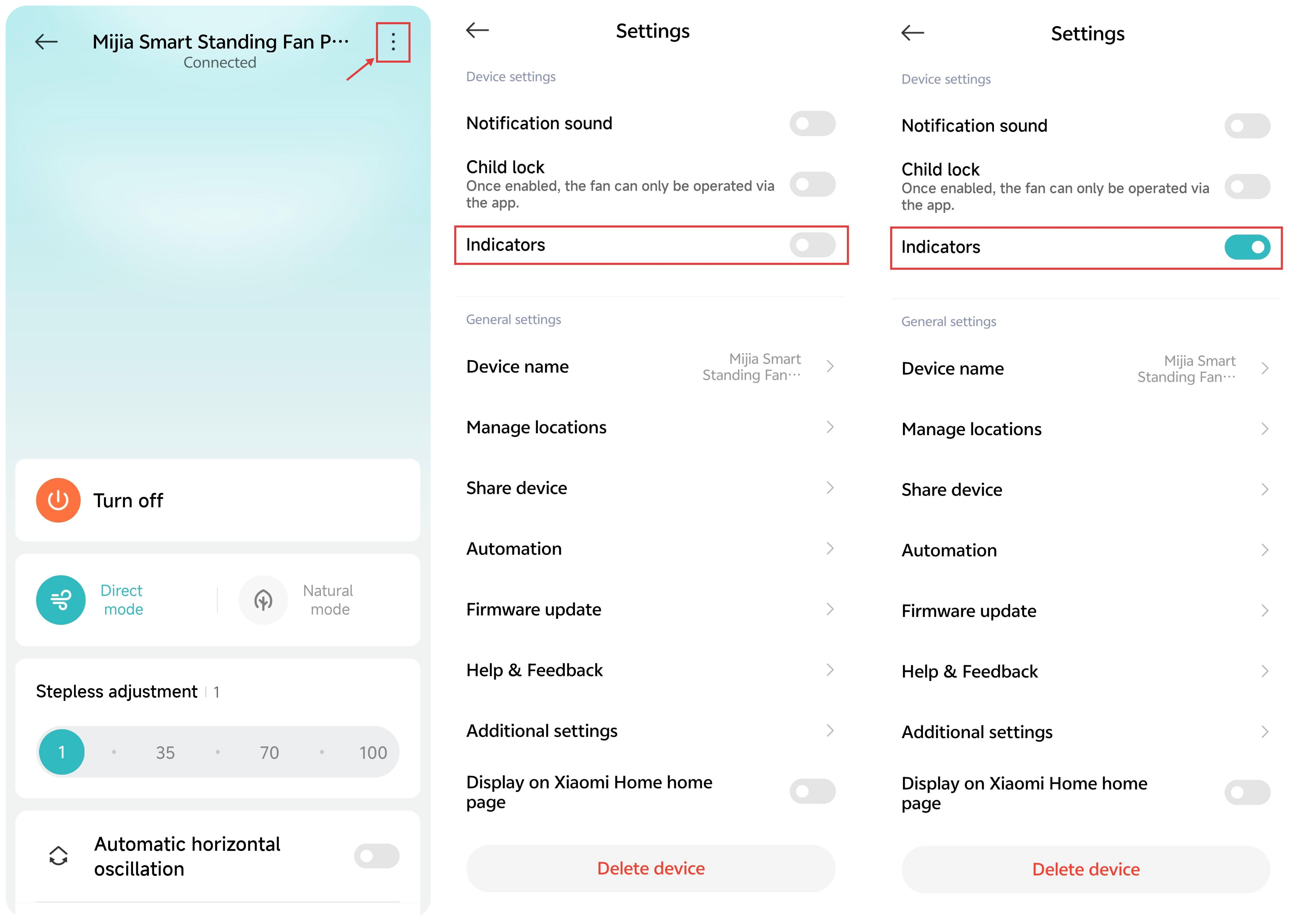
A: To turn on or off the indicators of the Mijia Smart Standing Fan Pro Slim, please refer to the following steps:
1. After entering the device card, tap the three dots icon in the upper right corner.
2. Enable or disable [Indicators].
Q6: How to turn on or off the child lock on the Mijia Smart Standing Fan Pro Slim?
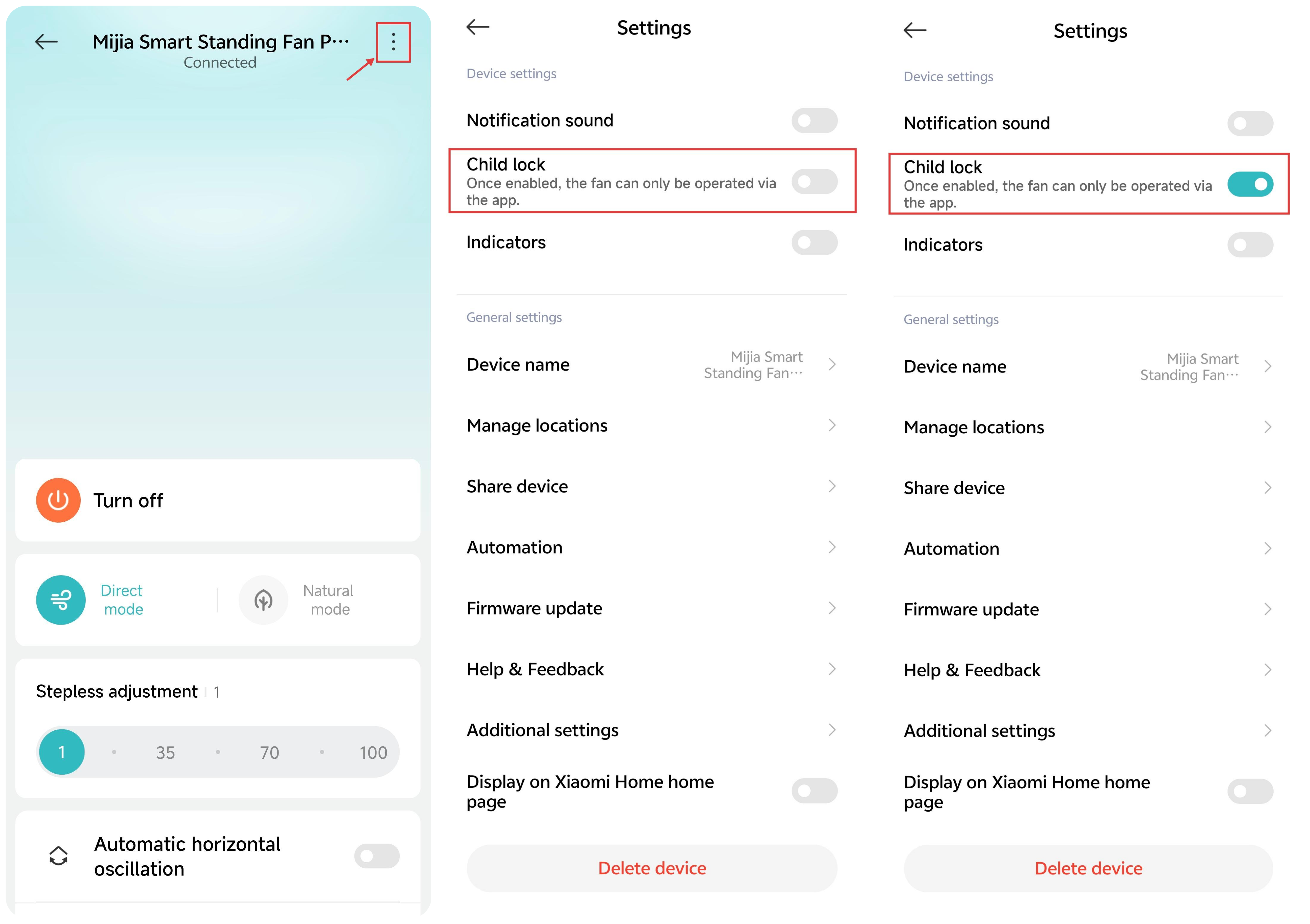
A: To turn on or off the child lock of the Mijia Smart Standing Fan Pro Slim, please refer to the following methods:
Method 1:
1. After entering the device card, tap the three dots icon in the upper right corner.
2. Enable or disable [Child lock].
Method 2:
Press and hold the Speed/Natural breeze button and the Oscillation button simultaneously for 7 seconds until you hear a long “beep.” The child lock on the Mijia Smart Standing Fan Pro Slim will be enabled.
After the child lock is enabled, pressing any button will cause all indicators to blink twice, and the buzzer will beep twice (no sound if the notification sound is turned off). The fan will not respond to button operations.
To disable the child lock, press and hold the Speed/Natural breeze button and the Oscillation button again for 7 seconds until a long “beep” is heard. Unplugging the power cord can also disable the child lock on the Mijia Smart Standing Fan Pro Slim.
Note:
When the child lock is enabled, the Mijia Smart Standing Fan Pro Slim cannot be controlled via touch buttons or the remote control. Control is only available through the Xiaomi Home App.
Q7: Does the Mijia Smart Standing Fan Pro Slim support firmware updates?
A: The Mijia Smart Standing Fan Pro Slim supports firmware updates.
To check for updates for the Mijia Smart Standing Fan Pro Slim, please refer to the following steps:
1. After entering the device card, tap the three dots icon in the upper right corner.
2. Enter [Firmware update]. If a new firmware version is available, tap [Update] to complete the upgrade.
FAQs and Troubleshooting
Q1: Why does the Mijia Smart Standing Fan Pro Slim only support speed levels 1–2 and cannot switch to speed levels 3–4?
A: If the Mijia Smart Standing Fan Pro Slim cannot switch to speed levels 3–4, please refer to the following:
1. Check whether the power adapter you are using meets the required specifications: 12 V operating voltage and 18 W output power. If it does not, the fan will not be able to reach speed levels 3–4.
2. Ensure that the Type-C plug of the adapter is fully inserted. If it is not properly connected, the fan can only receive 5 V low-voltage power and can only operate at speed levels 1–2. Try inserting the Type-C plug both ways to make sure it is fully connected.
3. If you are using a power bank, make sure it supports QC or PD protocols and outputs at least 18 W, including 12 V voltage. If not, the speed levels 3–4 can not be reached.
4. If the supplied adapter is faulty but another non-standard adapter above 18 W works correctly, the issue is with the original adapter.
5. If neither the supplied adapter nor another adapter above 18 W can adjust the speeds, please contact your local after-sales center for further assistance.
Q2: Why does the Mijia Smart Standing Fan Pro Slim respond slowly when oscillating?
A: When the Mijia Smart Standing Fan Pro Slim is powered on for the first time, after a reset, or when the oscillation function is turned on, the fan will enter the oscillation angle calibration mode. Calibration takes up to 14 seconds, after which the fan will operate normally.
Note:
Manually moving the fan left or right by hand will also trigger the 14-second calibration process.
Q3: Why does the Mijia Smart Standing Fan Pro Slim always show offline or fail to connect to Wi-Fi?
A: If the Mijia Smart Standing Fan Pro Slim always shows offline or cannot connect to Wi-Fi, please check the following:
1. Make sure the fan is powered on and operating normally.
2. Ensure that your Wi-Fi network is working properly.
3. If the fan has been offline for more than 30 minutes, reset the Wi-Fi. Also, check that your router is using the 2.4 GHz frequency band, as 5 GHz networks are not supported.
4. Unplug the fan from power, wait 10 seconds, and then plug it back in to allow the fan to discharge. Try resetting the Wi-Fi and reconnecting. When connecting, keep the fan within 1 meter of the router. After a successful connection, you can move the fan to its desired location.
5. Do not connect the fan through Wi-Fi extenders or powerline adapters, as this can cause connectivity issues.
Q4: Why can’t find the Mijia Smart Standing Fan Pro Slim in the Xiaomi Home App?
A: If you cannot find the Mijia Smart Standing Fan Pro Slim in the Xiaomi Home App, please refer to the following troubleshooting steps:
1. Make sure location services are enabled on your phone, and allow the Xiaomi Home App to access your location.
2. Confirm that the region selected in the Xiaomi Home App matches your actual location.
3. Ensure that the fan is powered on and properly connected to a compatible power source.
4. Make sure your mobile device is connected to a 2.4 GHz Wi-Fi network, as 5 GHz networks are not supported for device pairing.
5. Try restarting the Xiaomi Home App or logging out and back into your account.
6. Check that the fan is within close proximity (about 1 meter) to the router during the initial pairing process.
7. Avoid connecting the fan through Wi-Fi extenders, powerline adapters, or VPNs, which can prevent it from being discovered.
8. If the fan has been previously paired with another account or device, reset the fan’s Wi-Fi before attempting to add it again.
9. If the above steps do not resolve the issue, please contact your local Xiaomi after-sales service for further assistance.
Q5: Why does the firmware upgrade of the Mijia Smart Standing Fan Pro Slim fail?
A: If the firmware upgrade of the Mijia Smart Standing Fan Pro Slim fails, please refer to the following information:
1. Ensure that your mobile device has a stable internet connection.
2. Check that the fan is properly connected to a stable Wi-Fi network.
3. Reset the fan and reconnect it to the Xiaomi Home App, then try the firmware upgrade again.
4. Make sure the fan is within close range of the router (ideally within 1 meter) during the upgrade.
5. If the upgrade continues to fail, try restarting both the fan and your mobile device before attempting the update again.
6. If the issue persists, please contact your local after-sales service for further assistance.
Q6: What to do if the Mijia Smart Standing Fan Pro Slim can not be turned on?
A: If the Mijia Smart Standing Fan Pro Slim can not be turned on, please check the following steps:
1. Please confirm the power supply first. Ensure the fan is properly connected to a working power outlet. You can try plugging another electrical device into the same socket to confirm that the outlet is functioning normally. If a power strip is in use, please make sure it is switched on.
2. Check the power adapter and cable. Verify that the original power adapter is being used and that the cable is firmly connected to both the fan and the power source. If possible, you can also test with another compatible outlet to rule out external power issues.
3. Try turning on the fan using the physical button. Press the Standby button on the fan directly to check whether it responds. This helps determine whether the issue is related to the device itself or to other control methods.
4. If the fan is normally controlled via the Xiaomi Home App, please ensure the App is updated to the latest version and that your phone’s Bluetooth or Wi-Fi connection is stable. You can also try closing and reopening the App, then attempting to power on the fan again.
5. Restart the fan. Unplug the fan from the power source, wait for a while, then reconnect it and try turning it on again. This step can help clear temporary system issues.
6. If the issue persists, please contact your local after-sales service for further assistance.
Q7: What to do if the Mijia Smart Standing Fan Pro Slim makes unusual noises?
A: If the Mijia Smart Standing Fan Pro Slim produces unusual noises, please follow these steps:
1. Check whether the fan blade lock cover and rear grille lock cover are properly installed.
2. Ensure that the fan blades are installed correctly.
3. Check for any foreign objects blocking the fan blades or motor, which can cause the noise.
4. If the issue persists after the above checks, please contact your local after-sales service for inspection.
Q8: What to do if the Mijia Smart Standing Fan Pro Slim has an unusual smell?
A: If the Mijia Smart Standing Fan Pro Slim emits an unusual smell, please follow these steps:
1. Check the fan blades for oil or dirt causing the odor. If the smell is from the blades, clean them thoroughly, remove the odor, and let them dry before reassembling.
2. Check if any liquids or other substances have spilled on the fan’s exterior, which can cause an odor. If so, clean the exterior, plastic rods, and base.
3. Check whether the odor comes from the motor. If confirmed, remove the grille and fan blades, and gently wipe the motor shaft with a dry tissue to remove the odor.
4. Check whether the odor is coming from the packaging box.
5. If the issue persists after the above checks, please contact your local after-sales service for further inspection.
Q9: Why does the power adapter of the Mijia Smart Standing Fan Pro Slim get warm during use?
A: It is normal for the power adapter of the Mijia Smart Standing Fan Pro Slim to become slightly warm during use. This does not affect the safety or operation of the fan.
Q10: Why does the Mijia Smart Standing Fan Pro Slim turn on and off automatically while in standby?
A: First, check whether the timer function of the Mijia Smart Standing Fan Pro Slim is enabled. Then, verify whether the fan is being controlled remotely by someone else.
For example:
1. The fan is bound to the Xiaomi Home App and its control permission has been shared with another person. In this case, the fan can be operated remotely.
2. The fan is paired with a Bluetooth remote control, and someone else is using the remote control to control it.
If neither of the above applies, the issue can be caused by a loose power plug. Reinsert the power adapter securely to ensure a stable connection.
Q11: Why does the indicator of the Mijia Smart Standing Fan Pro Slim still turn on after being turned off?
A: When the indicator function is turned off on the Mijia Smart Standing Fan Pro Slim, the lights can remain on briefly. The indicator will turn off after pressing the button for approximately 5-10 seconds.
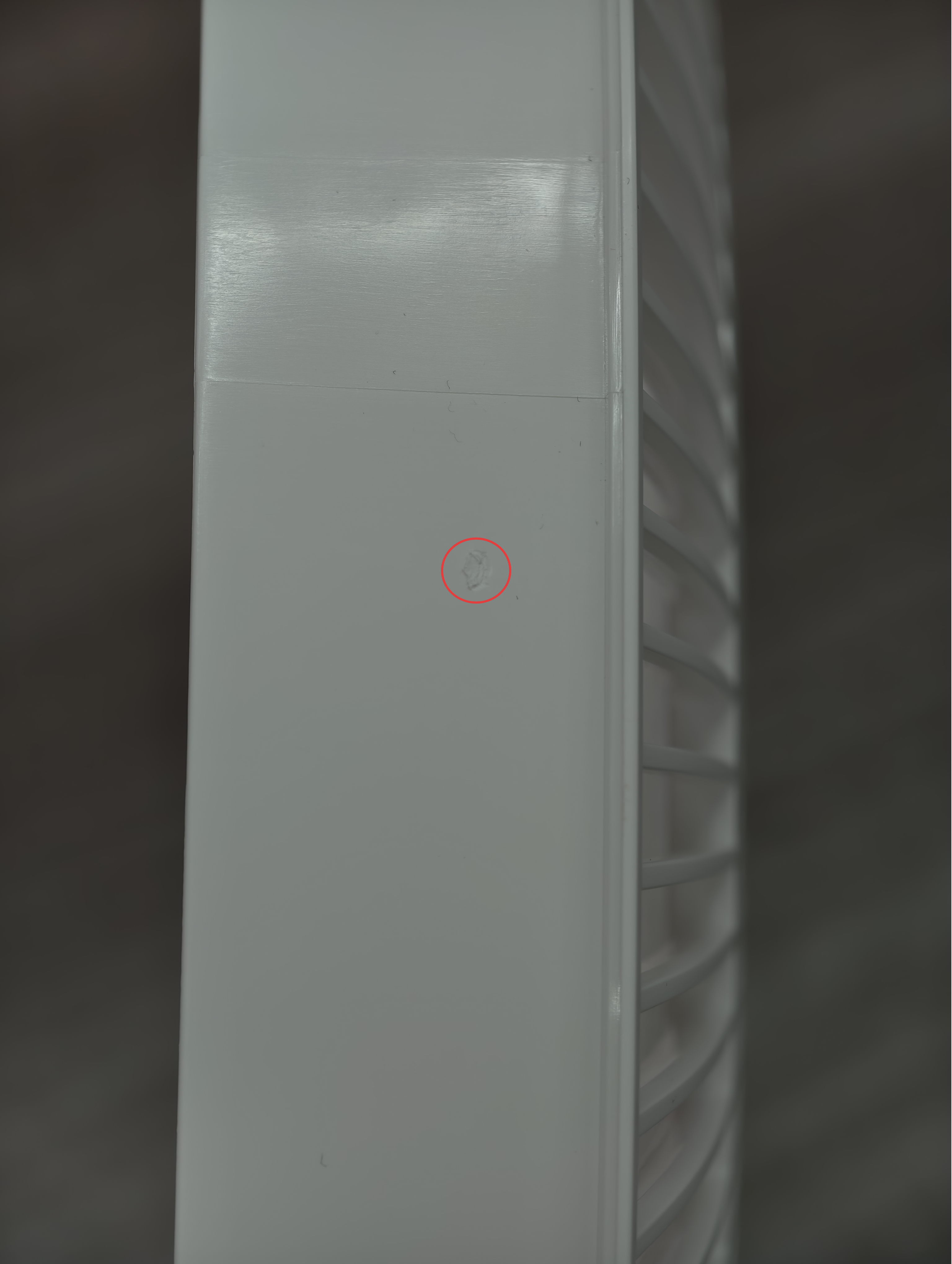
Q12: Why are there small marks on the front or rear grille of the Mijia Smart Standing Fan Pro Slim?
A: The marks on the Mijia Smart Standing Fan Pro Slim’s grille are gate marks left from the molding process during manufacturing. This is a normal production phenomenon and does not indicate damage. You can safely use the fan.
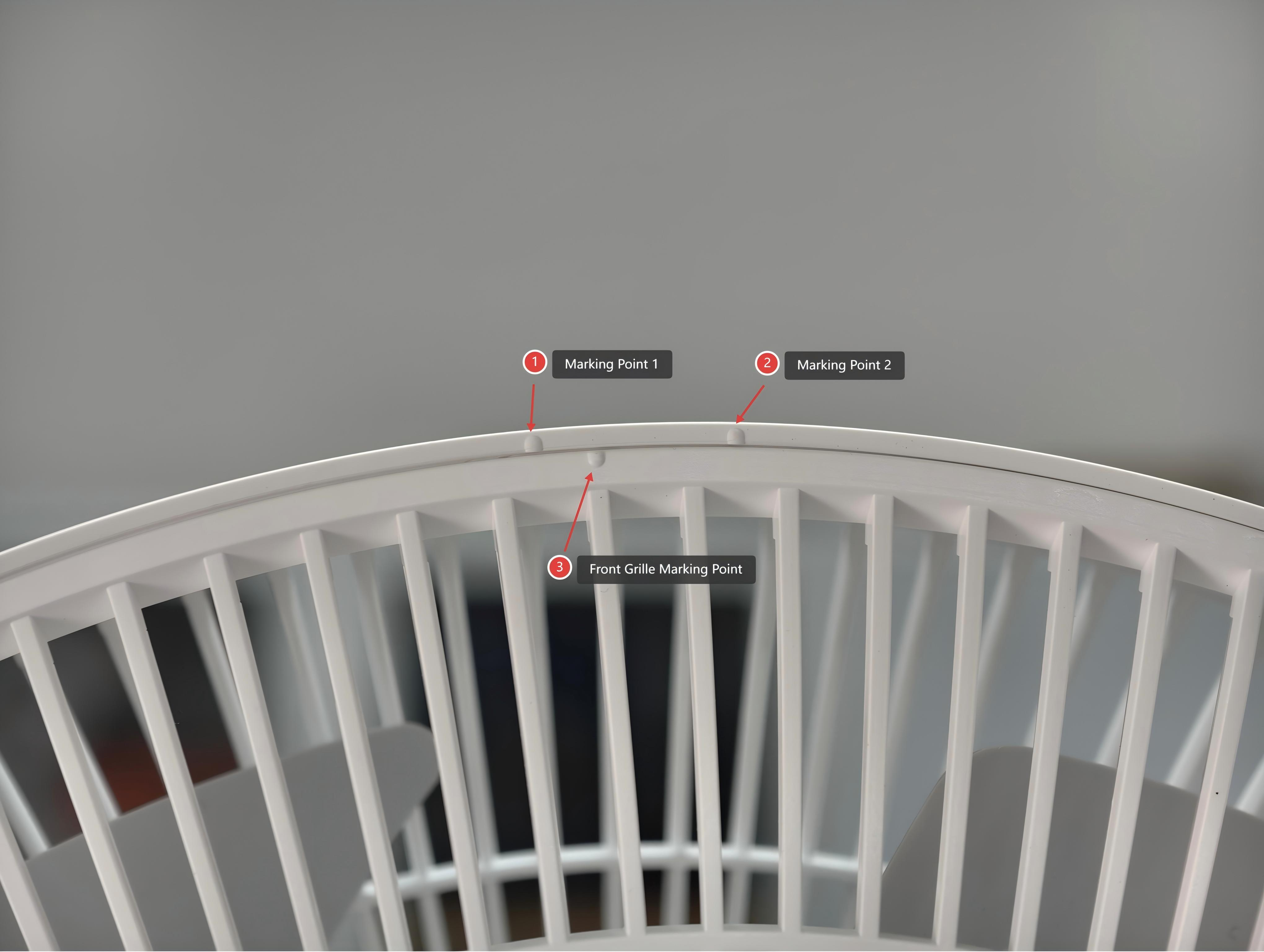
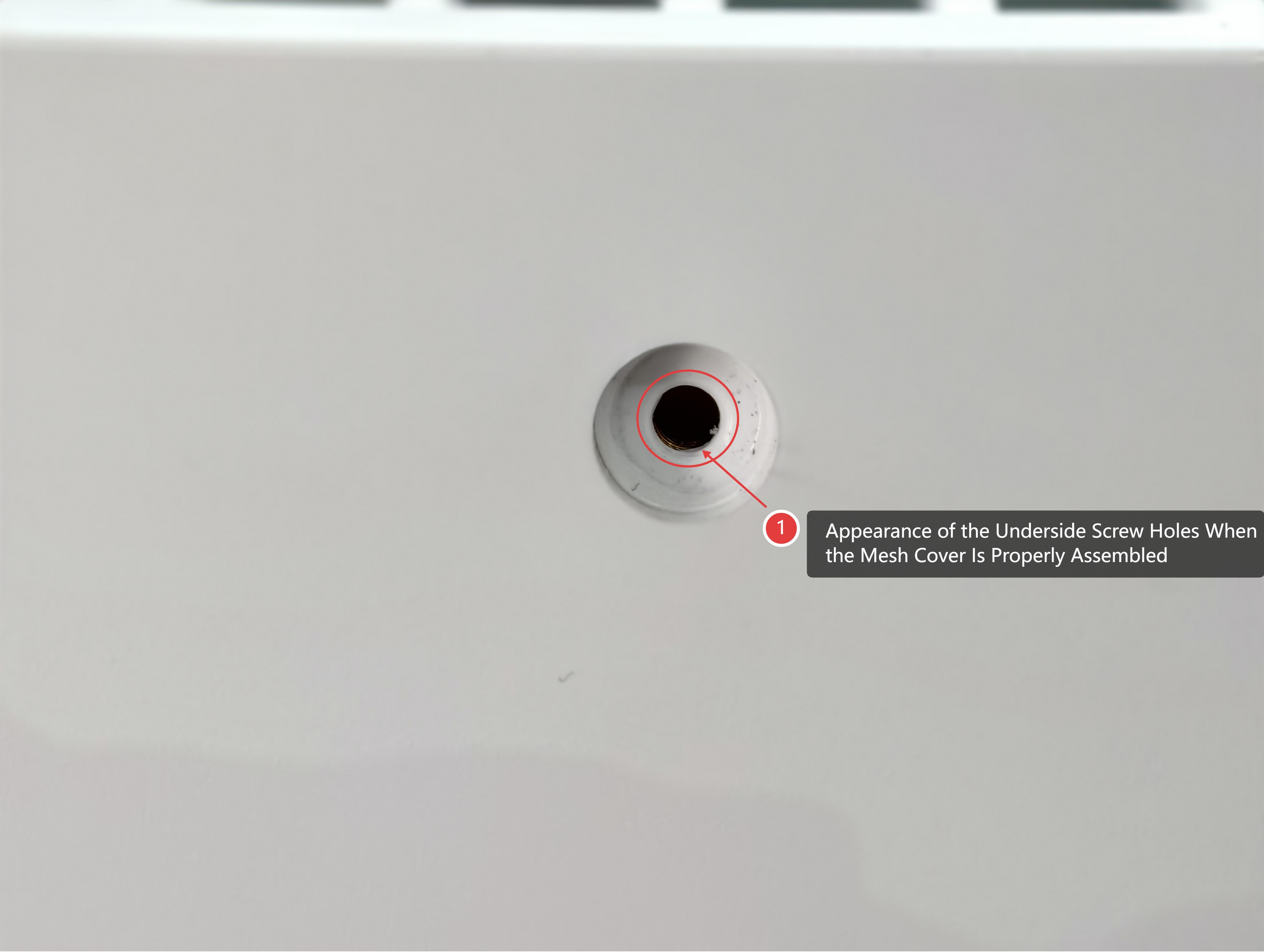
Q13: Why can’t the grille of the Mijia Smart Standing Fan Pro Slim be reinstalled after cleaning?
A: If the grille of the Mijia Smart Standing Fan Pro Slim cannot be reinstalled, it is likely that the alignment marks were not matched correctly. When assembling, make sure the mark on the front grille aligns with the first mark on the rear grille. Close the grille completely, then rotate the front grille to align with the second mark on the rear grille.
Q14: Why does the Mijia Smart Standing Fan Pro Slim shake noticeably when oscillating left and right?
A: When the Mijia Smart Standing Fan Pro Slim operates at high speed with the oscillation function enabled, slight shaking at the edges of the oscillation range is normal. Due to the fan’s slim design, minor inertial vibration can occur at the extremes. This has been optimized to be minimal, so it is safe to use.
If the shaking for the Mijia Smart Standing Fan Pro Slim is excessive when oscillating left and right, please check the following information:
1. Ensure the grille, fan blades, fan blade lock cover, and rear grille lock cover are properly installed.
2. Check that the bolts connecting the fan head to the plastic rod are correctly installed and tightened.
3. If the problem persists, please contact your local after-sales service for inspection.
Q15: Why can’t I manually adjust the oscillation direction via the Xiaomi Home App after initially binding the Mijia Smart Standing Fan Pro Slim?
A: After first binding the Mijia Smart Standing Fan Pro Slim to the Xiaomi Home App, manual adjustment of the left-right oscillation angle can not work. This is because the fan has not yet completed its oscillation angle calibration, and the automatic oscillation angle cannot be controlled at this stage. To resolve this, simply run a full left-right oscillation cycle once. After that, manual control of direction and fixed-angle automatic oscillation will function normally.
Does it help?
Yes
No