

How to use the camera on the POCO F6 as a document scanner?
The POCO F6 features the Documents mode in Camera, which is designed to help you scan and digitize physical documents efficiently. When this feature is enabled, it will display a shortcut whenever the AI camera detects a document or presentation slide.
To use the camera to scan a document, please refer to the following steps:
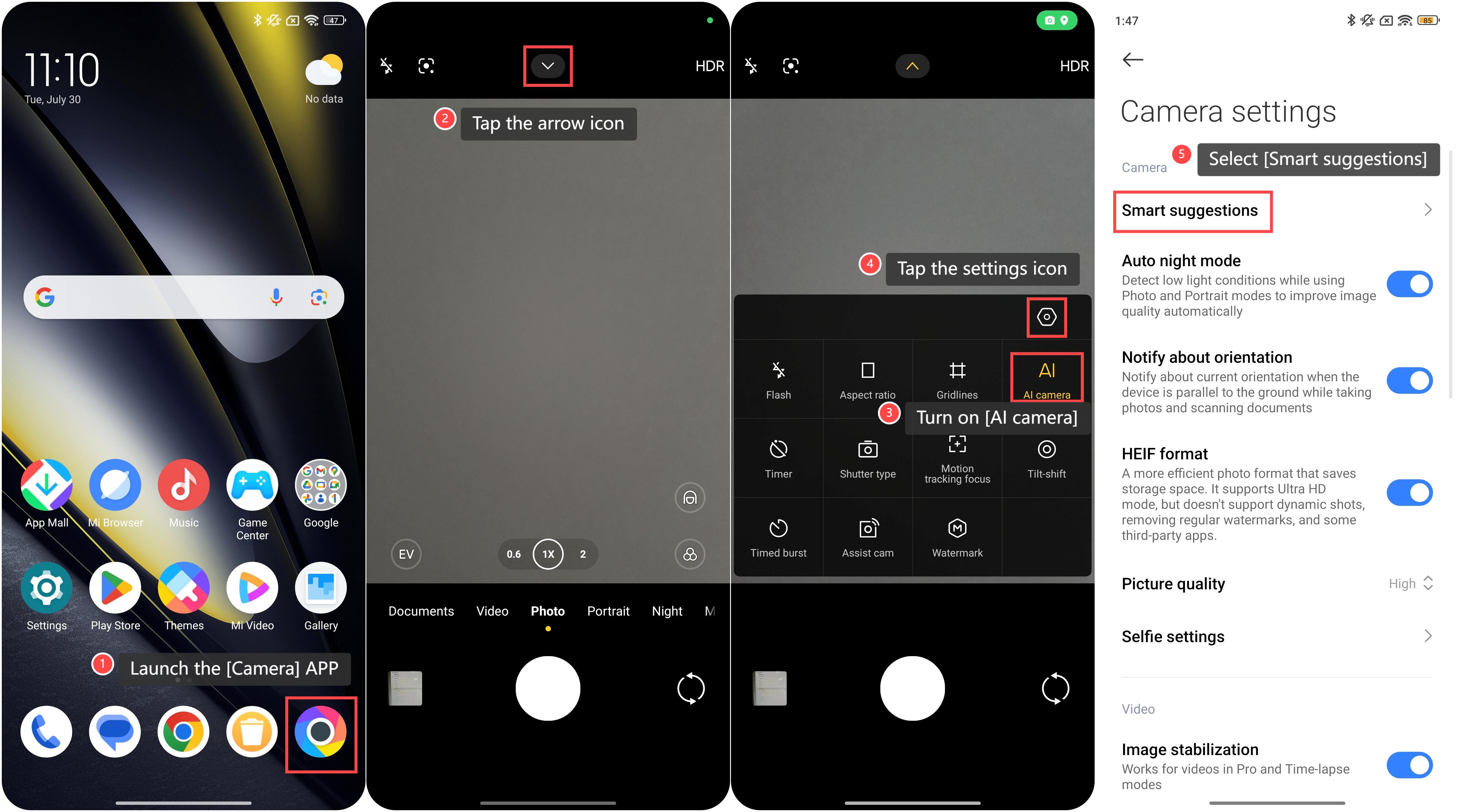
1. Launch the [Camera] APP;
2. Tap the arrow icon on the top of the interface;
3. Turn on [AI camera];
4. Then tap the settings icon at the upper right corner to enter the Camera settings;
5. Select [Smart suggestions];
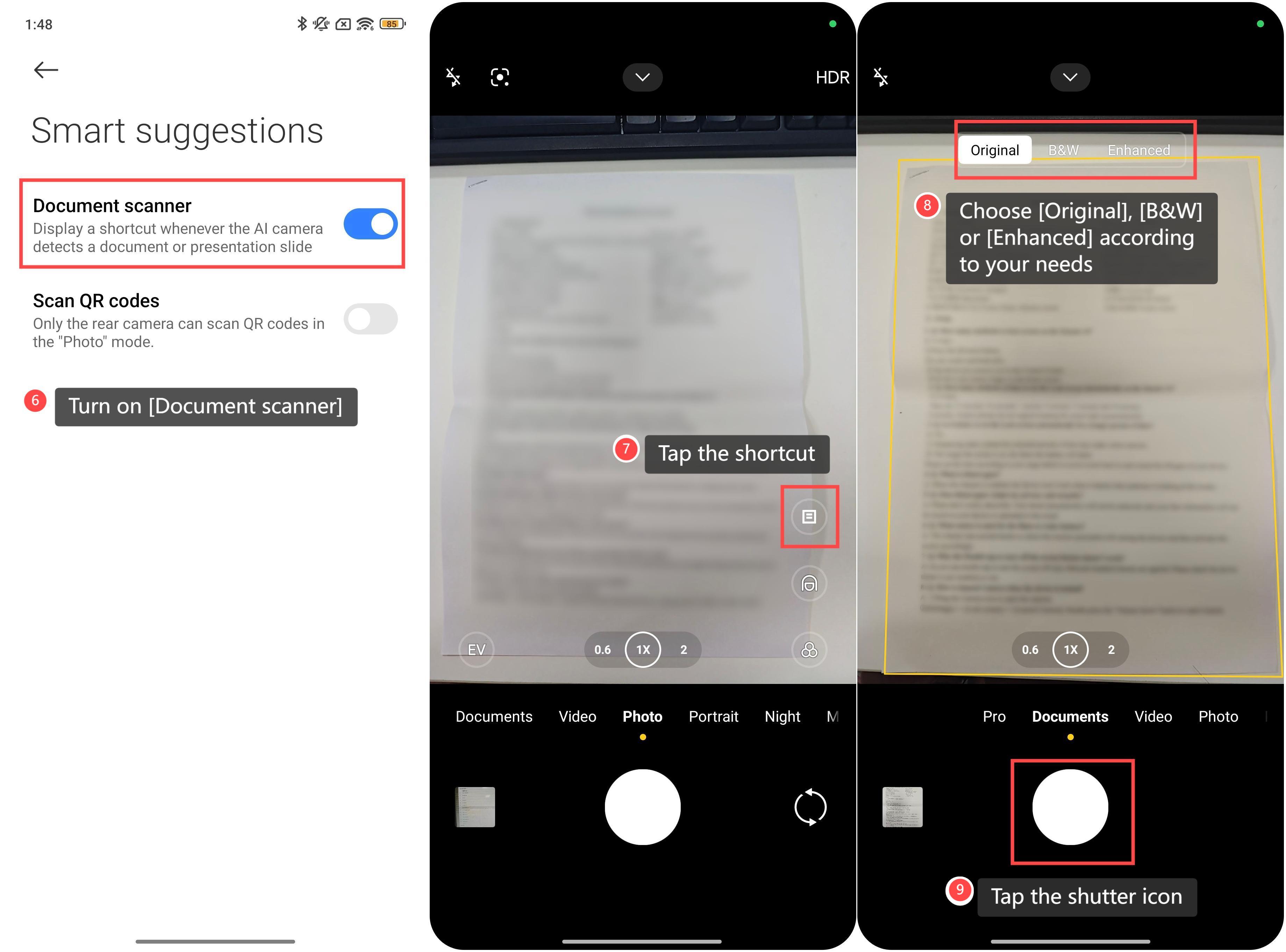
6. Turn on [Document scanner];
7. Place your document on a flat, well-lit surface, and hold your phone steady above the document. Your phone will display a shortcut when the AI camera detects a document. Tap the shortcut to switch to the Documents mode;
8. Align the document within the camera frame and ensure all edges are visible. You can choose [Original], [B&W] or [Enhanced] as different effects of your document according to your needs;
9. Tap the shutter icon to capture the document. After capturing, the scanned document will be saved to Gallery.
Friendly tips:
1. The Original option captures the document in its natural color and appearance without any alterations or enhancements;
2. The B&W option converts the document to a black-and-white (grayscale) image. This can make text stand out more clearly and can be especially useful for documents with a lot of text or when color is not needed;
3. The Enhanced option improves the clarity and readability of the document.
To use the camera to scan a document, please refer to the following steps:
1. Launch the [Camera] APP;
2. Tap the arrow icon on the top of the interface;
3. Turn on [AI camera];
4. Then tap the settings icon at the upper right corner to enter the Camera settings;
5. Select [Smart suggestions];
6. Turn on [Document scanner];
7. Place your document on a flat, well-lit surface, and hold your phone steady above the document. Your phone will display a shortcut when the AI camera detects a document. Tap the shortcut to switch to the Documents mode;
8. Align the document within the camera frame and ensure all edges are visible. You can choose [Original], [B&W] or [Enhanced] as different effects of your document according to your needs;
9. Tap the shutter icon to capture the document. After capturing, the scanned document will be saved to Gallery.
Friendly tips:
1. The Original option captures the document in its natural color and appearance without any alterations or enhancements;
2. The B&W option converts the document to a black-and-white (grayscale) image. This can make text stand out more clearly and can be especially useful for documents with a lot of text or when color is not needed;
3. The Enhanced option improves the clarity and readability of the document.
Does it help?
Yes
No